
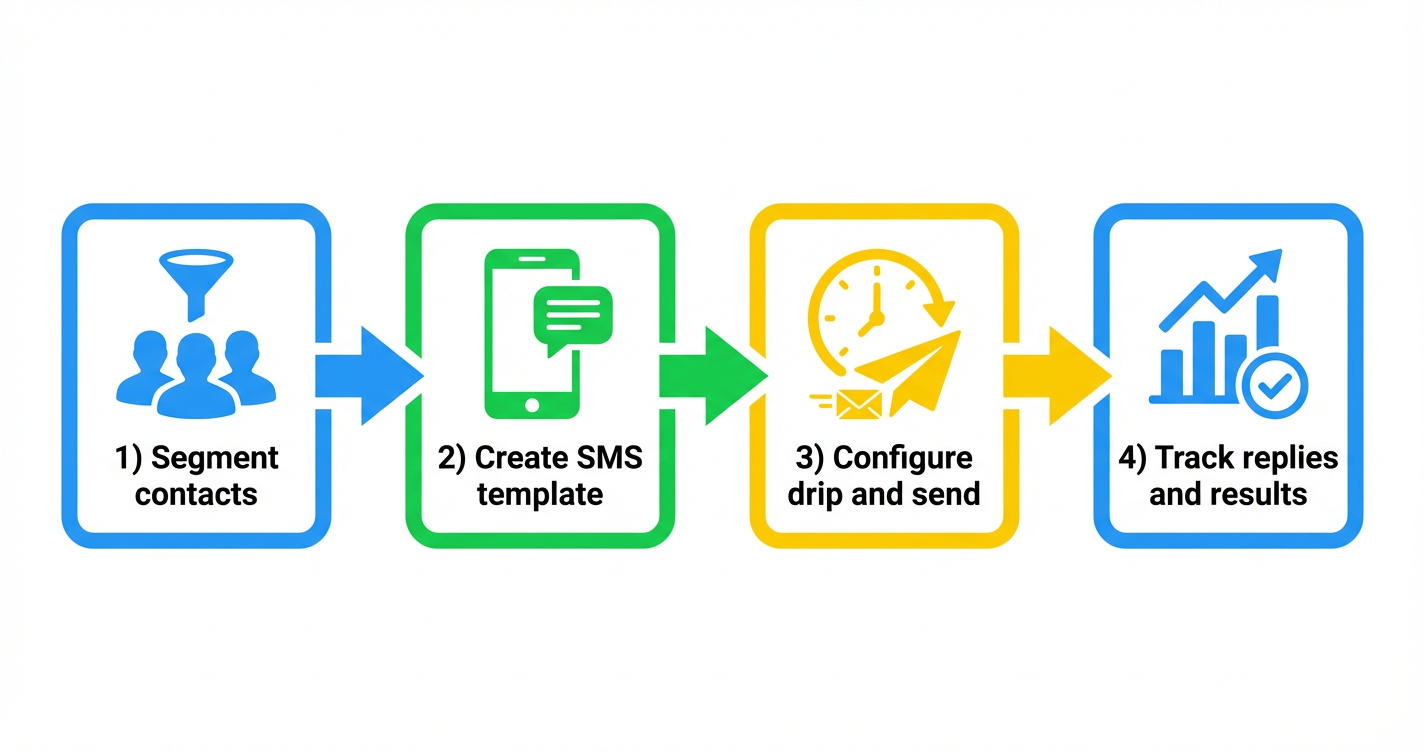
 GoHighLevel, covering segmentation, templates, bulk sending, monitoring, and automation.” title=”GoHighLevel SMS Campaign Launch Workflow”>
Launching an SMS campaign is one of the fastest ways to turn GoHighLevel into a real revenue channel—not just a CRM sitting in the background.
When you can send timely, personalized texts to the right segment, you can:
- Wake up old leads with a simple offer.
- Nudge warm prospects to book a call.
- Confirm appointments and reduce no‑shows.
- Drive quick spikes in sales around launches or promos.
This guide walks you through exactly how to launch an SMS campaign in GoHighLevel, from segmenting contacts and building templates to using drip mode, workflows, and best practices for deliverability.
Along the way, you’ll see where GoHighLevel does the heavy lifting—and where a partner like Revset Labs, an AI Automation and Marketing Agency, can help you design campaigns that actually turn messages into booked calls and revenue.
If you don’t yet have an account, you can follow along by starting a free GoHighLevel trial and testing these steps as you go.
Before you start: prerequisites for a healthy SMS campaign
Before you hit “Send SMS” on hundreds or thousands of contacts, make sure a few fundamentals are in place.
1. A clean, well‑structured contact list
You’ll get far better results if your contacts:
- Have valid mobile numbers in a consistent format (ideally with country code, e.g.
+1 555 123 4567). - Are tagged or segmented by source, interest, or lifecycle stage.
- Are stored as real contacts inside GoHighLevel (not just in a spreadsheet on someone’s laptop).
If you’re still building this foundation, pair this guide with:
- Getting Started: Create and Manage Contacts in GoHighLevel
- Getting Started: Import Existing Contacts into GoHighLevel
These articles help you get data into the right shape before you start messaging.
2. Phone and SMS set up correctly in GoHighLevel
To send campaigns reliably, you should already have:
- At least one SMS‑enabled phone number configured in Settings → Phone Numbers.
- Any required A2P 10DLC / messaging registration completed for your brand and use case.
- Basic communication settings in place from the broader guide on setting up email, phone & SMS in GoHighLevel.
3. Clear consent and compliance practices
For SMS, carriers and regulations expect that:
- Contacts have explicitly opted in to receive text messages from you.
- Your first message clearly identifies your business.
- Every campaign includes an easy opt‑out instruction (for example, “Reply STOP to unsubscribe”).
Handle these basics well and your deliverability will stay healthy as you scale.
If you’d rather have experts set this up, Revset Labs can help you configure numbers, registrations, and compliance workflows inside GoHighLevel.
Step 1 – Segment the right contacts for your SMS campaign
Great SMS campaigns start with who you send to, not just what you say.
In GoHighLevel, you’ll use Smart Lists and filters to isolate the right segment:
- Go to Contacts → Smart Lists.
- Either open an existing Smart List or click Create Smart List for this campaign.
- Add filters based on:
- Tags (e.g.
webinar-registrant,lead-magnet-subscribers). - Pipeline stage (e.g.
New Lead,Qualified). - Last activity (e.g. engaged in the last 90 days).
- Custom fields (e.g. industry, offer type, plan level).
- Tags (e.g.
- Make sure your filters exclude:
- Contacts marked as DND (Do Not Disturb).
- Contacts who have opted out of SMS.
Think in terms of intent:
- Who is most likely to respond right now?
- Who has already shown interest but hasn’t yet booked or bought?
A smaller, warmer segment almost always outperforms a giant cold blast.
Step 2 – Create reusable SMS templates with Snippets
Instead of rewriting every message from scratch, use Snippets to store reusable SMS templates.
- In the left menu, go to Marketing → Snippets.
- Click Add Snippet > Add Text Snippet.
- Give your snippet a clear name, such as:
sms-booking-reminder-24hrsms-reactivation-flash-offersms-webinar-starting-soon
- In the text area, write your SMS copy. Keep it:
- Short and conversational (ideally under 160–200 characters).
- Personalized using custom values like
{{contact.first_name}}. - Clear about the next step (for example, a booking link).
Example snippet for a re‑activation offer:
"Hey {{contact.first_name}}, it’s {{user.name}} from {{location.name}}. We’ve opened a few spots for "{{custom.offer_name}}" this week. Grab your spot here: {{custom.booking_link}}. Reply STOP to opt out."
- Click Save.
These snippets can now be pulled into Bulk SMS sends and workflows, keeping your messaging consistent and fast to deploy.
Step 3 – Launch a bulk SMS campaign from Contacts
With your list segmented and templates ready, you’re set to send a one‑time or short‑run bulk SMS campaign.
Step 3.1 – Select the right contacts
- Go to Contacts → Smart Lists and open the Smart List you prepared.
- Use the checkboxes to select:
- Individual contacts, or
- The entire filtered list using the top‑left master checkbox.
Confirm the total number of records selected in the toolbar—this is the audience for your campaign.
Step 3.2 – Open the bulk SMS composer
- With contacts selected, click the Send SMS icon (speech bubble) in the bulk actions bar.
- A confirmation prompt will appear; click Ok, proceed.
You’ll now see the bulk SMS configuration screen.
Step 3.3 – Configure sender, content, and drip mode
Here’s what to set up:
-
From number – Choose the GoHighLevel phone number you want to send from.
-
Message content – Either:
- Type your message directly, or
- Insert a saved Text Snippet and customize it.
Use custom values like:
{{contact.first_name}}{{appointment.start_time}}{{location.name}}
-
Drip Mode (optional but recommended) – Instead of sending everything at once, you can drip messages over time to protect deliverability and spread replies:
- Enable Drip Mode.
- Choose a batch size (for example, 50–200 contacts per batch).
- Set the interval (for example, every 5–15 minutes, or every 1 day for slow drips).
-
Review the Estimated Sends and any system warnings about opt‑outs or invalid numbers.
When everything looks good, click Send SMS to launch the campaign.
If you want to feel this inside your own account, start a GoHighLevel free trial, import a small test segment, and send a low‑risk campaign first.
Step 4 – Monitor, pause, or edit your SMS campaign in Bulk Actions
Once a campaign is live, you’ll manage it from the Bulk Actions area.
- Go to Contacts → Smart Lists.
- Click Bulk Actions (or the relevant tab) to see a list of recent bulk sends.
- For each campaign, you can review:
- Status (scheduled, in progress, completed).
- Total messages sent.
- Failures or errors.
- Basic engagement indicators (deliveries, replies where available).
- Use the three‑dot menu next to a campaign to:
- Pause or cancel future batches (for drip campaigns).
- Edit upcoming sends where supported.
If you spot an issue—like a typo or wrong segment—stop the campaign as soon as possible, correct your template or list, and relaunch.
Revset Labs often helps teams watch these early campaigns, tune timing, and standardize templates based on what performs.
Step 5 – Automate SMS sending with workflows
Bulk campaigns are great for one‑time pushes. For always‑on follow‑up, you’ll use Workflows.
Example: Trigger an SMS when a form is submitted
- Go to Automation → Workflows.
- Click Create Workflow > Create From Scratch or a relevant recipe.
- Add a Form Submitted trigger:
- Choose the exact form tied to your funnel or landing page.
- Under the trigger, click + Add Action → Send SMS.
- Choose the From number you set up earlier.
- Write your SMS or insert a snippet:
"Hey {{contact.first_name}}, thanks for requesting more info about {{custom.offer_name}}. You can book your call here: {{appointment.link}}. Reply STOP to opt out."
- (Optional) Add a Drip action before Send SMS if you expect heavy volume and want to pace messages.
- Add additional steps such as:
- Wait 1–2 days, then send a follow‑up SMS.
- If tag
booked-callis applied, stop the rest of the sequence. - Notify a user or move an opportunity into a pipeline stage.
- Click Publish when you’re ready.
From now on, every qualifying form submission will receive consistent SMS follow‑up—without anyone manually sending texts.
Other powerful SMS workflow triggers
You can use similar patterns for:
- Appointment booked – Send confirmation and reminder SMS.
- Appointment no‑show – Send a reschedule prompt.
- Tag applied (Hot Lead, Trial User) – Fire a short sequence encouraging a call or upgrade.
- Stage change in pipeline – Nudge deals that have gone quiet.
If you want an even more advanced follow‑up system that combines email and SMS, check out the companion guide on Automatic Email and SMS Follow-Up in GoHighLevel.
Best practices for high‑performing, compliant SMS campaigns
To keep results strong and your messaging privileges intact, follow these guidelines:
1. Lead with value, not spam
- Make sure every SMS either:
- Delivers something the contact asked for (confirmation, reminder, access link), or
- Shares a clear, relevant offer tied to their behavior.
2. Respect sending windows and frequency
- Use the contact’s time zone where possible.
- Avoid very early morning or late‑night messages.
- Start with a light cadence (for example, 1–3 messages per campaign) and adjust based on reply and opt‑out rates.
3. Keep messages short, clear, and human
- Use plain language.
- Put the main value and CTA near the start.
- Don’t overdo links; one strong link is enough.
4. Monitor performance and tweak
- Track:
- Delivery and failure rates.
- Replies (especially positive vs. negative).
- Downstream metrics like bookings or purchases.
- Test different:
- Hooks in the first line.
- CTAs ("Reply 1", "Click to book", etc.).
- Timing (day of week, time of day).
5. Stay firmly inside compliance lines
- Only send to opted‑in contacts.
- Include a clear opt‑out like "Reply STOP to unsubscribe" in promotional messages.
- Keep a record of opt‑outs and respect DND automatically (GoHighLevel helps here).
If you want an expert eye on your messaging, Revset Labs can review your planned campaigns, help align them with carrier guidelines, and build a library of compliant, high‑converting SMS templates.
Where GoHighLevel and Revset Labs fit together
GoHighLevel gives you the infrastructure to:
- Store contacts and segment them intelligently.
- Send Bulk SMS and always‑on workflow SMS from the same platform.
- Tie responses back to pipelines, opportunities, and tasks.
Revset Labs turns that toolkit into a working SMS revenue system by helping you:
- Design the campaign strategy (who to message, with what, and when).
- Set up compliant numbers, templates, and workflows.
- Connect SMS with email, funnels, and pipelines so replies actually move deals forward.
- Build dashboards that show which campaigns are generating real pipeline and revenue.
If you’d rather skip months of trial and error, you can start a GoHighLevel free trial and bring in Revset Labs to architect the SMS component of your overall growth engine.
Next steps and related guides
Once your first SMS campaign is live, you’ll get the most value by connecting it to the rest of your GoHighLevel setup.
Pair this article with:
- Getting Started: Set Up Email, Phone & SMS in GoHighLevel – to ensure your underlying communication infrastructure is solid.
- Getting Started: Launch an Email Campaign in GoHighLevel – to orchestrate email + SMS around the same offers.
- Getting Started: Automatic Email and SMS Follow-Up in GoHighLevel – to build evergreen journeys that keep working after this initial campaign.
With these pieces in place, every SMS you send has a clear role in a broader, trackable system—not just a one‑off blast.
<script type="application/ld+json">
{
  "@context": "https://schema.org",
  "@graph": [
    {
      "@type": "Organization",
      "@id": "https://revsetlabs.com/#organization",
      "name": "Revset Labs",
      "url": "https://revsetlabs.com"
    },
    {
      "@type": "Article",
      "@id": "https://revsetlabs.com/blog/getting-started-launch-sms-campaign-gohighlevel/#article",
      "headline": "Getting Started: Launch an SMS Campaign in GoHighLevel (Step-by-Step Guide)",
      "name": "Getting Started: Launch an SMS Campaign in GoHighLevel",
      "description": "Learn how to launch a compliant SMS campaign in GoHighLevel, from segmenting contacts and creating templates to using drip mode, workflows, and best practices for deliverability.",
      "image": [
        "https://t9016189650.p.clickup-attachments.com/t9016189650/7cc7ceec-2f6f-439a-8336-12f37b6d3e09/generated-image-ab441efc-d290-4ea1-86b7-5f042a4fe7c2.png"
      ],
      "datePublished": "2026-02-22",
      "dateModified": "2026-02-22",
      "author": {
        "@id": "https://revsetlabs.com/#organization"
      },
      "publisher": {
        "@id": "https://revsetlabs.com/#organization"
      },
      "mainEntityOfPage": {
        "@type": "WebPage",
        "@id": "https://revsetlabs.com/blog/getting-started-launch-sms-campaign-gohighlevel"
      }
    },
    {
      "@type": "FAQPage",
      "@id": "https://revsetlabs.com/blog/getting-started-launch-sms-campaign-gohighlevel/#faq",
      "mainEntity": [
        {
          "@type": "Question",
          "name": "How do I send a bulk SMS campaign in GoHighLevel?",
          "acceptedAnswer": {
            "@type": "Answer",
            "text": "Use Contacts → Smart Lists to segment your audience, select the right contacts, click the Send SMS icon, choose your From number, compose or insert a template, optionally enable Drip Mode, and then launch the campaign while monitoring it from Bulk Actions."
          }
        },
        {
          "@type": "Question",
          "name": "Do I need consent before sending SMS in GoHighLevel?",
          "acceptedAnswer": {
            "@type": "Answer",
            "text": "Yes. You should only send SMS to contacts who have explicitly opted in to receive text messages from your business, clearly identify your brand in the first message, and always include an opt-out instruction such as 'Reply STOP to unsubscribe.'"
          }
        },
        {
          "@type": "Question",
          "name": "What’s the difference between bulk SMS and workflow-based SMS in GoHighLevel?",
          "acceptedAnswer": {
            "@type": "Answer",
            "text": "Bulk SMS is best for one-time broadcasts to a defined segment from the Contacts screen, while workflow-based SMS is triggered automatically by events such as form submissions, appointments, or tag changes and is better for always-on follow-up journeys."
          }
        }
      ]
    }
  ]
}
</script>