
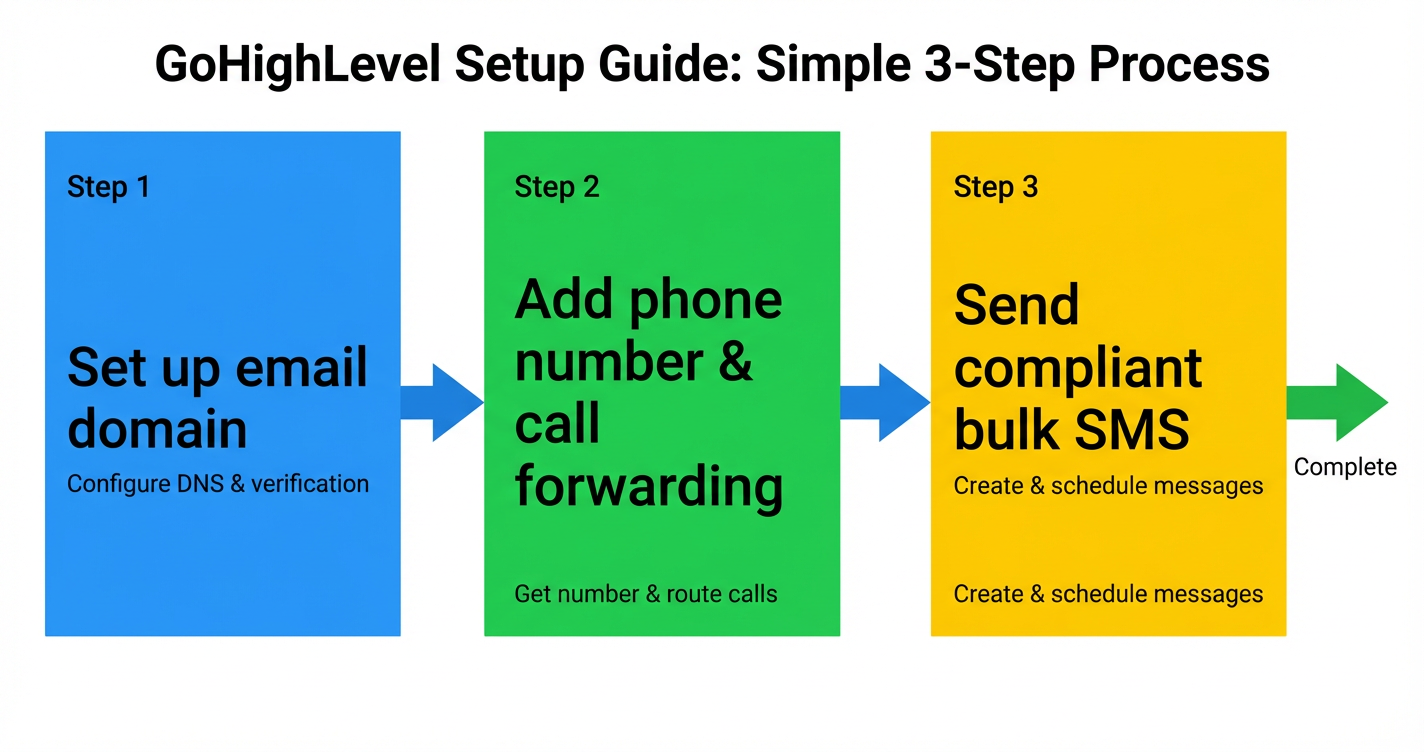
 GoHighLevel (Step-by-Step Guide)” title=”GoHighLevel Setup Flowchart”>
You don’t really feel the power of GoHighLevel until email, phone, and SMS are all set up and talking to each other.
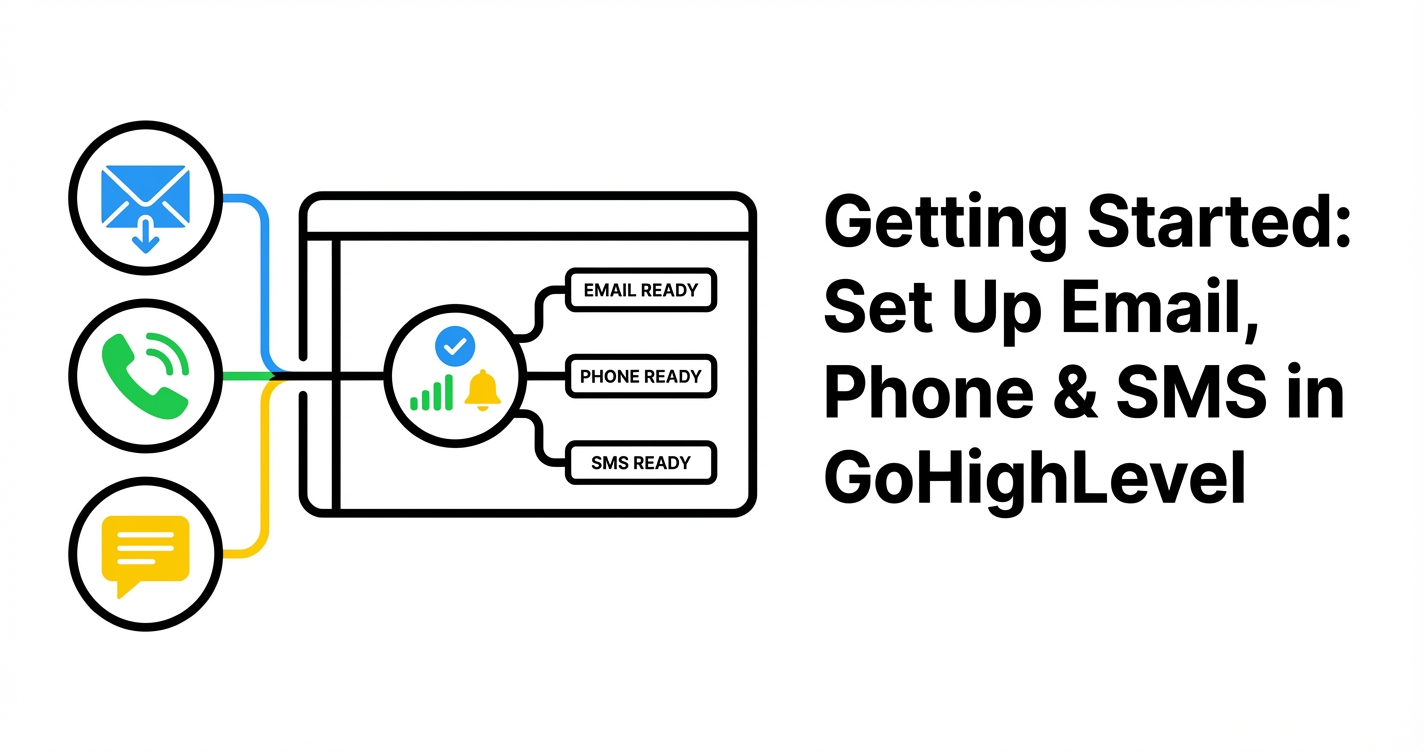 GoHighLevel email, phone and SMS all connected into one dashboard” title=”GoHighLevel Unified Dashboard”>
Until then, you’re half in your inbox, half on your phone, half inside another tool—and every missed message is lost revenue.
This guide shows you how to set up a dedicated email domain, add a phone number with forwarding, and send compliant bulk SMS inside GoHighLevel so you can manage all customer communication from one place.
Along the way, you’ll see where GoHighLevel handles the heavy lifting—and where a partner like Revset Labs, an AI Automation and Marketing Agency, can help you wire everything into an end‑to‑end growth system.
If you don’t have access yet, you can follow along by spinning up a trial here:
Start your free GoHighLevel trial
Why your communication setup in GoHighLevel matters
Once email, phone, and SMS are configured properly, you can:
- Reply to leads from a single inbox instead of juggling tools.
- Trigger automated follow-up that uses the right channel at the right time.
- Keep a full history of conversations on each contact record.
- Stay compliant with carrier and email deliverability rules instead of guessing.
If you rush setup or skip verification steps, you risk:
- Poor email deliverability and spam-folder placement.
- Phone numbers that can’t receive calls or route correctly.
- SMS campaigns that get blocked or throttled by carriers.
The steps below are designed to give you a clean, reliable foundation so everything you build later (funnels, pipelines, workflows) actually reaches people.
Before you start: a quick checklist
Have these ready before you dive into GoHighLevel settings:
- A domain you control (for example,
yourbrand.com) and access to its DNS. - Clarity on which business email you want as your primary sender (for example,
hello@yourbrand.com). - At least one team member who will receive forwarded calls.
- A rough idea of how you’ll use SMS: reminders, promotions, nurture campaigns, or all of the above.
- Consent processes in place so you know who has opted in for SMS.
If you’re starting fully from scratch, you can still set everything up inside a GoHighLevel trial while you finalize your domain and compliance language:
Launch GoHighLevel with a free trial
Step 1 – Set up a dedicated email domain in GoHighLevel
GoHighLevel lets you send from your own branded domain instead of generic system domains. This is critical for deliverability, trust, and long‑term inbox placement.
1. Open Email Services
- In GoHighLevel, click Settings in the left sidebar.
- Choose Email Services.
You’ll see options related to dedicated sending domains and IPs.
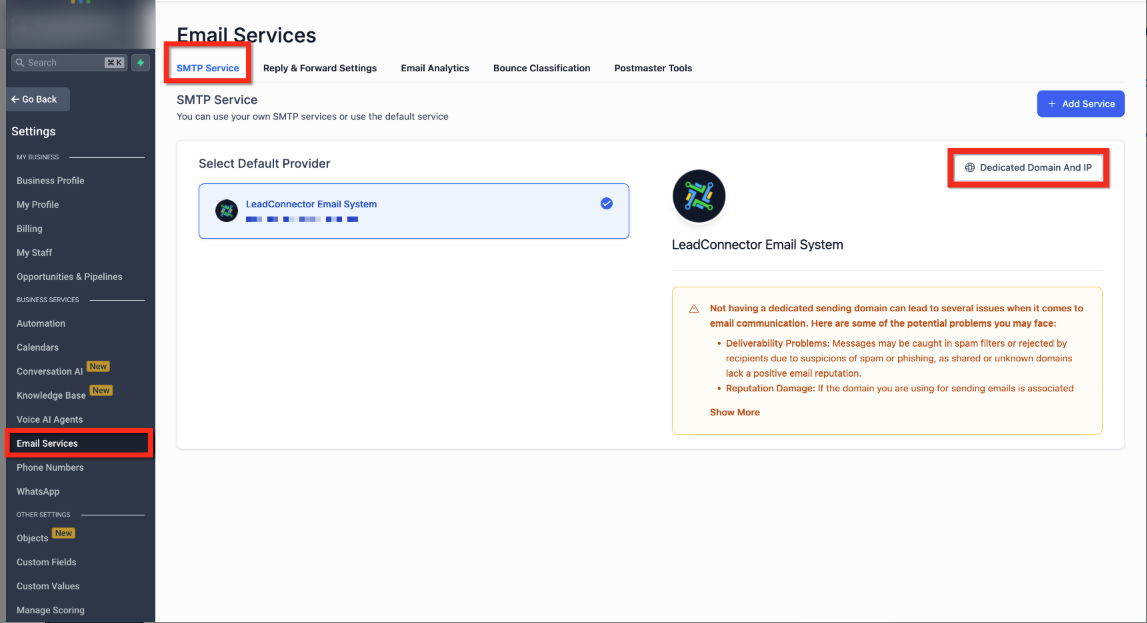 GoHighLevel Email Services settings page, highlighting the 'Dedicated Domain and IP' option.” title=”GoHighLevel Email Services”>
2. Add your sending domain
- Click Dedicated Domain and IP.
- Click Add Domain.
- Enter a subdomain such as
email.yourbrand.comorlc.yourbrand.com. - Click Add & Verify.
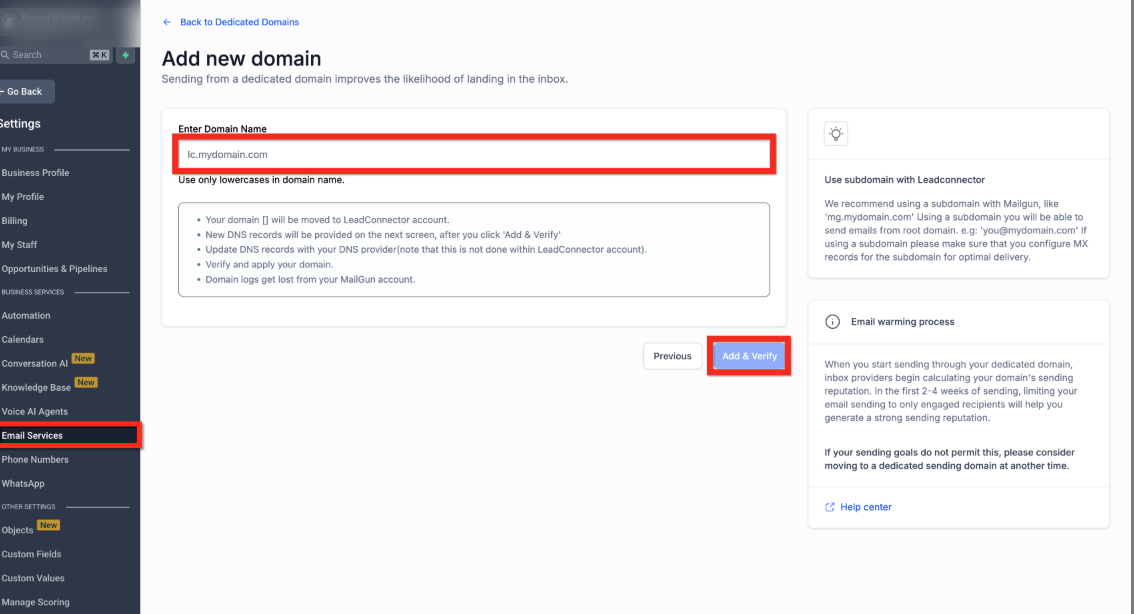 GoHighLevel 'Add Domain' dialog box, prompting for subdomain entry like lc.yourbrand.com.” title=”Add Email Subdomain”>
GoHighLevel will generate the DNS records (usually TXT, CNAME, and sometimes MX) you need to add with your registrar (GoDaddy, Cloudflare, Namecheap, etc.).
3. Update DNS at your registrar
- Log into your domain provider.
- Navigate to the DNS management area.
- Add each record exactly as GoHighLevel shows it—matching host, type, and value.
- Save changes.
DNS can take a few minutes to propagate. Once you’ve waited a bit, return to GoHighLevel.
4. Verify your records and set headers
- Back in Settings → Email Services, click Verify Records next to your domain.
- When verification succeeds, click the 3‑dot menu next to the domain and choose Set Headers.
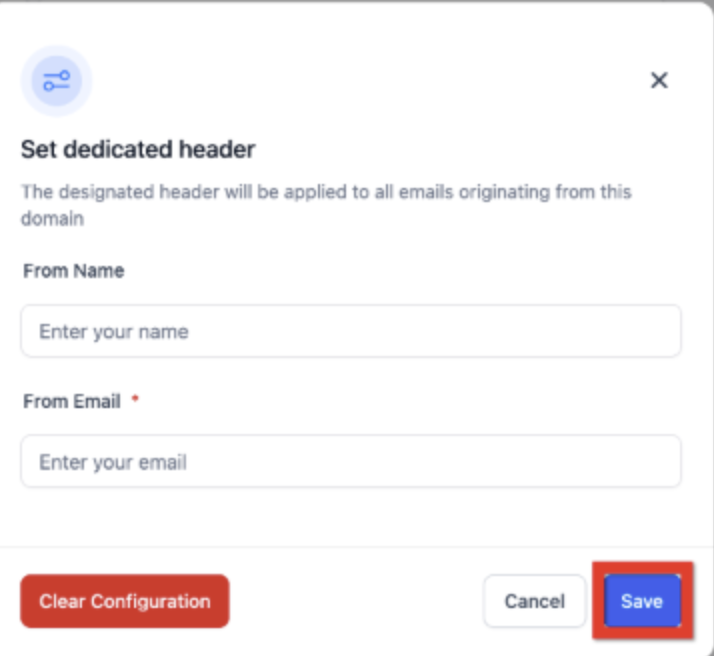 GoHighLevel email domain settings, showing the 3-dot menu with 'Set Headers' option highlighted.” title=”Set Email Headers”>
 - Set your From Name (for example,
Your Brand) and From Email (for example,hello@yourbrand.com). - Click Save.
From now on, emails sent through GoHighLevel using this domain look professional and are aligned with best‑practice authentication.
Deliverability tip from Revset Labs: Start by sending moderate volumes to your warmest list and gradually ramp up. A dedicated domain plus a smart warm‑up strategy dramatically reduces spam issues.
If you’re still deciding whether GoHighLevel should be your primary communication hub, this is an excellent feature to test during a trial:
Start your GoHighLevel free trial and configure your sending domain
Step 2 – Add a phone number for calls
With email in place, it’s time to add a phone number so you can call and text directly from GoHighLevel.
1. Purchase a phone number
- Go to Settings → Phone Numbers.
- Click Add Number → Add Phone Number.
- Filter by Country and Area Code to find a relevant number.
- Choose the number that best matches your audience and click Proceed to Buy.
Your new number will appear under Manage Numbers and can be used for both calls and SMS (subject to carrier capabilities and registration requirements).
2. Decide how the number will be used
Before wiring it everywhere, decide:
- Is this number your main inbound support/sales line?
- Will you assign it to a particular pipeline or location?
- Is it for general outbound calling and SMS only?
Clear intent makes routing and reporting much easier later.
Step 3 – Forward calls to the right person or team
Most teams want calls that hit the GoHighLevel number to ring a real phone, not just stay in a browser tab.
1. Configure call forwarding
- In Settings → Phone Numbers, locate the number you just purchased.
- Click the 3‑dot menu → Edit Configuration.
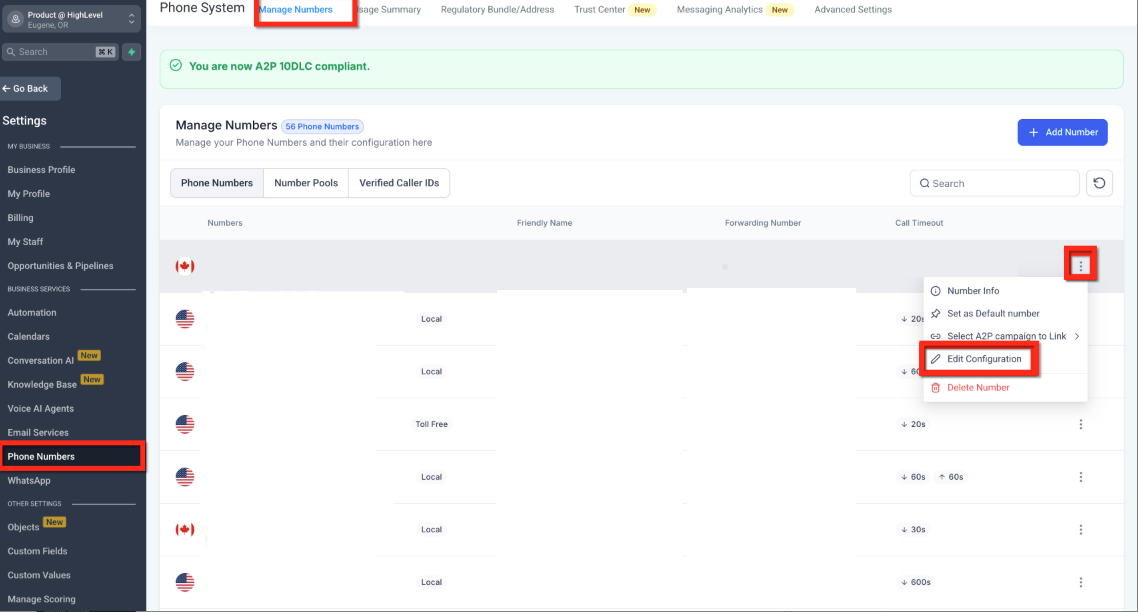 GoHighLevel phone number settings, showing the 3-dot menu with 'Edit Configuration' option highlighted.” title=”Edit Phone Configuration”>
 - Enter the external phone number you want to forward calls to (a mobile, landline, or team line).
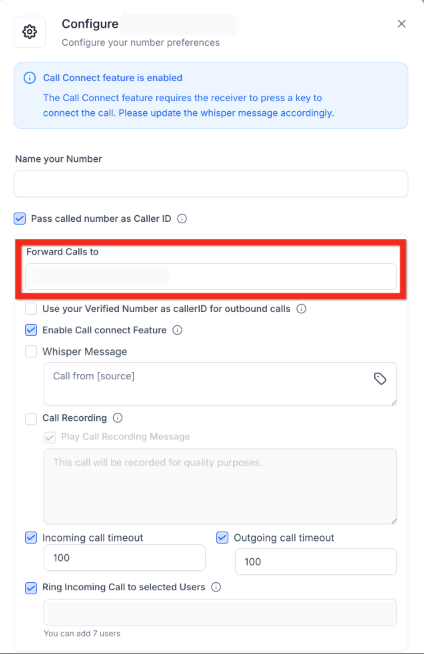 GoHighLevel call forwarding settings, displaying the input field to enter the destination phone number for forwarded calls.” title=”Call Forwarding Setup”>
 - Save your changes.
From now on, inbound calls to your GoHighLevel number will ring the forwarding destination while still logging activity inside the CRM.
2. Test your setup
Place a quick test call to your new number and confirm:
- The forwarding destination rings correctly.
- The call shows up on the relevant contact record in GoHighLevel.
- Voicemail behavior matches what you expect.
If you want more advanced routing (for example, round‑robin across a sales team or separate numbers per funnel), Revset Labs can help you design a number strategy that fits your funnels and pipelines.
Step 4 – Contact individual leads via email, SMS, or phone
With infrastructure in place, everyday outreach becomes much simpler.
Contact a single contact
- Go to Contacts.
- Search for and select the contact you want to reach.
- Use the message composer tabs to choose SMS, Email, or Phone.
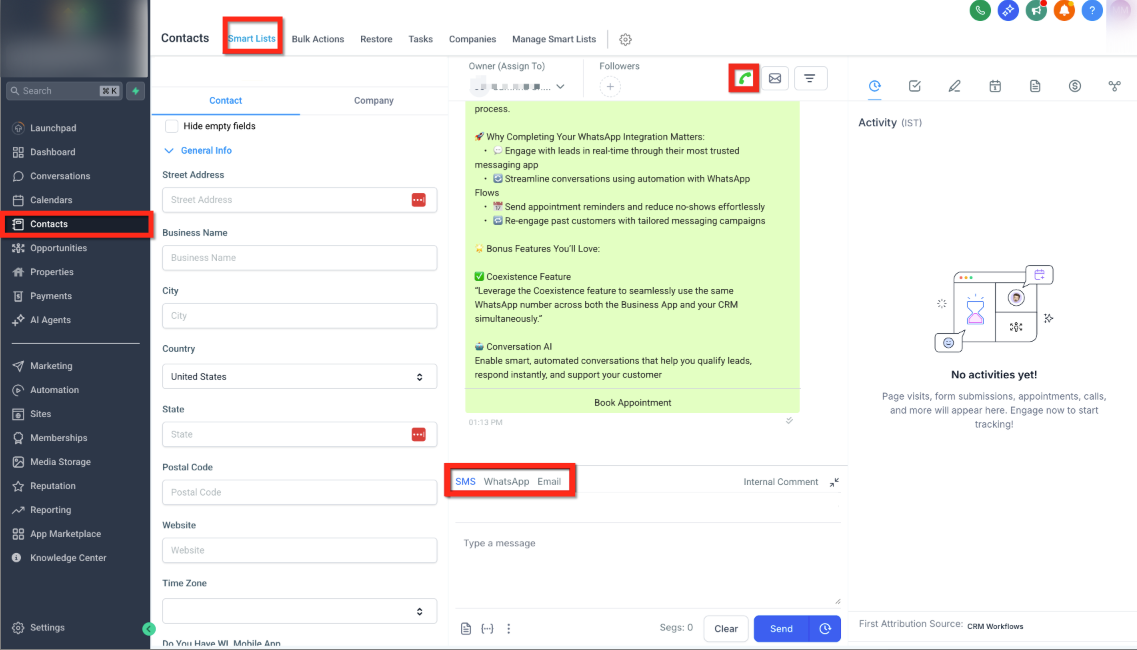 GoHighLevel contact record, displaying tabs for SMS, Email, and Phone to initiate communication.” title=”Contact Record Communication”>
 - Send your message or start the call directly from the contact record.
This keeps all conversations centralized and makes it easy for anyone on your team to see what’s been said.
To make the most of these contact records, pair this article with:
- Getting Started – Create and Manage Contacts in GoHighLevel
- Getting Started – Import Existing Contacts into GoHighLevel
Those guides help you build a clean database that your email, phone, and SMS setup can fully leverage.
Step 5 – Contact bulk segments with compliant SMS
Email is great, but SMS gets opened almost instantly. Used well, GoHighLevel’s Bulk SMS tools let you reach the right segment without spamming everyone.
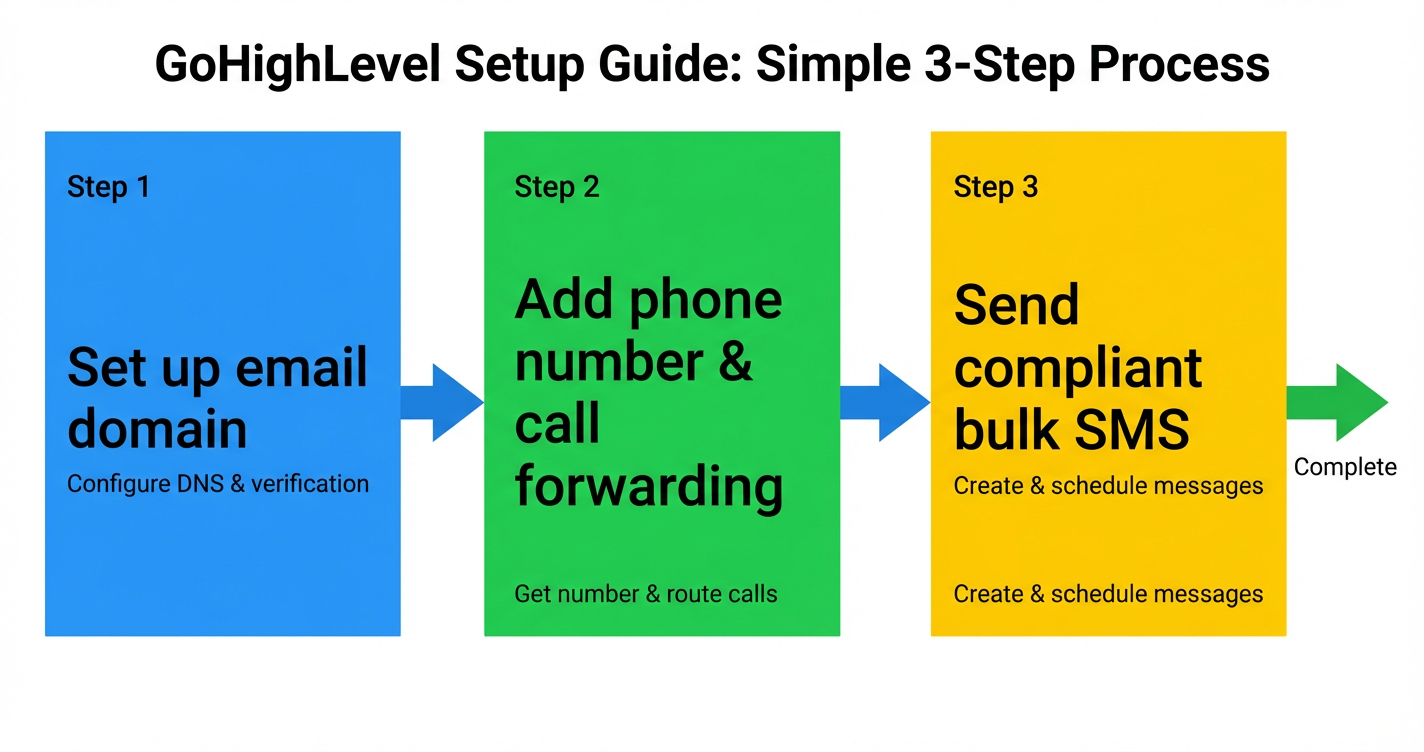 GoHighLevel communication setup flowchart” title=”GoHighLevel Communication Flowchart”>
What is Bulk SMS in GoHighLevel?
Bulk SMS lets you send one message to many contacts at once—ideal for:
- Time‑sensitive promotions and flash sales.
- Appointment reminders and reschedule links.
- Event updates and webinar reminders.
- Quick check‑ins or re‑engagement nudges.
Instead of blasting your entire list, you use Smart Lists and filters to target just the right segment.
Key benefits of sending Bulk SMS
- Speed: Reach hundreds or thousands of contacts within seconds.
- Consistency: Everyone in a segment gets the same, clear message.
- Personalization: Merge fields let you insert names, appointment times, or custom fields.
- Flexible timing: Send now, schedule for later, or use drip mode for pacing.
- Measurable outcomes: Track delivery, responses, and failures in the Bulk Actions dashboard.
How to send Bulk SMS via Contacts
- Go to Contacts → Smart Lists.
- Use filters (tags, stages, custom fields) to isolate the audience you want.
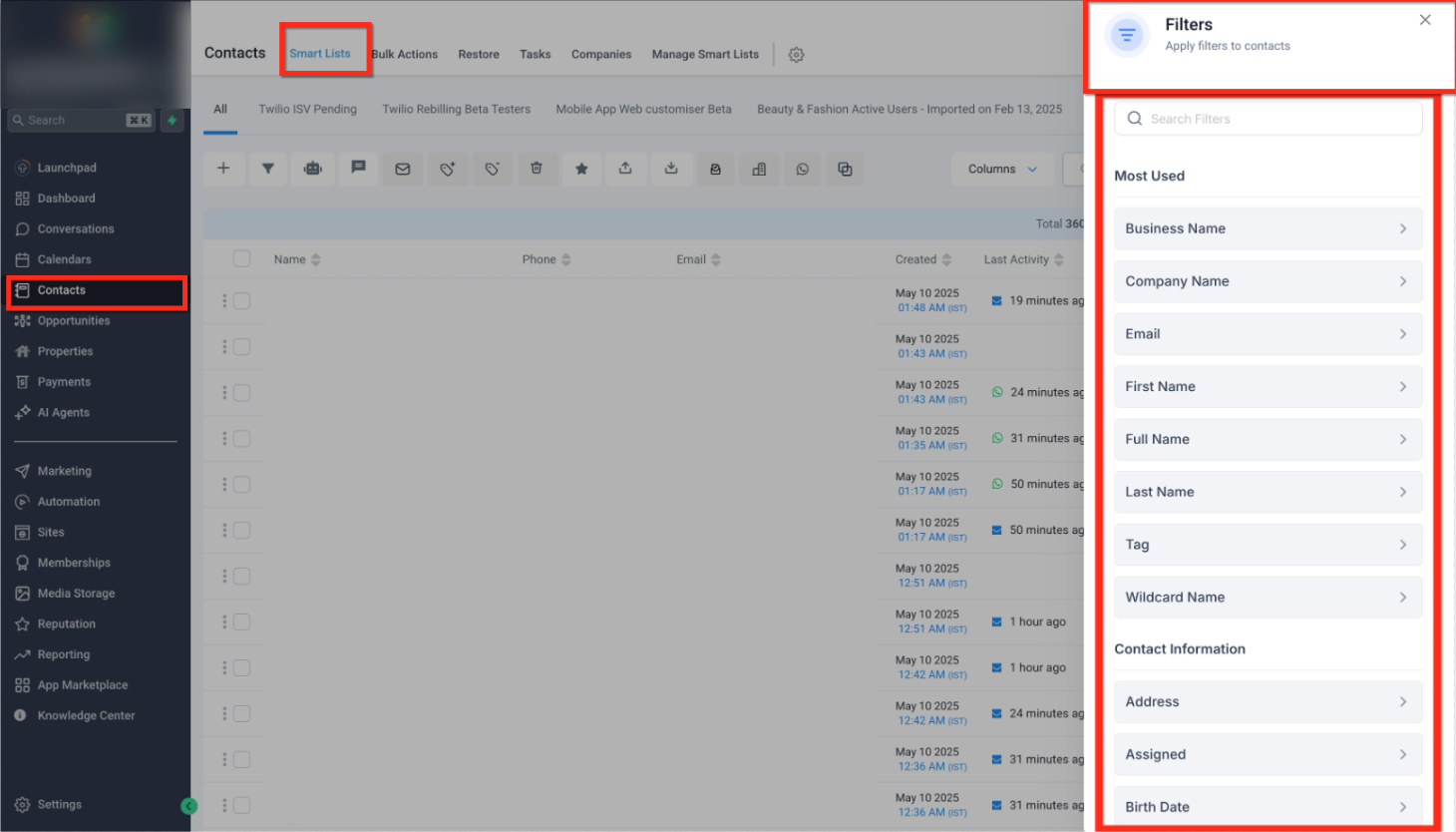 GoHighLevel Smart Lists filters panel, showing options to refine contact audience by criteria like Business Name, Company Name, and Tag.” title=”Smart List Filters”>
 - Select contacts with the checkboxes on the left, or select all in the filtered list.
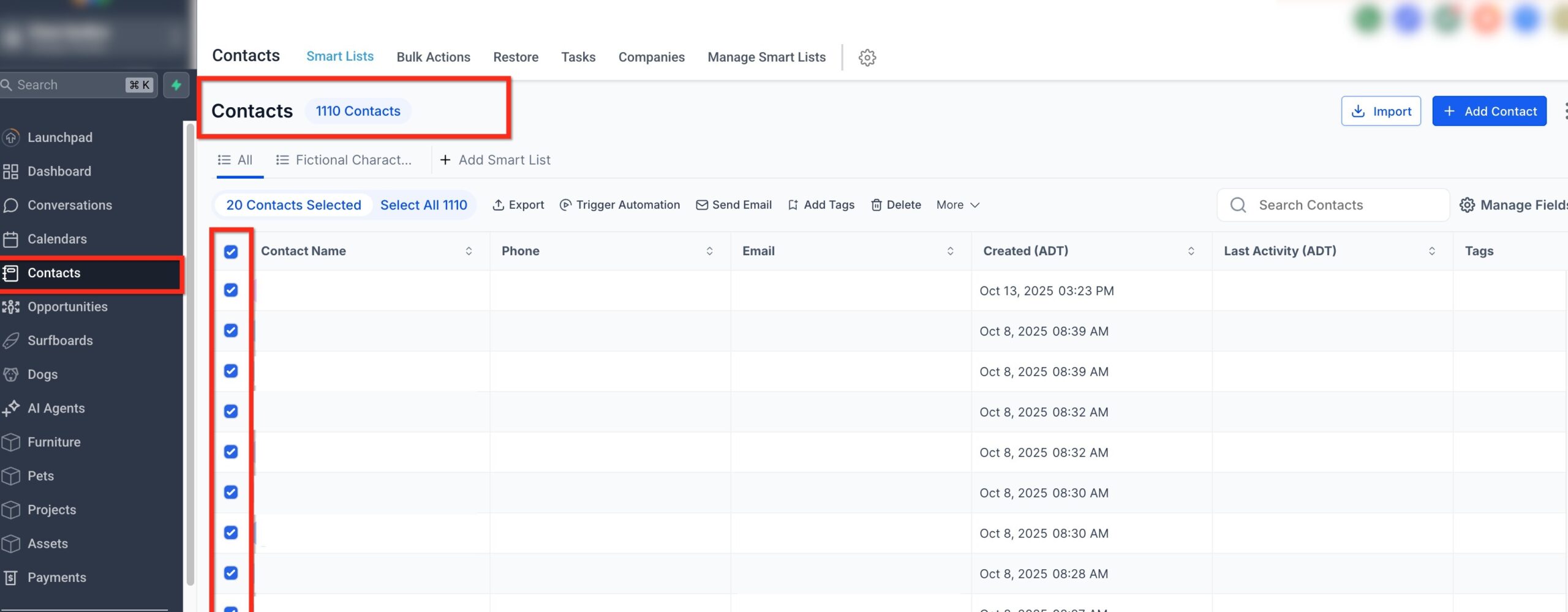 GoHighLevel Contacts Smart List, demonstrating how to select multiple contacts using checkboxes for bulk SMS sending.” title=”Select Bulk SMS Contacts”>
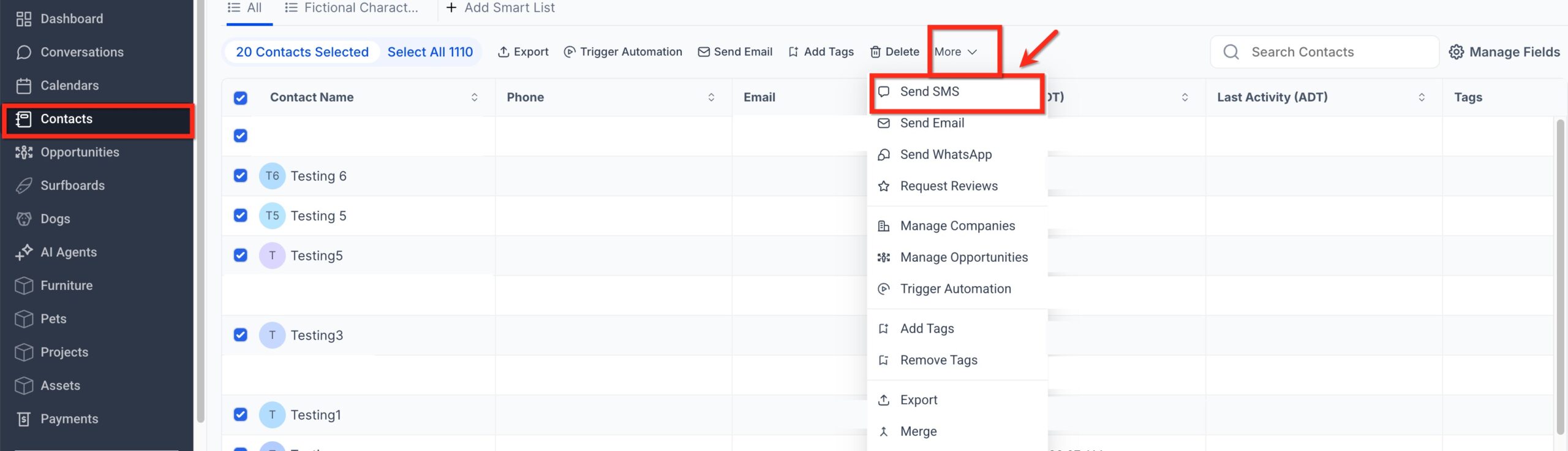
 - Click the SMS icon or bulk action for SMS at the top of the list.
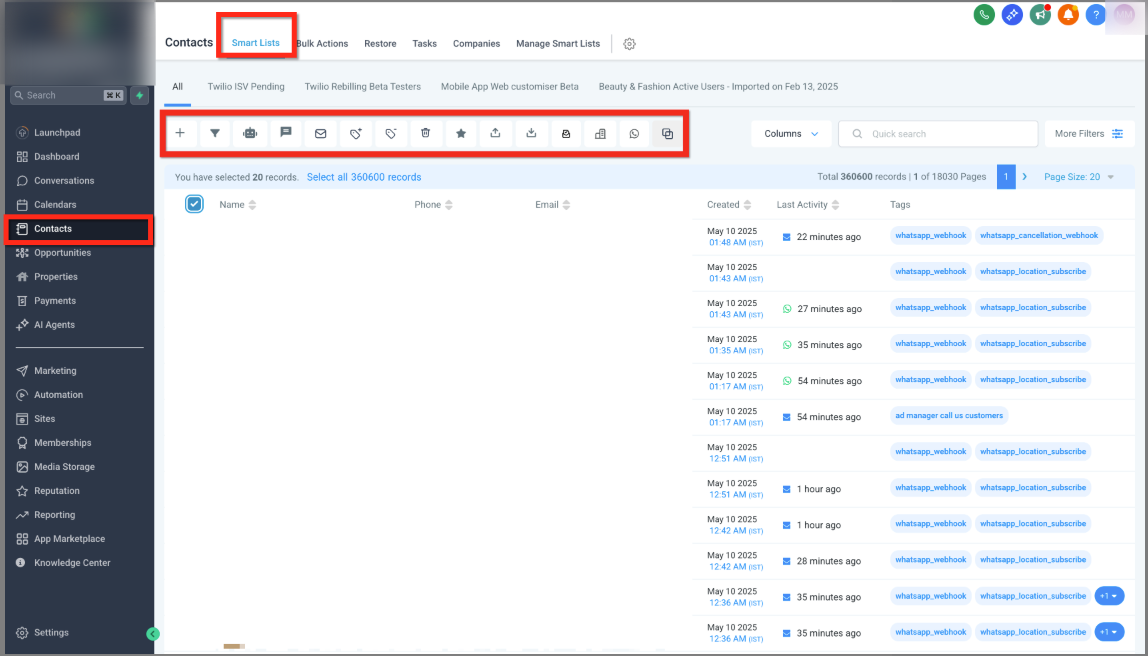 GoHighLevel contacts list with the Bulk Actions toolbar visible, showing options for sending Email or SMS to selected contacts.” title=”Bulk Actions Toolbar”>
 - Choose your From Phone Number (your newly configured GoHighLevel number).
 GoHighLevel Bulk SMS setup window, highlighting the 'From Phone Number' dropdown for selecting the sender.” title=”Bulk SMS Sender Selection”>
 - Write your message or load a saved SMS template.
- Choose your delivery mode:
- Send All at Once – fire immediately to all selected contacts.
- Send at Scheduled Time – set a specific date and time.
- Send in Drip Mode – send in smaller batches over a set period.
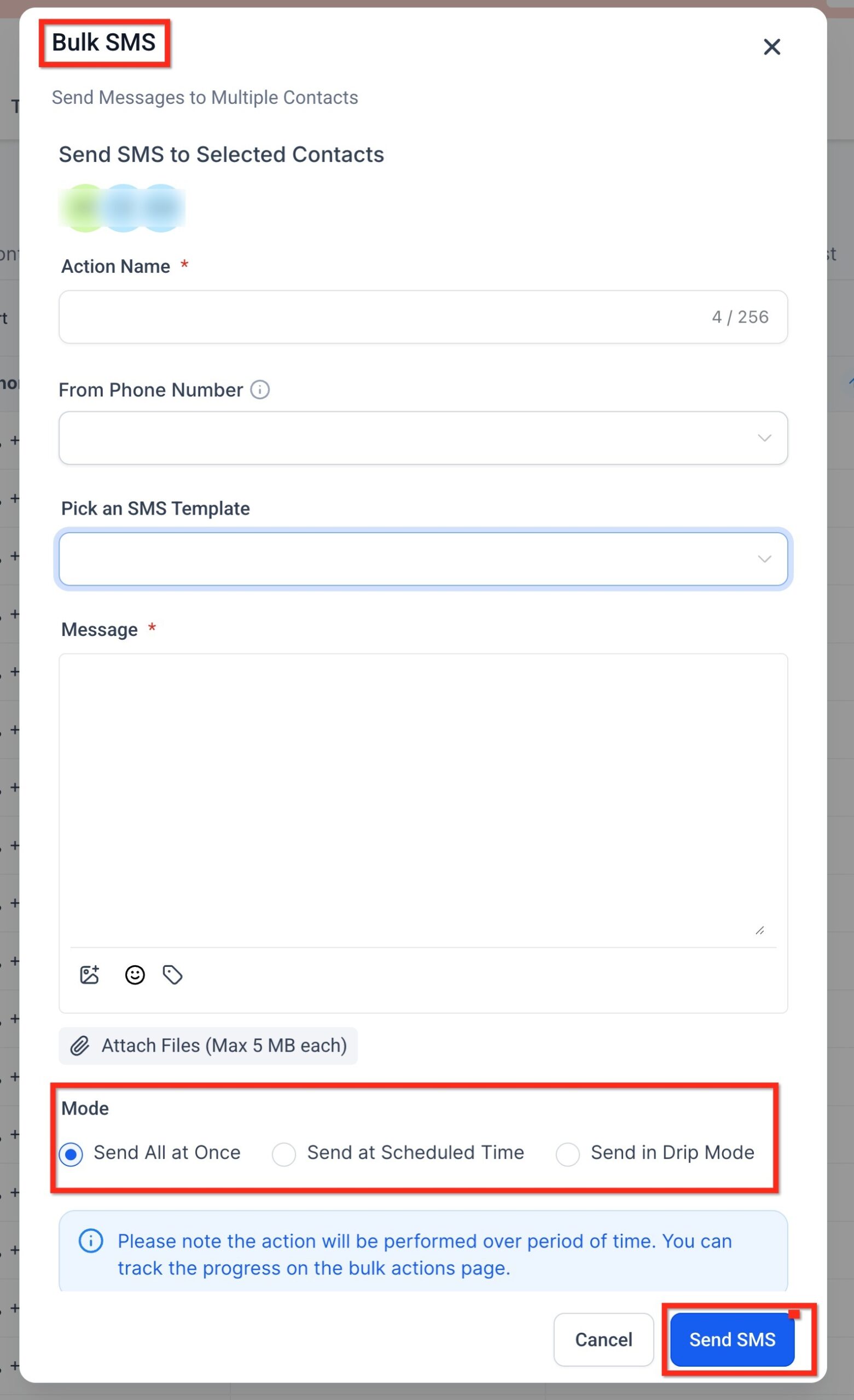 GoHighLevel Bulk SMS delivery options, showing choices for 'Send All at Once', 'Send at Scheduled Time', and 'Send in Drip Mode'.” title=”Bulk SMS Delivery Options”>
Drip Mode fields:
Pick a Start Date & Time: When sending begins.
Number of Messages per Batch: Number of contacts per send batch.
Repeat After: Time delay between each batch (in minutes, hours, or days).
Send On: Select specific weekdays for sending.
Time Window: Define allowed sending hours based on account timezone.
End At: The latest time messages can be sent each day; messages outside this window resume the next day.
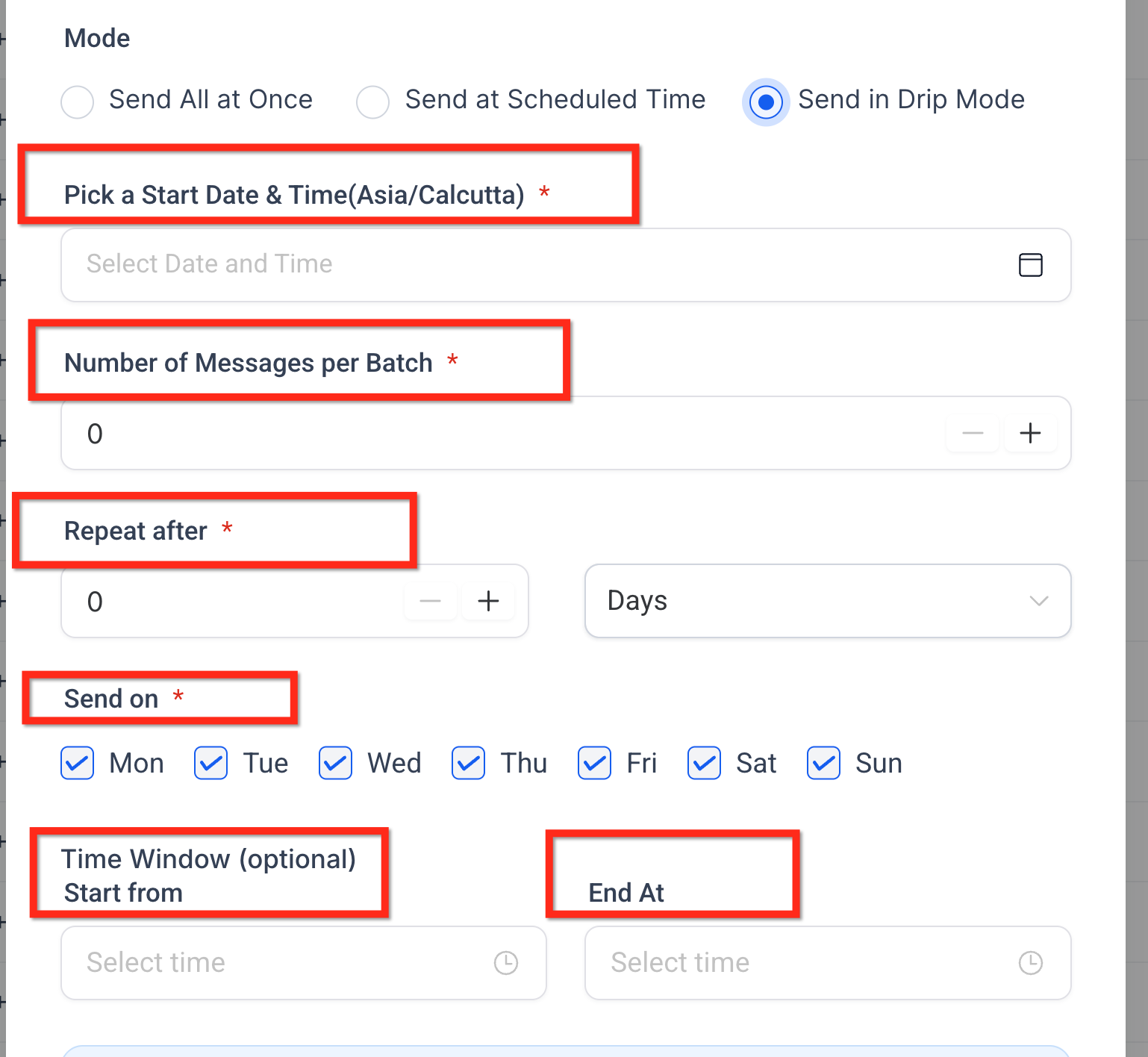 GoHighLevel Bulk SMS Drip Mode settings, showing fields for start date, messages per batch, repeat interval, send days, and time window.” title=”Bulk SMS Drip Mode”>
- Click Send SMS and monitor results in Bulk Actions → Show Stats.
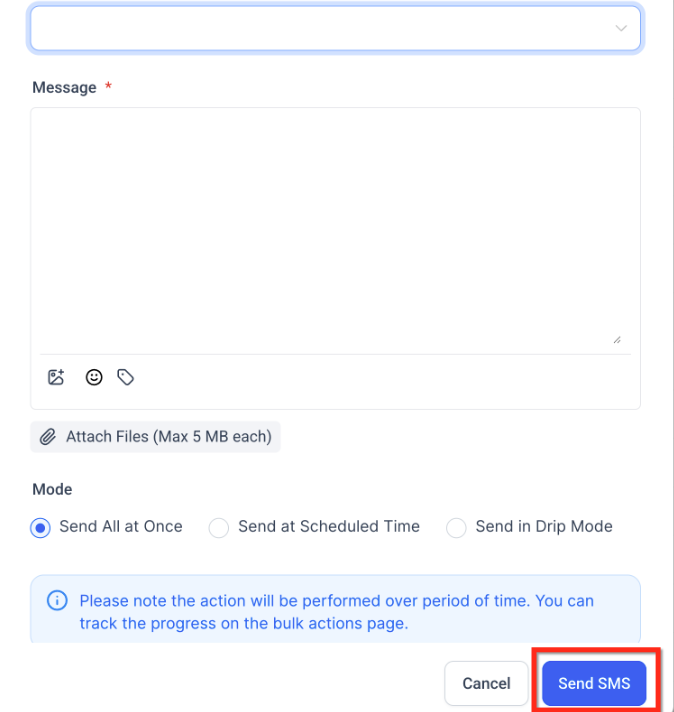 GoHighLevel Bulk SMS window, highlighting the 'Send SMS' button to initiate the campaign.” title=”Send Bulk SMS Campaign”>
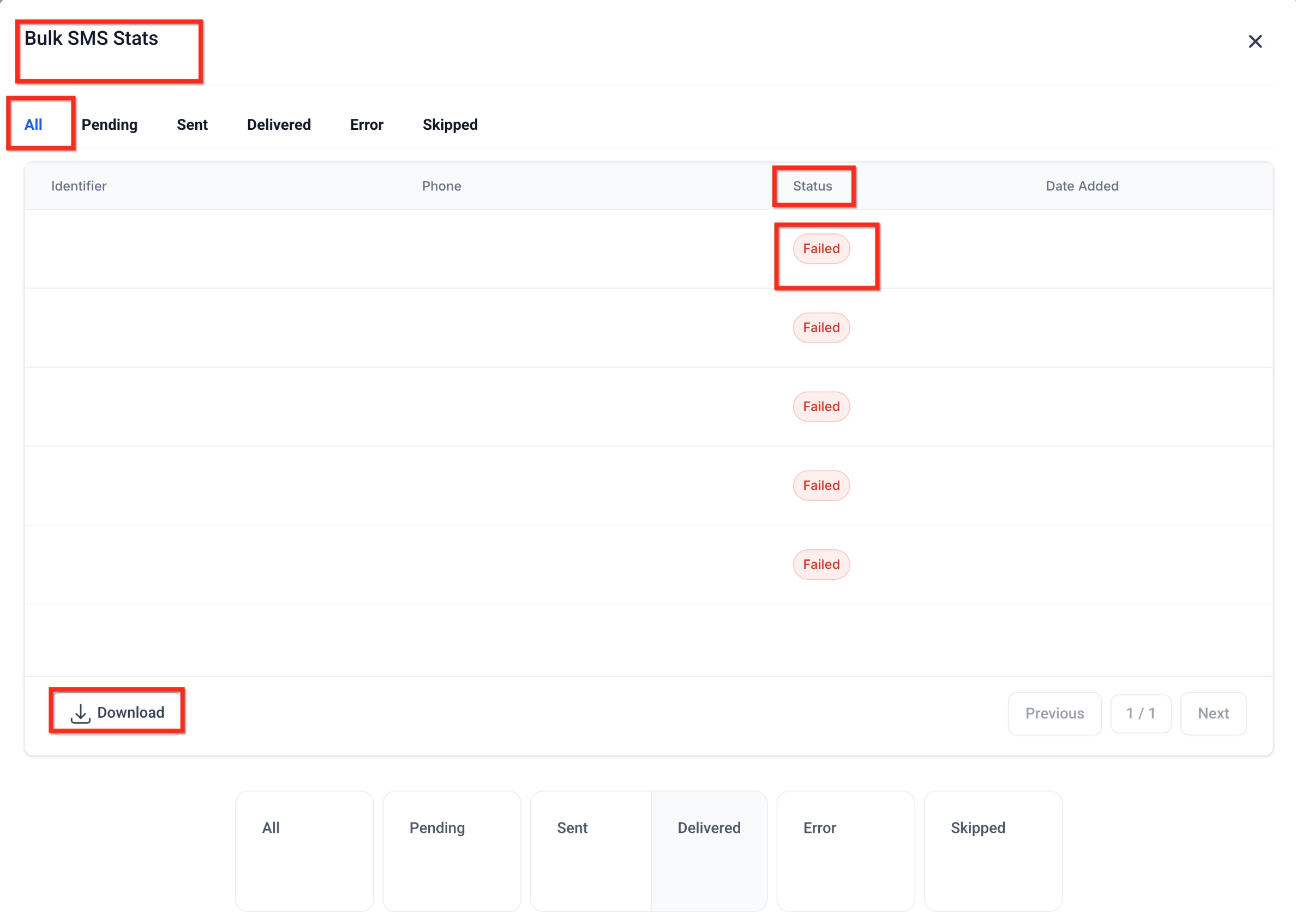 GoHighLevel Bulk Actions dashboard, displaying campaign status and performance metrics like sent, delivered, failed, and skipped messages.” title=”Bulk Actions Performance”>
Compliance reminder: Always identify your business clearly, respect local sending hours, and include an opt‑out instruction (for example, “Reply STOP to unsubscribe”). GoHighLevel helps by excluding unsubscribed or DND contacts automatically.
Once this pipeline is working, it’s straightforward to plug Bulk SMS into lead‑nurture workflows, webinar reminders, or post‑appointment follow‑ups.
If you’re exploring whether GoHighLevel is the right platform to centralize this, the fastest way to feel the difference is to try a small campaign inside a trial account:
Try GoHighLevel and test email + SMS in one place
Turn your setup into an automation‑ready system
At this point you’ve:
- Verified a dedicated email domain.
- Purchased a phone number and configured call forwarding.
- Learned how to contact individual and bulk segments via SMS.
The next step is to connect all of this to automations and funnels so every new lead gets pulled into a predictable journey.
Here are a few simple next moves:
-
Wire communication into your funnels
- Use this guide alongside Getting Started: Launch a Funnel in GoHighLevel.
- Ensure each funnel form or calendar feeds contacts into the right Smart Lists and workflows that use your verified email and SMS settings.
-
Build basic communication workflows
- Trigger a welcome email + SMS when a new contact is created or tagged.
- Schedule appointment reminders via SMS and email from your booking calendars.
- Send a short post‑call follow‑up sequence to increase show rates and close rates.
-
Standardize templates
- Create reusable SMS and email templates for confirmations, reminders, and promotions.
- Update them for tone and compliance once, then reuse them across workflows.
Done well, this turns GoHighLevel from “a collection of features” into one communication engine that supports every funnel and offer you run.
How Revset Labs helps you skip the guesswork
GoHighLevel gives you the tools—Revset Labs turns them into a working, measurable system.
As an AI Automation and Marketing Agency, Revset Labs typically helps clients:
- Design a communication architecture that connects domains, numbers, tags, and pipelines.
- Implement done‑for‑you setups for email, phone, SMS, funnels, and follow‑up workflows.
- Build AI‑powered workflows that summarize conversations, score leads, and route tasks automatically.
- Create dashboards so you can see, at a glance, which campaigns and channels are paying off.
If you’d rather focus on your offer and traffic while experts handle the technical build, Revset Labs can design and implement the full GoHighLevel stack with you.
In the meantime, you can feel how powerful the platform is by testing it yourself:
Start your GoHighLevel free trial today
FAQs: Email, phone & SMS setup in GoHighLevel
Do I need a dedicated email domain to send from GoHighLevel?
You can send from a generic domain, but a dedicated, verified sending domain dramatically improves deliverability and brand trust. It also helps keep your main corporate domain’s reputation clean.
Can I use the same number for calls and SMS?
Yes—many GoHighLevel numbers can handle both voice and SMS. Just make sure the number you purchase is SMS‑enabled and configured correctly in Settings → Phone Numbers.
What is “Bulk SMS” in GoHighLevel?
Bulk SMS is the feature that lets you send a single SMS message to many contacts at once, using Smart Lists and filters to control who receives it. It’s ideal for broadcasts, reminders, and time‑sensitive announcements.
How do I stay compliant when sending SMS campaigns?
Only message contacts who have opted in, clearly identify your business in the first message, send during reasonable hours, and always include an opt‑out instruction like “Reply STOP to unsubscribe.” GoHighLevel automatically excludes unsubscribed and DND contacts.
Can I cancel a bulk SMS once it’s been sent?
You can’t cancel messages that have already been delivered, but you may be able to adjust or stop scheduled or drip sends from the Bulk Actions dashboard. If you make a serious mistake, contact GoHighLevel Support as soon as possible.
How does this setup connect to the rest of my CRM?
Every email, call, and SMS can be tied back to the contact record, opportunities in your pipelines, and the workflows they’re part of. That’s what turns GoHighLevel into a full growth system rather than just “another inbox.”
JSON-LD schema (Article + FAQPage + Organization)
<script type="application/ld+json">
{
  "@context": "https://schema.org",
  "@graph": [
    {
      "@type": "Article",
      "headline": "Getting Started: Set Up Email, Phone & SMS in GoHighLevel",
      "description": "Learn how to set up a dedicated email domain, add phone numbers with call forwarding, and send compliant bulk SMS in GoHighLevel so every lead can be reached from one place.",
      "author": {
        "@type": "Organization",
        "name": "Revset Labs"
      },
      "publisher": {
        "@type": "Organization",
        "name": "Revset Labs",
        "url": "https://revsetlabs.com"
      },
      "mainEntityOfPage": {
        "@type": "WebPage",
        "@id": "https://revsetlabs.com/blog/getting-started-setup-email-phone-sms-gohighlevel"
      },
      "image": [
        "https://t9016189650.p.clickup-attachments.com/t9016189650/09a68dc2-c180-4f39-aeb0-e800b1f29917/generated-image-1e9311c0-af3f-4105-a7d3-d7ffa37960d3.png?view=open"
      ]
    },
    {
      "@type": "FAQPage",
      "mainEntity": [
        {
          "@type": "Question",
          "name": "Do I need a dedicated email domain to send from GoHighLevel?",
          "acceptedAnswer": {
            "@type": "Answer",
            "text": "You can technically send from a generic domain, but a dedicated, verified sending domain dramatically improves deliverability, protects your main domain's reputation, and looks more professional to recipients."
          }
        },
        {
          "@type": "Question",
          "name": "Can I use the same number for calls and SMS in GoHighLevel?",
          "acceptedAnswer": {
            "@type": "Answer",
            "text": "Yes. As long as the number you purchase is SMS-enabled and configured correctly, GoHighLevel can use the same number for voice calls and text messages."
          }
        },
        {
          "@type": "Question",
          "name": "What is Bulk SMS in GoHighLevel?",
          "acceptedAnswer": {
            "@type": "Answer",
            "text": "Bulk SMS is GoHighLevel's feature for sending one SMS message to many contacts at once using Smart Lists and filters. It's ideal for broadcasts, reminders, and time-sensitive announcements."
          }
        },
        {
          "@type": "Question",
          "name": "How do I stay compliant when sending SMS from GoHighLevel?",
          "acceptedAnswer": {
            "@type": "Answer",
            "text": "Only message contacts who have opted in, identify your business clearly, send during reasonable hours, and always include an opt-out instruction such as 'Reply STOP to unsubscribe.' GoHighLevel automatically excludes unsubscribed and DND contacts."
          }
        },
        {
          "@type": "Question",
          "name": "How does email, phone, and SMS setup connect to the rest of my GoHighLevel CRM?",
          "acceptedAnswer": {
            "@type": "Answer",
            "text": "Once configured, all emails, calls, and SMS activity can be tied back to contact records, opportunities in your pipelines, and automated workflows, turning GoHighLevel into a unified communication and revenue engine."
          }
        }
      ]
    },
    {
      "@type": "Organization",
      "name": "Revset Labs",
      "url": "https://revsetlabs.com"
    }
  ]
}
</script>