
 GoHighLevel (Step-by-Step Guide)”>
Email is still one of the fastest ways to turn cold leads into booked calls and paying clients. If you’re using GoHighLevel (or about to), launching your first broadcast email campaign can feel like a lot of moving parts—templates, compliance, segments, sending windows, analytics, and more.
This guide walks you through a clean, repeatable process for launching an email campaign in GoHighLevel, based on how Revset Labs builds campaigns for clients.
If you don’t yet have an account, you can start a free GoHighLevel trial here and follow along step by step.
Before You Launch: Nail the Fundamentals (Domain, Compliance, List Health)
Most beginners jump straight into writing copy. The real leverage comes from getting your foundations right so you reach the inbox and stay out of spam.
Before you send a single campaign, make sure you’ve:
- Connected a proper sending domain – Use a subdomain like
mail.yourbrand.comand connect it in GoHighLevel so all emails come from your brand, not a generic sender. - Set up authentication and DMARC – Add SPF, DKIM, and a DMARC TXT record (for example
v=DMARC1; p=reject) inside your DNS. This tells inbox providers that GoHighLevel is authorized to send on your behalf and how to handle failures. - Enabled basic email verification – In your sub-account, go to Settings → Business Profile and enable options like Mark emails as invalid due to hard bounce and Verify email address when the first email is sent to a new contact. This protects your reputation.
- Cleaned your list – Remove obviously bad, bounced, or unengaged contacts instead of blasting everyone. Fewer, higher-quality sends almost always beat mass sends to cold lists.
- Turned on compliance helpers – Ensure every email includes an unsubscribe link and your physical mailing address to stay compliant with CAN-SPAM / GDPR style regulations.
Once these are in place, you’re ready to build something worth sending.
Want this done-for-you? Revset Labs, an AI Automation and Marketing Agency, can set up domains, authentication, and list hygiene so your GoHighLevel campaigns start on a strong technical foundation.
Step 1: Start From a Proven GoHighLevel Email Template
Instead of designing from a blank canvas every time, use GoHighLevel’s built-in templates as your starting point.
- In your sub-account, go to Marketing → Emails.
- Open the Templates tab.
- Click New.
- Choose Email Marketing Templates.
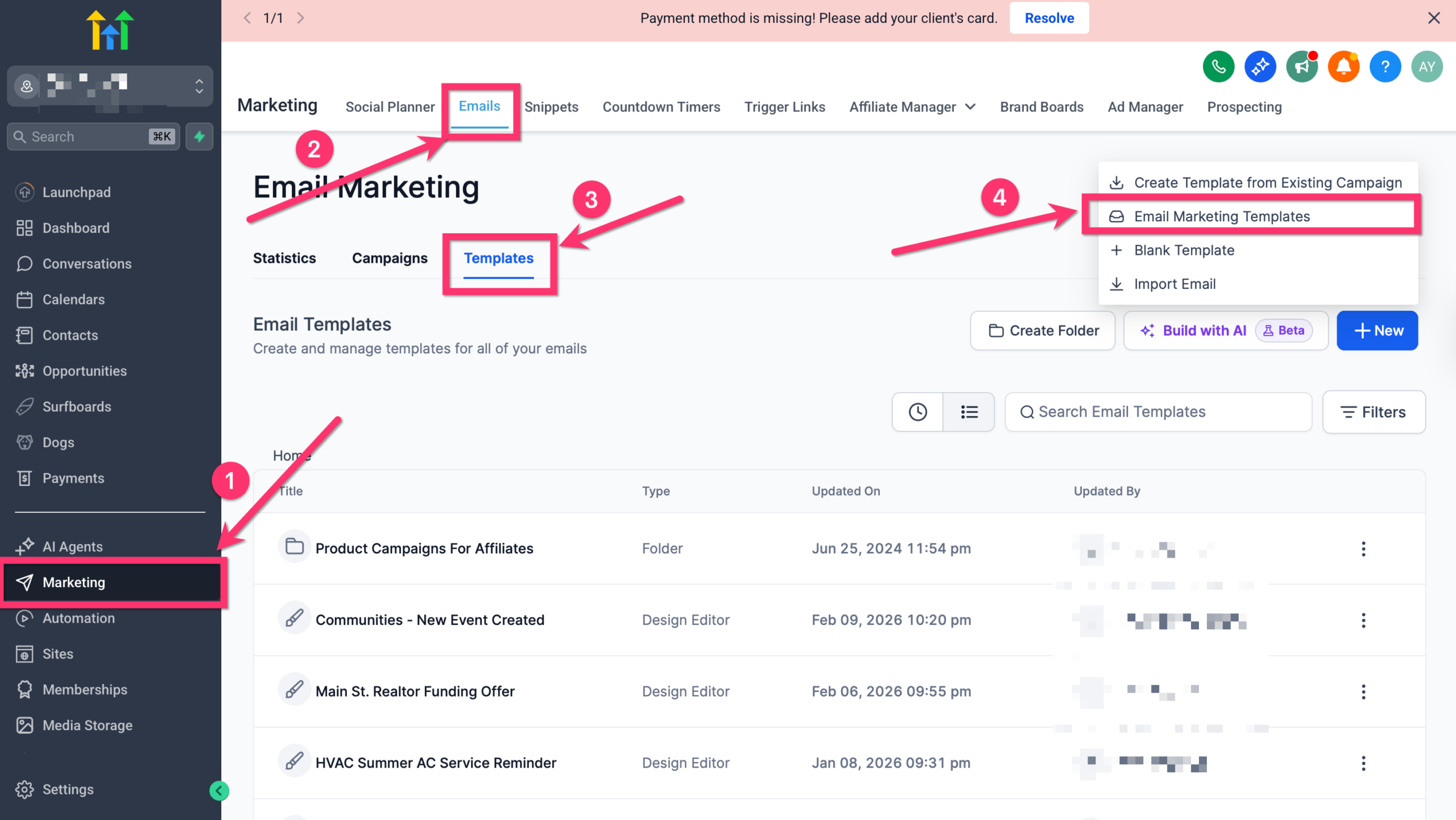 GoHighLevel's marketing section, highlighting the option to choose a new email template.” title=”GoHighLevel Email Template Selection”>
 - Browse or search the library for a layout that fits your goal (newsletter, announcement, promotion, webinar invite, etc.).
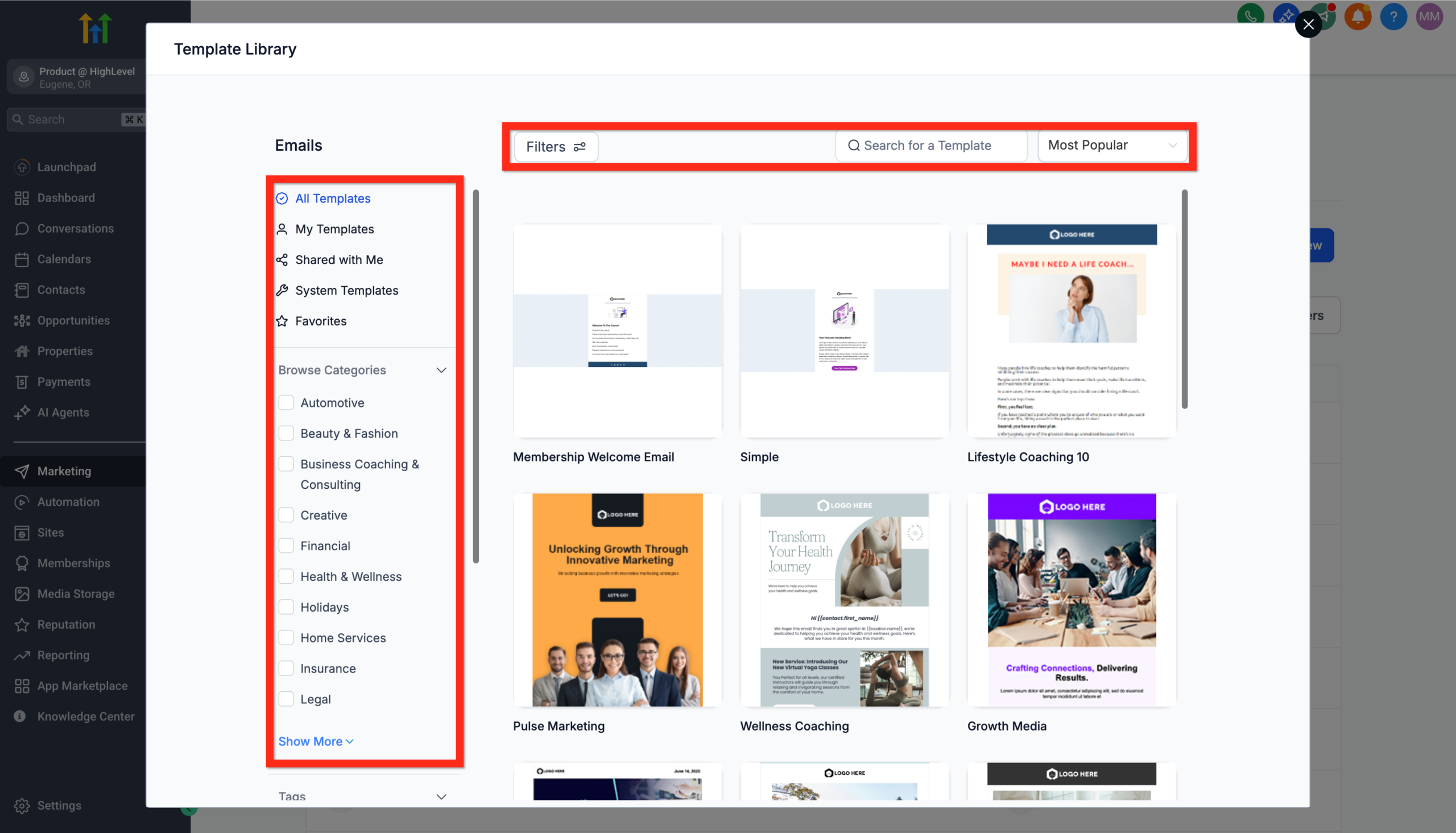 GoHighLevel's email template library, displaying various pre-designed email marketing templates available for selection, with options to browse and filter.” title=”GoHighLevel Template Library”>
 - Preview templates until you find one that feels close to what you need.
- Click Continue to open it in the Email Editor.
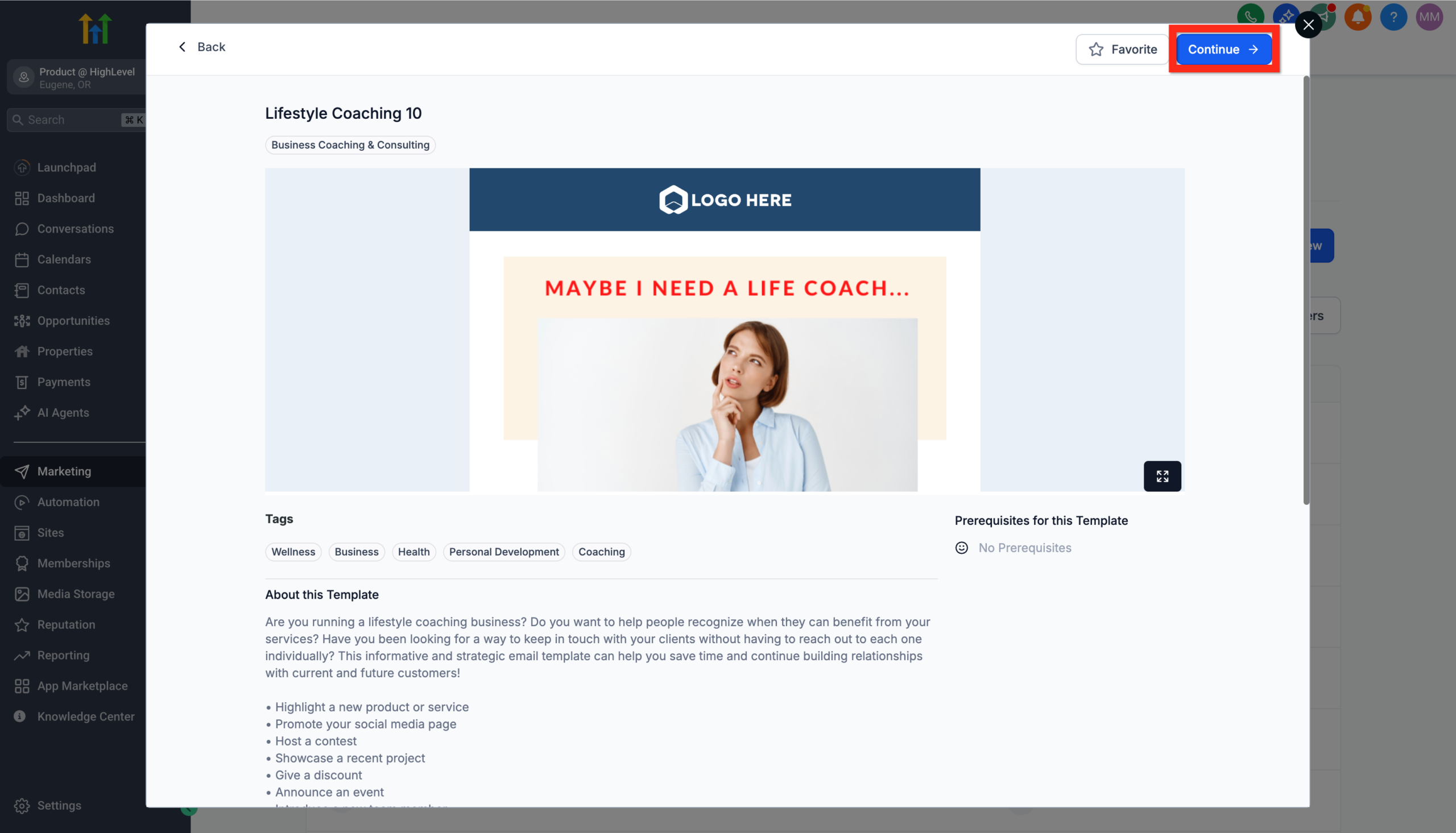 GoHighLevel, showing a 'Continue' button to proceed to the email editor.” title=”GoHighLevel Template Preview”>
Behind the scenes, this does two things:
- Creates an email template asset you can reuse later.
- Loads that template into the drag-and-drop Email Builder so you can customize it.
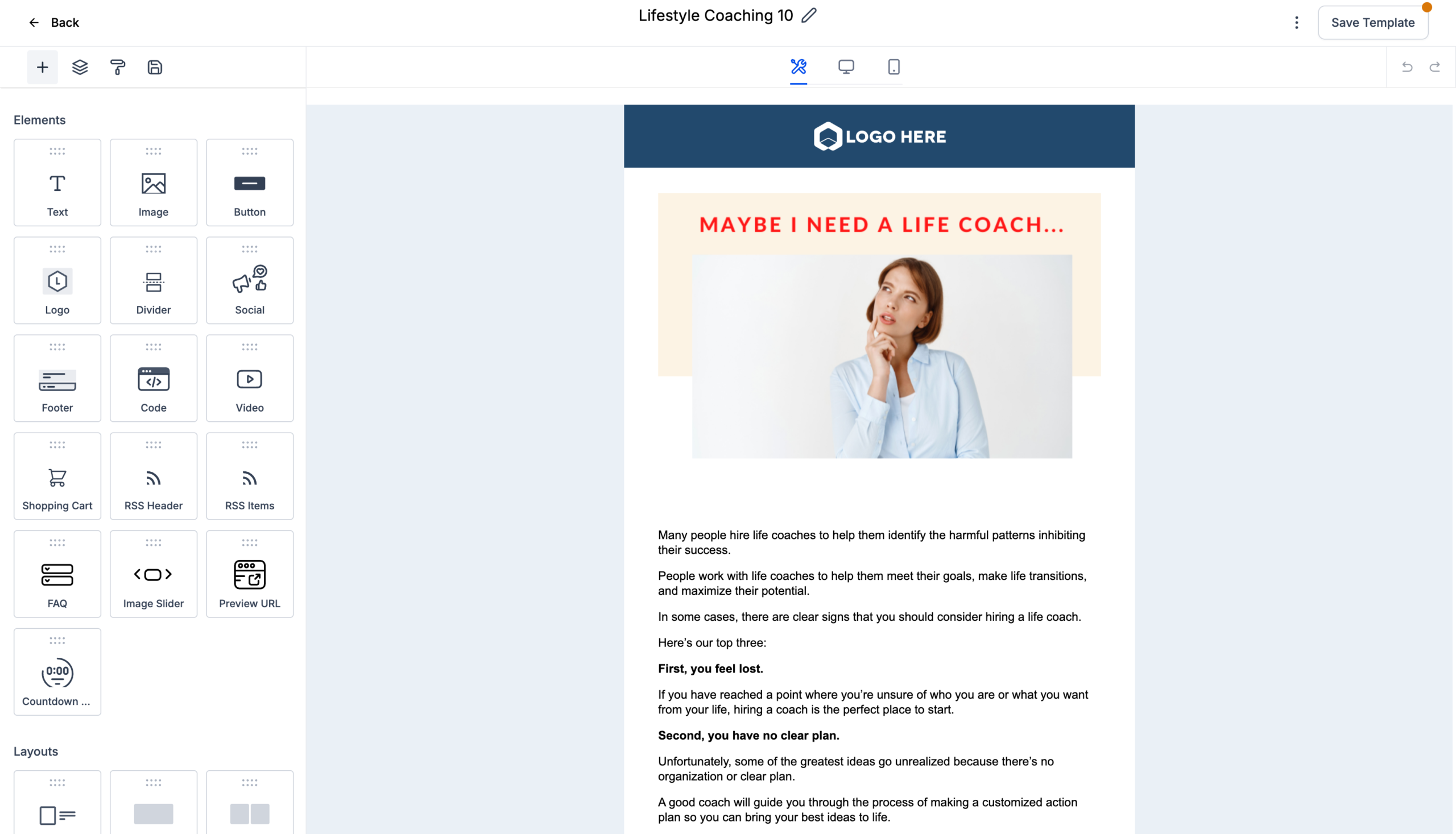 GoHighLevel Email Builder interface, displaying a newly opened email template ready for customization.” title=”GoHighLevel Email Builder”>
Pro tip: If you’re just getting started with GoHighLevel, keep your first template simple—single-column layout, one main CTA button, and minimal design. That usually outperforms over-designed emails and is much faster to ship.
If you haven’t created a GoHighLevel account yet, this is a great moment to grab your free trial so you can follow these exact screens.
Step 2: Customize and Test Your Email Template
Now turn that generic template into a message that feels on-brand and relevant to your audience.
- Still in Marketing → Emails → Templates, open your chosen template in the Email Editor.
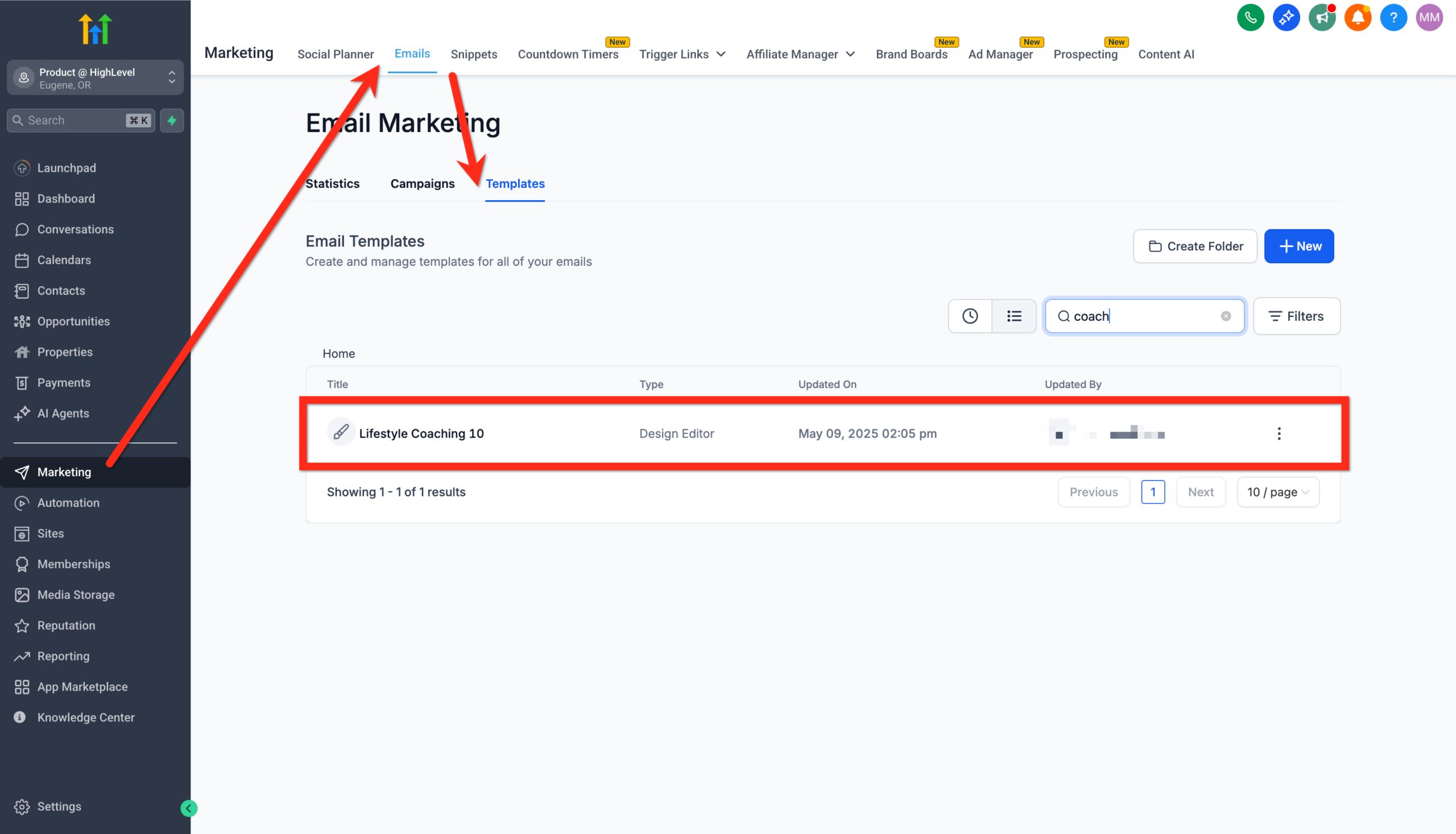 GoHighLevel Email Editor, showing various editable elements and design options.” title=”Editing Email Template in GoHighLevel“>
 - Update the subject line and preview text to match your offer and audience:
- Lead magnets: "Get the [Result] Playbook – Delivered in Minutes"
- Nurture: "Here’s how to fix [Pain Point] in the next 7 days"
- Rewrite the body copy in your own voice. Focus on:
- The problem your reader is facing.
- The outcome you’re promising.
- A single, clear next action (click, book, reply).
- Swap placeholder images for relevant visuals or remove them entirely if they distract from the CTA.
- Add personalization where it matters (for example, first name in greeting or subject line).
- Click Save Template.
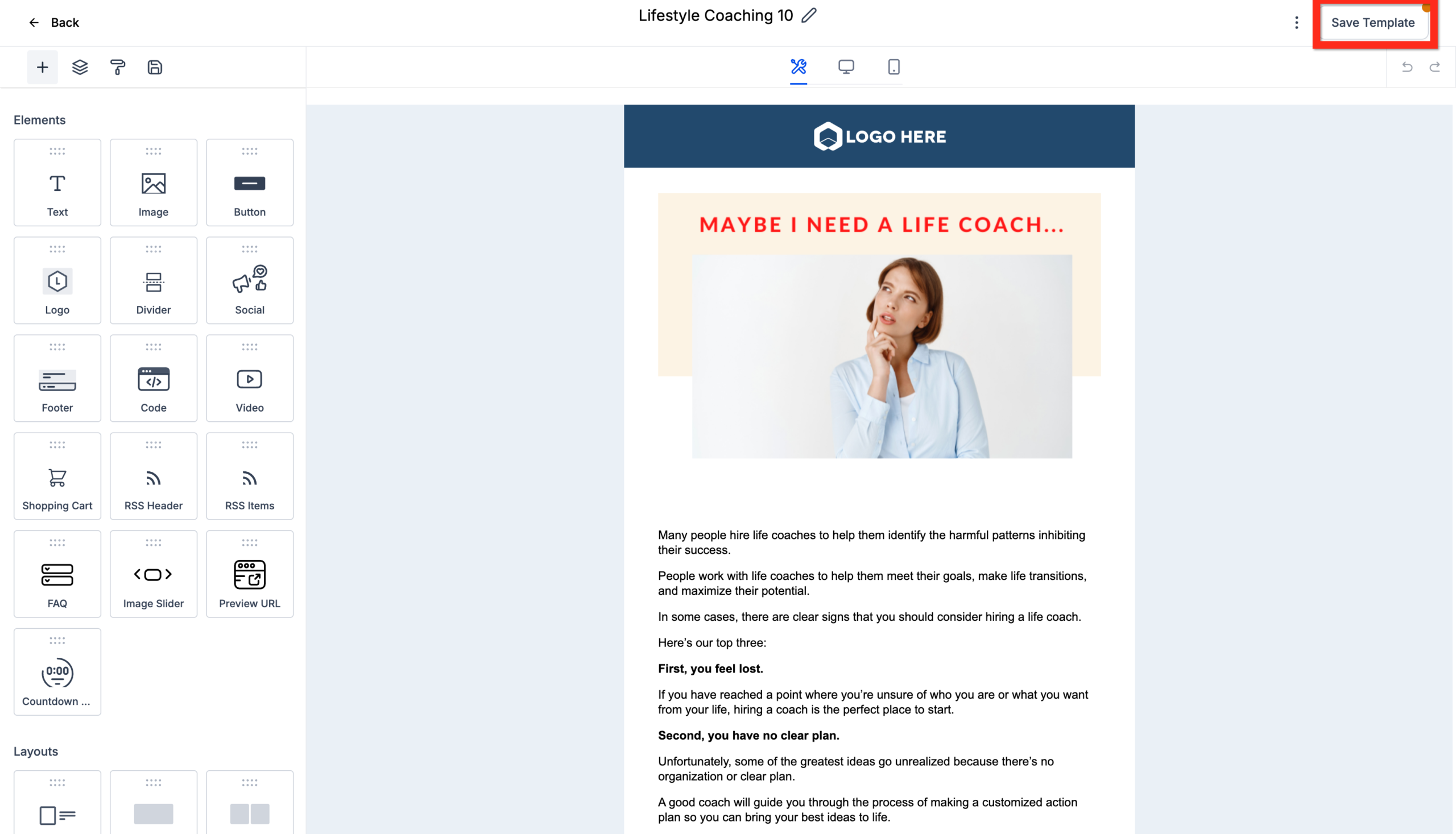 GoHighLevel Email Editor with the 'Save Template' button highlighted, indicating changes have been saved.” title=”Save GoHighLevel Email Template”>
 - Send yourself (and your team) a Test Email from the 3-dot menu to check:
- How it renders on desktop and mobile.
- Whether links and buttons work.
- That it lands in the right inbox tab.
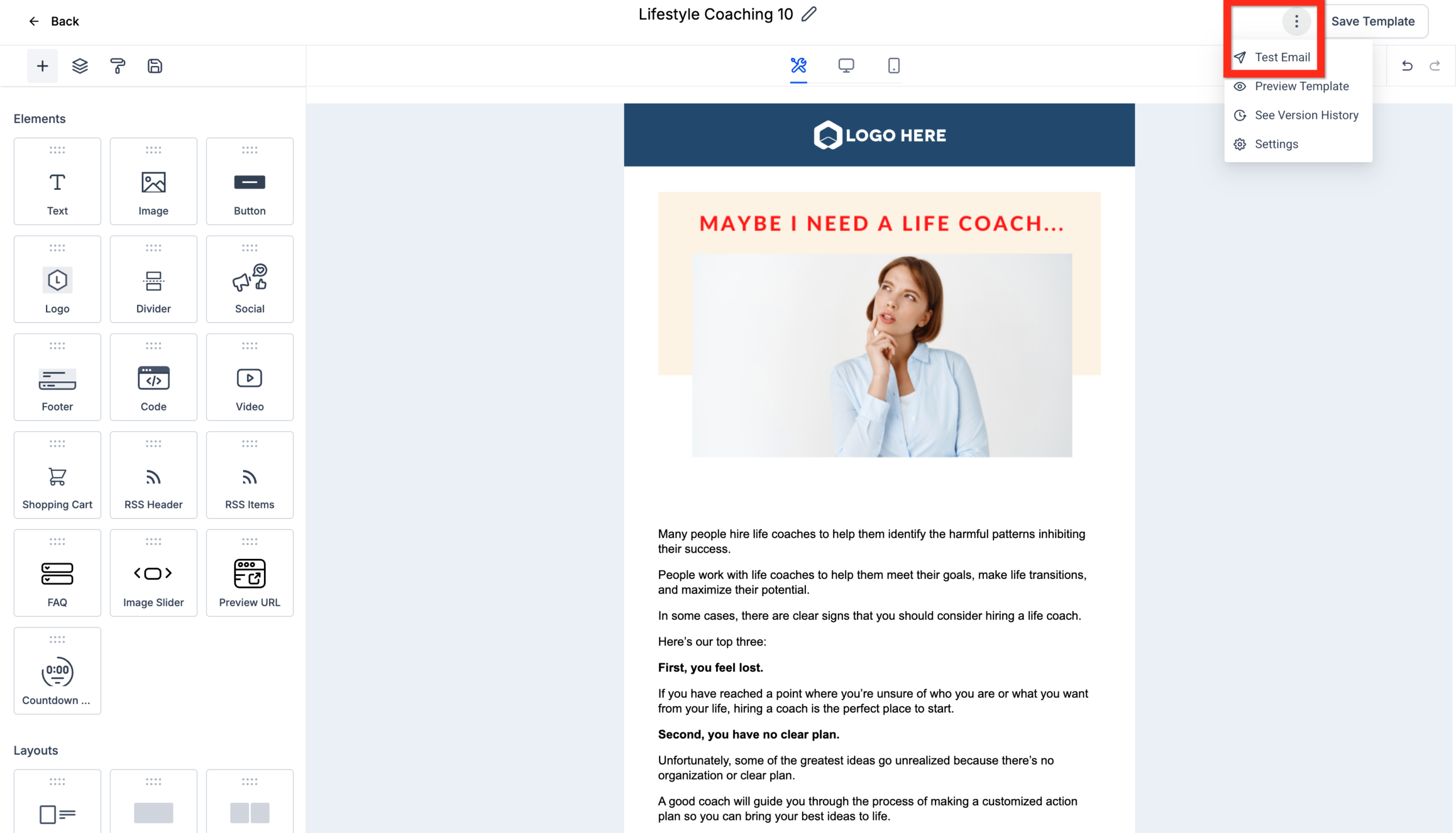 GoHighLevel's email editor, with the 'Test Email' option selected to preview the campaign.” title=”GoHighLevel Test Email Option”>
If your test looks good and doesn’t hit spam, you’re ready to move into campaign mode.
Step 3: Use the Docked Editor and Email AI to Move Faster
GoHighLevel’s Email Builder lets you dock the edit panel and work with Email AI so you can write and refine faster without constantly scrolling.
- Open your template or campaign in the Email Builder.
- Use the panel switch to dock the editor on the Right (or move it back to the Left) so you can see more of the email while editing.
- Turn on Email AI if it’s available in your account. Use it to:
- Draft first-pass body copy based on a short prompt.
- Generate subject line variations to A/B test.
- Rephrase sections for clarity or brevity.
- Always do a human pass after AI:
- Remove fluff and generic language.
- Add specific examples, numbers, or stories from your business.
- Double-check that compliance information and unsubscribe instructions are still present.
Think of AI as a speed multiplier, not a replacement for your judgment or offer strategy.
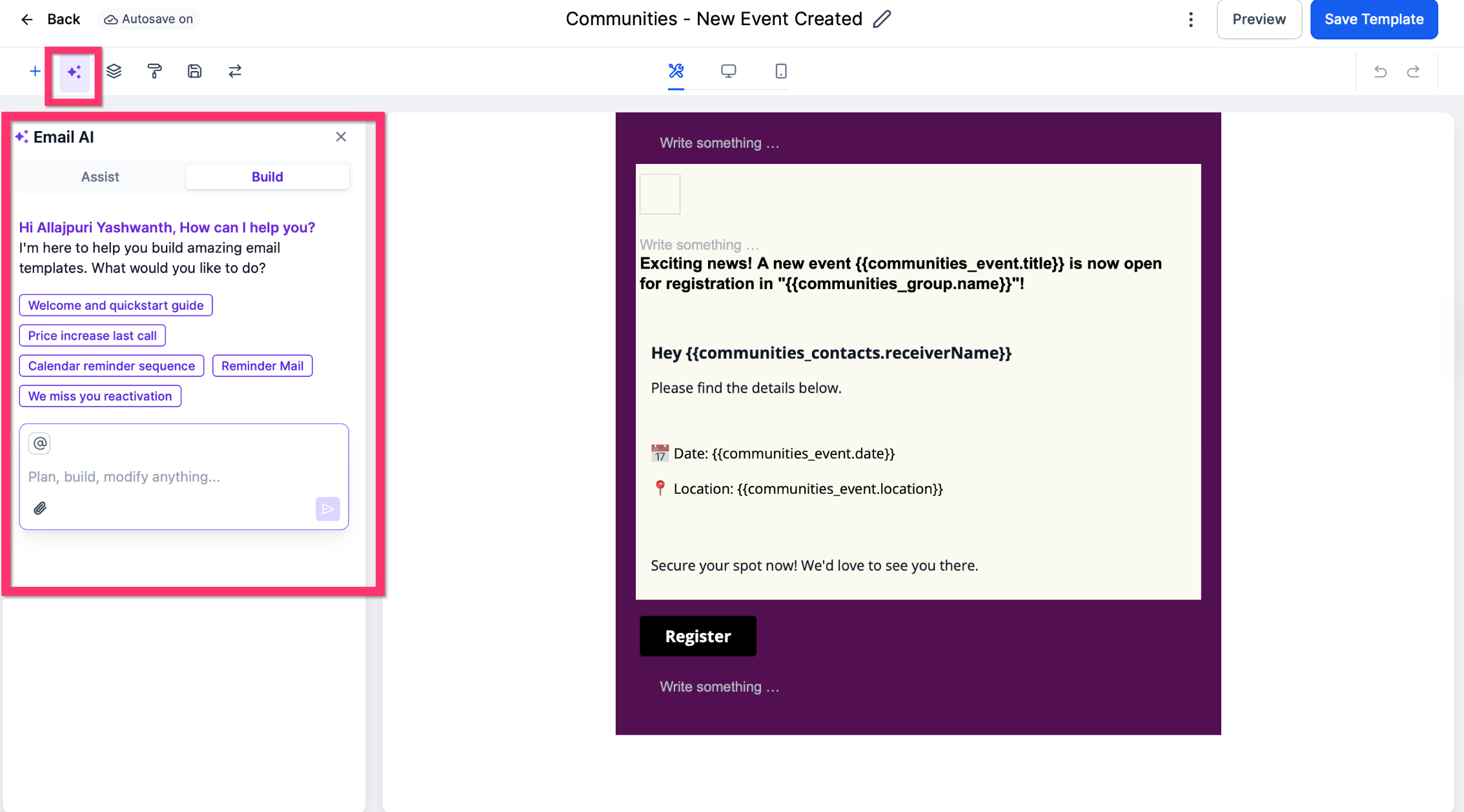 GoHighLevel Email Builder with the edit panel docked to the right, demonstrating side-by-side editing with Email AI.” title=”GoHighLevel Docked Editor with AI”>
Step 4: Create and Configure Your Email Campaign
With a polished template ready, it’s time to turn it into a live campaign.
- Go to Marketing → Emails → Campaigns.
- Click New → Select Template, then choose the template you just finalized.
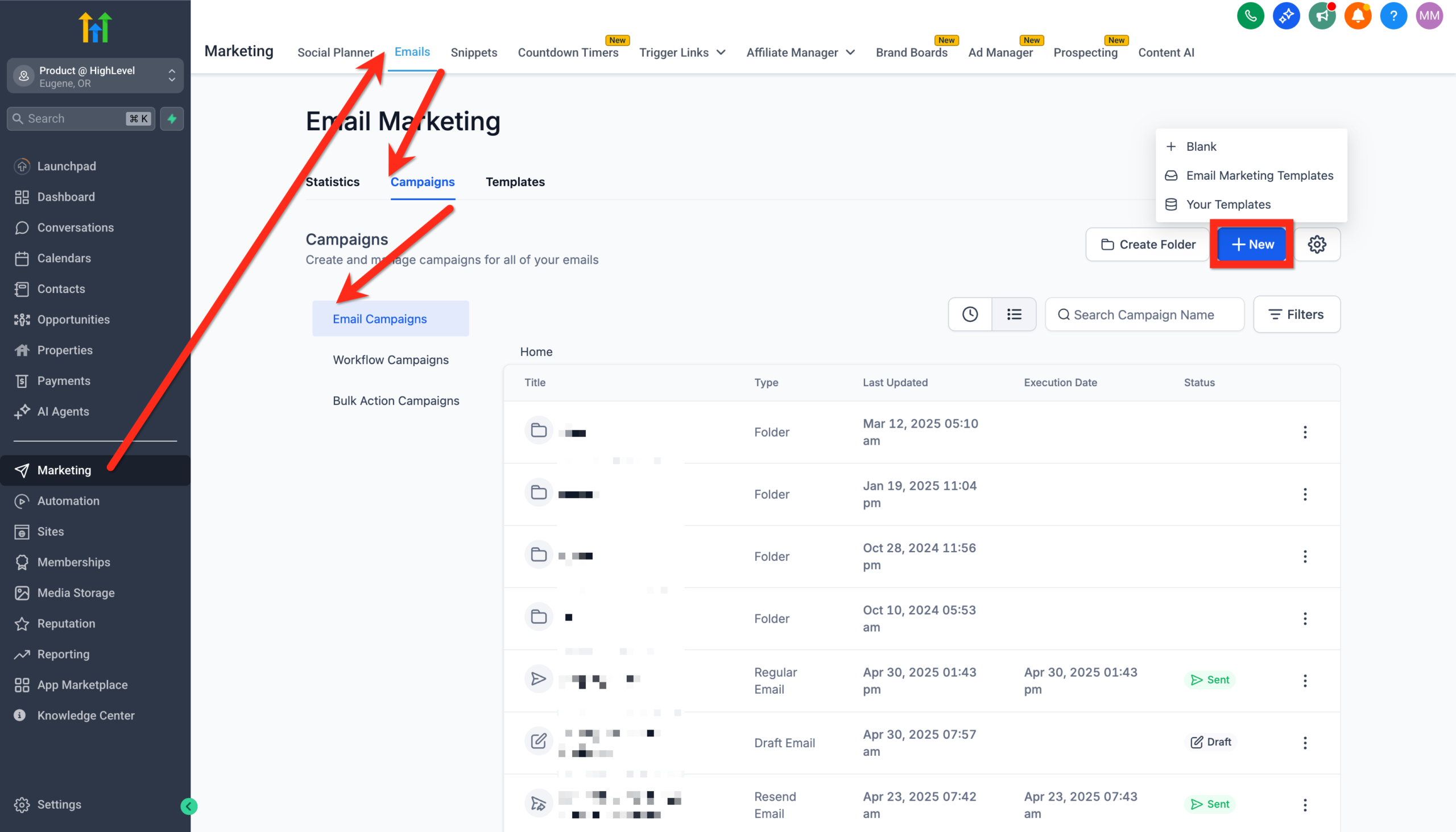 GoHighLevel's Email Campaigns section, with the option to 'Select Template' for creating a new campaign.” title=”GoHighLevel New Campaign from Template”>
 - Alternatively, from the Templates tab, click the 3-dot menu next to your email template and select Create Campaign.
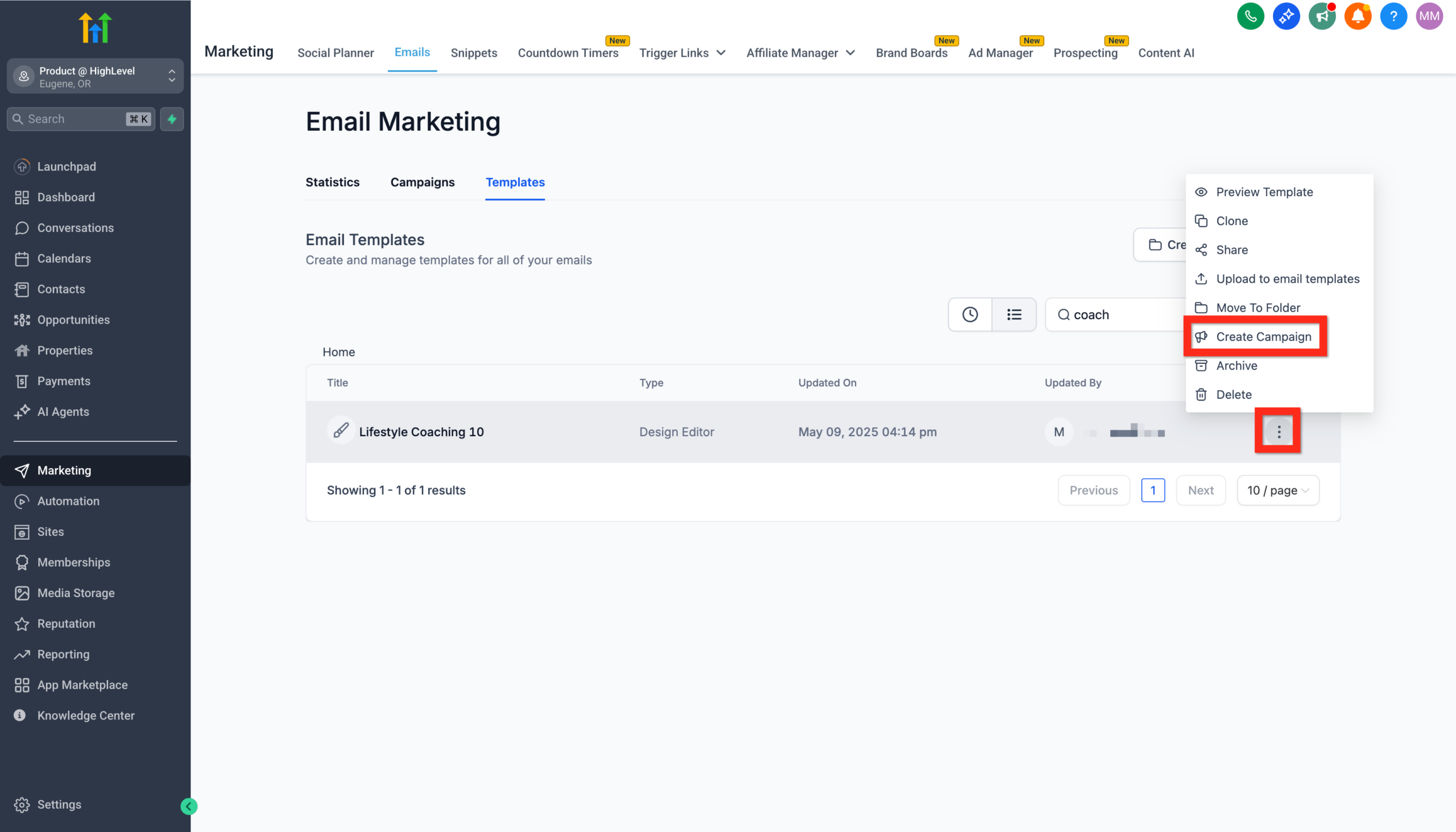 GoHighLevel's Email Templates tab, showing the 3-dot action menu next to a template with the 'Create Campaign' option highlighted.” title=”GoHighLevel Create Campaign from Template Menu”>
 - Inside the campaign editor, configure:
- From name and email – This should match your authenticated sending domain.
- Recipients – Choose a smart list, segment (for example, engaged leads last 90 days), or a one-off list.
- Send time – Send now or schedule based on your audience’s time zone. Start with weekday mornings or early afternoons.
- Tracking options – Ensure open and click tracking are enabled so you can optimize later.
- Use Preview and Send Test one more time from the campaign level.
- When you’re confident, click Review and Send to launch or schedule.
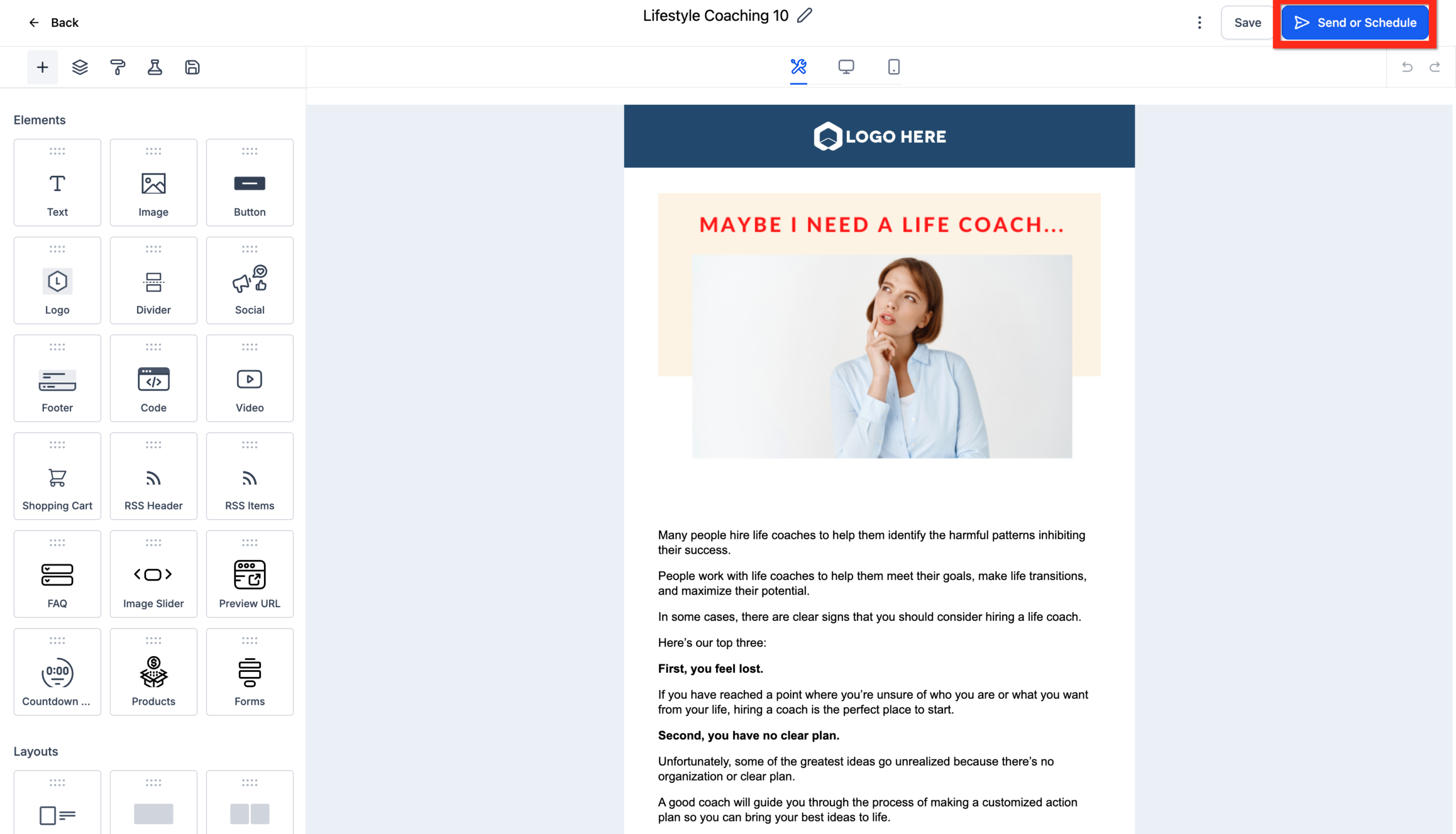 GoHighLevel Email Campaign editor, displaying the 'Send or Schedule' button to initiate the campaign sending process.” title=”GoHighLevel Send/Schedule Campaign”>
Configure your email options (like selecting recipients and enabling tracking).
Click Review and Send.
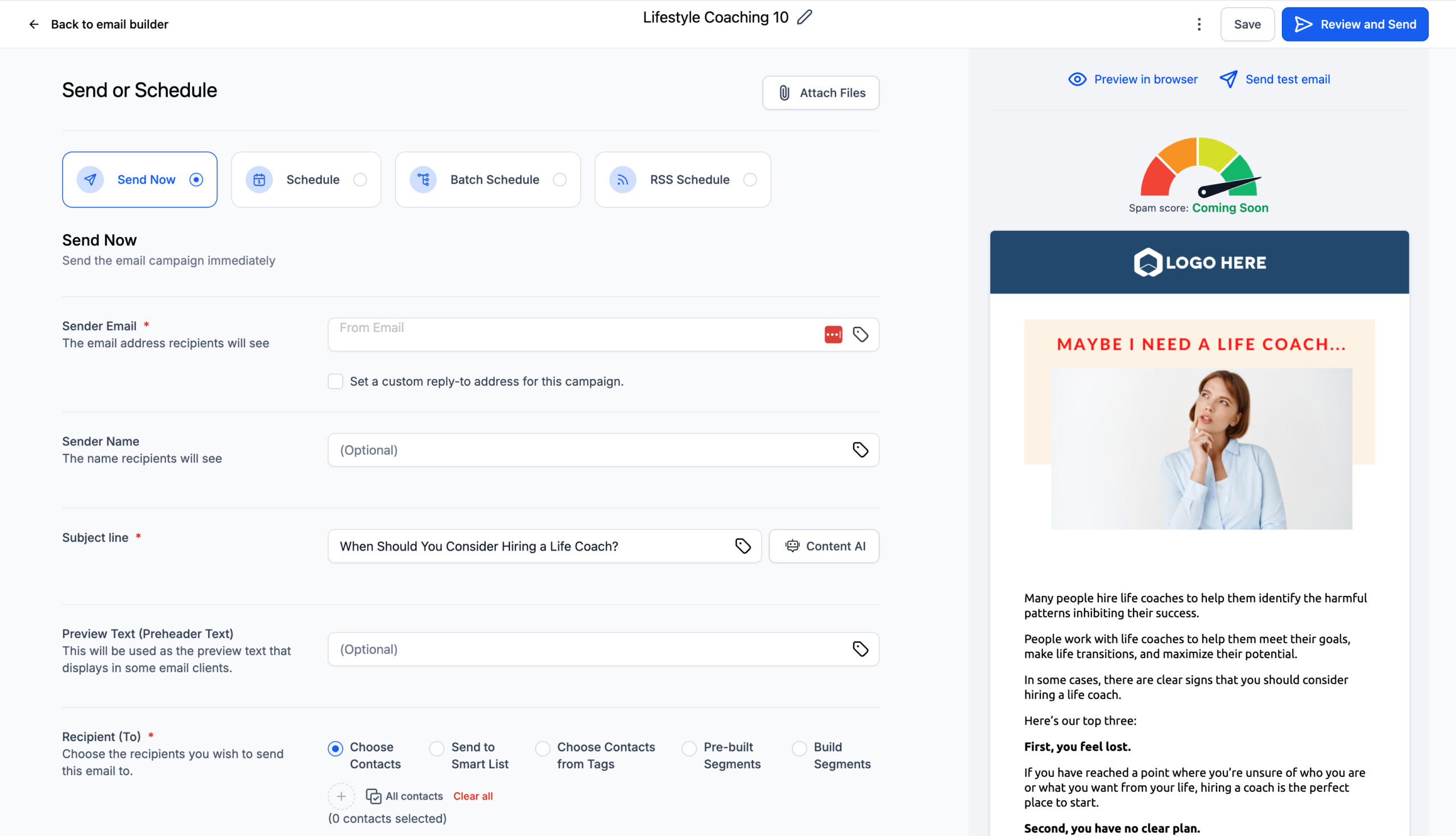 GoHighLevel email campaign configuration screen, showing options for recipients, send time, and tracking, with the 'Review and Send' button highlighted.” title=”GoHighLevel Review and Send Campaign”>
Sit back and watch the status change from Sending to Sent—congratulations!
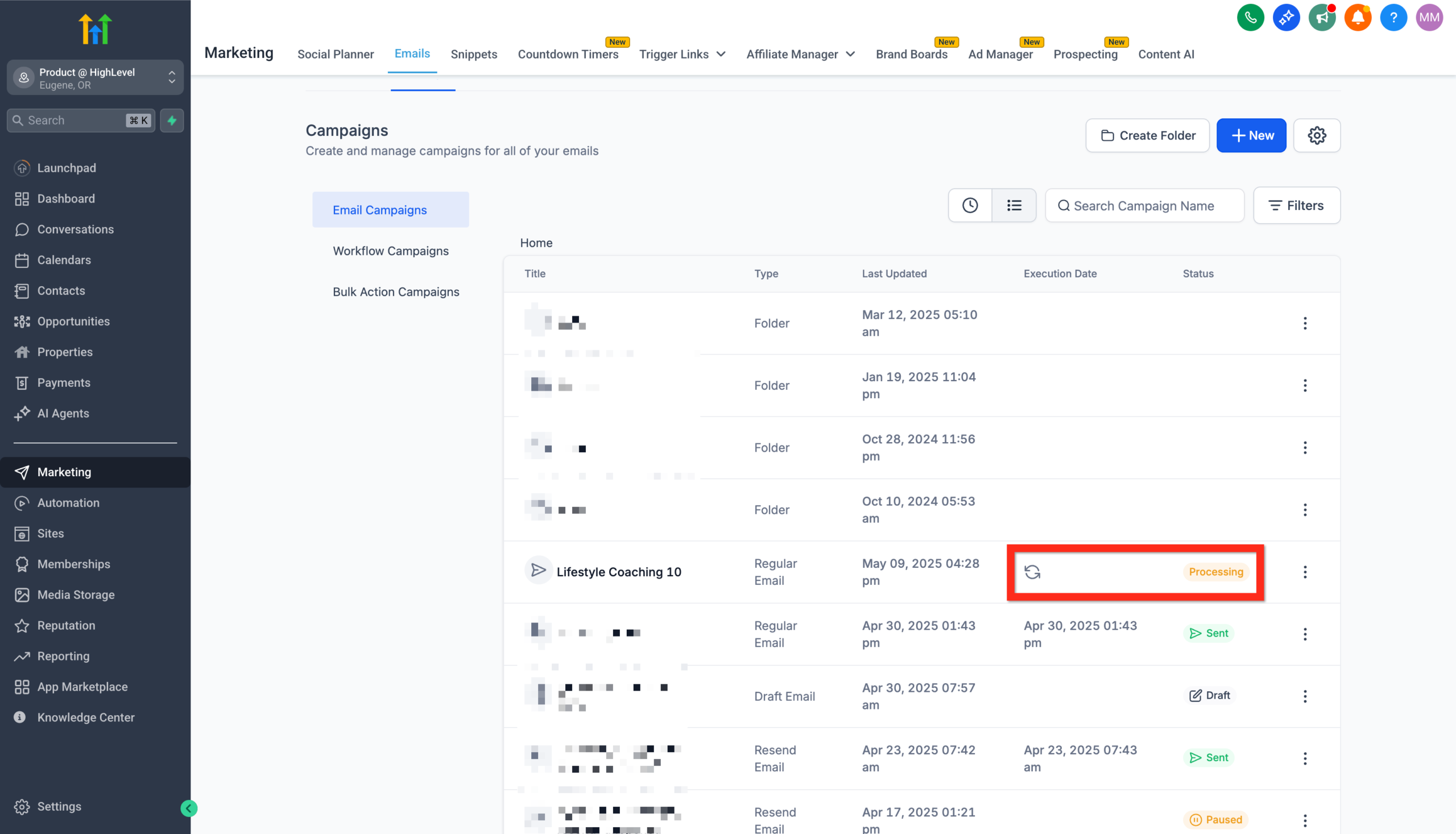 GoHighLevel email campaign dashboard, showing the status of a campaign changing from 'Sending' to 'Sent', indicating successful delivery.” title=”GoHighLevel Campaign Sent Status”>
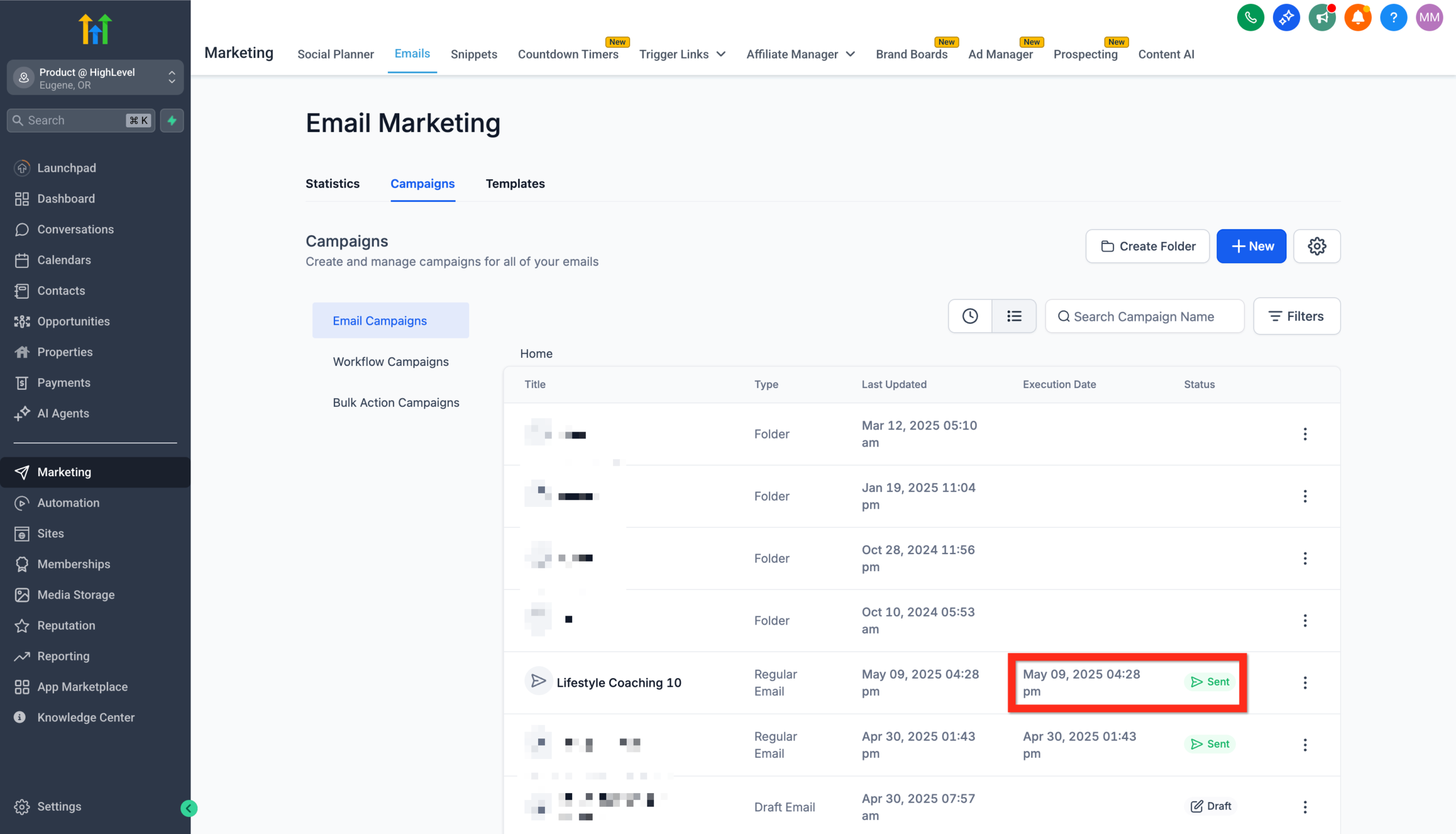 GoHighLevel's email campaign analytics, displaying key metrics like open rate, click-through rate, and delivery status for a recently sent campaign.” title=”GoHighLevel Campaign Analytics Overview”>
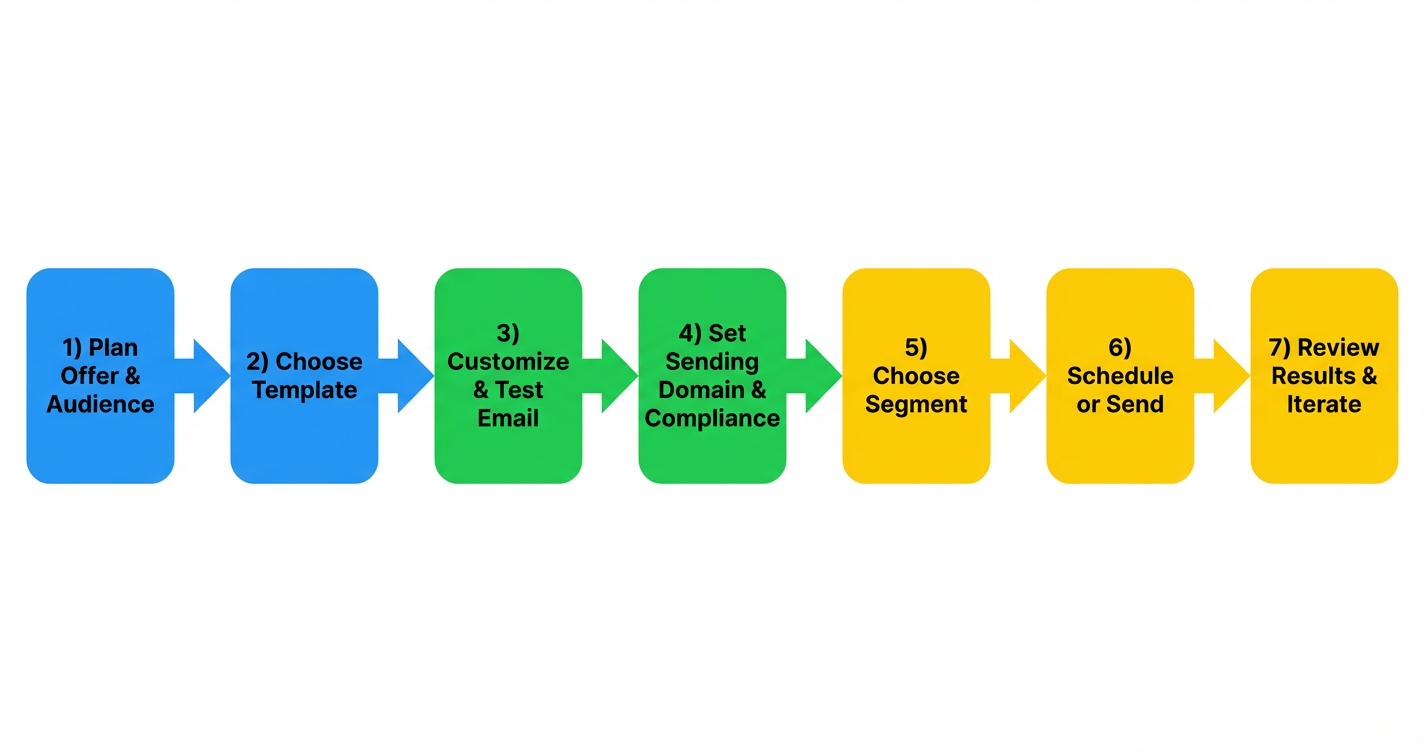
Here’s a simple visual of the full flow you’re running inside GoHighLevel:
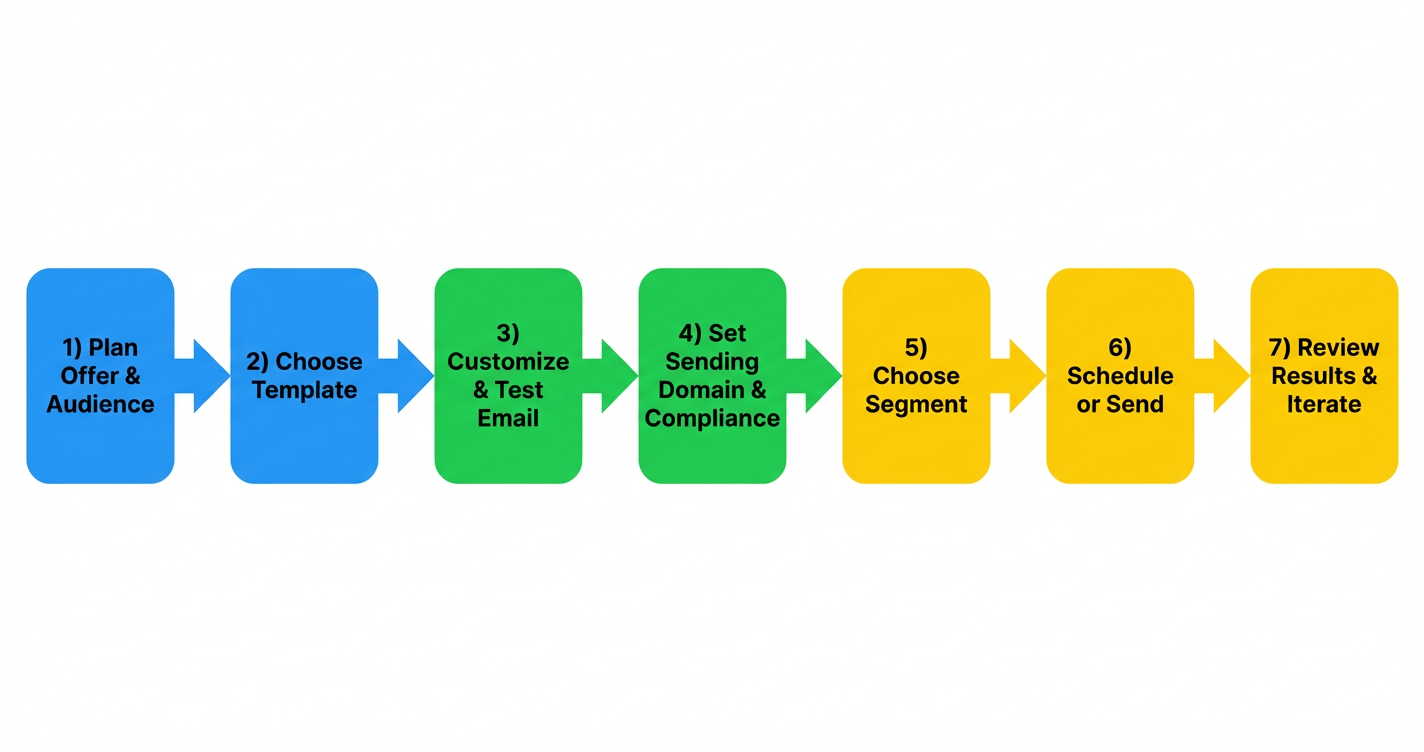 GoHighLevel email campaign flow”>
Once your campaign is live, GoHighLevel will handle the sending and you’ll start to see stats populate in the dashboard.
Step 5: Monitor Performance and Iterate
The first send is just the starting point. The real ROI comes from reading the data and iterating.
In your GoHighLevel campaign reporting, watch for:
- Open rate – Is your subject line and sender combination compelling?
- Click-through rate (CTR) – Does the body copy and CTA move people to act?
- Unsubscribe and spam complaints – Are you targeting the right segment with the right message?
A simple optimization loop you can run after each campaign:
- Duplicate the campaign.
- Change one variable (subject line, main CTA, offer framing, send time).
- Send to a similar-sized segment.
- Compare results and keep the winner.
Over time, this gives you a library of templates and campaign patterns that reliably work for your audience.
GoHighLevel vs. Traditional Email Tools (And Why It Matters)
Compared with standalone email platforms, GoHighLevel shines because your campaigns live in the same place as your funnels, forms, pipelines, and automations.
That means you can:
- Trigger automations when someone clicks a specific link.
- Move contacts into pipelines when they reply or book.
- Nurture leads across email, SMS, and workflows using a single contact record.
If you’re serious about tying campaigns directly to revenue, this is a huge advantage.
You can start a GoHighLevel free trial here and build your entire follow-up system—email, funnels, and CRM—in one place.
How Revset Labs Can Help
If you’d rather not spend weeks wiring this together yourself, Revset Labs can help.
Revset Labs is an AI Automation and Marketing Agency that specializes in building GoHighLevel-powered systems that:
- Capture and qualify leads automatically.
- Warm them up with email and SMS sequences.
- Push the hottest opportunities straight to your calendar or sales team.
For clients, we typically:
- Design the first few high-leverage campaigns (welcome, reactivation, launch).
- Set up domains, authentication, and list management correctly.
- Build dashboards so you can see exactly which campaigns drive revenue.
Use this guide to launch your own campaign—or bring in Revset Labs to turn it into a complete, done-for-you system.
FAQs About Launching Email Campaigns in GoHighLevel
1. What do I need in place before sending my first GoHighLevel email campaign?
You’ll want an authenticated sending domain (SPF, DKIM, DMARC), a cleaned list of opted-in contacts, and compliance basics like an unsubscribe link and business address. Getting these right up front dramatically improves deliverability.
2. Can I reuse email templates across multiple campaigns?
Yes. GoHighLevel separates templates from campaigns so you can create a library of on-brand templates and spin up new campaigns in minutes by cloning and tweaking what already works.
3. How do I improve deliverability over time?
Warm up new domains gradually, avoid sending to cold/unengaged lists, remove hard bounces, and keep your content relevant to the segment you’re emailing. High engagement sends a strong positive signal to inbox providers.
4. Should I send a one-off broadcast or build an automated sequence?
Start with a simple broadcast campaign to validate your message and offer. Once you see what converts, turn it into an automated workflow using GoHighLevel so every new lead experiences that proven sequence.
5. Where should this fit in my broader GoHighLevel setup?
Your email campaigns should plug into a bigger system: funnels that capture leads, pipelines that track deals, and workflows that follow up automatically. That’s where Revset Labs focuses when we implement GoHighLevel for clients.