Revset
Book a Free Audit

30-minute call · No obligation

HomeGHL HubIntegrations & APIIntegrate Facebook Leads in GoHighLevel: Your Step-by-Step Guide
REVSET LABS · EXPERT GUIDE·Integrations & API

Integrate Facebook Leads in GoHighLevel: Your Step-by-Step Guide

637 words·3 min read·Updated 28 April 2026·beginner·
Arsalan ZaffarArsalan ZaffarLinkedIn

👉 Start your 30-day GoHighLevel free trial.

Start 30-Day Free Trial
Quick Answer

To connect Facebook Lead Forms to GoHighLevel, navigate to Settings → Integrations → Facebook–Instagram and follow the on-screen prompts. This process typically takes about 5 minutes to complete.

Key Takeaways
  • Ensure you have Admin access to both the Facebook Page and its associated Business Manager before starting the integration.
  • Carefully map all Facebook form fields to the correct CRM fields in GoHighLevel to prevent data loss or miscategorization.
  • Choose your lead sync preference (All Leads or New Leads Only) based on whether you need to import historical data.
  • Utilize the 'Facebook Lead Form Submitted' workflow trigger to automate follow-up sequences for new leads immediately.
  • Always test your integration using Facebook's Lead Ads Testing Tool or by submitting a test form to confirm leads sync correctly.

Why Integrate Facebook Leads with GoHighLevel?

Integrating your Facebook Lead Forms directly with GoHighLevel transforms your lead capture process. This connection ensures that every new lead from your Facebook campaigns automatically enters your CRM, ready for immediate follow-up. You eliminate manual data entry and drastically reduce the time between lead submission and engagement.

How to Connect Your Facebook Page to GoHighLevel

Connecting your Facebook Page to GoHighLevel is a straightforward process that links your lead generation efforts directly to your CRM. Follow these steps carefully to ensure a smooth integration and begin automating your lead flow.
1
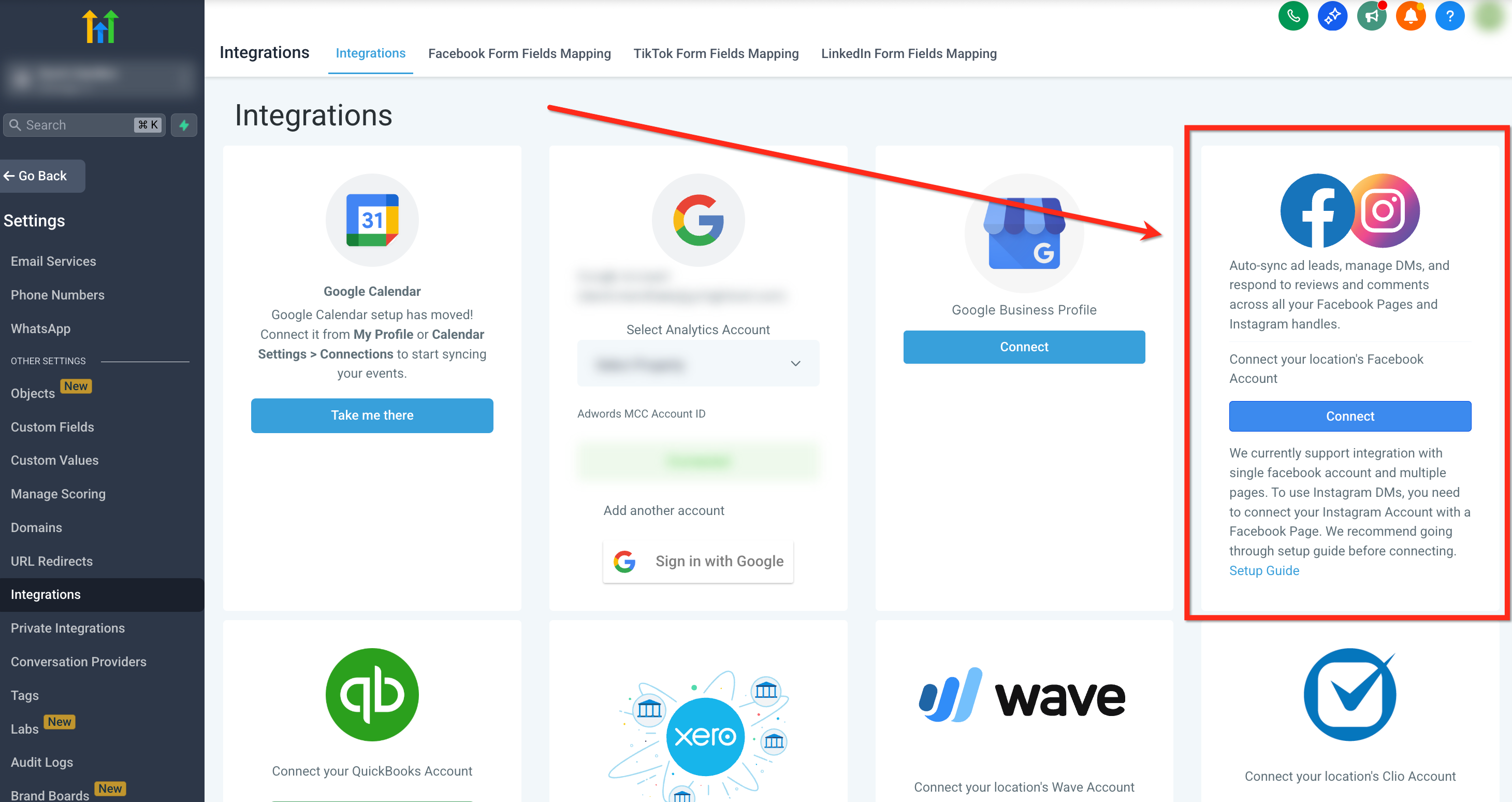
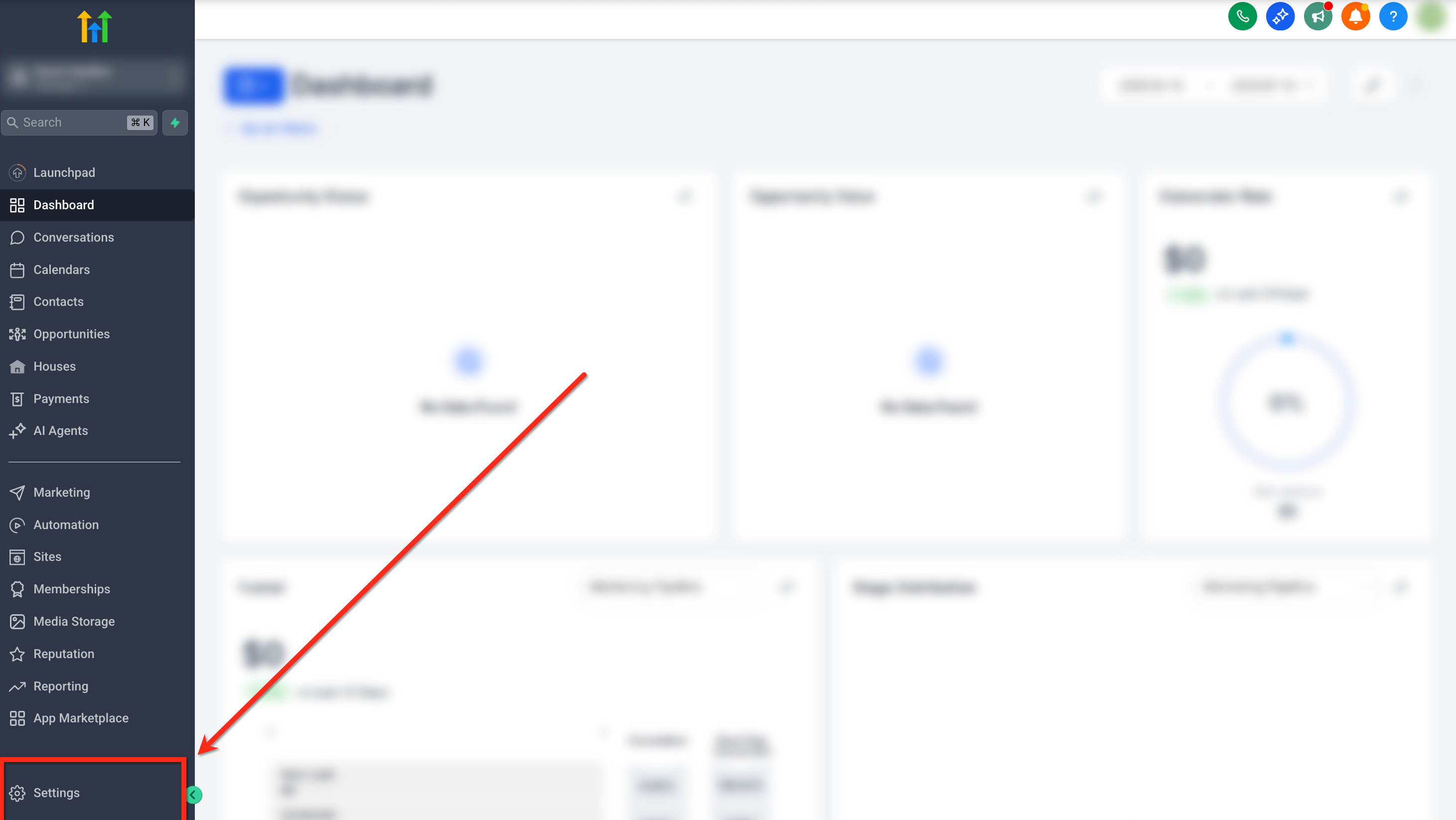
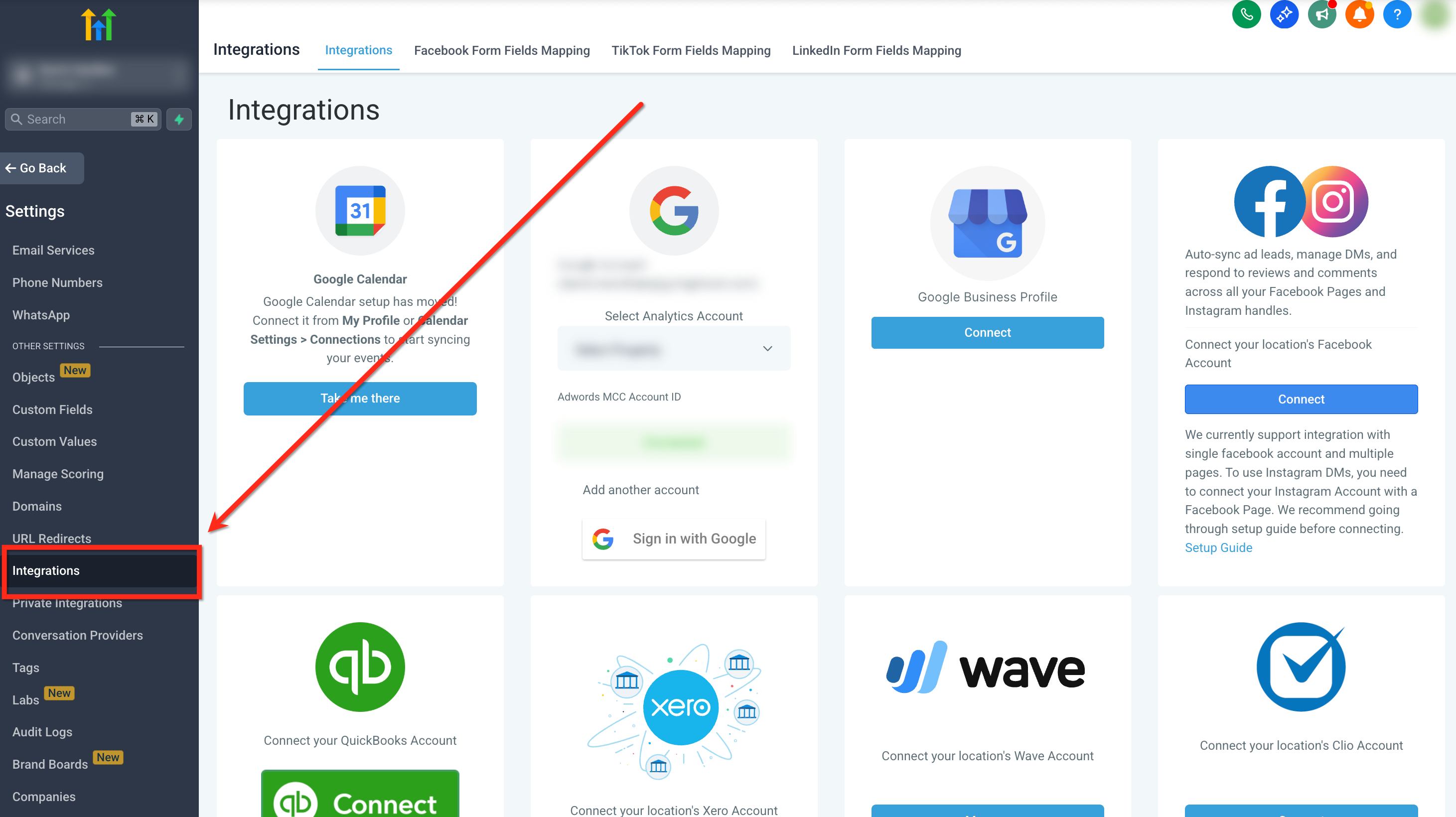
Access Integration SettingsFrom your GoHighLevel sub-account, click Settings in the bottom-left corner of the screen. Then, select Integrations from the left-hand navigation menu.
2
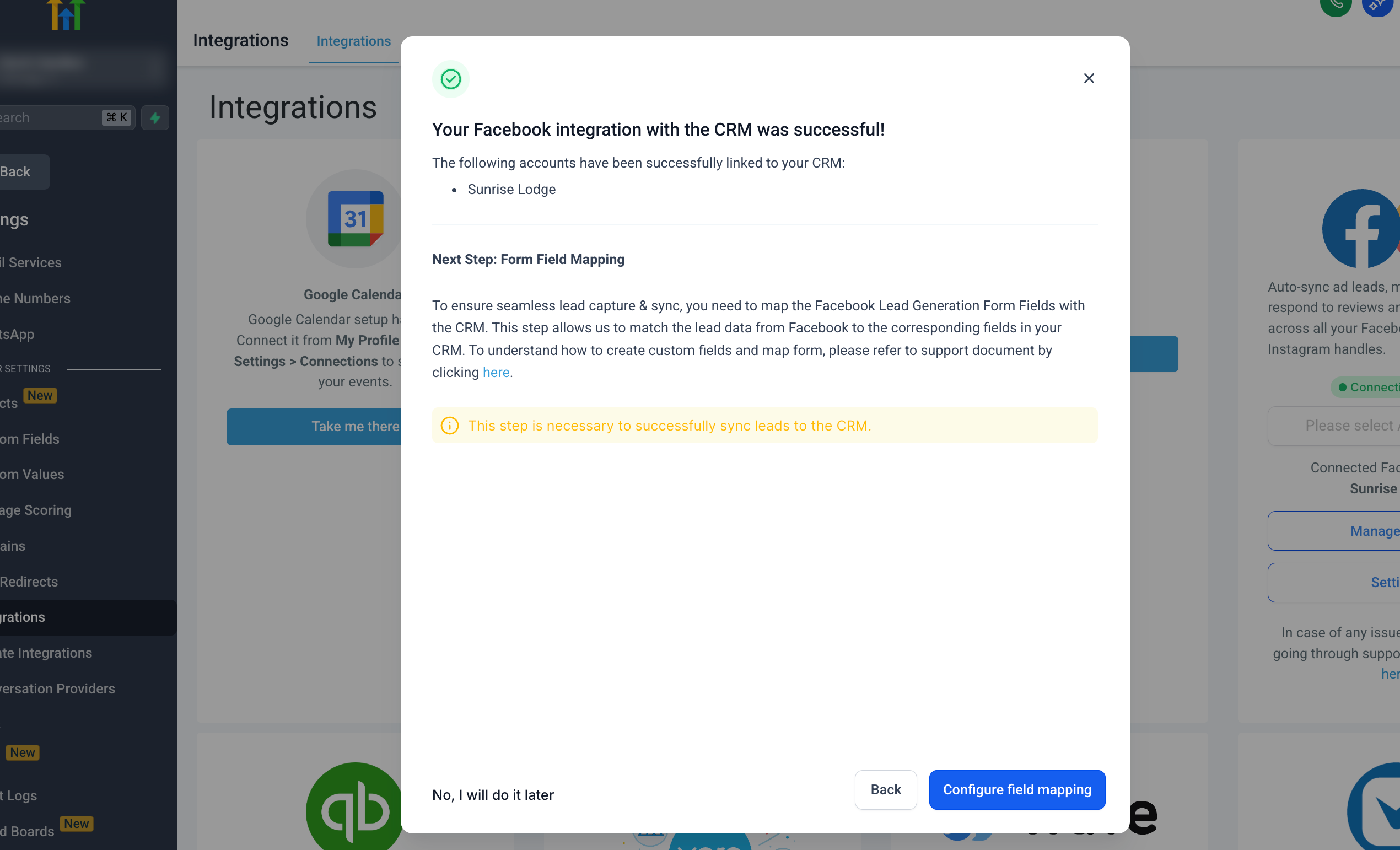
Initiate Facebook ConnectionLocate the Facebook–Instagram card at the top-right of the Integrations screen. Click the Connect button on this card to begin the setup.
GoHighLevel screenshot
0
3
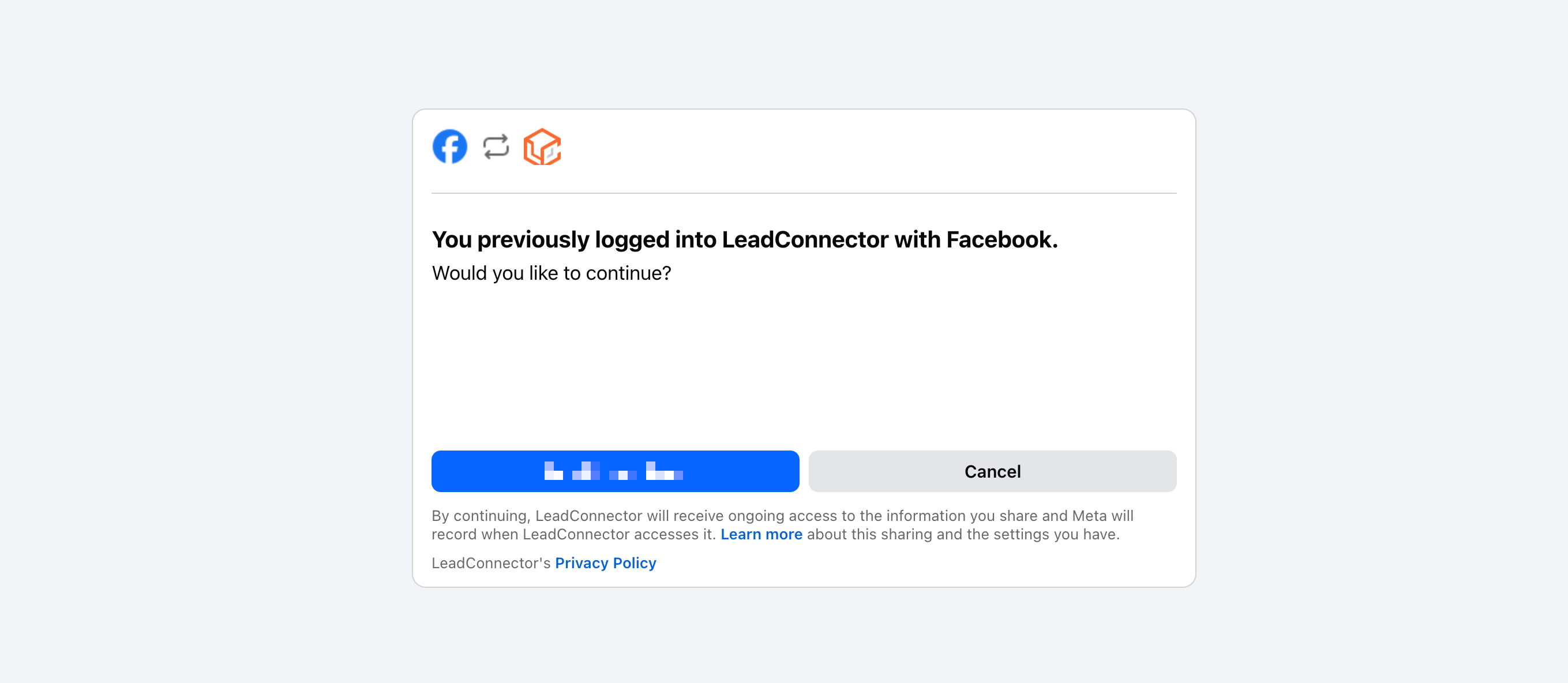
Log Into FacebookA new pop-up window will appear, prompting you to log into your Facebook account. Ensure you log into the specific Facebook profile that has Admin access to the Facebook Page you intend to integrate.
4
Grant Necessary PermissionsDuring the login process, Facebook will ask for your permission to access certain data. Approve all required permissions, especially those related to lead access and page data, for the integration to function correctly.
GoHighLevel screenshot
1
5
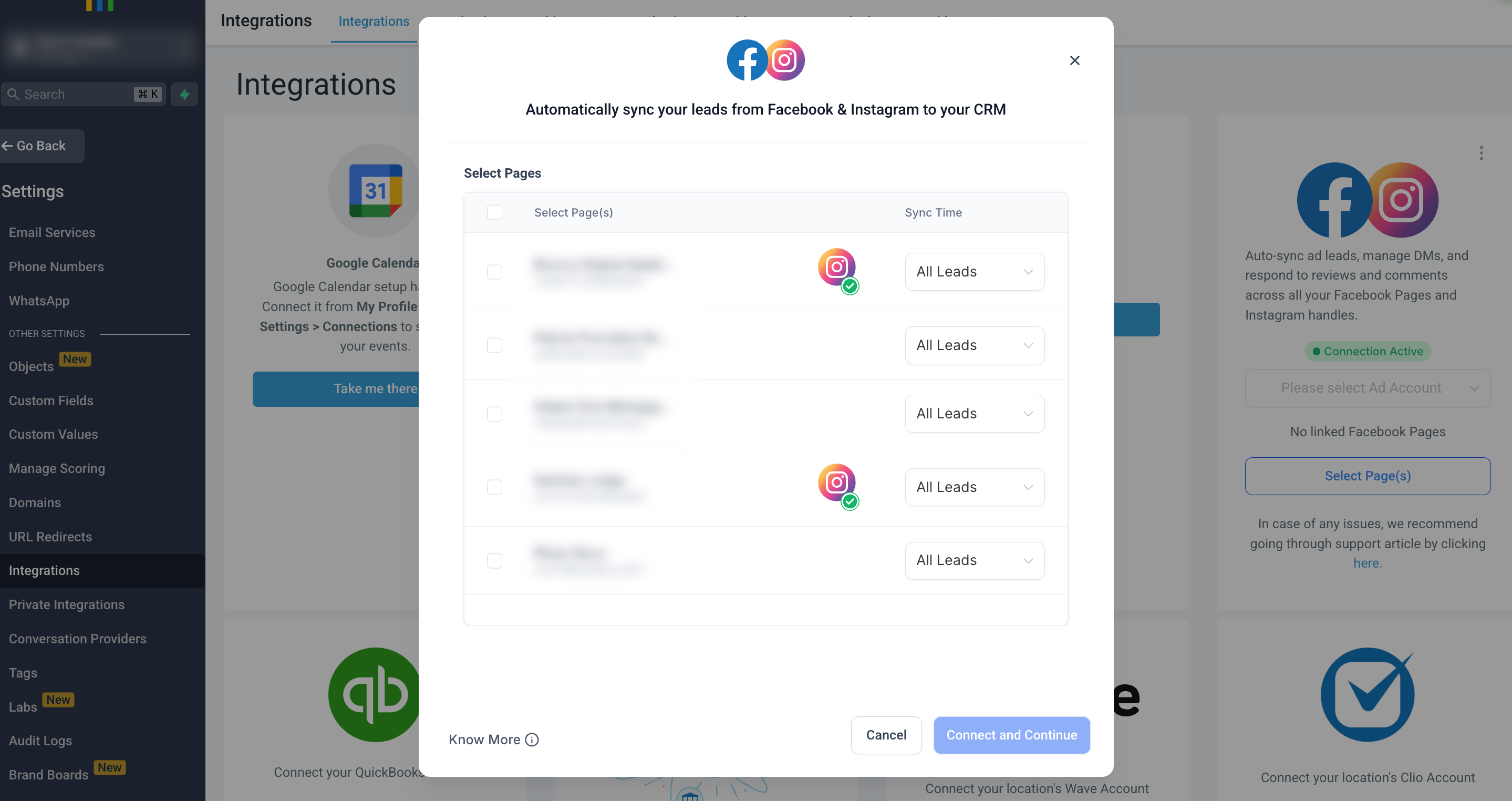
Select Your Facebook PageAfter successful login and permission grants, select the specific Facebook Page you wish to integrate with your GoHighLevel sub-account from the list provided. This is the page from which leads will be pulled.
6
Choose Lead Sync PreferenceDecide how you want to sync leads. You have two options: 'All Leads' to pull in historical leads and all new leads going forward, or 'New Leads Only' to sync only leads submitted after this integration is complete.
GoHighLevel screenshot
2
7
Map Facebook Form FieldsThis critical step ensures lead data is correctly categorized. Map each field from your Facebook Lead Forms (e.g., Name, Email, Phone) to its corresponding CRM field within GoHighLevel. Drag and drop or select from dropdowns to align them accurately.
8
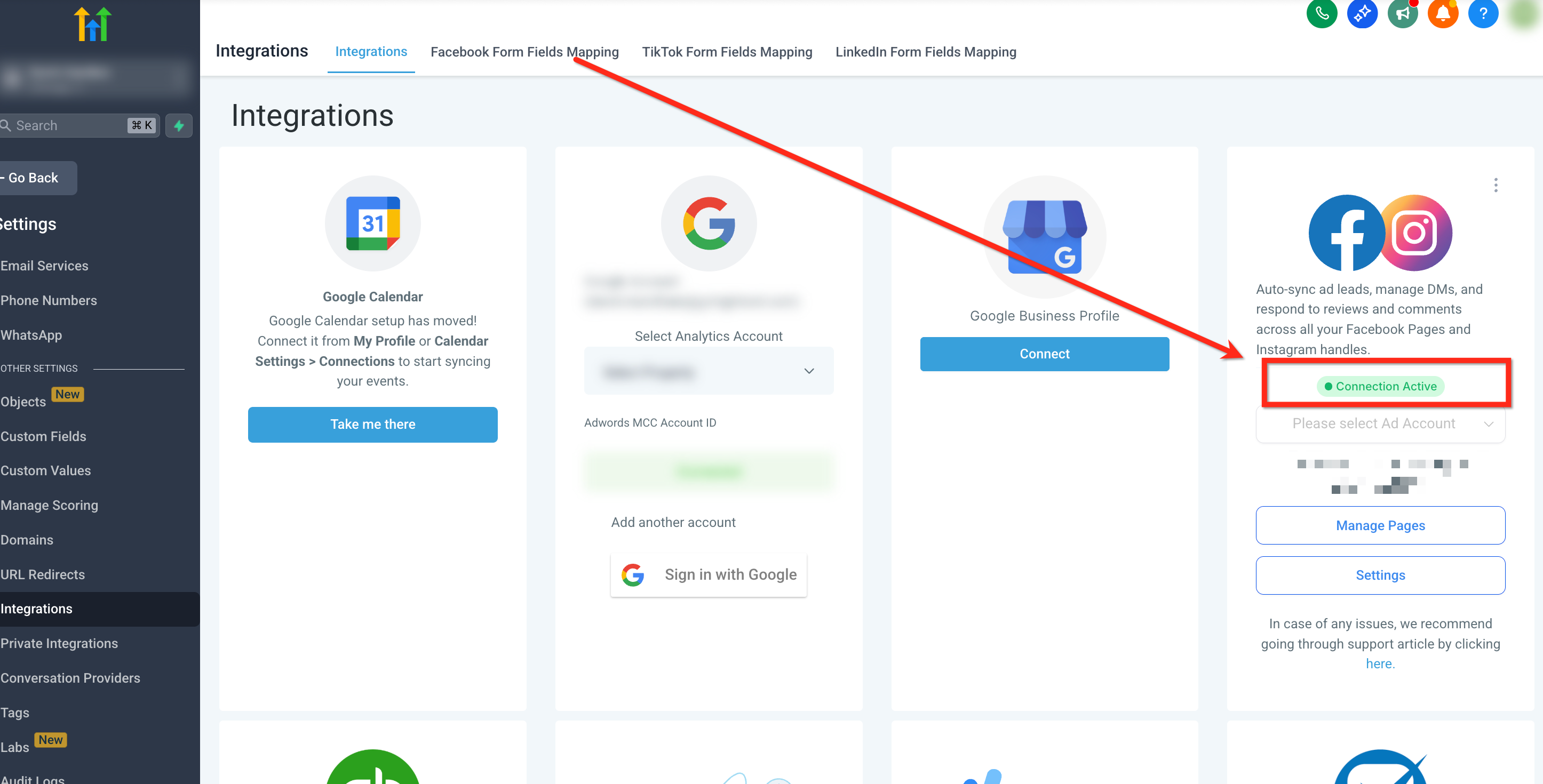
Finalize ConnectionOnce all fields are mapped and preferences are set, click Connect and Continue to finalize the integration. A green banner confirming 'Integration successful' will appear, indicating your Facebook Page is now linked.
GoHighLevel screenshot
3
GoHighLevel screenshot

✅ Important: You must possess Admin access to both the Facebook Page and its connected Business Manager for the integration to succeed.

🔥 Pro Tip

Always double-check your field mapping. Incorrect mapping is a common cause of missing or misplaced lead data in your CRM.

Try GoHighLevel Free

Start your 30-day GoHighLevel free trial

Everything in this guide is in your free trial. 30 days, no credit card — the platform behind 78+ revenue systems.

Start 30-Day Free Trial

Some links are affiliate links — if you sign up we may earn a commission, at no extra cost to you. We only recommend GoHighLevel because we build on it every day.

What are Common Issues with Facebook Integration?

Even with a clear guide, you might encounter specific challenges during or after setting up your Facebook integration. Knowing the common errors and their fixes helps you quickly resolve problems and maintain a smooth lead flow.

Expert Tips for Optimizing Your Facebook Integration

Beyond basic setup, you can leverage several strategies to maximize the effectiveness of your Facebook lead integration. These tips help you automate more, respond faster, and ensure a robust lead management system.

✅ Regularly test your Facebook Lead Forms, especially after making changes, to confirm leads are consistently syncing to GoHighLevel.

🔥 Pro Tip

Immediately trigger automated workflows for new Facebook leads. Use the 'Facebook Lead Form Submitted' trigger in your GoHighLevel workflows to send welcome emails, SMS messages, or assign tasks, ensuring rapid lead engagement.

Troubleshooting Common Issues

⚠️ You see a 'Page Not Visible' error or cannot select your Facebook Page.
Ensure the Facebook profile you logged in with has Admin access to both the specific Facebook Page and its linked Facebook Business Manager. Verify permissions directly in Facebook settings.
⚠️ Leads are not syncing from Facebook to GoHighLevel.
Check your field mapping in GoHighLevel to ensure all Facebook form fields are correctly matched to CRM fields. Also, confirm that your Facebook Page is still connected and its token has not expired.
⚠️ You receive a 'Facebook Token Expired' notification.
You must reconnect your Facebook account. Navigate back to Settings → Integrations → Facebook–Instagram and click 'Reconnect' or 'Update Token' to re-authenticate your connection.
⚠️ Historical leads are not appearing in GoHighLevel.
During the integration setup, you likely selected 'New Leads Only'. To import past leads, you must disconnect and then reconnect your Facebook Page, selecting the 'All Leads' sync preference this time.
⚠️ Instagram leads are not syncing.
Verify that your Instagram Business account is properly connected to the Facebook Page you integrated with GoHighLevel. Instagram leads flow through the connected Facebook Page.

Common Mistakes to Avoid

  • Failing to grant all necessary Facebook permissions during the initial connection process.
  • Incorrectly mapping Facebook form fields to GoHighLevel CRM fields, leading to lost or miscategorized data.
  • Not verifying Admin access for both the Facebook Page and its Business Manager before attempting integration.
  • Forgetting to test the integration after setup, which can result in missed leads from live campaigns.
  • Choosing 'New Leads Only' when you also need to import existing historical leads from your Facebook Page.

Frequently Asked Questions

QWhat specific Facebook permissions are required to integrate a page with GoHighLevel?
To successfully integrate, you must grant GoHighLevel access to your Facebook Page and its associated Business Manager. This includes permissions to manage pages, read content, create posts, and access lead data. Ensure the Facebook profile used for connection has Admin roles for both the Page and the Business Manager.
QCan I connect multiple Facebook Pages to a single GoHighLevel sub-account?
Yes, you can absolutely connect multiple Facebook Pages to one GoHighLevel sub-account. The process involves repeating the integration steps for each additional page you wish to link, ensuring each page's leads flow into the same CRM.
QWhat action should I take if my Facebook integration token in GoHighLevel expires?
If your Facebook token expires, GoHighLevel will typically notify you with a reconnection prompt. To fix this, simply navigate to **Settings → Integrations → Facebook–Instagram** and click the option to 'Reconnect' or 'Update Token'. This re-authenticates your connection without losing existing data.
QHow can I effectively test if my Facebook Lead Form integration is working correctly?
You can test your integration using Facebook's official Lead Ads Testing Tool to simulate a lead submission. Alternatively, submit a real test form on your Facebook Page. After submission, immediately check your GoHighLevel CRM to confirm the lead appears with all data correctly mapped.
QDoes connecting my Facebook Page also integrate leads from my Instagram Business account?
Yes, if your Instagram Business account is properly connected to the Facebook Page you've integrated with GoHighLevel, leads generated through Instagram Ads will also sync automatically. Instagram leads are funneled through the connected Facebook Page's lead forms.
Try GoHighLevel Free

Start your 30-day GoHighLevel free trial

Everything in this guide is in your free trial. 30 days, no credit card — the platform behind 78+ revenue systems.

Start 30-Day Free Trial

Some links are affiliate links — if you sign up we may earn a commission, at no extra cost to you. We only recommend GoHighLevel because we build on it every day.

Arsalan Zaffar
Arsalan Zaffar
Revset Labs · Revenue Systems · 78+ GHL Builds

Arsalan writes GHL guides from real build experience — 78+ systems, $9.2M in client pipeline. Wharton, CXL & Google certified.

Connect on LinkedIn
Tags:Facebook IntegrationLead CaptureGoHighLevel CRMMarketing AutomationFacebook Lead AdsSocial Media Integration