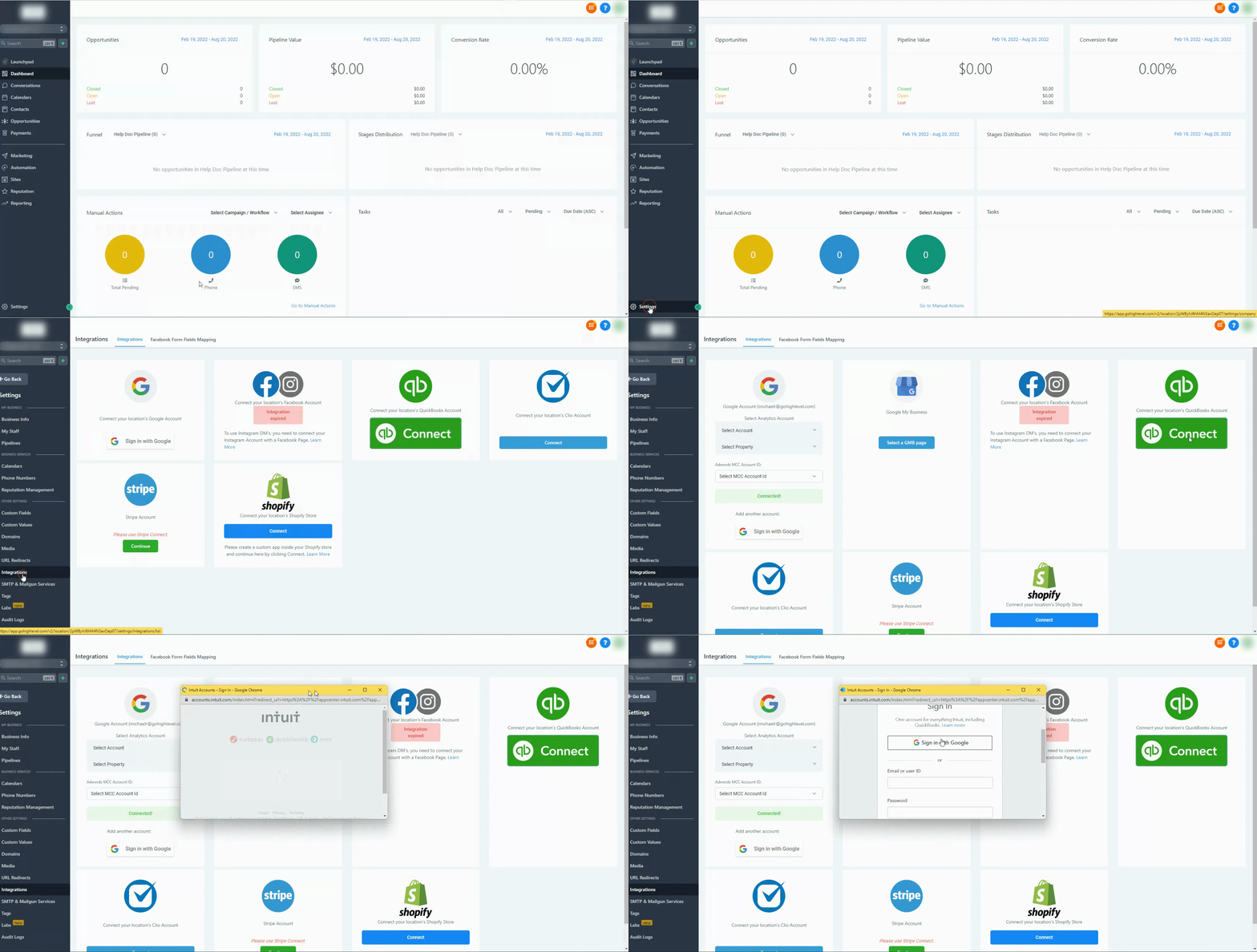
To integrate GoHighLevel with QuickBooks, go to Settings → Integrations → QuickBooks. Click the Connect button, configure your import and automation preferences, and log in with your QuickBooks credentials. This setup typically takes 5-10 minutes.
Key Takeaways
✓Enable 'Import Invoices' during initial setup to bring existing QuickBooks invoices into GoHighLevel; this cannot be done later.
✓GoHighLevel invoices must be in 'Sent', 'Pending', or 'Paid' status to sync to QuickBooks; 'Draft' invoices do not sync.
✓Contact records are matched and synced between GoHighLevel and QuickBooks primarily using their email addresses.
✓Automate review requests from GoHighLevel when a contact's first QuickBooks invoice is fully paid, enhancing customer feedback.
✓Changes made to invoices imported from QuickBooks into GoHighLevel do not sync back to QuickBooks, requiring management in QuickBooks for those specific records.
What the GoHighLevel QuickBooks Integration Does
The GoHighLevel QuickBooks integration streamlines your accounting by automatically syncing crucial data between both platforms. This saves you time and reduces manual data entry, ensuring your customer and financial records are always up-to-date. Understand the core functions to leverage this powerful connection.
🔥 Pro Tip
Regularly review your integration settings and synced data during the first few weeks. This helps you confirm everything is flowing correctly and catch any configuration issues early.
Automatic Customer Creation and Updates
When a new contact engages with your business in GoHighLevel, like making a payment or scheduling an appointment, the integration can automatically create or update their corresponding customer record in QuickBooks. This ensures your customer list is consistent across both systems.
1
Creates New Customers in QuickBooks — If a contact engages in GoHighLevel and does not have a matching record in QuickBooks, the integration creates a new customer profile. This happens automatically when payment activity or invoice creation occurs in GoHighLevel.
2
Matches Existing Contacts by Email — The system first attempts to match contacts using their email address. If a contact with the same email already exists in QuickBooks, the integration updates their record instead of creating a duplicate.
Seamless Sales Receipt Generation
All payments processed through GoHighLevel can automatically register as sales receipts in QuickBooks. This provides an accurate and real-time record of your income, directly linking transactions to your accounting software.
1
Registers GoHighLevel Payments as Sales Receipts — When a payment is successfully made within GoHighLevel, such as through order forms, subscriptions, membership checkouts, or calendar payments, a corresponding sales receipt is created in QuickBooks. The system matches these to the correct customer record using their email.
0
2
Ensures Accurate Revenue Tracking — This automatic process ensures that all your revenue from GoHighLevel activities is accurately and promptly recorded in your QuickBooks account. You gain a clear overview of your sales without manual data entry.
1
Intelligent Invoice Synchronization
The integration provides robust invoice management, ensuring that invoices created or updated in GoHighLevel are mirrored in QuickBooks. This keeps your billing consistent and your financial records precise.
1
Creates and Updates Invoices in QuickBooks — When you mark an invoice as 'Sent' in GoHighLevel, the integration creates a new invoice in QuickBooks. Subsequent updates to the invoice in GoHighLevel, such as status changes to 'Paid' or 'Voided', also sync to QuickBooks.
2
Syncs Key Invoice Details — The integration pushes comprehensive invoice data. This includes the Invoice Number, Status (e.g., paid, voided), Issue Date, Due Date, Contact information (creating the contact in QuickBooks if new), Billing Email, Invoice Total Value, Invoice Amount Paid, and Line Item Names.
3
Handles Discounts and Taxes — For US subaccounts, discounts and taxes are adjusted against the item price to reflect accurately. For other regions, these values are also synced, ensuring full financial transparency.
4
Focuses on New Invoices by Default — By default, the integration only syncs new invoices created in GoHighLevel *after* the connection is established. Existing invoices in GoHighLevel before integration do not sync unless you specifically enable the 'Import Invoices' option during setup.
Two-Way Contact Synchronization
The integration ensures your contact lists are synchronized across both platforms, providing a unified view of your customers and leads. This saves you from manually updating contact information in two separate systems.
1
Imports Existing Contacts from QuickBooks to GoHighLevel — Upon initial connection, the integration brings your existing contact list from QuickBooks into GoHighLevel. This populates your CRM with all your current customer information.
2
Continuously Syncs New Contacts from QuickBooks — Any new contacts created in QuickBooks will automatically sync to GoHighLevel. This process usually takes up to 5 minutes to reflect in your GoHighLevel account, keeping your CRM updated.
3
Creates Contacts in QuickBooks from GoHighLevel — As mentioned, any contact that has activity in GoHighLevel (e.g., payment, invoice) will also be created in QuickBooks if they don't already exist, ensuring full synchronization.
Try GoHighLevel Free
Start your 30-day GoHighLevel free trial
Everything in this guide is in your free trial. 30 days, no credit card — the platform behind 78+ revenue systems.
Some links are affiliate links — if you sign up we may earn a commission, at no extra cost to you. We only recommend GoHighLevel because we build on it every day.
Automated Review Request Sending
Leverage your QuickBooks payment data to automatically trigger review requests from GoHighLevel. This helps you gather valuable customer feedback without any manual effort.
1
Triggers Review Requests on First Invoice Payment — When QuickBooks registers a contact's *first* invoice as fully paid (balance = $0), GoHighLevel can automatically send a review request. This feature is optional and you can enable or disable it during or after setup.
2
Boosts Customer Feedback — This automation ensures you ask for reviews at the optimal time – right after a customer has completed their first successful transaction. This significantly increases your chances of getting positive feedback.
Importing Historical Invoices from QuickBooks
You have the option to import your old invoices from QuickBooks into GoHighLevel during the initial setup. This provides a complete historical view of your billing within your CRM.
1
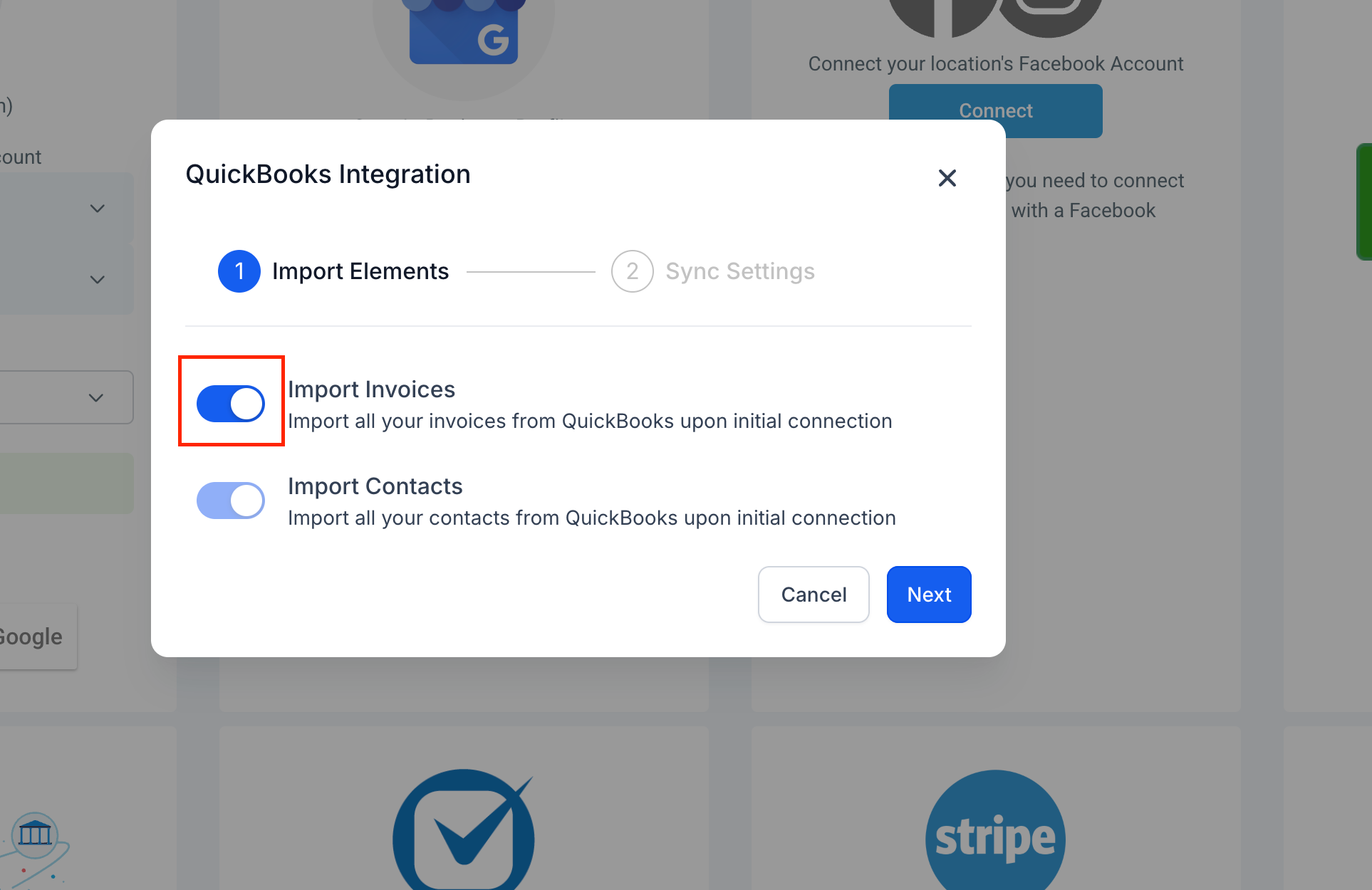
Enable During Initial Connection — To import historical invoices, you must enable the 'Import invoices' toggle when you first connect QuickBooks. This option is only available during the initial setup and cannot be activated later.
2
Understand One-Way Sync for Imported Invoices — Note that any changes you make to these imported QuickBooks invoices within GoHighLevel will *not* sync back to QuickBooks. Manage these specific invoices in QuickBooks directly for updates. Rest assured, this process will not create a loop where invoices are re-imported.
Step-by-Step: Connecting GoHighLevel to QuickBooks
Follow these precise steps to connect your GoHighLevel account with QuickBooks. This process ensures a smooth and accurate data flow between your CRM and accounting software.
1
1. Access Integration Settings — Log into your GoHighLevel account. From the left-hand menu, click on Settings. Then, navigate to Integrations.
2
2. Initiate QuickBooks Connection — On the Integrations page, locate the QuickBooks integration card. Click on the Connect or QB Connect button to begin the setup process.
3
3. Configure Invoice Import (Optional) — A pop-up window will appear with integration options. If you want to import your previously created invoices from QuickBooks into GoHighLevel, toggle on Import invoices. Remember, this option is only available during initial setup.
4
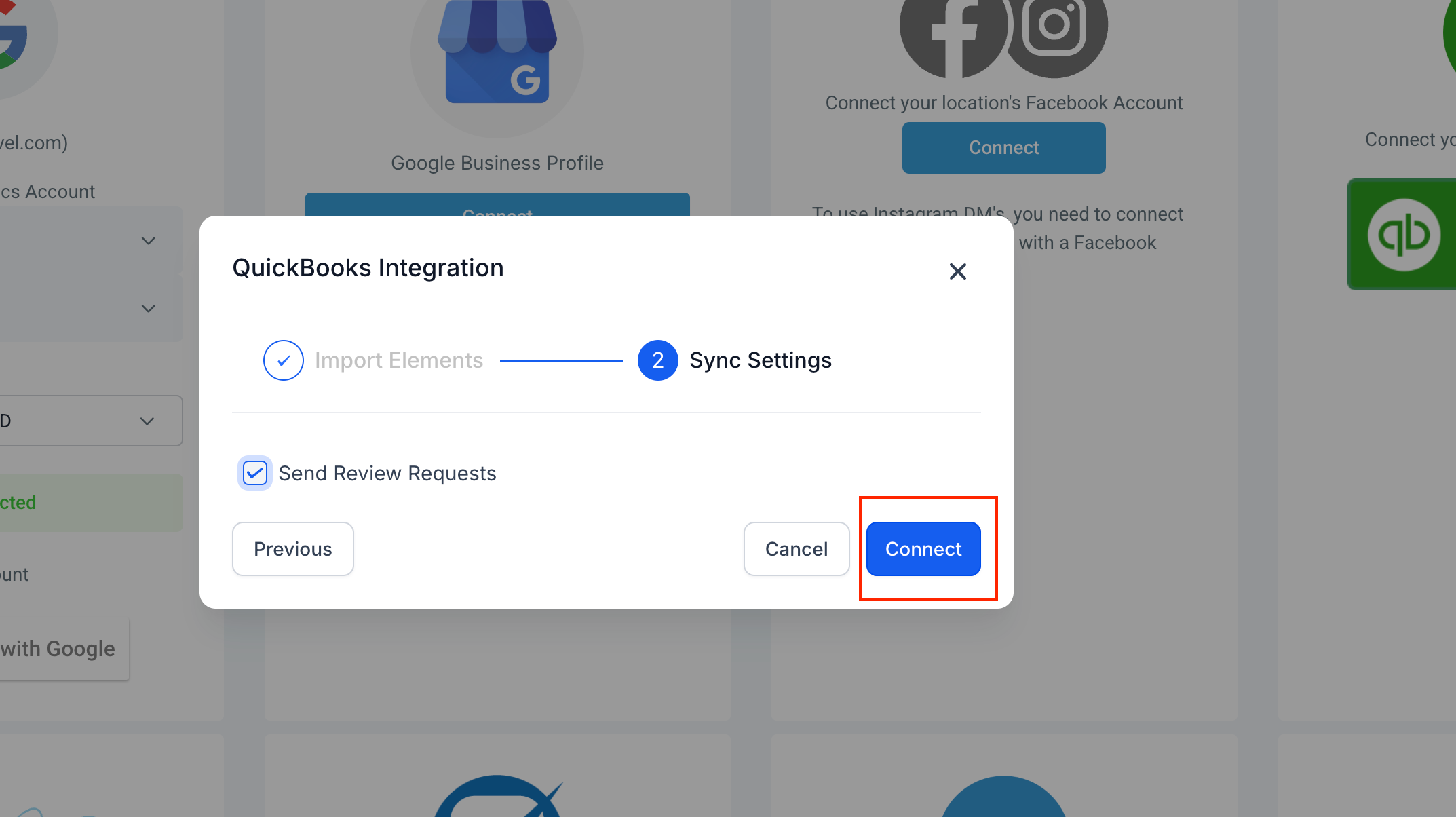
4. Enable Review Automation (Optional) — Decide if you want to automate review requests. Toggle on Enable review automation if you want GoHighLevel to send a review request when a contact's first QuickBooks invoice is paid in full.
5
5. Connect to QuickBooks Account — Click the Connect & Login button. This action redirects you to the QuickBooks login page where you will enter your QuickBooks credentials.
6
6. Grant Permissions — After logging into QuickBooks, you will see a request for permissions. You must accept all requested permissions for the integration to function correctly and sync all necessary data.
7
7. Confirm Integration — Once you accept the permissions, you will be redirected back to GoHighLevel. The QuickBooks integration card will now show as 'Connected', indicating a successful setup. Your data synchronization will begin.
🔥 Pro Tip
Before you connect, make sure your GoHighLevel and QuickBooks accounts use the same primary email for your business. This helps prevent potential conflicts during the initial contact sync.
Managing Your Integration Post-Setup
After successfully integrating GoHighLevel with QuickBooks, it is important to understand how to manage your synced data and ensure ongoing accuracy. Regular checks can prevent issues and maximize the benefits of the connection.
🔥 Pro Tip
Periodically check your GoHighLevel contact records against QuickBooks to ensure consistent data. Use the contact's email as the primary identifier for cross-referencing.
Troubleshooting Common Issues
⚠️ GoHighLevel invoice not appearing in QuickBooks.
Ensure the invoice in GoHighLevel is marked as Sent, Pending, or Paid. Draft invoices do not sync to QuickBooks. Open the invoice and click Send.
⚠️ Existing QuickBooks invoices not showing in GoHighLevel.
You must enable the Import Invoices toggle during the *initial* connection setup. If you did not, existing invoices cannot be imported retroactively.
⚠️ New contacts from QuickBooks not appearing in GoHighLevel.
Wait up to 5 minutes for the sync to complete. Verify the integration is active in Settings → Integrations. If still missing, check QuickBooks for any sync errors.
⚠️ Review request not sent after a QuickBooks invoice is paid.
Check if Enable review automation is toggled on the QuickBooks integration card in GoHighLevel Settings → Integrations. Ensure it is enabled for this feature to work.
⚠️ Changes to an imported QuickBooks invoice in GHL don't reflect in QB.
Changes made to invoices originally imported from QuickBooks into GoHighLevel do not sync back to QuickBooks. You must manage these specific invoices directly within your QuickBooks account.
Common Mistakes to Avoid
→Forgetting to enable 'Import Invoices' during the initial connection for historical data sync.
→Expecting 'Draft' status invoices in GoHighLevel to sync to QuickBooks; they must be sent or paid.
→Not accepting all required permissions when connecting to QuickBooks, which can hinder full functionality.
→Attempting to modify QuickBooks-imported invoices in GoHighLevel and expecting those changes to sync back to QuickBooks.
→Failing to verify the integration status or review sync logs if data discrepancies occur.
Frequently Asked Questions
QWhat types of GoHighLevel payments create sales receipts in QuickBooks?
Payments processed through various GoHighLevel features automatically generate sales receipts in QuickBooks. This includes payments from GoHighLevel order forms, ongoing subscriptions, membership site checkouts, and calendar appointment payments. This ensures a comprehensive and accurate record of all your incoming revenue in your accounting software, linking directly to the customer.
QCan I import my existing QuickBooks invoices into GoHighLevel?
Yes, you can import your existing QuickBooks invoices into GoHighLevel. This crucial step must be performed during the initial integration setup by enabling the 'Import invoices' toggle. If you do not activate this option during the first connection, only new invoices created in GoHighLevel after the integration will sync to QuickBooks, and you cannot import historical invoices later.
QHow does the integration handle customer records that already exist in both GoHighLevel and QuickBooks?
The GoHighLevel QuickBooks integration intelligently manages existing customer records by matching them primarily through their email address. If a customer's email in GoHighLevel matches an existing record in QuickBooks, the integration updates that QuickBooks customer's information. If no match is found, a new customer record is created in QuickBooks based on the GoHighLevel activity.
QDo draft invoices in GoHighLevel sync to QuickBooks?
No, invoices in 'Draft' status within GoHighLevel do not sync to QuickBooks. For an invoice to be pushed and visible in your QuickBooks account, it must be marked as 'Sent', 'Pending', or 'Paid' in GoHighLevel. Always ensure you update the status of your invoices to initiate the synchronization process correctly.
QWhat specific invoice details sync from GoHighLevel to QuickBooks?
When an invoice syncs from GoHighLevel to QuickBooks, it transfers a comprehensive set of details. This includes the invoice number, its current status (e.g., paid, voided), the issue date, due date, associated contact information (creating the contact in QuickBooks if new), billing email, total invoice value, amount paid, individual line item names, and appropriately adjusted discounts and taxes.
Try GoHighLevel Free
Start your 30-day GoHighLevel free trial
Everything in this guide is in your free trial. 30 days, no credit card — the platform behind 78+ revenue systems.
Some links are affiliate links — if you sign up we may earn a commission, at no extra cost to you. We only recommend GoHighLevel because we build on it every day.
Arsalan Zaffar
Revset Labs · Revenue Systems · 78+ GHL Builds
Arsalan writes GHL guides from real build experience — 78+ systems, $9.2M in client pipeline. Wharton, CXL & Google certified.