Revset
Book a Free Audit

30-minute call · No obligation

HomeGHL HubFunnels & WebsitesBuild High-Converting GoHighLevel Two-Step Order Forms
REVSET LABS · EXPERT GUIDE·Funnels & Websites

Build High-Converting GoHighLevel Two-Step Order Forms

1,080 words·5 min read·Updated 27 April 2026·beginner·
Arsalan ZaffarArsalan ZaffarLinkedIn

👉 Start your 30-day GoHighLevel free trial.

Start 30-Day Free Trial
Quick Answer

To implement a GoHighLevel Two-Step Order Form, go to Sites → Funnels → [Your Funnel] → [Your Funnel Step] and add the Two-Step Order element. This setup typically takes 10-15 minutes per funnel step for experienced users. It significantly boosts conversion rates by simplifying the initial data capture process.

Key Takeaways
  • Two-Step Order Forms reduce friction and boost conversion rates by breaking down the checkout process.
  • Proper product setup is a critical prerequisite; products must link to the specific funnel step for display.
  • Customize both Step 1 (contact/shipping) and Step 2 (payment/review) for optimal user experience and branding.
  • Always integrate an Order Bump to increase average order value and maximize revenue from each transaction.
  • Thoroughly test your entire order form before publishing to prevent lost sales and ensure a seamless buyer journey.

Why GoHighLevel Two-Step Order Forms Drive More Revenue

At Revset Labs, we engineer revenue. The GoHighLevel Two-Step Order Form is a critical tool in this mission. It significantly enhances your sales funnels by optimizing the checkout experience. This strategy reduces buyer friction, leading to higher conversion rates and increased pipeline value. By breaking the checkout into two distinct steps, you guide customers through a smoother purchasing journey. This approach capitalizes on conversion psychology. Step 1 focuses solely on capturing contact and shipping details. This feels less committal to the buyer. Once this initial information is secured, the commitment increases. Step 2 then handles payment, making the final purchase feel like a natural progression. This design dramatically lowers cart abandonment rates, ensuring more leads convert into paying customers.

🔥 Pro Tip

When we set this up for clients, we always analyze their existing checkout flow to identify specific friction points a two-step form will solve. Our goal is a minimum 15% conversion lift by optimizing this critical stage of the funnel.

How to Prepare Products for Your GoHighLevel Two-Step Order Form

Before you can even place a Two-Step Order Form, your products must be ready. This is a non-negotiable prerequisite. Without correctly attached products and prices, your form cannot display items or process payments. Follow these steps precisely to ensure your offerings are available and correctly configured for sale.
1
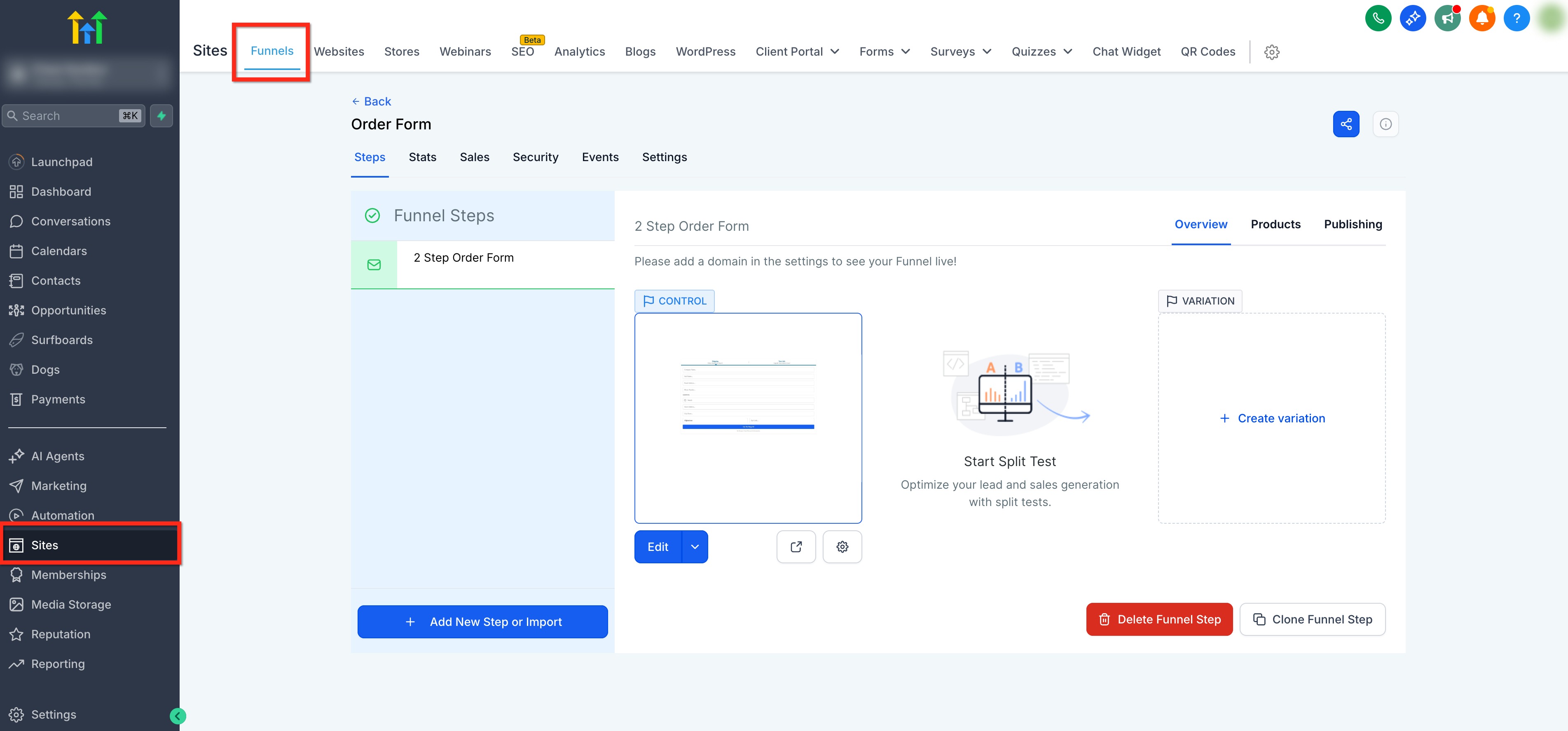
Locate Your Funnel StepGo to Sites in the left navigation menu. Open your target Funnel, then select the specific funnel step where you will add the order form.
2
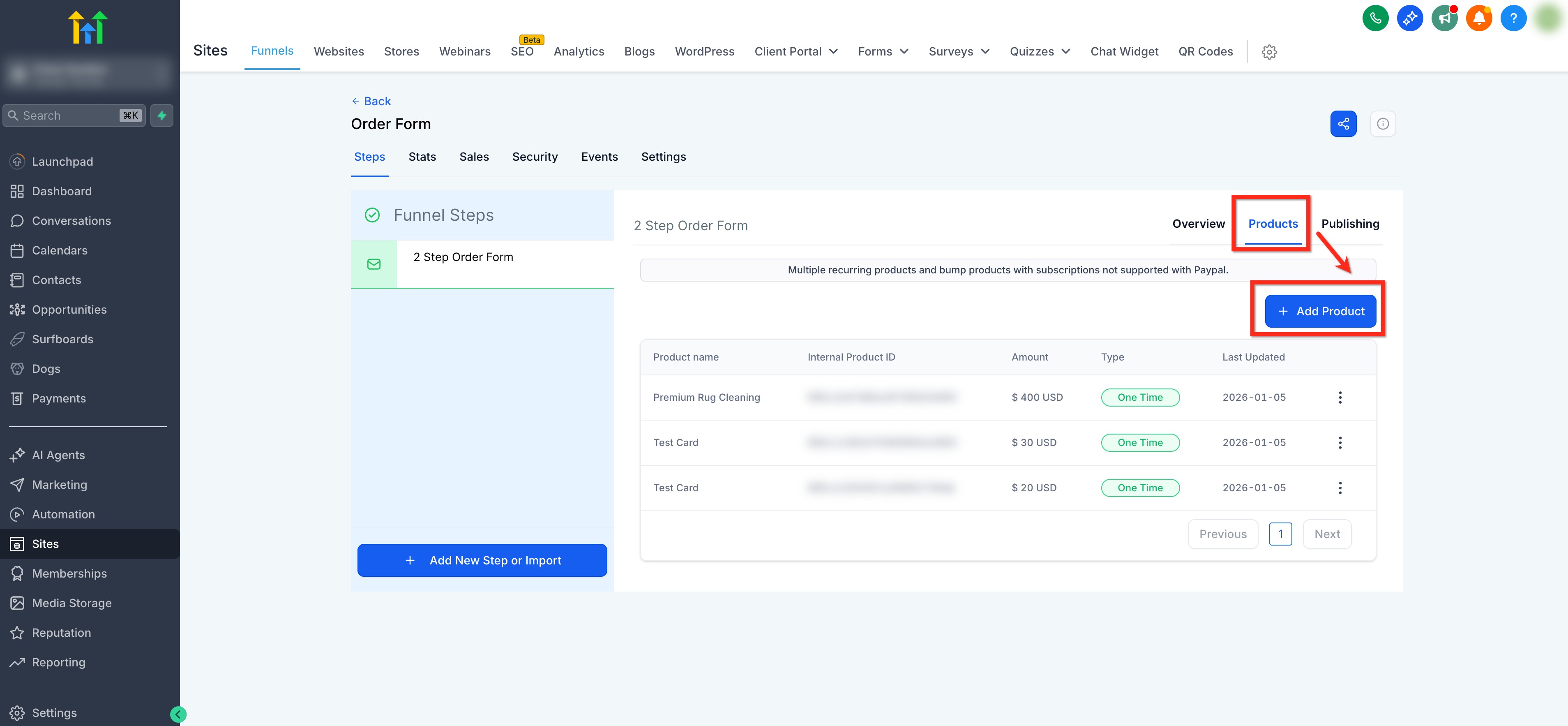
Add a ProductClick the Products tab on the right-hand panel. Then, click + Add Product to begin adding items for sale to this funnel step.
GoHighLevel screenshot
0
3
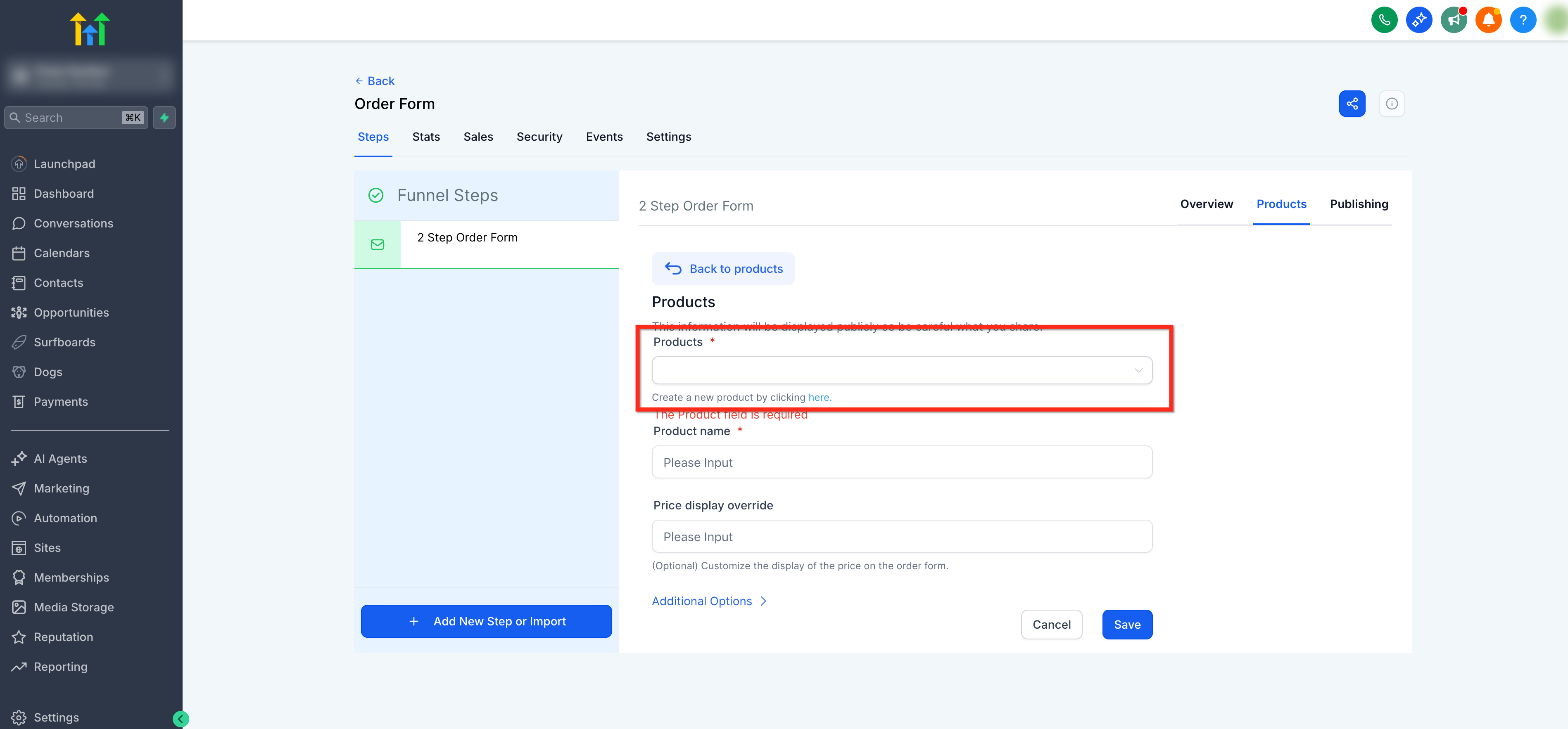
Select or Create ProductUse the Product dropdown to select an existing item from your product library. Alternatively, click the inline text link to create a brand-new product if needed.
4
Define PricingChoose an existing Price from the dropdown menu. Or, click the inline link to create a new price point for your selected product.
GoHighLevel screenshot
1
5
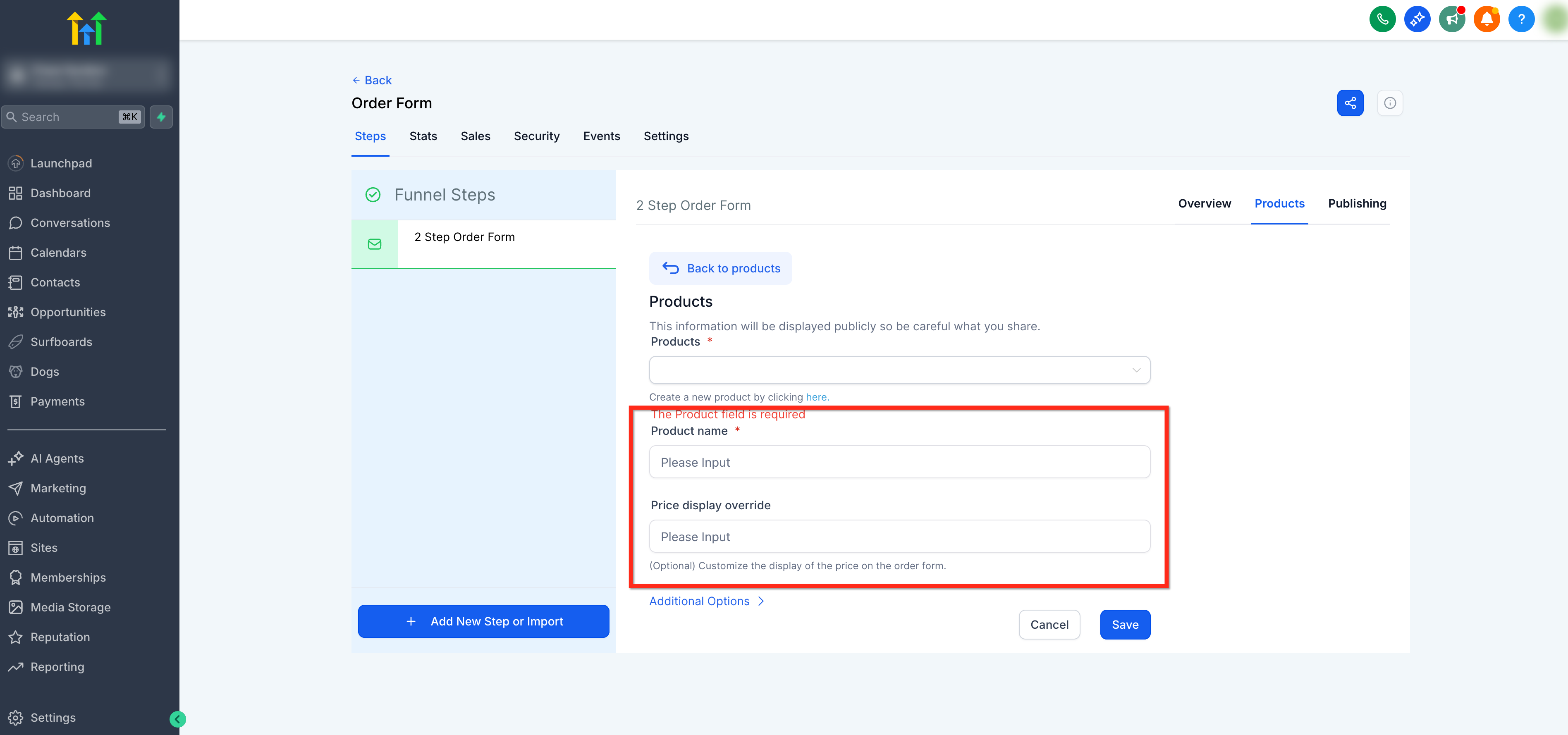
Customize Display (Optional)Use Product Name Override to change how the product name appears on the order form. Utilize Price Display Override to customize the price's presentation for clarity and impact.
6
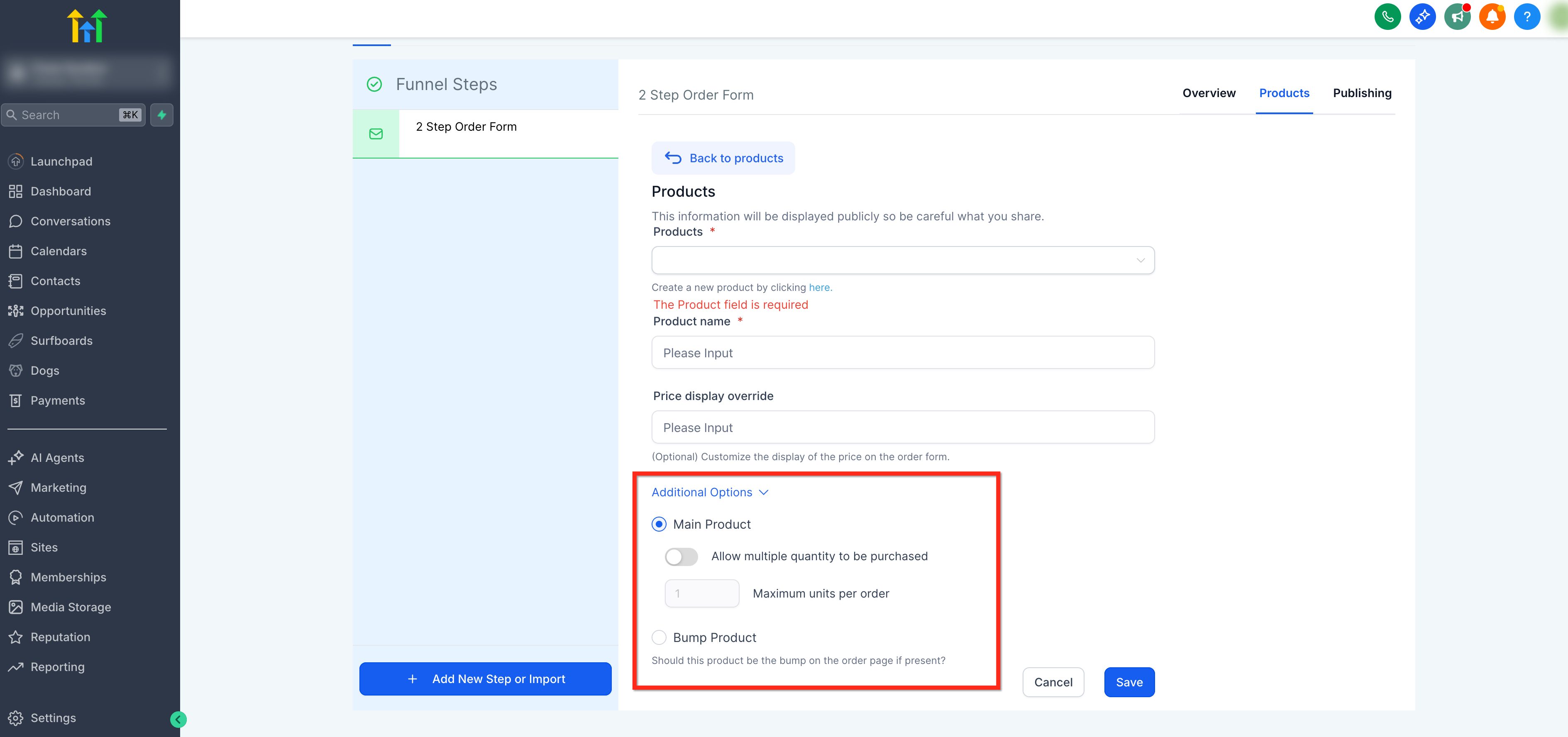
Configure Additional OptionsClick Additional options. Here, you can Allow multiple quantity, set a Max per order, and mark the item as a Main product or a Bump product.
GoHighLevel screenshot
2
7
Repeat for All ProductsAdd all necessary products by repeating these steps. This ensures every item you intend to sell is ready and correctly linked to the order form.
GoHighLevel screenshot

⚠️ Warning: Failure to attach products and prices to the correct funnel step means your order form will not display items or process payments. Always double-check this critical prerequisite to avoid losing sales.

✅ Revset Labs Insight: Products must be created and attached *before* you configure the Two-Step Order Form. This foundational step prevents common errors and ensures a smooth checkout experience for your customers.

🔥 Pro Tip

When we set this up for clients, we always ensure product names are clear and benefit-oriented on the form. We also pre-configure all potential order bumps here to streamline the final form setup and prevent last-minute delays.

Try GoHighLevel Free

Start your 30-day GoHighLevel free trial

Everything in this guide is in your free trial. 30 days, no credit card — the platform behind 78+ revenue systems.

Start 30-Day Free Trial

Some links are affiliate links — if you sign up we may earn a commission, at no extra cost to you. We only recommend GoHighLevel because we build on it every day.

Implementing the GoHighLevel Two-Step Order Form Element

Once your products are properly linked to the funnel step, you can add and configure the Two-Step Order Form element. This is where you transform a blank canvas into a high-converting checkout. Pay close attention to each setting to optimize both the user experience and your revenue potential.
1
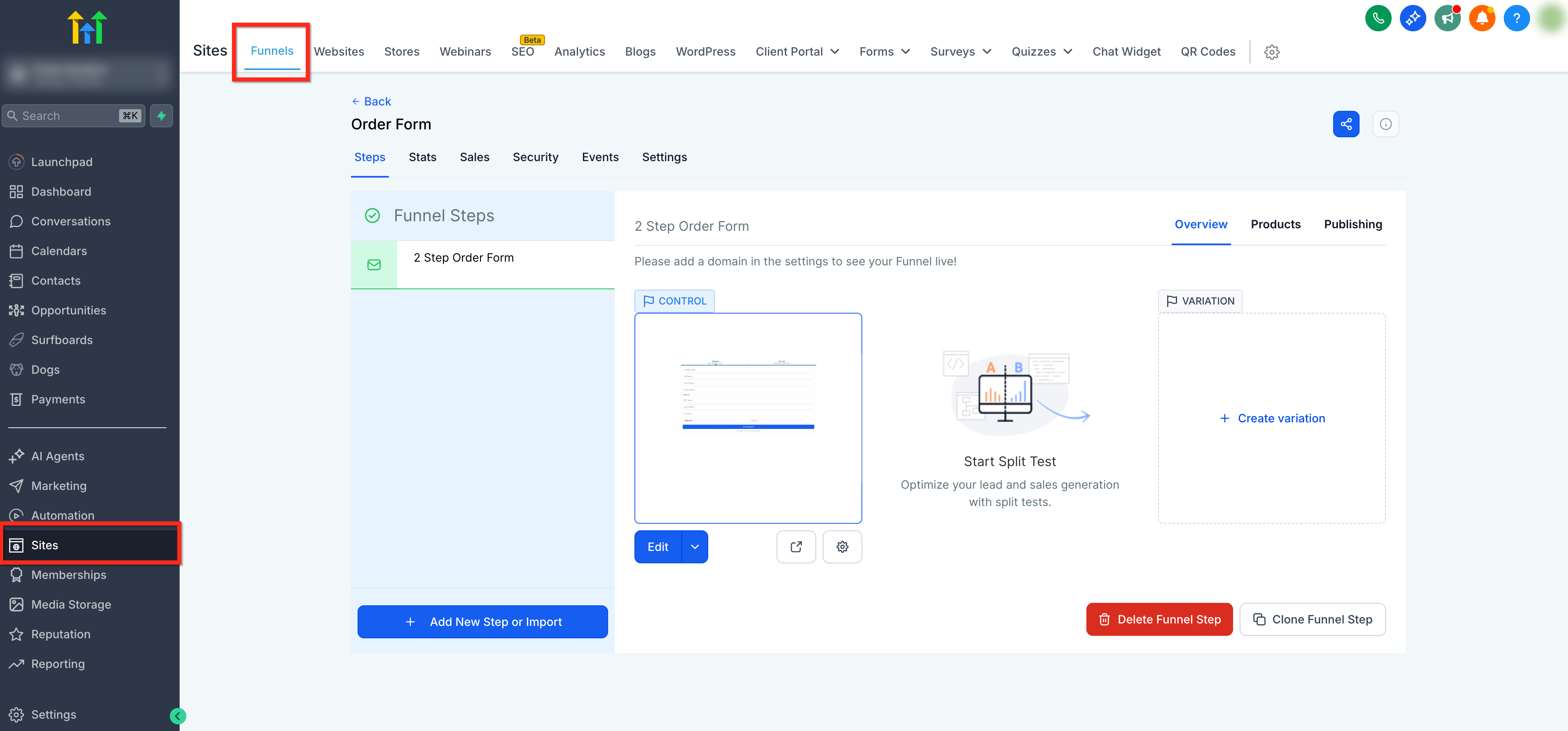
Access Funnel Step EditorGo to Sites → Funnels. Open your specific funnel, then select the funnel step where you will place the checkout element.
2
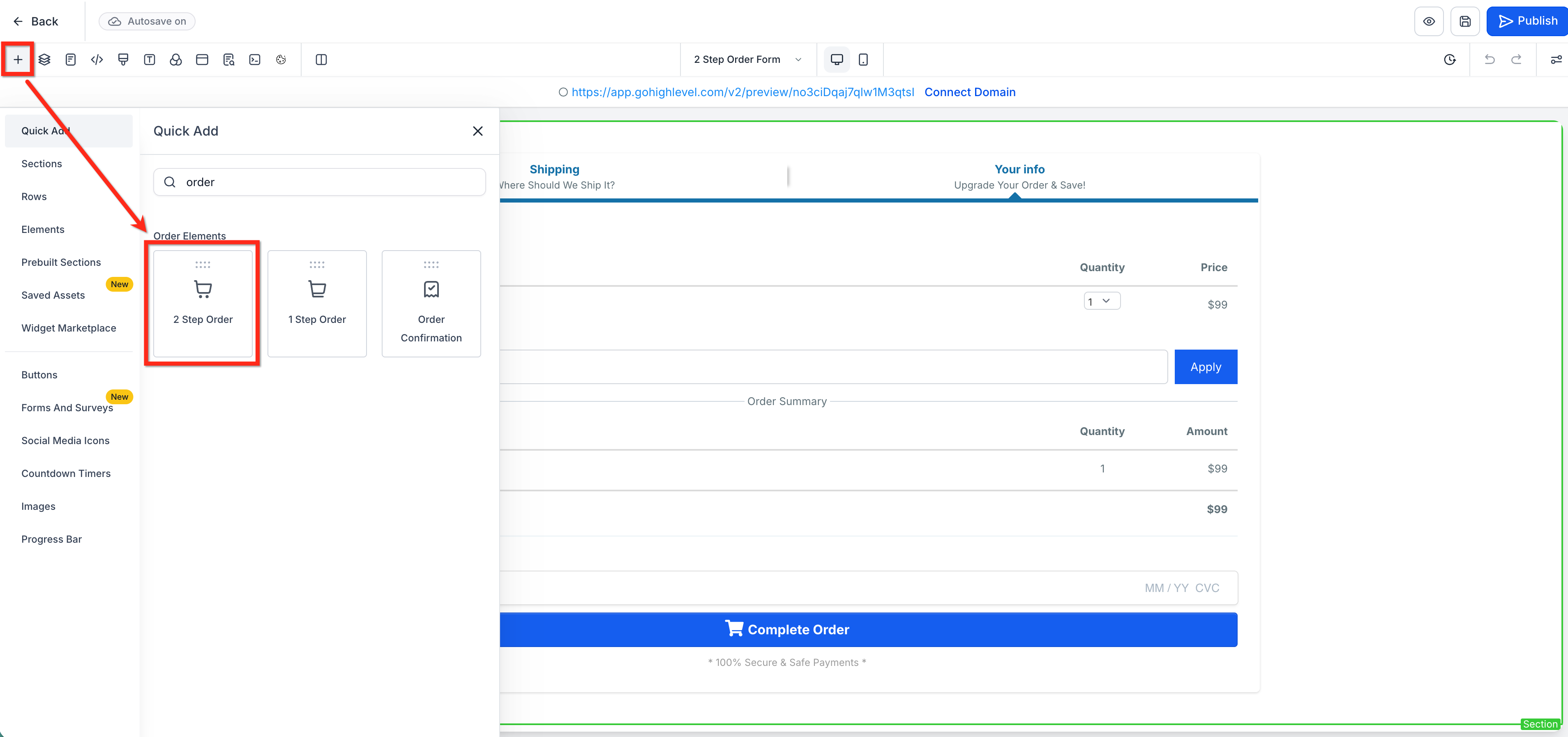
Add Two-Step Order ElementClick Add Elements (+) in the top-left corner of the editor. Under Order elements, select the Two-Step Order element. Drag this element onto your page design.
3
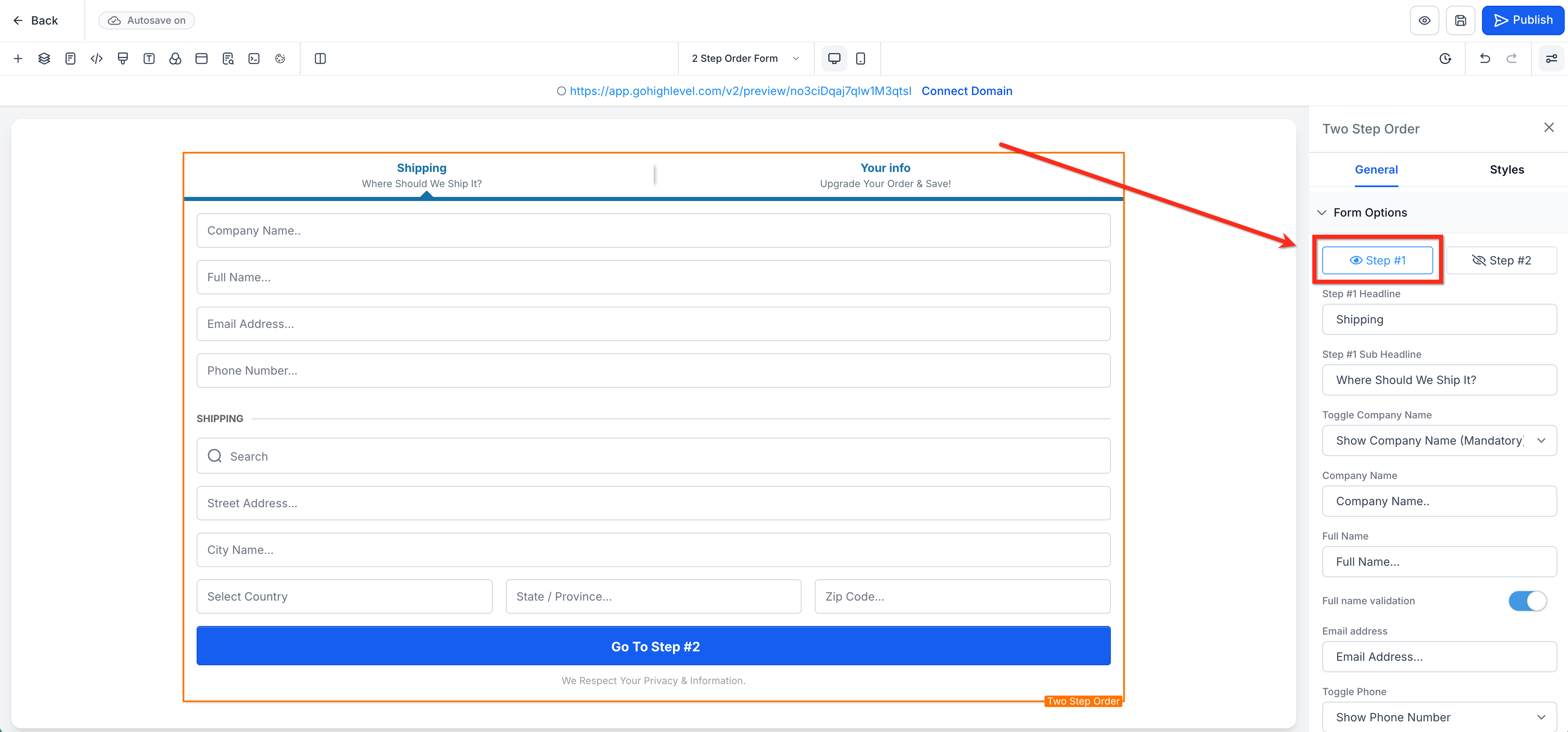
Configure Step 1 (Contact & Shipping)Within the element settings panel, open Form options and select Step 1. Here, you customize the initial data capture fields for your buyers.
GoHighLevel screenshot
0
4
Customize Step 1 HeadlinesAdjust the Headline and Sub-headline for Step 1. Craft engaging copy that encourages buyers to complete their contact information swiftly.
5
Set Company Name OptionsControl the Company name field by setting it as Hidden, Optional, or Required. Choose based on your business model and data collection needs.
6
Edit Field PlaceholdersCustomize Placeholders/Display names for all visible fields. Clear labels guide users and reduce confusion during data entry.
GoHighLevel screenshot
1
7
Control Phone Field VisibilityMake the Phone field required, optional, or hidden. Consider your lead nurturing strategy when making this decision.
8
Toggle Shipping On/OffToggle Shipping On/Off as needed. Enable it if you sell physical products requiring delivery information.
9
Customize Step 2 Button TextAdjust the Button text that progresses buyers from Step 1 to Step 2. Use action-oriented language like 'Proceed to Payment'.
GoHighLevel screenshot
2
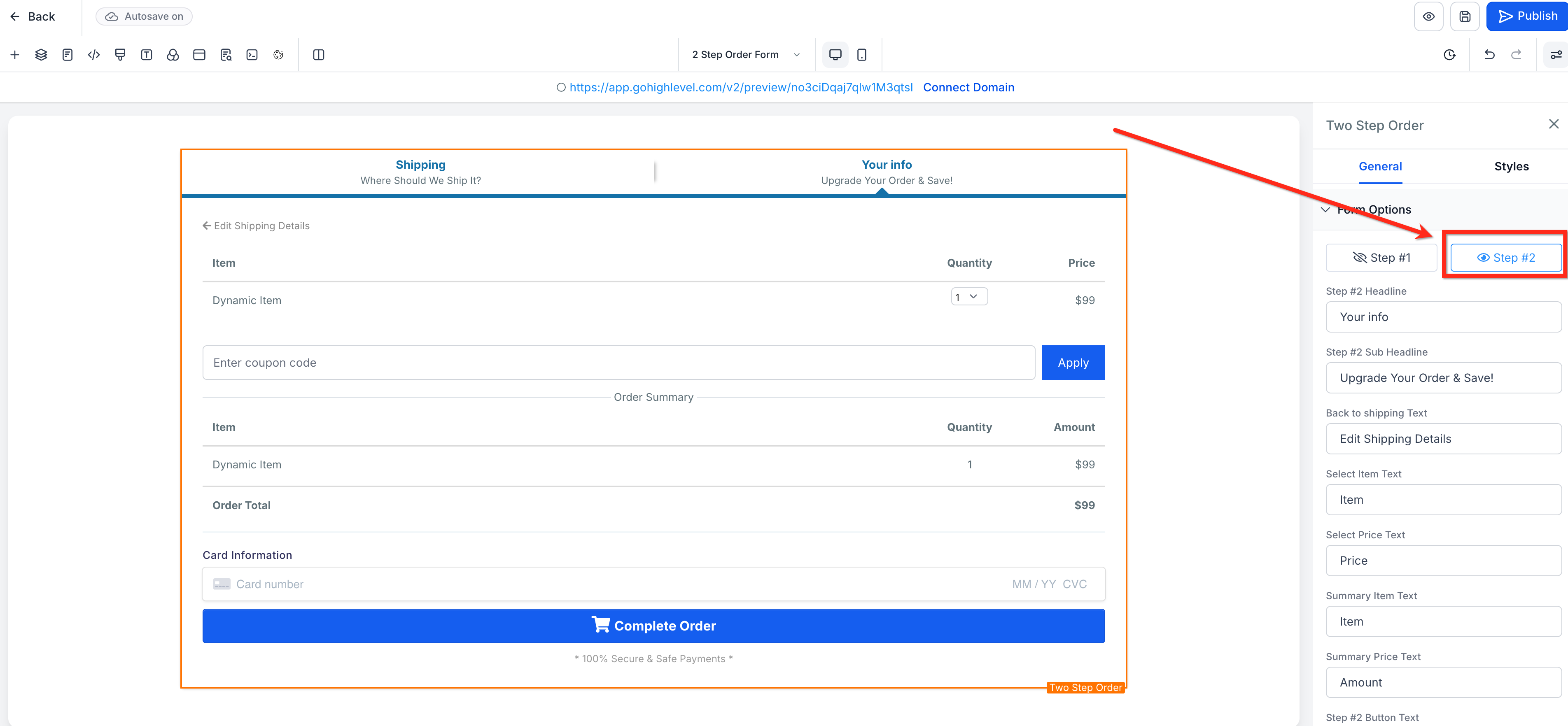
10
Configure Step 2 (Payment & Review)In the element settings, open Form options and select Step 2. This section handles payment collection and final purchase review.
11
Edit Step 2 Labels and ButtonsAdjust labels, headers, and button text for payment and confirmation on Step 2. Maintain consistent branding and clarity throughout the process.
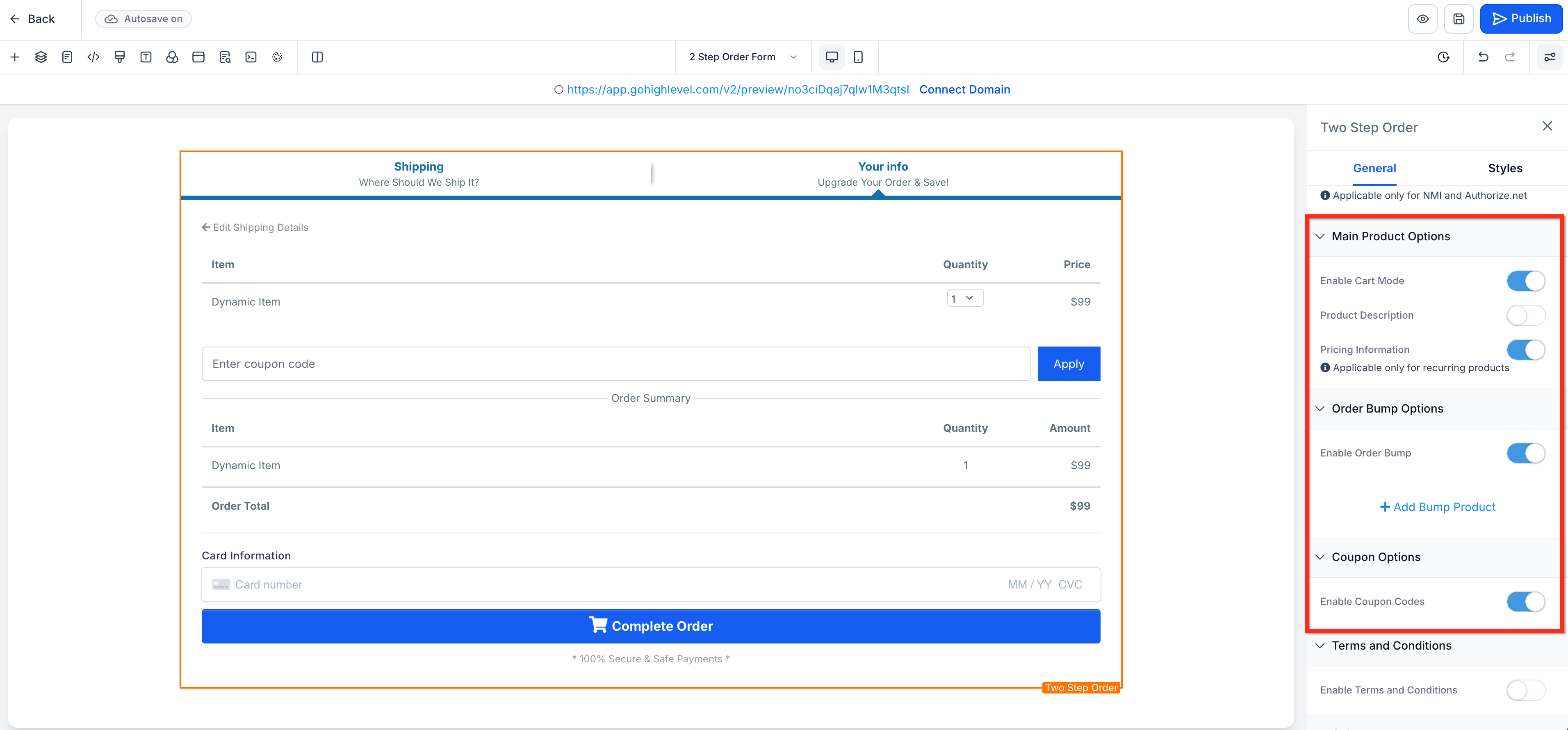
12
Enable Cart Mode (if available)Toggle Enable cart mode if your funnel version supports it. This offers flexible quantity selection for buyers, enhancing their shopping experience.
GoHighLevel screenshot
3
13
Choose Product Display OptionsDecide whether to show Product description and Pricing information on Step 2. Transparency builds trust and reduces buyer hesitation.
14
Set Up Order BumpEnable and configure an Order Bump. This is a powerful upsell opportunity, allowing you to offer a complementary item before final payment. This maximizes your average order value.
15
Enable Coupon CodesToggle Coupon Codes on if you offer discounts. This feature allows customers to apply promotional codes at checkout, boosting conversions.
GoHighLevel screenshot
4
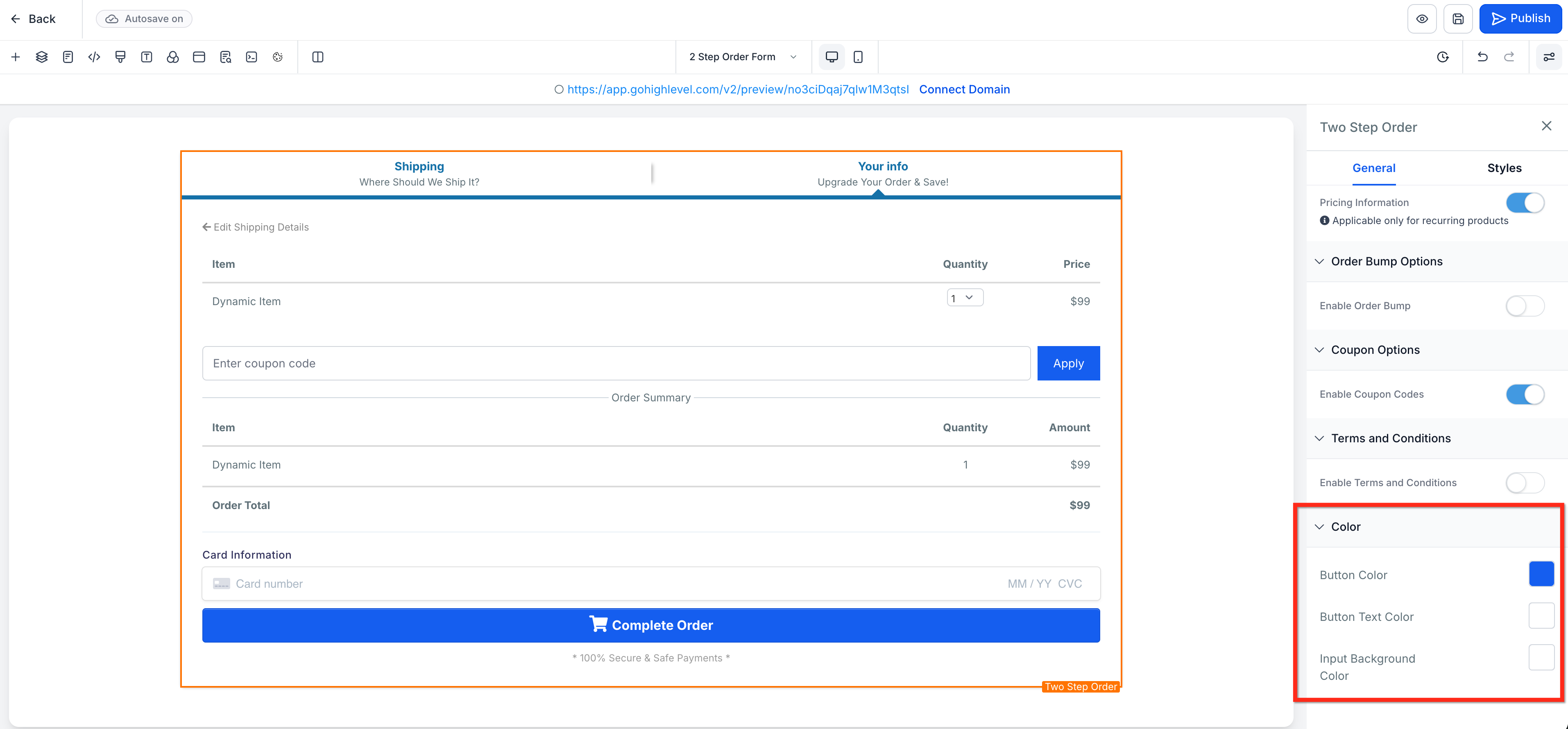
16
Style the FormIn the element settings, adjust Button, Text, and Background Colors. Match your brand's visual identity for a seamless and professional checkout experience.
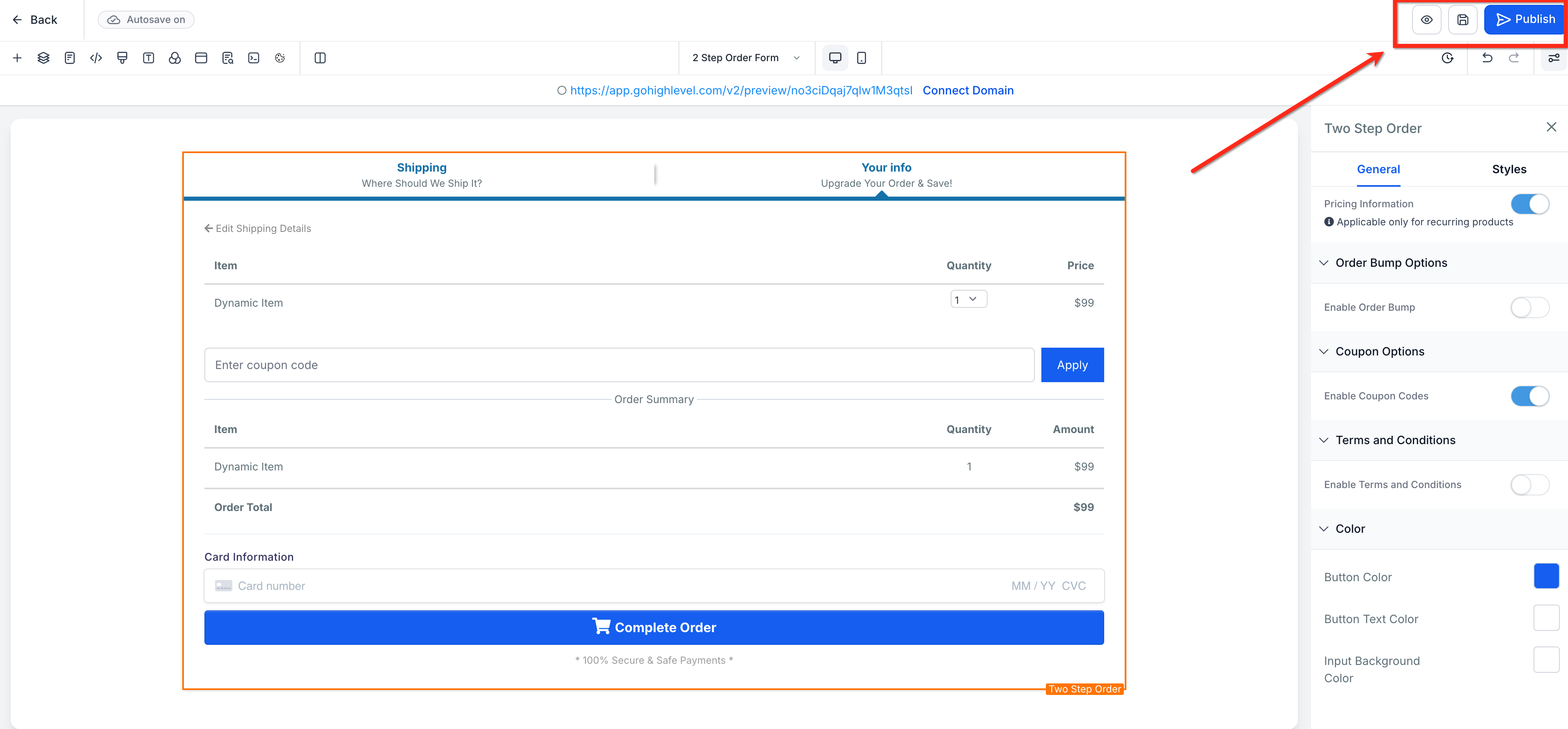
17
Test and PublishClick the Preview button in the upper-right corner to thoroughly test your order form. Once verified and fully functional, click the blue Publish button to make it live.
GoHighLevel screenshot

⚠️ Warning: Always test your order form thoroughly before publishing. Incorrect product linkages, misconfigured payment gateways, or broken order bumps can lead to lost sales and significant customer frustration. Verify every element.

✅ Revset Labs Insight: A well-configured Two-Step Order Form can reduce cart abandonment by focusing the user on one task at a time. This psychological advantage directly translates to more completed sales and a stronger revenue pipeline.

🔥 Pro Tip

When we set this up for clients, we always optimize Step 1 headlines for clarity and urgency. For Step 2, we strategically place the order bump and ensure all pricing is unambiguous to maximize conversion and average order value. This attention to detail drives revenue.

Troubleshooting Common Issues

⚠️ If you see 'No products available' on your form.
Ensure products and at least one price are attached to the current funnel step in the Products tab. The form cannot function without linked items.
⚠️ If customers cannot buy multiple quantities of a product.
Go to Sites → Funnels → [Your Funnel Step] → Products tab. Edit the specific product, click Additional options, and enable Allow multiple quantity.
⚠️ If your order bump does not appear on Step 2.
Verify that the order bump is enabled in the Two-Step Order Form element settings → Form options → Step 2 and correctly linked to a product with a valid price.
⚠️ If payment transactions consistently fail.
Check your Stripe/NMI integration in Payments → Integrations for proper connection. Also, confirm the product's price is correctly configured and active.
⚠️ If the form looks misaligned or broken on mobile devices.
Use the GHL editor's mobile view to adjust padding, margins, and element sizes specifically for smaller screens. Desktop and mobile views require separate optimization.

Common Mistakes to Avoid

  • Forgetting to attach products and prices to the specific funnel step, rendering the form useless.
  • Not customizing Step 1 headlines and placeholders, leading to generic forms that lack engagement.
  • Failing to thoroughly test the entire checkout flow, including payment, before publishing live.
  • Ignoring the opportunity to add a strategic order bump, leaving significant potential revenue on the table.
  • Inconsistent branding (colors, fonts) between the order form and the rest of the funnel page, creating a disjointed experience.

Frequently Asked Questions

QWhy are my products not showing on the GoHighLevel Two-Step Order Form?
Your products must be explicitly attached to the specific funnel step where the order form resides. Navigate to **Sites → Funnels → [Your Funnel Step] → Products tab** and ensure all desired products, with their respective prices, are listed here. Without this crucial link, the form has no items to display or charge for, leading to lost sales opportunities.
QHow do I enable customers to purchase multiple quantities of a single product?
To allow multiple quantities, you must configure this within the product settings for that specific funnel step. Go to **Sites → Funnels → [Your Funnel Step] → Products tab**. Edit the product, click **Additional options**, and then enable **Allow multiple quantity**. You can also set a **Max per order** here to control stock or prevent bulk purchases if needed.
QCan I use the Two-Step Order Form in older GoHighLevel funnel versions?
Yes, you can add Two-Step Order Forms to existing funnels regardless of their version. However, for access to the latest features like **Cart Mode** and enhanced customization options, Revset Labs recommends migrating your funnel step to the newest version (V2). This ensures you leverage all available conversion-boosting tools for maximum impact.
QHow can I increase my average order value using this form?
The most effective way to increase average order value is by implementing a strategic **Order Bump** on Step 2 of the checkout. This allows you to offer a complementary, low-friction add-on product just before final payment. Ensure your bump product is highly relevant, offers clear value, and requires minimal decision-making to maximize acceptance rates and revenue.
QWhat's the best practice for testing my GoHighLevel Two-Step Order Form before launch?
Always perform a full end-to-end test before launching. Use a real credit card (you can refund yourself) to ensure payment processing works flawlessly. Check all fields, product selections, order bumps, and coupon codes. Verify that confirmation emails and any associated automations trigger correctly after purchase. This prevents lost sales from technical glitches and builds customer trust.
Try GoHighLevel Free

Start your 30-day GoHighLevel free trial

Everything in this guide is in your free trial. 30 days, no credit card — the platform behind 78+ revenue systems.

Start 30-Day Free Trial

Some links are affiliate links — if you sign up we may earn a commission, at no extra cost to you. We only recommend GoHighLevel because we build on it every day.

Arsalan Zaffar
Arsalan Zaffar
Revset Labs · Revenue Systems · 78+ GHL Builds

Arsalan writes GHL guides from real build experience — 78+ systems, $9.2M in client pipeline. Wharton, CXL & Google certified.

Connect on LinkedIn
Tags:GoHighLevelOrder FormFunnelsCheckoutConversionRevenue EngineeringSales Pipeline