Revset
Book a Free Audit

30-minute call · No obligation

HomeGHL HubFunnels & WebsitesHow to Scroll to Elements or Sections in Websites or Funnels
REVSET LABS · EXPERT GUIDE·Funnels & Websites

How to Scroll to Elements or Sections in Websites or Funnels

935 words·4 min read·Updated 28 April 2026·beginner·
Arsalan ZaffarArsalan ZaffarLinkedIn

👉 Start your 30-day GoHighLevel free trial.

Start 30-Day Free Trial
Quick Answer

To make an element scroll to a section, first copy the target section's CSS Selector from its Advanced tab. Then, for a button, set its Button Action to Scroll to Element and select the section, or for a link, paste the page URL followed by the CSS selector (e.g., `yourdomain.com/#css_selector`). This takes about 2 minutes.

Key Takeaways
  • Always copy the CSS Selector from the *destination* section's **Advanced** tab.
  • The "Scroll to Element" button action is the easiest method and doesn't require manual linking.
  • For text links or navigation menus, you must use the full page URL followed by the copied CSS Selector (e.g., `https://domain.com/page#selector`).
  • Smooth scrolling is enabled by default; you don't need to configure it.
  • This feature only works for scrolling on the *same* page, not between different funnel steps or website pages.

Step 1: How to Find and Copy the Target Section's CSS Selector

Before you can create a scroll link, you need to identify the destination. Every section, row, and element in the builder has a unique ID called a CSS Selector. This is the 'address' you will tell your button or link to scroll to. You must complete this step first, regardless of which method you use later.

1
Open your page in the editorNavigate to SitesWebsites or Funnels from the main left-hand menu. Find your site or funnel and open the page you want to edit.
2
Select the destination sectionOn the page canvas, scroll to the section you want users to land on and click anywhere on it. The section will be outlined in green, and its settings panel will open on the right.
3
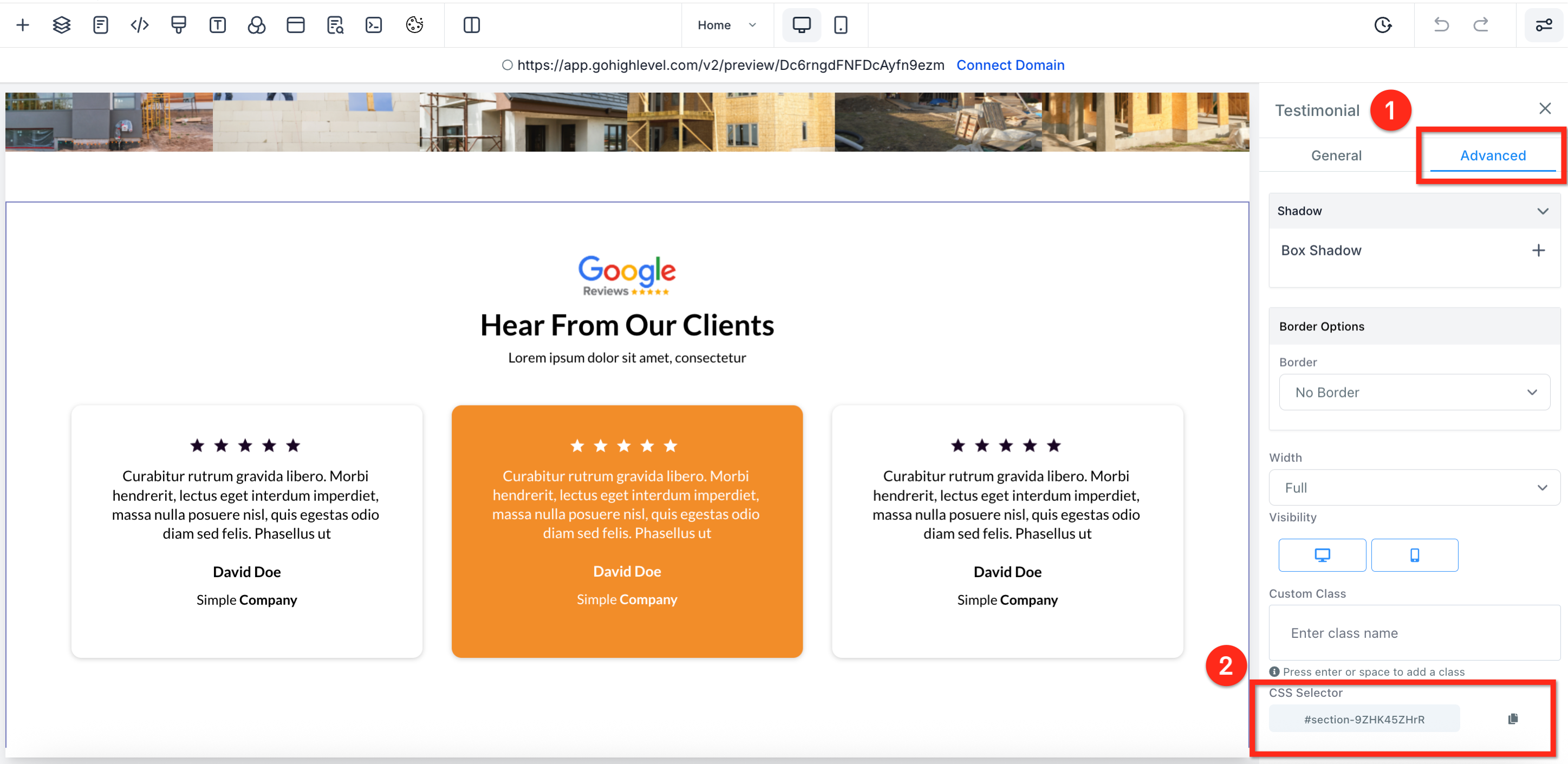
Navigate to the Advanced tabIn the right-hand settings panel, click the Advanced tab. This reveals more technical settings for the selected element.
4
Copy the CSS SelectorScroll to the bottom of the Advanced tab and find the CSS Selector field. Click the copy icon next to the value (e.g., `#section--12345`) to copy it to your clipboard.

✅ You can copy the CSS Selector from any element, not just a section. Click on a specific headline, image, or form to get its unique selector if you want to scroll to that exact point.

Step 2, Method A: How to Make a Button Scroll (Easiest Method)

This is the simplest and most reliable way to create a scroll link for a button. It uses the builder's built-in functionality, so you don't need to paste any URLs or selectors manually. We recommend this method for all button scroll links.

1
Select your buttonClick on the button element you want to use to trigger the scroll. The button's settings will open in the right-hand panel.
2
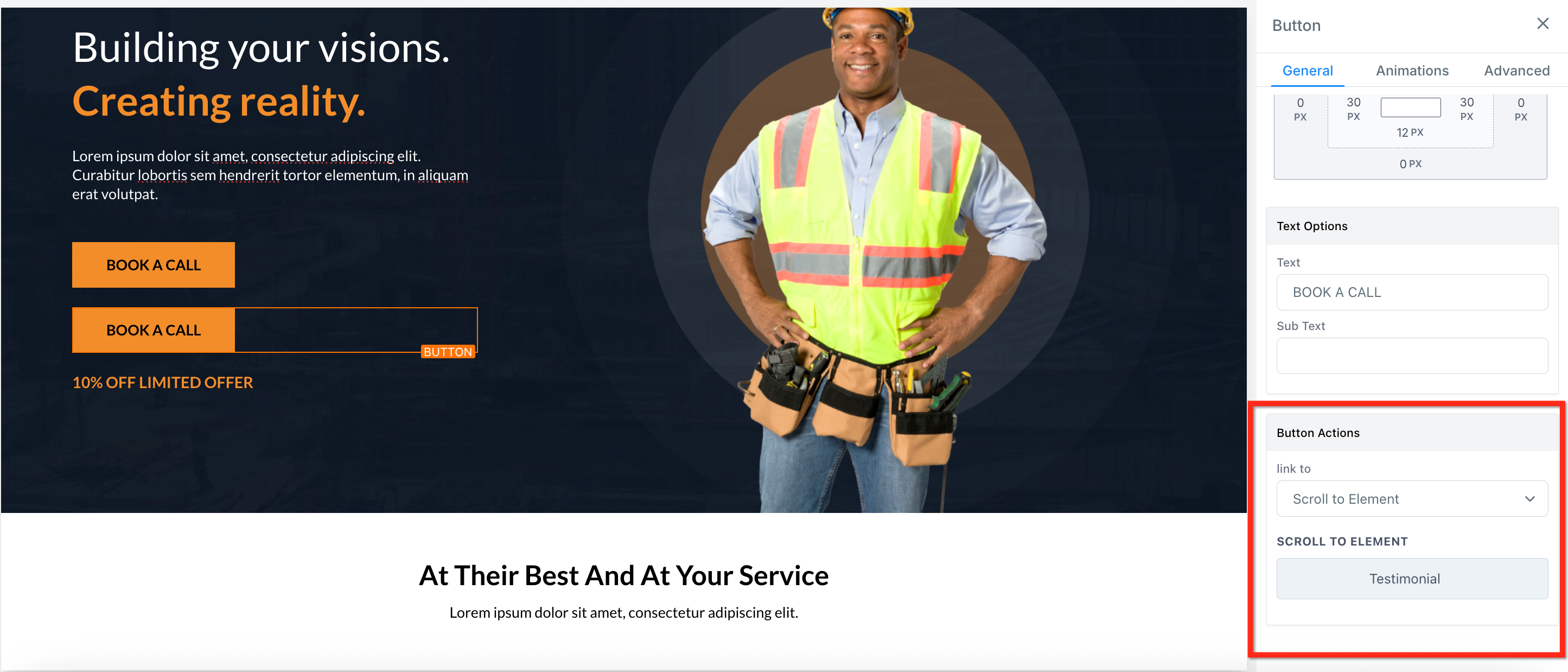
Open the Button Actions menuIn the right-hand panel, scroll down to the Button Actions section. Click the Link To dropdown menu.
3
Choose the 'Scroll to Element' actionFrom the list of options, select Scroll to Element. A new dropdown menu named Scroll to will appear below it.
4
Select your target elementClick the Scroll to dropdown. Choose the section, row, or element you want the button to scroll to from the list.
5
Save your pageClick the Save button in the top-right corner of the builder. Your button will now smoothly scroll to the selected element on the live page.
🔥 Pro Tip

Name your sections in the Layers panel (e.g., 'Pricing Section') to make them easier to find in the 'Scroll to' dropdown list. Otherwise, you'll have to choose from generic names like 'Section 12'.

Try GoHighLevel Free

Start your 30-day GoHighLevel free trial

Everything in this guide is in your free trial. 30 days, no credit card — the platform behind 78+ revenue systems.

Start 30-Day Free Trial

Some links are affiliate links — if you sign up we may earn a commission, at no extra cost to you. We only recommend GoHighLevel because we build on it every day.

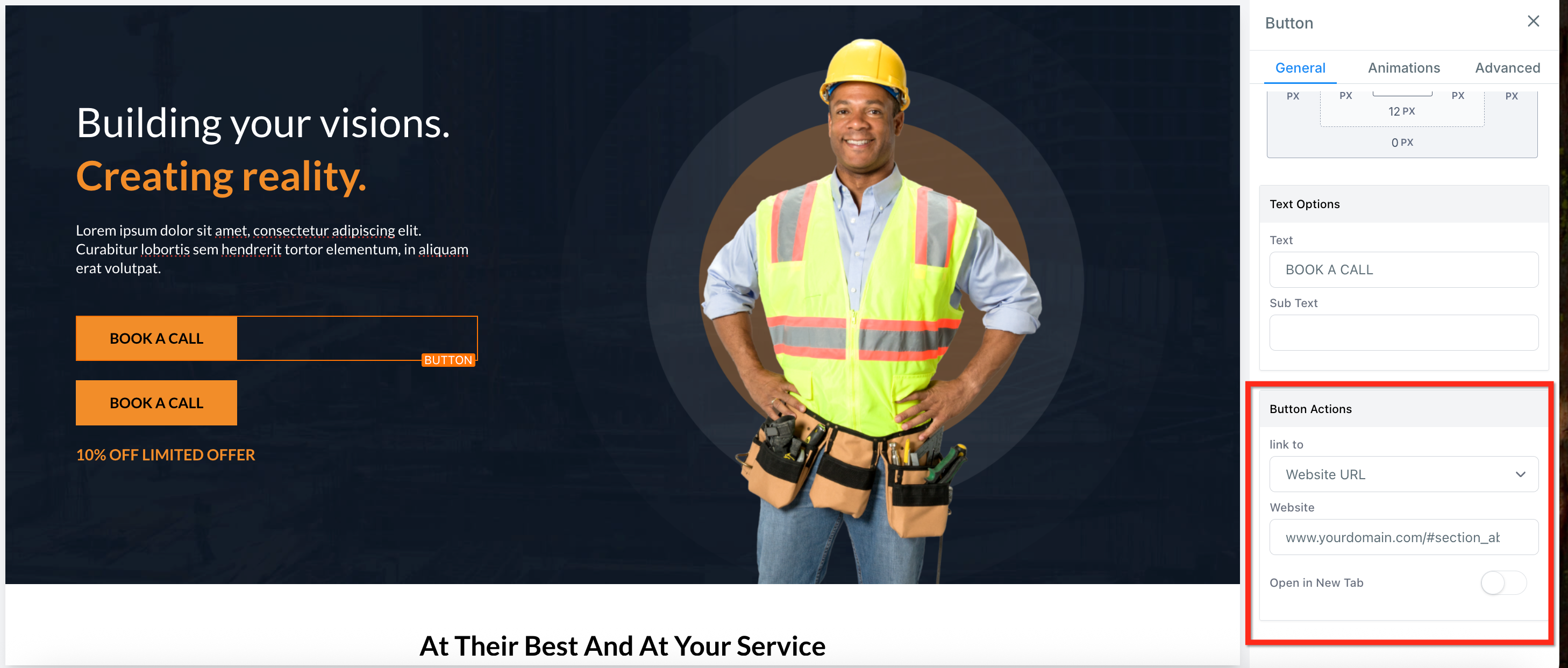
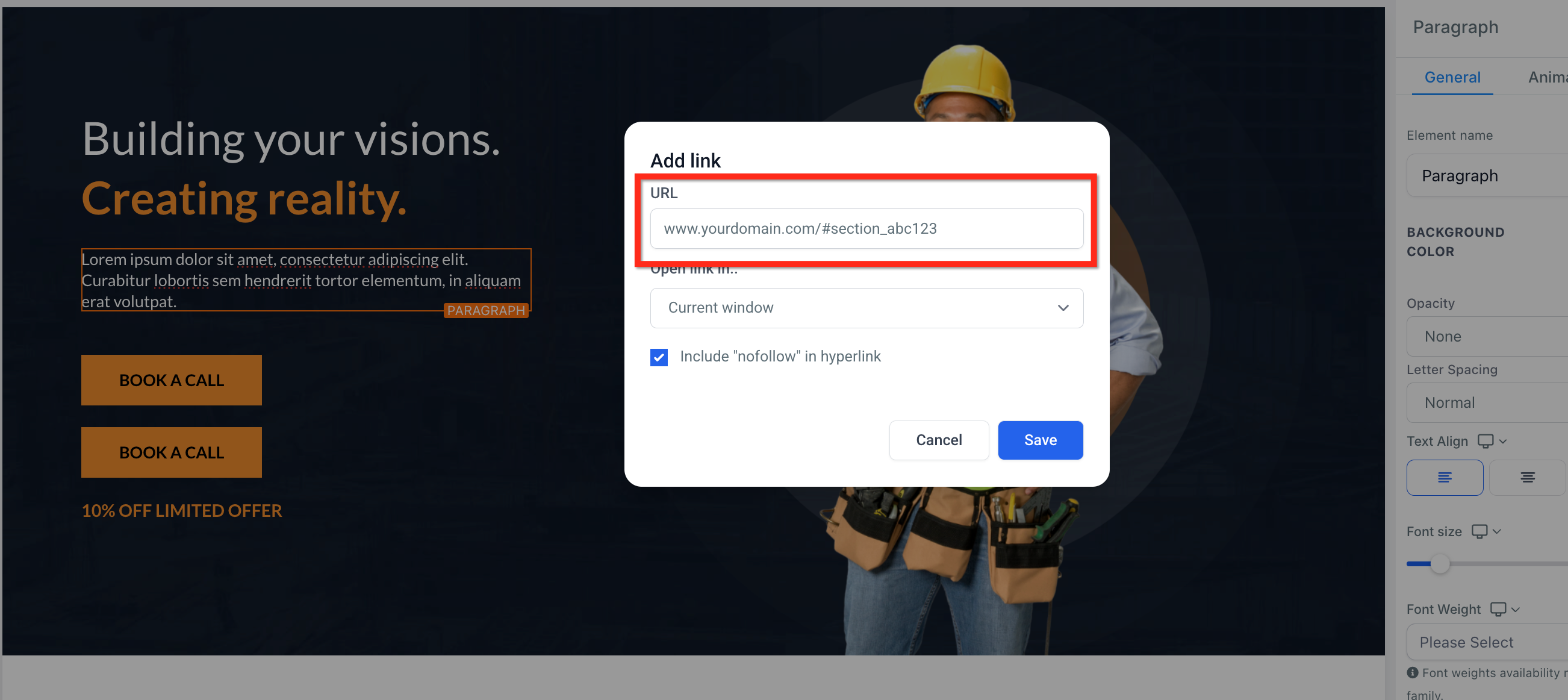
If you want to turn a line of text into a scroll link, you must use the manual method. This involves combining your page's full URL with the CSS Selector you copied in Step 1. This method also works for images and other elements that have a link option.
1
Highlight your textIn the page editor, click inside a text element and highlight the words you want to turn into a link. A small formatting toolbar will appear.
GoHighLevel screenshot
0
2
Open the link settingsClick the link icon in the formatting toolbar. A pop-up window labeled "Link" will open.
GoHighLevel screenshot
1
3
Enter the full page URLIn the URL field, you must paste the complete URL of the page you are currently on. For example, `https://yourdomain.com/sales-page`.
GoHighLevel screenshot
2
4
Add the CSS SelectorImmediately after the URL, paste the CSS Selector you copied in Step 1. The final result should look like this: `https://yourdomain.com/sales-page#section--12345`.
GoHighLevel screenshot
3
5
Confirm and saveClick the blue check mark icon to apply the link. Finally, click the main Save button in the top-right corner of the builder.
GoHighLevel screenshot
4

⚠️ Do not just paste the CSS Selector (e.g., `#section--12345`) into the URL field by itself. It will not work. You must always include the full page URL before the selector for text links.

You can make items in your navigation menu scroll to different sections on the same page. This is perfect for one-page websites or long-form sales pages where the menu helps users jump to important content like pricing or contact information.

1
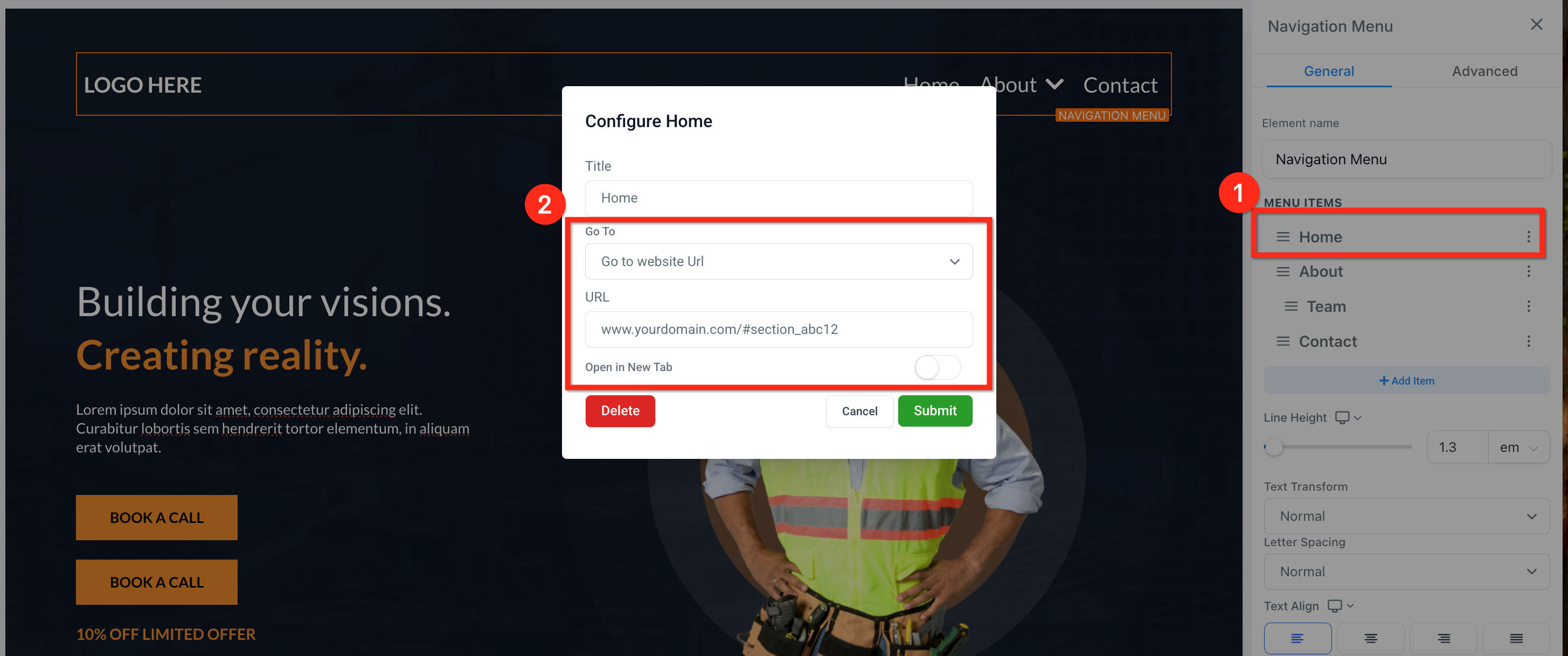
Select the Navigation MenuClick on your Navigation Menu element in the builder. Its settings will appear in the right-hand panel.
2
Edit a menu itemIn the right panel, under Menu Items, find the menu item you want to turn into a scroll link. Click the pencil icon to edit it.
3
Change the link actionIn the "Edit Menu Item" settings, click the Go to dropdown menu. Select the Go to website URL option.
4
Enter the full URL and selectorIn the Enter URL field, paste the full URL of the page, followed by the CSS Selector you copied in Step 1 (e.g., `https://yourdomain.com/home#section--12345`).
5
Submit and save the pageClick the Submit button to save the change for that menu item. Then, click the main Save button in the top-right corner of the builder to save all changes to the page.

Troubleshooting Common Issues

⚠️ My link doesn't scroll or goes to a 404 error page.
You must include the full page URL before the CSS Selector when using the manual link method. A selector like `#section-123` by itself is not a valid URL. The correct format is `https://yourdomain.com/page#section-123`.
⚠️ The page jumps to the very top instead of my chosen section.
This means the CSS Selector is incorrect or misspelled. The browser cannot find the 'address' and defaults to the top. Go back to your target section, click its Advanced tab, and carefully re-copy the entire CSS Selector, including the `#` symbol.
⚠️ I used the 'Scroll to Element' button action, but it doesn't work on the live page.
First, make sure you clicked the main Save button in the top-right corner after setting up the action. Second, test the button on the live URL or in a Preview window, as the scroll function does not work inside the builder interface.
⚠️ The scroll link goes to the wrong section of the page.
This happens when you've copied the CSS Selector from the wrong element. Go back into the builder, carefully click the correct destination section, and copy its unique CSS Selector again. Then, update your button or link with the correct one.

Common Mistakes to Avoid

  • Forgetting to include the full page URL before the CSS selector for text and menu links.
  • Trying to use the scroll-to feature to link between different funnel steps or website pages (it only works on the same page).
  • Accidentally deleting a character from the CSS Selector when pasting it, which breaks the link.
  • Not saving the page after making changes and wondering why the live version isn't updated.
  • Testing the scroll link inside the page builder itself, where it is not active, instead of using the Preview button or live URL.

Frequently Asked Questions

QCan I make a link scroll to a section on a different page or funnel step?
No, the scroll-to-element feature is designed to work only within a single page. It cannot navigate to a different page and then scroll. To link to another page, you must use the 'Go to page' or 'Website URL' action with the URL of the other page, but it will load at the top as usual.
QIs the smooth scroll effect automatic? Can I turn it off?
Yes, smooth scrolling is a default feature in GoHighLevel and is applied automatically to all scroll-to-element actions. There is no built-in setting to disable it or change it back to an instant jump. This provides a better user experience on modern websites.
QWhy does my link work on desktop but not on mobile?
This is rare, as the feature is fully mobile-responsive. The most common cause is a mobile-only section that might be covering the link or the target section. Use the mobile view in the builder to check if any elements are overlapping or hidden on mobile devices, which could interfere with the click action.
QCan I scroll to a specific element like an image or headline, not just a whole section?
Yes. You can scroll to any element that has a CSS Selector. Simply click the specific element (like a headline, image, or video) in the builder, go to its **Advanced** tab, and copy its CSS Selector. You can then use this selector in your link just like you would for a section.
QWhat is a CSS Selector and why do I need it?
A CSS Selector is a unique ID that GoHighLevel automatically assigns to every section, row, column, and element on your page. Think of it like a street address. When you create a scroll link, you are telling the browser 'scroll to the element with this specific address'. This is how it knows exactly where to go on the page.
Try GoHighLevel Free

Start your 30-day GoHighLevel free trial

Everything in this guide is in your free trial. 30 days, no credit card — the platform behind 78+ revenue systems.

Start 30-Day Free Trial

Some links are affiliate links — if you sign up we may earn a commission, at no extra cost to you. We only recommend GoHighLevel because we build on it every day.

Arsalan Zaffar
Arsalan Zaffar
Revset Labs · Revenue Systems · 78+ GHL Builds

Arsalan writes GHL guides from real build experience — 78+ systems, $9.2M in client pipeline. Wharton, CXL & Google certified.

Connect on LinkedIn
Tags:scroll to elementanchor linkwebsite builderfunnel navigationuser experiencepage jump