Revset
Book a Free Audit

30-minute call · No obligation

HomeGHL HubFunnels & WebsitesCreate Navigation Menu Categories in GoHighLevel Funnels & Websites
REVSET LABS · EXPERT GUIDE·Funnels & Websites

Create Navigation Menu Categories in GoHighLevel Funnels & Websites

888 words·4 min read·Updated 28 April 2026·beginner·
Arsalan ZaffarArsalan ZaffarLinkedIn

👉 Start your 30-day GoHighLevel free trial.

Start 30-Day Free Trial
Quick Answer

To create categories (drop-down menus) in your GoHighLevel navigation, open your funnel or website in the builder, select the Navigation Menu element, then add new items and drag them slightly indented under a parent item. This process typically takes 3-5 minutes and significantly improves site organization.

Key Takeaways
  • Always locate and select the **Navigation Menu** element directly within the GoHighLevel page builder to make edits.
  • Creating a drop-down menu involves dragging a new menu item slightly to the right, indenting it under an existing parent item.
  • GoHighLevel navigation menus support only one level of nested drop-downs to maintain clarity and mobile responsiveness.
  • Regularly use the **Preview** function to verify your menu's structure and ensure all categories function as intended.
  • Leverage the drag-and-drop interface to efficiently reorder, rename, or restructure your menu items without coding.

Why Organized Navigation Matters for Your GoHighLevel Site

A well-structured navigation menu is crucial for any successful website or funnel in GoHighLevel. It does more than just look good; it directly impacts how visitors interact with your content, find information, and ultimately, convert. By organizing your pages into clear categories, you guide users effortlessly through your site.

1
Achieve Cleaner NavigationDeclutter your main navigation bar by grouping related links under descriptive categories. This makes your site look professional and easier to understand at a glance, reducing visitor overwhelm.
2
Improve User Experience (UX)Users can quickly find what they need when pages are intuitively grouped into drop-down menus. Better UX leads to longer site visits, lower bounce rates, and a more positive impression of your brand.
3
Benefit from Drag-and-Drop SimplicityGoHighLevel's builder lets you create and manage these drop-down menus with simple drag-and-drop actions. You do not need any coding knowledge to build a sophisticated and functional menu.
4
Enjoy Flexible StructureEasily rearrange, update, or expand your menu categories as your business grows or your content changes. The flexible system adapts to your needs without complex restructuring.
5
Ensure Responsive DesignYour categorized menus automatically adapt to different screen sizes, from desktop to mobile. This ensures a consistent and user-friendly experience for all your visitors, regardless of their device.

How to Create Navigation Menu Categories Step-by-Step

Creating drop-down menu categories in your GoHighLevel funnels or websites is a straightforward process. Follow these steps carefully to organize your site's navigation and enhance user accessibility.
1
1. Open Your Funnel or Website in the BuilderFirst, navigate to Sites from the main GoHighLevel menu. Choose either Websites or Funnels, then select the specific site you want to edit. Click the Edit icon (pencil) to open it in the page builder.
2
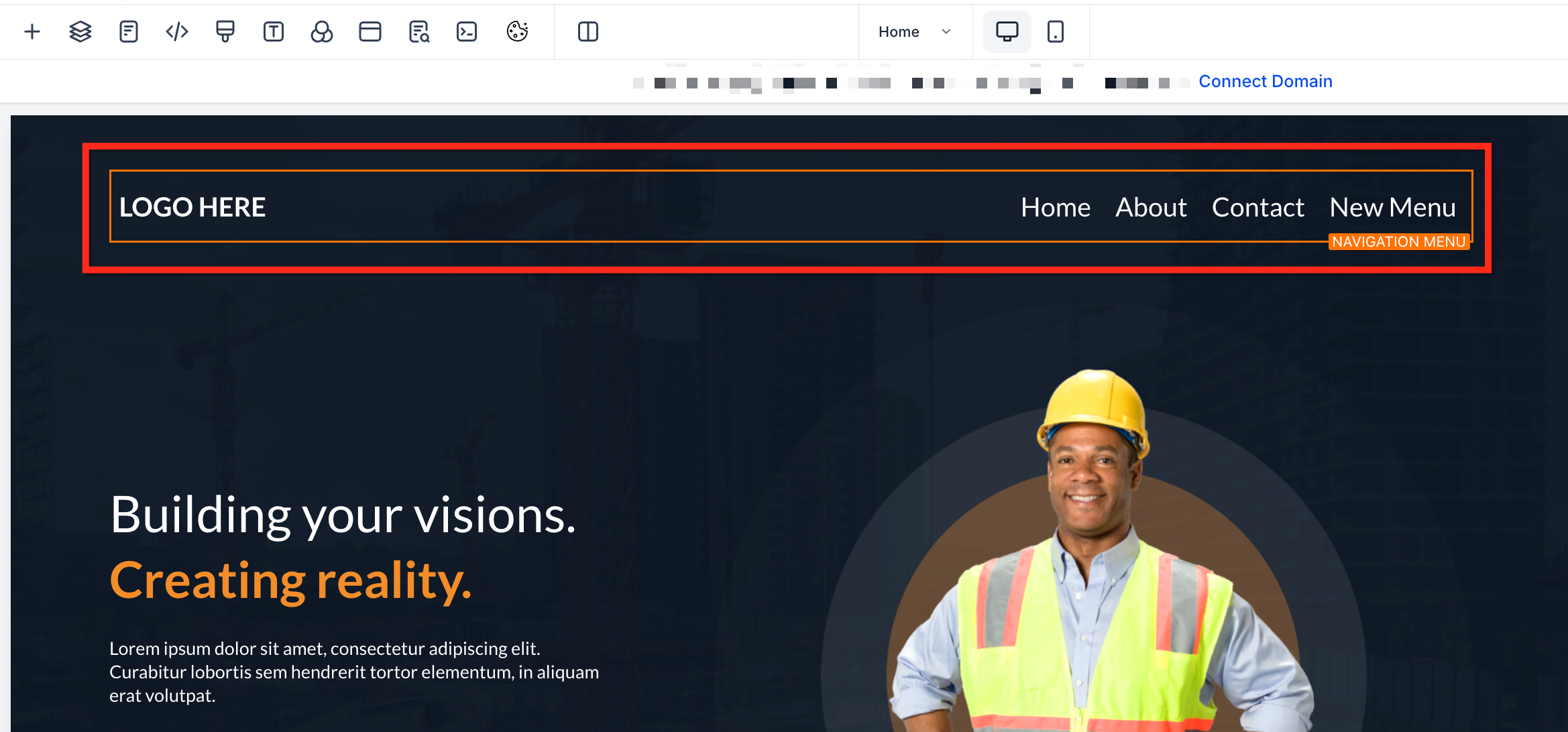
2. Select the Navigation Menu ElementOn your page, click directly on the Navigation Menu element. This action opens its specific settings panel on the left side of your screen, allowing you to manage its items.
GoHighLevel screenshot
0
3
3. Add a New Menu ItemIn the left-hand settings panel, locate and click the Add Item button. From the options, select New Menu Item to create a fresh entry for your navigation.
4
4. Name Your New Menu ItemA new item will appear in the list. Click on it to expand its settings and enter a clear, descriptive name for this menu item. This name will be visible to your visitors.
GoHighLevel screenshot
1
5
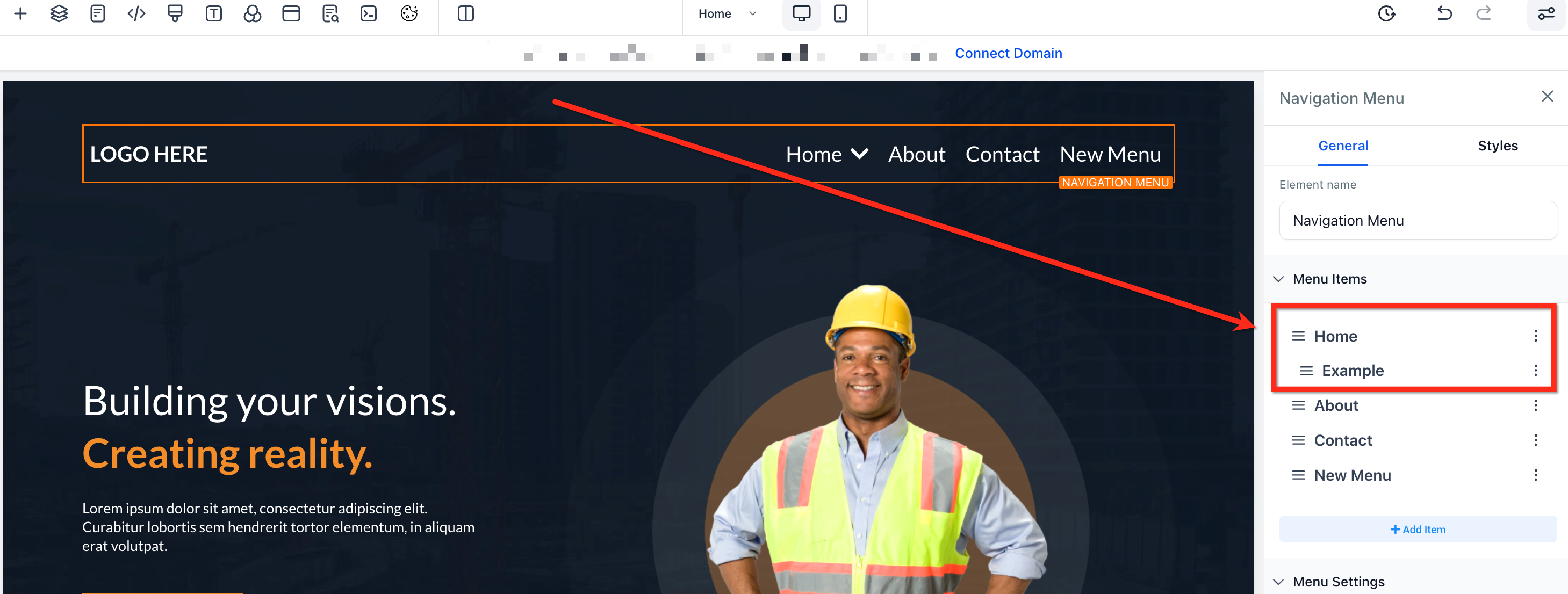
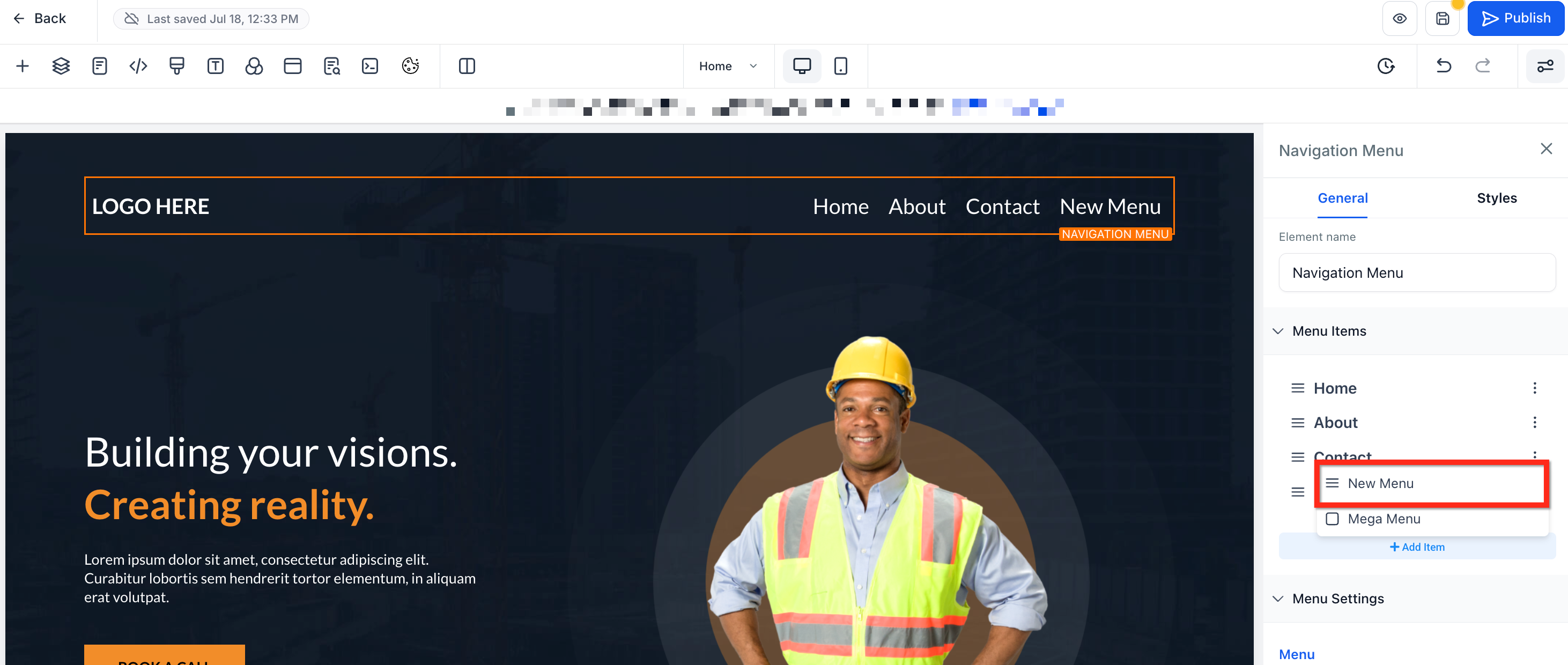
5. Nest the Item Under a Parent CategoryClick and drag your newly named menu item. Position it directly underneath an existing parent item (like 'Home' or 'Services') and slightly to the right. Release the mouse button when you see a slight indentation, which confirms it is now nested as a drop-down item.
6
6. Save and Preview Your ChangesAfter nesting your item, click the Save button in the top right corner of the builder. Then, click Preview to open your site in a new tab. Hover over the parent item to confirm that your new drop-down category appears correctly.
GoHighLevel screenshot
2
🔥 Pro Tip

Always plan out your menu structure and category names on paper or a digital document before you start building. This foresight saves time and ensures a logical, intuitive flow for your visitors.

Try GoHighLevel Free

Start your 30-day GoHighLevel free trial

Everything in this guide is in your free trial. 30 days, no credit card — the platform behind 78+ revenue systems.

Start 30-Day Free Trial

Some links are affiliate links — if you sign up we may earn a commission, at no extra cost to you. We only recommend GoHighLevel because we build on it every day.

Managing and Refining Your Menu Categories

Once your categories are set up, GoHighLevel provides simple tools to manage and refine them. You can easily reorder items, rename existing entries, or remove them entirely to keep your navigation current and efficient.

1
1. Reorder Menu ItemsTo change the display order of any menu item, simply click and drag it up or down within the left-hand settings panel. Release the item when it's in your desired position.
2
2. Rename or Delete Menu ItemsClick the three dots (...) next to any menu item in the settings panel. You can then select Edit to change its name or Delete to remove it completely from your navigation.
3
3. Link to Internal SectionsIf you want a menu item to scroll to a specific section on the same page, use anchor links. Within the menu item's settings, choose the option to link to a section and select the target element's ID.

✅ Remember that GoHighLevel navigation menus are limited to one layer of nested pages. This design choice helps maintain clarity and responsiveness, especially for mobile users.

Troubleshooting Common Issues

⚠️ My menu item isn't nesting as a drop-down.
Ensure you are dragging the item slightly to the right and directly under the parent item. You must see a visual indentation before releasing the mouse button for it to correctly nest.
⚠️ The drop-down menu looks messy or broken on mobile devices.
While GoHighLevel menus are responsive, excessive top-level items or very long category names can sometimes cause issues. Review your menu structure for simplicity and test on various mobile devices.
⚠️ I cannot create a second level of drop-downs (sub-categories within sub-categories).
GoHighLevel navigation menus are intentionally limited to one level of nesting. This design choice prioritizes user-friendliness and ensures optimal readability, especially on smaller screens.
⚠️ Menu items link to the wrong page or lead to a 404 error.
After adding or renaming menu items, always double-check their link settings. Ensure each item points to the correct page, external URL, or internal section you intend.
⚠️ Changes I made to the menu are not appearing on my live site.
You must click the Save button in the top right corner of the builder after making any modifications. If it still doesn't appear, try clearing your browser cache or re-publishing your page.

Common Mistakes to Avoid

  • Forgetting to click the Save button after making any changes to the navigation menu, leading to lost work.
  • Not previewing the menu after making changes, which can result in broken links or incorrect nesting on the live site.
  • Attempting to create more than one level of nested drop-downs, which is not supported by GoHighLevel's navigation builder.
  • Failing to select the Navigation Menu element itself before trying to add or modify items, preventing the settings panel from appearing.
  • Using generic or unclear names for menu categories, making it harder for visitors to understand your site's structure.

Frequently Asked Questions

QHow many levels of drop-downs can I create in the GoHighLevel navigation menu?
You are limited to one level of nested drop-downs in GoHighLevel navigation menus. This means you can have a parent item with sub-items, but those sub-items cannot have further nested sub-items. This design choice prioritizes optimal user experience and readability, especially on mobile devices where complex menus can become difficult to navigate and manage effectively.
QCan I link a menu item to a specific section on the same page?
Yes, you can absolutely link menu items to specific sections within the same page using anchor links. When editing a menu item, you will find an option to link to a section. You can then select the desired element or section ID on your page, allowing users to jump directly to relevant content without navigating to a new page.
QWhat is the correct way to delete a menu item from the navigation?
To delete a menu item, first select your **Navigation Menu** element in the GoHighLevel builder. In the left-hand settings panel that appears, locate the item you wish to remove. Click the **three dots (...)** icon next to that item, and then select the **Delete** option. Confirm your choice, and the item will be removed from your menu.
QDoes the navigation menu work the same way for both funnels and websites in GoHighLevel?
Yes, the **Navigation Menu** element and its category creation process function identically whether you are building a website or a funnel in GoHighLevel. The steps for adding, nesting, reordering, and managing menu items are consistent across both types of sites, providing a familiar experience regardless of your project.
QWhy isn't my nested menu item showing as a drop-down when I preview the page?
If your nested item isn't appearing as a drop-down, it likely wasn't correctly indented during the drag-and-drop process. Go back into the builder, select the **Navigation Menu**, and re-drag the item. Ensure you position it directly underneath its parent and release it only when you clearly see a slight indentation, indicating it's properly nested. Also, always remember to **Save** your changes.
Try GoHighLevel Free

Start your 30-day GoHighLevel free trial

Everything in this guide is in your free trial. 30 days, no credit card — the platform behind 78+ revenue systems.

Start 30-Day Free Trial

Some links are affiliate links — if you sign up we may earn a commission, at no extra cost to you. We only recommend GoHighLevel because we build on it every day.

Arsalan Zaffar
Arsalan Zaffar
Revset Labs · Revenue Systems · 78+ GHL Builds

Arsalan writes GHL guides from real build experience — 78+ systems, $9.2M in client pipeline. Wharton, CXL & Google certified.

Connect on LinkedIn
Tags:GoHighLevelnavigation menuwebsite builderfunnel buildermenu categoriesdropdown menuUX designGHL tips