
Effectively Manage User Access in GoHighLevel: A Step-by-Step Guide
👉 Start your 30-day GoHighLevel free trial.
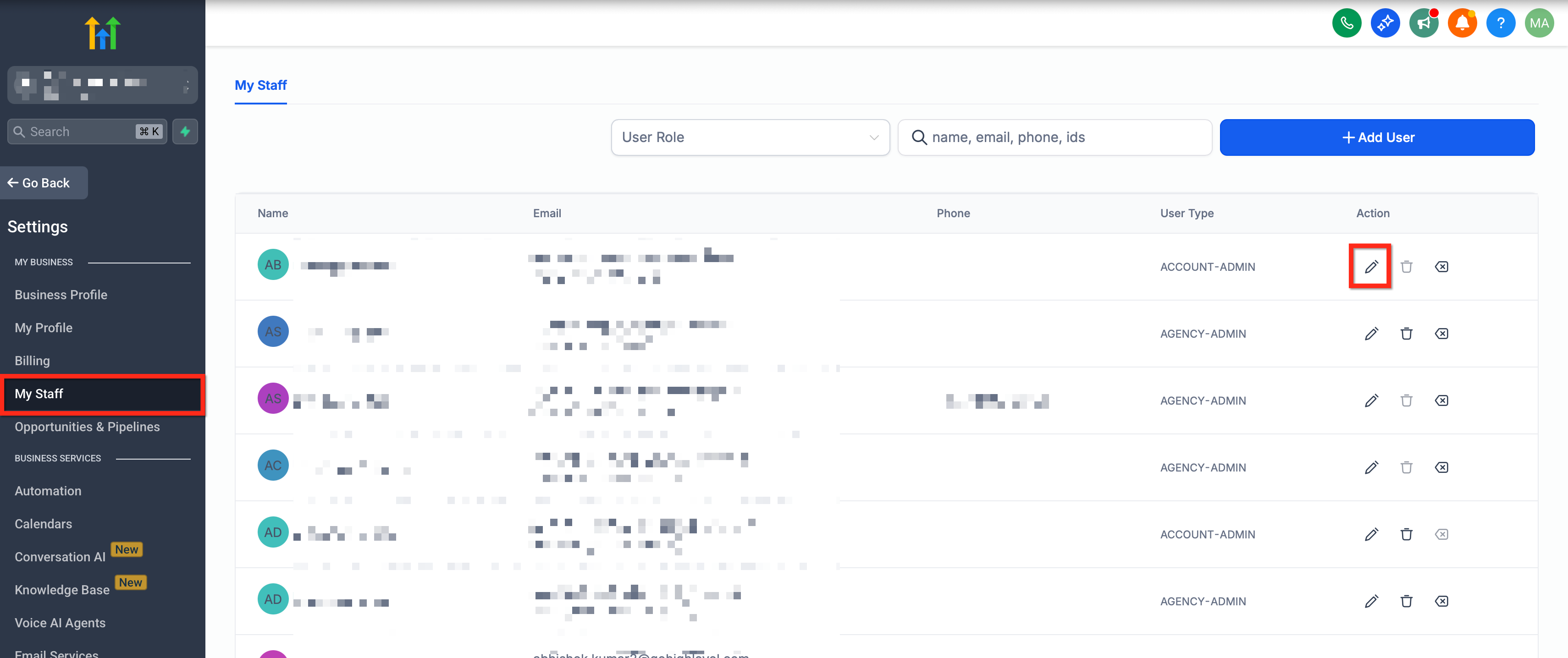
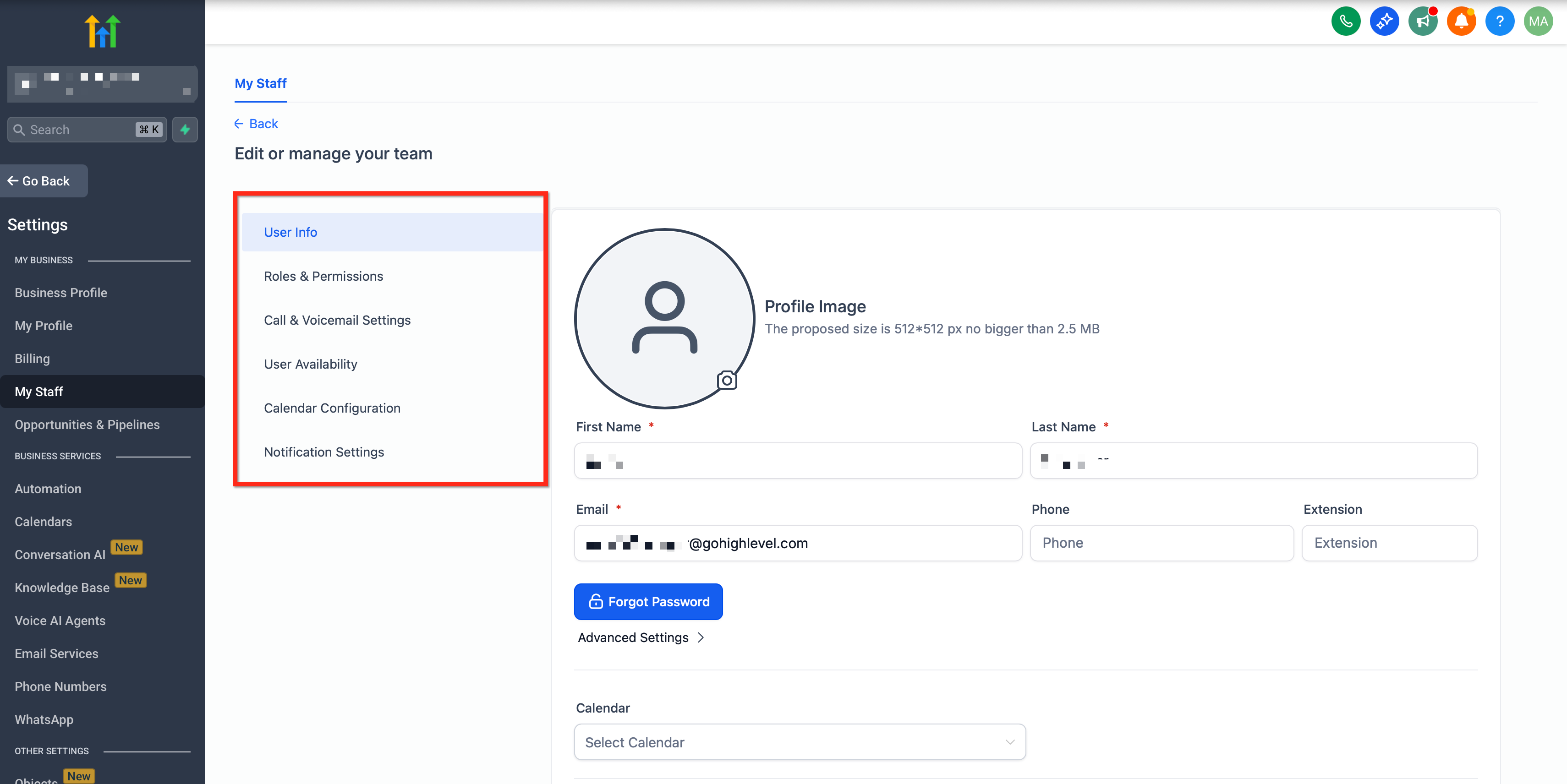
Start 30-Day Free Trial →To manage user access in GoHighLevel, go to Agency Settings → Team for agency-level users or Sub-Account Settings → My Staff for sub-account users. This process typically takes 3-5 minutes per user, depending on the number of permissions you configure.
- ✓Always apply the principle of least privilege: grant only the minimum necessary permissions to each user.
- ✓Utilize 'Account' type users for specific client access, restricting their view to designated sub-accounts.
- ✓Regularly review and update user permissions to align with changing roles and responsibilities.
- ✓Understand the distinct functionalities of 'Agency' vs. 'Account' user types for proper assignment.
- ✓Leverage multi-channel OTP for secure verification when changing sensitive user information like email addresses.
Understanding User Access in GoHighLevel
Managing user access in GoHighLevel is crucial for controlling who can do what within your agency and client accounts. This guide shows you how to add, edit, and delete users, ensuring your team and clients have the right level of access. You will learn to navigate both agency-level and sub-account-level user management settings.
How to Manage Users at the Agency Level
This section is for agency owners or administrators who need to grant or modify access for employees or client personnel across multiple client accounts. Here, you manage users who operate across your entire agency structure.
When setting up new agency users, consider enabling Two-Factor Authentication (2FA) for added security. This protects sensitive agency data.
How to Manage Staff within a Specific Sub-Account
This section guides you on managing users (staff or clients) within a specific client's GoHighLevel account. Any user you add here will also be visible and manageable under your Agency Team Management.
✅ Automatic personal booking calendar creation for newly added sub-account users depends on your agency-level Preloaded Example Data setting, found in Settings → Company.
Start your 30-day GoHighLevel free trial
Everything in this guide is in your free trial. 30 days, no credit card — the platform behind 78+ revenue systems.
Some links are affiliate links — if you sign up we may earn a commission, at no extra cost to you. We only recommend GoHighLevel because we build on it every day.
What are GoHighLevel Roles and Permissions?
Roles and permissions are the core of GoHighLevel's user access control. They allow you to fine-tune exactly what each user can do, which parts of the platform they can see, and what actions they can perform. This ensures data security and operational efficiency.
Use permission templates for common roles (e.g., 'Sales Rep,' 'Support Agent') to save time and ensure consistent access levels across similar users. You can create and apply these templates at the agency level.
How to Securely Change a User's Email Address
Changing a user's login email is a sensitive update that requires verification to maintain account security. GoHighLevel supports multi-channel One-Time Password (OTP) verification to confirm identity, even if the existing email is inaccessible.
⚠️ If no other verified 2FA method is available for the user, you will be prompted to set up an authenticator app before you can proceed with the email change.
GoHighLevel User Management Best Practices
Adhering to best practices ensures optimal security and efficiency in your GoHighLevel user management. These tips help you maintain a robust and compliant access structure.
Troubleshooting Common Issues
Common Mistakes to Avoid
- →Granting full agency access ('Agency' user type) unnecessarily, violating the principle of least privilege.
- →Forgetting to assign specific sub-accounts to 'Account' type users, leading to access denied issues.
- →Not regularly reviewing and updating user permissions as roles change, creating security vulnerabilities.
- →Using weak or generic passwords for new users, increasing the risk of unauthorized access.
- →Ignoring the multi-channel OTP for email changes, which bypasses a critical security layer.
Frequently Asked Questions
Start your 30-day GoHighLevel free trial
Everything in this guide is in your free trial. 30 days, no credit card — the platform behind 78+ revenue systems.
Some links are affiliate links — if you sign up we may earn a commission, at no extra cost to you. We only recommend GoHighLevel because we build on it every day.

Arsalan writes GHL guides from real build experience — 78+ systems, $9.2M in client pipeline. Wharton, CXL & Google certified.
Connect on LinkedIn