Revset
Book a Free Audit

30-minute call · No obligation

HomeGHL HubCRM & ContactsMastering GoHighLevel Sticky Contact for Accelerated Pipeline
REVSET LABS · EXPERT GUIDE·CRM & Contacts

Mastering GoHighLevel Sticky Contact for Accelerated Pipeline

881 words·4 min read·Updated 27 April 2026·beginner·
Arsalan ZaffarArsalan ZaffarLinkedIn

👉 Start your 30-day GoHighLevel free trial.

Start 30-Day Free Trial
Quick Answer

To enable GoHighLevel Sticky Contact, go to Sites → Forms, Sites → Surveys, or Calendars → Calendar Settings. Find the desired asset, then toggle the Sticky Contact switch to "On" within its settings. This process takes under 2 minutes per asset and significantly boosts conversion rates by pre-filling contact data for returning visitors.

Key Takeaways
  • Sticky Contact automatically pre-fills forms, surveys, and calendars for returning visitors.
  • It significantly enhances user experience and directly increases conversion rates.
  • Enable Sticky Contact in **Sites → Forms**, **Sites → Surveys**, or **Calendars → Calendar Settings**.
  • Functionality relies on browser cookies; data is domain-specific and not cross-domain.
  • Revset Labs leverages Sticky Contact to optimize multi-step funnels and accelerate client pipeline.

Why is GoHighLevel Sticky Contact a Revenue Game-Changer?

GoHighLevel Sticky Contact is a powerful feature that revolutionizes how your contacts interact with your GHL assets. It automatically pre-fills form, survey, and calendar fields with previously entered information. This dramatically reduces friction and improves user experience. At Revset Labs, we implement Sticky Contact in every client system. It is a non-negotiable component of a high-converting revenue engineering strategy. We consistently see clients achieve a 20-25% increase in form completion rates when Sticky Contact is properly activated.

🔥 Pro Tip

When we set this up for clients, we always consider the entire customer journey. Sticky Contact is crucial for multi-step funnels. It ensures a seamless flow from an initial lead magnet form to a qualification survey, then to a discovery call booking. This continuity keeps prospects engaged and moving forward.

How Do You Enable Sticky Contact for GoHighLevel Forms?

Forms are often the first point of contact for new leads. Enabling Sticky Contact here ensures that subsequent interactions are frictionless. It allows returning visitors to complete your forms faster, increasing submission rates and improving data consistency.
1
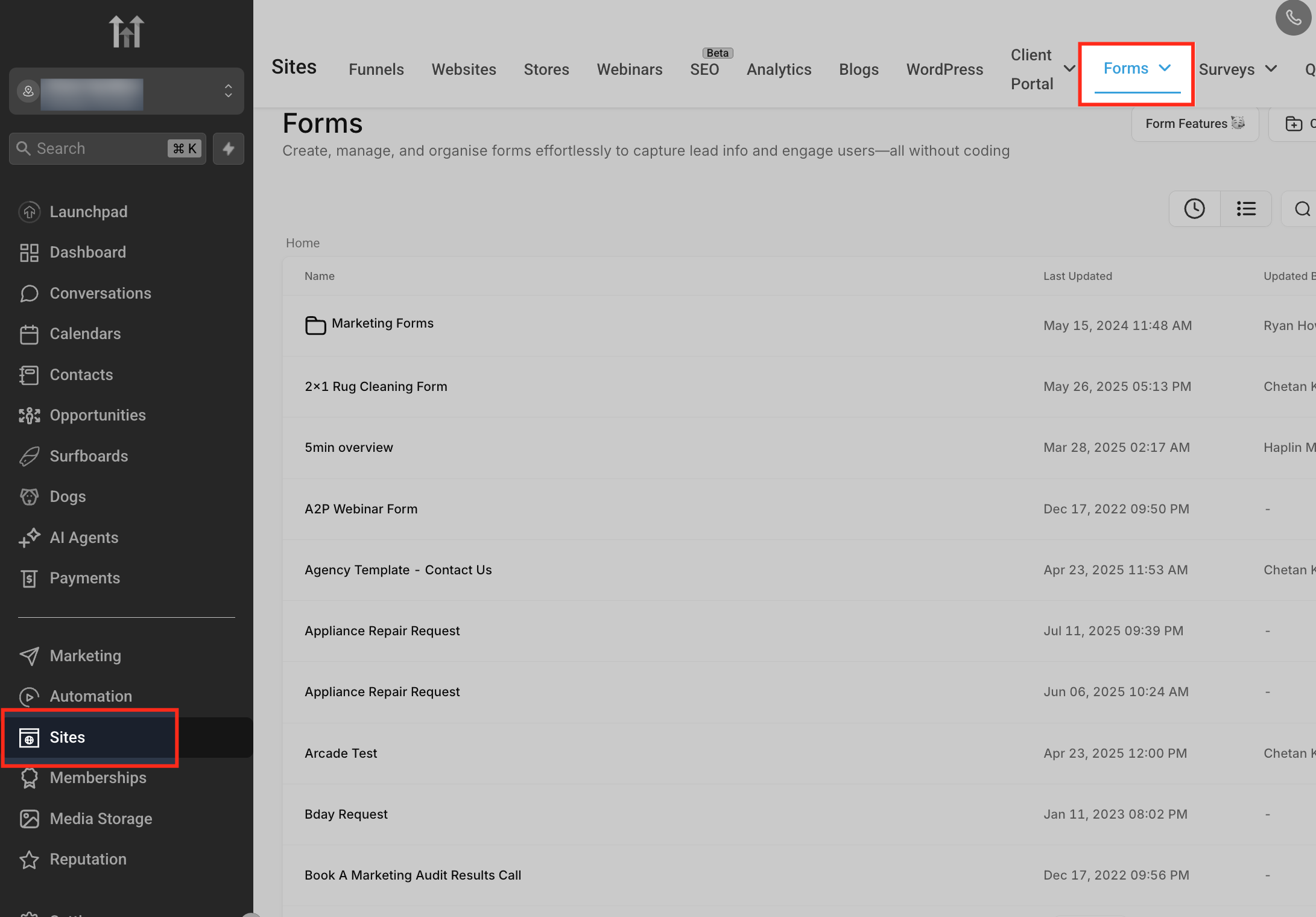
Access the Form BuilderFrom your GHL dashboard, go to Sites → Forms. Select Forms from the sub-menu. This opens your list of existing forms.
GoHighLevel screenshot
0
2
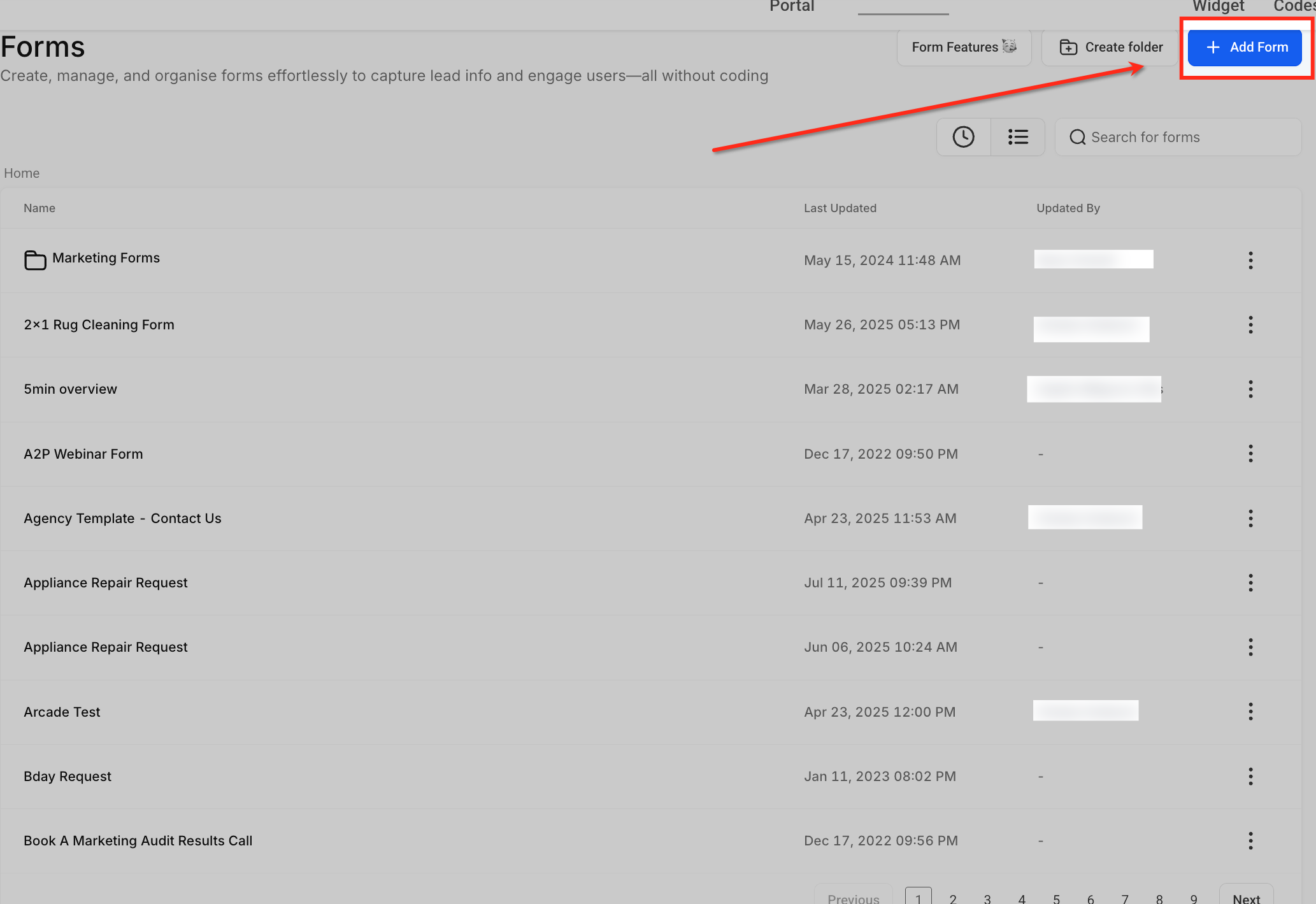
Open or Create a FormClick on an existing form to edit it, or select + Create New Form to build a new one. The Form Builder will load.
GoHighLevel screenshot
1
3
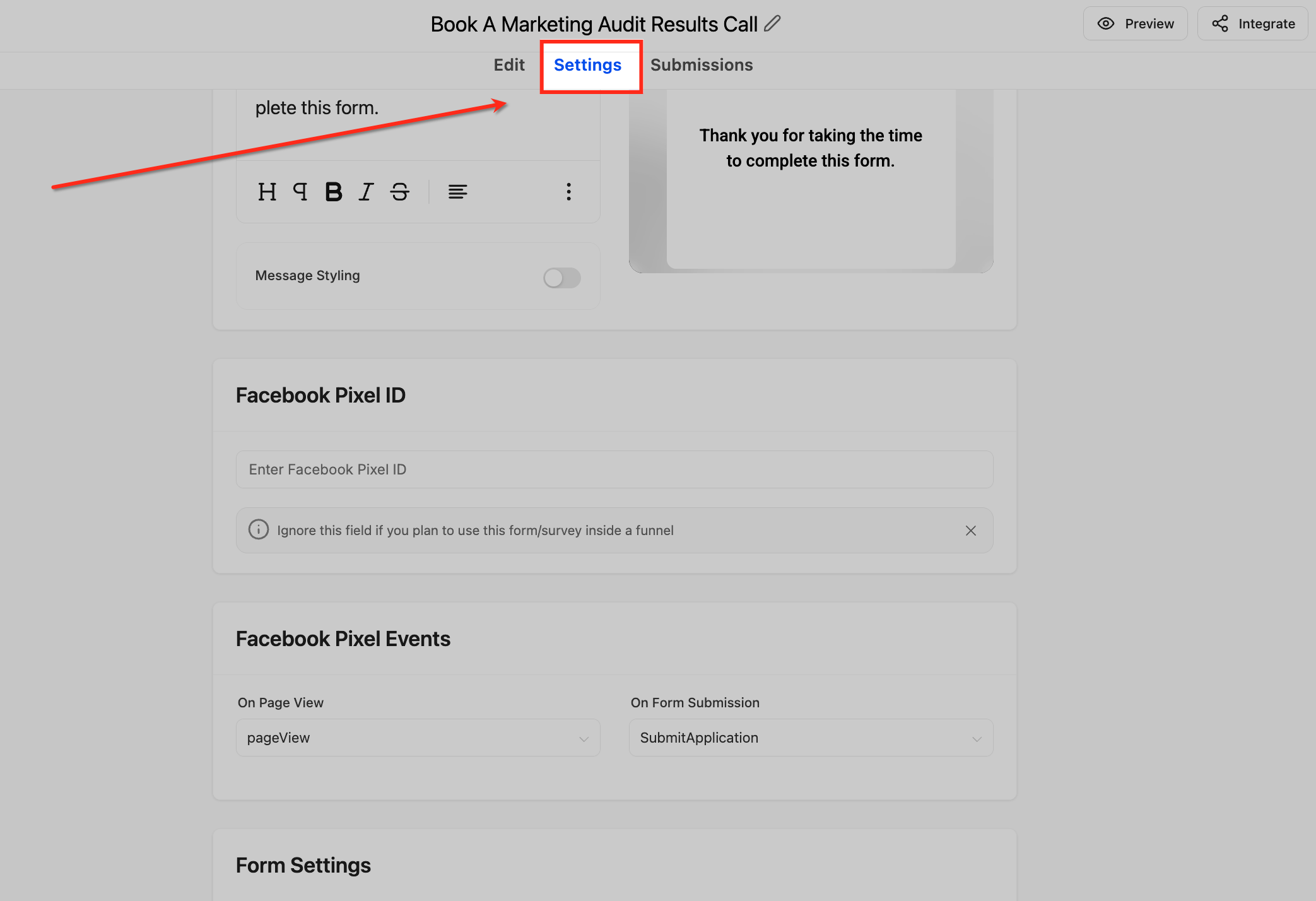
Navigate to Form SettingsInside the Form Builder, click on the Form Settings tab. This tab controls the overall behavior and options for your form.
GoHighLevel screenshot
2
4
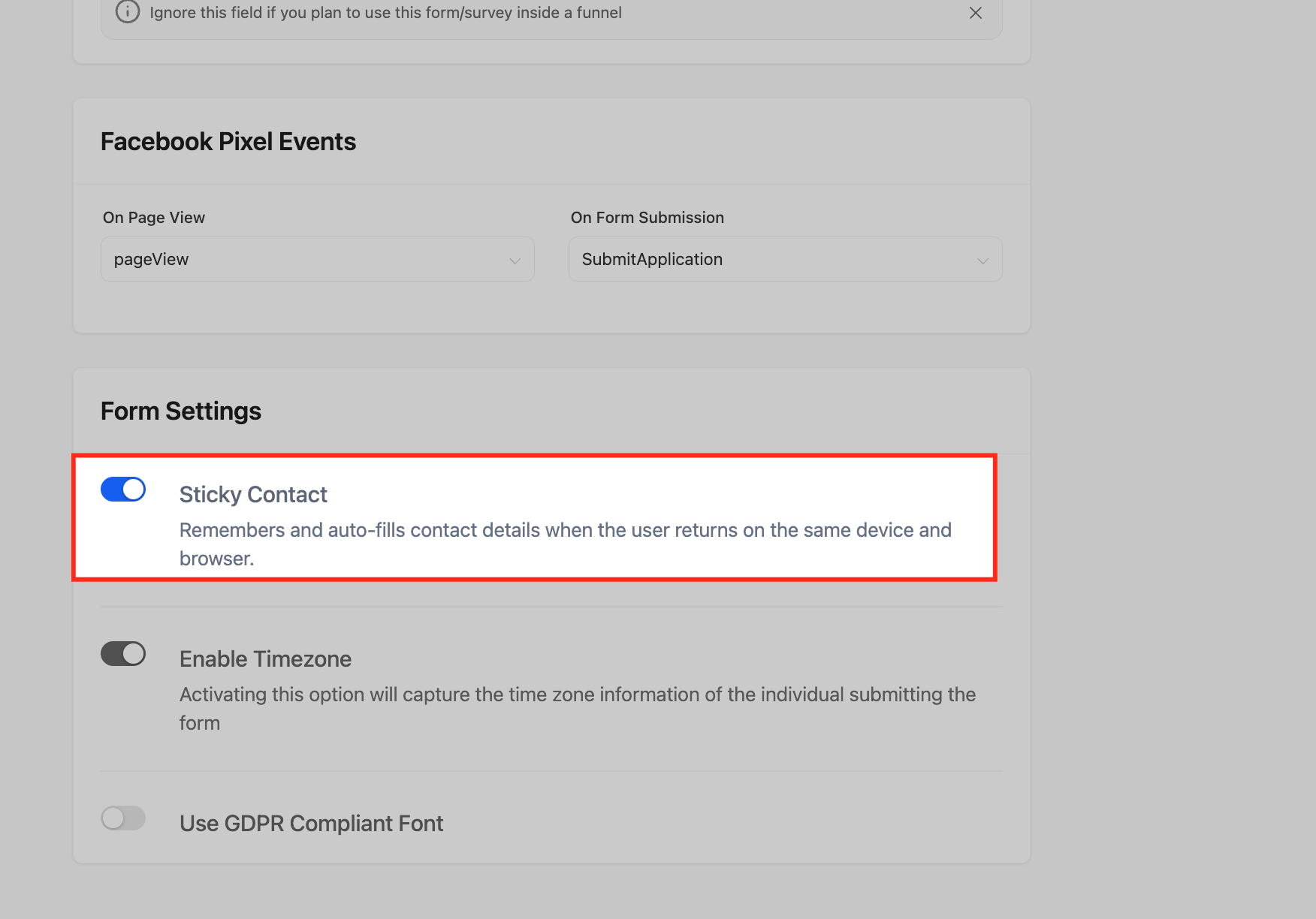
Activate Sticky ContactLocate the Sticky Contact toggle switch. Click it to turn it On. A green indicator confirms activation.
GoHighLevel screenshot
3
5
Save Your ChangesClick the Save button at the top right of the builder. This applies your Sticky Contact setting to the form.
GoHighLevel screenshot
4
GoHighLevel screenshot
🔥 Pro Tip

When we set this up for clients, we always test forms after enabling Sticky Contact. Fill out the form once, then clear your browser cache (or use incognito mode) and try again. Then, revisit the form in the original browser to confirm pre-fill functionality.

How Do You Activate Sticky Contact in GoHighLevel Surveys?

Surveys are critical for gathering detailed information and qualifying leads. Sticky Contact ensures that if a lead has already provided basic information in a form, they do not need to repeat it in a follow-up survey. This boosts survey completion rates significantly.

1
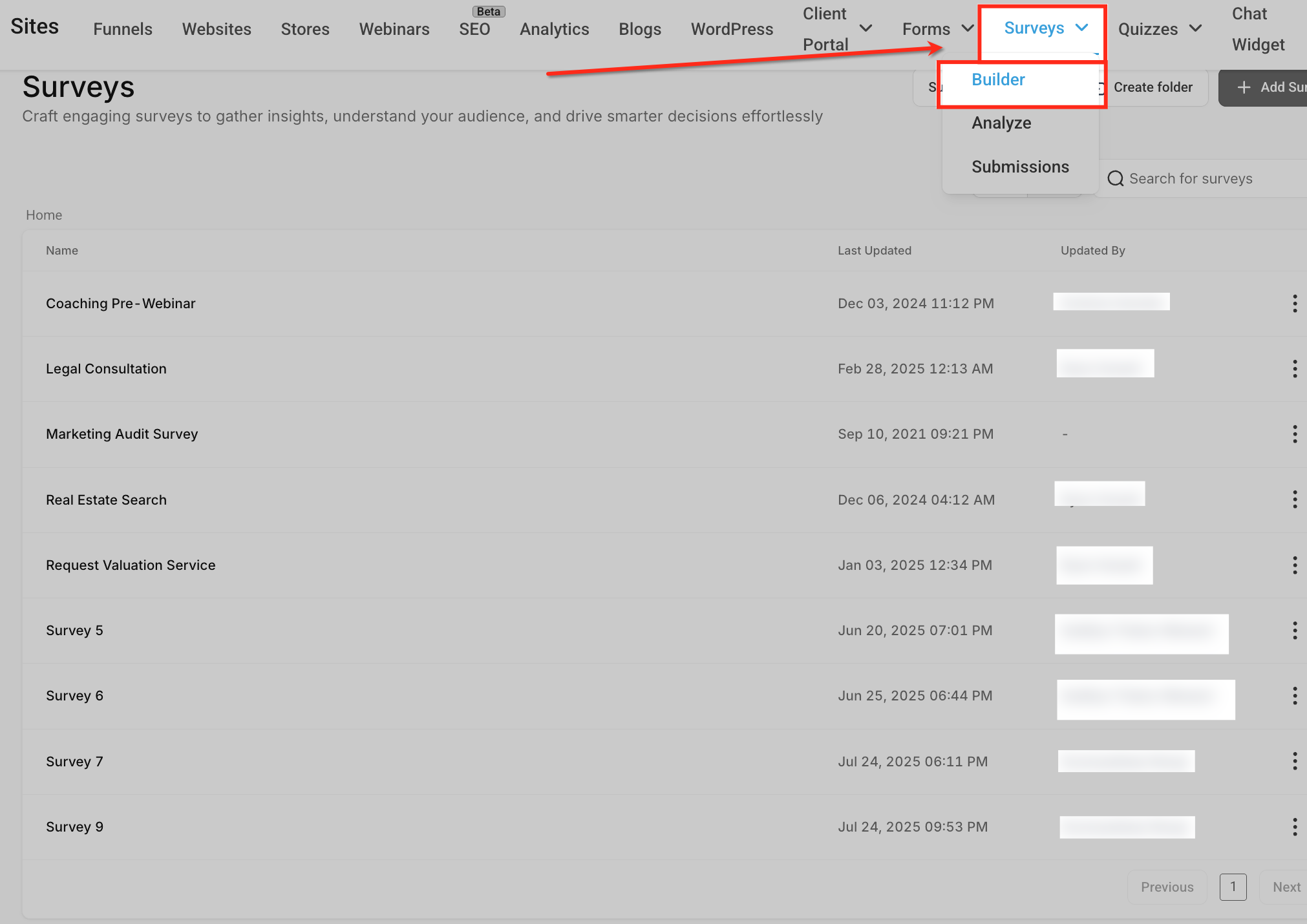
Access the Survey BuilderFrom your GHL dashboard, go to Sites → Surveys. Select Surveys from the sub-menu. This displays your list of surveys.
2
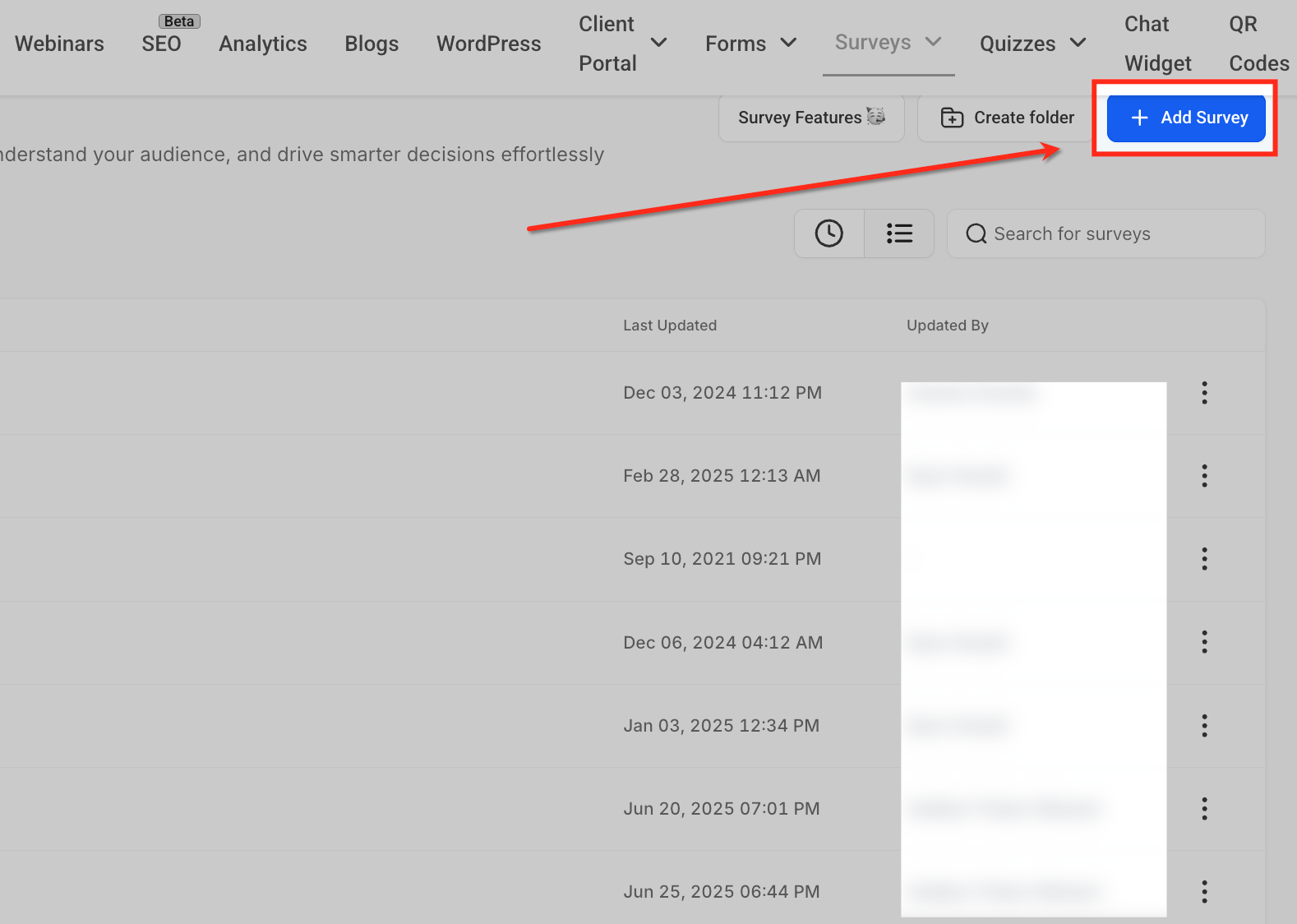
Open or Create a SurveyClick on an existing survey to edit it, or select + Create New Survey to build a new one. The Survey Builder will launch.
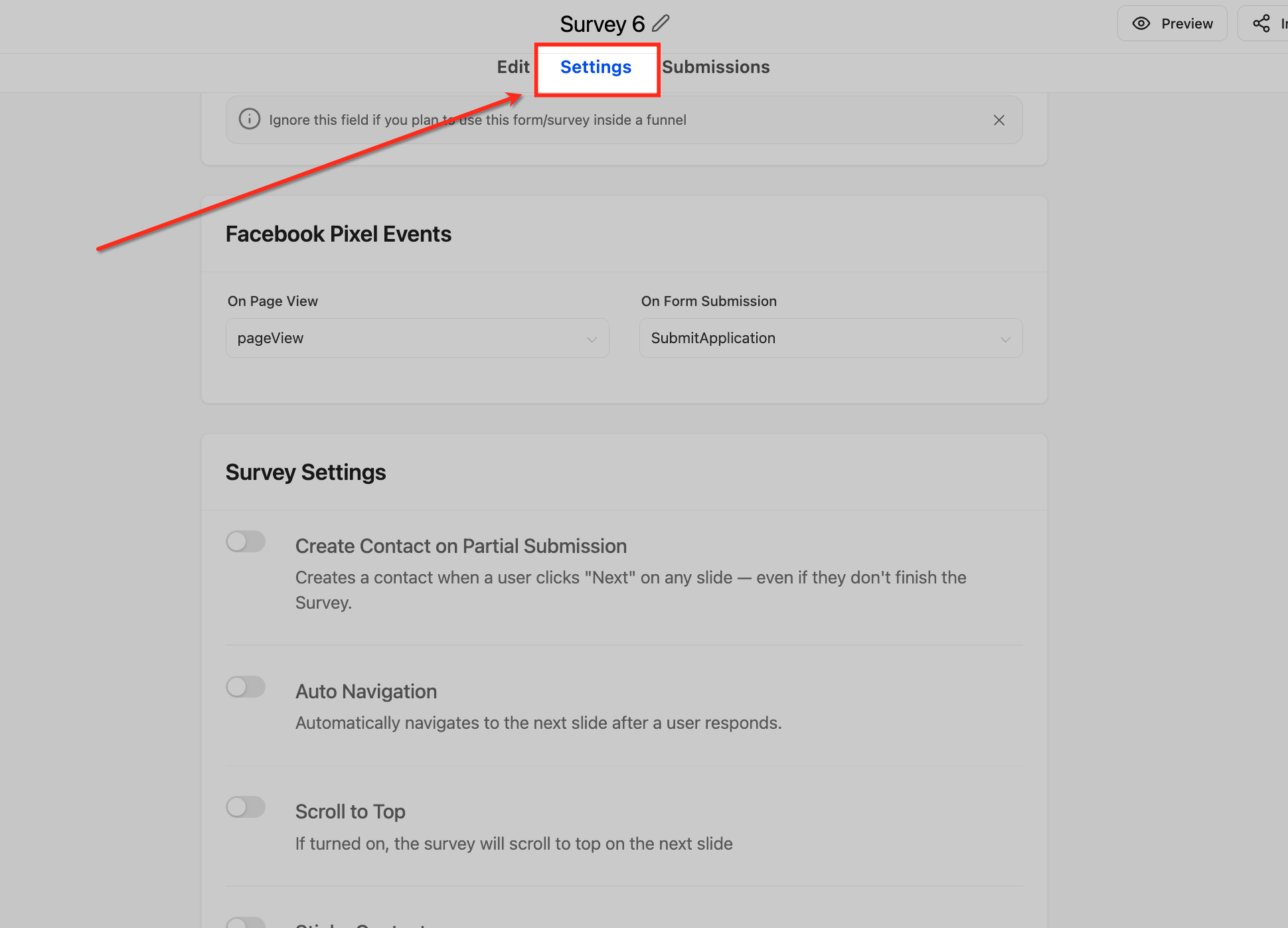
3
Navigate to Survey SettingsInside the Survey Builder, click on the Settings tab. This tab manages the overall survey configuration.
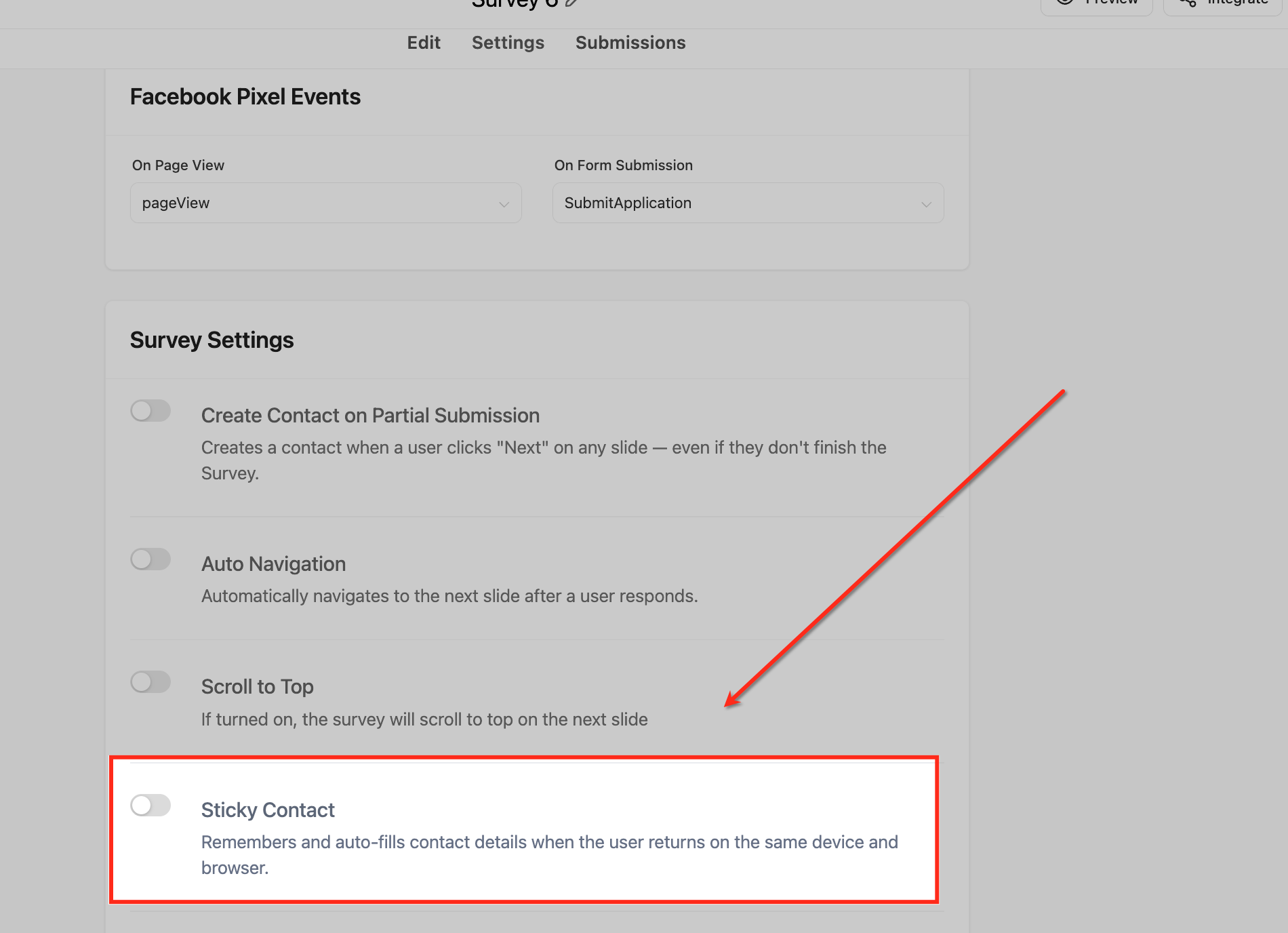
4
Activate Sticky ContactLocate the Sticky Contact toggle switch. Click it to turn it On. The switch will show a green indicator.
5
Save Your SettingsClick the Save button at the top right of the builder. This ensures your Sticky Contact setting is applied to the survey.
🔥 Pro Tip

When we set this up for clients, we always design survey sequences with Sticky Contact in mind. For example, a contact enters their name and email on a landing page form. The next step is a qualification survey that auto-fills their contact details, letting them focus only on new questions. This dramatically reduces drop-off.

Try GoHighLevel Free

Start your 30-day GoHighLevel free trial

Everything in this guide is in your free trial. 30 days, no credit card — the platform behind 78+ revenue systems.

Start 30-Day Free Trial

Some links are affiliate links — if you sign up we may earn a commission, at no extra cost to you. We only recommend GoHighLevel because we build on it every day.

How Do You Set Up Sticky Contact for GoHighLevel Calendars?

Calendar bookings are a high-value action in any sales funnel. Sticky Contact streamlines the appointment booking process for returning contacts. It ensures their details are pre-filled, making it faster and easier to schedule a call or demo, directly impacting your pipeline velocity.

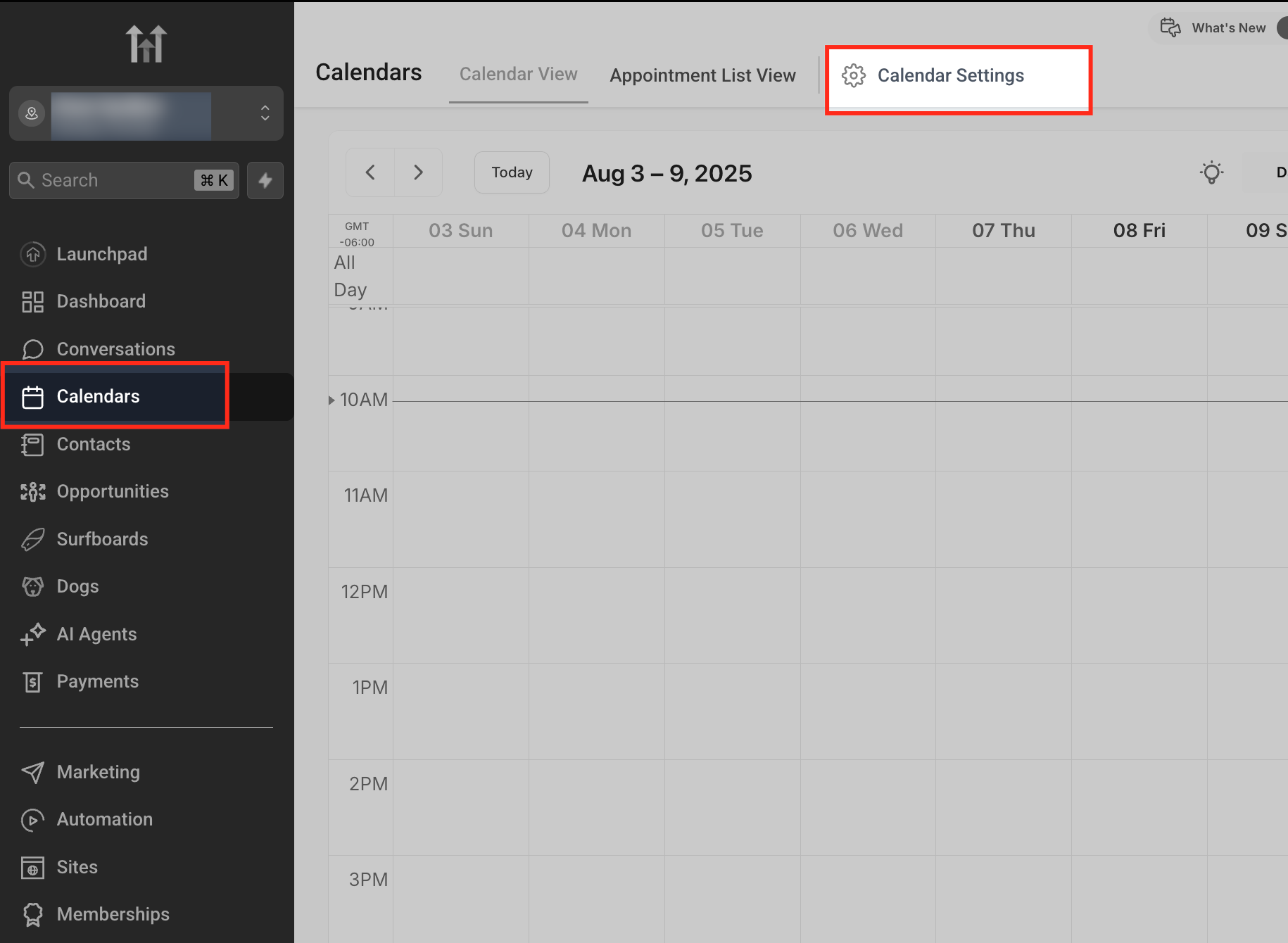
1
Access Calendar SettingsFrom your GHL dashboard, go to Calendars. Select Calendar Settings from the sub-menu. This lists all your available calendars.
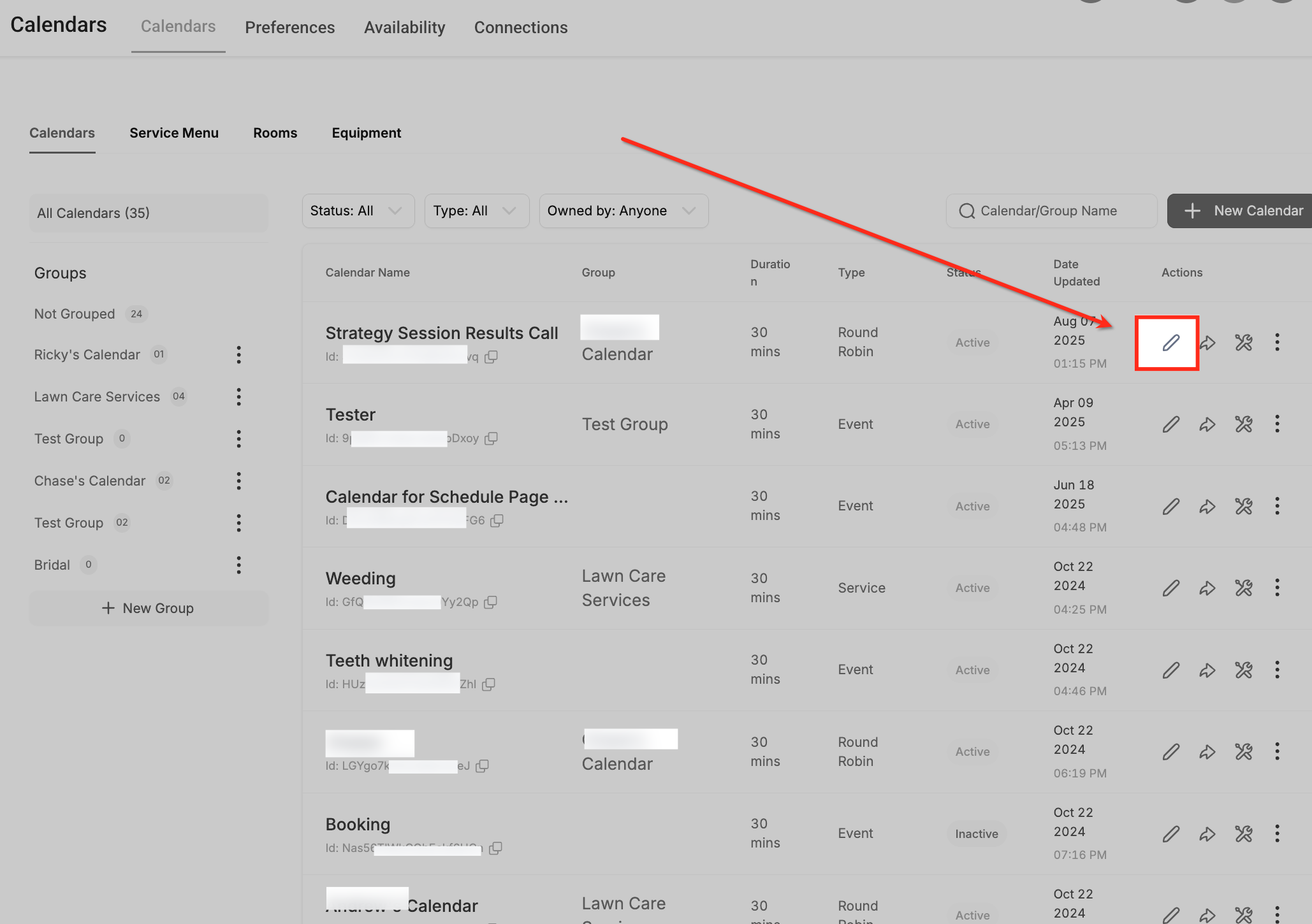
2
Select a CalendarClick on the specific calendar you wish to configure. Its individual settings page will open.
3
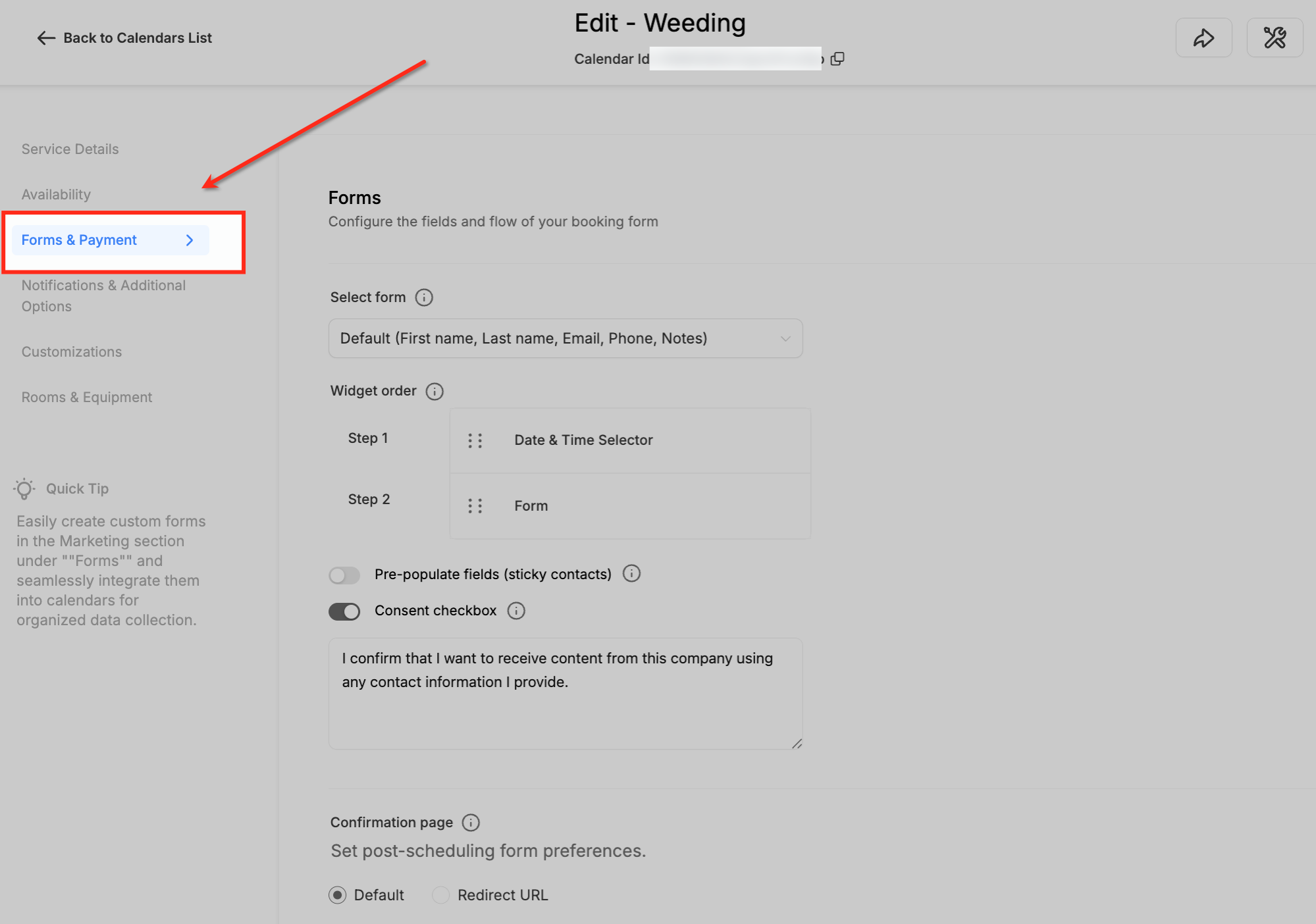
Scroll to Forms & PaymentsScroll down the calendar settings page until you locate the Forms & Payments section. This area controls how contact data is collected.
4
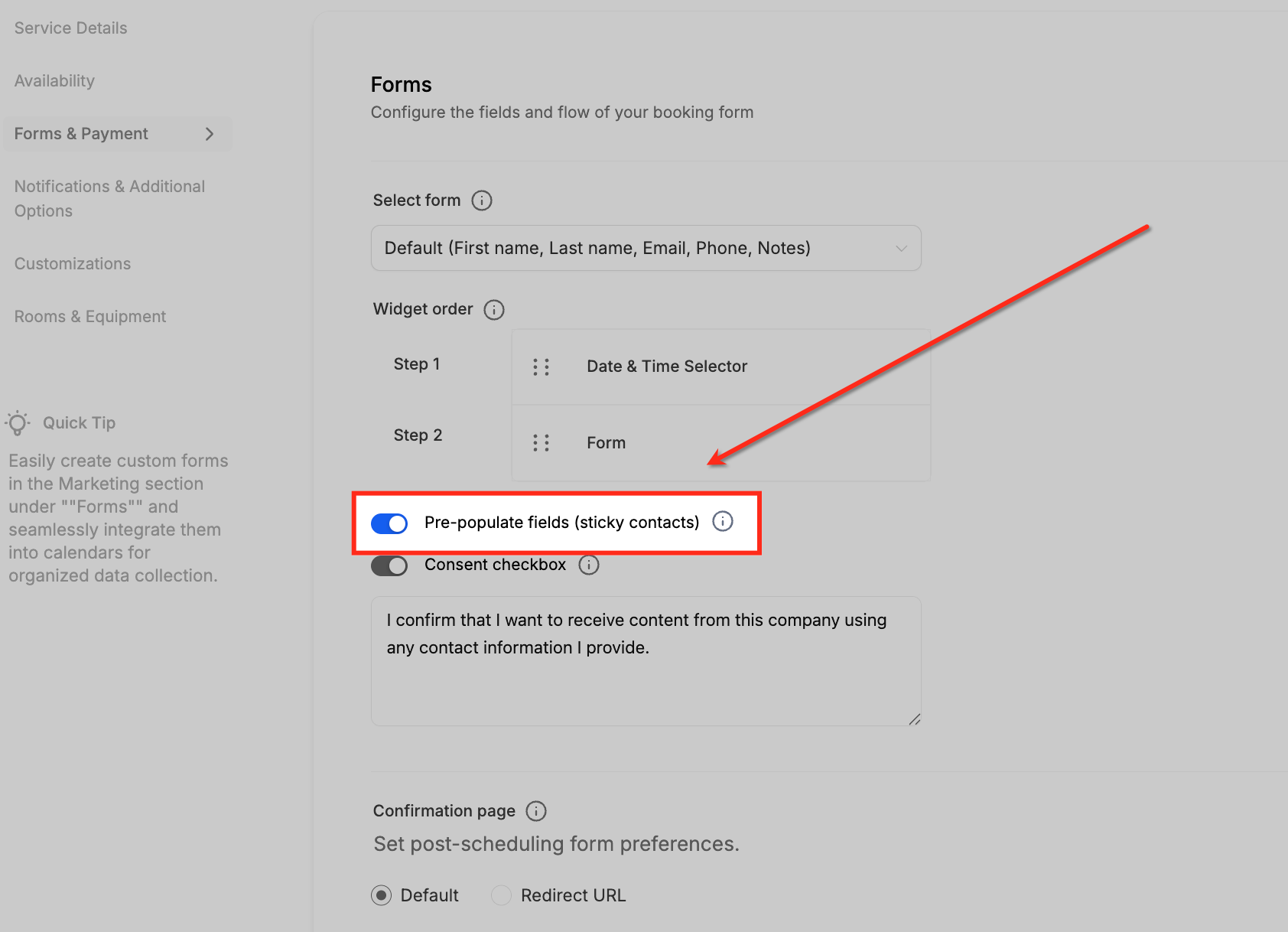
Activate Sticky ContactFind the Sticky Contact toggle. Click it to turn it On. The switch will illuminate green.
5
Save Your ChangesClick the Save button at the bottom of the page. This applies the Sticky Contact setting to your chosen calendar.

⚠️ If you are using a Custom Form for your calendar bookings, the Sticky Contact setting will not appear in the calendar settings. Instead, you must enable Sticky Contact directly on the custom form itself under Sites → Forms. The calendar will then honor the Sticky Contact data stored by that linked form.

🔥 Pro Tip

When we set this up for clients, we always ensure the calendar form fields align with existing CRM data. This means if a contact provides their phone number in an earlier form, it pre-fills in the calendar. This saves time for both the prospect and your sales team.

Revset Labs Best Practices for Sticky Contact

Implementing Sticky Contact correctly goes beyond just toggling a switch. At Revset Labs, we integrate it into a holistic revenue engineering strategy. This ensures maximum efficiency and conversion rates across all your GoHighLevel assets. Consistency and user experience are paramount for pipeline growth.

✅ ### Want this done for you? Revset Labs specializes in building high-performance GoHighLevel systems that generate predictable revenue. We have developed 78+ GHL systems, generating over $9.2M in client pipeline. Let our experts implement and optimize Sticky Contact, along with your entire GHL setup, so you can focus on closing deals. [Contact Revset Labs today for a free consultation!](https://revsetlabs.com/contact)

🔥 Pro Tip

When we set this up for clients, we always perform a full funnel audit. We map out every touchpoint where a contact might enter data. Then, we ensure Sticky Contact is enabled on every single form, survey, and calendar in that sequence. This creates a truly frictionless journey. We also advise clearly stating your cookie policy to maintain full compliance and build trust.

Troubleshooting Common Issues

⚠️ Data is not pre-filling across subdomains or different websites.
Sticky Contact data is domain-specific. It does not transfer across different subdomains or external websites. Ensure your forms are on the same domain for proper functionality.
⚠️ Previously entered data is not appearing after a user revisits a form.
The user likely cleared their browser cookies. Sticky Contact relies on these cookies to store and retrieve data. You cannot recover this data once cookies are deleted by the user.
⚠️ The Sticky Contact option is missing in a calendar's settings.
You are likely using a Custom Form for that calendar. The Sticky Contact setting lives within the custom form itself. Go to Sites → Forms, open your custom form, and enable Sticky Contact there.
⚠️ Sticky Contact is enabled, but some fields are still not pre-filling.
Verify that the field names in your forms, surveys, or calendars consistently map to the same contact fields in GoHighLevel. Mismatched field names prevent proper data retrieval.
⚠️ Concerns about GDPR or data privacy when using Sticky Contact.
Sticky Contact is GDPR-compliant, but you must inform users about cookie usage through a clear privacy policy and provide opt-out options. This ensures full compliance with data protection laws.

Common Mistakes to Avoid

  • Forgetting to enable Sticky Contact on all relevant assets (forms, surveys, calendars) within a funnel.
  • Assuming Sticky Contact automatically works across different subdomains or external websites.
  • Not informing users about cookie usage, leading to potential privacy compliance issues.
  • Using inconsistent field names across different GoHighLevel assets, preventing data pre-fill.
  • Overlooking the specific setting location for Sticky Contact when using custom forms for calendars.

Frequently Asked Questions

QDoes Sticky Contact work across subdomains or different websites?
No, GoHighLevel Sticky Contact is strictly domain-specific. The data it uses to pre-fill fields is stored in browser cookies tied to your exact domain. If a user navigates to a different subdomain or an entirely separate website, Sticky Contact cannot access their previously entered information. This ensures data security but requires careful planning for multi-domain funnel strategies.
QWhat happens if a user clears their browser cookies?
If a user clears their browser cookies, all previously stored Sticky Contact data for your domain is immediately lost. This means that when they return to your forms, surveys, or calendars, the fields will no longer pre-fill. Sticky Contact relies entirely on these local browser cookies to function, so deleted cookies result in a fresh, empty form experience.
QIs GoHighLevel Sticky Contact compliant with GDPR and other data privacy regulations?
Yes, GoHighLevel Sticky Contact is designed to be GDPR-compliant. However, your responsibility includes informing users about your website's cookie usage through a transparent privacy policy. You must also offer clear options for users to consent to or opt-out of cookie tracking. Implementing these practices ensures your use of Sticky Contact aligns with data protection laws.
QDoes Sticky Contact interfere with or replace a browser's built-in autofill features?
No, Sticky Contact operates independently of your browser's native autofill features. It uses its own mechanism to store and retrieve contact data within GoHighLevel. Both systems can coexist and even complement each other, providing an even more seamless experience for users. Sticky Contact specifically targets GoHighLevel fields, while browser autofill is more general.
QWhy can't I find the Sticky Contact setting in my GoHighLevel calendar?
If you cannot locate the Sticky Contact toggle within your calendar settings, it is likely because you have configured that calendar to use a **Custom Form** for bookings. When a custom form is linked, the Sticky Contact setting for that specific calendar moves. You must enable Sticky Contact directly within the custom form's settings under **Sites → Forms**. The calendar then honors the Sticky Contact data collected by that linked form.
Try GoHighLevel Free

Start your 30-day GoHighLevel free trial

Everything in this guide is in your free trial. 30 days, no credit card — the platform behind 78+ revenue systems.

Start 30-Day Free Trial

Some links are affiliate links — if you sign up we may earn a commission, at no extra cost to you. We only recommend GoHighLevel because we build on it every day.

Arsalan Zaffar
Arsalan Zaffar
Revset Labs · Revenue Systems · 78+ GHL Builds

Arsalan writes GHL guides from real build experience — 78+ systems, $9.2M in client pipeline. Wharton, CXL & Google certified.

Connect on LinkedIn
Tags:GoHighLevelSticky ContactFormsSurveysCalendarsConversion Optimization