
GoHighLevel Sending Priority: Control Your Email Sender Name & Address
👉 Start your 30-day GoHighLevel free trial.
Start 30-Day Free Trial →To precisely control your GoHighLevel Sending Priority From Name/Address, configure sender details directly within your workflow's 'Send Email' actions. This setup takes about 15 minutes per workflow and ensures consistent branding while boosting email deliverability by ensuring the correct sender appears.
- ✓Consistent sender names build trust and boost email open rates.
- ✓Unassigned contacts receive emails from your Business Profile email by default.
- ✓Workflows provide the most granular control over sender details, overriding other settings.
- ✓Always match your sender email domain with your verified Mailgun domain for optimal deliverability.
- ✓Proper GoHighLevel sender configuration improves engagement and reduces spam flags.
Understanding GoHighLevel Email Sender Priority
At Revset Labs, we know that consistent sender identity is crucial for building trust and maximizing email engagement. GoHighLevel manages email sender priority through a specific hierarchy, ensuring your leads receive communications from the correct 'From' name and address. Understanding this system prevents emails from landing in spam folders and reinforces your brand identity. Your sender email directly impacts deliverability and open rates. GoHighLevel uses Mailgun or LC Email as its primary sending infrastructure. By default, if a contact is not assigned to a specific user, the system uses the email address from your Business Profile as the sender. This foundational understanding is key to optimizing your email strategy and preventing confusion for your recipients.
⚠️ Failing to configure sender details correctly can lead to emails showing 'via mailgun.org' or being flagged as spam. This severely damages your sender reputation and pipeline generation efforts.
When we set this up for clients, we always prioritize a clear, recognizable 'From' name. This builds immediate trust and significantly increases your email open rates, often by 10-15% on initial campaigns.
How GoHighLevel Determines Sender: Assigned vs. Unassigned Contacts
GoHighLevel's sender priority logic often hinges on whether a contact is assigned to a specific user within your system. For unassigned contacts, the platform defaults to a global sender setting. For assigned contacts, the system can pull sender details from the assigned user, offering a more personalized touch. Knowing a contact's assignment status is the first step to predicting which sender email GoHighLevel will use by default. This impacts how you structure your automated and manual communications effectively.

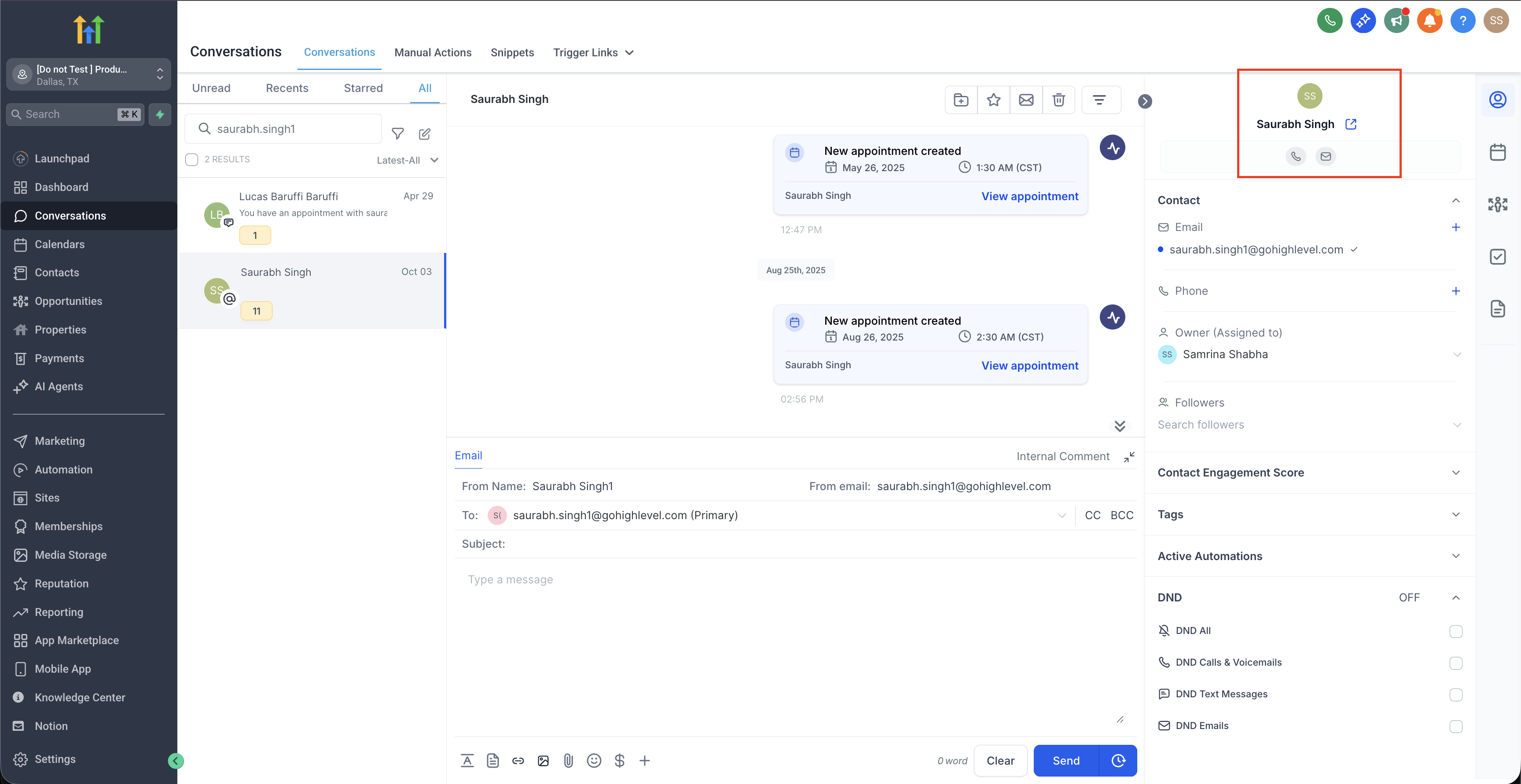
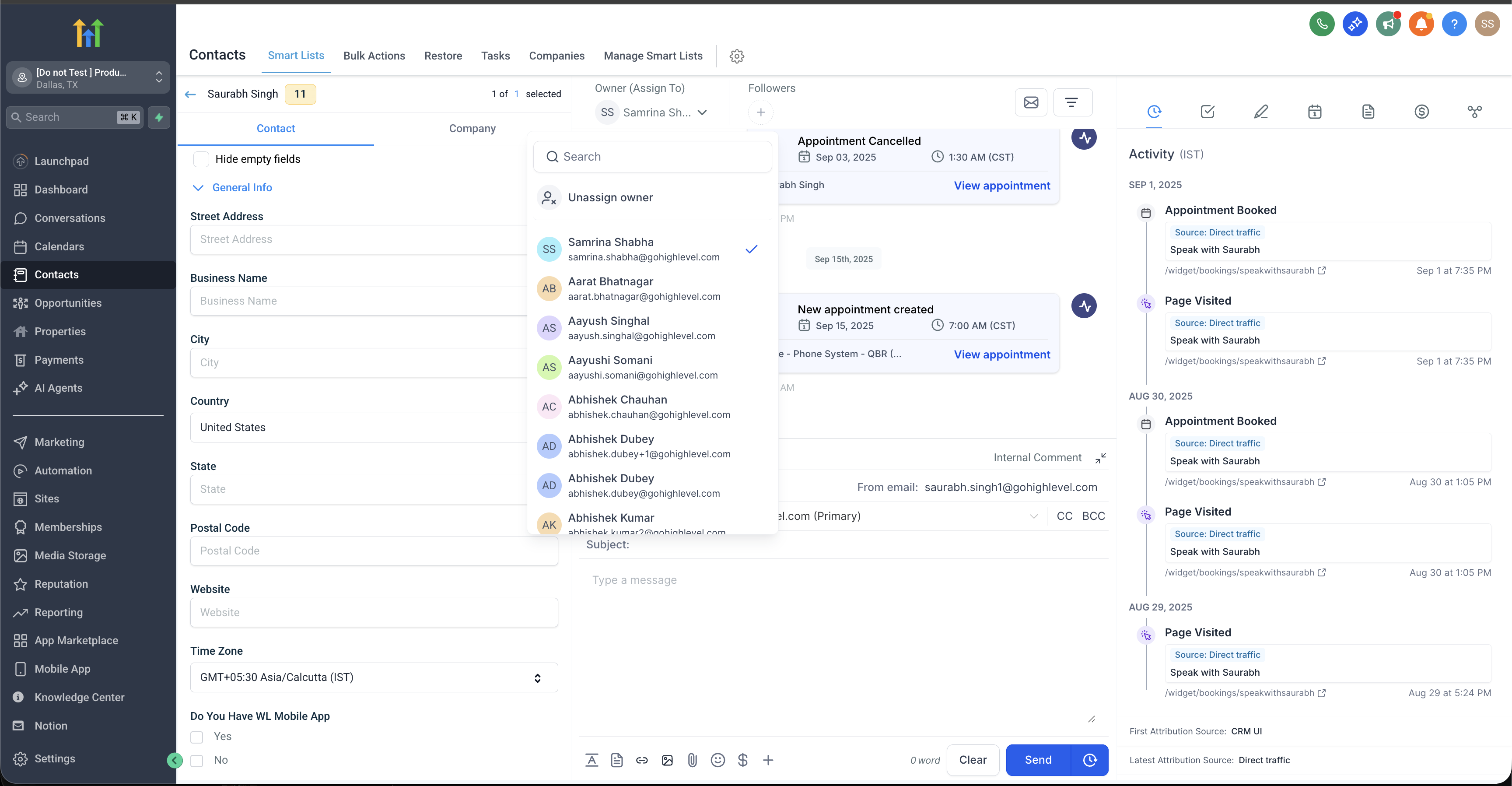
✅ If a contact remains unassigned, GoHighLevel will default to the sender email configured in your Business Profile settings for automated emails. This is a critical fallback mechanism.
When we set this up for clients, we ensure contact assignment is automated via workflows. This guarantees leads are directed to the right team member, and emails can be personalized with the assigned user's sender details, improving engagement by up to 20%.
Configuring Sender Email for Manual Conversations
For direct, one-on-one communication within the GoHighLevel Conversations tab, the sender email typically defaults to the logged-in user's email address. However, integrating a 2-way email sync changes this behavior, allowing you to send from a connected personal inbox. This offers a more direct and personal communication channel. Revset Labs leverages this for highly personalized follow-ups. Understanding this manual sender priority ensures your direct replies come from the expected source, maintaining continuity in client communication.
✅ Two-way email sync only impacts manual emails sent from the Conversations tab. It does not override sender settings in automated workflows or bulk email campaigns.
When we set this up for clients, we recommend 2-way email sync for sales teams engaging in direct outreach. It makes communication feel more authentic and personal, leading to higher response rates.
Start your 30-day GoHighLevel free trial
Everything in this guide is in your free trial. 30 days, no credit card — the platform behind 78+ revenue systems.
Some links are affiliate links — if you sign up we may earn a commission, at no extra cost to you. We only recommend GoHighLevel because we build on it every day.
Setting Sender Email in GoHighLevel Email Templates
GoHighLevel email templates provide a baseline for your email content and sender details. Defining a 'From Name' and 'From Email' within a template ensures consistency when you use that template for bulk emails or as a starting point for workflows. While templates offer a default, remember that workflow settings hold higher priority. Revset Labs uses templates to establish branding guidelines and streamline content creation. Setting the sender here creates a strong default, reducing errors when sending emails across various campaigns.
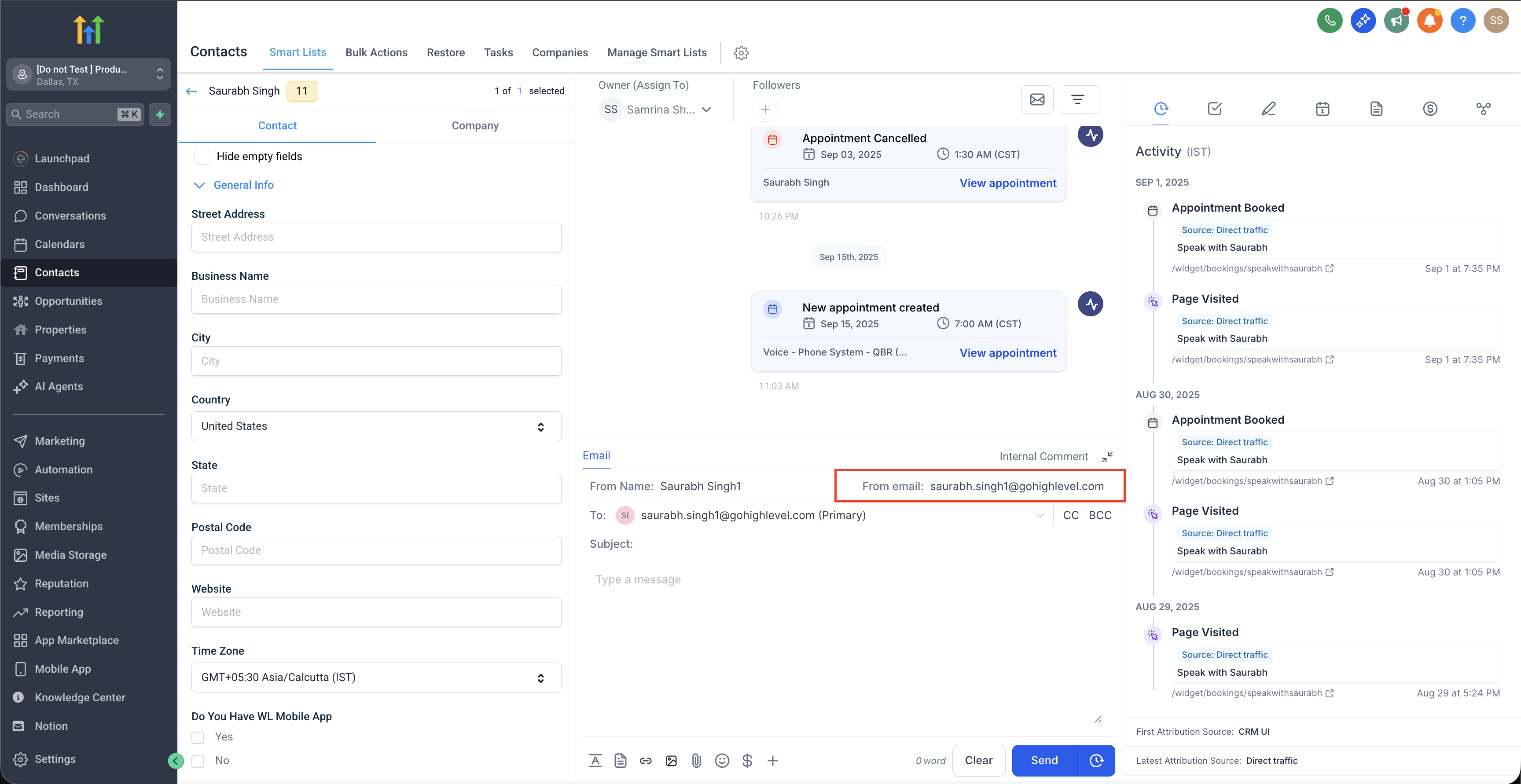
✅ Sender details configured within an email template can be overridden by settings within a workflow or a specific 'Send Email' action. Understand this hierarchy to avoid unexpected sender identities.
When we set this up for clients, we use a consistent 'From Name' across all templates, such as 'Revset Labs' or '[Your Company Name] Team'. This reinforces brand recognition instantly.
Overriding Sender Settings in GoHighLevel Workflows
Workflows offer the most precise control over your GoHighLevel Sending Priority From Name/Address. You can define sender details at two levels within a workflow: globally for the entire workflow or specifically for individual 'Send Email' actions. This granular control is essential for complex automation sequences and A/B testing different sender identities. Revset Labs always recommends setting sender details directly within each 'Send Email' action. This ensures absolute clarity and allows for dynamic sender changes based on the workflow's purpose, leading to maximum email effectiveness.
✅ Sender details defined within a specific 'Send Email' action take precedence over all other settings, including workflow-level settings, email template settings, and the Business Profile default. This is the highest priority.
When we set this up for clients, we explicitly define the 'From Name' and 'From Email' in *every single* 'Send Email' action within a workflow. This eliminates ambiguity and provides absolute control over the sender identity for each specific email sent.
Troubleshooting Common Issues
Common Mistakes to Avoid
- →Not matching your sender email domain exactly to your GoHighLevel-configured Mailgun domain.
- →Relying on default sender settings without explicitly defining them in workflows, leading to inconsistent branding.
- →Forgetting to set sender details within *each* 'Send Email' action in a workflow, allowing lower-priority settings to apply.
- →Using generic 'info@' or 'noreply@' emails when a personalized sender (e.g., 'John from [Company]') would significantly boost engagement.
- →Ignoring contact assignment, which can unintentionally alter the sender email for automated communications.
Frequently Asked Questions
Start your 30-day GoHighLevel free trial
Everything in this guide is in your free trial. 30 days, no credit card — the platform behind 78+ revenue systems.
Some links are affiliate links — if you sign up we may earn a commission, at no extra cost to you. We only recommend GoHighLevel because we build on it every day.

Arsalan writes GHL guides from real build experience — 78+ systems, $9.2M in client pipeline. Wharton, CXL & Google certified.
Connect on LinkedIn