To create and manage custom fields in GoHighLevel, navigate to Settings → Custom Fields within your sub-account. Here, you can define new fields, organize them into folders, and specify whether they apply to contacts or opportunities. This process typically takes 5-10 minutes per field.
Key Takeaways
✓Always choose between Contact and Opportunity field types carefully, as this cannot be changed later.
✓Use folders to group related custom fields, improving organization and ease of use within records.
✓Leverage custom fields across forms, surveys, workflows, and communication templates for maximum impact.
✓Test your custom fields after creation to ensure they appear and function correctly in your chosen GoHighLevel tools.
✓Plan your data collection needs before creating fields to avoid redundancy and ensure accurate data capture.
Why Are Custom Fields Essential in GoHighLevel?
Custom fields are powerful tools in GoHighLevel that let you capture and use specific information unique to your business. Instead of relying only on standard fields, you can create your own to track details like a lead's budget range, preferred contact method, or specific property interests. This tailored data collection unlocks deeper personalization and more effective automation across your entire GoHighLevel account. By using custom fields, you gain the flexibility to make your CRM truly work for your unique needs, moving beyond generic data points to insights that drive your business forward.
🔥 Pro Tip
Use custom fields to segment your audience for highly targeted campaigns. For example, create a 'Lead Source' custom field to filter contacts and send specific follow-ups based on where they came from.
Contact vs. Opportunity Custom Fields: Which One Do You Need?
Understanding the difference between Contact and Opportunity custom fields is crucial for proper data organization in GoHighLevel. While both allow you to store unique information, they attach to different 'objects' within the platform and serve distinct purposes. Choosing the correct type from the start ensures your data is accessible where you need it and remains organized.
1
Understand Contact Custom Fields — Use contact custom fields to store information about an individual person. This includes details like their birthday, preferred communication channel, or a specific qualification (e.g., 'Buyer' or 'Seller'). These fields live on the contact record and are ideal for general personal data that applies to the individual, regardless of how many deals they might be involved in.
0
2
Understand Opportunity Custom Fields — Use opportunity custom fields to capture information specific to a particular deal or sales opportunity. Examples include a project budget, urgency level, or a specific product interest for that one deal. These fields are tied to the opportunity record and are best for details that change from one deal to another, even for the same contact.
1
✅ Important: Once a custom field is created as either a Contact or Opportunity field, you cannot change its type later. If you select the wrong type, you must delete the field and recreate it.
How to Organize Custom Fields with Folders
As your GoHighLevel account grows, you'll likely create many custom fields. Organizing these fields into folders makes your contact and opportunity records much cleaner and easier to navigate. Folders appear as distinct sections within a record, grouping related fields together so you can quickly find the information you need.
1
Go to Custom Fields Settings — From your GoHighLevel sub-account dashboard, click on Settings in the left-hand menu. Then, select Custom Fields from the expanded options.
2
Select the Object Type — At the top of the Custom Fields page, use the object selector to choose either Contact or Opportunity. This determines which set of fields and folders you will manage.
3
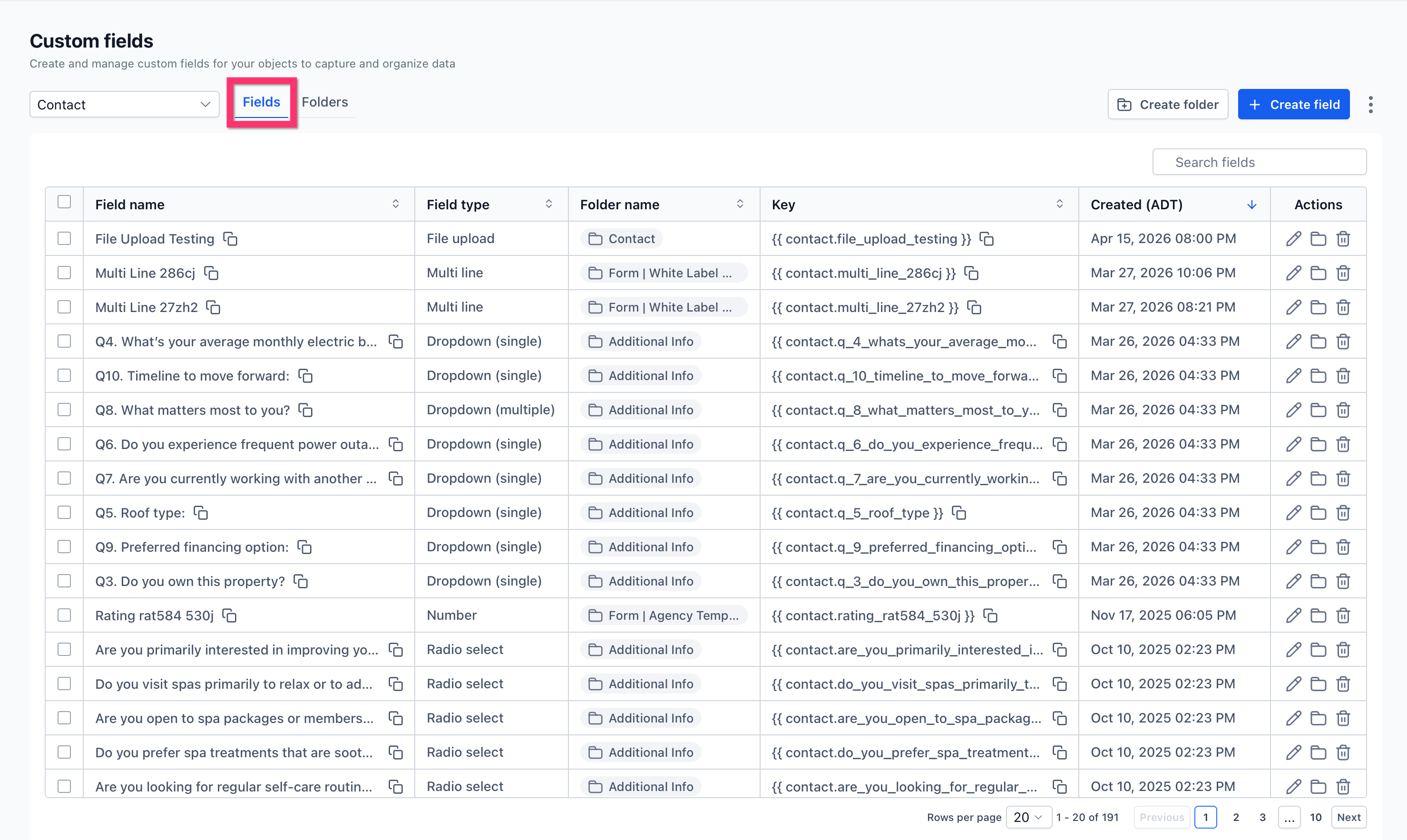
Navigate to the Folders Tab — Click on the Folders tab located near the top of the page. This tab displays all existing folders for your selected object type.
0
4
Create a New Folder — Click the Create folder button. A pop-up window will appear, asking for the folder's name.
5
Name and Save Your Folder — Enter a clear, descriptive name for your new folder, such as 'Lead Qualification' or 'Project Details'. Click Create to save the folder. You can now assign custom fields to this folder for better organization.
🔥 Pro Tip
Create a 'Miscellaneous' folder for fields that don't fit neatly into other categories, but aim to keep this folder small by planning your field categories effectively.
Try GoHighLevel Free
Start your 30-day GoHighLevel free trial
Everything in this guide is in your free trial. 30 days, no credit card — the platform behind 78+ revenue systems.
Some links are affiliate links — if you sign up we may earn a commission, at no extra cost to you. We only recommend GoHighLevel because we build on it every day.
Step-by-Step: How to Create Custom Fields in GoHighLevel
Creating a custom field is a straightforward process that allows you to tailor GoHighLevel to your exact data collection needs. Follow these steps carefully to set up new fields for contacts or opportunities, ensuring they are ready for use across your forms, workflows, and communication.
1
Access Custom Fields Settings — Log into your GoHighLevel sub-account. On the left-hand navigation menu, click Settings, then select Custom Fields.
2
Choose the Field Object — At the top of the Custom Fields page, locate the object selector. Click it and choose whether you want to create a Contact or an Opportunity custom field. This choice is permanent.
3
Open the Fields Tab — Ensure you are on the Fields tab. This tab displays all existing custom fields for the selected object type and allows you to add new ones.
4
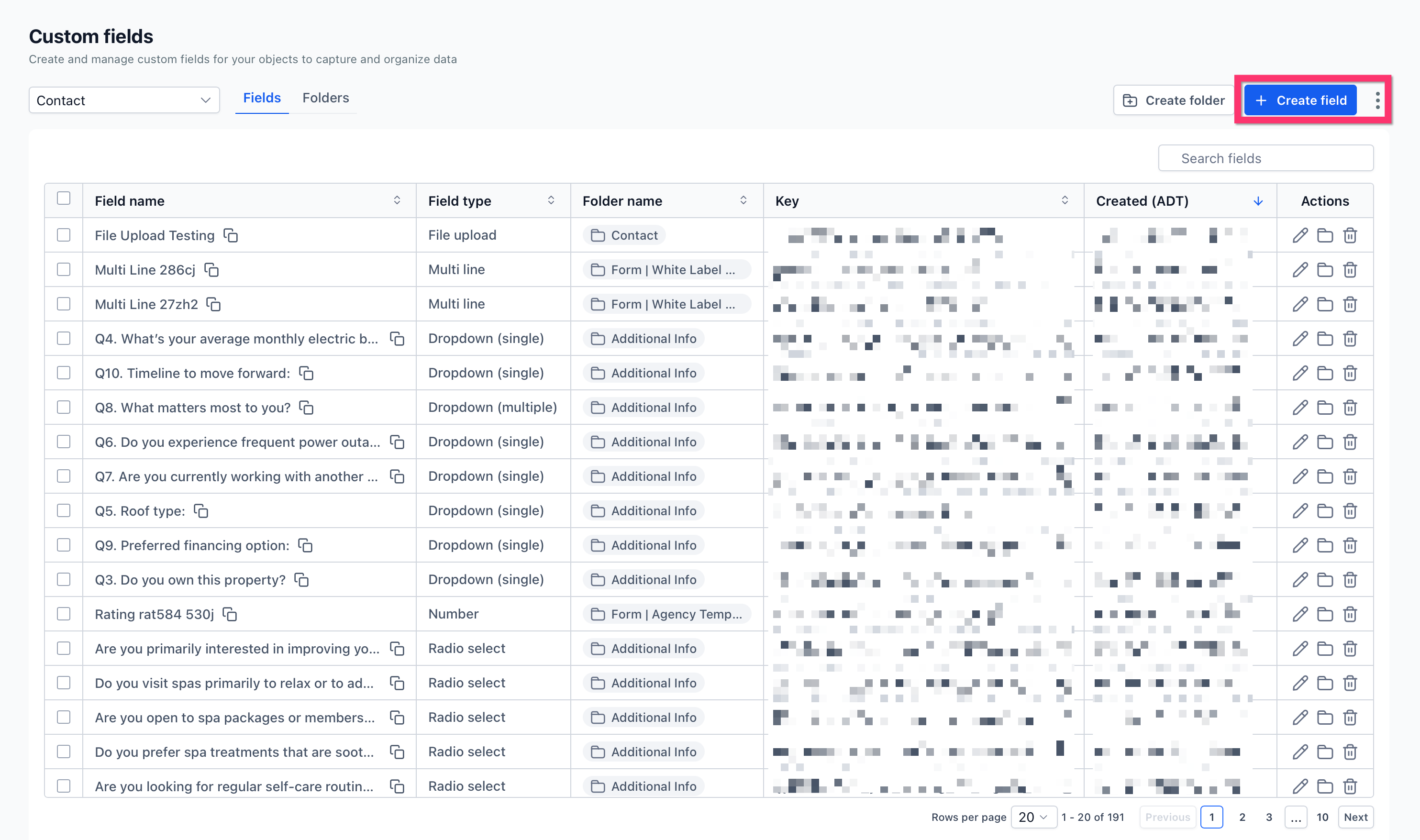
Initiate New Field Creation — Click the Create field button, typically located in the top-right corner of the page. This action opens a new window where you will define your custom field's properties.
0
5
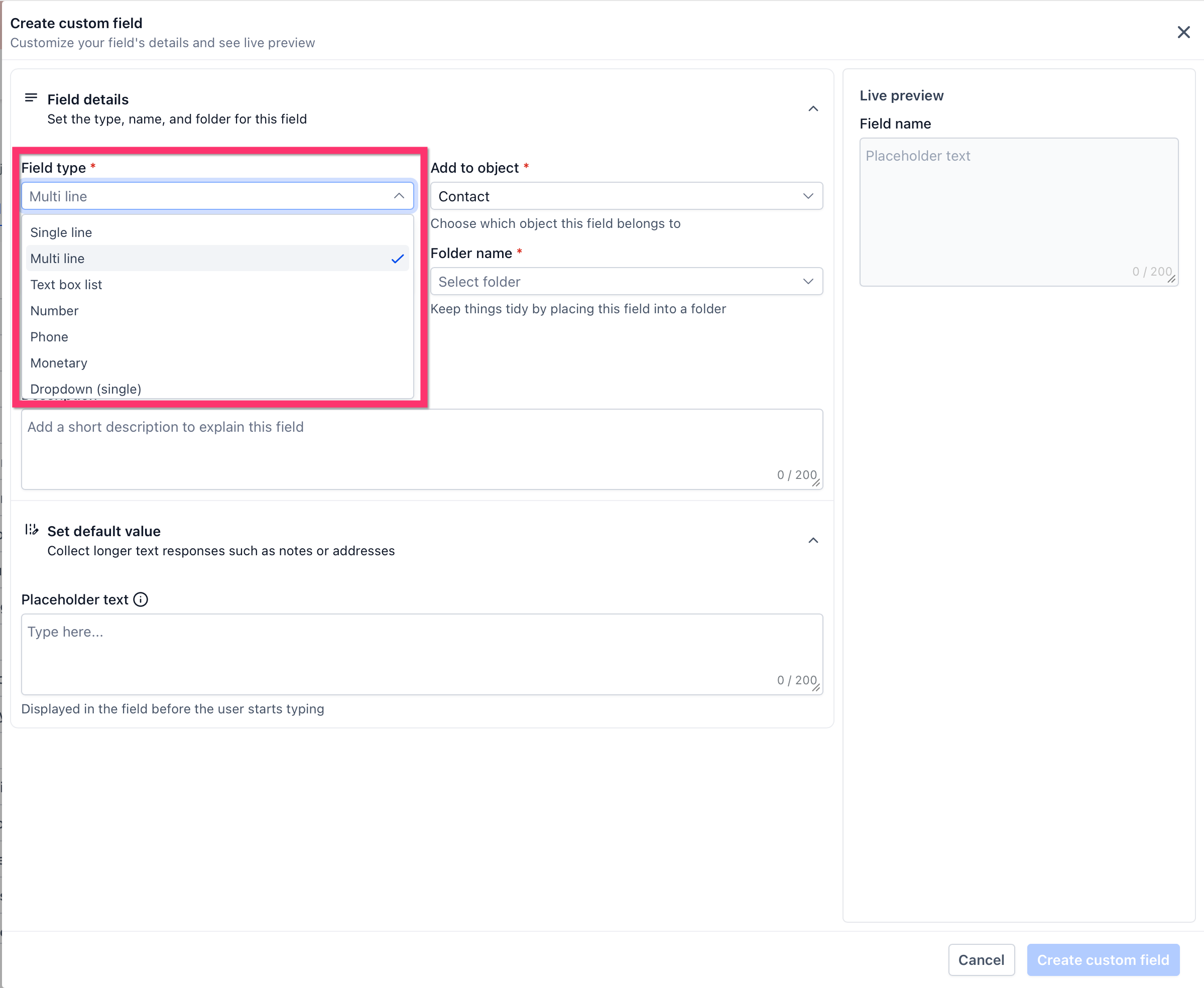
Select a Field Type — From the list of available options, choose the appropriate field type. Options include 'Text', 'Number', 'Dropdown', 'Date Picker', 'Checkbox', 'Radio Select', 'Phone', 'Email', and 'URL'. Select the type that best suits the data you intend to capture.
6
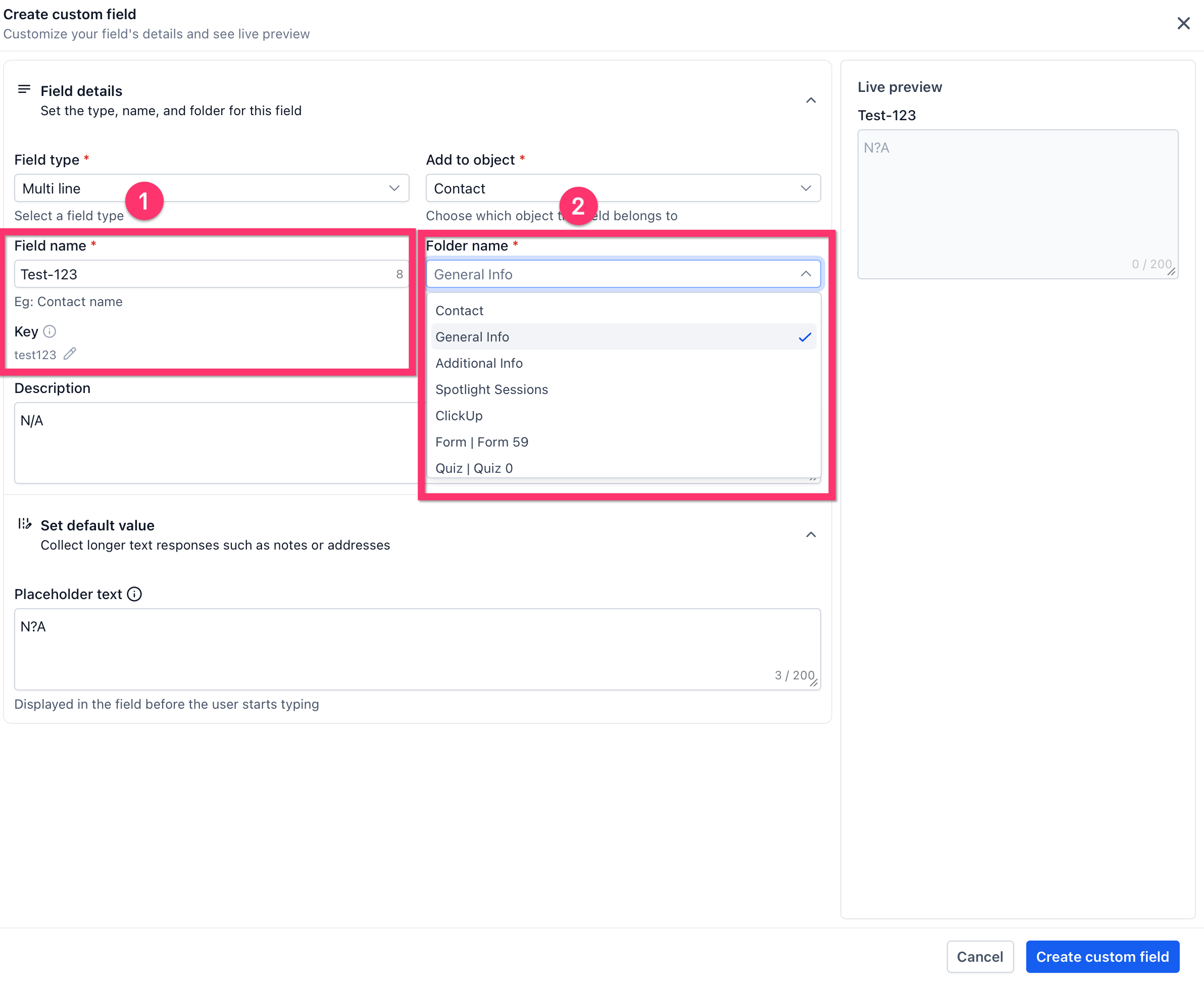
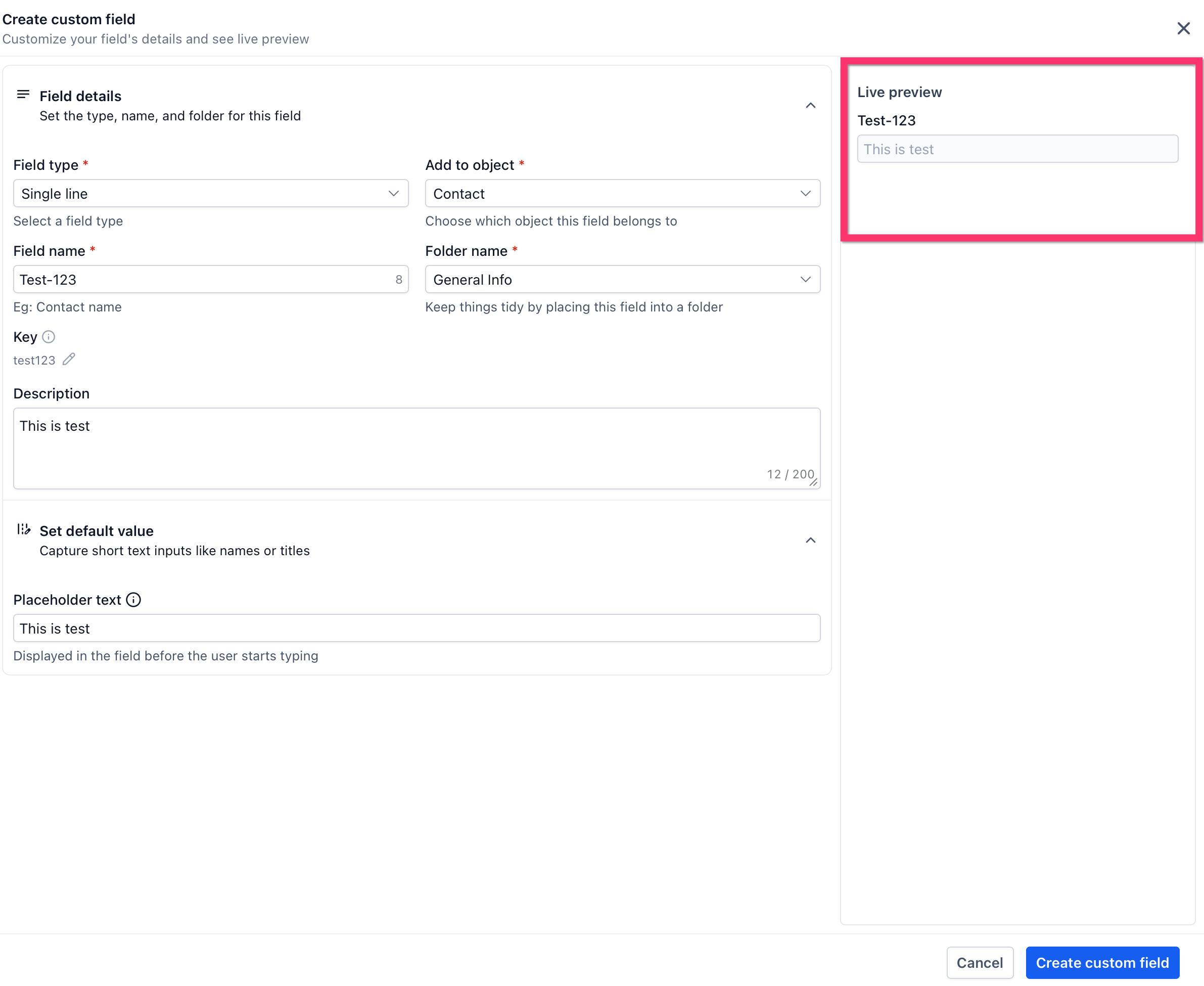
Define Field Details — Enter the necessary details for your field. Provide a clear Field Name (this is what users see). If applicable, select a Folder to organize the field, and add any specific Options for dropdown or radio select types. You can also mark fields as 'Required' if necessary.
7
Review the Live Preview — On the right side of the creation window, review the Live preview panel. This shows you exactly how your custom field will appear to users in forms or contact records, allowing you to make adjustments before saving.
8
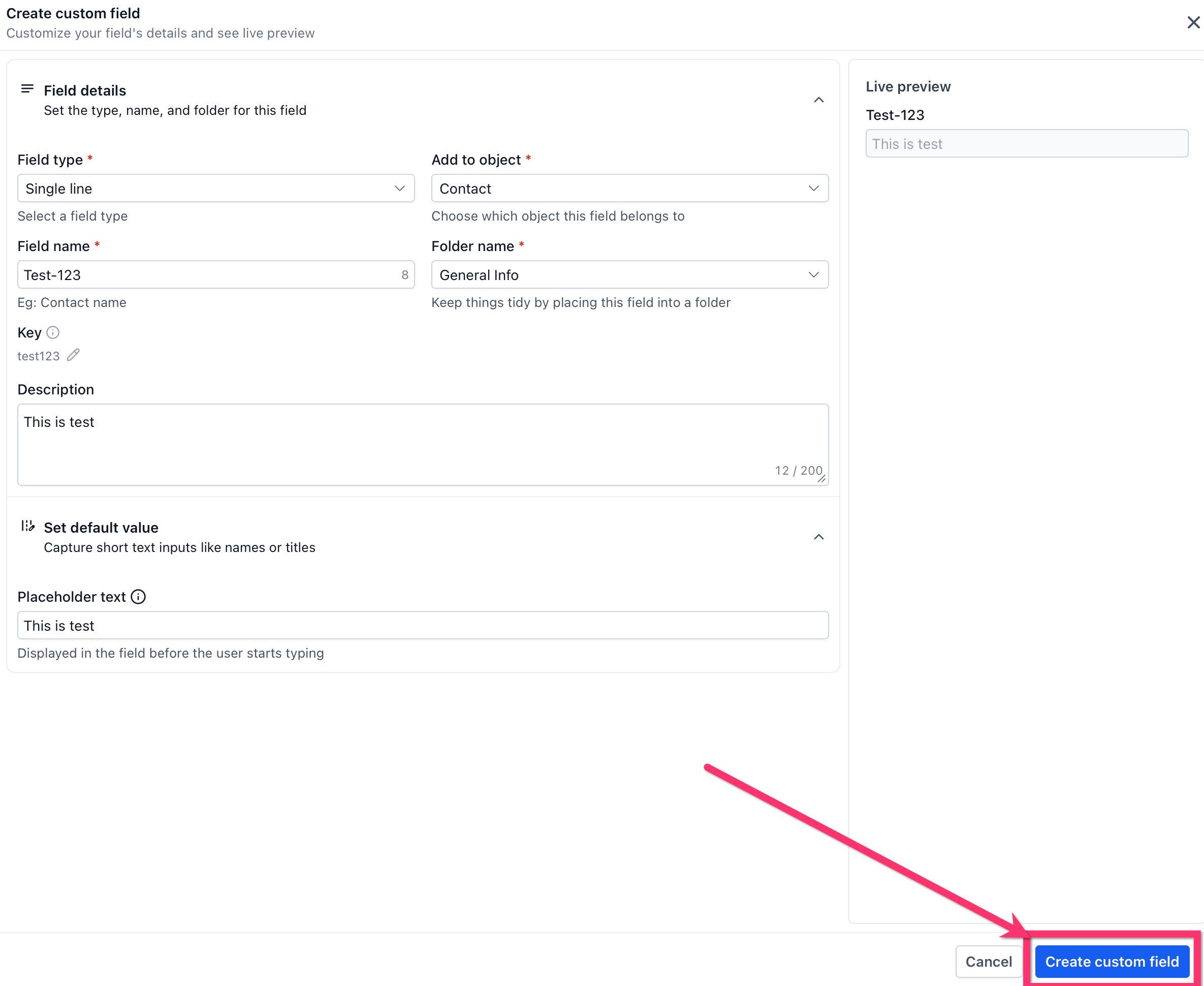
Create the Custom Field — Once you are satisfied with all the settings and the preview, click the Create custom field button. Your new custom field is now saved and ready to be used across GoHighLevel.
1
✅ Consider the long-term use of your field name. Keep it concise, descriptive, and consistent with your naming conventions to ensure clarity for all team members.
Where Can You Use Your New Custom Fields?
Creating custom fields is just the first step; their true power lies in how you integrate them across GoHighLevel. Custom fields enhance your ability to collect specific data, personalize communications, and automate processes. Here's how you can deploy your new custom fields to maximize their utility.
1
Add to Forms and Surveys — After creating a custom field, go to Sites → Forms or Surveys. Edit an existing form/survey or create a new one. Drag and drop your custom field from the 'Custom Fields' section of the builder onto your form or survey to start collecting specific data directly from your leads.
2
Utilize in Workflows for Automation — Navigate to Automation → Workflows. In any workflow, you can use custom fields in conditions (e.g., 'If Lead Type is Buyer') or actions (e.g., updating a custom field value). You can also personalize messages by inserting custom field values into emails or SMS using merge tags.
3
Personalize Emails and SMS Messages — When drafting an email or SMS in a workflow, campaigns, or manually, click the 'Custom Values' or 'Merge Fields' button. Select your custom field from the list to insert its placeholder (e.g., `{{contact.custom_fields.lead_type}}`). When the message sends, this placeholder will automatically populate with the contact's unique data.
4
Display on Opportunity Cards — For opportunity custom fields, you can choose to display critical data directly on your pipeline's opportunity cards. Go to Settings → Pipelines, select your pipeline, and configure the card layout to include your key opportunity custom fields. This provides quick visual access to important deal information.
5
Segment Contacts with Smart Lists — Go to Contacts → Smart Lists. Create a new filter and select your custom field as a condition. For example, filter all contacts where 'Preferred Contact Method' is 'Email'. This allows you to create highly targeted lists for specific follow-up actions or campaigns.
🔥 Pro Tip
Always test your custom fields after implementation. Fill out a test form, trigger a test workflow, or send a test email to ensure the data is captured correctly and displayed as expected.
Troubleshooting Common Issues
⚠️ My custom field is not appearing in a form or workflow.
Ensure you created the custom field as the correct object type. Only Contact custom fields appear in forms, surveys, and contact-based workflows. Opportunity custom fields are for opportunity workflows and pipelines.
⚠️ The custom field data isn't showing up correctly in my email/SMS.
Verify that you used the correct merge tag for the custom field. Go to the custom field settings to copy the exact merge tag. Also, ensure the contact actually has data entered for that specific custom field.
⚠️ I can't find my custom field in the list when creating a workflow condition.
Check the object type of your workflow. If it's a 'Contact' workflow, only Contact custom fields will be available. If it's an 'Opportunity' workflow, only Opportunity custom fields will show.
⚠️ I accidentally created a custom field as a Contact type, but I needed it for Opportunities.
You cannot change a custom field's type after creation. You must delete the incorrect field and recreate it under the correct object type (Opportunity).
⚠️ My custom fields are disorganized and hard to find.
Utilize the 'Folders' feature within Settings → Custom Fields to group related fields. Assign existing fields to folders to improve navigation and clarity.
Common Mistakes to Avoid
→Creating a Contact field when an Opportunity field is needed, leading to data inaccessibility.
→Forgetting to assign custom fields to folders, resulting in a cluttered and hard-to-manage list.
→Using generic or unclear field names (e.g., 'Field 1') instead of descriptive ones like 'Lead Source'.
→Not testing custom fields after creation to ensure they capture data correctly and integrate with other tools.
→Selecting the wrong field type (e.g., 'Text' for a date) which can lead to data entry errors and incorrect formatting.
Frequently Asked Questions
QCan I change a custom field from a Contact type to an Opportunity type after creation?
No, once a custom field is created as either a Contact or Opportunity type, its object type is permanently set. If you made an error, you will need to delete the existing field and recreate it under the correct object type to ensure proper data organization and usage within GoHighLevel.
QWhat are some common types of custom fields I can create in GoHighLevel?
GoHighLevel offers various field types to suit your data needs. Common types include Short Text (for brief answers), Long Text (for detailed notes), Dropdown (for predefined choices), Date Picker (for specific dates), Phone, Email, Radio Select (for single choice from options), Checkbox Group (for multiple selections), and URL (for website links). Choose the type that best matches the data you want to collect.
QWhy isn't my custom field visible in my GoHighLevel form or workflow?
This usually happens if the custom field's object type doesn't match the context. Only Contact custom fields are available for use in forms, surveys, and standard contact-based workflows. If you need a field for an opportunity-specific workflow or pipeline, it must be created as an Opportunity custom field.
QIs there a limit to how many options I can add to a Dropdown or Radio Select custom field?
While there isn't a strict hard limit, GoHighLevel's Dropdown and Radio Select custom fields are designed to handle a substantial number of options (e.g., 50+). For practical purposes, you can add many choices without encountering performance issues, allowing for comprehensive selection lists in your forms and surveys.
QHow can I ensure my custom fields are always organized?
The best way to keep your custom fields organized is by consistently using folders. Before creating a new field, consider which existing folder it belongs to, or create a new descriptive folder if needed. Regularly review your custom field list and assign unassigned fields to appropriate folders to maintain a tidy and efficient data structure.
Try GoHighLevel Free
Start your 30-day GoHighLevel free trial
Everything in this guide is in your free trial. 30 days, no credit card — the platform behind 78+ revenue systems.
Some links are affiliate links — if you sign up we may earn a commission, at no extra cost to you. We only recommend GoHighLevel because we build on it every day.
Arsalan Zaffar
Revset Labs · Revenue Systems · 78+ GHL Builds
Arsalan writes GHL guides from real build experience — 78+ systems, $9.2M in client pipeline. Wharton, CXL & Google certified.