Revset
Book a Free Audit

30-minute call · No obligation

HomeGHL HubCRM & ContactsHow to Setup Automatic Calls and Voicemail Drops in GoHighLevel
REVSET LABS · EXPERT GUIDE·CRM & Contacts

How to Setup Automatic Calls and Voicemail Drops in GoHighLevel

936 words·4 min read·Updated 27 April 2026·beginner·
Arsalan ZaffarArsalan ZaffarLinkedIn

👉 Start your 30-day GoHighLevel free trial.

Start 30-Day Free Trial
Quick Answer

To set up automatic calls and voicemail drops, go to Automation → Workflows in your GoHighLevel sub-account. You will create or edit a workflow and add a "Voicemail" action with your pre-recorded audio file. This essential setup takes approximately 5-10 minutes to complete.

Key Takeaways
  • Always secure prior express consent from contacts before sending automated voicemail drops to ensure legal compliance.
  • Prepare your voicemail audio files in MP3 or WAV format, ideally at 64kbps, for optimal delivery and quality within GoHighLevel.
  • Utilize GoHighLevel Workflows to automate voicemail drops, setting specific triggers like 'Contact Changed' or 'Appointment Status' for precise timing.
  • Thoroughly test your voicemail drop workflows with a test contact before publishing to a live audience to verify functionality and message delivery.
  • Be aware of daily voicemail drop limits which increase over time; contact GoHighLevel support if you require higher volumes for your campaigns.

What are Automatic Calls and Voicemail Drops?

Automatic calls and voicemail drops in GoHighLevel allow you to deliver pre-recorded audio messages directly to a contact's voicemail inbox without their phone ever ringing. This powerful feature enables you to communicate important information efficiently and at scale, maintaining a personal touch even with high volumes of outreach. It reduces interruptions for your contacts while ensuring your message is heard. This automation is perfect for various scenarios, from confirming appointments and recovering no-shows to nurturing new leads. By integrating voicemail drops into your workflows, you can significantly improve follow-up speed, enhance responsiveness, and streamline your communication strategy, ensuring consistent engagement with your audience.

What You Need Before Setting Up Voicemail Drops

Before you can implement automatic calls and voicemail drops, you must ensure your GoHighLevel sub-account is properly configured and you have the necessary assets ready. These prerequisites are crucial for the legal and technical success of your campaigns. Taking these steps upfront will save you time and prevent potential issues during setup.

1
Secure an Active Phone NumberEnsure you have an active phone number purchased and linked within your GoHighLevel sub-account. This number serves as the sender for all your automated voicemail drops.
2
Prepare Your Voicemail Audio FileRecord your voicemail message as an MP3 or WAV file. For optimal delivery and smaller file size, aim for an audio quality of 64kbps. This ensures your message is clear and efficiently transmitted.
3
Obtain Prior Contact ConsentConfirm you have explicit, prior express consent from your contacts to receive automated calls and messages. This is a critical legal requirement for compliance with telemarketing regulations.

⚠️ Voicemail drops are subject to regulations like the TCPA. Sending messages without prior express consent from recipients is illegal and can lead to significant fines and lawsuits. Always prioritize compliance.

🔥 Pro Tip

If your audio file is not 64kbps, use an online audio converter like online-audio-converter.com to adjust the bitrate. Lower bitrates are generally better for voicemail drops.

Try GoHighLevel Free

Start your 30-day GoHighLevel free trial

Everything in this guide is in your free trial. 30 days, no credit card — the platform behind 78+ revenue systems.

Start 30-Day Free Trial

Some links are affiliate links — if you sign up we may earn a commission, at no extra cost to you. We only recommend GoHighLevel because we build on it every day.

How to Setup Automatic Voicemail Drops in GoHighLevel Workflows

GoHighLevel Workflows are the engine for automating your voicemail drops. By following these steps, you will create a sequence that automatically delivers your pre-recorded message to contacts based on specific triggers. This ensures timely and consistent communication without manual intervention, making your outreach highly efficient.
1
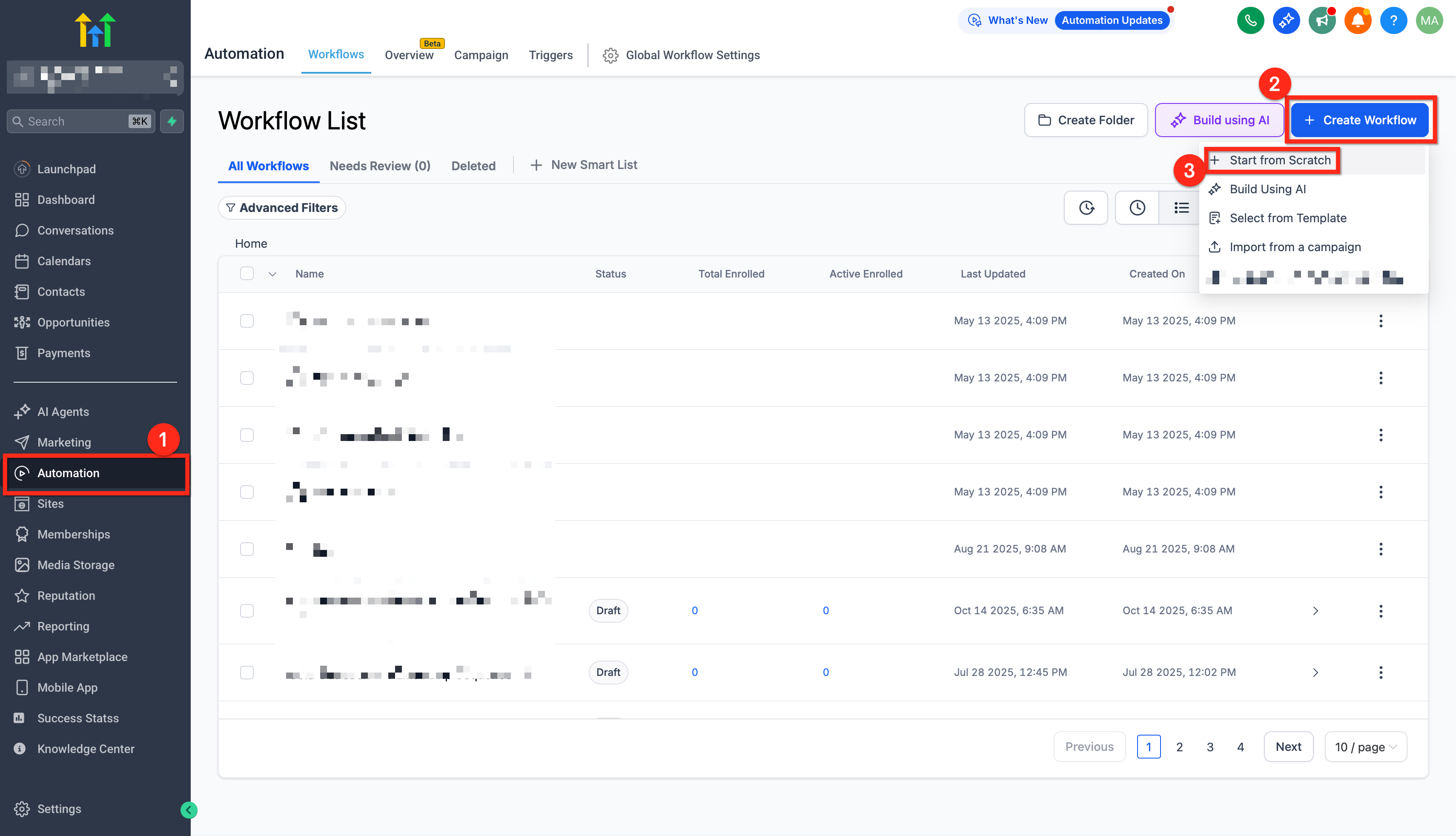
Access GoHighLevel WorkflowsFrom your GoHighLevel sub-account's left navigation menu, click Automation, then select Workflows. This area is where you manage all your automated sequences. You can either open an existing workflow to add a voicemail drop or click + Create Workflow to start a new one.
2
Start a New Workflow (If Applicable)If you are building a new automation, click + Start from scratch and then Create New Workflow. Give your workflow a clear, descriptive name that reflects its purpose, such as 'New Lead Voicemail Drop' or 'Appointment No-Show Voicemail'.
GoHighLevel screenshot
0
3
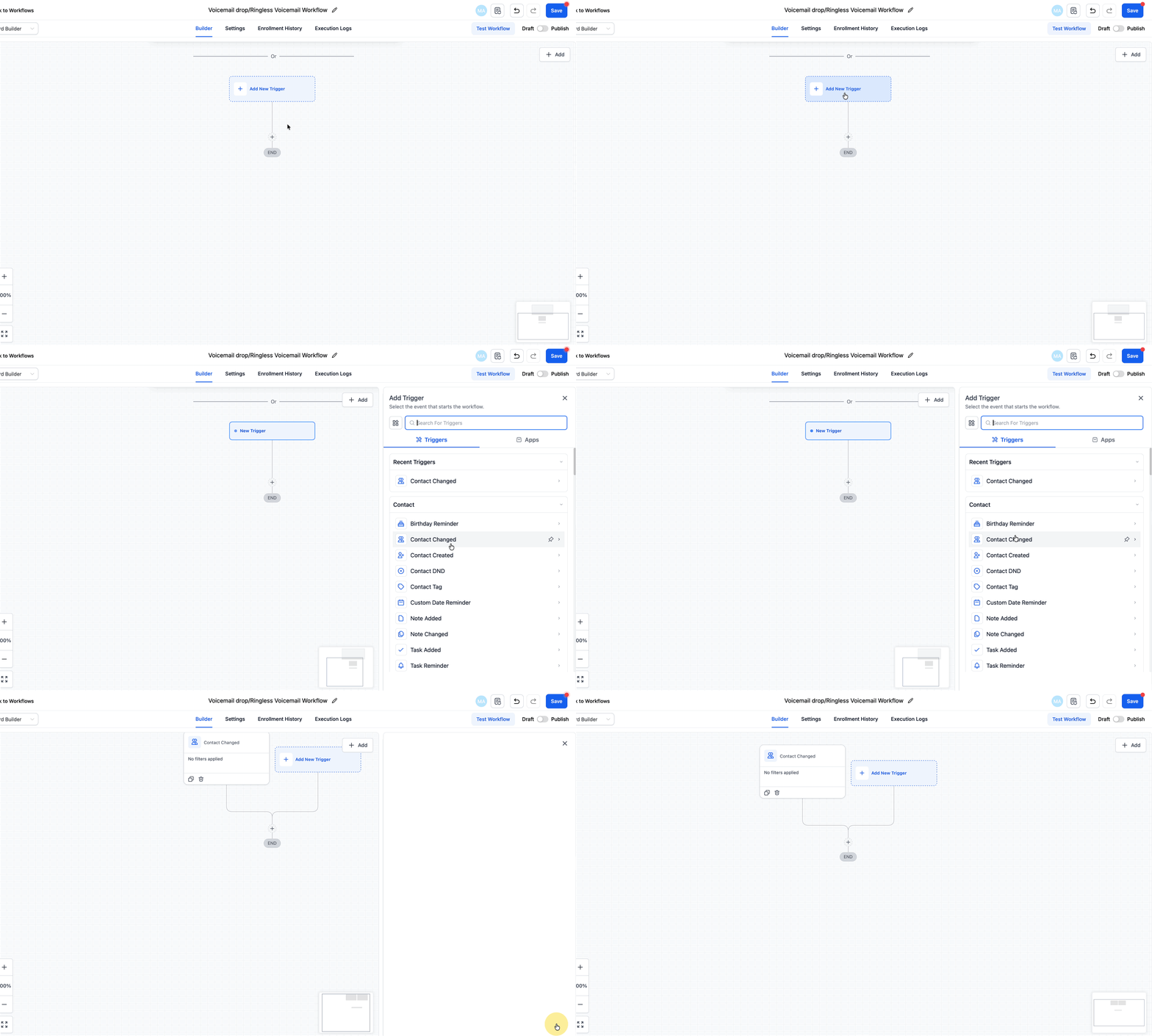
Choose a Workflow TriggerClick + Add New Workflow Trigger to define the event that starts your voicemail drop. Select a relevant trigger for your campaign, such as Contact Changed, Appointment Status, Form Submitted, or Survey Submitted. This trigger determines precisely when the voicemail is sent.
4
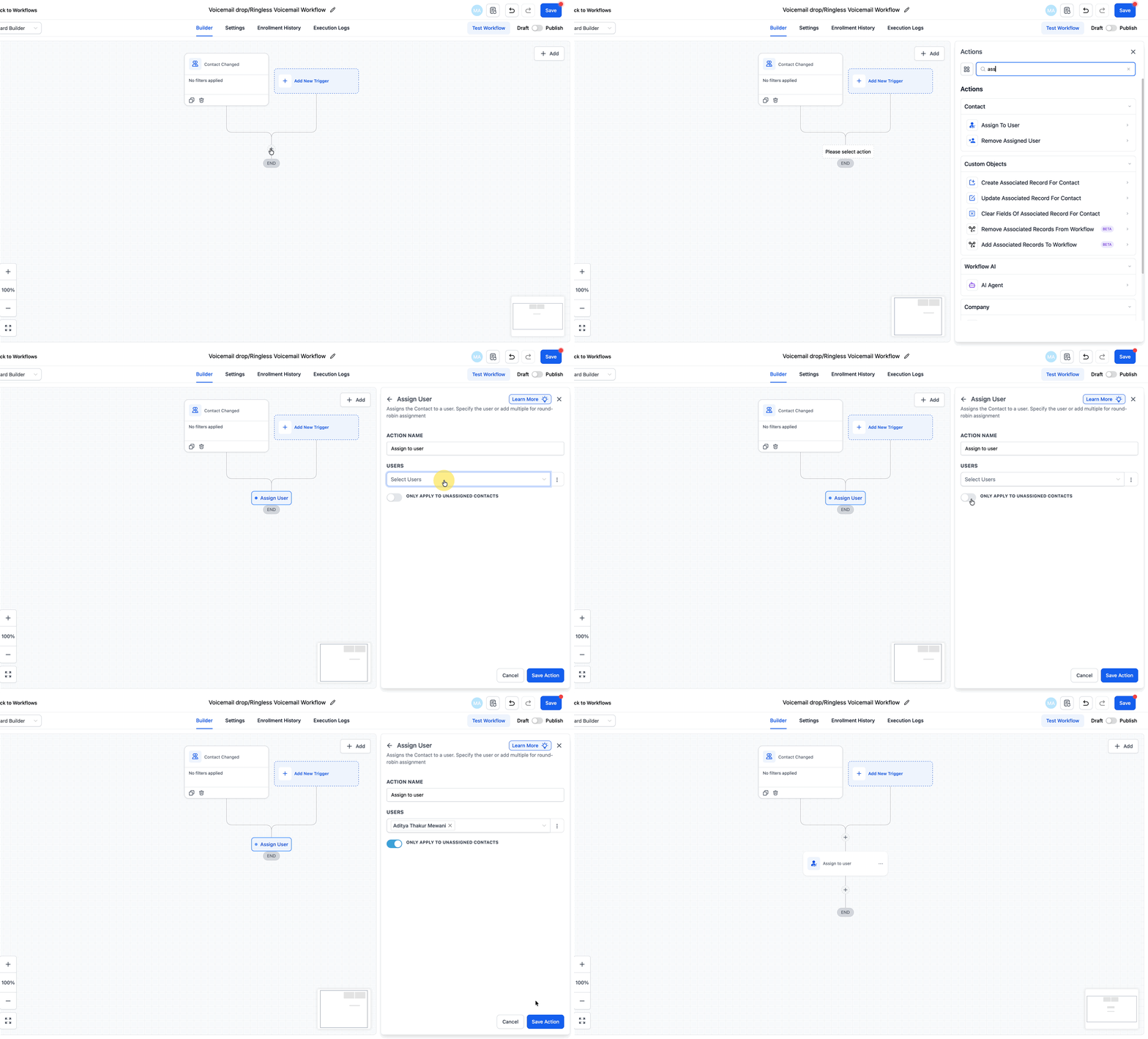
(Optional) Assign the Contact to a UserClick the + icon below your trigger to add an action. Search for and select Assign to User. Choose a specific user from the dropdown menu if you want these contacts routed to a dedicated team member. You can also enable Only Apply To Unassigned Contacts if you only want to assign contacts that don’t already have an owner. Click Save Action to confirm your selection.
GoHighLevel screenshot
1
5
Add the Voicemail ActionClick the + icon again to add your next action in the workflow sequence. Scroll or search for Voicemail and select it. This action is the core component that sends your pre-recorded message to the contact's voicemail.
6
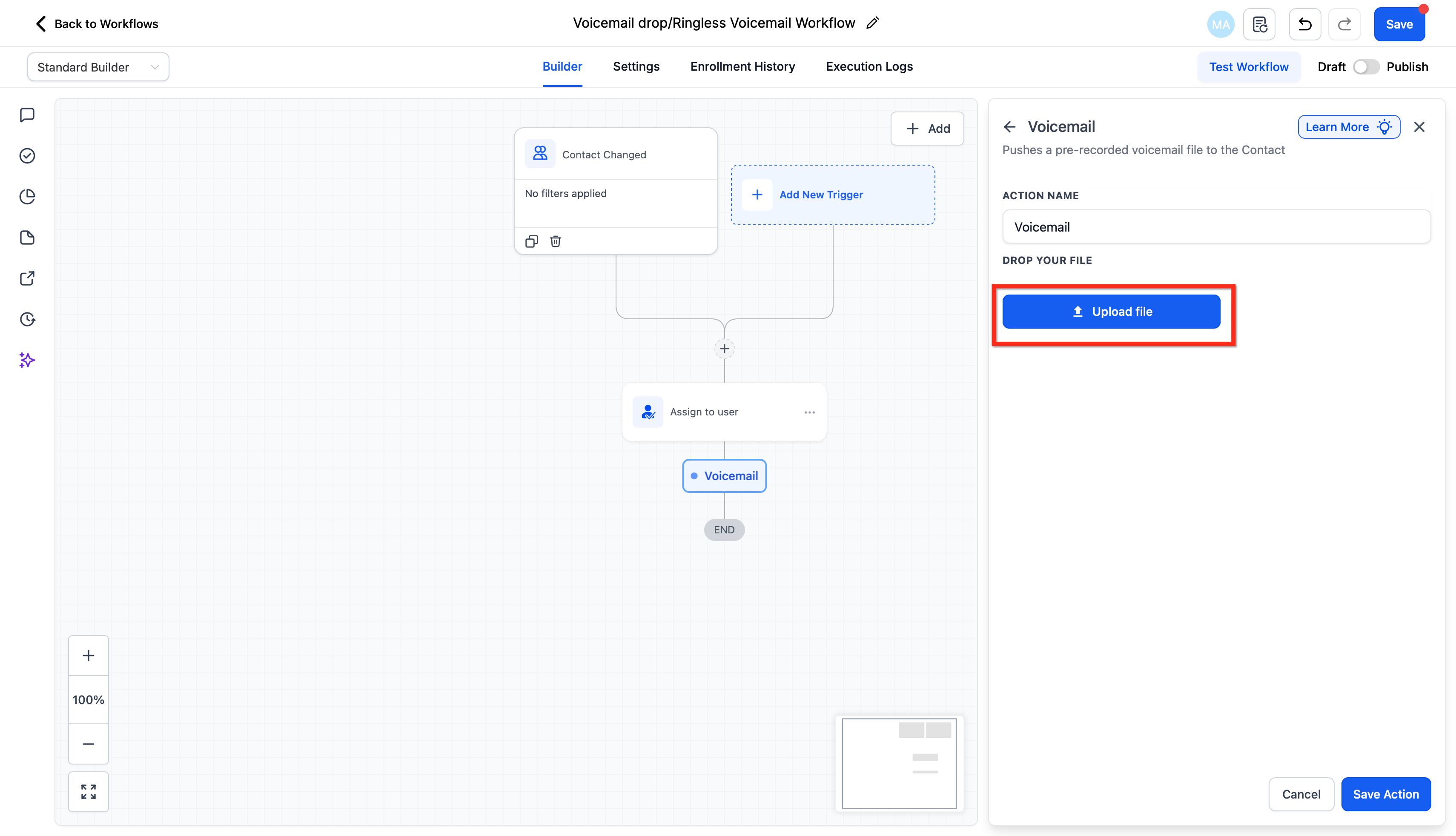
Upload Your Voicemail Audio FileWithin the Voicemail action settings, click the upload button to select your prepared MP3 or WAV audio file from your computer. Double-check that the file meets the recommended 64kbps quality for optimal performance. Click Save Action once your file is uploaded and configured.
GoHighLevel screenshot
2
7
Review and Publish Your WorkflowCarefully review all steps in your workflow to ensure they are ordered correctly and function as intended. Once you are satisfied with your setup, click Save at the top right of the workflow builder, then toggle the workflow from Draft to Publish to activate it. Your automatic voicemail drops will now begin to execute based on your chosen trigger.
GoHighLevel screenshot

✅ Voicemail drops are highly effective for appointment confirmations, no-show recovery sequences, and nurturing new leads. Tailor your message content to the specific stage of the customer journey for maximum impact and relevance.

🔥 Pro Tip

Always test your voicemail drops by running a test contact through your workflow before publishing it to a live audience. This helps confirm that your message plays correctly and the automation fires as expected.

Troubleshooting Common Issues

⚠️ Voicemail not dropping for contacts or workflow not activating.
Check if your workflow is set to Publish mode. Verify that the workflow trigger conditions are correctly set and that the contact meets those conditions. Also, confirm the contact has given consent to receive automated messages.
⚠️ Audio file upload fails or voicemail quality is poor.
Ensure your audio file is in MP3 or WAV format and ideally 64kbps. If the file is too large or the format is incorrect, use an online audio converter to adjust it. Re-upload the optimized file.
⚠️ You are reaching daily voicemail drop limits.
GoHighLevel applies daily limits that increase over time. Monitor your usage. If you consistently hit limits and require higher volumes, contact GoHighLevel support to request an increase for your sub-account.
⚠️ Voicemail drop is not delivered to all contacts (e.g., only 70% success rate).
Understand that voicemail drops inherently have an approximate 70% success rate across all providers due to the 'carrier trick' they rely on. This is normal behavior for the technology and not a GoHighLevel specific issue. Plan your campaigns with this success rate in mind.
⚠️ Contacts are not receiving calls when an 'Assign to User' action is used, but no user is assigned.
If the 'Assign to User' action is present but no specific user is selected, or if 'Only Apply To Unassigned Contacts' is enabled and the contact is already assigned, the call may not route as expected. Ensure a user is correctly assigned or remove the action if not needed.

Common Mistakes to Avoid

  • Forgetting to obtain prior express consent from contacts, leading to legal non-compliance and potential penalties.
  • Using audio files that are too large, in unsupported formats, or of poor quality, which can cause delivery issues or a bad recipient experience.
  • Not thoroughly testing the voicemail drop workflow with a test contact before publishing, which can result in unexpected behavior or missed messages.
  • Ignoring the daily voicemail drop limits, causing campaigns to halt prematurely and missing outreach opportunities.
  • Creating overly complex workflows with too many conditional branches, making it difficult to troubleshoot if a voicemail drop fails to send.

Frequently Asked Questions

QAre automatic voicemail drops legal to use in GoHighLevel?
Yes, automatic voicemail drops are legal as long as you have obtained prior express consent from the recipient. This is crucial for compliance with regulations like the Telephone Consumer Protection Act (TCPA). Always ensure your business adheres to local telemarketing laws and consent requirements before deploying voicemail drop campaigns to avoid legal issues.
QWhat is the best audio format and quality for voicemail drops?
The best audio format for voicemail drops is either MP3 or WAV. It is highly recommended to use an audio quality of 64kbps. This bitrate ensures a good balance between clear audio and a small file size, which is critical for efficient delivery within GoHighLevel's systems. You can use online tools to convert or optimize your audio files if needed.
QWhy do voicemail drops only work about 70% of the time?
Voicemail drops rely on a specific carrier trick to deliver messages without ringing the phone. This technology, by its nature, does not guarantee 100% success across all phone carriers and networks. An approximate 70% success rate is standard for this method across the industry. It is important to factor this into your communication strategy.
QAre there daily limits on how many voicemail drops I can send?
Yes, GoHighLevel implements daily limits for voicemail drops, which gradually increase over time as your account matures. For example, you might start with 100 drops per day, increasing to 2000 drops per day after a week. If you require higher daily limits for your campaigns, you can contact GoHighLevel support to discuss an increase for your sub-account.
QWhat happens if I don't use the 'Assign to User' action in my voicemail drop workflow?
If you do not include an 'Assign to User' action in your workflow, or if no specific user is selected, the system will typically route any associated calls or follow-up actions to the company number configured in your Business Profile. For consistent lead management, it's often best practice to assign contacts to a specific team member.
Try GoHighLevel Free

Start your 30-day GoHighLevel free trial

Everything in this guide is in your free trial. 30 days, no credit card — the platform behind 78+ revenue systems.

Start 30-Day Free Trial

Some links are affiliate links — if you sign up we may earn a commission, at no extra cost to you. We only recommend GoHighLevel because we build on it every day.

Arsalan Zaffar
Arsalan Zaffar
Revset Labs · Revenue Systems · 78+ GHL Builds

Arsalan writes GHL guides from real build experience — 78+ systems, $9.2M in client pipeline. Wharton, CXL & Google certified.

Connect on LinkedIn
Tags:GoHighLevelAutomationVoicemail DropRingless VoicemailWorkflowsLead Nurturing