Revset
Book a Free Audit

30-minute call · No obligation

HomeGHL HubCRM & ContactsSend Custom Membership Welcome Emails with Login Info in GoHighLevel
REVSET LABS · EXPERT GUIDE·CRM & Contacts

Send Custom Membership Welcome Emails with Login Info in GoHighLevel

825 words·3 min read·Updated 28 April 2026·beginner·
Arsalan ZaffarArsalan ZaffarLinkedIn

👉 Start your 30-day GoHighLevel free trial.

Start 30-Day Free Trial
Quick Answer

To send custom welcome emails with login information to new membership users, go to Sites → Memberships → Offers. Edit your specific offer, then enable and configure the 'Custom Welcome Email' settings. This process typically takes 5-10 minutes per offer.

Key Takeaways
  • Always include the membership login URL and user-specific credentials in your welcome emails.
  • Utilize merge tags like {{contact.first_name}} and {{membership.login_url}} to personalize each welcome email.
  • Brand your welcome emails with your logo and colors to provide a consistent user experience.
  • Test the entire membership signup and welcome email delivery process before launching.
  • Keep your welcome email concise, clear, and focused on guiding the new member to their first action.

Why Customize Your Membership Welcome Emails?

Customizing your membership welcome emails in GoHighLevel is crucial for a strong first impression. These emails do more than just welcome; they provide vital login information, introduce new members to your courses, and set the tone for their entire experience. A personalized welcome reduces confusion and boosts engagement from day one. By tailoring your welcome messages, you ensure members have all necessary details, like their login URL and credentials, right at their fingertips. This direct access helps them start using your content immediately, improving retention and satisfaction. You can also align the email's look and feel with your brand, making the onboarding process seamless and professional.

How Do I Set Up Custom Membership Welcome Emails?

Setting up custom welcome emails for your GoHighLevel memberships ensures new users receive all the necessary login details and a personalized introduction to your content. Follow these steps to configure your membership offers to send unique welcome messages.
1
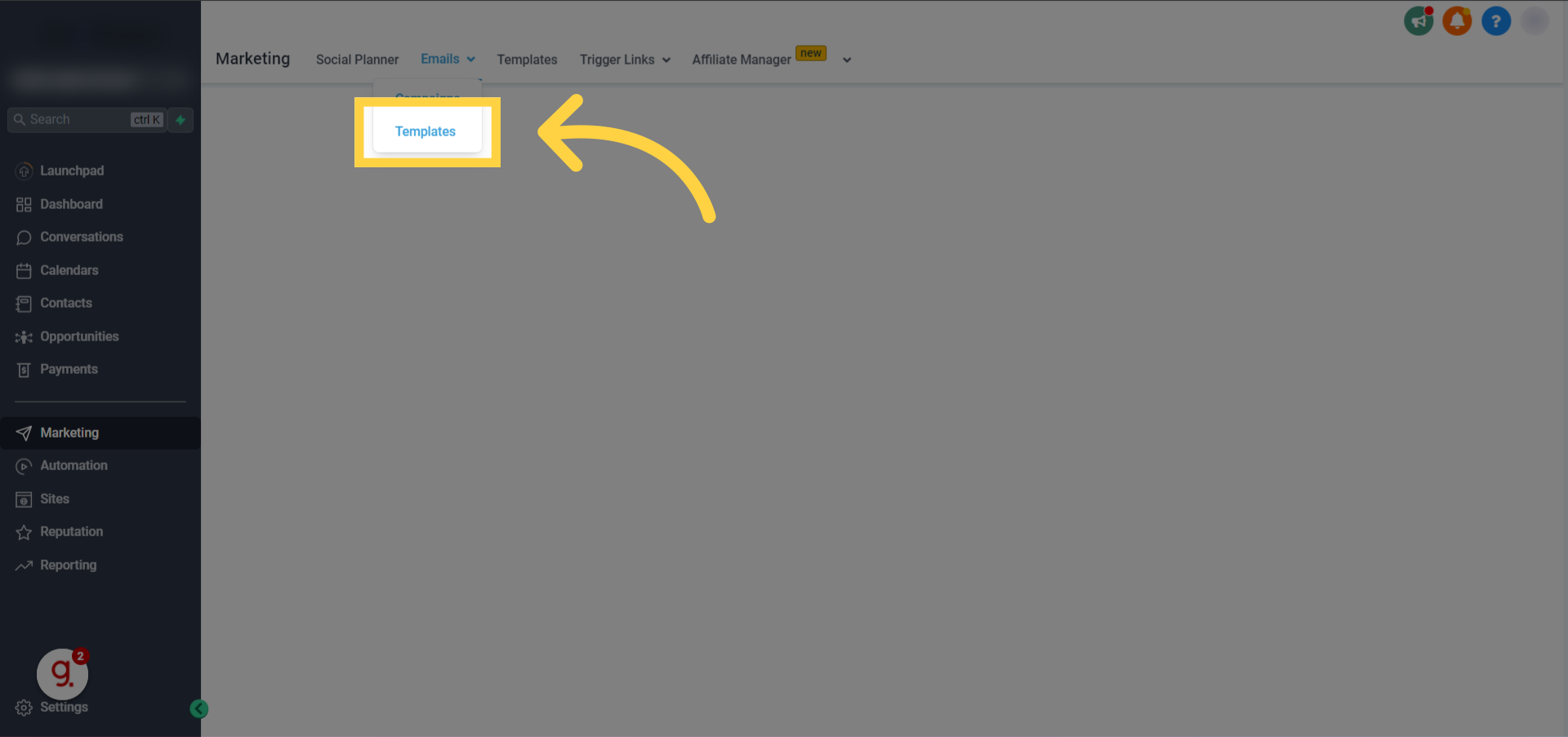
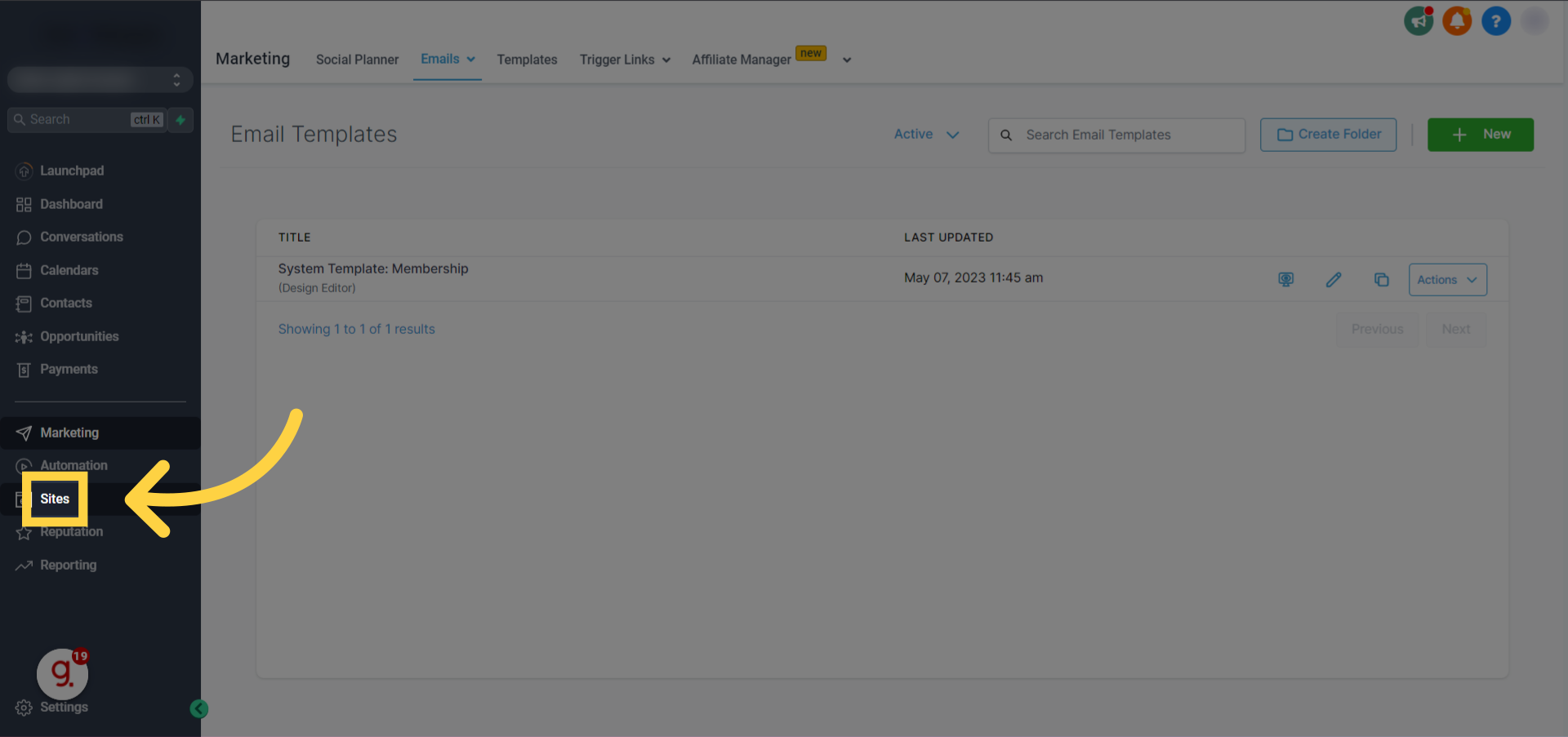
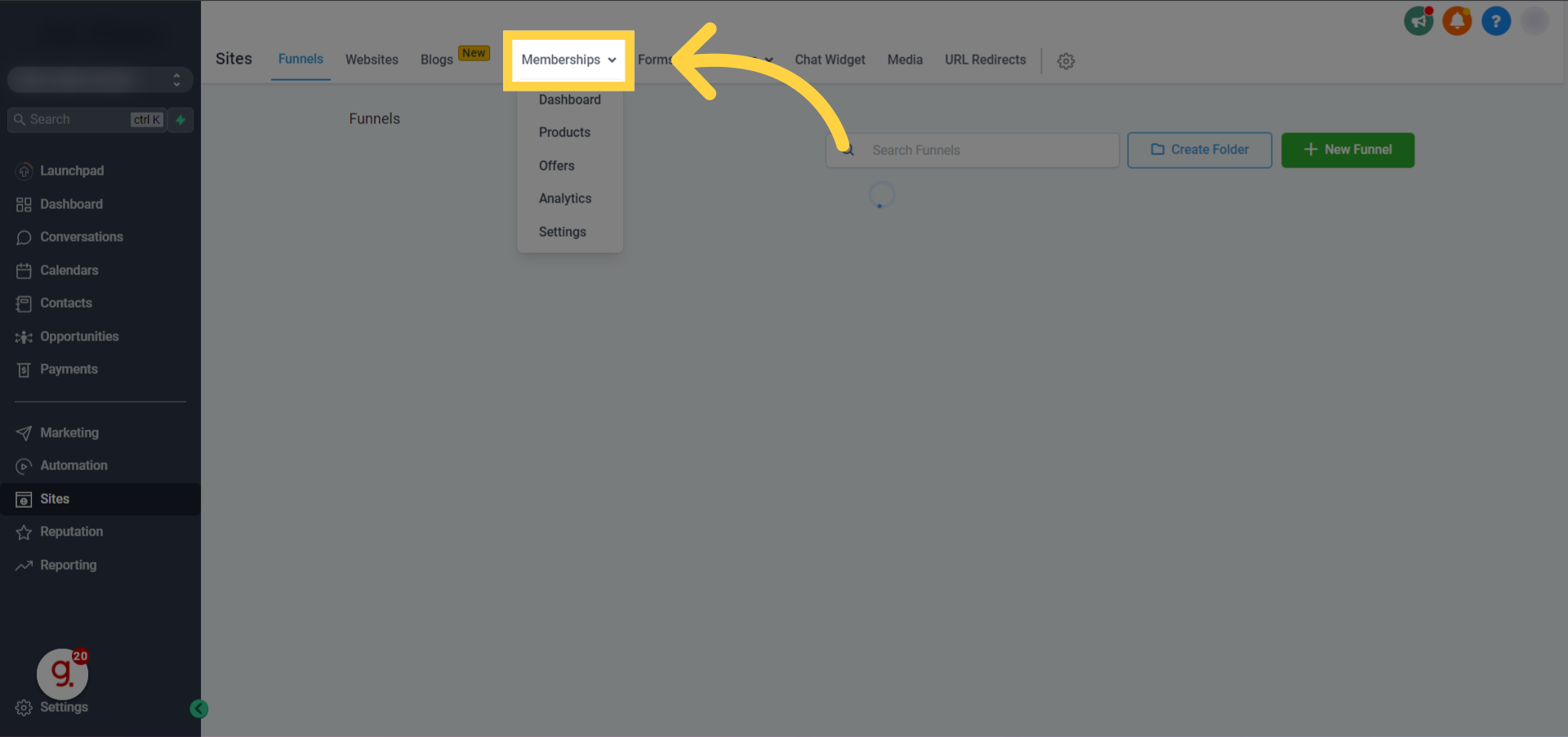
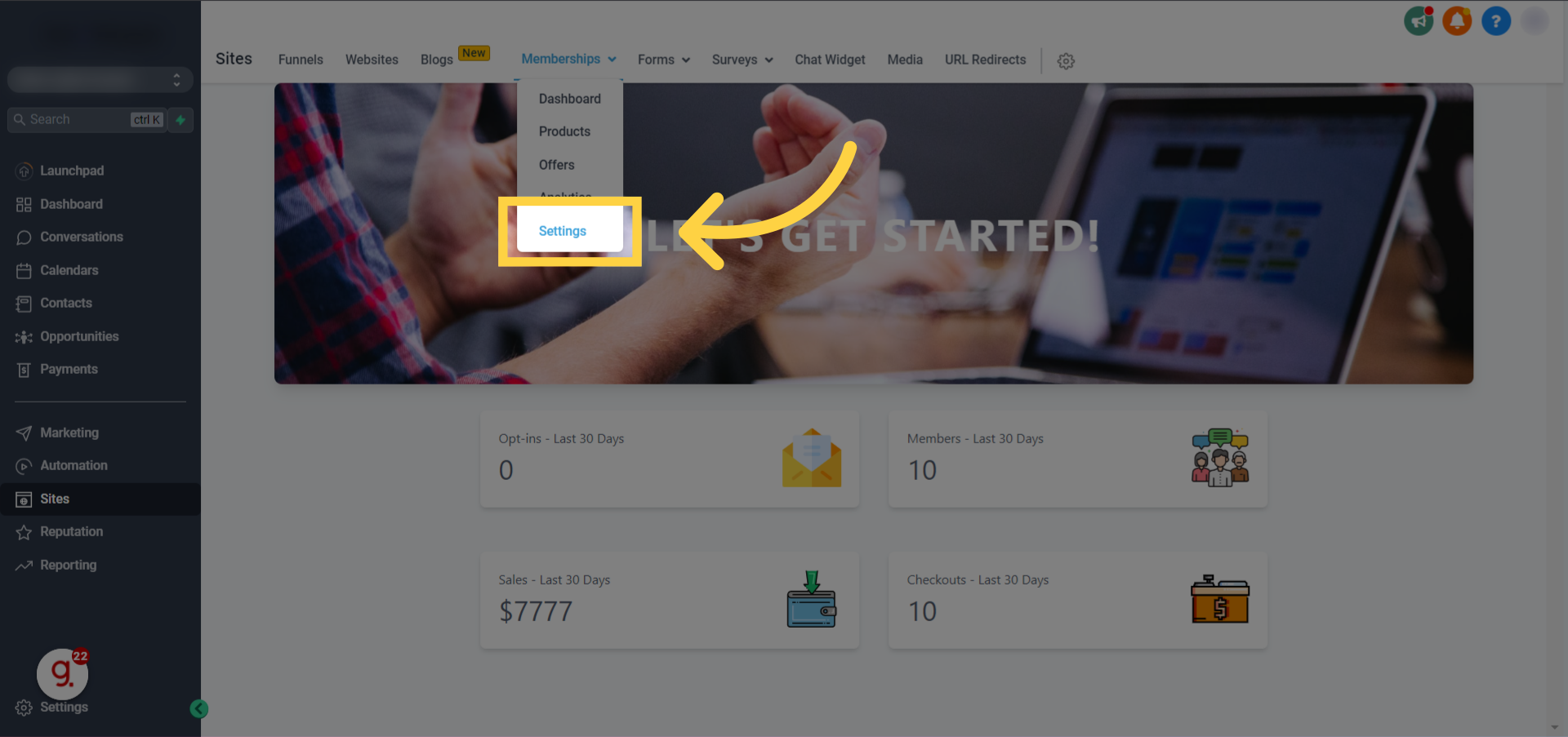
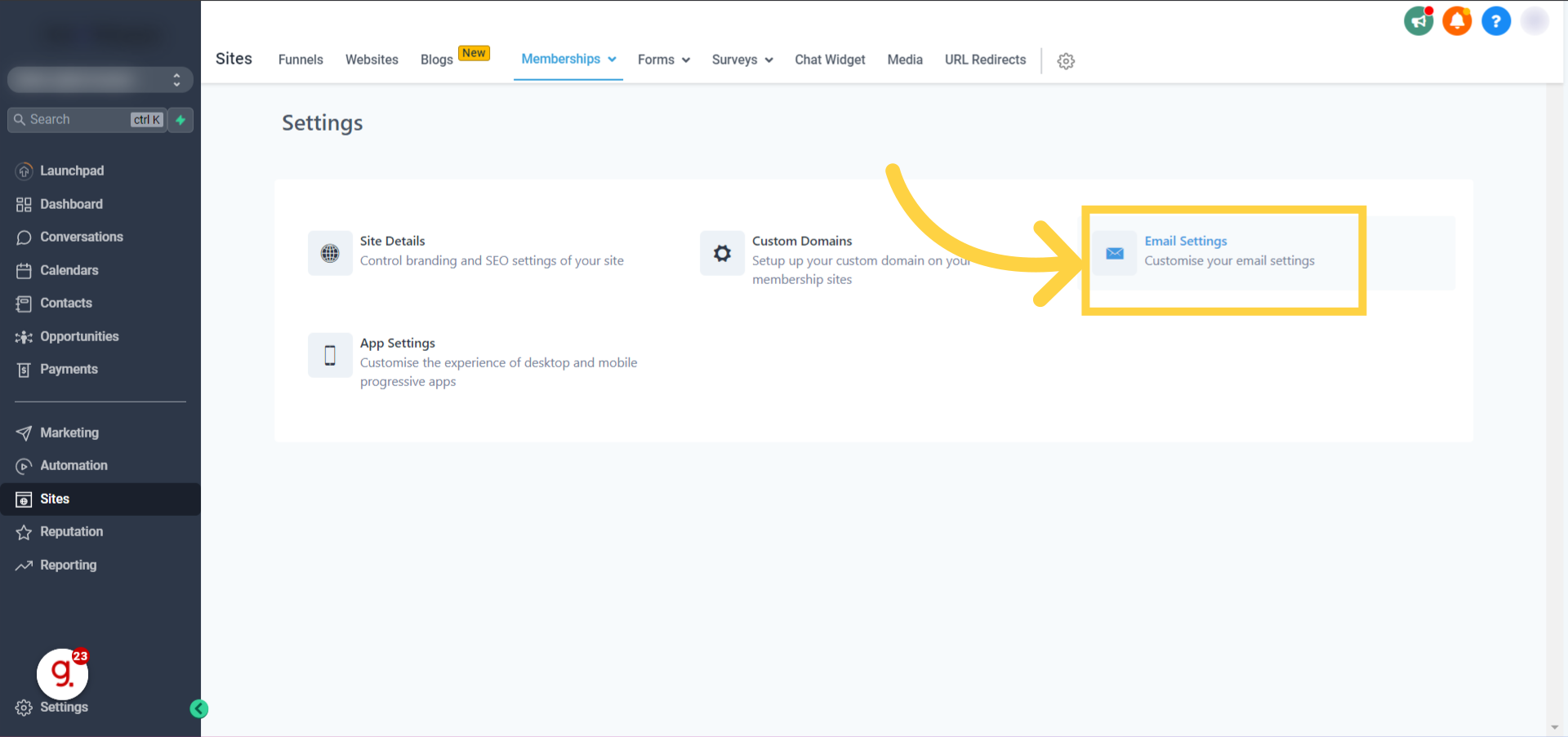
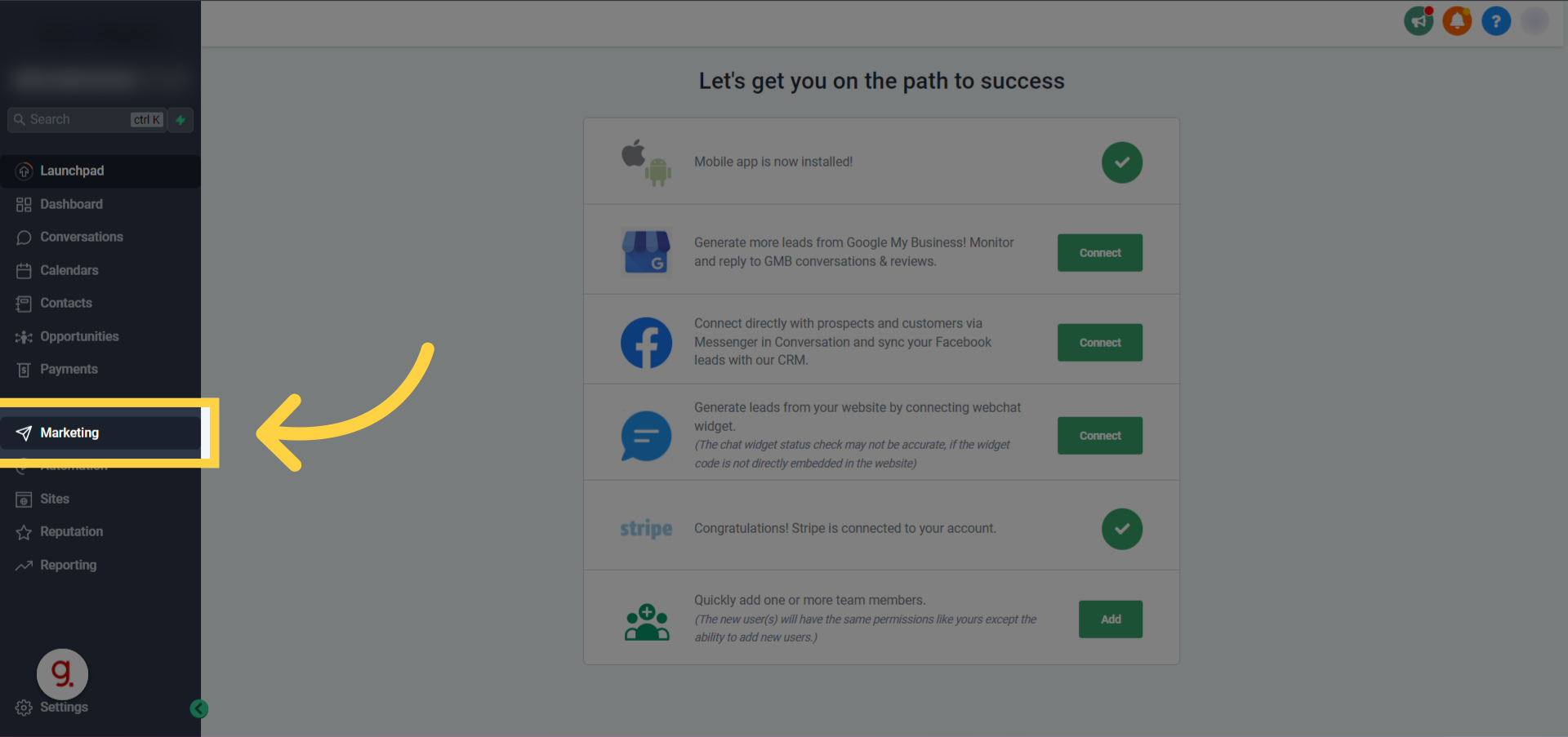
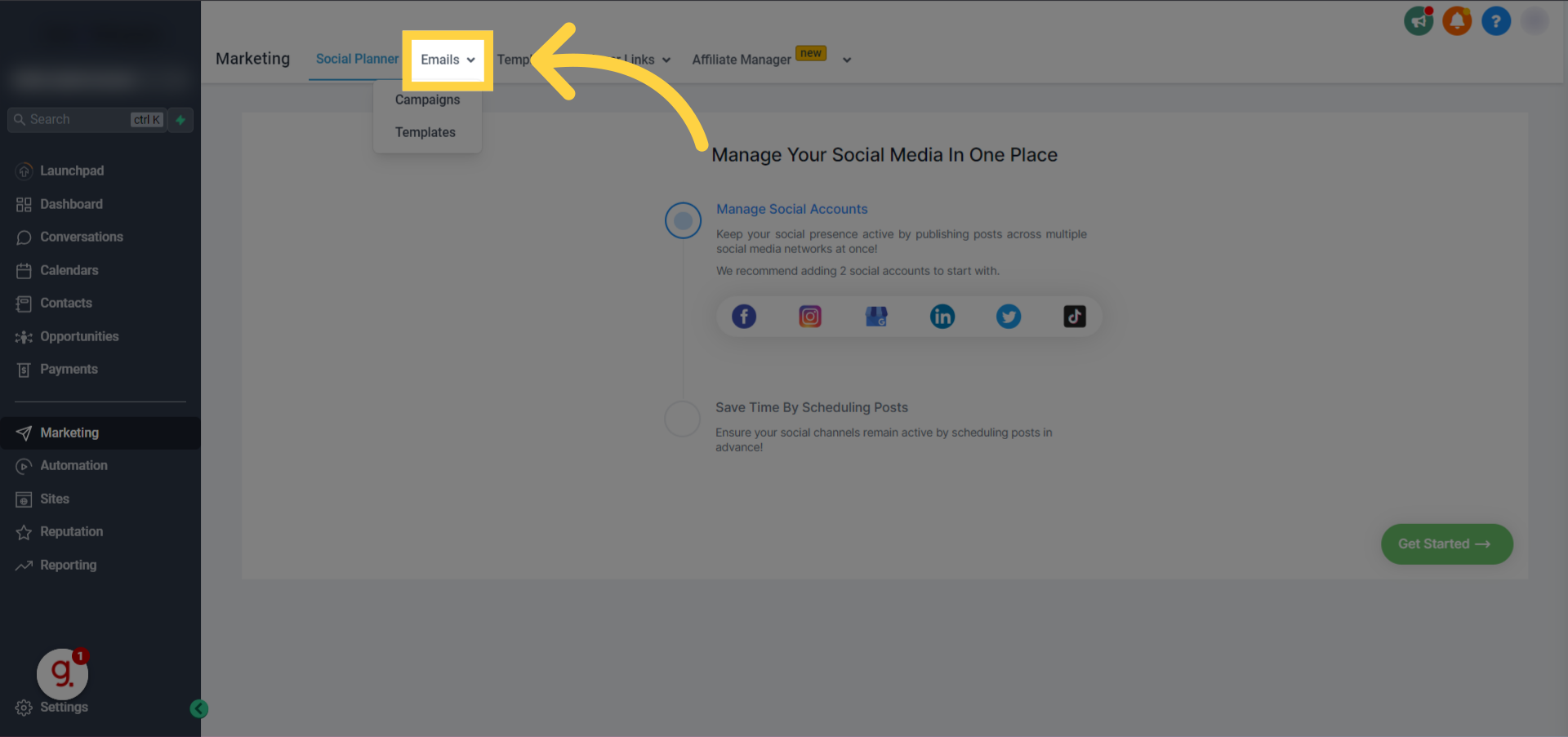
Access Your Membership OffersFrom the main dashboard, click Sites in the left navigation menu. Then, select Memberships from the dropdown and click on Offers to view all your existing membership offers.
preview
preview
0
2
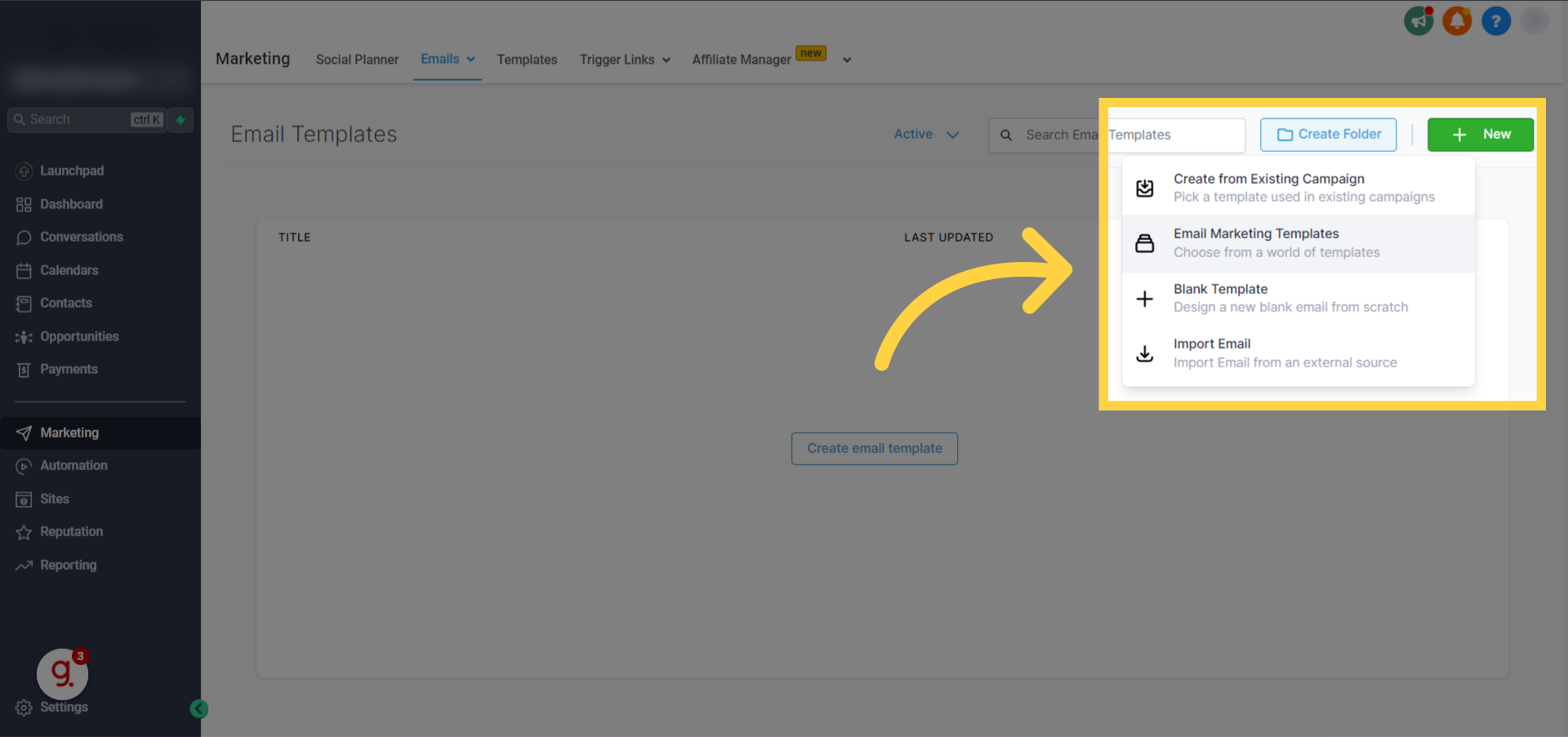
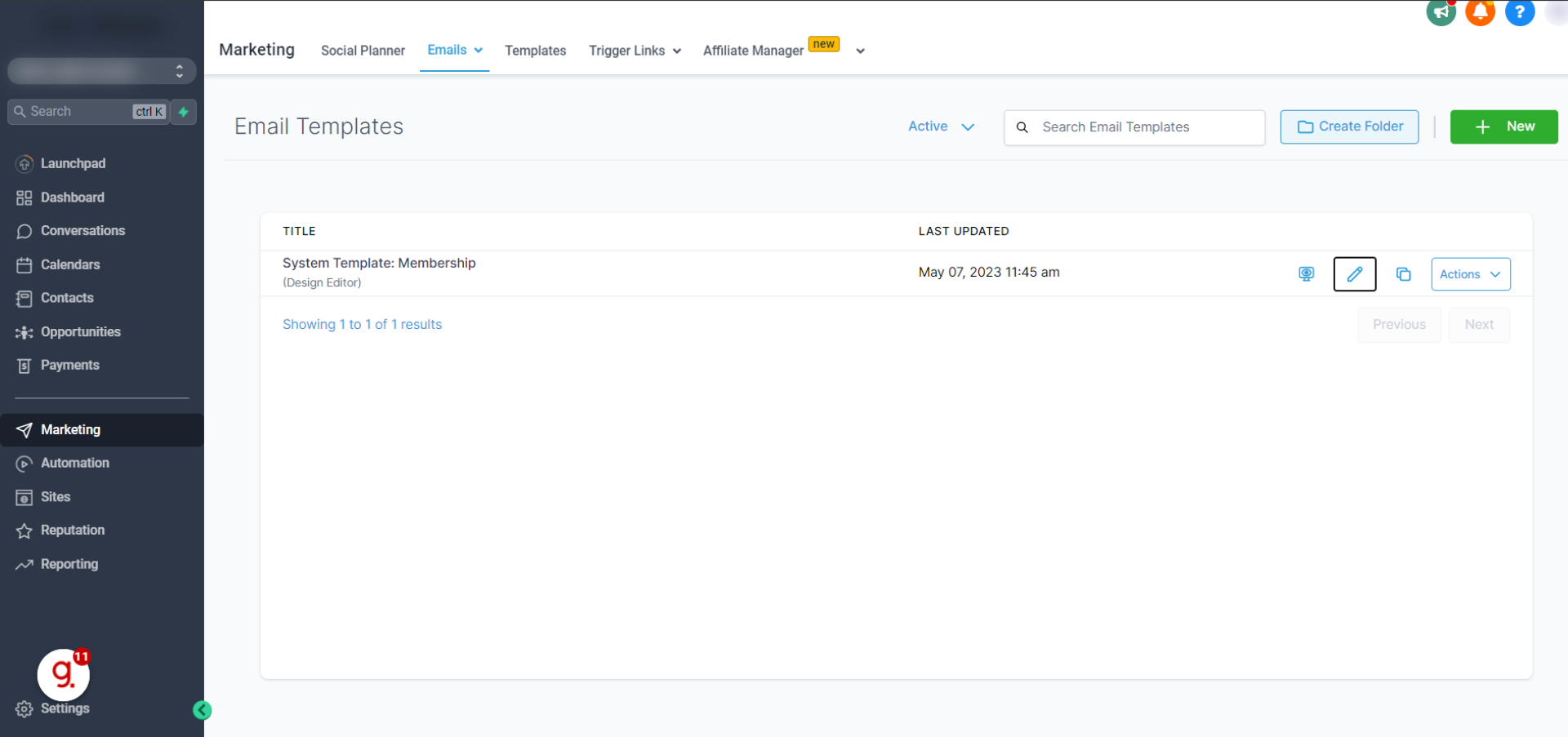
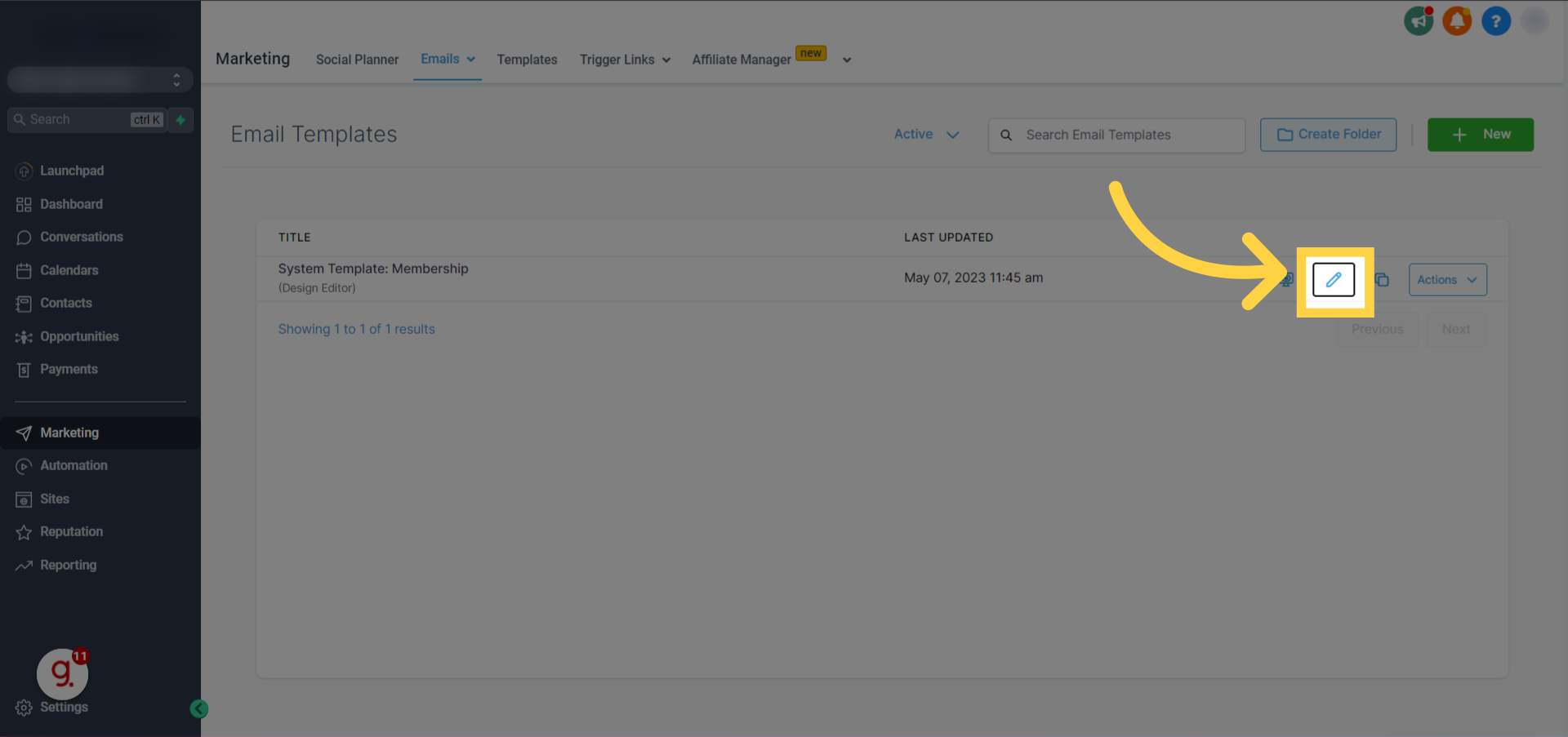
Edit a Specific Membership OfferLocate the membership offer you want to customize the welcome email for. Click the Edit icon (pencil) next to that offer to open its settings.
preview
preview
1
3
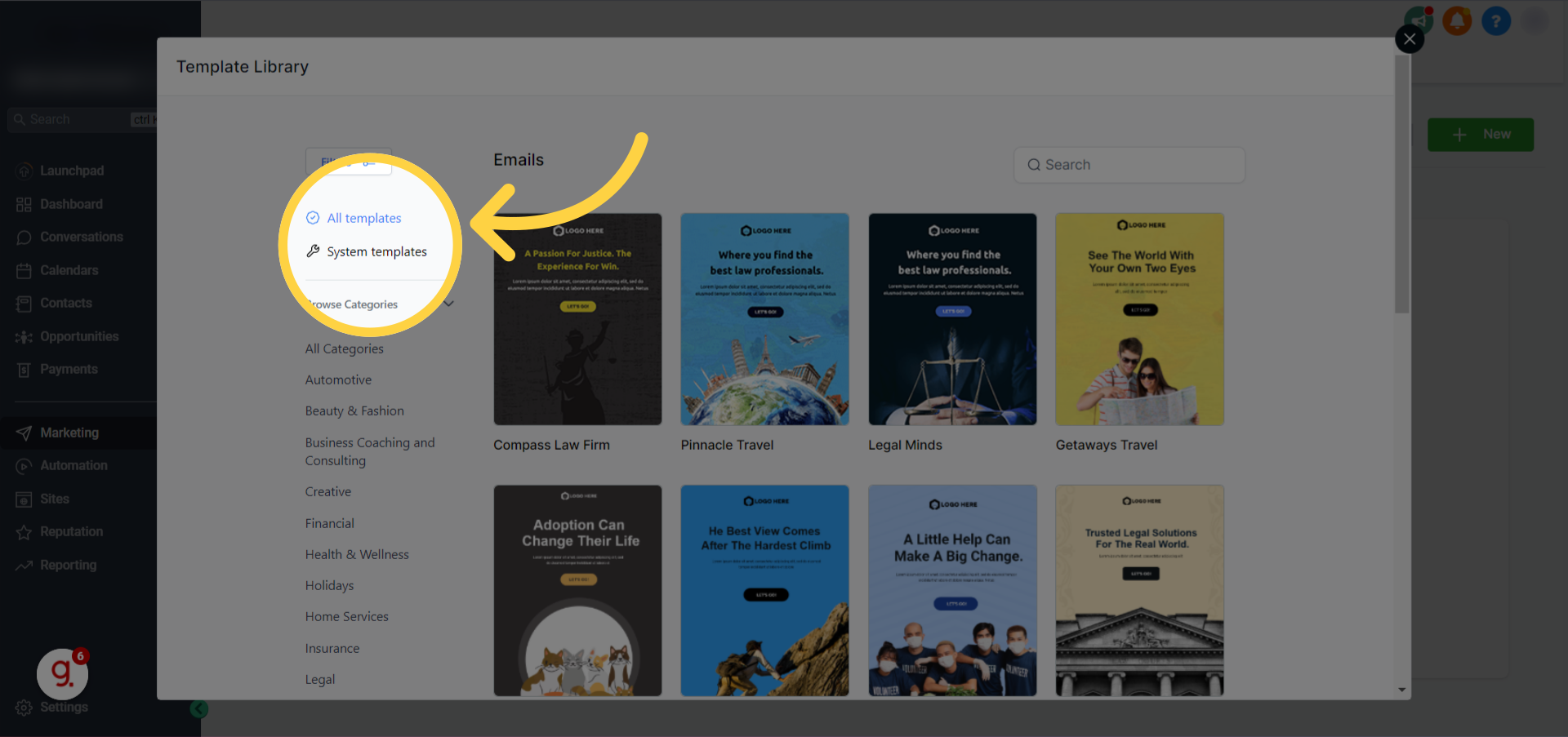
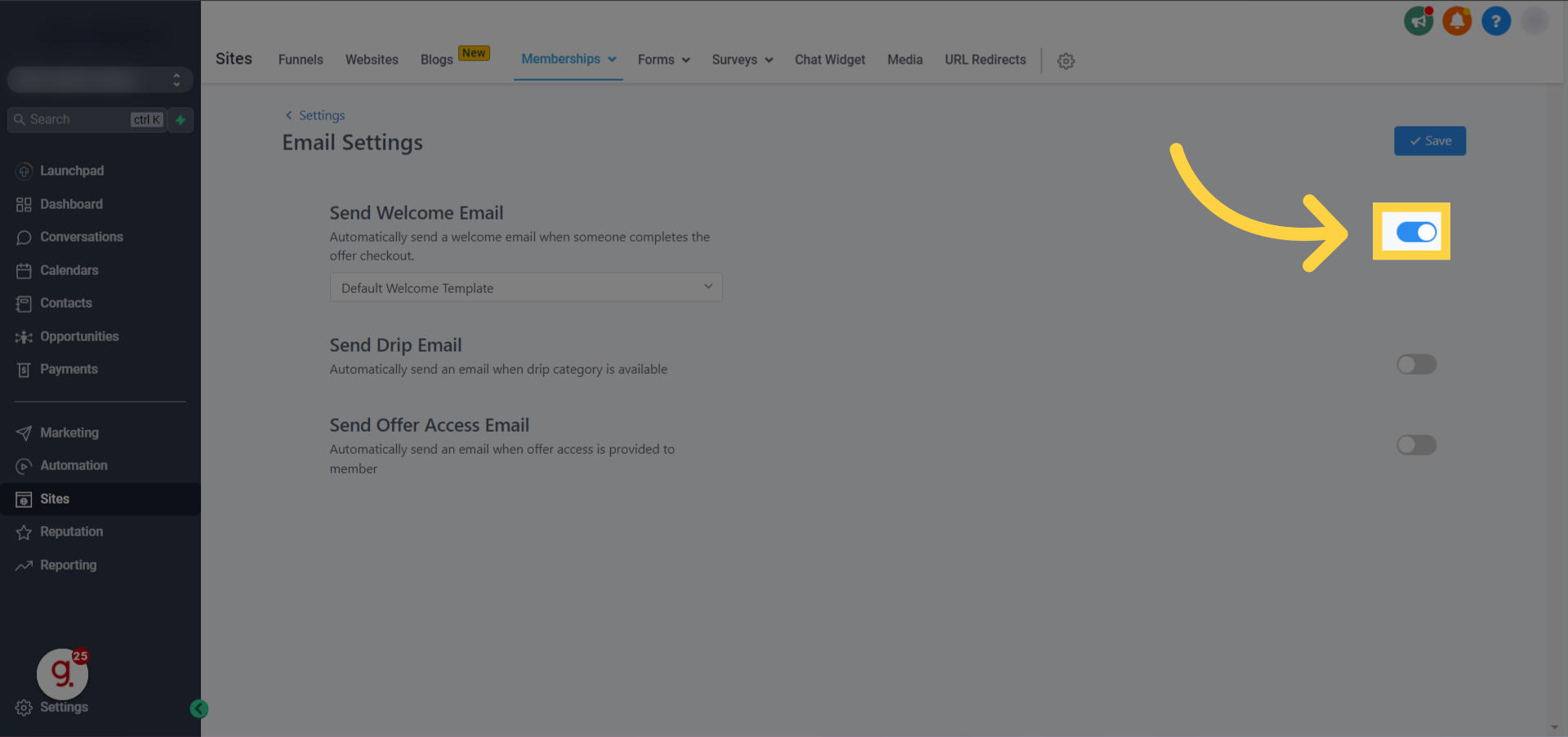
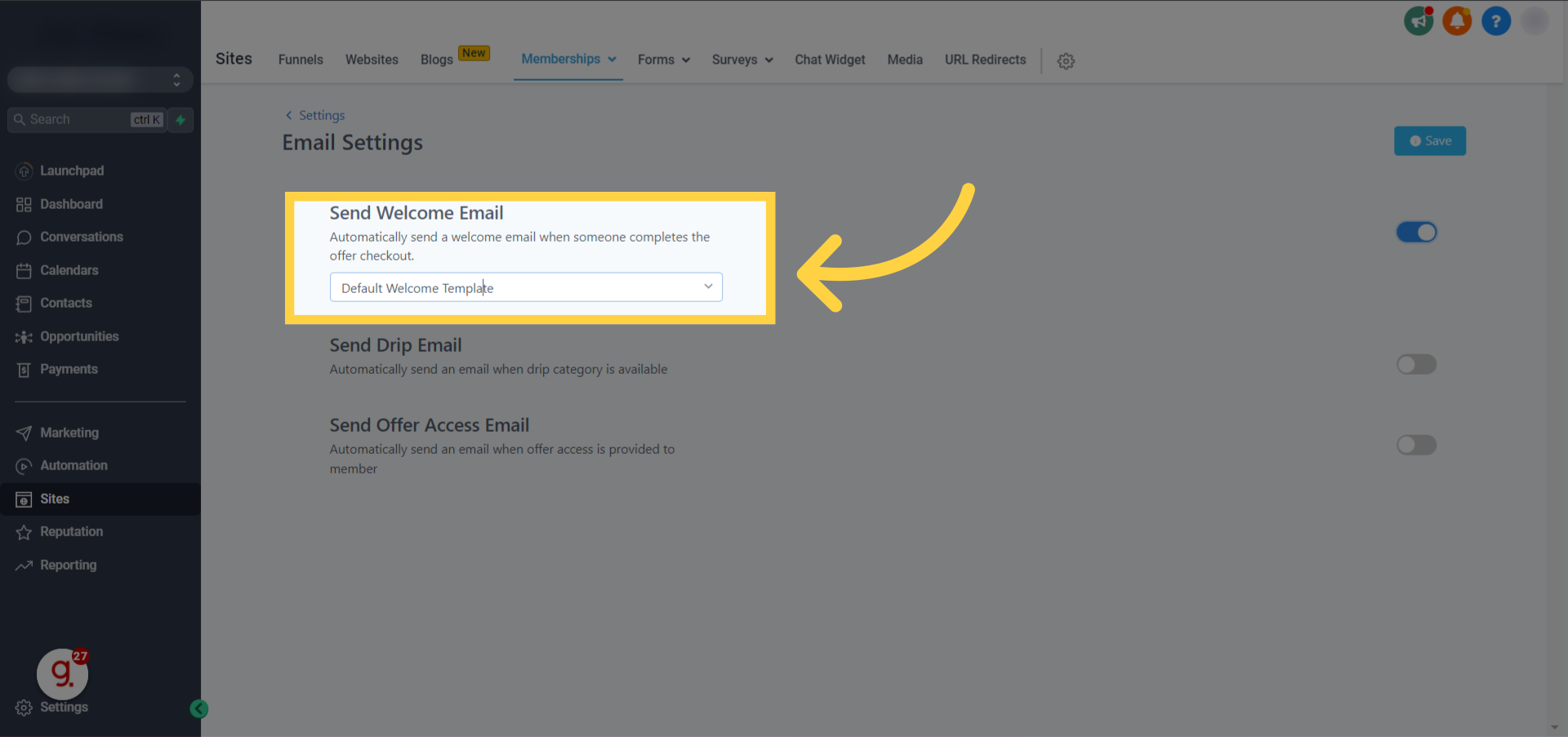
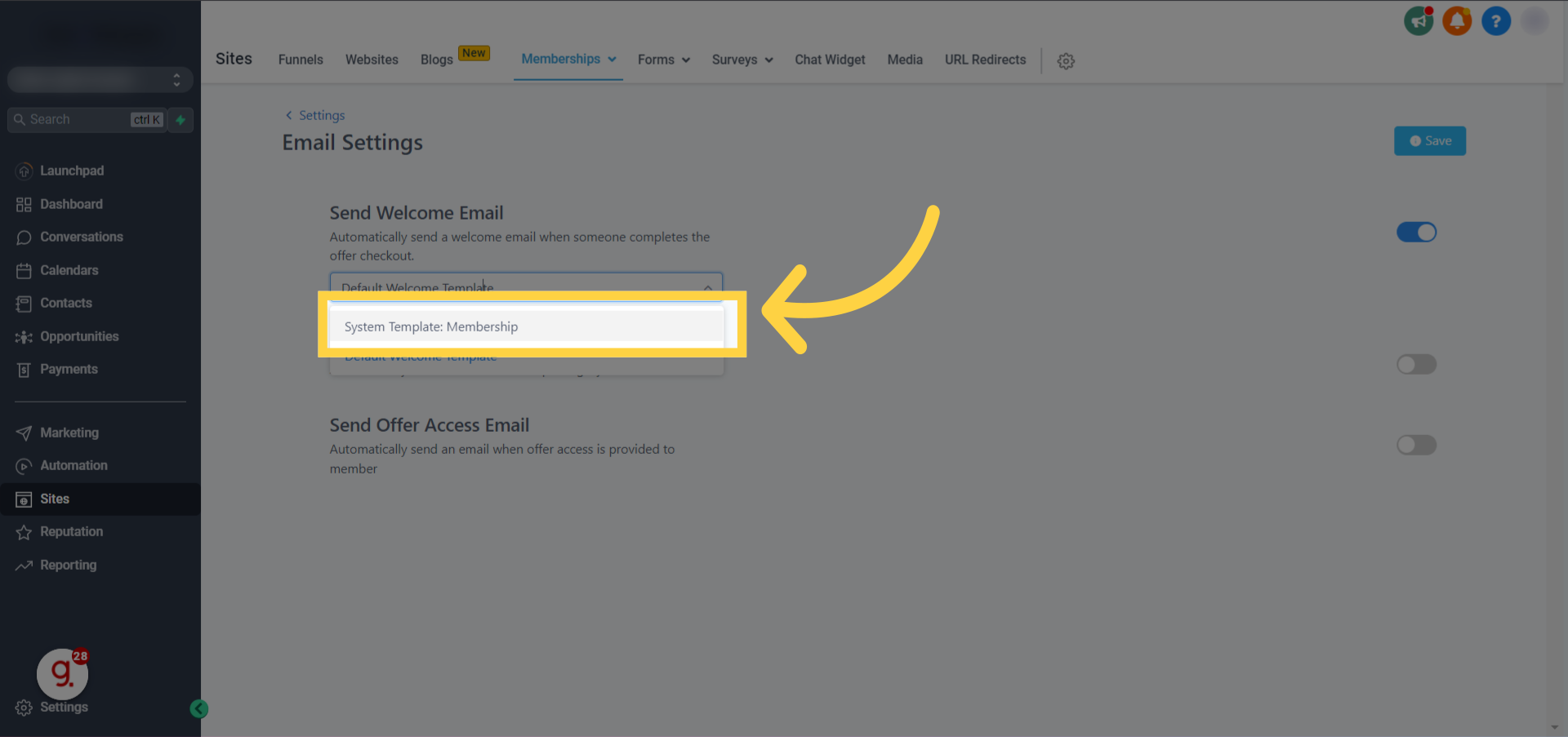
Enable the Custom Welcome EmailInside the offer's settings, scroll down to the 'Welcome Email' section. Toggle the Custom Welcome Email option to the 'ON' position. This activates the customization fields.
preview
preview
2
4
Customize the Email Subject LineIn the 'Email Subject' field, enter a clear and engaging subject line. Consider including merge tags like {{contact.first_name}} for personalization, such as 'Welcome, {{contact.first_name}}! Your [Offer Name] Access Awaits'.
preview
preview
3
5
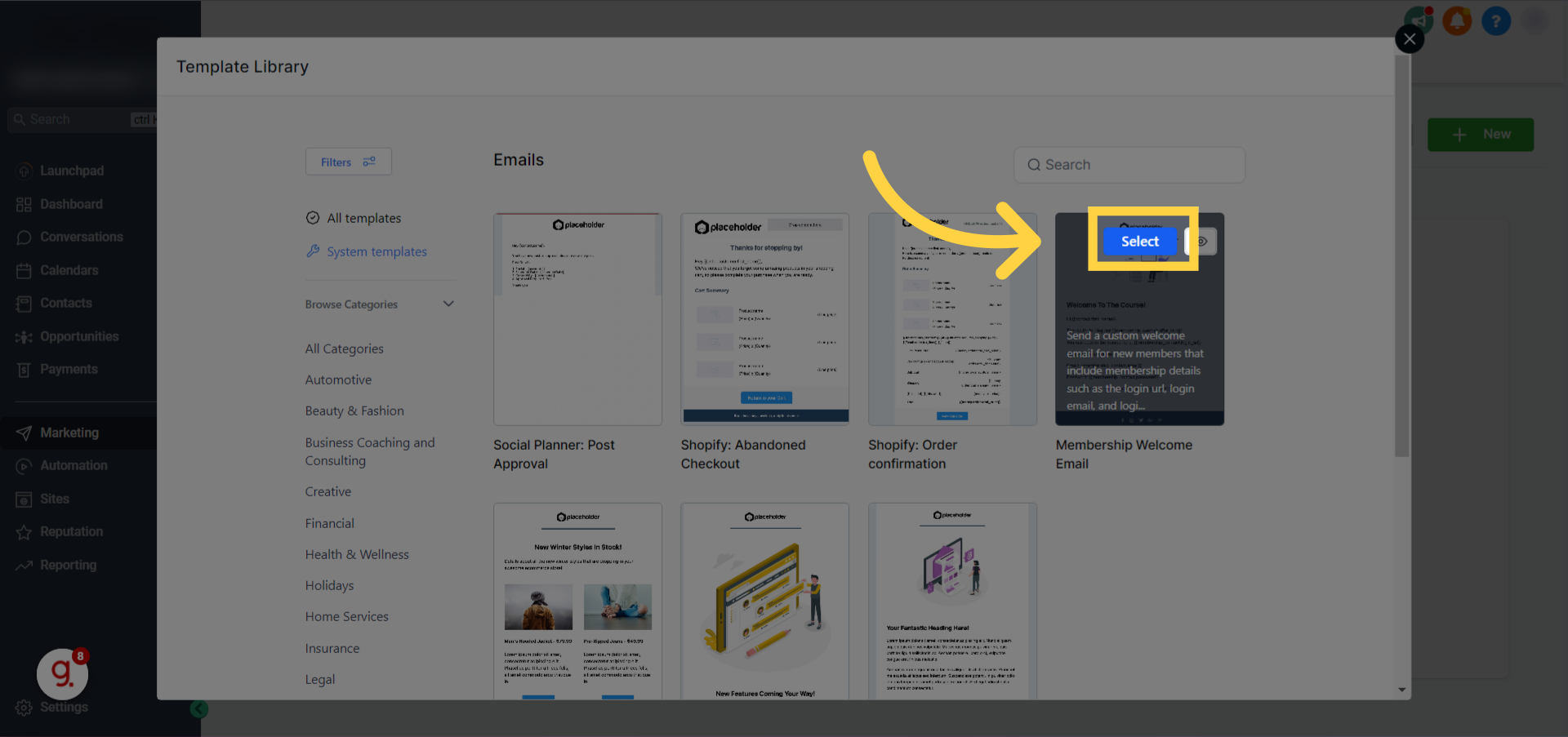
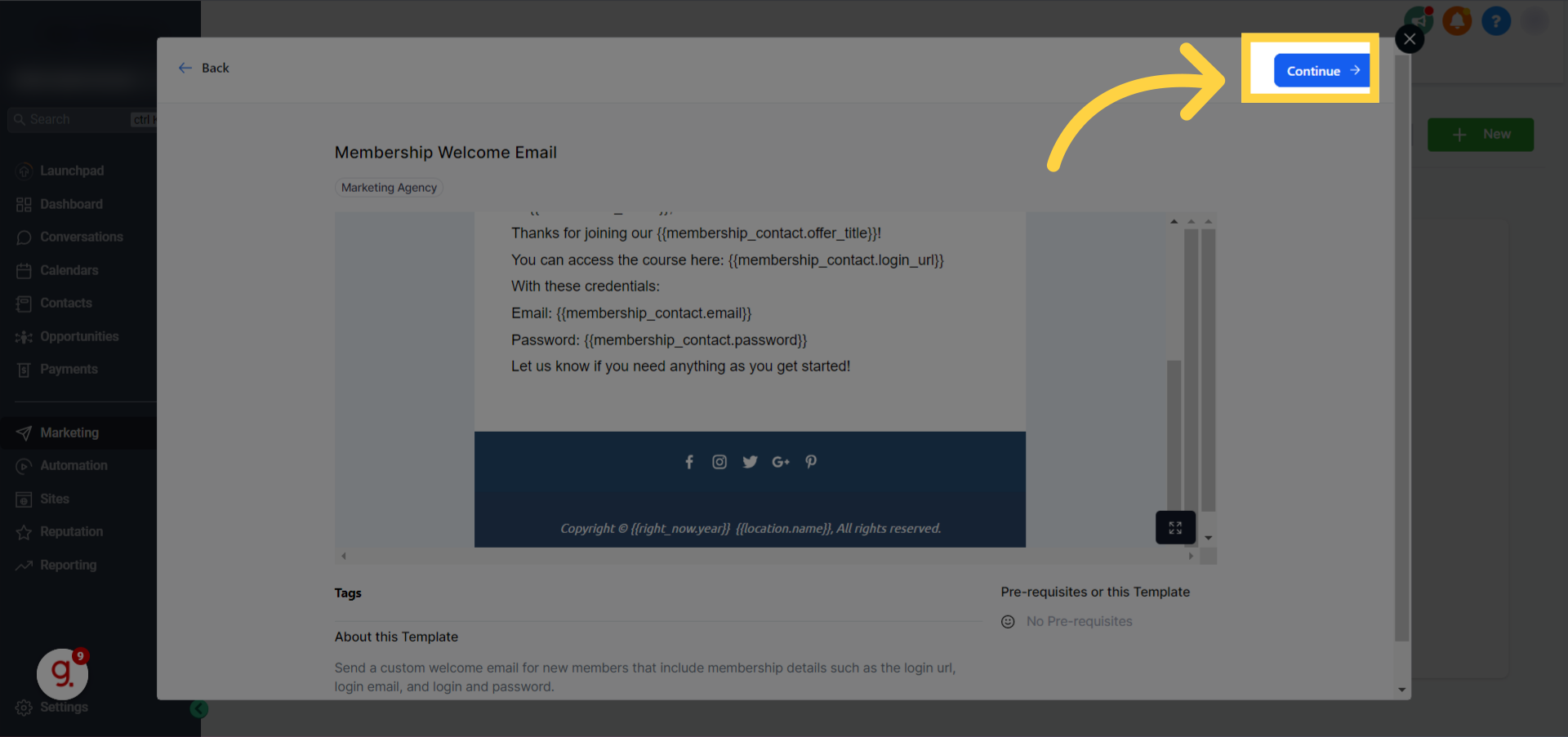
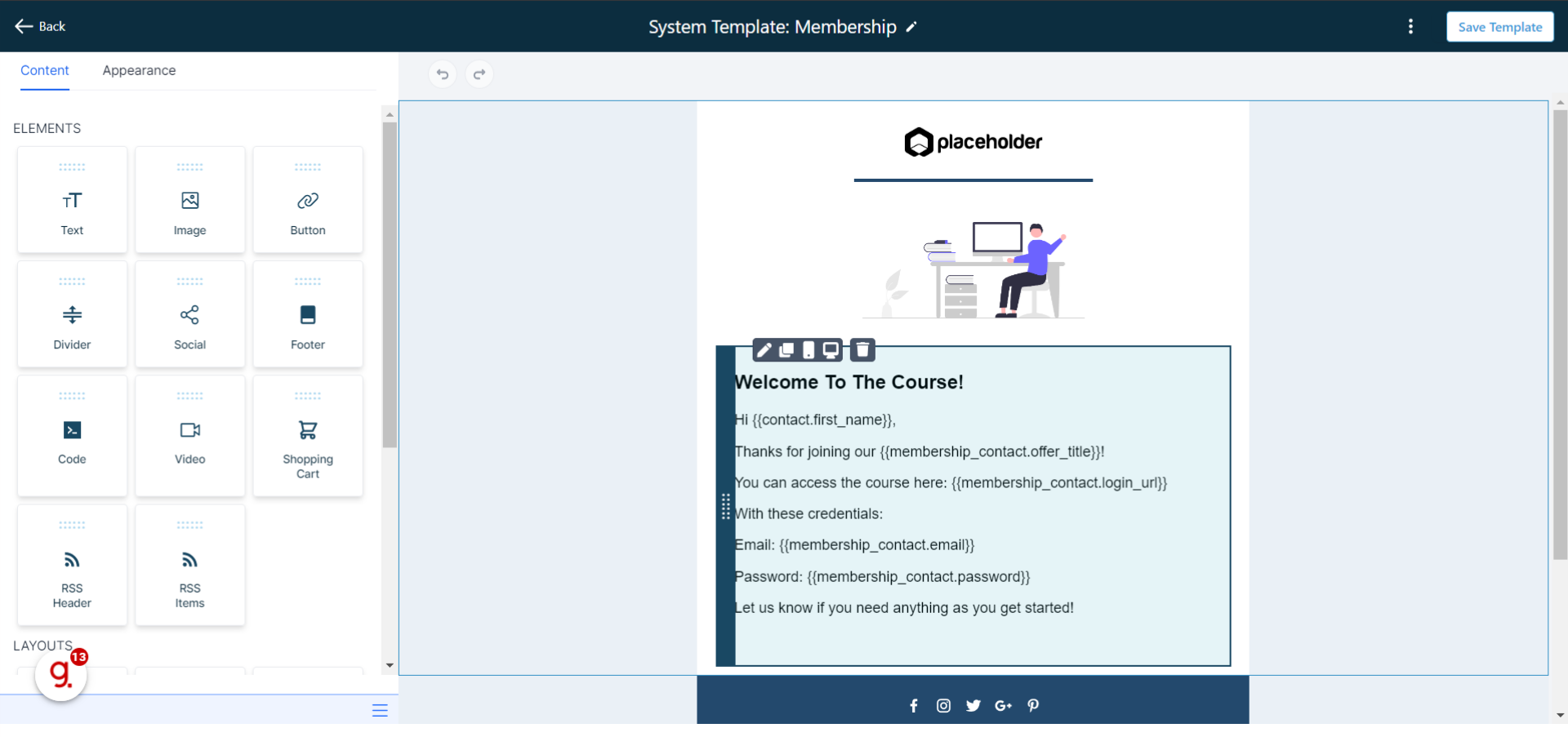
Design the Email Body with Login InformationUse the email editor to craft your welcome message. Crucially, include the membership login URL and specific login details using merge tags. The essential merge tags are {{membership.login_url}} for the direct login link, {{contact.email}} for their username, and {{membership.password}} for their system-generated password (if not using passwordless login).
preview
preview
4
6
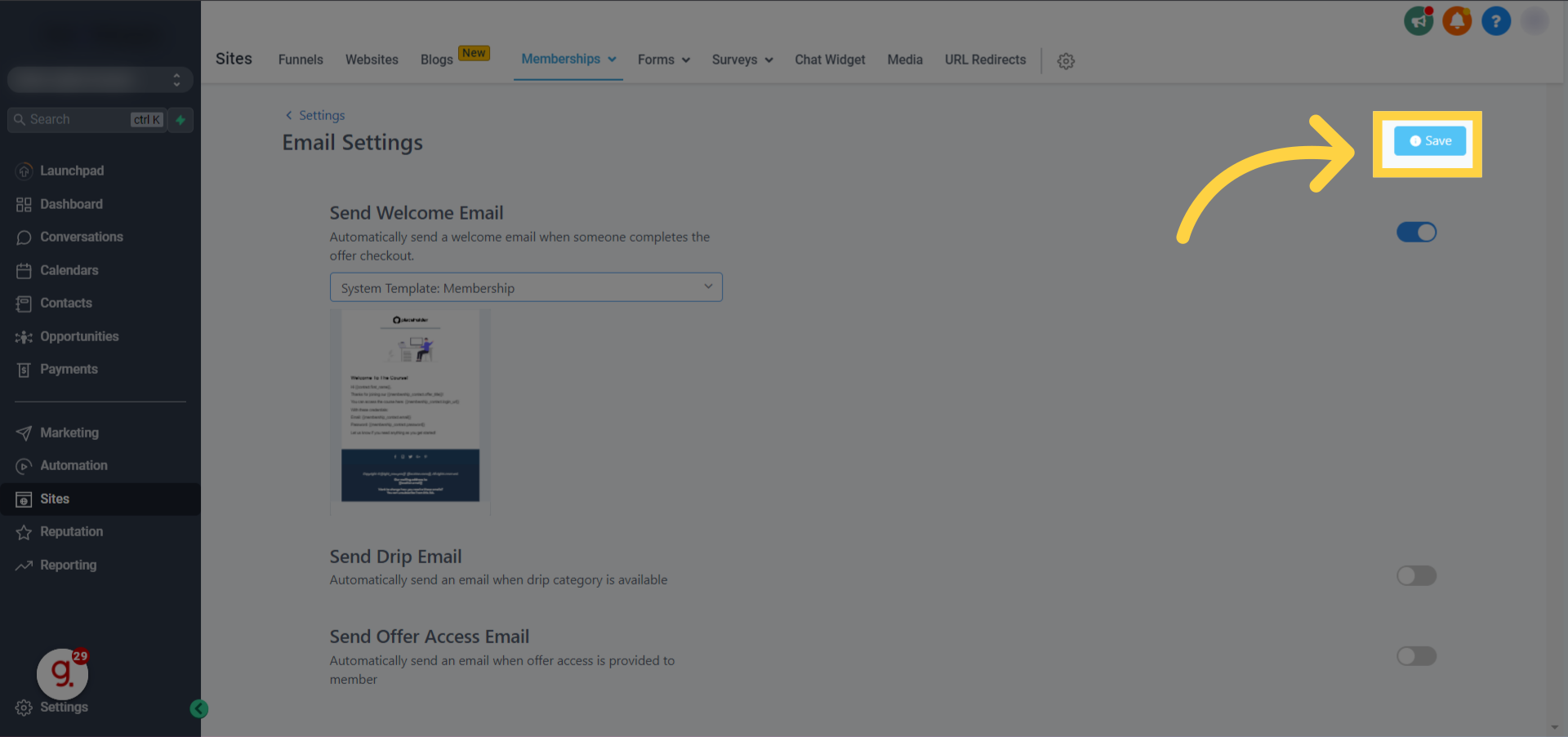
Save Your Custom Welcome EmailAfter customizing the subject and body, click the Save button at the top right of the offer editor. Your changes will now be active, and new members who purchase this offer will receive your custom welcome email.
preview
preview
5
preview
preview
preview
preview
preview
preview
GoHighLevel screenshot
preview
preview
preview
preview
preview
preview
preview
preview
preview
preview
preview
preview
preview
preview
preview
preview
preview
preview
preview
preview

⚠️ Ensure you are using the correct merge tags for login URL, email, and password. Incorrect tags will not populate, leaving your members unable to access their content.

🔥 Pro Tip

Always test your custom welcome email by creating a test contact and granting them access to the offer. This ensures all links work, merge tags populate correctly, and the email delivers as expected.

Try GoHighLevel Free

Start your 30-day GoHighLevel free trial

Everything in this guide is in your free trial. 30 days, no credit card — the platform behind 78+ revenue systems.

Start 30-Day Free Trial

Some links are affiliate links — if you sign up we may earn a commission, at no extra cost to you. We only recommend GoHighLevel because we build on it every day.

What Should I Include in a Membership Welcome Email?

A well-structured welcome email guides your new members effectively. Beyond just login details, it should provide a warm introduction and clear next steps. Here’s a breakdown of what to include for maximum impact:

1
Warm Welcome MessageStart with a friendly greeting to make your new member feel valued. Briefly thank them for joining your program or purchasing your course.
2
Clear Login InstructionsThis is the most critical part. Provide the direct login URL using `{{membership.login_url}}`, their username (usually `{{contact.email}}`), and their password (`{{membership.password}}`) if applicable. Make these details easy to find.
3
Overview of Benefits/ContentRemind them what they gain from this membership. Briefly highlight key features, courses, or benefits they now have access to. This reinforces their decision to join.
4
Direct Link to StartEncourage immediate action. Include a clear call-to-action button or link, such as 'Start Your First Lesson Here' or 'Access Your Courses Now', leading directly into the membership area.
5
Support and ResourcesProvide links to important resources like an FAQ page, a support contact email, or a community forum. This assures members they can get help if needed.
6
Branding ElementsIntegrate your brand's logo, colors, and tone throughout the email. Consistent branding builds trust and makes the email instantly recognizable as coming from you.
🔥 Pro Tip

Consider adding a short video introduction to your welcome email. A personal video message can significantly enhance engagement and make new members feel more connected.

Troubleshooting Common Issues

⚠️ My custom welcome email is not sending.
Check if the 'Custom Welcome Email' toggle is 'ON' for the specific offer. Also, ensure the contact has a valid email address and that the offer is correctly linked to a product upon purchase.
⚠️ The login link or credentials in the email are incorrect or not populating.
Verify that you used the exact merge tags: `{{membership.login_url}}`, `{{contact.email}}`, and `{{membership.password}}`. Case sensitivity matters. Test by manually sending a test email.
⚠️ My welcome emails are landing in spam folders.
Review your email's subject line and content for spam trigger words. Ensure your domain is authenticated (SPF, DKIM records) and consider warming up your sending domain. Always send to opted-in contacts.
⚠️ I can't add a specific product title to the welcome email.
The welcome email is tied to the 'offer' which can contain multiple products. Only the 'offer title' can be dynamically inserted. Product-specific titles can be used in follow-up drip emails within a workflow.
⚠️ The branding in my welcome email doesn't match my course/business.
Customize the email template within the editor using your logo, brand colors, and fonts. Ensure your email builder settings reflect your brand's style guide for consistency.

Common Mistakes to Avoid

  • Forgetting to enable the 'Custom Welcome Email' option for the offer.
  • Not including all three critical login details: URL, username, and password (if applicable).
  • Failing to personalize the email beyond just the login information, missing engagement opportunities.
  • Skipping the crucial step of testing the entire welcome email flow after setup.
  • Overloading the welcome email with too much information instead of focusing on immediate access and next steps.

Frequently Asked Questions

QCan I brand my membership welcome emails in GoHighLevel?
Yes, you can fully brand your membership welcome emails. GoHighLevel's email builder allows you to add your company logo, customize color schemes, select fonts, and integrate other branding elements to ensure the email matches your business's identity and provides a consistent user experience.
QHow do I prevent my custom welcome emails from being marked as spam?
To minimize the chance of your emails landing in spam, use a clear and concise subject line, avoid excessive capitalization or spam trigger words, and maintain a good sender reputation. Crucially, ensure your domain has proper SPF and DKIM records configured, and only send emails to contacts who have explicitly opted in to receive communications from you.
QCan I track the effectiveness of my membership welcome emails?
Yes, GoHighLevel's email analytics allow you to track the effectiveness of your welcome emails. You can monitor key metrics such as open rates, click-through rates, and delivery rates. This data helps you understand how members engage with your emails, enabling you to refine and improve your messaging over time for better engagement and onboarding.
QWhat essential information should I include in a membership welcome email?
An essential membership welcome email should include a warm greeting, clear login instructions with the membership URL, username (email), and password. You should also provide an overview of the membership benefits, a direct link to get started, and information on how to access support or additional resources like an FAQ page.
QIs it possible to add the product title to the membership welcome email?
No, the product title cannot be directly added to the membership welcome email. This email is triggered when access to an 'offer' is granted, and a single offer can contain multiple products. Therefore, only the 'offer title' can be dynamically included. Product-specific titles are best reserved for subsequent drip emails or within the membership site itself.
Try GoHighLevel Free

Start your 30-day GoHighLevel free trial

Everything in this guide is in your free trial. 30 days, no credit card — the platform behind 78+ revenue systems.

Start 30-Day Free Trial

Some links are affiliate links — if you sign up we may earn a commission, at no extra cost to you. We only recommend GoHighLevel because we build on it every day.

Arsalan Zaffar
Arsalan Zaffar
Revset Labs · Revenue Systems · 78+ GHL Builds

Arsalan writes GHL guides from real build experience — 78+ systems, $9.2M in client pipeline. Wharton, CXL & Google certified.

Connect on LinkedIn
Tags:GoHighLevelMembershipsEmail AutomationOnboardingCustom EmailsLogin Information