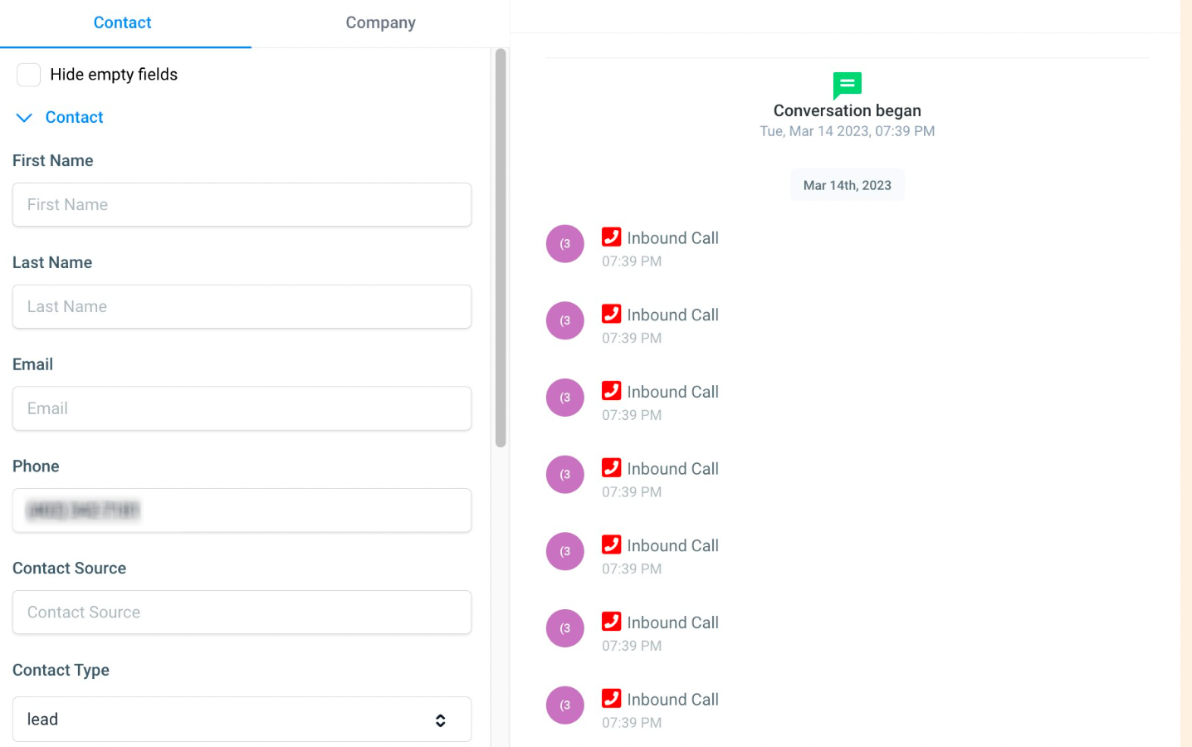
To fix a phone call redirect loop, go to your Sub-account → Settings → My Staff, Phone Numbers, and Business Profile sections. Ensure no GoHighLevel number is set to forward calls back to another GoHighLevel number. This process typically takes 5-10 minutes.
Key Takeaways
✓Always use an external, non-GoHighLevel number for staff forwarding to prevent loops.
✓Verify your primary forwarding number in **Phone Numbers** settings is distinct from any GHL number.
✓Manually test the Business Profile phone number to confirm it doesn't route back to GoHighLevel.
✓Regularly audit all phone number configurations, especially after adding new staff or numbers.
✓A call loop occurs when a GoHighLevel number attempts to forward a call to itself or another GHL number.
What is a Phone Call Redirect Loop and How Do You Spot It?
A phone call redirect loop in GoHighLevel happens when an incoming call gets caught in an endless forwarding cycle. This often occurs because a GoHighLevel number is configured to forward calls back to itself, or to another GoHighLevel number within your system. The call never reaches its intended recipient and eventually drops.
1
Listen for Repeating Sounds — When you call into a number experiencing a loop, you will hear the same ringing, busy, or introductory sounds play repeatedly. The call never connects to a person or voicemail.
2
Observe Rapid Inbound Call Stacking — In your GoHighLevel dashboard, navigate to Conversations. You may see inbound calls quickly stack up and disconnect within seconds, often with no associated agent or resolution.
3
Check Call Logs for Immediate Disconnections — Review your Reporting → Call Reporting section. Look for calls showing extremely short durations or immediate disconnections, especially if they appear to be attempting to connect to internal numbers.
0
Why Do Phone Call Redirect Loops Happen in GoHighLevel?
The core reason for a redirect loop is a misconfiguration in how your GoHighLevel phone numbers are set up to forward calls. GoHighLevel numbers are designed to receive calls and then forward them to an external, non-GoHighLevel number, like a personal mobile phone or an office landline. If you set a GoHighLevel number to forward to another GoHighLevel number, or even to itself, the system gets stuck in a loop trying to connect the call.
How to Fix a Phone Call Redirect Loop in GoHighLevel
To resolve a phone call redirect loop, you must carefully check three critical areas within your GoHighLevel sub-account settings. You need to ensure that no GoHighLevel number is inadvertently forwarding calls to another GoHighLevel number. Follow these steps to identify and correct the conflicting configurations.
Step 1: Check Staff User Phone Numbers
The most common cause of a redirect loop involves a staff member's profile. If the phone number listed for a staff user (where their calls are forwarded) is one of your GoHighLevel numbers, it creates a loop. This is because an incoming call to a GoHighLevel number would attempt to forward to the staff member, who then forwards it back to another GoHighLevel number.
1
Access Staff Settings — From your GoHighLevel dashboard, click Settings in the left-hand menu. Then, select My Staff from the settings options.
2
Edit the Staff User Profile — Locate the specific staff member whose calls are experiencing issues. Click the pencil icon next to their name to edit their user profile.
3
Verify User's Phone Number — Scroll down to the 'User Info' section and find the 'Phone' field. Ensure this phone number is a direct, external number (e.g., a personal cell phone) and NOT a GoHighLevel number you manage.
4
Update and Save Changes — If the number is a GoHighLevel number, replace it with an external, non-GoHighLevel phone number. Click Save to apply your changes.
🔥 Pro Tip
Always use a personal mobile or landline number for staff forwarding. This ensures calls leave the GoHighLevel system and reach the intended person directly, avoiding internal loops.
Try GoHighLevel Free
Start your 30-day GoHighLevel free trial
Everything in this guide is in your free trial. 30 days, no credit card — the platform behind 78+ revenue systems.
Some links are affiliate links — if you sign up we may earn a commission, at no extra cost to you. We only recommend GoHighLevel because we build on it every day.
Step 2: Verify Phone Number Forwarding Settings
Another common area for redirect loops is in the primary forwarding configuration for your GoHighLevel phone numbers. If a GoHighLevel number is set to forward to another GoHighLevel number, it will cause an immediate loop. You need to ensure each GoHighLevel number forwards to a unique, external destination.
1
Navigate to Phone Numbers — In your GoHighLevel dashboard, click Settings on the left menu. Then, select Phone Numbers from the settings options.
2
Inspect Forwarding Numbers — Review each GoHighLevel phone number listed. For each number, check its 'Forwarding Number' setting. Ensure this number is an external phone number, not another GoHighLevel number.
3
Adjust Forwarding if Needed — If you find a 'Forwarding Number' that is a GoHighLevel number, update it to an external, direct phone number. Click Save after making any changes to ensure they take effect.
🔥 Pro Tip
Consider setting up a dedicated 'general' forwarding number (like an office main line) if you prefer not to forward directly to individual staff mobiles. Just ensure this number is external to GoHighLevel.
Step 3: Inspect Your Business Profile Phone Number
Your Business Profile phone number acts as a crucial fallback. If other forwarding rules fail, calls often route to this number. If your Business Profile's phone number ultimately routes back to a GoHighLevel number, it can create a hidden loop. This might happen even if the number looks different on paper, but is internally configured to forward back to GoHighLevel.
1
Go to Business Profile Settings — From your GoHighLevel dashboard, click Settings in the left-hand menu. Then, select Business Profile from the settings options.
2
Check the Business Phone Number — Locate the 'Business Phone' field. Verify that this number is an external, non-GoHighLevel number. Even if it looks different, it might still route back to a GHL number.
3
Manually Test the Business Phone Number — Call the 'Business Phone' number from an external phone (your personal cell phone, for example). Listen carefully to ensure it connects to a live person or a non-GoHighLevel voicemail system, and does not loop back.
4
Update and Save if Necessary — If your test reveals a loop, replace the 'Business Phone' number with a verified external number. Click Save to apply the new setting.
🔥 Pro Tip
Always perform a live test call to the Business Phone number after any changes. This confirms the number truly routes externally and avoids hidden forwarding loops.
Confirm Your Fix is Working
After making changes to your staff, forwarding, or business profile phone numbers, it is crucial to confirm that the redirect loop is resolved. A quick test call will ensure your customers can reach you without interruption.
1
Make a Test Call — Use an external phone (like your personal mobile) to call the GoHighLevel number that was previously experiencing the redirect loop. Do not use a phone number connected to your GoHighLevel system.
2
Verify Call Connection — Listen to ensure the call rings through as expected and connects to the intended recipient or voicemail. The repeating sounds or quick disconnections should no longer occur.
3
Check Call Logs — After your test call, review your GoHighLevel Conversations and Reporting → Call Reporting. Confirm that the test call shows a successful connection and an appropriate duration.
Troubleshooting Common Issues
⚠️ You hear the same ringing or busy tone repeatedly, but the call never connects.
This is a classic loop symptom. Re-check the 'Forwarding Number' for the GoHighLevel number you are calling in Settings → Phone Numbers. Ensure it's an external, non-GoHighLevel number.
⚠️ Calls appear in **Conversations** briefly, then disappear or show as immediately disconnected.
Verify the phone number assigned to the staff user (in Settings → My Staff) who should receive these calls. Make sure it's a personal mobile or landline, not another GoHighLevel number.
⚠️ You receive an error message about 'call forwarding failure' or 'recursive call detected'.
This explicitly indicates a loop. Check all three areas: My Staff user numbers, Phone Numbers forwarding, and Business Profile phone. One of these is trying to forward to a GHL number.
⚠️ Calls to your main business number sometimes connect, but sometimes loop or drop.
This suggests an intermittent issue, possibly with the fallback number. Call your Business Profile → Business Phone directly from an outside line to test its routing behavior and ensure it's truly external.
Common Mistakes to Avoid
→Setting a staff member's direct phone number to one of your GoHighLevel numbers.
→Configuring a GoHighLevel forwarding number to point to another GoHighLevel number.
→Overlooking the Business Profile phone number as a potential loop source, especially if it's an old number that routes back to GHL.
→Not testing the GoHighLevel numbers from an external line after making changes.
→Assuming a number is external without verifying its actual routing behavior.
Frequently Asked Questions
QWhat exactly is considered a 'GoHighLevel number' in this context?
A 'GoHighLevel number' refers to any phone number that you have purchased or provisioned directly within your GoHighLevel account. These numbers are managed by the GoHighLevel system for inbound and outbound communication. They are distinct from external numbers like your personal mobile phone or a traditional landline, which are not hosted or managed by GoHighLevel.
QCan a redirect loop happen if I'm only using one GoHighLevel number?
Yes, a redirect loop can still occur even with a single GoHighLevel number. This happens if that single GoHighLevel number is configured to forward calls to itself through a staff profile or another setting. For example, if your GoHighLevel number is set to forward to a staff member, and that staff member's listed phone number is the *same* GoHighLevel number, a loop will form.
QHow quickly do changes to phone number settings take effect in GoHighLevel?
Changes to phone number settings in GoHighLevel, such as updating a forwarding number or a staff member's phone, typically take effect almost immediately after you click 'Save'. However, it's always recommended to perform a test call from an external line right after making changes to confirm that the new configuration is working as intended and the loop is resolved.
QWhat if I can't find an external number for forwarding?
If you don't have a specific external mobile or landline number to use for forwarding, consider using a dedicated virtual phone number service that is *not* integrated or provisioned through GoHighLevel. The key is to ensure the forwarding destination is entirely outside of your GoHighLevel number ecosystem to break the potential loop. Avoid using another GHL number at all costs.
QWhy is it important to test the Business Profile phone number specifically?
It's crucial to test the Business Profile phone number because it often serves as a fallback for calls that don't match other routing rules. Even if the number appears to be an external one, it might have an underlying forwarding configuration that routes calls back into your GoHighLevel system. A live test ensures its true behavior and prevents hidden loops.
Try GoHighLevel Free
Start your 30-day GoHighLevel free trial
Everything in this guide is in your free trial. 30 days, no credit card — the platform behind 78+ revenue systems.
Some links are affiliate links — if you sign up we may earn a commission, at no extra cost to you. We only recommend GoHighLevel because we build on it every day.
Arsalan Zaffar
Revset Labs · Revenue Systems · 78+ GHL Builds
Arsalan writes GHL guides from real build experience — 78+ systems, $9.2M in client pipeline. Wharton, CXL & Google certified.