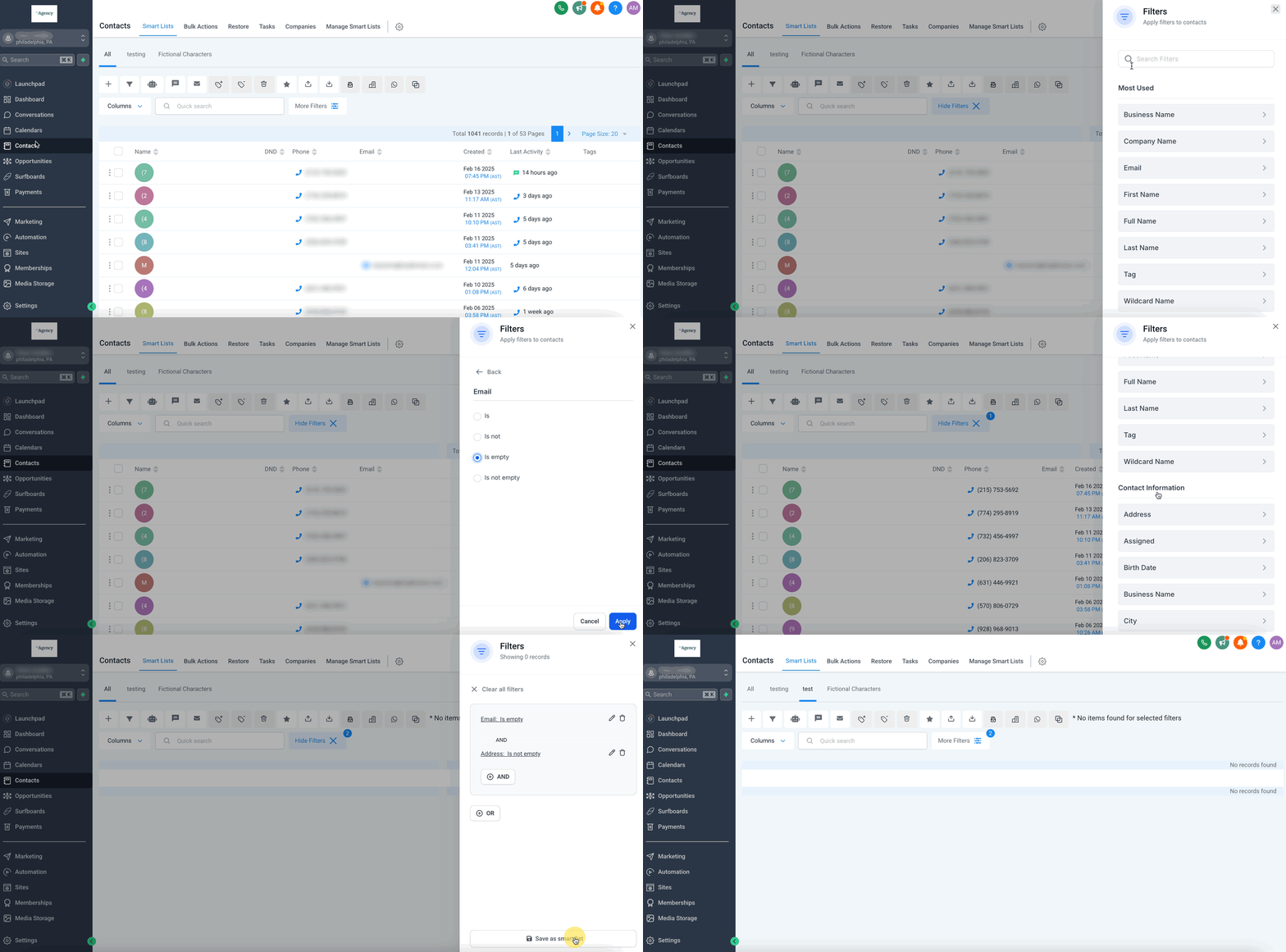
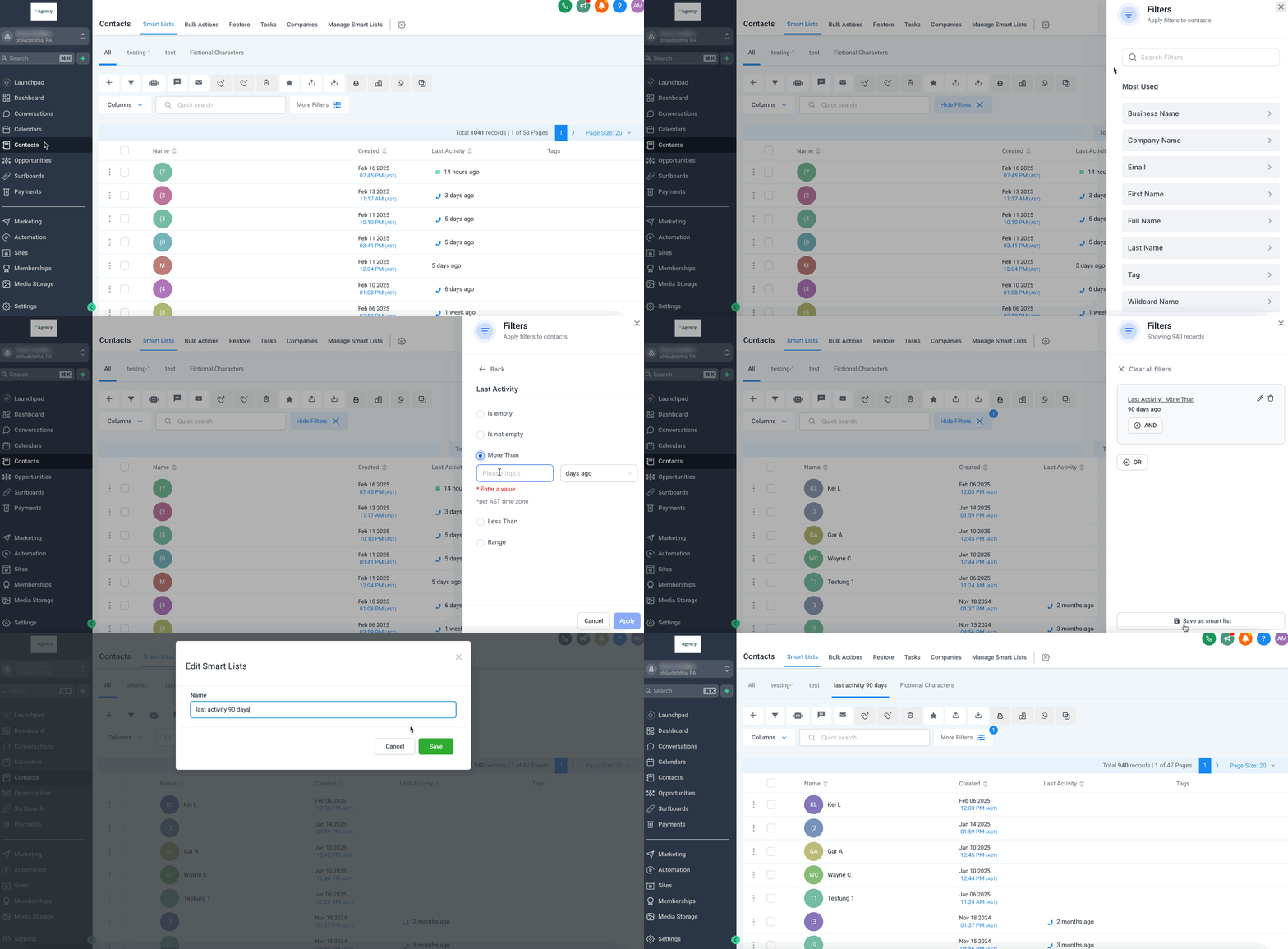
To create a Smart List in GoHighLevel, go to the Contacts section, then click More Filters to define your criteria. After applying filters, click Save as Smart List to name and save it. This process typically takes 2-3 minutes for a basic list.
Key Takeaways
✓Smart Lists are dynamic: they update automatically based on defined filters, unlike static lists.
✓Use Smart Lists for precise segmentation: group contacts by behavior, engagement, or specific custom fields.
✓Smart Lists power automation: integrate them into workflows to trigger personalized actions.
✓Manage your lists effectively: modify filters, reorder columns, or share lists with other team members.
✓Permissions matter: ensure you have 'settings' access to fully manage Smart Lists.
Introduction to GoHighLevel Smart Lists
GoHighLevel Smart Lists provide a powerful way to organize and segment your contacts dynamically. Unlike traditional static lists, Smart Lists automatically update as contact data changes, ensuring your contact groups are always current and relevant. This guide walks you through creating, managing, and leveraging Smart Lists to enhance your CRM and marketing efforts.
What are GoHighLevel Smart Lists?
A Smart List is a dynamic contact list within GoHighLevel that continuously updates based on predefined filters and conditions. These lists automatically add or remove contacts as they meet or no longer meet your specified criteria. You can customize which columns display, providing a tailored view of your segmented contacts. This feature is found under the Contacts tab in your subaccount.
Why Use Smart Lists in Your GHL Account?
Smart Lists offer significant advantages for managing your contacts and automating your marketing. They eliminate manual list updates, improve targeting accuracy, and streamline your CRM organization. By using Smart Lists, you ensure your outreach is always directed to the most relevant audience, saving you time and boosting efficiency.
1
Save Time with Automation — Automate contact segmentation instead of manually updating lists. Smart Lists automatically adjust as contact data changes, keeping your groups current without extra effort.
2
Enhance Targeting Accuracy — Group contacts precisely based on behavior, lead status, engagement levels, or custom field data. This ensures your messages reach the right people at the right time.
3
Improve CRM Organization — Keep your contact list structured, searchable, and easy to navigate. Smart Lists help you maintain a clean and efficient CRM, making contact management straightforward.
4
Power Your Automations — Use Smart Lists directly within workflows to trigger automated actions. This allows for personalized engagement at scale, ensuring timely follow-ups and targeted campaigns.
🔥 Pro Tip
Combine multiple filters using 'AND' logic to create highly specific segments, such as 'Contacts who opened an email in the last 30 days AND have an open invoice.'
How Do Smart Lists Work Dynamically?
Smart Lists operate on a real-time basis, constantly evaluating your contact database against the filters you define. This dynamic nature means contacts are automatically added or removed without any manual intervention. This ensures your lists always reflect the most current state of your contacts, making your marketing and sales efforts more effective.
1
Real-Time Contact Updates — Contacts are automatically added or removed from a Smart List based on criteria like tags, custom fields, engagement activity, or opportunity stages. The list updates instantly when a contact's data changes to match or no longer match the filters.
2
Automated Segmentation — Easily create segments of leads, active customers, or prospects. Smart Lists do the work for you, maintaining these groups without constant manual review or adjustments.
3
Advanced Filtering Capabilities — Apply multiple filters simultaneously to create highly specific contact groups. For example, you can filter for contacts who 'opened an email in the last 30 days' AND 'have an open invoice' to target a very specific audience.
4
Seamless Workflow Integration — Connect Smart Lists to your automated workflows. This allows for personalized engagement at scale, triggering specific actions like sending emails or assigning tasks when contacts enter or exit a list.
0
Try GoHighLevel Free
Start your 30-day GoHighLevel free trial
Everything in this guide is in your free trial. 30 days, no credit card — the platform behind 78+ revenue systems.
Some links are affiliate links — if you sign up we may earn a commission, at no extra cost to you. We only recommend GoHighLevel because we build on it every day.
Step-by-Step: Creating a New Smart List
Creating a Smart List in GoHighLevel is a straightforward process that allows you to automatically segment your contacts based on specific criteria. Follow these steps to build your first dynamic contact list. This ensures your contact groups stay organized and updated in real-time without manual effort.
1
Access the Contacts Section — Navigate to Contacts → Smart Lists from your GoHighLevel dashboard. This takes you to your main contact management area where you can view and filter contacts.
2
Open More Filters — Click on the More Filters button, typically located above your contact list. This expands a panel on the right side of your screen, showing available filter options.
3
Select and Configure Filters — Choose one or multiple filters from the dropdown menu, such as 'Tag', 'Last Activity', or 'Custom Field'. Input the necessary details for your chosen filter and click Apply to activate it.
4
Add Multiple Filter Conditions — To add more filters, click the + AND or + OR option. Use 'AND' to narrow your list (contact must meet ALL conditions) or 'OR' to broaden it (contact must meet ANY of the conditions).
5
Save Your Smart List — Once all your desired filters are set and applied, click Save as Smart List at the bottom of the filter panel. Give your new Smart List a clear, descriptive name and click Save to finalize it.
0
🔥 Pro Tip
To create a list of contacts not contacted in 90 days, use the 'Last Activity' filter. Select 'More Than', type '90', and choose 'Days'. Then, save this as your 'Inactive Contacts' Smart List.
How to Modify and Manage Existing Smart Lists
Smart Lists are flexible; you can modify their filters, rename them, share them, or even duplicate them to create new, refined segments. Regularly managing your Smart Lists ensures they continue to align with your evolving business needs and marketing strategies. This section details how to keep your dynamic lists perfectly tuned.
1
Access an Existing Smart List — Go to the Contacts section and select the name of the Smart List you want to modify from the list displayed at the top. This opens the list and shows its current filters on the right.
2
Modify or Remove Filters — To change a filter, click the pencil icon next to it and adjust the settings. To remove a filter, click the trash can icon or the 'X' next to it. After making changes, click the Save icon to store them.
3
Manage Advanced Smart List Options — Click Manage Smart Lists at the top right of the Contacts page. Here you can find options to Duplicate, Share, Rename, or Delete any of your Smart Lists using the icons next to each list name.
4
Share a Smart List — Within the Manage Smart Lists area, click the Share icon next to the desired list. You can choose to share it with specific users or make it globally available within your subaccount.
0
⚠️ You must have 'settings' access in GoHighLevel to fully manage and share Smart Lists. Without this permission, certain management options may be unavailable.
🔥 Pro Tip
Duplicate an existing Smart List before making significant changes. This creates a backup and allows you to experiment with new filters without affecting your original, active list.
Organizing Your View: Reordering Smart List Columns
Smart Lists support drag-and-drop column management, allowing you to customize your list view. This helps you keep the most important contact fields front and center, improving your efficiency when reviewing contact data. Arrange your columns to prioritize the information most relevant to your workflow.
1
Open Your Desired Smart List — Navigate to Contacts → Smart Lists, then click on the specific Smart List you wish to edit. This loads the contact list view with its applied filters.
2
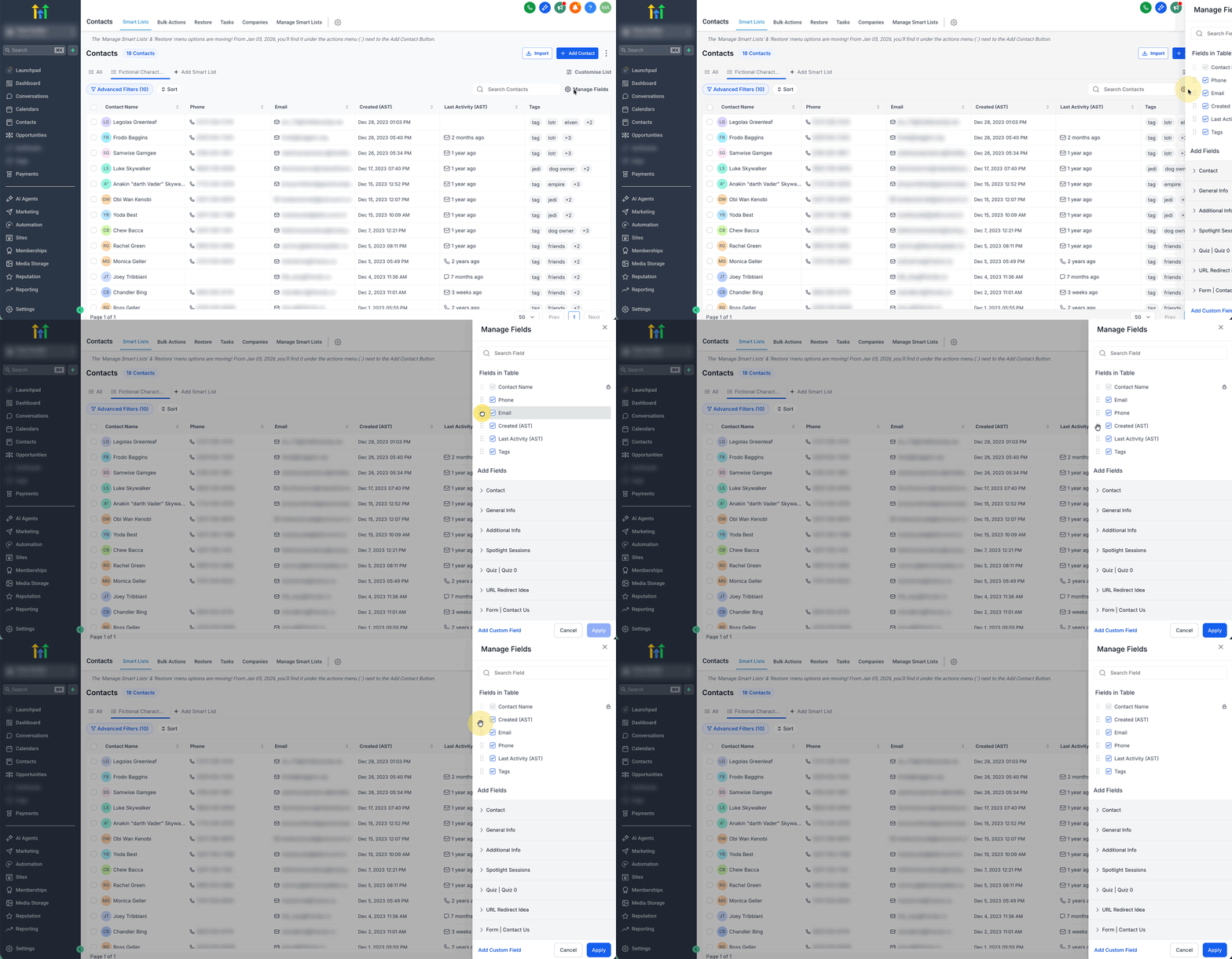
Access Column Management — In the list view, locate and click the column/field management option. This is typically an icon or button near the top of the table that allows you to control which fields display.
3
Rearrange Columns — Within the column manager, click and drag the column names into your preferred order. You can also toggle columns on or off to hide or show specific data fields.
4
Save Your Column Order — Close the column manager to apply your new column order. GoHighLevel automatically reflects these changes. If you want to permanently save this layout for the Smart List, ensure you save the Smart List itself after reordering.
0
✅ Your Smart List saves the most recently applied column order and visibility. If you reorder columns or show/hide fields, remember to save the Smart List again to retain these layout changes for future sessions.
Troubleshooting Common Issues
⚠️ My Smart List is not updating or showing the correct contacts.
Double-check all applied filters. Ensure the conditions are logically correct (e.g., 'AND' vs. 'OR') and that the contact data actually matches these criteria. Sometimes a small typo in a tag or custom field value can prevent contacts from being included.
⚠️ I cannot manually add or remove contacts from my Smart List.
Smart Lists are dynamic and update automatically. You cannot manually add or remove contacts. To include a contact, you must modify their profile data (e.g., add a tag, update a custom field) so they meet the Smart List's filter conditions.
⚠️ Other users in my account cannot see the Smart List I created.
Smart Lists are created at the user level by default. To make it visible to others, go to Contacts → Manage Smart Lists, click the Share icon next to your list, and choose to share it with specific users or make it global for the account.
⚠️ I can't modify the filters or delete a Smart List.
You likely lack the necessary permissions. Full management of Smart Lists, including modifying filters and deletion, requires 'settings' access in GoHighLevel. Contact your account administrator to request these permissions.
⚠️ My reordered columns revert to the old layout when I reopen the Smart List.
After reordering or showing/hiding columns, you must save the Smart List itself to preserve the new layout. Go back to the filter panel and ensure you click the 'Save' button for the Smart List after making column adjustments.
Common Mistakes to Avoid
→Attempting to manually add or remove contacts from a dynamic Smart List.
→Not saving column order or visibility changes after customizing the list view.
→Using incorrect logical operators (AND/OR) for filters, leading to unintended segmentation.
→Forgetting to click 'Save as Smart List' after setting filters, resulting in lost work.
→Assuming Smart Lists are automatically shared across all users or can be transferred between accounts.
Frequently Asked Questions
QCan I manually add existing contacts to an existing Smart List?
No, you cannot manually add or remove contacts from a Smart List. Smart Lists are entirely dynamic. Contacts are automatically added or removed based on whether their data matches the predefined filters and conditions. To include a contact, ensure their profile data meets the list's criteria.
QIf I schedule an email campaign to a Smart List, will the list update before sending?
Yes, Smart Lists are dynamic and update in real-time. When you schedule an email campaign to a Smart List, the recipient list is generated at the exact time of sending, not when the campaign is scheduled. This ensures new contacts meeting the conditions are included, and those no longer meeting them are excluded.
QCan all users see Smart Lists, or just the user that created them?
Smart Lists are created at the user level by default. However, you can choose to share your Smart List with specific users or make it globally available to all users within your subaccount. This is done via the 'Manage Smart Lists' section.
QCan Smart Lists be transferred between GoHighLevel accounts or moved into a snapshot?
As of now, there is no built-in feature in GoHighLevel that allows you to directly transfer Smart Lists from one account to another or import them into a snapshot. You must recreate them in each new account.
QHow do I show more than 20 contacts per page in a Smart List view?
To change the number of contacts displayed per page, look for the contacts-per-page selector located at the bottom-right of your Smart List view. You can choose options like 20, 50, or 100 contacts per page.
Try GoHighLevel Free
Start your 30-day GoHighLevel free trial
Everything in this guide is in your free trial. 30 days, no credit card — the platform behind 78+ revenue systems.
Some links are affiliate links — if you sign up we may earn a commission, at no extra cost to you. We only recommend GoHighLevel because we build on it every day.
Arsalan Zaffar
Revset Labs · Revenue Systems · 78+ GHL Builds
Arsalan writes GHL guides from real build experience — 78+ systems, $9.2M in client pipeline. Wharton, CXL & Google certified.