Streamlining your outreach starts with importing your contacts. Follow these straightforward steps to ensure a smooth import:
How to Import Contacts
Streamlining your outreach starts with importing your contacts. Follow these straightforward steps to ensure a smooth import:
Ready for the next step? Learn more:
01
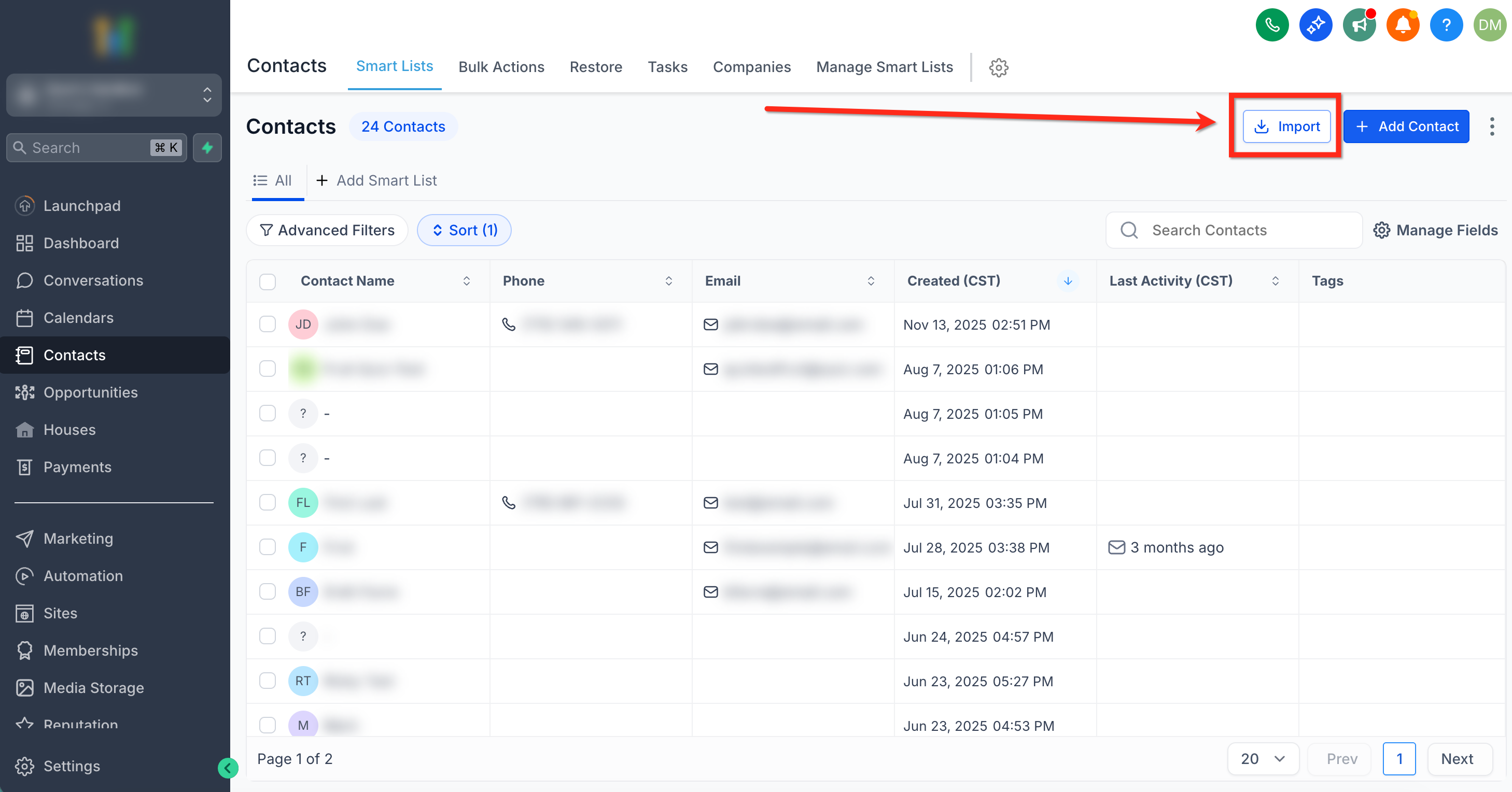
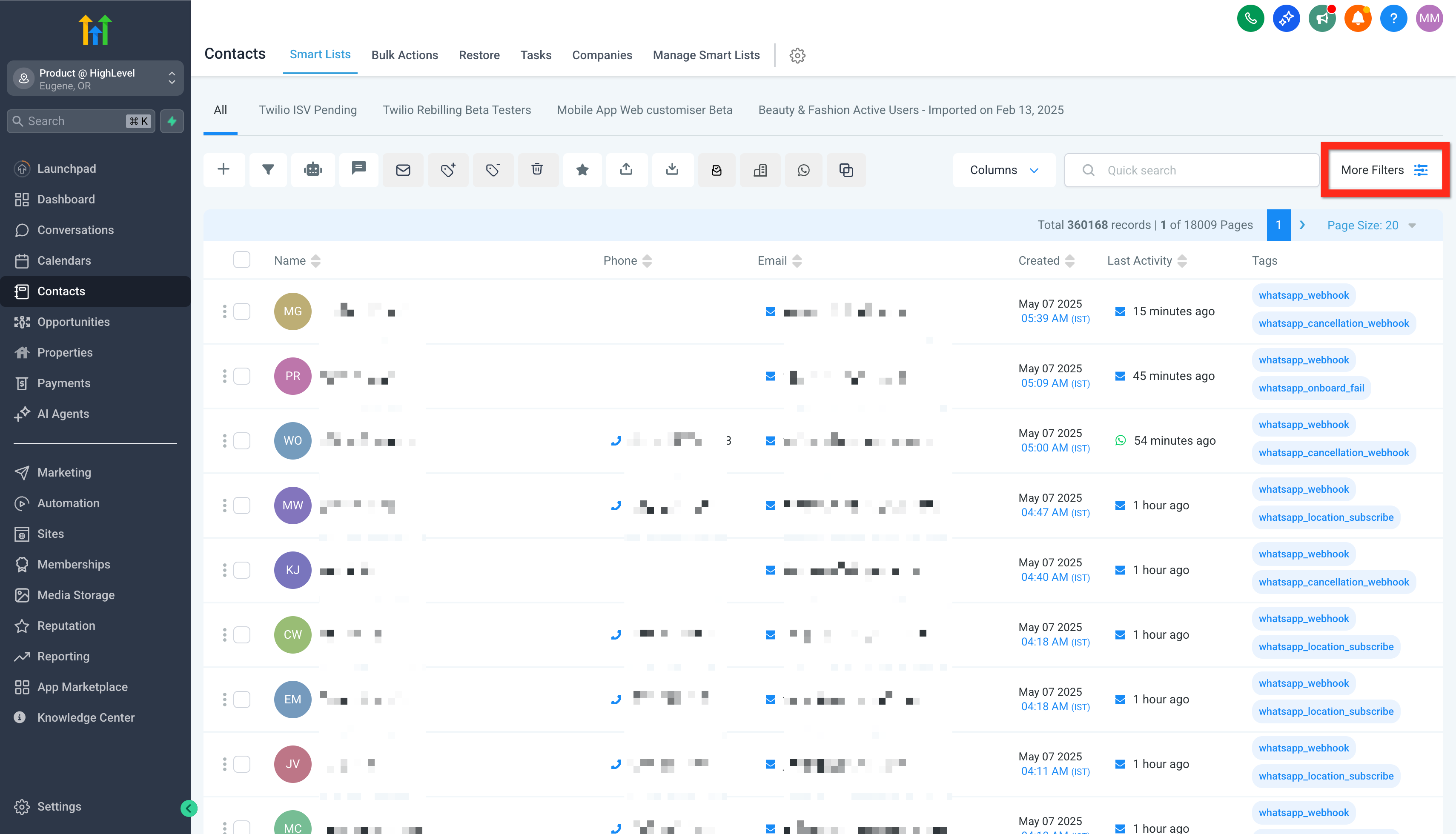
Navigate to Contacts .
02
Click Import (the icon looks like a downward arrow pointing into a box).
03
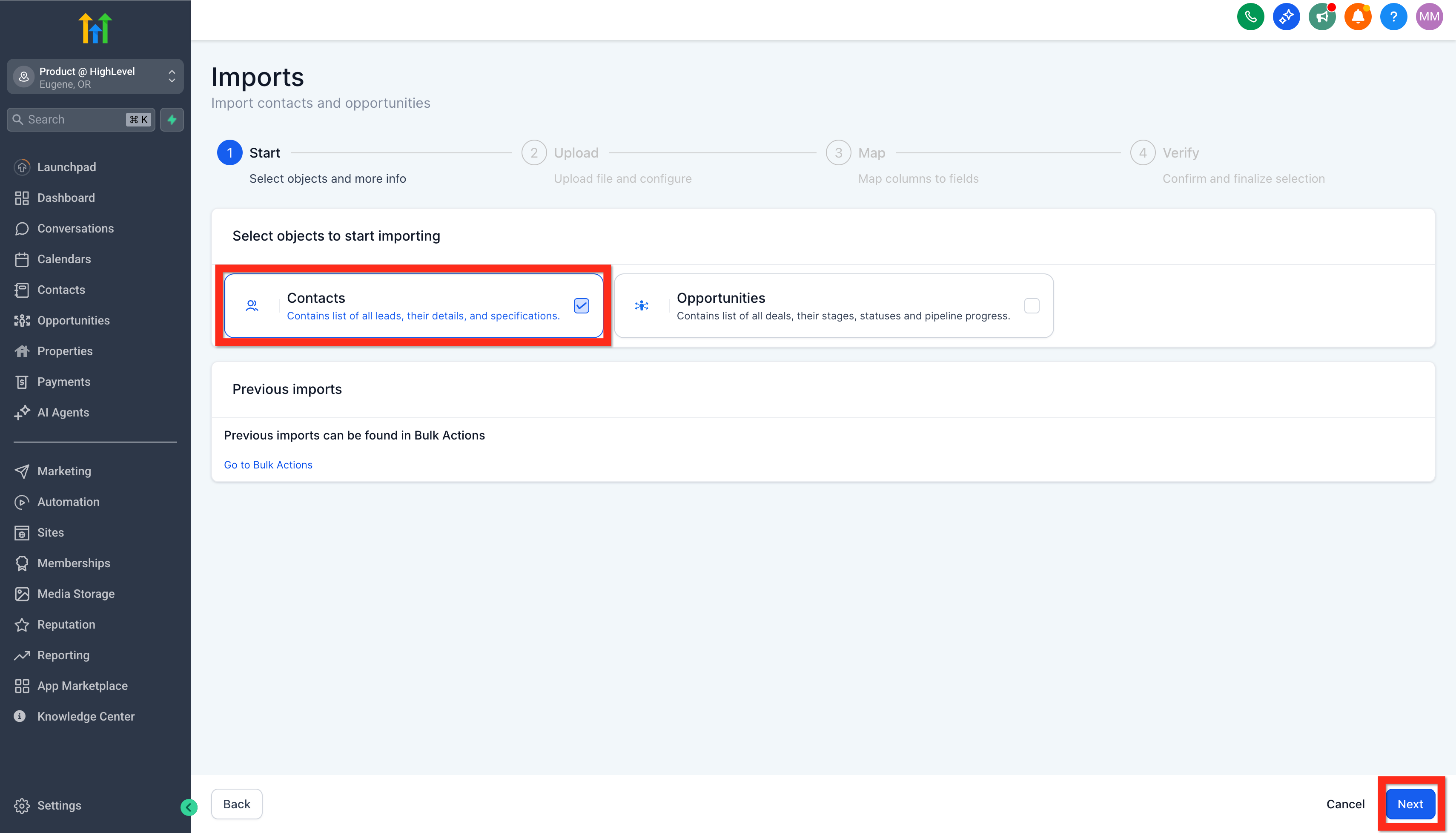
In Imports-1, Select Contacts and click Next
04
Confirm your file format.
05
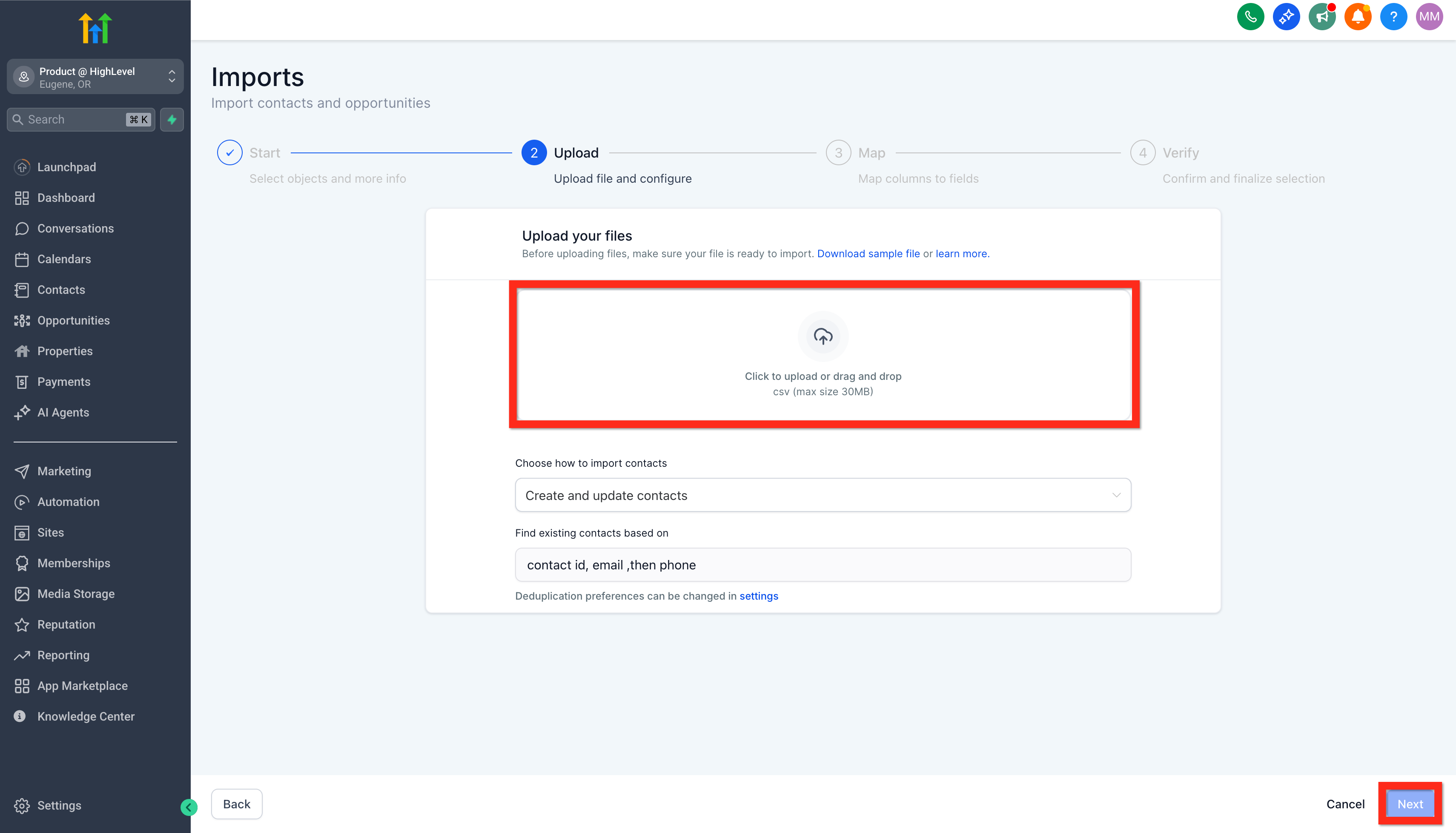
Upload your file (CSV files up to 50MB). To download a sample file showing st...
Upload your file (CSV files up to 50MB). To download a sample file showing standard Contact Fields, click Download Sample File. Click here to view a list of standard contact fields.
06
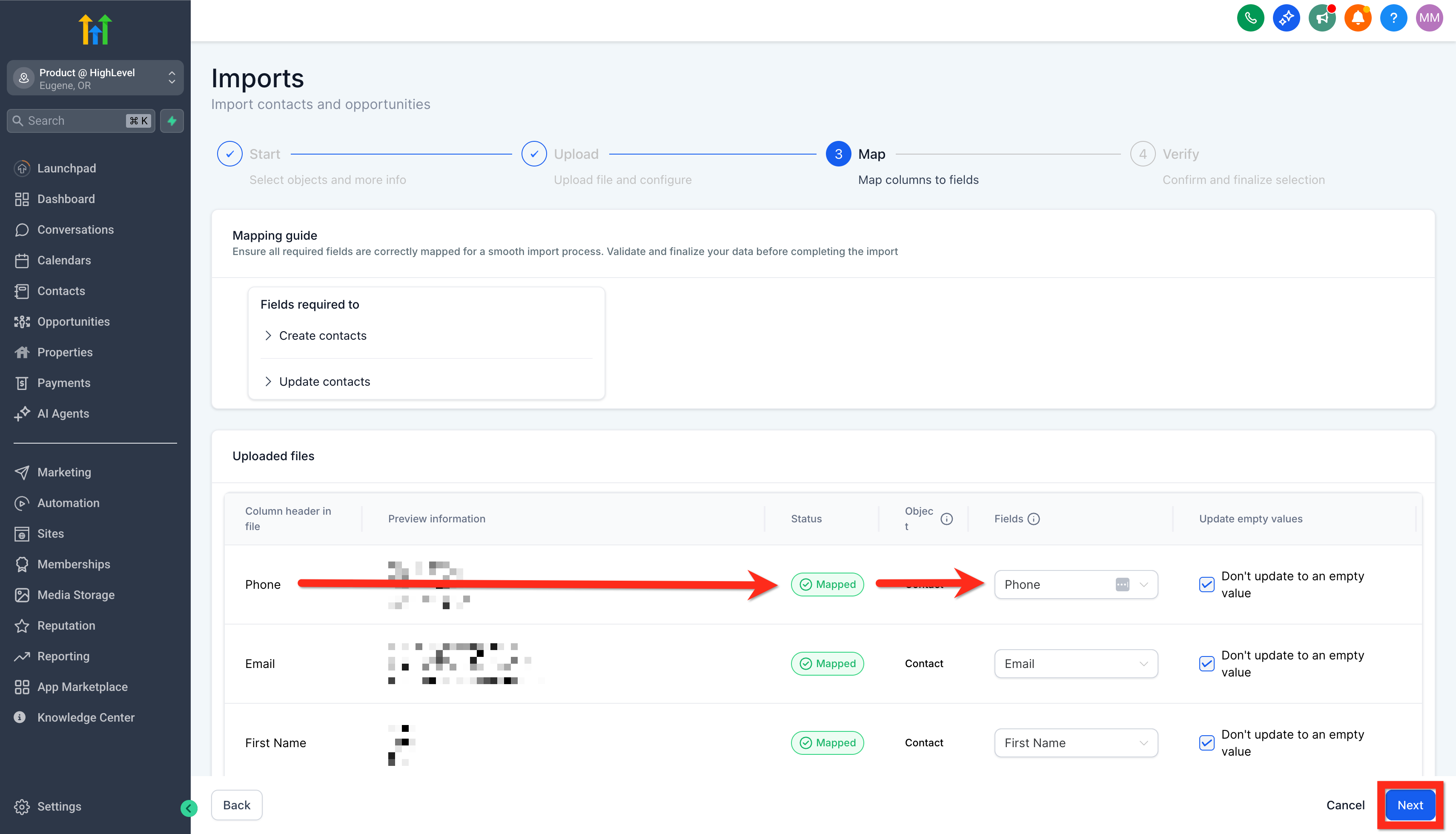
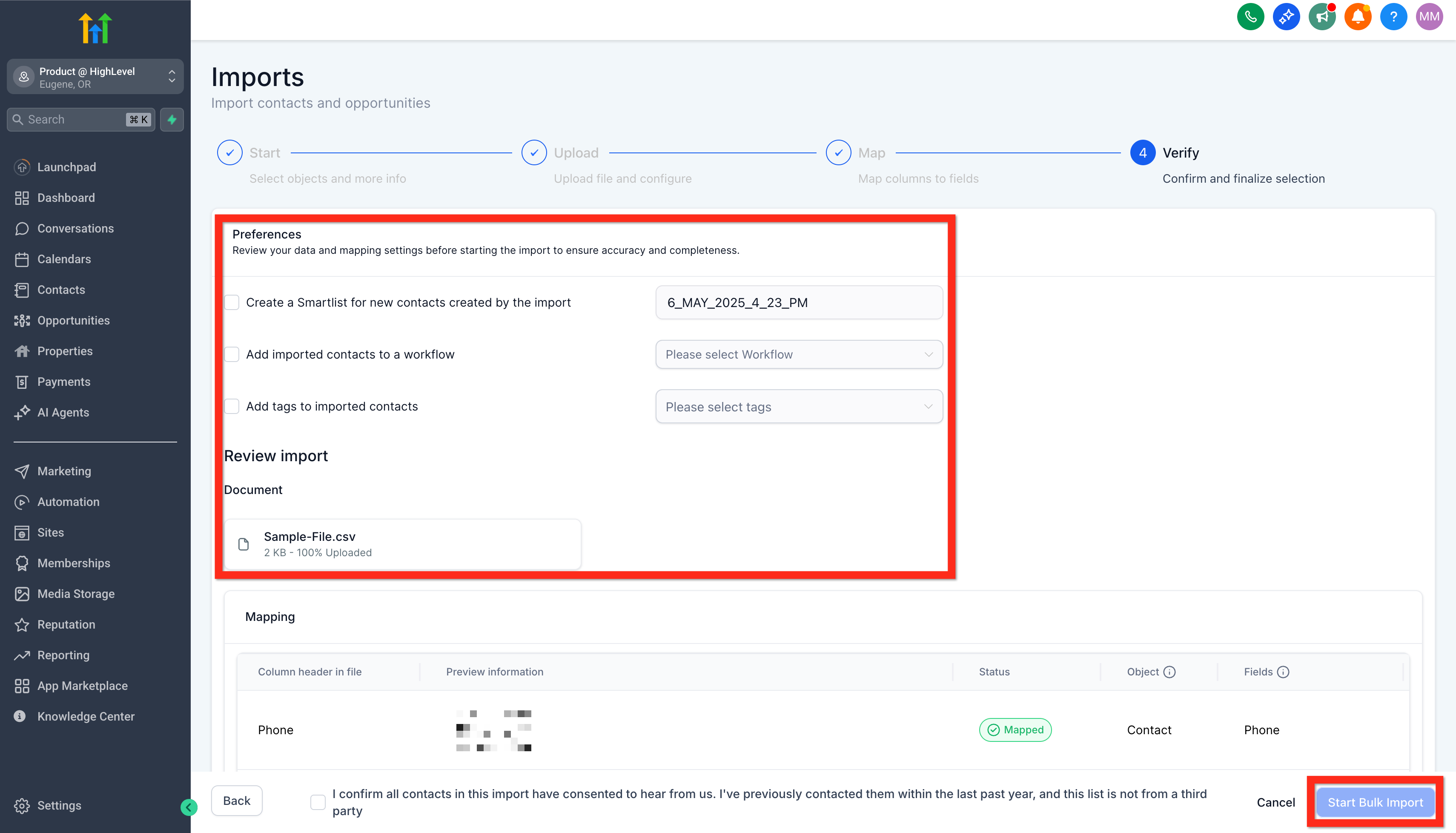
Map your file columns to corresponding Contact fields. If you have non-standa...
Map your file columns to corresponding Contact fields. If you have non-standard data, create a new custom field.
GoHighLevel screenshotGoHighLevel screenshot
How to Create New Custom Fields
Personalize your contact data to match your unique business needs. Creating custom fields lets you capture exactly the information you find valuable, allowing for precise targeting and richer insights.
Here\'s how to set up your custom fields:
01
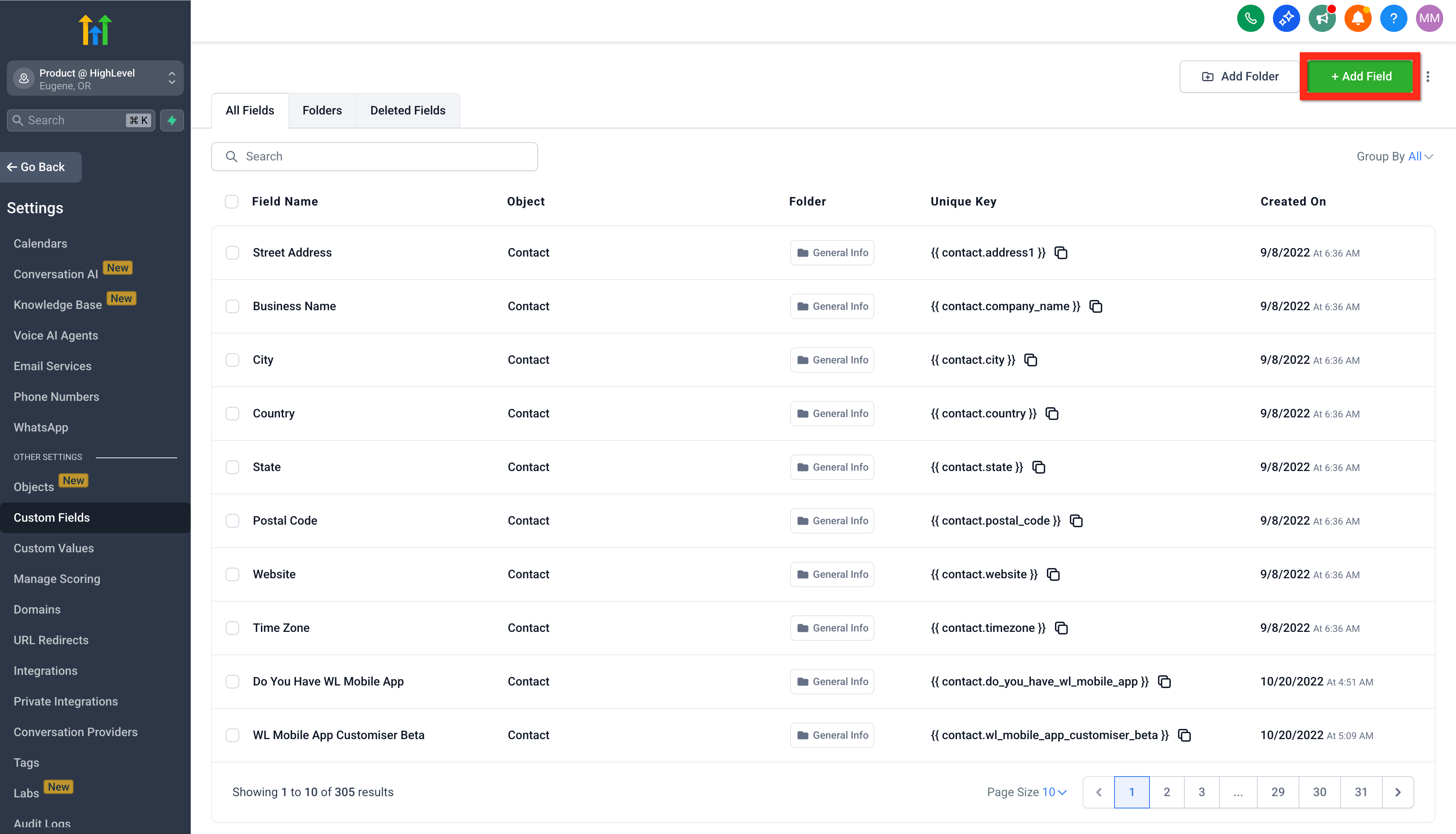
Navigate to Settings > Custom Fields .
02
Click Add Field .
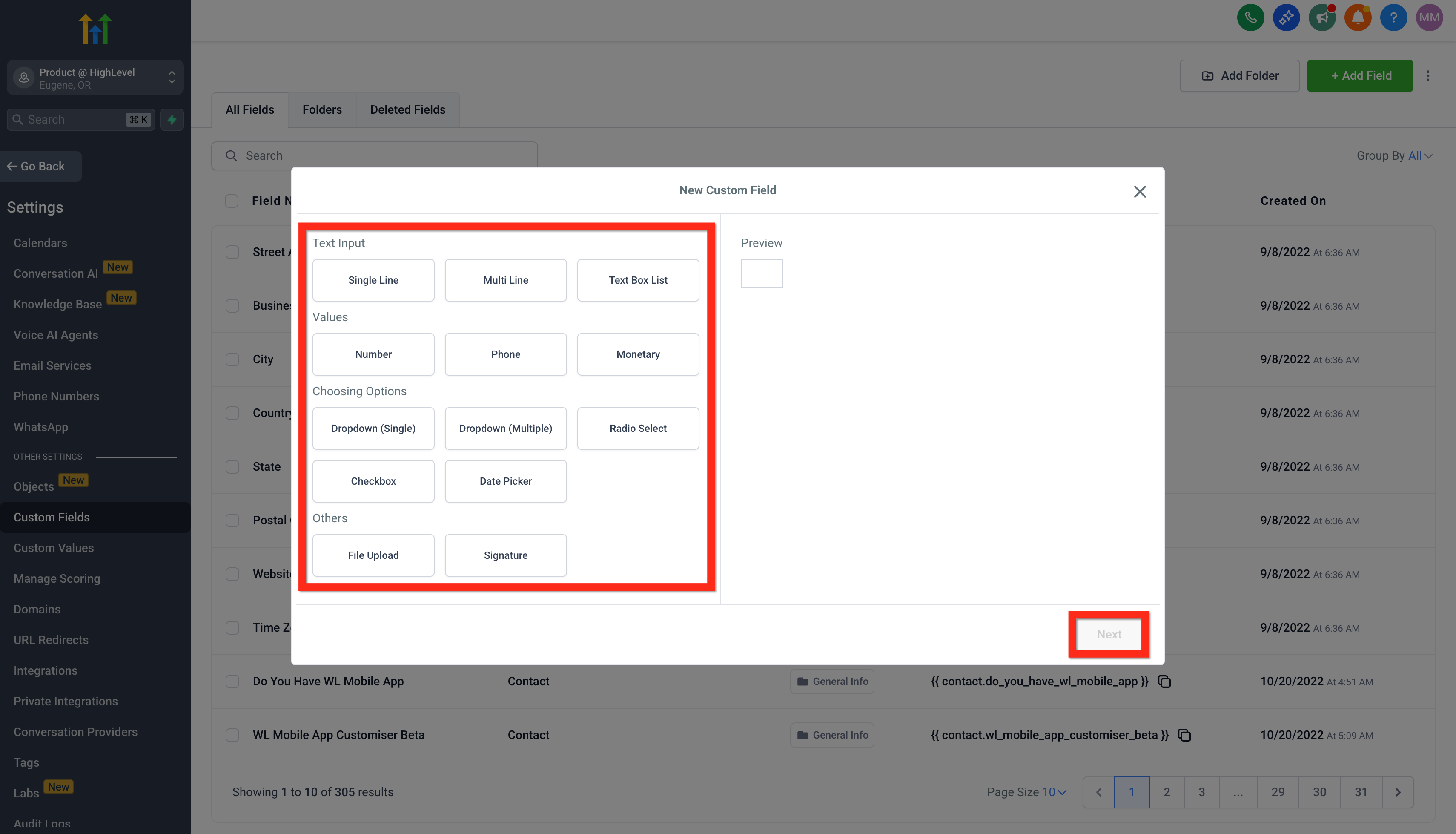
03
Select the type of field you need.
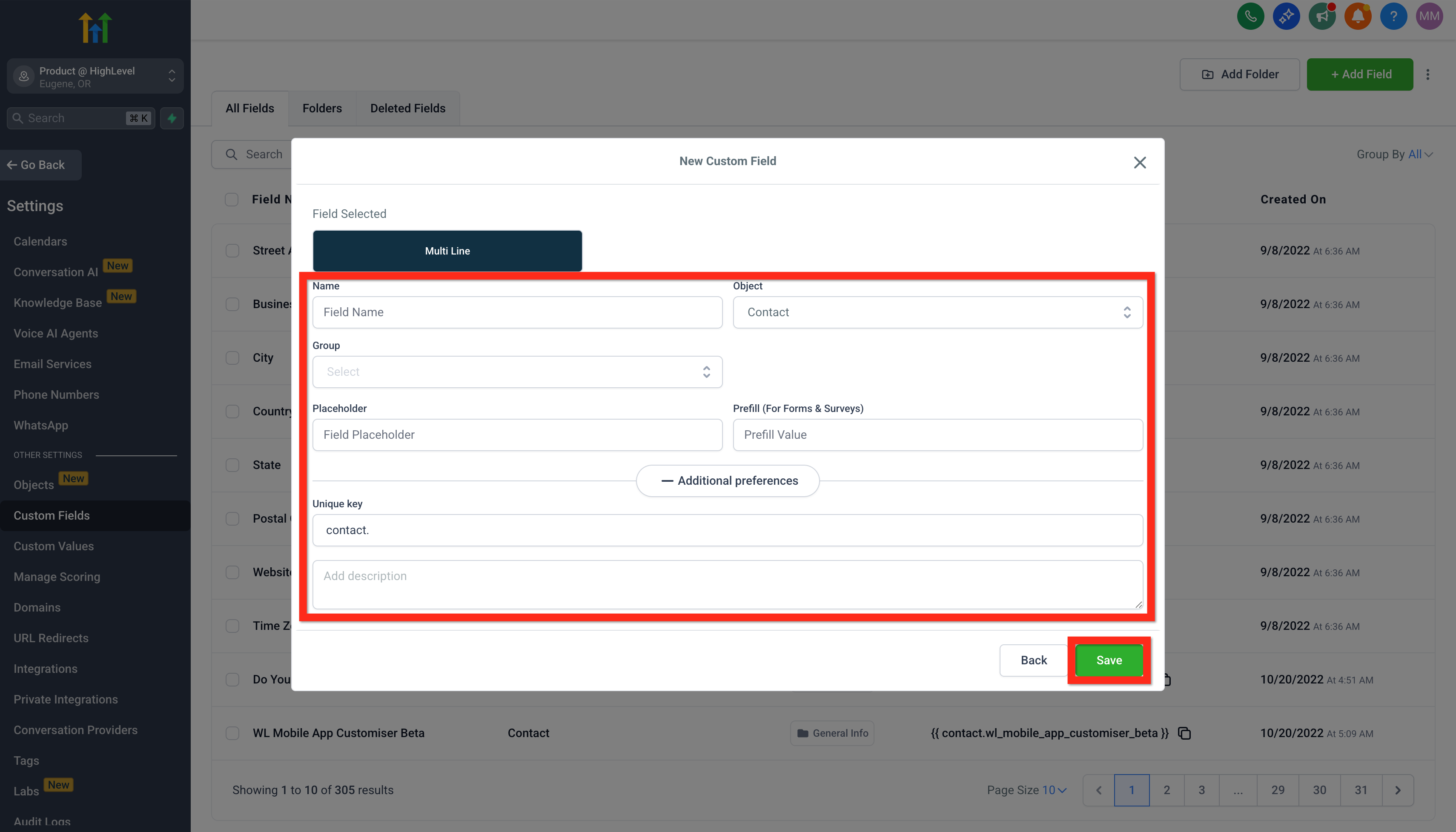
04
Fill in the field details (name, group, placeholder, etc.).
05
Click Save .
06
How to Use Custom Fields
GoHighLevel screenshotGoHighLevel screenshot
Bulk Contact Actions
Effortlessly manage large groups of contacts with powerful bulk actions. Whether you\'re adding tags, sending emails, or initiating automations, bulk actions save you time and amplify your efficiency.
Here\'s how you do it:
01
Navigate to Contacts .
02
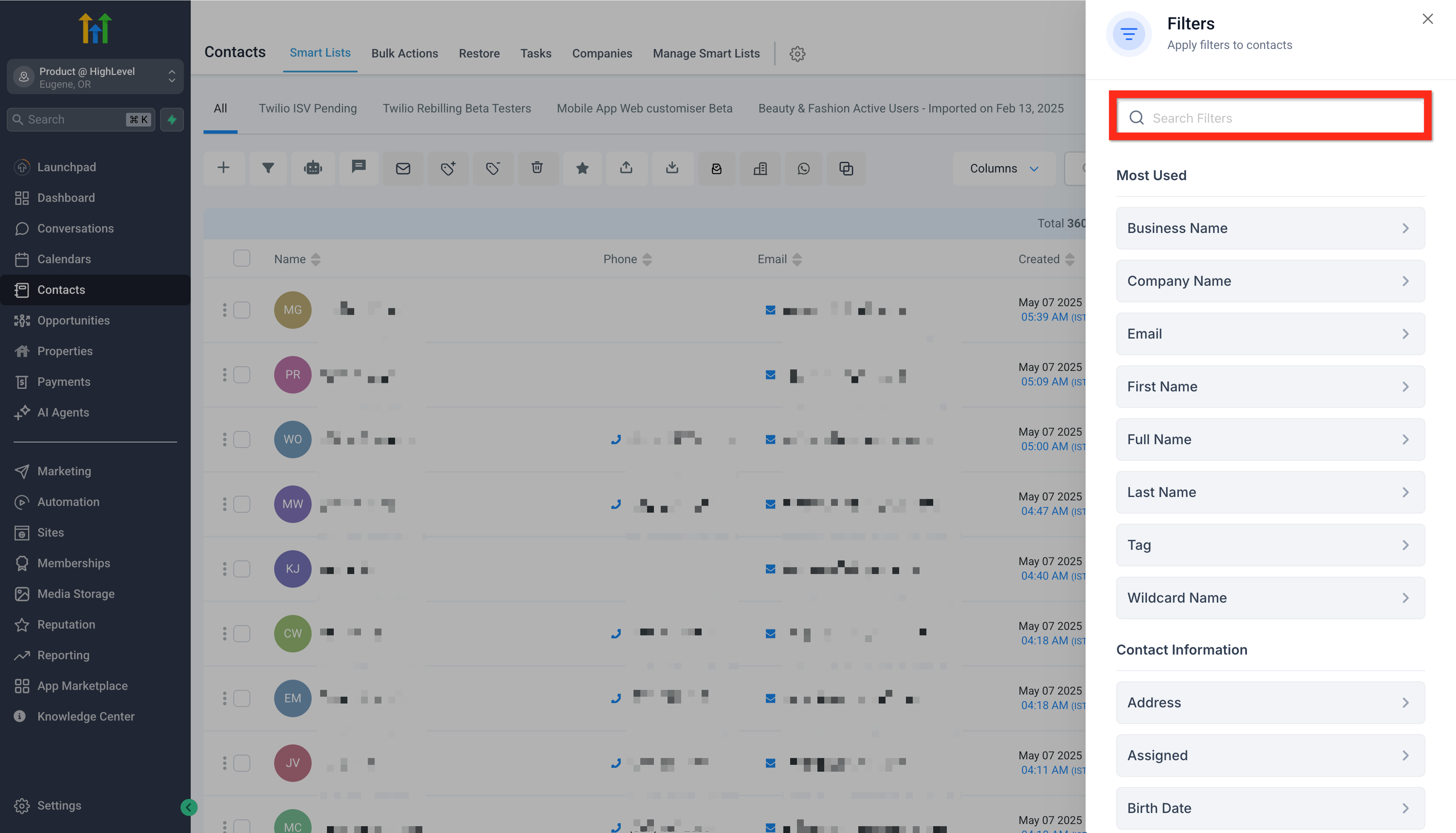
Apply filters to narrow down your audience.
03
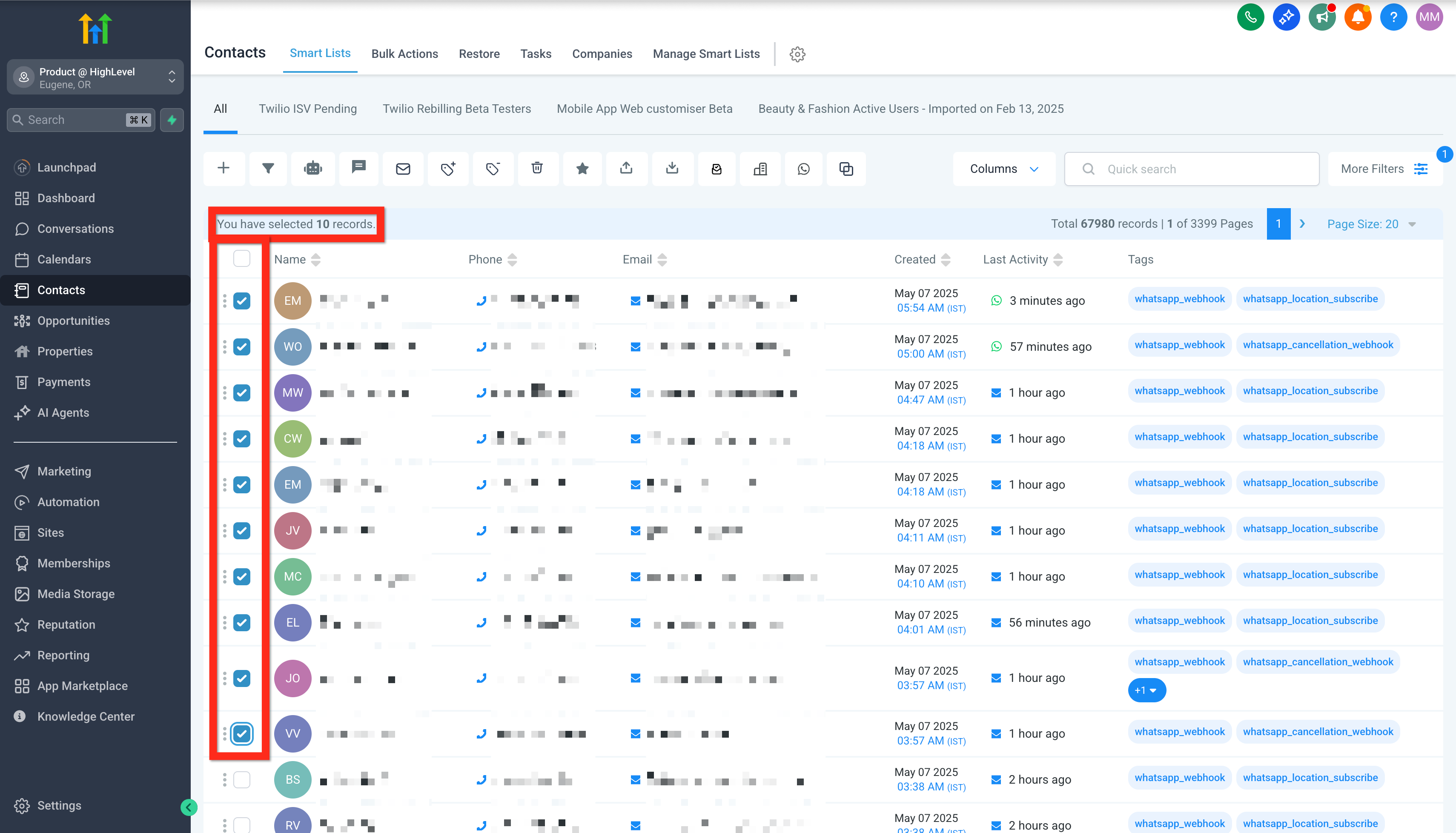
Select checkboxes next to your chosen contacts .
04
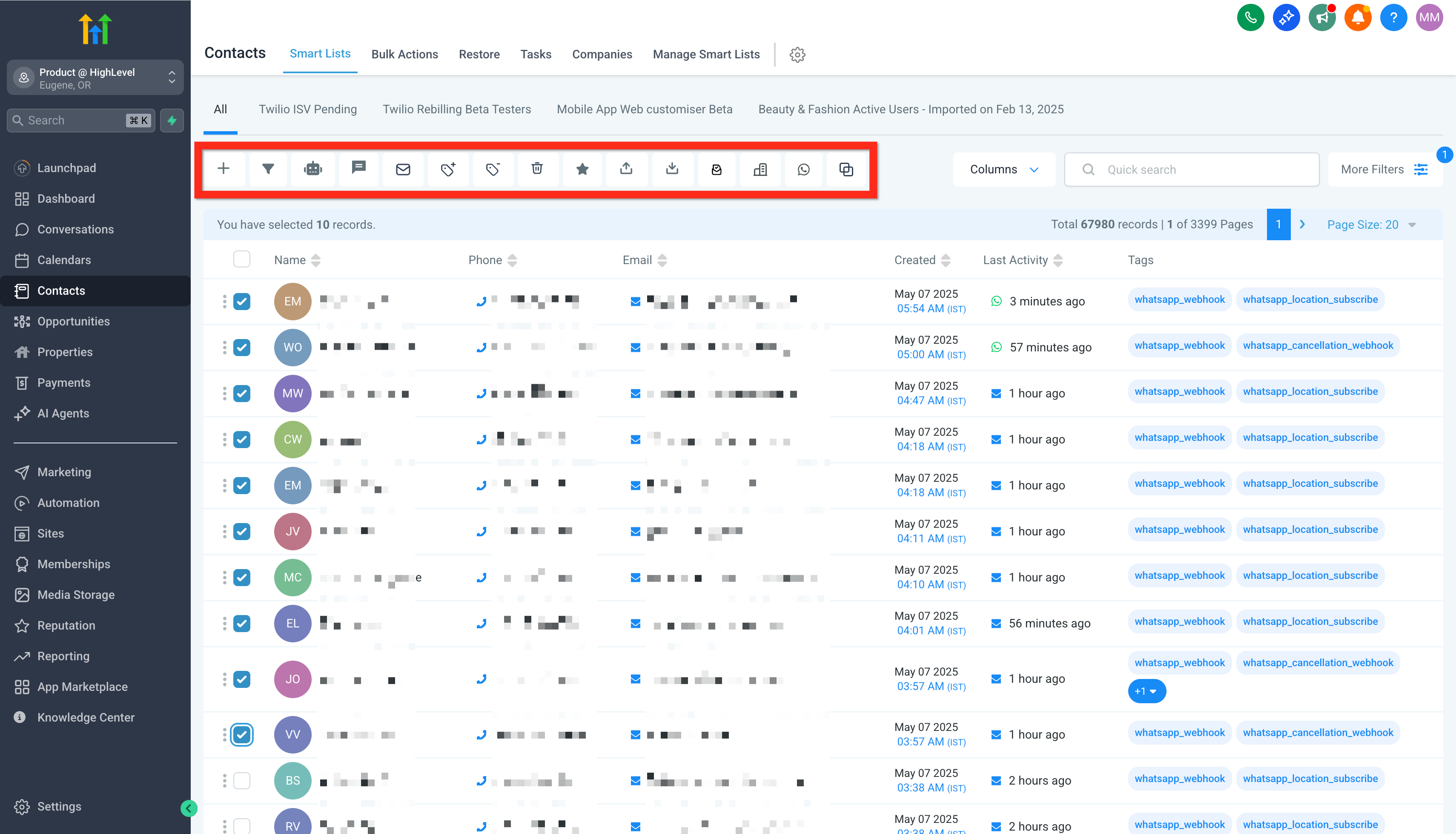
Click a bulk action button (e.g., Add to Automation, Send SMS, Send Email) .
05
Bulk Activities: Adding Contact Tags to Multiple Contacts
GoHighLevel screenshotGoHighLevel screenshot
Standard Contact Fields During Import
Below is a list of the standard contact fields that can be used when importing contacts:
Next, explore automation tools to supercharge your outreach!
01
Contact ID
02
First Name
03
Last Name
04
Date of Birth
05
Contact Owner
06
Contact Source
GoHighLevel screenshotGoHighLevel screenshot
Articles in this Folder
01
Getting Started - Create New Contact
02
Getting Started - Import Existing Contacts
03
Getting Started - Launch A Funnel
04
Getting Started - Setup Email, Phone, and SMS
05
Getting Started - Launch an Email Campaign
06
Getting Started - Automatic Email and SMS Followup
GoHighLevel screenshotGoHighLevel screenshot
Related Articles
01
Getting Started - Setup Pipelines and Opportunities
02
Bulk Import Custom Object Records (CSV) with Bulk Actions
QIs this feature available on all GoHighLevel plans?
Yes. Getting Started - Import Existing Contacts is available across all GoHighLevel plans including the Starter, Pro, and Agency tiers.
QWhere can I find this in GoHighLevel?
You can access this feature from the main left-hand navigation menu in your GoHighLevel sub-account.
QCan I automate this in GoHighLevel workflows?
Yes. GoHighLevel workflows can trigger actions and branch conditions based on this feature. See our Automation & Workflows guide for details.
Arsalan Zaffar
Founder, Revset Labs · Revenue Engineering
Arsalan is the founder of Revset Labs, which builds autonomous revenue systems using GoHighLevel, behavioural science, and AI automation. He has built 78+ GHL systems, generated $9.2M in client pipeline, and holds certifications from Wharton, CXL Institute, and Google.
NeuromarketerGrowth StrategistGHL Expert78+ Systems BuiltWharton Certified