Revset
Book a Free Audit

30-minute call · No obligation

HomeGHL HubCRM & ContactsMastering the Contact Date Of Birth Field in GoHighLevel
REVSET LABS · EXPERT GUIDE·CRM & Contacts

Mastering the Contact Date Of Birth Field in GoHighLevel

1,133 words·5 min read·Updated 27 April 2026·beginner·
Arsalan ZaffarArsalan ZaffarLinkedIn

👉 Start your 30-day GoHighLevel free trial.

Start 30-Day Free Trial
Quick Answer

To leverage the Contact Date Of Birth field in GoHighLevel, add it to your contact records or forms to enable powerful automation and segmentation. This feature allows you to create automated birthday campaigns and filter contacts by age in Smart Lists. Setting up a basic birthday automation takes approximately 5-10 minutes.

Key Takeaways
  • Always capture birthday data directly on lead capture forms for immediate use.
  • Ensure all birthday entries use the MM/DD/YYYY format for accurate system processing.
  • Thoroughly test all birthday workflows with test contacts before publishing them live.
  • Utilize Smart Lists to segment contacts by age, enabling highly targeted marketing campaigns.
  • Personalize birthday messages using custom values to significantly boost engagement rates.

What is the GoHighLevel Contact Date Of Birth Field?

The Contact Date Of Birth field is a crucial standard system field in GoHighLevel, designed to store a contact's exact birth date (Month/Day/Year). This field is essential for personalizing your marketing efforts and automating key interactions. It serves as the foundation for creating targeted birthday campaigns and segmenting your audience based on age.

1
Manually Add or Edit a Contact's BirthdayYou can directly input or update a contact's date of birth from their individual profile. This ensures accurate data for automation and segmentation even if it wasn't captured initially.
2
Step 1: Access Contact RecordsFrom your GoHighLevel dashboard, click on Contacts in the left-hand menu. This opens your main contact list.
3
Step 2: Select or Create a ContactClick on an existing contact's name to open their profile, or click + Add Contact in the top right to create a new one. You need to be in the contact's detail view.
4
Step 3: Locate and Edit Birthday FieldScroll down to the Contact Details section. Find the Date Of Birth field and click to enter or modify the date using the calendar picker. Ensure the format is MM/DD/YYYY.
5
Step 4: Save Contact ChangesAfter entering or updating the date, click the Save button at the bottom of the contact's profile. Your changes are now applied to the contact record.
6
Add the Birthday Field to a FormCollecting birthdays directly through your forms is the most efficient way to gather this valuable data from new leads. Integrate the standard birthday field into any form you use.
7
Step 1: Navigate to Form BuilderGo to Sites in the left menu, then click Forms, and select Form Builder. Choose an existing form to edit or click + Create New Form.
8
Step 2: Add Birthday Field to FormIn the form builder, find the Date Of Birth field under the Standard Fields section on the left. Drag and drop this field onto your form canvas where you want it to appear.
9
Step 3: Configure and Save FormAdjust any field settings like making it required if desired. Click Save Form in the top right corner to apply your changes. Now, any submissions will capture the birthday.
🔥 Pro Tip

Always include the Date Of Birth field in your lead capture forms. Gathering this data upfront ensures you can immediately leverage it for personalized automation and segmentation without manual entry later.

How to Create Automated Birthday Campaigns in GoHighLevel?

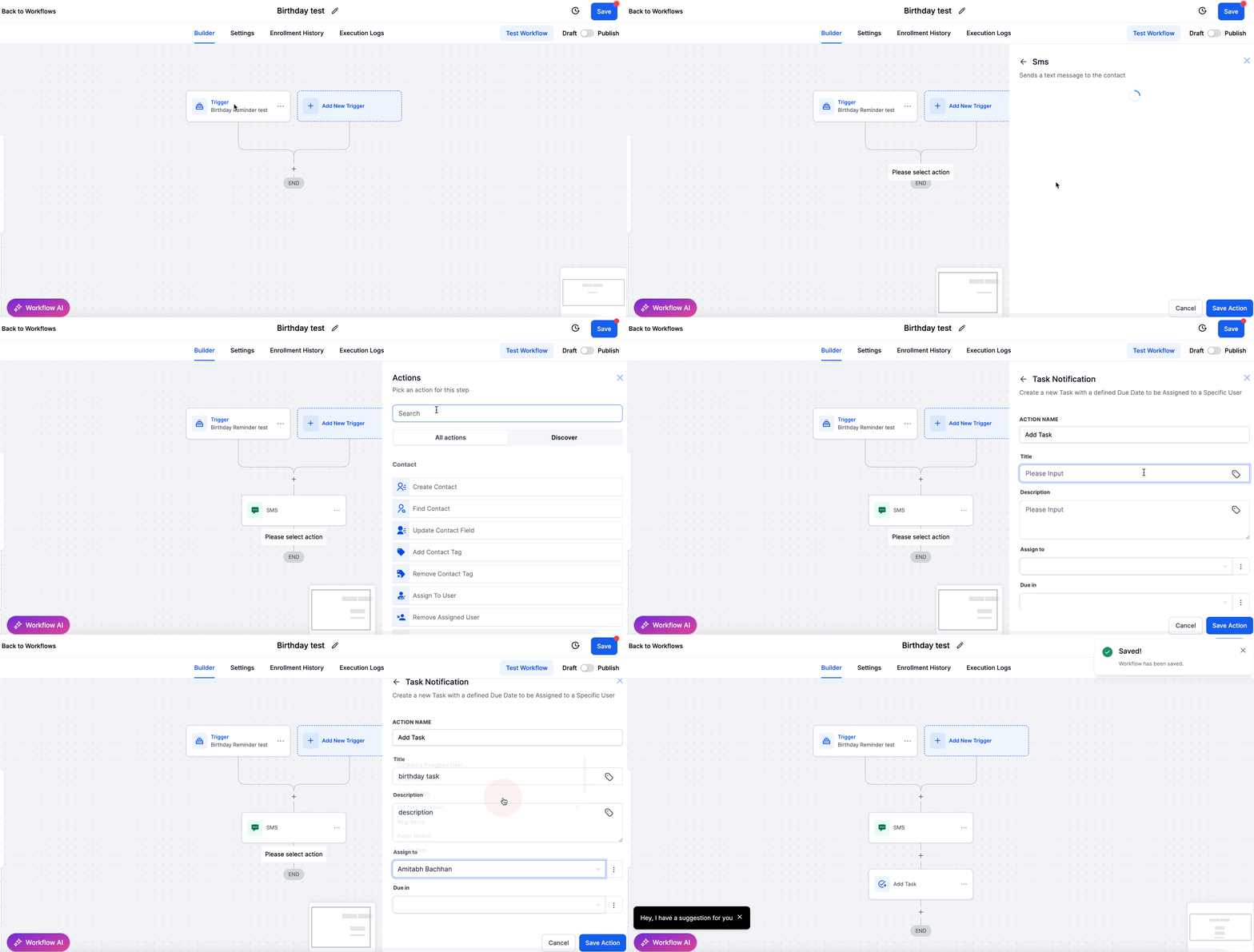
Automated birthday campaigns are a powerful way to engage your audience, build loyalty, even drive sales with personalized offers. GoHighLevel workflows make it simple to send timely messages directly to your contacts on or around their special day. You can set up emails, SMS, or even internal tasks to celebrate with your customers.

1
Step 1: Start a New WorkflowFrom your GoHighLevel dashboard, click on Automation in the left menu. Then, navigate to Workflows and click + Create Workflow to begin building your campaign.
2
Step 2: Choose a Starting RecipeSelect Start from Scratch to build a custom workflow, or choose a pre-built recipe if one suits your needs. For a birthday campaign, starting from scratch gives you full control.
3
Step 3: Set the Birthday Workflow TriggerClick + Add New Workflow Trigger. Search for and select the Birthday trigger. This tells the workflow to activate based on a contact's date of birth.
4
Step 4: Configure the Birthday Trigger TimingClick on the Birthday trigger to open its settings. You can choose to trigger the workflow On the birthday, Before the birthday (e.g., 7 days prior), or After the birthday (e.g., 1 day later). Select your desired timing and save.
GoHighLevel screenshot
0
5
Step 5: Add Communication ActionsClick the + icon below your trigger to add actions. Common actions include Send Email for a personalized greeting or offer, or Send SMS for a quick message or coupon code.
6
Step 6: Personalize Your MessagesInside your Send Email or Send SMS action, use custom values (e.g., {{contact.first_name}}) to personalize your message. Craft a warm, celebratory message or include a special birthday offer.
7
Step 7: Review, Save, and PublishCarefully review your workflow path and message content. Click Save in the top right, then toggle the workflow to Publish to make it active. Your automated birthday campaign is now live!
GoHighLevel screenshot

⚠️ Ensure your contacts' Date Of Birth fields are populated and in the correct MM/DD/YYYY format. Workflows will not trigger for contacts with missing or improperly formatted birthday data.

🔥 Pro Tip

Always test your birthday workflows with a sample contact before publishing. Set a test contact's birthday to a few minutes or hours in the future to confirm all actions (email, SMS) trigger and send correctly.

Try GoHighLevel Free

Start your 30-day GoHighLevel free trial

Everything in this guide is in your free trial. 30 days, no credit card — the platform behind 78+ revenue systems.

Start 30-Day Free Trial

Some links are affiliate links — if you sign up we may earn a commission, at no extra cost to you. We only recommend GoHighLevel because we build on it every day.

How to Filter and Segment Contacts by Age in GoHighLevel?

Segmenting your contacts by age allows you to deliver highly relevant content and offers, increasing engagement and conversion rates. GoHighLevel's Smart Lists use the Date Of Birth field to dynamically calculate age, letting you create targeted groups based on specific age ranges. This is invaluable for age-specific promotions or communications.

1
Step 1: Access Smart ListsIn your GoHighLevel dashboard, click on Contacts in the left menu. Then, navigate to Smart Lists by clicking on the 'All' tab or selecting an existing Smart List.
2
Step 2: Add a New FilterClick the + Add Filter button above your contact list. This will open the filter options, allowing you to narrow down your contact view.
3
Step 3: Select Birthday Field for FilteringIn the filter dropdown, search for and select the Birthday field. This specifies that you want to filter based on date of birth data.
4
Step 4: Choose the Age ConditionAfter selecting 'Birthday', another dropdown will appear. Choose 'Age' as the condition. You will then see options like 'is greater than', 'is less than', 'is equal to', or 'is between'.
5
Step 5: Define Your Age RangeEnter the specific age or age range you wish to filter by. For example, 'is greater than 25' or 'is between 18 and 35'. The system calculates age dynamically based on the current date.
6
Step 6: Apply and Save Your Smart ListClick Apply to see your filtered contacts. To save this segment for future use, click Save Smart List at the top. Give your Smart List a clear, descriptive name.
GoHighLevel screenshot
0
🔥 Pro Tip

Combine age filters with other contact properties like location or tags to create hyper-targeted Smart Lists. This allows for incredibly precise marketing campaigns tailored to very specific audience segments.

Troubleshooting Common Issues

⚠️ Birthday workflow is not triggering for contacts.
Check the contact's Date Of Birth field to ensure it is populated and in the correct MM/DD/YYYY format. Also, verify that the workflow is Published and the trigger settings (On, Before, After birthday) are configured as intended.
⚠️ Age in Smart List filters appears incorrect or contacts are missing.
GoHighLevel calculates age dynamically. Ensure the Date Of Birth field for affected contacts is accurate and in the MM/DD/YYYY format. Incorrect formats can lead to miscalculations or contacts not matching the filter.
⚠️ The Date Of Birth field is not appearing on my GoHighLevel form.
Navigate to Sites → Forms → Form Builder. Edit your form and drag the Date Of Birth field from the Standard Fields section onto your form canvas. Save the form after adding it.
⚠️ Birthday emails or SMS messages are not sending from the workflow.
Verify that your Send Email or Send SMS actions within the workflow are correctly configured, including sender details and message content. Check the contact's communication preferences to ensure they haven't unsubscribed.
⚠️ Birthday messages are sent at an unexpected time.
Review the workflow's Settings tab and check the Time Zone configuration. If set to 'Contact's Time Zone', ensure contacts have a valid time zone assigned. Otherwise, the workflow uses the location's default time zone.

Common Mistakes to Avoid

  • Neglecting to capture birthday information early in the lead generation process.
  • Using inconsistent or incorrect date formats (e.g., DD/MM/YYYY instead of MM/DD/YYYY) when manually entering or importing birthdays.
  • Failing to thoroughly test birthday workflows with test contacts, leading to unexpected behavior on live launch.
  • Sending generic birthday messages instead of personalized content, missing an opportunity to build stronger relationships.
  • Overlooking time zone settings in workflows, which can cause birthday messages to be delivered at inconvenient times for contacts.

Frequently Asked Questions

QWhat date format does GoHighLevel use for the Contact Date Of Birth field?
GoHighLevel primarily uses the MM/DD/YYYY format for the Date Of Birth field. While the system might attempt to parse other formats during import, it's crucial to consistently use MM/DD/YYYY for manual entries and CSV imports to ensure accurate data processing and reliable workflow triggers. Adhering to this format prevents potential errors in automation and age calculations within Smart Lists.
QCan I import contact birthdays via CSV?
Yes, you can import contact birthdays using a CSV file. When preparing your CSV, ensure you have a column for 'Date Of Birth' and that all dates are formatted as MM/DD/YYYY. During the import process, map this column to the 'Date Of Birth' field in GoHighLevel. This allows for bulk updates and initial population of birthday data for your existing contacts efficiently.
QHow does GoHighLevel calculate age for Smart Lists?
GoHighLevel calculates a contact's age dynamically in Smart Lists based on their stored Date Of Birth and the current date. This means that if you filter for contacts 'Age is greater than 30', the system will automatically update which contacts fit that criteria as their birthdays pass each year. This dynamic calculation ensures your age-based segments are always up-to-date without manual intervention.
QCan I send a birthday reminder *before* the actual birthday?
Absolutely. When setting up a **Birthday** workflow trigger, you have the option to configure it to fire 'Before the birthday'. You can specify how many days prior to the birthday you want the workflow to activate, such as '7 days before'. This is perfect for sending early offers or reminders, giving contacts time to respond or prepare.
QIs the birthday field a custom field or a standard field in GoHighLevel?
The Date Of Birth field in GoHighLevel is a **standard system field**. This means it's pre-built into the platform and available by default for all contacts and forms. You do not need to create it as a custom field. Its standard nature ensures consistent functionality across the platform, including its use in workflows and Smart List filters.
Try GoHighLevel Free

Start your 30-day GoHighLevel free trial

Everything in this guide is in your free trial. 30 days, no credit card — the platform behind 78+ revenue systems.

Start 30-Day Free Trial

Some links are affiliate links — if you sign up we may earn a commission, at no extra cost to you. We only recommend GoHighLevel because we build on it every day.

Arsalan Zaffar
Arsalan Zaffar
Revset Labs · Revenue Systems · 78+ GHL Builds

Arsalan writes GHL guides from real build experience — 78+ systems, $9.2M in client pipeline. Wharton, CXL & Google certified.

Connect on LinkedIn
Tags:GoHighLevelBirthday AutomationContact ManagementWorkflowsSmart ListsPersonalization