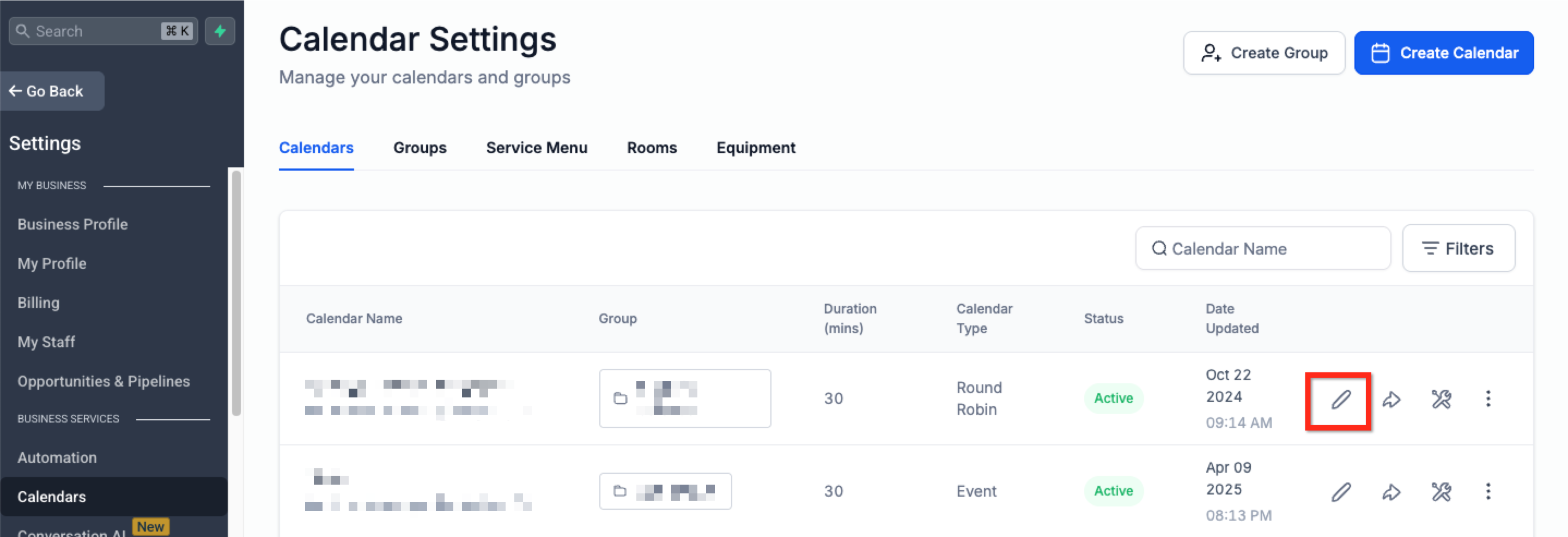
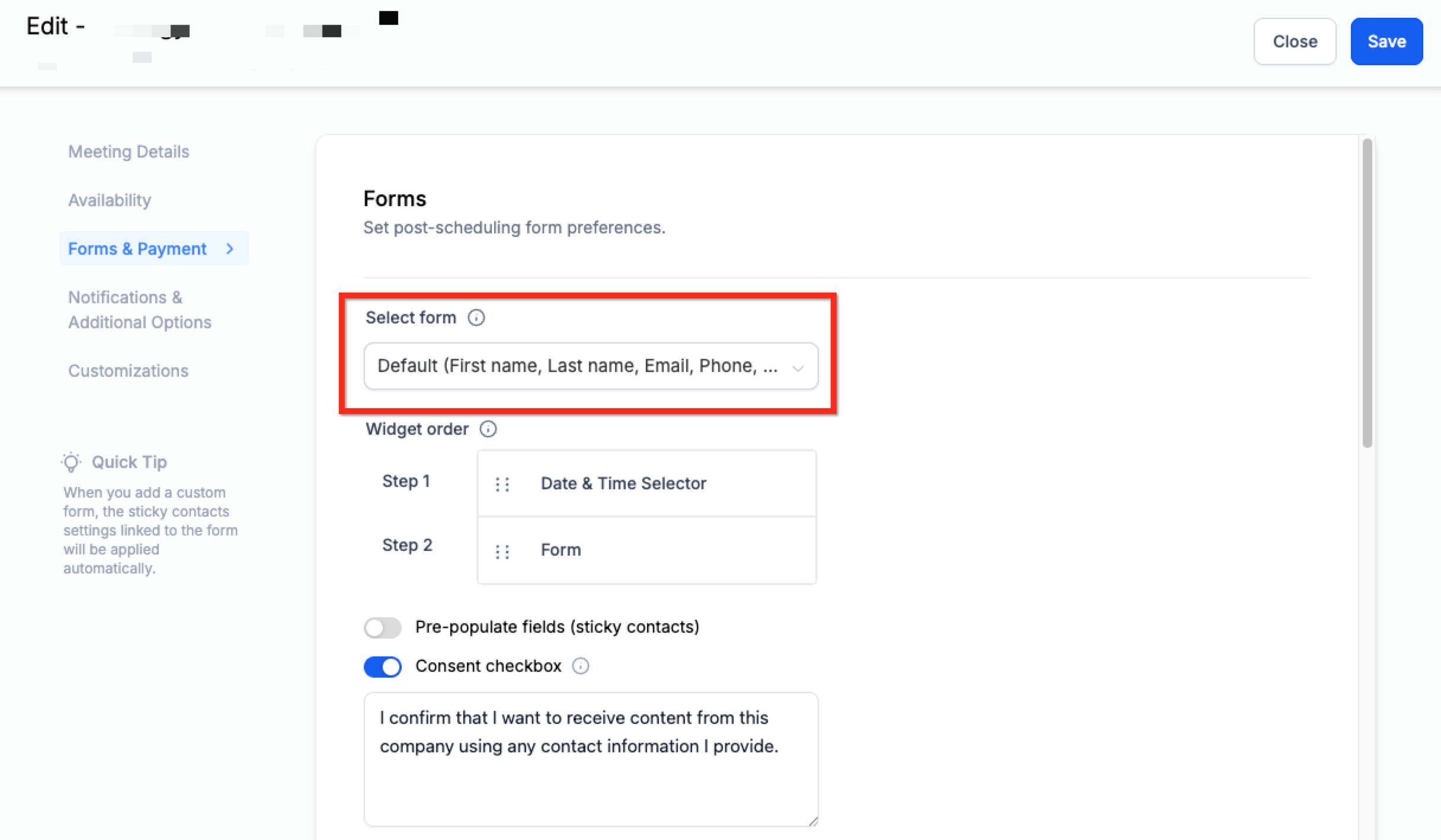
To add a custom form to a GoHighLevel calendar, navigate to Calendars → Calendar Settings, select your desired calendar, then go to the Forms & Payment tab. Choose your form from the dropdown and save your changes. This process typically takes about 2-3 minutes per calendar.
Key Takeaways
✓Always create your custom form in **Sites → Forms** *before* attempting to attach it to a calendar.
✓Map all relevant form fields to custom fields in GoHighLevel to ensure data is saved to contact records.
✓Attach forms individually to each calendar; there is no global setting to apply one form to all.
✓Test your booking flow after setup to confirm the form appears correctly and data is captured.
✓Leverage collected form data to trigger automations and personalize follow-up communications.
Why Add Custom Forms to Your GoHighLevel Calendars?
GoHighLevel's standard calendar booking often captures only basic contact information. Custom forms allow you to collect specific, detailed data from clients *before* an appointment is confirmed. This helps you understand client needs, qualify leads, and personalize their experience right from the start.
By asking the right questions upfront, you reduce back-and-forth communication and gather all necessary details for service delivery or compliance. This streamlines your entire booking process, making it more efficient for both you and your clients.
What You Need Before You Start
Before you can attach a custom form to your calendar, ensure you have these essential elements ready in your GoHighLevel account. Having these in place will make the setup process smooth and quick, preventing common roadblocks.
1
Create Your Custom Form — First, design your form with all necessary fields under Sites → Forms → Forms Builder. Make sure you save it. This form will collect the specific information you need from your clients, such as service preferences or project details.
2
Set Up Custom Fields (If Needed) — If your form includes unique questions not covered by standard contact fields, create corresponding Custom Fields under Settings → Custom Fields. This ensures form data maps correctly to contact records, making the information actionable within your CRM.
0
3
Create Your Calendar — Ensure you have at least one calendar already set up in GoHighLevel under Calendars → Calendars. You will attach your custom form to this existing calendar, so it must be configured and ready for use.
🔥 Pro Tip
Always map your custom form fields to corresponding custom fields in GoHighLevel. This ensures all collected data is saved directly to the contact's profile, making it actionable for automations and personalization efforts.
How to Attach a Custom Form to Your GoHighLevel Calendar
Once your custom form and calendar are ready, follow these precise steps to integrate them. This process connects your form to the booking flow, ensuring clients complete it after selecting a time slot to finalize their appointment.
1
Access Calendar Settings — From the main menu in GoHighLevel, click Calendars. Then, select Calendar Settings from the secondary navigation ribbon at the top. This action opens the list of all your configured calendars.
2
Edit Your Desired Calendar — Locate the specific calendar you wish to add the form to. Click the Edit button situated to the right of that calendar's name. This will open the calendar's detailed configuration panel.
3
Navigate to Forms & Payment Tab — On the left-hand sidebar within the calendar's edit screen, click the Forms & Payment tab. This dedicated section manages all form and payment-related settings for your specific calendar.
4
Select Your Custom Form — Under the 'Select Form' dropdown menu in the main panel, choose the custom form you created earlier. Only forms that are fully built and saved under Sites → Forms will appear in this list.
5
Save Your Changes — After selecting your desired form, click the blue Save button located in the upper right corner of the screen. This action applies the form to your calendar's booking flow, making it live for clients.
✅ The custom form will appear *after* a client selects a time slot but *before* they confirm their appointment. They must complete the form to finalize the booking, ensuring you get all necessary data.
Try GoHighLevel Free
Start your 30-day GoHighLevel free trial
Everything in this guide is in your free trial. 30 days, no credit card — the platform behind 78+ revenue systems.
Some links are affiliate links — if you sign up we may earn a commission, at no extra cost to you. We only recommend GoHighLevel because we build on it every day.
Can I Use the Same Custom Form on Multiple Calendars?
Many businesses benefit from using a consistent intake form across various service types or team member calendars. GoHighLevel allows you to reuse a single custom form on multiple calendars, which saves you time and ensures uniform data collection across different booking options.
1
Ensure Form is Created — Verify that your custom form is fully built and saved under Sites → Forms. You only need to create the form once to use it across multiple calendars within your GoHighLevel account.
2
Repeat Attachment Process for Each Calendar — For every additional calendar where you want to use the same form, you must repeat the steps outlined in the previous section. Go to Calendars → Calendar Settings, edit the specific calendar, navigate to the Forms & Payment tab, and select the form.
3
Save Each Calendar Individually — Remember to click the Save button for each calendar after attaching the form. This confirms the changes specifically for that calendar, ensuring the form is active on its booking page.
⚠️ Custom forms must be added individually to each calendar. There is no bulk application feature. You need to manually select and save the form for every calendar you intend to use it with, even if it's the same form.
Testing Your Custom Form Integration
After successfully attaching your custom form, it is crucial to test the entire booking process from a client's perspective. This ensures the form appears correctly, functions as expected, and accurately captures all submitted data.
1
Access Your Calendar Link — Find the public booking link for the calendar you just updated. You can usually locate this link by editing the calendar and looking under the General Info tab, or by previewing the calendar.
2
Simulate a Booking — Open the calendar link in an incognito browser window or a different browser. Select an available time slot and proceed through the booking steps as if you were a real client. Verify that your custom form appears after time selection.
3
Submit Test Data — Fill out the custom form with test information and complete the booking process. Ensure all fields are present and function correctly, including dropdowns, checkboxes, and required fields.
4
Verify Contact Record Data — Go to Contacts in GoHighLevel and search for the test contact you just created. Open their profile and confirm that all data submitted through the custom form is accurately saved to their record, including any custom fields.
🔥 Pro Tip
After a successful test booking, check your Workflows or Automations if you have any set up to trigger from form submissions. Verify that the correct automations initiated based on the data collected from your test submission.
Troubleshooting Common Issues
⚠️ My form isn't showing up in the 'Select Form' dropdown.
Ensure your custom form is fully created and saved under Sites → Forms. It must contain at least one field to be recognized. Try refreshing the calendar settings page after saving your form to update the list.
⚠️ The form appears, but the data isn't saving to the contact record.
Check that all custom form fields are correctly mapped to corresponding Custom Fields in GoHighLevel (Settings → Custom Fields). Also, confirm the client completed the booking by clicking the final 'Book Appointment' button.
⚠️ The form shows up before the client selects a time.
This is not standard behavior for GoHighLevel calendars. Custom forms attached through calendar settings always appear *after* time slot selection. If using an external embed, your embed code might be configured differently or you might be using a different form type.
⚠️ I updated my form, but the changes aren't reflecting on the calendar.
Changes to a custom form are usually instant. Clear your browser cache and cookies, or try viewing the calendar link in an incognito window to ensure you're not seeing a cached version of the page.
⚠️ I have multiple calendars, and the form only applies to one.
Custom forms must be attached individually to each calendar. Repeat the steps to edit each calendar's settings, go to Forms & Payment, select the desired form, and click Save for every calendar.
Common Mistakes to Avoid
→Forgetting to save the custom form after creation or making edits in the Forms Builder.
→Not mapping custom form fields to GoHighLevel custom fields, leading to lost or unsearchable data.
→Expecting forms to auto-apply to all calendars instead of attaching them individually to each.
→Not thoroughly testing the full booking flow to verify form appearance and accurate data capture.
→Deleting essential form fields that are tied to existing automations or critical data collection processes.
Frequently Asked Questions
QCan I use more than one custom form on a single calendar?
No, GoHighLevel calendars currently support only one custom form attachment at a time. If you need to collect different sets of information for various scenarios within a single calendar, you might consider using conditional logic within that one form to show or hide fields based on previous responses, providing a dynamic experience.
QWhat happens to the data submitted through the custom form?
Data submitted via your custom form is automatically saved to the corresponding contact's record in your GoHighLevel CRM. This happens as long as the form fields are correctly mapped to standard or custom fields within GoHighLevel. This collected data is then available for segmenting, personalizing communications, and triggering workflows, enhancing your CRM's utility.
QDoes the custom form appear before or after selecting a time slot?
The custom form always appears *after* the user selects an available time slot on your calendar. This allows them to first choose their preferred time, and then they complete the form to provide necessary details and confirm their appointment. They must complete and submit the form to finalize the booking and have their data saved.
QCan I edit the custom form after attaching it to a calendar?
Yes, you can edit your custom form at any time under **Sites → Forms**. Any changes you make and save there will automatically reflect on all calendars it's attached to, without needing to re-attach it. However, be cautious not to delete critical fields if they are linked to active automations or essential contact data, as this could disrupt your processes.
QWill custom form data be saved if the appointment isn't fully booked?
No, custom form responses are only saved to the contact record once the visitor successfully completes the entire booking process, including clicking the final 'Book Appointment' button. If a visitor abandons the process before this final step, no data from the partially filled form will be stored in your CRM, ensuring only confirmed bookings generate records.
Try GoHighLevel Free
Start your 30-day GoHighLevel free trial
Everything in this guide is in your free trial. 30 days, no credit card — the platform behind 78+ revenue systems.
Some links are affiliate links — if you sign up we may earn a commission, at no extra cost to you. We only recommend GoHighLevel because we build on it every day.
Arsalan Zaffar
Revset Labs · Revenue Systems · 78+ GHL Builds
Arsalan writes GHL guides from real build experience — 78+ systems, $9.2M in client pipeline. Wharton, CXL & Google certified.