
How to Create a User or Admin for Multiple GoHighLevel Locations
👉 Resell GoHighLevel as your own SaaS.
Start SaaS Pro Trial →To create a user or admin to manage multiple GoHighLevel sub-accounts without agency access, go to Agency View → Settings → Team. This process typically takes 3-5 minutes to complete, allowing you to assign specific locations and permissions.
- ✓Always set the 'User Type' to **Account** to prevent agency-level dashboard access.
- ✓Carefully define user permissions using the 'User Role' (Admin/User) and individual feature toggles.
- ✓Assign multiple sub-accounts to a single user for efficient management across various client locations.
- ✓Regularly review and update user permissions as roles change or new sub-accounts are added.
- ✓Test new user accounts with a separate browser or incognito window to confirm correct access levels.
Why Create Account-Level Users in GoHighLevel?
Creating account-level users in GoHighLevel allows you to delegate management tasks for specific sub-accounts without granting full access to your agency dashboard. This approach is essential for maintaining security and control over your entire agency operations. By setting up users with restricted access, you ensure that team members or clients can only see and manage the locations relevant to their responsibilities. This provides granular control, secure delegation, and flexible management capabilities for your growing team.
How to Add a New Account-Level User in GoHighLevel?
Follow these steps to create a new user or admin who can manage specific GoHighLevel sub-accounts without seeing your agency dashboard. This process ensures secure and controlled access for your team.
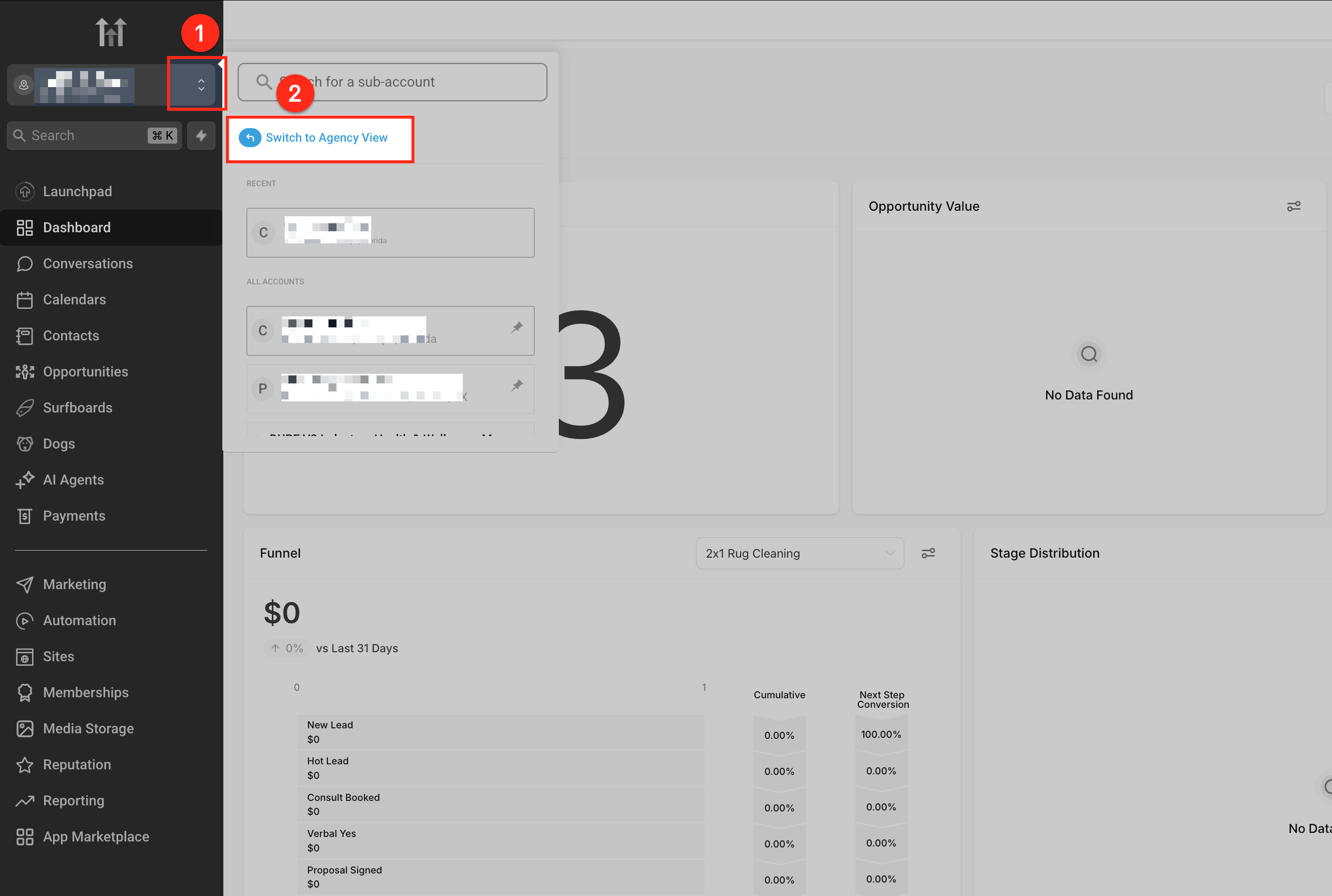
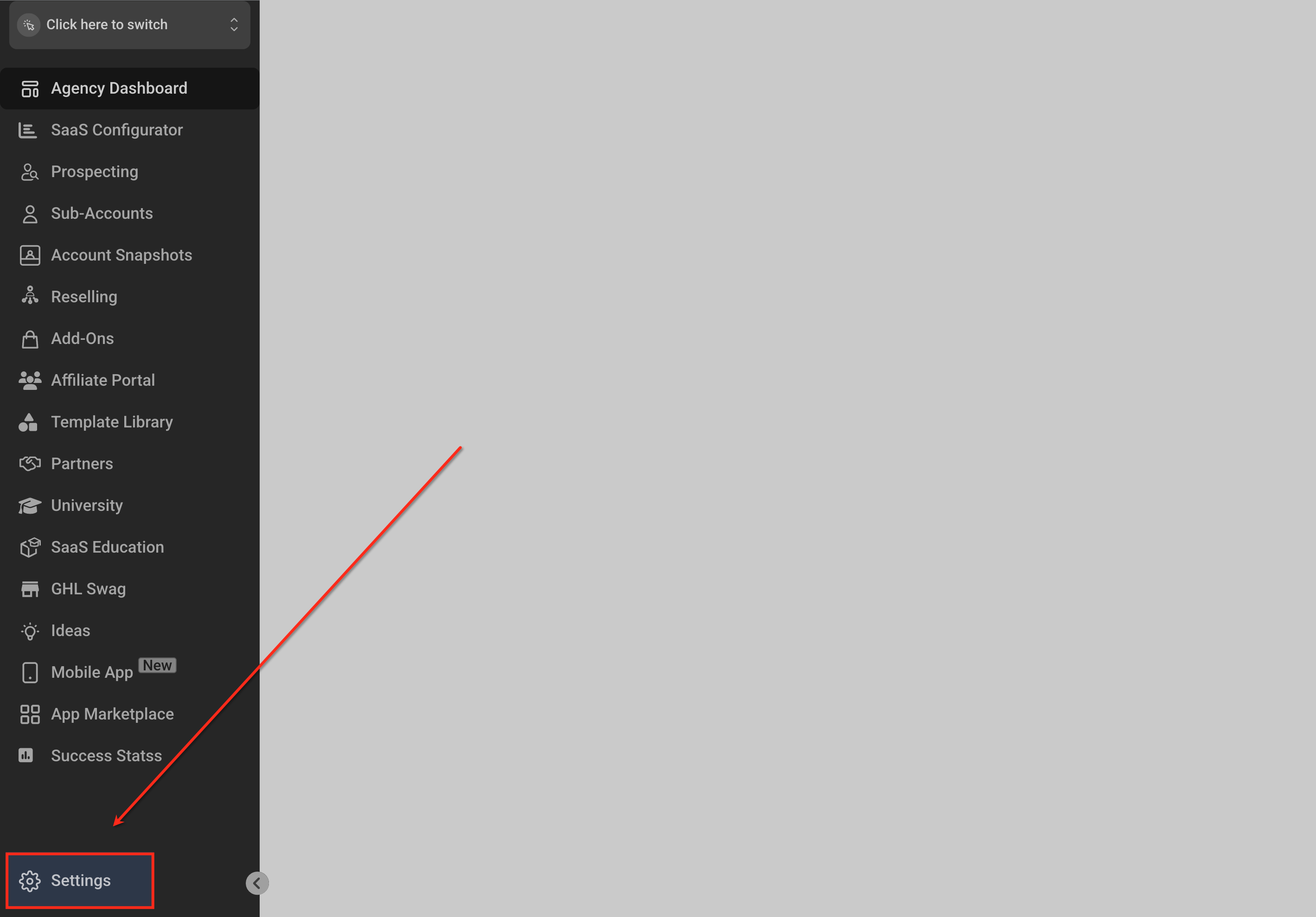
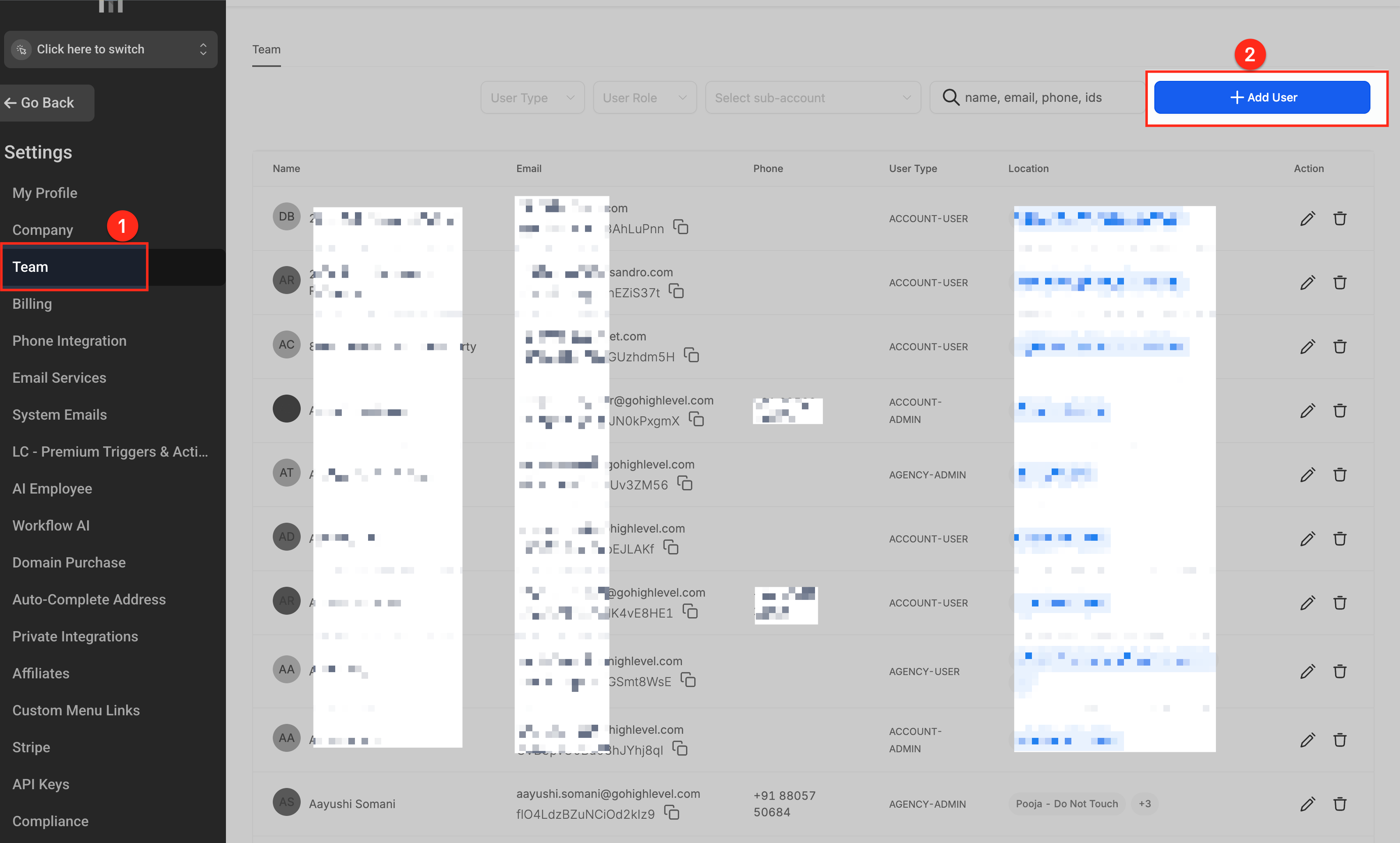
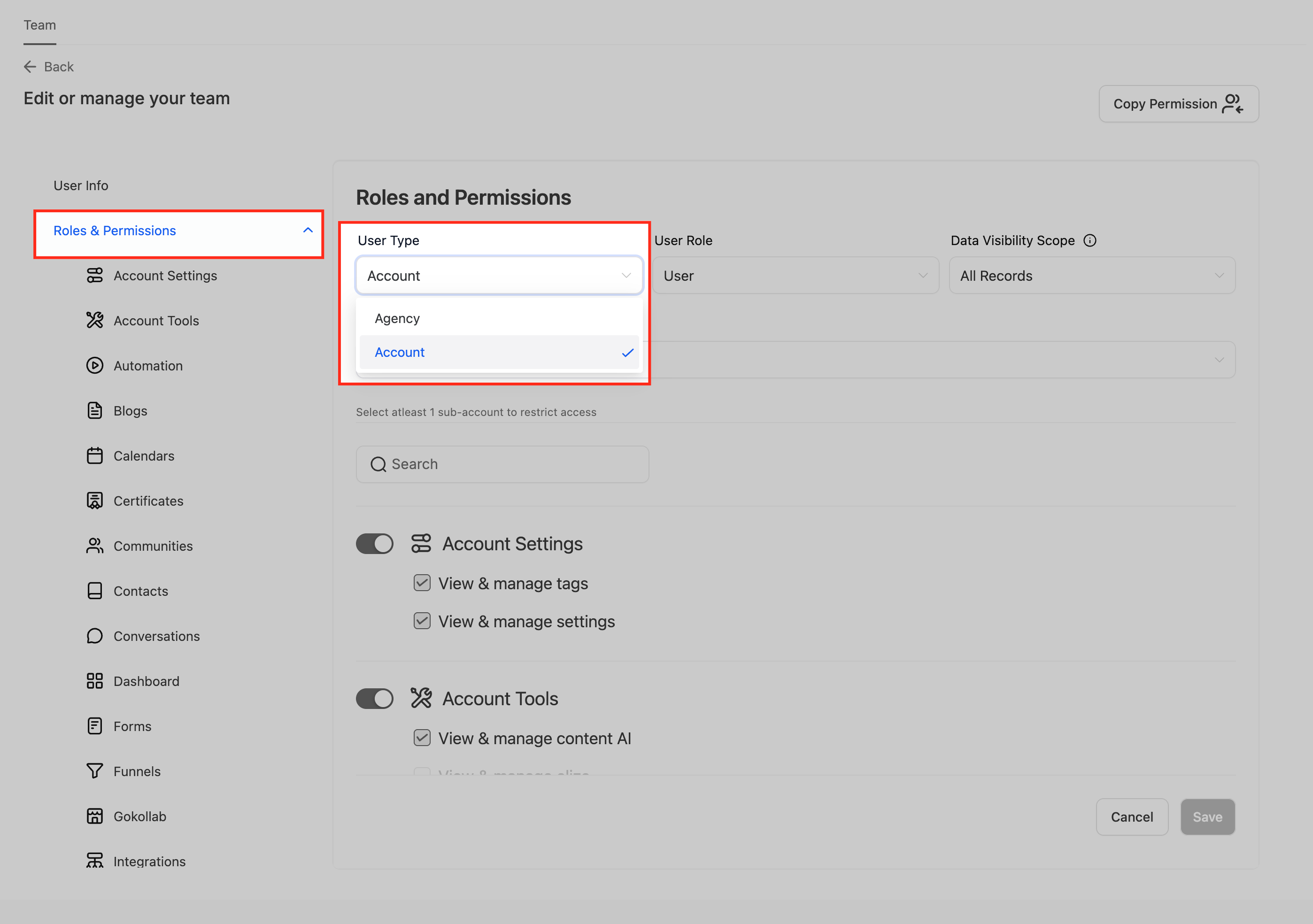
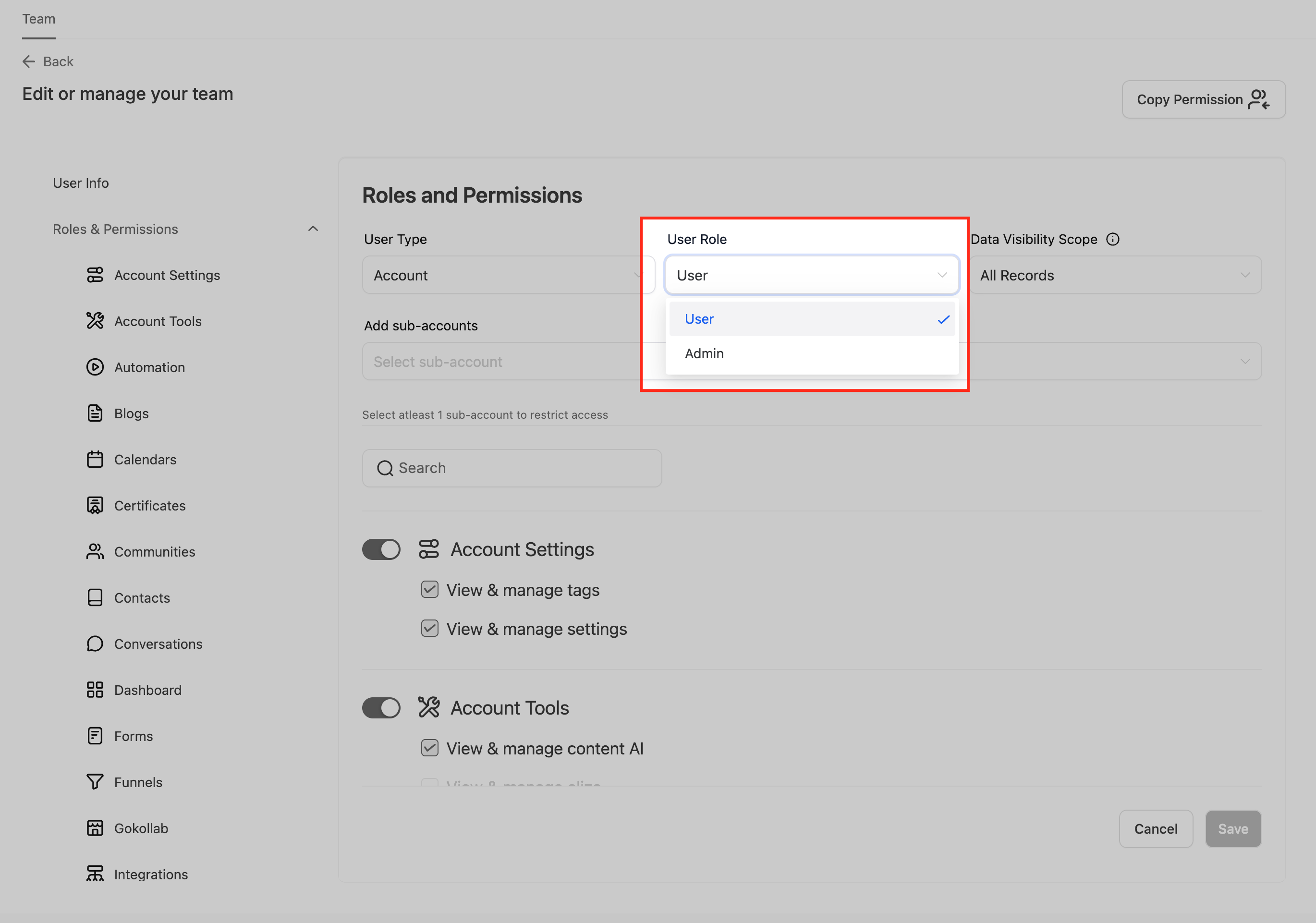
Always use a descriptive name for your users, such as 'Client Manager - John Doe' or 'Support Team - Jane Smith', to easily identify roles and responsibilities within your team.
Resell GoHighLevel as your own SaaS
Launch your own software business on the platform behind 78+ agencies. SaaS Mode, rebilling, unlimited sub-accounts.
Some links are affiliate links — if you sign up we may earn a commission, at no extra cost to you. We only recommend GoHighLevel because we build on it every day.
What Permissions Can You Set for Account Users?
When creating an account-level user, you have precise control over their access within the assigned sub-accounts. This ensures they can perform their tasks without unnecessary privileges. The two main layers of control are the User Role and feature-specific permissions. The 'User Role' determines the general scope of access: an 'Admin' role grants broad management capabilities within their assigned sub-accounts, while a 'User' role requires you to individually enable specific features. Below the role selection, you will find toggle switches for various features like 'Conversations', 'Calendars', 'Opportunities', and more. Carefully review and enable only the features essential for the user's responsibilities within each assigned sub-account.
⚠️ Granting 'Admin' access to an account-level user gives them significant control over the assigned sub-accounts. Only use this role for trusted team members who require broad management capabilities.
For new team members, start with minimal permissions and gradually add more as needed. This 'least privilege' approach enhances security and prevents accidental changes.
How to Edit an Existing Account User's Access?
You can easily modify an existing account-level user's access, roles, or assigned locations at any time. This is useful when a team member's responsibilities change or they need access to new sub-accounts.
Troubleshooting Common Issues
Common Mistakes to Avoid
- →Forgetting to set the 'User Type' to Account, accidentally granting agency-level access.
- →Not assigning any specific sub-accounts, leading to a user seeing an empty dashboard.
- →Granting an 'Admin' role when a 'User' role with specific feature toggles would be more appropriate and secure.
- →Overlooking individual feature permissions, causing the user to have restricted access for essential tasks within their assigned sub-accounts.
- →Not communicating clearly with the new user about their specific access limits and how to navigate their GoHighLevel dashboard.
Frequently Asked Questions
Resell GoHighLevel as your own SaaS
Launch your own software business on the platform behind 78+ agencies. SaaS Mode, rebilling, unlimited sub-accounts.
Some links are affiliate links — if you sign up we may earn a commission, at no extra cost to you. We only recommend GoHighLevel because we build on it every day.

Arsalan writes GHL guides from real build experience — 78+ systems, $9.2M in client pipeline. Wharton, CXL & Google certified.
Connect on LinkedIn