Revset
Book a Free Audit

30-minute call · No obligation

HomeGHL HubSub-Accounts & AgencyCreating New Snapshots in GoHighLevel: Your Step-by-Step Guide
REVSET LABS · EXPERT GUIDE·Sub-Accounts & Agency

Creating New Snapshots in GoHighLevel: Your Step-by-Step Guide

1,284 words·5 min read·Updated 27 April 2026·beginner·
Arsalan ZaffarArsalan ZaffarLinkedIn

👉 Resell GoHighLevel as your own SaaS.

Start SaaS Pro Trial
Quick Answer

To create new snapshots in GoHighLevel, go to Agency View → Account Snapshots. Click + Create New Snapshot, name it, select a source sub-account, then choose the assets to include. This process typically takes 5-10 minutes.

Key Takeaways
  • Snapshots save significant time by templating entire sub-account configurations for rapid deployment.
  • Always build your desired setup within a fully configured sub-account first, then capture it as a snapshot.
  • You have full control to include all eligible assets or selectively choose specific elements like workflows, funnels, or custom fields.
  • Snapshots are reusable across unlimited sub-accounts and can be updated later using the Refresh option.
  • Understand precisely what's included (e.g., workflows, funnels) and excluded (e.g., contacts, integrations) before creating a snapshot.

Why Create New Snapshots in GoHighLevel?

GoHighLevel snapshots are powerful tools for agencies and businesses. They allow you to save entire sub-account configurations as reusable templates. This means you can quickly deploy complex setups without rebuilding them from scratch every time. Using snapshots dramatically cuts down on setup time for new clients or business verticals. You ensure consistency across all your accounts, maintaining a high standard of service. Snapshots are also fundamental for GoHighLevel SaaS offers, enabling you to provide pre-built account templates to your subscribers.

How Do You Create a New Snapshot?

Creating a snapshot involves selecting a fully configured sub-account and choosing which assets you want to template. Follow these steps to build your first reusable snapshot.
1
Access Your Agency DashboardEnsure you are logged into your GoHighLevel account. Navigate to the Agency View dashboard to begin the snapshot creation process.
2
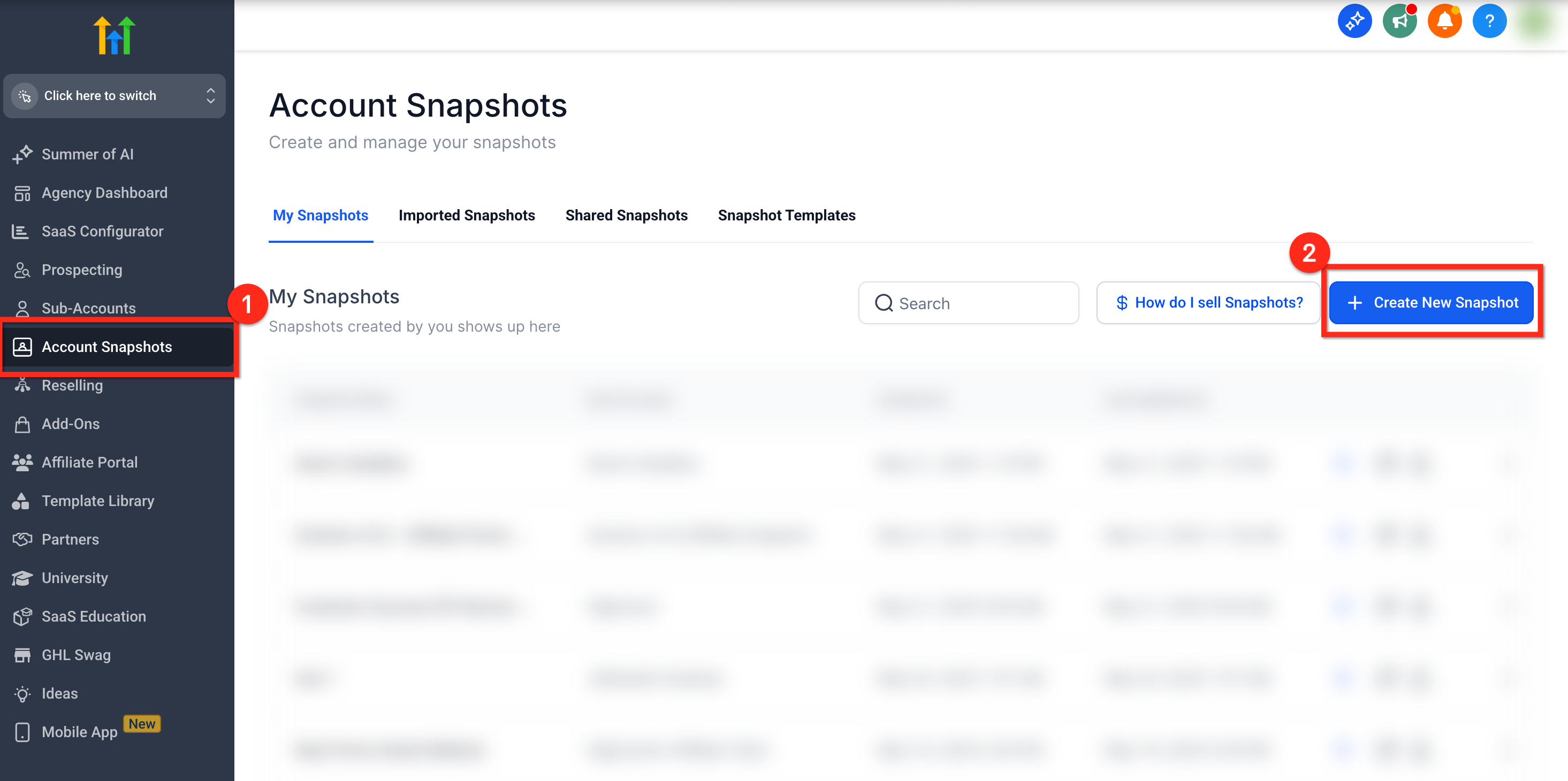
Navigate to Account SnapshotsFrom the left-hand navigation menu within your Agency View, click on Account Snapshots. This action will take you to the page where you manage all your existing and new snapshots.
3
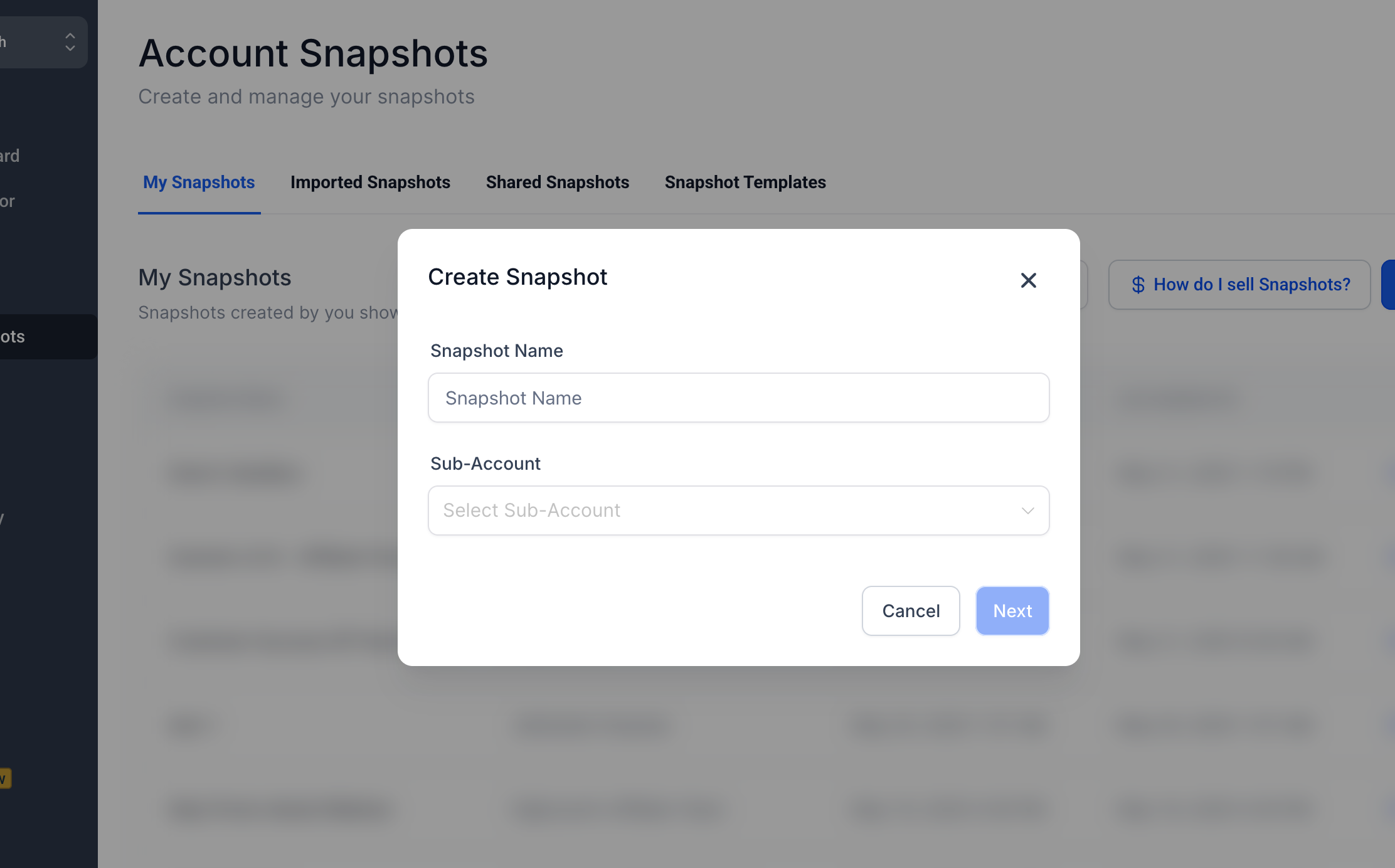
Initiate New Snapshot CreationLocate and click the blue + Create New Snapshot button, typically found in the top right corner of the screen. A new window or modal will appear, prompting you to configure your snapshot.
GoHighLevel screenshot
0
4
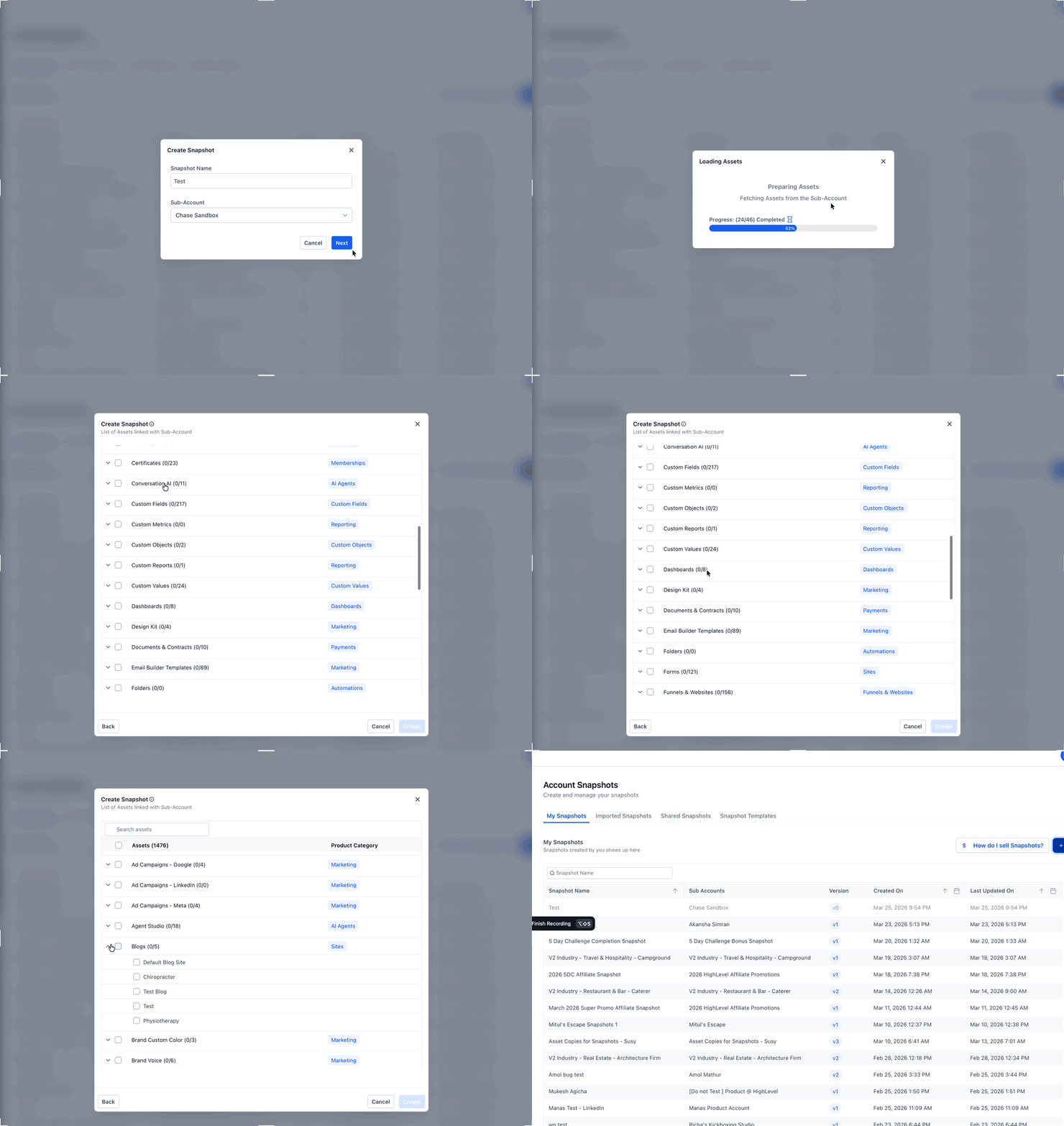
Name Your Snapshot and Select SourceFirst, enter a descriptive name for your snapshot in the provided field, such as 'Spa Funnel Setup' or 'Real Estate CRM'. Next, choose the specific sub-account you wish to capture assets from using the dropdown menu. This sub-account should contain all the pre-built funnels, workflows, and other elements you intend to template.
5
Select Specific Assets to IncludeReview the comprehensive list of available asset categories from your chosen sub-account. You can either click Select All to include every eligible item or expand each category using the + icon to meticulously choose individual assets.
6
Configure Marketing AssetsExpand the Marketing Assets section to handpick specific components. This includes crucial items like Funnels, Websites, Forms, Surveys, Email Templates, and SMS & Email Templates. Ensure all relevant marketing collateral is selected for your snapshot.
GoHighLevel screenshot
1
7
Include CRM and Communication SettingsNavigate to sections such as Workflows, Calendars, Custom Fields, Custom Values, and Pipelines. Select the necessary automation, scheduling, data structures, and sales process stages to be included in your template.
8
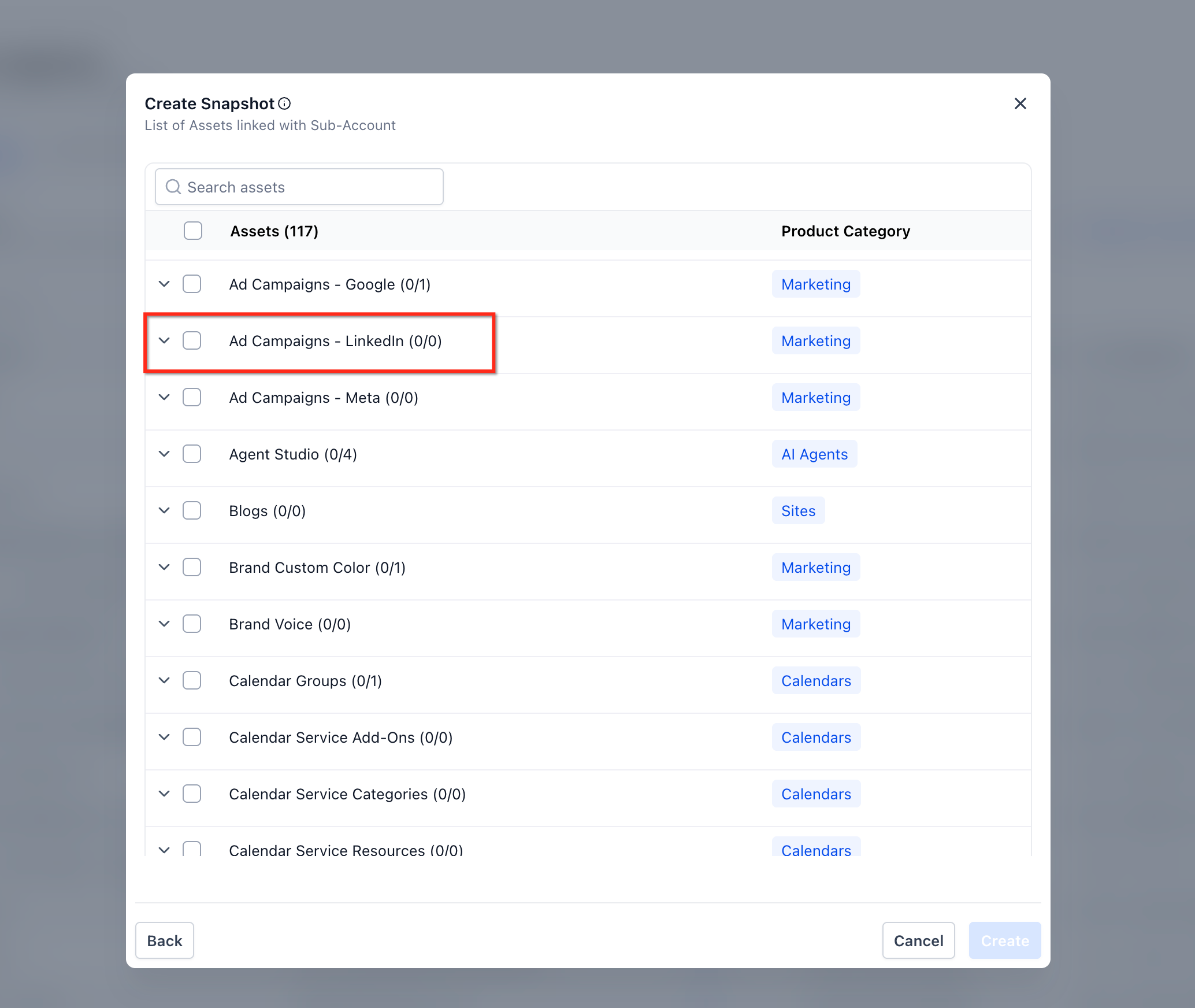
Add LinkedIn Ad Campaigns (Optional)If your source sub-account includes pre-configured LinkedIn campaign structures, expand Marketing Assets → Ad Campaigns – LinkedIn. You can select individual campaigns or choose Select All to capture the full hierarchy of Campaign Groups, Campaigns, and Ads.
9
Review and Create SnapshotCarefully review your selected assets to confirm everything you need is included. Once you are satisfied with your selections, click the Create button at the bottom of the configuration window. GoHighLevel will then begin processing your request, which may take a few moments depending on the size and complexity of your snapshot.
GoHighLevel screenshot
2
GoHighLevel screenshot

✅ CRM object associations are automatically included in snapshots, provided both related objects in the relationship are selected. However, Contact-to-Contact associations are not supported at this time.

🔥 Pro Tip

Before creating a snapshot, ensure your source sub-account is fully configured and thoroughly tested. This proactive step prevents capturing incomplete or incorrect setups, saving you time on future deployments.

What's Included and Excluded in a Snapshot?

Understanding what GoHighLevel snapshots capture and what they intentionally leave out is crucial for effective templating. This ensures you build and deploy your sub-accounts correctly.

GoHighLevel SaaS Pro

Resell GoHighLevel as your own SaaS

Launch your own software business on the platform behind 78+ agencies. SaaS Mode, rebilling, unlimited sub-accounts.

Start SaaS Pro Trial

Some links are affiliate links — if you sign up we may earn a commission, at no extra cost to you. We only recommend GoHighLevel because we build on it every day.

What's Included in a Snapshot?

Snapshots are designed to capture the structural and functional elements of your GoHighLevel account. This allows for consistent deployment of your business logic and marketing assets.

1
Workflows and AutomationsAll your pre-built automation workflows, including triggers, actions, and conditional logic, are included. This ensures your automated processes deploy seamlessly.
2
Funnels and WebsitesComplete funnel and website structures, including pages, sections, forms, and linking, are captured. This allows for instant deployment of your sales and marketing funnels.
3
Calendars and SchedulingYour configured calendars, meeting settings, and availability are included. This ensures consistent appointment booking processes.
4
Forms and SurveysAll custom forms and surveys, along with their fields and submission actions, are part of the snapshot. This templates your data collection methods.
5
Emails, SMS, and TemplatesEmail templates, SMS templates, and other communication assets are included. This ensures consistent messaging across all sub-accounts.
6
Triggers and Custom FieldsCustom triggers for various actions and all custom fields you've created are captured. This maintains consistent data models and automation triggers.
7
Custom ValuesAny custom values you've defined for dynamic content or settings are included. This helps in quickly customizing account-specific details post-deployment.
8
Membership ContentYour membership sites, courses, offers, and associated products are captured. This allows for templating your digital product delivery.
9
Services and ProductsThe services and products configured within your account, including pricing and descriptions, are included. This streamlines setting up your offerings.
10
WebinarsWebinar configurations and associated settings are captured. This is useful for templating event-based marketing strategies.
11
PipelinesYour sales and marketing pipelines, including stages and settings, are included. This ensures consistent lead management processes.
12
Ad Campaigns – LinkedInThe structural setup of your LinkedIn Ad Campaigns, including groups, campaigns, and ads, can be included. This templates your social advertising efforts.

What's Excluded from a Snapshot?

Snapshots are designed to be templates, not data backups. Therefore, they intentionally exclude sensitive, client-specific, or dynamic data to keep your templates clean and universally applicable.

1
Contacts and LeadsNo actual contact records, leads, or prospect data are included in a snapshot. Snapshots provide the framework for managing contacts, not the contacts themselves.
2
Appointments and ConversationsExisting appointments, scheduled events, or ongoing conversations (SMS, email, chat) are not captured. These are dynamic interactions specific to each client.
3
Reputation DataActual review data, star ratings, or specific reputation management results are excluded. The snapshot includes the *settings* for reputation management, not the data.
4
Stripe Connections and IntegrationsDirect Stripe connections, payment gateway integrations, and other third-party API keys are not included. These must be set up individually for each sub-account for security and client-specific billing.
5
User Accounts and PermissionsIndividual user accounts, their roles, and permissions within a sub-account are excluded. These are managed separately to ensure proper access control.
6
Billing InformationAny billing details or subscription information related to the source sub-account is not part of the snapshot. Billing is always specific to each individual account.

⚠️ Never rely on snapshots as a backup for client data. Always export contacts and other critical information separately if you need to transfer or archive it.

Managing Your Snapshots: Refreshing and Reusing

Once created, your snapshots are not static. GoHighLevel provides tools to update them and apply them repeatedly, maximizing their utility for your agency.

1
Reusing Snapshots for New AccountsA major benefit of snapshots is their reusability. You can apply a single snapshot to as many new or existing sub-accounts as you need, offering a consistent and quick setup across your client base.
2
Updating an Existing Snapshot (Refreshing)If you make improvements or add new features to your master sub-account, you can update your existing snapshot. Navigate to Agency View → Account Snapshots, find the snapshot you want to update, and use the Refresh option. This action adds or removes new assets from the existing snapshot based on your current source sub-account configuration.
🔥 Pro Tip

Regularly refresh your core snapshots to incorporate new GoHighLevel features or improvements you've added to your master sub-account template. This keeps your templates current and powerful.

Troubleshooting Common Issues

⚠️ Missing expected assets after applying a snapshot.
Ensure all necessary categories and specific items were explicitly selected during snapshot creation. Use the Refresh option on the original snapshot to add any missing assets from your source account, then reapply.
⚠️ The 'Create New Snapshot' button is grayed out or unavailable.
Verify you are in Agency View and possess the correct user permissions. Only agency owners or users with specific snapshot management roles can create new snapshots.
⚠️ Cannot select a specific sub-account as the source for a snapshot.
Confirm the sub-account exists and you have full administrative access to it. You must select an *existing* and accessible sub-account with the desired configuration to create a snapshot from.
⚠️ Snapshot creation takes an excessively long time or fails unexpectedly.
Large snapshots with many assets can naturally take more time to process. If it fails, try creating smaller, more focused snapshots or ensure your internet connection is stable. Contact GoHighLevel support if issues persist.
⚠️ Snapshot appears to include unwanted data like contacts or appointments.
Snapshots *do not* include contacts, appointments, or conversations. If you observe such data in a target account, it was likely already present before the snapshot was applied, or you are misinterpreting the snapshot's contents versus existing sub-account data.

Common Mistakes to Avoid

  • Not building a complete, fully tested sub-account *before* attempting to create the snapshot.
  • Forgetting to manually select specific asset categories, leading to incomplete or partially configured snapshots.
  • Confusing what's included (workflows, funnels) versus what's intentionally excluded (contacts, integrations, payment gateways).
  • Attempting to create a snapshot from a blank or empty sub-account, resulting in an empty template.
  • Not regularly refreshing existing snapshots to incorporate new updates, GoHighLevel features, or improvements made to your master template.

Frequently Asked Questions

QWhere do you build the content that a snapshot captures?
You build all the necessary assets like funnels, workflows, and custom fields directly within a standard GoHighLevel sub-account. The snapshot tool then captures this pre-configured sub-account, essentially taking a 'picture' of its setup. This allows you to create a perfect, tested template before saving it as a reusable snapshot for future deployments.
QCan I use a single snapshot for multiple client accounts?
Yes, absolutely. Once a snapshot is created, it becomes a reusable template. You can apply the same snapshot to an unlimited number of new or existing sub-accounts, making it incredibly efficient to deploy consistent setups across all your clients or different business verticals. This is one of the primary benefits of using snapshots.
QWhat types of assets are *not* included when I create a snapshot?
Snapshots intentionally exclude dynamic or sensitive client-specific data. This means contacts, appointments, conversations, actual reputation data (reviews), Stripe connections, payment gateway integrations, and individual user accounts are not captured. This design ensures your templates are clean, secure, and ready for new client data without carrying over old information.
QHow can I update an existing snapshot with new features or changes?
You can update an existing snapshot using the **Refresh** option. First, make all desired changes within your original source sub-account, ensuring it reflects the latest configuration. Then, navigate to **Agency View → Account Snapshots**, find your snapshot, and select the **Refresh** action. This process allows you to add new assets or update existing configurations seamlessly.
QDo snapshots include custom fields and custom values?
Yes, GoHighLevel snapshots are designed to include both custom fields and custom values. These are crucial for templating dynamic content, standardizing data collection, and ensuring that your automated processes and data structures are consistent across all sub-accounts deployed from the snapshot. This saves significant setup time for each new client.
GoHighLevel SaaS Pro

Resell GoHighLevel as your own SaaS

Launch your own software business on the platform behind 78+ agencies. SaaS Mode, rebilling, unlimited sub-accounts.

Start SaaS Pro Trial

Some links are affiliate links — if you sign up we may earn a commission, at no extra cost to you. We only recommend GoHighLevel because we build on it every day.

Arsalan Zaffar
Arsalan Zaffar
Revset Labs · Revenue Systems · 78+ GHL Builds

Arsalan writes GHL guides from real build experience — 78+ systems, $9.2M in client pipeline. Wharton, CXL & Google certified.

Connect on LinkedIn
Tags:GoHighLevelSnapshotsAgency ToolsAccount SetupAutomationTemplates