
Modern outbound calling does not have to mean juggling tabs, spreadsheets, and sticky notes. With the GoHighLevel web app dialer (softphone), your team can call leads directly from the browser, log outcomes in a couple of clicks, and trigger automated follow up without touching a phone.\n\nThis guide walks you through exactly how to use the GoHighLevel web app dialer for outbound calls, how to manage live conversations, and what to check when something is not working. Along the way, you will see where the dialer fits inside a scalable outbound system and how tools like GoHighLevel and Revset Labs can help you turn every call into revenue.\n\n> If you do not have GoHighLevel yet, you can start a free trial here: Start your free GoHighLevel trial.\n\n## Overview: GoHighLevel web app dialer (softphone)\n\nThe GoHighLevel web app dialer is a softphone that runs inside your browser. Instead of relying on a mobile app or physical phone, you and your team can:\n\n- Click the green phone icon in the top bar to open the dialer from almost any page\n- Dial numbers manually or select existing contacts\n- See call details while you talk\n- Use controls such as mute, hold, warm transfer, and blind transfer\n- Log the outcome, add notes, and trigger follow up automations\n\nBecause the dialer lives inside GoHighLevel, every outbound call can update your CRM, pipelines, and workflows in real time. That is where the real leverage comes from.\n\nIf you want a done for you outbound calling setup built around GoHighLevel, Revset Labs can architect the system, connect the dialer to your offers, and wire in automation so your team spends more time talking to qualified leads and less time chasing admin.\n\n## How to make outbound calls from the GoHighLevel web app\n\nYou can make outbound calls from almost anywhere in the GoHighLevel web app using the dialer.\n\n### Step 1: Open the dialer\n\n1. Log in to GoHighLevel.\n2. In the top bar, click the green phone icon. This opens the in browser dialer panel.\n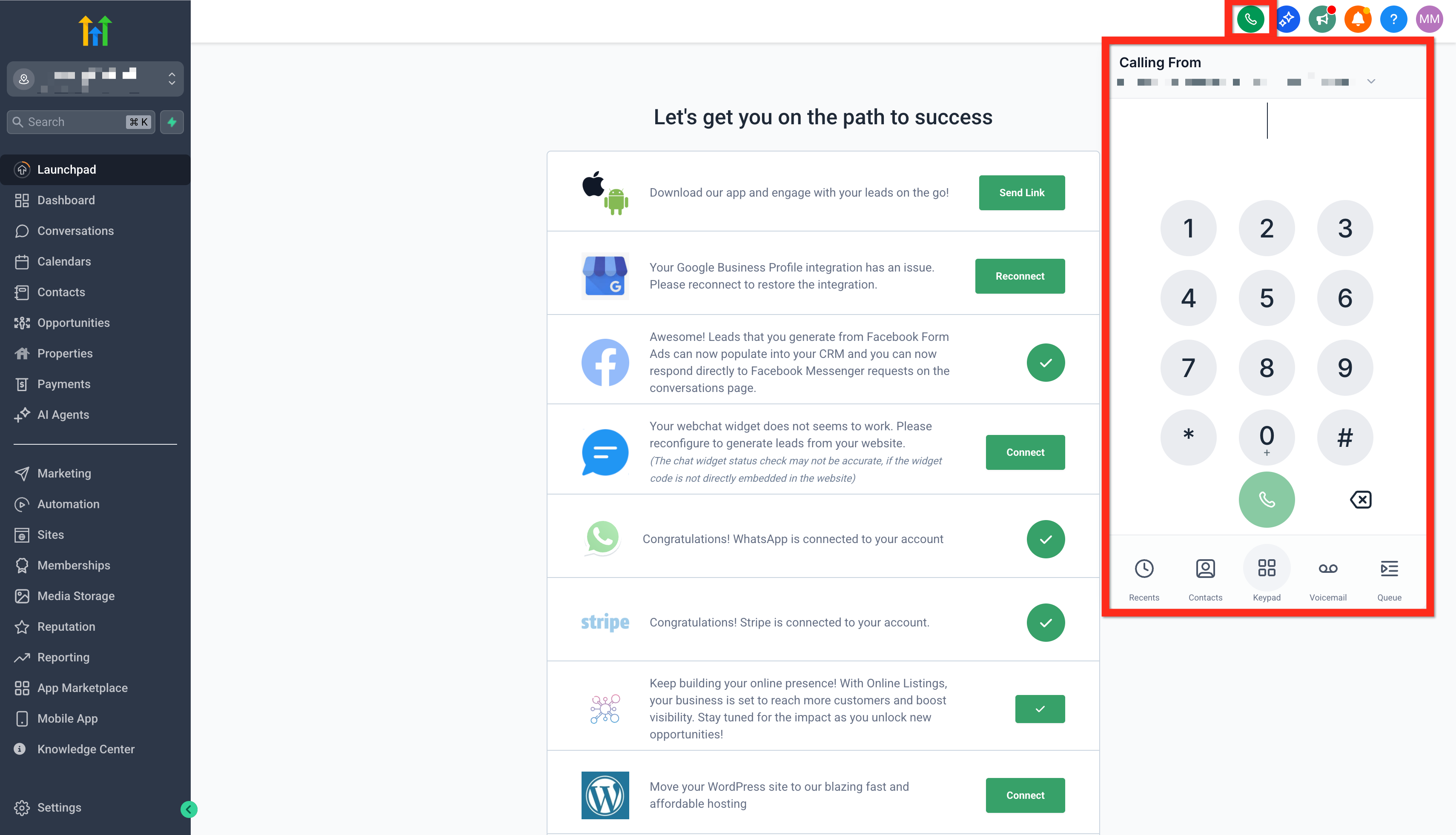 \n\nYou can leave this dialer open while you move between pages so you can quickly click to call as you review contacts, opportunities, or conversations.\n\n### Step 2: Choose who to call\n\nInside the dialer you have three main options:\n\n- Dial manually using the number pad\n- Choose from recently called numbers\n- Search for a contact by name or number\n\nFor sales and success teams, the fastest path is usually to work from a list or pipeline view. Filter down to the contacts you want to call, then use the dialer to work through them, logging outcomes as you go.\n\n> When you are ready to scale beyond ad hoc calling, pair the web dialer with GoHighLevel manual actions or the power dialer. Those tools feed contacts into a queue so reps can simply click next and focus on the conversation.\n\n### Step 3: Place the call\n\nOnce you have selected the number:\n\n1. Confirm you are calling from the correct number in the Calling From dropdown.\n2. Click the call button.\n3. Speak through your connected microphone or headset when the contact picks up.\n\nIf you do not have your own GoHighLevel account yet, you can test this process risk free by creating an account through this affiliate link: Launch your GoHighLevel account.\n\n## Managing live calls: mute, hold, warm transfer, blind transfer\n\nThe web app dialer includes the key controls you need to handle live conversations like a professional call center.\n\n### Mute\n\nUse mute when you need to speak to a colleague in the room, reference sensitive information, or remove background noise for a moment.\n\n- Click Mute to turn off your microphone.\n- The contact will not hear anything while mute is on.\n- Click Mute again to resume the conversation.\n\n### Hold\n\nHold pauses the call for both sides.\n\n- Click Hold when you need time to look something up or coordinate internally.\n- Neither you nor the contact can hear each other while the call is on hold.\n- Click Hold again to bring the contact back.\n\n### Warm transfer\n\nA warm transfer lets you introduce another team member before you hand off the call. This creates a smoother experience for the customer.\n\n1. Inside the dialer, start a second call to the person you want to transfer to. You can search for another user or dial a number manually.\n2. Speak with your teammate to explain context while the original caller is on hold.\n3. When you are ready, click Patch Call to connect everyone.\n
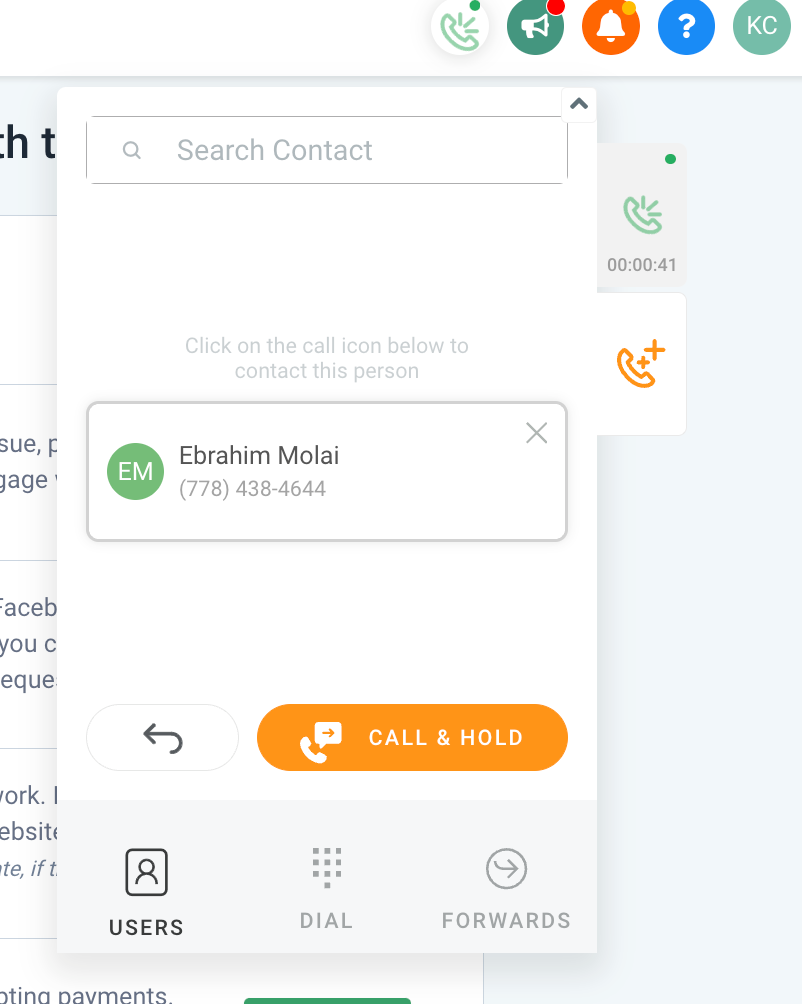 \n4. After the handoff, you can remain on the line or drop off.\n\nUse warm transfers when you want to move a prospect from a setter to a closer, or from support to an implementation specialist, without making them repeat their story.\n\n### Blind transfer\n\nA blind transfer passes the call directly to another number without an introduction.\n\n- Choose the destination number or user.\n- Click Blind Transfer.\n
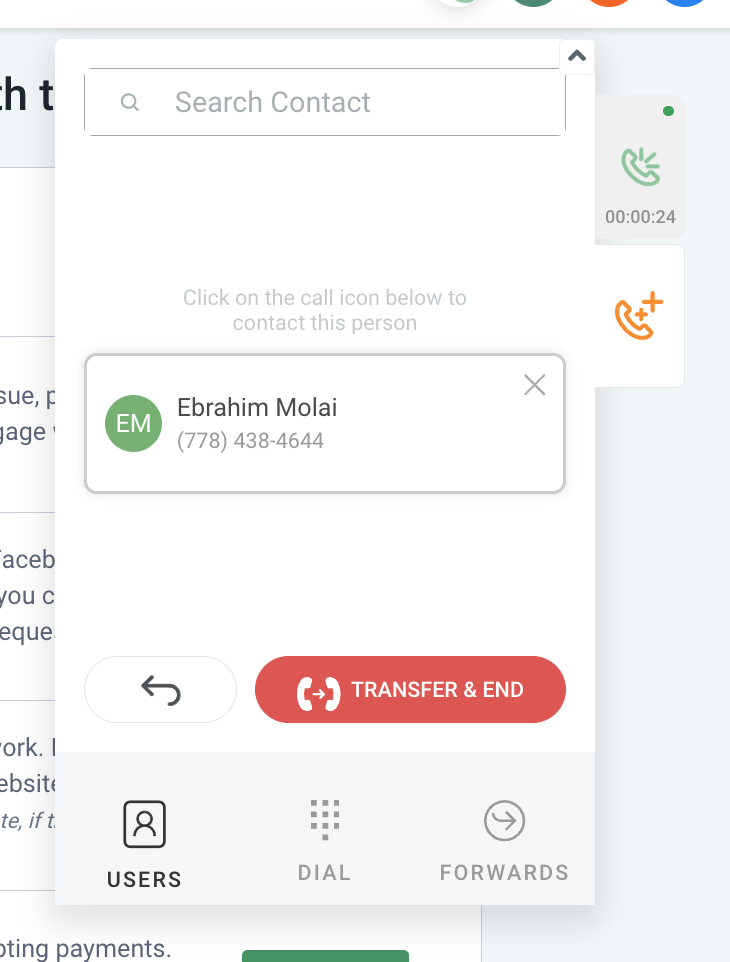 \n- The dialer disconnects you and rings the destination number.\n\nBlind transfers are useful for routing calls to shared queues, voicemail boxes, or another team where introductions are not necessary.\n\n## Turning calls into structured workflows\n\nWhere the GoHighLevel web app dialer really shines is when it is tied into your CRM and workflows.\n\nHere is a simple example outbound calling workflow you can use (also shown in the flowchart image):\n\n1. Open the dialer from the top bar.\n2. Choose a contact or dial a number.\n3. Talk to the contact and use controls like mute, hold, warm transfer, and blind transfer as needed.\n4. Log the outcome and key notes inside the contact record.\n5. Trigger a follow up workflow such as an SMS, email sequence, or pipeline stage change.\n\nOnce this foundation is in place, Revset Labs can help you layer on automation such as:\n\n- Automatically adding hot leads to high priority manual actions queues\n- Triggering nurture campaigns for no answer or voicemail outcomes\n- Routing specific call outcomes to different pipeline stages or sales teams\n\nIf you are serious about building a revenue engine on GoHighLevel, consider partnering with Revset Labs to design the entire outbound playbook, not just the dialer configuration.\n\n## Troubleshooting outbound calls in the web app dialer\n\nIf calls are not going out or audio is not working, work through these checks before you assume the problem is with GoHighLevel.\n\n### 1. Confirm microphone access in your browser\n\nThe dialer relies on your browser microphone permissions.\n\n- In Chrome, click the icon to the left of the URL.\n- Make sure the microphone is allowed for your GoHighLevel domain.\n
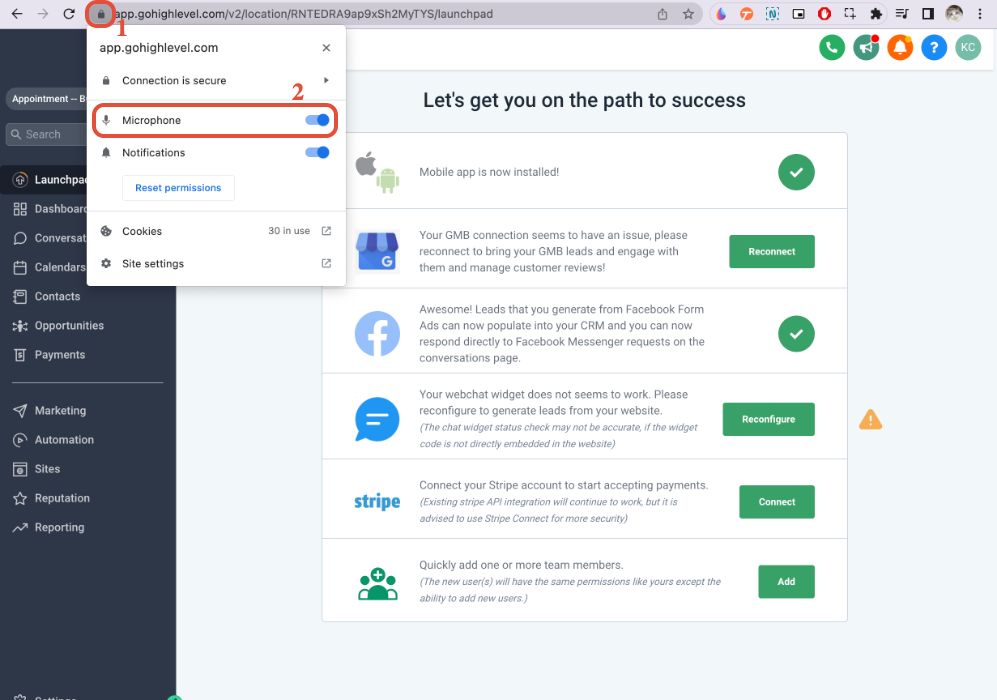 \n
\n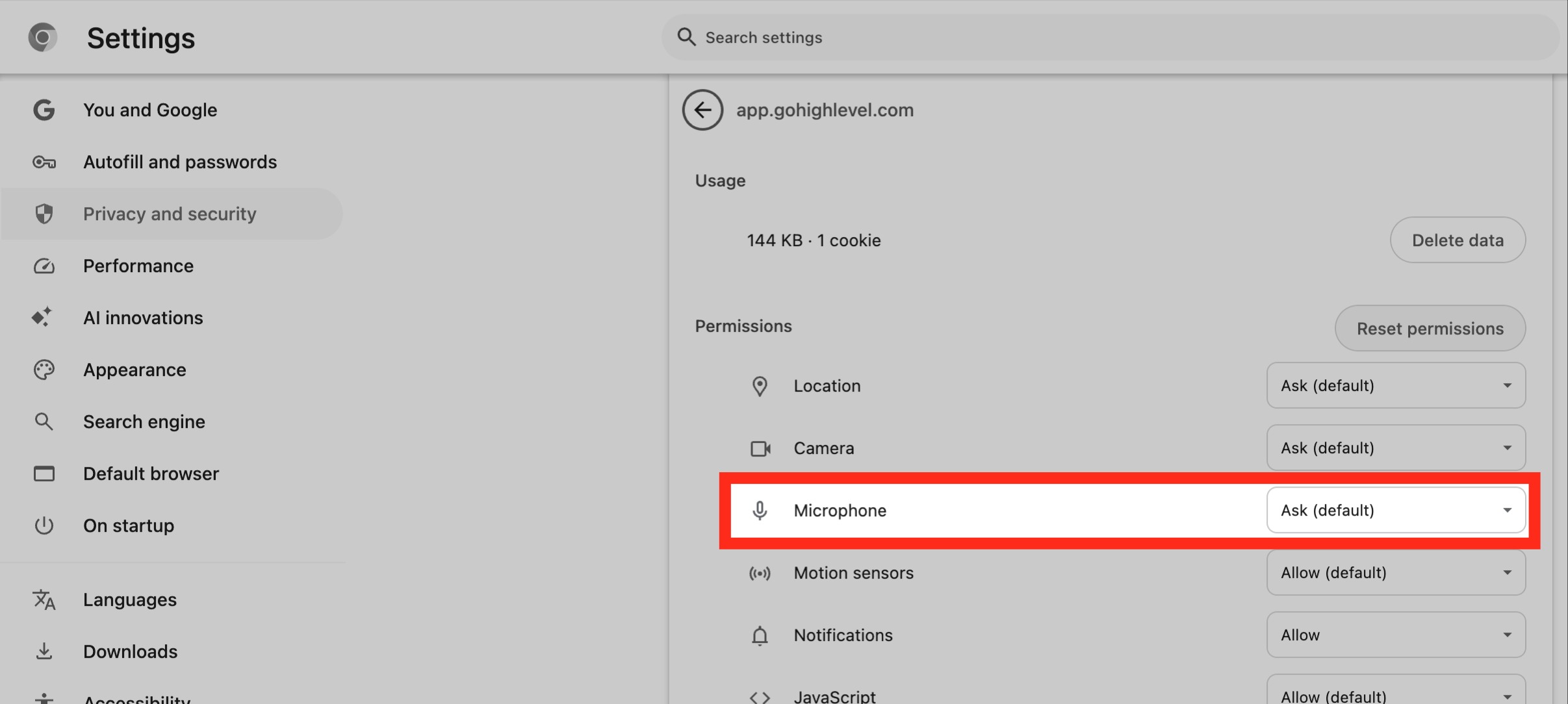 \n- If you changed the setting, refresh the page and try again.\n\nWhere possible, use a wired USB headset instead of built in laptop audio for more consistent quality.\n\n### 2. Test without browser extensions\n\nVPNs, ad blockers, and other extensions can interfere with VoIP traffic.\n\n- Temporarily disable extensions, especially VPNs and security plugins.\n- Try using an incognito or guest window where extensions are disabled by default.\n
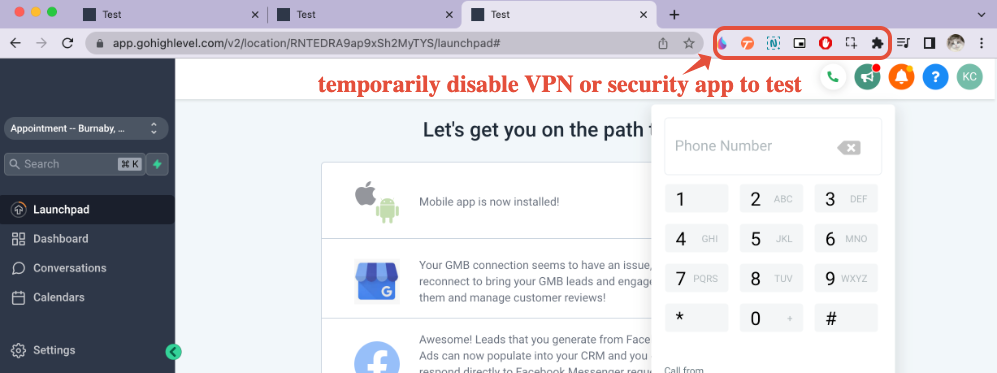 \n- If calls work in incognito but not in your usual profile, re enable extensions one by one to find the culprit.\n\n### 3. Check outbound call timeout\n\nIf calls are dropping too quickly before contacts can answer, check the timeout setting on your phone number.\n\n- Go to Settings, then Phone Numbers.\n- Open the number you are calling from.\n- Make sure the outbound call timeout is at least twenty seconds.\n
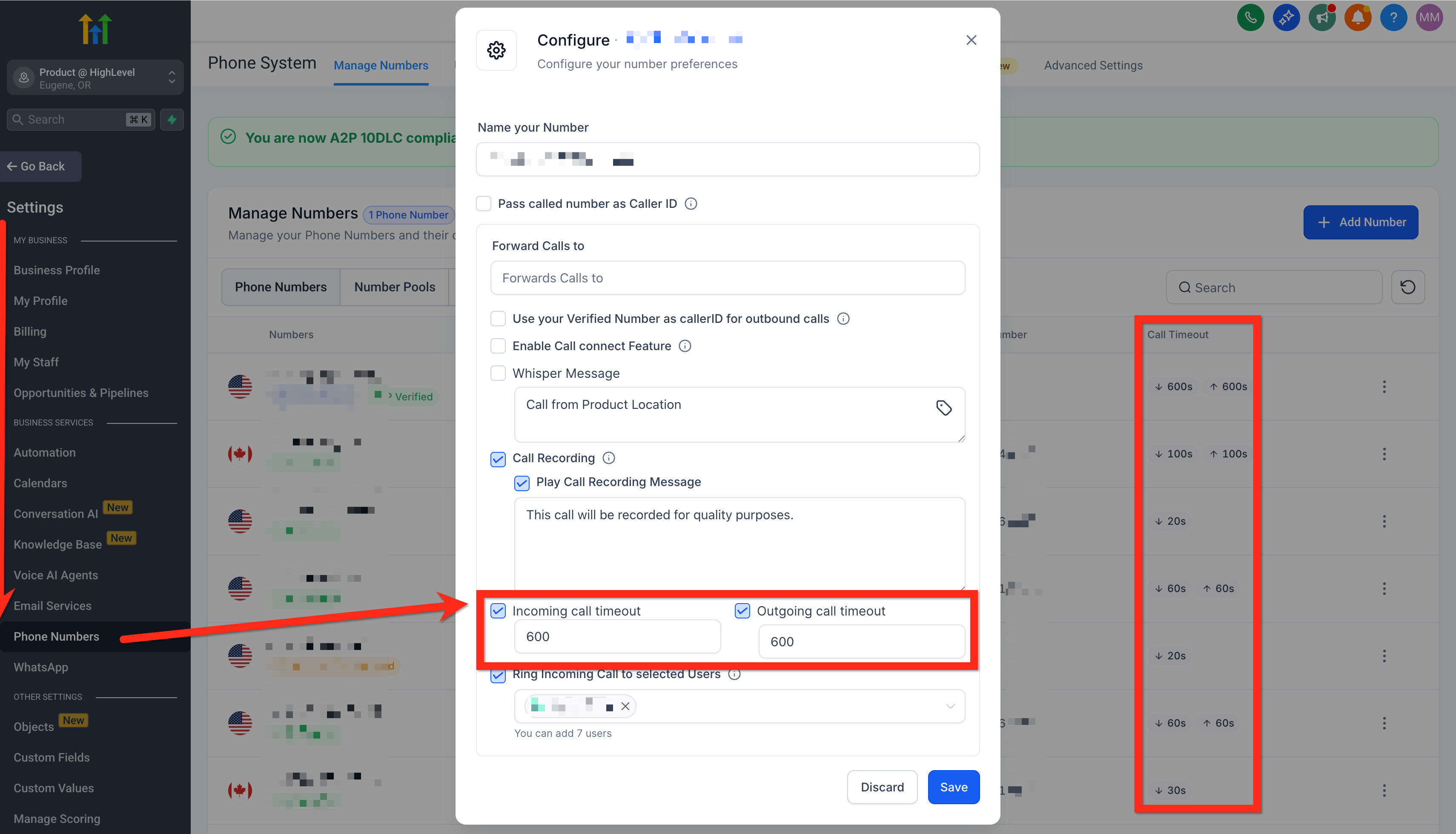 \n\nThis gives carriers enough time to connect before the call is considered failed.\n\n### 4. Verify the correct outgoing number\n\nIf you log in as a user with an assigned number but see calls going out from the account default number, check user permissions.\n\n- When a user is restricted to only assigned data and the role is User, calls will automatically dial from their assigned number.\n- If the user has access to all records, they can change the outgoing number in the Calling From dropdown.\n
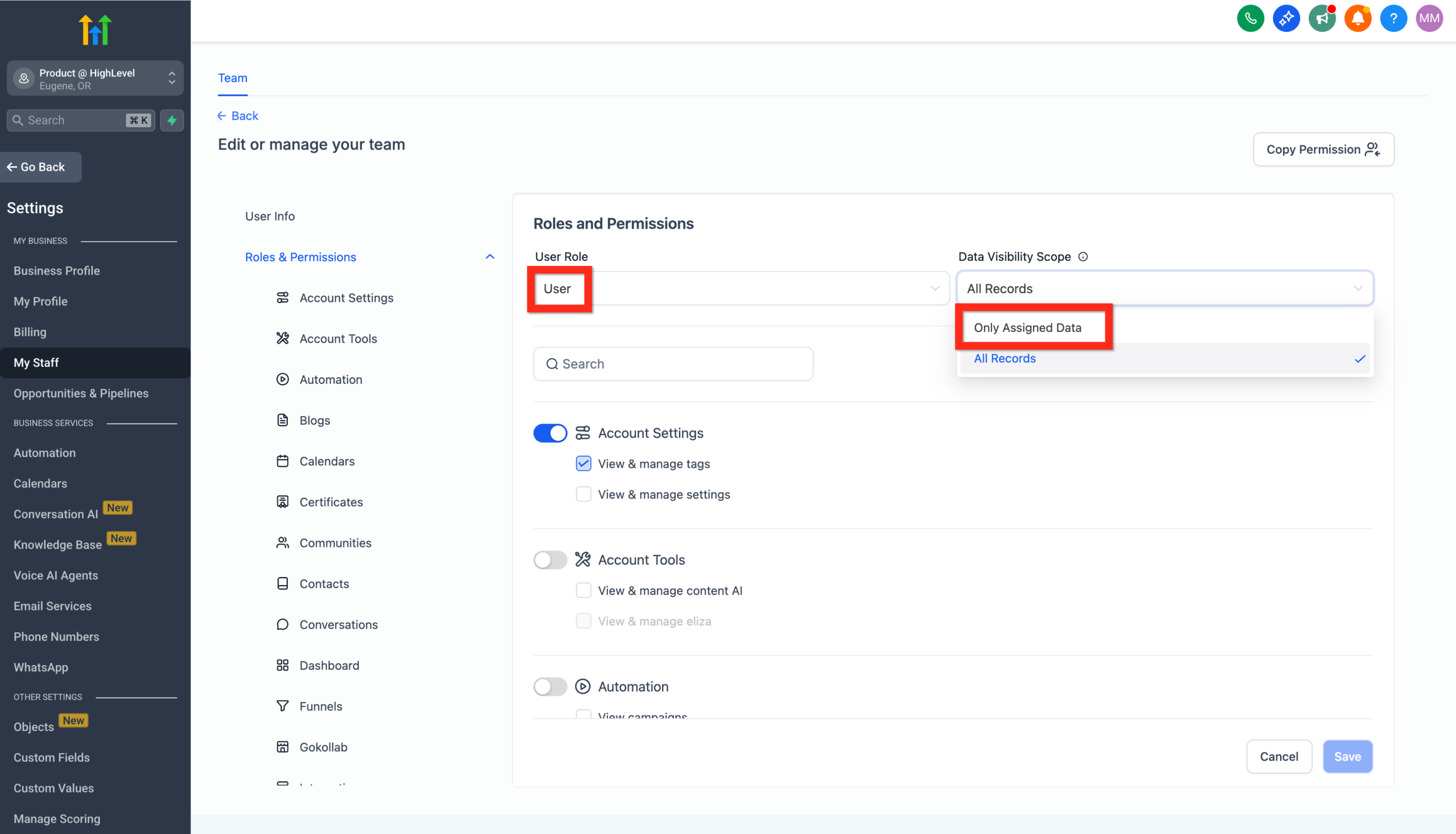 \n
\n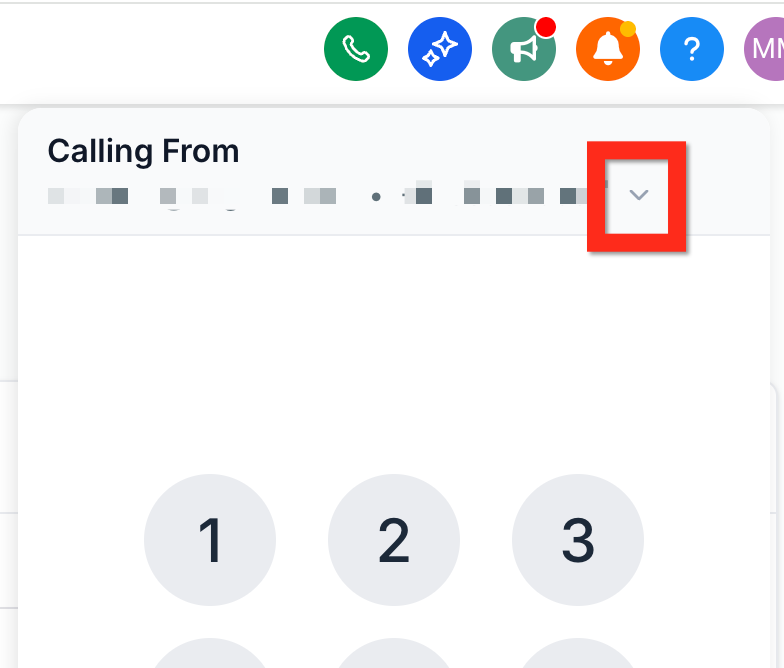 \n\nFor sales teams, it often makes sense to standardize which numbers specific roles use so caller ID is predictable.\n\n### 5. Protect your number reputation and caller ID\n\nIf contacts complain that your number shows up as spam or an unknown string, register your numbers properly.\n\n- Go to Settings, Phone Numbers, then Trust Center.\n- Use CNAM registration to display your business name where carriers support it.\n- Consider Voice Integrity registration to help keep your numbers off major spam lists.\n\nHealthy number reputation means more answered calls and better conversion from the same outbound effort.\n\nIf you would rather have specialists handle number registration, compliance settings, and dialer configuration for you, Revset Labs can take this off your plate as part of a done for you GoHighLevel build.\n\n## Advanced calling workflows with manual actions and the power dialer\n\nWhen your team is ready to move from single calls to predictable outbound blocks, GoHighLevel manual actions and the power dialer become important.\n\n- Use workflows to add contacts into a manual actions list when they reach a certain stage or meet a lead score threshold.\n- Have reps open Conversations, then Manual Actions to access their queue.\n- From there, the system can automatically open each contact card and trigger the web app dialer so reps can move quickly from one call to the next.\n\nThis structure lets you:\n\n- Protect your team from decision fatigue\n- Maintain consistent talk tracks with call scripts\n- Keep your pipeline clean because every outcome is logged in the same place\n\nTo connect your outbound calling to full funnel automation, you can:\n\n- Start a GoHighLevel trial through this partner link: Get started with GoHighLevel.\n- Work with Revset Labs to design the workflows, scripts, and reporting you need around the dialer.\n\n## Frequently asked questions about GoHighLevel outbound calls in the web app dialer\n\n### Can I make outbound calls directly from my browser without installing anything?\n\nYes. The GoHighLevel web app dialer is a browser based softphone. As long as your browser has microphone access and your user is configured correctly, you can call directly from the web app without installing a desktop app or using your mobile device.\n\n### What is the difference between a warm transfer and a blind transfer in GoHighLevel?\n\nA warm transfer starts a second call so you can speak with your teammate first, then patch the caller through when they are ready. A blind transfer skips the introduction and sends the caller straight to the destination number while disconnecting you from the call.\n\n### Why do I hear a short connecting tone before the normal ring sound?\n\nHighLevel plays a brief connecting tone while it negotiates the call with the recipient carrier. You hear the familiar ringback tone only after the carrier confirms that the destination device is ringing. If the carrier cannot be reached, the call ends after the connecting tone instead of ringing indefinitely.\n\n### How can I improve answer rates and avoid being marked as spam?\n\nUse the Trust Center and Voice Integrity tools in GoHighLevel to register your business information with major carriers, rotate numbers intelligently, and monitor reputation. Combine that with clean lists and relevant offers so contacts are more likely to pick up when you call.\n\n### Who should own GoHighLevel setup for outbound calling?\n\nYou can absolutely configure the basics yourself using this guide and the GoHighLevel help center. If you want a specialist team to map your sales process, design automations, and harden everything for scale, Revset Labs can handle the full implementation so your reps can simply log in, open the dialer, and start having productive conversations.
