
Efficiently managing your sales pipeline is not just a best practice; it's a non-negotiable for scaling businesses. Every lead, every interaction, and every update matters. Imagine a system that instantly reacts to any modification within an opportunity record, ensuring no crucial change goes unnoticed and your team is always in sync. This is precisely the power of the "Opportunity Changed" workflow trigger, a robust automation tool designed to keep your CRM dynamic and your sales process relentlessly effective.

Unlock Dynamic Sales Automation with the Opportunity Changed Workflow Trigger
The "Opportunity Changed" workflow trigger is a cornerstone of smart CRM automation, specifically designed to activate when any modification occurs within an opportunity record. Unlike its counterpart, the "Opportunity Status Changed" trigger, which focuses solely on shifts between stages like "Open" to "Won" or "Lost," this trigger offers a far broader scope. It's your real-time sentinel for updates to lead value, pipeline stage movements, reassignments, or changes to custom fields.
This comprehensive approach means you can automate a vast array of actions, from notifying sales reps about significant lead value increases to initiating specific follow-up sequences when an opportunity moves from one owner to another. It ensures your automation responds to the full spectrum of evolving lead data, keeping your team agile and informed. To experience this level of dynamic sales control, you need a platform that empowers such sophisticated automation. Start your journey with a free trial of GoHighLevel today.
Why the Opportunity Changed Trigger is Your CRM's Secret Weapon
Leveraging the "Opportunity Changed" trigger transforms your CRM from a static database into a living, responsive ecosystem. For businesses looking to optimize their sales funnel and enhance customer experience, the benefits are clear:
- Comprehensive Tracking: Automate workflows based on any alteration to an opportunity record, far beyond just status updates. This includes changes in assigned user, tags, pipeline, lead value, or any custom field.
- Real-Time Notifications: Ensure instant communication to the right team members when an opportunity is updated, preventing delays and missed opportunities.
- Enhanced CRM Accuracy: Automate data consistency and record-keeping, reducing manual errors and providing a reliable foundation for sales forecasting.
- Improved Sales Pipeline Management: Automatically trigger follow-ups, task assignments, or nurture sequences based on critical opportunity modifications, keeping your pipeline flowing smoothly.
- Customizable Automation: Apply powerful workflow filters to tailor automation precisely for specific changes, ensuring only relevant actions are taken.
- Flexible Filter Operators: Utilize "Has Changed," "Has Changed To," and "Equals" operators for granular control over when your workflows activate, mirroring the advanced capabilities seen in the [Internal Link: Contact Changed trigger] .
Implementing such nuanced automation can be complex, but with the right strategic partner, it becomes seamless. Revset Labs specializes in crafting custom AI automation and marketing solutions, ensuring you harness the full power of these advanced triggers. Ready to elevate your sales game? Explore the full potential of GoHighLevel automation now.
Configuring Your Opportunity Changed Workflow: A Step-by-Step Guide
Setting up the "Opportunity Changed" trigger allows you to weave sophisticated automation into the fabric of your sales process. Follow these steps to get started:
Step 1: Accessing the Workflows Builder
First, log in to your account. Navigate to Automations > Workflows. From here, you can either create a new workflow from scratch or select an existing one to modify.
 GoHighLevel.” title=”Access Workflows Builder”>
Step 2: Adding the "Opportunity Changed" Trigger
Inside your chosen workflow, click + Add New Trigger. In the list of available triggers, search for "Opportunity Changed" and select it.
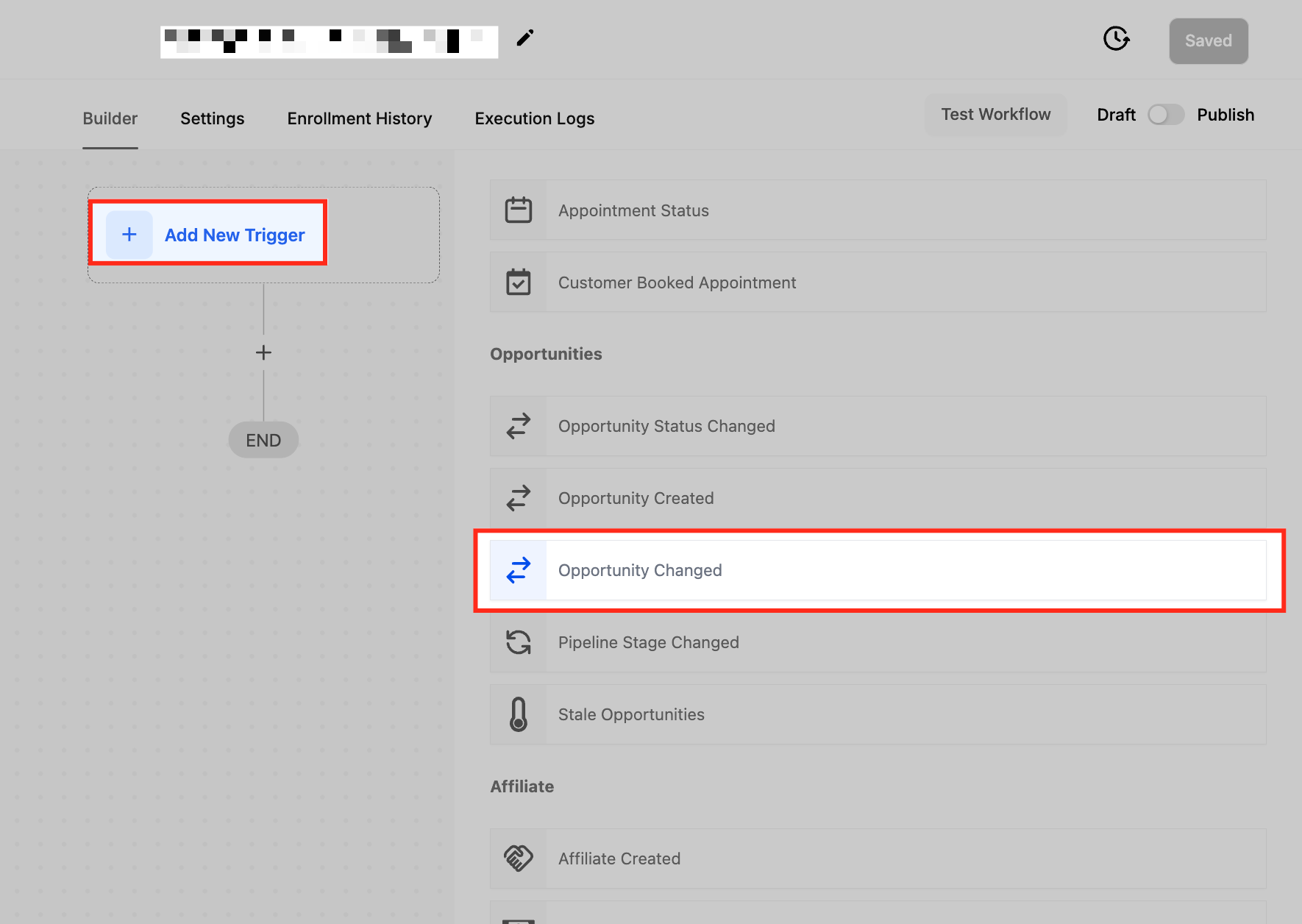 GoHighLevel workflow builder showing how to add a new trigger and selecting 'Opportunity Changed'.” title=”Add Opportunity Changed Trigger”>
Step 3: Naming Your Trigger for Clarity
Give your trigger a descriptive and clear name. A well-named trigger helps you quickly understand its purpose, especially as your library of automations grows. For example, "Notify Rep on Lead Value Change" or "Reassign Task on Opportunity Reassignment."
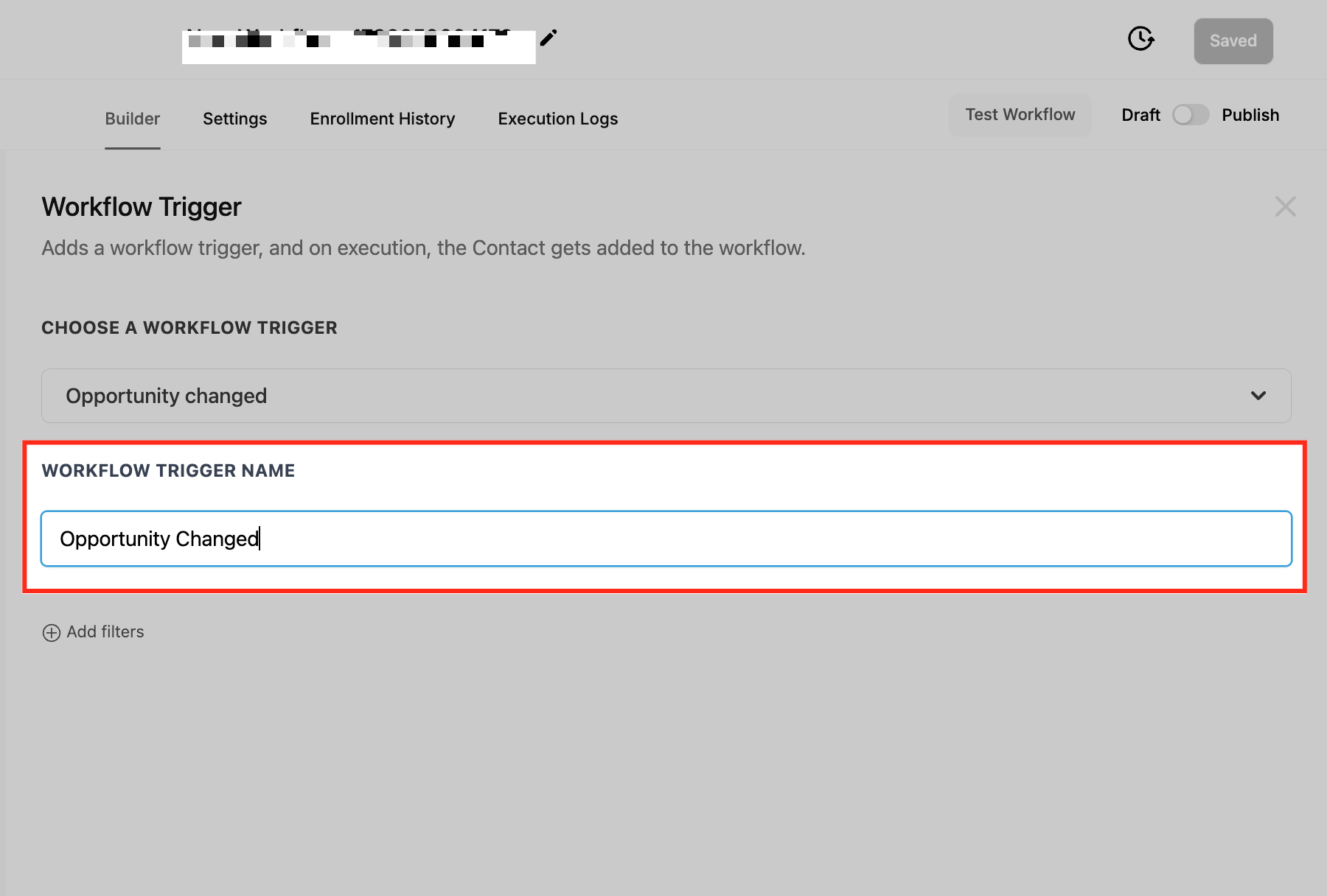
Step 4: Mastering Filters for Precision Automation
Filters are where the "Opportunity Changed" trigger truly shines, allowing you to fine-tune exactly when your workflow should fire. This ensures your automation is always relevant and effective.
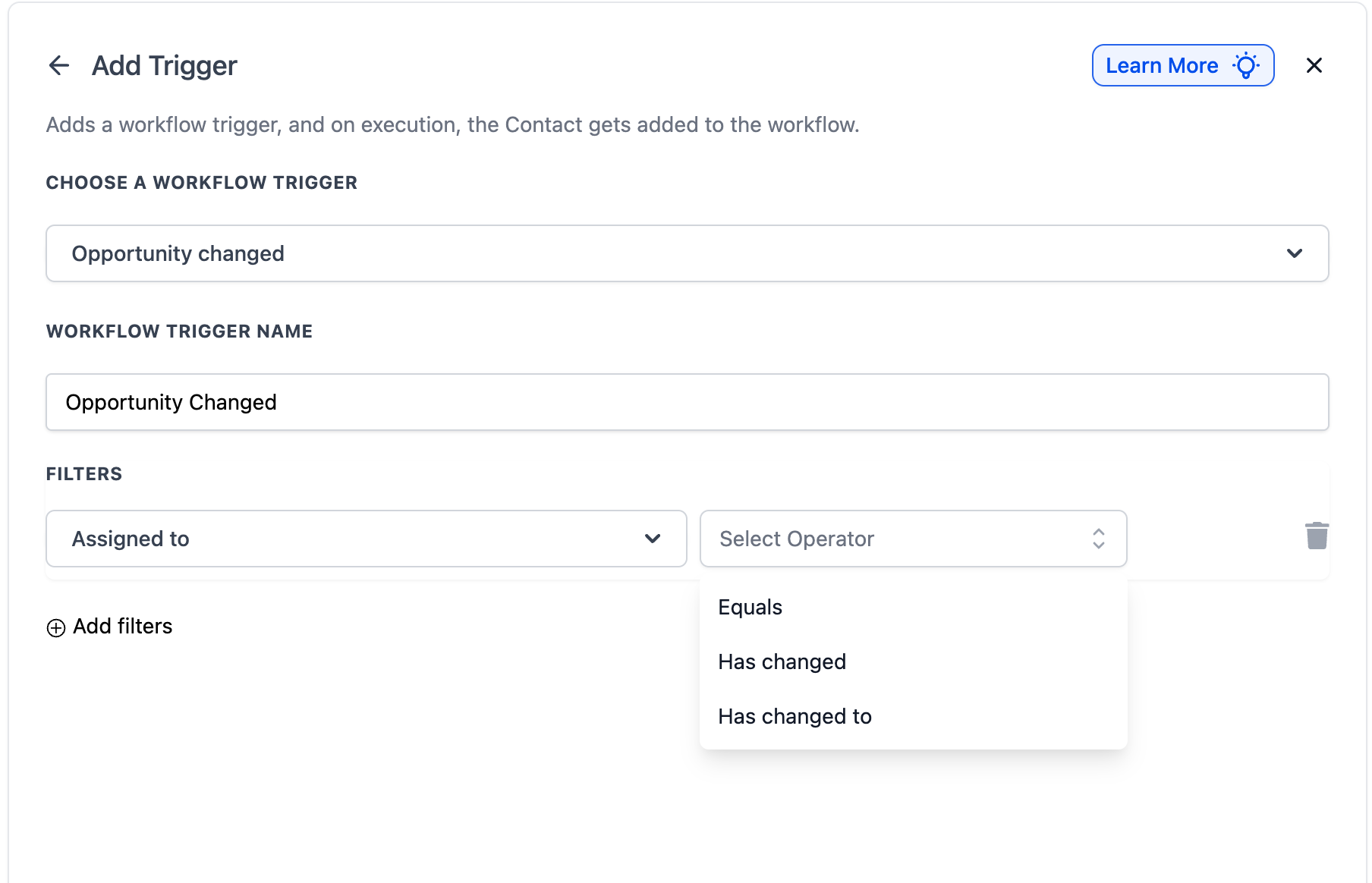
Assigned To Filter
This filter activates your workflow when an opportunity is reassigned to a different team member. It's invaluable for collaborative sales and support teams, automating smooth handoffs and ensuring accountability.
- Has Changed: Triggers if the assigned user changes to any other user.
- Has Changed To: Triggers only when the opportunity is assigned to a specific user you select.
- Equals: Triggers when any change occurs on opportunities currently assigned to a specific user.
For example, if a high-value lead is moved to a senior sales representative, the workflow can automatically notify the new owner, update internal records, or trigger a specific follow-up sequence.
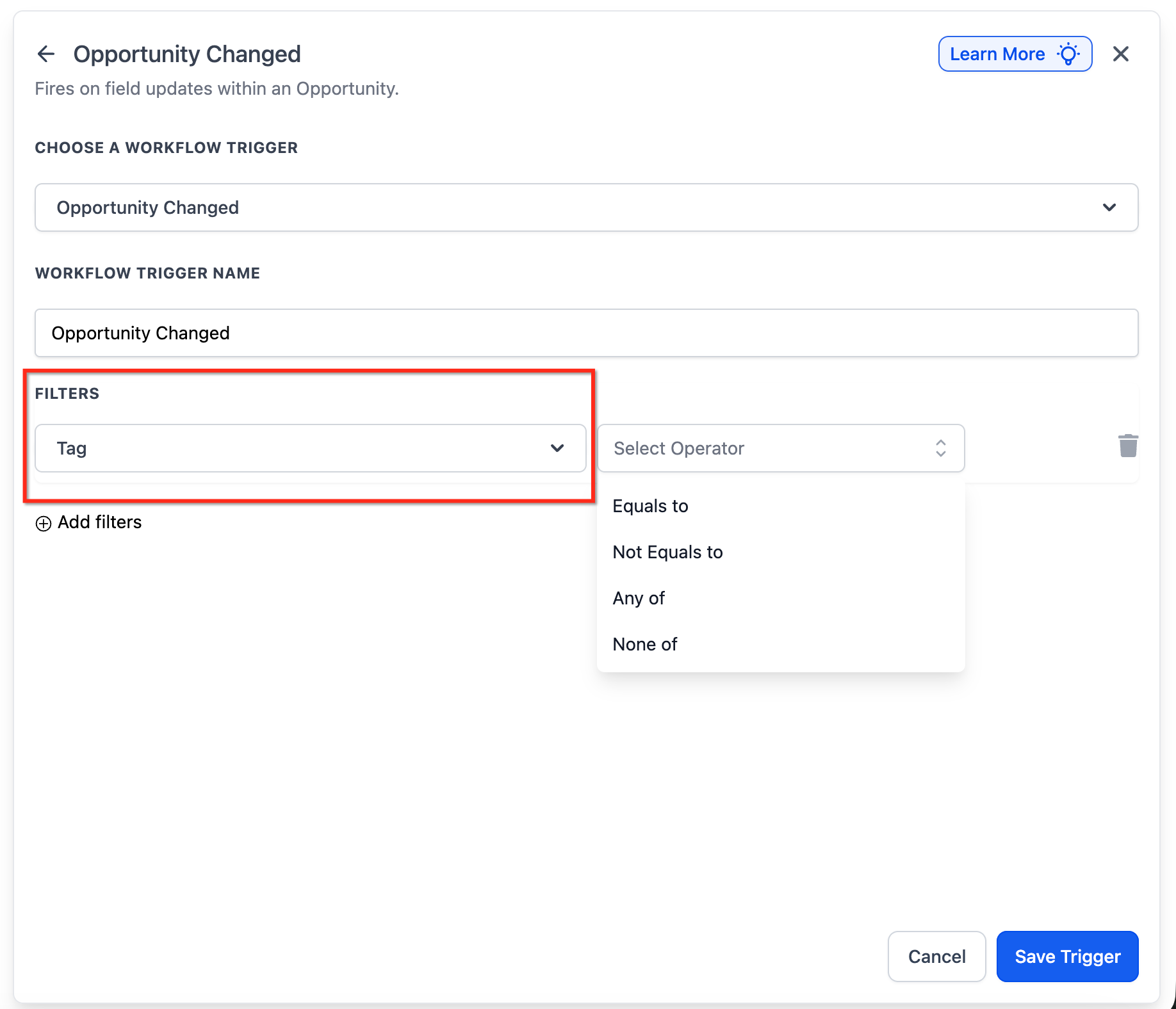
Tag Filter
Use the Tag filter to control workflow activation based on tags applied to an opportunity. This is perfect for segmenting leads and triggering actions based on their categorization.
- Has Tag: Triggers when a specific tag is applied to the opportunity.
- Does Not Have Tag: Triggers when a specific tag is removed from the opportunity.
- Has Changed: Triggers when any tag is added or removed.
- Has Changed To: Triggers when a specific tag is added/removed, and the new state matches your selection.
- Equals: Triggers when any change occurs on opportunities that currently have a specific tag.
For instance, if a "Hot Lead" tag is added, an automated email can be sent to the sales manager, or the lead can be moved to a different pipeline stage.
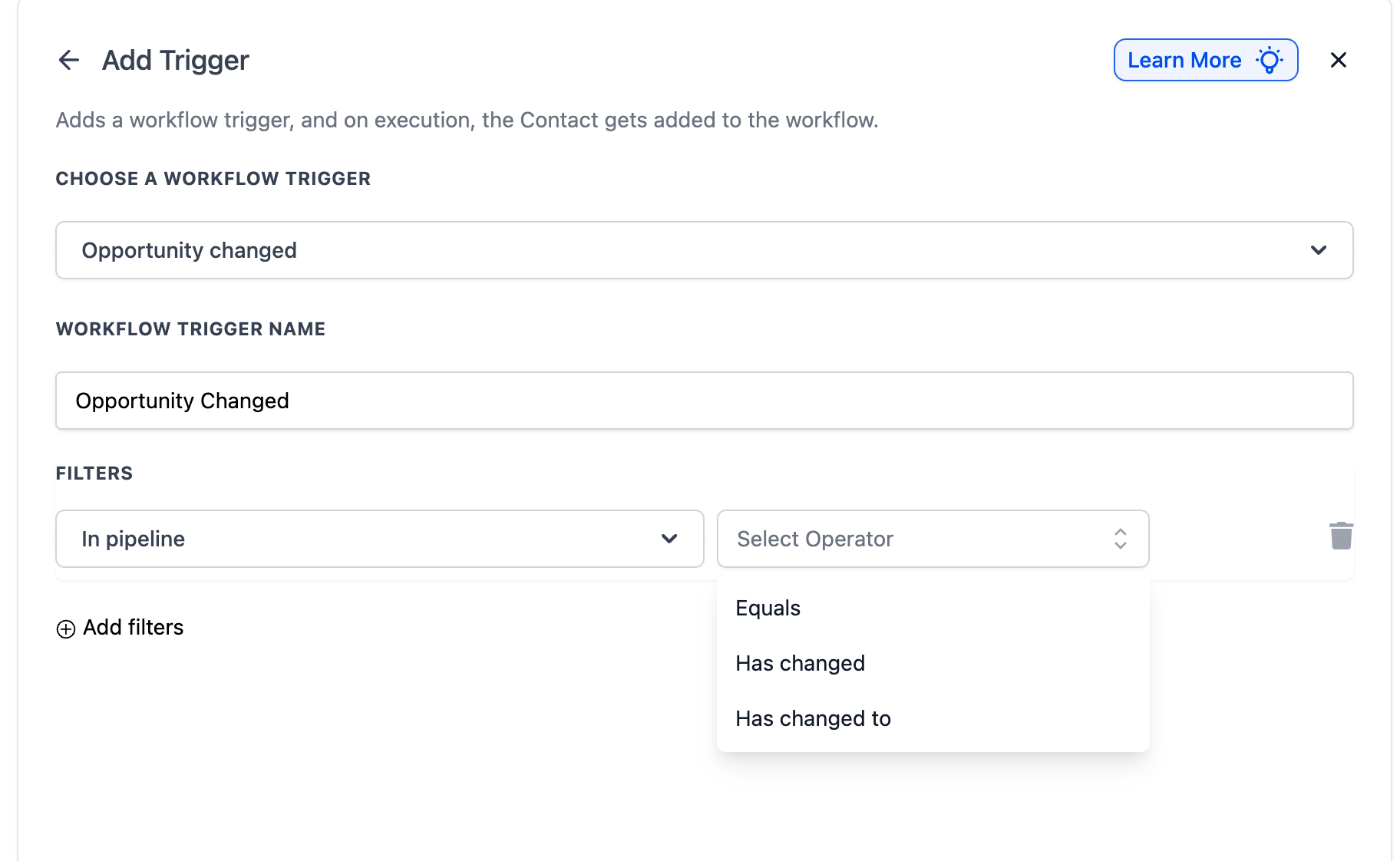
In Pipeline Filter
This filter triggers your workflow when an opportunity's pipeline changes or an existing opportunity within a specific pipeline is updated. This ensures targeted automation for businesses with multiple pipelines (e.g., Sales, Onboarding, Customer Support).
- Has Changed: Triggers when the opportunity moves to any different pipeline.
- Has Changed To: Triggers only when the opportunity moves to a specific pipeline you select.
- Equals: Triggers when any change occurs on opportunities within a specific pipeline.
This is particularly useful for processes related to [Internal Link: Pipeline Stage Changed GHL] when a contact moves across entire pipelines, not just stages.
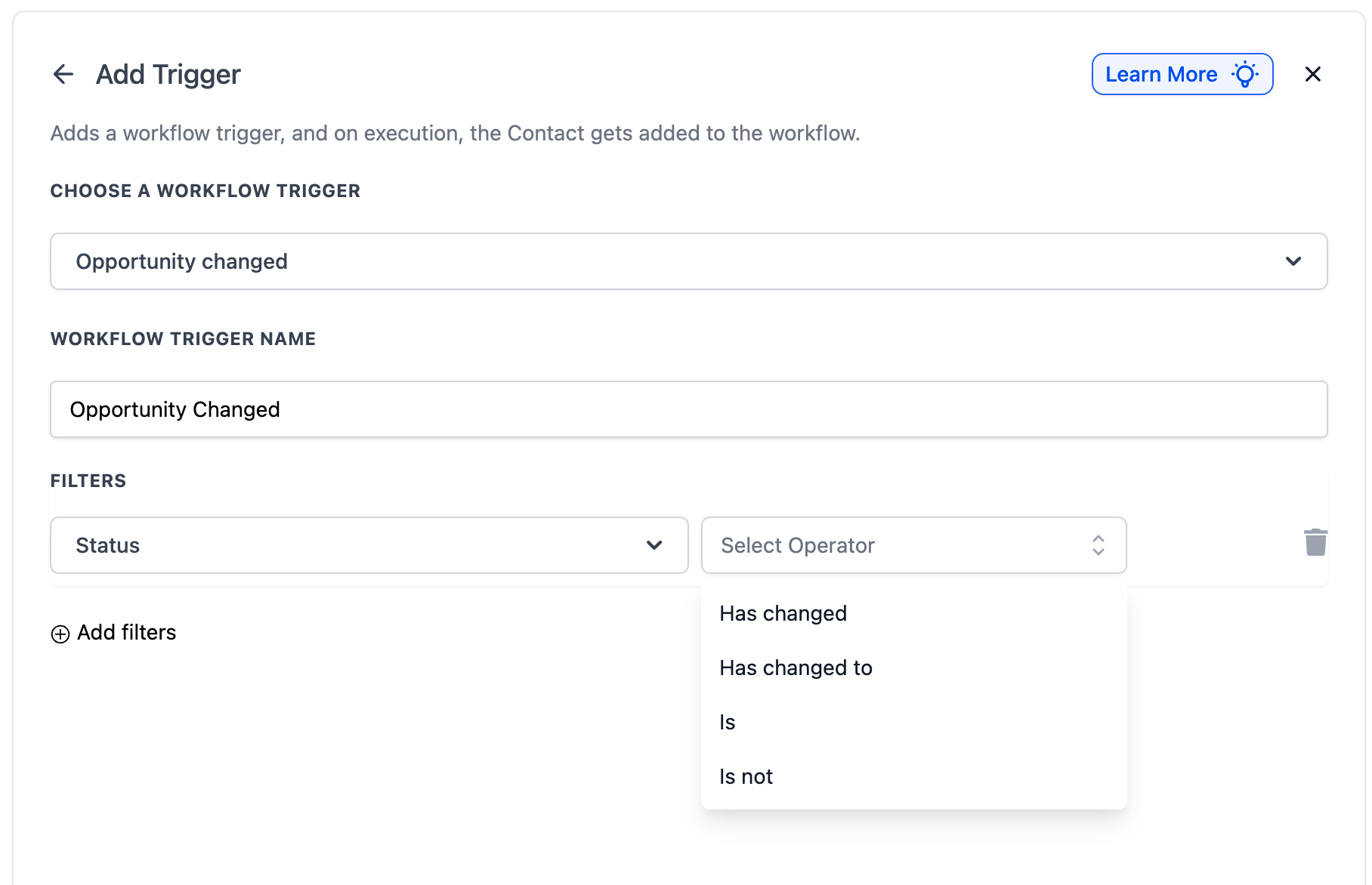
Lead Value Filter
Trigger workflows when the monetary value of an opportunity is adjusted. This helps you react to potential revenue shifts, whether an upsell or a revised quote.
- Has Changed: Triggers when the lead value changes to any value.
- Has Changed To: Triggers only when the lead value changes to a specific value or range.
- Equals: Triggers when any change occurs on opportunities with a currently specific lead value.
- Greater Than/Less Than/Is Between: Advanced operators to trigger based on value ranges.
For example, if a lead's value increases above a certain threshold, the system can notify senior sales staff or update reporting dashboards.
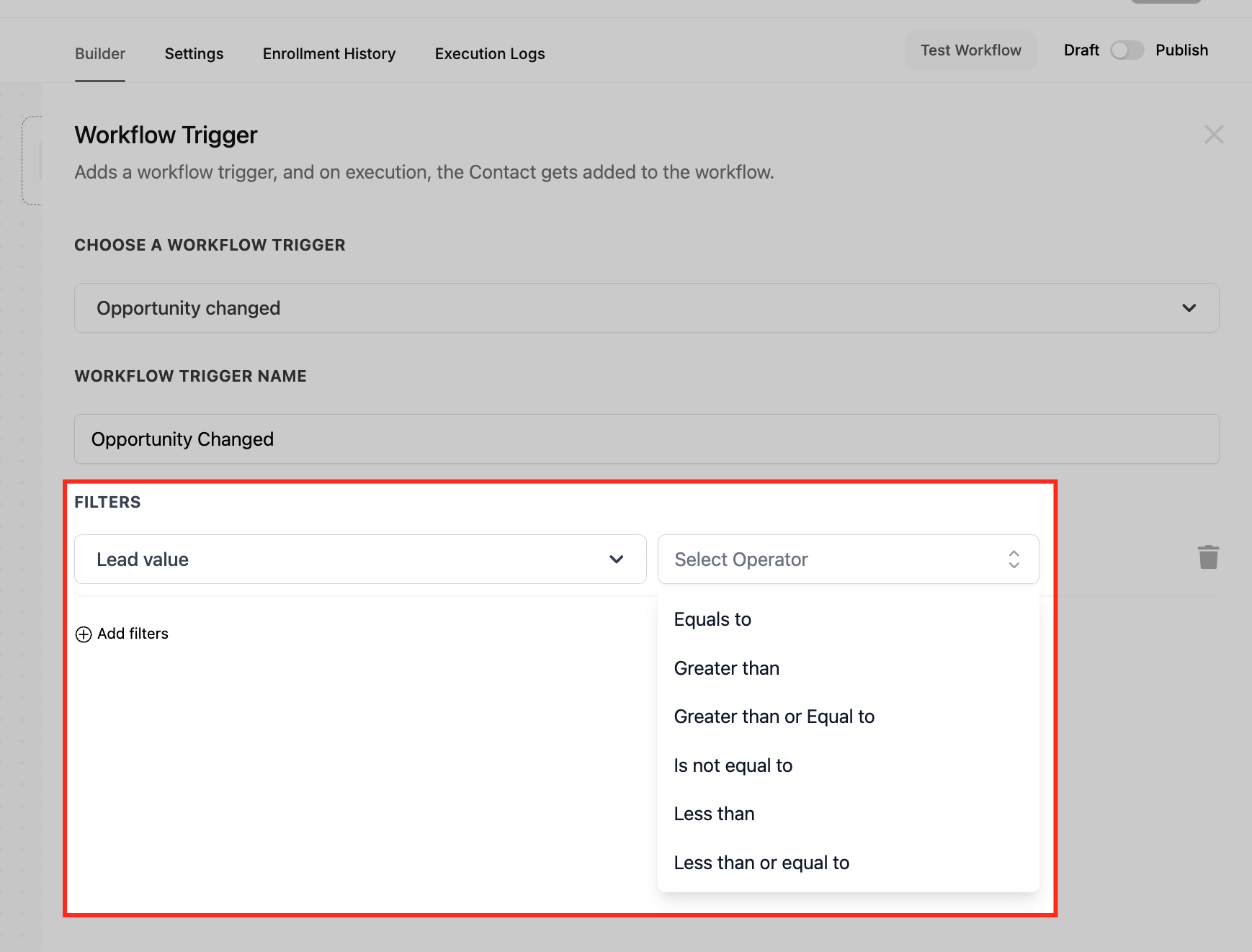
Lost Reason Filter
Automate actions when an opportunity is marked as "Lost" and a specific reason is assigned. This helps you track trends in lost deals and refine your sales strategy.
- Has Changed: Triggers whenever the lost reason is updated, regardless of the previous value.
- Has Changed To: Triggers only when the lost reason is updated to a specific value (e.g., "Price Too High").
- Equals: Triggers when any change occurs on opportunities that currently have a specific lost reason assigned.
This can initiate a survey for feedback on lost deals or trigger specific re-engagement campaigns.
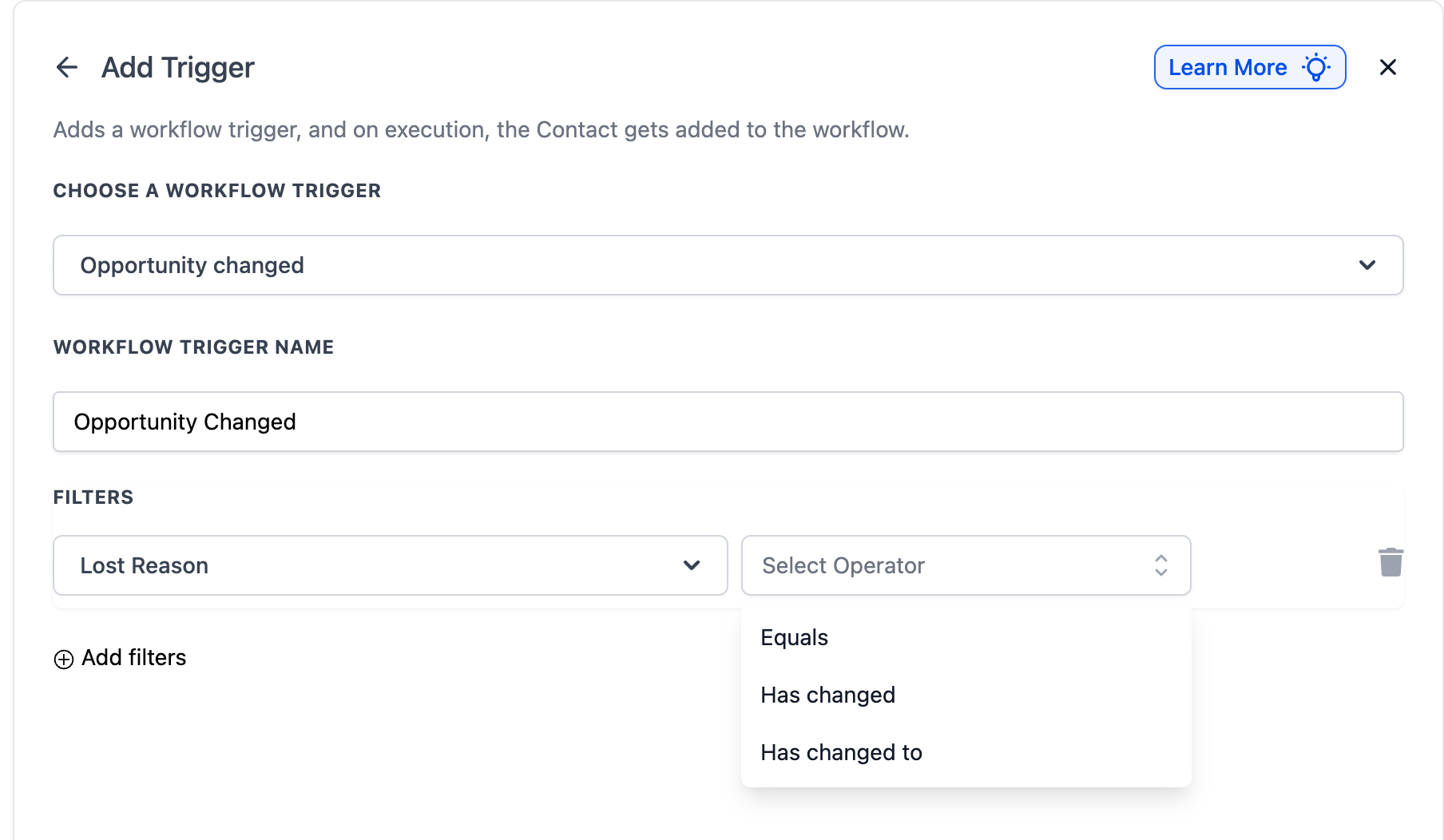
Status Filter
This filter allows workflows to trigger based on the current status of an opportunity, distinct from the "Opportunity Status Changed" trigger which focuses on the act of changing. This enables actions when an opportunity is currently in a specific status.
- Is: Triggers when an opportunity matches the selected status (e.g., "Won").
- Is Not: Triggers when an opportunity does not match the selected status (e.g., ignoring "Abandoned" opportunities).
- Has Changed: Triggers when the status changes to any other status.
- Has Changed To: Triggers only when the status changes to a specific value you select.
This is crucial for managing your "stale opportunities Go high level" by identifying leads that have lingered in a particular status for too long, then triggering follow-up actions.
Custom Field Filters (Checkbox, Radio Select, Dropdown, Date Fields)
The "Opportunity Changed" trigger extends its power to custom fields, enabling highly granular automation. This is incredibly versatile for any unique data points you track.
- Checkbox Fields:
- Added: Triggers when specific checkbox options are checked.
- Removed: Triggers when specific checkbox options are unchecked.
- Equals: Triggers when any change occurs on opportunities where the checkbox currently equals specific values.
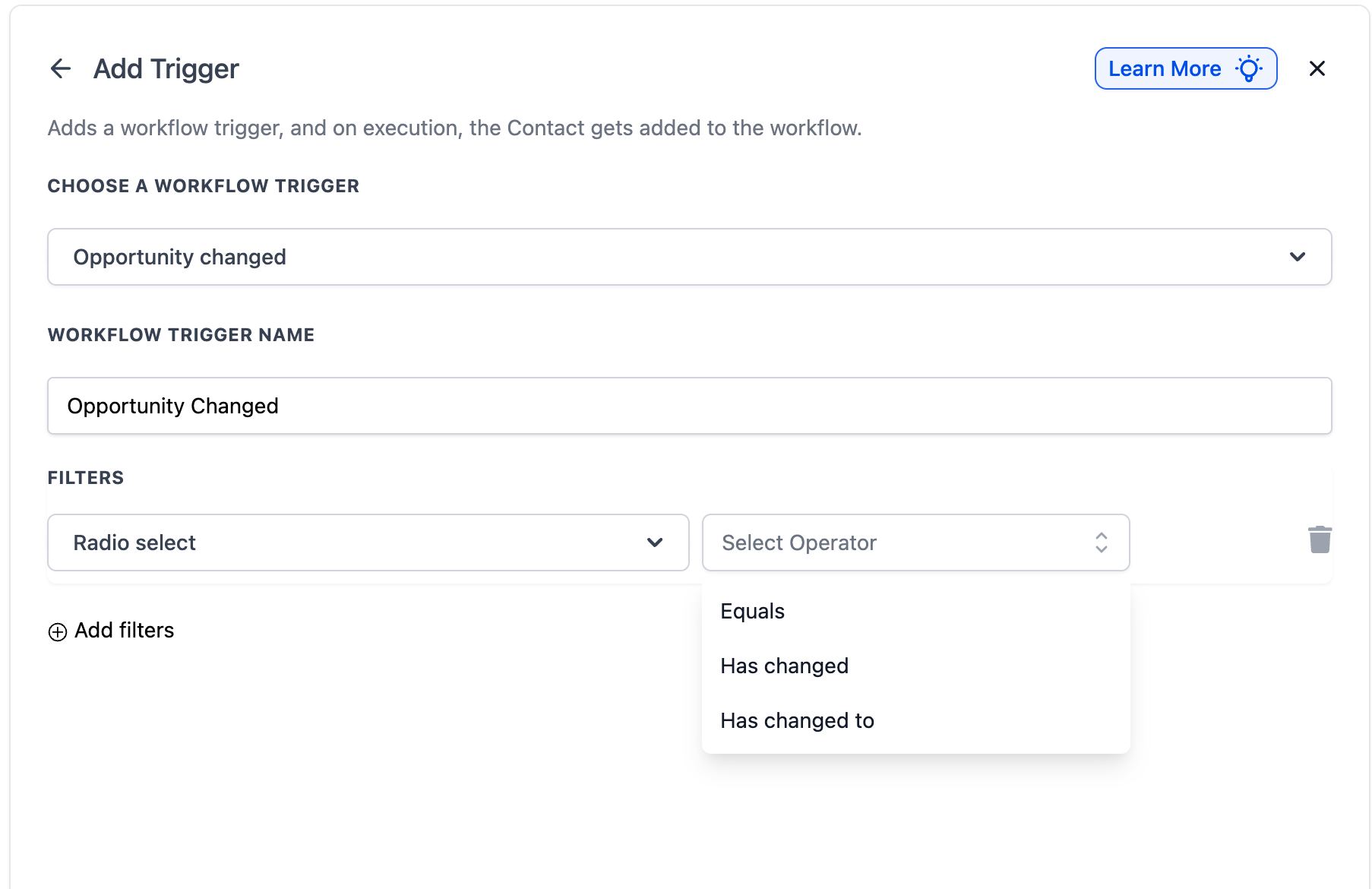
- Radio Select Fields:
- Has Changed: Triggers when the radio select value changes to any other option.
- Has Changed To: Triggers only when the radio select changes to a specific value.
- Equals: Triggers when any change occurs on opportunities where the radio select currently equals a specific value.
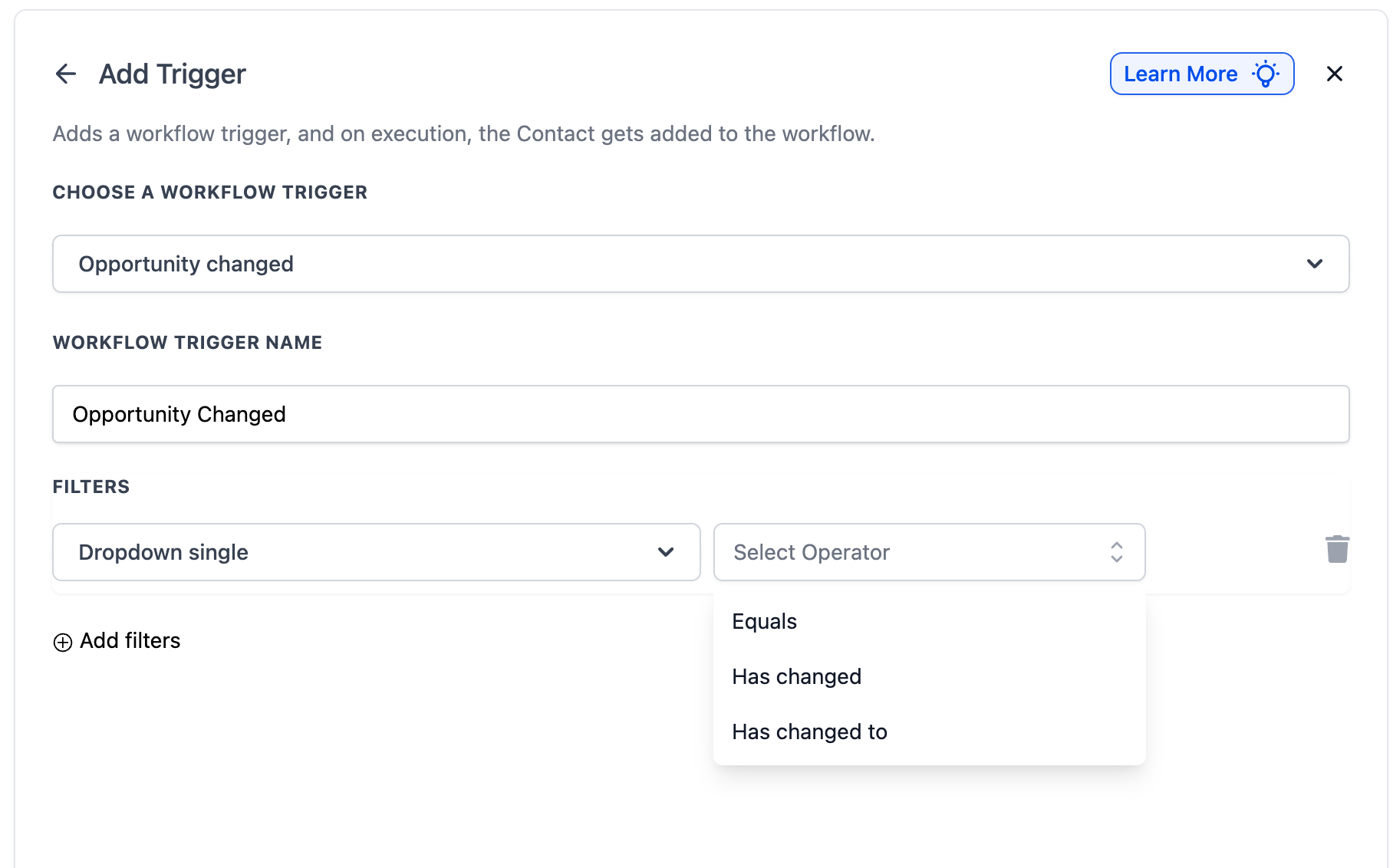
- Dropdown Fields (Single & Multiple):
- Has Changed: Triggers when the dropdown value changes.
- Has Changed To: Triggers only when the dropdown changes to specific values you select.
- Equals: Triggers when any change occurs on opportunities where the dropdown currently equals specific values.
- Date Fields:
- Has Changed: Triggers when the date field value changes.
- Has Changed To: Triggers only when the date field changes to a specific date.
- Equals: Triggers when any change occurs on opportunities where the date field currently equals a specific date.
These custom field filters unlock endless possibilities, allowing you to tailor automation to the precise needs of your business. To set up these intricate automations with confidence, sign up for GoHighLevel through our affiliate link and get started today.
Step 5: Defining Impactful Workflow Actions
Once your trigger and filters are configured, the next step is to define the actions that will execute when the workflow fires. These actions can be anything from simple notifications to complex multi-step processes:
- Send Email or SMS Notification: Alert sales reps, managers, or even the client about opportunity updates.
- Assign a Task: Automatically create follow-up tasks in the CRM for team members.
- Update Contact Record: Modify customer details based on new information gleaned from opportunity changes.
- Trigger Another Workflow: Link this trigger with other workflows for advanced, multi-stage automation (e.g., triggering a [Internal Link: Order Form Submission in GHL] workflow if a lead value hits a certain point, prompting a sales call).
Step 6: Save, Test, and Launch Your Automation
Before publishing, always test your workflow thoroughly:
- Click
Save Triggerto finalize settings. - Manually update an opportunity record to match your trigger and filter criteria.
- Check the workflow logs and ensure all expected actions execute correctly.
- Once verified, click
Publishto activate your powerful new automation.
Supercharge Your Sales Pipeline with Revset Labs
Mastering advanced workflow triggers like "Opportunity Changed" can dramatically improve your sales efficiency and responsiveness. However, setting up these intricate automations, optimizing filters, and ensuring seamless integration with your existing processes can be a significant undertaking.
This is where Revset Labs comes in. As an AI Automation and Marketing Agency, we specialize in helping businesses like yours leverage the full power of GoHighLevel. We design, implement, and manage custom automation strategies that are perfectly tailored to your unique sales processes, ensuring you capitalize on every opportunity change without lifting a finger.
Don't let valuable leads slip through the cracks. Partner with Revset Labs to build a truly intelligent and automated sales machine. Ready to see what bespoke automation can do for your bottom line? Start your GoHighLevel journey with us and unlock expert support.
Frequently Asked Questions (FAQ)
Q: How is "Opportunity Changed" different from "Opportunity Status Changed"?
A: The "Opportunity Changed" trigger tracks any modification within an opportunity record, including changes to assignment, lead value, tags, pipeline, and custom fields. In contrast, the "Opportunity Status Changed" trigger only activates when an opportunity’s status (e.g., Open, Won, Lost) is specifically modified.
Q: Can I combine multiple filters for a single workflow?
A: Absolutely! You can layer multiple filters to create highly specific automation. For instance, you could configure a workflow to trigger only when a "high-value lead" (Tag filter) is "reassigned to a senior sales rep" (Assigned To filter).
Q: How do I effectively test if my workflow is working correctly?
A: After setting up your trigger and actions, manually create or update an opportunity in your CRM to match the exact conditions of your trigger and filters. Then, check the workflow logs within your automation platform to confirm that the expected actions were executed. Make sure to test all possible scenarios you've configured.
Q: Does this trigger work with opportunity custom fields?
A: Yes, it does! The "Opportunity Changed" trigger is highly versatile and can be configured to activate when specific custom fields (checkboxes, radio selects, dropdowns, date fields, etc.) are updated within an opportunity record, giving you granular control over your automation.
Q: What is the difference between "Has Changed," "Has Changed To," and "Equals" operators?
A:
- "Has Changed" triggers when the value of that specific field changes to any new value.
- "Has Changed To" triggers only when a field changes to a specific value that you pre-select.
- "Equals" triggers when any change happens to an opportunity that currently has that specific field value, meaning the field's value matches your selection at the moment of change.
Q: Can date custom fields be used as filters now?
A: Yes! Date custom fields are now fully integrated as filters within the "Opportunity Changed" trigger. You can use "Has Changed," "Has Changed To," or "Equals" operators to trigger workflows based on changes to these date fields, allowing for powerful time-based automations.