
Managing user access in GoHighLevel is essential for keeping your agency secure, efficient, and scalable. Whether you’re onboarding team members, giving clients access to their sub-accounts, or delegating day-to-day work, the way you configure roles and permissions has a direct impact on data security and operational sanity.

In this guide, you’ll learn how user access works at both the agency and sub-account levels in GoHighLevel, what each area is best used for, and practical best practices to keep your account organized as you grow.
If you don’t have a GoHighLevel account yet, you can start a free trial here and follow along inside a live workspace: Start your GoHighLevel free trial
Agency vs. Sub-Account: Two Layers of User Access
GoHighLevel is structured around two main layers:
- Agency (Account) level – where you manage your overall agency, all client sub-accounts, billing, SaaS mode, and global settings.
- Sub-account level – where day-to-day work happens for a specific client or brand (funnels, pipelines, conversations, automations, calendars, etc.).
User access is managed separately at each layer.
Agency Team Management (Agency View)
In Agency view, you manage the people who can see and work across multiple sub-accounts. This is where you add internal team members and, in some cases, power users who need a portfolio-level view.
From Agency view:
- Go to Settings → Team.
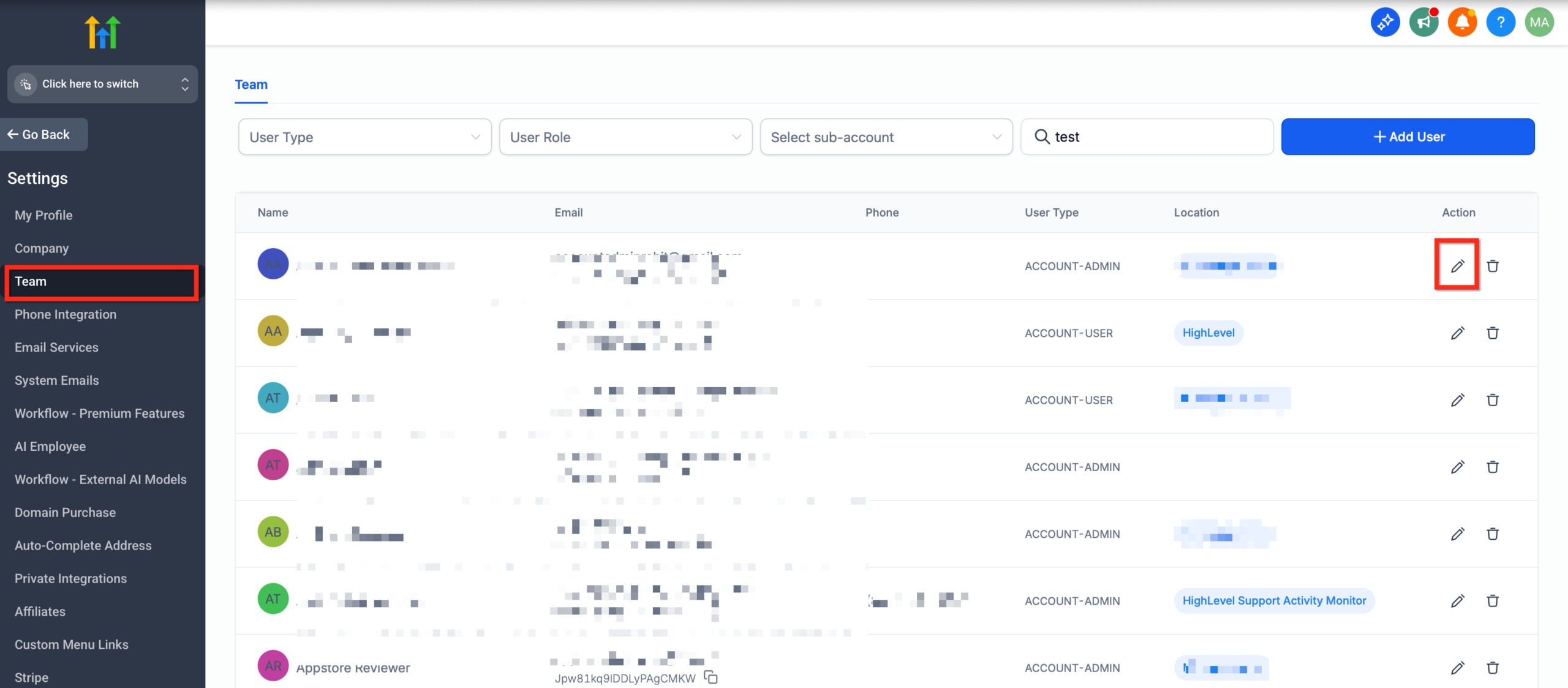
- From here you can:
- Add new Agency team members.
- Edit existing users.
- Configure roles, permissions, and login behavior.
Typical use cases:
- Founders, operations leads, and senior implementers who manage multiple client accounts.
- Agency staff who need to “login as” clients (if allowed) to troubleshoot or set things up.
- Technical team members who handle shared assets like snapshots, SaaS configuration, or integrations.
Team Management (Sub-Account Level)
Inside a specific sub-account, you manage the users who work only inside that brand or client environment.
From the sub-account:
- Switch to the relevant sub-account.
- In the side navigation, go to Settings.
- Click My Staff.
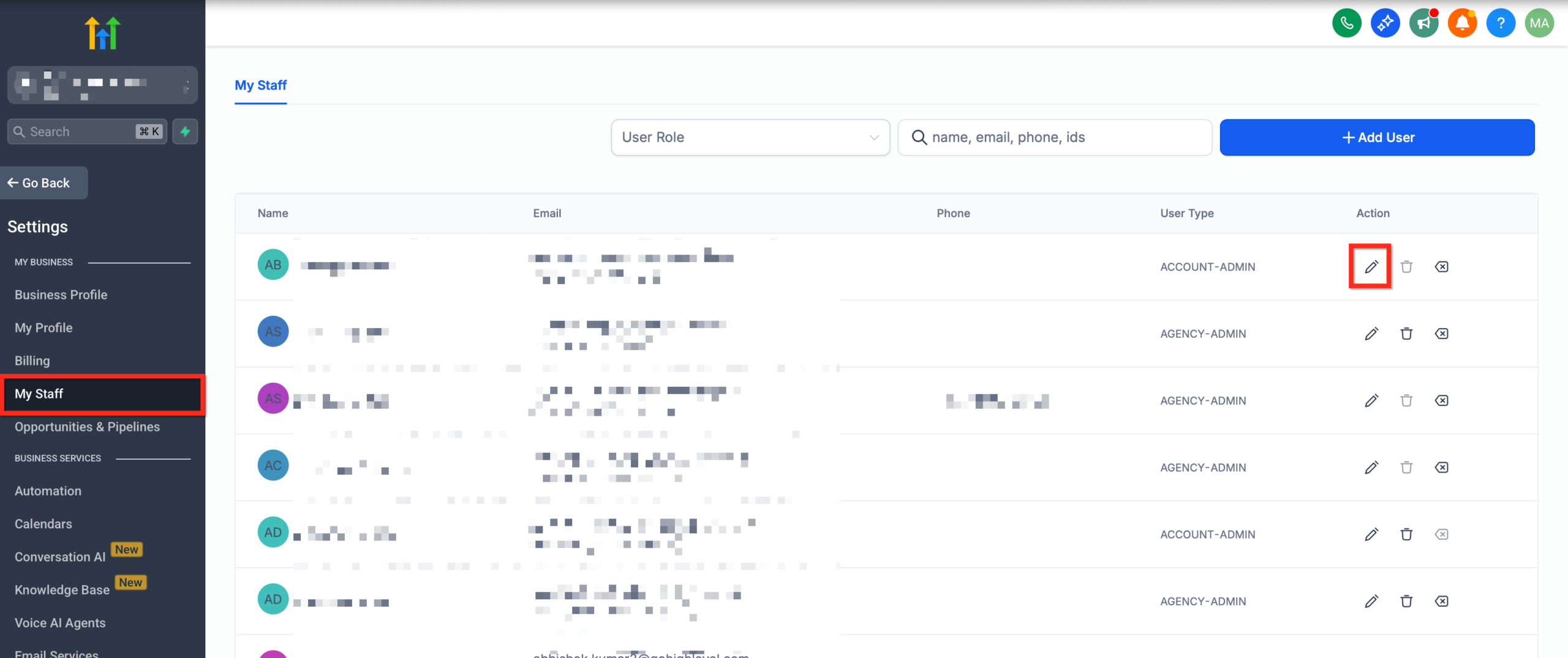
What you can do
As with agency-level user management, here you can add, delete, or edit users. For each user, you can modify:
- Personal logo
- First name
- Last name
- Email (login)
- Phone number
- Password
- Permissions (again, see User Roles, Permissions and Assigned data : Subaccount)
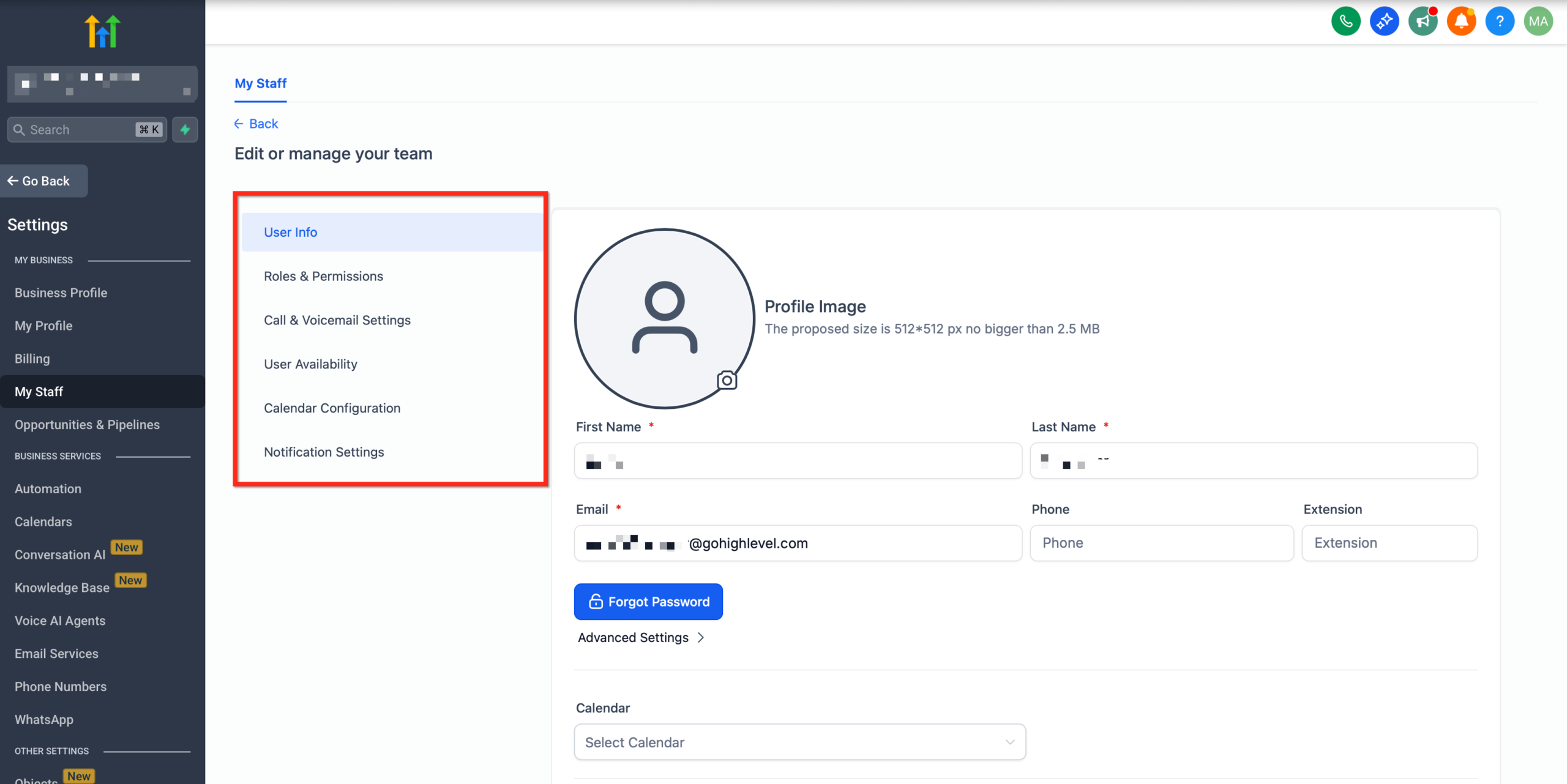
(If you’re not already familiar with how permission settings work, this section helps you understand what control you have.)
You can fine-tune what a user can do by assigning roles or permission scopes. These determine what parts of HighLevel the user can access (e.g. marketing tools, settings, campaigns), what actions they can perform (view, edit, delete), and which accounts their access applies to.
Best Practices
- Least Privilege Principle: Give users only the permissions they need. Avoid giving full agency access unless absolutely necessary.
- Use Account-type users when you want someone to have limited access (e.g. sales or support assistant for one client).
- Track changes: Maintain clear records of who has what access and when changes are made (helps with audits or troubleshooting).
- Review access periodically: People’s roles change, so prune permissions or remove users who no longer need them.
Frequently Asked Questions
Q: What’s the difference between “Agency” user type vs “Account” user type?
An Agency user type grants access across all client accounts under your agency. An Account user type restricts access to only the client accounts you explicitly select.
Q: If I add a user under “My Staff” in a sub‐account, will they appear in Agency Team Management?
Yes — all users added in sub-accounts (“My Staff”) are also visible under the Agency’s Team list.
Q: Can I set different permission levels for different users?
Absolutely. The permissions settings let you control precisely which features and actions each user can use.
Q: How do I change someone’s access later if their role changes?
Go to the relevant user record (either in Agency Team or My Staff), edit their user type, assigned accounts, or permissions as needed.
Related Articles
- Admin Vs. User Roles and Permission Scopes
- User Roles, Permissions and Assigned Data: Subaccount
- How to Create a User or Admin to Manage Multiple HL Locations Without Giving Them Agency Access?
- Agency | Managing user roles & permissions
- Login As User (Agency Admin Only)
Was this article helpful?
That’s Great!
Thank you for your feedback
Sorry! We couldn't be helpful
Thank you for your feedback
Let us know how can we improve this article! *
Feedback sent
We appreciate your effort and will try to fix the article
Articles in this Folder
- User Access
- Email Signatures
- Admin Vs. User Roles and Permission Scopes
- How to create a user or admin to manage multiple HL locations without giving them agency access?
- Troubleshooting Login issues
- Understanding the Agency Owner Role in Your Agency Account: What You Need to Know
Related Articles
- How to create a user or admin to manage multiple HL locations without giving them agency access?
- Agency | Managing User Roles & Permissions
- User Roles, Permissions and Assigned data : Subaccount
- Admin Vs. User Roles and Permission Scopes
- Facebook Multi page Troubleshoot
- Paid Groups
Agency Team Management: Roles, Permissions & "Login As"
Agency Team Management is where you control who can touch the agency shell and how much power they have over sub-accounts.
Who Agency Team Management Is For
Use Agency Team Management for:
- Agency owners and co-founders who need full control.
- Operations and implementation leads who build and maintain client setups.
- Trusted support or success staff who help clients across accounts.
Avoid giving agency-level access to client-side staff unless they truly need to see multiple sub-accounts.
How to Access Agency Team Management
- Log into GoHighLevel and ensure you’re in Agency view (not a specific sub-account).
- From the left navigation, go to Settings → Team.
- You’ll see a list of existing users, plus options to add or edit team members.
What You Can Configure at the Agency Level
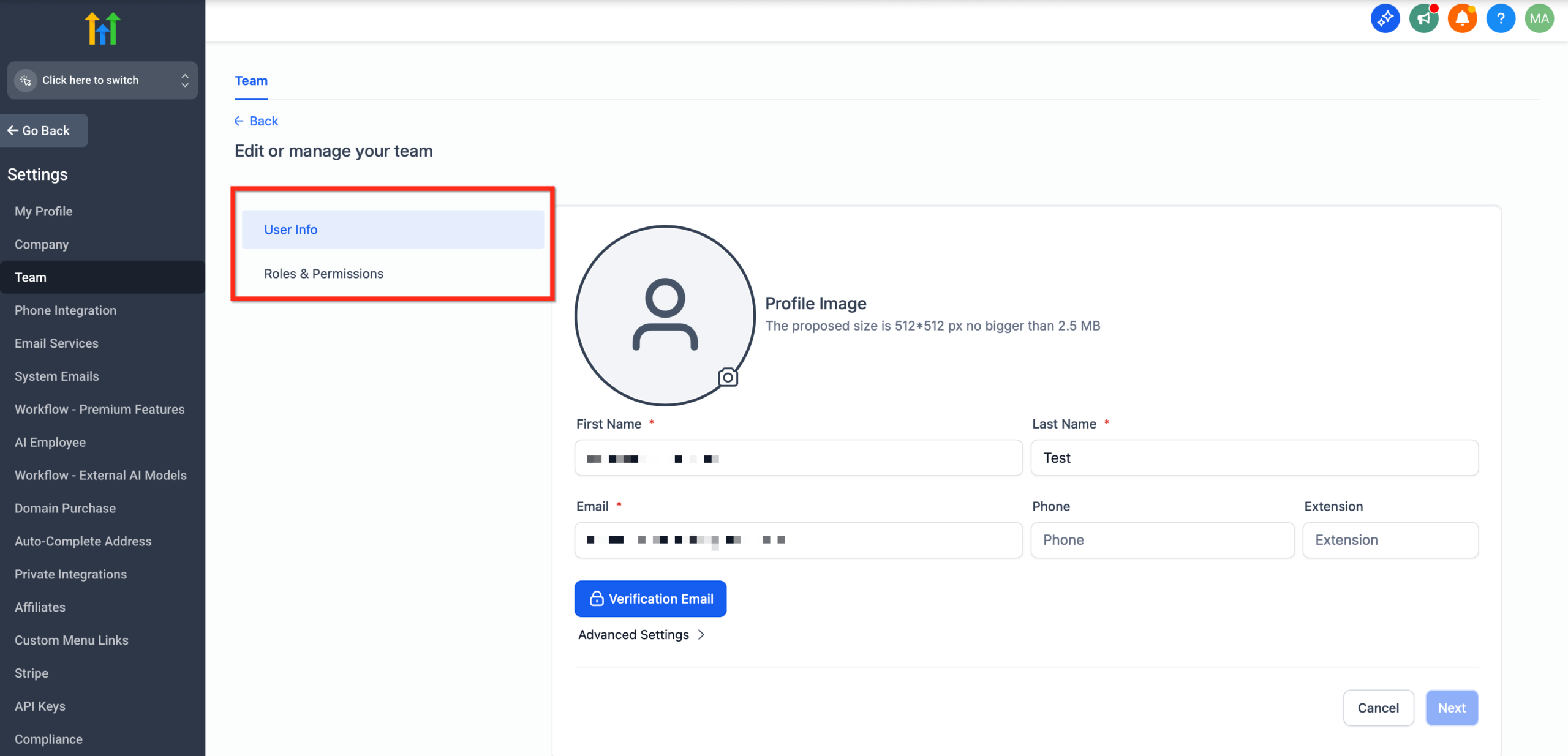
When you add or edit an agency user, you can:
- Update name, email, phone, and password.
- Configure roles and permissions (for example, who can:
- Create or delete sub-accounts.
- Access billing.
- Manage snapshots or SaaS mode.
- Edit global assets like domains and templates).
- Specify User Type:
- Agency – Can access the agency shell and, depending on permissions, multiple sub-accounts.
- Account – Restricted to specific sub-accounts you explicitly assign.
- Assign which accounts this person can access.
"Login As" Permission
GoHighLevel includes a powerful “Login As” capability that lets agency users temporarily log into a client’s sub-account as if they were that user. This is incredibly helpful for:
- Troubleshooting issues that a client is seeing.
- Configuring complex workflows or integrations quickly.
- Walking clients through changes on their behalf.
Because this is sensitive, there’s a dedicated permission toggle (often described in help docs as "Enable Login As" or similar). Only grant it to:
- Senior operators you fully trust.
- People who understand your security and privacy expectations.
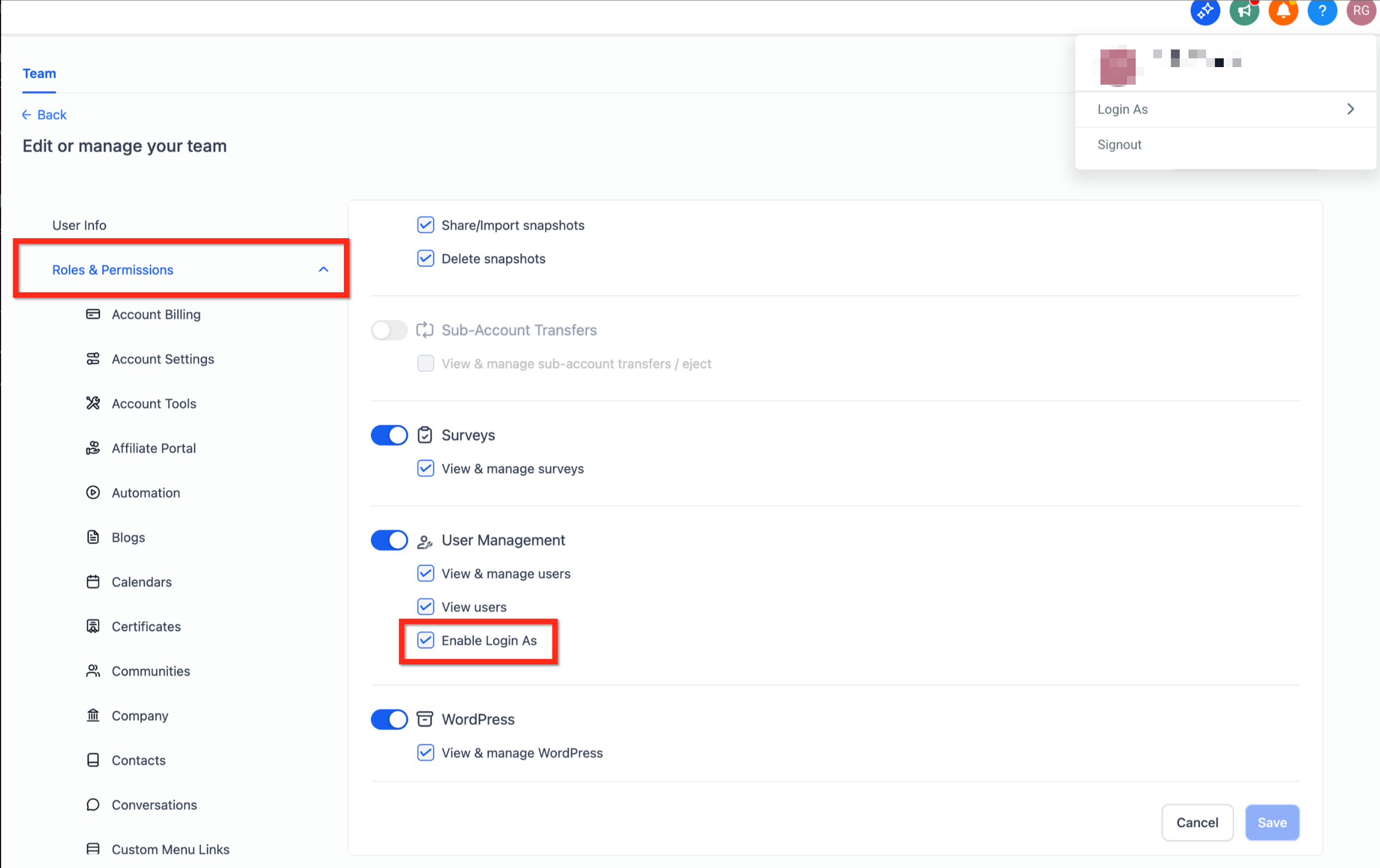
Best practice: Keep a short internal SOP that explains when it’s acceptable to use "Login As" and how to log your work so clients know what changed.
Team Management at the Sub-Account Level
At the sub-account level, you’re focused on who can work inside this specific brand or client environment.
Who Sub-Account Team Management Is For
Use sub-account Team Management for:
- Client-side users (sales reps, CSMs, marketing staff).
- Internal team members dedicated to a single brand or location.
- Contractors or external partners with limited responsibilities.
How to Access Team Management in a Sub-Account
- Switch into the sub-account from your Agency view.
- In the left navigation, go to Settings → My Staff.
- From here you can:
- Add new users.
- Edit existing users.
- Configure roles, permissions, and data visibility.
What You Can Configure at the Sub-Account Level
For each sub-account user, you can:
- Set basic details: name, email, phone, avatar, password.
- Enable or disable access to modules like:
- Conversations
- Contacts
- Opportunities / Pipelines
- Calendars
- Funnels & Websites
- Workflows / Automations
- Reporting & Dashboards
- Decide whether the user can:
- View all data, or
- Only see assigned data (for example, only their own leads and opportunities).
For detailed permission matrices, GoHighLevel’s own help docs provide module-by-module breakdowns. Your job is to translate those toggles into a simple, consistent policy your team can follow.
Roles, Permissions & "Only Assigned Data"
GoHighLevel combines roles (what parts of the app you can even see) with permissions and data visibility (what you can do and which records you can see).
Common Role Patterns
While exact roles vary by setup, three practical patterns show up in most accounts:
- Agency Admin (Agency view)
- Full or near-full access to the agency account.
- Can manage sub-accounts, billing, snapshots, and high-level settings.
- Often allowed to "login as" sub-account users.
- Sub-Account Power User (within a client account)
- Can work across Conversations, Contacts, Pipelines, Funnels, Workflows, and Reporting.
- Ideal for internal implementers or client-side marketing leads.
- Client Staff / Sales Rep
- Primarily uses Conversations, Contacts, and Opportunities.
- Often restricted to only assigned data.
Here’s a simple visual of how you might map roles, configure permissions, assign accounts, and audit access over time:
"Only Assigned Data" for Focus and Security
For roles like sales reps or client support, it’s often safer and simpler to limit what they can see.
When you enable "Only Assigned Data" (naming may vary slightly in the UI depending on your version):
- Users see only the contacts, opportunities, and conversations assigned to them.
- They can focus on their own book of business.
- You reduce the risk of accidental data exposure across regions, brands, or sales territories.
Use this option when:
- Multiple reps work in the same sub-account.
- You’re enforcing territory or account ownership rules.
- You want to prevent cross-client visibility in shared setups.
Best Practices for Managing User Access in GoHighLevel
Once you understand the building blocks, the real leverage comes from your access strategy.
Here are practical best practices we see work well across agencies:
1. Start from roles, not individuals
Instead of configuring every user from scratch, start by designing a small set of role profiles, such as:
- Agency Owner / Admin
- Agency Implementer
- Client Power User
- Sales Rep
For each profile, define:
- Which modules they can access.
- Whether they see all data or only assigned data.
- Whether they can create/edit automations and pipelines.
Then, when you add someone new, you simply match them to the closest profile and make small tweaks.
2. Use "Account" user types for cross-account staff
If you have team members who should only see some sub-accounts (for example, regional managers), set them up as Account users at the agency level and explicitly assign which accounts they can access.
This keeps your agency-level access list tight while still giving them the visibility they need.
3. Restrict "Login As" to a very small group
Treat "Login As" like handing someone a master key.
- Give it to a small, trusted inner circle only.
- Keep a note in your internal runbook of who has it and why.
- Encourage people to use it sparingly and to document any major changes they make while logged in as a client.
4. Pair user access with onboarding and SOPs
A good permission model is only half the story. New users also need to understand:
- Where they should spend their time (which modules and dashboards).
- How to handle sensitive data.
- When to escalate issues vs. trying to "fix" things they don’t fully understand.
Create short Looms or written SOPs tailored to each role so people get comfortable quickly.
5. Review access regularly
Set a recurring reminder (monthly or quarterly) to:
- Remove users who have left your agency or your clients’ teams.
- Downgrade permissions for users who no longer need admin-level access.
- Check that "Only Assigned Data" is enabled where it should be.
This kind of lightweight audit helps you avoid surprise access issues months down the road.
Example Access Strategy for a Growing Agency
Here’s a simple starter model you can adapt:
- Agency Owner
- Full Agency access, "Login As" enabled.
- Can see and manage all sub-accounts.
- Implementation Lead
- Agency-level access to create and configure sub-accounts.
- "Login As" enabled.
- Can manage snapshots, workflows, and funnels.
- Client Success Manager
- Agency-level Account user assigned only to a subset of sub-accounts.
- Inside sub-accounts, can see Conversations, Contacts, Opportunities, Calendars, and Reporting.
- Cannot change global settings or billing.
- Client Sales Rep
- Sub-account user only.
- Access to Conversations, Contacts, Opportunities.
- Only Assigned Data enabled.
- No access to Workflows, global Settings, or other sub-accounts.
- Contractor / Freelancer
- Sub-account user with access only to the modules they need (for example, Funnels & Websites).
- Time-boxed access that you review at the end of a project.
You can visualize this as a roles-and-permissions matrix that maps capabilities (edit campaigns, manage contacts, view reports, manage settings) to each role:
When to Involve Revset Labs
Designing user access is one part security, one part operations, and one part change management. If you’re rolling out GoHighLevel across multiple brands or teams, it’s worth getting the foundations right.
Revset Labs is an AI Automation and Marketing Agency that builds full revenue systems on top of GoHighLevel. When it comes to user access, we can help you:
- Audit your current roles, permissions, and data access patterns.
- Design a scalable access model across agency, sub-accounts, and client teams.
- Implement user structures that align with your funnels, pipelines, and automations.
- Create SOPs and training assets so new users ramp quickly without compromising security.
You bring the offers and team; we help ensure everyone has the right level of access to execute, without slowing the business down.
Final Thoughts
User access in GoHighLevel isn’t just an admin checkbox — it’s a core part of how secure, efficient, and scalable your operation can be.
Get the roles and permissions right, and you’ll:
- Protect sensitive client and revenue data.
- Give people exactly what they need to do great work (and nothing more).
- Reduce support headaches caused by accidental misconfigurations.
- Create a cleaner foundation for the automations, pipelines, and funnels you build on top.
If you’re ready to experience this in your own environment, you can launch a live GoHighLevel account here:
Start your GoHighLevel free trial
From there, you can follow this guide step by step — or bring in Revset Labs to architect a user access model that fits your agency today and scales with you tomorrow.