
If you’re moving from Typeform to GoHighLevel (HighLevel), the goal isn’t just to copy forms over. You want all of your forms, contacts, automations, domains, and reporting working together inside one platform so you can see the full funnel, trigger workflows reliably, and stop paying for overlapping tools.

This guide walks you through a clean, low‑risk migration path from Typeform to HighLevel, with five stages you can follow as a checklist.
If you don’t have a HighLevel account yet, you can start a free GoHighLevel trial here so everything you migrate lands in a production‑ready account.
Before you start: inventory your Typeform setup
Before you touch any settings, get clear on what actually needs to move. For each Typeform in your workspace, document:
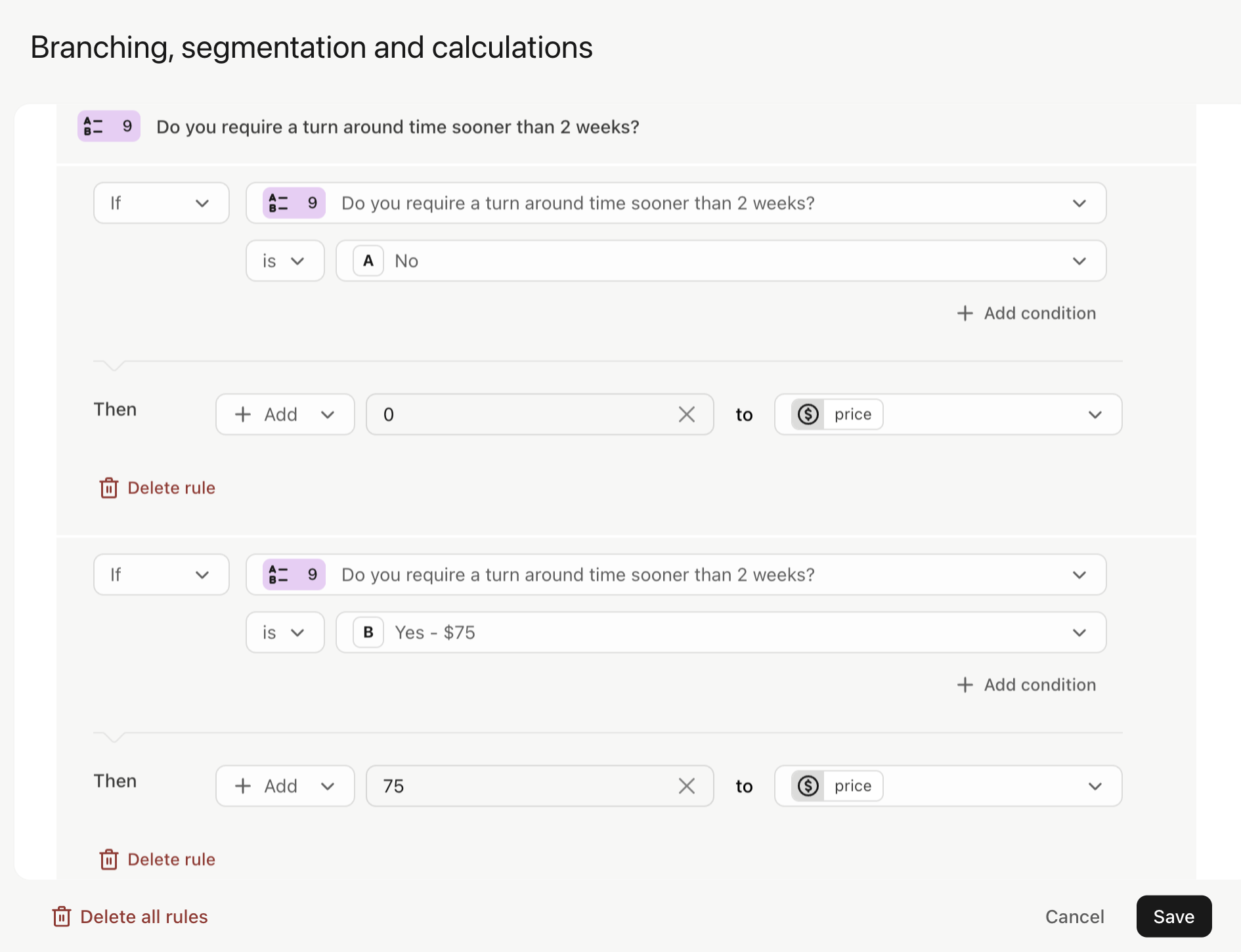
- Form structure – questions, field types, required vs optional fields, conditional logic, and calculations
- Connected tools – CRMs, email platforms, webhooks, Zapier, Slack, Google Sheets, etc.
- Notifications & follow‑ups – who receives email alerts, what confirmation emails go to respondents, and any downstream sequences
- Domains and share links – custom domains, vanity URLs, and QR codes that are in live use
- Reporting – which teams rely on Typeform’s built‑in reports today (marketing, ops, support, product)
Use this inventory as your master checklist so you don’t accidentally strand a form, automation, or report during the cutover.
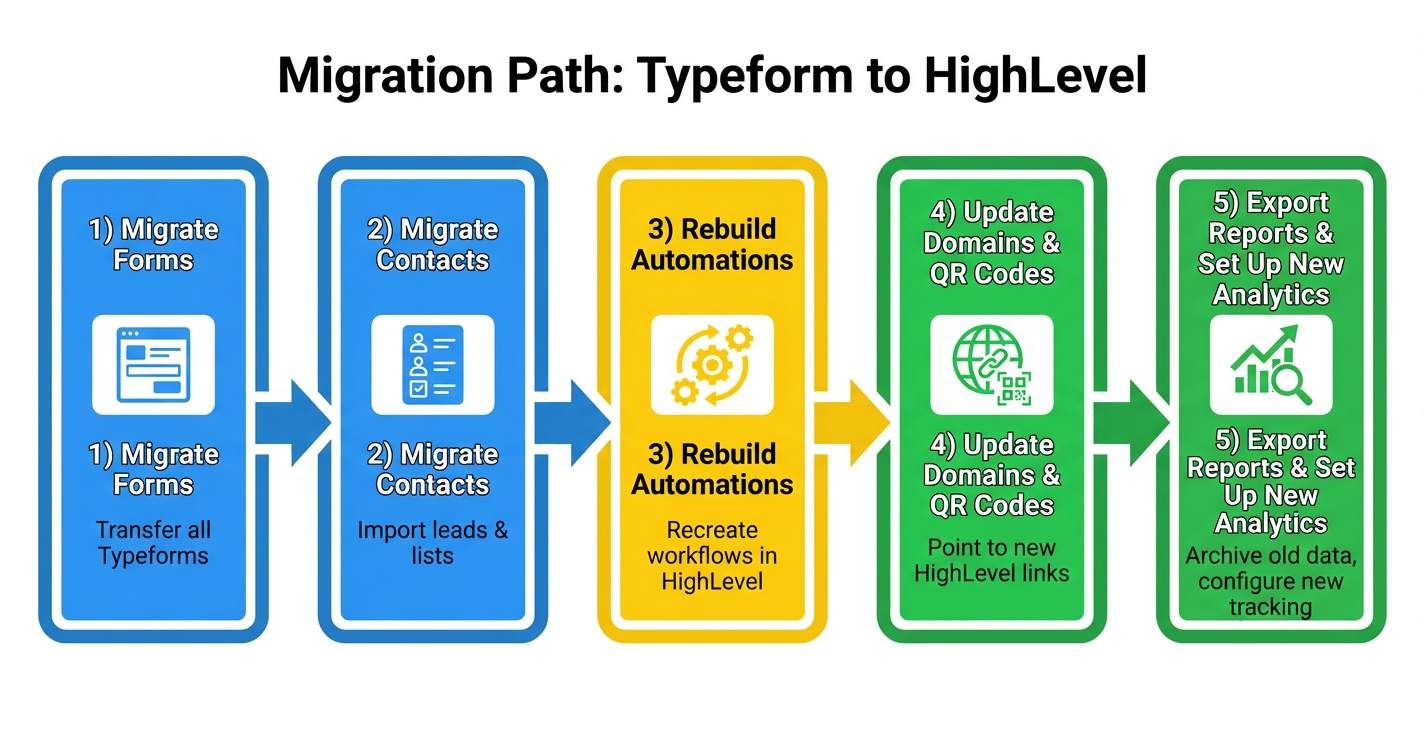
1. Migrate your forms into HighLevel
Your forms are the front door to your pipeline, so you start here. The aim is to recreate your Typeform experience inside HighLevel – same questions, same logic, cleaner integration with your CRM.
Step 1: Review each live Typeform
In Typeform:
- Open My Workspace and list every form that still collects live responses.
- For each form, review the Questions panel so you can see field order, types, validation rules, and conditional jumps.
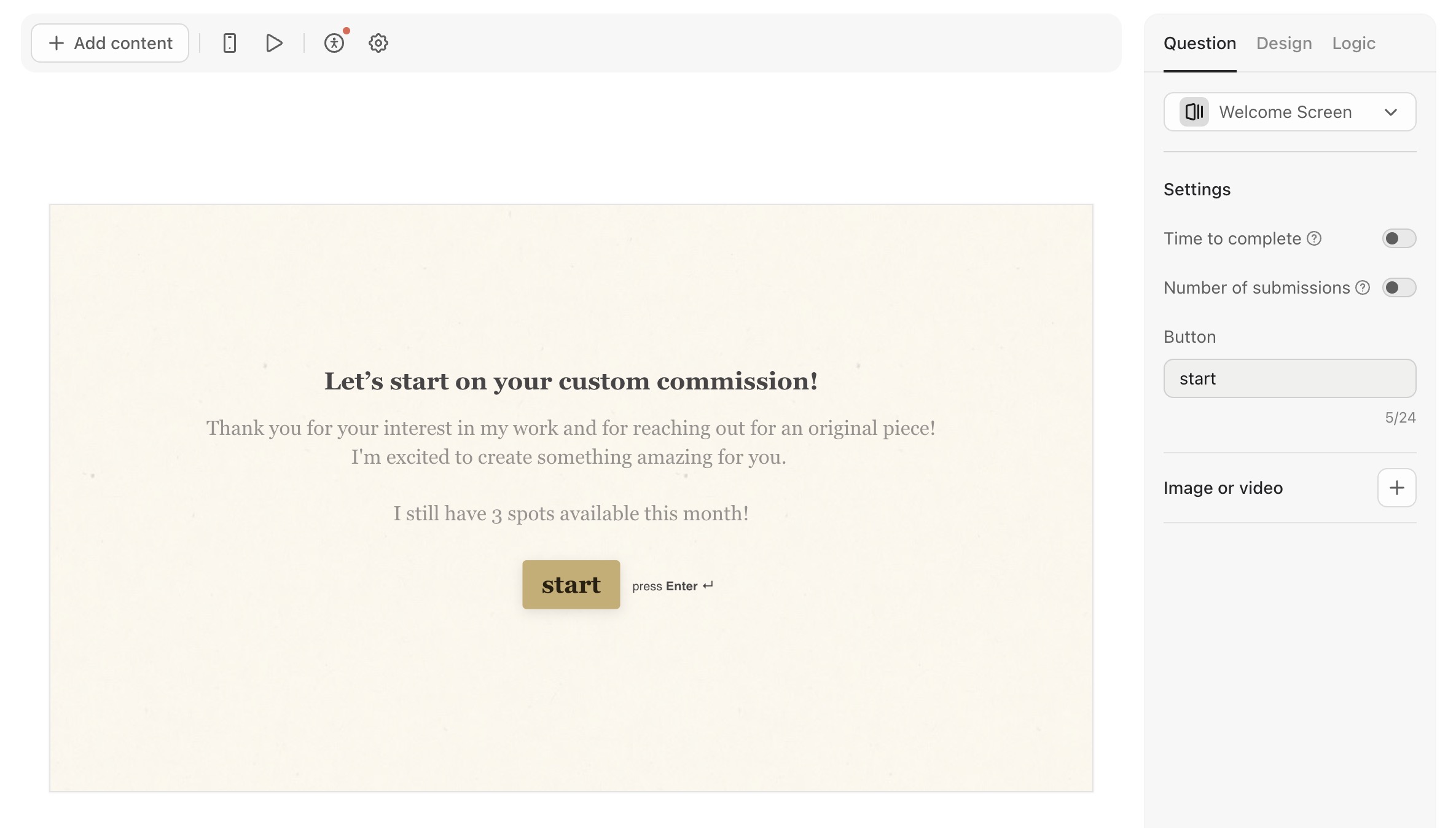
- Note any in‑form logic (calculations, branching) and settings like email notifications or redirects after submission.
This becomes your blueprint for rebuilding in HighLevel.
Step 2: Recreate key fields as HighLevel custom fields
In HighLevel:
- Go to Contacts → Settings → Custom Fields.
- Create custom fields for every piece of data you need to store long‑term (names, contact details, budgets, preferences, scores, etc.).
- Group them into logical Custom Value Folders (for example, “Lead Intake”, “NPS Survey”, “Onboarding Questionnaire”) so they’re easy to reuse across forms and pipelines.
Matching your Typeform fields 1:1 to HighLevel custom fields now will make your import and automations much simpler later.
Step 3: Rebuild your forms and surveys in HighLevel
Next, recreate the actual forms:
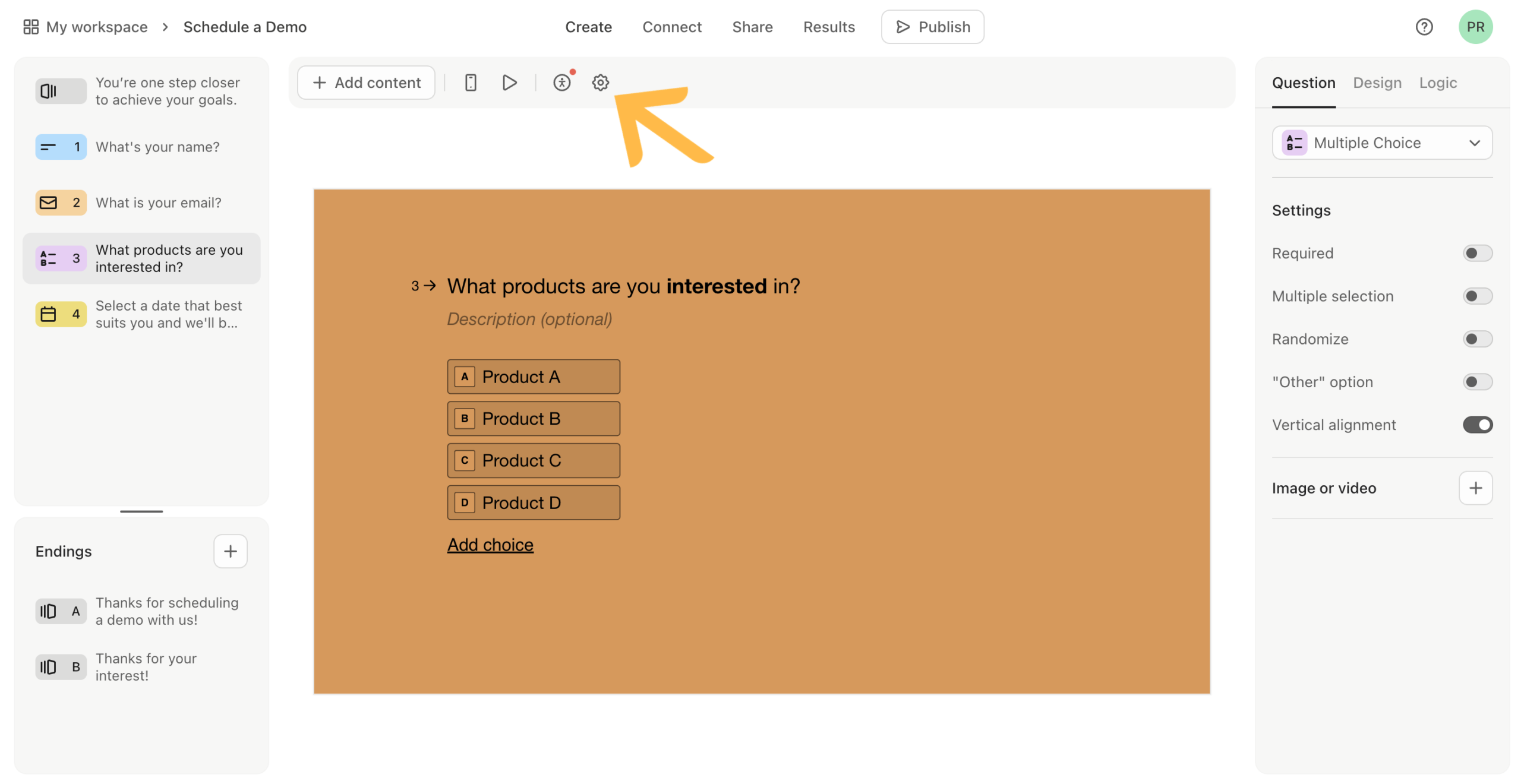
- Go to Sites → Forms/Surveys in HighLevel.
- Create a new form or survey for each Typeform you documented.
- Add questions using the appropriate field types (single‑line, multi‑line, dropdowns, multi‑select, date, file upload, etc.).
- Connect each field to the custom fields you created in the previous step instead of leaving them as local form‑only fields.
- Rebuild any logic and validation you were using in Typeform – required fields, minimum/maximum values, basic branching, and confirmation messages.
Where Typeform was purely a data‑collection layer, HighLevel forms plug directly into contacts, opportunities, and workflows. Once your core forms are rebuilt, they can power automation across your entire account.
Step 4: Align the experience with your brand
Use HighLevel’s design tools to:
- Match fonts, colors, and spacing to your website or funnel
- Add trust signals (copy, testimonials, guarantees) around high‑friction forms
- Ensure mobile responsiveness so surveys, quizzes, and long forms are easy to complete on a phone
When your forms are rebuilt and tested in HighLevel, you’re ready to move the data behind them.
Want to consolidate forms, CRM, and automations into one stack? Try GoHighLevel free and run everything from a single login instead of juggling Typeform plus extra tools.
2. Migrate contacts from Typeform to HighLevel
Typeform doesn’t require email or phone by default, so not every historical response can become a HighLevel contact. Focus on responses that include enough identifiers to be useful.
Step 1: Export form responses from Typeform
For each form you’re keeping:
- Open the form in My Workspace.
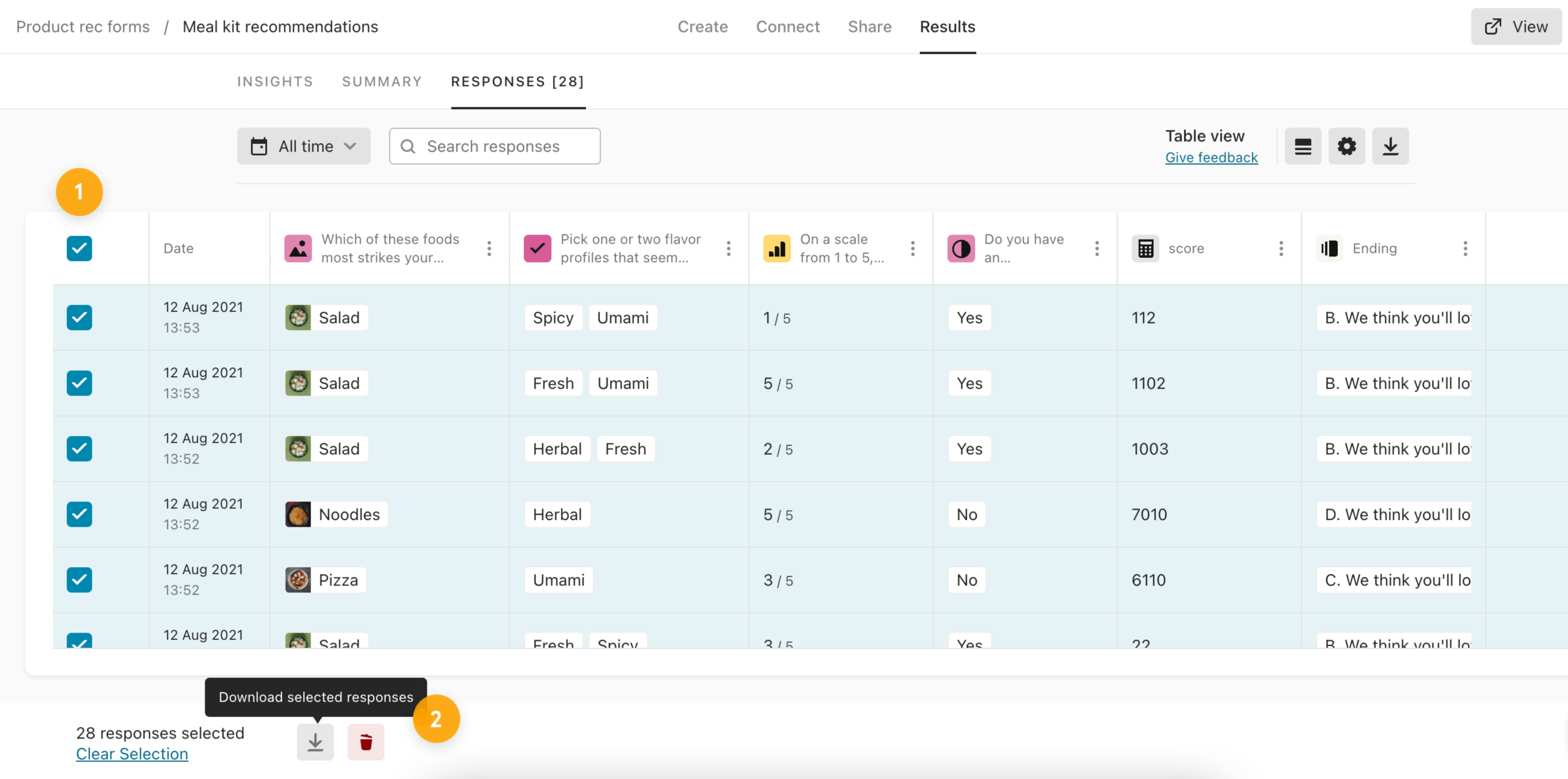
- Click Results → Responses.
- Select all responses and download them as a CSV file.
- Store these CSVs in a secure folder as your immutable backup.
Step 2: Clean and normalize your CSVs
Before importing into HighLevel, clean each CSV:
- Standardize dates to
YYYY-MM-DDso HighLevel can parse them correctly. - Ensure UTF‑8 encoding so accented characters and non‑English names don’t break during import.
- Strip problem characters like emojis, line breaks inside text fields, or unusual symbols that might interrupt parsing.
- Remove junk columns from experiments you don’t intend to keep.
If you captured answers that should become persistent fields in HighLevel (for example, industry, budget range, product interest), confirm you already created matching custom fields.
Step 3: Import contacts into HighLevel
In HighLevel:
- Go to Contacts and click Import Contacts.
- Upload your cleaned CSV.
- Carefully map columns to HighLevel fields — for example, map
First Nameto the built‑in First Name field, and map survey answers to the custom fields you created. - Apply a tag such as
typeform-importand, where helpful, a second tag at the form level liketypeform-onboarding-quiz. - Start the import and wait for confirmation.
Step 4: Spot‑check your migrated data
Once the import completes:
- Filter by the tag
typeform-importand verify a sample of contacts. - Confirm key fields (email, phone, custom answers) display correctly.
- Make sure no obviously corrupt records slipped through.
With contacts and answers in place, you can now use HighLevel’s CRM, pipelines, and automations instead of scattered exports.
3. Rebuild automations and follow‑ups in HighLevel
Typeform automations typically live in three places: inside Typeform itself (logic and notifications), in third‑party tools like Zapier, or inside connected apps. The migration opportunity is to centralize that logic into HighLevel workflows.
Step 1: Audit your existing automations
For each form, list out:
- In‑form actions – confirmation emails, redirects, logic‑based outcomes
- External automations – zaps, webhooks, Slack notifications, Google Sheets logging
- Downstream campaigns – nurture sequences, pipeline updates, task creation
This gives you a clear map of what needs to be rebuilt.
Step 2: Design the HighLevel version
In HighLevel, you can usually collapse multiple external automations into a single workflow:
- Use “Form Submitted” or “Contact Tag Added” as your primary triggers.
- Branch based on answers stored in custom fields (for example, budget, timeframe, use case).
- Trigger email, SMS, voicemail drops, or pipeline moves directly from the workflow.
- Replace Zapier hand‑offs where possible with native integrations and HighLevel actions.
Step 3: Recreate workflows and test thoroughly
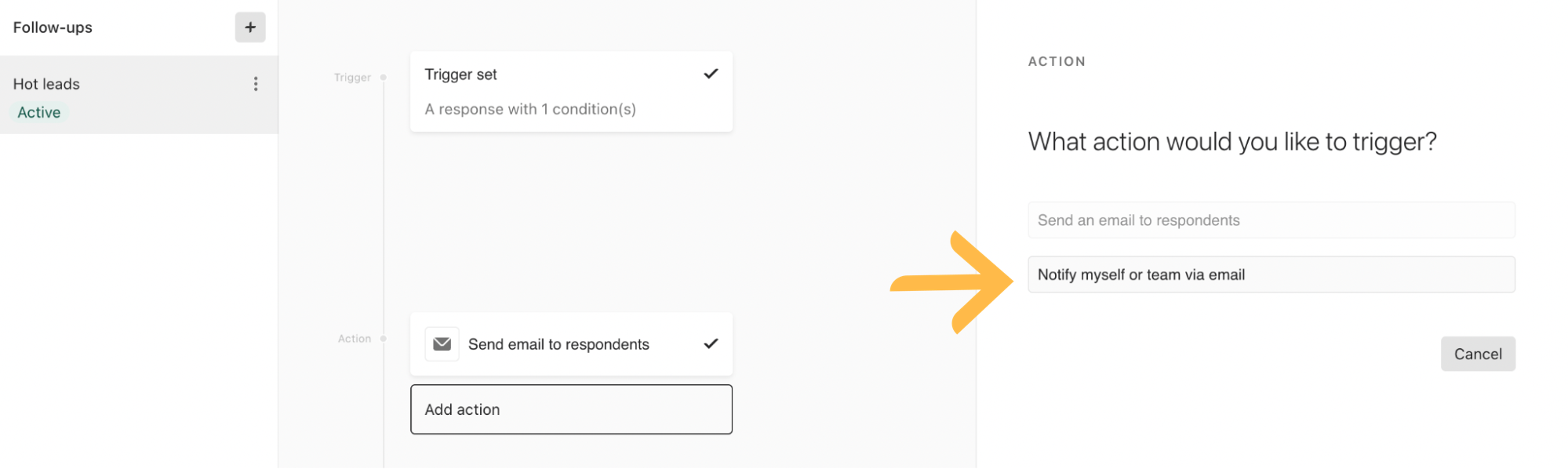
- Go to Automations → Workflows and build a workflow per form or per journey.
- Add triggers that match your previous entry points.
- Recreate steps: notifications to your team, nurture sequences, task creation, tagging, or opportunity creation.
- Test with internal submissions using test contacts.
- Pause any legacy Typeform + Zapier automations only after HighLevel has been fully verified in production.
Shifting your logic into HighLevel means fewer moving parts, better visibility into each step, and less risk of silent failures.
If you’d like a specialist to design these workflows with you, Revset Labs can help architect and implement your end‑to‑end HighLevel automation strategy so you don’t have to untangle everything alone.
4. Migrate form domains and QR codes
If your forms are linked from ads, emails, printed collateral, or embedded on your website, you need a clean cutover so visitors land on the new HighLevel experience without hitting dead links.
Step 1: Document every public entry point
From your inventory, list:
- All Typeform share URLs in use
- Any custom domains or subdomains pointing at Typeform
- Any QR codes on physical assets (signage, brochures, packaging, business cards)
Step 2: Update domains and set 301 redirects in HighLevel
In HighLevel:
- Configure your desired domains and subdomains inside Settings → Domains.
- Under Sites → URL Redirects, create 301 redirects from each legacy Typeform URL to its new HighLevel form or funnel URL.
- Test each redirect in an incognito window to confirm there are no loops or 404s.
Step 3: Recreate and deploy QR codes
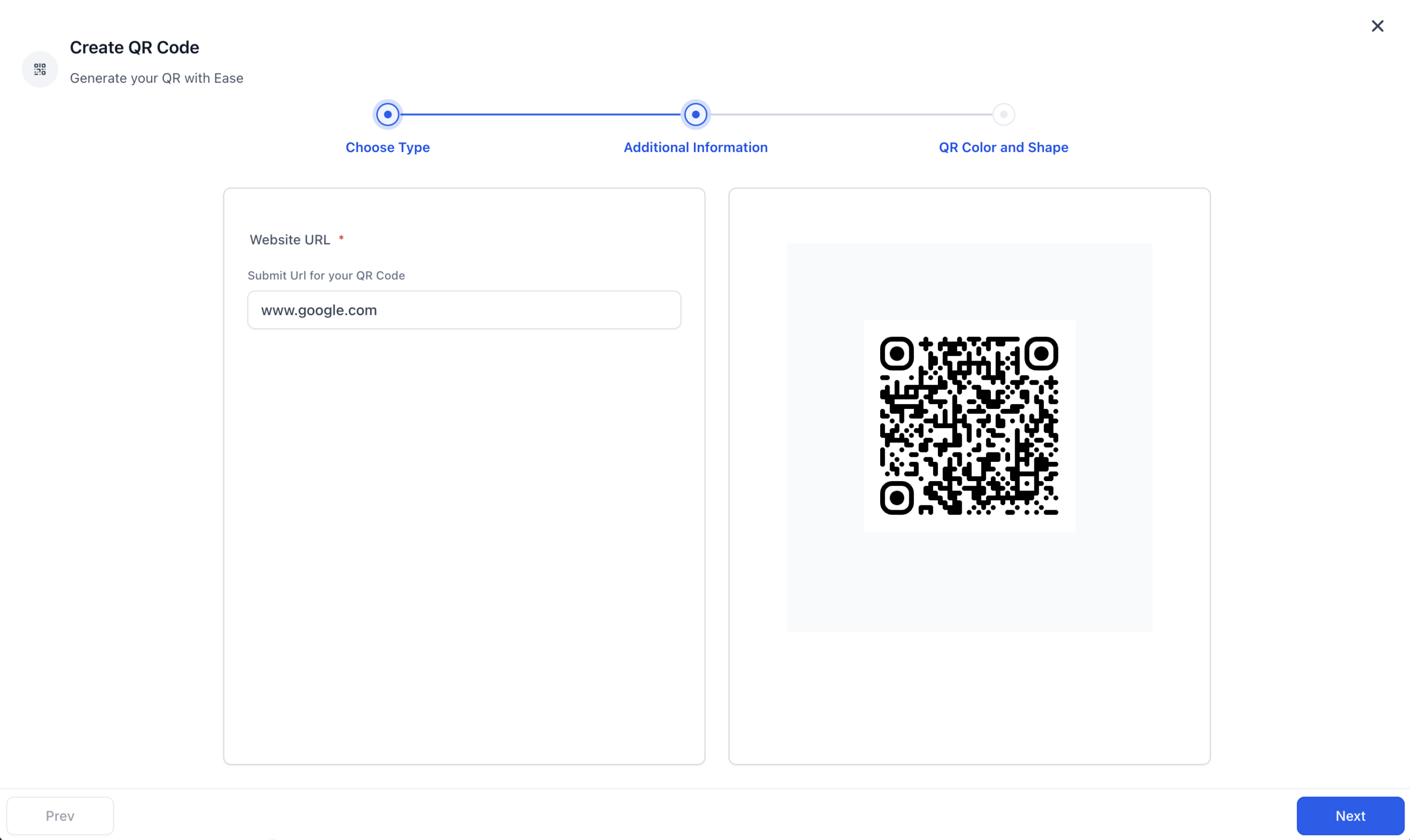
- Go to Sites → QR Codes → Create QR Code.
- Choose Website as the type and paste the HighLevel form URL.
- Download new codes and replace any old Typeform QR codes in your designs or printed assets.
- Track scans using the QR Codes → Analytics view.
Handled correctly, visitors won’t notice you’ve moved platforms — they’ll just experience a better funnel.
5. Export legacy reports and set up new analytics
Once your forms and workflows live in HighLevel, you still want a clean record of historical Typeform performance for finance, marketing, or product.
Step 1: Export reports from Typeform
For each important form:
- Open the form and go to Results → Summary.
- Click Generate a report to produce a visual summary of responses.
- Use your browser’s Print → Save as PDF option to archive the report to secure cloud storage.
- If you rely on open‑ended feedback, enable the toggle to include open‑ended answers in the report.
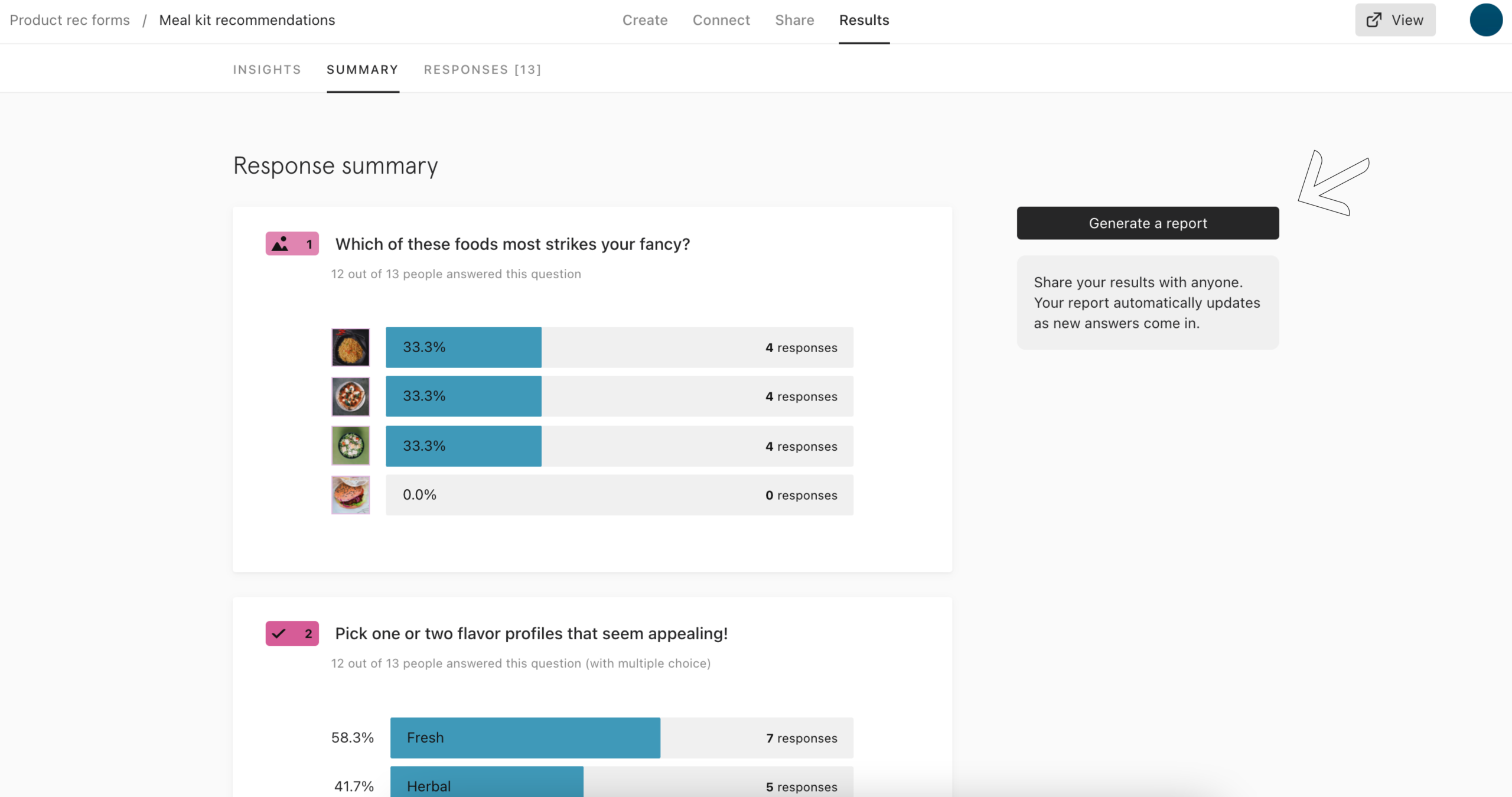
This gives you frozen, time‑stamped snapshots you can reference later even after your Typeform plan is cancelled.
Step 2: Build reporting inside HighLevel
In HighLevel, you can:
- Use dashboards and widgets to monitor form submissions, pipeline movement, and revenue.
- Filter by tags like
typeform-importto compare pre‑ and post‑migration performance. - Layer in source tracking, UTM parameters, and funnel analytics to see which forms and campaigns drive real opportunities.
Over time, you’ll rely fully on HighLevel reporting and can retire Typeform analytics entirely.
Where GoHighLevel fits into your long‑term stack
Migrating from Typeform to HighLevel isn’t just a lift‑and‑shift project. It’s your chance to simplify your stack and consolidate:
- Data – all form responses live on the contact record inside a single CRM
- Automation – follow‑ups, routing, and pipeline updates are handled by one workflow engine
- Reporting – revenue, pipeline, and campaign performance live in one place, not spread across separate tools
That’s why many teams treat GoHighLevel as the operating system for their leads, customers, and automations.
If you’re ready to standardize on HighLevel, you can start a free GoHighLevel trial and use this migration guide as your rollout playbook.
Revset Labs can also help you turn this guide into a done‑for‑you implementation — from planning the migration to rebuilding forms, workflows, and reporting so your team logs in on Monday to a ready‑to‑use system.
FAQs: migrating from Typeform to HighLevel
Do I need to keep my Typeform account active after migrating to HighLevel?
Once you’ve exported your CSVs and PDFs and confirmed that your HighLevel forms, contacts, workflows, and redirects are working, you typically don’t need an active Typeform subscription. Many teams keep a short overlap period (2–4 weeks) just in case they need to reference a live form or troubleshoot, then cancel once they’re confident everything runs from HighLevel.
What if some Typeform responses don’t have email or phone numbers?
Those submissions can still be useful for qualitative insights, but they’re hard to turn into actionable contacts. Keep them in your archived Typeform reports for analysis, and treat your HighLevel import as the clean, marketable database built from responses that include real contact details.
How long does a Typeform to HighLevel migration usually take?
For a small account with a handful of forms, you can often complete the migration in a day or two. Larger workspaces with dozens of live forms, complex automations, and multiple domains may take a couple of weeks to plan, rebuild, test, and roll out safely. The more you invest upfront in inventory and testing, the smoother your cutover will be.