
If your Twilio call events suddenly stop showing up in GoHighLevel, it can break reporting, automations, and sales follow‑ups in one shot. The good news: almost every issue comes down to a short list of misconfigurations.

This guide walks you through a practical, step‑by‑step troubleshooting flow so you can quickly find where things are breaking between GoHighLevel and Twilio—and fix them for good.
Along the way, you’ll see where GoHighLevel shines as an all‑in‑one system for handling calls, follow‑up, and tracking. If you’re still piecing tools together, you can start a free GoHighLevel trial here.
What Twilio Call Events Do in GoHighLevel (And Why They Matter)
GoHighLevel relies on Twilio call events to know what actually happened with a call:
- Was the call initiated successfully?
- Did the contact answer, miss, or decline?
- How long did the call last?
- Did the call fail—and why?
Those events power:
- Accurate call reporting and dashboards
- Automation steps (for example, sending follow‑up SMS or email if a call is missed)
- Pipelines and opportunity stage changes
- Task creation and internal notifications
When call events aren’t coming through from Twilio, GoHighLevel is effectively blind. Calls may still ring, but your system won’t update, and your campaigns won’t behave the way you expect.
This is almost always caused by one of these issues:
- You’re in the wrong Twilio subaccount for that GoHighLevel location.
- Webhooks for incoming calls and status updates are missing or misconfigured.
- Twilio is logging errors that no one is looking at.
- The campaign or workflow inside GoHighLevel isn’t set up correctly for call events.
The rest of this article walks through a proven troubleshooting flow to fix that, based on how GoHighLevel and Twilio actually talk to each other.
Quick Checklist: Is It Really a Call Events Problem?
Before you dive into detailed debugging, confirm that the issue is specifically with events, not with calling in general.
Run through this quick checklist:
- Can you place and receive calls at all?
- If calls don’t ring, you may have a Twilio number, routing, or SIP issue, not just events.
- Are calls visible in Twilio’s call logs but not in GoHighLevel?
- If yes, that’s a strong sign that webhooks or subaccounts are misaligned.
- Do any calls update correctly, or is nothing updating?
- If some calls track and others don’t, you may have multiple numbers or locations sharing the wrong Twilio account.
Once you’ve confirmed that calls work but events and tracking don’t, move into the structured troubleshooting flow below.
Step 1 – Confirm You’re in the Correct Twilio Subaccount for This GoHighLevel Location
Each GoHighLevel location should be connected to its own Twilio subaccount, not the master Twilio account. If a location is tied to the wrong subaccount, GoHighLevel will look for events in a different place than Twilio is logging them.
1.1 Find the Account SID in GoHighLevel
- In your GoHighLevel agency view, go to Settings → Twilio for the location you’re troubleshooting.
- Copy the Account SID you see there.
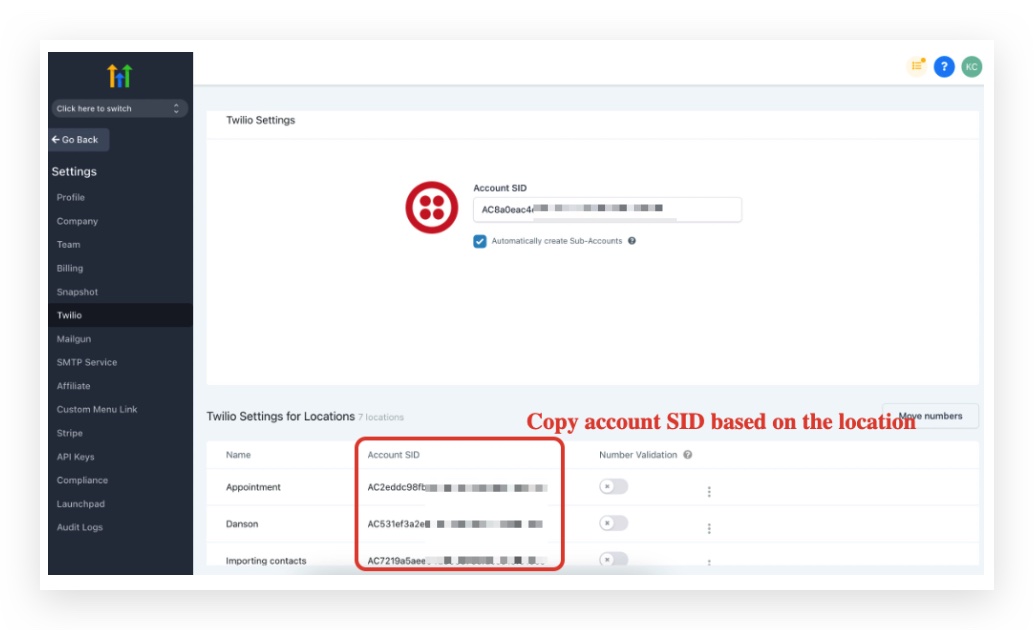
This is the Twilio subaccount GoHighLevel expects to use for that location.
1.2 Match the SID in Twilio
- Log into your Twilio Console.
- In the top‑right menu, open the Account dropdown and click Subaccounts.
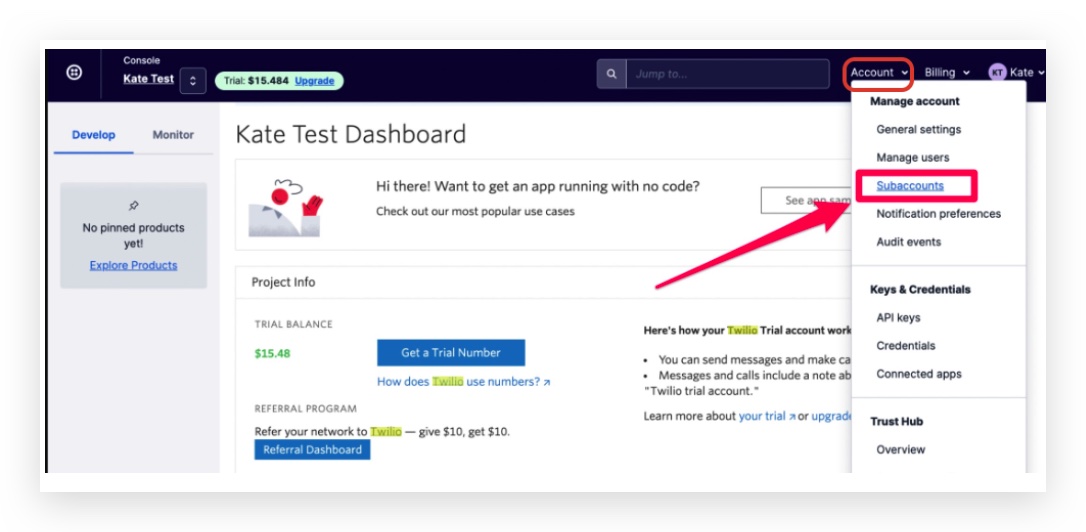
- Use the search bar to paste the Account SID from GoHighLevel.
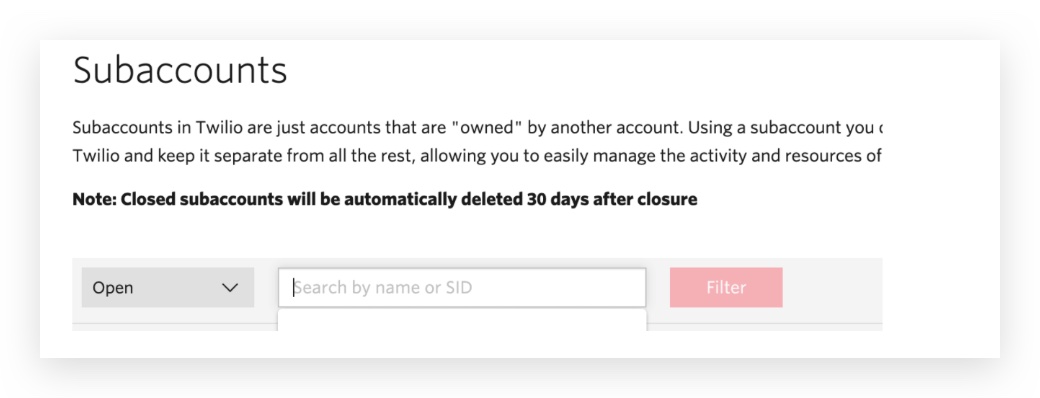
- Select the matching subaccount.
When you’re in the right subaccount, Twilio shows an orange label in the top‑left indicating that subaccount is active.

If you cannot find a matching subaccount and everything is living under the master account:
- Go back to GoHighLevel → Settings → Twilio.
- Disconnect the current connection.
- Use the option to Create Sub‑Account so GoHighLevel can provision a dedicated Twilio subaccount for that location.
- Use Move Numbers in Twilio so all existing phone numbers live under the new subaccount.
Why this matters: Call events are scoped to a specific Twilio account or subaccount. If GoHighLevel is pointing at one SID and your numbers live under another, nothing will sync correctly.
If you’re setting up GoHighLevel for the first time and want a clean, best‑practice build, you can start a free GoHighLevel trial and pair it with a fresh set of Twilio subaccounts from day one.
Step 2 – Verify Webhooks for Incoming Calls and Status Updates
Once you’re in the correct subaccount, the next question is: Is Twilio actually sending call events to GoHighLevel? That’s what webhooks are for.
2.1 Check Voice Settings on Each Number
For each Twilio number that should be driving calls in GoHighLevel:
- In Twilio, go to Phone Numbers → Manage → Active Numbers.
- Click on a number used in your GoHighLevel location.
- Under Voice Configuration:
- Ensure the Routing is set correctly (typically Webhook).
- Confirm the webhook URL for incoming calls and status callbacks matches the URL provided by GoHighLevel (often under GoHighLevel’s Twilio setup docs).
- Save any changes.
If these URLs are missing or pointing at an old system, Twilio will never tell GoHighLevel that calls were completed, failed, or missed.
2.2 Confirm Region and Network Settings
- Make sure the Routing Region (for example,
US1) is compatible with GoHighLevel’s infrastructure. - If you changed regions recently, update your webhooks and re‑test calls.
Pro tip: Standardize your configuration across all numbers for a given GoHighLevel location. Inconsistent routing or webhook URLs are a common reason some numbers “work” while others silently fail.
Step 3 – Review Twilio Call Logs and Error Codes
If subaccounts and webhooks look correct, the next step is to see what Twilio is actually recording.
3.1 Open Call Logs in the Correct Subaccount
- While still in the correct Twilio subaccount, navigate to Monitor → Logs → Calls.
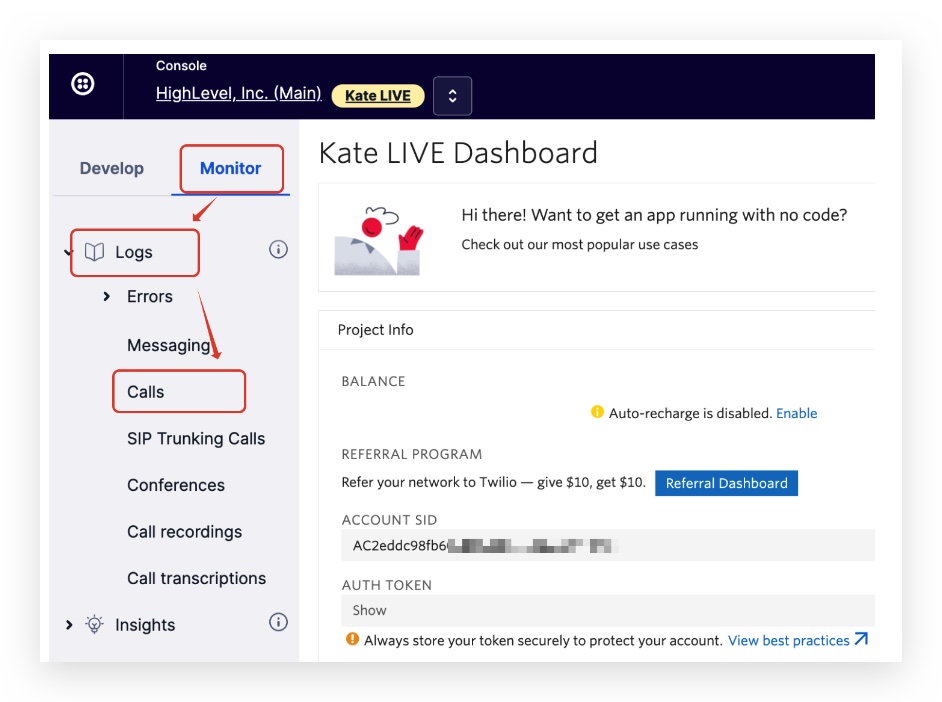
- Filter by the phone number or time window where you’re seeing issues.
You’re looking for:
- Calls that show as Failed or Busy
- Repeated short calls with the same contact
- Error codes attached to those calls
3.2 Map Errors Back to the Real Problem
Click into individual calls to see error codes and messages. Then compare them against Twilio’s documentation (for example, authentication issues, invalid numbers, SIP problems, or network errors).
Typical patterns:
- Authentication / permission errors → The SID or auth token Twilio expects doesn’t match what GoHighLevel is using.
- Number configuration errors → The call is hitting a number that isn’t routed via the webhook GoHighLevel needs.
- Carrier or destination errors → The contact’s number is invalid, unreachable, or blocked.
Fix issues in Twilio (or your number provider), then place another test call.
Remember: GoHighLevel can only automate around what Twilio successfully processes. If Twilio flags a failure, you’ll never see a clean event come through.
Step 4 – Run a Test Call Event From a GoHighLevel Campaign
Once Twilio is healthy, you want to prove that GoHighLevel is hearing those events and responding correctly.
4.1 Create a Test Contact
- In your GoHighLevel location, create a new contact using your own mobile number.
- Tag it clearly (for example,
twilio-call-event-test) so you can filter it later.
4.2 Build a Simple Test Workflow or Campaign
Create a minimal campaign or workflow that:
- Initiates an outbound call to your test contact using a Twilio number from the location.
- Triggers a follow‑up step based on the call outcome—for example:
- Send an SMS if the call is missed.
- Move the opportunity to a new stage if the call is completed.
Start the campaign, then watch:
- Do you receive the phone call?
- Does GoHighLevel show the call event on the contact’s Conversation and Activity timeline?
- Does the follow‑up step (SMS, email, pipeline move) fire correctly?
If the call reaches your phone but GoHighLevel shows nothing in the timeline, you still have an integration issue between Twilio and GoHighLevel (go back to Steps 1–3).
If GoHighLevel logs the call but your automation doesn’t fire, the problem is likely inside your campaign logic, not with call events.
At this point, if you’re upgrading from another CRM or consolidating multiple tools, it may be time to standardize your setup. You can start a GoHighLevel free trial and design a clean, automation‑first calling system instead of patching a messy one.
Step 5 – Fix Issues, Retest, and Lock In a Monitoring Routine
With all the pieces aligned, close the loop so the problem doesn’t come back.
5.1 Apply Fixes Systematically
For each root cause you identified:
- Update Twilio subaccount SIDs or create new subaccounts per location.
- Standardize webhook URLs and regions across numbers.
- Clean up old or unused numbers that are still attached to workflows.
- Tighten your GoHighLevel campaigns so they clearly depend on specific call outcomes (completed, missed, failed).
5.2 Use a Simple Troubleshooting Flow (Visual Guide)
To make this easier for your team, document a short flow they can follow whenever someone says “call events aren’t working.” A simple version looks like this:
- Confirm Twilio subaccount for the GoHighLevel location.
- Check webhooks for incoming calls and status updates.
- Review Twilio call logs and error codes.
- Run a test call event from a GoHighLevel campaign.
- Fix issues and retest.
You can embed a visual version of this process using the Twilio Call Events Troubleshooting Flow diagram generated for this article.
5.3 Put Light Monitoring in Place
- Review Twilio call logs weekly for unexpected spikes in errors.
- Watch your GoHighLevel call reporting—sudden drops or flat lines usually mean something upstream changed.
- When you add new locations or numbers, make a quick checklist item: “Confirm Twilio subaccount + webhooks + test call.”
Where Revset Labs Fits In
If you’re running a serious sales or service operation, Twilio call events are not just a technical detail—they’re a revenue system. When they break, so do your funnels, follow‑ups, and customer experience.
Revset Labs is an AI automation and marketing agency that helps GoHighLevel users:
- Design reliable, scalable calling and follow‑up flows
- Implement and standardize Twilio + GoHighLevel configurations across locations
- Layer in AI‑powered routing, scoring, and follow‑up so every call gets the right next step
If you’d rather not spend your afternoons chasing down webhooks and subaccounts, Revset Labs can help you design a robust, automation‑first calling system that just works.
FAQ: Twilio Call Events and GoHighLevel
Why are my Twilio call events not showing up in GoHighLevel?
Most of the time, GoHighLevel is pointed at the wrong Twilio subaccount or your Twilio webhooks are missing or outdated. Confirm the Account SID in GoHighLevel matches an active Twilio subaccount, then verify that each phone number in that subaccount uses the correct webhook URLs for incoming calls and status callbacks.
Do I need a separate Twilio subaccount for every GoHighLevel location?
Yes, that’s the recommended setup. Giving each location its own Twilio subaccount keeps numbers, logs, and usage cleanly separated. It also makes troubleshooting much easier because you always know which calls belong to which location.
How do I know if Twilio is logging the calls but GoHighLevel isn’t?
Open Monitor → Logs → Calls inside the correct Twilio subaccount and search by the number or time of a recent test call. If you see the call in Twilio but nothing on the contact’s timeline in GoHighLevel, you likely have a webhook configuration issue or the wrong subaccount connected.
What should I test after fixing my Twilio configuration?
Create a simple GoHighLevel campaign or workflow that calls a test contact and triggers a follow‑up action based on the outcome (for example, send an SMS on missed call). If the call rings, appears in Twilio logs, shows on the contact timeline, and triggers the follow‑up, your call events are working end‑to‑end.
When you combine correctly configured Twilio call events with GoHighLevel’s automation engine, every call becomes a trackable, triggerable touchpoint. If you’re ready to turn that into a repeatable growth system, consider starting your GoHighLevel free trial and partnering with Revset Labs to architect it the right way from day one.