

If you're running client accounts or your own marketing inside HighLevel, you need a fast, reliable way to submit feedback and report bugs when something feels off.
Done well, a single ticket can give Support everything they need to reproduce the issue, route it to the right team, and ship a fix – without endless back-and-forth.
This guide walks you through exactly how to submit feedback or report a bug in HighLevel using the in-app Raise Ticket flow, the new automatic full-screen screenshot capture, and a few simple best practices that dramatically speed up resolutions.
If you're still evaluating platforms, you can spin up a HighLevel account and follow along with a free trial here: Start your GoHighLevel free trial.
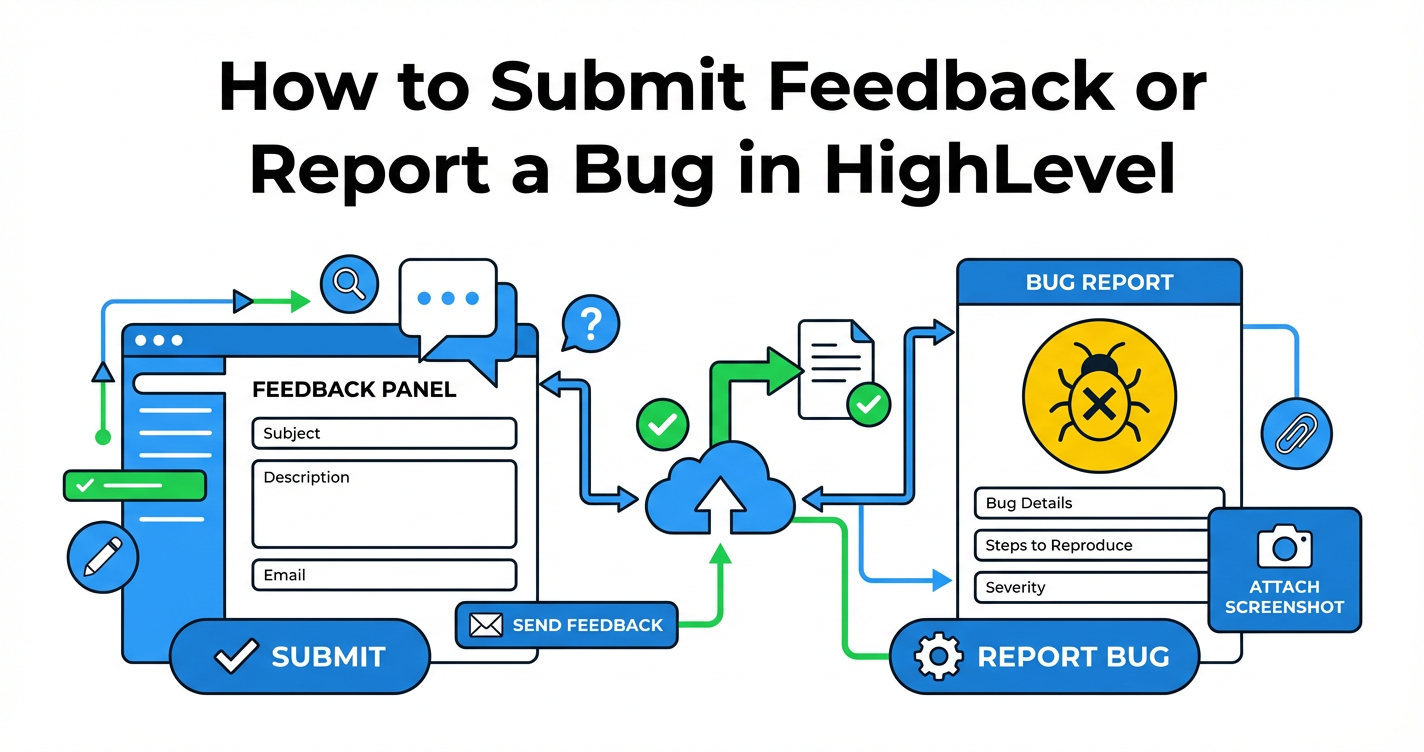
Why Submitting Feedback and Reporting Bugs in HighLevel Matters
When you depend on HighLevel for funnels, campaigns, and client delivery, small issues compound quickly:
- A calendar sync bug can quietly kill booked calls.
- A workflow misfire can pause nurture sequences.
- A UI glitch can confuse teams and slow them down.
Submitting clear feedback or a well-documented bug report does three things:
- Speeds up fixes. Support gets the exact context they need to reproduce the problem.
- Reduces fire drills. You spend less time chasing screenshots, Looms, and “what exactly happened?” messages.
- Improves your entire stack. Patterns in your tickets often surface deeper opportunities to tighten automations and processes.
HighLevel’s in-app support tools – especially the automatic full-screen screenshot on upload – are designed to make this simple, even for busy agencies.
Revset Labs (an AI automation and marketing agency) often bakes this process into client onboarding so every issue is captured cleanly and routed correctly from day one.
Before You Submit Feedback or Report a Bug
A few minutes of prep makes every HighLevel ticket more actionable.
Havethis ready before you hit Raise Ticket:
- Which account is affected? The agency level or a specific sub-account.
- What were you trying to do? For example, "publish a funnel", "send an email campaign", or "connect a calendar".
- What actually happened? Error message, missing data, unexpected behavior, or UI glitch.
- Can you reproduce it? Note the steps you took so Support can follow the same path.
- How severe is it? Minor UI annoyance, important but not urgent, or blocking revenue.
You don’t have to write an essay – a few clear bullets here will plug directly into your ticket description.
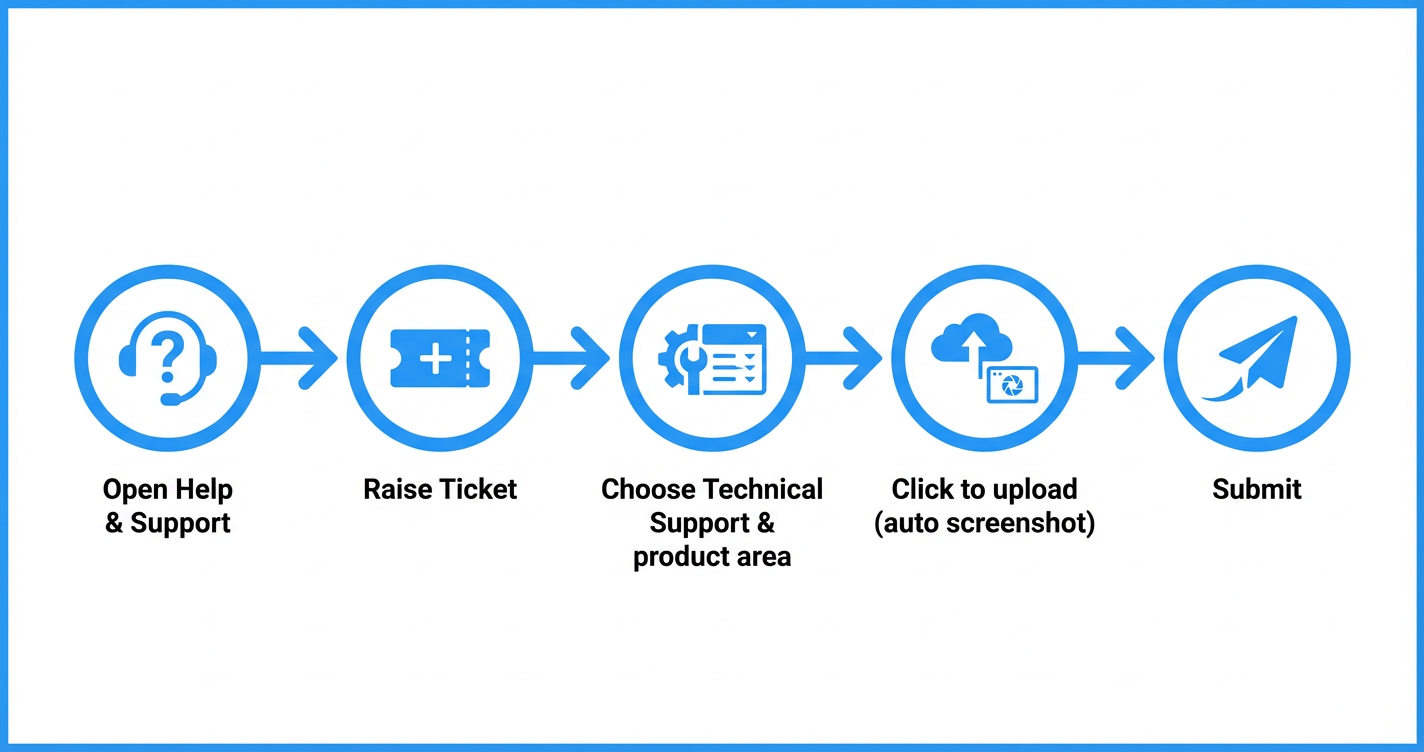
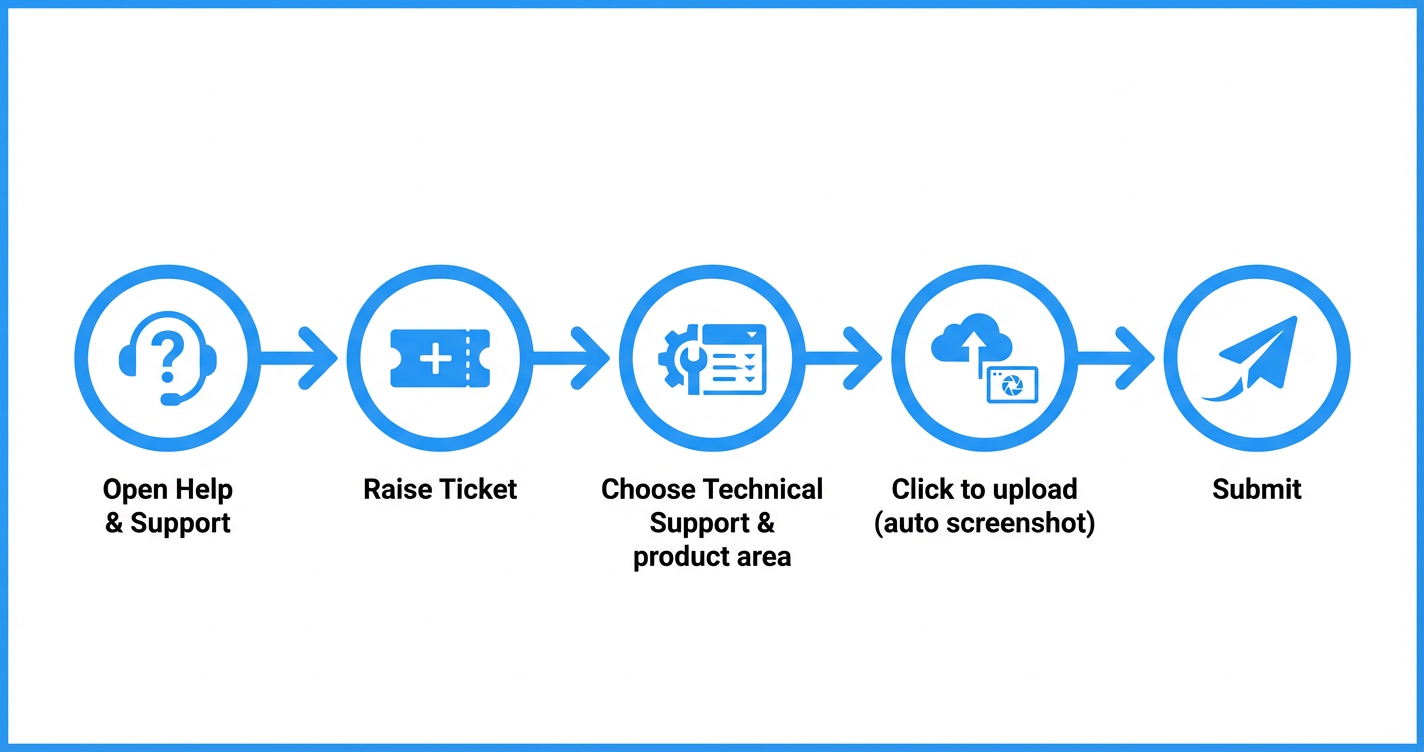
Step 1: Open Help & Support in HighLevel
You can start a ticket from anywhere in the HighLevel app.
- Log in to your HighLevel account.
- In the top-right corner, click the Help & Support icon.
- Choose Raise Ticket.
From here, HighLevel walks you through a quick routing flow so your request lands with the right team.
If you want to understand all the ways you can get help – including live chat and phone options – pair this article with the 24/7 Customer Support Options in GoHighLevel guide when it’s published on your Revset Labs site.
Step 2: Choose the Right Route for Your Issue
Picking the correct ticket type and scope helps Support triage your request accurately.
When prompted:
- Select Technical Support for bugs or platform behavior you believe is broken.
- Choose the scope – such as "Within a Sub-Location" – if the issue lives inside a specific client account.
- Select the product area that best matches your problem (for example, Calendars, Automation, Conversations, Funnels, Reporting, or another module).
This routing step tells Support which part of HighLevel you’re working in and how widely the issue might be impacting your business.
Step 3: Describe the Issue Clearly
Once you’re in the issue submission form, you’ll see fields for your subject line, description, and other details.
Use this simple structure for the description so your HighLevel bug report is easy to work with:
- What you were doing: A short sentence describing the action you took.
- Expected behavior: What you thought would happen.
- Actual behavior: What happened instead – including any error messages.
- Steps to reproduce: A numbered list of the exact clicks/inputs to trigger the issue.
- Impact: Who or what is blocked (for example, "no new calendar bookings", "clients not receiving SMS", "pipeline numbers are wrong").
Example:
What I was doing: Editing an existing calendar in a sub-account.
Expected behavior: Changes to availability should save and update on the booking page.
Actual behavior: After clicking Save, the page reloads but availability reverts back. No error message.
Steps to reproduce:
- Open sub-account
Client A.- Go to Calendars → select "Sales Calls" calendar.
- Change availability on Tuesday from 9–5 to 10–4.
- Click Save.
- Page reloads and availability shows 9–5 again.
Impact: Sales team can’t reliably control booking slots.
That level of clarity is often the difference between a quick fix and days of email back-and-forth.
What’s New: Automatic Screen Capture on Upload
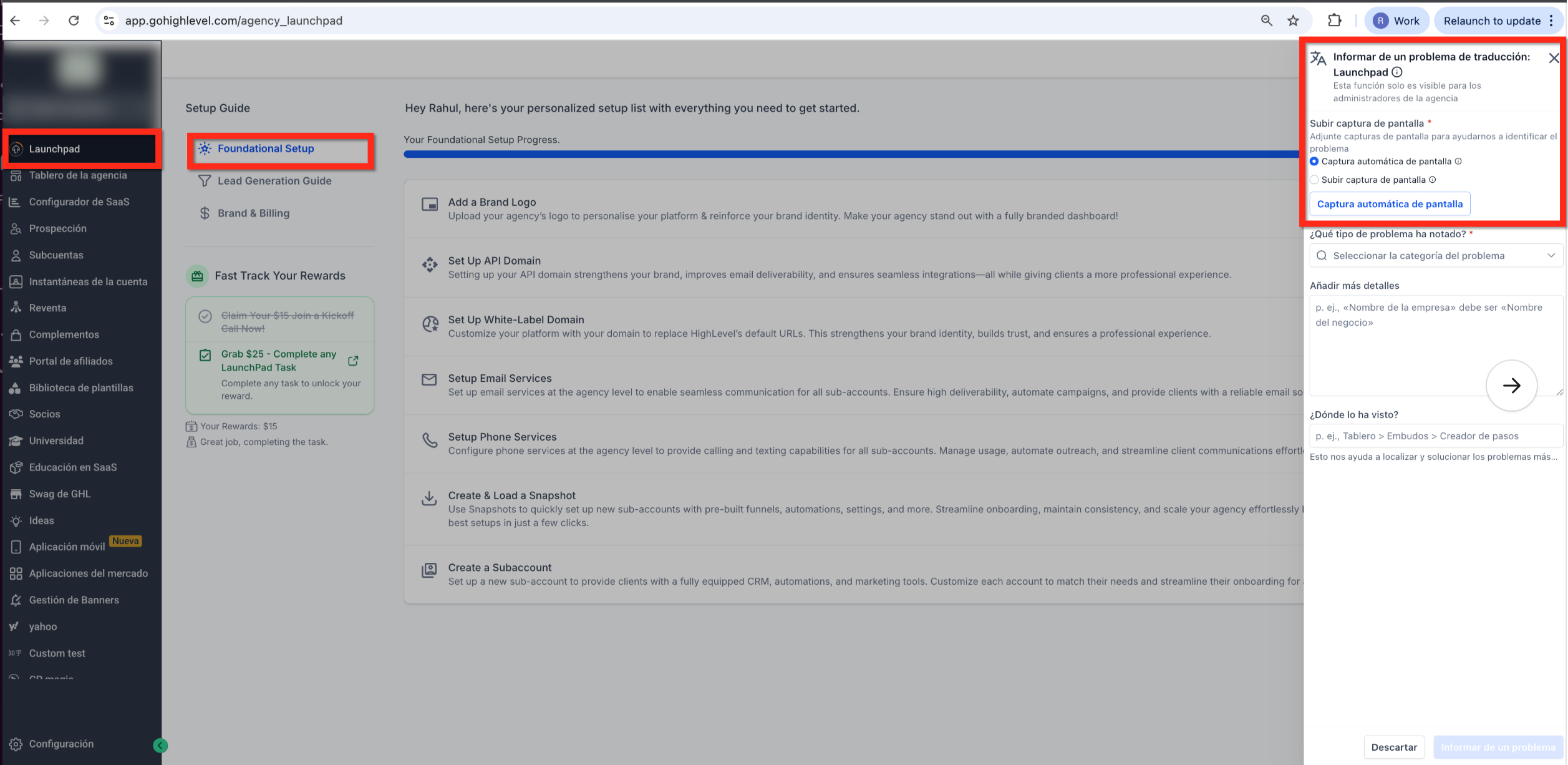
HighLevel has enhanced the issue submission form to include automatic screen capture. When you reach the issue submission form and click “Click to upload”:
- A high-resolution image of your entire screen is captured automatically.
- The capture occurs immediately when upload is triggered.
- No additional steps or configuration are required.
This behavior runs in the background and attaches the screenshot directly to your report.
How the Screen Capture Works
The automatic screen capture feature ensures precise visual context for support teams.
- The capture is triggered only when “Click to upload” is selected.
- The image includes the entire screen, not just the active window.
- A browser permission prompt may appear the first time to allow screen access.
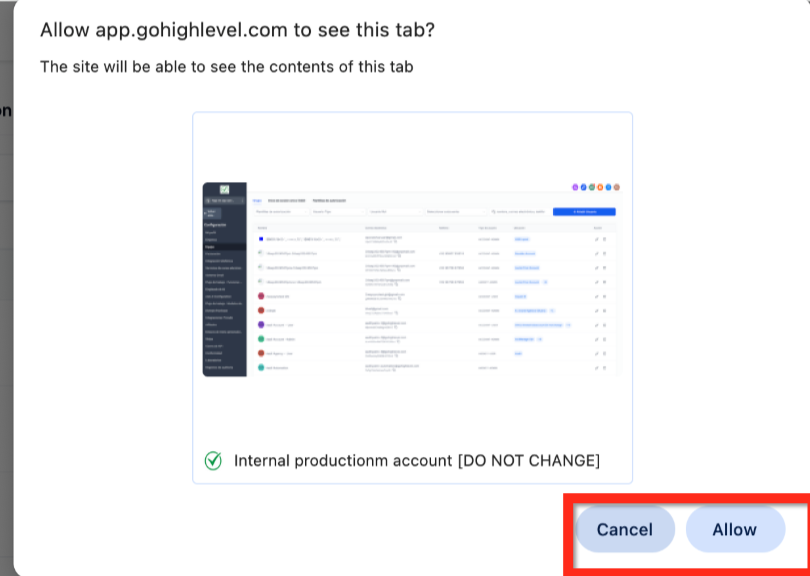
Once permission is granted, the capture completes automatically.
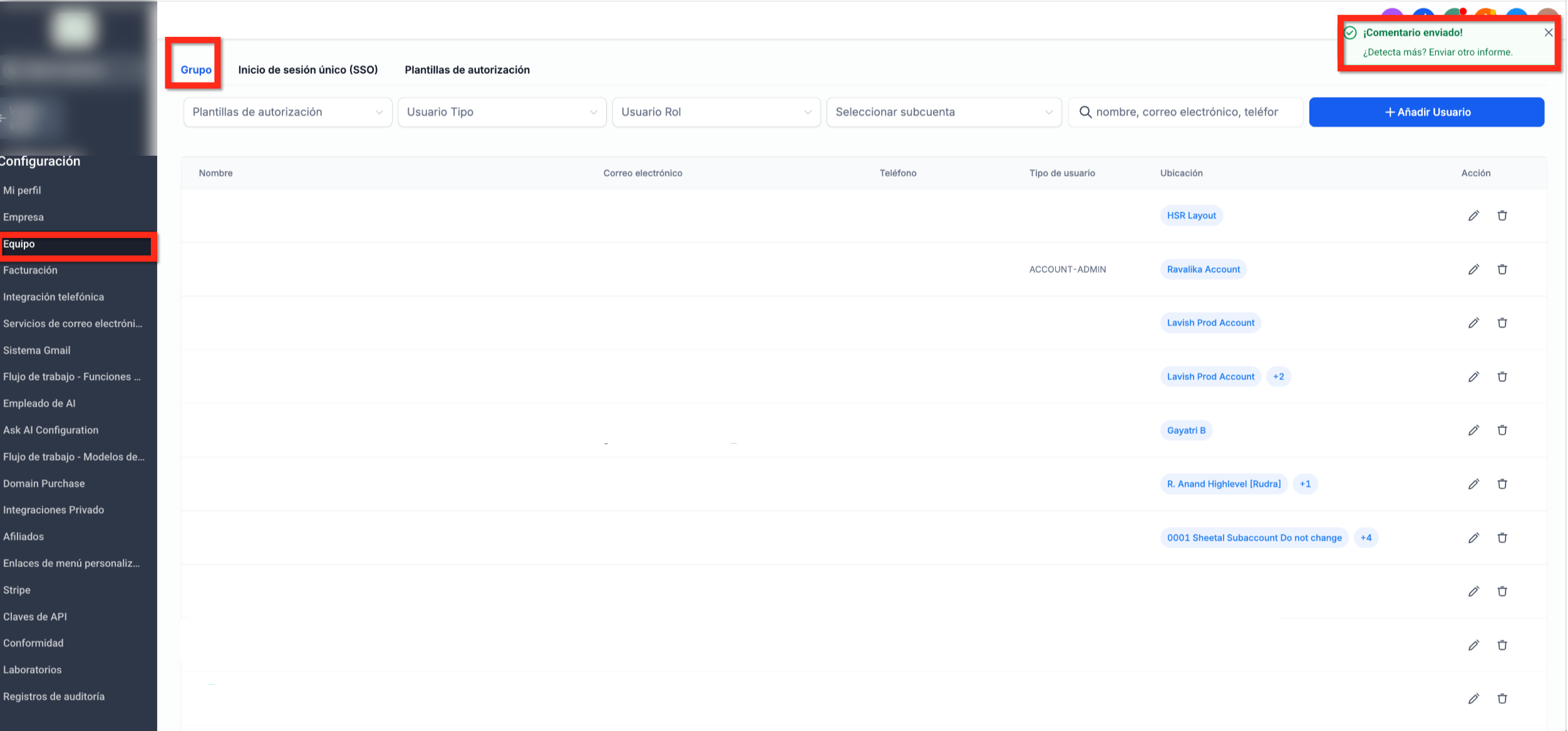
Screenshot Successfully Attached
After the screen is captured, it is seamlessly added to your report.
- The image appears as an attachment in the submission form.
- A confirmation indicator shows the file was added successfully.
- The screenshot is sent along with your feedback or bug report.
Why This Matters
Automatic full-screen capture helps:
- Reduce back-and-forth communication with Support.
- Speed up investigation and resolution.
- Capture UI context that partial screenshots may miss.
- Improve accuracy when diagnosing complex issues.
What Did Not Change
This enhancement does not change:
- How you start a feedback or bug report.
- Where the Click to upload option appears.
- User roles, permissions, or access levels.
- The ability to upload other files manually.
Step 4: Attach a Screenshot With Automatic Full-Screen Capture
Visual context makes it dramatically easier for Support to see what you’re seeing. HighLevel’s upload flow now does most of the work for you.
When you’re in the issue submission form:
- Click Click to upload to add an attachment.
A few tips to make that automatic screenshot even more useful:
- Get the relevant screen ready first. Navigate to the exact page or error state before you click upload.
- Expose key details. If possible, show filters, settings, or logs that might matter.
- Avoid sensitive data. If the screen includes unrelated client data, consider briefly masking it or adding a second, redacted screenshot.
You can still upload additional files manually – such as a Loom video – but the automatic full-screen capture gives Support a strong baseline.
Step 5: Submit and Monitor Your Ticket
Once your description and attachments look good:
- Double-check your contact details so Support can reach you.
- Review your subject line – a clear, specific subject stands out in the queue.
- Click Submit.
After submission:
- You’ll see confirmation inside HighLevel that your ticket was created.
- You should receive a confirmation email with a ticket ID.
- Follow-up questions or status updates will typically come via email or inside the HighLevel support portal.
For urgent or production-breaking issues, you can still lean on HighLevel’s 24/7 support options – for example live chat or phone – while your ticket is being investigated.
Best Practices for Faster, Better Resolutions
If you regularly submit HighLevel feedback or bug reports, turn these into team habits:
- Standardize how you write tickets. Give your team a simple bug-report template (like the one above) so every ticket is structured the same way.
- Capture environment details. Note whether the issue occurs in a specific browser, device, or client sub-account.
- Mention workarounds. If you’ve found a temporary fix, include it – this helps Support gauge impact.
- Group similar issues. Instead of ten tiny tickets, submit a single, well-documented report for a pattern you’re seeing.
- Tag tickets with client names internally. Even if Support doesn’t need it, your own ops team will.
On Revset Labs implementations, we often build this into SOPs so every account manager knows exactly how to capture and escalate issues from clients.
API or Developer Issues: When the Process Looks Different
If your problem is specifically about the HighLevel API, webhooks, or custom development:
- Use the same Raise Ticket entry point, but clearly label the issue as API-related in your subject and description.
- Include any relevant error messages, request/response snippets, and links to the specific API docs you’re using.
- Be aware that Support may not provide deep code review, but they can still help confirm whether behavior looks like a platform bug.
For complex integrations, Revset Labs can help you design and maintain a more reliable automation stack so fewer issues ever reach production.
How Revset Labs Helps You Get More From HighLevel
Submitting clean feedback and bug reports is one part of running a reliable HighLevel setup. The bigger opportunity is building systems that are resilient, observable, and revenue-focused.
Revset Labs specializes in:
- Designing funnel and automation architectures that align with how your business actually sells.
- Implementing AI-powered workflows that triage leads, route tasks, and trigger the right follow-up automatically.
- Hardening your setup with monitoring and QA checks so issues are caught before they cost you revenue.
If you’re just getting started with HighLevel, or you’ve inherited a messy account, pairing a well-defined support process with a clean implementation is the fastest way to more predictable results.
You can explore HighLevel yourself with a free trial here: Try GoHighLevel free. And when you’re ready for a strategic partner to help you implement or optimize your system, Revset Labs is here to help.
FAQ: Submitting Feedback and Reporting Bugs in HighLevel
Where do I go to submit feedback or report a bug in HighLevel?
Click the Help & Support icon in the top-right of your HighLevel account and choose Raise Ticket. From there you’ll be guided through selecting Technical Support, the right scope, and the product area.
Does HighLevel automatically capture screenshots for my bug reports?
Yes. When you click Click to upload on the ticket form, HighLevel automatically captures a high-resolution screenshot of your entire screen (after you grant browser permission the first time) and attaches it to the ticket.
What information should I include so my issue gets resolved quickly?
At minimum, include what you were trying to do, what you expected to happen, what actually happened (with any error messages), the exact steps to reproduce, and the impact on your business. Adding the automatic full-screen screenshot and any extra Loom videos makes it even easier for Support to help.
Can I report HighLevel API or integration bugs the same way?
Yes. Start with Raise Ticket and choose Technical Support, but be explicit in your subject and description that it’s an API or integration issue. Include request/response details or logs when possible so Support can confirm whether the behavior looks like a platform bug.