
Pushing snapshot updates is one of the fastest ways to keep dozens (or hundreds) of GoHighLevel client accounts in sync. Done well, it saves you hours of manual work. Done badly, it can quietly overwrite a client’s custom changes or clutter live accounts with duplicate assets.

This guide breaks down exactly how pushing and loading snapshot updates work, when to use each option, and how to keep client accounts safe while you roll out changes at scale.
Along the way, you’ll see where GoHighLevel handles the heavy lifting—and where an implementation partner like Revset Labs can help you design a predictable, low‑risk snapshot strategy.
If you’re still evaluating GoHighLevel or haven’t set up your agency account yet, you can spin up a sandbox and follow along as you go:
Start your free GoHighLevel trial
Why snapshot updates matter for agencies
Once you’re running more than a couple of client accounts, snapshots become the backbone of your GoHighLevel strategy:
- Faster onboarding – New sub‑accounts can be live with proven funnels, automations, pipelines, and settings in minutes.
- Centralized improvements – Fix a workflow or campaign in one master account, then roll the update out everywhere.
- Consistent quality – Every client gets the same baseline experience instead of one‑off builds.
The tradeoff: you now have two ways to get changes into client accounts—Push Updates and Load Snapshot—and they behave very differently.
Get those differences wrong and you’ll either:
- Unexpectedly overwrite a client’s edits, or
- End up with lots of duplicate assets that are hard to manage.
The rest of this guide is about using each option intentionally.
Push vs. Load at a glance
At a high level:
- Push Updates keeps client accounts in sync with your master snapshot by overwriting existing snapshot‑created items in sub‑accounts.
- Load Snapshot is more like a fresh import: it adds items on top of what’s already there in a sub‑account without deleting anything.
Here’s a simple side‑by‑side visual you can use internally with your team:
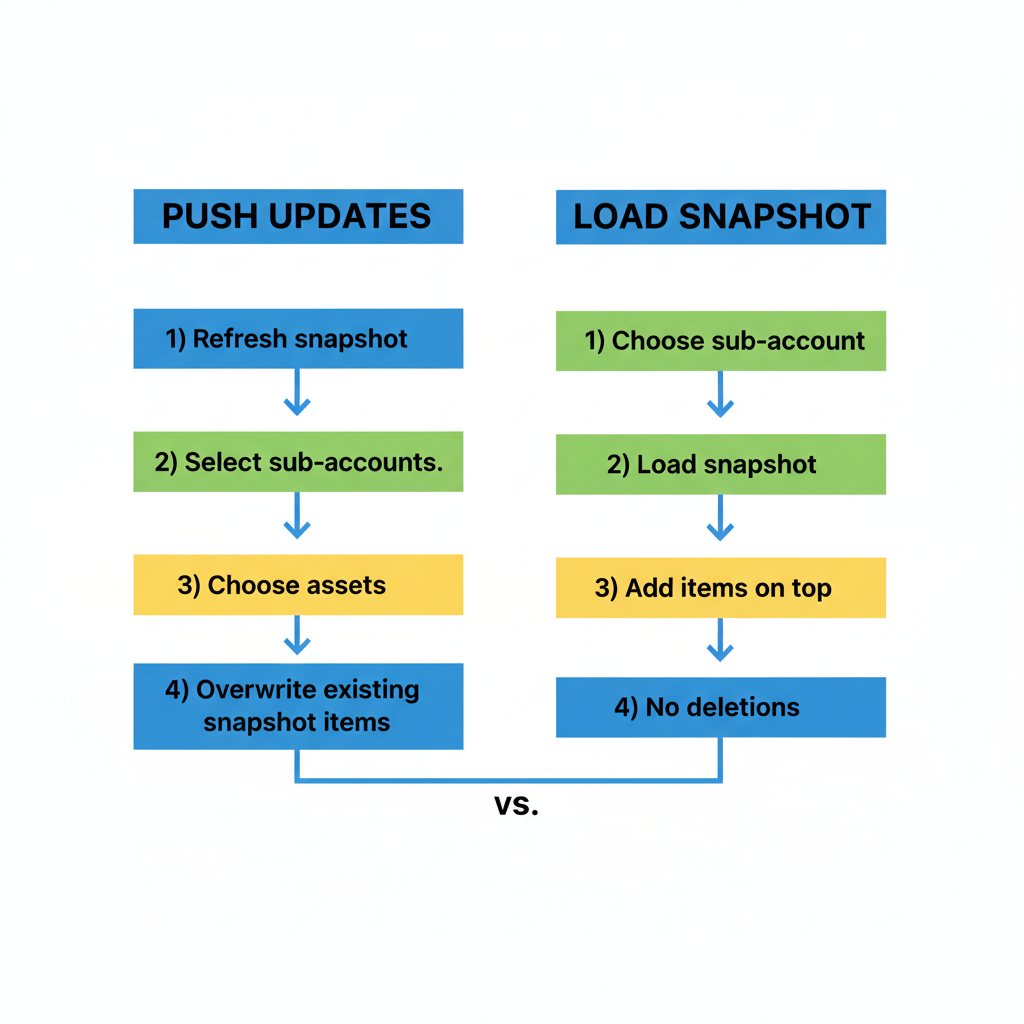
Use Push Updates when you want to keep a standard, snapshot‑managed asset up to date across sub‑accounts.
Use Load Snapshot when you want to add snapshot content into an account—especially when that account already has live, customized assets.
Part 1 – Pushing updates to sub‑accounts
When to use Push Updates
Use Push Updates when:
- You’ve made changes to your master account (the one the snapshot was originally built from), refreshed the snapshot, and now want to roll those edits into sub‑accounts that already loaded that snapshot.
- You want all participating sub‑accounts to share the same version of a campaign, workflow, funnel, or other snapshot‑managed asset.
- You’re fixing bugs, updating copy, or improving logic in a standardized way across clients.
Good examples:
- Updating a global nurture sequence across 50 client accounts.
- Fixing a typo or broken link embedded in a standard snapshot workflow.
- Rolling out a new compliance step in a shared pipeline.
How Push Updates works (step by step)
Before you can push anything, you must refresh the snapshot so it contains your latest master‑account changes.
- Go to Agency View → Account Snapshots.
- Find your snapshot and click the Refresh icon to pull in recent changes from the source account.
- Next to the same snapshot, click the Push Updates icon.
- Confirm the prompt to continue.
- Select the sub‑accounts you want to receive the update.
- Choose which asset types to include (for example, workflows, funnels, forms, emails).
- Confirm the push.
GoHighLevel will now iterate through the selected sub‑accounts and update any matching snapshot‑tracked assets.
What actually gets overwritten (and what doesn’t)
When you push updates:
- Items originally created by the snapshot in a sub‑account will be overwritten with the latest version from the snapshot.
- New assets you added to the snapshot after the refresh will be added to the sub‑accounts.
- Client‑edited versions of snapshot assets will be reverted back to the snapshot version if those assets are included in the push.
- Duplicated assets created by clients (for example,
Onboarding Sequence (Copy)) are not touched—they’re not connected to the snapshot. - Custom values are never edited or deleted.
- Users (like campaign owners or assignees) are not modified.
- External agencies who imported your snapshot via shared link won’t receive pushes—they’ll need to re‑import instead.
Think of Push Updates as “respect the snapshot, not the local edits.”
How to protect client‑level customizations
Sometimes you want a standard baseline campaign, but still let clients tweak it without fear of overwrites.
A simple pattern:
- In the sub‑account, duplicate the snapshot asset (campaign, workflow, etc.).
- Rename it clearly—for example,
Welcome Sequence (Client Custom). - Update any triggers and automations to use the custom copy rather than the original snapshot asset.
- Communicate to the client and your team: “Make your changes in the custom version only.”
Now you can safely push updates to the original snapshot asset without touching the duplicated, client‑owned version.
Revset Labs often builds these patterns directly into client SOPs and account structures—so everyone knows which assets are “standardized” vs. “safe to customize.”
Part 2 – Loading snapshots into existing accounts
What “Load Snapshot” does
Loading a snapshot is about adding snapshot content into a sub‑account. It does not delete or overwrite existing assets.
When you load a snapshot into an existing account:
- Nothing gets deleted.
- Snapshot items are added on top of the current content.
- Loading the same snapshot multiple times will create duplicates of the snapshot assets.
This is ideal when:
- You’re onboarding a new client and want to drop a full template into their live account.
- You want to add a new funnel, workflow, or campaign from an updated snapshot without disturbing what’s already there.
How to load a snapshot into a sub‑account
- From Agency View, go to Account Snapshots.
- Locate the snapshot you want to use.
- Choose Load Snapshot (exact wording may vary slightly in your UI).
- Select the sub‑account you want to load it into.
- Confirm the load.
Behind the scenes, GoHighLevel will add all the selected snapshot items into that sub‑account as new assets.
What to watch out for with Load Snapshot
Because Load Snapshot never deletes or overwrites, it’s very safe—but it can get messy if you’re not intentional:
- Loading the same snapshot more than once into the same account will create duplicate workflows, funnels, and other items.
- If you mix push updates and repeated loads, it can be hard for your team to know which version is “the real one.”
Simple best practices:
- Keep a short naming convention like
Client A – 2026 Snapshot v1and avoid re‑loading unless you’re sure you need another full copy. - Use tags, folders, or naming prefixes to keep snapshot assets grouped together.
- If you want ongoing updates rather than fresh copies, prefer Push Updates over repeated loads.
Push vs. Load: how to choose in real life
Use this mental model when you’re working with a real client account:
- Ask: “Is this account already running live campaigns that have been customized?”
- If yes, and you just want to add new assets: Load Snapshot.
- If yes, and you want to standardize a specific snapshot asset again: Push Updates to that asset only, and consider duplicating it first for any custom version.
- Ask: “Do I want every client to stay on the same version of this playbook?”
- If yes, favor Push Updates on a well‑maintained master snapshot.
- Ask: “Is this a brand‑new client or location?”
- If yes, you’ll usually load your baseline snapshot once as part of onboarding, then use pushes for future tweaks.
If you’re designing this across dozens or hundreds of sub‑accounts, it’s worth documenting your own rules—when to load, when to push, and when to clone and customize. Revset Labs can help you turn that into a clear internal playbook.
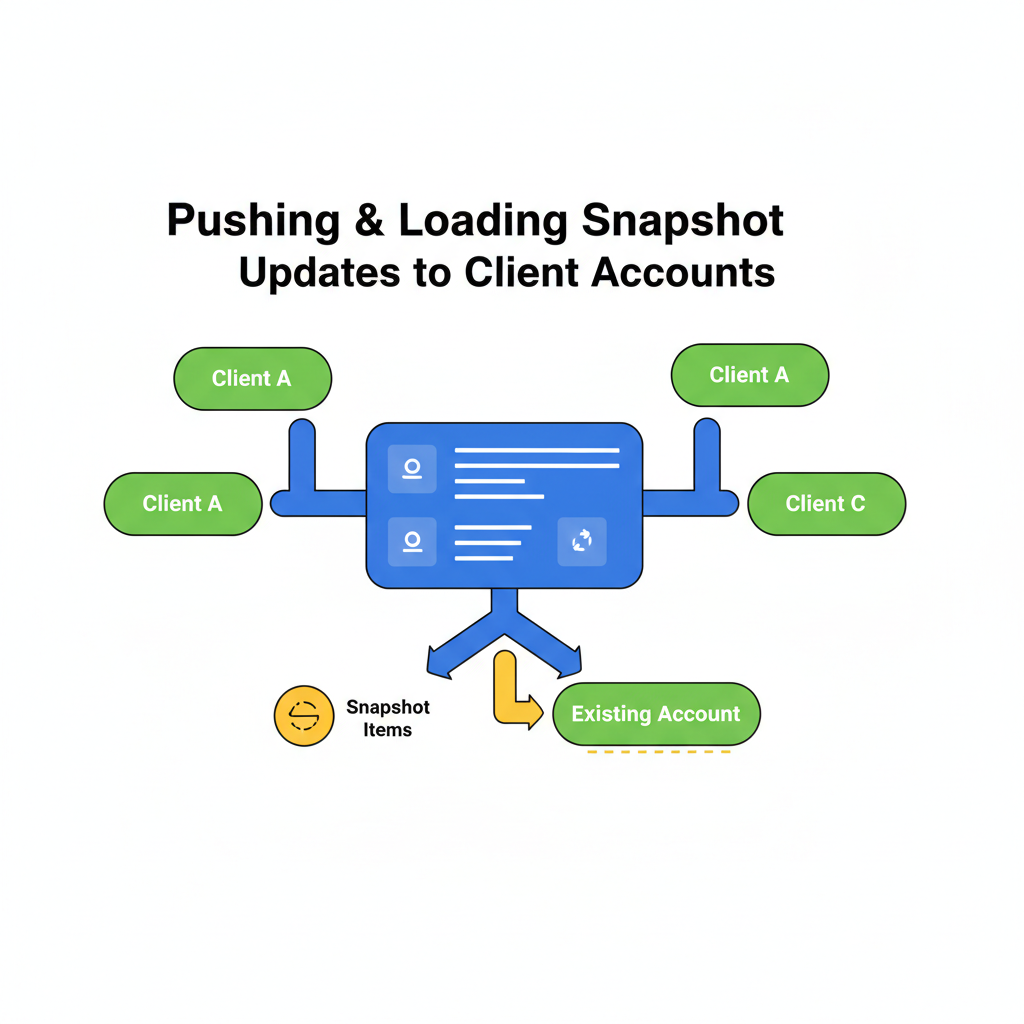
Operational checklist before pushing or loading snapshots
Use this quick checklist before you make bulk changes:
- Confirm the source account is clean
- Remove half‑finished experiments from the master account.
- Make sure naming is consistent and clear.
- Refresh the snapshot first
- Always refresh before you push so you’re not sending outdated logic or copy.
- Scope your impact
- Decide exactly which sub‑accounts and asset types should receive the change.
- Communicate with clients when needed
- For major updates, let clients know what’s changing and when.
- Test in a staging sub‑account
- Load or push to one internal or test sub‑account first.
- Verify that campaigns, funnels, and workflows behave as expected.
- Document what you did
- Keep a short changelog so future you (or your team) knows which snapshot version is live across which clients.
How snapshot strategy fits into your broader GoHighLevel system
Snapshot hygiene is only one part of running a scalable agency on GoHighLevel. To get the full benefit, you’ll want to connect it with:
- Clean contacts and segments – so snapshot workflows tag, score, and route leads consistently.
- Standardized pipelines and opportunities – so every snapshot‑deployed funnel reports into stages you actually track.
- Shared reporting and dashboards – so you can see how each version of a snapshot performs across sub‑accounts.
Once these pieces line up, snapshots stop being “just templates” and become a reliable way to deploy offer playbooks across your client base.
If you want help going from “we have snapshots” to “we have a library of proven client playbooks,” Revset Labs can design your snapshots, master account structure, and rollout process end‑to‑end.
FAQs: Pushing & loading snapshot updates in GoHighLevel
What’s the main difference between Push Updates and Load Snapshot?
Push Updates overwrites snapshot‑created assets in existing sub‑accounts with the latest version from your snapshot (plus adds any new assets). Load Snapshot adds a fresh copy of snapshot assets on top of what’s already in the account and never deletes anything.
Will Push Updates overwrite my client’s custom edits?
Yes—if a client edits an asset that was originally created by the snapshot and you include that asset type in your push, their changes will be reverted to match the snapshot. To avoid this, duplicate the asset for client‑specific customization and wire automations to use the custom copy instead.
Can I use Push Updates on external agencies who imported my snapshot?
No. External agencies who imported your snapshot by shared link won’t receive Push Updates. They’ll need to re‑import a refreshed snapshot if they want your latest changes.
What happens if I load the same snapshot into a sub‑account more than once?
Each time you load the same snapshot into the same sub‑account, GoHighLevel adds another full copy of the snapshot assets. That can be useful for experiments, but it will also create duplicates—so use repeated loads sparingly and name things clearly.
How can I safely test snapshot changes before rolling them out to all clients?
Create a dedicated internal or staging sub‑account, load or push the snapshot there first, and run through key workflows and funnels end‑to‑end. Once everything looks solid, repeat the push or load for your production client sub‑accounts.