
If you’re sending emails from GoHighLevel without authenticating your domain, you’re leaving deliverability—and revenue—up to chance. The fastest way to fix that is by connecting a properly configured Mailgun domain on top of your Namecheap DNS.

This guide walks you through the exact steps to set up Mailgun with a Namecheap domain for GoHighLevel, so your broadcasts, automations, and system emails actually land in the inbox.
Who this is for
Agencies, consultants, and local businesses using GoHighLevel who own a domain on Namecheap and want reliable email delivery through Mailgun.
Quick win
If you haven’t created your GoHighLevel account yet, you can start a free GoHighLevel trial and follow this setup as you go.
Before you start: what you need in place
Make sure you have:
- An active Namecheap account with a domain you control.
- A Mailgun account (free or paid) you can log into.
- Access to GoHighLevel (Agency or sub-account) settings.
- Ability to edit DNS records in Namecheap (you’ll need Advanced DNS access).
You’ll get the best results if you use a dedicated sending subdomain (for example, mg.yourdomain.com) just for email, while keeping your main domain free for your website and other services.
Step 1: Create and verify your Mailgun account
- Go to mailgun.com and create an account.
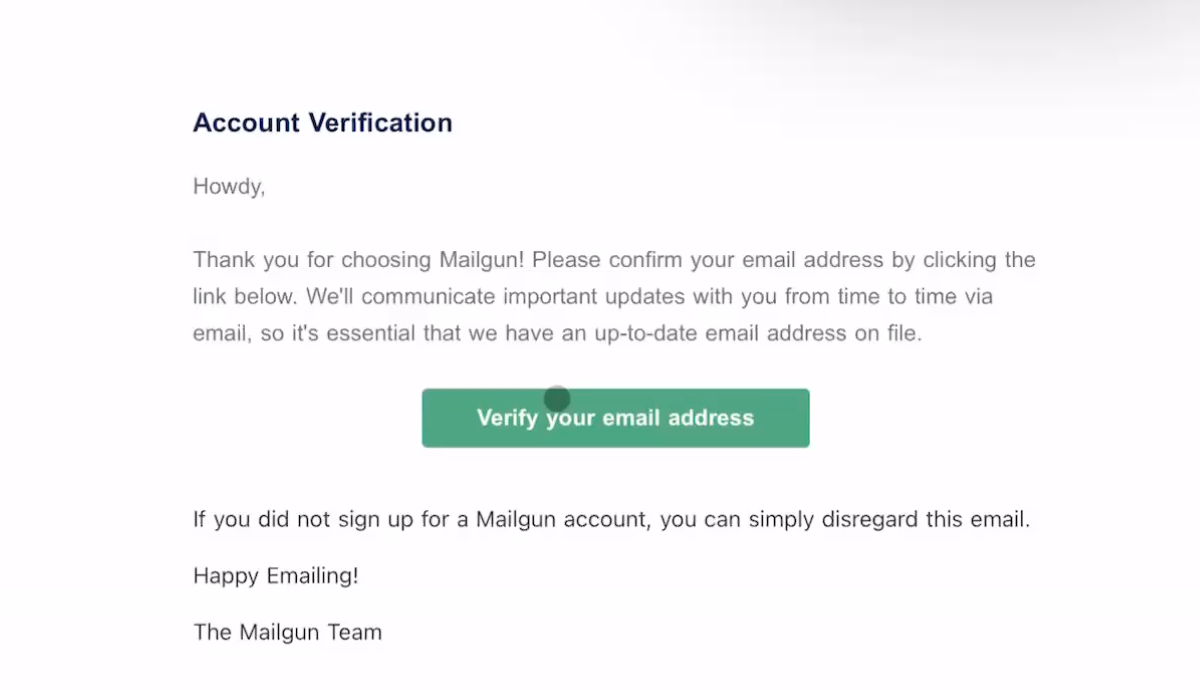
- Confirm your login email address by clicking the verification link Mailgun sends you.
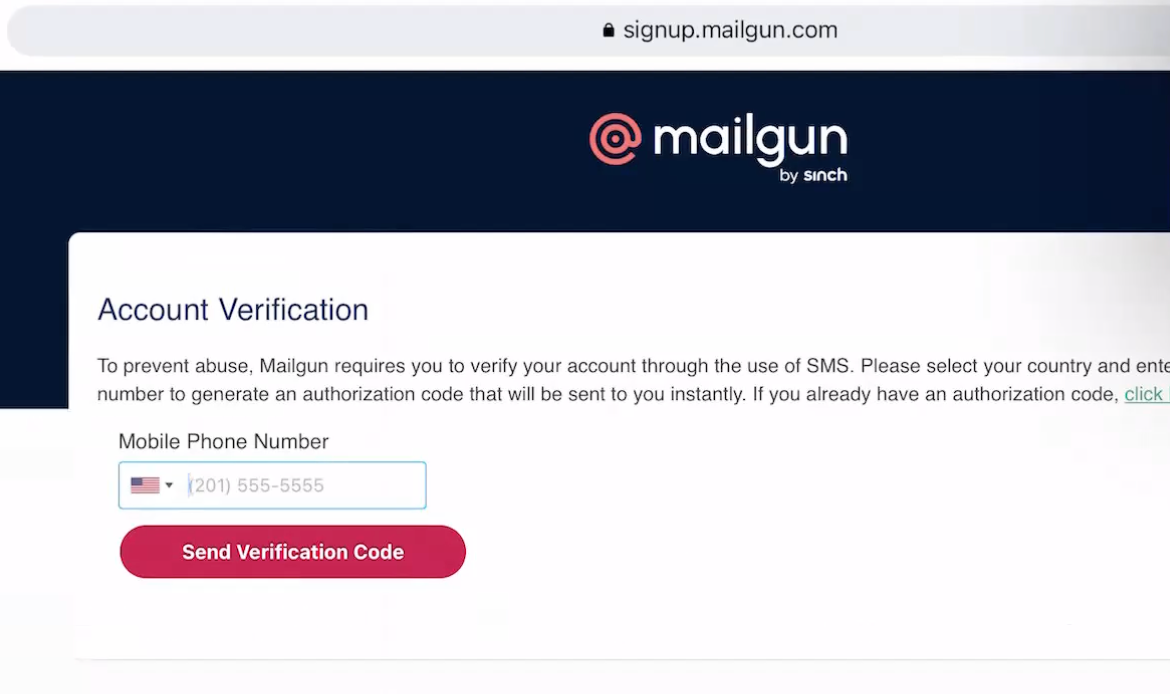
- Log in and make sure you’re in the US region, not EU. GoHighLevel expects Mailgun to be configured in the US region.
Once you’re in, you’re ready to connect your Namecheap domain.
Step 2: Choose and add your sending domain in Mailgun (root vs subdomain)
In Mailgun, navigate to Sending → Domains → Add New Domain.
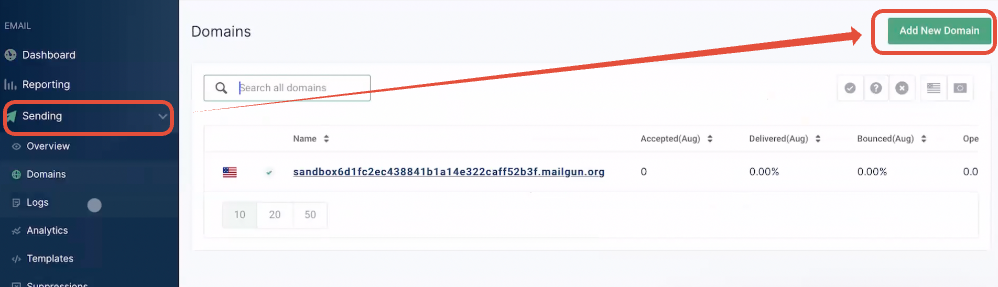
You now need to decide which domain to use:
-
Recommended – Subdomain (best practice)
Examples:mg.yourdomain.com,mail.yourdomain.com,replies.yourdomain.com.
Use this if your root domain already sends email through another provider (Google Workspace, Microsoft 365, etc.). It keeps Mailgun traffic isolated and avoids SPF/DKIM conflicts. -
Root domain (only if it isn’t used elsewhere for email)
Example:yourdomain.com.
Use this only when you’re certain no other email provider is configured for that domain.
Enter the domain exactly as you intend to send from and make sure the region is set to US. Then click Add Domain.
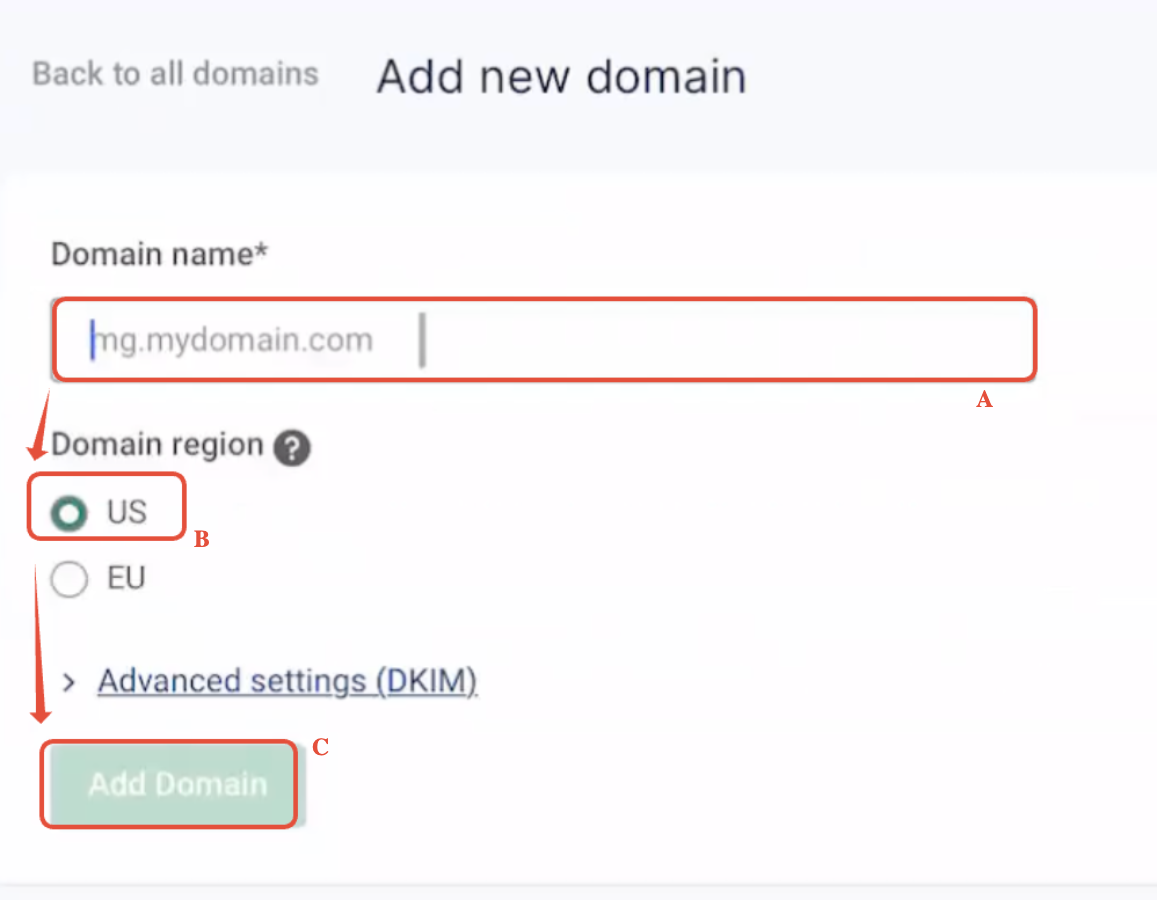
Mailgun will show you a set of DNS records (TXT, MX, and CNAME). Keep this screen open—you’ll copy these into Namecheap next.
Step 3: Add Mailgun DNS records in Namecheap
Now you’ll prove to Mailgun (and mailbox providers) that Mailgun is allowed to send on behalf of your domain.
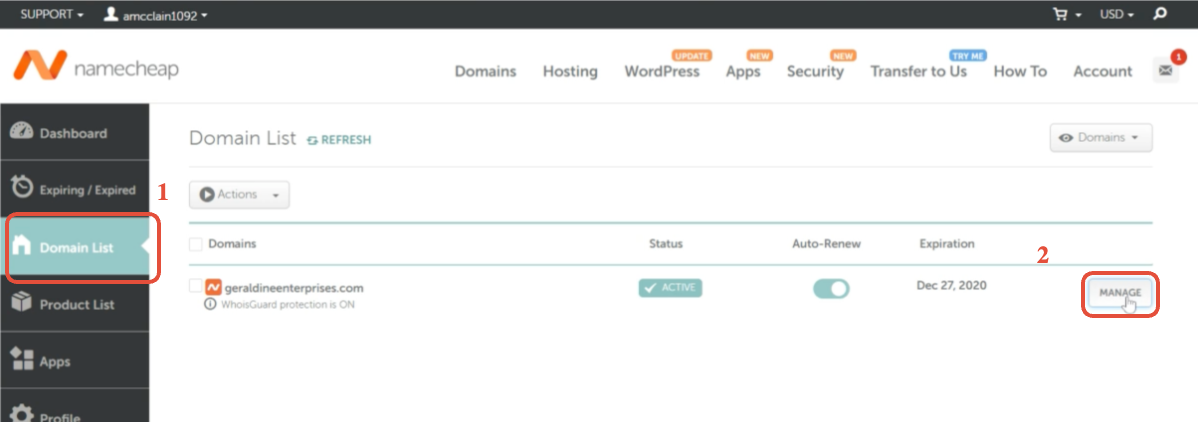
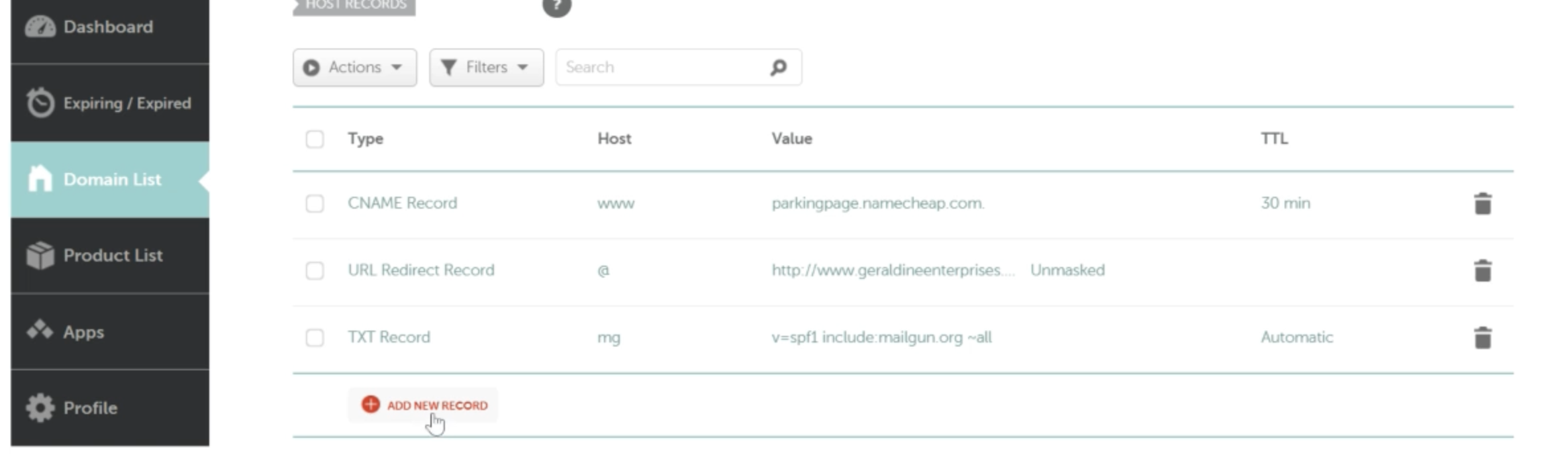
- Log in to your Namecheap account.
- Go to Domain List and click Manage next to your domain.
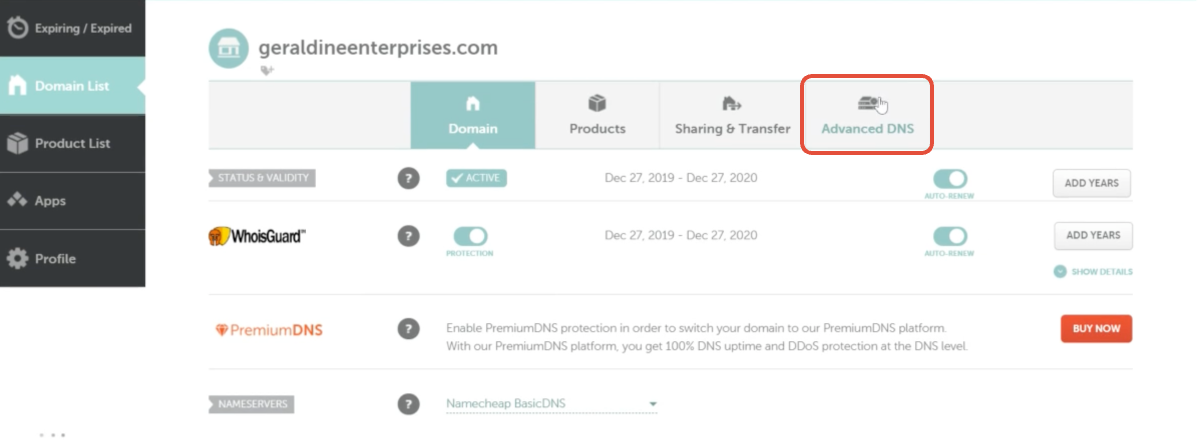
- Open the Advanced DNS tab.
You’ll now add the records Mailgun provided.
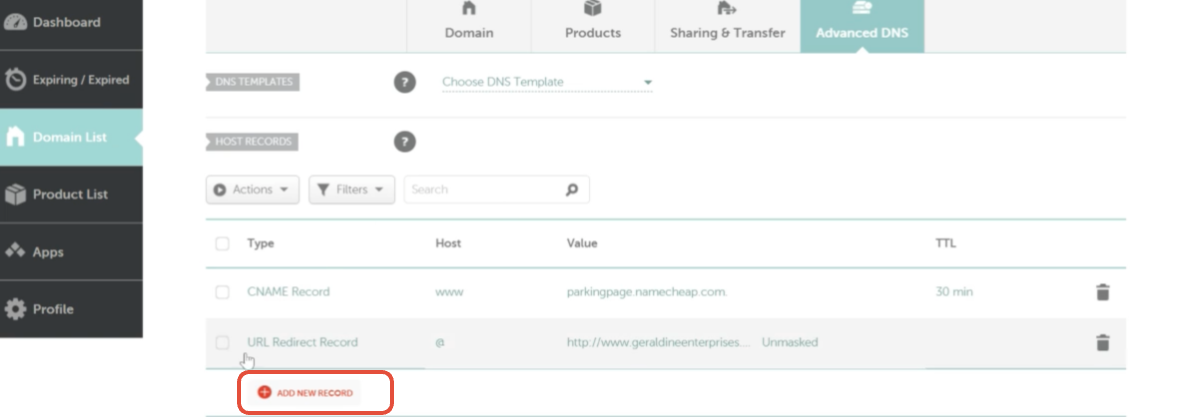
3.1 SPF TXT record
SPF tells receiving servers that Mailgun is authorized to send mail for your domain.
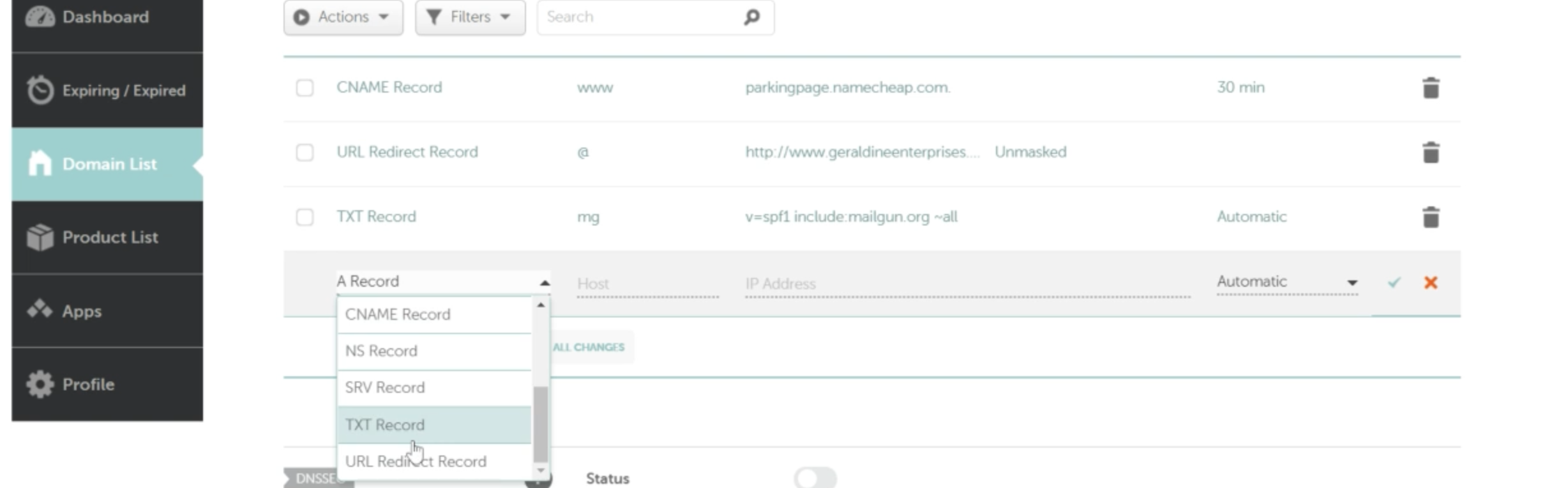
- Record type: TXT
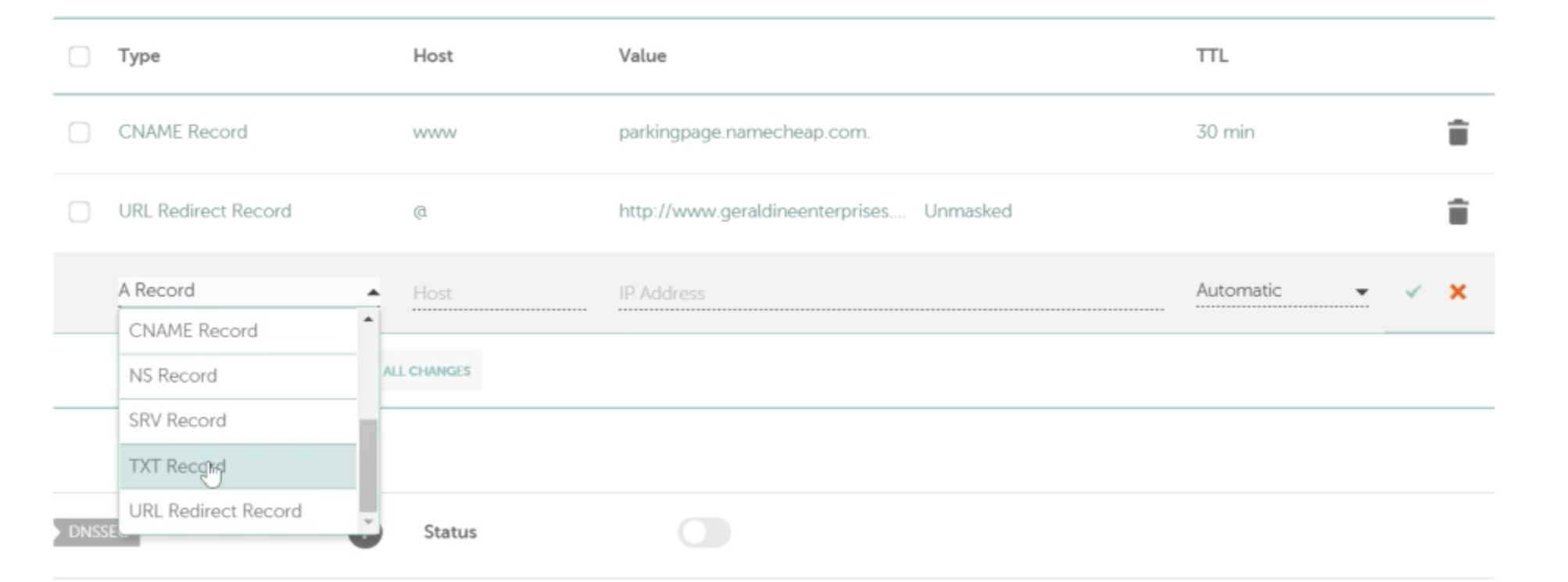
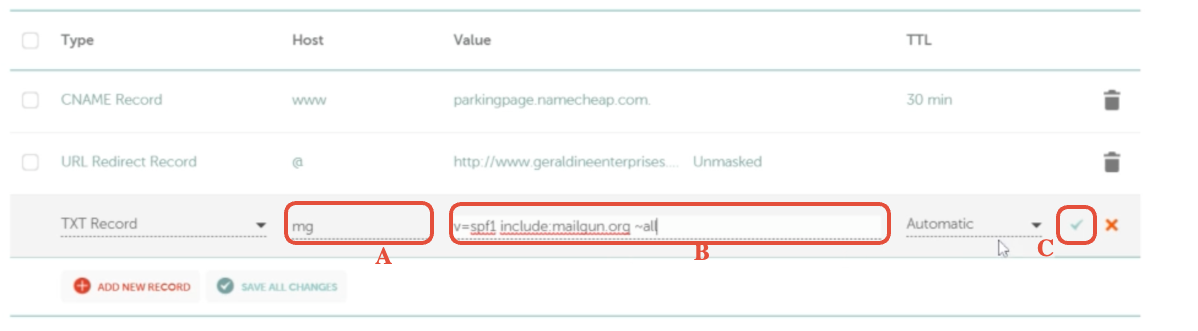
- Host:
- If you’re using a subdomain like
mg.yourdomain.com, enter justmg. - If you’re using the root domain, enter
@.
- If you’re using a subdomain like
- Value: Typically
v=spf1 include:mailgun.org ~all(always copy this exactly from Mailgun). - TTL: Leave default, or set to 30 minutes / 1 hour.
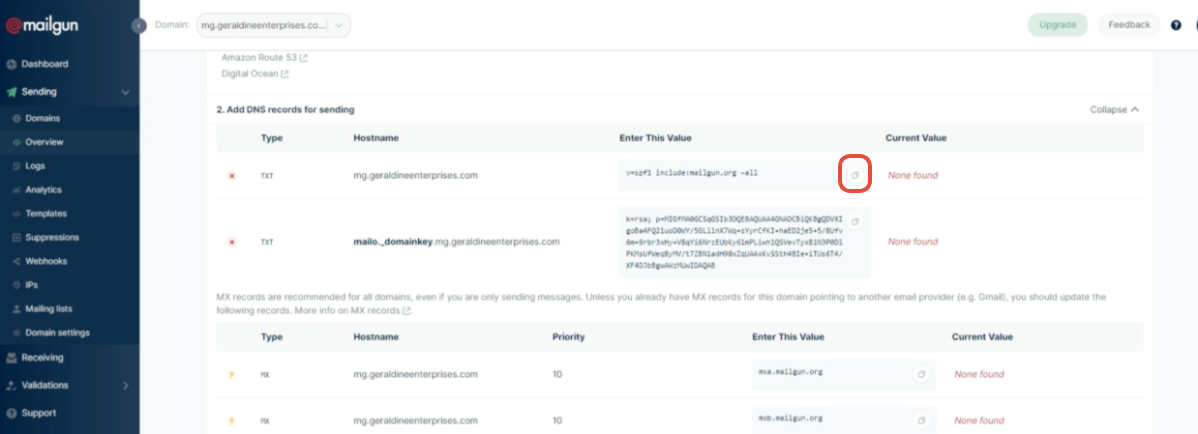
Click the green checkmark to save.
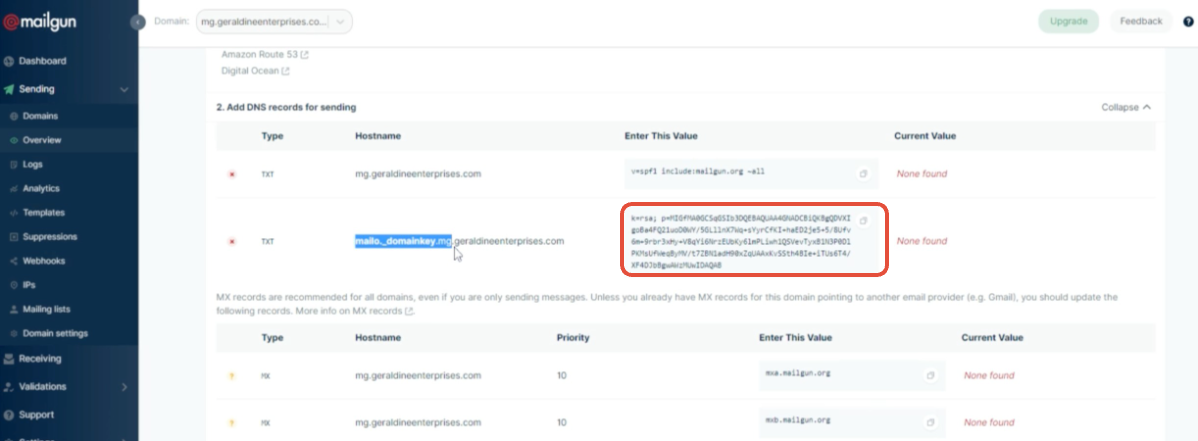
3.2 DKIM TXT record
DKIM signs your emails so providers can confirm they weren’t altered in transit and truly came from you.
- Record type: TXT
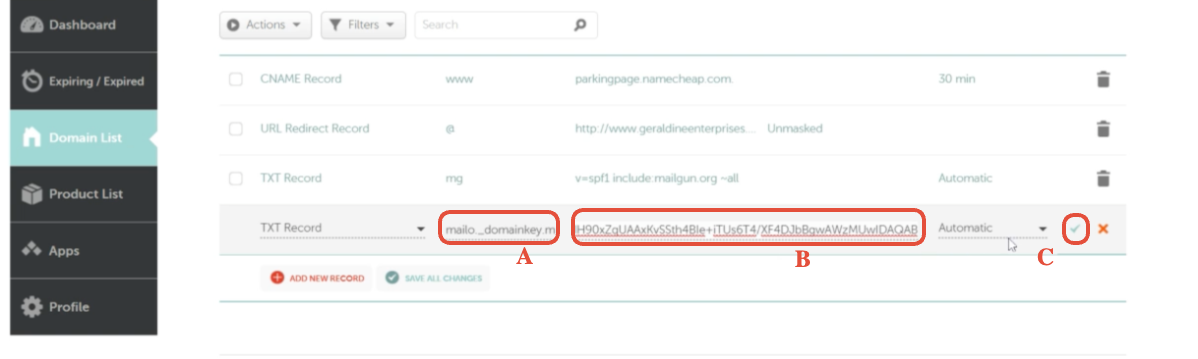
- Host: Copy the
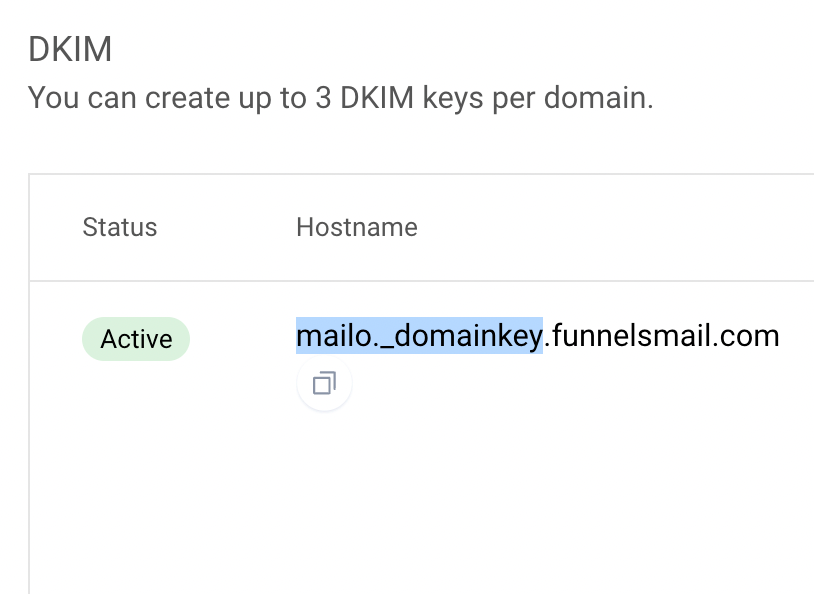
krs._domainkey(or similar) host from Mailgun. It may already include the subdomain portion—paste it exactly as shown.
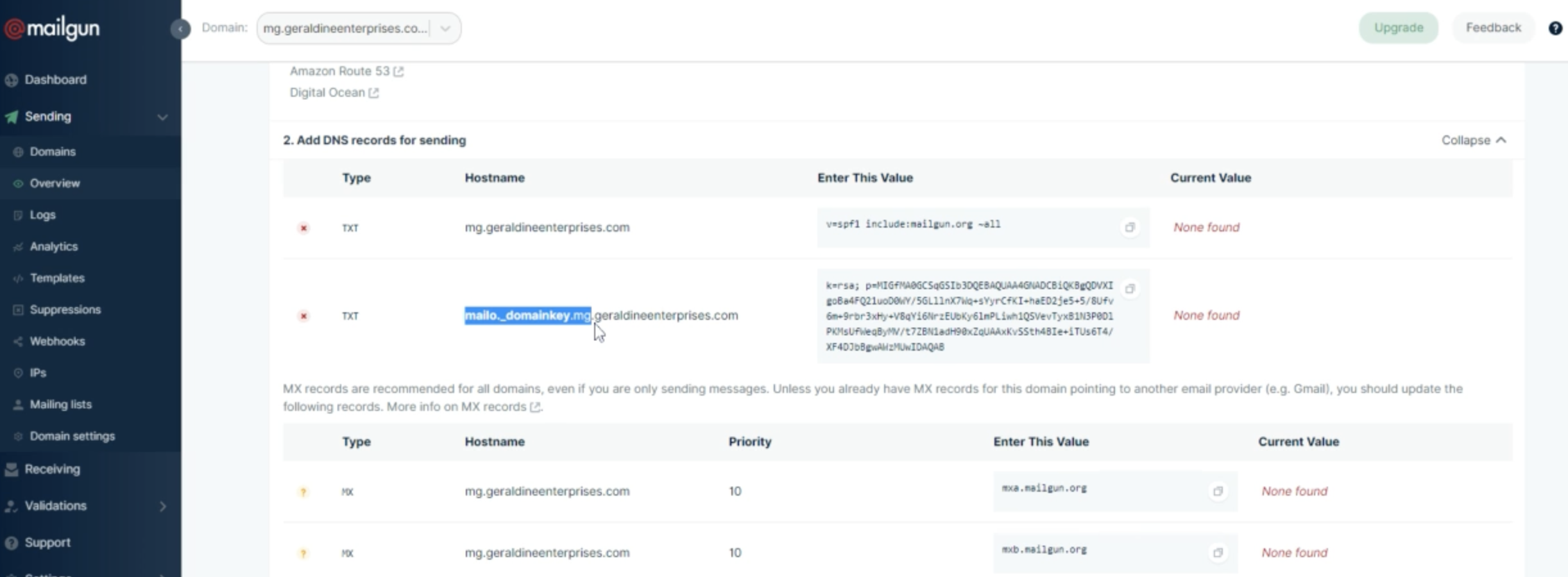
Examples: copy the highlighted part
Example 1 using subdomain
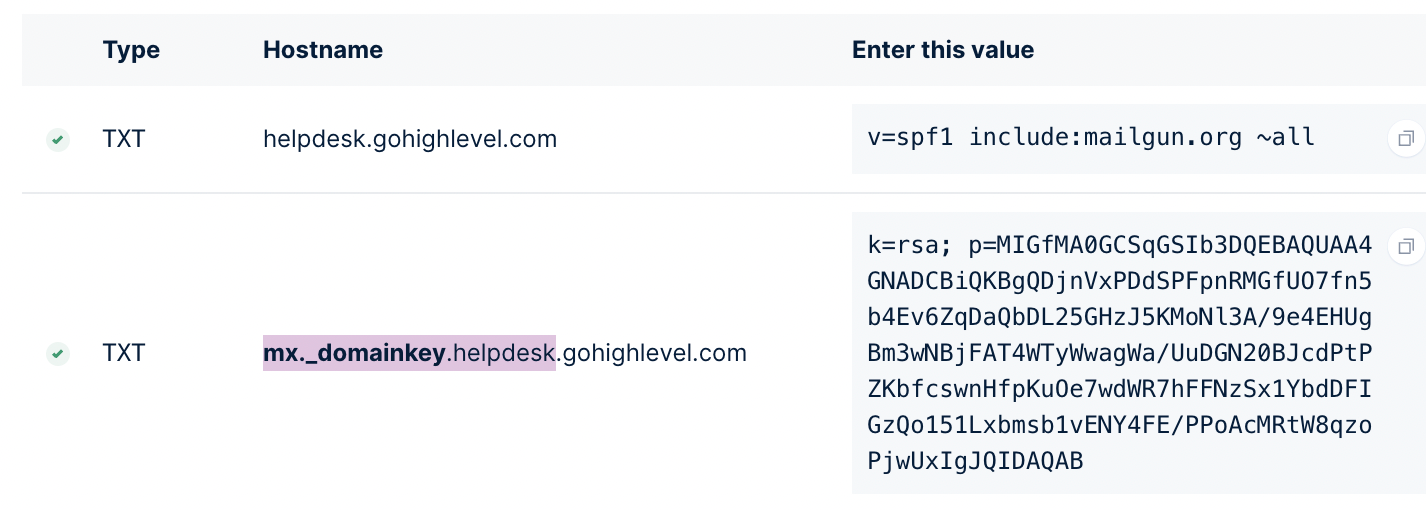
Example 2 using main domain:
- Value: Long DKIM string from Mailgun. Paste the entire value without modifications.
- TTL: Default.
Save the record.
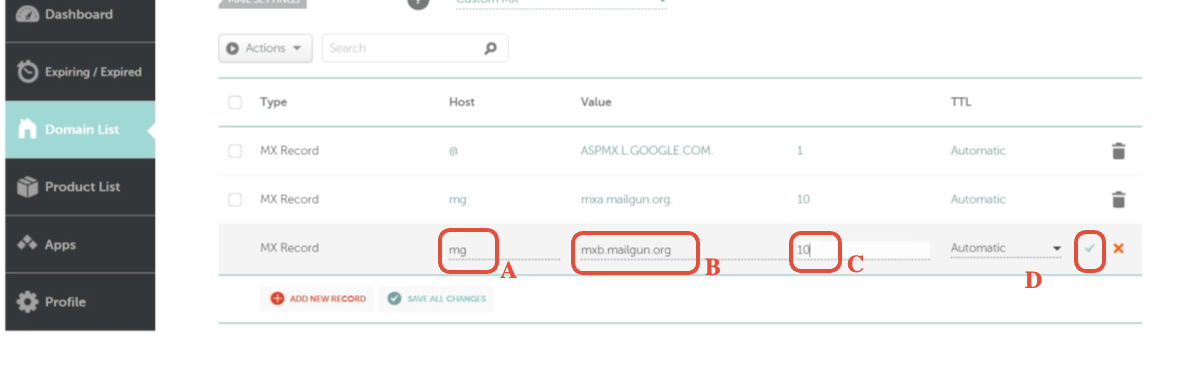
3.3 MX records
MX records tell servers where to route replies and bounces for your Mailgun-managed domain.
Create two MX records:
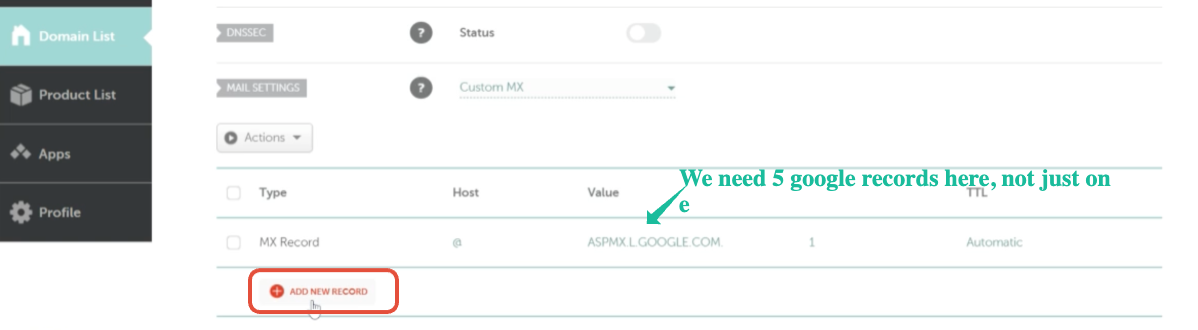
-
First MX record
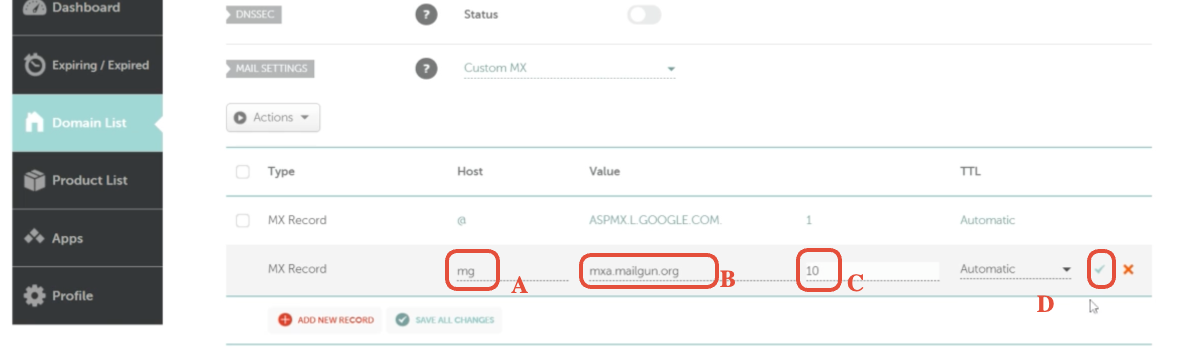
- Host:
mg(or@for root domain). - Value:
mxa.mailgun.org - Priority:
10
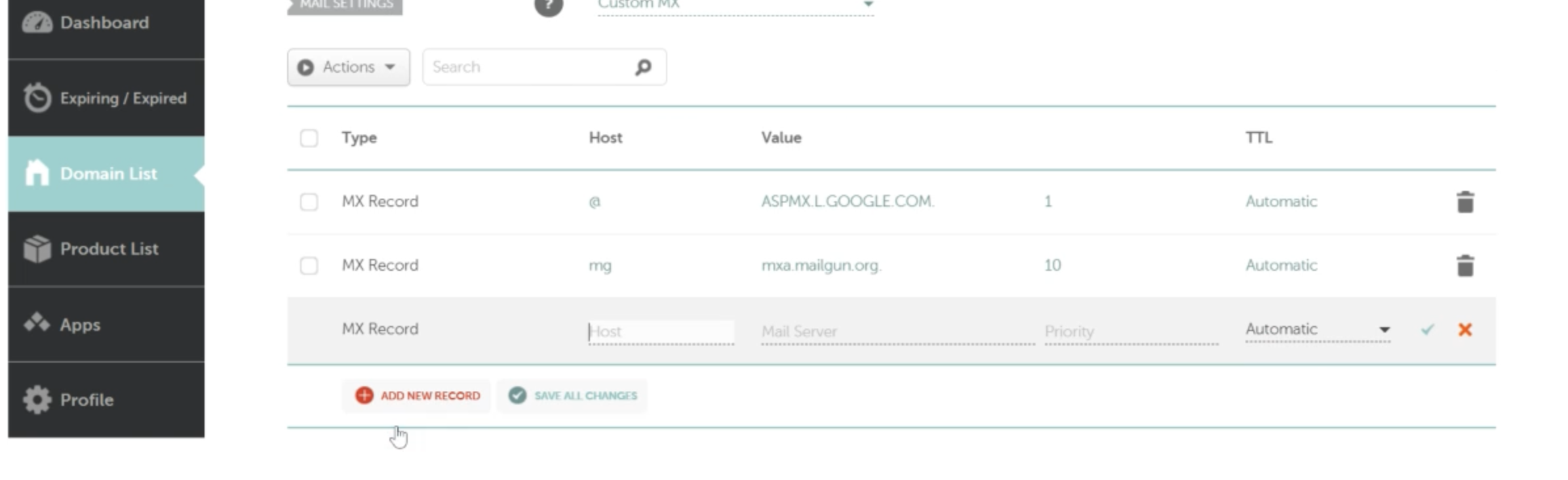
- Host:
-
Second MX record
- Host: Same as above (
mgor@). - Value:
mxb.mailgun.org - Priority:
10
- Host: Same as above (
Save both records.
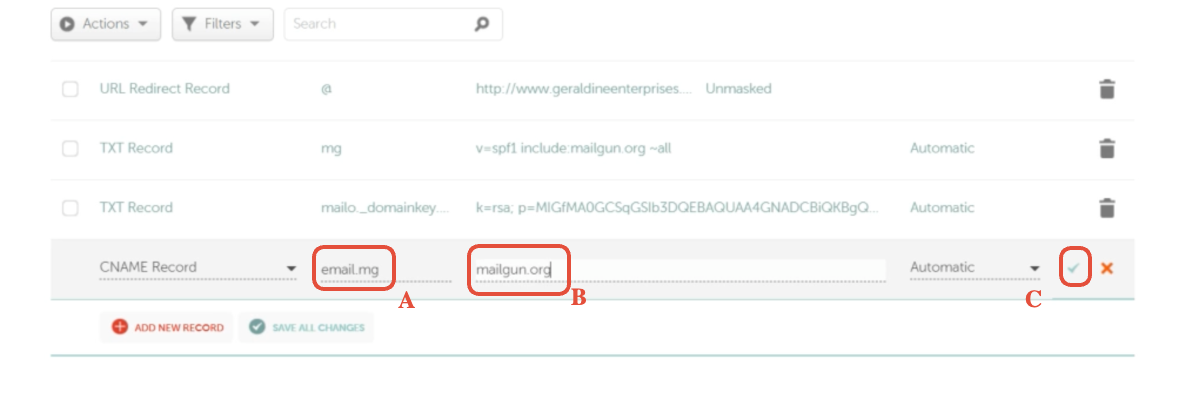
3.4 CNAME record for tracking
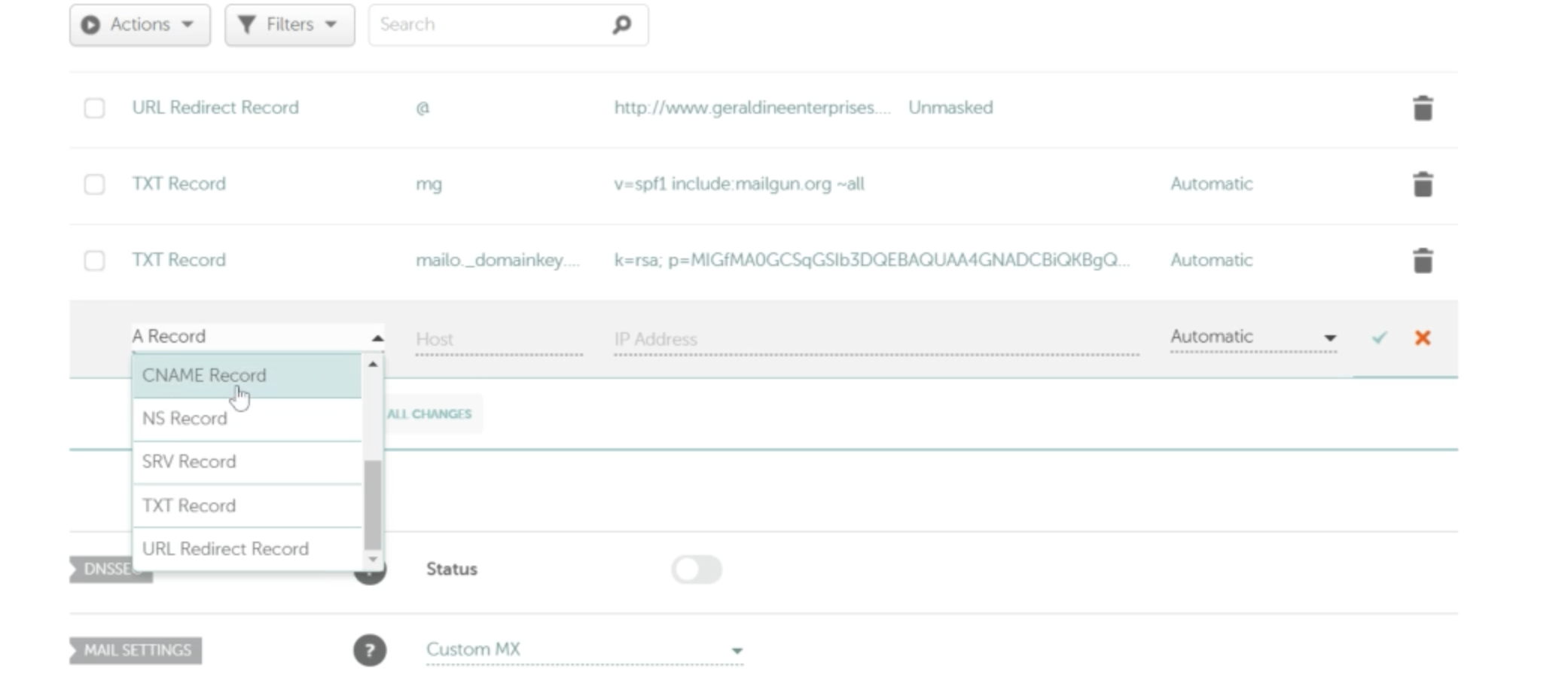
The CNAME record powers click and open tracking.
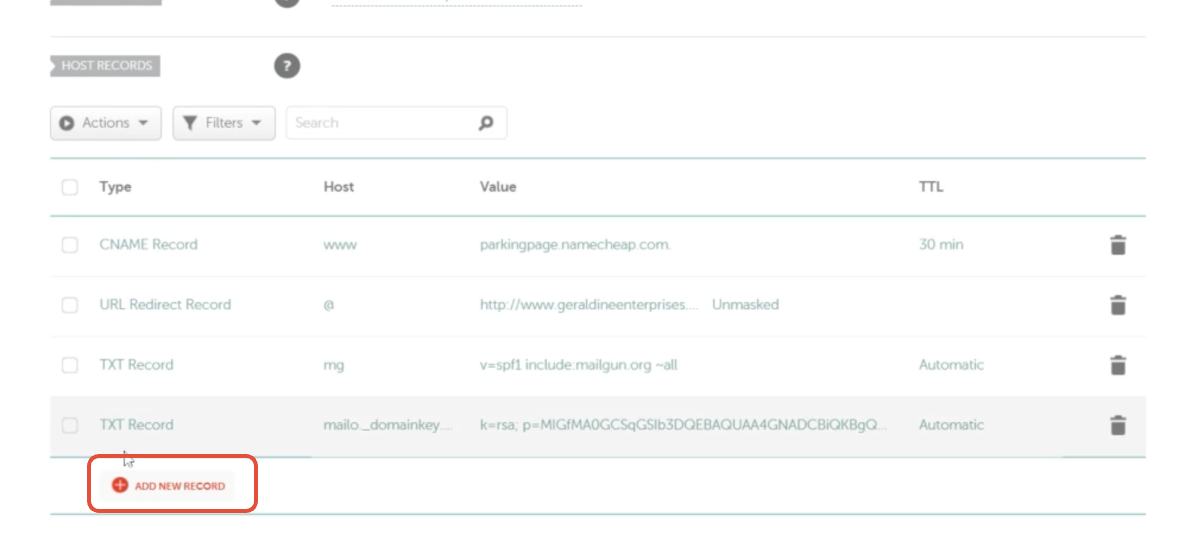
- Record type: CNAME
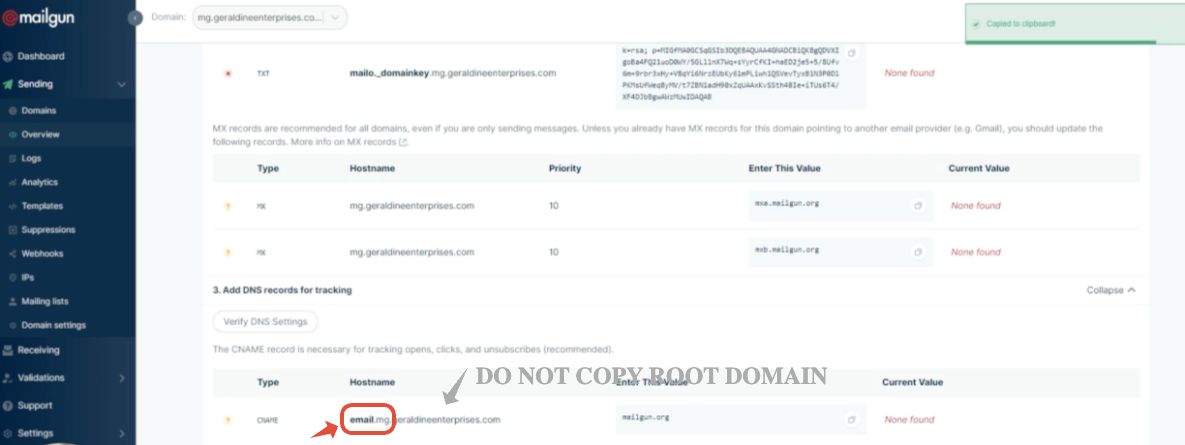
- Host:
- If your sending domain is
mg.yourdomain.com, Mailgun usually suggestsemail.mg. Enter that as the host. - For root domains, this is typically just
email.
- If your sending domain is
- Value:
mailgun.org - TTL: Default.
Save the CNAME record.
Tip
Your DNS may take 5–30 minutes to propagate, sometimes longer. Don’t worry if Mailgun doesn’t show green checks immediately.
Step 4: Verify DNS settings in Mailgun
Return to Mailgun and open your domain under Sending → Domains.
- Click Verify DNS Settings.
- If some records still show as unverified, wait a few minutes and click again.
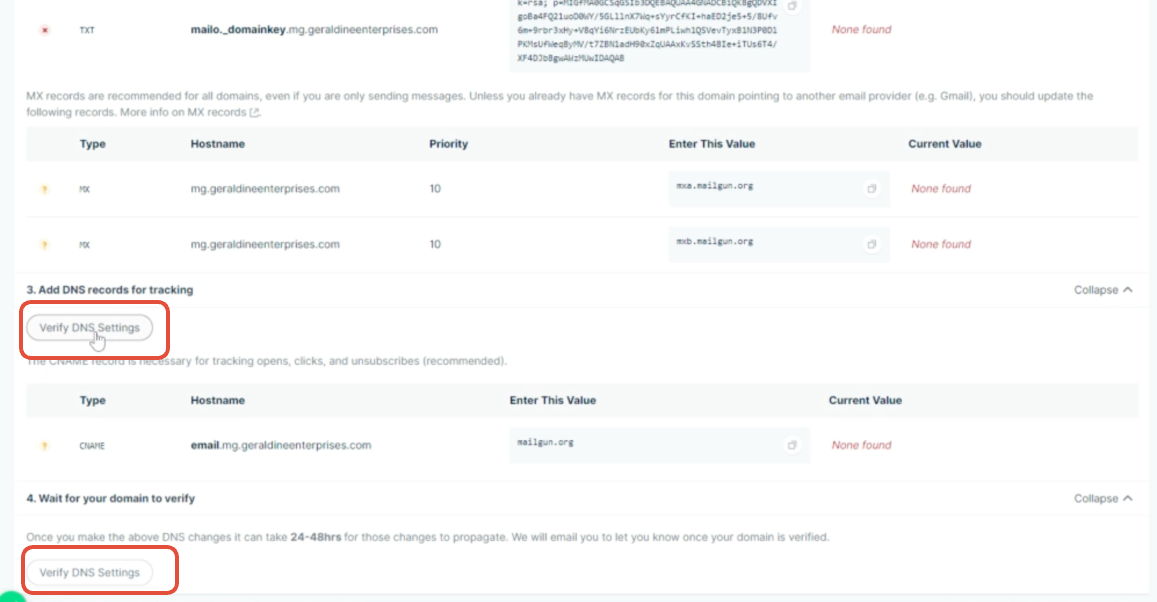
- Once SPF, DKIM, MX, and CNAME are all verified (usually with green checkmarks), your domain is ready to send.
If verification fails after an hour, double‑check:
- The Host values in Namecheap match exactly what Mailgun shows.
- There are no duplicate SPF records on the same host.
- You didn’t accidentally paste extra spaces or quotation marks around TXT values.
Step 5: Connect Mailgun to GoHighLevel
With your domain verified, it’s time to plug Mailgun into GoHighLevel so all emails send from your authenticated domain.
5.1 Grab your Mailgun Private API key
- In Mailgun, click your profile avatar (top right).
- Go to API Security.
- Copy the Private API Key—this is what GoHighLevel uses to talk to Mailgun.
Keep this key secure; anyone with it can send mail on your behalf.
5.2 Add Mailgun inside GoHighLevel
- In GoHighLevel Agency view, go to Settings → Email Services (or Mailgun Settings, depending on your version).
- Choose Mailgun as the provider.
- Paste the Private API Key you copied from Mailgun.
- Select the verified Mailgun domain you just configured (for example,
mg.yourdomain.com). - Save your settings.
From now on, GoHighLevel uses Mailgun for outgoing email.
CTA: Ready to centralize your funnels and automation?
If you’re still evaluating platforms, you can test drive GoHighLevel with a free trial while you set up Mailgun and see the impact on deliverability.
Step 6: Align your "From" addresses and test sending
To avoid confusing mailbox providers—and your contacts—make sure your "From" email addresses match the domain you just authenticated.
- If your Mailgun sending domain is
mg.yourdomain.com, use a From address likesupport@yourdomain.comormarketing@yourdomain.com. - In GoHighLevel, update default From Name and From Email under Settings → Company and in each sub-account where necessary.
Then send a few tests:
- Create a simple one‑off email in GoHighLevel and send it to a Gmail and Outlook address you control.
- Check:
- Does it show From the correct email address?
- Does it land in Inbox, Promotions, or Spam?
- Do links and images load correctly?
- In Mailgun, open Logs to confirm the messages were accepted and delivered without errors.
If something fails, use the error codes in Mailgun logs as your starting point.
Common issues with Mailgun + Namecheap + GoHighLevel (and how to fix them)
1. DNS won’t verify in Mailgun
Symptoms: One or more records keep showing as red or unverified in Mailgun.
Fixes:
- Confirm you edited DNS on the correct domain in Namecheap (root vs subdomain).
- Make sure there is only one SPF record (
v=spf1) for each host. Combine them if you’re using multiple providers. - Double‑check that the Host field in Namecheap matches what Mailgun shows—no extra domain parts added or removed.
- Wait at least 30–60 minutes and try verifying again while DNS propagates.
2. Emails send but land in spam
Symptoms: Messages show as delivered in Mailgun but appear in Spam.
Fixes:
- Ensure both SPF and DKIM are verified in Mailgun.
- Warm up your new sending domain gradually instead of blasting a full list on day one.
- Clean your list: remove cold, invalid, or low‑engagement contacts.
- Avoid link‑heavy or image‑only templates in your first few campaigns.
3. GoHighLevel shows a Mailgun error
Symptoms: GoHighLevel reports it can’t send or connect through Mailgun.
Fixes:
- Re‑paste the correct Private API Key from Mailgun’s API Security page.
- Confirm you selected the same Mailgun domain you verified in earlier steps.
- Ensure your Mailgun account is in good standing (no suspension, no disabled domain).
Where Revset Labs fits in
Setting up Mailgun correctly is just the foundation. The real upside comes from what you do once email is reliably landing in the inbox—automated nurture sequences, follow‑ups, sales pipelines, and cross‑channel campaigns that run themselves.
Revset Labs is an AI automation and marketing agency that helps GoHighLevel users build exactly that:
- We design and implement automated funnels that turn new leads into booked calls and paying clients.
- We connect tools like Mailgun, Namecheap, Stripe, and ad platforms into one clean, maintainable stack.
- We use AI to personalize outreach and content so you get more replies and revenue from the same list.
If you’d rather have this Mailgun + GoHighLevel infrastructure set up and optimized for you, you can start a free GoHighLevel trial through this link and then bring Revset Labs in to build out the automations on top.
Next steps
At this point you should have:
- A verified Mailgun domain connected to your Namecheap DNS.
- Mailgun plugged into GoHighLevel as your email service.
- Test emails successfully landing in real inboxes.
From here, your next leverage points are:
- Building welcome and nurture automations that trigger the moment a new lead opts in.
- Segmenting your list by intent, source, and engagement for smarter campaigns.
- Layering in SMS, voicemail drops, and pipelines to catch every hand‑raiser.
Keep your Mailgun and GoHighLevel setup healthy, and it becomes an always‑on revenue engine instead of yet another tech headache.