
 GoHighLevel (Step-by-Step Guide)”>
Launching a website is often the first real “we’re live” moment for a new offer, local business, or agency. The problem: traditional website projects can drag on for weeks, cost thousands, and still launch without clear calls‑to‑action or tracking.
GoHighLevel solves a lot of that by bundling your website, funnels, CRM, automations, and communications into one platform. And when you start from a website template, you can go from blank screen to live, branded site in a single working session.
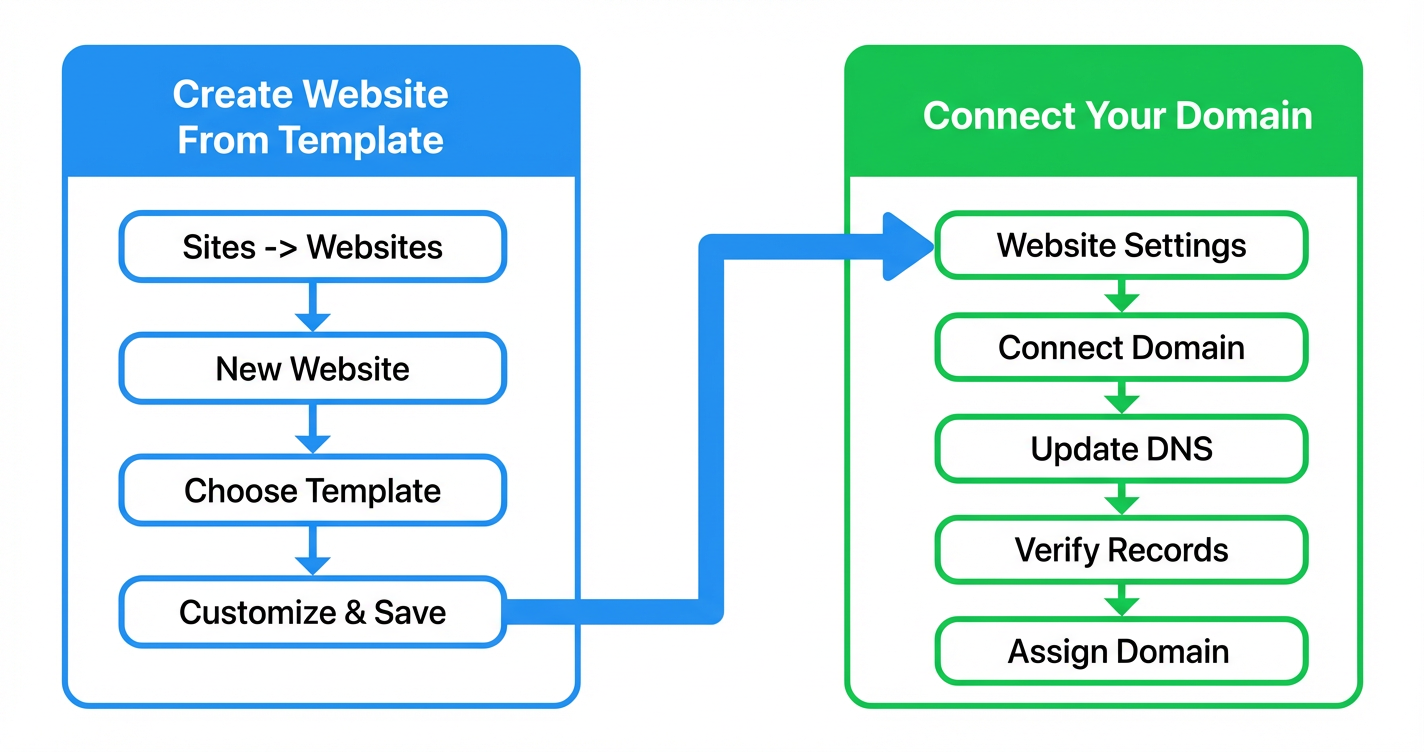
This guide walks you through exactly how to:
- Create a website from a GoHighLevel template.
- Customize it so it actually converts visitors into leads.
- Connect your custom domain so the site lives on
www.yourbrand.com. - Avoid the common DNS and publishing mistakes that slow teams down.
If you don’t have a GoHighLevel account yet, you can spin up a free trial here and follow along as you read: Start your GoHighLevel trial.
Who This Guide Is For (and Why GoHighLevel Templates Work So Well)
If you’re a:
- Local service business (dentist, gym, agency, trades, clinic).
- Coach or consultant validating a new offer.
- Marketing agency running GoHighLevel for clients.
…then you don’t need a 40‑page custom website. You need a clean, credible, conversion‑ready site that:
- Explains what you do and who you help.
- Shows proof (testimonials, case studies, social proof).
- Makes it easy to book a call, claim an offer, or request a quote.
GoHighLevel templates are built exactly for that. They are:
- Fast to launch – most of the layout is already done.
- Easy to edit – drag‑and‑drop sections, swap images, update copy.
- Directly connected to your pipelines, automations, calendars, and email/SMS.
Instead of stitching together five tools, you use one platform – and your website becomes the front door of a complete revenue system.
Step 1: Create a New Website From a GoHighLevel Template
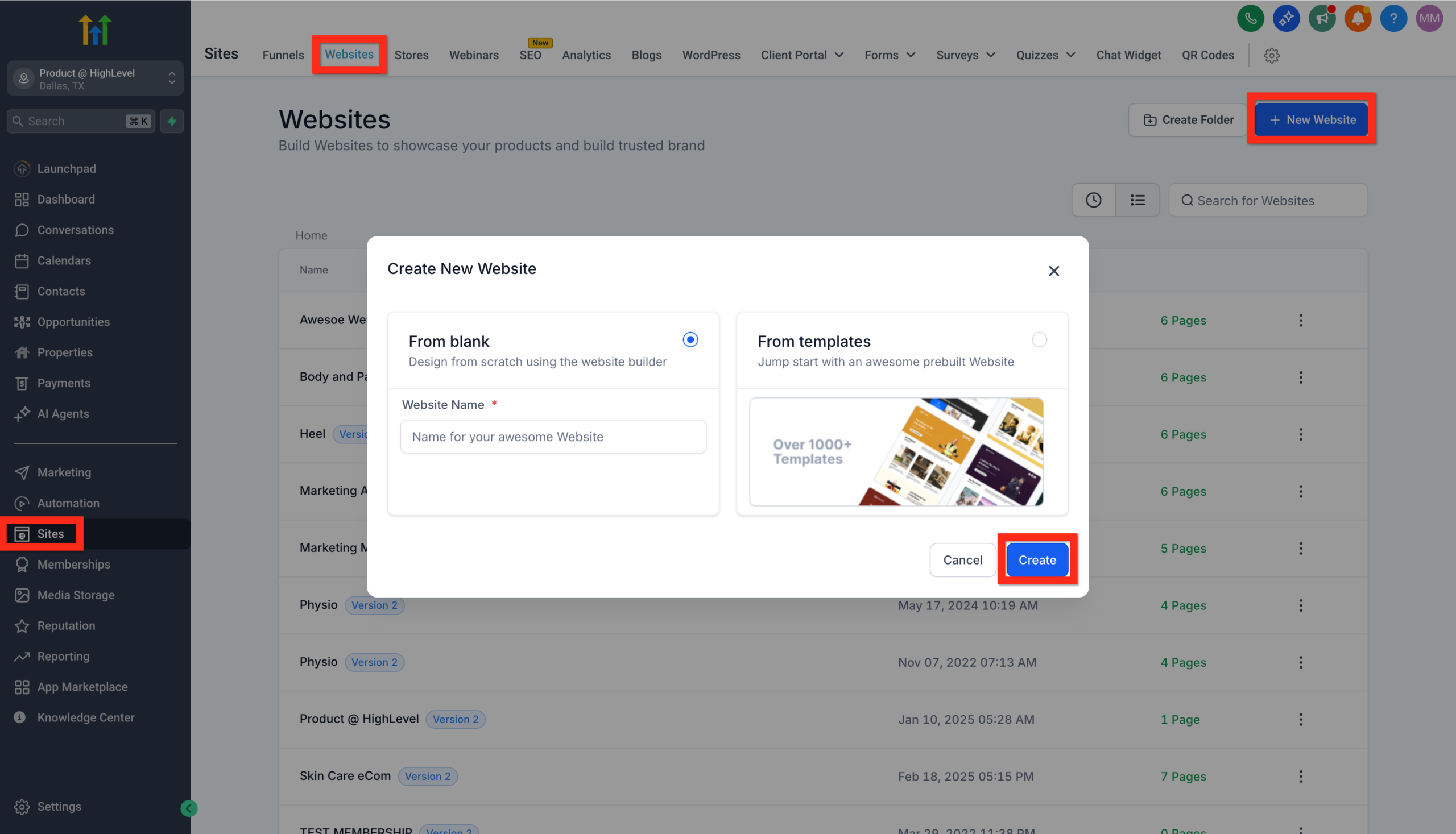
1. Go to Sites → Websites
- Log into your GoHighLevel account.
- From the left‑hand navigation, click “Sites”.
- Choose “Websites”.
This is where all of your websites live. You can manage multiple client or brand sites from this single screen.
2. Click New Website
In the top‑right corner, click “New Website”.
GoHighLevel now asks how you want to start:
- From Blank – a completely empty canvas.
- From Templates – a library of pre‑built layouts.
For speed and consistency, we’ll use From Templates.
3. Choose From Templates and Pick Your Starting Point
- Click “From Templates”.
- Browse the categories (local business, agency, coaching, etc.).
- Click “Preview” on any template to see how it behaves.
- Once you’ve found the best starting point, click “Use Template” or “Create”.
Don’t worry about choosing the “perfect” template. Your copy, offer, and calls‑to‑action will do most of the conversion work. The template just gives you a modern, mobile‑friendly structure.
4. Customize the Template for Your Brand
You’ll now be in the Website Editor.
Work through the page section by section:
-
Brand basics
- Swap in your logo or simple text logo.
- Update brand colors and fonts to match your identity.
-
Hero section
- Replace the default headline with a clear promise (e.g. “Done‑For‑You Funnel‑Focused Websites for Local Businesses”).
- Add a short supporting sub‑headline that explains who you help and how.
-
Primary call‑to‑action
- Use a single main CTA button such as “Book a Strategy Call”, “Claim Your Free Trial”, or “Get a Quote”.
- Connect this button to a calendar, form, or funnel step inside GoHighLevel.
-
Services / features
- Update section titles and bullet points to match your actual offers.
- Use concise, benefit‑driven bullets instead of internal jargon.
-
Proof and trust
- Swap in real testimonials and case studies.
- Add trust badges like “Google reviews” counts or years in business (no third‑party logos needed).
-
Footer basics
- Confirm your business name, address, email, and primary phone number are accurate.
- Add any required legal links (Privacy Policy, Terms, etc.).
As you edit, keep your ideal visitor in mind: what do they need to see on this page to feel ready to take the next step?
Want to shortcut this even further? You can start a free GoHighLevel trial and use Revset Labs’ recommended templates and automation recipes: Launch GoHighLevel with Revset Labs.
5. Save and Publish the Website
Once your initial edits look good:
- Click “Save” in the editor to capture your changes.
- When you’re ready for the site to exist on a GoHighLevel preview domain, click “Publish”.
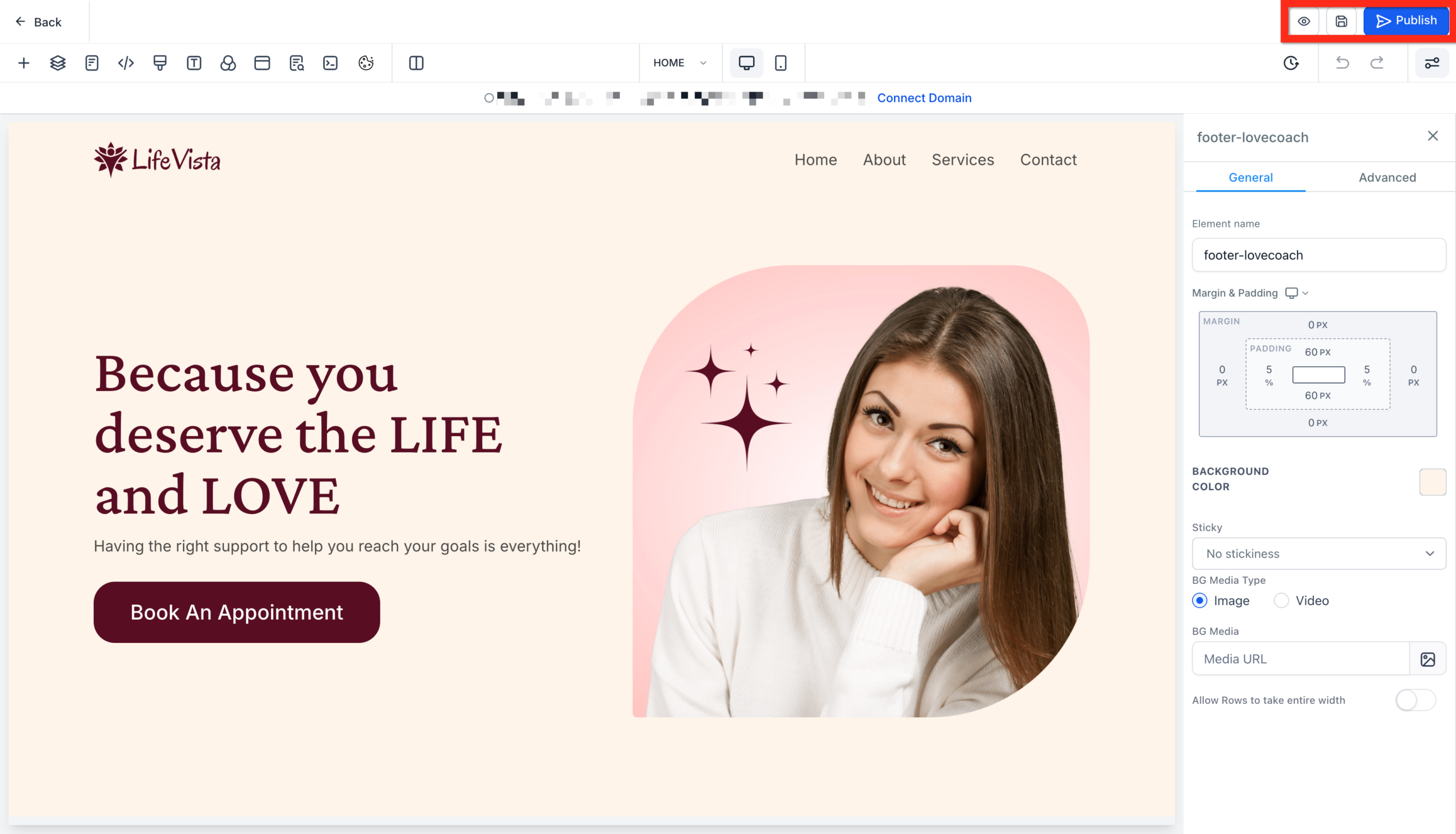
At this stage, the site will typically be accessible on a GoHighLevel subdomain. Next, you’ll point your own domain at it so visitors see www.yourbrand.com instead.
Step 2: Connect Your Custom Domain to the Website
Connecting your own domain is what makes the site feel “real” to customers and search engines.
1. Open Website Settings
- From Sites → Websites, hover over your new website.
- Click the Settings tab for that site.
This is where you’ll manage things like your domain, favicon, page titles, and other site‑wide options.
2. Start the Domain Connection Flow
Inside Website Settings:
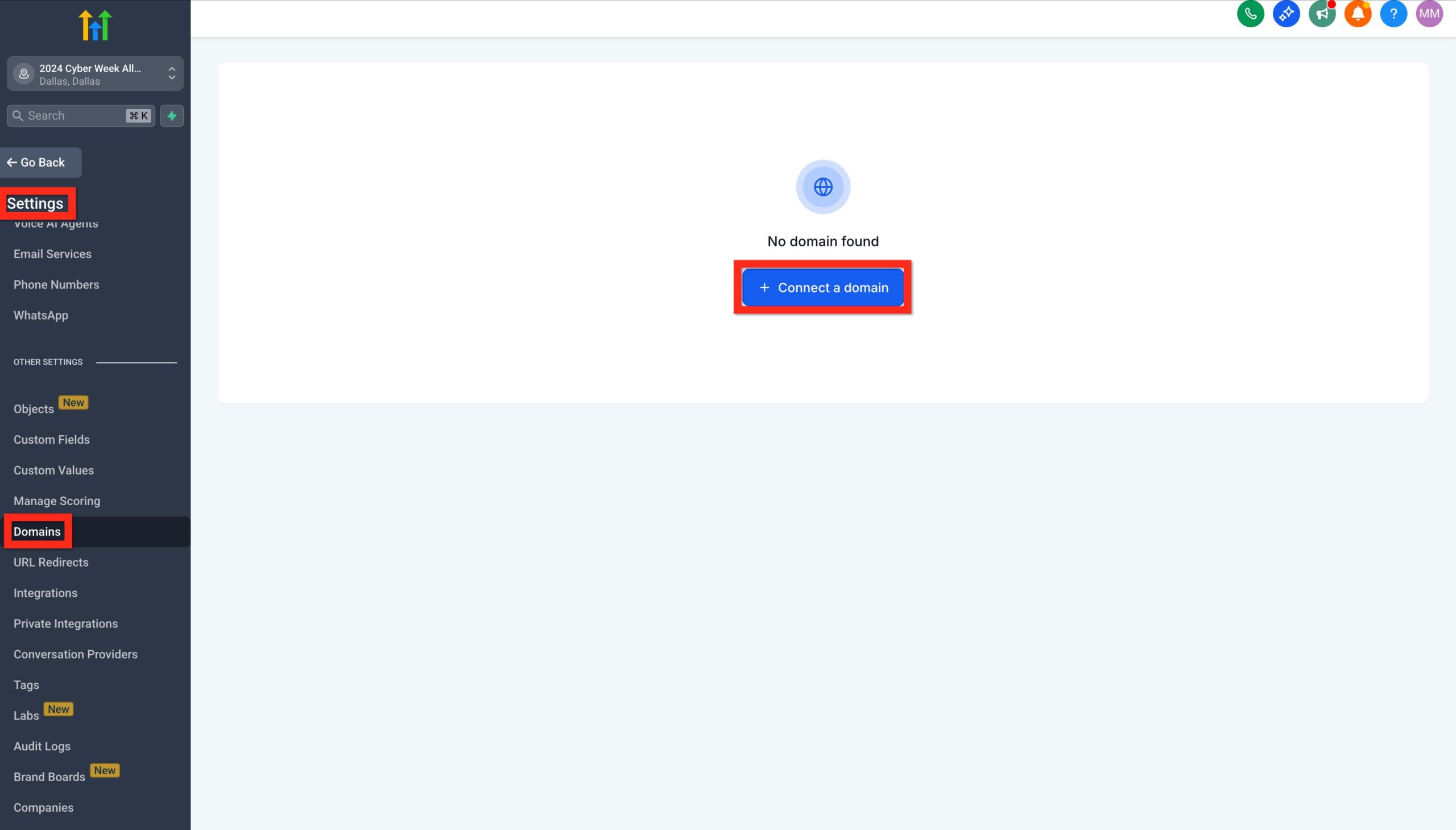
- Find the Domain section.
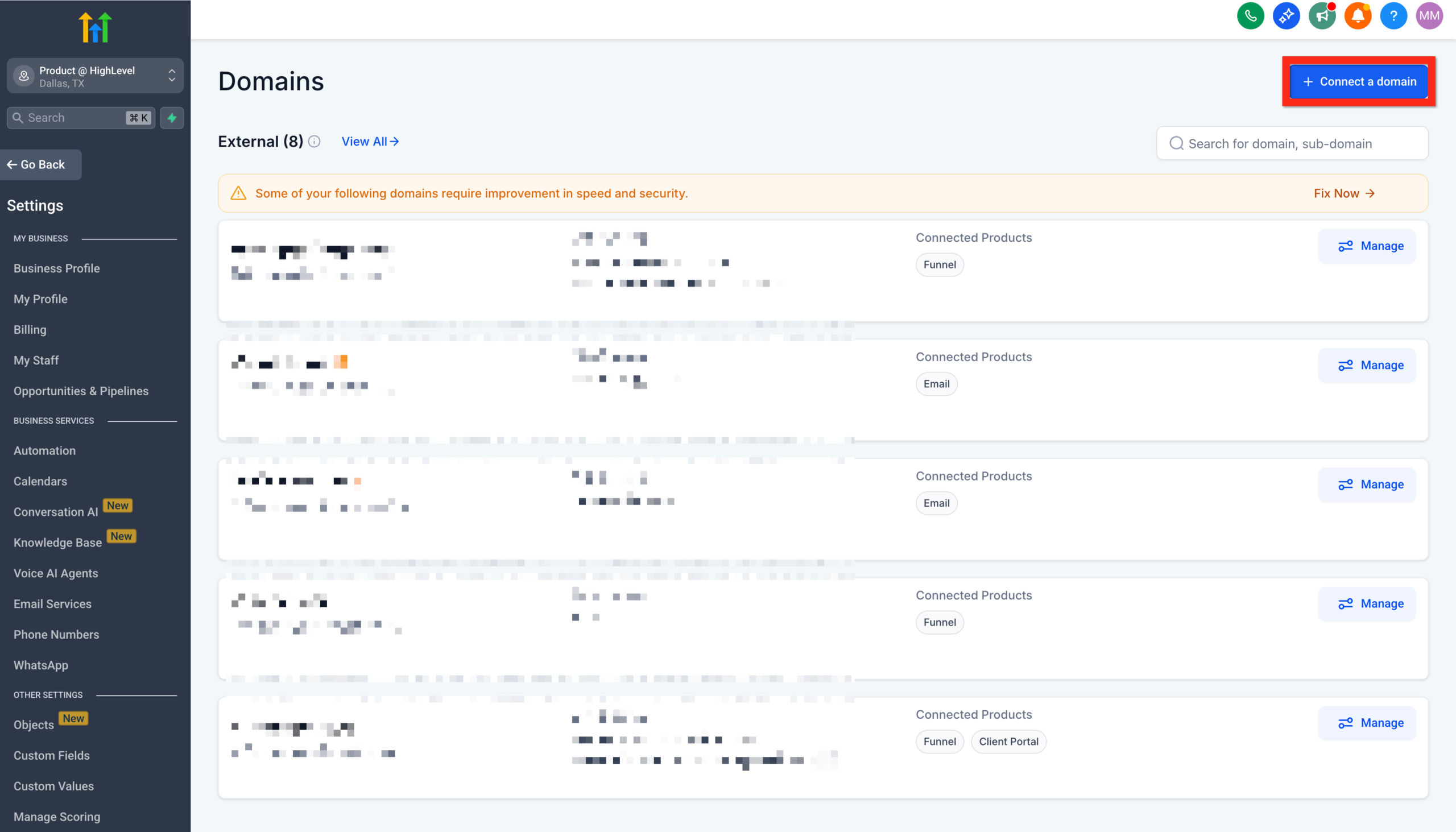
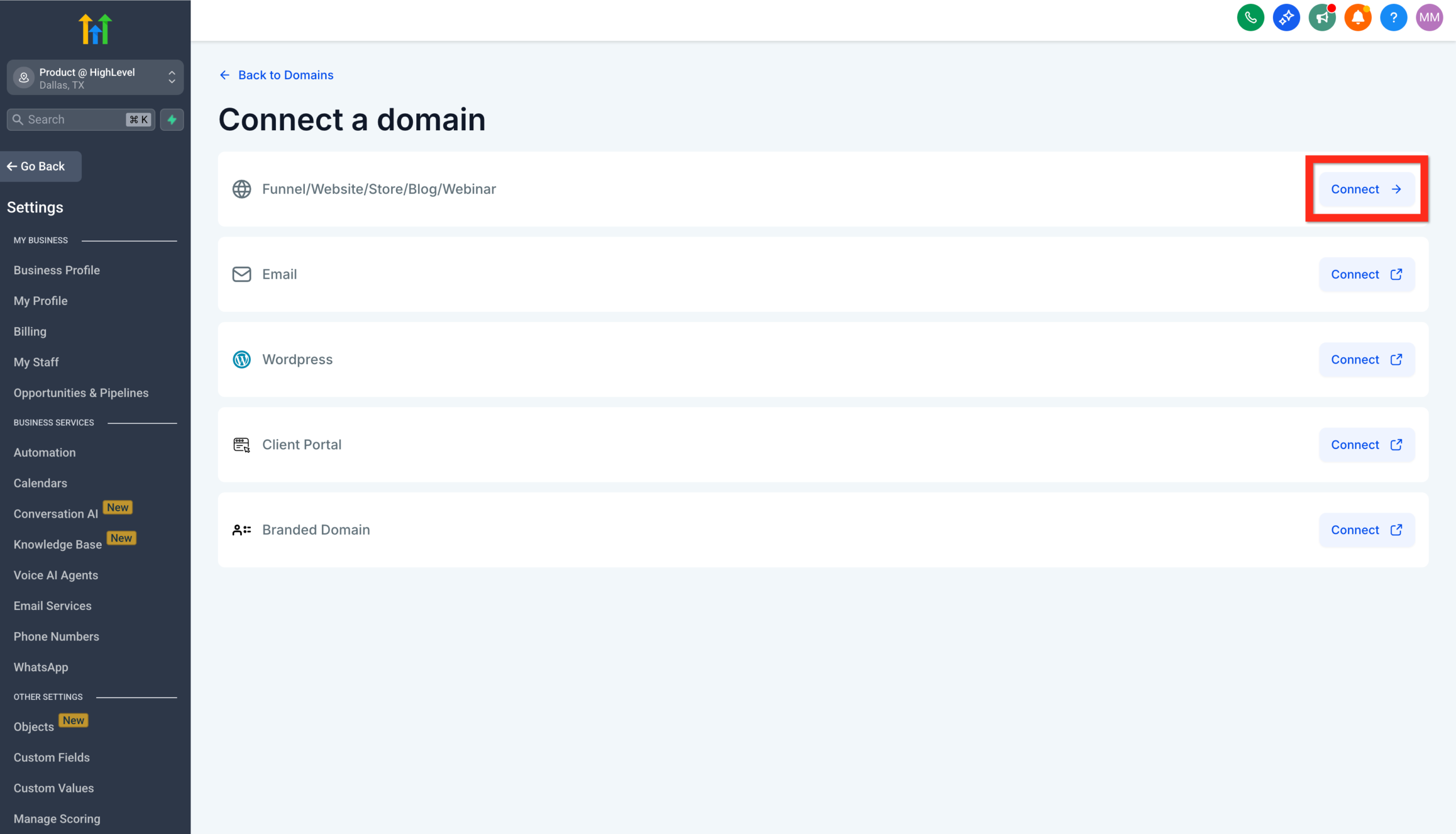
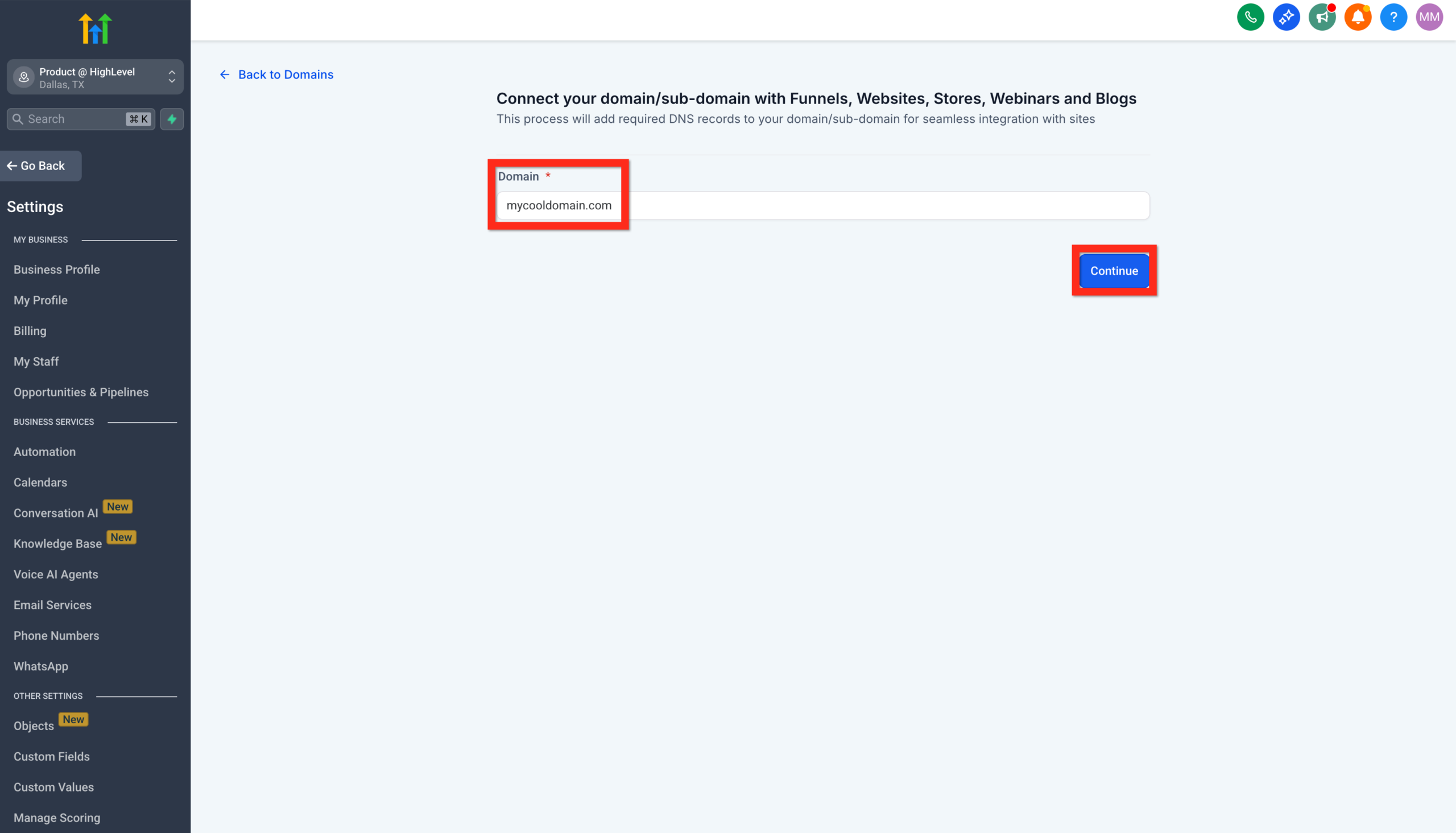
- Click “Connect Domain”.
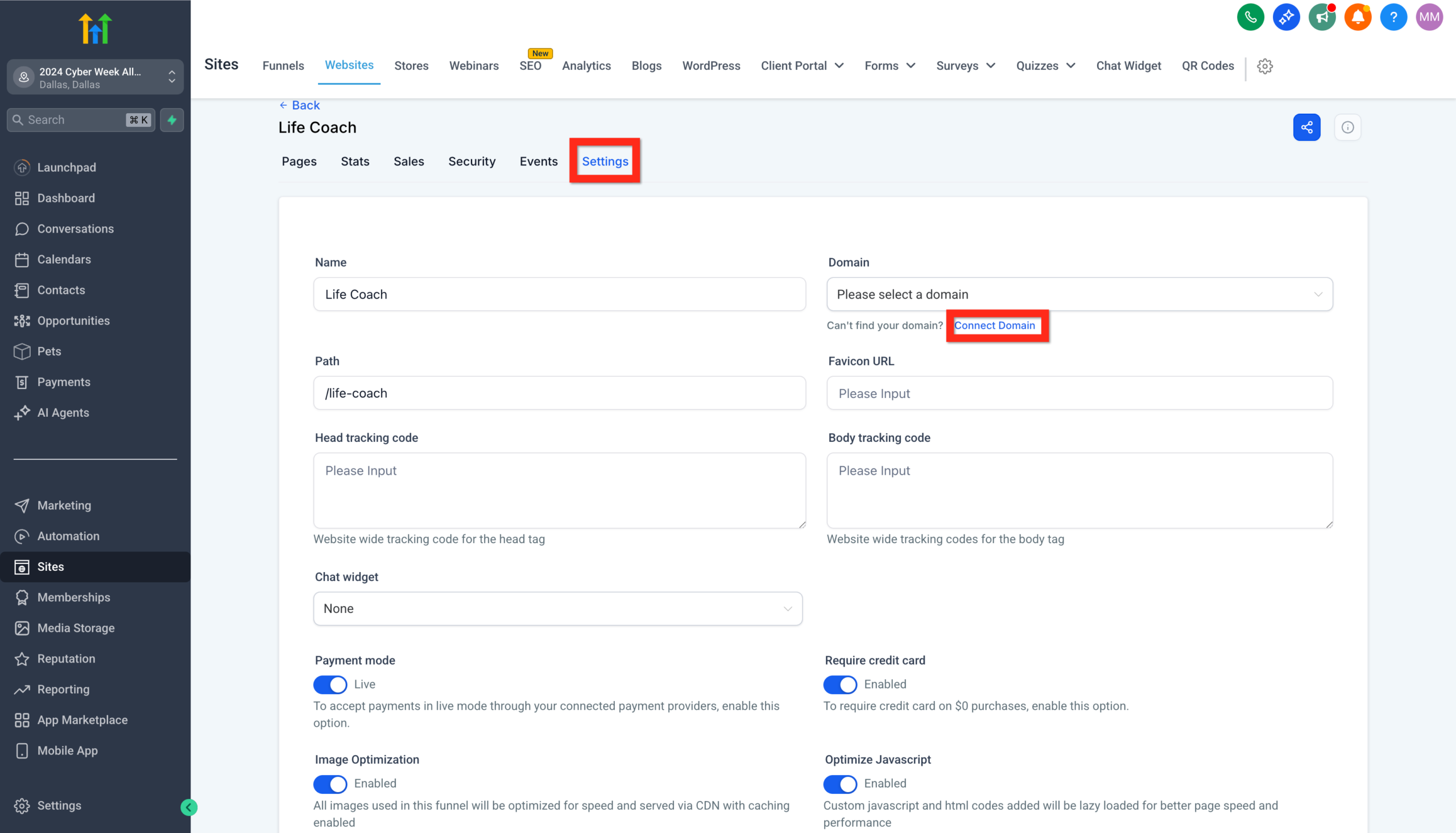
- Choose “Connect a Domain” and click Continue.
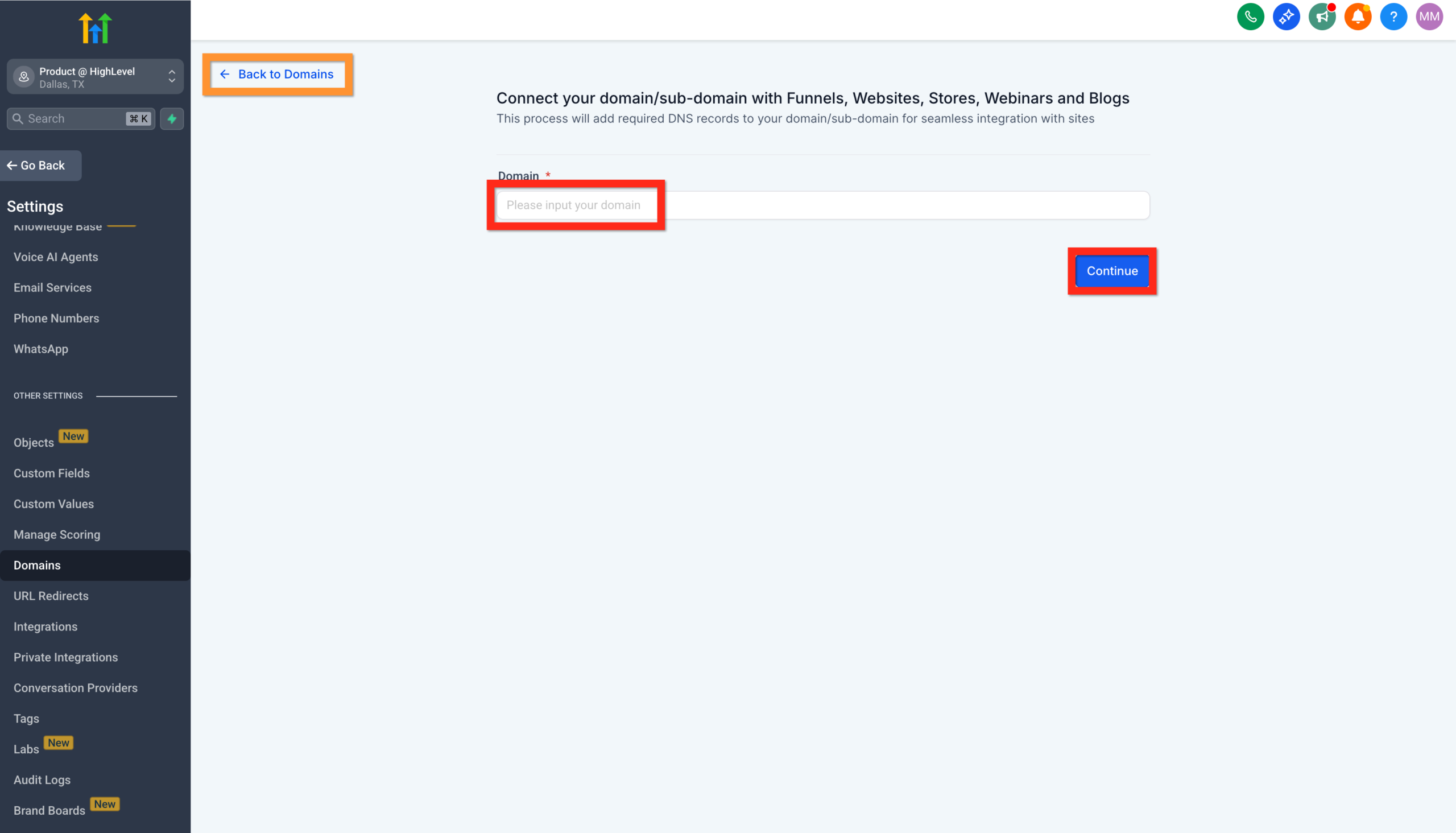
You’ll be prompted to enter the domain you want to use (for example, www.yourbrand.com).
3. Update DNS Records With Your Domain Registrar
After entering your domain, GoHighLevel will display the DNS records you need to add. These usually include:
- An A record pointing your root or subdomain to GoHighLevel’s IP address; or
- A CNAME record pointing something like
wwwto a GoHighLevel host name.
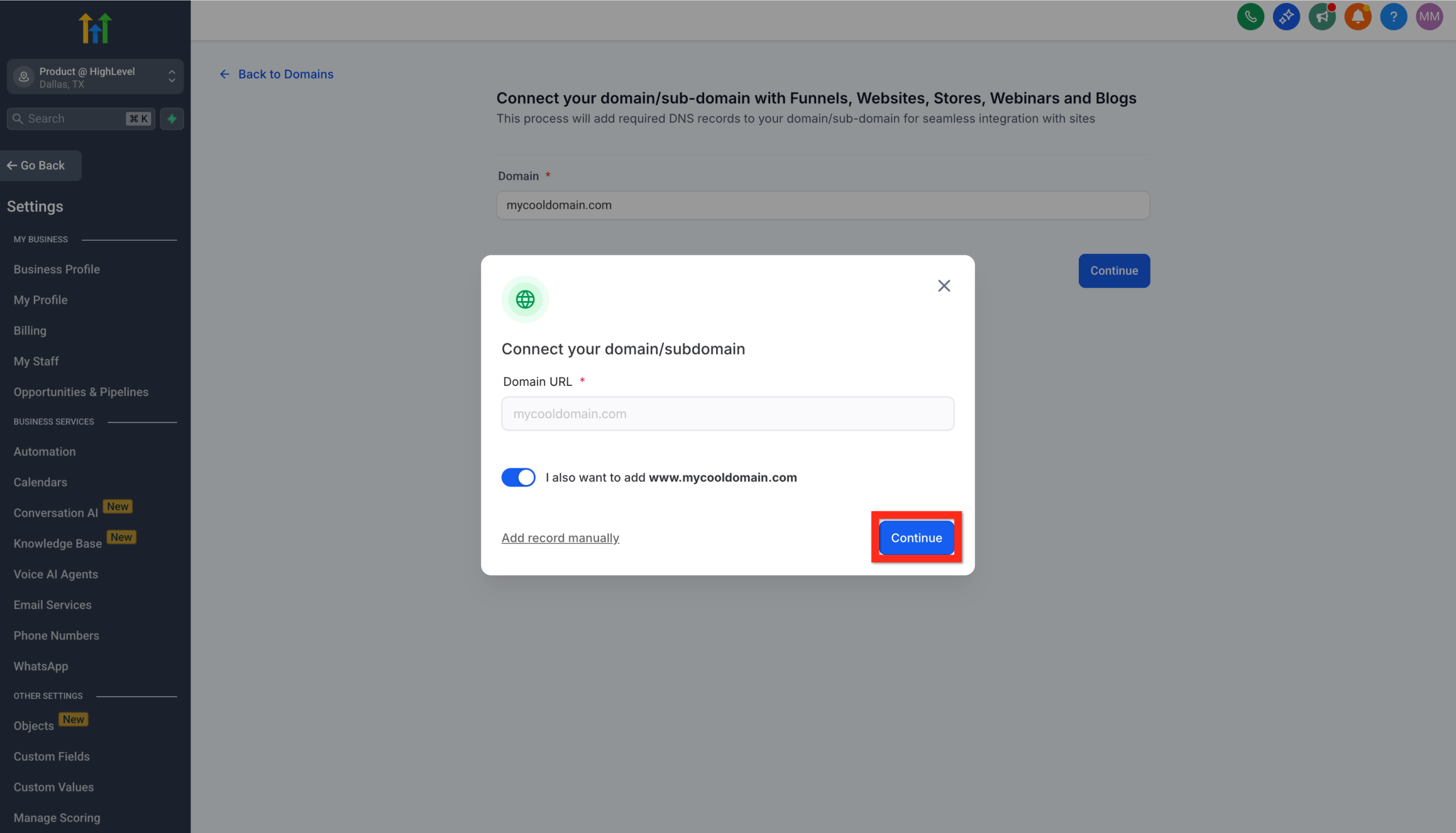
In a separate tab, log into your domain registrar (Cloudflare, GoDaddy, Namecheap, Google Domains, etc.) and:
- Open the DNS Management area for your domain.
- Add or edit the records exactly as shown in GoHighLevel.
- Remove or update any conflicting records that still point to old hosts or website builders.
DNS tip: Changes can take anywhere from a few minutes up to 24 hours to fully propagate. Most of the time you’ll see results within an hour, but it’s normal for verification to fail a few times early on.
4. Verify Records and Assign the Domain
Once your DNS changes are saved:
- Return to GoHighLevel and click “Verify Records”.
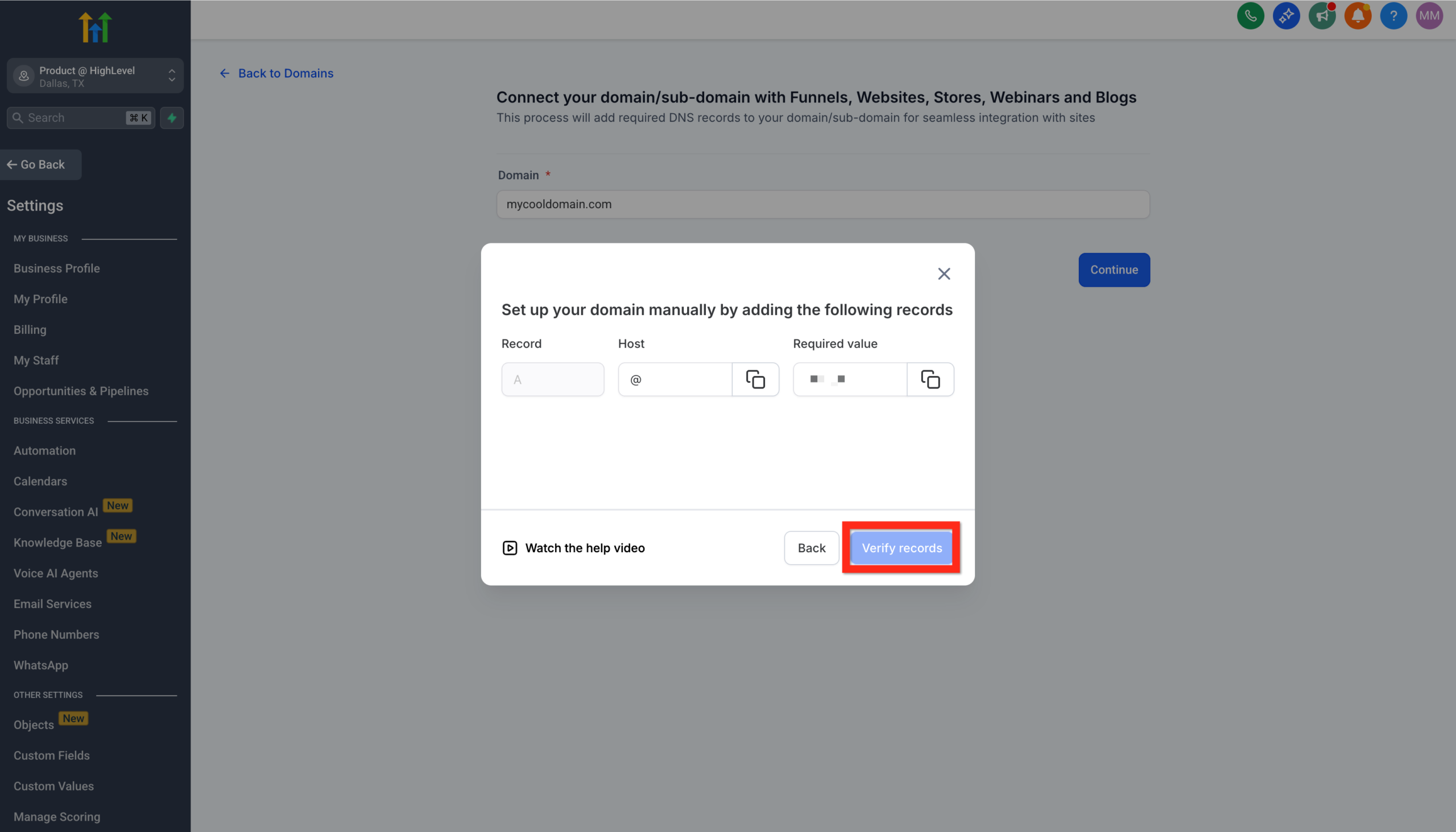
- When verification succeeds, GoHighLevel will confirm that your domain is connected.
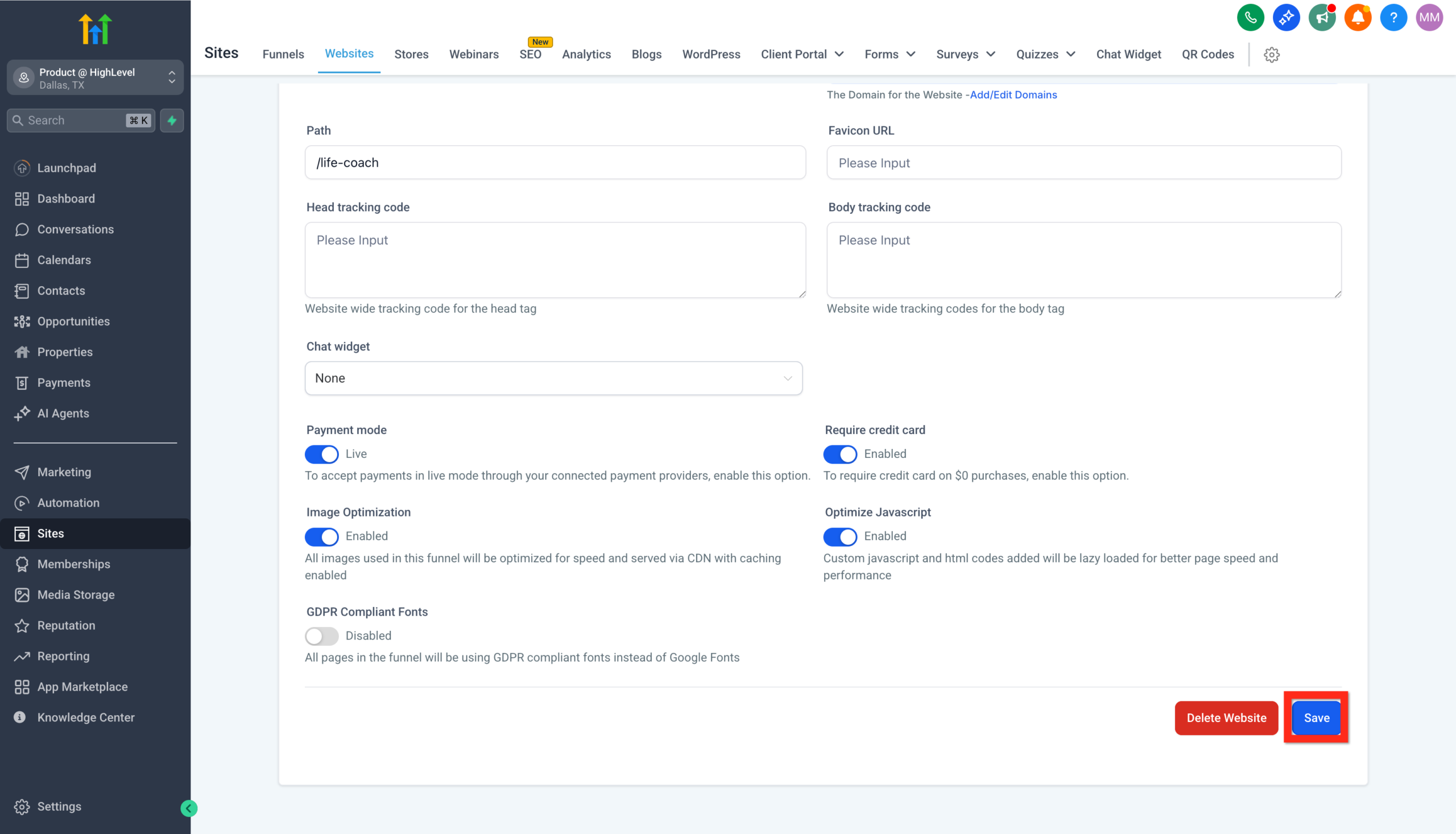
- Go back to your website Settings and choose the connected domain from the dropdown.
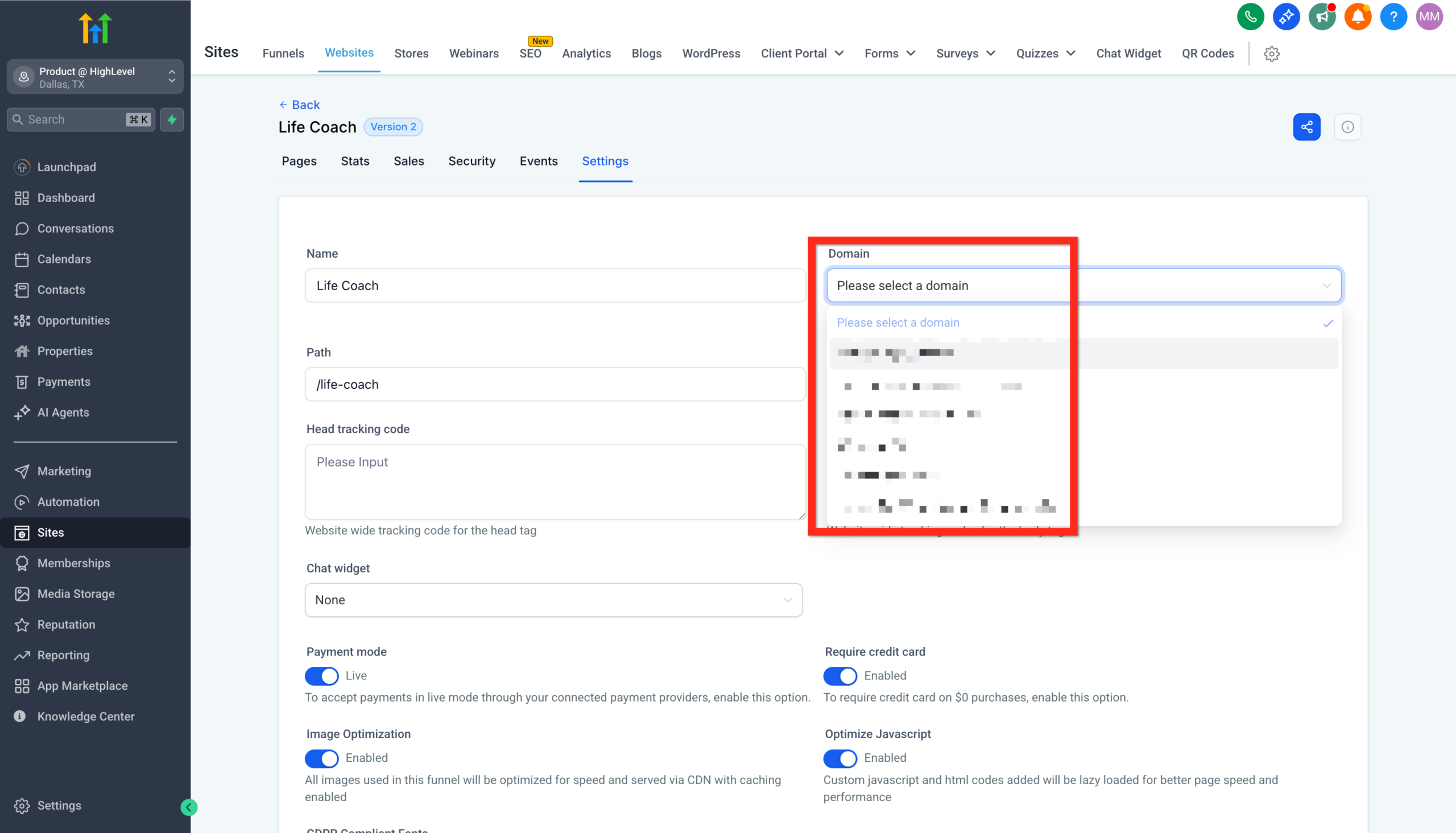
- Click Save.
Your website is now live on your own domain. Visit the URL in an incognito window to double‑check that:
- The correct site is loading.
- Your SSL certificate is active (no browser security warnings).
- All your links, forms, and CTAs work as expected.
If anything still points to the old preview domain, update those links in the editor and republish.
Optimization Checks Before You Go Live
The basic launch is now done. Before you drive paid or organic traffic, spend 20–30 minutes tightening a few essentials.
1. Confirm Your Page Structure and Navigation
- Make sure your primary pages (Home, About, Services, Contact, Blog or Resources) are clearly visible in the header.
- Avoid cluttered menus – 4–6 top‑level items is usually enough.
- Ensure all key CTAs lead to either a calendar, form, or lead capture funnel.
If you’re building a broader onboarding journey, you can later connect this site to flows covered in our other getting started guides, like “Create and Manage Contacts in GoHighLevel” or “Set Up Pipelines and Opportunities in GoHighLevel.”
2. Add Basic On‑Page SEO
For each core page:
- Write a clear page title that includes your main keyword and location/offer where relevant (e.g. “Chiropractor in Austin – Family Wellness Clinic”).
- Add a short meta description that explains the benefit of visiting this page and includes one primary keyword.
- Use one H1 per page that closely matches the main topic.
- Break content into logical H2/H3 sections so visitors can skim.
GoHighLevel’s editor makes it easy to set these fields per page. Even minimal SEO work here gives Google much better signals than a stock, unedited template.
3. Check Mobile and Performance
- Use the mobile preview to check spacing, font sizes, and button placement.
- Make sure tap targets (buttons, links, form fields) are large enough on small screens.
- Avoid heavy, uncompressed images that slow down load times.
A simple, fast website that loads reliably on mobile will always beat a complex design that takes 8+ seconds to appear.
4. Connect Tracking and Automations
Your GoHighLevel website should feed directly into your CRM and automations.
- Connect forms and CTAs to your pipelines and opportunities.
- Attach new leads to workflows that send confirmation emails/SMS.
- Add basic analytics like Google Analytics, ad pixels, or UTM tracking where needed.
Once you’ve done that, your website stops being a static brochure and becomes the front end of a measurable revenue engine.
Ready to see this in action? Spin up a trial and build this exact stack inside GoHighLevel: Try GoHighLevel with Revset Labs’ recommended setup.
Where GoHighLevel Fits in Your Overall Funnel
A GoHighLevel website isn’t just a prettier business card. It’s the top of a system that can:
- Capture leads from your homepage, booking pages, and lead magnets.
- Drop them straight into pipelines where you track every deal.
- Trigger automatic email and SMS follow‑up when someone opts in.
- Push contacts into campaigns, newsletters, and nurture sequences.
Once your website is live, you can continue the setup by working through related steps like:
- Importing existing contacts into GoHighLevel.
- Launching your first email campaign.
- Setting up automatic email and SMS follow‑up.
- Adding a booking calendar so leads can self‑schedule.
All of these pieces stack together so your website isn’t just “live” – it’s working for you every day.
How Revset Labs Can Help You Implement This
Revset Labs is an AI Automation and Marketing Agency that specializes in building revenue systems on top of GoHighLevel.
If you want to skip the trial‑and‑error and go straight to a clean, conversion‑ready setup, Revset Labs can help you:
- Choose and customize the right website template for your niche.
- Wire every CTA to the correct forms, calendars, and pipelines.
- Build automation workflows that follow up with new leads automatically.
- Design simple dashboards so you always know how your website is performing.
You can start by launching GoHighLevel using this affiliate link and then layering Revset Labs’ implementation support on top: Get your GoHighLevel trial here.
Frequently Asked Questions
Do I need to have my domain ready before creating a website in GoHighLevel?
No. You can build and even publish your website on a GoHighLevel preview domain first. However, you’ll eventually want your own custom domain for branding and SEO. When your domain is purchased and ready, follow the connection steps in this guide.
How long does it take for my domain to connect?
Most DNS changes propagate within 15–60 minutes, but in some cases it can take up to 24 hours. If GoHighLevel’s Verify Records button keeps failing, wait a bit longer and double‑check that there are no conflicting A or CNAME records at your registrar.
Can I switch templates after I’ve already started?
Yes. You can create a new website from a different template and copy over your content, or heavily customize your current template so it effectively becomes a new design. The most important part is your copy, offer, and CTAs – templates just give you a starting layout.
What’s the difference between a GoHighLevel website and a funnel?
A website is usually multi‑page and focused on navigation, education, and brand credibility. A funnel is a focused, linear flow (e.g. opt‑in → thank you, or sales page → checkout) optimized for a single conversion. In GoHighLevel, you can use a website for your general presence and funnels for specific campaigns, offers, or lead magnets.
Can I use GoHighLevel if I’m not technical?
Absolutely. The whole point of templates and drag‑and‑drop editing is to keep you out of code. As long as you can edit text, swap images, and follow clear DNS instructions (or ask your domain provider’s support for help), you can get a professional site live. And if you’d rather not touch any of it, Revset Labs can implement the full stack for you.