
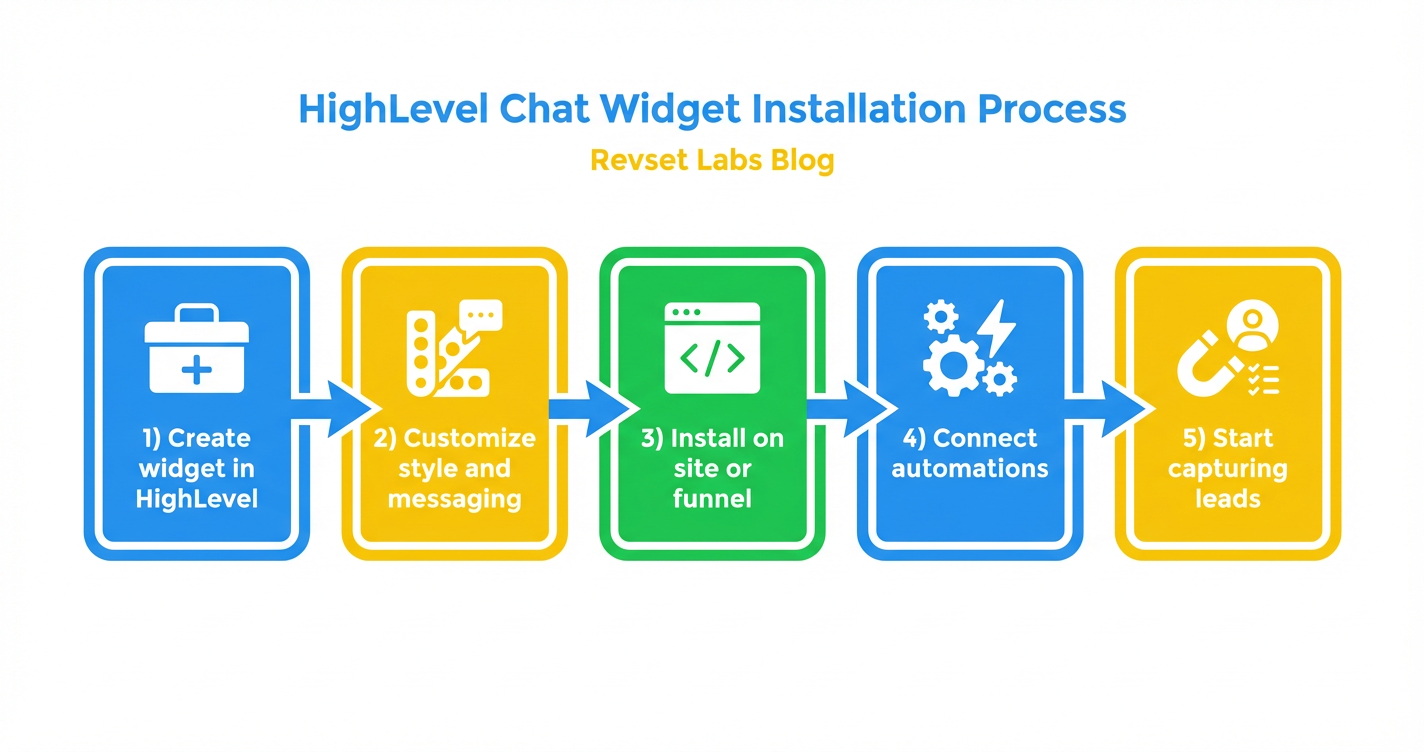

HighLevel’s chat widget lets you turn anonymous website visitors into live conversations, text threads, and booked appointments instead of hoping they fill out a form. When you install it the right way, every visit becomes a chance to capture a lead, start a relationship, and move people into your HighLevel pipelines automatically.
This guide walks you step‑by‑step through installing HighLevel’s chat widget on funnels and external sites, plus a few simple optimizations so it actually drives revenue—not just “more chats.”
Why HighLevel’s Chat Widget Is a No‑Brainer for Lead Capture
Most websites have a form tucked away on a contact page. HighLevel’s chat widget flips that model: it puts a conversational entry point on every page where your visitors already have questions.
With the HighLevel chat widget you can:
- Capture leads 24/7 with name, email, and phone—without adding extra forms.
- Let visitors choose how they want to talk: live chat, SMS, email, or even WhatsApp (depending on your setup).
- Route new conversations straight into HighLevel so your team replies from one inbox.
- Trigger workflows, pipelines, and follow‑up sequences automatically based on each chat.
If you’re not on HighLevel yet and want this all‑in‑one system instead of stitching tools together, you can start a GoHighLevel trial here.
Revset Labs is an AI automation and marketing agency that helps businesses design these chat flows, connect them to pipelines and campaigns, and make sure you’re not leaving leads on read.
Prerequisites Before You Install the HighLevel Chat Widget
Before you drop the widget code on your site, make sure a few basics are in place inside your HighLevel sub‑account:
- A sub‑account is set up and branded with your business name and colors.
- Your primary domain or funnel domain is connected in HighLevel.
- A phone number is purchased and A2P registration is completed so SMS replies from the widget are compliant and actually deliver.
- At least one user or team member is ready to handle conversations (and has the mobile app installed).
Once those are checked off, you’re ready to create and install the widget.
Step 1: Open the Chat Widget Settings in HighLevel
- Log in to your HighLevel account.
- In the left‑hand menu, go to Sites → Chat Widget.
- You’ll land on the chat widgets screen, where you can manage existing widgets or create new ones.
If this is your first time here, the page will be blank—perfect for a fresh setup.
Step 2: Create a New HighLevel Chat Widget
- Click New to create a widget.
- Choose the chat type that best fits how you want visitors to engage:
- All‑In‑One Chat – combines live chat, SMS, and other channels in one widget.
- Live Chat – focuses on real‑time web chat.
- SMS / Email Chat – great if you want to collect contact details and move people into text or email conversations.
- Facebook / Instagram / WhatsApp Chat – connect social messaging to your site.
- Give your widget a clear internal name like “Main Website – All‑in‑One Chat.”
- Click Save.
You’ve now created the base widget. Next, make it look and feel like part of your brand.
Step 3: Customize the Widget’s Style and Messaging
HighLevel’s widget editor gives you a few key tabs. Focus on these first.
Style and branding
- Pick your primary color so the chat bubble matches your brand.
- Choose the launcher icon (chat bubble, message icon, etc.).
- Set the position (bottom‑right or bottom‑left) based on where it won’t cover important content.
- Adjust the size so it’s visible but not overwhelming on mobile.
Welcome and intro messages
This is what visitors see before they type anything. Use it to set expectations and guide them toward a specific action.
Examples:
- “Have a quick question about pricing or features? Chat with us here.”
- “Want help setting up your funnel? Start a chat and we’ll send you the first steps.”
Keep it short, specific, and benefit‑driven.
Contact capture form
Inside the widget settings you can configure the lead form fields. At minimum, we recommend:
- Name
- Phone number (required if you want to move conversations into SMS)
You can also:
- Add custom questions (e.g., “What type of business do you run?”).
- Set required vs optional fields to balance conversion rate with lead quality.
Language, acknowledgements, and fallback messages
- Choose the language your audience expects.
- Customize acknowledgement messages, like “Thanks—someone will reply shortly.”
- Set an inactivity fallback message that encourages visitors to drop a phone number if no one replies live.
When you’re happy with the look and copy, save your changes.
Step 4: Install the HighLevel Chat Widget on Your Site or Funnel
Once the widget is built, you need to place it where visitors actually see it.
Option A: Add the chat widget to a HighLevel website or funnel
- In HighLevel, go to Sites → Funnels or Sites → Websites.
- Open the site or funnel where you want the widget.
- Click Settings.
- Look for the Chat Widget dropdown and select the widget you just created.
- Save and publish.
HighLevel will inject the widget across that entire site or funnel—no manual code needed.
Option B: Install the chat widget on an external website (HTML embed)
- Go back to Sites → Chat Widget.
- Open your widget and click Get Code.
- Copy the JavaScript snippet provided.
- Paste that snippet into your website’s global header or footer so it loads on every page. Common places to add it:
- A global header/footer file in your CMS.
- A “Custom scripts” or “Tracking code” section in your site settings.
- Publish or deploy your changes.
As soon as the new code is live, refresh your site and you should see the HighLevel chat bubble on the configured side of the screen.
Option C: Install on WordPress using the LeadConnector plugin
If you’re running WordPress, HighLevel’s LeadConnector plugin is the easiest path:
- In your WordPress admin, go to Plugins → Add New.
- Search for LeadConnector, then install and activate it.
- Open the plugin settings and connect your HighLevel account using your API key.
- Select the correct sub‑account and chat widget.
- Save.
The plugin will inject the chat widget site‑wide without you touching any code.
Step 5: Connect Automations and Pipelines to Your Chat Leads
The widget by itself is just a doorway. The real power comes from what happens after someone starts a conversation.
Inside HighLevel you can:
- Trigger a workflow every time a new conversation starts from the chat widget.
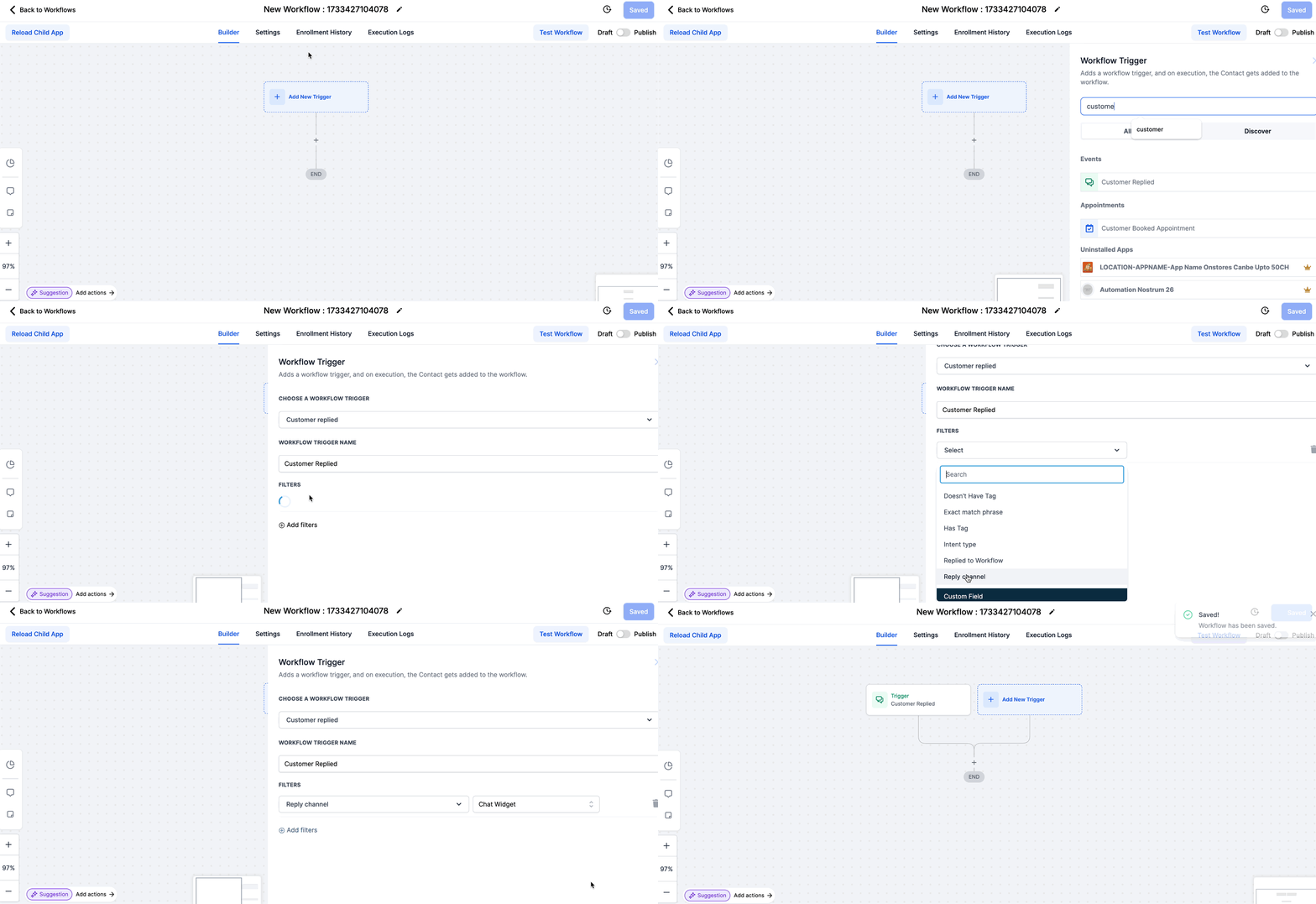
- Automatically create or update a contact, add them to a pipeline, and apply tags (e.g., “Chat – Pricing Question”).
- Send an instant follow‑up SMS or email if the visitor drops off the chat.
- Notify a specific team member or round‑robin group so no chat is ignored.
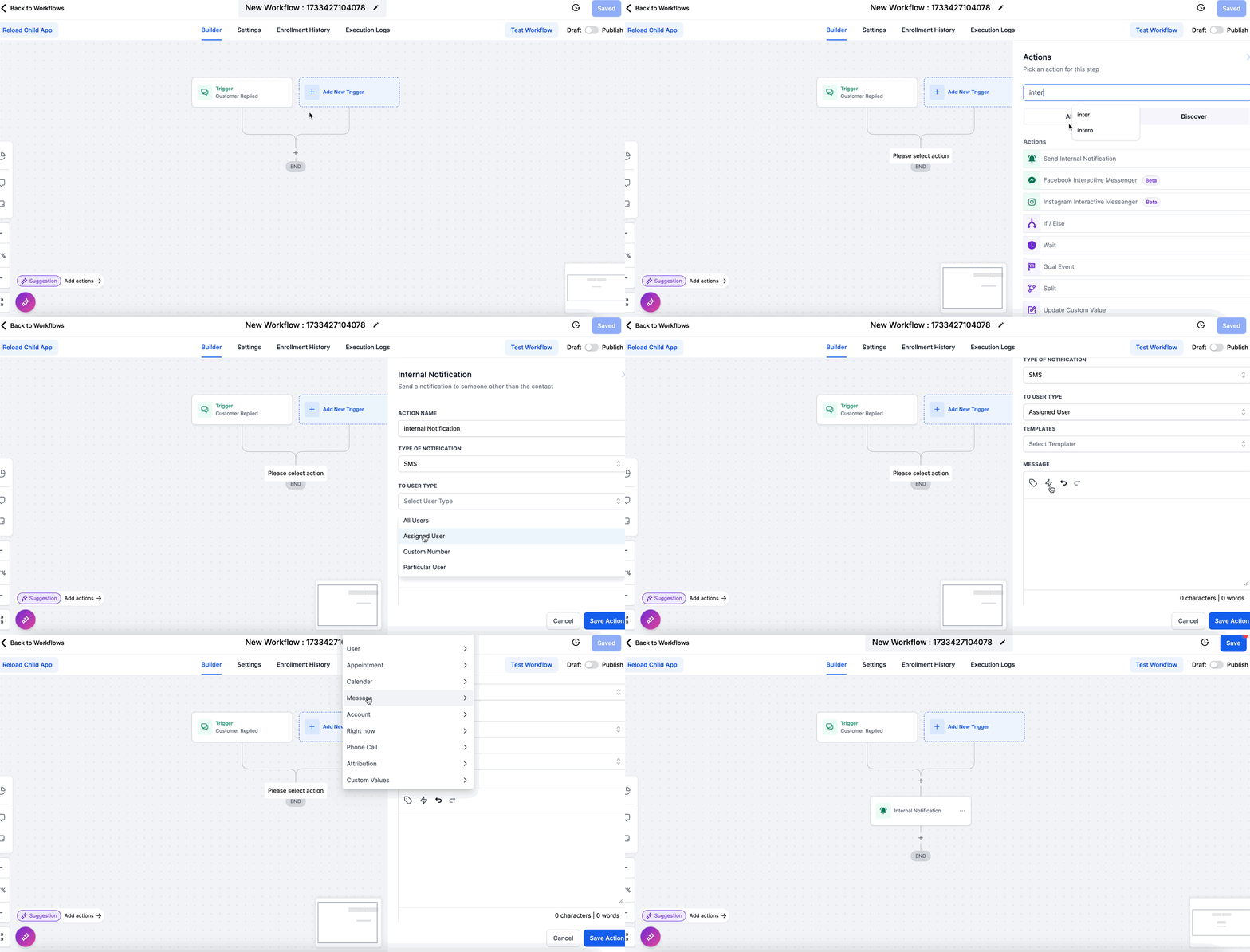
If you’d like a done‑for‑you setup where the widget, workflows, and campaigns are all wired together, Revset Labs can design the entire chat‑to‑pipeline system for you.
Step 6: Test, Measure, and Optimize Your Chat Widget
Before you call it done, run through a quick QA checklist:
- Open your site on desktop and mobile and start a test chat.
- Confirm the widget shows the right branding and intro message.
- Fill out the contact form and make sure the contact record is created or updated in HighLevel.
- Verify that your workflow fired (tags, pipeline stage, notifications, etc.).
- Reply from the Conversations tab and from the mobile app to make sure your team can respond quickly.
Over the first 1–2 weeks, keep an eye on:
- How many visitors are starting chats.
- How many of those chats turn into contacts, opportunities, or booked appointments.
- Which questions keep coming up (these are great prompts for canned responses and future content).
If performance is low, tweak:
- The intro message (make the benefit clearer).
- The fields you require (too many required fields can tank conversions).
- Where the widget runs (you might not need it on every single page).
Example: A Simple HighLevel Chat Widget Funnel
Here’s a straightforward funnel you can build around the chat widget:
- Visitor lands on a pricing or service page.
- The intro message says: “Not sure which plan is right for you? Chat with us and get a recommendation in 2 minutes.”
- The visitor starts a chat, drops their name and phone.
- A workflow tags them based on interest (e.g., “Chat – Pricing”), adds them to a Sales pipeline, and sends a follow‑up SMS if they leave the site.
- Your team continues the conversation by text, answers questions, and drops a booking link from inside HighLevel.
- The lead books a call, and you can trace that opportunity back to the chat widget.
This kind of funnel is exactly where a HighLevel‑based stack shines. If you’re just getting started, you can test‑drive GoHighLevel for yourself and then layer automation on top.
Common Questions About HighLevel’s Chat Widget
Can I run multiple chat widgets in one HighLevel sub‑account?
Yes. You can create multiple widgets—for example, one for your main site, one for a specific funnel, and another for a partner page—and assign each to different domains or pages.
Can I customize the chat messaging per page?
Out of the box, the widget’s core messaging and configuration are global wherever that widget is installed. For page‑specific experiences, you can create separate widgets or use HighLevel automations and conditions to customize follow‑up based on the page URL.
Does the chat widget support SMS replies?
Yes—as long as you’ve purchased a phone number inside HighLevel and completed A2P registration, you can move conversations from the widget into SMS. This is one of the fastest ways to keep leads engaged after they leave your site.
Will the chat widget hurt my SEO or slow down my site?
When installed correctly in your header or footer, the widget is lightweight and shouldn’t block critical content from loading. Focus on keeping page speed healthy overall, and avoid stacking multiple third‑party scripts that compete with each other.
Where can I see the official HighLevel documentation?
You can always reference HighLevel’s own step‑by‑step instructions in their official support article.
If you want a partner to design the chat strategy, build the workflows, and plug this into the rest of your funnel, Revset Labs can help you implement a complete HighLevel system. And if you’re still evaluating tools, you can get started with GoHighLevel here and then let us handle the heavy lifting.