
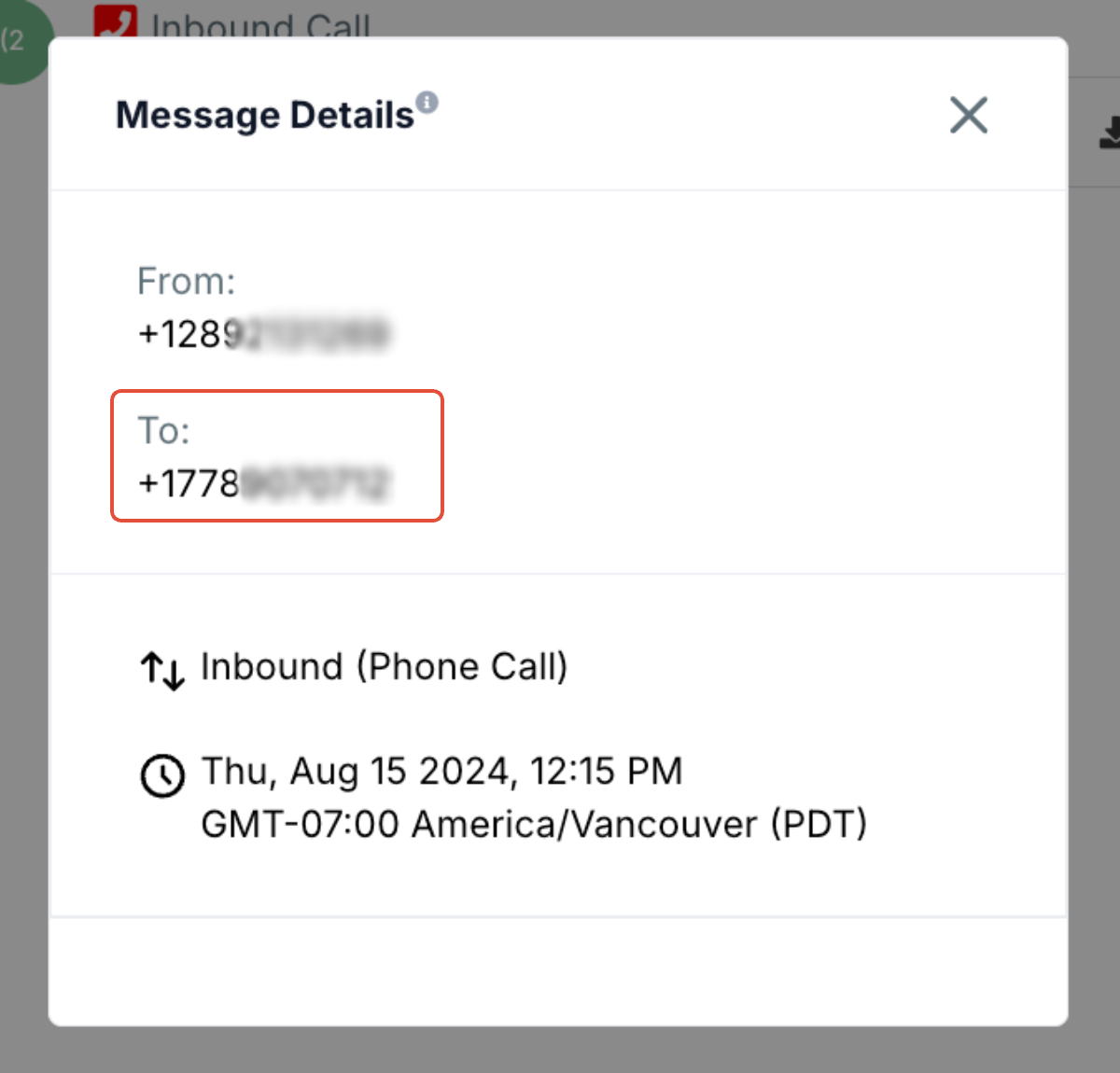
Handling inbound calls is still one of the highest-intent touchpoints in your business. When someone dials your number, they’re usually ready to buy, book, or get help right now. If inbound call routing in GoHighLevel isn’t set up correctly, those calls bounce between numbers, hit the wrong person, or drop straight to nowhere. When it’s configured well, every call feels like it was “meant” for the person who answers. This guide explains how inbound call routing works in GoHighLevel, how the platform decides where each call goes, and the exact settings to use so calls reliably reach the right user, team, or voicemail. If you don’t have an account yet, you can start a free GoHighLevel trial here and follow along as you configure your own call flows.—## What Is Inbound Call Routing in GoHighLevel?Inbound call routing is the logic GoHighLevel uses to decide who should receive an incoming call when someone dials one of your LC/phone numbers. Instead of every call ringing the same phone, GoHighLevel looks at: – Which phone number was called.- Whether that number is assigned to a specific user.- Whether the contact is assigned to a user.- How you’ve configured call forwarding, ring behavior, and timeouts.Put simply: inbound call routing turns your GoHighLevel phone numbers into a smart, rules-based system—so sales calls go to sales, support goes to support, and no one is guessing who should pick up. When you combine solid routing with automations (missed-call text-back, task creation, pipeline moves), GoHighLevel becomes a real revenue engine instead of just a phone line.—## How GoHighLevel Decides Where Each Call Goes (High-Level Flow)Here’s the basic decision flow for an inbound call to one of your LC/phone numbers:1. **Incoming call hits your GoHighLevel number.**2. GoHighLevel checks whether the called phone number is assigned to a user.3. It checks whether the contact record is assigned to a user.4. It applies your phone number settings: – Forward to business phone number.- Ring user assigned to called number.- Ring devices for the assigned contact owner.5. If no one answers before the timeout, GoHighLevel follows your voicemail or fallback routing.A simple way to picture it is the flowchart image in this article: incoming call → phone number assignment → contact owner → forwarding rules → voicemail. Configured well, this means:- New leads always hit the right sales rep.- Existing customers reach their assigned account manager or support queue.- After-hours calls go to voicemail or a dedicated auto-attendant.—## Step 1 – Assign Phone Numbers to the Right UsersThe first building block of inbound call routing in GoHighLevel is making sure your tracking numbers are tied to real people (or shared inboxes).How to assign a phone number directly to a user1. In GoHighLevel, go to Settings → My Staff.2. Click to edit the user who should receive calls.3. Scroll to Call & Voicemail Settings.4. In Inbound Number, choose the LC/phone number you want this user to own.5. Save your changes.Once a number is assigned:- Any call placed to that number can ring that user’s devices (web app, mobile app, or SIP/desk phone).- You can configure voicemail just for that user, so messages land in a place they already check.If you’re migrating from another phone system, this is a good time to recreate the same ownership pattern—one main number for the business, plus direct numbers for key staff or departments.> Want hands-off implementation? Revset Labs, an AI automation and marketing agency, can design and deploy your entire call-routing structure inside GoHighLevel for you.—## Step 2 – Make Sure Contacts Have a Clear OwnerNumber assignment handles where calls go. Contact ownership handles who is responsible for a given caller. When a known contact calls you, GoHighLevel can route the call to the Assigned To user on that contact record, even if the number itself isn’t tied directly to that person.How to assign or update a contact owner1. From the left menu, click Contacts.2. Search for and open the contact.3. In the contact details panel, find the Assigned To field.4. Choose the user (or team member) who should own this relationship.5. Save.Best practices:- Make sure all active leads and customers have an owner.- Use automations to set the owner when a lead first comes in (e.g., round-robin assignment in your workflows).- Periodically clean up unassigned contacts so that “ownerless” callers are the exception, not the rule.With ownership in place, inbound call routing becomes much more predictable: if a customer calls from their saved number, GoHighLevel can send that call straight to the user who knows them best.—## Step 3 – Configure Phone Number Call Forwarding & Ring BehaviorNext, you need to tell each phone number how to behave when a call comes in. GoHighLevel gives you several powerful options inside each number’s settings.Where to configure inbound call routing for a number1. Go to Settings → Phone Numbers.2. Click Edit on the number you want to control.3. Open the Incoming Call Settings and Advanced Settings sections.Key options to review:### Forward calls to business phone numberIf you enable Forward calls to business phone number, calls to this LC/phone number will be sent to the business phone defined in your location settings. Use this when:- You want a traditional office phone or receptionist line to catch everything.- You’re migrating from another PBX and still want a central number.### Ring user assigned to called numberWhen Ring user assigned to called number is turned on, GoHighLevel will:- Look at which user has this number set as their Inbound Number.- Ring that user’s connected devices (browser, mobile app, etc.).Use this when:- A direct number belongs to a specific rep, consultant, or manager.- You want an obvious owner for all calls on that number.### Use contact owner as a routing signalIf a contact is calling from a saved number and that contact has an assigned owner, GoHighLevel can also ring that owner—even when the number itself is more generic (like a main line). This is ideal for:- Account managers who maintain a book of clients.- Agencies and service businesses where relationship continuity matters.By combining phone number assignment, contact ownership, and forwarding options, you get a flexible but understandable routing logic.—## Step 4 – Set Timeouts and Voicemail So Calls Never DieEven with the best routing in place, some calls won’t be answered in time. That’s where timeouts and voicemail protect the experience.### Configure incoming call timeoutIn Settings → Phone Numbers → Edit, you can set an Incoming Call Timeout in seconds (for example, 20–30 seconds).- If no one answers before the timeout, GoHighLevel will follow your fallback rules—usually forwarding elsewhere or moving the call to voicemail.- Setting the timeout too low means calls go to voicemail too quickly; too high and callers get frustrated with endless ringing.A 20–25 second timeout (about 4–5 rings) is a practical middle ground for most teams.### Set up user voicemail correctlyTo route unanswered calls to voicemail:1. Make sure the number is assigned to a user.2. In Settings → My Staff → Call & Voicemail Settings, set that user’s voicemail greeting and inbox.3. Confirm in your phone number’s settings how calls should behave when no one picks up.This way:- Callers always have somewhere meaningful to leave a message.- Your team can return calls from inside GoHighLevel, keeping everything tracked against the contact.You can go a step further by pairing voicemail with automations—e.g., creating a task or pipeline opportunity whenever a new voicemail is left.—## Inbound Call Routing FAQs### 1. How would we know which Phone number the contact call if we have more than one Phone number?Go to Conversations > Look up the contact > Hover over the Inbound call to click on the three dots > Click on Details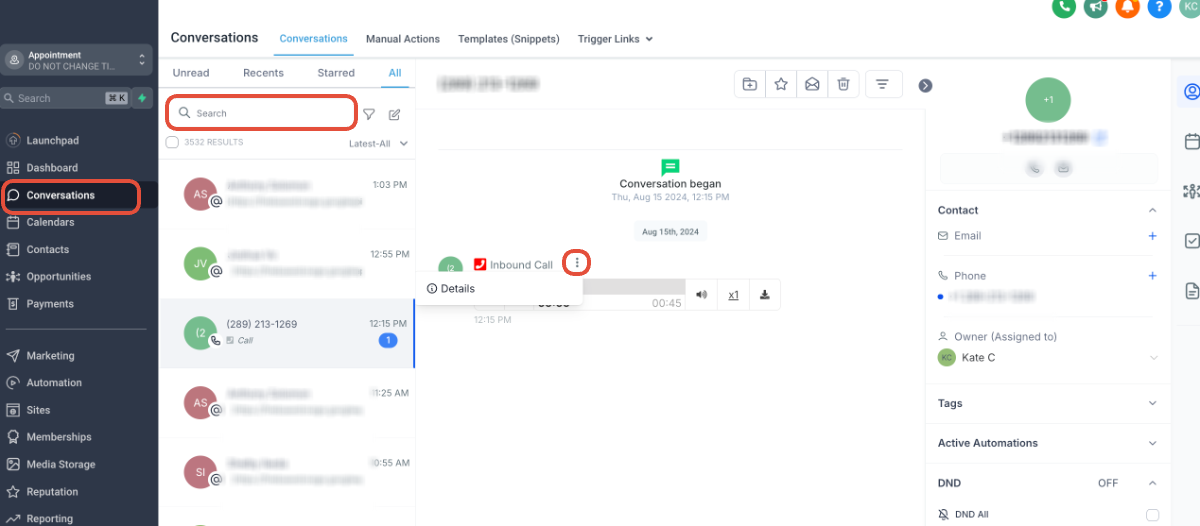 To: You can view which Phone number the contact called here:
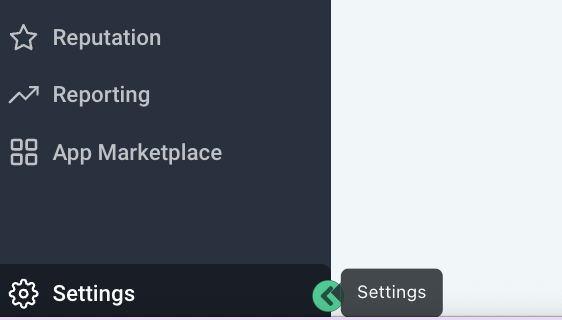
 ### 2. How to check if the Phone number is assigned to a user?Once you are in the sub-account, Click Settings at the bottom left:
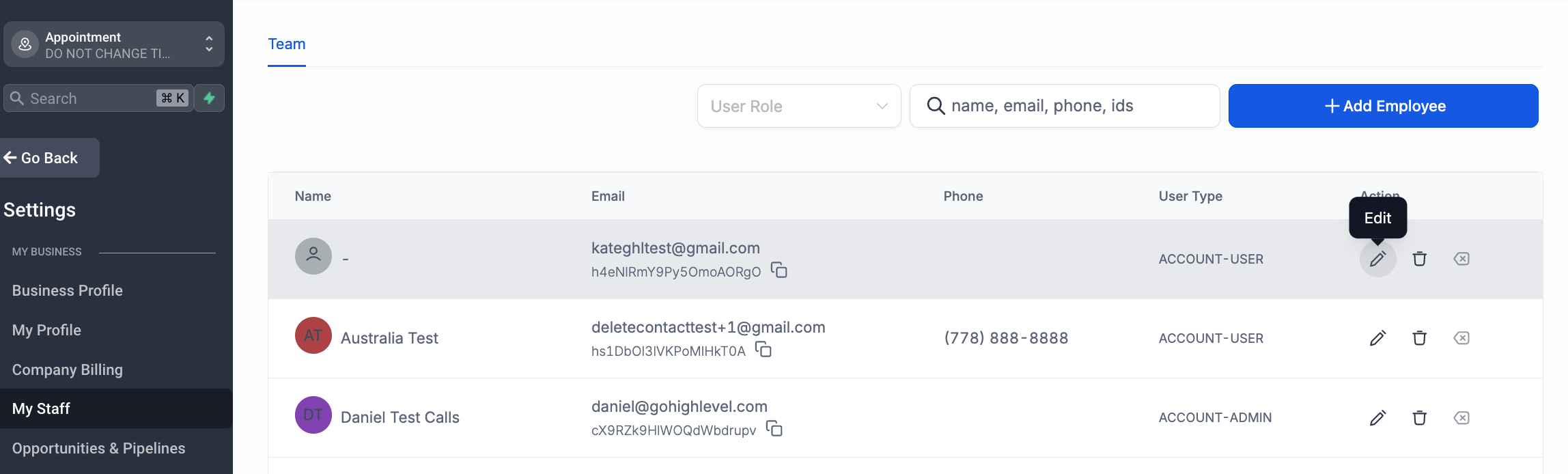
 Click on My Staff > Click on Edit (pick any one user to edit)
 Expand Call & Voicemail SettingsOnce you click the Select Phone Number dropdownIf it says Phone number (already assigned to another user) and you don't know which user it is, the only way to check will be to Edit each user to Expand Call & Voicemail Settings section to find out which user the number is assigned to.
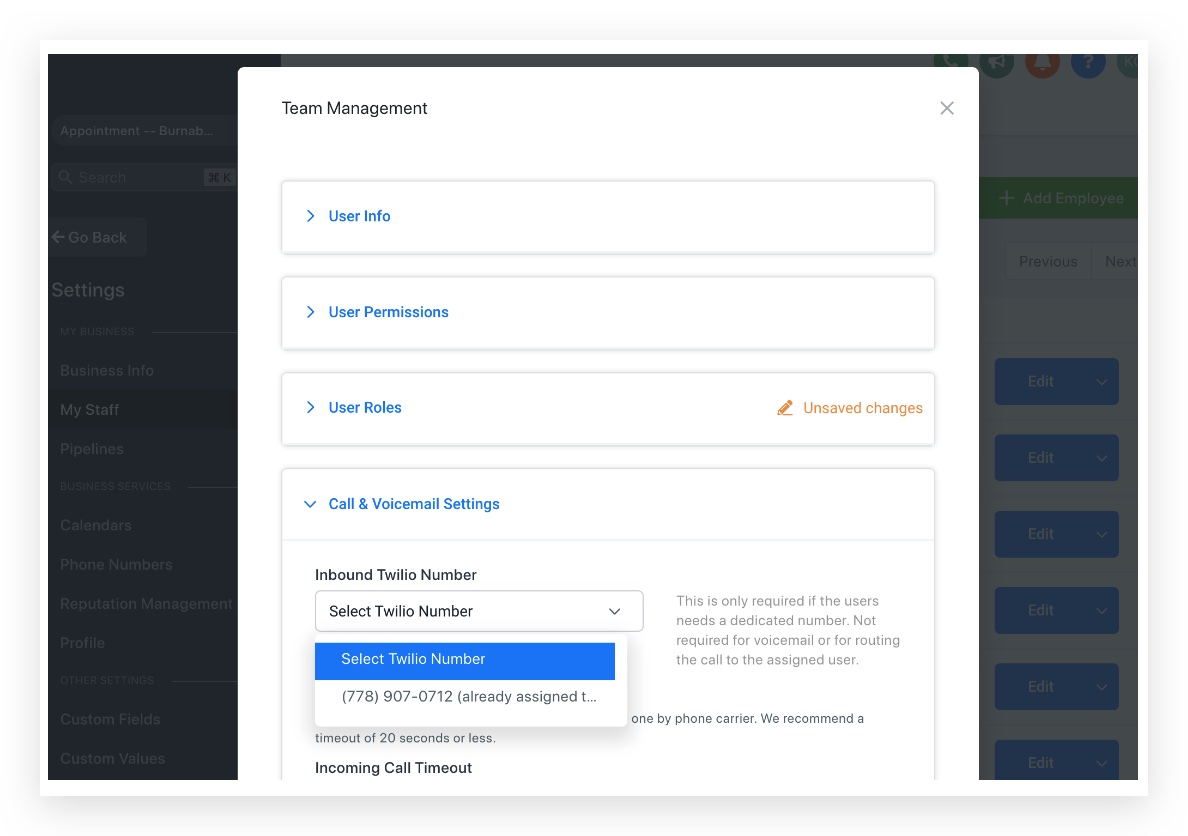 If you see a Phone number like this, e.g. my Phone number is (778) 907-0712
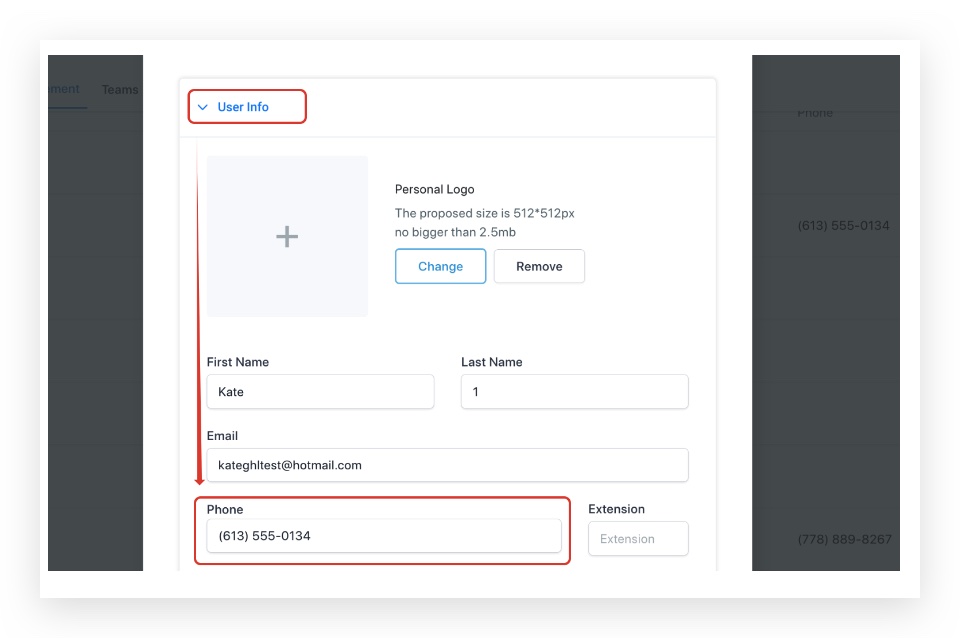
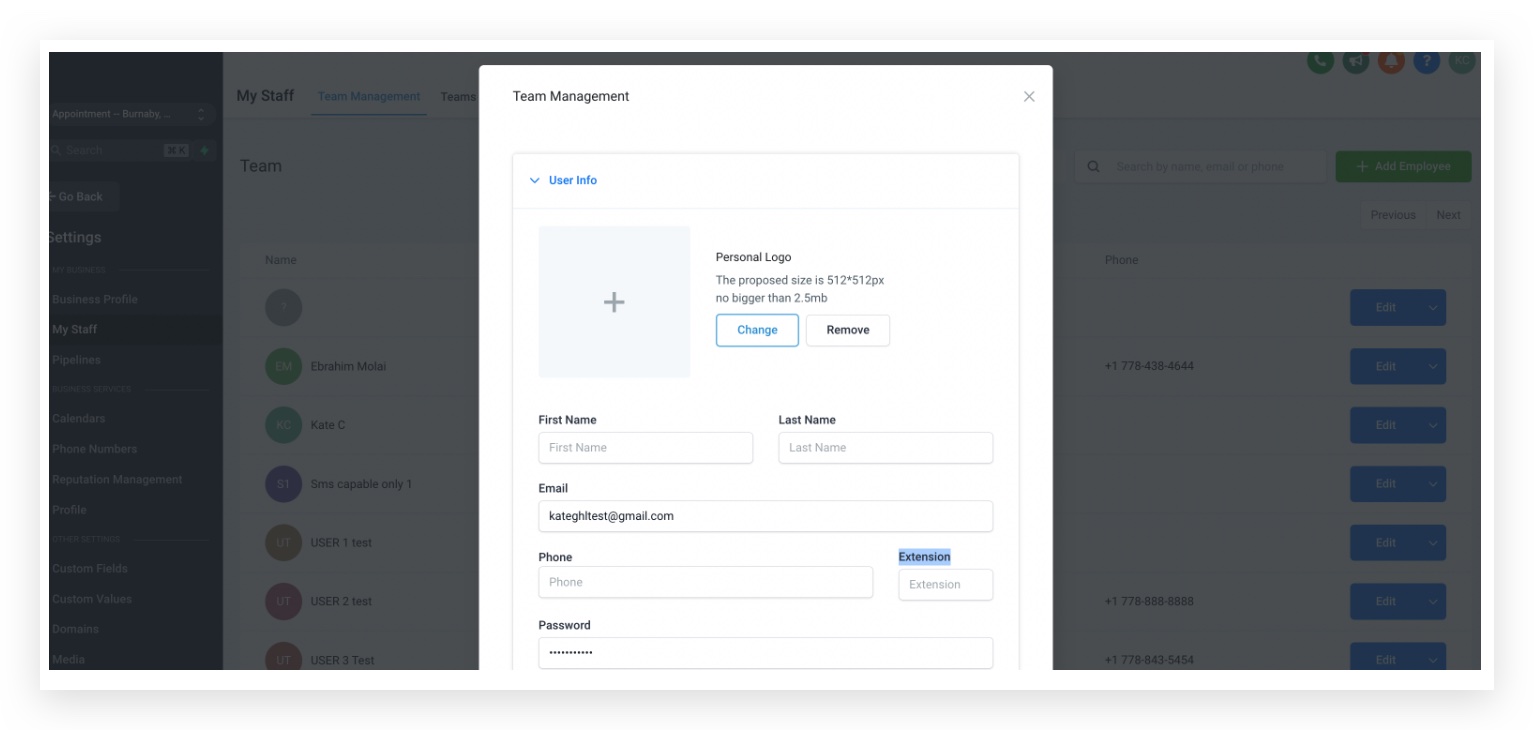
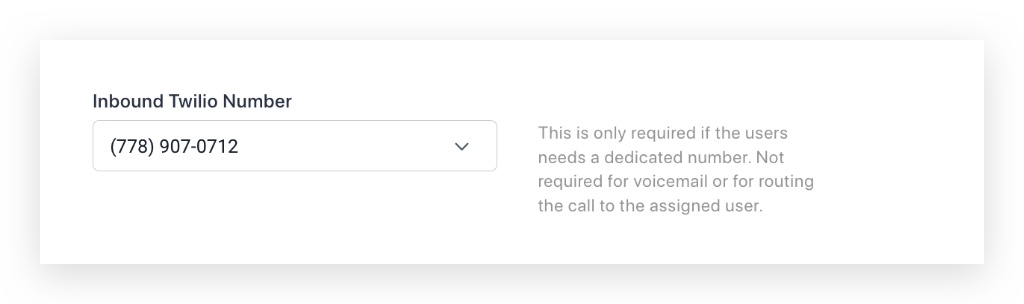 That means all calls to the assigned Phone number (778) 907-0712 will be routed to this user's phone number.Even if the lead is assigned to another user, inbound calls will always always always go to the user's phone number.Check what the user phone number is > Expand User Info in the first section to check the user phone number.If there's no user phone number, it will fall back to the forwarding number set in phone number settings.
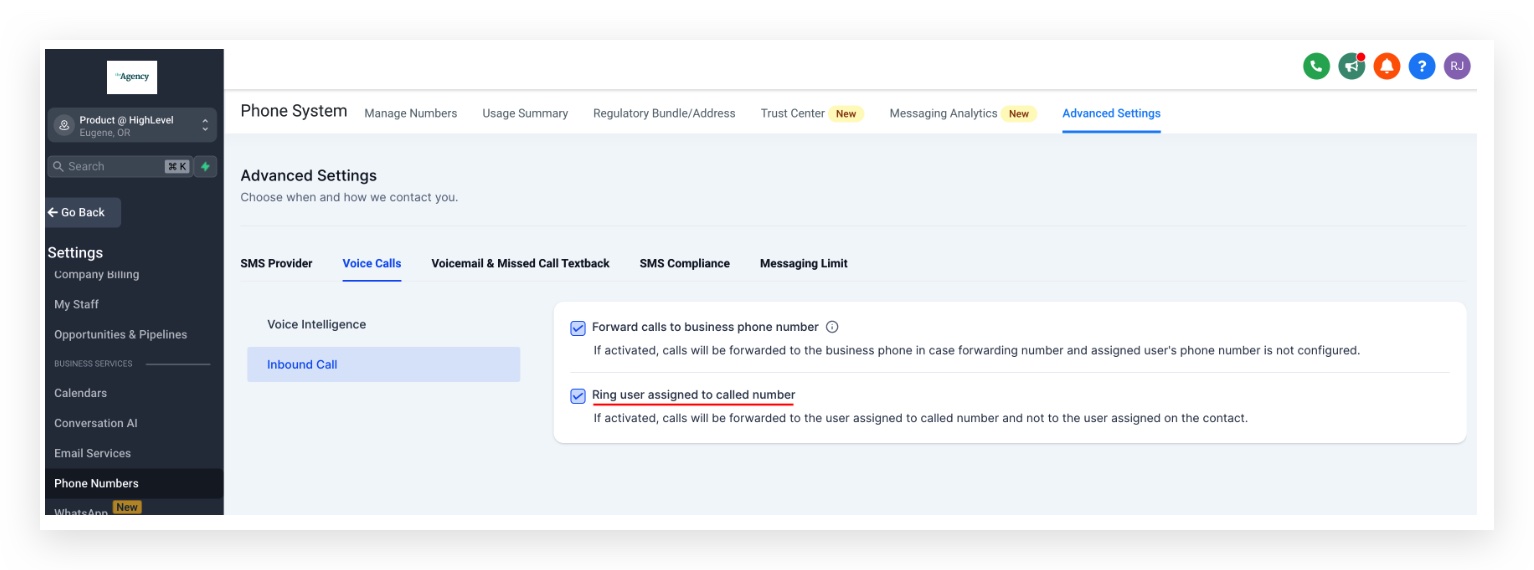
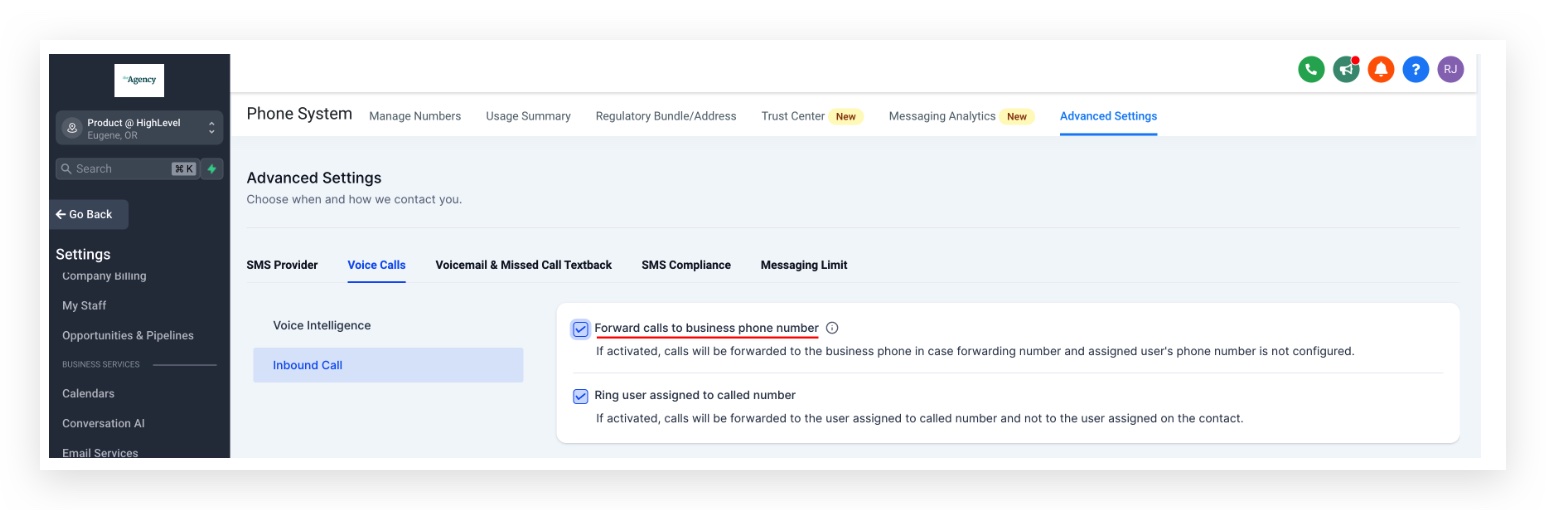
 ### 3. How to check if 'Ring user assigned to called number' is checked or not?You can see this option under Sub-account view > Settings > Phone Numbers > Advanced Settings > Voice Calls > Inbound Call
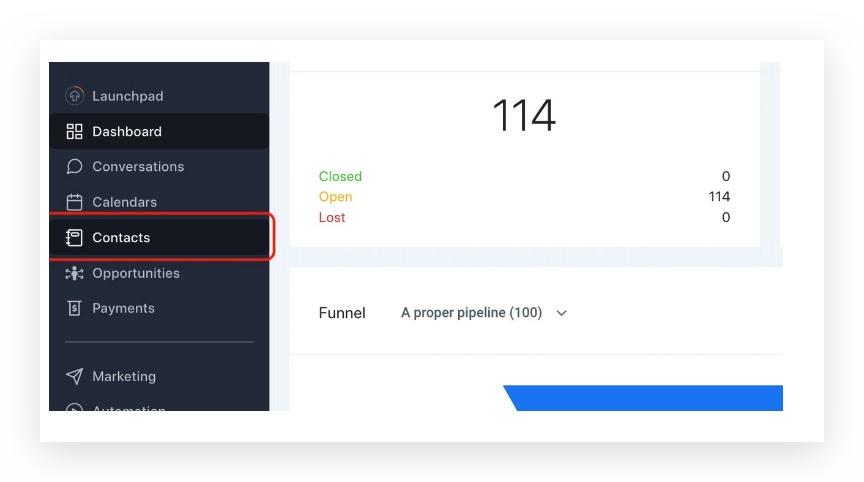
 ### 4. How to check if the contact/lead inbound call number is assigned to a user?Once you are in the sub-account, Click on Contacts
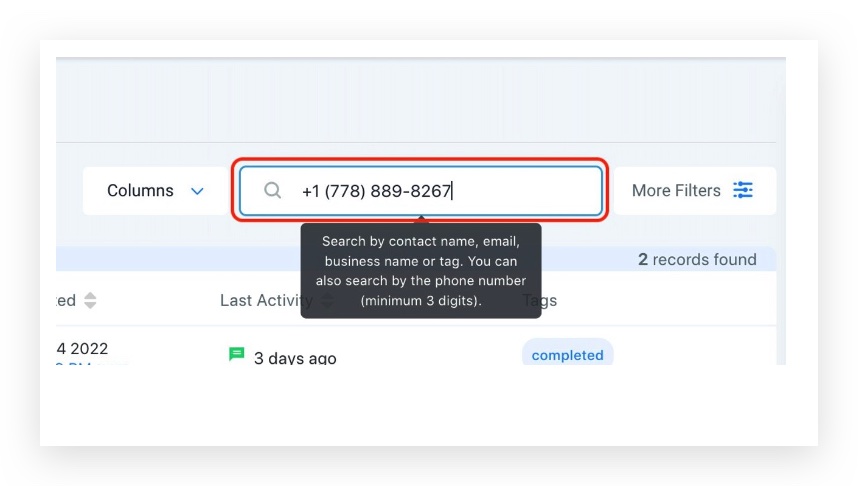
 Lookup the phone number of the contact who called the Phone number on the top right Quick Search box
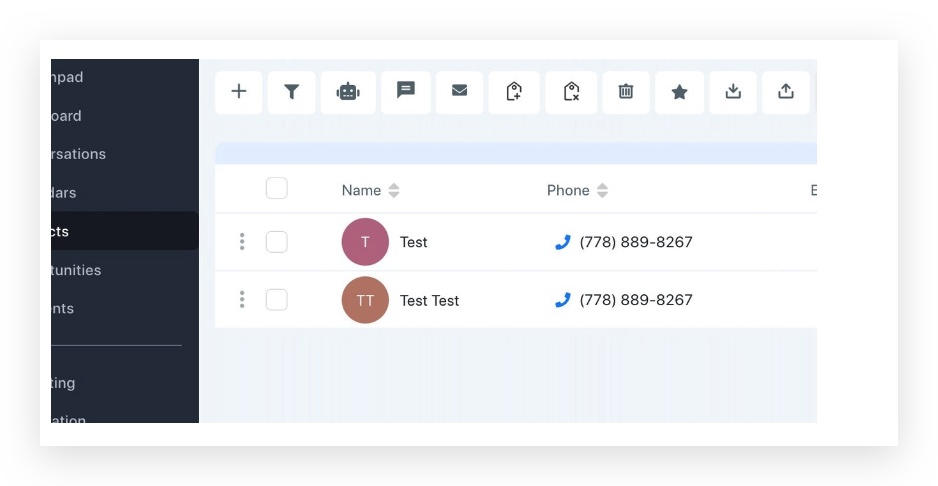
 Click on the contact
 Check if the contact is Assigned to any users on top
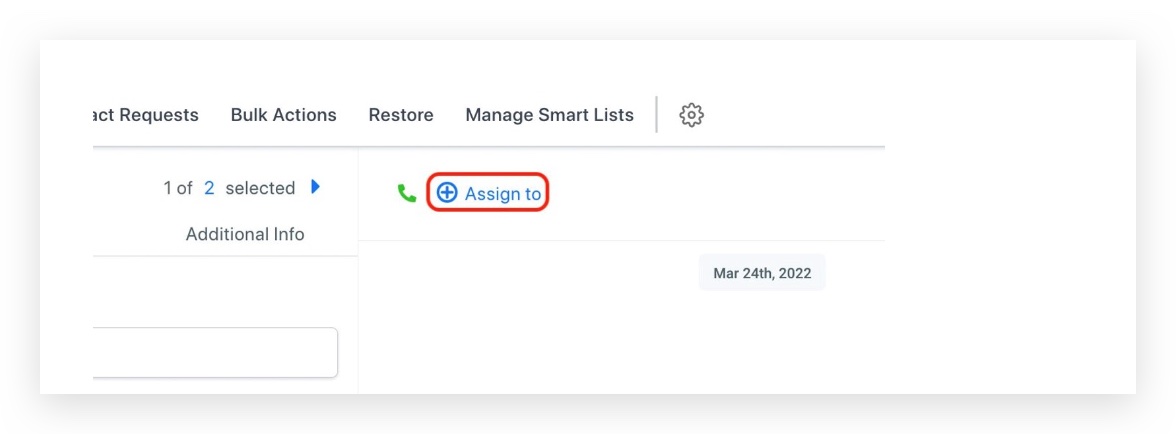 If it's assigned to User A, all inbound calls will go to User ABut if the Phone number that the contact dialled is assigned to user B already – 1st priority where the Phone number is assigned to the user (How to check), all inbound calls will go to User B even if the contact is assigned to User A.### 5. How to check if 'Forward calls to business phone number' is checked or not?You can see this option under Sub-account view > Settings > Phone Numbers > Advanced Settings > Voice Calls > Inbound Call
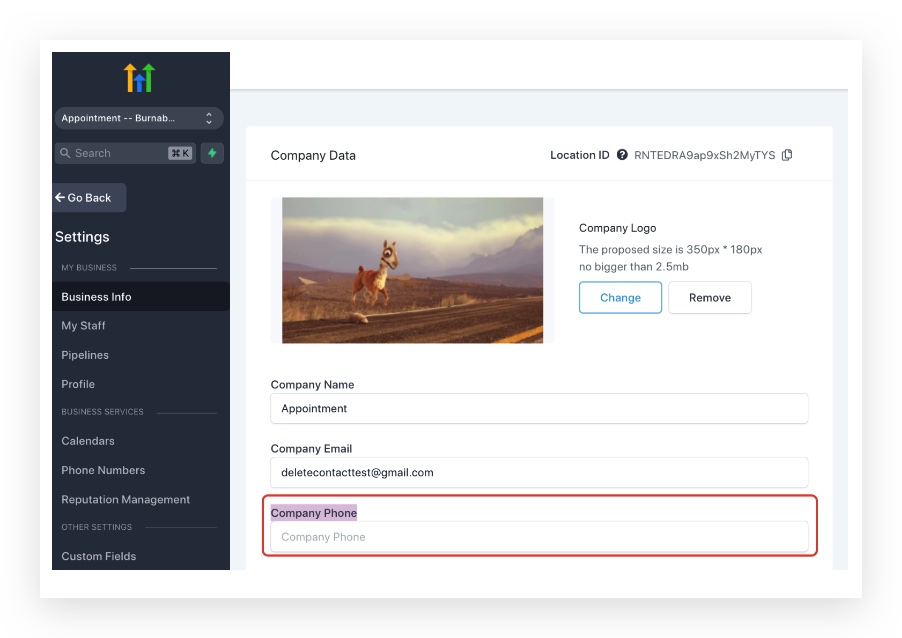
 ### 6. If you already checked, no Phone number is assigned to the users, no forwarding number configured, the call still forwards, why?Please check if there's a company Phone set inBusiness Information > Company Phone
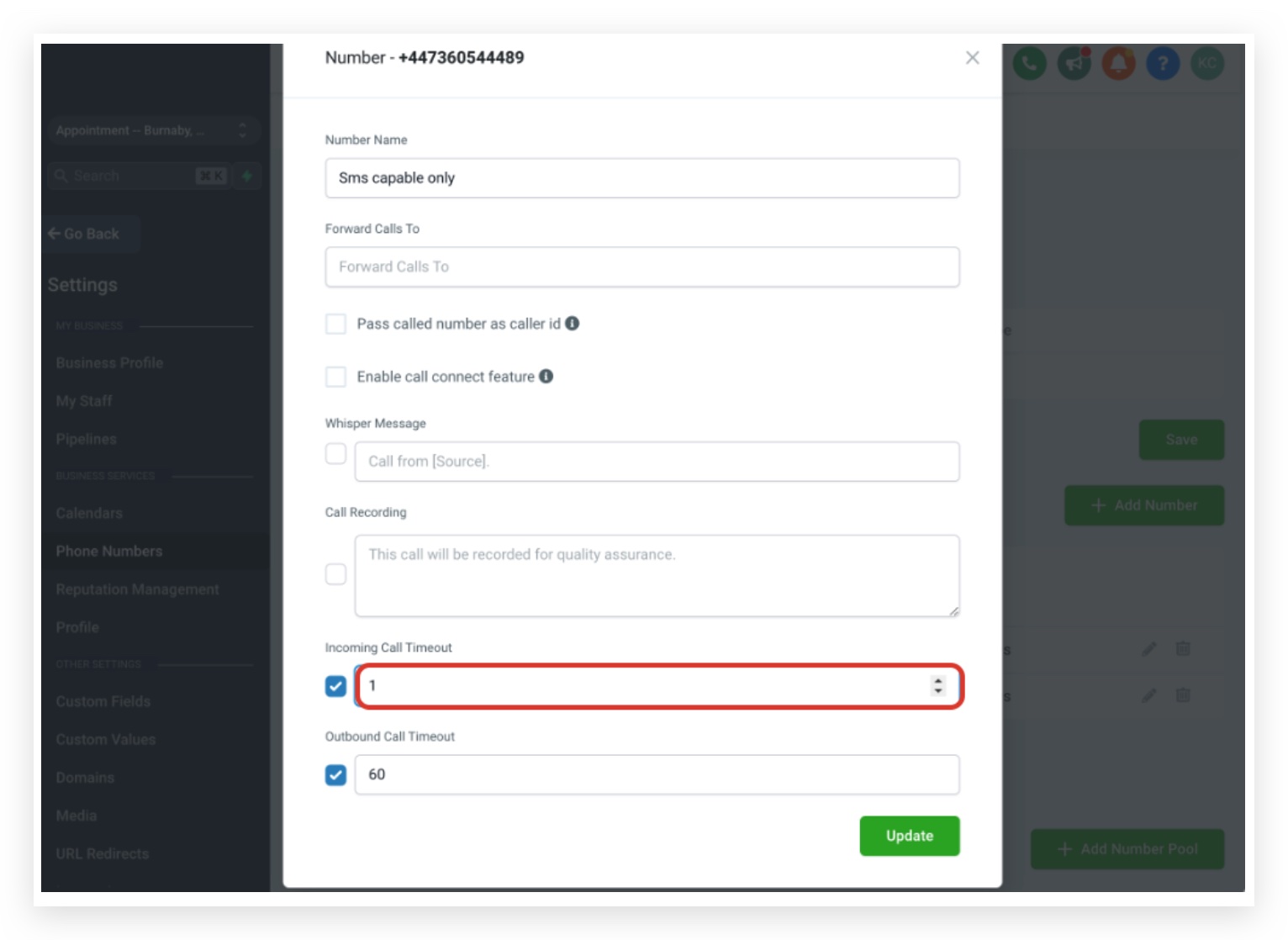
 ### 7. What happens if I don't configure any forwarding numbers?The call will drop immediately after we call the Phone number. Also number is assigned to any staff member and web/mobile app forward is enabled call will forward to web and mobile app### 8. Can I configure the Phone number to go to a voicemail directly?You can configure the Voicemail For Company And For Users.One way might be to get a Google voice number with the voicemail configured and put it in the forwarding number.Set the incoming call timeout to 1 second so it will drop the call faster in 2-3 rings.Or you can assign the Phone number to a user and receive Inbound Calling on Mobile APP.
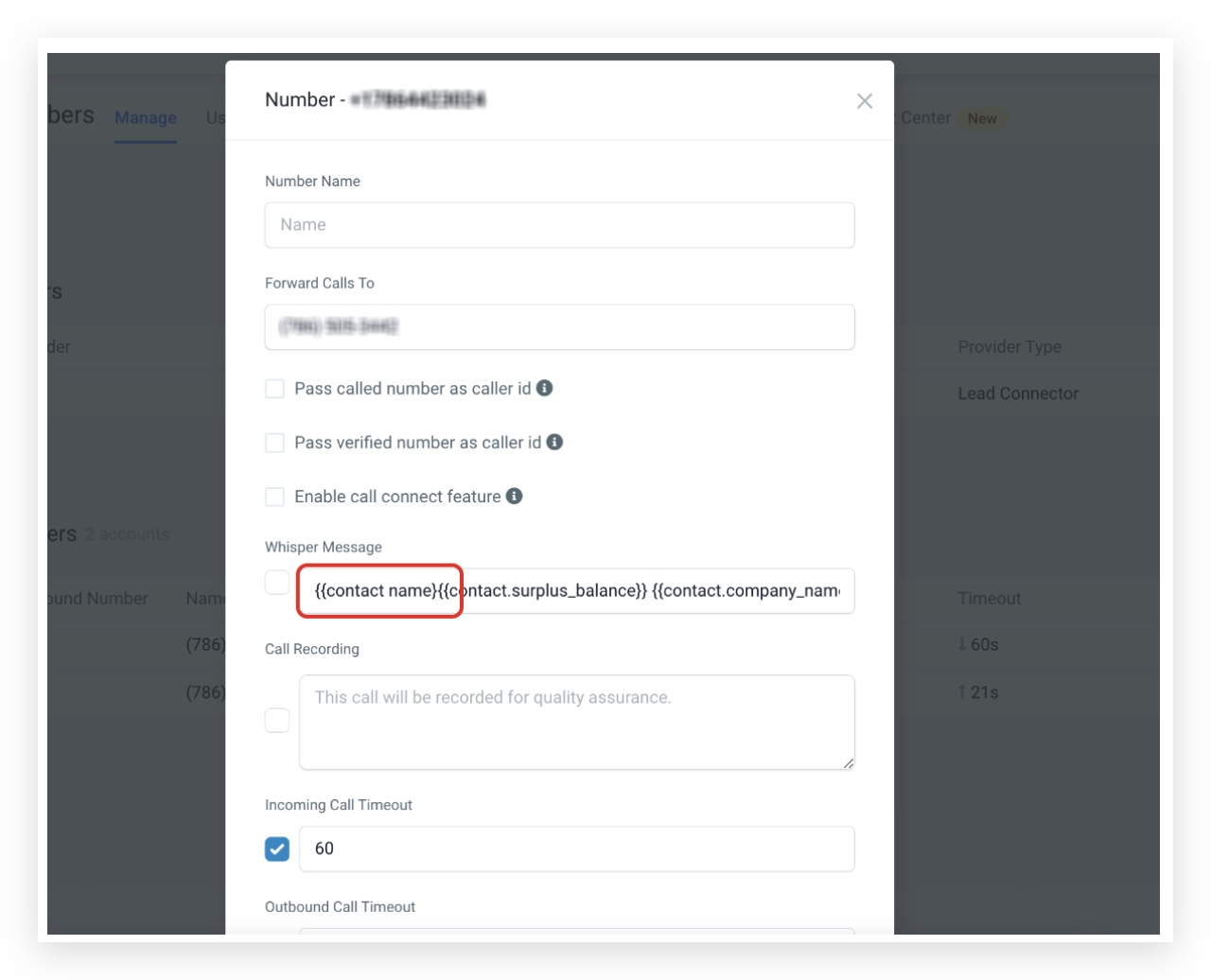
 ### 9. I always want calls to forward to one number no matter what, how do I set this up?You can set up a new user, and assign the Phone number to the user. All the calls will always go to that user's phone number.### 10. When we call the Phone number, it disconnects right away, and it won't even ring, we already reset and bought a new number but it's still showing the same issue?Edit the Phone number and check if there are any custom values set up in the whisper message. Broken custom values will affect incoming calls and cause it to drop.Another possible reason is that the Phone number might not be voice capable. In this article How to check logs for a specific Call in Twilio, it will navigate how to also check the Phone number's capabilities.
 ### 11. Can we do call forwarding with an extension?Only when a Phone number is assigned to users. There’s an extension field next to user's phone number. All the calls will always go to that user's phone number.
 —## Where Do Calls Go When a Lead Calls Back?Scenario: A lead receives a SMS or call from a HighLevel campaign. The lead calls back the number they see on their caller ID, which is the phone number originally setup (seen in Settings -> Phone Numbers). Where does the call go?### Company Phone (First Layer):If there is no Call Forwarding Number and the lead is not assigned to a specific user via a user assigned campaign…the call will be forwarded to the Company Phone.To update the Company Phone follow the steps below:Click Settings on the client view.Click Company.Update the number found in the Company Phone field.Click Update Company.### Call Forwarding Number (Second Layer):If there is a Call Forwarding Number and the lead is not assigned to a specific user via a user assigned campaign…the call will be forwarded to the Call Forwarding Number.To update the Call Forwarding Number follow the steps below:Click Settings on the client view.Click Phone Numbers.Update the Call Forwarding Number of the selected default outbound number.Click Save.### User Phone (Third Layer)If the lead is assigned to a user via a user assigned campaign…the call will be forwarded to the User Phone.To update the User Phone follow the steps below:Click Settings on the client view.Click Team Management.Click Edit for the user who was assigned the lead.Update the Phone field.Click Save.—## Example Inbound Call Routing SetupsOnce you understand the building blocks, you can design call routing patterns that fit your specific business model.### Solo owner or small team- One main LC/phone number assigned to the business owner.- Ring user assigned to called number enabled.- Forward to business phone number off (to keep calls inside GoHighLevel).- A short timeout with voicemail to capture missed calls.This keeps things simple: every call goes straight to the owner’s GoHighLevel mobile app or browser, with voicemail as backup.### Sales vs. support split- One number dedicated to Sales, assigned to a sales lead or shared sales user.- Another number for Support, assigned to a support lead or shared support user.- Contacts tagged or segmented by role (lead vs. customer) and assigned to the right team.- Workflows that update ownership when a deal closes, so customers automatically move from sales to support.Now your advertising and website can promote different numbers, and inbound call routing ensures people land with the right team immediately.### Account-managed clients- Each account manager has a unique LC/phone number assigned to them.- All key contacts are Assigned To that manager.- For a general support line, use contact ownership routing so calls recognize who’s calling and send them to their manager when possible.This setup makes your agency or service business feel high-touch, while GoHighLevel quietly does the routing work in the background.If you’d like help designing a routing model that fits your offer, your sales process, and your support capacity, Revset Labs can architect it for you and implement it directly inside GoHighLevel.—## Connect Inbound Call Routing to Automations and RevenueInbound routing is powerful on its own, but it becomes transformative once it’s connected to GoHighLevel automations. Here are a few high-leverage plays:- Missed-call text back – When a call is missed, automatically send an SMS acknowledging the call and offering a link to book, reply, or open a support ticket.- Pipeline triggers – Create or move opportunities when specific numbers are called (e.g., “Demo Line” → open a new deal in your sales pipeline).- Task creation for follow-up – Generate tasks for the assigned owner whenever a high-value client calls, so follow-up is never dropped.- Reporting by number and owner – Use call logs and attribution to see which campaigns and which reps are actually driving conversations.GoHighLevel gives you the infrastructure; your routing rules and workflows turn it into a predictable system.If you’re ready to centralize your calls, messages, and automations in one place, you can launch GoHighLevel with a free trial here. And if you’d rather skip the trial-and-error, Revset Labs can plug in proven call-routing, follow-up, and reporting automations so you see ROI faster.—## When to Bring in a Partner Like Revset LabsIf any of these sound familiar, it’s worth getting expert help:- Calls are still going to personal cell phones instead of a unified system.- You’re unsure how routing changes will impact existing workflows and tracking.- You want to layer in advanced logic (time-of-day routing, VIP treatment for certain tags, blended inbound/outbound reporting) but don’t have time to map it all.Revset Labs specializes in turning GoHighLevel into a fully automated revenue stack:- Designing inbound call routing that matches your funnel and fulfillment.- Implementing missed-call automations, nurture sequences, and handoff workflows.- Building dashboards so you can see exactly how calls translate into pipeline and revenue.Start by spinning up a GoHighLevel free trial, then let our team handle the strategy, configuration, and automation build-out while you stay focused on running the business.
