
Modern funnels rely on automation, but your highest‑value conversations still deserve a human touch. That’s exactly where a Manual SMS action in GoHighLevel shines: it lets your workflows pause, hand a message to a real person, and then continue once that message has been sent.

In this guide, you’ll learn when to use a Manual SMS action, how to set it up step‑by‑step in a workflow, how your team completes those messages on desktop and mobile, and how to turn this feature into more replies, booked calls, and revenue.
Why use a Manual SMS action instead of just automation?
Most GoHighLevel accounts already use automated SMS for follow‑ups and reminders. Manual SMS actions are different: they’re designed for moments where a real person should step in.
Common use cases:
- High‑intent leads: When someone books a strategy call, requests pricing, or replies with a detailed question, a manual SMS lets a sales rep respond personally instead of firing a generic template.
- Approvals & sensitive messages: If you’re sending payment links, contracts, or compliance‑sensitive messages, it often makes sense to require a human to approve or customize the text first.
- Verification & validation: Confirm details like appointment times, email addresses, or order information before the rest of the automation continues.
- Complex workflows: In long, multi‑step automations, a Manual SMS action can act as a checkpoint so a human can review context before messaging.
- Time‑sensitive outreach: For VIP leads or urgent support situations, a manual SMS task ensures someone on your team takes ownership and responds quickly.
If you don’t yet have GoHighLevel set up, you can start a free trial here: Start your GoHighLevel free trial and follow along with this guide.
Where a Manual SMS action fits inside a GoHighLevel workflow
Think of a Manual SMS action as a pause point in your workflow:
- A trigger (form submission, pipeline stage change, tag added, etc.) starts the workflow.
- Automated steps run first – for example, tagging the contact, adding them to a pipeline, or sending a welcome email.
- The workflow reaches your Manual SMS action and creates a task in the Manual Actions queue instead of sending a text automatically.
- A team member opens that task, reviews the contact details and context, writes or customizes the SMS, and sends it.
- Once the task is completed, the workflow resumes and continues to the next actions.
Visually, it looks like this:
Workflow Trigger → Automation Steps → Manual SMS Action → Team Member Reviews & Sends SMS → Contact Receives Personalized Text

This structure lets you keep the efficiency of automation while still giving your best leads and most important moments a 1:1, human response.
If you want to pair Manual SMS with fully automated campaigns, you can later layer in broader broadcasts or nurture sequences (for example, an SMS campaign focused on re‑engaging older leads).
Step‑by‑step: Set up a Manual SMS action in a GoHighLevel workflow
Follow these steps inside your GoHighLevel account.
1. Open or create your workflow
- In GoHighLevel, go to Automation → Workflows.
- Open an existing workflow or click Create Workflow to build a new one.
- Choose the appropriate workflow trigger (form submitted, appointment booked, pipeline stage changed, etc.). This is what will eventually create your Manual SMS task.
2. Add the Manual SMS action
- Inside the workflow builder, click the + icon where you want the manual step to appear.
- From the list of actions, select Manual SMS.
You’ll now see the configuration panel for that Manual SMS action.
3. Configure the Manual SMS details
Key fields to set up:
-
Action name
Give the action a clear internal name, such asManual SMS – High‑Intent LeadorManual SMS – Missed Call Follow‑Up, so your team recognizes it in the Manual Actions queue. -
Message template
Write a starting point for the message. This doesn’t send automatically; it simply appears as the default text when your team opens the manual task.Example:
Hey {{contact.first_name}}, thanks for booking a call with us. Before we chat, is there anything specific you’re hoping to fix in your current funnel?
Use GoHighLevel custom values (like
{{contact.first_name}},{{location.name}},{{appointment.start_time}}) so every manual SMS starts personalized. -
Attachments or links (optional)
Paste links to resources, booking pages, or payment links your team often sends at this step. Reps can adjust or remove them when they send the message. -
Test number (optional)
Use the test phone number option to send yourself a preview and confirm the message looks clean on mobile.
4. Assign the Manual SMS to the right person
Under Advanced Settings for the Manual SMS action:
- Choose whether to assign the task to a specific user, a user role, or leave it to the contact owner by default.
- Make sure whoever you assign has access to Conversations → Manual Actions and understands the SLA (how quickly they’re expected to clear these tasks).
A simple rule of thumb:
- Sales‑driven workflows → assign Manual SMS actions to the sales team or closer.
- Support or onboarding workflows → assign to your success or support team.
If you don’t yet have a solid workflow strategy, Revset Labs can design and implement it for you—so your Manual SMS actions plug cleanly into the rest of your funnel instead of creating chaos.
How to complete Manual SMS actions in the desktop app
Once your workflow is live, GoHighLevel will start creating Manual SMS tasks whenever contacts hit that step.
Here’s how your team works those tasks from desktop:
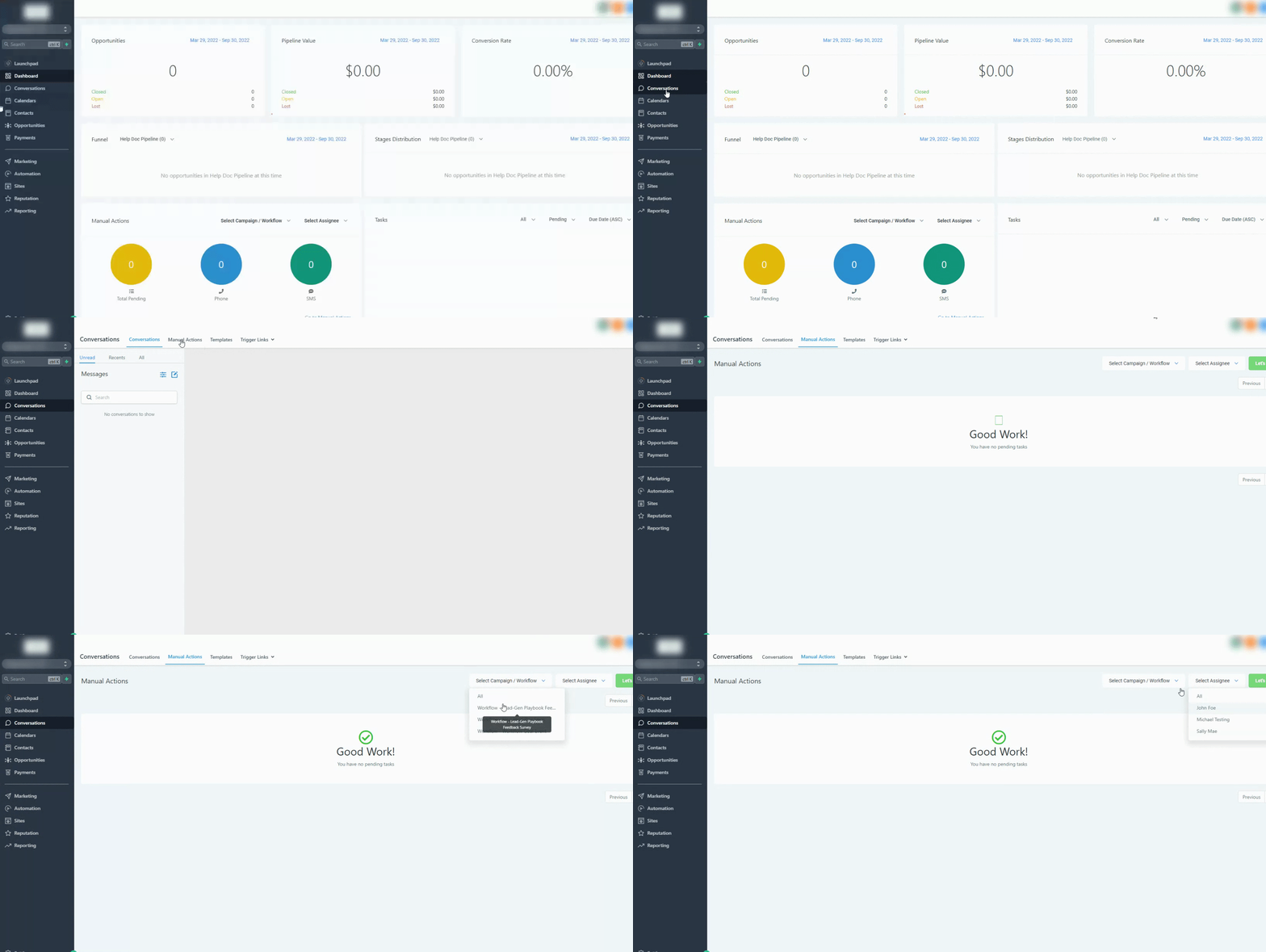
- Log into GoHighLevel and go to Conversations.
- Click the Manual Actions tab.
- You’ll see a list of pending manual tasks, including those created by your Manual SMS actions.
- Select a task to open the conversation view for that contact.
- Review the contact’s history (previous messages, pipeline stage, notes, and any relevant tags).
- Customize the suggested SMS text if needed – this is where reps can add details or adjust tone.
- Click Send to deliver the SMS.
- Mark the manual action as Complete so the workflow can continue.
This process keeps your inbox organized and ensures no high‑intent lead slips through without a human response.
How to work Manual SMS actions from the GoHighLevel mobile app
Manual SMS actions are just as powerful on mobile, which is ideal for teams who work deals on the go.
- Open the GoHighLevel mobile app.
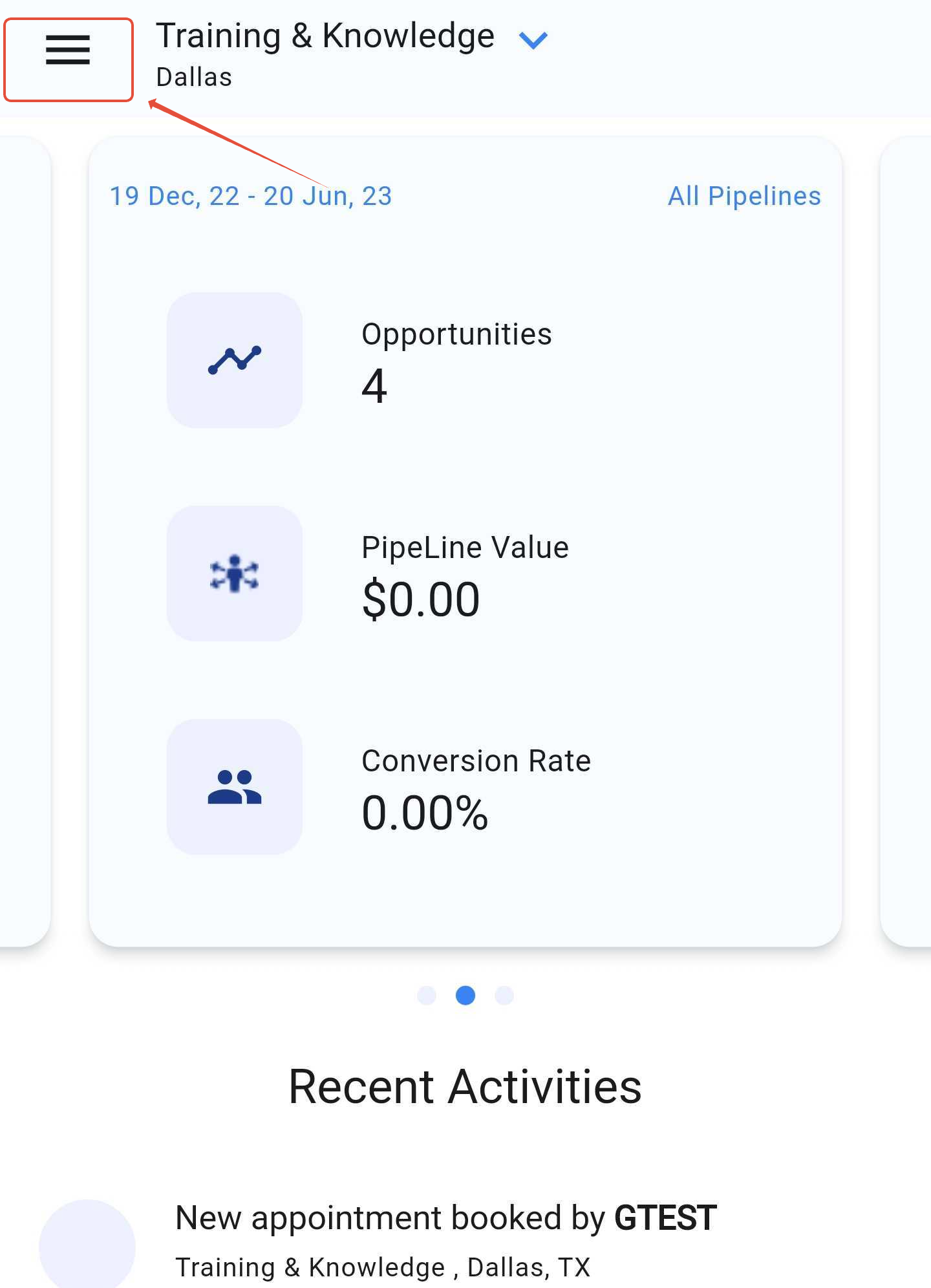
- Tap the ☰ (hamburger) menu in the top corner.
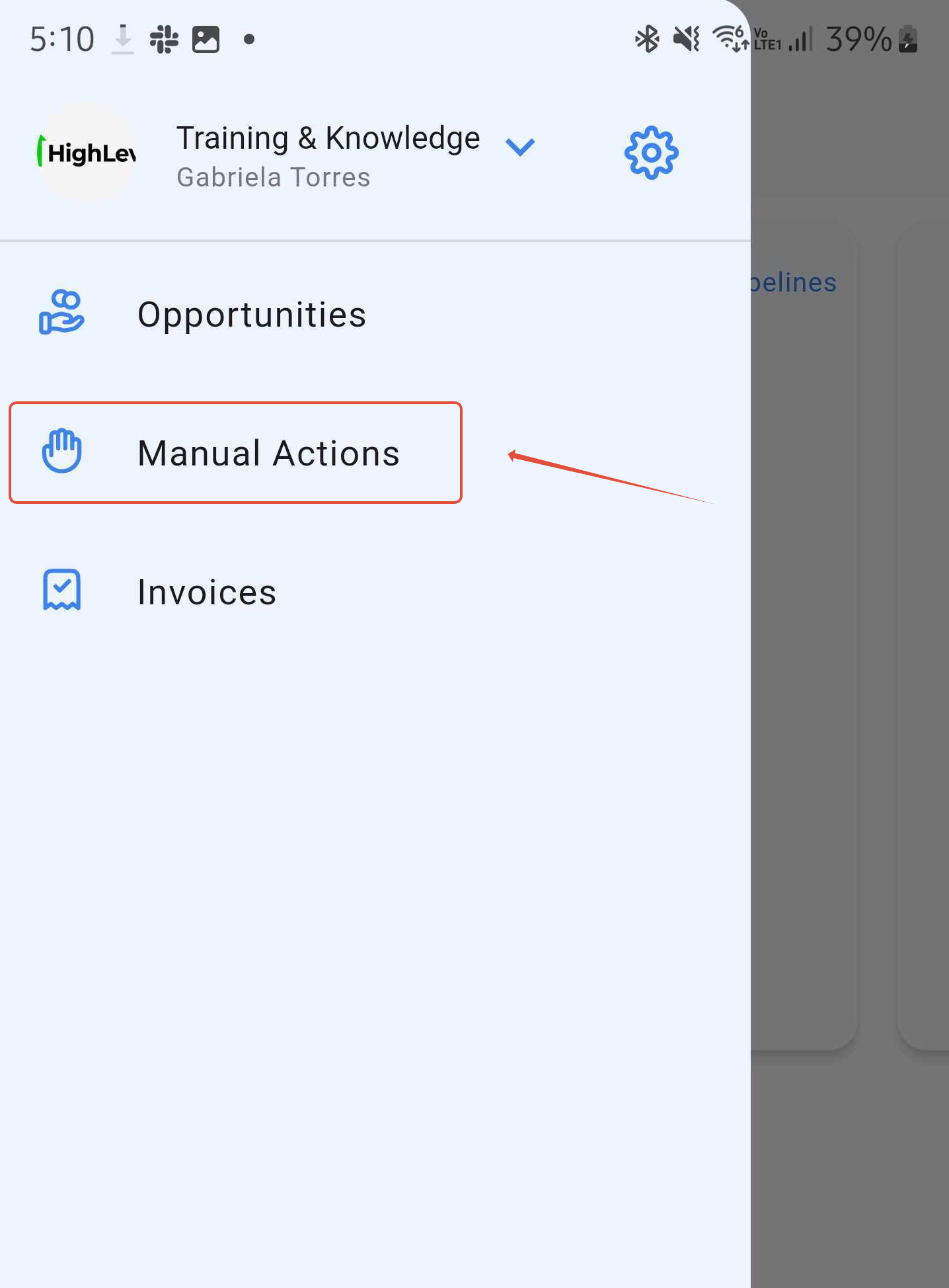
- Choose Manual Actions.
- You’ll see the same queue of pending manual tasks that appears on desktop.
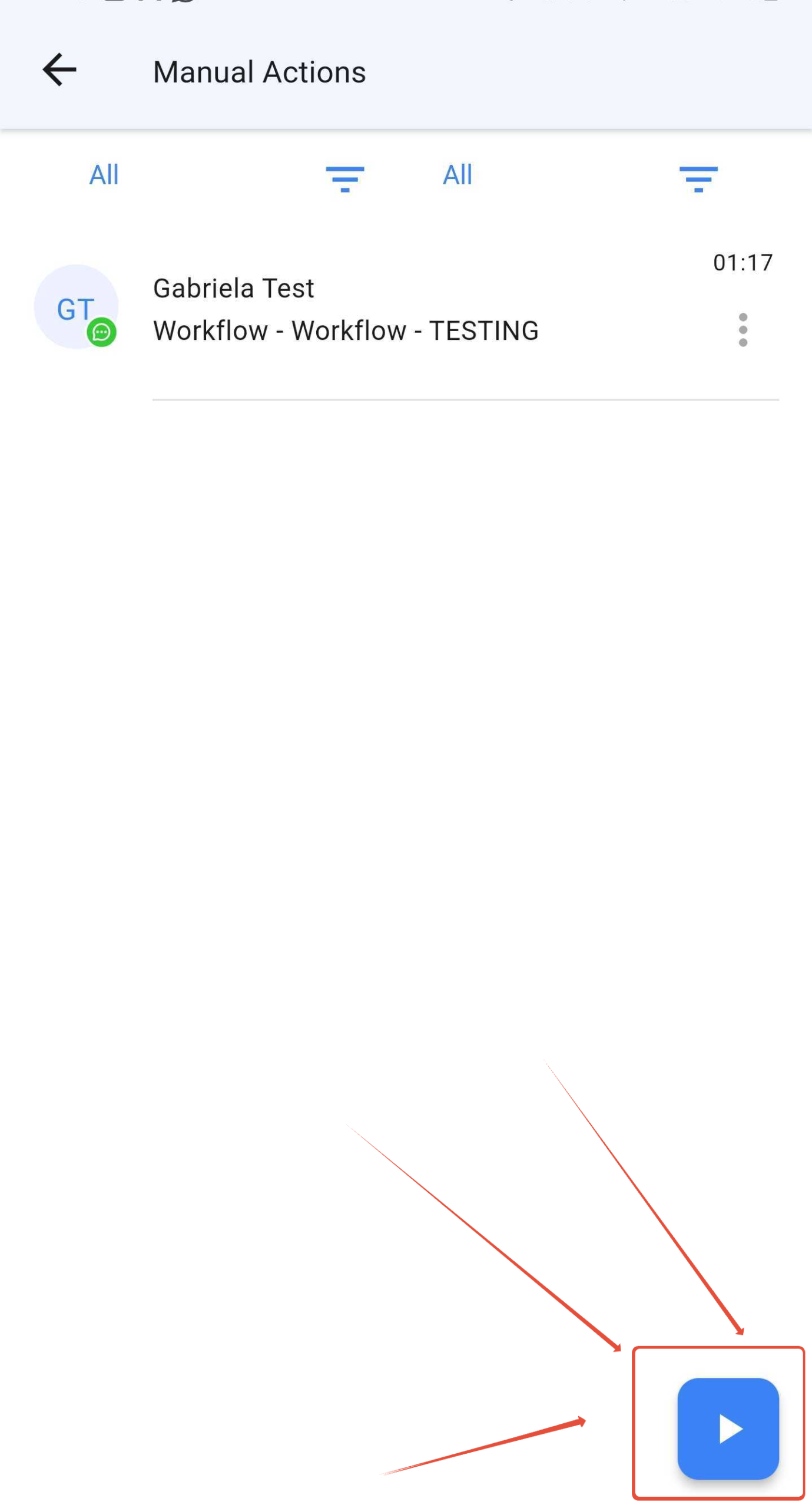
- Tap a task to open the contact’s conversation.
- Review the suggested SMS text and the contact context.
- Edit the message if needed, then tap Send.
- Mark the task as Complete once it’s handled.
Because Manual SMS actions show up in a dedicated queue, your team can quickly batch‑work conversations—clearing out high‑value tasks between meetings or on the road.
(Legacy) Manual SMS actions in campaigns and triggers
Older GoHighLevel setups may still use Campaigns and Triggers instead of modern workflows. Manual SMS actions inside campaigns are considered deprecated in favor of workflows.
Key points:
- New builds should use Workflows. They’re more flexible, easier to maintain, and give you a single place to manage all logic.
- If you still have manual SMS steps inside campaigns, plan a gradual migration into workflows so everything is consistent.
- When you rebuild a campaign as a workflow, recreate your Manual SMS actions there and retire the legacy version once tested.
If you’re migrating a large or messy setup, Revset Labs can audit your automations, map out a clean workflow strategy, and implement it using best practices.
Best practices for high‑converting Manual SMS conversations
Use these guidelines to turn Manual SMS actions into real revenue drivers:
- Respond fast. Define a clear SLA—e.g., manual SMS tasks should be cleared within 15–30 minutes during business hours.
- Lead with context. Reference what the contact just did (booked, clicked, replied) so the SMS feels natural, not random.
- Ask one simple question. Messages that end with a low‑friction question ("What’s your biggest challenge with X right now?") get more replies.
- Use a real name. Sign off with the rep’s name so it doesn’t feel like a bot: "– Sarah, Revset Labs".
- Respect compliance. Only message contacts who have given proper consent and keep opt‑out instructions accessible in your broader SMS strategy.
Pair these manual touchpoints with broader campaigns—for example, a nurture that sends automated SMS and email while your team handles the highest‑value replies by hand.
If you’re ready to build a complete, revenue‑focused messaging system around GoHighLevel, you can start a free GoHighLevel trial here and then let Revset Labs handle the architecture, copy, and implementation.
When to automate vs. when to use a Manual SMS action
Use this quick framework inside your account:
-
Use automated SMS when:
- The message is the same for almost everyone (reminders, confirmations, basic follow‑ups).
- Volume is high and you’d never be able to send everything manually.
- You’re early in the funnel and simply need to nurture or educate.
-
Use Manual SMS actions when:
- A contact has shown clear buying intent and deserves a 1:1 response.
- You need a human to review sensitive or high‑stakes information.
- The next step depends on nuance that a workflow can’t fully understand yet.
For most Revset Labs clients, the sweet spot is a hybrid approach: workflows handle 80–90% of messages automatically, while a small number of Manual SMS actions create leverage points where a human can move deals forward.
If that’s the kind of system you want—strategic, automated, and still personal—Revset Labs (an AI Automation and Marketing Agency) can design and implement it for you, end‑to‑end.
And if you’re not yet on the platform, you can claim your GoHighLevel free trial and then plug this workflow in as part of your core onboarding.
Frequently asked questions about Manual SMS actions
Where do I see Manual SMS actions in GoHighLevel?
On desktop, go to Conversations → Manual Actions to see every pending Manual SMS task created by your workflows.
On mobile, open the app, tap the ☰ menu, and select Manual Actions.
Does a Manual SMS action send automatically?
No. A Manual SMS action creates a task for a human to complete. A team member must open the task, review or edit the message, and click Send before the workflow continues.
Who should Manual SMS actions be assigned to?
Assign them to whoever is responsible for that part of the journey—usually a sales rep or closer for revenue workflows, and a success or support rep for onboarding and customer care.
Can I still use Manual SMS inside old campaigns and triggers?
Legacy setups may still have Manual SMS steps in campaigns, but GoHighLevel strongly recommends moving to Workflows. New builds should always use workflows so you have more control and a single place to manage logic.
Are Manual SMS actions right for every message?
No. They’re best reserved for high‑value or sensitive moments where personalization matters. For everything else, lean on automated SMS so your team isn’t overwhelmed.