
Importing GoHighLevel snapshots is one of the fastest ways to roll out proven funnels, automations, and assets across multiple client accounts. Done wrong, it can also overwrite live workflows, double-send campaigns, and create a mess you have to untangle under pressure.

This guide walks through exactly how to import snapshots, where they live in your agency account, how to load them into sub-accounts safely, and the guardrails to put in place so you never “break” a client account when you deploy.
If you’re not using GoHighLevel yet, you can start a free GoHighLevel trial here and follow along as you import your first snapshot.
What is a GoHighLevel snapshot?
A snapshot in GoHighLevel is a packaged set of assets and settings you can copy into multiple sub-accounts. A snapshot can include:
- Funnels and websites
- Pipelines and opportunity stages
- Workflows and campaigns
- Calendars and booking settings
- Forms, surveys, and triggers
- Custom fields, tags, and basic configuration
For agencies, snapshots let you turn a single, dialed-in “master account” into a repeatable client launch kit. Instead of rebuilding funnels and automations from scratch for every client, you import a snapshot and customize it for that specific business.
Two ways to import a GoHighLevel snapshot
Before you can use a snapshot in any client sub-account, you need to import it into your agency account.
1. Import a snapshot from a share link
This is the most common method when you:
- Buy a snapshot from a marketplace or another agency
- Receive a snapshot from a partner or contractor
- Share your own snapshots between agencies
Steps:
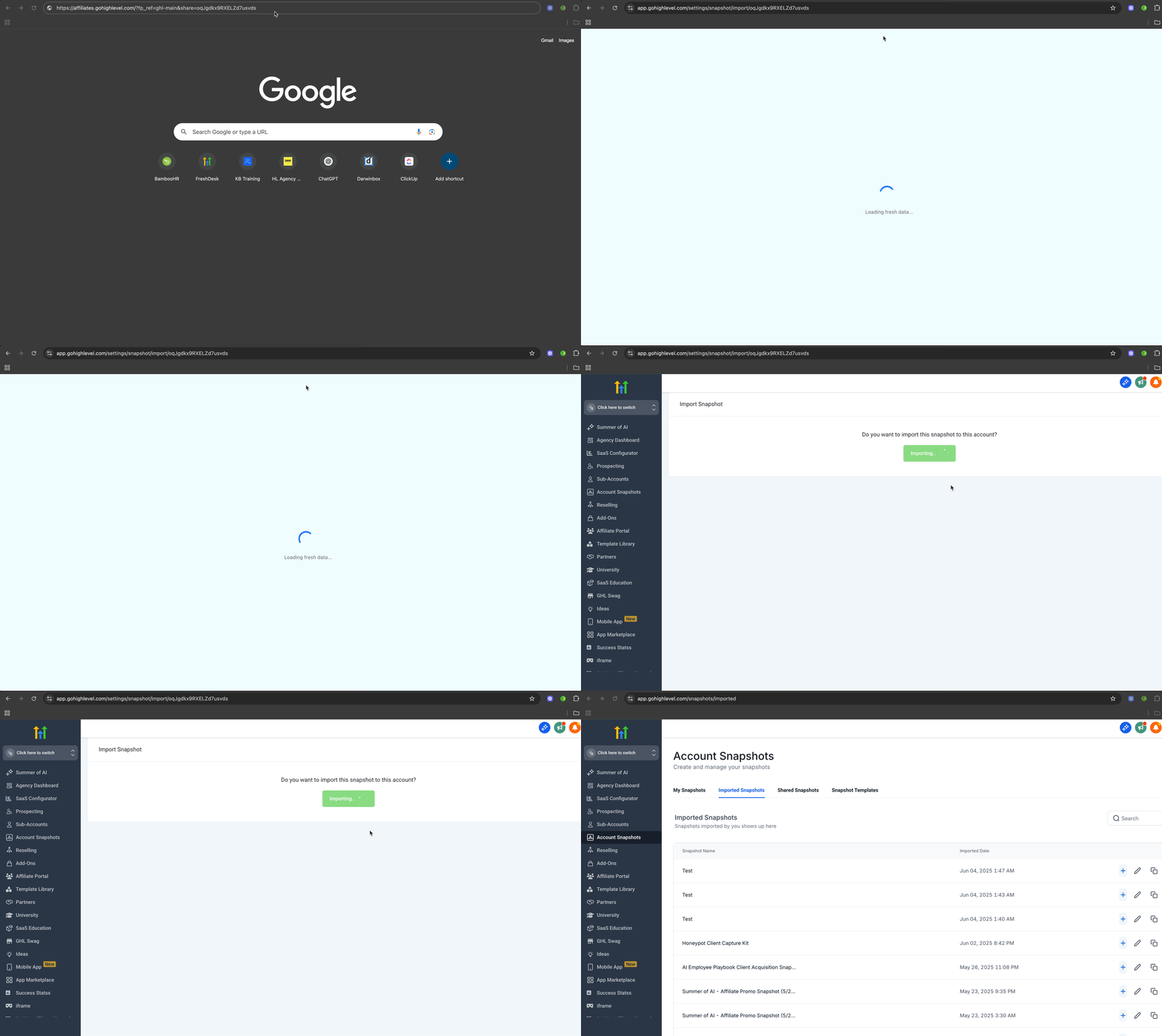
- Log in to your GoHighLevel agency account in a web browser.
- Open a new browser tab.
- Paste the snapshot share link into the address bar and press Enter.
- When the GoHighLevel import screen appears, click “Yes! Import Now”.
GoHighLevel will confirm once the snapshot has been imported successfully.
2. Import a snapshot from an email
Sometimes snapshots are delivered via email with a built-in import link.
Steps:
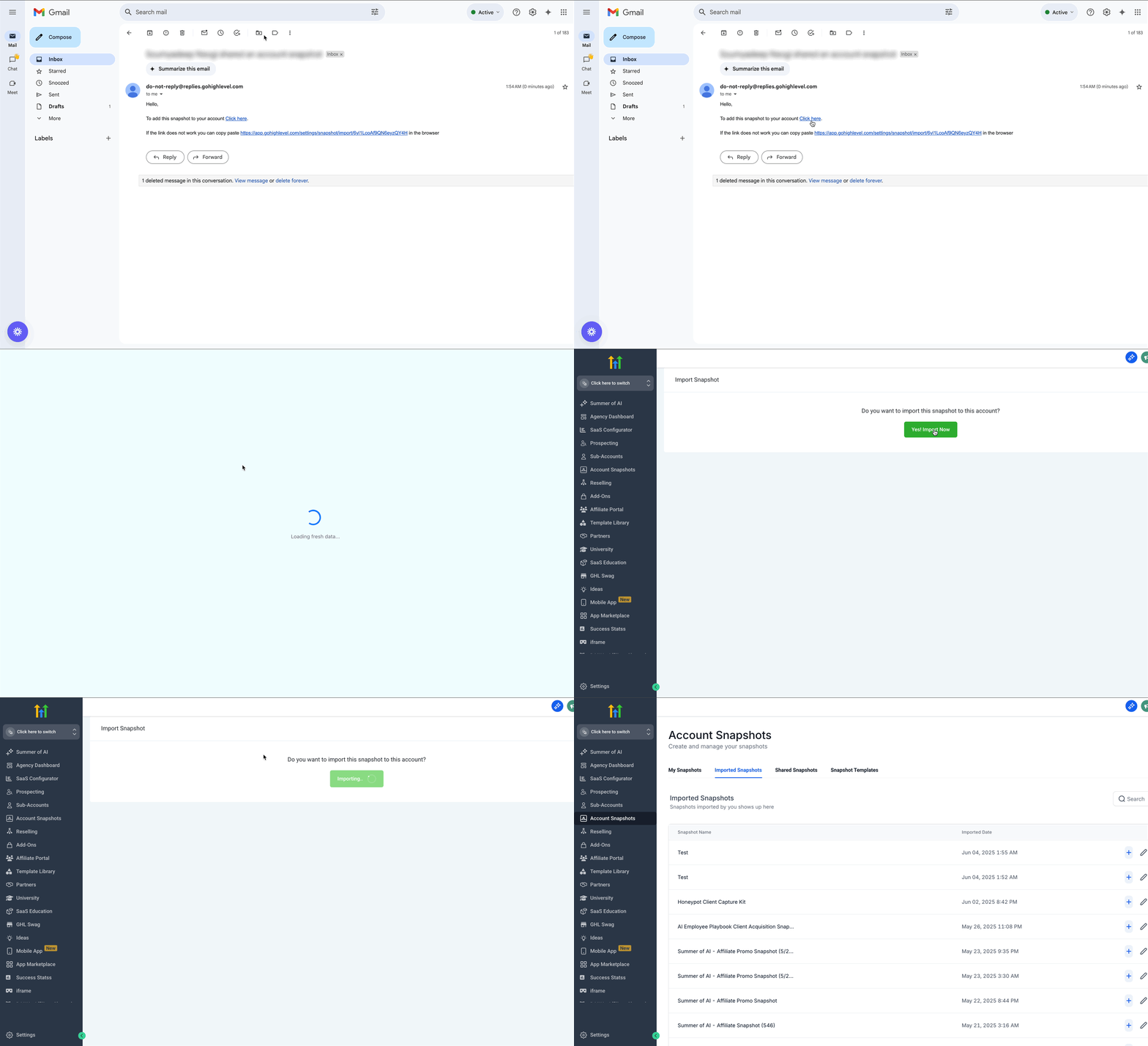
- Log in to your GoHighLevel agency account.
- Open the email that contains your snapshot.
- Click the “Click here” or similar import button in the email.
- On the import screen, click “Yes! Import Now” to confirm.
Whether you import from a share link or email, the result is the same: the snapshot is stored at the agency level, not in any particular sub-account yet.
Where imported snapshots live in your agency account
After import, snapshots are stored centrally so you can apply them to any client account when you’re ready.
To find your imported snapshots:
- From the agency view, go to Settings.
- Click Account Snapshot.
- Open the Imported Snapshots tab.
Here you’ll see a list of all snapshots available to your agency, including the one you just imported.
Important: Imported snapshots are not automatically visible inside sub-accounts. You must explicitly load a snapshot into each client account where you want to use it.
This is by design—it gives you control so you don’t accidentally deploy unfinished assets into production client accounts.
How to load a snapshot into a client sub-account
Once a snapshot is imported, you can load it into any existing or new client sub-account.
Step 1: Navigate to the client account
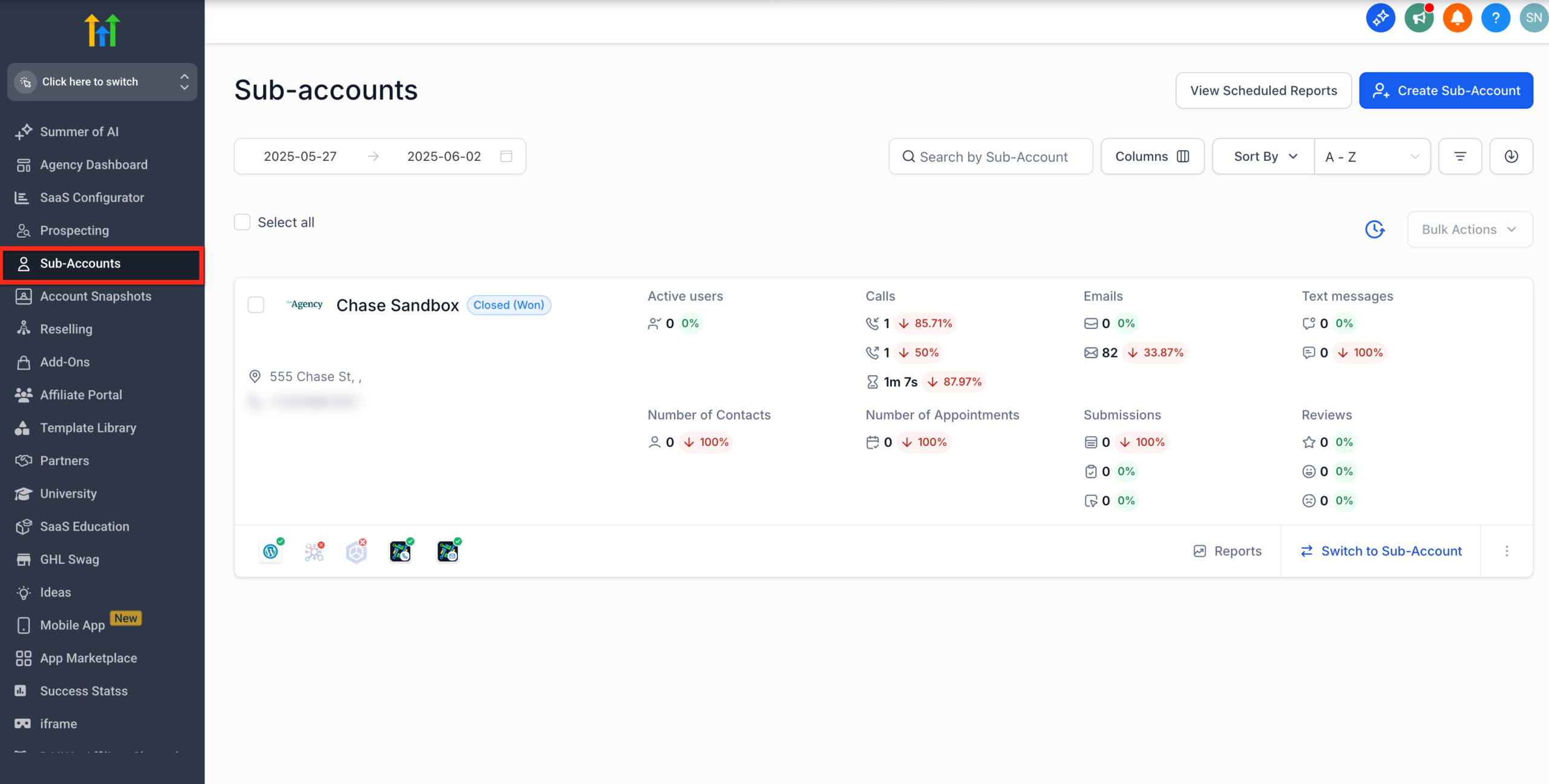
- From the agency view, click Sub-Accounts.
- Find the sub-account where you want to load the snapshot.
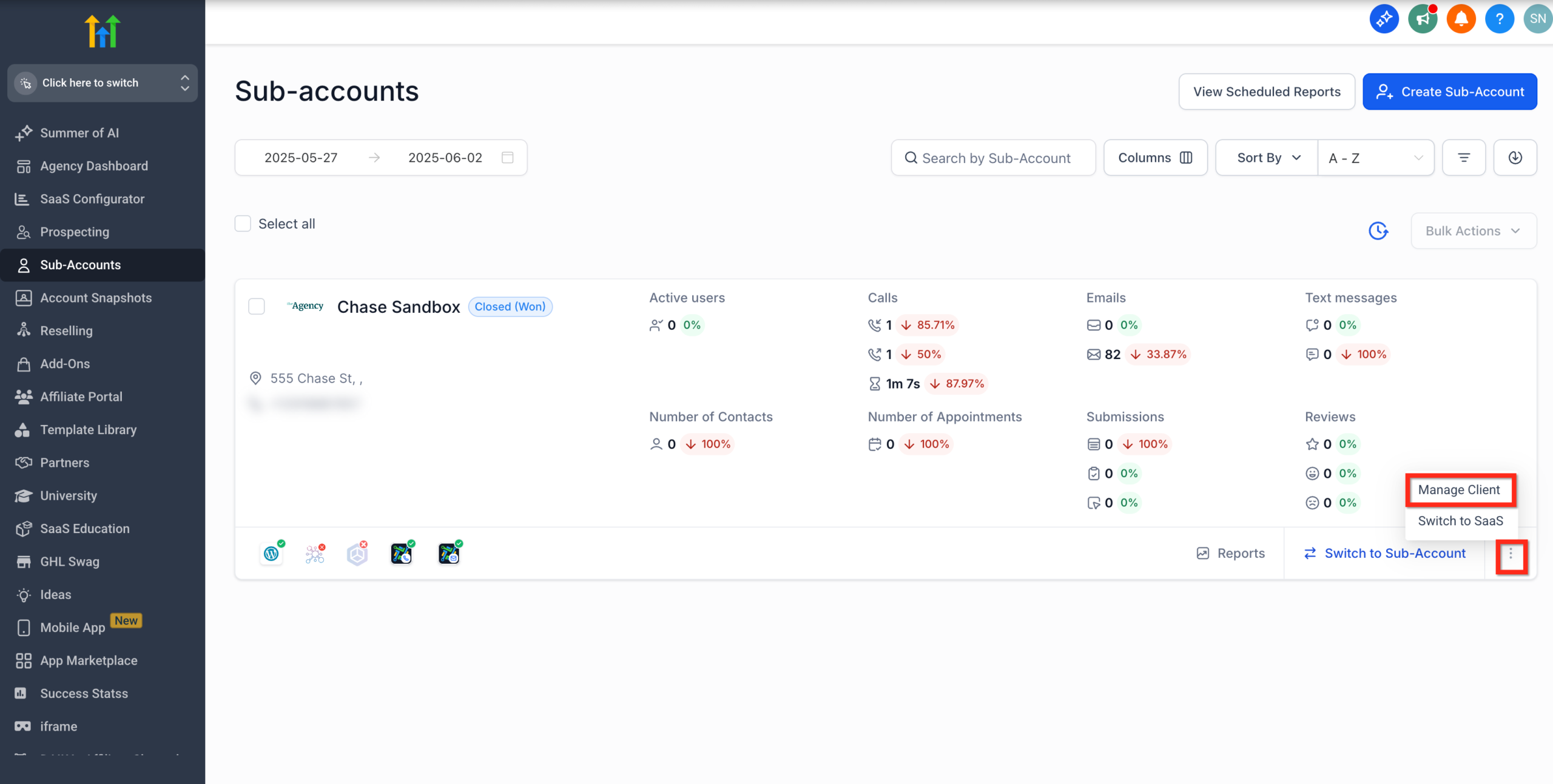
- Click the three dots (⋯) next to Switch to Sub-Account.
- Click Manage Client.
This opens the management screen for that specific client account.
For the sub-account you want to load snapshots to, click on the three dots beside Switch to Sub-account button.Click on Manage Client from the pop-up.
Step 2: Start the “Load Snapshot” flow
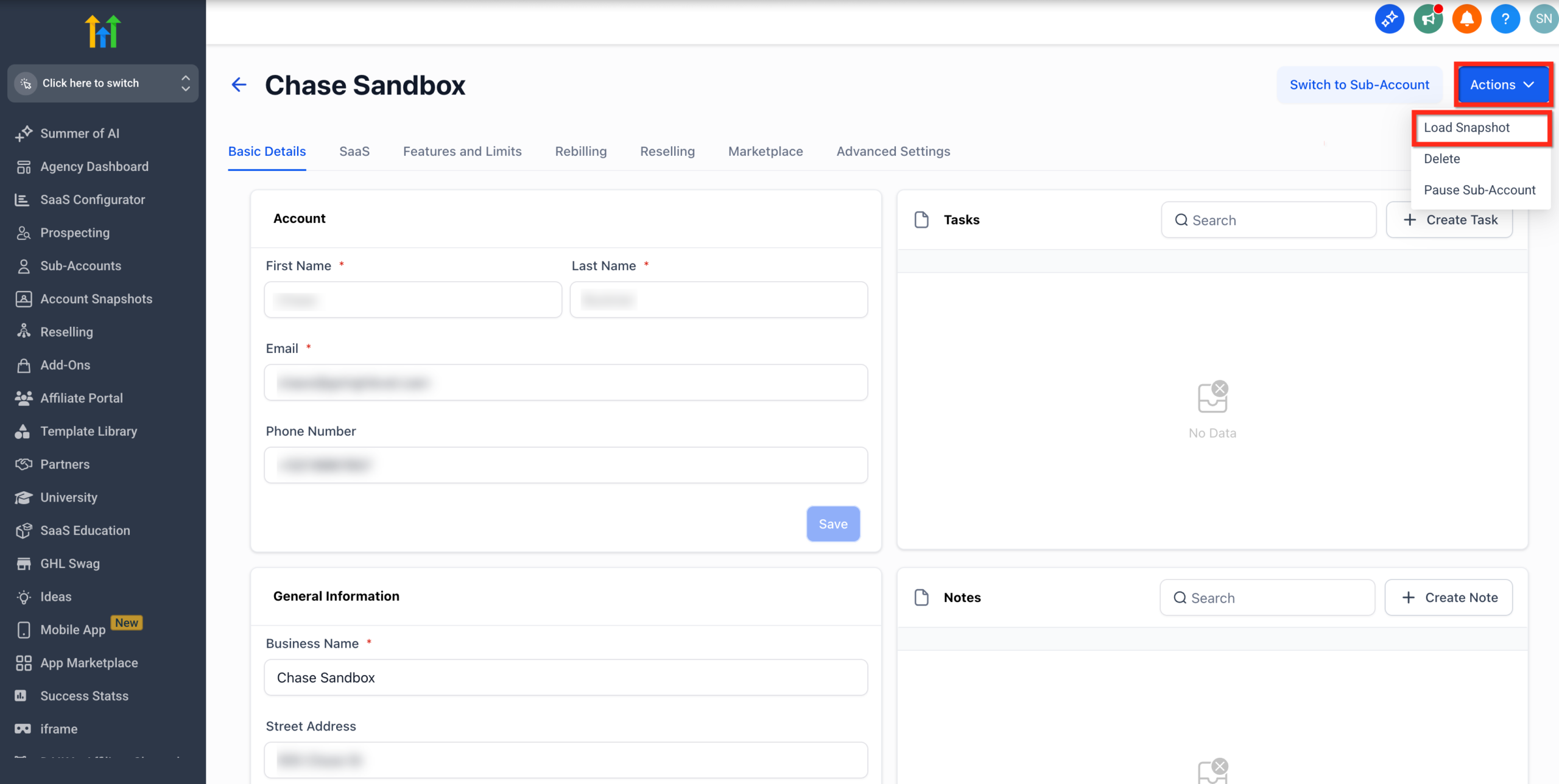
- Inside the client management view, click Actions.
- Select Load Snapshot from the dropdown.
You’ll now see a list of all snapshots you’ve imported at the agency level.
Step 3: Choose the snapshot and assets
- Pick the snapshot you want to load.
- Click Proceed.
- Choose which assets to push into the client sub-account. For example:
- All funnels and websites
- Only specific workflows
- Calendars and pipelines
- Click Proceed again to confirm your selection.
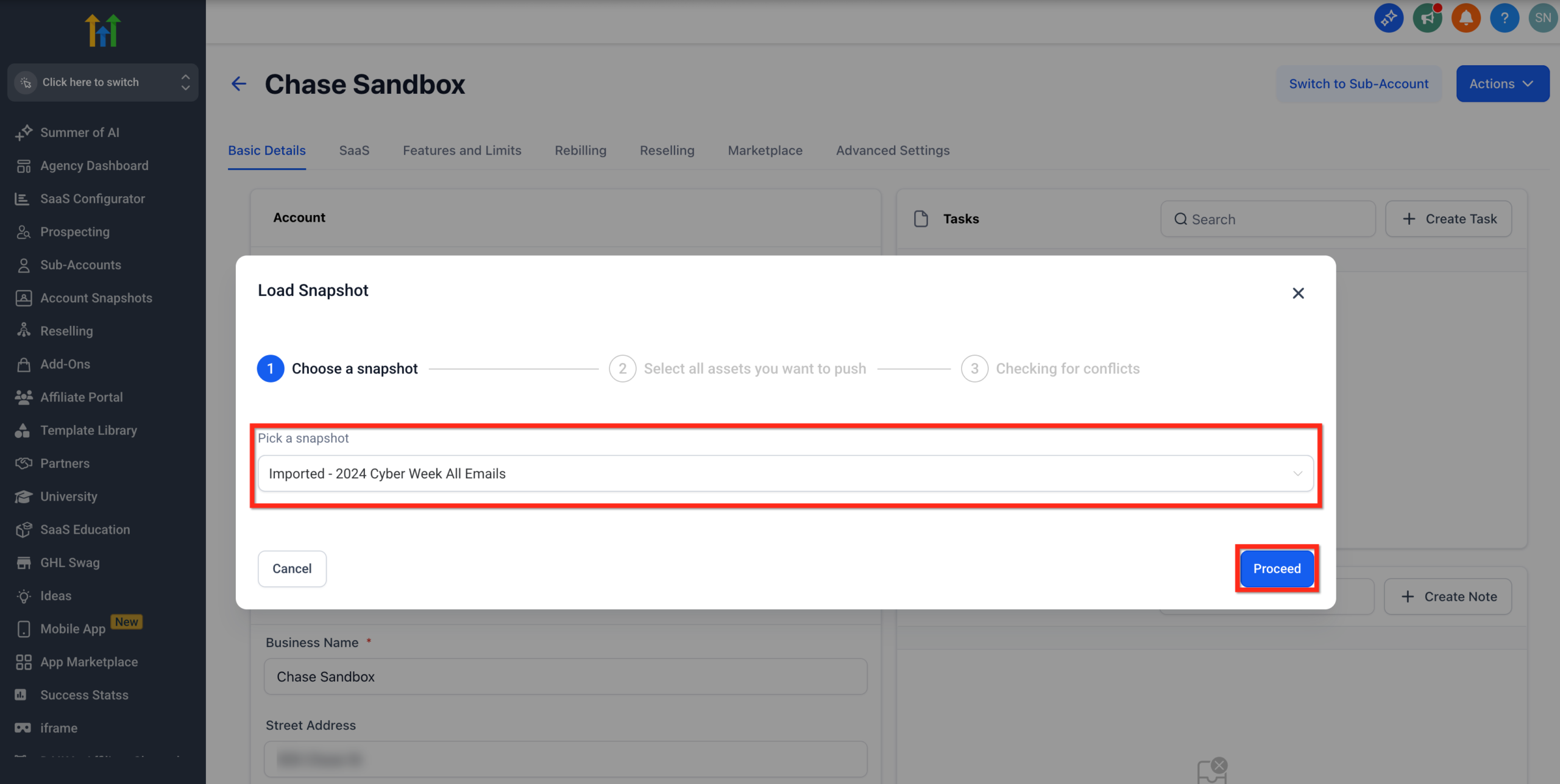
Select or Skip assets you want to push to the sub-account from the snapshot.
Click on Proceed.

Step 4: Review and resolve conflicts
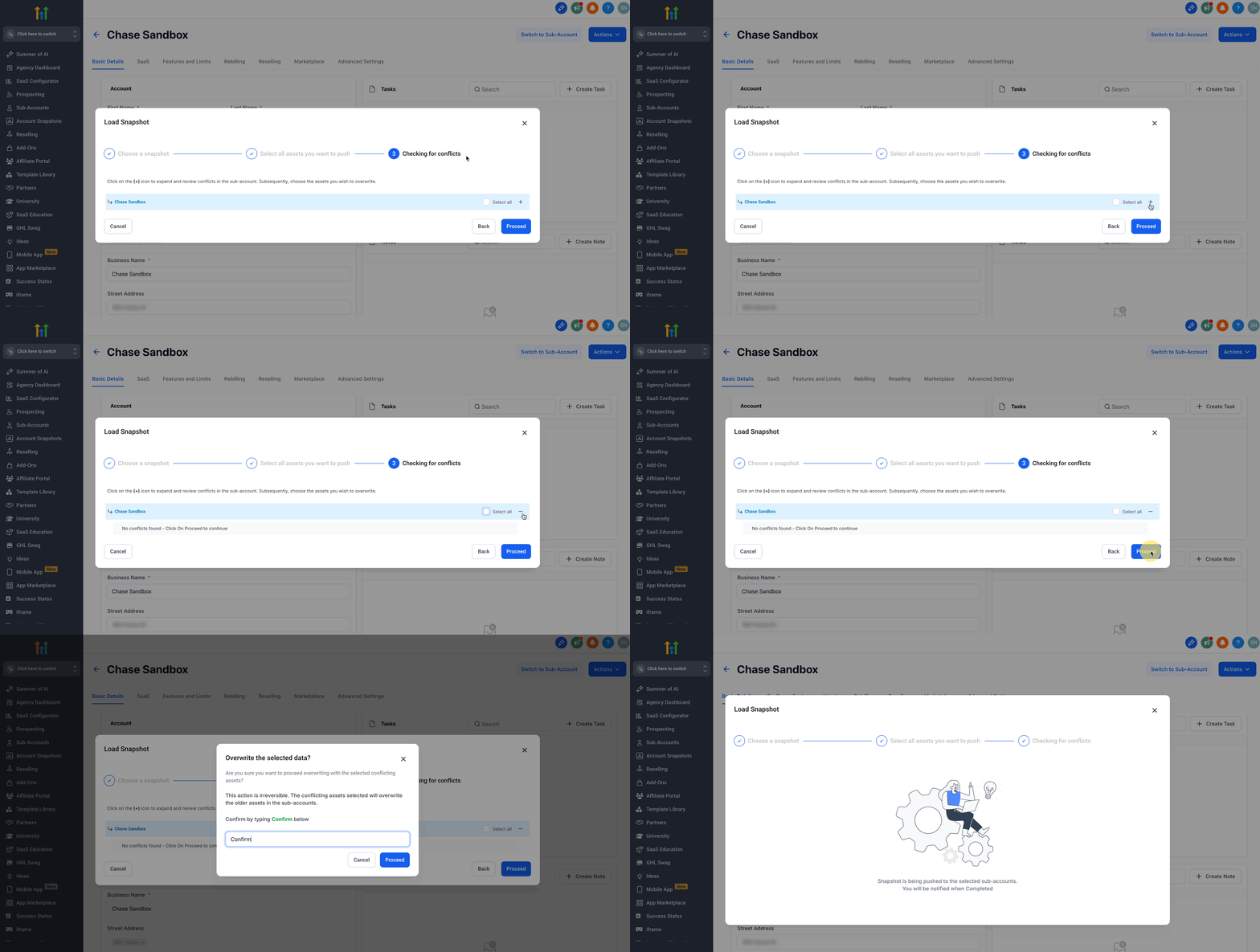
If GoHighLevel detects any conflicts (for example, a funnel or workflow with the same name already exists), you’ll see them listed.
- Expand each conflict with the + icon.
- Decide whether to overwrite, merge, or skip each item.
Once you’re satisfied, click Proceed.
Step 5: Confirm and load the snapshot
To prevent accidental deployment, GoHighLevel asks you to confirm:
- Type “Confirm” in the confirmation box.
- Click Proceed to start the loading process.
The system will queue the import and copy the selected assets into the client sub-account. The status indicator will update once the snapshot load is complete.
The supporting flowchart image in this article gives you a high-level view of this process from import to “go live.”
Check for Conflicts by click on the + icon and click on Proceed.
Type Confirm in the box to start the loading process.
Best practices so snapshots don’t break live client accounts
Snapshots are powerful—but they can also be disruptive if you push them into a live account without preparation. Use these safeguards to stay in control.
1. Always test in a non-production sub-account first
Before loading a new snapshot into a paying client’s account:
- Create a test sub-account that mirrors your typical client setup.
- Load the snapshot there first.
- Click through every key asset: funnels, workflows, pipelines, calendars, and automations.
This gives you a safe space to catch issues like outdated copy, broken links, or misaligned triggers.
2. Disable workflows immediately after import
Right after you load a snapshot into a client sub-account:
- Go to Automation / Workflows.
- Turn off all imported workflows and campaigns.
Then:
- Review each workflow’s triggers (tags, form submissions, pipeline stages, etc.).
- Update copy, sender details, and from-addresses.
- Confirm that any delays, time windows, and goals still make sense.
Only re-activate workflows once you’re confident they’re client-ready.
3. Standardize naming before you deploy widely
As you start using multiple snapshots and sub-accounts, messy naming creates confusion fast.
Before rolling a snapshot out at scale:
- Create naming conventions for funnels, workflows, calendars, and pipelines.
- Update the snapshot’s assets in your master account so names are clear and consistent.
- Rebuild or update the snapshot so every new import follows the same structure.
This makes it far easier to report on performance and troubleshoot issues across dozens of clients.
4. Document what’s inside each snapshot
For every snapshot you manage, keep a short internal spec that covers:
- The purpose of the snapshot (e.g., “Local lead gen for home services,” “Course launch funnel,” etc.).
- The key automations included.
- Any required integrations or settings (e.g., Stripe, calendar connections, domain setup).
- Known dependencies or manual steps post-import.
You can store this in your internal wiki, ClickUp, or the notes area inside your master GoHighLevel setup. When your team knows exactly what a snapshot does, they can deploy it faster and with fewer mistakes.
5. Keep snapshots updated—not just duplicated
Snapshots should evolve as you learn what works.
On a regular cadence (for example, quarterly):
- Review performance across the client accounts using a given snapshot.
- Improve funnels, emails, and workflows in your master account based on results.
- Push those improvements into a refreshed snapshot.
This turns your snapshot library into a real asset: every client benefits from the best version of your system, not an outdated one.
How GoHighLevel snapshots fit into your agency’s offer
Used well, snapshots help you:
- Launch new clients in hours instead of weeks.
- Deliver consistent systems across niches or verticals.
- Offer clear “packages” (for example, lead-gen snapshot, nurture snapshot, review-getting snapshot).
- Scale fulfillment without scaling your operations team linearly.
If you’re still evaluating platforms, snapshots are one of the biggest reasons agencies move to GoHighLevel. They compress build time while giving you a repeatable, productized service you can sell over and over.
You can start a free GoHighLevel trial to see how snapshots, automations, and pipelines fit into your current offer.
Where Revset Labs can help
Designing, maintaining, and deploying a high-quality snapshot library is a strategic project, not just a technical one. You need:
- Clean, conversion-focused funnels and pages
- Thoughtful automations that respect each client’s lifecycle
- Clear reporting across dozens of accounts
- Guardrails so no one accidentally breaks a live client setup
Revset Labs is an AI automation and marketing agency that helps agencies and businesses build GoHighLevel systems that actually drive revenue:
- We architect snapshot-based onboarding and fulfillment flows
- We map and automate cross-channel follow-up
- We design reporting and QA processes so updates don’t create chaos
If you want expert help implementing what you’ve just read—rather than piecing it together alone—partnering with Revset Labs can dramatically shorten the path from idea to working system.
And if you’re ready to get hands-on with the platform itself, you can try GoHighLevel free using this link and start importing your first snapshots with confidence.