
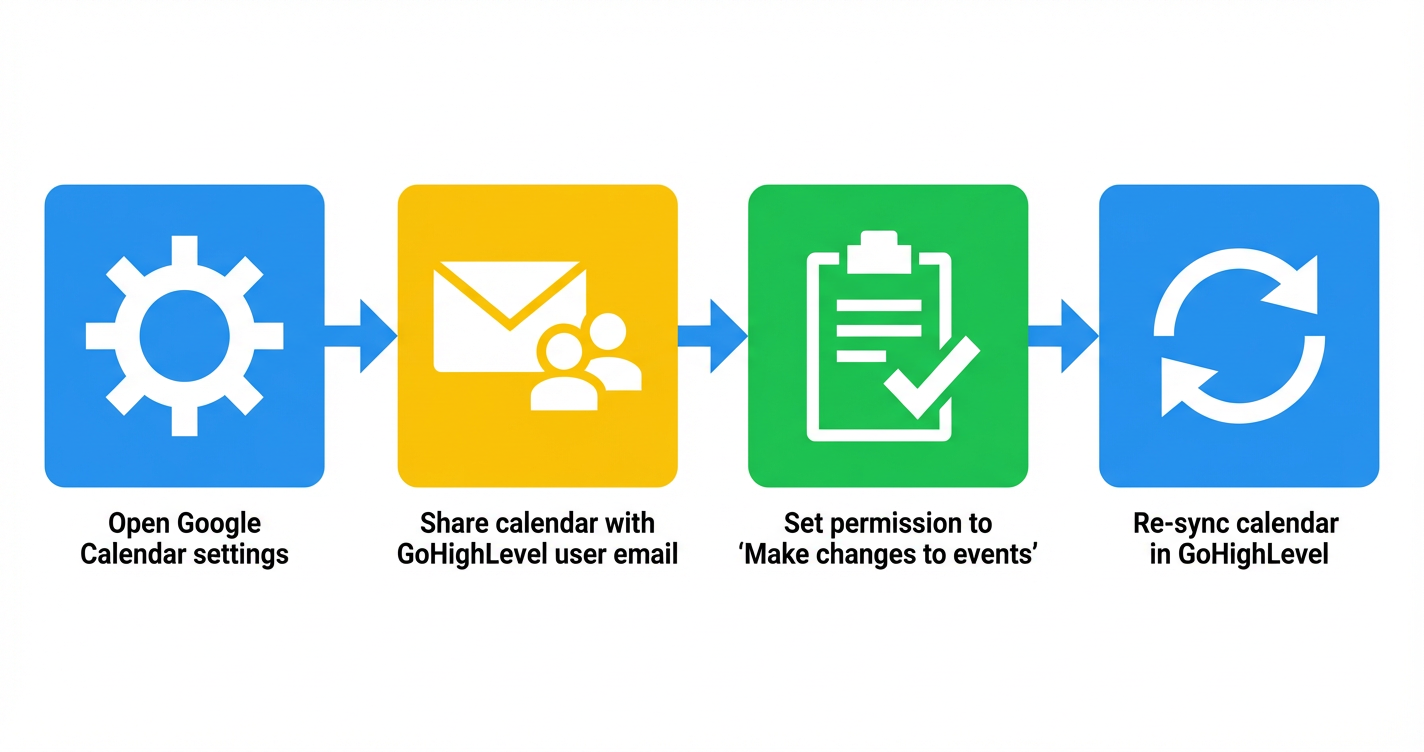
 GoHighLevel (Step-by-Step)”>

Seeing the Google Calendar writer access error in GoHighLevel can be unnerving—especially when your entire booking system depends on appointments syncing correctly.
This guide walks you through exactly what the error means, how to fix it for both shared and personal calendars, and what to do if it keeps coming back. We’ll also cover how GoHighLevel fits into a scalable scheduling stack and where Revset Labs can help you automate the whole flow.
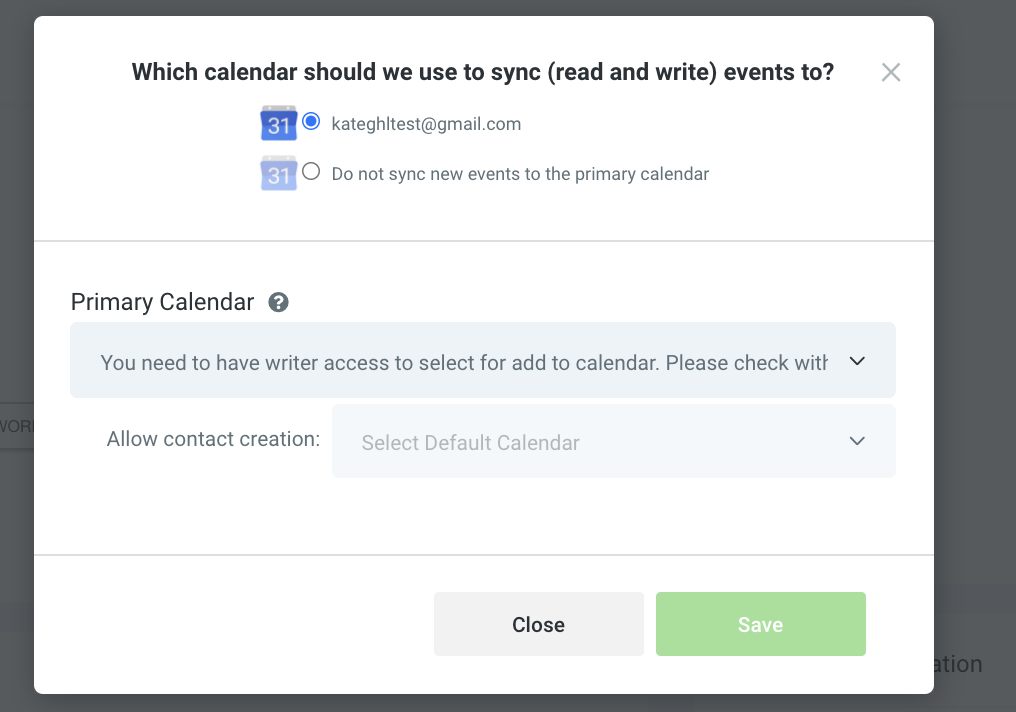
The specific message you’ll usually see is:
"You need to have writer access to sync appointments to the selected Google Calendar. Please check with the Google Calendar owner in case syncing is required."
In plain English: GoHighLevel doesn’t have permission to create or modify events on the Google Calendar you selected.
What the Google Calendar writer access error actually means
When you connect Google Calendar to GoHighLevel, Google gives the app a set of permissions (read-only, read/write, etc.). The writer access error appears when:
- The connected Google account does not have permission to make changes to the specific calendar you chose, or
- Permissions were changed or revoked after the integration was first set up.
Common scenarios include:
- A shared or team calendar where your user only has view access.
- A calendar originally shared with full access, but later downgraded to "See only free/busy".
- A password change or security event in Google that caused Google to revoke some app permissions.
The result: GoHighLevel can read the calendar but cannot write new appointments to it—so booking attempts can fail or stop syncing.
Good news: In most cases, you can fix this in a few minutes by updating calendar sharing permissions and refreshing the integration.
Step 1: Confirm which Google Calendar is connected to GoHighLevel
Before changing any settings, make sure you know which calendar GoHighLevel is trying to write to.
- In GoHighLevel, go to Settings → Calendars (or Settings → My Profile → Calendar depending on your account view).
- Open the specific Calendar or Round Robin configuration that’s throwing the error.
- Under the Google Calendar section, note:
- Which Google account is connected.
- Which calendar (for example,
Team Consultations,Dr. Smith – Clinic, or your personal calendar) is selected for syncing.
You’ll adjust permissions on that exact calendar in the next steps.
Step 2: Fix permissions for a shared or group calendar
If the selected calendar is a group or shared calendar (for example, a team calendar owned by an admin account), the owner needs to grant your integrated Google account writer access.
Have the calendar owner follow these steps:
-
Open Google Calendar
Go to calendar.google.com while logged in as the calendar owner. -
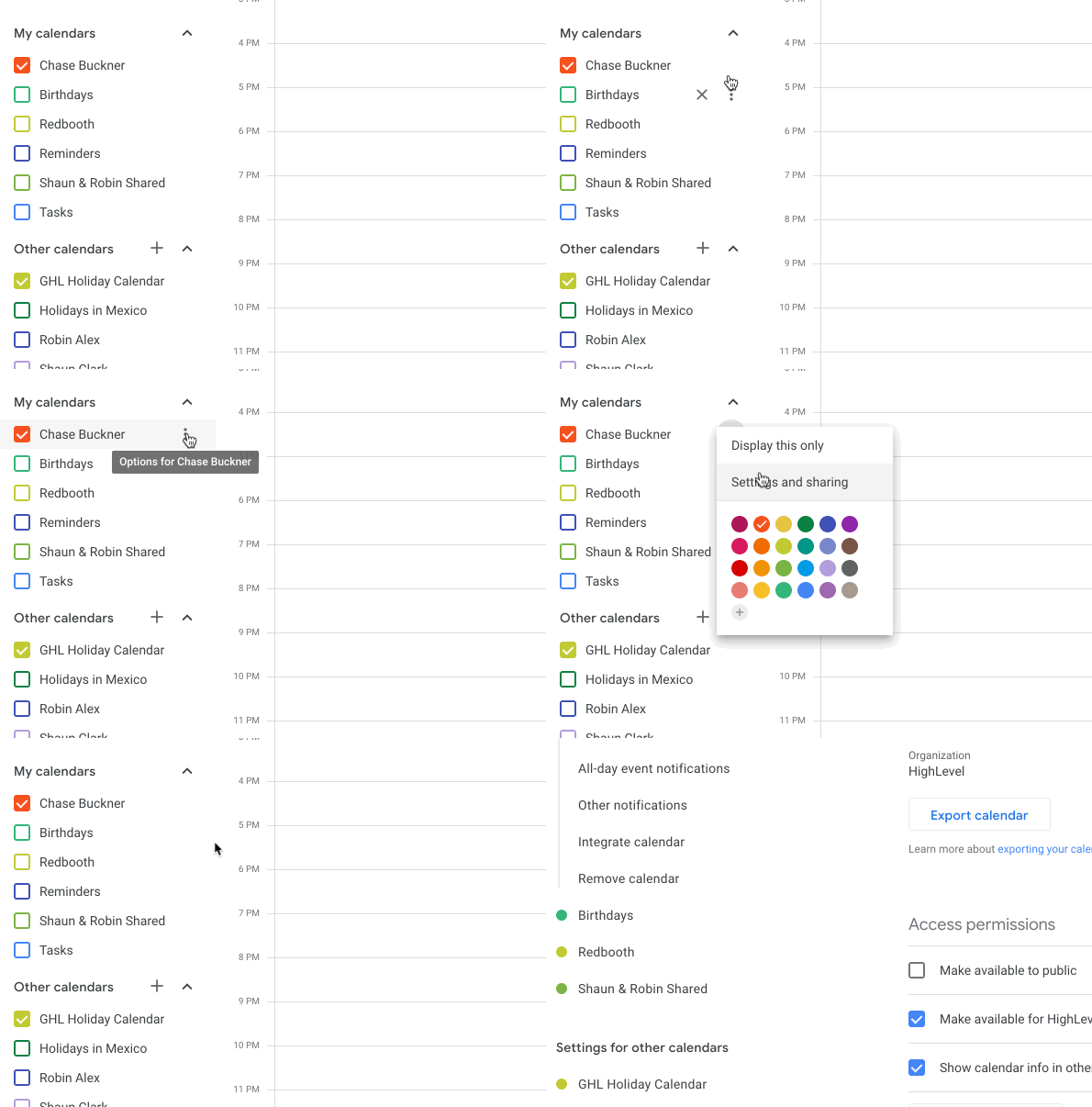
Open the specific calendar’s settings
- In the left sidebar, hover over the calendar name.
- Click the three-dot menu.
- Select "Settings and sharing".
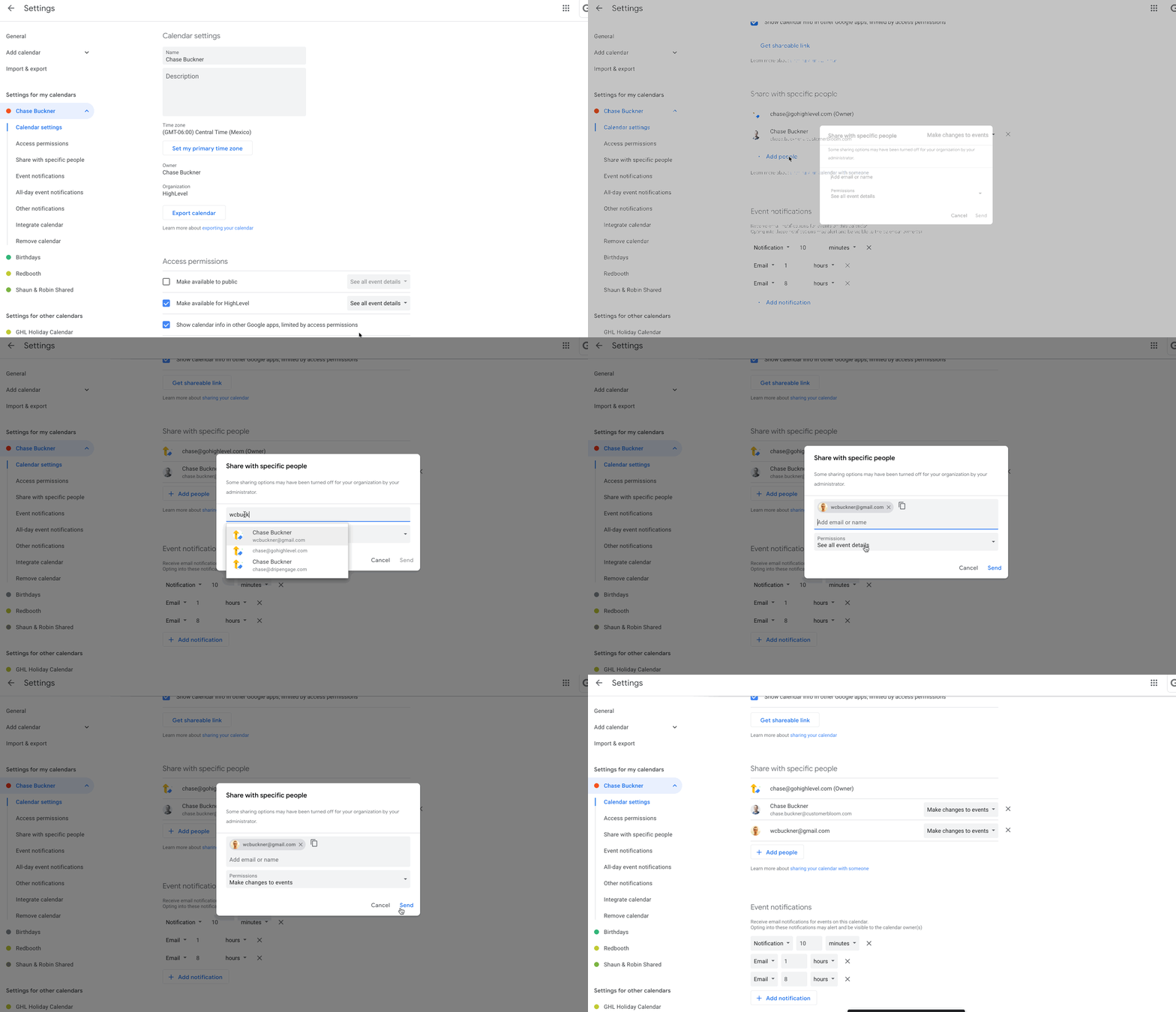
- Share the calendar with your GoHighLevel user email
In the Share with specific people section:- Click "Add people" (or edit an existing entry).
- Enter the Google account that’s integrated with GoHighLevel.
- Set permissions to "Make changes to events" (or higher, if appropriate).
- Click Send or Save.
- Save and test
After the change is saved:- Go back to GoHighLevel.
- Try creating a test appointment on that calendar.
If permissions were the problem, the writer access error should disappear and the new appointment should sync normally.
Tip: For high-volume teams, use a dedicated "owner" Google account for calendars (for example,
calendar@yourdomain.com) and grant each GoHighLevel user the access they need. This keeps ownership stable even when people join or leave the team.
Step 3: Fix permissions for a personal or unassigned calendar
If you’re using your own calendar (not a shared team calendar), the process is very similar—you just update permissions from your own Google account.
- Log into Google Calendar with the same Google account you connected to GoHighLevel.
- In the left sidebar, hover over the calendar name and click the three-dot menu → Settings and sharing.
- Under Access permissions for events and Share with specific people:
- Make sure the calendar isn’t locked down to "See only free/busy" for the account GoHighLevel is using.
- If needed, add that email and set it to "Make changes to events".
- Save your changes and test another booking through your GoHighLevel calendar.
If the error goes away at this point, you’ve confirmed the issue was purely insufficient calendar permissions.
Step 4: Re‑integrate Google Calendar with GoHighLevel (if the error persists)
Sometimes, permissions look correct inside Google Calendar, but the error still shows up. That usually means the integration token between Google and GoHighLevel is stale or partially revoked.
In that case, re‑integrate Google Calendar with GoHighLevel:
- In GoHighLevel, go to Settings → Integrations or Settings → My Profile → Integrations.
- Find the Google integration card.
- Remove or disconnect the existing Google connection.
- Click Connect (or Add new) and sign in again with the correct Google account.
- When Google prompts for permissions, grant all requested calendar permissions, including read and write access.
- Return to Settings → Calendars, open your calendar configuration, and re‑select the correct Google Calendar.
For deeper reference, see the official GoHighLevel help articles:
Considering GoHighLevel for your scheduling stack? You can start a free GoHighLevel trial here and build your entire lead capture and appointment system in one place.
How to prevent future Google Calendar sync issues
Once the writer access error is fixed, there are a few best practices that dramatically reduce the chance of it returning:
1. Avoid changing calendar ownership without a plan
If you delete or transfer ownership of a calendar that’s connected to GoHighLevel, you can silently break permissions.
- Keep long‑term calendars owned by a neutral admin account.
- When staff change, update sharing settings, not calendar ownership.
2. Don’t downgrade access for integrated accounts
If an admin sees a lot of users with full calendar access, they might tighten permissions without realizing GoHighLevel needs "Make changes to events".
- Document which Google accounts are integrated with GoHighLevel.
- Make sure IT or whoever manages Google Workspace knows those accounts require writer access.
3. Re‑authenticate promptly after security changes
Password resets, security alerts, or changes to 2‑step verification can trigger Google to revoke app access.
- If you see unusual sync behavior, visit Settings → Integrations in GoHighLevel and reconnect Google.
- Periodically confirm that appointments created in GoHighLevel are appearing correctly in Google Calendar.
4. Standardize your booking workflow
The more consistent your booking pipeline, the easier it is to spot and fix issues quickly.
- Use one primary calendar per booking use case (sales calls, onboarding, consultations, etc.).
- Make sure all relevant automations and reminders point to that same calendar.
- Test your booking flow end‑to‑end regularly.
If you want to go beyond "just fixing" this error and design a more robust scheduling system, GoHighLevel is built exactly for that—connecting funnels, pipelines, and messaging automation around your calendars. You can start a free GoHighLevel account here and start centralizing your bookings.
Where Revset Labs fits into your calendar and automation strategy
Revset Labs is an AI Automation and Marketing Agency that specializes in building end‑to‑end systems on top of GoHighLevel.
If this error is just one symptom of a messy tech stack, we can help you:
- Design clean calendar structures for each brand, location, and team.
- Connect GoHighLevel calendars to funnels, forms, and workflows so leads never slip through the cracks.
- Automate confirmations, reminders, and follow‑up sequences via email, SMS, and workflows.
- Add AI‑powered routing, qualification, and post‑call follow‑up so every booking has a clear next step.
The goal isn’t just to stop errors—it’s to build a scheduling engine that consistently turns booked calls into revenue.
Next steps
If you’re currently seeing the Google Calendar writer access error in GoHighLevel:
- Fix permissions on the specific Google Calendar (shared or personal) so your integrated account has "Make changes to events" access.
- Re‑integrate Google Calendar inside GoHighLevel if the error persists.
- Put the prevention best practices above in place so this doesn’t come back during a busy week.
And if you’re ready to turn your calendar from a simple booking tool into a revenue engine, start by launching your free GoHighLevel trial and then map out how each new appointment flows into your pipeline, follow‑up, and offers.
When you’re ready for an expert partner to architect and automate that system end‑to‑end, Revset Labs is here to help.