
What a Two-Step Order Form Is (and Why It Works in GoHighLevel)
A two-step order form breaks checkout into two simple screens instead of asking for everything at once:

- Step 1: Capture contact and (optionally) shipping details.
- Step 2: Collect payment details and confirm the order.
Inside GoHighLevel, this lives as a single Two-Step Order element inside your funnel page. Visitors start on Step 1, then click through to Step 2 once they’ve entered the basics.
This small structural change does two important things:
- It reduces friction up front, because Step 1 feels fast and low commitment.
- It captures a lead even if the visitor never finishes Step 2, so you can follow up with email, SMS, or sales workflows.
If you don’t have a GoHighLevel account yet, you can start a free GoHighLevel trial here and follow along as you build your first two-step order form.
Revset Labs is an AI automation and marketing agency that helps GoHighLevel users turn flows like this into revenue-producing systems. Use this guide to get your first two-step order form live, and bring us in when you’re ready for a fully automated funnel around it.
Why Two-Step Order Forms Convert Better
Traditional one-page checkout forms ask for everything at once: contact details, address, payment info, coupon codes, and more. That’s a lot of cognitive load for a cold visitor.
A GoHighLevel two-step order form is designed to convert better because it:
-
Builds micro-commitments
Step 1 is framed as a quick info step. Once someone clicks through to Step 2, they’ve already invested effort and are more likely to finish. -
Captures leads even when payment fails
If someone completes Step 1 but abandons on Step 2, you still have their details. You can trigger workflows to send reminder emails, SMS nudges, or even route them to a sales rep. -
Makes the checkout feel lighter
Shorter forms feel easier. Breaking the process in two makes the decision feel less heavy, especially on mobile. -
Supports higher average order value
You can use Step 2 to present order bumps, coupons, or bonuses without cluttering Step 1. -
Gives you better data for optimization
With a clear split between Step 1 and Step 2, you can see where people drop off and test copy, layout, and offers to lift each step.
If your funnel is already converting, a well-implemented two-step order form in GoHighLevel is often one of the highest-ROI upgrades you can make.
Prerequisite: Set Up Your Products in GoHighLevel
Before you drag in the Two-Step Order element, you need at least one product with pricing attached to the funnel step. Without products, the order form won’t have anything to sell.
Follow these steps inside GoHighLevel:
-
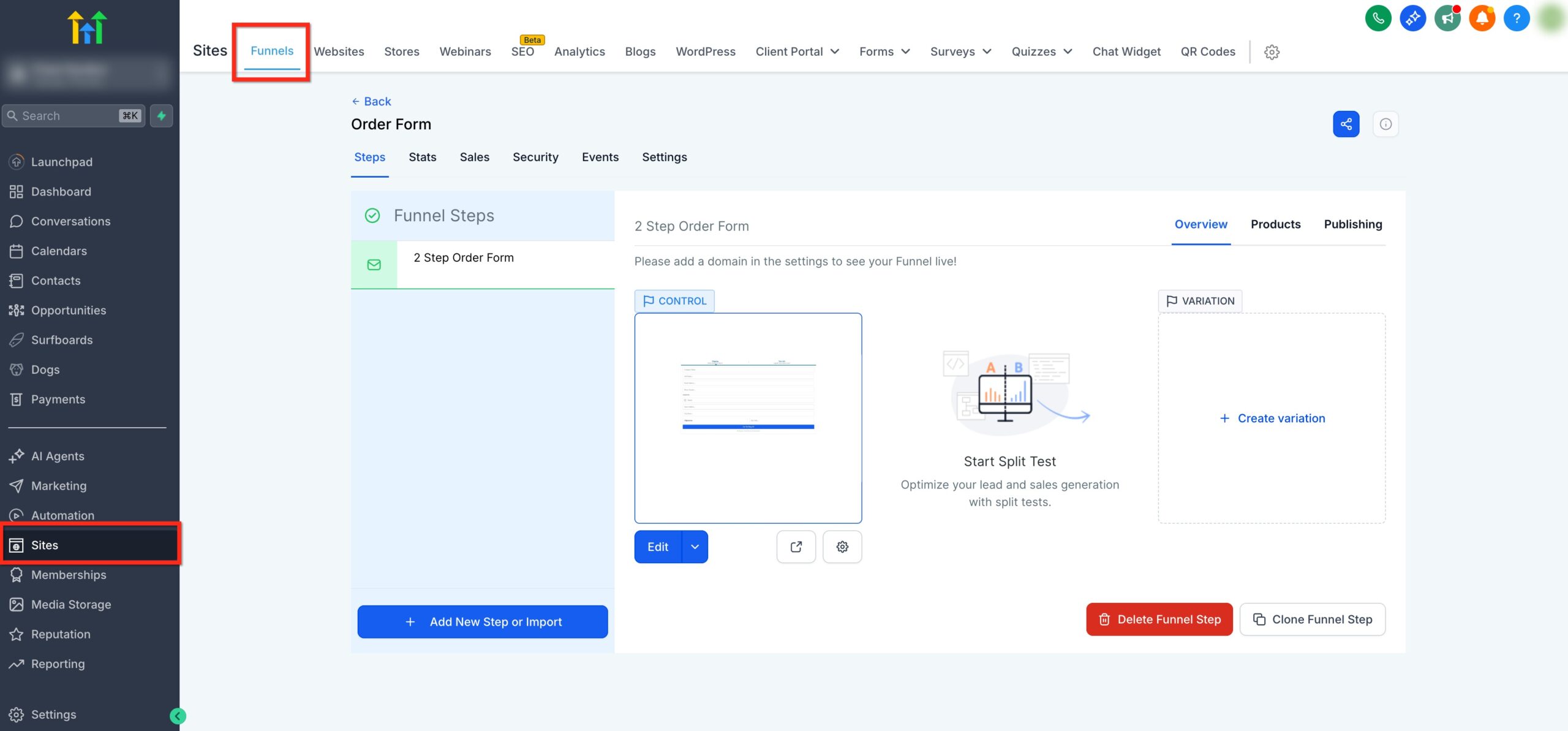
Open the funnel step that will host your order form
- Go to Sites → Funnels.
- Choose the funnel you want to sell from.
- Click into the specific funnel step (for example, "Checkout" or "Order"), then click Edit Page.
-
Add products to the step
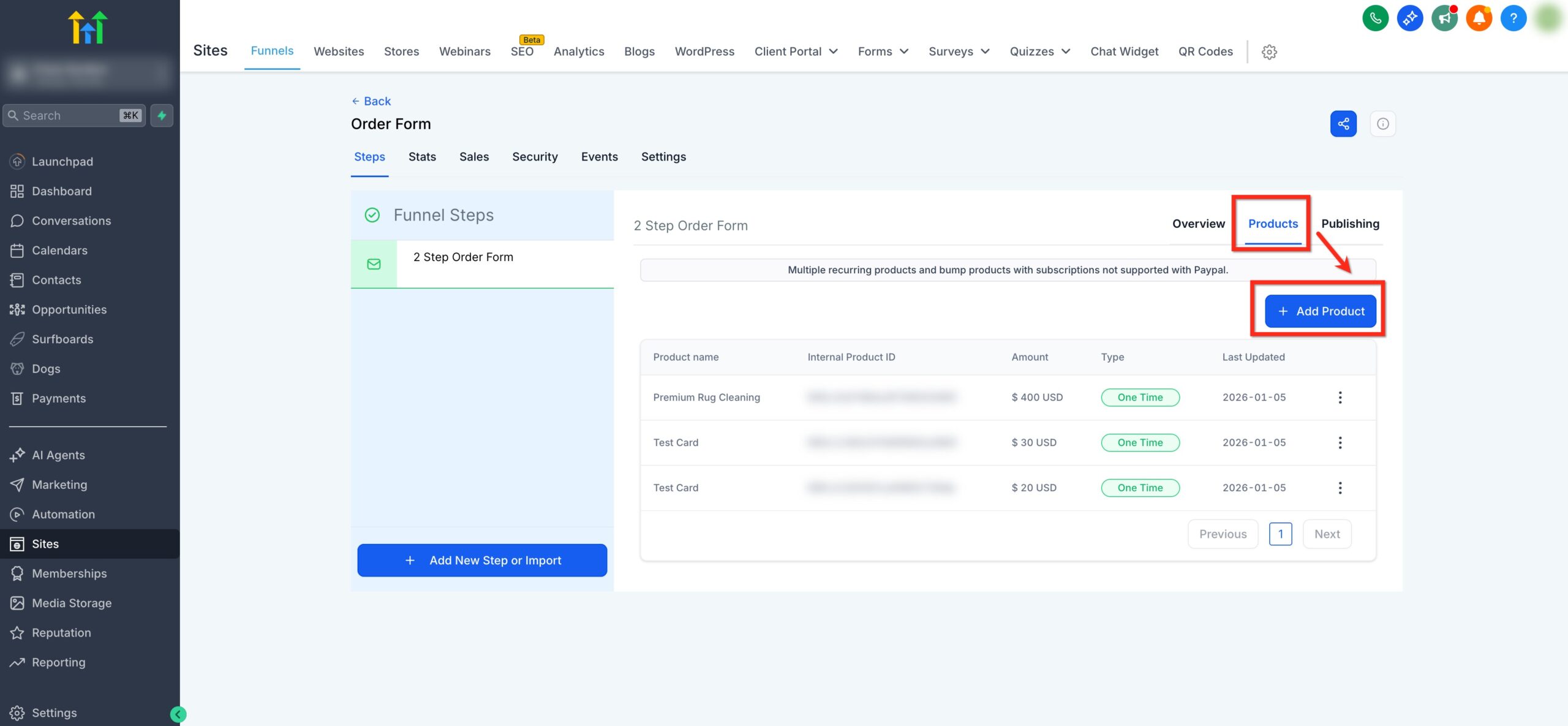
- In the page editor, open the Products tab in the right-hand sidebar.
- Click + Add Product.
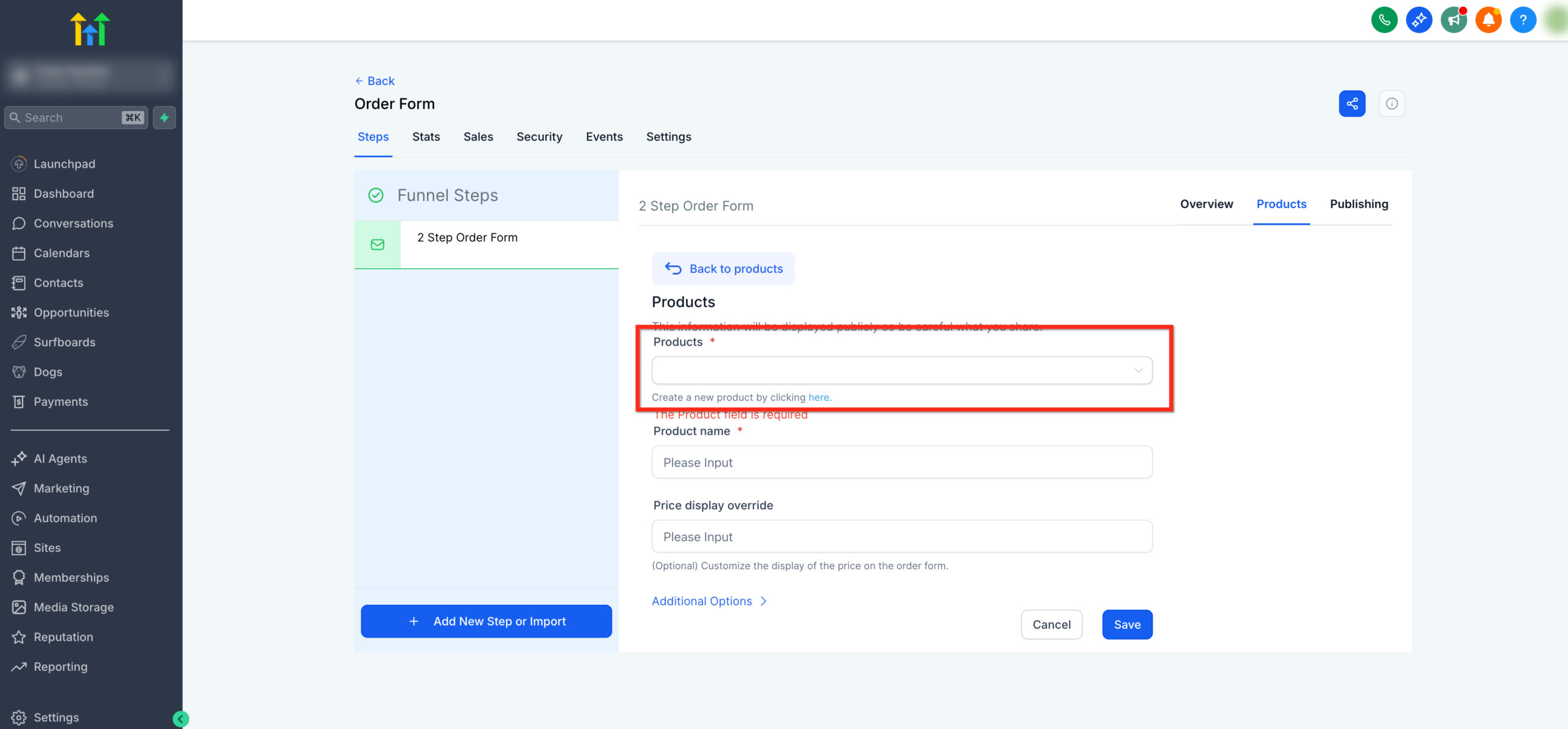
- Either pick an existing product or create a new one (name, description, and whether it’s one-time or recurring).
-
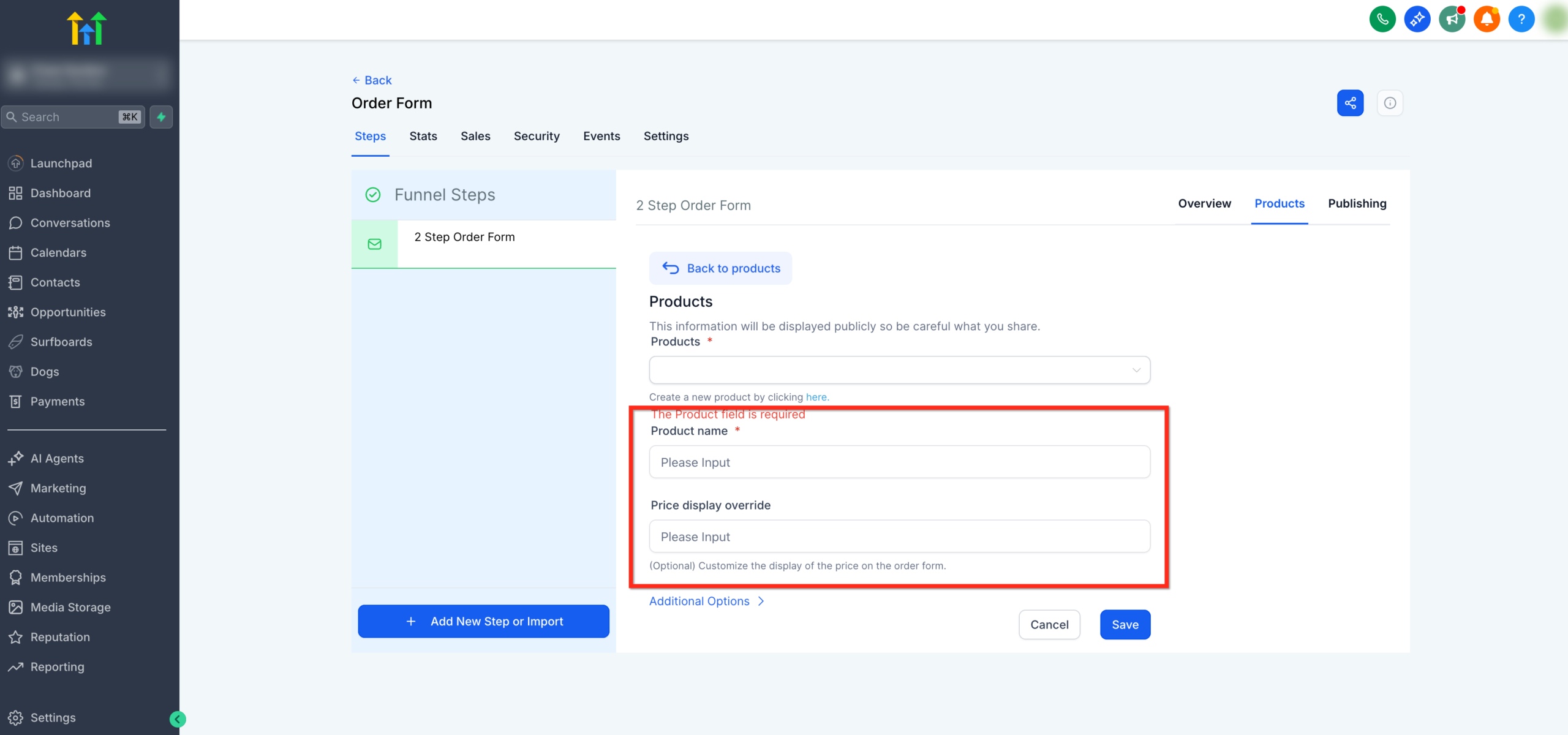
Attach at least one price
- Select an existing price or create a new price (amount, billing period, currency).
- Without a price attached, your product won’t appear on the order form.
-
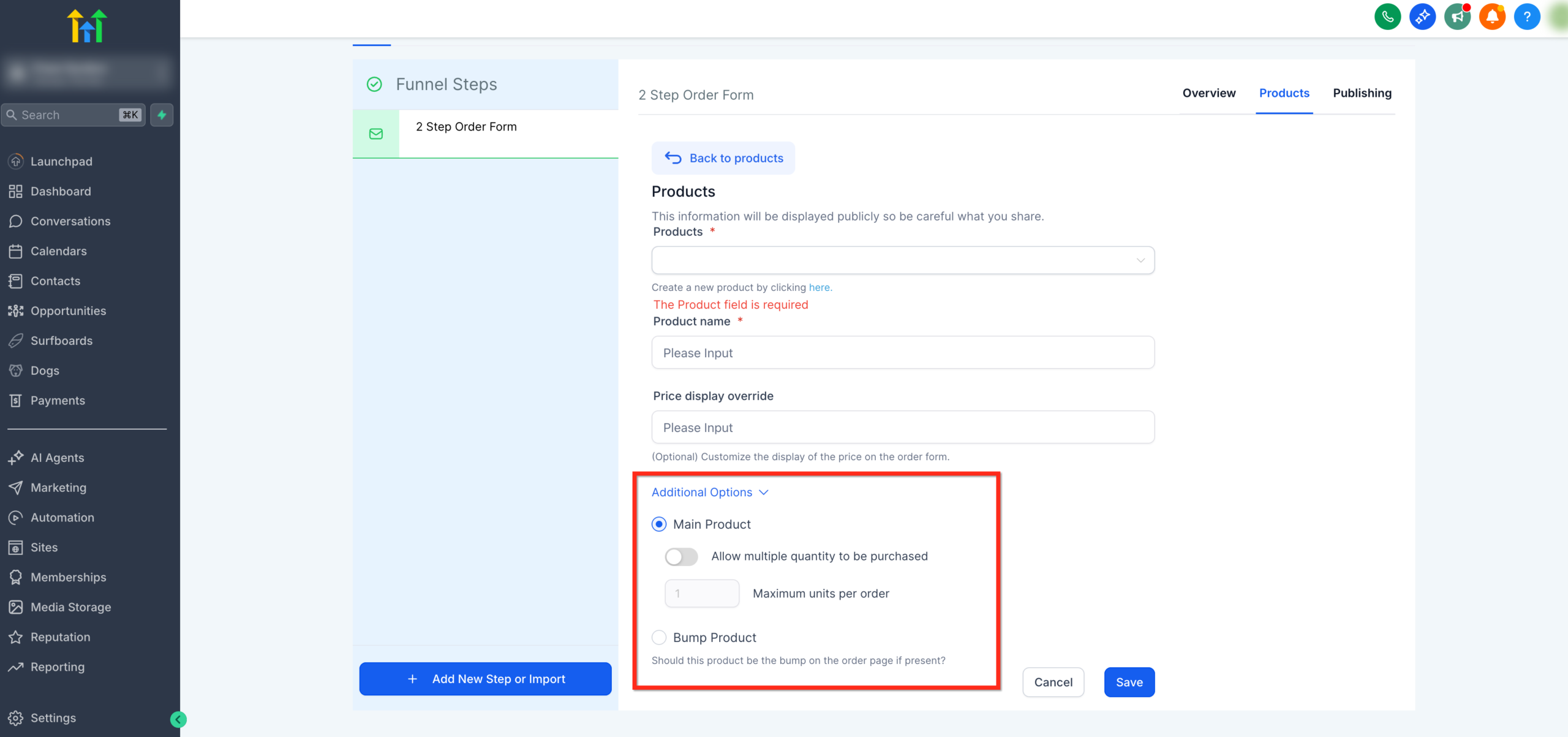
Fine-tune product options
- Decide whether to allow multiple quantity and set a max per order if needed.
- Mark your main product and optionally add bump products for add-ons.
-
Save your changes
- Confirm everything looks correct in the Products tab before moving on.
Best practice: If you sell multiple offers, keep your first two-step order form focused on a single, clear core product. You can always add order bumps or upsells once the basic flow is working.
Add the Two-Step Order Form to Your Funnel Page
Once your products are attached to the funnel step, you can drop in the form itself.
-
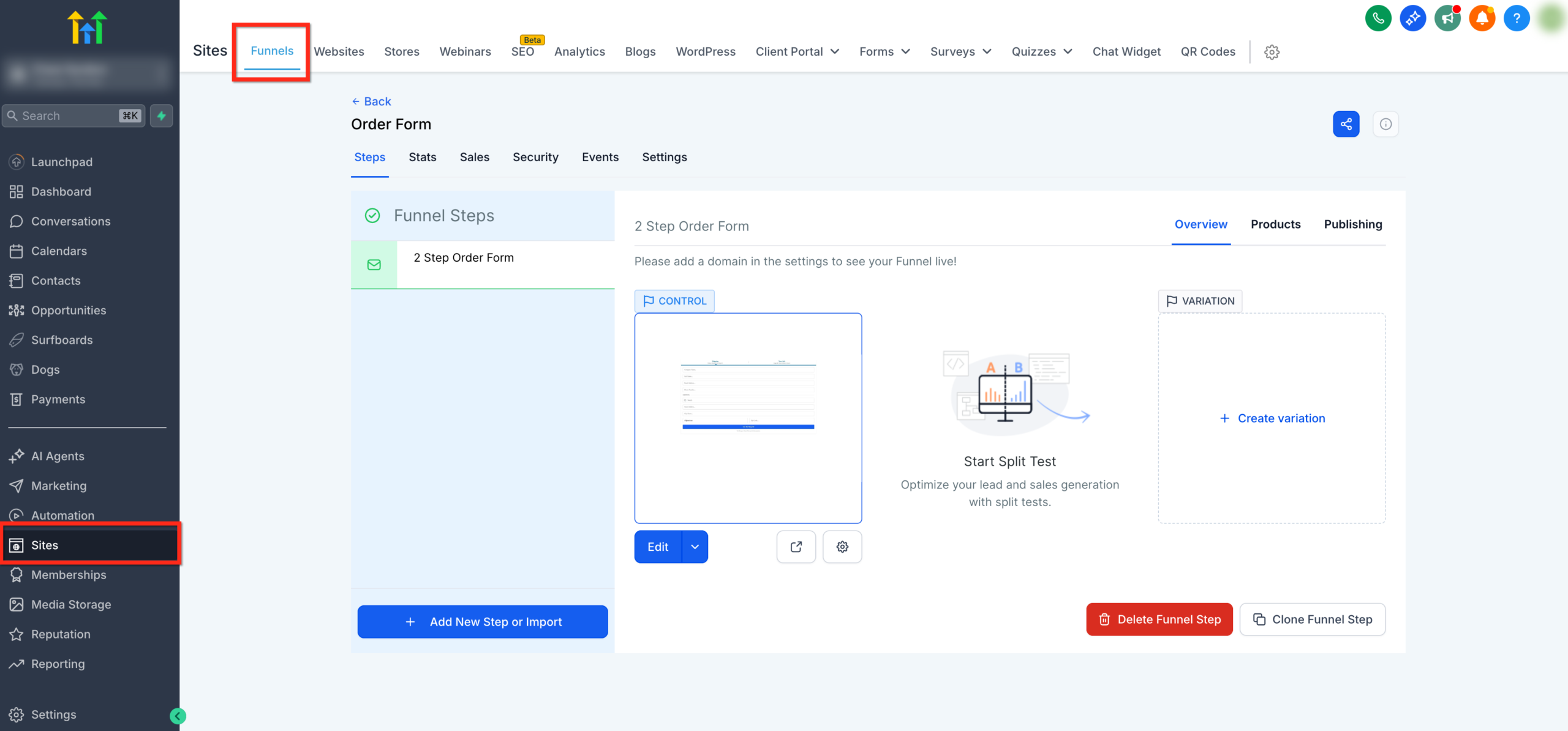
Open the funnel page editor
- Go to Sites → Funnels, pick your funnel, and click Edit Page on the relevant step.
- Go to Sites → Funnels, pick your funnel, and click Edit Page on the relevant step.
-
Add the Two-Step Order element
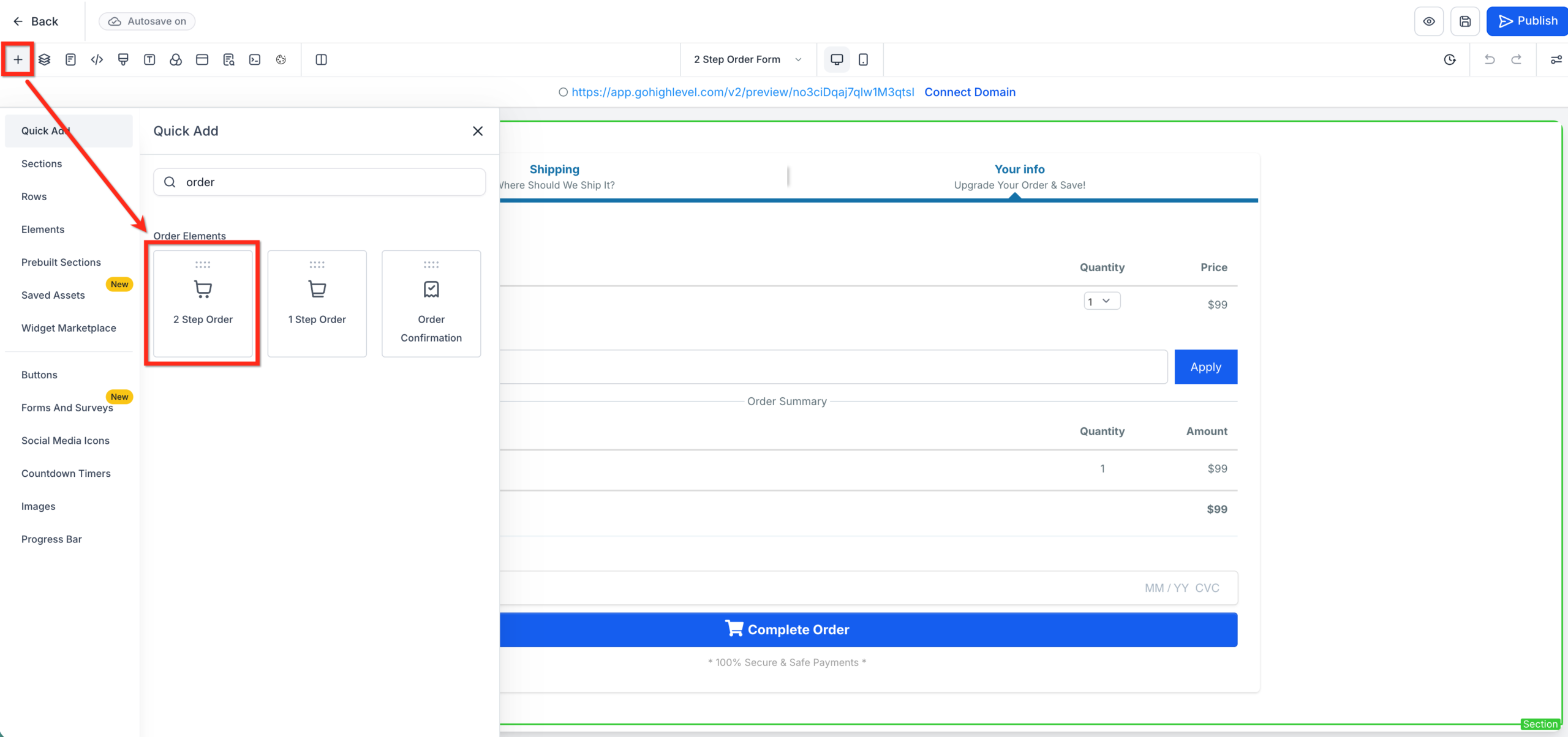
- In the editor, click Add Elements (+) in the top-left.
- Scroll to Order elements and select Two-Step Order.
- Drag and drop the element where you want the form to appear on the page.
-
Connect the form to your products
- With the Two-Step Order element selected, open the Products settings in the sidebar.
- Confirm that your main product (and any bumps) are selected.
At this point, the basic form is on the page, but you still need to configure each step.
Configure Step 1: Contact & Shipping Details
This task focuses on Step 1, because that’s where your two-step order form either earns the right to ask for payment — or loses the lead.
From inside the GoHighLevel page editor:
-
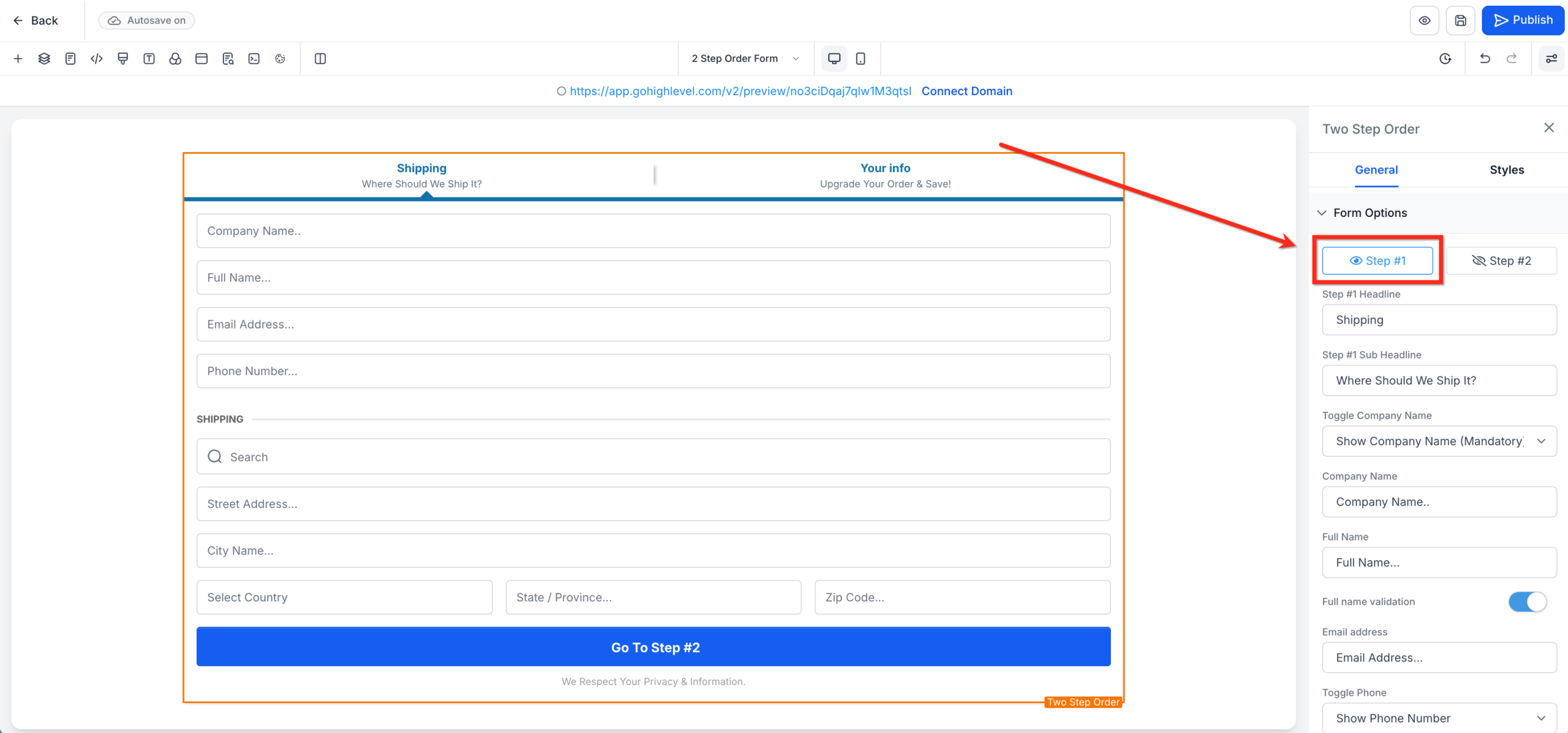
Open Form Options for Step 1
- Click on the Two-Step Order element.
- In the right-hand sidebar, open Form options.
- Select Step 1 from the dropdown.
-
Clarify the promise in your headline
- Update the Step 1 headline to clearly state what they’re getting (for example, "Secure Your Spot in the Automation Bootcamp" or "Start Your Free 14-Day Trial").
- Use the sub-headline to reduce anxiety (for example, "No long-term contracts. Cancel any time.").
-
Decide which fields you really need
You can toggle fields like company name, phone number, and shipping address on or off. For most digital offers:
- Required: Full name + email address.
- Optional / nice-to-have: Phone number (great for SMS follow-up, but only if you actually use it).
- Hidden: Shipping address if you’re selling purely digital access.
Ask only for the information you will actually use. Fewer required fields usually means more Step 1 completions.
-
Configure shipping when you’re sending physical products
- Turn on Shipping fields if you ship physical items.
- Make sure your copy clarifies shipping timelines and any regions you don’t serve.
-
Tune the Step 1 button copy
- Replace generic copy like "Next" with action-oriented text tied to the offer (for example, "Continue to Secure Checkout" or "Save My Seat").
- Keep it benefit-focused so moving to Step 2 feels like progress, not friction.
-
Match the form styling to your brand
- Adjust fonts, button colors, and borders in the styling panel so the form feels cohesive with the rest of the page.
- Make sure labels are legible on both desktop and mobile.
-
Connect Step 1 to your automations
- Use GoHighLevel workflows triggered by Order Form Submission or Contact Created to drop Step 1 completers into email/SMS follow-up.
- Build a special sequence for people who hit Step 1 but never purchase — reminders, FAQs, limited-time bonuses, or sales outreach.
Done well, Step 1 functions as a powerful lead capture and pre-qualification step, not just the first half of a payment form.
If you want a strategic partner to design these flows for you, Revset Labs can map your funnel, build the two-step order form, and wire up the automations inside GoHighLevel so you can focus on closing deals instead of chasing tech.
Configure Step 2: Payment & Order Summary (Quick Overview)
While this article is centered on Step 1, you still need a solid Step 2 experience to close the sale.
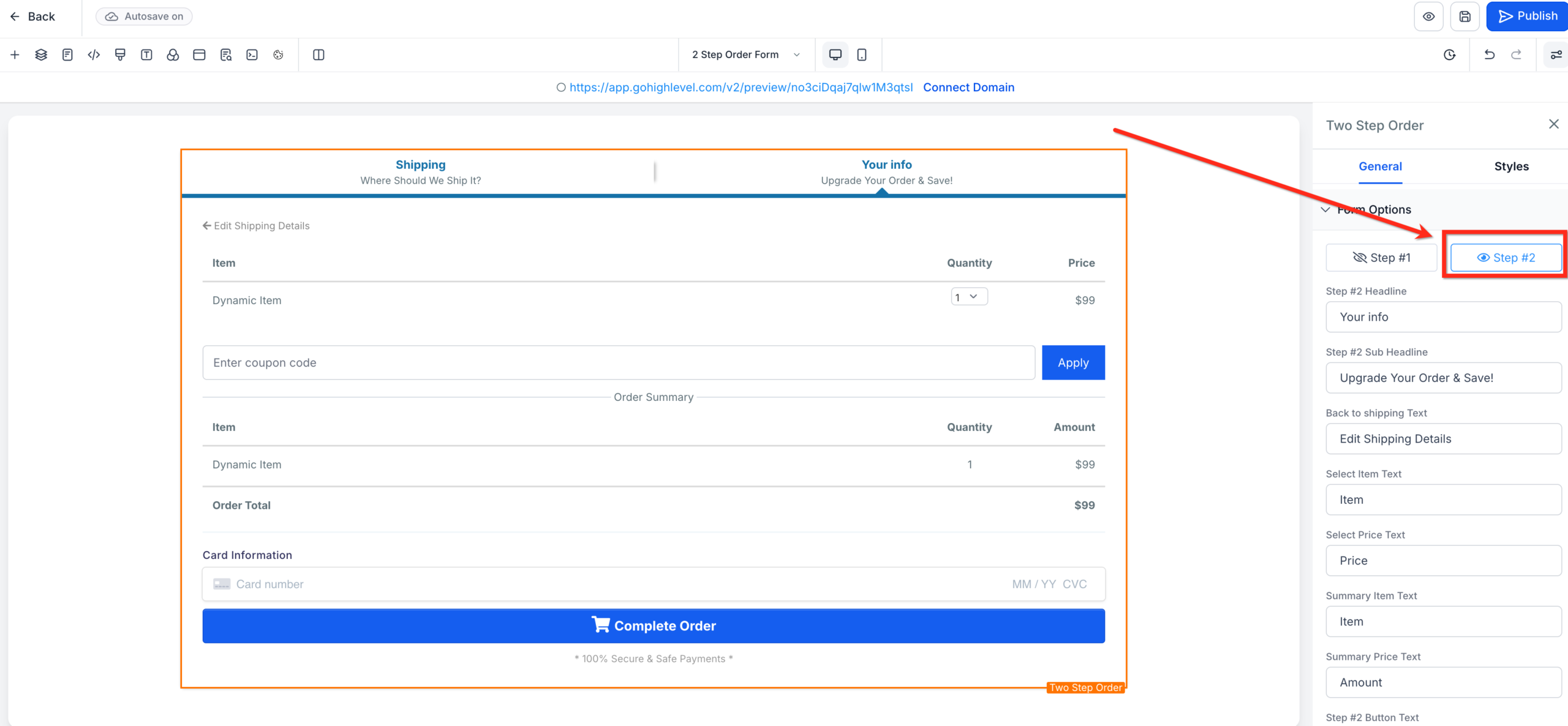
Inside the same Form options panel, switch to Step 2 and:
-
Tighten your payment section copy
- Make sure labels like "Card Number" and "Expiry Date" are clear and standard.
- Add a short reassurance near the card fields (for example, "Secure, encrypted payment"), without cluttering the UI.
-
Highlight what’s included
- Use the order summary to restate the offer name, key benefits, and any bonuses.
- If you use multiple products or plans, make sure each is clearly labeled.
-
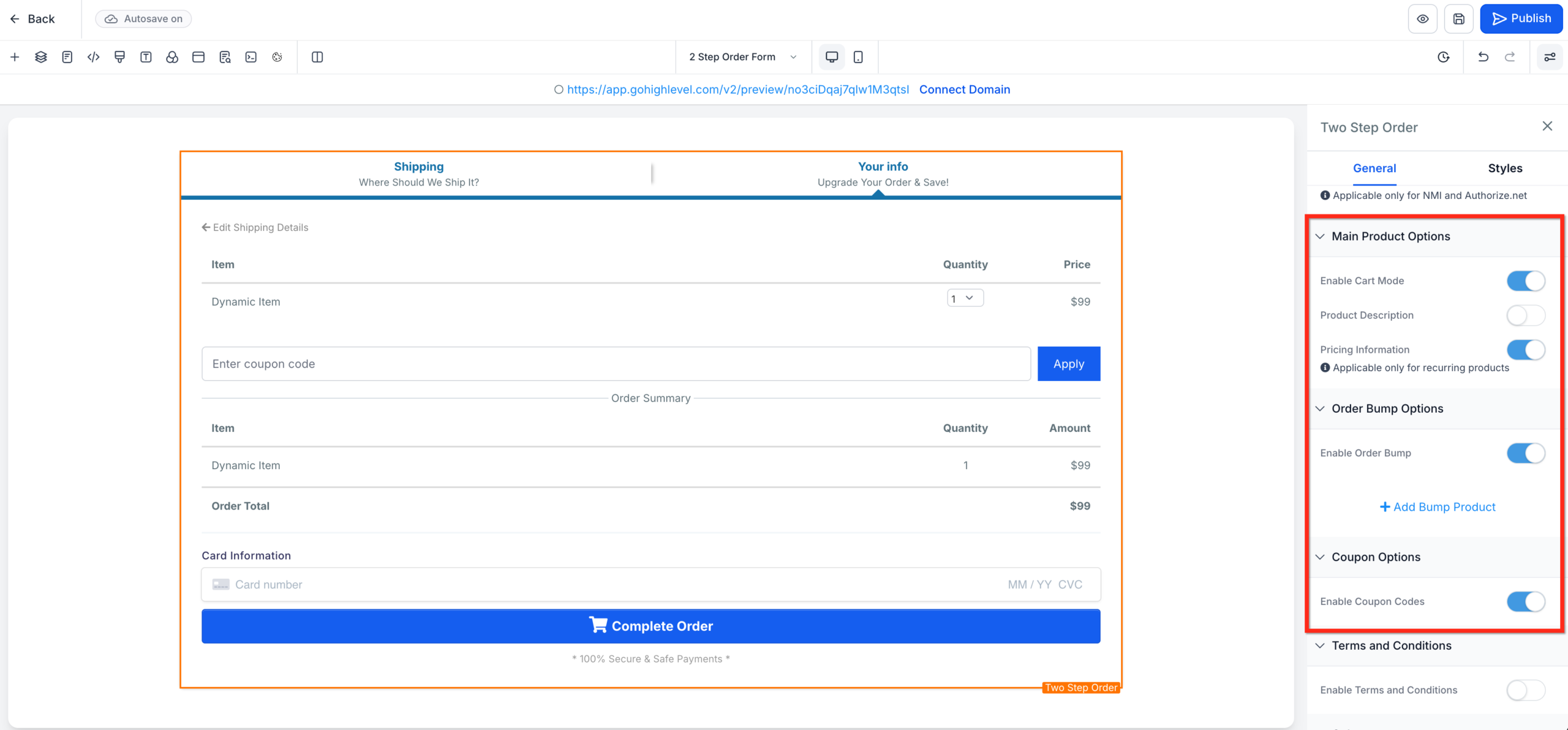
Use order bumps strategically
- Add a simple, complementary bump offer (for example, a VIP onboarding call, templates pack, or extended warranty).
- Keep the copy short and benefit-driven to avoid distraction.
-
Offer coupon codes when it makes sense
- Enable coupons for promotions you actually intend to run, not by default.
- Keep prices clean outside of promotions so prospects aren’t trained to wait for discounts.
-
Consider Cart Mode for multi-product flows
- If you want buyers to select multiple items or quantities, enable Cart Mode in the order form settings.
- Test this carefully; sometimes a simple single-offer checkout converts better than a mini store.
For a deeper dive into experimenting with pricing, bumps, and cart behavior, you can pair this guide with a dedicated pricing and offers strategy — something Revset Labs can help architect around your specific business model.
Test, Preview, and Publish Your Two-Step Order Form
Before you send real traffic, thoroughly test the experience end to end.
-
Preview the page on desktop and mobile
- Click Preview in the funnel editor.
- Walk through Step 1 and Step 2 like a prospect would.
- Check that copy, spacing, and buttons look clean on mobile.
-
Run a full test transaction
- Use a test card (if your payment processor supports it) or a low test price.
- Confirm that the order shows correctly in your payments dashboard.
-
Verify automations and downstream systems
- Make sure the contact appears in the right pipeline stage or list.
- Confirm that workflows, tags, and notifications fire exactly once.
- Check that access to your product (membership area, course, or service onboarding) is granted correctly.
-
Publish the step
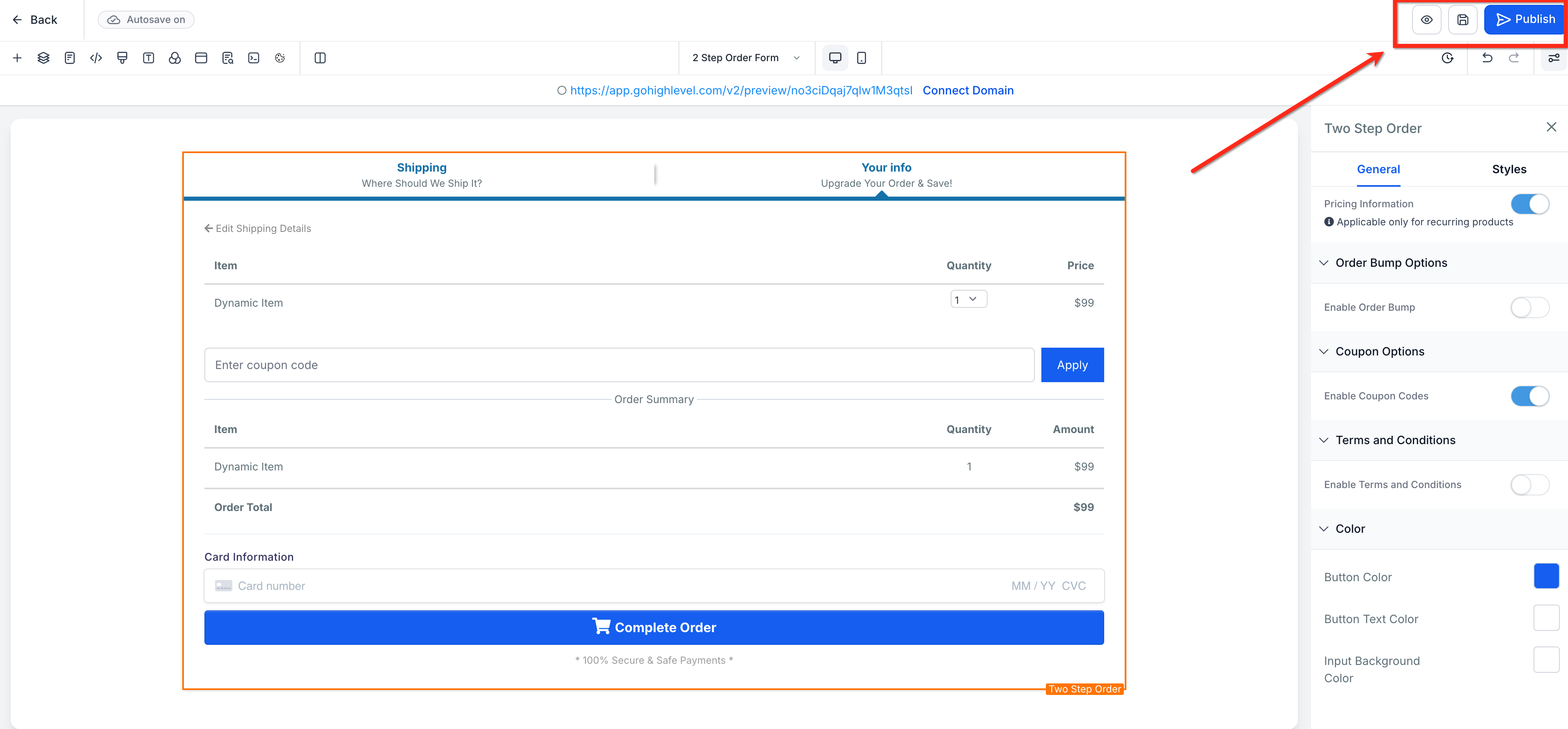
- Once you’re happy with the flow, click Publish on the funnel step so live traffic sees the updated version.
- Once you’re happy with the flow, click Publish on the funnel step so live traffic sees the updated version.
-
Monitor performance and optimize
- Watch how many people complete Step 1 vs. Step 2.
- Test tweaks to Step 1 headlines, button copy, and required fields.
- Experiment with order bumps and guarantees to see how they influence conversion and average order value.
If you want a conversion-focused team to manage this experimentation for you, Revset Labs can help you design tests, interpret the data, and roll out winning variants across your funnels.
To get started with GoHighLevel itself, you can try GoHighLevel via this free trial link and then plug in the form and automations from this guide.
Frequently Asked Questions About Two-Step Order Forms in GoHighLevel
Q: Why aren’t my products showing up in the Two-Step Order form?
A: Make sure you’ve added the products in the Products tab for the same funnel step and that each product has at least one price attached. Without products and prices, the order form has nothing to display.
Q: Can I let customers buy more than one quantity?
A: Yes. In the Products → Additional options area, enable Allow multiple quantity and set a maximum per order if you need to control inventory or limit bundle sizes.
Q: Does the Two-Step Order form work in older (V1) funnels?
A: Two-step order forms are designed for GoHighLevel’s newer funnel builder. If you’re still on V1, consider migrating the step to the V2 funnel builder to get access to the latest checkout features like Cart Mode and improved styling.
Q: Can I sell subscriptions as well as one-time products?
A: Yes. The order form will honor whatever pricing you attach to the product — one-time, recurring, or trial-based. Just make sure your pricing labels clearly communicate what buyers are signing up for.
Q: How do I add a processing or platform fee?
A: You can configure additional processing or platform fees in your payments settings so they’re automatically applied at checkout. Double-check how these show up on the order summary so there are no surprises for buyers.
Where to Go Next
A two-step order form is one of the strongest building blocks in a GoHighLevel funnel. Once you have Step 1 and Step 2 dialed in, you can:
- Add upsell and downsell steps after the initial purchase.
- Layer in email and SMS follow-up sequences for people who complete Step 1 but don’t buy.
- Build different funnels for front-end offers, tripwires, and core services.
On the Revset Labs side, we often pair this setup with:
- A "Getting Started: Launch a Funnel in GoHighLevel"-style walkthrough to help clients standardize their funnel structure.
- A "Create and Manage Contacts in GoHighLevel" guide to keep data clean as more leads hit Step 1.
- Automations that tag contacts based on which products they viewed, purchased, or abandoned.
If you want help implementing this across your account — from funnel design and copy to the automations behind the scenes — Revset Labs can partner with you to build a complete, ROI-focused system on top of GoHighLevel.