
What this guide covers
This guide gives you a practical overview of triggers in GoHighLevel—what they are, how they work behind the scenes, and how to use them to automate the busywork in your CRM.

You’ll see where triggers fit in the automation stack alongside Workflows, learn the core trigger types, and walk through a simple example: a new lead fills out a form, gets an instant follow‑up, and your team is notified automatically.
Along the way, you’ll also see where a tool like GoHighLevel plus a partner like Revset Labs can help you go from “we should automate this” to a reliable revenue‑producing system.
Quick win: If you’re not inside GoHighLevel yet, you can start a free trial here: Start your GoHighLevel free trial.
What are triggers in GoHighLevel?
In GoHighLevel, triggers are rules that watch for events and then fire actions.
They behave a lot like "Zaps" in Zapier:
- An event happens (for example, a form is submitted, a tag is added, an appointment is booked).
- Optional filters or conditions narrow down which contacts qualify.
- One or more actions run automatically (send an SMS, update a pipeline stage, assign a user, and more).
Instead of your team manually moving people around, triggers connect different parts of your GoHighLevel account so the platform can do the repetitive work for you.
Why triggers matter for your pipeline
Used well, triggers help you:
- Respond to new leads in seconds instead of hours.
- Keep your sales pipeline up to date without manual data entry.
- Make sure no one slips through the cracks after booking a call or filling out a form.
- Standardize how opportunities move from stage to stage across your team.
That’s why high‑performing GoHighLevel accounts nearly always rely on a clear, well‑organized set of triggers (or the newer Workflows, which we’ll talk about later).
How triggers fit into the GoHighLevel automation stack
Historically, GoHighLevel used Triggers + Campaigns as the main automation system. Today, the platform’s recommended approach is to build most new automation in Workflows, which combine triggers, conditions, and actions in a single visual builder.
Still, you’ll see traditional triggers used in three common situations:
- Legacy setups that were built before Workflows existed.
- Simple rules where a single event should cause one or two actions (for example, “if tag X is added, send Y and update Z”).
- Location‑specific logic where you want lightweight automation without rebuilding a full Workflow.
Think of it this way:
- Triggers are the event listeners that notice something changed.
- Workflows are the orchestration layer that decides what to do next across many steps.
If you’re starting from scratch today, you’ll probably lean heavily on Workflows—but understanding classic triggers makes it much easier to design clean, predictable automation.
Core trigger types you’ll use most often
GoHighLevel supports many trigger types. Most small businesses can cover 80–90% of their use cases with a handful of categories:
1. Contact‑based triggers
Fires when something changes on a contact record, such as:
- Form submitted
- Survey submitted
- Tag added or removed
- Contact added to a specific list or campaign
- Custom field updated (for example,
Onboarding StatusorPlan Type)
Use these when: you want to send automated follow‑ups, apply segmentation tags, or kick off onboarding sequences based on what a contact just did.
2. Appointment triggers
Fires when someone interacts with your calendars:
- Appointment booked
- Appointment rescheduled
- Appointment cancelled
Use these when: you want confirmation emails/SMS, reminders, post‑call follow‑ups, or no‑show recovery campaigns to run without anyone on your team touching the calendar.
3. Opportunity (pipeline) triggers
Fires when deals move through your sales pipeline:
- Opportunity created
- Stage changed (for example,
New Lead→Qualified→Won) - Pipeline changed
- Status changed (Open, Won, Lost, Abandoned)
Use these when: you want pipeline moves to automatically create tasks, notify reps, or enroll contacts in the right nurture sequence.
4. Communication triggers
Fires based on engagement with your messages:
- Email opened
- Link clicked
- SMS replied
Use these when: you want to escalate hot leads to your sales team, branch messaging based on engagement, or re‑engage people who have gone quiet.
5. Payment and subscription triggers
In some setups, you’ll also use triggers tied to billing events, such as:
- Invoice paid
- Subscription started
- Subscription cancelled or payment failed
Use these when: you want onboarding for new customers, dunning and win‑back flows for failed payments, or internal alerts when high‑value subscriptions change.
Tip: Before you create a trigger, write out the sentence in plain English: "When [event] happens, and [conditions are true], then [actions] should run." If you can’t write that sentence clearly, your trigger is probably too vague.
Example: a simple “new lead from form” trigger
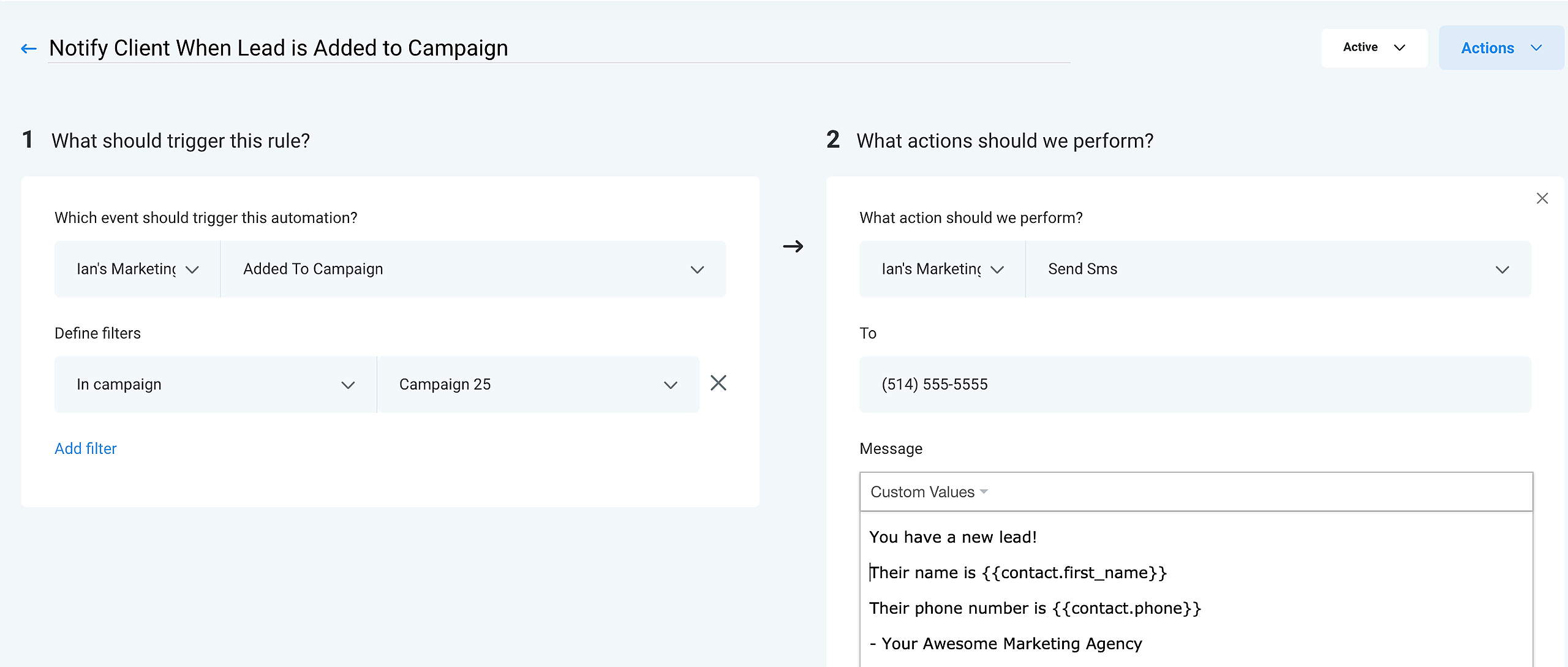
Here’s a practical example that maps directly to the supporting flowchart image in this article.
Goal: When a new lead fills out a form on your site, you want to:
- Confirm they’re actually a lead you care about.
- Send them a fast SMS reply.
- Create an opportunity in your pipeline.
- Notify your team so someone can follow up personally.
In GoHighLevel trigger terms, that looks like:
- Event: Form submitted (for your main lead form).
- Condition: Tag equals
Lead(so test submissions or internal forms don’t fire the automation). - Actions:
- Send an SMS to the contact.
- Create an opportunity in the right pipeline and stage.
- Send an internal notification to the assigned user or team.
This single trigger replaces three or four manual steps your team would otherwise have to take for every new lead.
Want to test this in a sandbox account first? Spin up a new GoHighLevel account here: Try GoHighLevel free and build your first trigger.
How to create and activate a trigger in GoHighLevel
Let’s walk through the standard process for creating a basic trigger. Exact labels can change slightly as GoHighLevel evolves, but the flow stays the same.
1. Go to the Triggers area
- Log into your GoHighLevel account.
- Navigate to the Automation or Marketing section (depending on your account layout).
- Click Triggers.
This is where you’ll see a list of any existing triggers and their status (Draft or Active).
2. Create a new basic rule
- Click + New Basic Rule.
- Give your trigger a working name—you can refine it later. A good pattern is:
Intent – Event – Outcome- For example:
Lead Intake – Form Submitted – Create Opportunity & Notify Rep.
Clear naming is one of the easiest ways to avoid confusion as your automation library grows.
3. Choose your trigger event
- In the Choose a trigger dropdown, select the event that should start this automation (form submitted, tag added, appointment booked, etc.).
- Add any filters the event supports, such as:
- Specific form or calendar.
- Specific pipeline or stage.
- Required tag or custom field value.
Filters are how you keep your automations targeted instead of firing on every possible event.
4. Add one or more actions
- Click + Add action.
- In the Choose an action dropdown, select what should happen next. Common options include:
- Send SMS or Send Email to your contact.
- Add / remove tag for segmentation.
- Create / update opportunity in a pipeline.
- Assign to user or create task for internal follow‑up.
- Wait for a period of time before the next step.
You can chain multiple actions together so a single trigger event fans out into a full mini‑workflow.
5. Name and activate the trigger
- Refine the Trigger name so anyone on your team can understand it at a glance.
- Use the Draft / Active toggle or dropdown to switch the trigger from Draft to Active.
- Run a quick test (for example, submit a test form or move a test opportunity) to confirm the trigger fires exactly once and all actions behave as expected.
Once everything checks out, your trigger is live.
Best practices for clean, reliable triggers
A few guidelines go a long way toward keeping your GoHighLevel automation fast and predictable.
Use specific events and filters
Vague triggers cause headaches. Always ask:
- Exactly which contacts or opportunities should qualify?
- What needs to be true before this runs?
Then encode that logic as filters: specific forms, specific tags, specific pipelines or stages.
Avoid infinite loops and conflicting rules
Watch out for automations where one trigger updates something that causes another trigger to fire, which then updates the first condition again.
To avoid loops:
- Use dedicated tags or fields for automation control (for example,
Entered Onboarding Workflow = Yes/No). - Add “has tag / doesn’t have tag” filters so people only enter a given automation once.
- Keep similar automations close together in your documentation so you can spot conflicts.
Standardize naming and documentation
Your future self (and your team) will thank you if you:
- Use consistent naming for triggers, pipelines, stages, and tags.
- Keep a simple reference doc that lists what each trigger does and when it fires.
- Group triggers by funnel or use case (lead intake, appointment follow‑up, onboarding, churn‑saves, etc.).
Test with real‑world scenarios
Before you roll out a new trigger to your whole database:
- Create a few test contacts that represent real scenarios (new lead, existing customer, no‑show, etc.).
- Run those test contacts through your forms, calendars, and funnels.
- Verify that each trigger fires once, at the right time, and creates exactly the actions you expect.
A few extra minutes of testing saves hours of firefighting later.
Triggers vs Workflows: when to use which
With GoHighLevel’s newer Workflow builder, you can often replace complex trigger setups with a single, visual automation.
A simple rule of thumb:
- Use Workflows for anything that has multiple steps, branches, or timing logic (like full onboarding sequences or long‑term nurture).
- Use individual triggers for very focused, single‑purpose rules (for example, “When a deal is marked Won, notify the onboarding team and move it to the Onboarding pipeline”).
If you’re sitting on a pile of older triggers and campaigns, this is a great time to consolidate them into Workflows. You’ll gain:
- Better visibility into how contacts move through your funnel.
- Easier debugging when something doesn’t behave as expected.
- Cleaner reporting and optimization.
This is exactly the kind of migration Revset Labs handles for clients: we map your existing triggers and campaigns, design a cleaner Workflow‑first architecture, and implement it inside GoHighLevel so your automations are easier to manage and scale.
Turn your triggers into a real growth engine
A well‑designed set of GoHighLevel triggers can:
- Capture and route new leads automatically.
- Keep your pipeline and team in sync.
- Drive more booked calls and closed deals without adding headcount.
To move from theory to implementation, you have two strong next steps:
-
Get hands‑on with GoHighLevel.
- Use this affiliate link to start a free trial and build your first trigger‑driven workflows: Start your GoHighLevel trial with Revset Labs.
-
Bring in Revset Labs as your automation partner.
- Revset Labs is an AI automation and marketing agency that specializes in building GoHighLevel systems that turn leads into revenue.
- We help you design your funnels, configure triggers and Workflows, and plug AI into the process so your follow‑up always feels timely and relevant.
When you combine smart triggers with a platform like GoHighLevel and a partner focused on ROI, you turn automation from a “nice to have” into a core growth lever for your business.