 GoHighLevel Forms, Surveys & Calendars (Setup Guide)”>

Sticky Contact in GoHighLevel can quietly fix one of the biggest conversion killers in your funnels: forcing returning visitors to retype the same details over and over.
Used well, it pre-fills forms, surveys, and calendar bookings with known contact data so people can move through your funnels faster and with less friction. Used poorly, it can overwrite the wrong contact record on shared devices.
This guide walks through exactly how Sticky Contact works in GoHighLevel, where to turn it on, when to turn it off, and how to use it to drive more booked calls and revenue—not just cleaner data.
If you’re not yet using GoHighLevel, you can start a free trial here and follow along as you configure your account.
Revset Labs is an AI automation and marketing agency that helps GoHighLevel users turn features like Sticky Contact into full, revenue-producing systems. As you read, note where you’d rather have an expert team wire things up for you.
What Sticky Contact in GoHighLevel Actually Does
Sticky Contact is GoHighLevel’s built-in way to "remember" a visitor on a specific domain using cookies.
When a contact submits a form, survey, or booking powered by GoHighLevel on your domain:
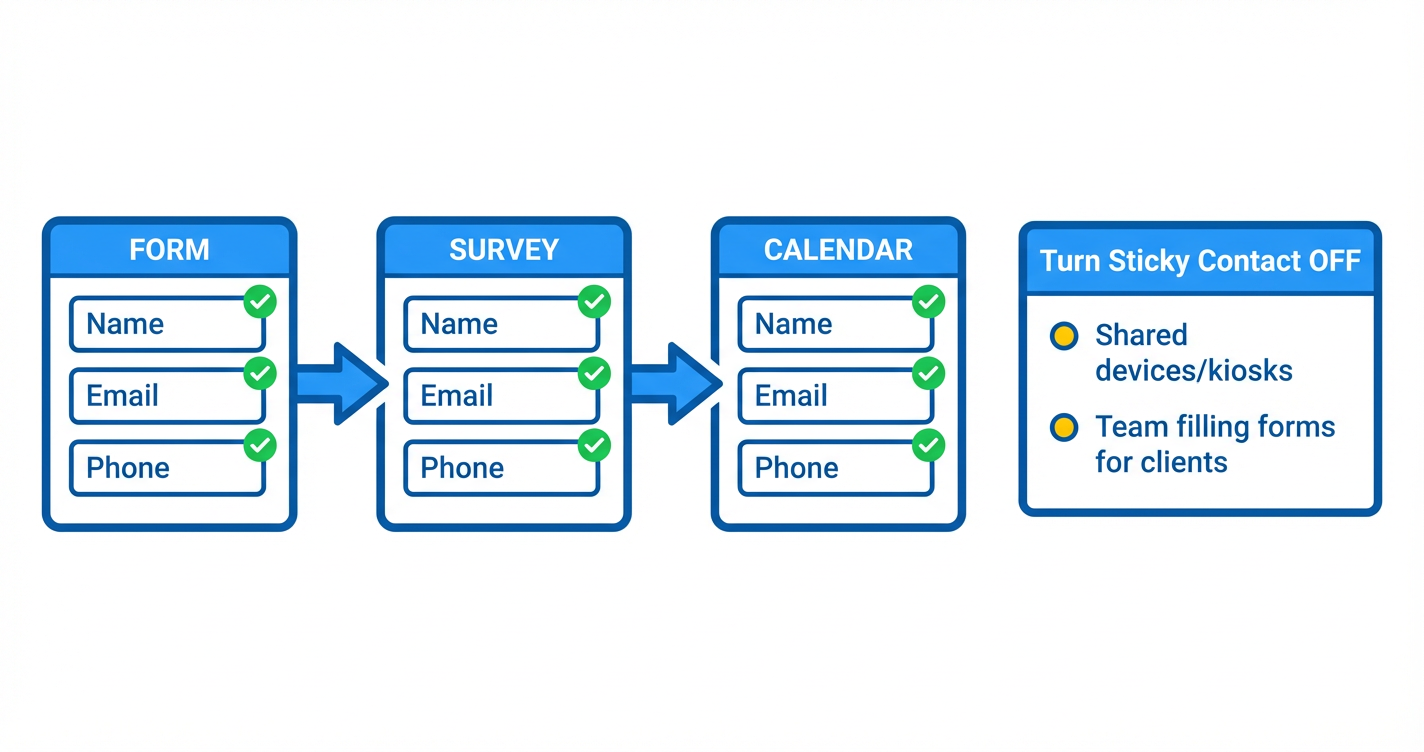
- GoHighLevel stores their key fields (typically name, email, phone) in a browser cookie.
- When that same person comes back to another GoHighLevel form, survey, or calendar on the same domain, those fields are automatically pre-filled.
- This works even if they land on a completely different funnel step, survey, or calendar, as long as Sticky Contact is enabled for that asset.
It’s similar to browser autofill, but controlled from inside GoHighLevel so your funnels behave consistently.
Fields commonly pre-filled
Depending on your form configuration, Sticky Contact can pre-populate fields like:
- First name and last name
- Email address
- Phone number
- Other standard contact fields mapped to the contact record
You still control which fields are visible, required, or optional in the builder—Sticky Contact simply saves visitors from having to type what you already know.
Why Sticky Contact Matters for Funnel Performance
Every extra field and keystroke increases drop-off. Sticky Contact reduces that friction for returning visitors and existing leads.
Key benefits:
- Faster form completion – Returning leads can confirm their details instead of starting from scratch.
- Higher conversion rates – Less typing means more people actually finish your forms, surveys, and bookings.
- Consistent contact data – The same contact record is reused as people move through multiple touchpoints.
- Better multi-step funnels – Sticky Contact shines when you send traffic through multiple opt-ins, surveys, and calendar bookings.
If you’re setting up GoHighLevel from scratch, building your funnel with Sticky Contact in mind gives you a smoother experience end-to-end.
Want to build all of this on a solid CRM foundation? Get started with GoHighLevel and you’ll have Sticky Contact available on day one.
How to Enable Sticky Contact in GoHighLevel Forms
Use Sticky Contact on forms when you expect people to opt in or submit information more than once—for example, lead magnets, waitlists, or client update forms.
Step-by-step: turn on Sticky Contact for forms
- In GoHighLevel, go to Sites → Forms.
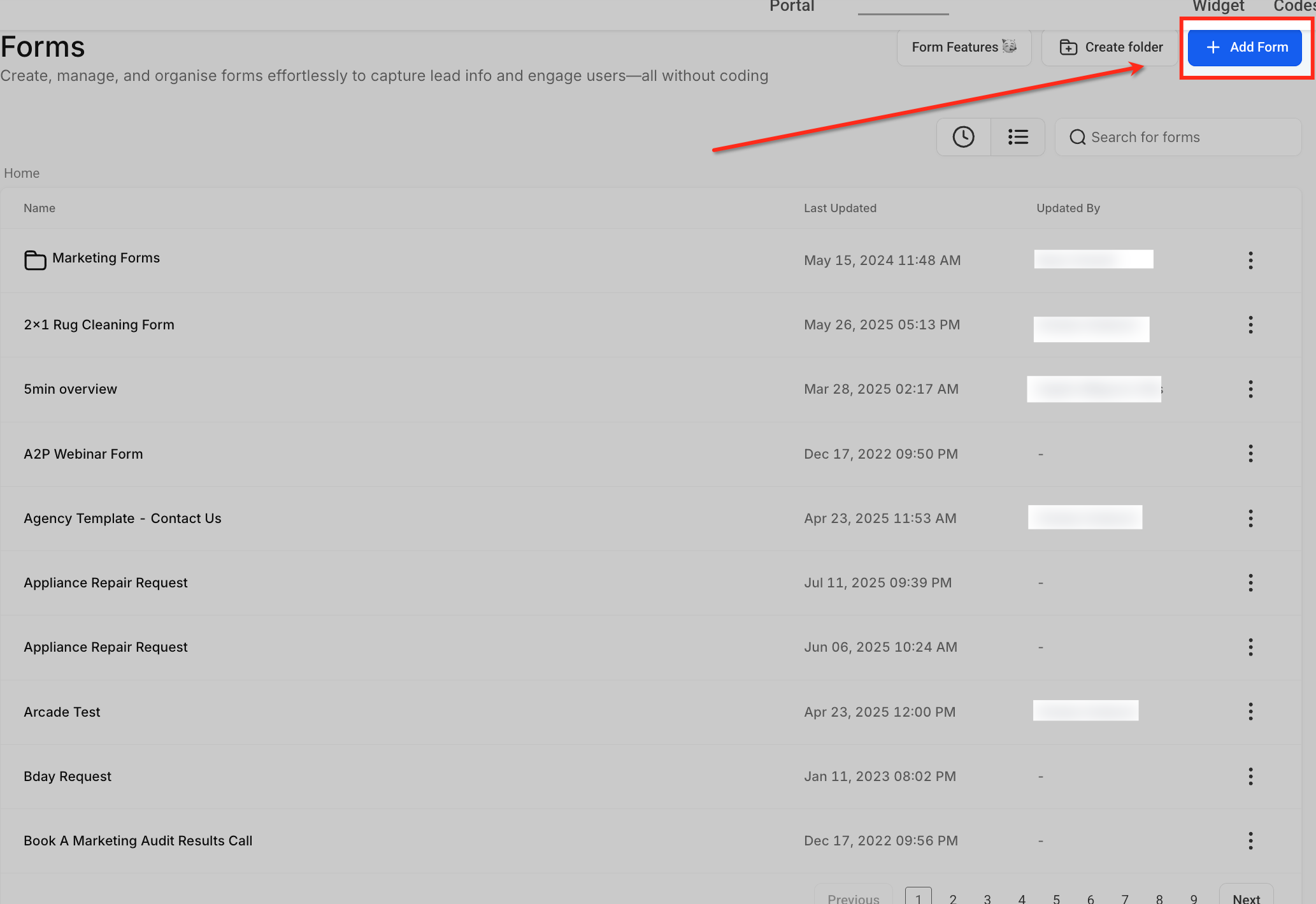
- Open an existing form or click Create New Form.
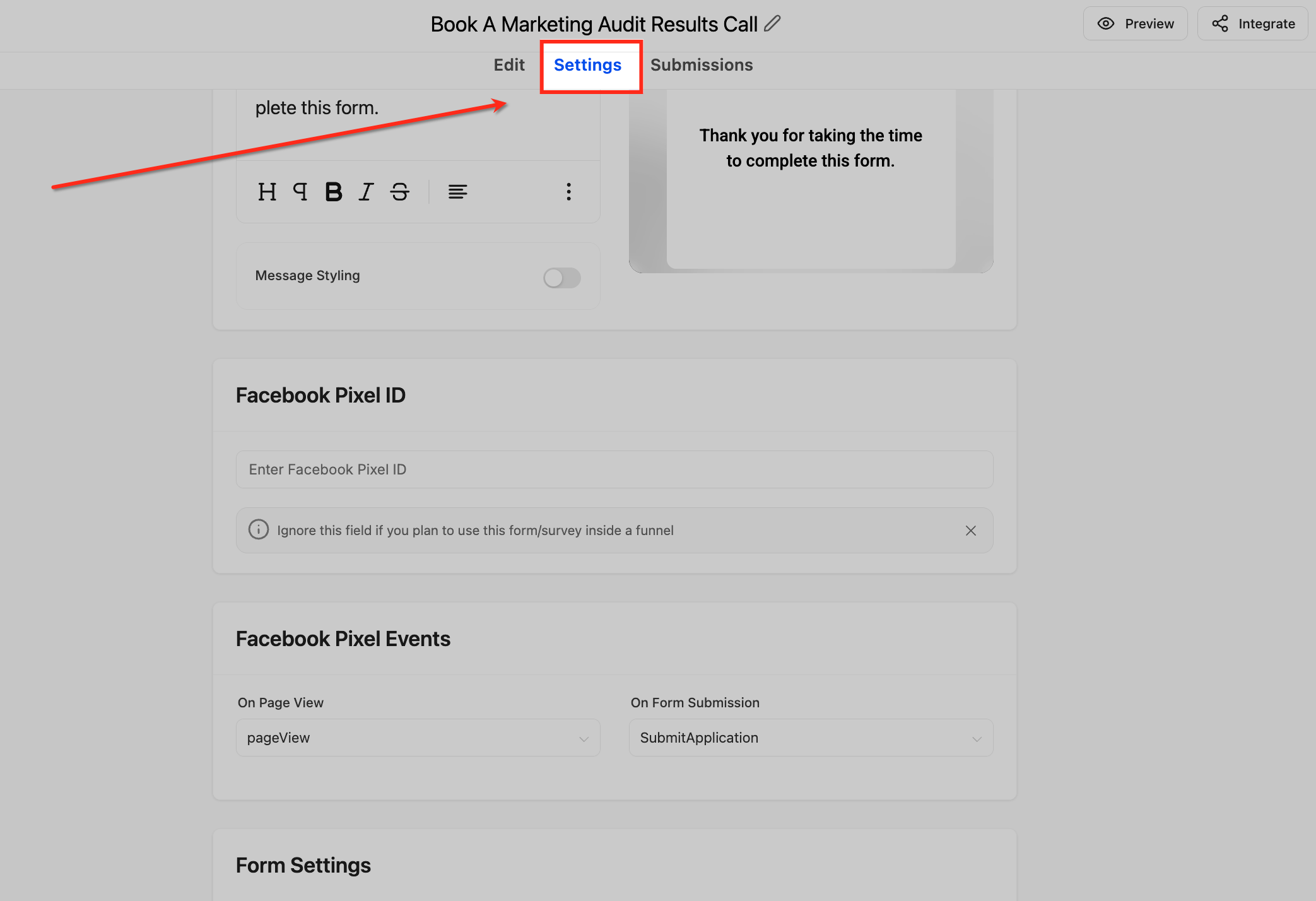
- In the Form Builder, go to the Form Settings tab.
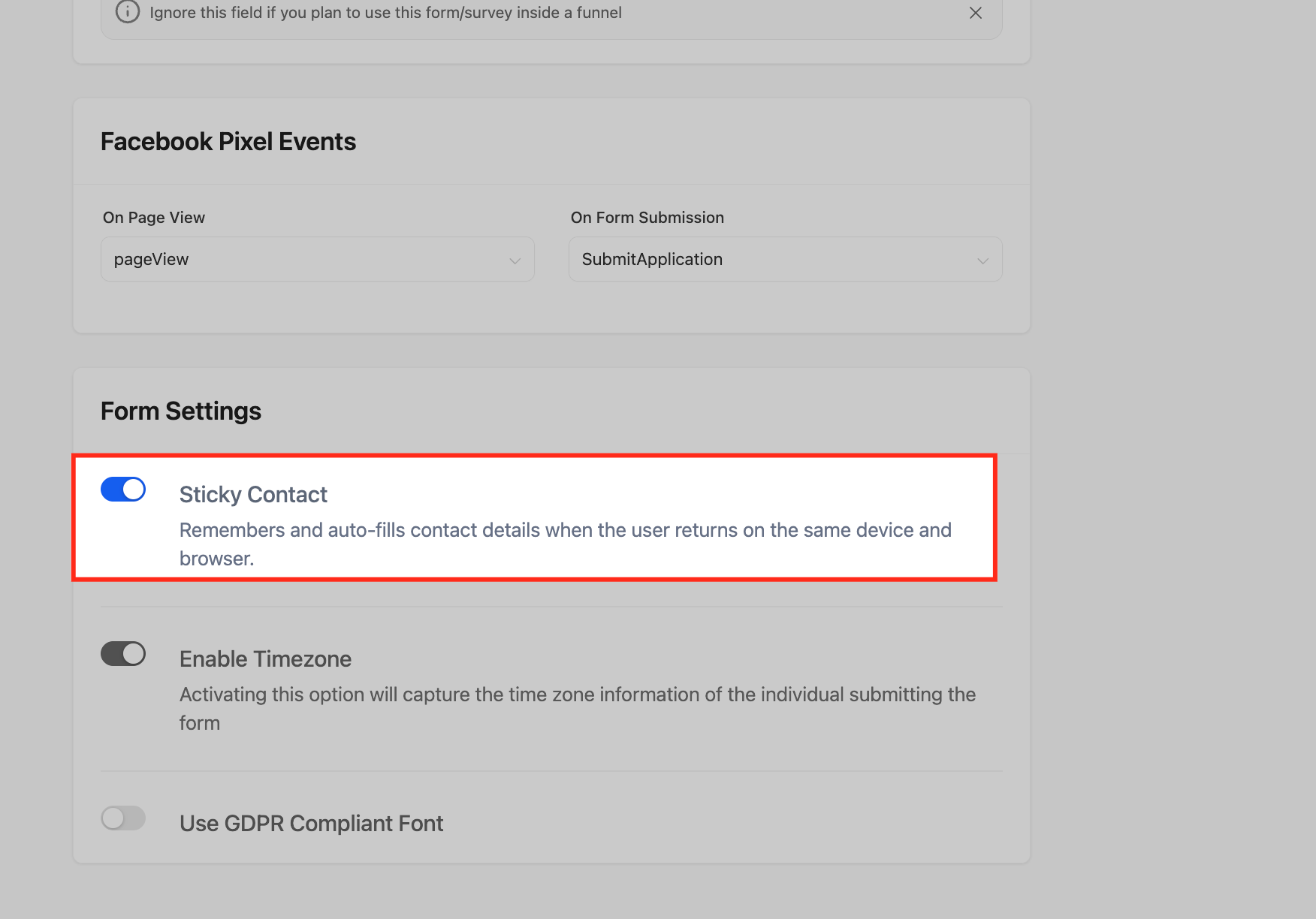
- Find the Sticky Contact toggle.
- Turn Sticky Contact On.
- Click Save to apply the change.
From now on, when a known contact submits that form on your domain, their details will be stored in a cookie and reused on other Sticky Contact-enabled assets.
Best practices for forms
- Keep the top of the form light. Let Sticky Contact pre-fill the basics and reserve extra questions for later steps.
- Align fields with your CRM. Make sure name, email and phone map cleanly to your GoHighLevel contact record.
- Use clear microcopy. A small note like "We’ll pre-fill your details next time" can reassure visitors.
If you’re new to GoHighLevel and want a done-for-you form + funnel build that fully leverages Sticky Contact, Revset Labs can design and implement it for you alongside your email, SMS, and pipeline automations.
Enabling Sticky Contact in GoHighLevel Surveys
Surveys are powerful for qualification, onboarding, and feedback. Sticky Contact helps your best leads move through them faster.
Step-by-step: turn on Sticky Contact for surveys
- Go to Sites → Surveys in GoHighLevel.
- Open the survey you want to use or create a new one.
- In the Survey Builder, open Survey Settings.
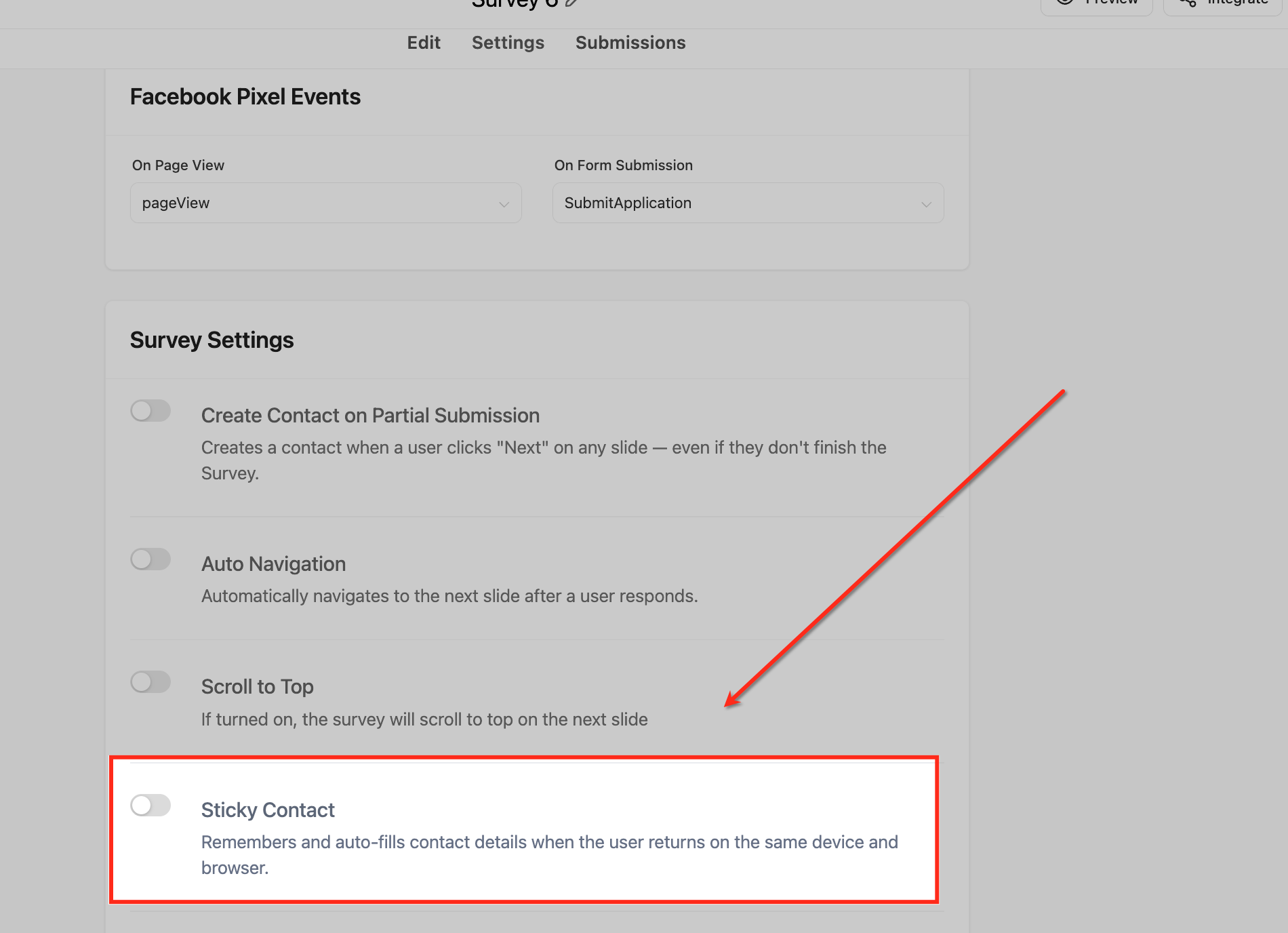
- Locate the Sticky Contact toggle.
- Turn Sticky Contact On and Save.
Now, when an existing contact starts a survey on your domain:
- Their known details (name, email, phone, etc.) will be pre-filled.
- You can focus your survey questions on qualification, preferences, and intent instead of collecting basic contact info again.
Survey use cases that pair well with Sticky Contact
- Client onboarding questionnaires – Skip redundant data entry and get straight to goals, timelines, and preferences.
- NPS and satisfaction surveys – Returning clients can respond in seconds without re-identifying themselves.
- Pre-call discovery surveys – Prospects who already opted in elsewhere can complete deeper questions before a strategy call.
If you’re still evaluating platforms, GoHighLevel gives you surveys, forms, calendars, pipelines, and automations in one stack. Start your GoHighLevel free trial and you’ll be able to model the survey examples above in a few clicks.
Using Sticky Contact with Calendars and Booking Flows
Calendars are where revenue becomes real—booked calls, demos, and appointments. Sticky Contact helps you reduce friction right before someone commits.
Step-by-step: enable Sticky Contact on calendars
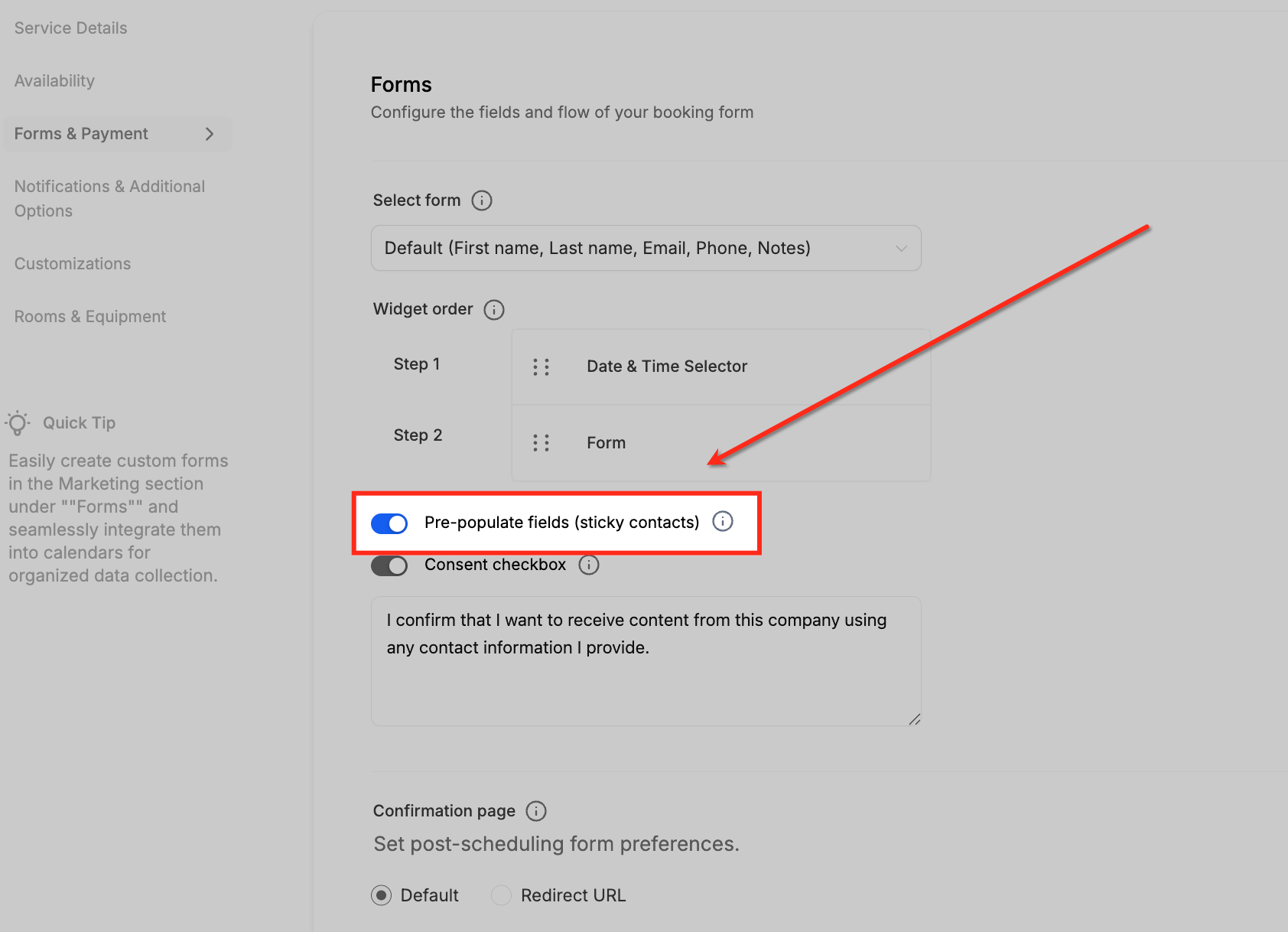
- Go to Calendars → Calendar Settings in GoHighLevel.
- Select the calendar you want to edit.
- Scroll to the Forms & Payments section.
- If the calendar uses the default booking form, you’ll see a Sticky Contact toggle here.
- Turn Sticky Contact On and Save.
When a known visitor hits your booking page:
- Their name, email, and phone will appear automatically.
- They can confirm the details, pick a time, and finish in seconds.
Important note about custom forms on calendars
If you attach a custom form to your calendar instead of the default booking form:
- The Sticky Contact toggle may not appear at the calendar level.
- Instead, enable Sticky Contact directly on the custom form in Sites → Forms.
- The calendar will respect the Sticky Contact behavior from that form.
This is a common point of confusion—if you don’t see Sticky Contact in calendar settings, check which form is attached first.
When You Should Turn Sticky Contact Off
Sticky Contact is powerful, but there are situations where it can do more harm than good by updating the wrong contact record.
Turn Sticky Contact off when:
- Multiple people share the same device, such as:
- In-office kiosks
- Front-desk tablets
- Event check-in stations
- Your team fills out forms on behalf of clients from their own browsers.
In these cases, Sticky Contact might:
- Pre-fill the last person’s details into the next person’s form.
- Overwrite an existing contact record in GoHighLevel with someone else’s data.
Safer alternatives:
- Disable Sticky Contact for that specific form, survey, or calendar.
- Use browser incognito/private mode when staff submit forms for clients.
- Update details directly inside the Contact record in GoHighLevel instead of using public forms.
Revset Labs often recommends enabling Sticky Contact on marketing-facing funnels while keeping it off for internal workflows and shared-device experiences.
Implementation Checklist for Sticky Contact
Use this quick checklist as you roll Sticky Contact out across your account:
- Identify all public-facing forms, surveys, and calendars on your main domain.
- Turn Sticky Contact On for:
- Lead capture forms
- Qualification surveys
- Sales or discovery call calendars
- Turn Sticky Contact Off for:
- Kiosks, front-desk, and shared devices
- Internal staff-only forms
- Test as a returning visitor:
- Submit a form as a test contact
- Visit a survey and calendar on the same domain
- Confirm that name, email, and phone are pre-filled correctly
- Review how Sticky Contact interacts with your automations (tags, workflows, pipelines) so existing leads don’t get duplicated.
If you’d like a second set of eyes on this, Revset Labs can audit your funnels, fix data hygiene issues, and design automations that take full advantage of Sticky Contact.
Turning Sticky Contact into Revenue, Not Just Convenience
Sticky Contact is more than a UX tweak—it’s a way to shorten the path from interest to booked call or purchase:
- Contacts opt in once and glide through future forms.
- Surveys feel faster, so more people complete them.
- Booking a call feels like a one-click confirmation instead of a full application.
Combine Sticky Contact with:
- Automated nurture sequences that trigger after each form or survey.
- Pipeline stages that move contacts forward when they book appointments.
- Follow-up SMS and email when someone starts but doesn’t finish a step.
GoHighLevel gives you all of these pieces under one roof. Activate your free GoHighLevel trial and you’ll be able to replicate the playbook above without duct-taping tools together.
Revset Labs can partner with you to:
- Design the end-to-end funnel strategy.
- Implement and test your Sticky Contact settings across forms, surveys, and calendars.
- Build AI-assisted follow-up and routing workflows that turn more of those completions into revenue.
If you’re serious about making GoHighLevel a core part of your growth engine, treating Sticky Contact as a default—not an afterthought—is a simple win.
FAQs About Sticky Contact in GoHighLevel
What is Sticky Contact in GoHighLevel?
Sticky Contact is a GoHighLevel feature that uses cookies to remember a visitor’s details on your domain so forms, surveys, and calendars can pre-fill fields like name, email, and phone the next time they visit.
Does Sticky Contact work across different subdomains?
No. Sticky Contact data is domain-specific. It cannot pre-fill forms across different subdomains.
What happens if someone clears their cookies?
If cookies are deleted, Sticky Contact will no longer retain previously entered data, and fields will not be pre-filled.
Is Sticky Contact GDPR-friendly and privacy-safe?
Yes, but it’s essential to inform users about cookie usage and provide opt-out options to comply with data protection laws.
When should I avoid using Sticky Contact?
Avoid Sticky Contact on shared devices, kiosks, or whenever your team is filling out forms for customers. In those situations, it’s safer to disable Sticky Contact and update the contact record directly inside GoHighLevel.
Where to Find and Enable Sticky Contact
Sticky Contact can be enabled across multiple areas in HighLevel, ensuring a consistent and streamlined user experience. Here’s how to find and enable it in each applicable section of the app.
Sticky Contact in Forms
Steps to Enable Sticky Contact in Forms:
Navigate to Sites > Forms, then open the Form Builder.
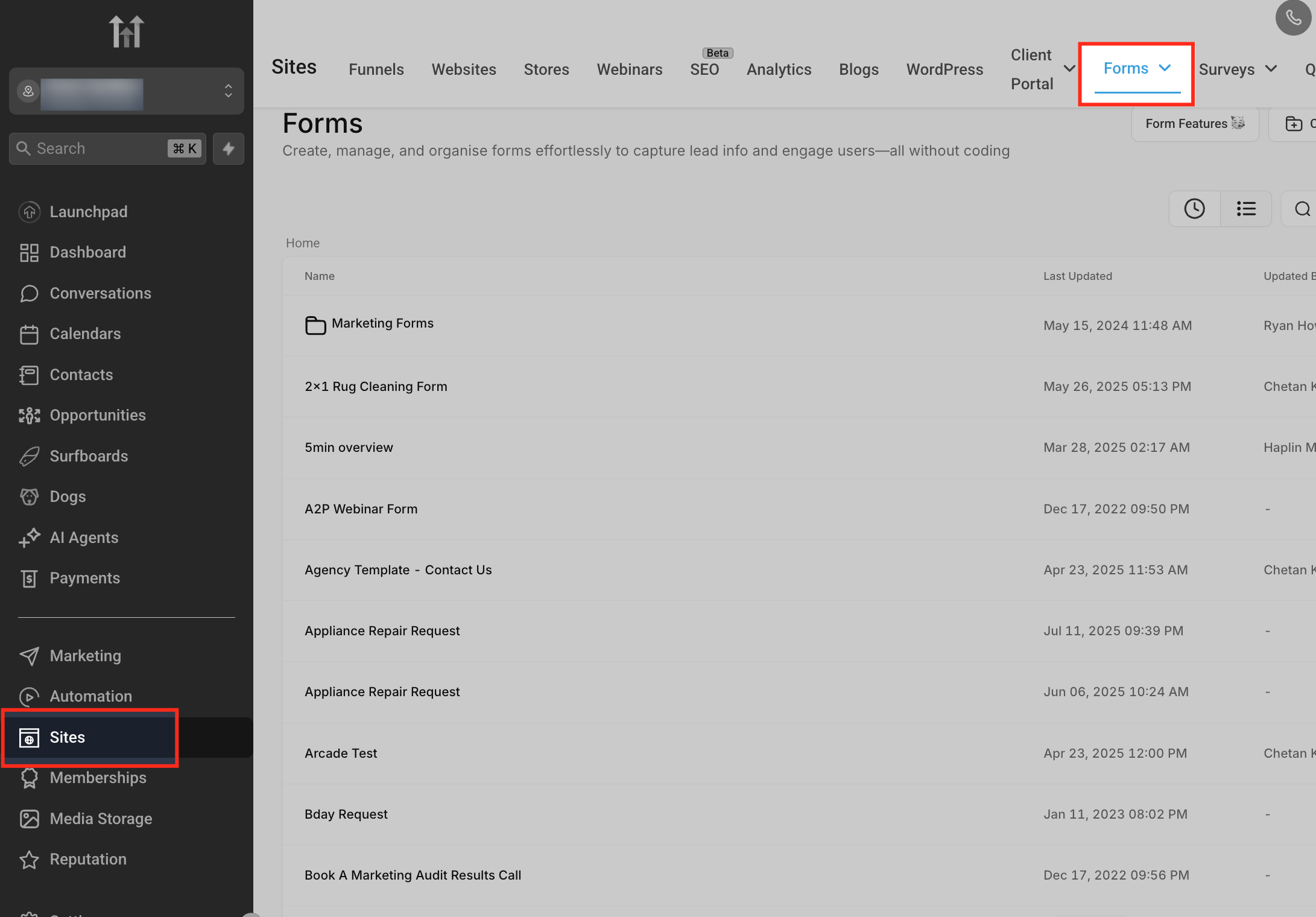
Select an existing form or create a new one.
Click on the Form Settings tab.
Toggle the Sticky Contact switch to “On”. Click Save to apply your changes.
Sticky Contact in Surveys
Sticky Contact can also be enabled in Surveys, allowing user data collected in forms to auto-populate survey fields—especially useful in funnel follow-ups.
Steps to Enable Sticky Contact in Surveys:
Go to Sites > Surveys, then launch the Survey Builder.
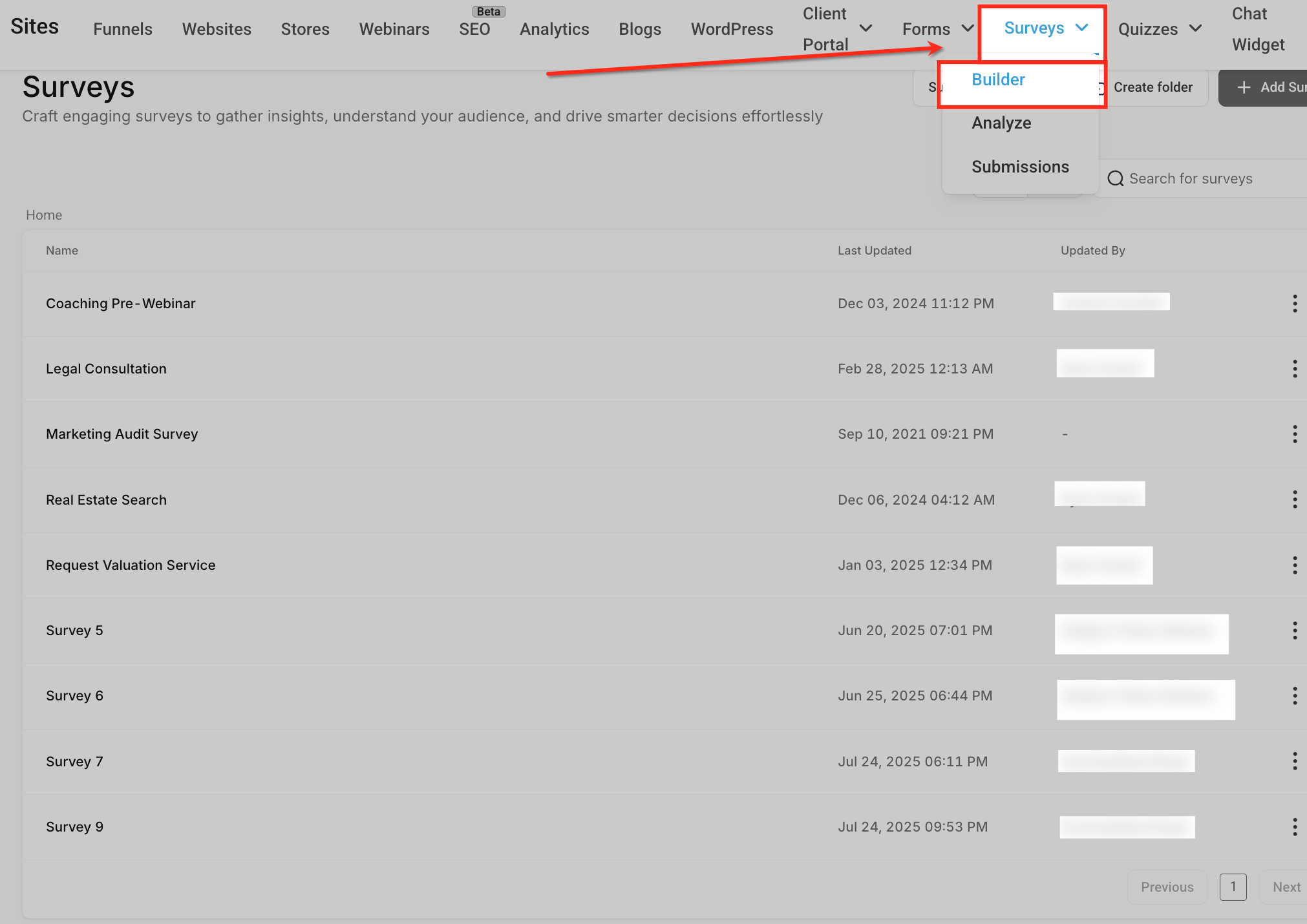
Open or create a survey.
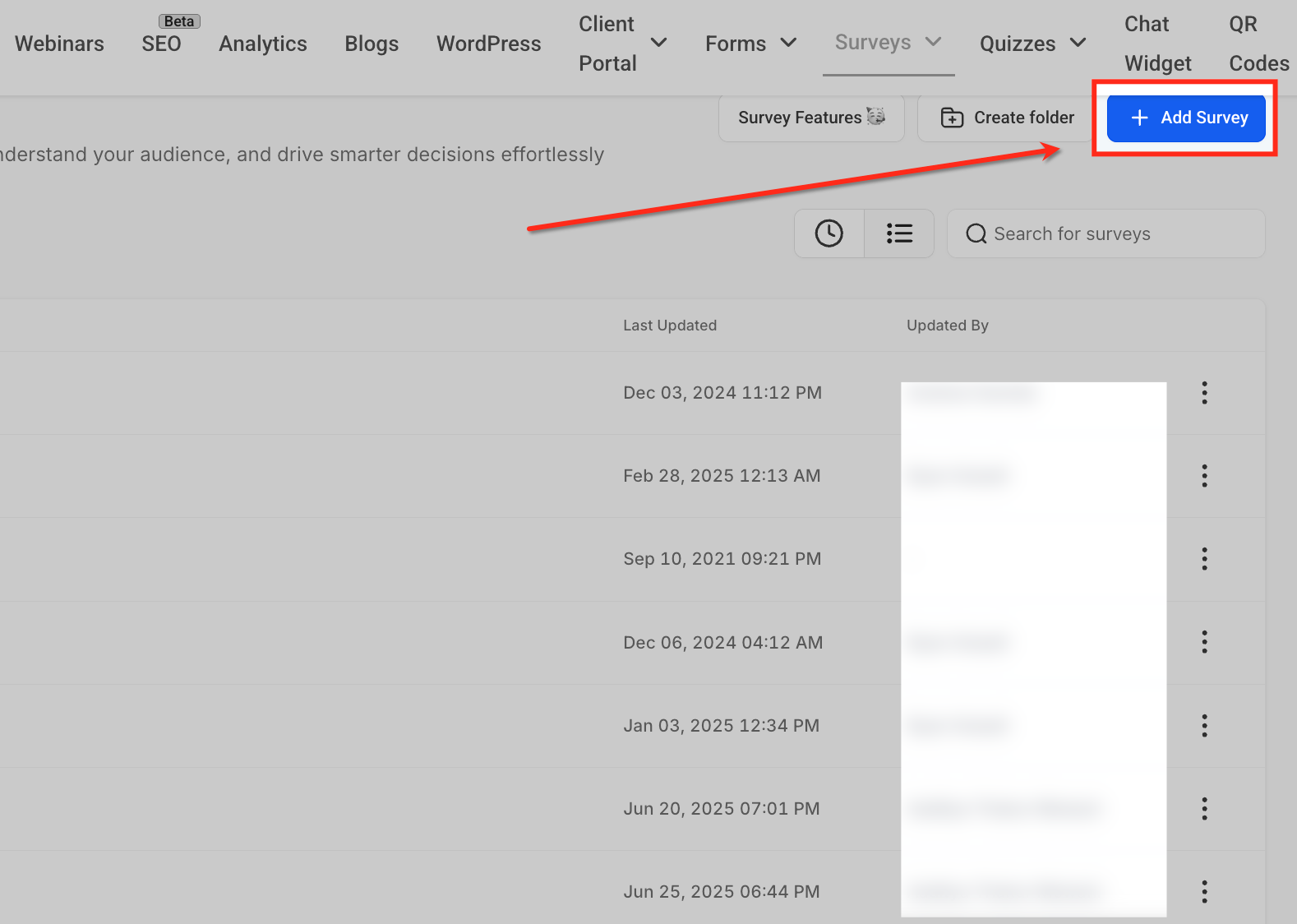
Navigate to the Survey Settings section.
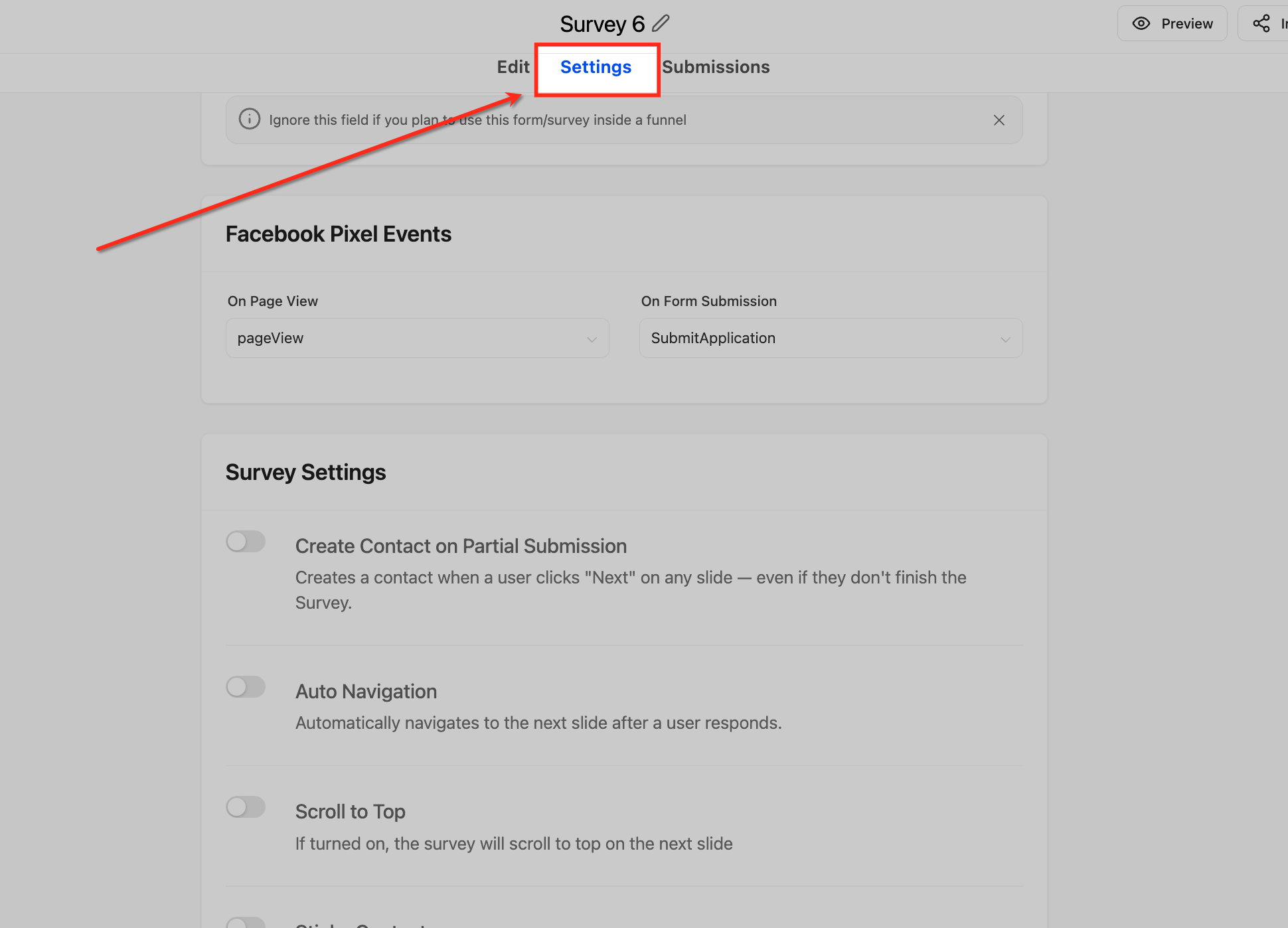
Toggle Sticky Contact to “On.” Save your settings.
Sticky Contact in Calendars
Calendars benefit from Sticky Contact by auto-filling user details for repeat appointment bookings.
Steps to Enable Sticky Contact in Calendars:
Go to Calendars > Calendar Settings.
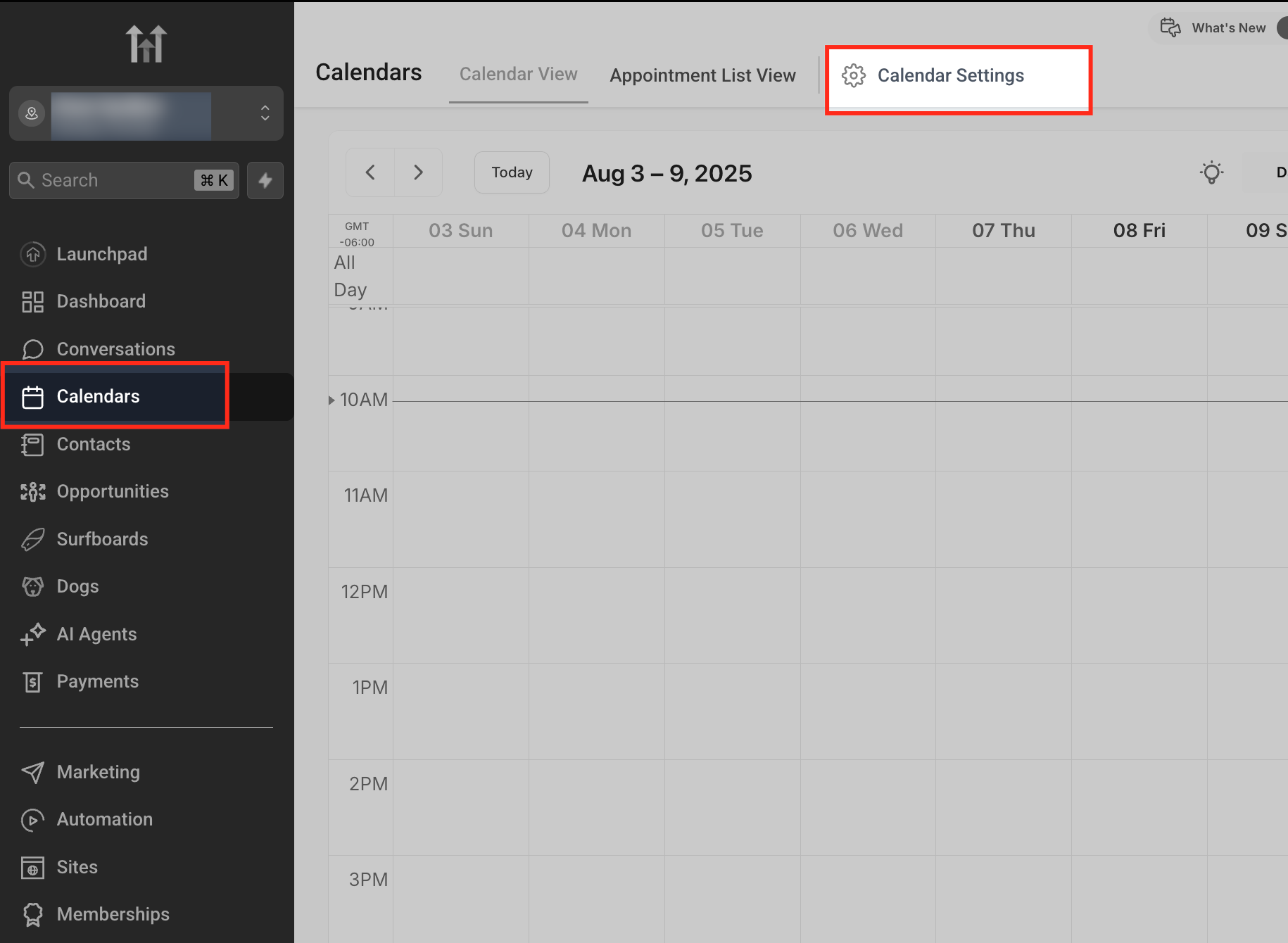
Select the calendar you’d like to edit.
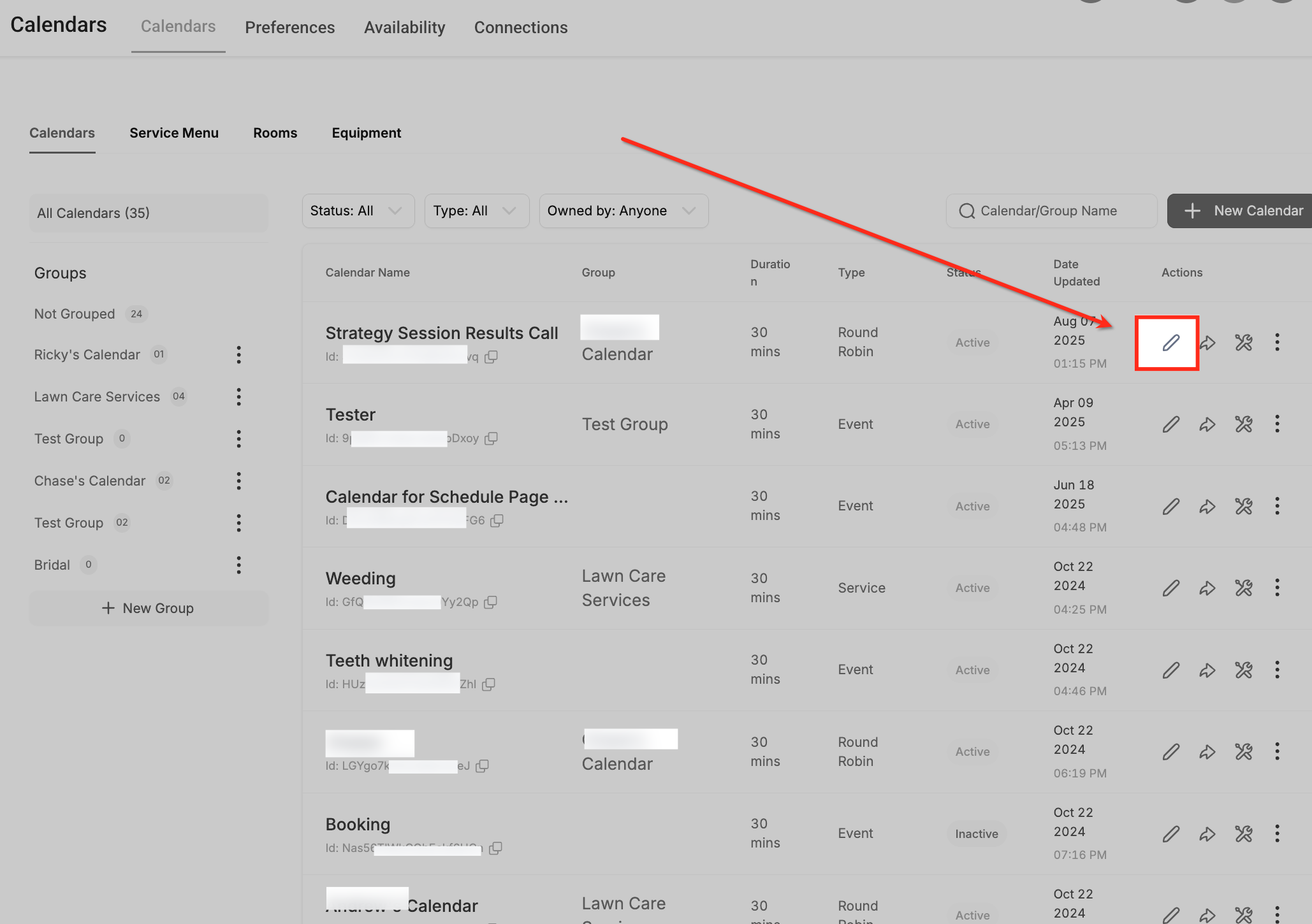
Scroll to Forms & Payments.
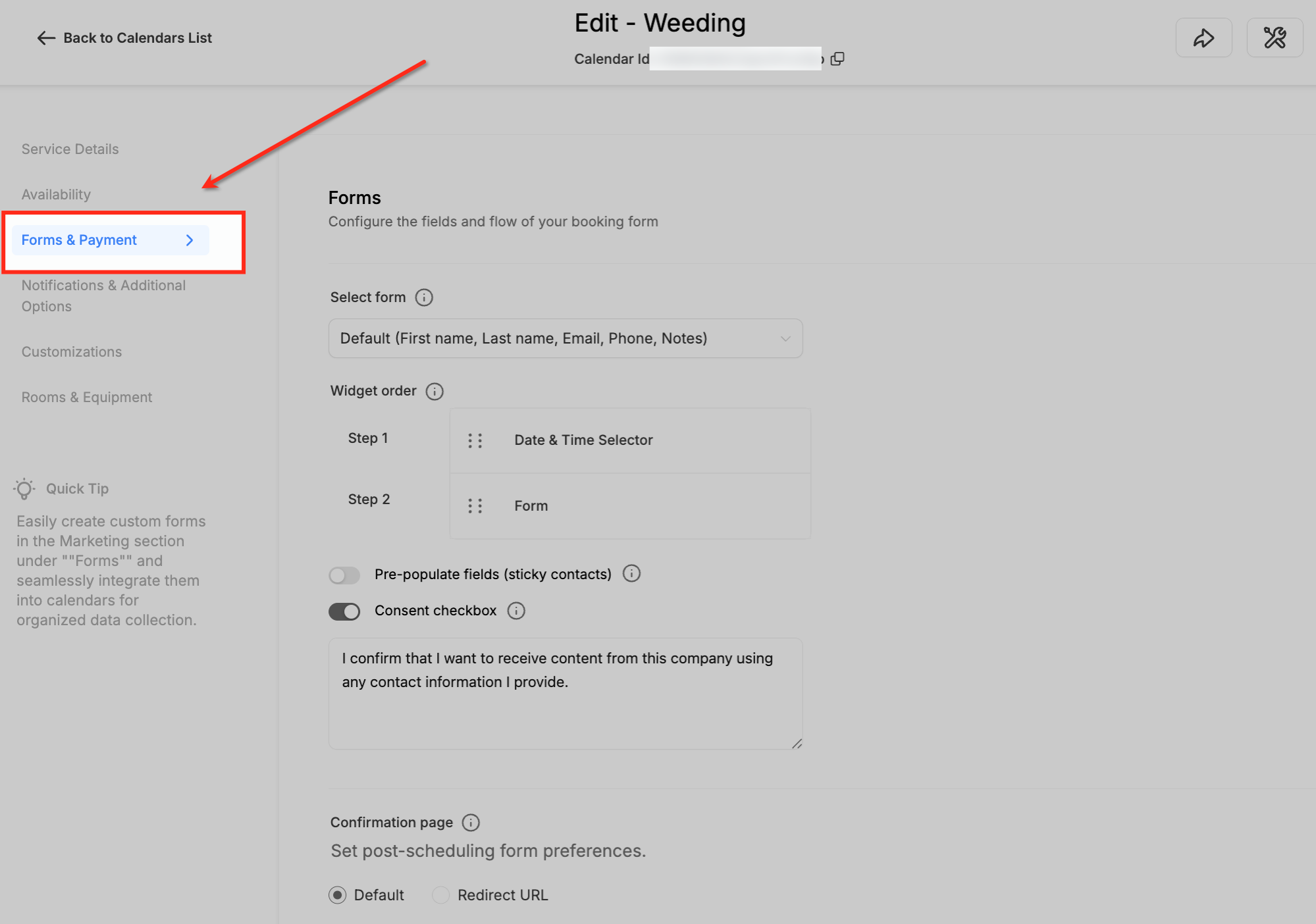
.
Turn on Sticky Contact using the toggle. Save your changes.