
Smart Lists are one of the simplest ways to turn GoHighLevel from “a place where contacts live” into a CRM that actively drives revenue. Instead of exporting CSVs or manually updating static segments, you can let GoHighLevel build and maintain dynamic lists for you based on live data.

In this guide, you’ll learn exactly how Smart Lists work, how to create and manage them step by step, and how to plug them into campaigns and automations so more of your follow‑up runs on autopilot.
Along the way, we’ll also show you where Smart Lists fit into a scalable system and how Revset Labs and GoHighLevel together can help you move faster.
What Smart Lists Are in GoHighLevel
In GoHighLevel, a Smart List is a dynamic view of your contacts that updates itself based on rules you define.
Instead of being a one‑time export, a Smart List is more like a saved search:
- You set filters (for example: tag, pipeline stage, last activity, custom fields).
- GoHighLevel checks those filters in real time.
- Any contact who matches the filters appears in the list.
- As contacts’ data changes, they automatically move in or out of the list.
That means a Smart List of “New leads who haven’t been contacted in the last 7 days” is always fresh—no manual cleanup, no spreadsheets.
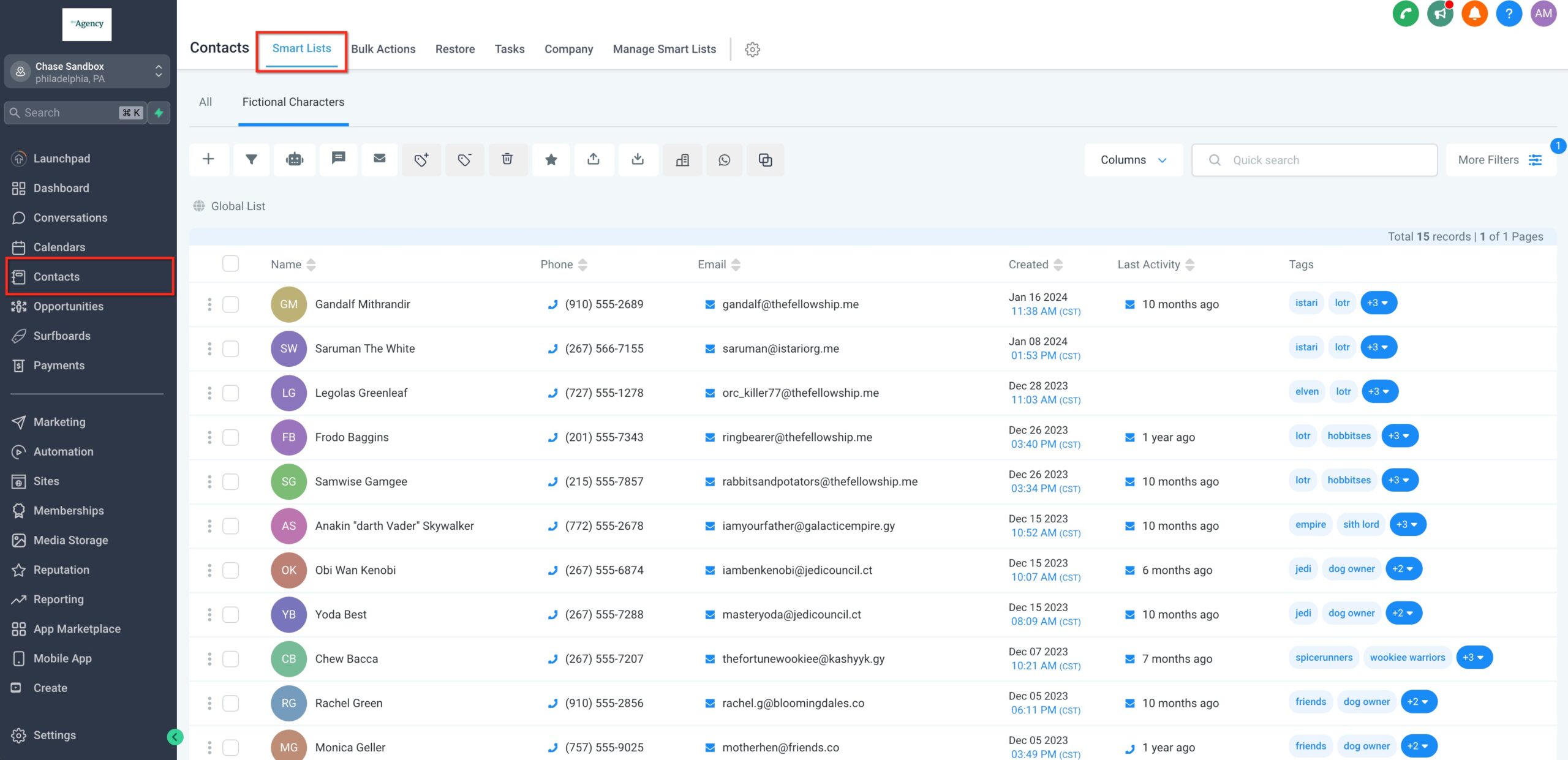
This feature can be found under the Subaccount → Contacts tab → Smartlists
Why Smart Lists Matter for Your Pipeline
If you’re serious about using GoHighLevel as your growth engine, Smart Lists quickly become non‑negotiable. They help you:
- Save hours every week – No more exporting, filtering, and re‑uploading CSVs just to send one segment an email.
- Improve targeting – Build segments based on behavior (opens, clicks, last activity), tags, pipeline stage, and custom fields so each campaign feels relevant.
- Keep your CRM clean – Smart Lists make it obvious who is active, who is cold, and where deals are getting stuck.
- Power automations – Use Smart Lists as the entry criteria for workflows so the right people enter the right nurture, reactivation, or onboarding sequences.
If you’re not using Smart Lists yet, you’re probably under‑using GoHighLevel.
How Smart Lists Work Behind the Scenes
Smart Lists are driven entirely by filters and conditions. You can think of them in three layers:
- Filters – These are the rules you apply (for example
Tag = Webinar Registered,Pipeline Stage = Opportunity,Last Activity > 30 days). - Logic – GoHighLevel currently lets you combine filters using AND logic inside a Smart List. That means a contact has to meet all the conditions you specify.
- Real‑time evaluation – Whenever contact data changes (a tag is added, a status is updated, an email is opened), GoHighLevel checks whether that contact now qualifies for any Smart Lists.
Because of that real‑time engine, Smart Lists are perfect for:
- Hot leads ready for outbound calls.
- Cold leads who need a reactivation campaign.
- Customers who just purchased and need onboarding.
Want to build these kinds of segments without wrestling your CRM? You can spin up a free GoHighLevel trial here: Start your GoHighLevel free trial.
Step‑by‑Step: Create Your First Smart List in GoHighLevel
Creating a Smart List in HighLevel is a simple process that allows you to automatically segment contacts based on specific criteria. Instead of manually updating lists, Smart Lists ensure your contact groups stay organized and updated in real-time. Follow these steps to create your first Smart List:
1. Open Contacts & Smart Lists
- Inside your GoHighLevel sub‑account, go to Contacts.
- Make sure you’re on the Contacts / Smart Lists view.
- At the top of the table, you’ll see existing Smart List tabs and the All tab.
You can start from All or from any existing Smart List, but for a brand‑new segment we’ll start from All Contacts.
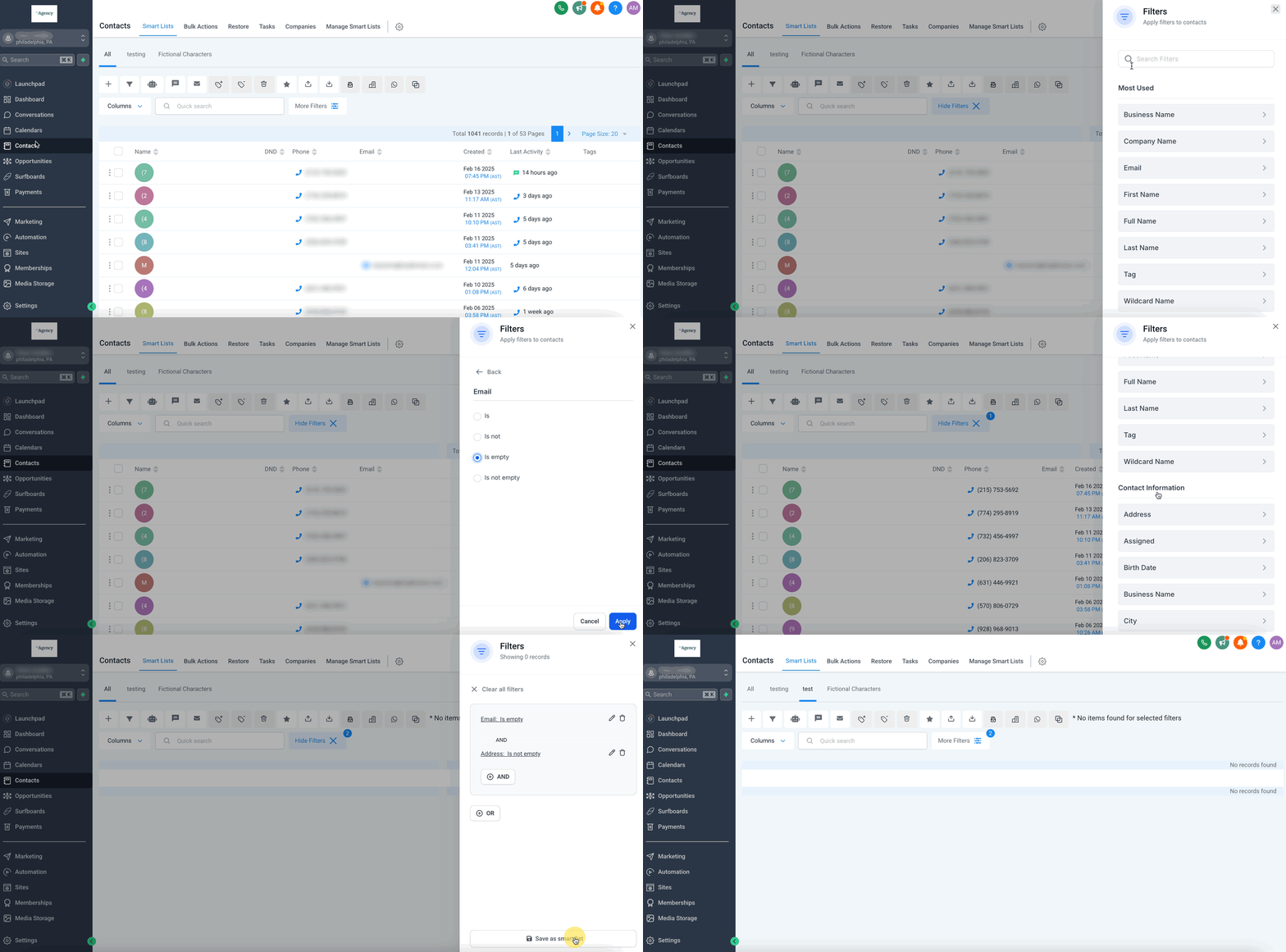
2. Add Filters That Match Your Segment
- Click More Filters on the right side of the screen.
- In the Add Filter box, start typing the field or behavior you want to filter by. Common options include:
- Tags (for example:
Tag = Interested,Tag = Onboarding) - Last Activity (days since last email, call, or touchpoint)
- Custom Fields (industry, plan type, product interest, lifecycle stage)
- Opportunities (pipeline, stage, status)
- Tags (for example:
- Choose the appropriate operator (for example More Than, Less Than, Contains, Is, etc.).
- Enter the value for that filter and click Apply.
You’ll immediately see the list narrow down to only contacts that match your conditions.
3. Combine Filters With AND Logic
Most useful Smart Lists use more than one filter. For example:
- New leads in a specific pipeline AND tagged as Interested.
- Customers with open invoices AND no activity in the last 30 days.
- Demo no‑shows AND still in the Opportunity stage.
To create combinations like this:
- After adding your first filter, click AND to add another.
- Repeat the process: choose the field, operator, and value.
- Keep an eye on the contact count to ensure you’re not over‑narrowing the list.
4. Save the View as a Smart List
Once your filters look right:
- Scroll to the bottom of the filters panel.
- Click Save as smart list.
- Give your Smart List a clear, action‑oriented name, such as:
New Leads – No Activity Last 7 DaysOnboarding – New CustomersCold Opportunities – 90+ Days Stale
- Click Save.
You’ll now see a new tab at the top of the Contacts view with your Smart List name. That tab will always show the live group of contacts that meet your filters.
Managing and Editing Existing Smart Lists
Smart Lists can be modified, filtered, and managed to better align with your business needs. You can apply different filters, adjust conditions, or even duplicate existing lists for more refined segmentation.
Adjust filters in an existing Smart List
- Click the Smart List tab you want to edit.
- On the right‑hand side, you’ll see the list of saved filters.
- To modify a filter, click the pencil icon or dropdown arrow, adjust the settings, and click Apply.
- To remove a filter, click the trash can icon or the X on that filter.
- Click the Save icon to store your changes.
Because Smart Lists are live, you’ll see the list update immediately as you tweak filters.
Duplicate, share, rename, or delete Smart Lists
From the Contacts screen, use Manage Smart Lists in the top‑right corner to:
- Duplicate a high‑performing Smart List and tweak the filters for a slightly different segment.
- Share or make lists global so other users in the account can see them.
- Rename lists to reflect updated targeting.
- Delete lists you no longer need (this does not delete the contacts themselves).
This keeps your Smart List library focused on segments you actually use.

Practical Smart List Examples You Can Steal
Here are a few plug‑and‑play Smart List ideas you can recreate in minutes.
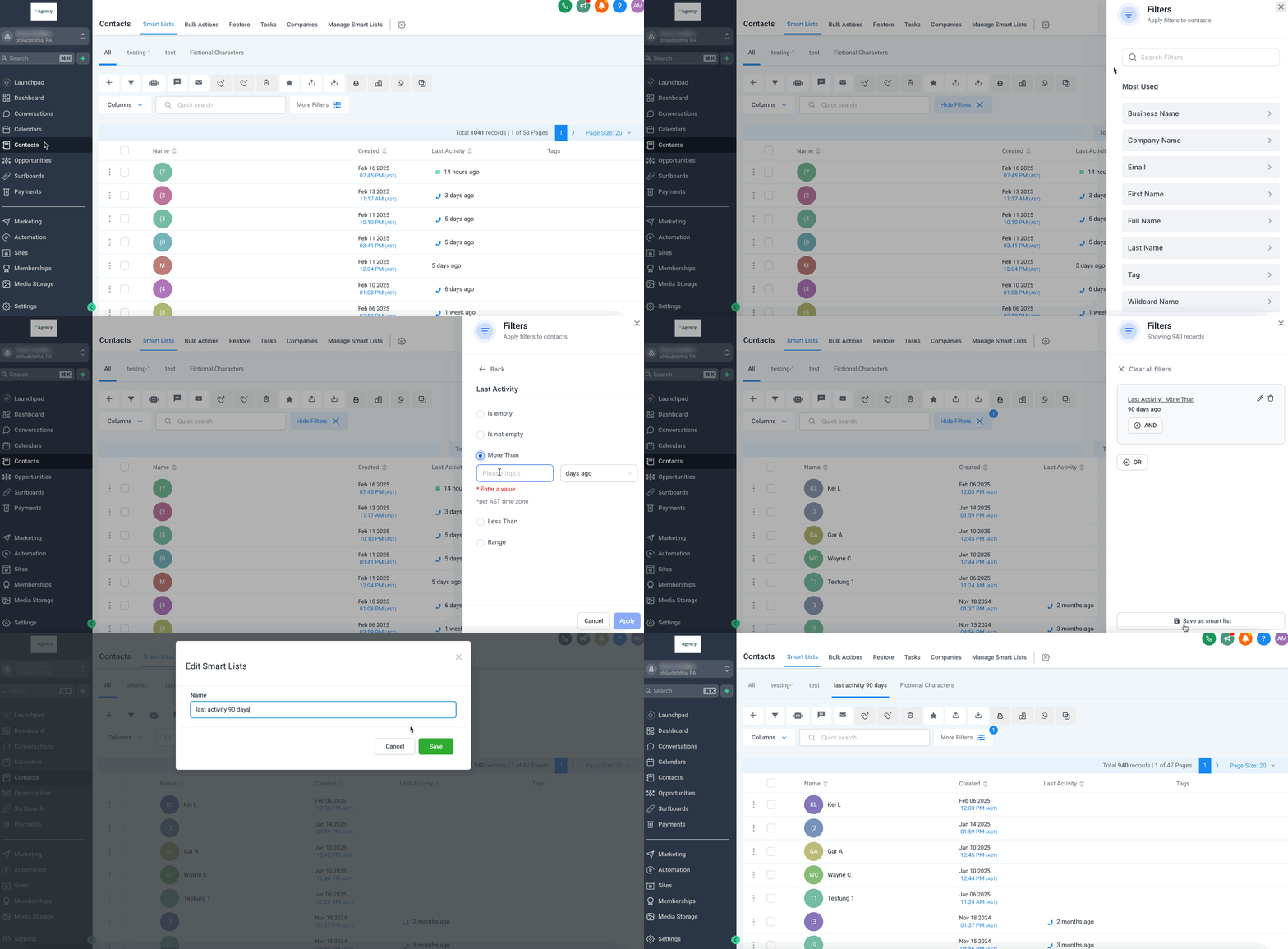
1. Leads you haven’t touched in 90 days
Create a list of all contacts that have never been or have not been contacted in the last 90 days.
Goal: Reactivate cold leads before they go completely dark.
Filters to use:
- Last Activity → More Than → 90 days
- Optional: Tag →
Leador your equivalent
Now you have a constantly updated list of leads who haven’t heard from you in 90+ days—perfect for a reactivation email or SMS campaign.
2. Hot leads who engaged this week
Goal: Give your sales team a short list of high‑intent contacts every day.
Filters to use:
- Last Activity → Less Than → 7 days
- Opportunity Stage →
Openor your equivalent
Use this Smart List as the call list for your outbound team or as the audience for a short “book a call” follow‑up sequence.
3. New customers who need onboarding
Goal: Make sure every new customer gets a consistent onboarding experience.
Filters to use:
- Tag →
Customer - Custom Field →
Onboarding Status→Not Started
Point this Smart List into an onboarding automation so new customers automatically receive training content, check‑in emails, and appointment reminders.
Reorder Columns in Smart Lists
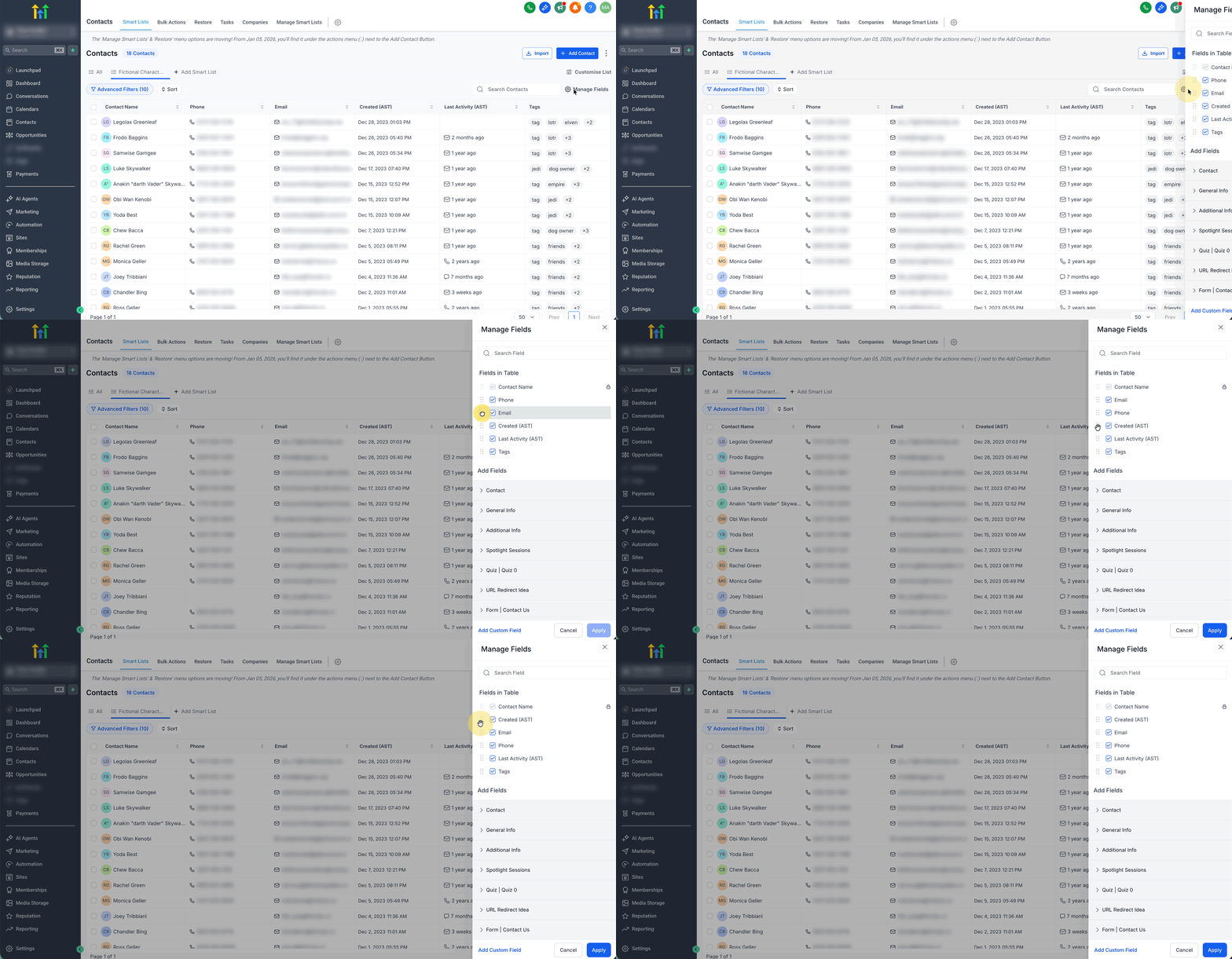
Smart Lists support drag-and-drop column management, so you can quickly rearrange your list view and keep the most important fields front and center.
- Navigate to Contacts → Smart Lists, then open the Smart List you want to edit.
- In the list view, open the column/field management option (this is typically found near the top of the table and lets you manage which fields display).
- In the column manager, drag and drop the columns into your preferred order.
- Close the column manager to return to your Smart List, the new column order is reflected immediately.
Using Smart Lists in Campaigns and Automations
Where Smart Lists really shine is when you connect them to GoHighLevel campaigns, workflows, and triggers.
Some high‑impact ways to use them:
- Email campaigns – Send newsletters or promotions only to engaged leads instead of blasting your entire database.
- SMS follow‑up – Trigger concise SMS sequences to leads who booked a call but didn’t show.
- Pipeline automation – Move opportunities through stages based on Smart List membership and actions taken.
- Retention flows – Enroll at‑risk customers (low activity, no logins, overdue invoices) into save campaigns.
If you’re not yet using GoHighLevel and want to see how Smart Lists plug into a full automation stack, you can start a free GoHighLevel trial here. It’s the same platform Revset Labs uses to build revenue systems for clients.
Best Practices for Smart Lists in GoHighLevel
To keep Smart Lists an asset instead of clutter, follow these guidelines:
- Name lists clearly – Use names that describe both the audience and the action (for example:
Reactivation – Cold Leads 90+ Days). - Standardize your tags – Decide on a tagging convention and stick to it so your filters stay simple.
- Review lists monthly – Archive or rename lists that no longer match your current offers or pipelines.
- Avoid over‑segmentation – A few powerful segments that drive revenue beat dozens of tiny lists nobody uses.
- Document your key lists – Keep a simple internal doc that explains the purpose of your most important Smart Lists so new team members can plug in fast.
FAQs About Smart Lists in GoHighLevel
Can I manually add contacts to a Smart List?
No, contacts are not manually added to Smart Lists. They are added automatically based on the filters and conditions set for that Smart List. If you add a tag to a contact that matches a filter condition for a Smart List, they will automatically be added to that Smart List.
Do Smart Lists update before a campaign sends?
Yes. When you schedule an email or SMS campaign to a Smart List, GoHighLevel evaluates who qualifies at send time, not when you scheduled it. New contacts that meet the criteria before send time will receive the campaign; contacts who stop qualifying will be excluded.
Can every user see every Smart List?
By default, Smart Lists are created at the user level. However, you can configure and share global Smart Lists so they’re visible across the whole account when that’s useful.
Can I move Smart Lists between accounts or snapshots?
As of the time of writing, no feature allows moving Smart Lists from one account to another or importing them into a snapshot.
Can users manage Smart Lists without settings access?
Some management actions depend on permission levels. If team members can’t see or edit key lists, review their permissions and plan to roll out global lists for shared views.
Implement Smart Lists Faster With Revset Labs
Smart Lists are a powerful feature—but they’re only one part of a complete revenue system.
Revset Labs is an AI automation and marketing agency that specializes in building end‑to‑end funnels, CRM automation, and follow‑up systems on top of GoHighLevel. If you’d rather focus on closing deals than wiring up filters and workflows, we can help you:
- Design Smart Lists that map to your real‑world sales process.
- Build campaigns and automations that trigger from those lists.
- Layer AI‑powered routing, lead scoring, and follow‑up on top of your GoHighLevel account.
To see what this could look like in your business, start by launching a free GoHighLevel trial through this link. Then, when you’re ready to turn Smart Lists into a full growth engine, bring Revset Labs in to architect the system.