
 GoHighLevel Live Chat Widget (Step-by-Step Guide)”>
Why the GoHighLevel Live Chat Widget Matters for Your Funnel
If you run ads, drive organic traffic, or send email campaigns to your website, a surprising number of visitors are ready to talk but not ready to fill out a long form.
A live chat widget lets them raise their hand with almost zero friction:
- They can ask quick questions instead of abandoning the page.
- You can qualify and route leads in real time.
- Every conversation can automatically create or update a contact inside GoHighLevel.
From there, you can drop new leads straight into pipelines, nurture automations, and sales follow-up sequences — without your team copying notes between tools.
That is exactly what the GoHighLevel live chat widget is built for.
In this guide, you will:
- Create a branded GoHighLevel live chat widget.
- Add it to your websites and funnels (both GoHighLevel-hosted and external sites).
- Connect chats to contacts, pipelines, and automations.
- Apply simple optimization tips so more chats turn into booked calls and sales.
If you don’t have a GoHighLevel account yet, this is a great time to set one up. You can start a free trial here: Start your GoHighLevel free trial.
How the GoHighLevel Live Chat Widget Fits Into Your Revenue Engine
At a high level, the live chat widget becomes a bridge between anonymous visitors and your CRM.
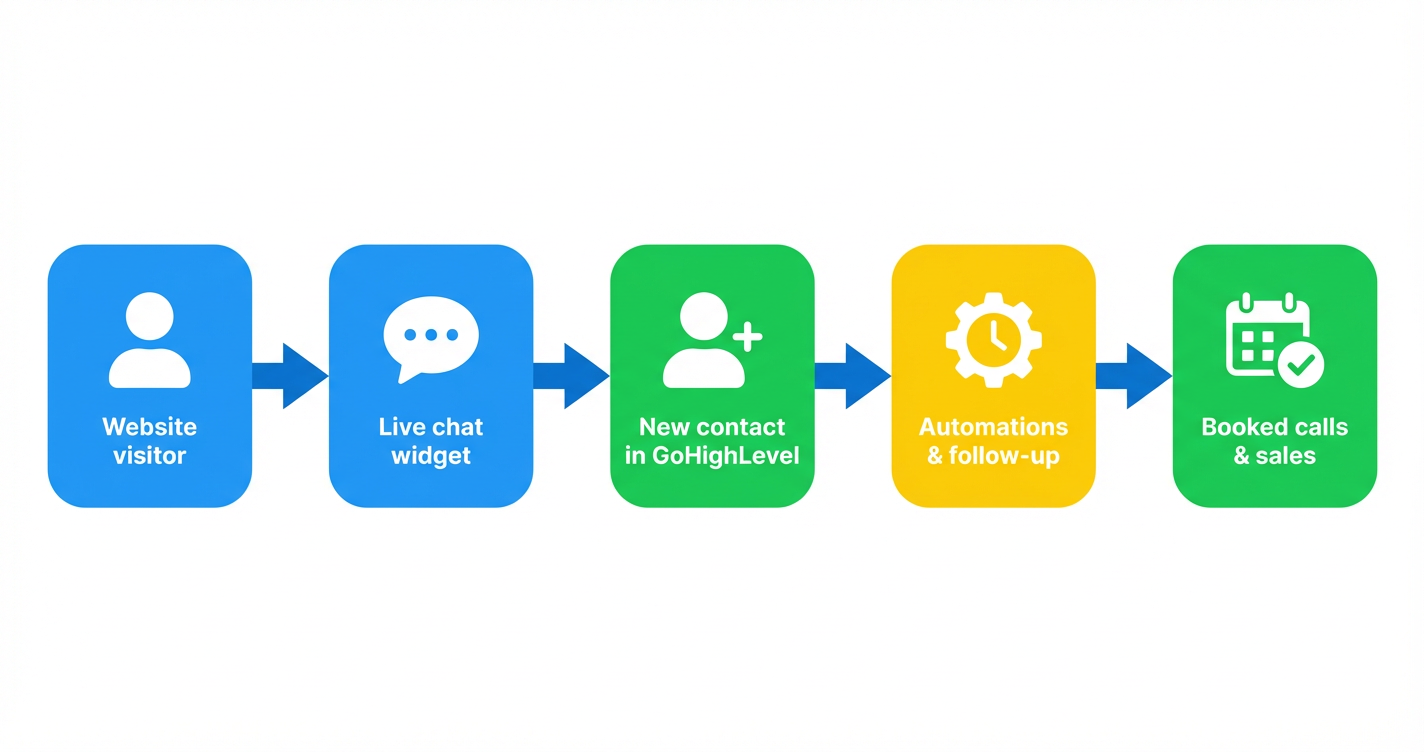
The flow looks like this:
- Website visitor lands on a page from ads, search, or email.
- Live chat widget invites them to ask a question or request help.
- The chat creates a new contact in GoHighLevel (or updates an existing one).
- Your automations and follow-up sequences take over.
- The result is more booked calls and sales from the same traffic.
Once this is in place, your focus shifts from “How do we get more traffic?” to “How do we convert more of the traffic we already have?”
Before You Start: Prerequisites
You’ll get the most out of the GoHighLevel live chat widget if you have:
- A GoHighLevel account with access to Sites and Chat Widget.
- At least one website or funnel (either hosted in GoHighLevel or on an external platform like WordPress, Webflow, or Shopify).
- A clear idea of who should handle chats (sales, support, or a shared inbox).
Optional but highly recommended:
- A basic pipeline and opportunities setup in GoHighLevel so new chat leads don’t get lost.
- Email/SMS sending configured so you can automatically follow up after the chat.
If you want a done-for-you setup of your GoHighLevel account — including chat widget, pipelines, and automations — Revset Labs (an AI automation and marketing agency) can handle the heavy lifting with you.
Step 1: Create Your GoHighLevel Live Chat Widget
First, you will create the actual widget that appears on your site.
- In your GoHighLevel account, go to Sites → Chat Widget.
- Click New and choose Live Chat as the chat type.
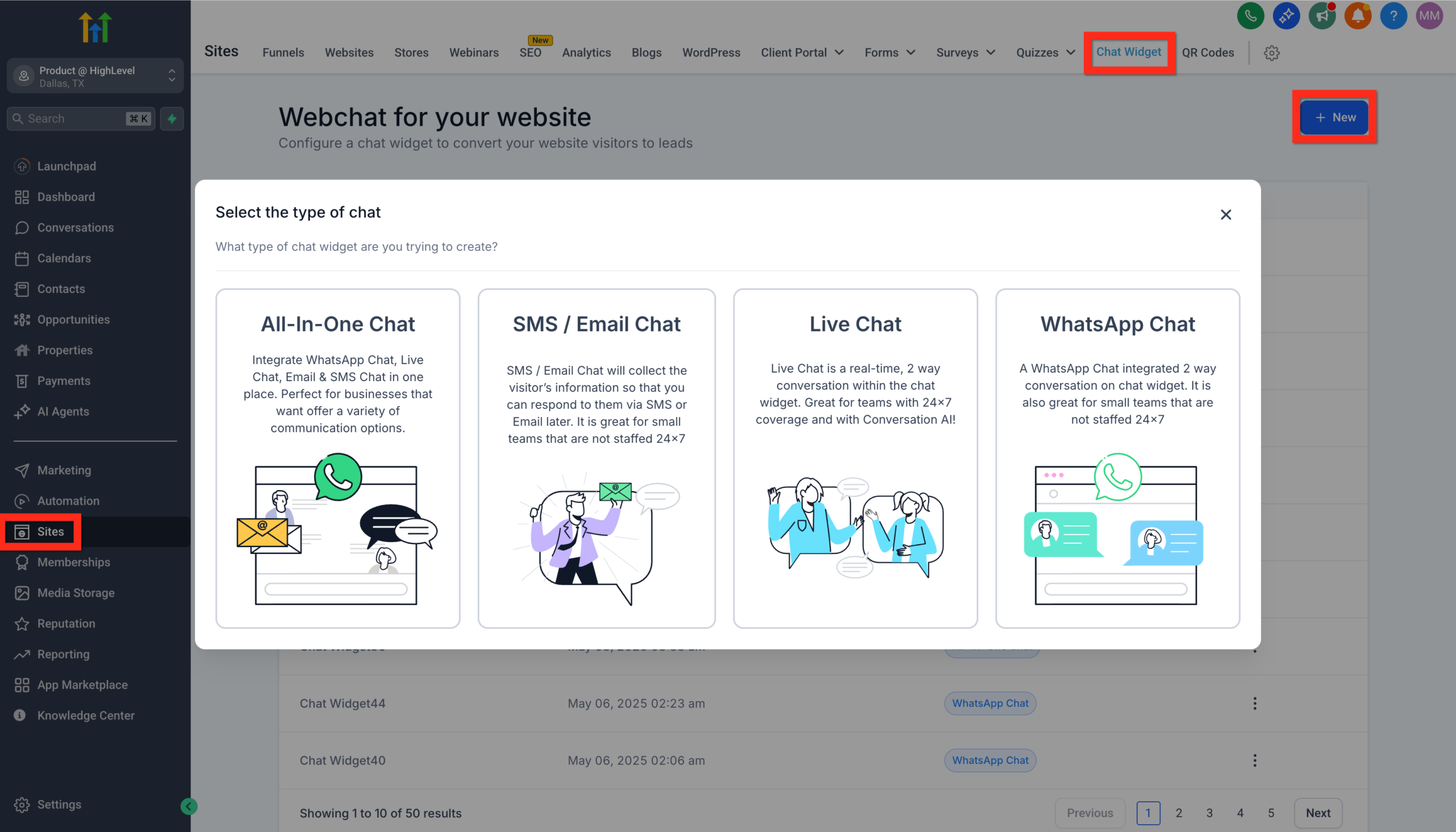
- Name your widget so it’s easy to recognize later (for example, "Main Website – Live Chat").
- Customize your widget:
- Brand colors and style to match your site.
- Welcome message that explains how you can help.
- Agent name and avatar so visitors feel like they’re talking to a real person.
- Business hours and offline behavior (for example, show a form after hours).
- Click Save.
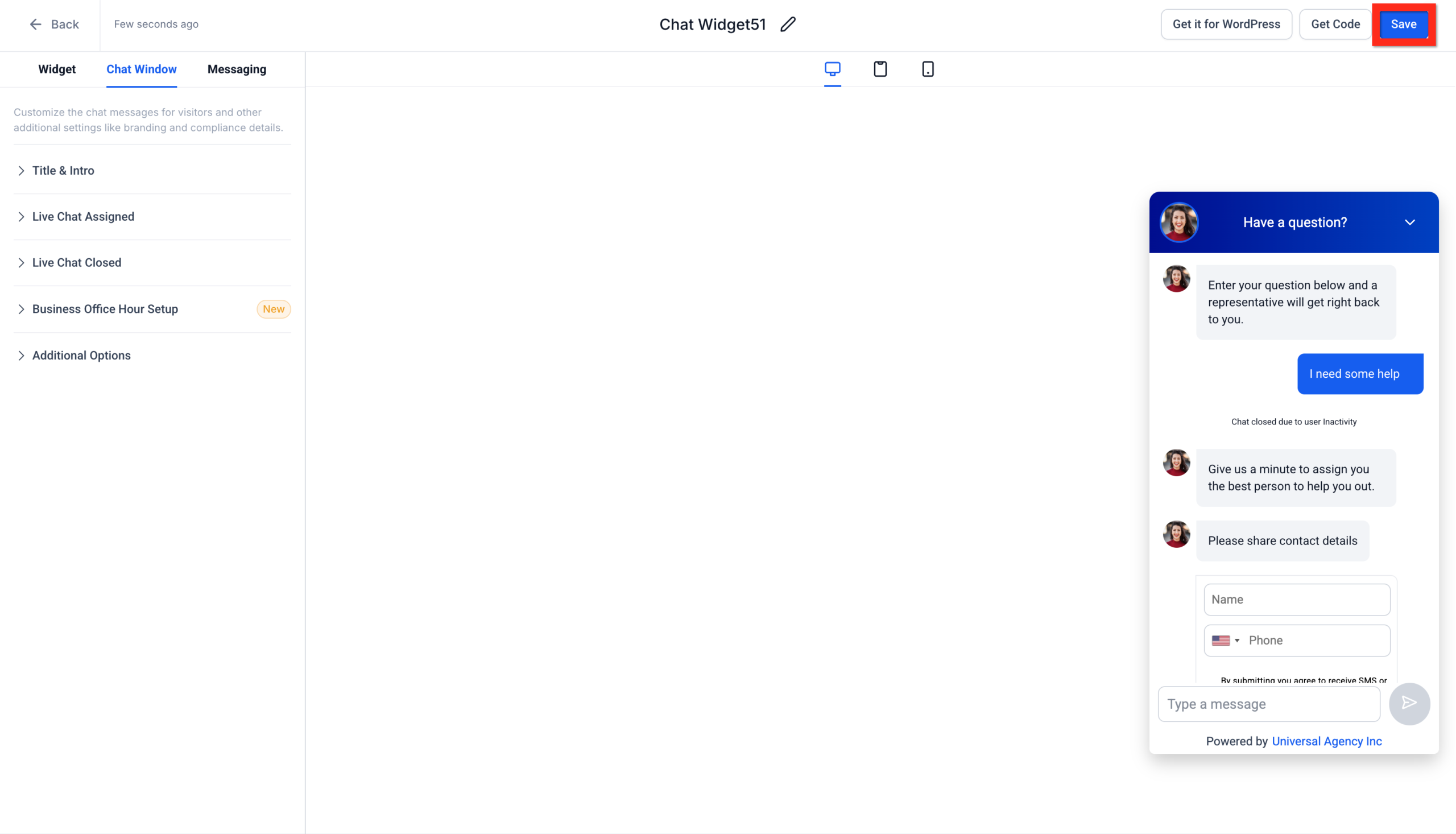
Once saved, you can get the embed code:
- In the same Chat Widget screen, click Get Code.
- Click Copy to copy the JavaScript snippet to your clipboard.
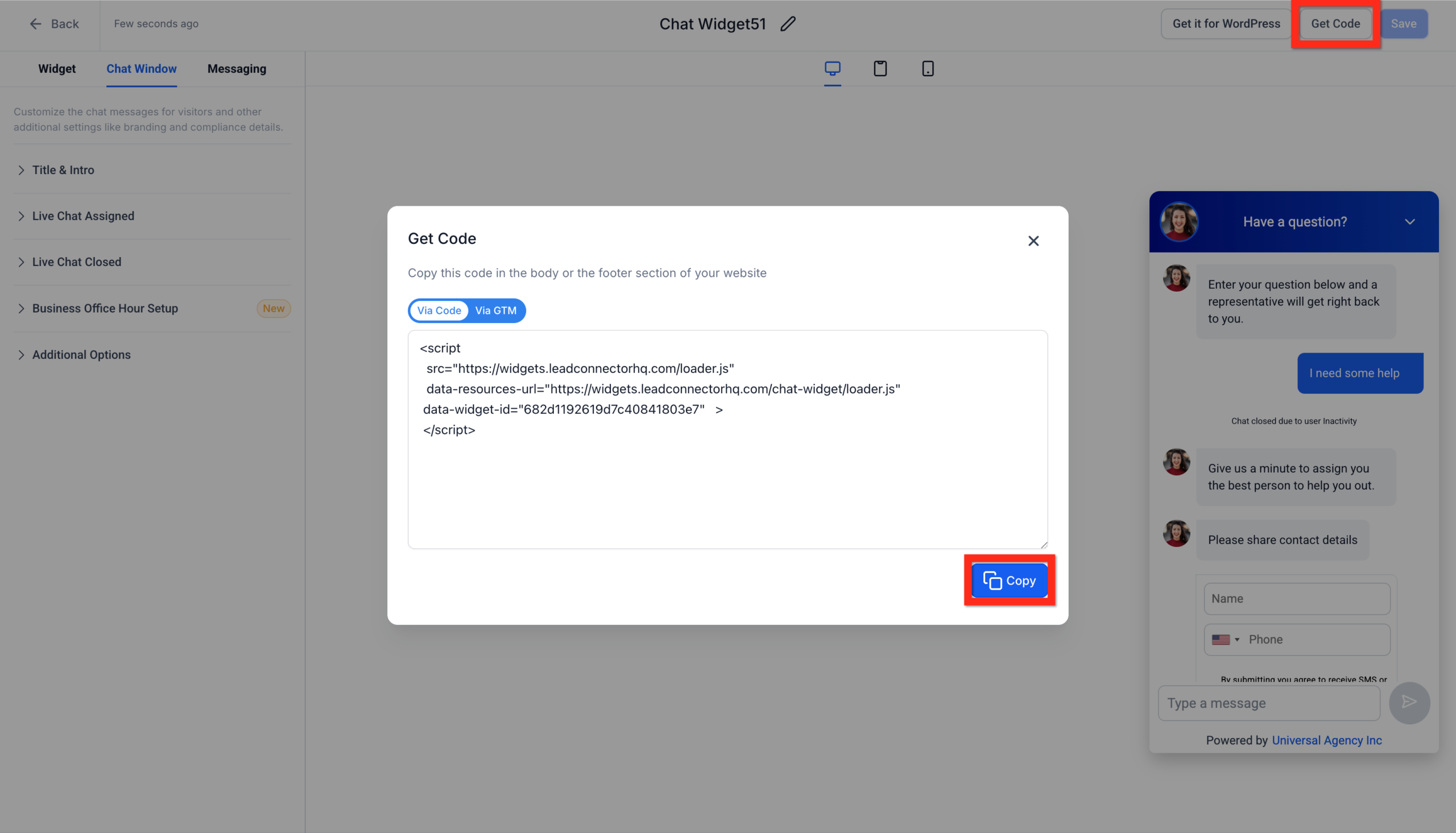
You’ll use this snippet to install the widget on your websites and funnels.
🔁 Every time you update the widget’s design or text inside GoHighLevel, those changes will automatically apply wherever the code is installed — no extra development needed.
Step 2: Deploy the Chat Widget With the Embed Code
The embed code is the most flexible way to add the GoHighLevel live chat widget to your pages.
Option A: Add the chat widget to GoHighLevel websites and funnels
- Go to Sites → Websites or Sites → Funnels.
- Open the website or funnel where you want the chat widget to appear.
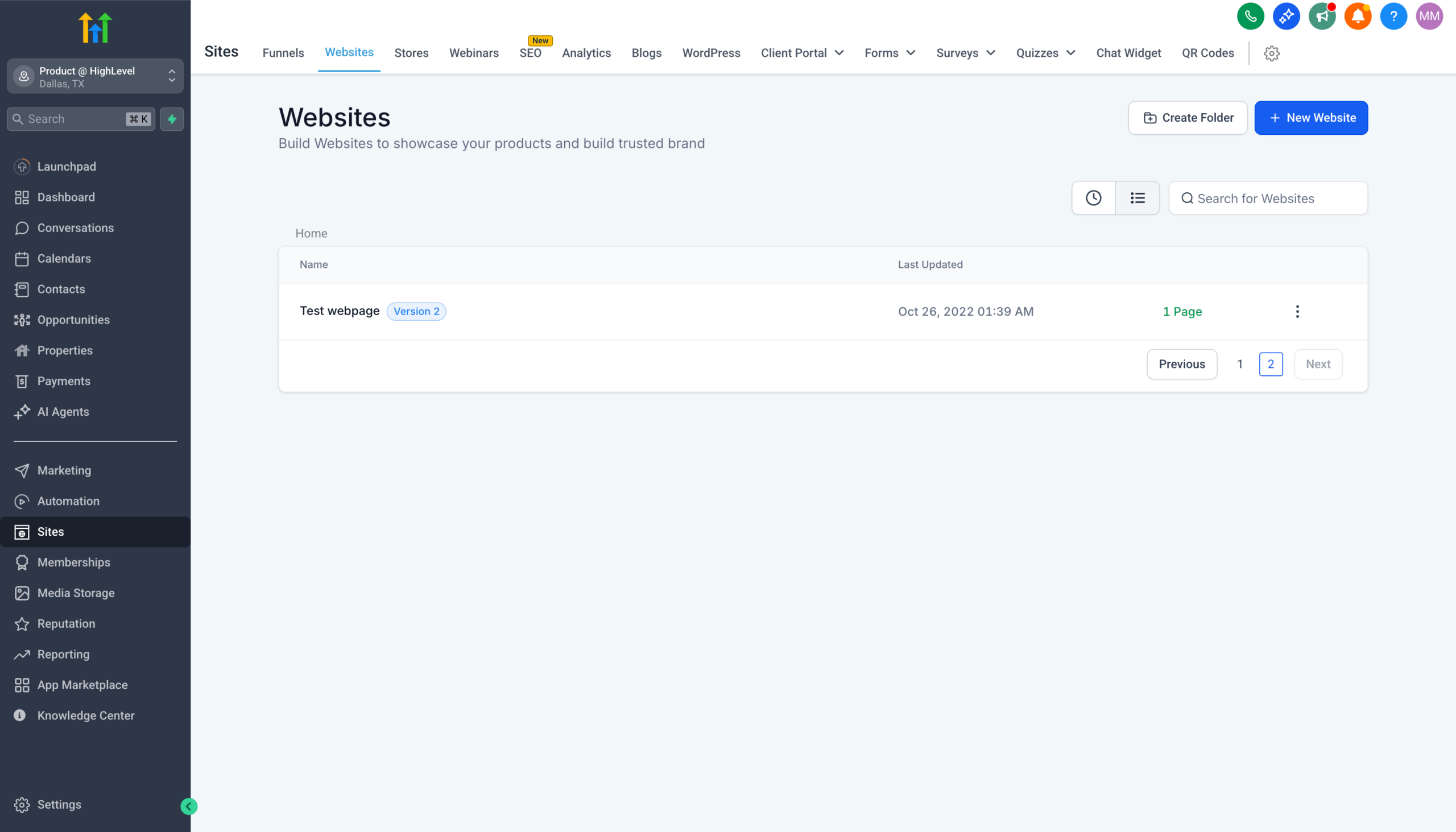
- Click Edit to open the builder.
- In the editor, click the Tracking Code icon (
</>). - Paste the chat widget code you copied in Step 1 into the Header or Body section (follow GoHighLevel’s recommendation in the builder).
- Click Save and publish your changes.
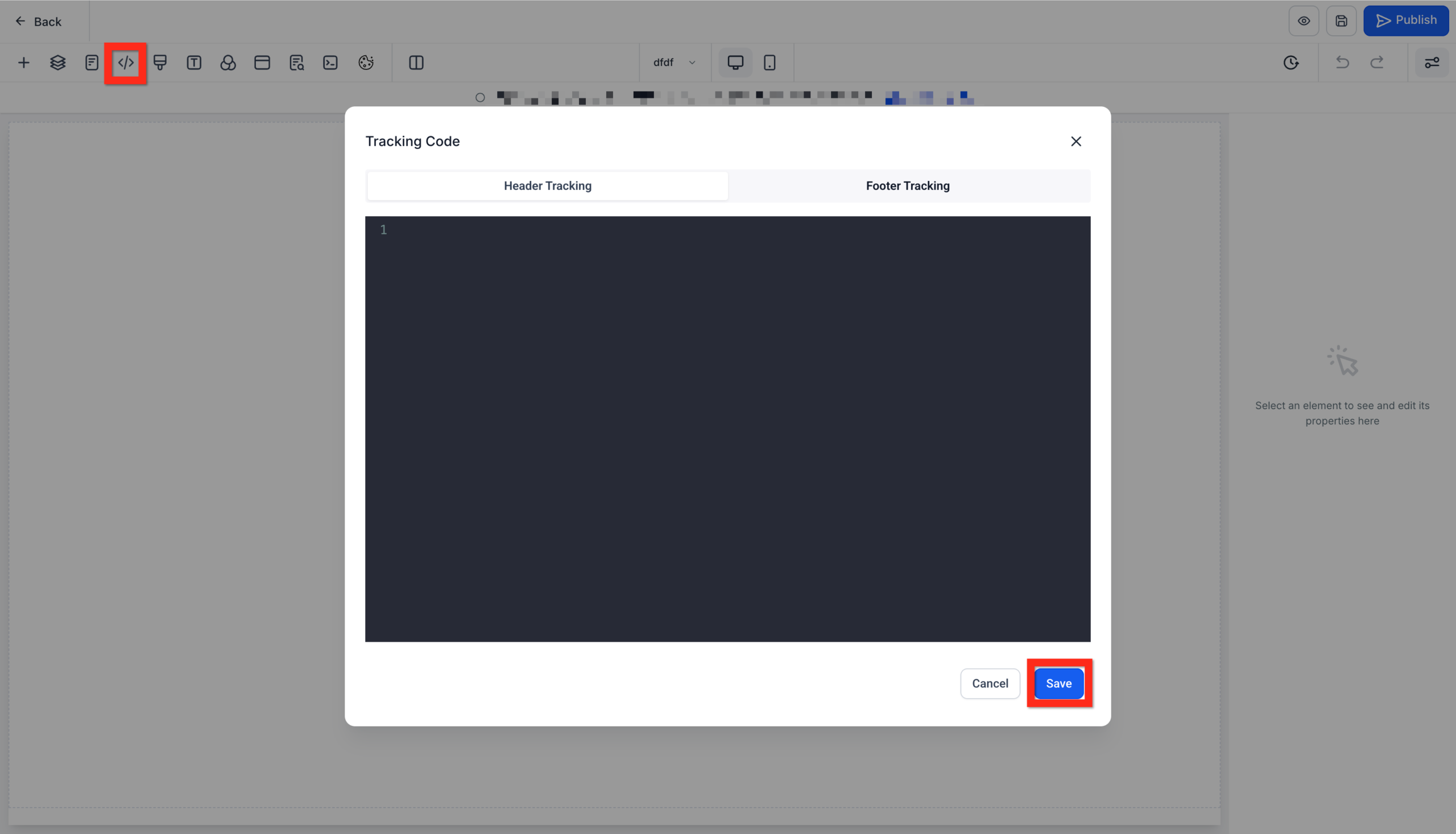
Visit a live page in a private browser window and you should see the chat icon appear in the corner of the screen.
Option B: Add the chat widget to external sites (WordPress, Webflow, Shopify, etc.)
If your main site is hosted elsewhere, you can still use the GoHighLevel live chat widget.
- Open your site builder or CMS.
- Locate the custom code, scripts, or header/footer settings. Common locations:
- In WordPress: Theme settings, a header/footer plugin, or the site’s code injection area.
- In Webflow: Project Settings → Custom Code.
- In Shopify: Online Store → Themes → Edit Code, then
theme.liquidor a dedicated scripts section.
- Paste the GoHighLevel chat widget embed code into the appropriate section (usually the footer or before the closing
</body>tag). - Save and publish your changes.
Once published, your GoHighLevel live chat widget will appear across the site — and every chat will still create or update a contact inside GoHighLevel.
If you don’t yet have GoHighLevel but you want this type of visitor-to-CRM flow, you can spin it up quickly here: Try GoHighLevel free.
Step 3: Deploy the Chat Widget From Website or Funnel Settings
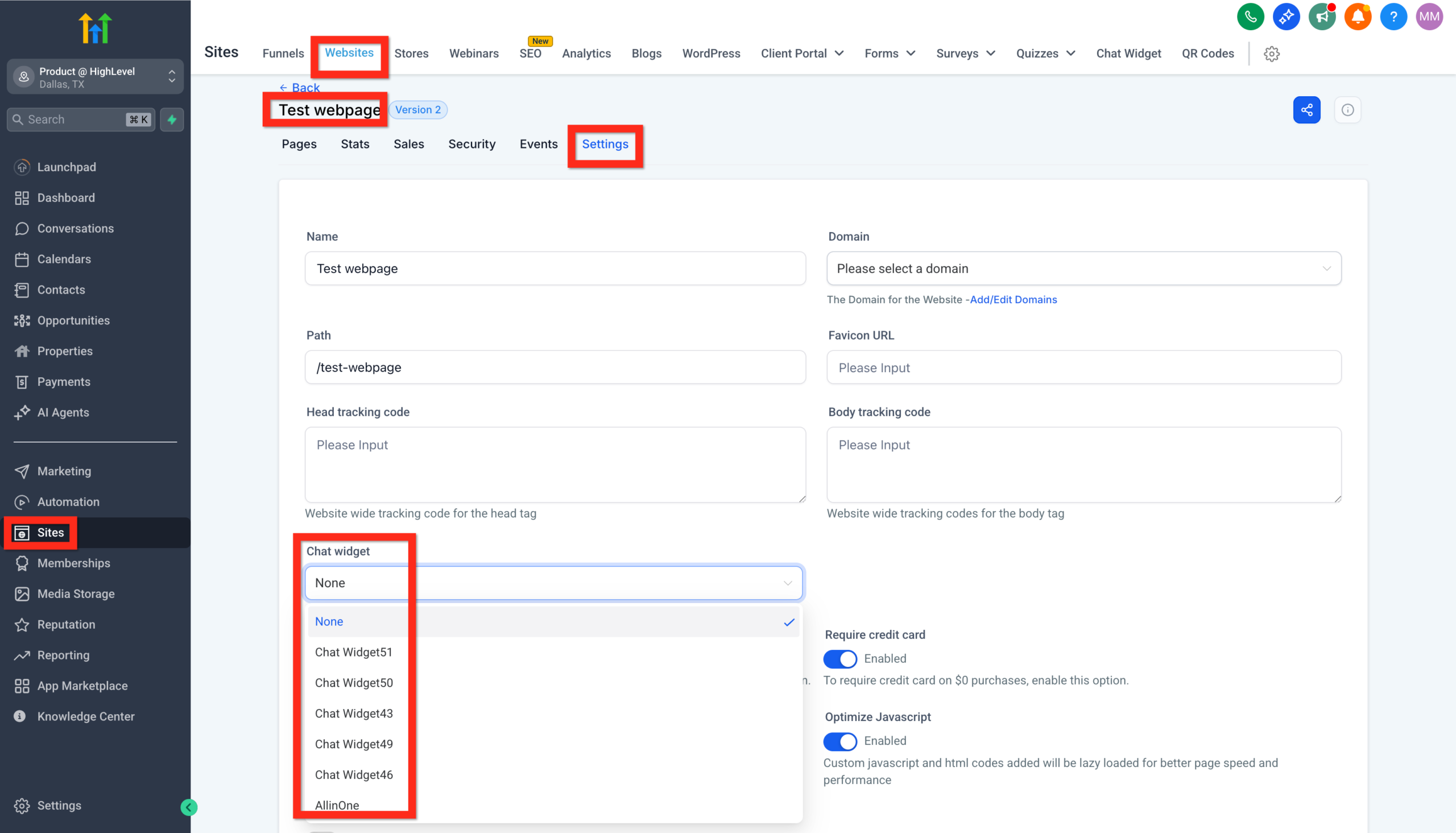
GoHighLevel also lets you connect a chat widget to a site or funnel from its settings, without dealing with code.
- Go to Sites → Websites or Sites → Funnels.
- Hover over the site or funnel and click Settings.
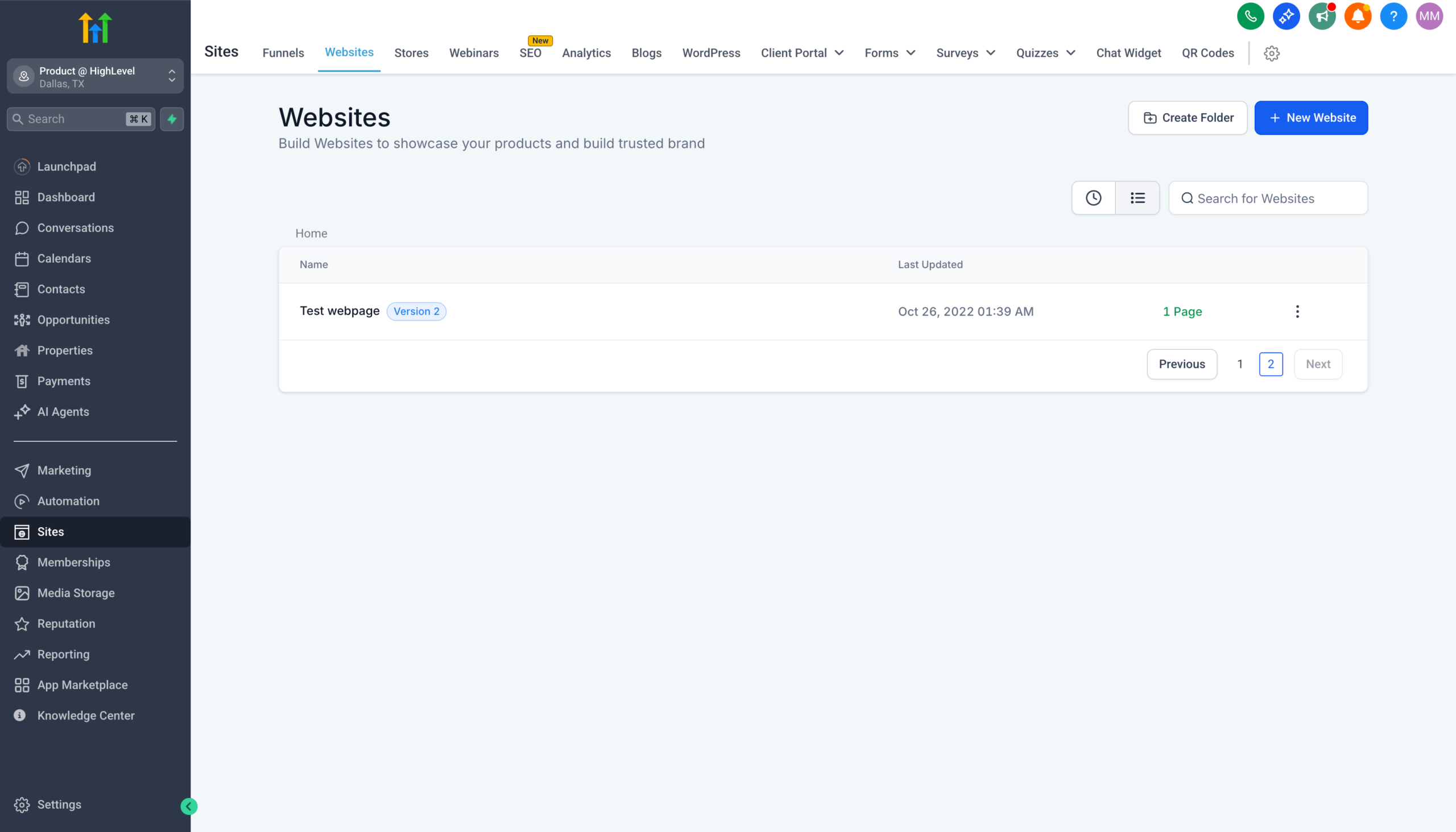
- Look for the Chat Widget section inside settings.
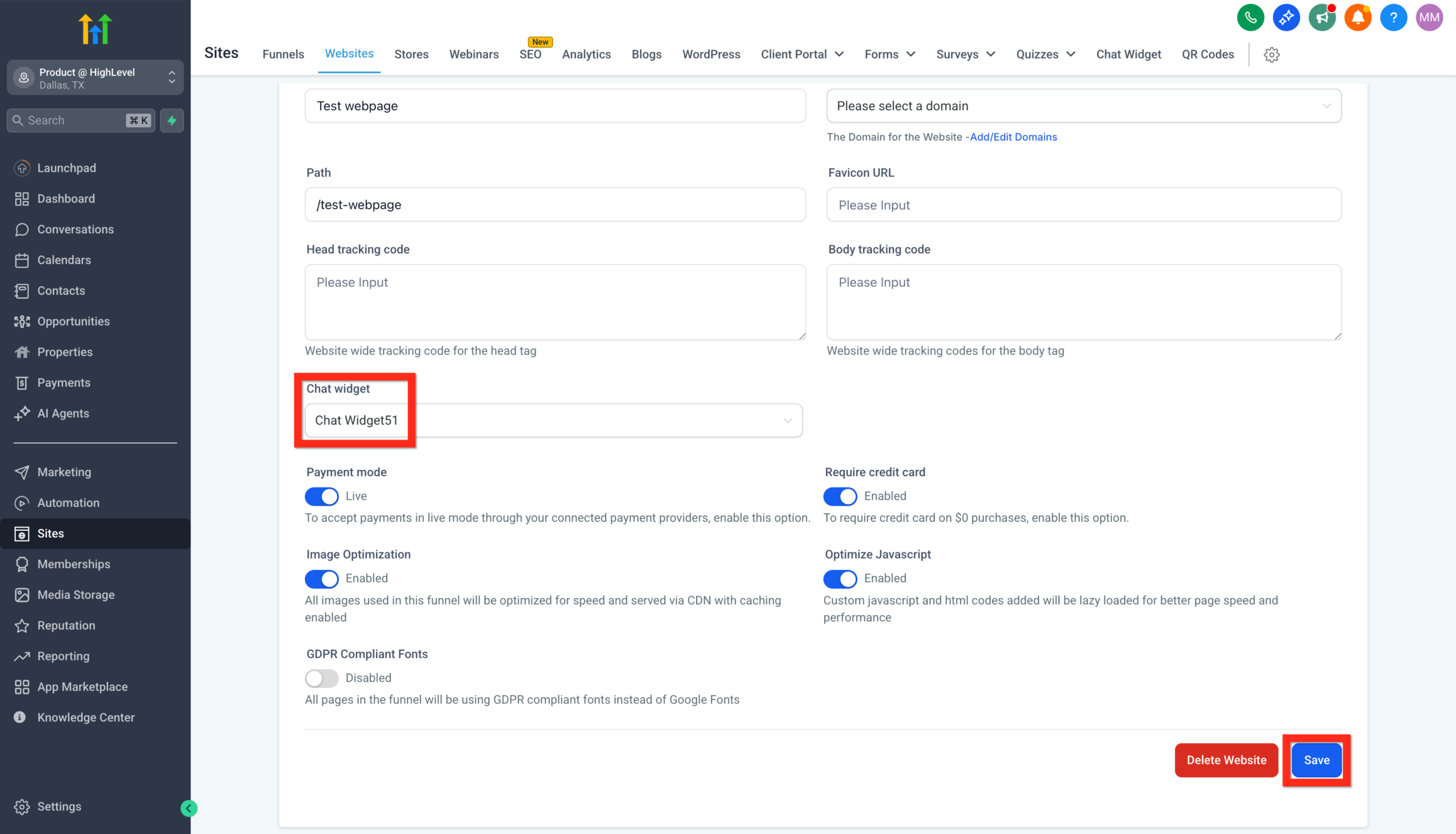
- Use the dropdown to select the live chat widget you created in Step 1.
- Click Save.
Fantastic! You're all set. Next, why not explore advanced customization options to really make the chat experience unique to your brand?
Connect Chats to Contacts, Pipelines, and Automations
Installing the widget is only half the job. The real leverage comes from what happens after someone chats.
Here’s how to make sure every conversation moves the sales needle:
-
Create or update contacts automatically
Configure your widget so that when a visitor starts a chat, GoHighLevel captures their name, email, and/or phone number. Every conversation should result in a contact record you can work with. -
Drop new leads into a pipeline
Use GoHighLevel pipelines and opportunities so every chat lead sits in a clear stage such as "New Chat Lead", "Qualified", or "Booked Call". -
Trigger automations from chat events
Build workflows that fire when a new chat is created or a contact is tagged. Examples:- Send a thank-you email or SMS recapping the conversation and sharing next steps.
- Automatically assign tasks to a sales rep when a high-intent keyword shows up in the chat.
- Add hot leads to a nurture sequence if they aren’t ready to book yet.
-
Log booked calls and closed deals
Connect your chat follow-up to your calendar and sales pipeline so it’s easy to see which chats turned into revenue.
If you’re new to contacts and pipelines in GoHighLevel, pair this article with a foundational guide like Getting Started: Create and Manage Contacts in GoHighLevel so you have a solid CRM base behind your chat widget.
Revset Labs can design and implement this entire flow for you — from chat copy to automations — so your team focuses on having conversations, not building systems.
Optimization Tips: Turn Chats Into Booked Calls
Once the live chat widget is live, a few simple tweaks can significantly improve performance:
-
Write a strong first message
Avoid generic copy like "How can we help?" Instead, use specific prompts:- "Got questions about pricing or setup? Chat with us now."
- "Want a live walkthrough of GoHighLevel for your business? Say hi here."
-
Set clear expectations on response time
If you can’t truly offer real-time 24/7 chat, say something like, "We typically reply within a few minutes during business hours" so visitors know what to expect. -
Use pre-qualification questions
Ask 1–2 quick questions before or early in the chat:- "What type of business do you run?"
- "Roughly how many leads do you generate per month?"
These answers help your team prioritize and personalize follow-up.
-
Offer a direct call-to-action
For high-intent chats, move quickly to a call or demo:- "Sounds like a good fit — want to see this in action? I can send you a quick booking link."
-
Review chat transcripts weekly
Look for recurring questions or objections and update:- Your chat scripts
- Page copy and FAQs
- Automations and follow-up sequences
The goal is simple: shorten the gap between first visit and booked conversation, while making the process feel natural and helpful.
Whenever you’re ready to go beyond the basics — using AI to triage chats, building complex nurture sequences, or integrating live chat with other channels — Revset Labs can help you design, build, and maintain the system.
And if you’re still evaluating platforms, set up your account and experiment with this flow using a GoHighLevel free trial.
FAQ: GoHighLevel Live Chat Widget
Can I use the GoHighLevel live chat widget on non-GoHighLevel websites?
Yes. As long as you can add custom code to your site (WordPress, Webflow, Shopify, etc.), you can paste the GoHighLevel chat widget embed code and have conversations flow back into your GoHighLevel account.
Where do new leads from the live chat widget go?
Every conversation can create or update a contact in GoHighLevel. From there, you can add them to pipelines, automations, and campaigns so no one slips through the cracks.
Do I need a developer to install the widget?
Usually no. On GoHighLevel websites and funnels, you can either paste the code into the Tracking Code section or attach the widget from site settings. On most external platforms, installation is a matter of copying a script into a header/footer or custom code section.