
 GoHighLevel (Step-by-Step Guide)”>

Keeping email signatures consistent across your team inside GoHighLevel is a small detail that quietly does a lot of heavy lifting: brand trust, reply rates, and clarity on who your contacts are actually talking to.
In this guide, you ll learn exactly how to:
- Set up email signatures for each user in GoHighLevel
- Let team members manage their own signatures
- Automatically append signatures to campaign emails
- Troubleshoot missing or incorrect signatures
- Apply best practices so every email looks professional and on‑brand
If you re still evaluating platforms, this workflow is one of the many reasons agencies and businesses choose GoHighLevel. You can start a free GoHighLevel trial here: https://www.gohighlevel.com/?fp_ref=getfreetrail
Why GoHighLevel email signatures matter
Every email your team sends from GoHighLevel is a touchpoint with a lead or customer. A clear, consistent signature:
- Confirms who the message is from
- Reinforces your brand and positioning
- Makes it easy for people to reply, call, or book a meeting
- Reduces confusion when multiple team members touch the same account
Instead of everyone pasting random text at the bottom of emails, GoHighLevel lets you control signatures at the user level and then reuse them everywhere: manual replies, campaigns, and workflows.
Two ways to set up user email signatures in GoHighLevel
GoHighLevel gives you two main paths for managing signatures:
- An admin sets up or edits a user s signature
- Each user updates their own signature from their profile
Method 1: Admin adds a signature via Settings > My Staff
Use this when you want a consistent, centrally managed signature for each team member.
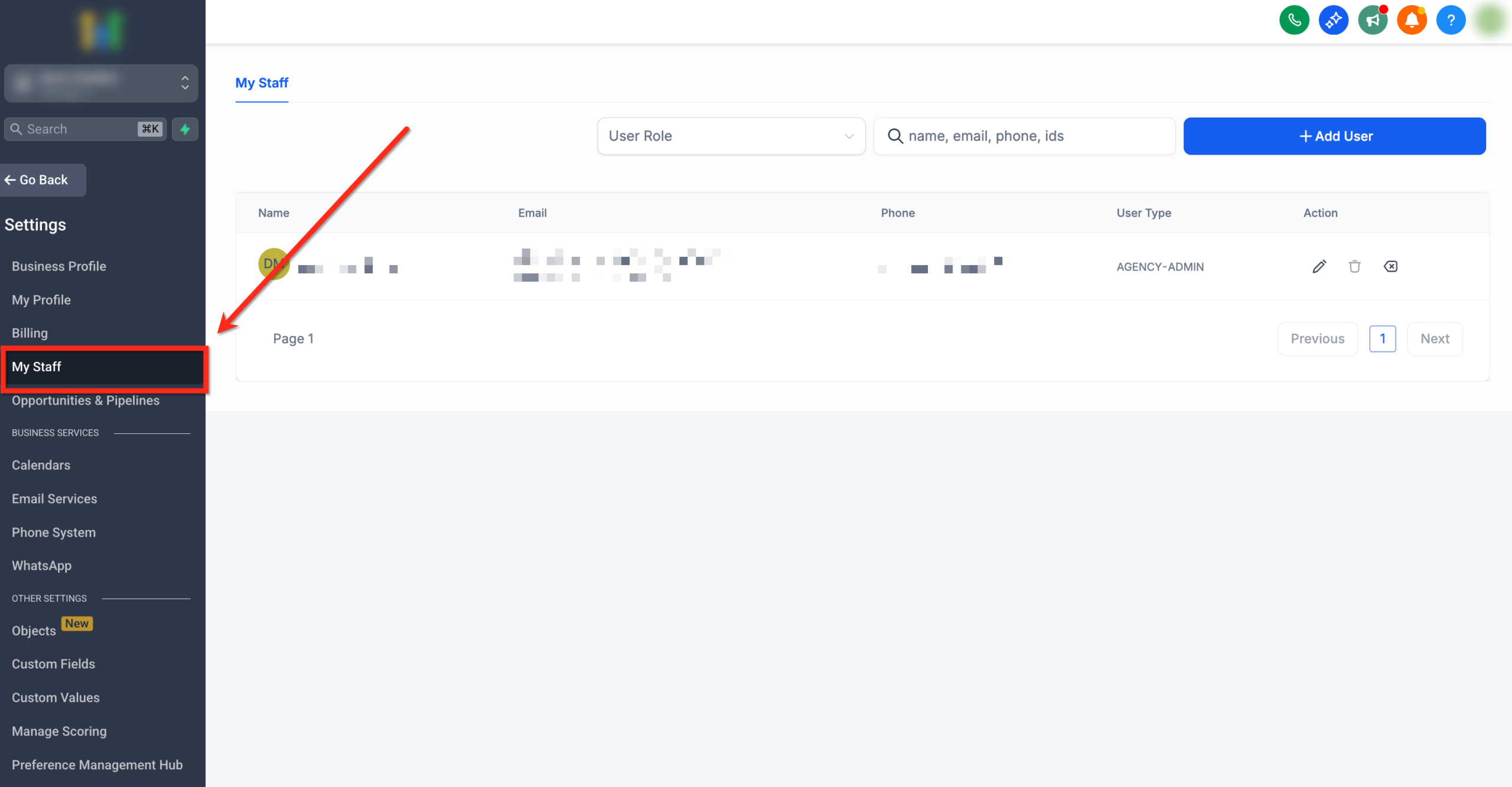
- Go to Settings in your GoHighLevel sub-account and click My Staff.
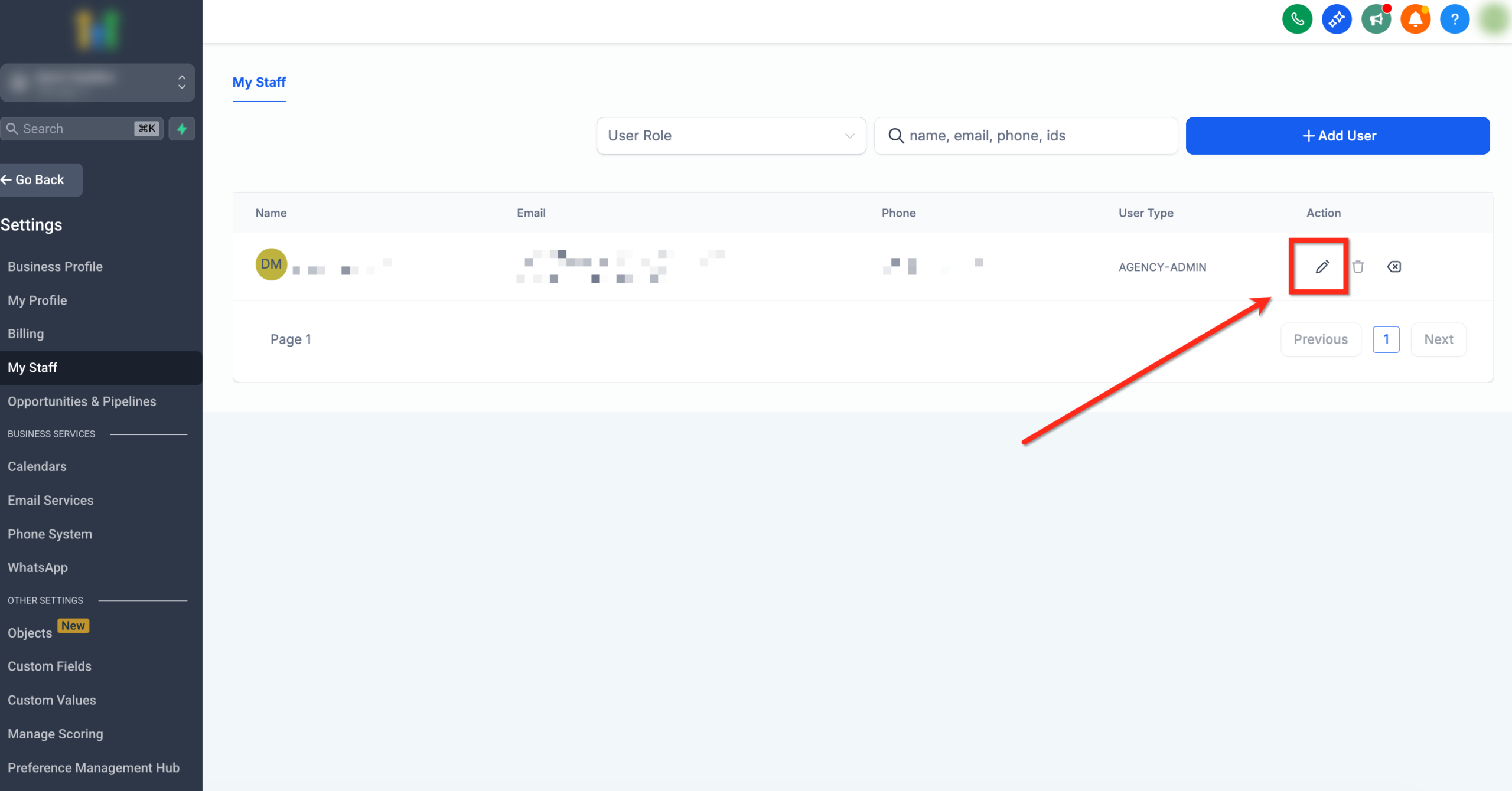
- Find the user whose signature you want to create or update, then click Edit.
- Expand the User Info section.
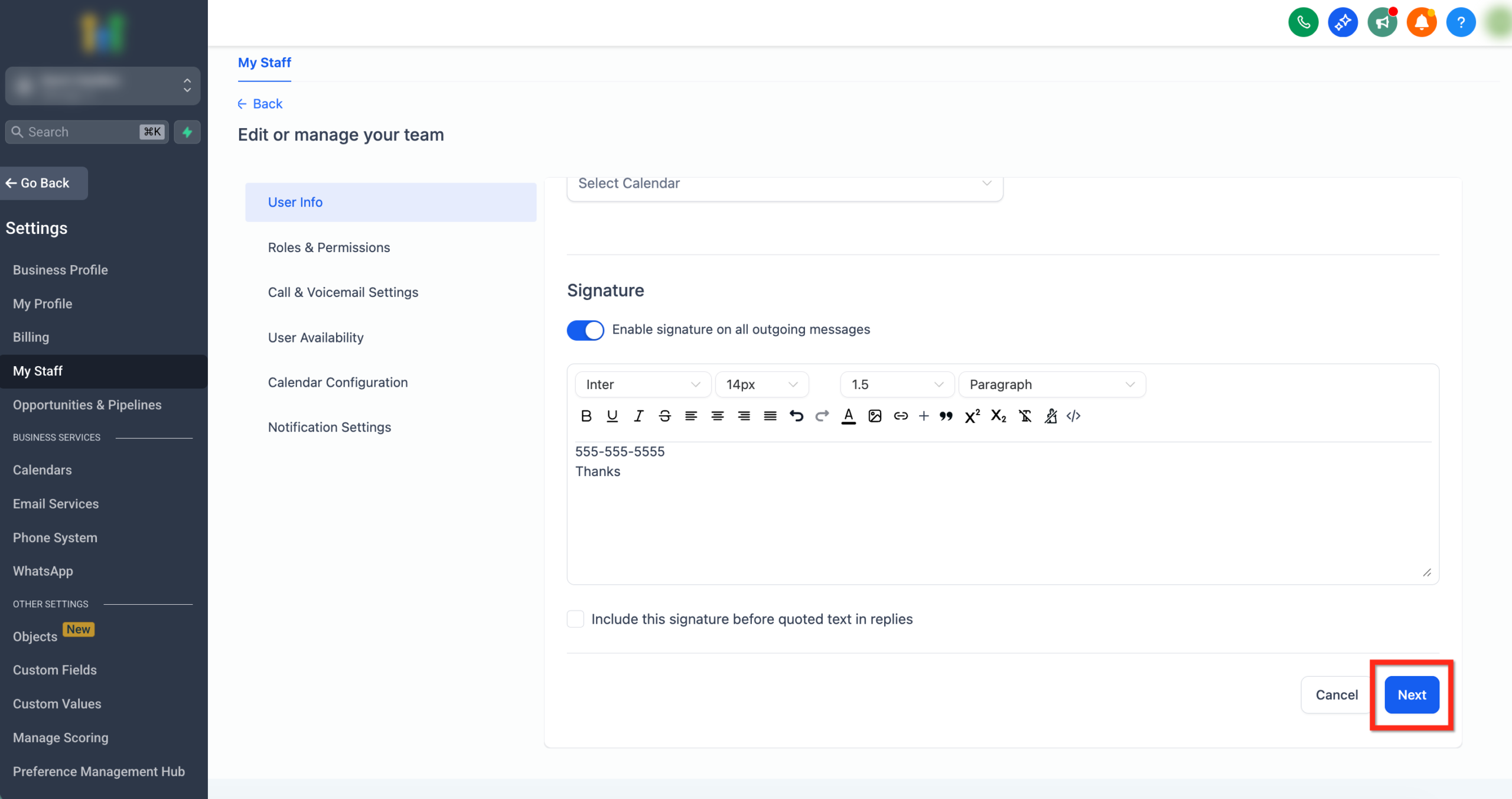
- Scroll to the Email Signature field and add your signature text (plain text or basic HTML).
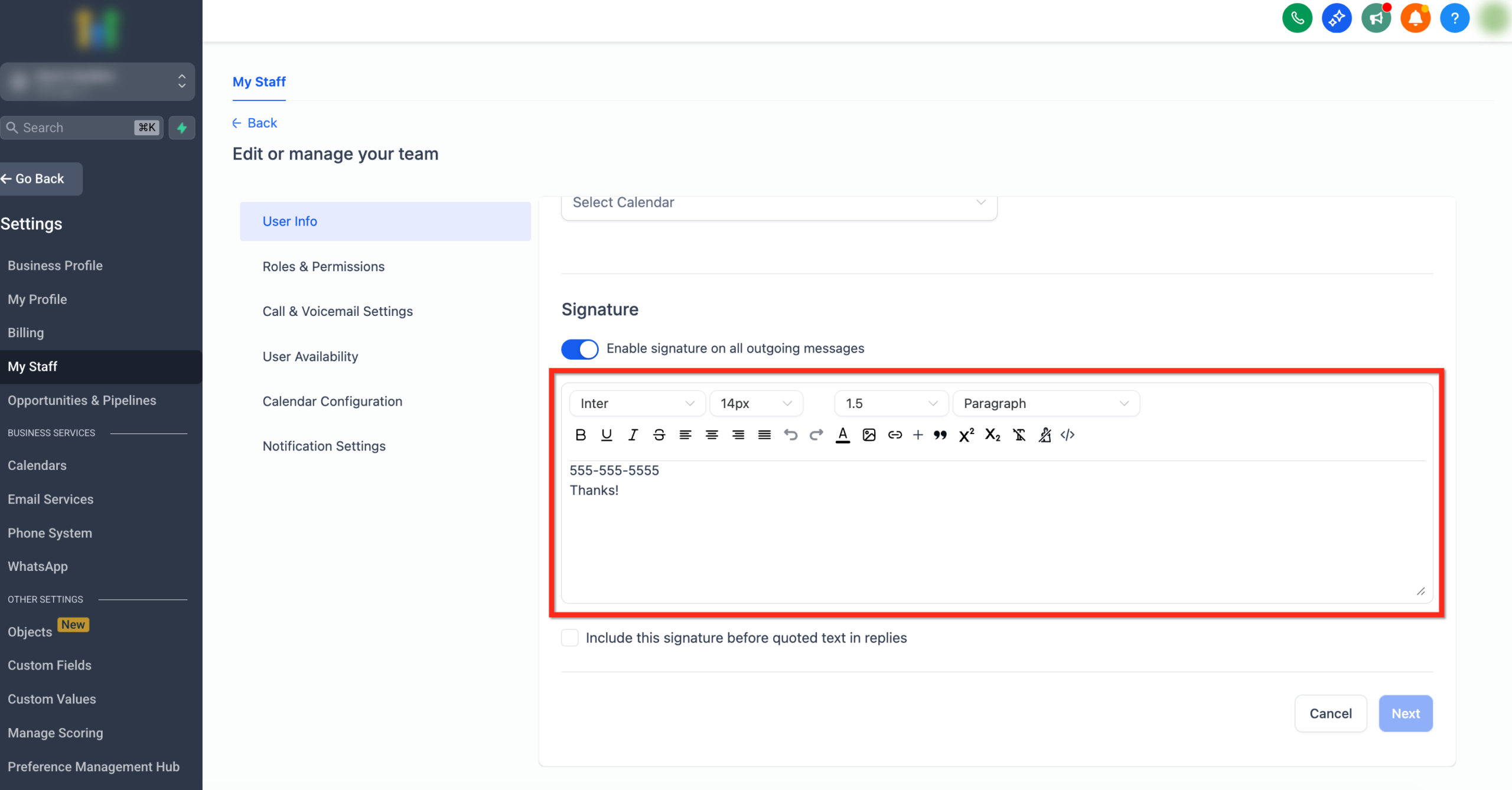
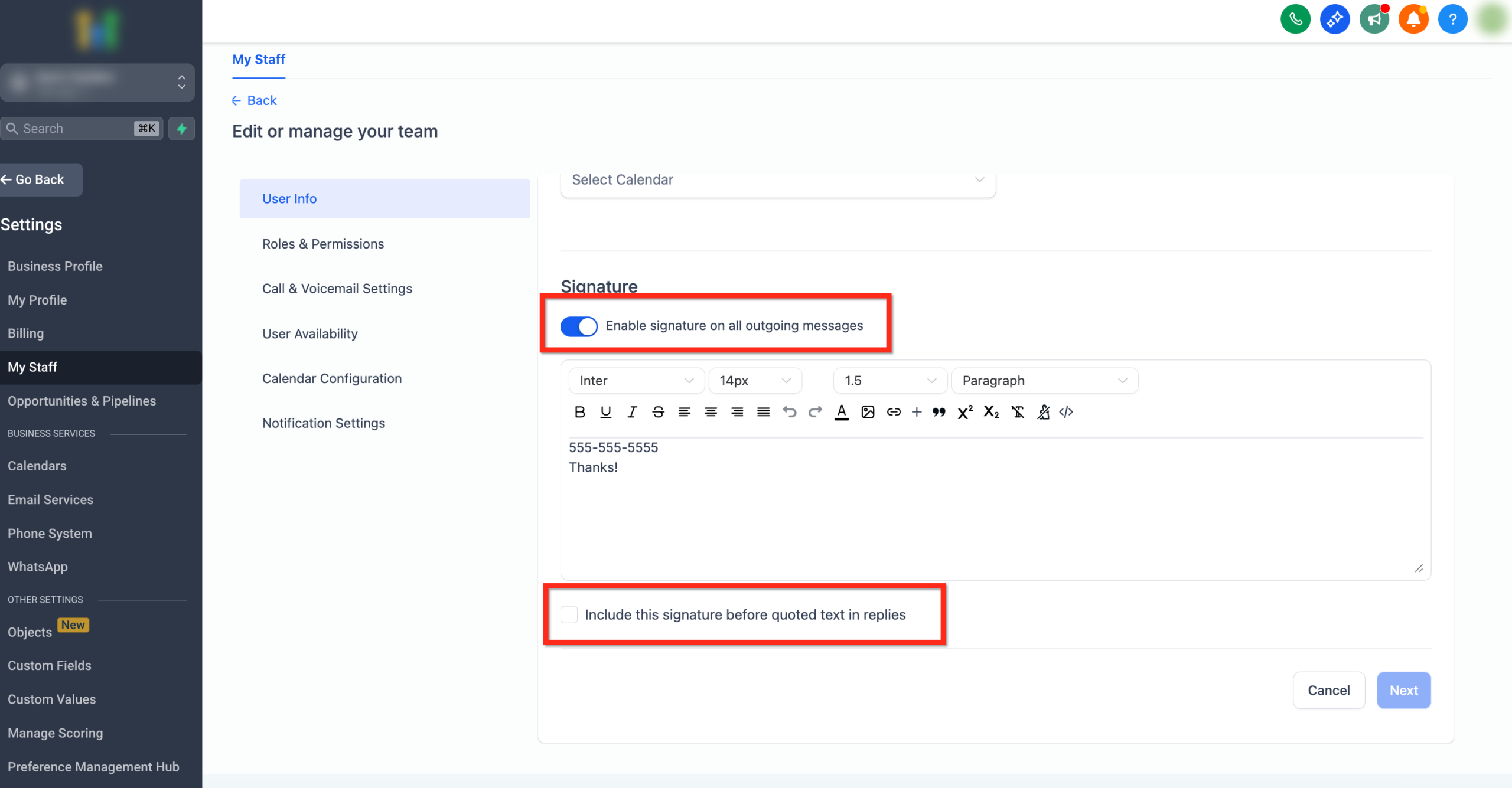
- Save.
Method 2: Each user edits their own signature from Profile
If you want team members to own their personal details while staying within brand guidelines, have them update their signature directly:
- The user logs into GoHighLevel.
- Clicks their Profile tab.
- Updates the Email Signature field using your template.
- Saves.
Automatically add signatures to GoHighLevel campaign emails
To make sure every campaign email goes out with the right person s signature attached:
- Go to Marketing > Campaigns.
- Open or create a campaign.
- Click Campaign Configurations and assign users.
- Edit the email event.
- Insert the Custom Values > User > Signature placeholder where the signature should appear.
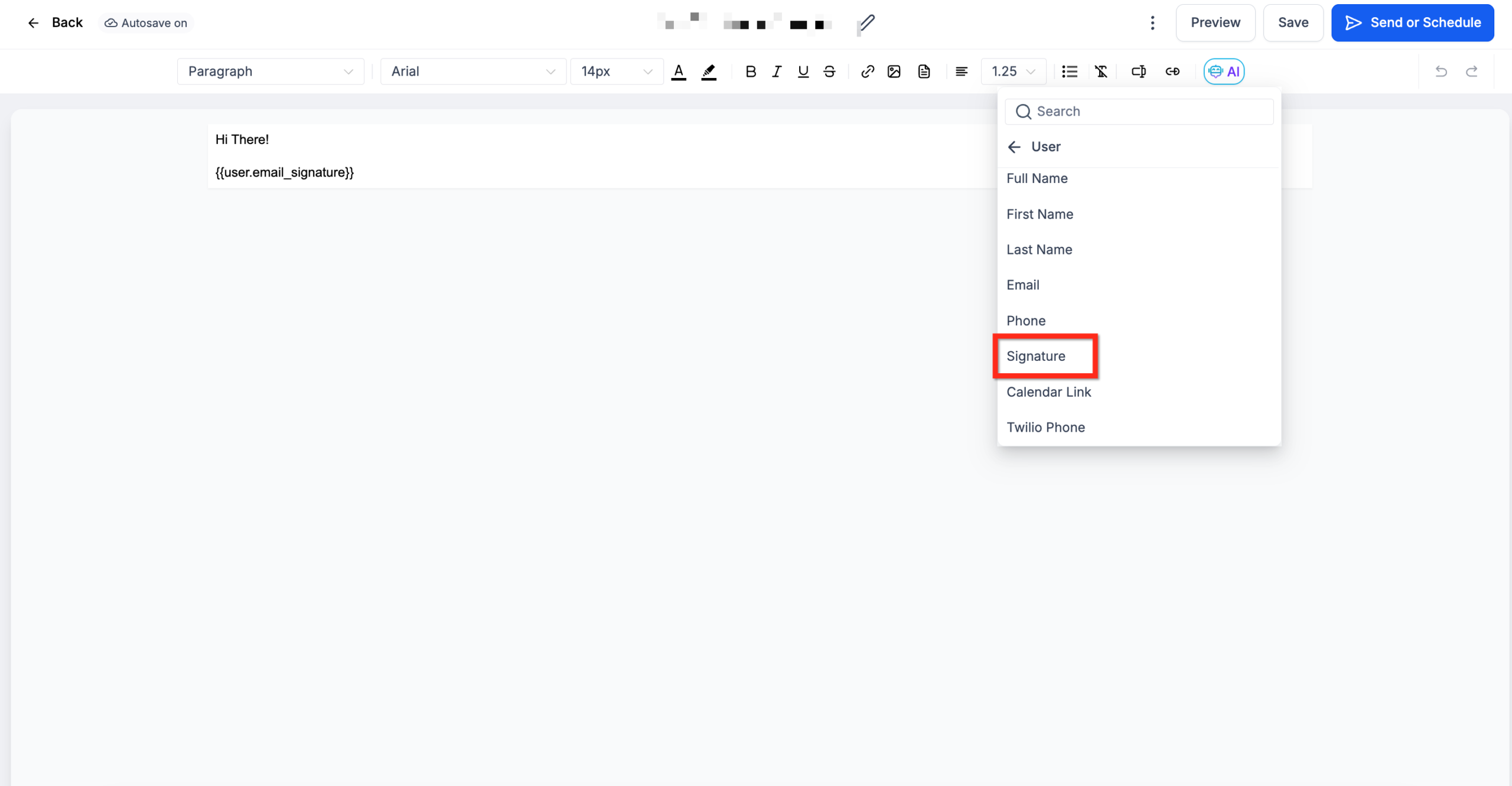
- Save and publish the campaign.
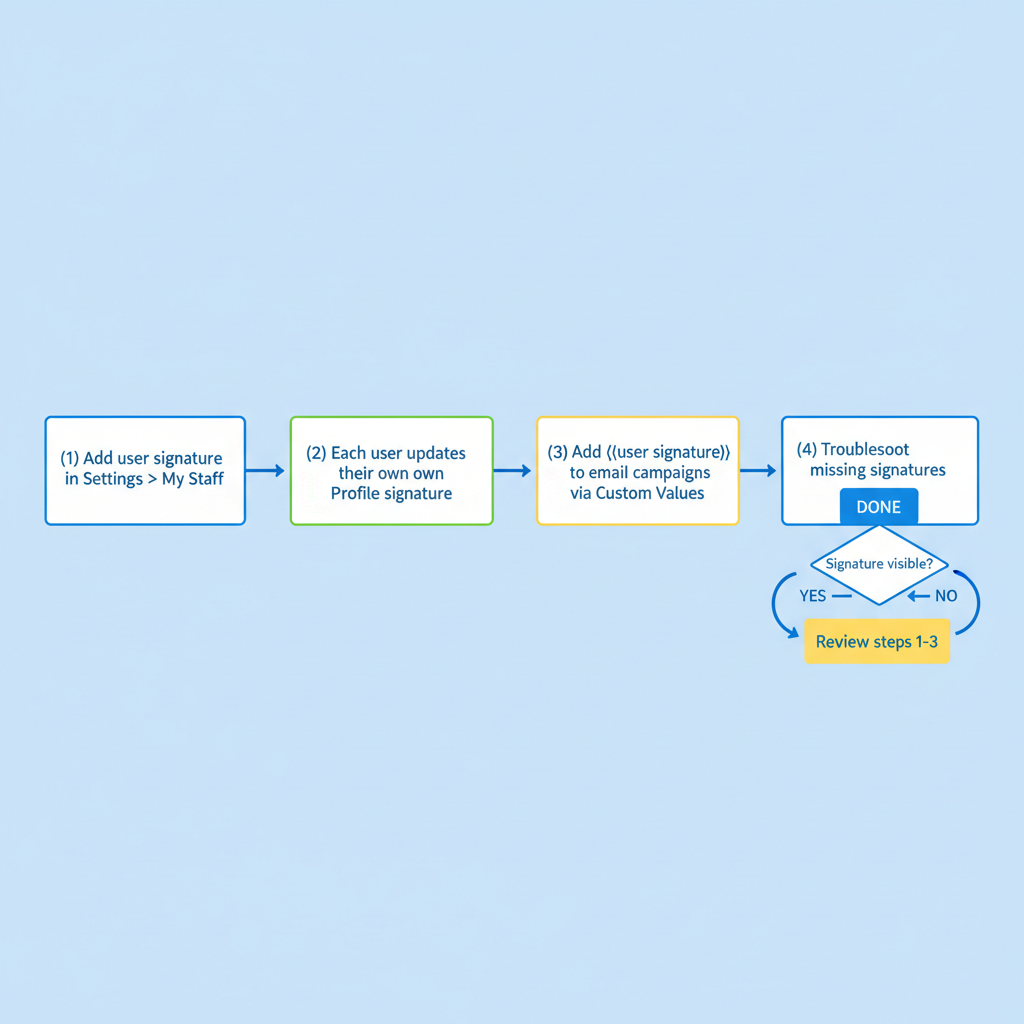
Email signature setup flow (visual)
- Add a user signature in Settings > My Staff.
- Have each user confirm or update their own signature from Profile.
- Add User > Signature to your email campaign templates.
- If a signature is missing, review steps 1–3.
Best practices for high-converting GoHighLevel email signatures
- Keep it short and scannable.
- Make your main CTA obvious.
- Stay on brand but avoid heavy images.
- Match sender identity to the journey.
- Standardize a template for your team.
Troubleshooting missing or incorrect signatures
Common issues include missing signatures on manual emails from Conversations, old or incorrect details, and formatting problems. The safest path is to:
- Confirm which user you re logged in as,
- Ensure that user has a signature defined, and
- Prefer sending from workflows or campaigns with User > Signature inserted.
Where Revset Labs and GoHighLevel fit together
Email signatures are one small piece of a larger revenue system. GoHighLevel provides the infrastructure, and Revset Labs (an AI automation and marketing agency) helps design and implement the journeys so the right person sends the right message at the right time.