
If someone has to stop what they’re doing, copy your phone number, open their dialer, and paste it just to call you, you’ve already lost momentum.

On mobile especially, every extra tap between “I’m interested” and “I’m talking to someone” kills conversions. That’s why the best-performing websites and funnels make it ridiculously easy to call, text, or email in a single tap.
In GoHighLevel, you get this with click‑to‑call, click‑to‑text, and click‑to‑email links and buttons. Add them once to your pages and every visitor on a compatible device can contact you instantly.
If you’re not using GoHighLevel yet, you can start a free GoHighLevel trial through our partner link and follow along as you build.
Revset Labs is an AI automation and marketing agency that designs, builds, and optimizes GoHighLevel systems for agencies and local businesses. This guide walks you through the DIY setup; if you’d rather have a done‑for‑you implementation, we’ve got you covered at the end.
What are click‑to‑call, click‑to‑text & click‑to‑email actions in GoHighLevel?
“Click‑to” actions turn plain contact details into interactive links that open the visitor’s phone, SMS app, or email client with the right details pre‑filled.
- Click‑to‑call: Opens the phone dialer with your number ready to call.
- Click‑to‑text (SMS): Opens the SMS app with your number pre‑filled as the recipient.
- Click‑to‑email: Opens the visitor’s default email client with your email address (and optionally subject/body) already filled in.
You can use these actions:
- Inside text links (“Call us now”, “Text support”, “Email sales”).
- On buttons (“Tap to Call”, “Text Us”, “Email Support”).
- On icons or images (phone, SMS bubble, envelope icons).
Under the hood they use common protocols:
tel:+1234567890for callssms:+1234567890for texts (some devices also supportsmsto:)mailto:you@example.comfor email
GoHighLevel makes this easier by letting you wire these up either as raw links (for text) or as button actions in the Funnel/Website builder.
Key benefits of click‑to actions for websites & funnels
Adding click‑to‑call, click‑to‑text, and click‑to‑email isn’t just a UX upgrade — it’s a conversion upgrade.
- Fewer steps = more leads. One tap to call, text, or email beats copying and pasting a number any day.
- Higher mobile engagement. Mobile visitors are already on a device that can call and text. Click‑to CTAs remove all friction.
- Better lead quality. People who are ready to call or text are typically hotter leads than casual form‑fillers.
- More ways to contact you. Some people hate calling but love texting. Others want email for records. Offering all three respects how different buyers prefer to communicate.
- Automation‑ready. When you combine click‑to actions with Trigger Links and GoHighLevel workflows, you can automatically tag contacts, start follow‑ups, and notify your team.
If you’re just getting started with GoHighLevel, launching your account with our free‑trial link gives you access to funnels, sites, and automation in one place — no extra plugins or third‑party click‑to‑call tools required.
Where to place your click‑to CTAs
A few proven spots that consistently perform well:
- Hero section: “Tap to Call” or “Tap to Text” next to your main “Get Started” button.
- Sticky header or footer bar: Keep a call or text button visible as visitors scroll.
- Pricing and offer sections: After listing your packages, add “Have questions? [Call us]” or “Text us for a quick quote”.
- Contact and support pages: Replace plain text phone/email with buttons and links.
- Mobile‑only sections: Show more aggressive click‑to CTAs for mobile traffic where calling and texting are easiest.
Tracking & automation with Trigger Links
To go beyond “people clicked this button”, you can:
- Wrap your click‑to actions with Trigger Links inside GoHighLevel so clicks:
- Add or remove tags.
- Drop contacts into workflows.
- Notify sales reps in real time.
For example, clicking a “Tap to Call Sales” button could:
- Add the tag
Called‑Sales. - Fire a workflow that:
- Logs the click.
- Sends a follow‑up SMS if the call isn’t completed.
- Alerts a team member to follow up manually.
Now let’s walk through exactly how to set each type up.
How to add click‑to‑call links in GoHighLevel
Use click‑to‑call links when you want the call action embedded inside text, icons, or images.
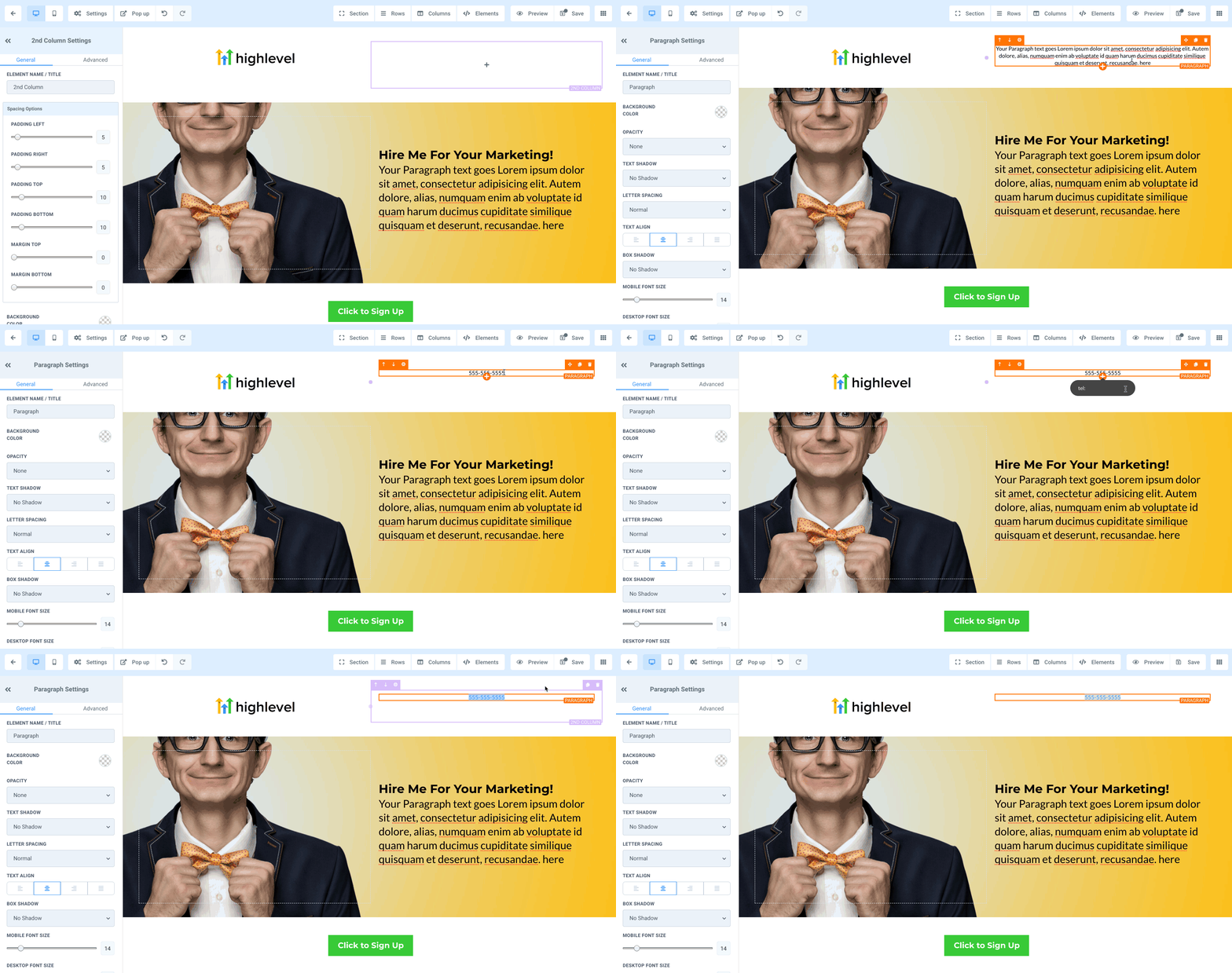
- Open your funnel step or website page.
- Go to Sites → Funnels or Websites, then open the page in the builder.
- Highlight the text you want to turn into a link.
- Example: “Call our team” or your phone number.
- Click the link icon in the text toolbar.
- Enter your phone link in
tel:format.- Use international format without spaces:
tel:+15551234567
- Use international format without spaces:
- Apply and save.
- Click Apply/Save, then save the page in GoHighLevel.
- Test on a real device.
- On mobile: the link should open the dialer with your number ready.
- On desktop: depending on the user’s setup, it may open apps like FaceTime, Skype, or a softphone — or do nothing if no calling app is configured.
Pro tips
- Use a dedicated tracking number (via GoHighLevel or your phone provider) so you can see exactly how many calls come from this page.
- Make the link visually clear — bold text or a contrasting color so it looks like a call‑to‑action, not generic body copy.
How to add click‑to‑email links in GoHighLevel
Click‑to‑email links open the visitor’s default email client with your address — and optionally the subject and body — pre‑filled.
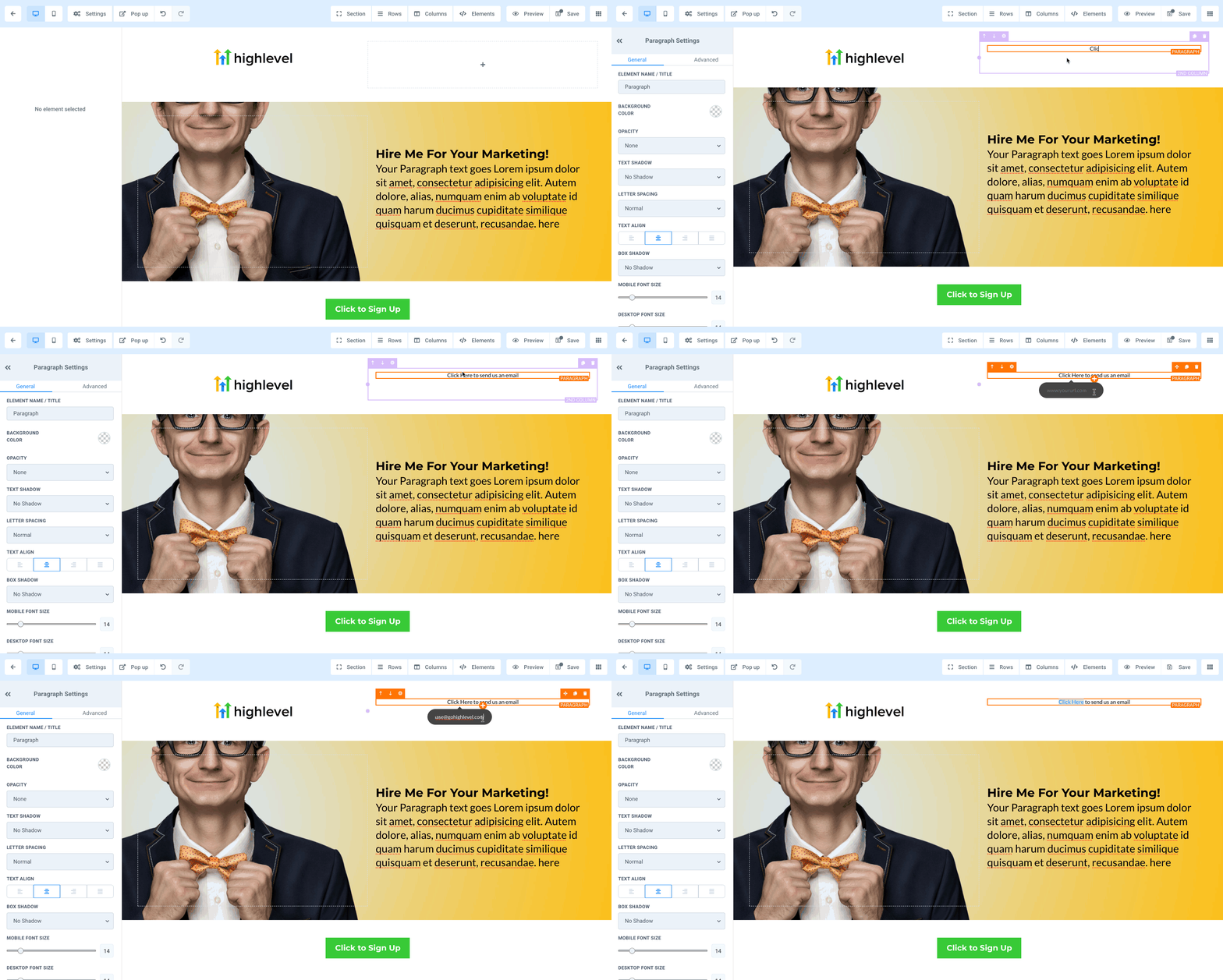
- Open your funnel or website page in the builder.
- Highlight the email‑related text.
- Example: “Email support” or your support address.
- Click the link icon.
- Enter a
mailto:link.- Basic format:
mailto:support@yourdomain.com
- With subject (URL‑encoded):
mailto:support@yourdomain.com?subject=New%20lead%20from%20website
- Basic format:
- Apply, save, and test.
- On desktop, this opens the default email client (Outlook, Apple Mail, etc.).
- On mobile, it opens the mail app.
Pro tips
- Use a shared inbox like
sales@orsupport@so nothing gets lost in personal inboxes. - In your email subject line, add context so your team can prioritize:
?subject=Consultation%20Request%20-%20[City]
- If email is a slower channel for you, make that clear in the copy, and emphasize call or text for urgent issues.
How to add click‑to‑call buttons in websites & funnels
Buttons are often the highest‑converting way to drive calls, especially on mobile.
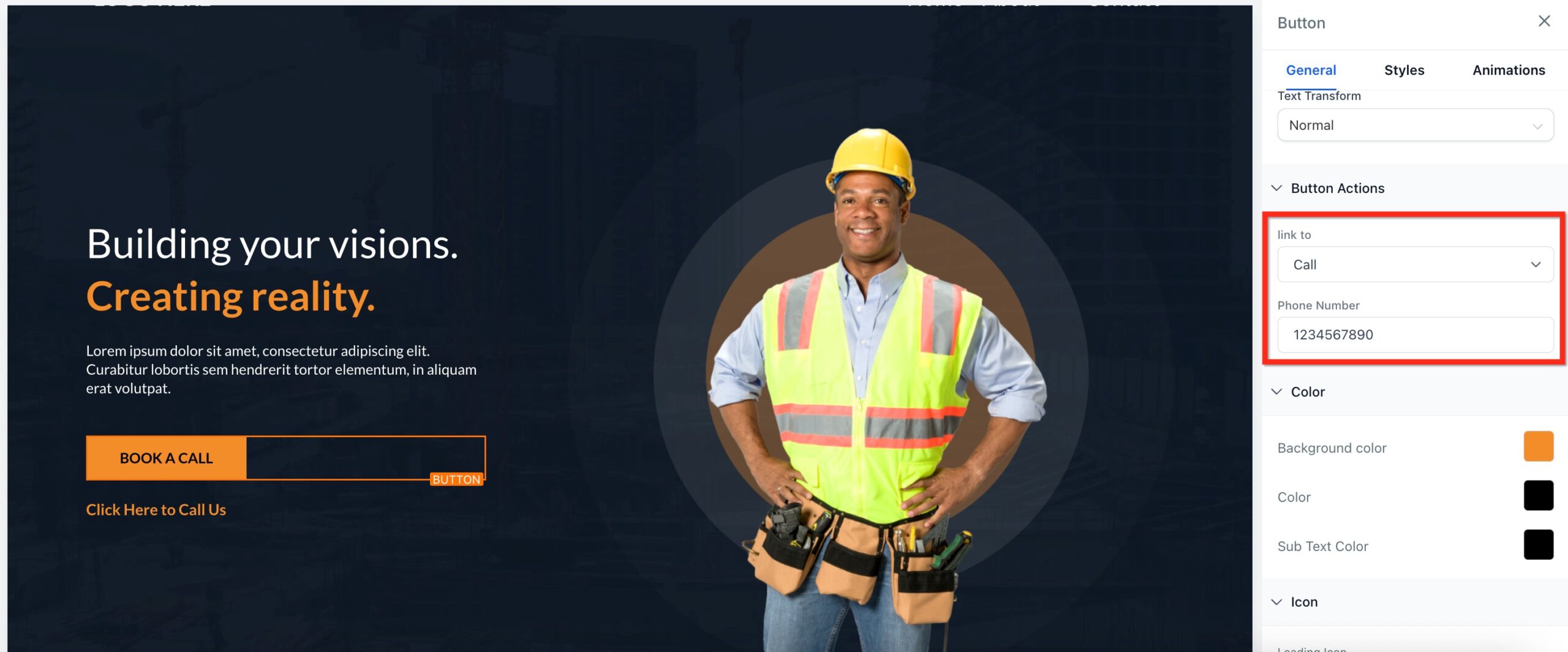
- Add or select a button element.
- In the page builder, drag in a Button or click an existing one.
- Open the button settings.
- With the button selected, open the settings panel on the right.
- Set the action to Call.
- Under Action or Button Action, choose:
- Link type:
Call(or similar, depending on your builder version).
- Link type:
- Under Action or Button Action, choose:
- Enter the phone number.
- Use your primary tracking or business number in full international format (e.g.
+15551234567).
- Use your primary tracking or business number in full international format (e.g.
- Update the button label.
- Use action‑oriented copy:
- “Tap to Call Now”
- “Call for a Free Consultation”
- “Call Support”
- Use action‑oriented copy:
- Style for mobile first.
- Make the button:
- Full‑width or wide enough to tap with a thumb.
- High contrast against the background.
- Make the button:
- Save and test on multiple devices.
- Confirm that tapping the button opens the dialer with your number.
If you’re building your very first funnel, set up your GoHighLevel account here so you can deploy call buttons across every step — landing pages, order forms, and thank‑you pages.
How to add click‑to‑text (SMS) buttons in GoHighLevel
Click‑to‑text buttons are perfect for prospects who prefer texting instead of talking on the phone.
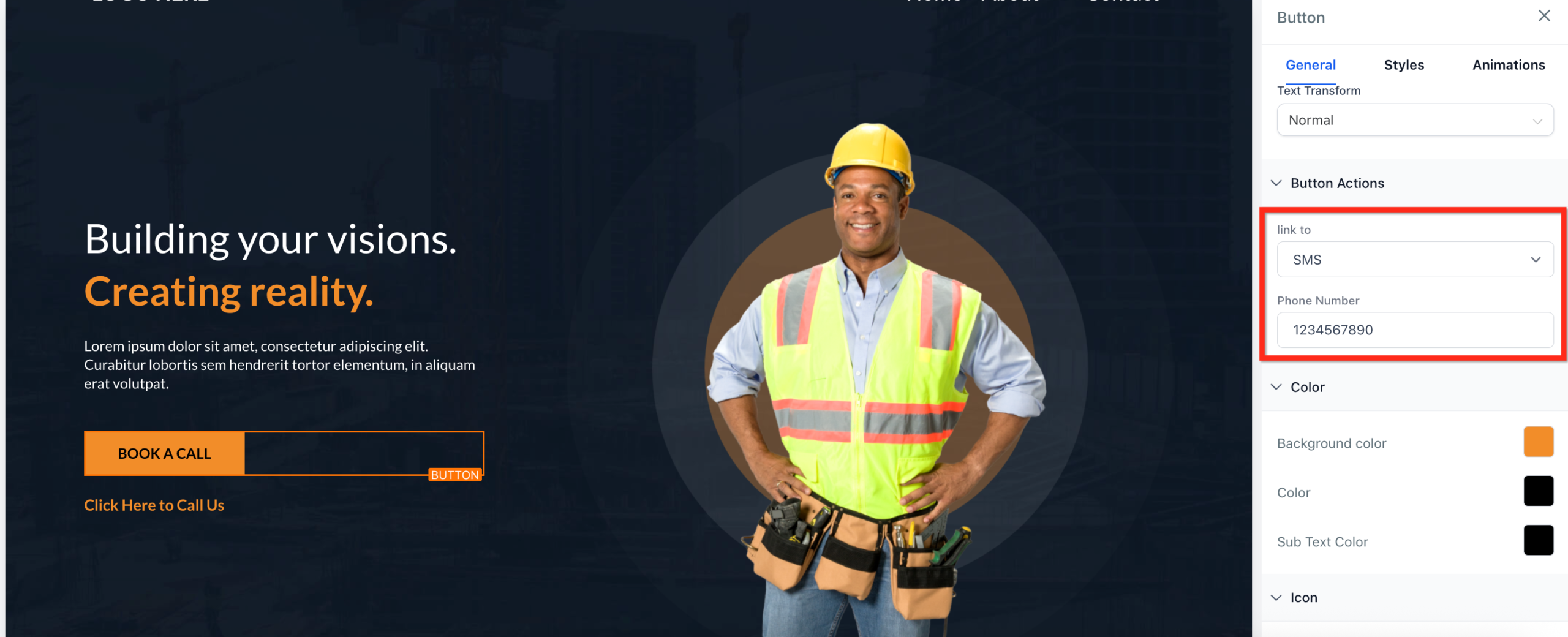
- Select or add a button in your page.
- Open the button settings panel.
- Set the action to SMS or Text.
- Under Action, choose:
- Link type:
SMS/Text(label varies by builder version).
- Link type:
- Under Action, choose:
- Enter your SMS‑enabled number.
- Use a number connected to your GoHighLevel SMS provider so replies are tracked inside the platform.
- Write a clear button label.
- Examples:
- “Text Us a Question”
- “Text for Pricing”
- “Text Support”
- Examples:
- Optionally pre‑fill the message.
- Some setups allow using an
sms:link with a body, e.g.:sms:+15551234567?&body=Hi%2C%20I%27m%20interested%20in%20...
- Keep the pre‑filled text short and editable.
- Some setups allow using an
- Save and test.
- On mobile, tapping should open the SMS app with your number filled in.
Optimization ideas
- Use SMS buttons on:
- Service pages (“Text for a quick quote”).
- Checkout pages (“Need help? Text support before you buy”).
- Follow up texts via GoHighLevel workflows once someone messages you so no conversation slips through the cracks.
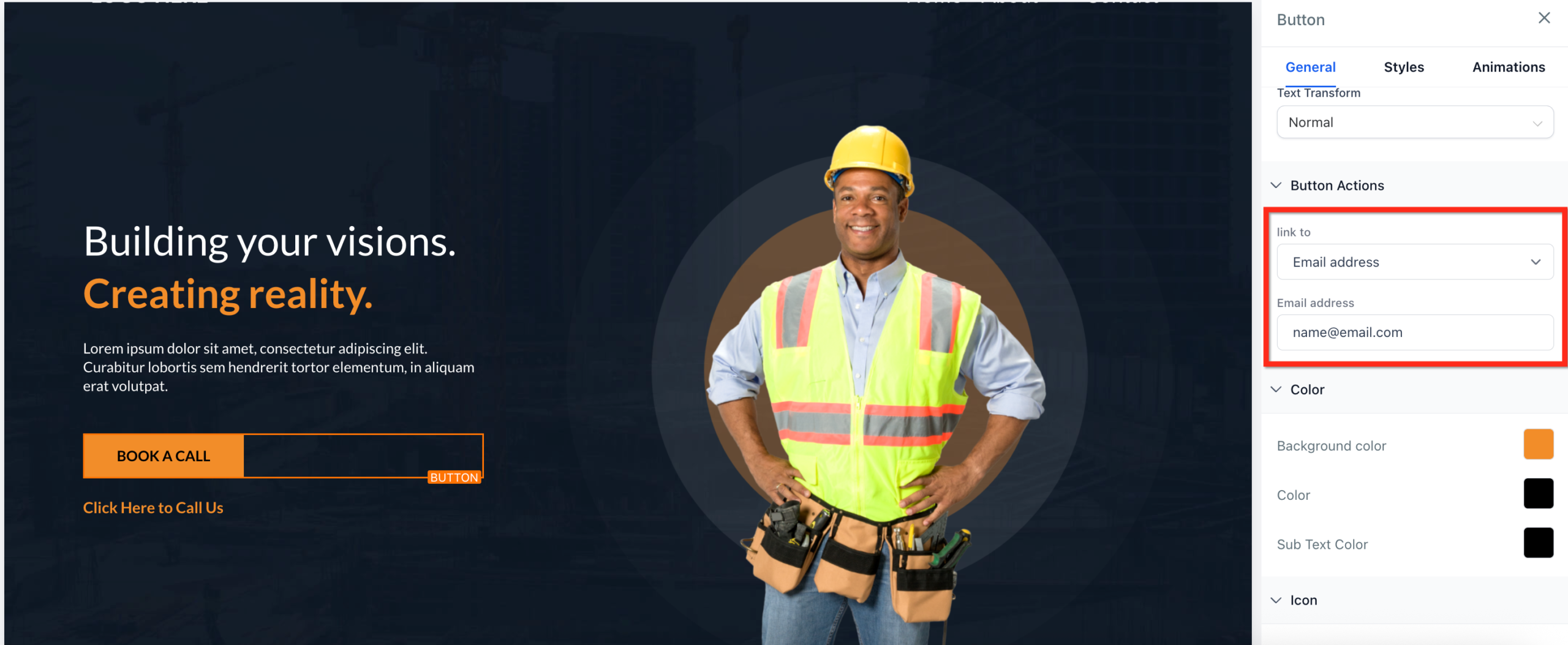
How to add click‑to‑email buttons in GoHighLevel
For longer questions, proposals, or B2B buyers who live in their inbox, click‑to‑email buttons still convert well.
- Add or select a button.
- Open the button settings.
- Set the action to Email.
- Under Action, choose:
- Link type:
Email.
- Link type:
- Under Action, choose:
- Enter your preferred email address.
- Typically a team inbox like
hello@yourdomain.comorsales@yourdomain.com.
- Typically a team inbox like
- Label the button clearly.
- “Email Our Team”
- “Email a Project Brief”
- “Email Support”
- Optionally use a
mailto:link for more control.- If your builder allows a custom URL, you can use:
mailto:sales@yourdomain.com?subject=New%20Project%20Inquiry
- If your builder allows a custom URL, you can use:
- Save and test.
- Confirm the button opens the visitor’s email client with your address filled in.
When to prioritize email buttons
- High‑ticket B2B offers where prospects want to send detailed context.
- When your sales process relies on written proposals or attachments.
- For international audiences in time zones where live calls are inconvenient.
FAQs: click‑to‑call, click‑to‑text & click‑to‑email in GoHighLevel
Do click‑to‑call and click‑to‑text buttons work on desktop?
It depends on the visitor’s device and apps. On mobile, they work reliably because phones have native dialer and SMS apps. On desktop, the visitor needs a calling or texting app (like FaceTime, Skype, or a softphone) set as the default handler. Always provide at least one alternative contact method (e.g. a form or email address) for desktop‑only users.
How can I track clicks on these buttons in GoHighLevel?
Use Trigger Links or tracked buttons. Create a Trigger Link that points to your click‑to URL, use that in your page, and then build workflows that fire when the Trigger Link is clicked. You can tag contacts, add them to pipelines, and trigger follow-up sequences based on those clicks.
Can one button offer multiple contact options (call, text, and email)?
Each button or link should trigger one primary action. If you want to offer options, use a short section like “Prefer to call, text, or email?” with three separate buttons. This keeps analytics clean and makes it obvious what will happen when someone taps.
Is it better to use text links or buttons for click‑to actions?
Use both, depending on context. Buttons usually win in high‑intent sections (hero, pricing, checkout) because they stand out more. Text links work well inside paragraphs and FAQs where a subtle call‑to‑action feels more natural. For mobile users, prioritize thumb‑friendly buttons.
What number or email should I use for these actions?
Use trackable, shared contact points:
- A GoHighLevel tracking number or a number connected to your VoIP/SMS provider.
- Shared inboxes like
sales@orsupport@routed into GoHighLevel conversations.
That way, every interaction is logged, reportable, and handled by your team — not buried in one person’s phone.
Next steps: turn click‑to actions into a revenue channel
Click‑to‑call, click‑to‑text, and click‑to‑email links and buttons are small tweaks with outsized impact:
- They remove friction for your hottest prospects.
- They give buyers multiple ways to reach you.
- They plug directly into GoHighLevel’s automation engine.
If you haven’t already, so you can start testing click‑to actions across your websites and funnels today.
And if you’d rather have a partner design the strategy, build the funnels, wire up the automations, and report on performance, Revset Labs can help. As an AI automation and marketing agency focused on GoHighLevel, we build end‑to‑end systems that turn every click‑to action into a measurable revenue event.