
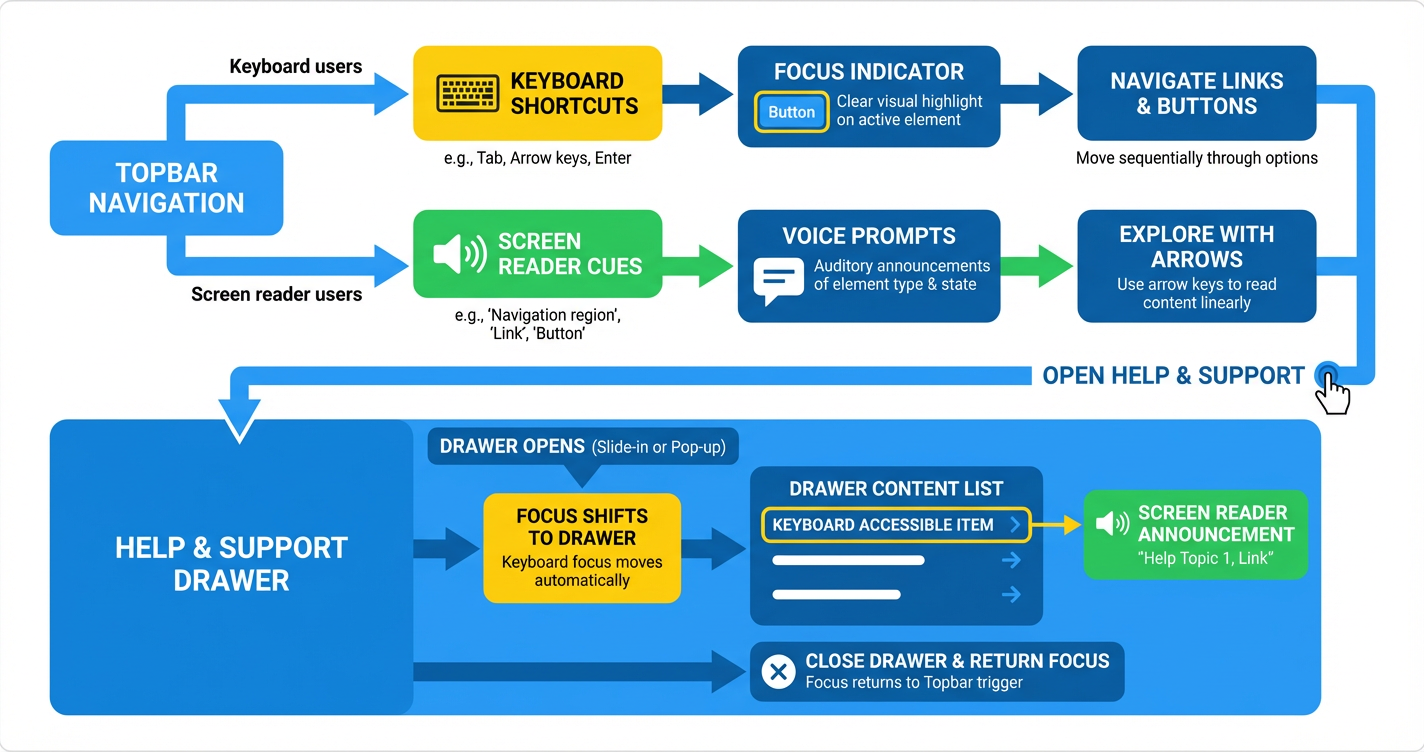
 GoHighLevel Accessibility Enhancements for Topbar and Help Drawer” title=”GoHighLevel Accessibility Enhancements: Topbar & Help Drawer Guide Workflow”>

HighLevel has been quietly making important accessibility upgrades to the core app experience—especially in the topbar navigation and the Help & Support side drawer. For agencies and businesses serving a wide range of users, these changes are a real step forward in making the platform easier to use with screen readers, keyboards, and other assistive technologies.
This guide breaks down what changed, why it matters, and how to make the most of these enhancements inside your own GoHighLevel account.
If you’re evaluating CRMs or all‑in‑one marketing platforms, accessibility should be a non‑negotiable. You can start a free GoHighLevel trial knowing the product team is actively investing in accessibility, not treating it as an afterthought.
Overview of the new accessibility enhancements
HighLevel has refined both the main topbar and the Help & Support side drawer with a series of updates aimed at users who rely on assistive technologies such as VoiceOver, screen readers, or keyboard‑only navigation.
At a high level, the recent work focuses on:
- Adding and improving ARIA labels and roles so screen readers can correctly describe navigation elements.
- Tightening up keyboard navigation so every interactive element is reachable in a predictable order.
- Using semantic HTML so structural elements (headers, sections, buttons) are announced properly.
- Improving focus management so users always know where they are in the interface.
Together, these upgrades make it much easier for more of your team—and your clients’ teams—to work comfortably inside GoHighLevel every day.
Key benefits for your team and your clients
These accessibility updates are not just a technical box‑check. They translate directly into a better operational experience:
-
More inclusive access to your CRM and automations
Team members or clients who depend on screen readers or keyboard navigation can now move through HighLevel’s core navigation with far less friction. -
Fewer support tickets about “where things are”
Clearer focus states, predictable keyboard patterns, and well‑labeled controls reduce confusion and the need for hand‑holding. -
Stronger alignment with WCAG best practices
While formal compliance depends on your broader implementation, these platform‑level updates move HighLevel closer to modern accessibility standards. -
A better experience for everyone—not just users with disabilities
Improved focus management, clearer labels, and consistent navigation patterns tend to make the interface feel faster and more intuitive for all users.
If you’re standardizing client work inside one platform, these improvements are one more reason to centralize on GoHighLevel rather than stitching together multiple tools with inconsistent accessibility.
Topbar accessibility improvements
The topbar is how users move between major areas of GoHighLevel. Making this strip of navigation accessible is critical if you want everyone on your team to be able to work effectively.
Recent improvements include:
1. Reliable VoiceOver and screen reader behavior
HighLevel has fixed several VoiceOver compatibility issues in the main navigation. Screen readers can now:
- Correctly announce topbar items and their roles (for example, navigation link vs. menu vs. button).
- Provide useful context when you move between sections (such as "Conversations", "Opportunities", or "Automations").
- Better reflect the current selection or active workspace.
For team members who navigate primarily by audio, this makes the app feel far more predictable.
2. Full keyboard navigation support
The topbar now supports more robust keyboard navigation. In practice, that looks like:
- Using
TabandShift + Tabto move left and right through the topbar items. - Using
EnterorSpaceto activate the currently focused item. - Being able to open and interact with dropdowns and menus without ever touching a mouse.
If you have power users who live on the keyboard, these changes remove a lot of subtle friction.
3. Stronger ARIA labels and roles
Behind the scenes, the navigation has been updated with clearer ARIA attributes so assistive technologies know exactly what they are dealing with:
- Menu items and buttons now expose accurate roles.
- Labels communicate the purpose of each control instead of forcing screen readers to guess.
- States (such as expanded/collapsed) are surfaced more reliably.
This is the kind of work users may never see—but they’ll absolutely feel the difference when navigating with a screen reader.
4. Improved focus management and visual cues
Focus management is at the heart of keyboard and screen‑reader usability. In the updated topbar, HighLevel has:
- Tightened the order in which focus moves between items.
- Ensured that opening menus and drawers moves focus into those areas instead of leaving it behind.
- Added clearer visual indicators so sighted keyboard users can always tell which item is currently selected.
As a result, navigation feels more like stepping from one clearly marked stone to the next—not guessing where your cursor might be.
5. Accessible user switcher and “login as” flows
The account switcher and "login as user" (agency admin only) areas have also been refined so they:
- Expose descriptive labels for each account or sub‑account.
- Respect focus order when opening and closing the switcher.
- Work more smoothly with screen readers when you jump into a client’s account.
For agencies, this matters a lot: your internal team can support dozens or hundreds of sub‑accounts without accessibility becoming a bottleneck.
Rolling more of your client operations into GoHighLevel means your team spends less time fighting scattered tools—and more time shipping campaigns. You can start a free GoHighLevel trial here and build on a navigation layer that already considers accessibility.
Help & Support side drawer accessibility overhaul
The Help & Support side drawer is where users go when they’re stuck—so it’s essential that this area works well for everyone.
HighLevel’s recent overhaul focuses on making the entire drawer fully navigable and understandable via screen readers and keyboards.
Semantic structure and ARIA attributes
The content inside the Help & Support drawer now uses more semantic HTML and richer ARIA metadata. That allows assistive technologies to:
- Recognize logical sections (for example, search, suggested articles, contact options).
- Announce headings and groupings so users can jump quickly to the area they need.
- Understand which items are interactive versus purely informational.
Keyboard‑first navigation
The drawer is designed to be usable without a mouse. Typical patterns include:
Tab/Shift + Tabto move through search, results, links, and buttons.EnterorSpaceto open an article, expand details, or launch a support option.Escto close the drawer when you’re done.
Combined with improved focus indicators, this makes self‑serve help far more approachable for keyboard‑only users.
Clear labels on all interactive elements
Buttons, links, and controls in the Help & Support drawer have been given descriptive, accessible labels so that screen readers can:
- Announce what will happen before a user activates a control.
- Differentiate between similar actions (for example, "Open chat support" vs. "View documentation").
- Provide context when moving between different help options.
That level of clarity is the difference between a frustrating "mystery icon" and a trustworthy, predictable interface.
How to make the most of these accessibility updates
The platform work is done for you—but how you roll it out inside your agency or business is where the real leverage lives. Here are practical ways to take advantage of these enhancements.
1. Train your team on keyboard and screen‑reader patterns
Run a short internal training or loom walkthrough covering:
- How to navigate the topbar using only the keyboard.
- How to open, search, and close the Help & Support drawer using screen‑reader friendly patterns.
- What the new focus indicators look like so people know what to expect.
Even a 15–20 minute session can dramatically improve adoption and confidence.
2. Include accessibility in your onboarding for clients
If you’re an agency onboarding clients into GoHighLevel, add a short "Accessibility & navigation" module to your standard onboarding:
- Show where key navigation elements live in the topbar.
- Walk through how to reach Help & Support without a mouse.
- Call out that HighLevel is actively investing in accessibility so their own teams feel comfortable rolling it out widely.
3. Audit your own funnels, websites, and automations
Platform‑level accessibility is only one part of the story. Your own assets—funnels, websites, forms, and emails—need the same care:
- Check that your pages use clear headings and logical structure.
- Ensure buttons and links have descriptive text (not just "Click here").
- Verify color contrast and font sizes on your main templates.
- Test key flows (opt‑in, booking, checkout) with just a keyboard.
If you’re handling high traffic or regulated industries, this isn’t just good practice—it’s risk management.
4. Pair accessibility with automation and AI
When you’re already investing in accessibility, it’s a great time to streamline the rest of your tech stack. With GoHighLevel you can:
- Centralize your funnels, pipelines, and support communication in one place.
- Use automations to route leads and tickets so nobody falls through the cracks.
- Layer AI on top of your processes to triage conversations and personalize follow‑up.
Revset Labs specializes in building these kinds of systems. We’re an AI automation and marketing agency that helps you design accessible, high‑converting journeys inside GoHighLevel—without your team needing to become accessibility or automation experts.
Where GoHighLevel stands on accessibility overall
These specific enhancements are part of a broader, ongoing effort to align the platform with modern accessibility standards like WCAG 2.1 Level AA.
HighLevel has publicly committed to:
-
Systematically improving accessibility across core features.
-
Integrating accessibility testing into their QA processes.
-
Prioritizing customer‑facing tools (like navigation and support) based on real feedback.
-
Working with third parties to audit and validate accessibility work over time.
For more detail on the program as a whole, you can review the official "Accessibility at HighLevel" overview.
From an operator’s standpoint, this means you’re building on top of a platform that is moving in the right direction and reducing—not increasing—accessibility debt over time.
Not on GoHighLevel yet? You can start your free GoHighLevel trial and begin rolling out more accessible funnels, pipelines, and support flows from day one.
Frequently asked questions
Do I need to turn these accessibility features on?
No. These are platform‑level enhancements and are enabled by default. Once your account is on the latest version, the improved topbar and Help & Support drawer behavior will be available automatically.
Will these changes break my existing workflows?
In normal use, no. The goal of these updates is to make navigation clearer, not different for the sake of it. Mouse‑driven users should experience the same or better behavior, while keyboard and screen‑reader users gain a much better experience.
How do these updates affect my clients and sub‑accounts?
Because the topbar and Help & Support drawer are shared patterns across HighLevel, your clients benefit automatically. As you roll GoHighLevel out across more teams, you can do so knowing that navigation and help resources are increasingly accessible out of the box.
Do I still need to worry about accessibility on my funnels and sites?
Yes. These changes improve the platform, but your own pages, funnels, and emails still need to be designed and built with accessibility in mind. Think of HighLevel’s work as the foundation; your own assets still require good structure, copy, and design choices.
Where can I get help if I run into accessibility issues in HighLevel?
If you or your clients encounter accessibility barriers, you can reach out to HighLevel support directly through the in‑app help options or by using the contact details listed in their accessibility statement.
If you want strategic help rolling accessibility into your marketing systems—without slowing growth—Revset Labs can help you design and implement accessible funnels, onboarding, and support workflows inside GoHighLevel.
Next steps
- Share this recap with your internal team so they understand what changed and how to use the updated navigation and Help & Support drawer.
- Add accessibility checkpoints to your own funnel and website QA processes.
- Consider consolidating more of your client work into GoHighLevel now that the core UI is more inclusive by design.
When you’re ready to centralize your marketing, CRM, and support in a single, accessibility‑conscious platform, start your GoHighLevel free trial and, if you want a done‑for‑you implementation partner, loop in Revset Labs to help you launch faster with less technical risk.