
 GoHighLevel 24/7 Support: Live Chat, Phone, Zoom & Ticket Options Explained”>
Great tools still break, and even the best onboarding can’t cover every edge case. When something in your GoHighLevel account stops working, the difference between “we’re stuck” and “we’re back in business” is how quickly you can get the right kind of help.
The good news: GoHighLevel offers true 24/7 customer support across multiple channels—live chat, Zoom calls, support tickets, and phone—plus a deep knowledge base and optional Premium Support.
This guide explains every GoHighLevel support option, when to use each one, and a few best practices we use at Revset Labs when we’re implementing GoHighLevel for clients.
If you’re still in the research phase, you can also spin up a live account and test support for yourself:
Start your GoHighLevel free trial
Why 24/7 support matters when you run on GoHighLevel
Once GoHighLevel sits at the center of your funnels, CRM, calendars, and messaging, downtime or confusion isn’t just annoying—it’s expensive.
Solid 24/7 support helps you:
- Resolve issues quickly – Fix deliverability, login, billing, or automation problems before they impact campaigns.
- Ship changes with confidence – Know you can ask for help when you’re wiring complex workflows or migrations.
- Protect your team’s focus – Give operators a single, reliable path when they hit a wall instead of spinning in Slack threads.
- Serve clients globally – Agencies with customers across time zones can still get help when something breaks overnight.
The key is understanding which channel to use for which situation—so you get the fastest, most accurate answer.
Quick snapshot: GoHighLevel support options
From our testing and GoHighLevel’s official docs, here’s the high-level view of support:
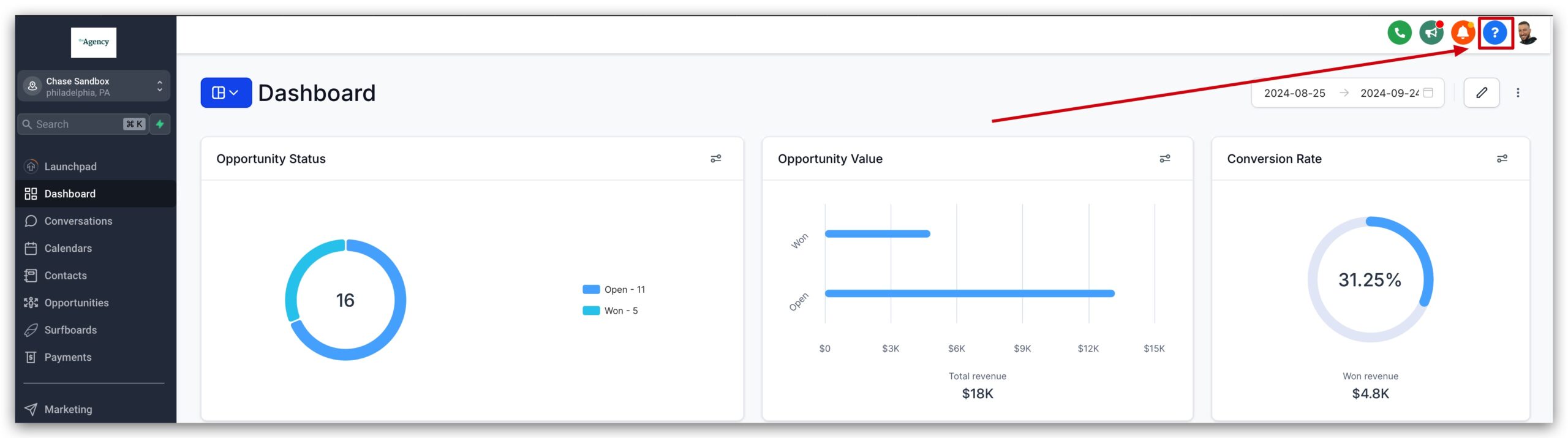
- Access point: Blue question mark icon in the top-right of the web app (Agency view) → support menu.
- Who can contact support: Agency Admins and Users with sufficient permissions. If you only see a sub-account and no Agency view, you’ll need your agency owner to reach out for you.
- Available 24/7 channels:
- Live Chat inside the app
- Zoom support calls
- Support ticketing via email (tickets created from the portal)
- Phone support for sales, billing, and login issues
- Self-serve: A large, searchable knowledge base plus how-to articles and videos.
- Premium Support (optional add-on): Priority queues, faster SLAs, a Technical Account Manager, and a dedicated Slack channel.
We’ll unpack each in more detail below.
How to access GoHighLevel support from inside your account
You don’t need to remember separate URLs or logins to get help—everything starts from the same icon.
- Log into your GoHighLevel Agency account.
Make sure you’re in the Agency view, not just a sub-account. - Click the blue question mark icon in the top-right corner.
- From the support menu, choose the option that fits your situation:
- Open Live Chat
- Schedule or join a Zoom Support Call
- Create a Support Ticket
- Browse the Help Center / Knowledge Base
- (If enabled) Access Premium Support resources
If you’re a sub-account user and don’t see the Agency view, ask your Agency Admin to either:
- Grant you the right permissions, or
- Open a support request on your behalf.
For agencies rolling out GoHighLevel across teams, it’s worth documenting who is allowed to contact support directly vs. when issues should be escalated internally first.
How to Access 24/7 Support
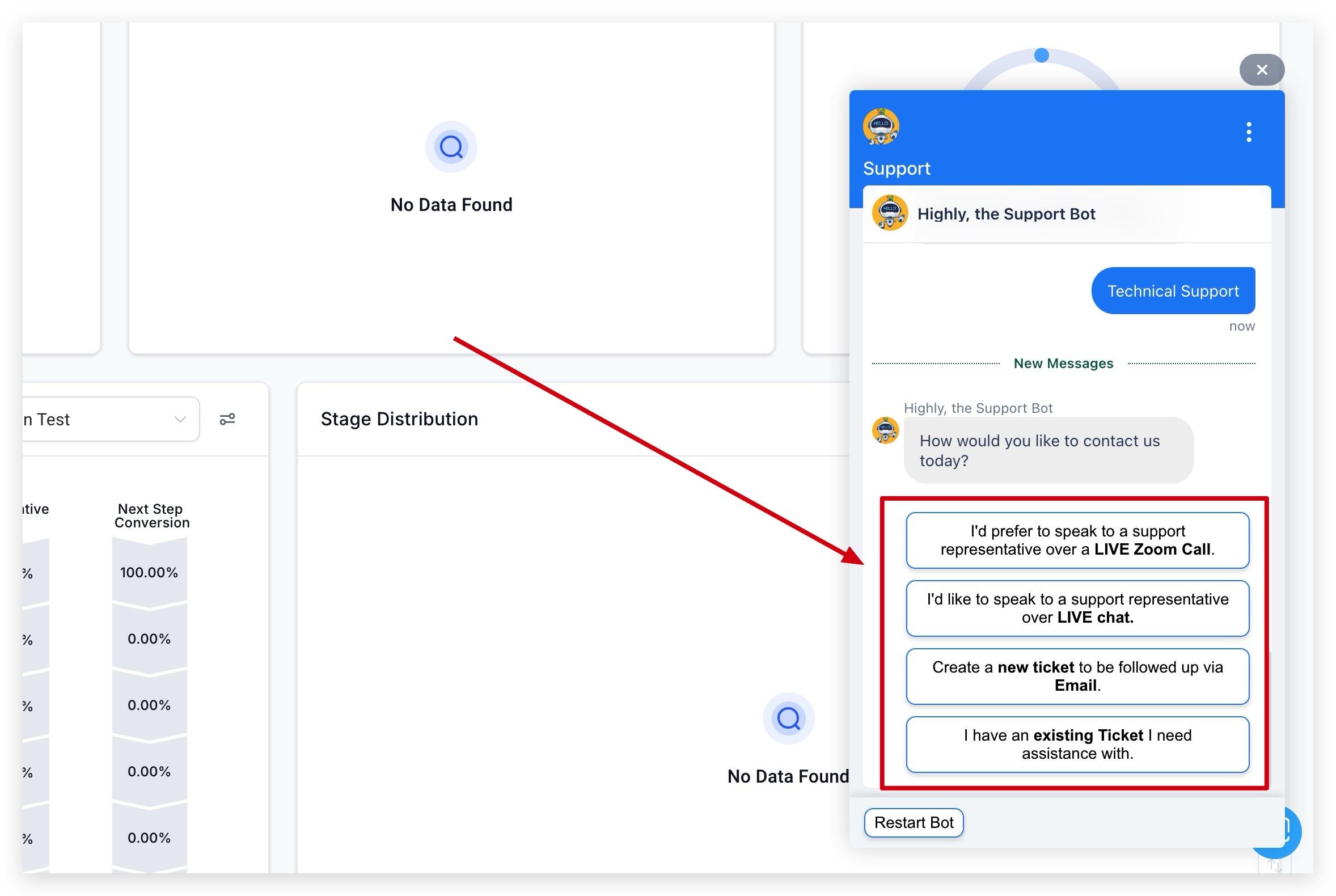
At any time of the day or night, seven days a week, you can begin a new LIVE chat with one of our HighLevel Support Agents! To access your support options, select the blue question mark in the top right corner of the HighLevel Application (Available on Desktop only). From here, you can choose the support option that best fits your schedule or needs.

Who Can Access HighLevel Support?
Only Agency Admins/Users Can Access HighLevel Support. HighLevel Support agents are unable to make changes to an agency account without the consent of a validated Agency Admin or Agency User. If you do not have access to the Agency view, you must reach out to your Agency Admin.
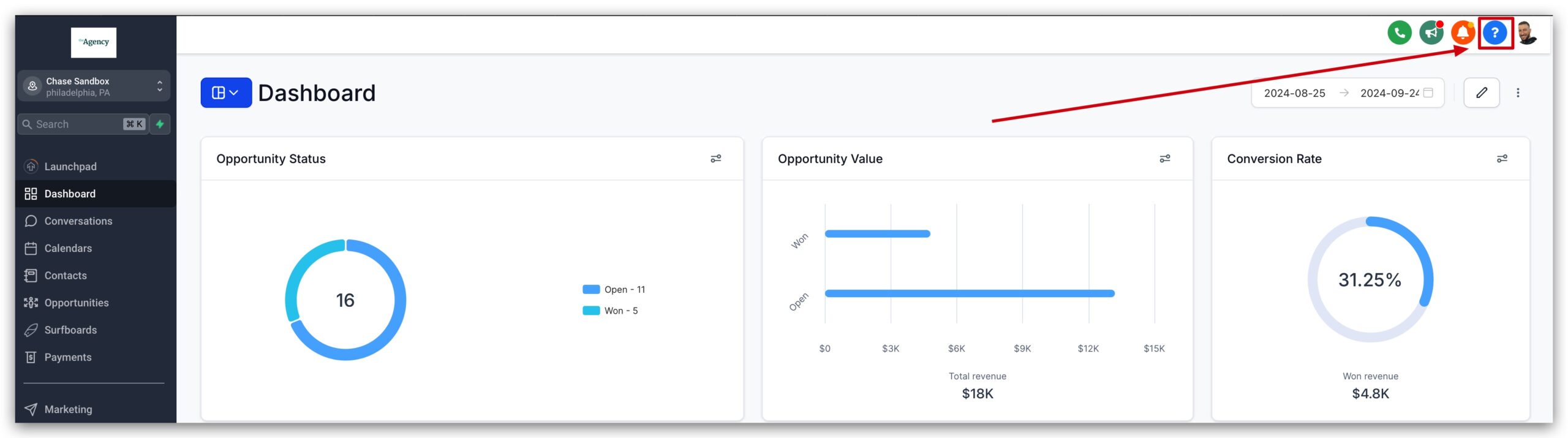
Only Agency Admins/Users See the Support Button
If you are an agency admin or agency user, you will see the blue button in the top right corner of the screen where you can get support from HighLevel as shown in the image below.
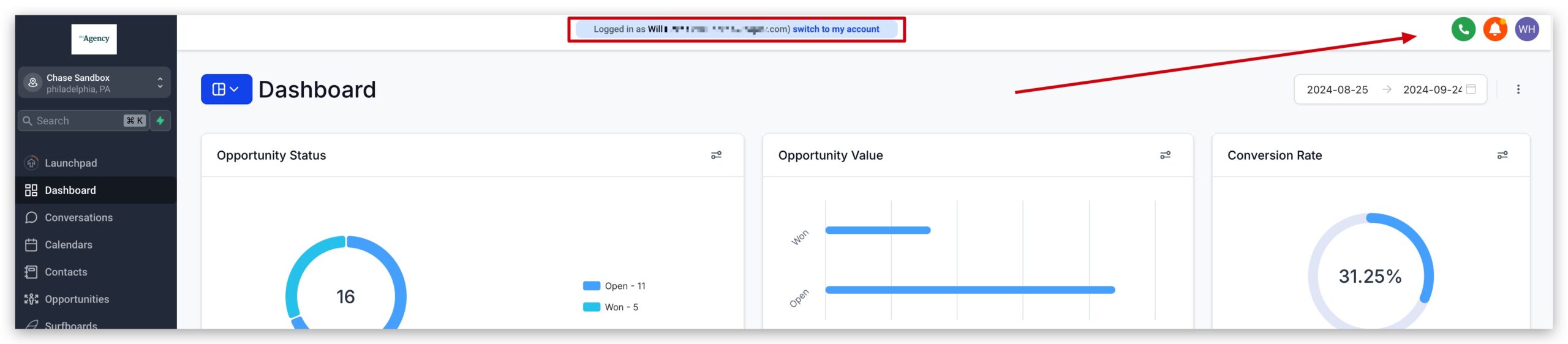
Location Admins/Users Do Not See the Support Button
You can see in the image below that location admins and location users will NOT be able to access HighLevel support. The blue support button in the top right corner is not even visible as you can see in the image below.
Customer Support Options
HighLevel customers have access to multiple different support channels so you can choose the one that best fits your support needs, preference, or busy work schedule. You can learn more about the differen support channels below!
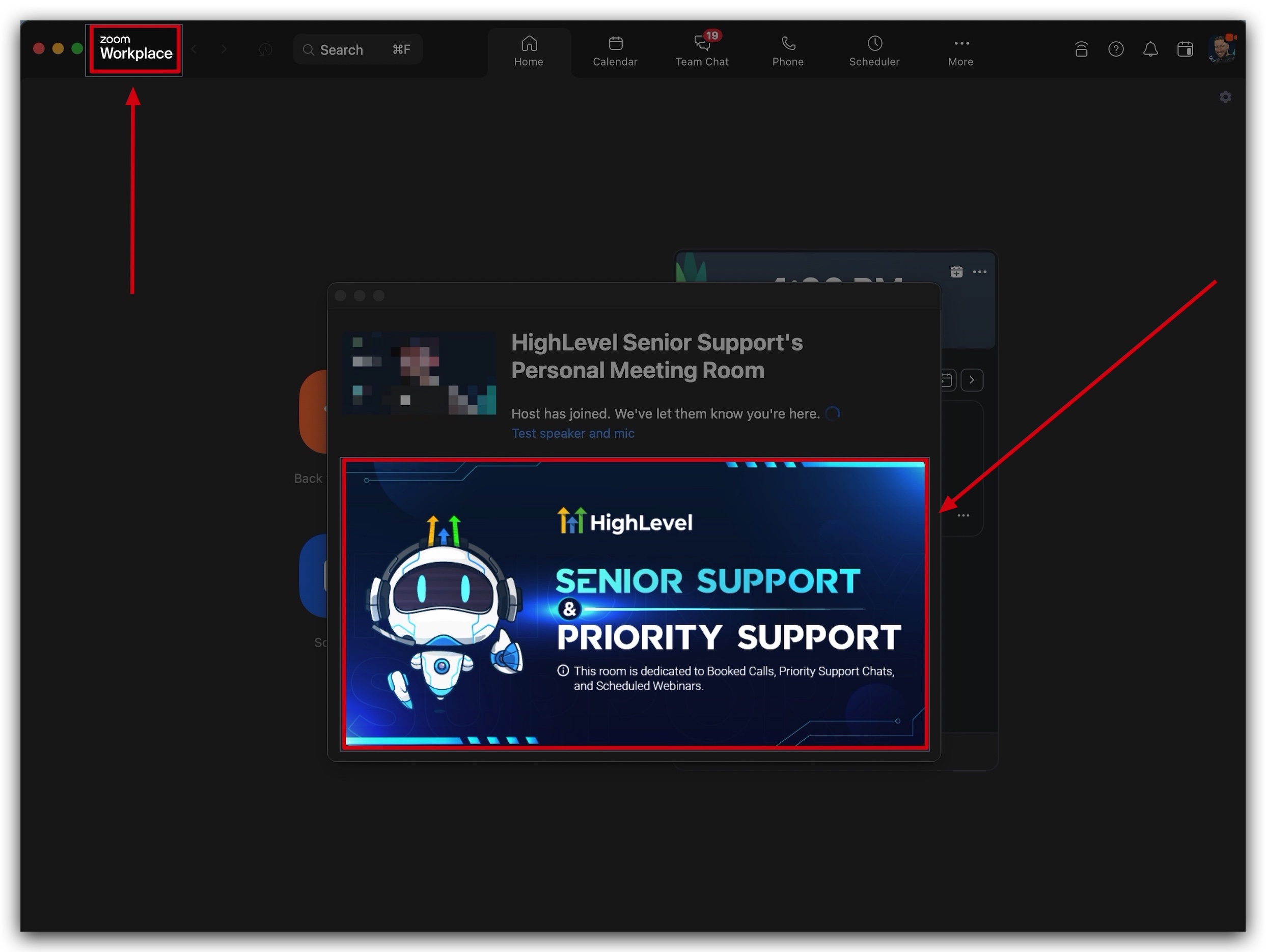
Zoom Support Call – Jump directly into a live Zoom room with the HighLevel support team where you can get your questions answered and get hands-on help with any issue you're currently facing!
Live Chat Support – Speak directly to our support team using our live chat inside of your HighLevel account!
Support Ticketing – Open a support ticket for any inquiries or issues you're facing, and communicate back and forth with our support team via email.
Phone Support – Call our support team using our dedicated support phone number.

Zoom Support Calls
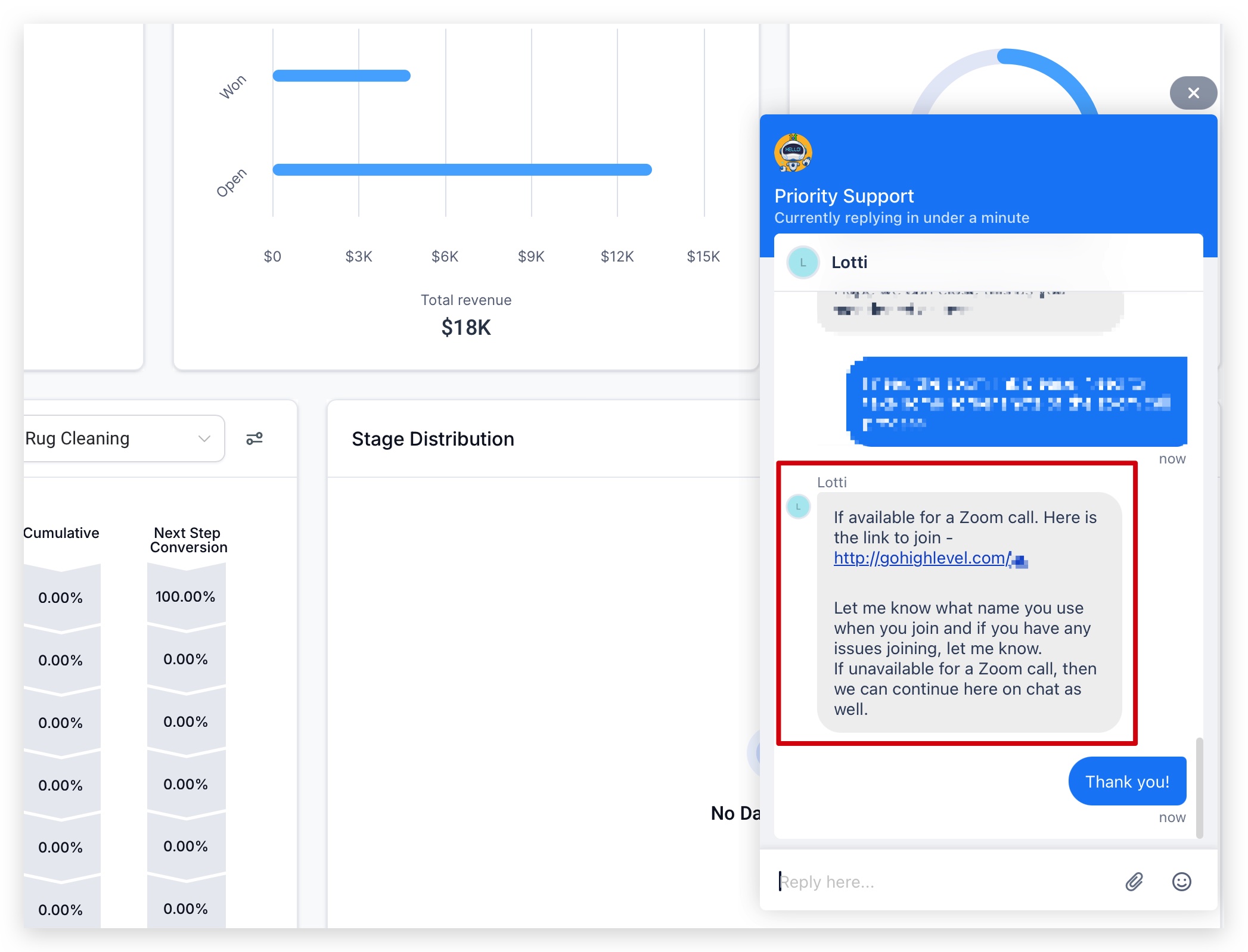
If you need face-to-face support from our team, you can quickly and easily join our Zoom support rooms and chat with a support agent who will answer your questions and guide you through your support inquiries in person!
Once you request a Zoom call, you will be added to a queue where you will wait for the next available support agent. This agent will help you troubleshoot the issue you're experiencing live on Zoom and do their best to resolve the issue right then and there.
Live Chat Support
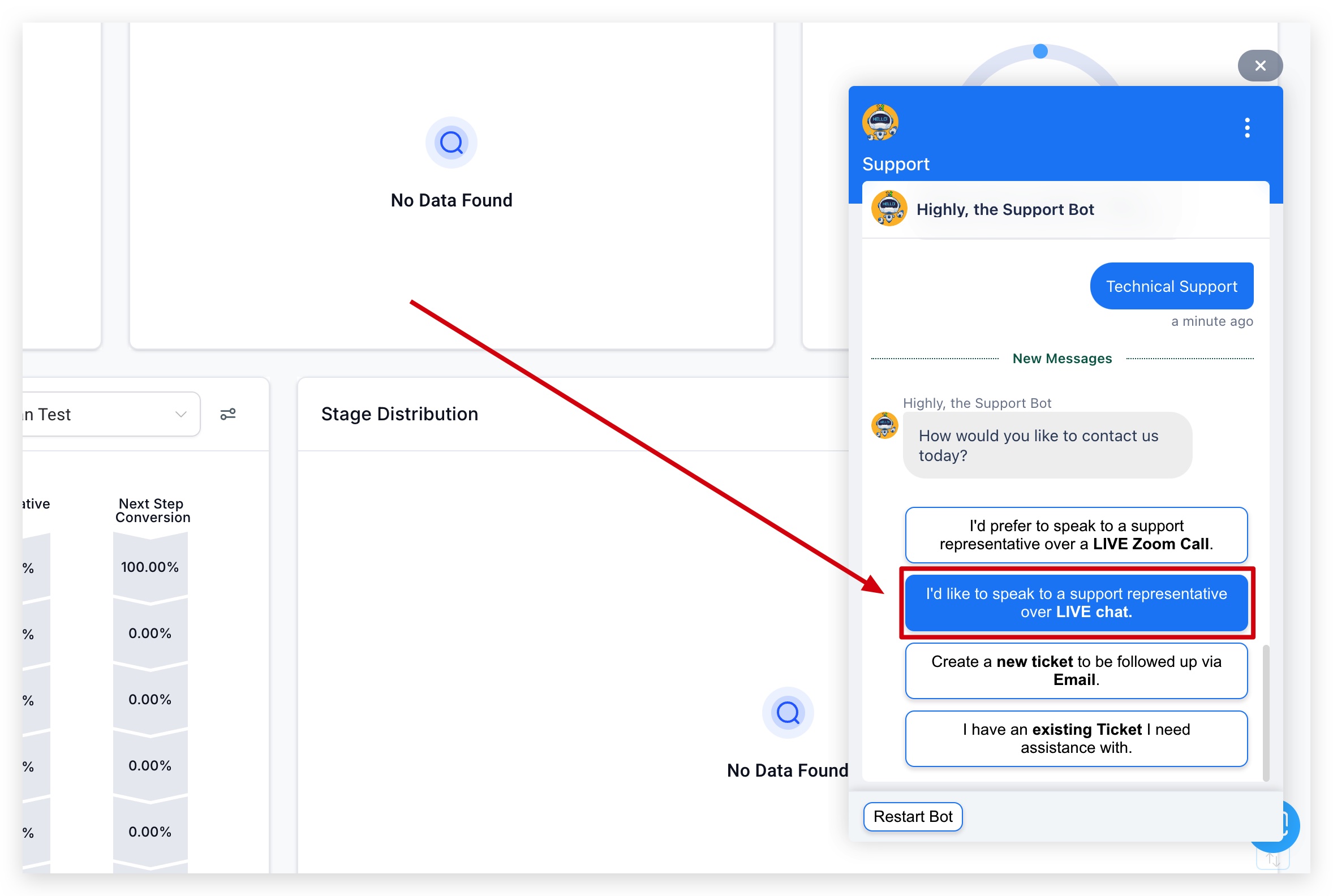
If you need support, and you don't want to jump in a Zoom call, you can simply start a chat session with our expert agents using the live chat directly inside of you account! Our agents will gather as much information as they can about the issue you're having, and do their best to help you solve the problem right then and there.
If the issue cannot be solved, the agents will escalate the issue to a team that may be better suited to help, and create a support ticket for your issue so that you can maintain communication with our support staff while the issue is being addressed.
Support Ticketing via Email
If you are too busy to speak to our team on a Zoom call or live chat, you can always just create a support ticket immediately and communicate back and forth with our support staff via email at your earliest convenience.
We would like to ask that you respond as soon as possible to any email coming from our team so that we can get your support issue resolved as fast as we can. You're experience in HighLevel is our #1 priority, so we want to make sure any issue you're having are resolved fast so you can get back to growing your business!
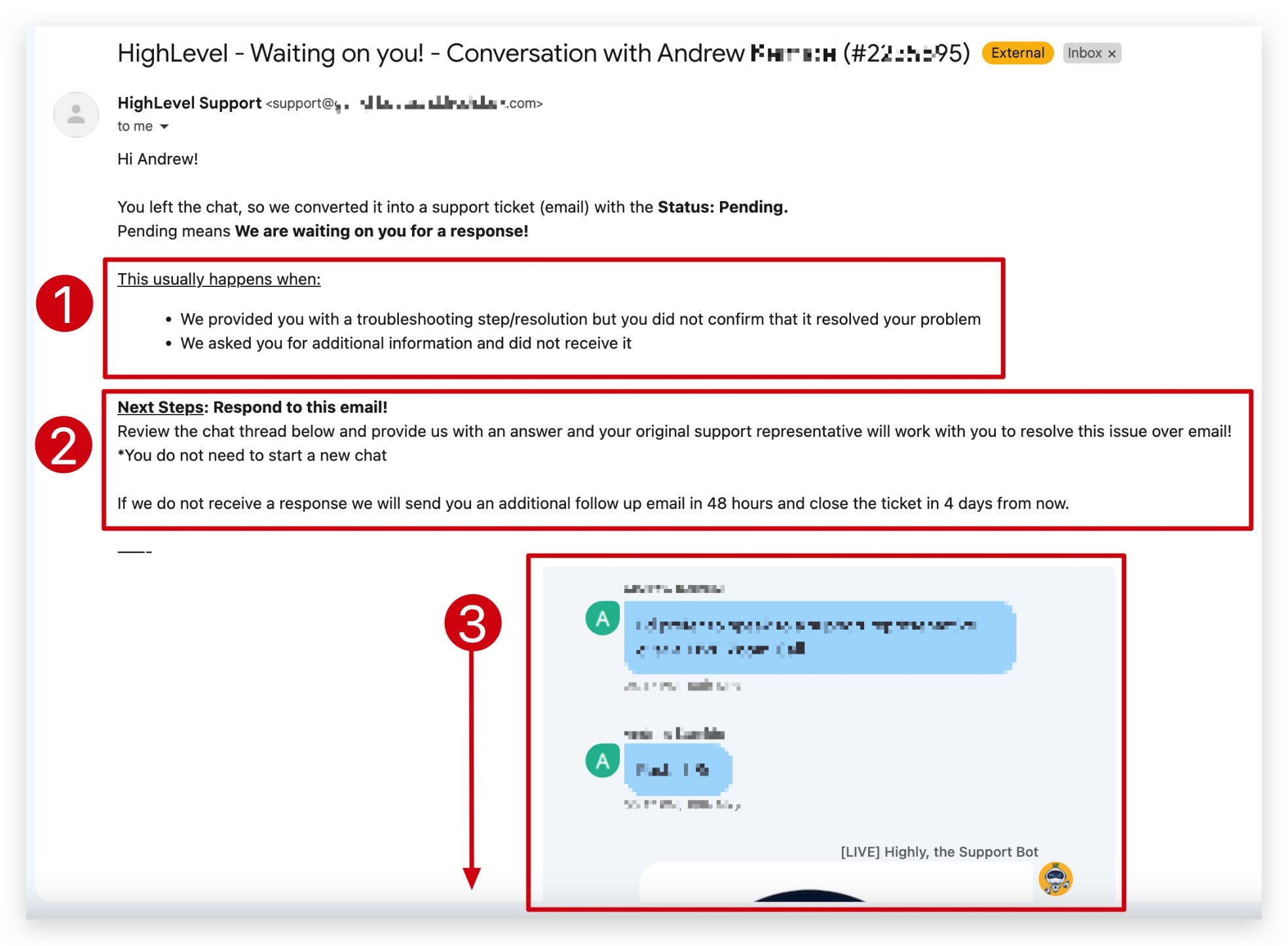
What's Included in a Support Ticket?
- Why You're Receiveing The Ticket Email
In this initial email, you will see a few possibilities as to why you're chat was converted into a support ticket.
These usually include:
Our support team provided you with a troubleshooting step or resolution but you did not confirm if that step resolved the issue.
Our support team asked you for additional information and did not receive it.
- Next Steps
We outline what steps you can take to further investigate the support issue and hopefully resolve it.
- Conversation History
The email you receive from our support team will have a full history of the original conversation you had with our support agent(s) so that you can go back and reference anything that was initially talked about during that conversation with our team.
Phone Support
At any time of the day, you can call +1 (888) 732-4197 for any sales, billing, or login related issues. We validate all inbound callers, no matter the caller, to confirm they are an Agency Admin.
International Phone Support Numbers:
South Africa: +27 87 250 2674
Netherlands: +31 97010208764
United Kingdom: +44 808 502 2329
Philippines: +63 1800 1 550 0097
Australia: +61 1800 983 916
IMPORTANT: We Validate All Inbound Callers to make sure they are Agency Admins. We WILL NOT serve Non-Agency Admins who call the support phone number.
We cannot service non-agency admins that call in. We will need to validate your identity as an Agency Admin – we will encourage you to reach out to another Agency Admin to grant you access or reach out on your behalf. Your security for your agency account matters to us.
If your Agency HighLevel email is not the best one to reach you at, please mention this to Support. If your email is associated with multiple agencies, provide the correct agency name and relationship number of the account in question.
Troubleshooting & FAQ's
Below you will find some frequently asked questions and process to help you troubleshoot issues surrounding customer support. If there is a question that you need answered, and you don't see it below, please make sure to let our support staff know, or you can send us feedback on this article and ask us to add the question to the article.
Q: Does HighLevel have a support email address?
No, we do not have a support email. The main reason is because our support flow is very detailed so that we can properly identify the issue the user is experiencing, and create a ticket in our support software that includes all the information needed for our support agents to help resolve the issue.
If we had a general support email address, then all emails sent to that address would create support tickets, and they may not include the proper information needed to give our support staff the best chance to help resolve the issue.
Q: How to Contact Support if I can't Login to HighLevel?
If you are having trouble logging into your HighLevel application, and you need to get support outside of the application, you have the following options to contact HighLevel support:
Phone Support: Call this number to reach our support if you're having trouble loggin in (+1 (888) 732-4197)
Website Chat Widget: You can also reach out support staff if you navigate to our main website and use our website chat widget. Make sure to tell our team that you are having trouble logging in, and that you need help from support.
Email Support: Submit a ticket using this form and our team will get on it right away.
Q: I'm not seeing the Blue Question Mark button in my dashboard
The blue question mark button and its features are only visible to users logged in as a "Agency Admin" or "Agency User".
IMPORTANT: Location Admins and Location Users will NOT see the blue question mark button, this is strictly for Agency Admins and Agency Users.
Q: How to Create an Agency "Admin" to get HighLevel Support?
Go to "Agency Settings" -> Click on the "Team" tab -> Click "+ Add Employee" button and complete:User Info: Email, phone number and password is requiredUser Permissions: Select the user permission you wish your user to have
User Info: Email, phone number and password is required
User Permissions: Select the user permission you wish your user to have
Make sure that the User Type section is "Agency"
Select the User Role as "Admin"
Click on "Add To Account" and select the location(s) you want this user to manage
Hit "Save"
Additional Self-Service Support Resources
It is frustrating when we need help but can't get it as fast as we'd like it. That's why we've provided these hacks and tips below to help you get the fastest resolution time possible.
- Check out our knowledge base and YouTube channel
Knowledge Base
YouTube
- Hop into one of our weekly and monthly events here:
HighLevel Events Page
HL Daily Demo
Daily Q&A
- Search our Facebook Community group for answers to frequently asked questions:
Facebook Group
Was this article helpful?
That’s Great!
Thank you for your feedback
Sorry! We couldn't be helpful
Thank you for your feedback
Let us know how can we improve this article! *
Feedback sent
We appreciate your effort and will try to fix the article
Articles in this Folder
24/7 Customer Support Options
Troubleshooting Zoom Issues in HighLevel Support Calls
Accessibility Enhancements – Topbar & Help Drawer
How to Submit Feedback or Report a Bug in HighLevel
Related Articles
Overview of Premium Customer Support
Getting Started with Chat Widget
How to Upgrade to Premium Customer Support
AI Voice Agents Overview
Voice AI Custom Variable Support in Prompt
Conversation AI – Transfer Bot Action
The 24/7 support channels (and when to use each)
Think of GoHighLevel support like a toolbox. You’ll get the best results when you pick the right tool for the job.
1. Live Chat – best for quick questions and guided troubleshooting
What it is: Real-time text chat with GoHighLevel support agents inside the app.
Best for:
- “How do I…?” configuration questions
- Small bugs or quirks you can reproduce quickly
- Clarifying limits, settings, or expected behavior
- Getting links to the most relevant help articles
What to expect:
- Usually the fastest first response time of all channels
- Ability to paste screenshots, short Loom links, or specific contact/Workflow IDs
- Agents may escalate to tickets or Zoom if the issue is complex
Pro tips from Revset Labs:
- Have URLs, example contacts, and screenshots ready before you open chat.
- Keep each chat focused on a single issue—open separate chats for unrelated problems.
This is often the right starting point for most day-to-day questions.
2. Zoom support calls – best for complex, visual issues
What it is: Live Zoom sessions with a GoHighLevel support specialist.
Best for:
- Complex workflow logic that’s hard to explain in writing
- Issues that only appear in a specific browser or user session
- Deep-dive troubleshooting of funnels, SMTP/SMS setups, or integrations
What to expect:
- Screen sharing in both directions so agents can see exactly what you see
- Real-time back-and-forth to try multiple solutions in one session
- Often scheduled in advance, though same-day slots are common
How we use it at Revset Labs:
When a client’s instance does something unexpected and we’ve ruled out obvious config issues, we’ll often start a chat, then escalate to Zoom so everyone—client, Revset Labs, and GoHighLevel support—solves it together on one call.
3. Support tickets & email – best for non-urgent, traceable work
What it is: A formal ticketing system that lets you submit an issue and receive replies via email.
Best for:
- Bugs that need engineering review
- Feature requests or feedback
- Issues where you want a written paper trail
- Problems you can’t stay online to troubleshoot in real-time
What to expect:
- You create a ticket from within the help portal—there’s no generic catch-all support email.
- You’ll get an email confirmation and a ticket ID.
- Response times vary depending on severity and current volume (Premium Support customers get priority).
How to write a good ticket:
- Include exact steps to reproduce, affected sub-account(s), and expected vs actual behavior.
- Attach screenshots and links to specific workflows, funnels, or contacts.
- Mention any temporary workarounds you’ve already tried.
4. Phone support – best for urgent account access and billing issues
What it is: 24/7 phone lines for urgent support.
Best for:
- Login or account access problems
- Billing, subscription, or refund questions
- Situations where you cannot access the app to open chat or tickets
GoHighLevel publishes a main US number and additional regional numbers (for example, for South Africa, the Netherlands, the UK, the Philippines, and Australia) in their help center.
What to expect:
- Standard call-center queue with human agents
- Faster escalation for account, billing, or security issues than you’d get via ticket
If your entire team is locked out or something is broken at the account level, phone is usually the fastest path to a human.
5. Knowledge base & self-serve resources – best for “how do I set this up?”
What it is: A large library of help articles, walkthroughs, and troubleshooting guides at help.gohighlevel.com.
Best for:
- Learning new features step-by-step
- Confirming whether something is supported before you build it
- Onboarding new team members
What to expect:
- Search by keyword (for example, “24/7 customer support options”, “SLAs”, “SMTP setup”).
- Articles often include GIFs, screenshots, and links to related docs.
Our standard workflow at Revset Labs is:
- Search the knowledge base.
- If the answer isn’t clear or something isn’t working as documented, open Live Chat with a link to the article.
- Escalate to Zoom or Ticket if needed.
Premium Support: when your team needs a higher SLA
For agencies running serious volume through GoHighLevel—or white-labeling it as their own platform—Premium Support can be worth the upgrade.
According to GoHighLevel’s public materials, Premium Support typically includes:
- Faster chat and Zoom response times
- Priority handling for tickets and escalations
- A dedicated Technical Account Manager (TAM) who understands your setup
- End-to-end ticket resolution instead of “best-effort” help
- A shared Slack channel for higher-touch collaboration
- Quarterly business reviews focused on performance and roadmap
You’ll still use the same entry points (question mark icon, help center), but your account is routed through premium queues with stricter SLAs.
If you’re reselling GoHighLevel as your own SaaS or have multiple sub-accounts relying on it, Premium Support plus a clear internal playbook can save you a lot of firefighting.
Building your own internal support playbook (using SLAs)
GoHighLevel’s 24/7 support is only half the story. You also need your own rules for responding to your customers.
Inside the Conversations inbox, you can configure Conversation SLAs (service level agreements) that:
- Define response-time goals (for example, reply within 15 minutes during business hours).
- Display countdown timers on threads as they approach SLA breach.
- Help managers see which messages need attention first.
A simple internal playbook might look like:
- Frontline team checks the Conversations inbox and inbox SLAs every 15–30 minutes.
- If they can’t resolve an issue in 10–15 minutes, they:
- Tag it appropriately (for example,
needs-dev,billing,bug), and - Escalate internally via Slack or your internal ticketing.
- Tag it appropriately (for example,
- If it appears to be a platform bug or limitation, a designated GoHighLevel owner opens Live Chat or a Ticket with full details.
Used well, this setup means your customers get fast answers from you—and you, in turn, get reliable help from GoHighLevel when you need it.
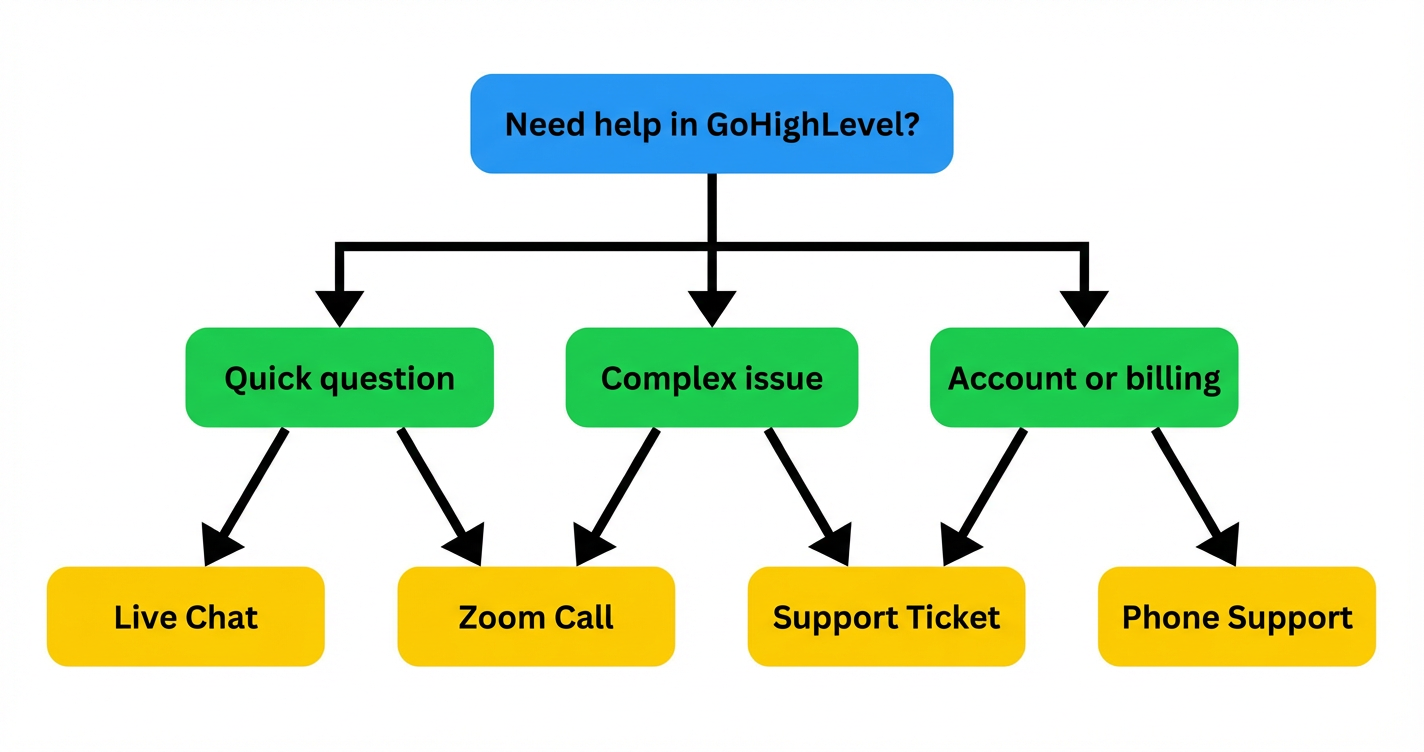
Example: choosing the right support option (flowchart summary)
Here’s one simple way to think about which channel to choose—a flow that matches the supporting diagram created for this article:
- Start with the question: “What kind of problem am I dealing with?”
- If it’s a quick question (where something is confusing but not broken):
- Search the knowledge base.
- If you’re still stuck, open Live Chat.
- If it’s a complex issue (automations, funnels, integrations, or bugs):
- Start a Live Chat with full context.
- If it needs more depth, schedule or join a Zoom call from that chat.
- Follow up with a Ticket if engineering needs to be involved.
- If it’s about account or billing (login, plan limits, charges):
- Use Phone Support for urgent matters.
- Use Tickets for non-urgent billing questions.
As your team gains experience, you can refine this flowchart into your own internal “Support SOP” so everyone knows exactly where to go first.
Where Revset Labs fits into your GoHighLevel support stack
GoHighLevel support will help you fix platform-level issues. What they won’t do is design your funnels, workflows, or data model for you.
That’s where Revset Labs comes in.
Revset Labs is an AI Automation and Marketing Agency that specializes in building GoHighLevel systems that actually get used. For clients, we typically:
- Design a clean, scalable GoHighLevel architecture (sub-accounts, pipelines, tags, custom fields).
- Build done-for-you workflows, funnels, calendars, and reporting that match your offers.
- Create internal SOPs and playbooks for when to use GoHighLevel support vs. when to escalate internally.
- Help you evaluate whether Premium Support is worth it and how to get the most from it.
You bring the offers and the customers. We bring the systems and support strategy that keep everything running.
If you’re just getting started or migrating from another platform, you can:
- Start your GoHighLevel free trial, then
- Work with Revset Labs to turn it into a reliable growth engine instead of another tool to manage.
Suggested internal links for the live blog
When this article is published on the Revset Labs site, we recommend linking to these complementary guides:
- Getting Started: Create and Manage Contacts in GoHighLevel
Suggested URL:https://revsetlabs.com/blog/getting-started-create-and-manage-contacts-in-gohighlevel - Getting Started: Set Up Email, Phone & SMS in GoHighLevel
Suggested URL:https://revsetlabs.com/blog/getting-started-setup-email-phone-sms-gohighlevel - Getting Started: Launch an Email Campaign in GoHighLevel
Suggested URL:https://revsetlabs.com/blog/getting-started-launch-email-campaign-gohighlevel
JSON-LD schema (Article + FAQPage + Organization)
<script type="application/ld+json">
{
  "@context": "https://schema.org",
  "@graph": [
    {
      "@type": "Article",
      "headline": "GoHighLevel 24/7 Support: Live Chat, Phone, Zoom & Ticket Options Explained",
      "description": "Learn how GoHighLevel’s 24/7 support works—from live chat and Zoom calls to phone, tickets, and the knowledge base—and when to use each option to get help fast.",
      "image": [
        "https://t9016189650.p.clickup-attachments.com/t9016189650/73242ffa-f7d8-4770-9546-d7cf5e8f3509/generated-image-d5277d0d-5506-45fb-89aa-48f92f9037e0.png"
      ],
      "author": {
        "@type": "Organization",
        "name": "Revset Labs"
      },
      "publisher": {
        "@type": "Organization",
        "name": "Revset Labs",
        "logo": {
          "@type": "ImageObject",
          "url": "https://revsetlabs.com/logo.png"
        },
        "url": "https://revsetlabs.com"
      },
      "mainEntityOfPage": {
        "@type": "WebPage",
        "@id": "https://revsetlabs.com/blog/gohighlevel-24-7-customer-support-options/"
      },
      "datePublished": "2026-02-22",
      "dateModified": "2026-02-22"
    },
    {
      "@type": "FAQPage",
      "mainEntity": [
        {
          "@type": "Question",
          "name": "Does GoHighLevel really offer 24/7 support?",
          "acceptedAnswer": {
            "@type": "Answer",
            "text": "Yes. GoHighLevel provides 24/7 coverage across multiple channels, including live chat, Zoom support calls, support tickets, and phone support for urgent account or billing issues. Exact response times vary by channel and whether you have Premium Support."
          }
        },
        {
          "@type": "Question",
          "name": "How do I contact GoHighLevel support from inside my account?",
          "acceptedAnswer": {
            "@type": "Answer",
            "text": "Log into the Agency view, click the blue question mark icon in the top-right corner, and choose the option you need—live chat, Zoom support, support tickets, or the knowledge base. Agency Admins and authorized Users can open requests directly from this menu."
          }
        },
        {
          "@type": "Question",
          "name": "What is included with GoHighLevel Premium Support?",
          "acceptedAnswer": {
            "@type": "Answer",
            "text": "Premium Support adds faster response times, priority routing for tickets and chat, a dedicated Technical Account Manager, end-to-end ticket resolution, a shared Slack channel, and regular business reviews designed for higher-volume or white-label users."
          }
        },
        {
          "@type": "Question",
          "name": "When should I use live chat vs Zoom vs tickets vs phone?",
          "acceptedAnswer": {
            "@type": "Answer",
            "text": "Use live chat for quick questions and initial troubleshooting, Zoom for complex or visual issues, tickets for non-urgent bugs and feature requests where you want a written trail, and phone support for urgent login, billing, or account-access problems."
          }
        }
      ]
    },
    {
      "@type": "Organization",
      "name": "Revset Labs",
      "url": "https://revsetlabs.com",
      "logo": "https://revsetlabs.com/logo.png"
    }
  ]
}
</script>