
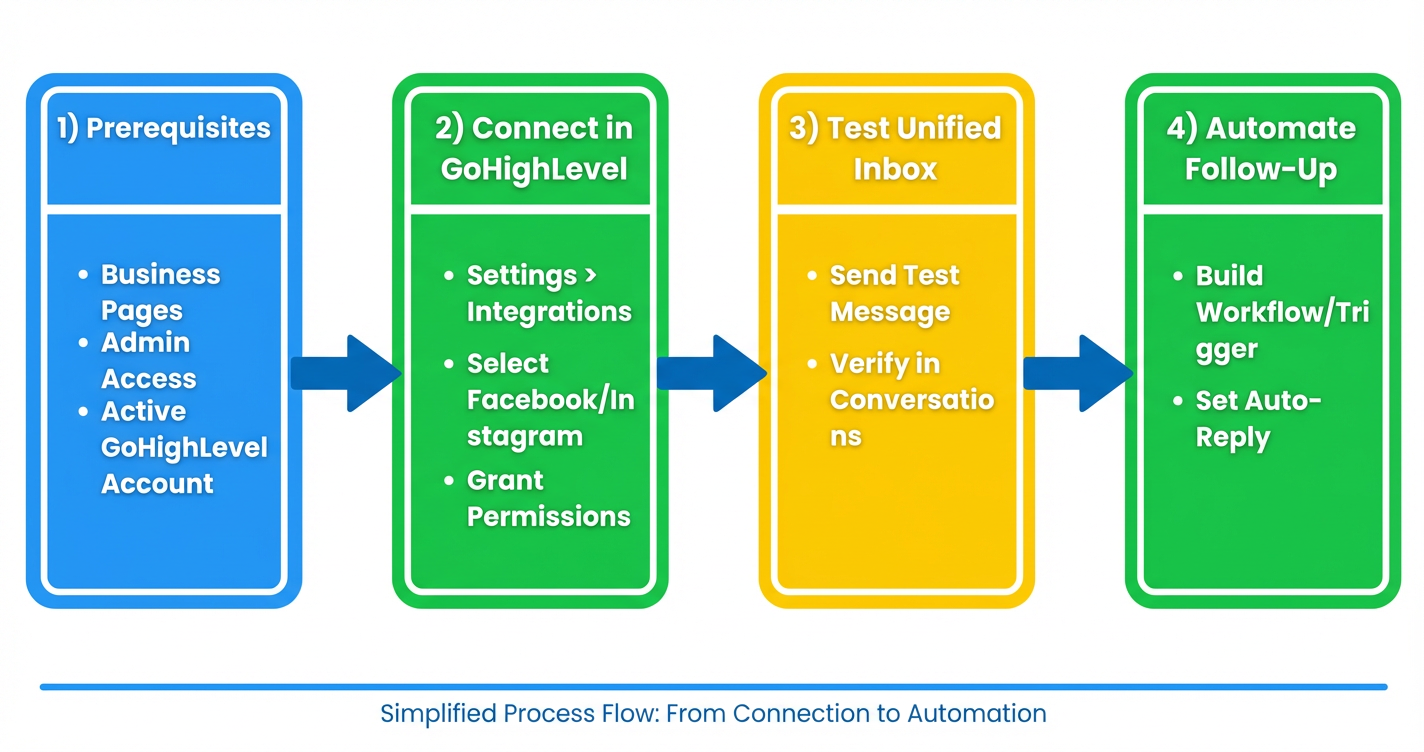
 GoHighLevel (Unified Inbox Guide)”>
When someone messages your business on Facebook or Instagram, they expect a fast, helpful reply. If your team is bouncing between Meta Business Suite, the Instagram app, and your CRM, it’s easy to miss DMs, double‑reply, or lose track of who said what.
Connecting Facebook and Instagram Messenger directly to GoHighLevel fixes that. All conversations flow into a single inbox, every contact is captured in your CRM, and you can trigger automations the moment someone reaches out.
If you don’t have GoHighLevel yet, you can start a free trial here and follow along as you set up your unified inbox.
Why connect Facebook & Instagram Messenger to GoHighLevel?
Bringing Messenger and Instagram DMs into GoHighLevel gives you three big advantages:
-
One inbox for all social conversations
See Facebook messages, Instagram DMs, SMS, email, and more in the same Conversations screen so nothing slips through the cracks. -
Every DM becomes a CRM contact
New conversations automatically create or update contacts in GoHighLevel. You can tag them, add them to pipelines, and see their full history across channels. -
Instant automation and follow‑up
Because messages live in your CRM, you can trigger workflows for fast replies, nurture sequences, and appointment offers without manually copying anything over.
For revenue‑focused teams, that combination (speed + context + automation) is the difference between casual social chatter and a predictable acquisition channel.
Prerequisites (before you connect anything)
Make sure you have these pieces in place before you open GoHighLevel:
- Facebook Business Page connected to your brand.
- Admin or full control access to that Page inside Meta Business Suite.
- Instagram Business or Creator account (personal profiles won’t work).
- Instagram account linked to your Facebook Page.
- An active GoHighLevel account with admin access to
Settings.
If you’re still getting your account set up, it can help to first create and manage contacts in GoHighLevel so new Messenger leads have a clean place to land.
Step 1 – Link Instagram to your Facebook Page
GoHighLevel connects to Instagram via your Facebook Page. If that link isn’t configured correctly, messages won’t sync.
-
Open Facebook and go to your Business Page.
Use a browser where you’re logged in as a Page admin. -
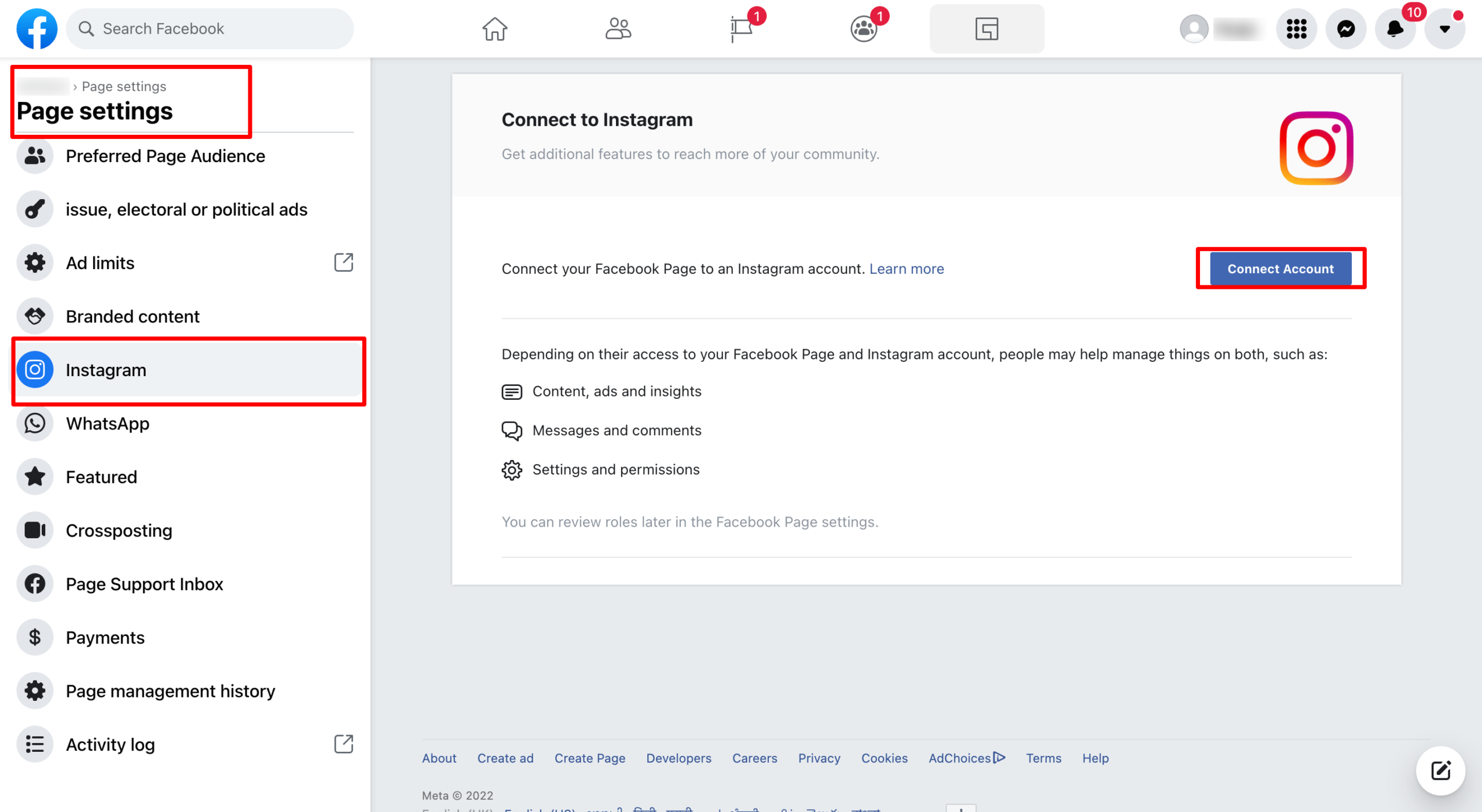
Go to Page settings.
In Meta Business Suite, open Settings for the Page. -
Find Instagram connection settings.
Look for Linked Accounts, Instagram, or Instagram connection in the left sidebar (wording can change slightly over time). -
Connect your Instagram Business or Creator account.
- Click Connect or Add Instagram account.
- Log in with your Instagram Business/Creator credentials.
- Approve the requested permissions.
-
Enable message syncing.
Ensure the toggle that allows Instagram messages to appear in the Page inbox is turned on.
Once this is done, Facebook treats your Instagram DMs as part of the same messaging stack GoHighLevel will hook into.
Step 2 – Connect Facebook & Instagram in GoHighLevel
Now you’re ready to plug Meta into GoHighLevel.
-
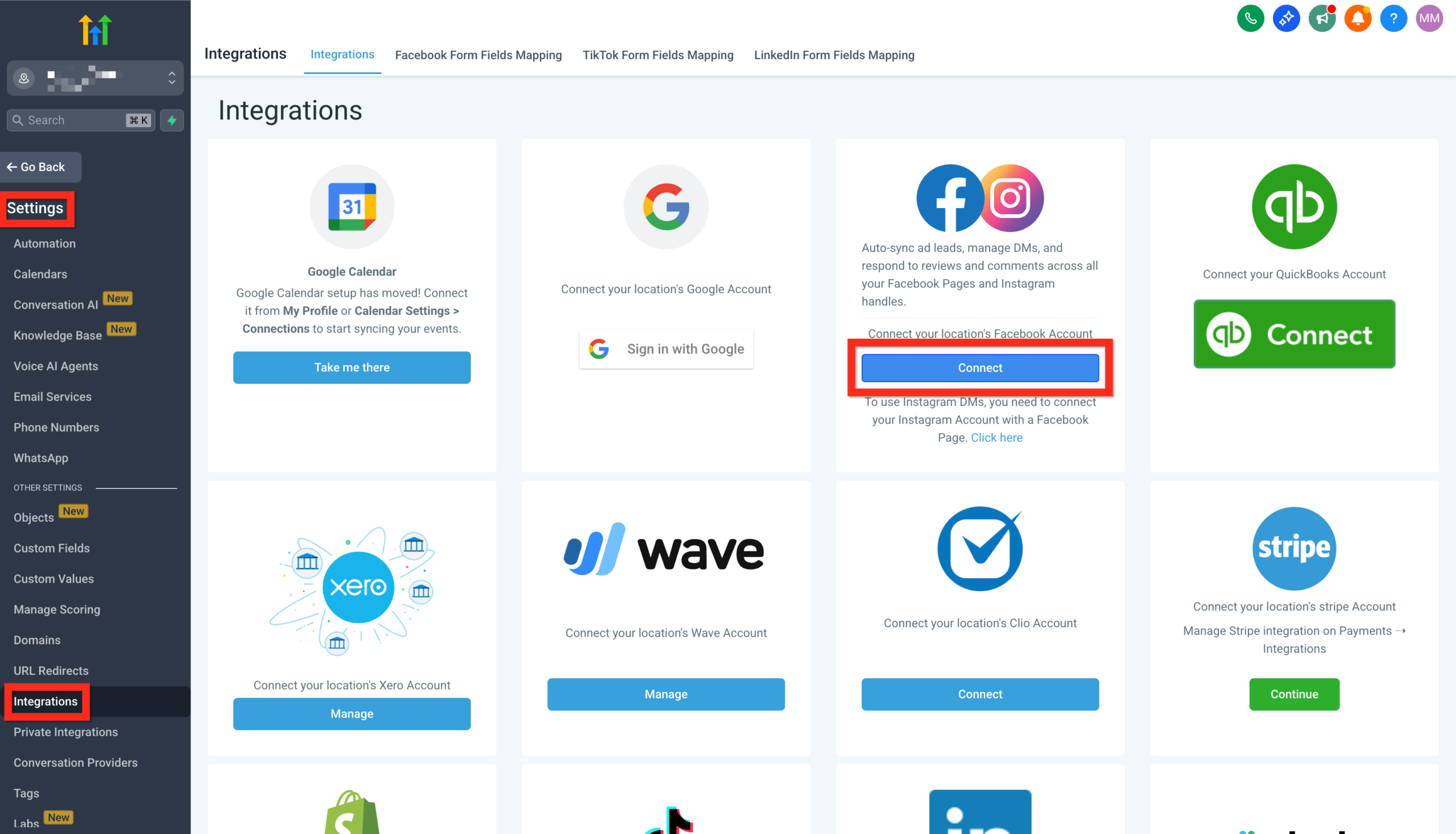
Go to Settings > Integrations.
In your GoHighLevel account, click the gear icon, then open Integrations. -
Find the Facebook & Instagram integration.
Look for the tile labeled Facebook & Instagram and click Connect.
-
Log in with your Facebook account.
- Use the same profile that has admin access to the Business Page.
- When Meta asks which pages and assets GoHighLevel can access, select the correct Page and associated Instagram account.
- Grant all requested permissions related to messages and leads. Restricting these can break the integration.
-
Select the Page inside GoHighLevel.
Back in GoHighLevel, choose the Facebook Page you want to connect. If your Instagram account is properly linked to that Page, GoHighLevel will pick it up at the same time. -
Finalize and (optionally) sync existing leads.
Click Connect Facebook & Instagram, then (if available) select Sync Leads so past lead‑gen form submissions and page leads are pulled into your CRM.
At this point, new Facebook messages and Instagram DMs should begin appearing in the Conversations inbox in GoHighLevel.
If you haven’t created your GoHighLevel account yet, this is a great time to start your free trial so you can centralize all of your social DMs from day one.
Step 3 – Test your unified inbox
Before you rely on the setup in a live campaign, run a few quick tests.
-
Send a test Facebook message.
From a personal profile, send a message to your Business Page. -
Confirm it appears in GoHighLevel.
- Open Conversations in GoHighLevel.
- You should see the message appear within a few seconds.
- Click into the thread and confirm a contact record was created or updated.
-
Reply from GoHighLevel.
Respond from the Conversations screen and verify that the reply is visible in Facebook Messenger on your personal profile. -
Repeat for Instagram DMs.
- Send a DM to your Instagram Business or Creator account.
- Check that it appears in GoHighLevel and that your reply is delivered back to Instagram.
-
Tag and pipeline‑stage the test contact.
Apply a tag likeMessenger Testand drop the contact into a simple “Social Leads” pipeline stage. This confirms that your CRM processes work end‑to‑end.
Step 4 – Build simple automations for Messenger leads
Once messages hit your GoHighLevel inbox, you can let automation do the heavy lifting.
Here are three easy starters:
-
Instant acknowledgement workflow
- Trigger: Contact created via Facebook/Instagram.
- Action: Send an immediate Messenger reply such as, "Thanks for reaching out! A member of our team will reply here shortly. In the meantime, what’s the best email to share more details?"
- Optional: Add a short SMS or email follow‑up if you captured a phone number or email from a form.
-
Lead qualification + tagging
- Trigger: Conversation contains certain keywords (e.g. "pricing", "demo", "quote").
- Actions: Apply tags based on intent, move the contact to a specific pipeline stage, and assign to a sales rep.
-
Appointment offer sequence
- Trigger: Tag
Messenger - Interestedadded. - Actions: Send a link to your GoHighLevel calendar, then follow up automatically if the contact doesn’t book within 24–48 hours.
- Trigger: Tag
If you’d like a done‑for‑you build of these Messenger workflows, Revset Labs can help. As an AI Automation and Marketing Agency, we specialize in turning tools like GoHighLevel into complete revenue systems instead of one‑off integrations.
For readers who want to go deeper on nurture flows, check out our guide to automatic email and SMS follow‑up in GoHighLevel.
Best practices for responding to Messenger leads
A few simple habits will significantly improve your close rates from social DMs:
-
Reply fast (or let automation do it).
Facebook and Instagram users expect near‑real‑time responses. Use workflows and templates to keep your first reply under a few minutes even when your team is busy. -
Pull the conversation into a structured next step.
Don’t let every chat stay in Messenger forever. Offer a discovery call, strategy session, or quick audit and drive people to your booking calendar. -
Use tags and notes, not memory.
Every time you learn something important about a lead, tag it or add a note in GoHighLevel. That context will matter the next time they raise their hand. -
Measure outcomes, not just replies.
Track how many Messenger/Instagram conversations become opportunities, appointments, or customers so you can justify more ad spend or content for those channels.
Common issues & quick troubleshooting
If something isn’t working, check these first:
-
Messages not appearing in GoHighLevel at all
- Confirm your Facebook Page and Instagram account are correctly linked in Meta Business Suite.
- Re‑open Settings > Integrations in GoHighLevel and make sure the correct Page is selected.
- Verify that all requested messaging permissions were granted when you connected the integration.
-
Instagram DMs missing but Facebook messages work
- Make sure your Instagram profile is set to Business or Creator, not Personal.
- Double‑check that the “Allow access to messages” or similar toggle is turned on in Instagram settings.
-
Some Pages not showing in the connection flow
- You may not have full admin access on those Pages. Check Page roles and ensure you’re using the right Facebook profile when authorizing GoHighLevel.
-
Old conversations not imported
- Use the Sync Leads option where available, but know that not all historic messages will be pulled in. From a CRM standpoint, it’s often fine to start clean from the date of integration.
If you’ve checked all of the above and things still aren’t behaving, it’s worth raising a ticket with GoHighLevel support and sharing screenshots of your Meta connection screens.
When to bring in Revset Labs
Connecting Facebook and Instagram is just step one. The real leverage comes from:
- Mapping every social touchpoint to a clear funnel stage.
- Designing workflows that respond, qualify, and route leads automatically.
- Building reporting that shows exactly how much revenue social messaging is driving.
Revset Labs is an AI Automation and Marketing Agency that helps teams do exactly that with GoHighLevel. If you want:
- Done‑for‑you setup of your Messenger/Instagram pipelines and workflows.
- Smart lead scoring and routing using AI.
- Campaigns that move social leads into booked calls and closed deals.
…our team can architect and implement the full system while you stay focused on strategy and delivery.
Next steps and related GoHighLevel guides
Once Facebook and Instagram Messenger are flowing into GoHighLevel, you’re ready to tighten the rest of your onboarding experience:
- Make sure you can create and manage contacts in GoHighLevel.
- Build a simple sales pipeline with our guide to set up pipelines and opportunities in GoHighLevel.
- Layer in automatic email and SMS follow‑up in GoHighLevel so every Messenger lead is nurtured across channels.
If you’re ready to roll this out in your own account, you can start your GoHighLevel free trial here and use this guide as your launch checklist.
<script type="application/ld+json">
{
  "@context": "https://schema.org",
  "@graph": [
    {
      "@type": "Organization",
      "@id": "https://revsetlabs.com/#organization",
      "name": "Revset Labs",
      "url": "https://revsetlabs.com",
      "logo": {
        "@type": "ImageObject",
        "url": "https://revsetlabs.com/logo.png"
      }
    },
    {
      "@type": "Article",
      "@id": "https://revsetlabs.com/blog/getting-started-setup-facebook-instagram-messenger-gohighlevel/#article",
      "headline": "Getting Started: Setup Facebook & Instagram Messenger in GoHighLevel",
      "description": "Learn how to connect your Facebook Page inbox and Instagram DMs to GoHighLevel, test your unified inbox, and automate follow-up so you never miss a social lead again.",
      "image": "https://t9016189650.p.clickup-attachments.com/t9016189650/446e470f-8c4e-468b-963e-5dfcb58c031a/generated-image-ea4e704b-b662-4f7a-8983-94d85e562eb3.png?view=open",
      "author": {
        "@id": "https://revsetlabs.com/#organization"
      },
      "publisher": {
        "@id": "https://revsetlabs.com/#organization"
      },
      "mainEntityOfPage": "https://revsetlabs.com/blog/getting-started-setup-facebook-instagram-messenger-gohighlevel/",
      "datePublished": "2026-02-22",
      "dateModified": "2026-02-22"
    },
    {
      "@type": "FAQPage",
      "@id": "https://revsetlabs.com/blog/getting-started-setup-facebook-instagram-messenger-gohighlevel/#faq",
      "mainEntity": [
        {
          "@type": "Question",
          "name": "Do I need a Facebook Business Page to connect Messenger to GoHighLevel?",
          "acceptedAnswer": {
            "@type": "Answer",
            "text": "Yes. GoHighLevel connects to Facebook Messenger via a Facebook Business Page. You must have admin access to the Page in Meta Business Suite before you can complete the integration in Settings > Integrations."
          }
        },
        {
          "@type": "Question",
          "name": "Can GoHighLevel handle Facebook messages and Instagram DMs in one inbox?",
          "acceptedAnswer": {
            "@type": "Answer",
            "text": "Once your Facebook Page and Instagram Business or Creator account are connected, GoHighLevel pulls both Facebook messages and Instagram DMs into the Conversations inbox so your team can reply from a single place and track every contact in the CRM."
          }
        },
        {
          "@type": "Question",
          "name": "What automations should I set up first for Messenger leads in GoHighLevel?",
          "acceptedAnswer": {
            "@type": "Answer",
            "text": "Start with a simple workflow that tags new Messenger leads, assigns them to a pipeline stage, and sends a fast follow-up such as a templated reply or a short SMS or email. From there, layer in nurture sequences and appointment offers based on how people engage with your messages."
          }
        },
        {
          "@type": "Question",
          "name": "Do I have to keep Meta Business Suite open once GoHighLevel is connected?",
          "acceptedAnswer": {
            "@type": "Answer",
            "text": "No. After you complete the connection and grant permissions, your team can work primarily from GoHighLevel's Conversations inbox. You will still manage Page roles, ad accounts, and high-level settings in Meta Business Suite, but day-to-day messaging can live in GoHighLevel."
          }
        }
      ]
    }
  ]
}
</script>