
Setting up a booking calendar is one of the fastest ways to turn GoHighLevel into a real asset for your business.
Instead of back-and-forth emails and missed messages, prospects can pick a time that works for them, your availability stays in sync with your personal calendar, and automated reminders keep no‑shows low.
This guide walks you through how to set up a booking calendar in GoHighLevel, connect it to your personal calendar, add automated reminders, and plug everything into simple workflows—so every booked call actually happens and leads move forward.
If you don’t have a GoHighLevel account yet, you can follow along by starting a free trial:
Start your free GoHighLevel trial
Why your GoHighLevel booking calendar matters
A properly configured booking calendar does more than just drop meetings on your schedule. It helps you:
- Eliminate scheduling friction – Prospects book in their own time zone without long email threads.
- Protect your focus time – Buffers, working hours, and minimum notice windows keep calls from landing at bad times.
- Reduce no‑shows – Automatic confirmation and reminder messages keep people on track.
- Feed your CRM and workflows – Every booking can create or update a contact, add pipeline opportunities, and trigger automations.
When you combine GoHighLevel’s calendar with the contact and funnel foundations from the rest of this Getting Started series, you get a full path from first click to booked conversation.
Step 1 – Create your personal booking calendar
GoHighLevel supports different calendar configurations. For one‑to‑one calls like discovery sessions or client check‑ins, a Personal Booking calendar is the best place to start.
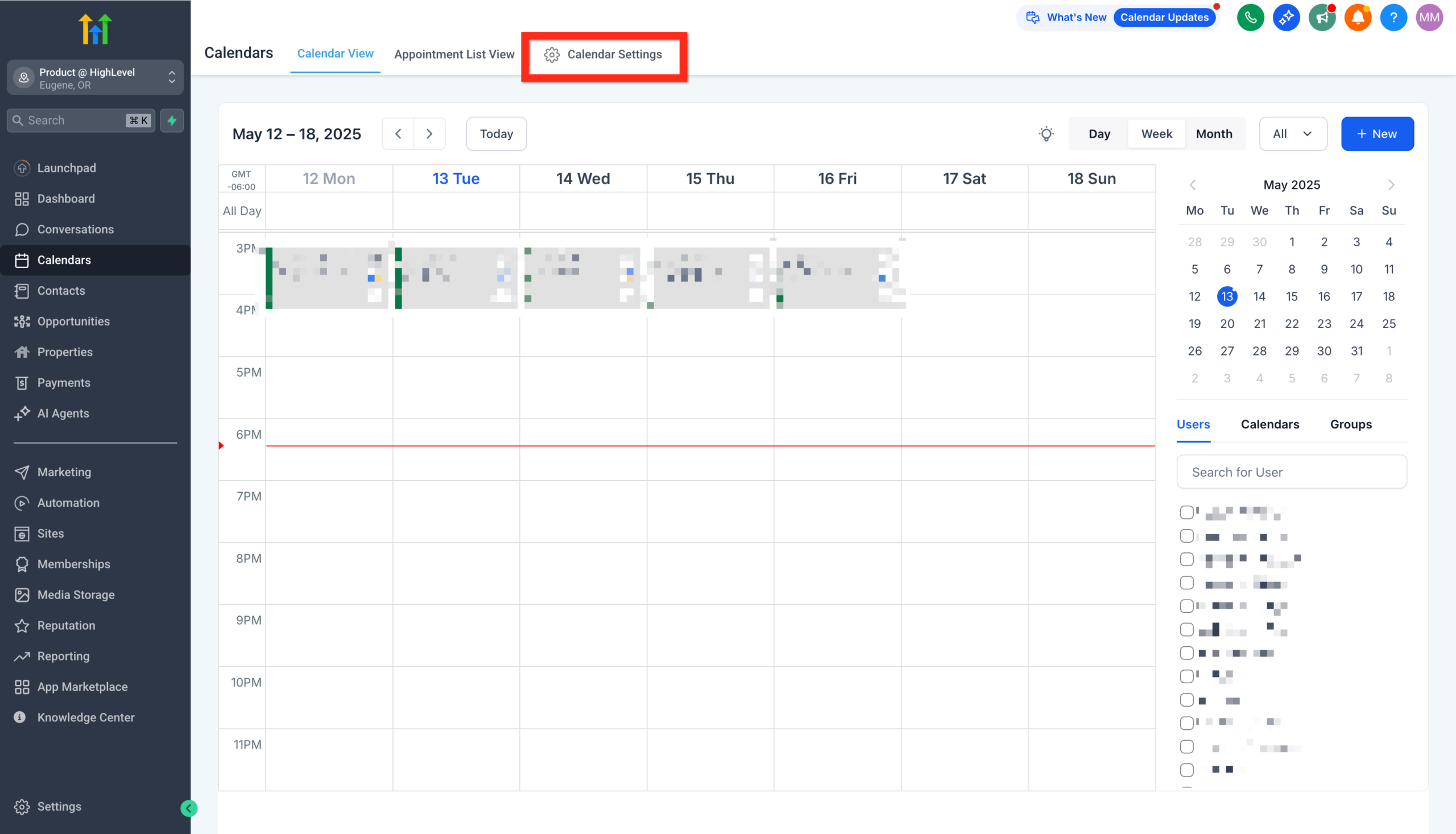
- In GoHighLevel, go to Calendars → Calendar Settings.
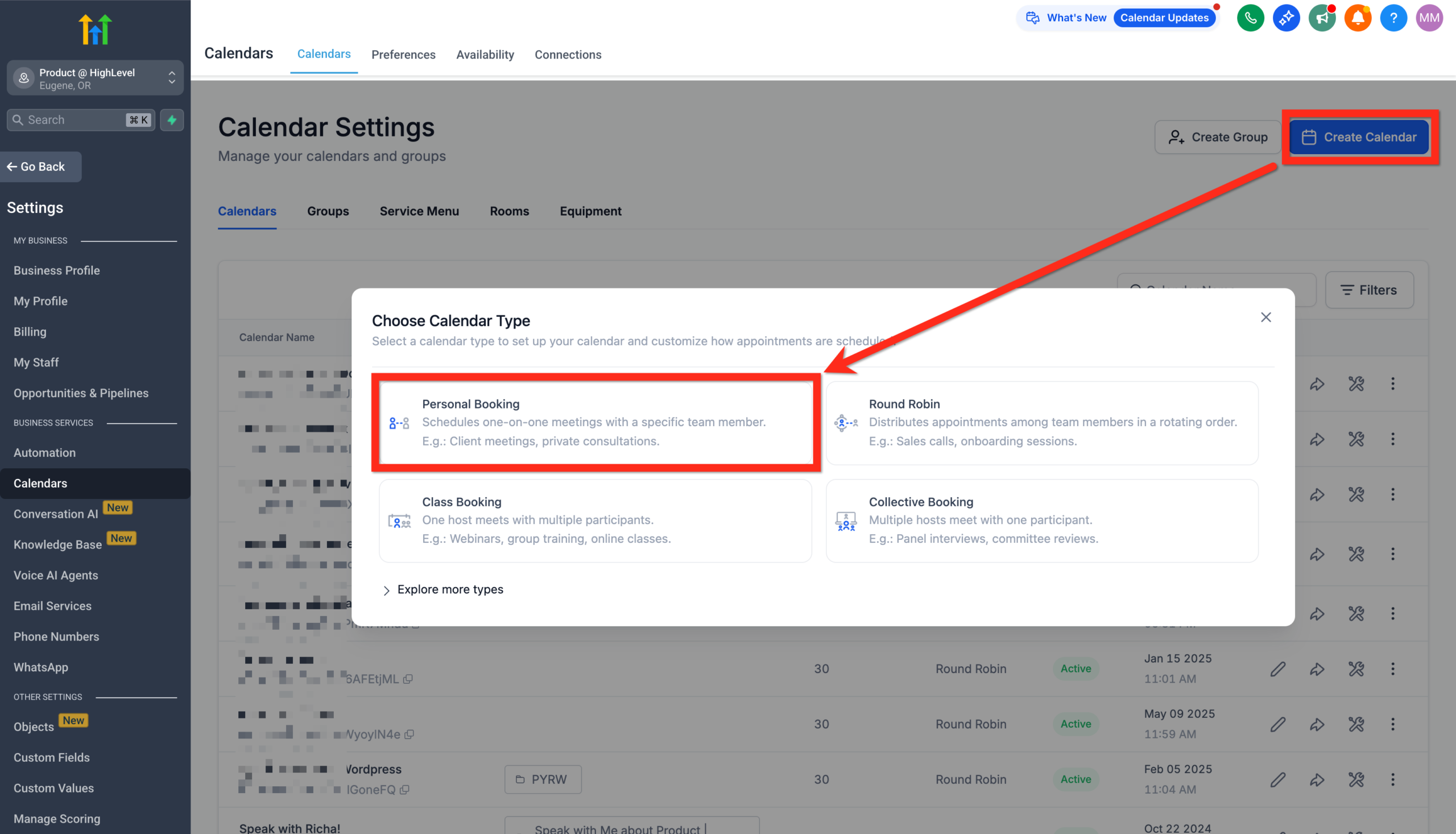
- Click Create Calendar.
- Choose Personal Booking as the calendar type.
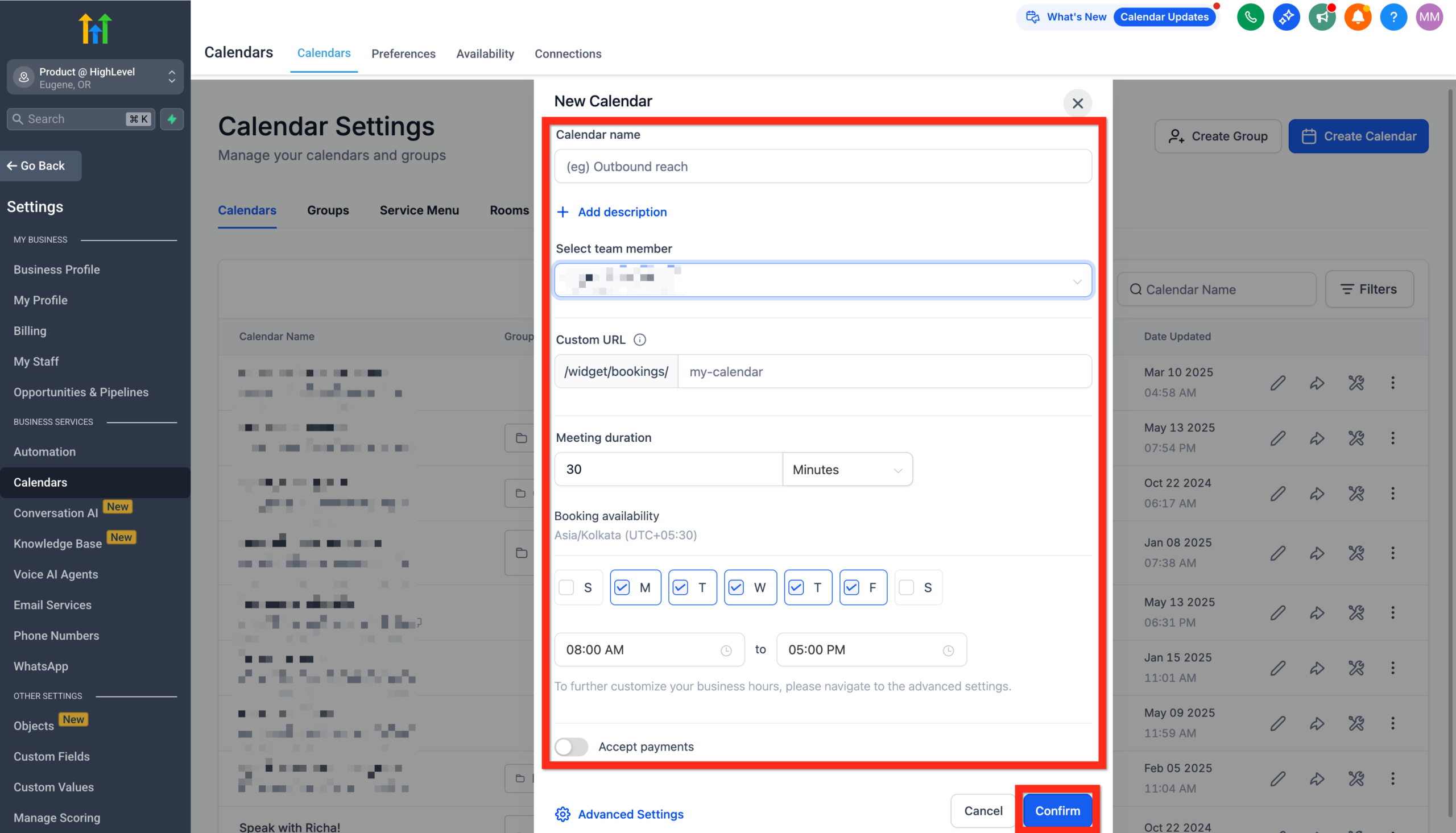
- Give your calendar a clear internal name, such as
Discovery Calls – FounderorStrategy Sessions – Agency. - Set the appointment duration (for example, 15, 30, or 60 minutes).
- Define your availability window—days of the week and hours when you’re happy to take calls.
- Configure basic options like:
- Time zone (usually your own).
- Buffer time before/after meetings.
- How far into the future people can book.
- Review the auto‑generated booking link URL and edit the slug if needed so it’s easy to remember.
- Click Confirm to save.
You now have a dedicated booking calendar inside GoHighLevel. Next, you’ll connect it to you as a team member so it knows whose availability to check.
Step 2 – Add yourself as a team member
Even if you’re a solo operator, GoHighLevel treats you as staff so calendars, permissions, and automations stay organized.
- In the left sidebar, go to Settings → My Staff.
- Click Add User if you’re not already listed, or open your existing staff record.
- Enter your details (name, email, role) and make sure you’re active.
- Assign the right permissions so you can access Calendars, Contacts, and Workflows.
- Save your staff record.
Once you’re added as staff, you can associate your personal booking calendar with you as the host. This ensures bookings land on your schedule and not a generic account.
Revset Labs tip: As your team grows, give each seller or specialist their own personal booking calendar and then layer on round‑robin or group calendars later. It keeps routing rules and reporting much cleaner.
Step 3 – Connect your personal calendar and video conferencing
To avoid double‑booking and manual meeting links, connect the tools you already use.
Connect your personal calendar
- Go to Calendars → Calendar Settings.
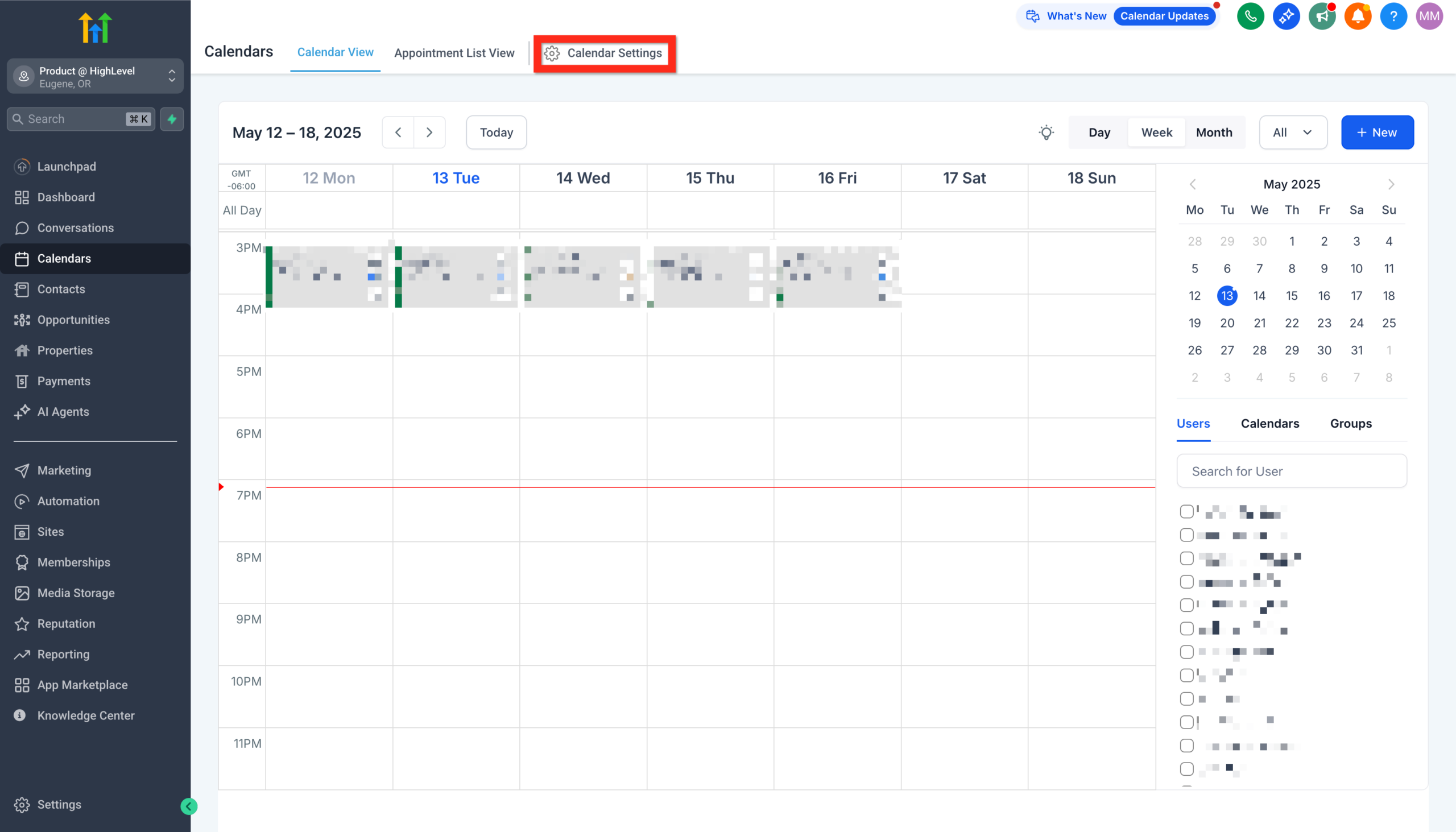
- Open the Connections tab.
- Click Add New and choose your calendar provider (for example, Google Calendar or Outlook).
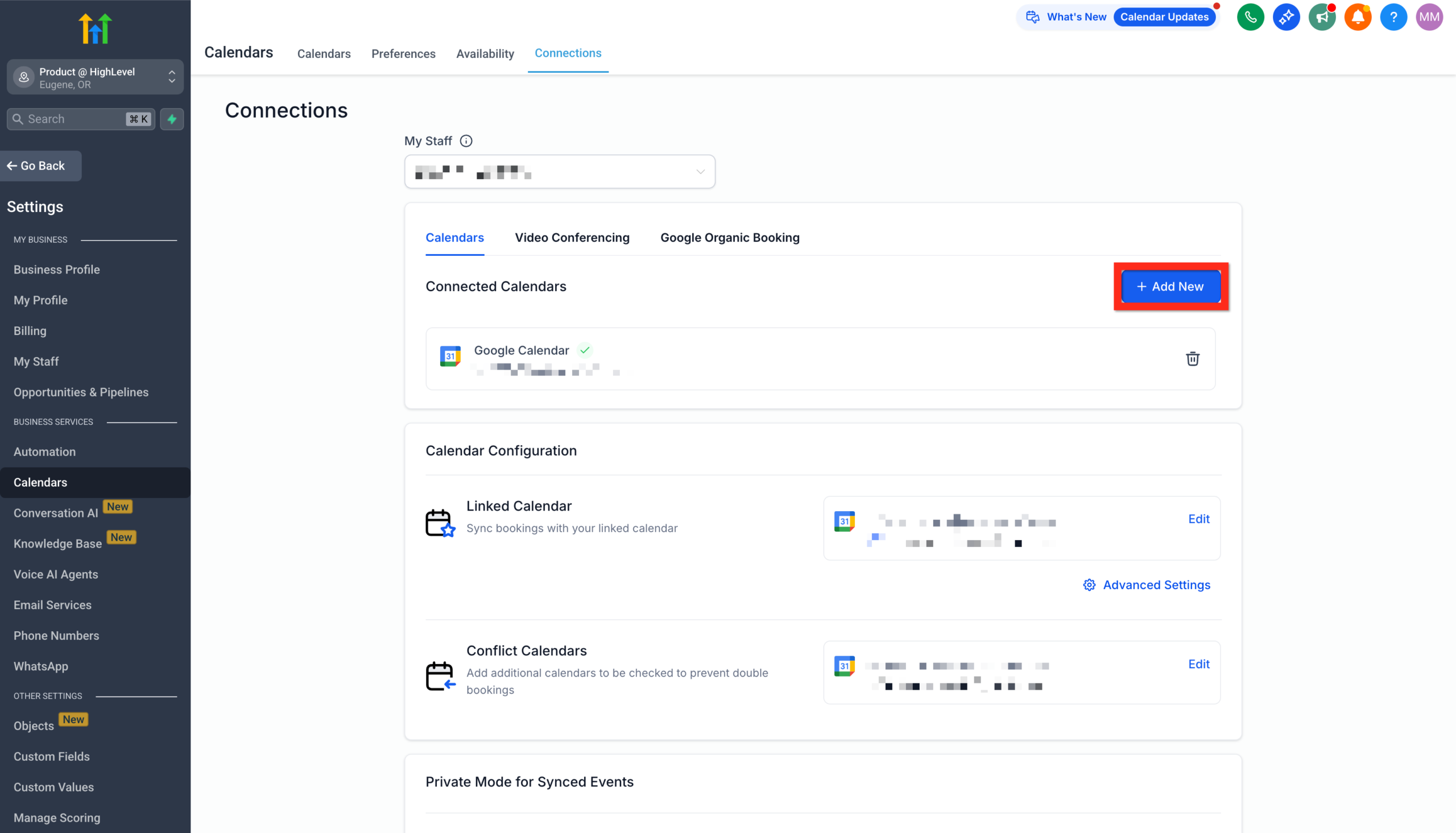
- Authorize GoHighLevel to access your calendar.
- Pick which calendars should block your availability (for example,
Work,Personal, or a combined calendar).
Once connected, GoHighLevel will respect busy times from your external calendar and add new bookings there automatically.
Connect a video conferencing tool
- In Calendars → Calendar Settings, open the Video Conferencing tab.
- Click Add New.
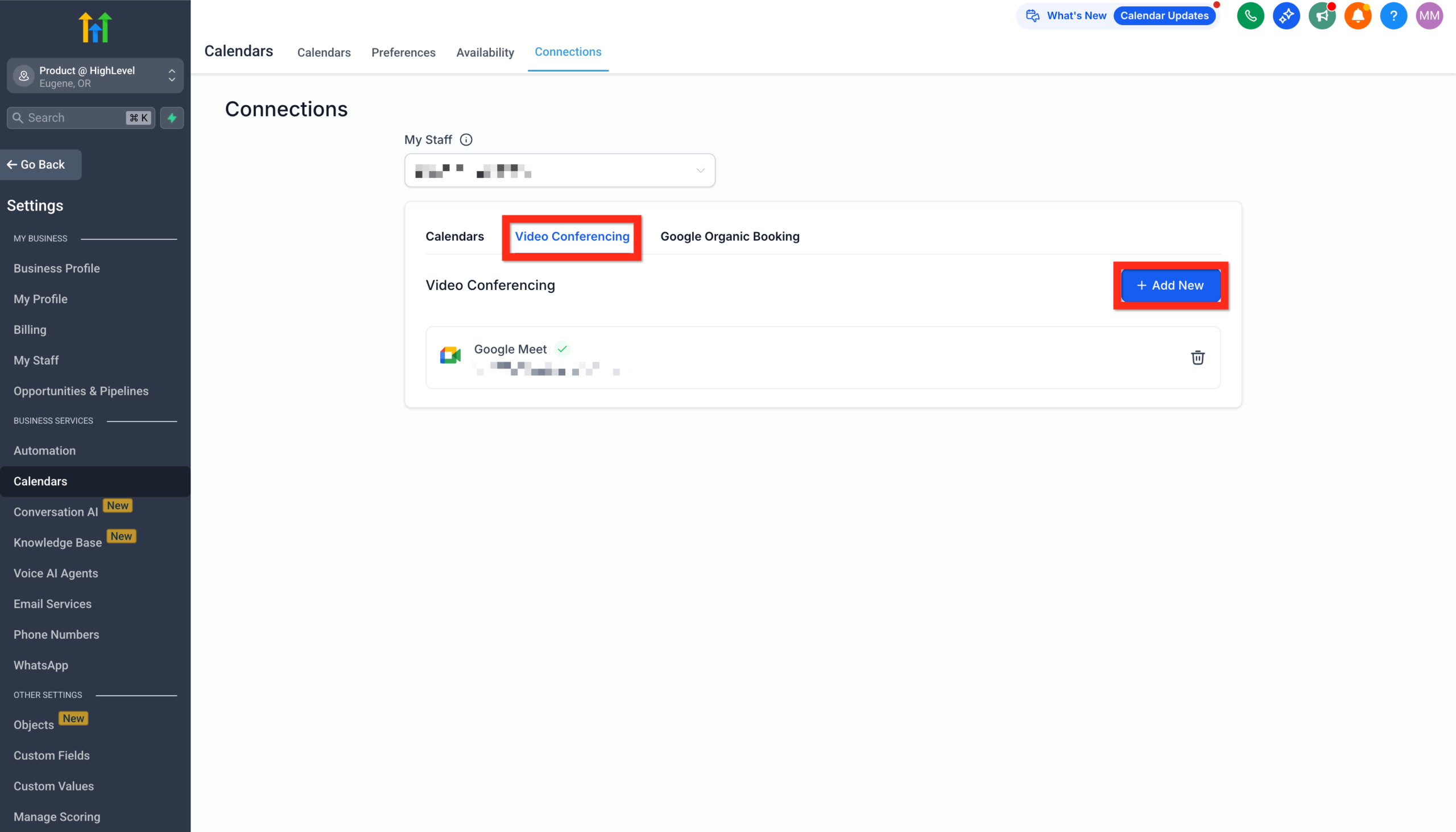
- Choose your preferred tool (for example, Zoom or Google Meet) and complete the authorization.
- Set this as the default meeting link type for your booking calendar.
From now on, each booked appointment can automatically include a unique video link—no more copying and pasting.
If you want to feel this end‑to‑end flow in a sandbox first, you can launch a GoHighLevel trial and connect a test calendar before changing anything live.
Step 4 – Set up automated confirmations and reminders
Your calendar is only half the story. The other half is reminding people to show up.
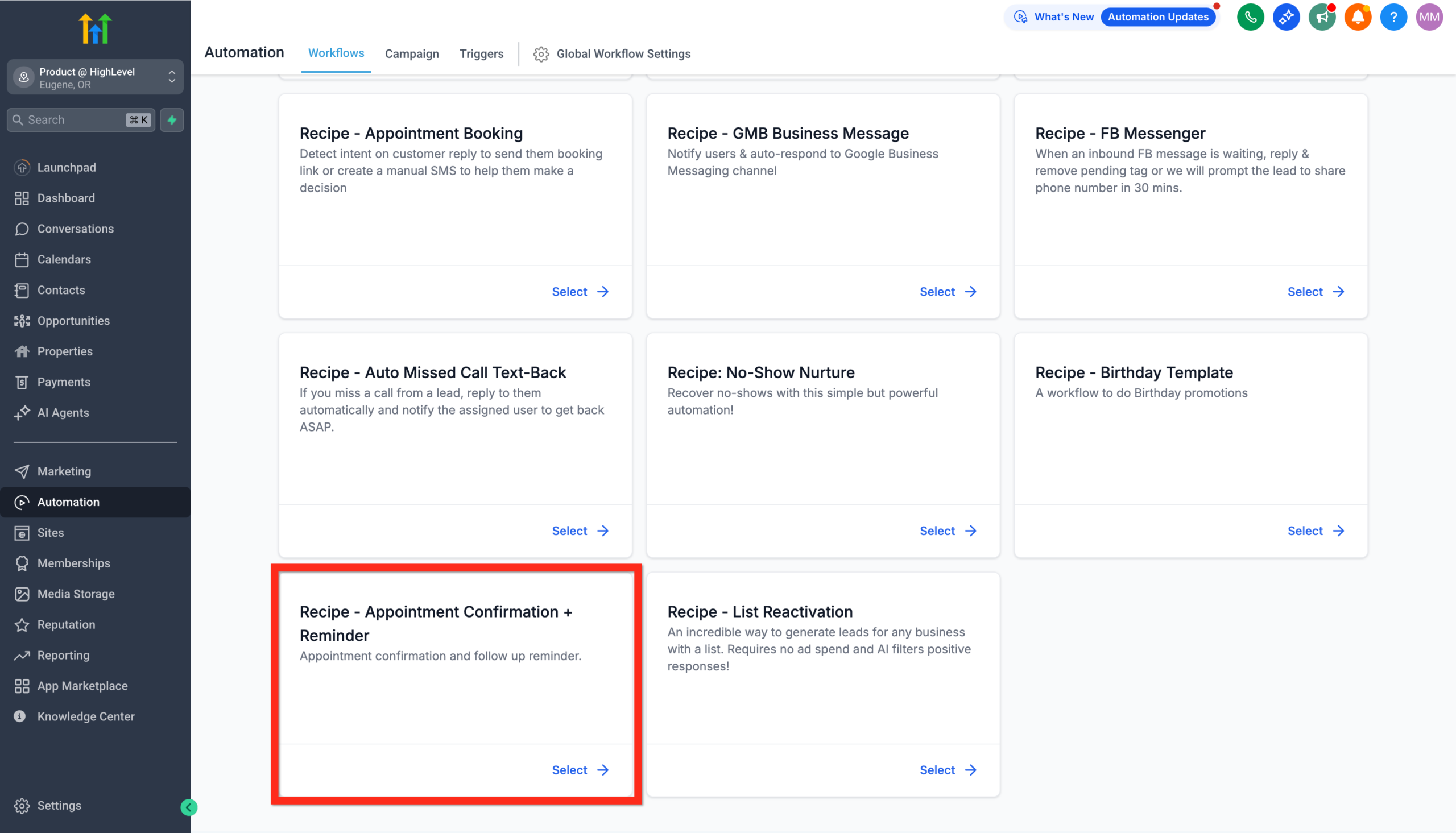
GoHighLevel makes this easy with workflow recipes.
- Go to Automation → Workflows.
- Click Create Workflow and choose From Template/Recipe.
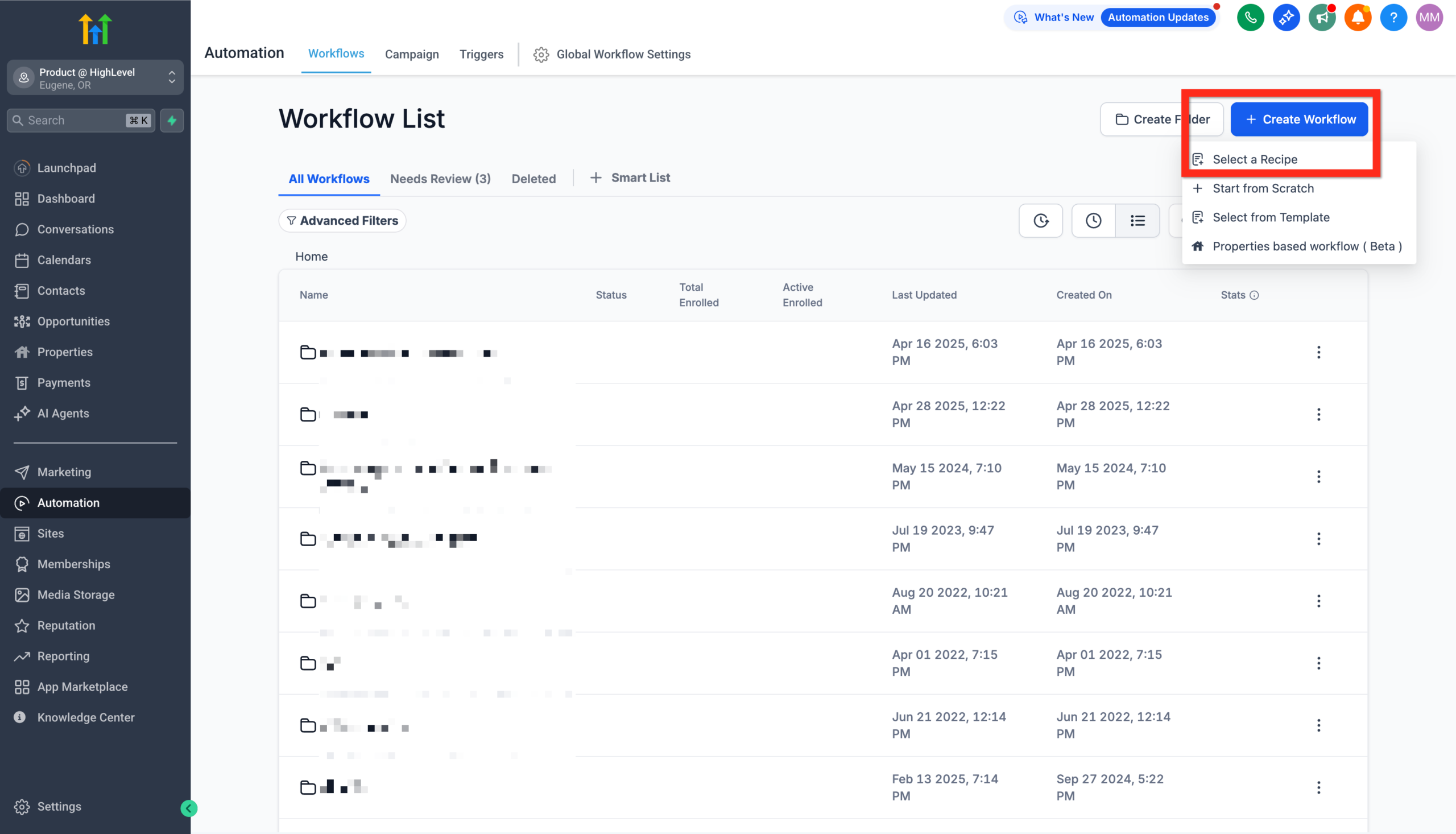
- Select the Appointment Confirmation + Reminder recipe (or the closest equivalent in your account).
- Confirm the trigger is tied to your booking calendar or appointment status (for example, when an appointment is booked or confirmed).
- Edit the confirmation email and SMS content:
- Reiterate the time and time zone.
- Include the booking link and video meeting link.
- Add any pre‑call instructions.
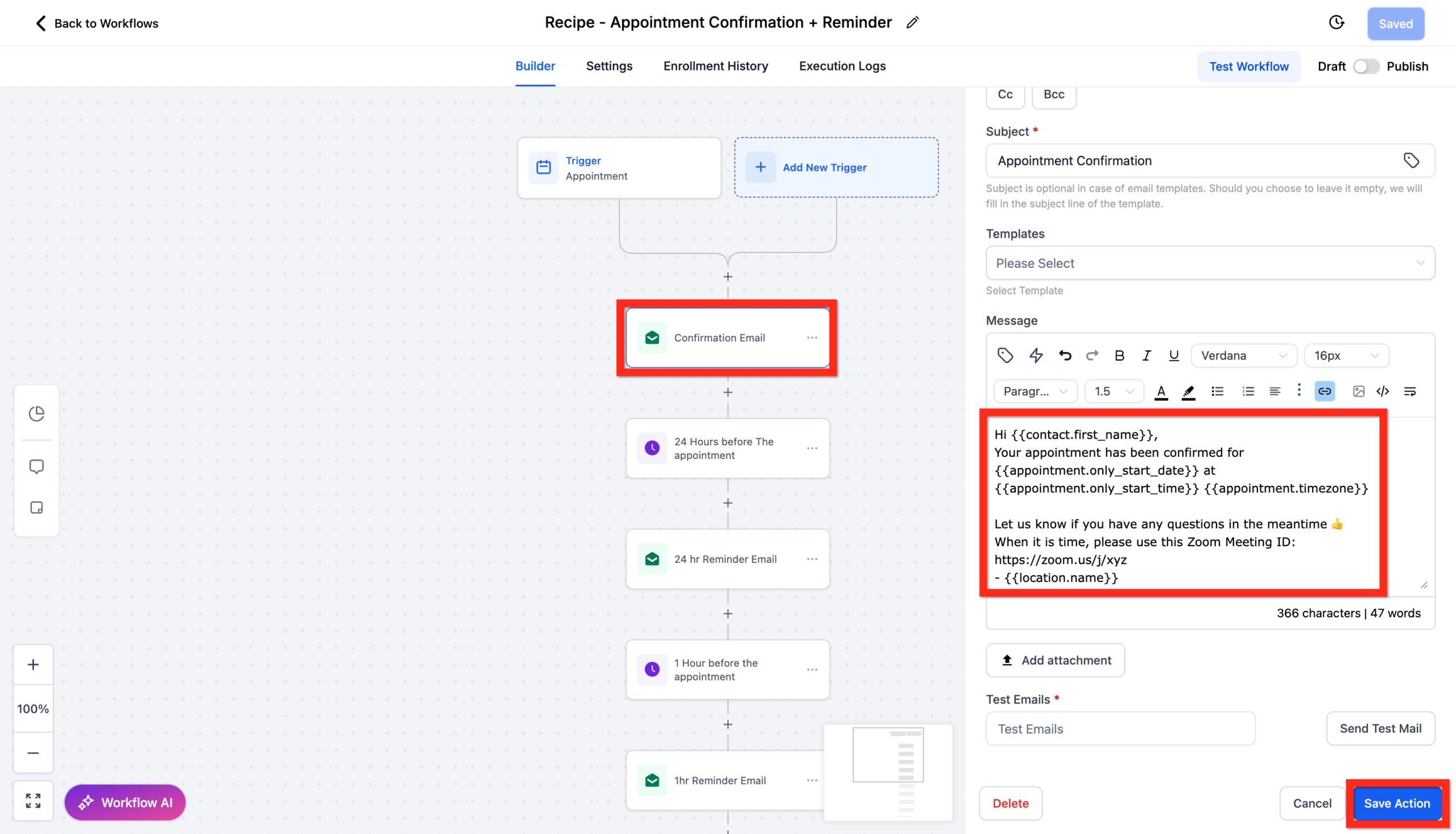
- Configure one or more reminders, such as:
- 24 hours before the meeting.
- 1–2 hours before the meeting.
- Publish the workflow when you’re happy with the timing and copy.
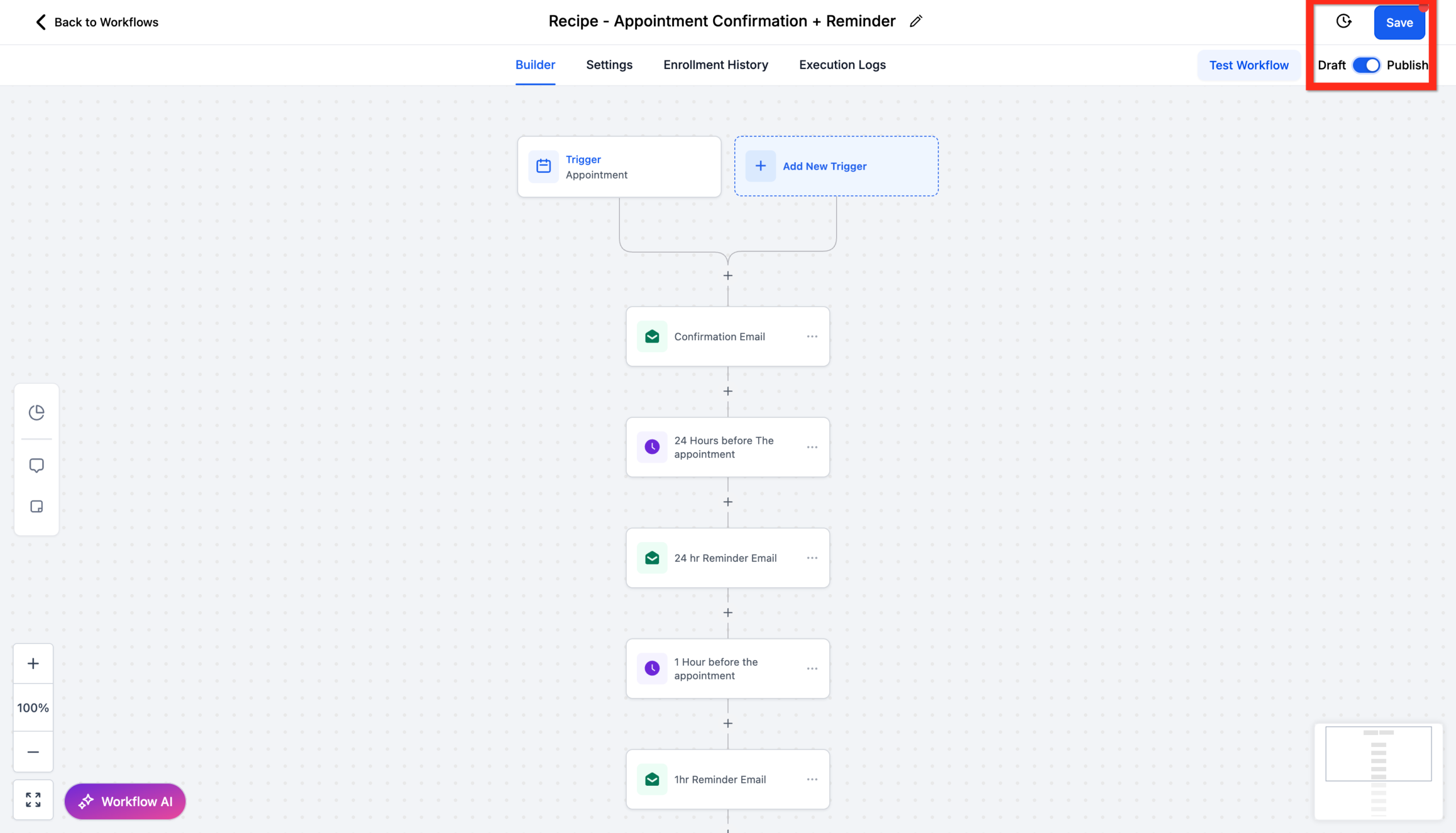
From here, every person who books through your GoHighLevel calendar will receive consistent, on‑brand confirmation and reminder messages—without your team lifting a finger.
Where Revset Labs helps: We routinely design done‑for‑you appointment workflows that adjust messaging based on contact type, pipeline stage, or source—so high‑intent leads get VIP treatment and low‑intent bookings are warmed up before the call.
Step 5 – Share and embed your booking calendar
Once everything is working, you need to get your booking link in front of people.
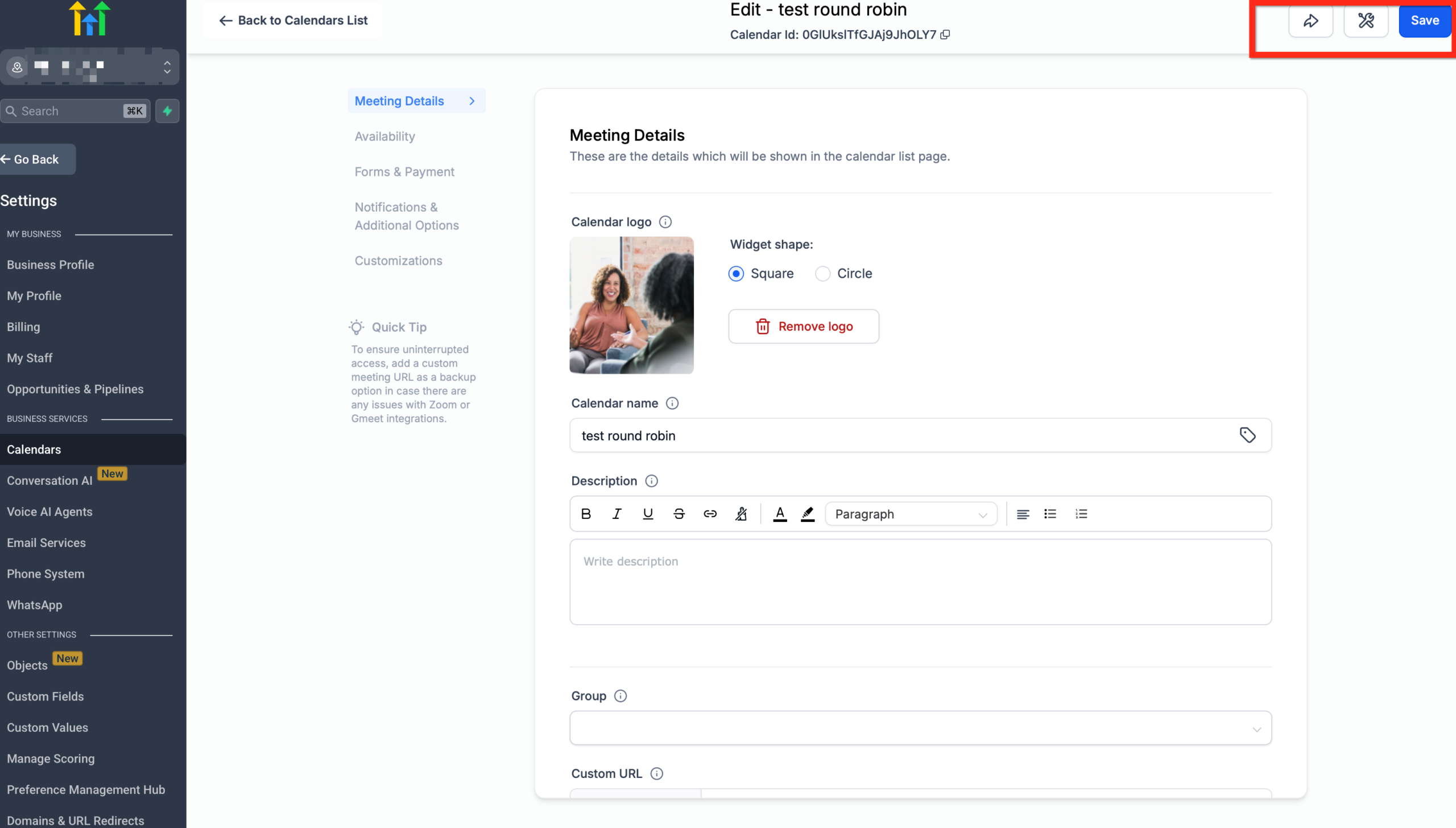
- Go to Settings → Calendars.
- Click into your booking calendar.
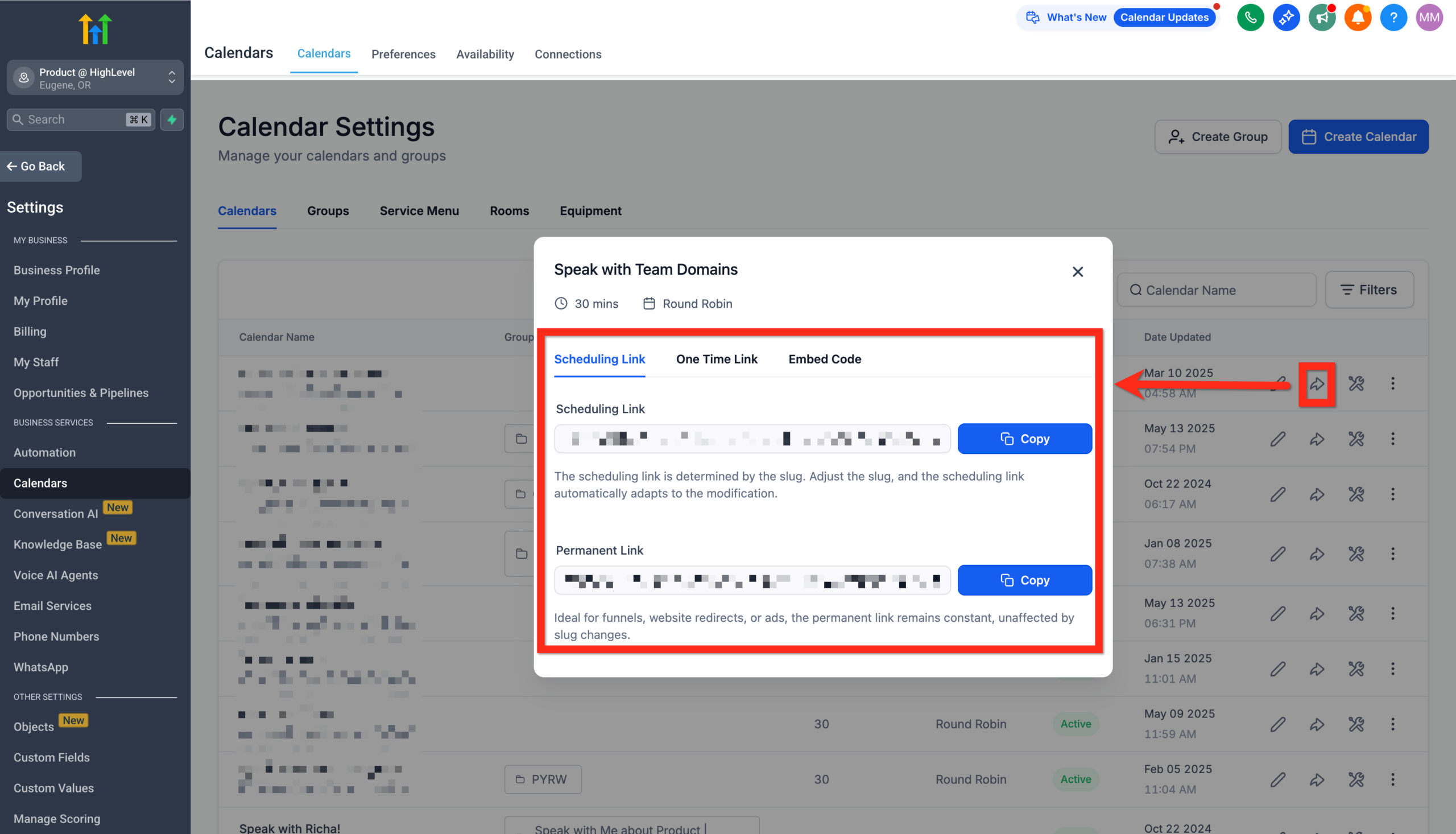
- In the top‑right, click Share.
- From here you can:
- Copy Link – paste it into emails, SMS, or chat.
- Create a One‑Time Link if you want someone to book a specific slot or limit rescheduling.
- Copy the Embed Code to place the calendar directly on a page of your website or funnel.
- Preview the booking experience as a visitor.
Once you’ve embedded or shared the link, add it to key touchpoints:
- Your email signature.
- Your website’s “Book a Call” or “Contact” page.
- Post‑webinar or lead magnet thank‑you pages.
- SMS or email sequences inside GoHighLevel.
Here’s the simple flow you’re creating:
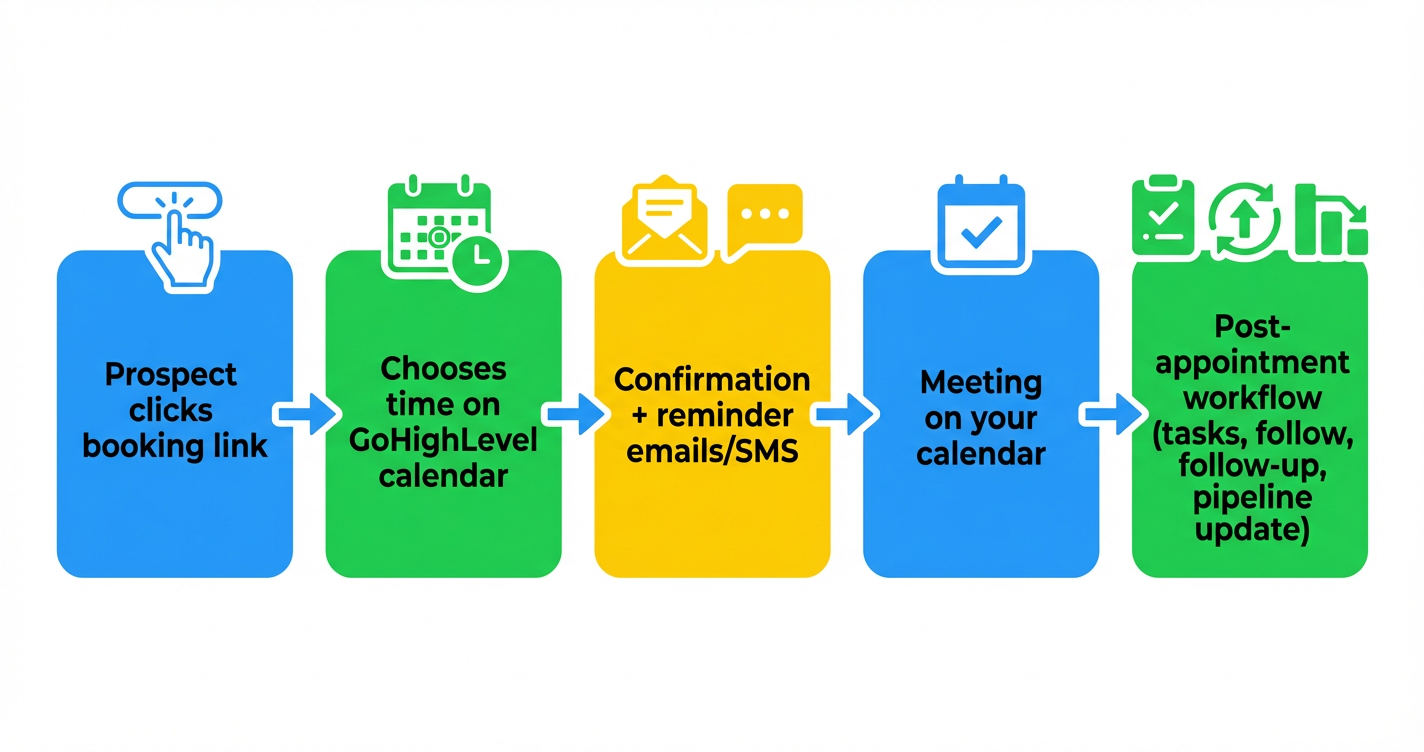 GoHighLevel Booking Calendar Workflow Flowchart” title=”Booking Calendar Workflow”>
Step 6 – Troubleshoot and optimize your calendar
Even with a solid setup, calendars occasionally misbehave. GoHighLevel includes built‑in tools to help.
- Use the Troubleshoot Calendar option (where available) to run diagnostics on availability, connections, and settings.
- Double‑check that your time zone and working hours match your actual schedule.
- Confirm your personal calendar integration is still connected and that the right calendars are set to block time.
- Test a full booking flow end‑to‑end:
- Open the booking link in an incognito window.
- Book a test appointment.
- Confirm that:
- The appointment appears on your GoHighLevel calendar.
- It appears on your external calendar.
- Confirmation and reminder messages are sent.
As you start taking real bookings, watch metrics like:
- No‑show rate – If it’s high, tighten reminders or add a pre‑qualification question.
- Time‑to‑booking – How quickly new leads book after opting in.
- Calendar utilization – Are you getting enough calls during your available hours?
Revset Labs often helps teams analyze these patterns and adjust calendars, messaging, and workflows so your best prospects are the ones filling your calendar.
How this calendar fits into the rest of your GoHighLevel system
Your booking calendar doesn’t live in isolation. It ties into contacts, pipelines, and funnels.
Once someone books:
- A contact is created or updated in GoHighLevel.
- That contact can be tagged based on the calendar or funnel they came through.
- A pipeline opportunity can be created or moved automatically.
- Follow‑up workflows can depend on whether they showed up, no‑showed, or rescheduled.
To make the most of this, pair this guide with the broader Getting Started series:
- Getting Started – Create and Manage Contacts in GoHighLevel
- Getting Started – Import Existing Contacts into GoHighLevel
- Getting Started: Launch a Funnel in GoHighLevel
These companion articles show how contacts, imports, funnels, and calendars all feed the same growth engine.
Where Revset Labs fits in
GoHighLevel gives you the all‑in‑one platform for:
- Calendars and bookings.
- Funnels, websites, and landing pages.
- Contacts and pipelines.
- Email, SMS, and automation.
Revset Labs is an AI Automation and Marketing Agency that turns that toolkit into a predictable revenue system.
On calendar projects, we typically help clients:
- Design the right booking flows for different offers (discovery calls, demos, onboarding, etc.).
- Connect calendars to pipelines, tags, and automations so every booking triggers the right actions.
- Build AI‑assisted workflows that summarize calls, create next‑step tasks, and keep deals moving.
- Set up dashboards that show where bookings came from and which ones actually turned into revenue.
If you’d rather skip the trial‑and‑error phase and get a calendar‑driven funnel that just works, Revset Labs can handle strategy, build, and optimization alongside your team.
For now, you can experience all of this directly by starting a GoHighLevel trial and following this guide step by step:
Start your GoHighLevel free trial and set up your booking calendar
FAQs: Setting up a booking calendar in GoHighLevel
Do I need a GoHighLevel account to follow this guide?
Yes. You’ll need access to a GoHighLevel account to configure calendars, connect integrations, and publish workflows. If you’re just testing, you can use a free trial and a test calendar first.
What’s the difference between a personal booking calendar and other calendar types?
A personal booking calendar is tied to a specific staff member and is ideal for one‑to‑one calls. Other calendar types are better for group events or round‑robin distribution across a team. Starting with a personal calendar keeps things simple and easier to debug.
Can I run multiple booking calendars for different offers?
Yes. Many teams use separate calendars for discovery calls, onboarding sessions, and account reviews. You can give each its own link, availability, and automation logic while still syncing to the same personal calendar.
Do I have to connect an external calendar like Google or Outlook?
You can run a GoHighLevel calendar without an external connection, but it’s risky. Connecting your personal calendar helps prevent double‑booking and ensures everything shows up where you already manage your time.
How do reminders work if a prospect reschedules or cancels?
When someone changes their booking through the GoHighLevel calendar, the underlying appointment object is updated. Your confirmation and reminder workflow should be tied to appointment status so reminders adjust automatically based on reschedules or cancellations.