
 GoHighLevel (LC Migrator + All-in-One Guide)”>
If you're currently running your marketing site on WordPress and moving the rest of your funnel into GoHighLevel, your website is the last big piece of the puzzle. The good news: you can migrate your WordPress site into GoHighLevel hosting without rebuilding everything from scratch or tanking your SEO.
Below, we'll walk through two proven paths:
- LC Migrator one-click migration – fastest and most automated.
- All-in-One WP Migration manual method – more control if you prefer to handle the export/import yourself.
We'll also cover a post-migration SEO checklist and where GoHighLevel – and Revset Labs – fit into your long-term growth plan.
If you don't have a GoHighLevel account yet, you can start a free GoHighLevel trial here and follow along as you set up your new WordPress hosting.
Quick overview: your two migration options
Before you touch anything in production, decide which migration method is right for you.
-
LC Migrator – one-click migration
- Ideal if you use a fairly standard WordPress stack.
- Handles most of the heavy lifting for you: content, themes, and plugins.
- You initiate the migration from a dedicated LC Migrator plugin inside your existing WordPress site.
-
All-in-One WP Migration – manual method
- Ideal if you want explicit control over the backup file and where it lives.
- You export your current site to a
.wpressfile and then import it into your GoHighLevel WordPress install.
Both methods keep your existing WordPress site live while the new GoHighLevel-hosted copy is being set up, so you can test everything before you flip DNS.
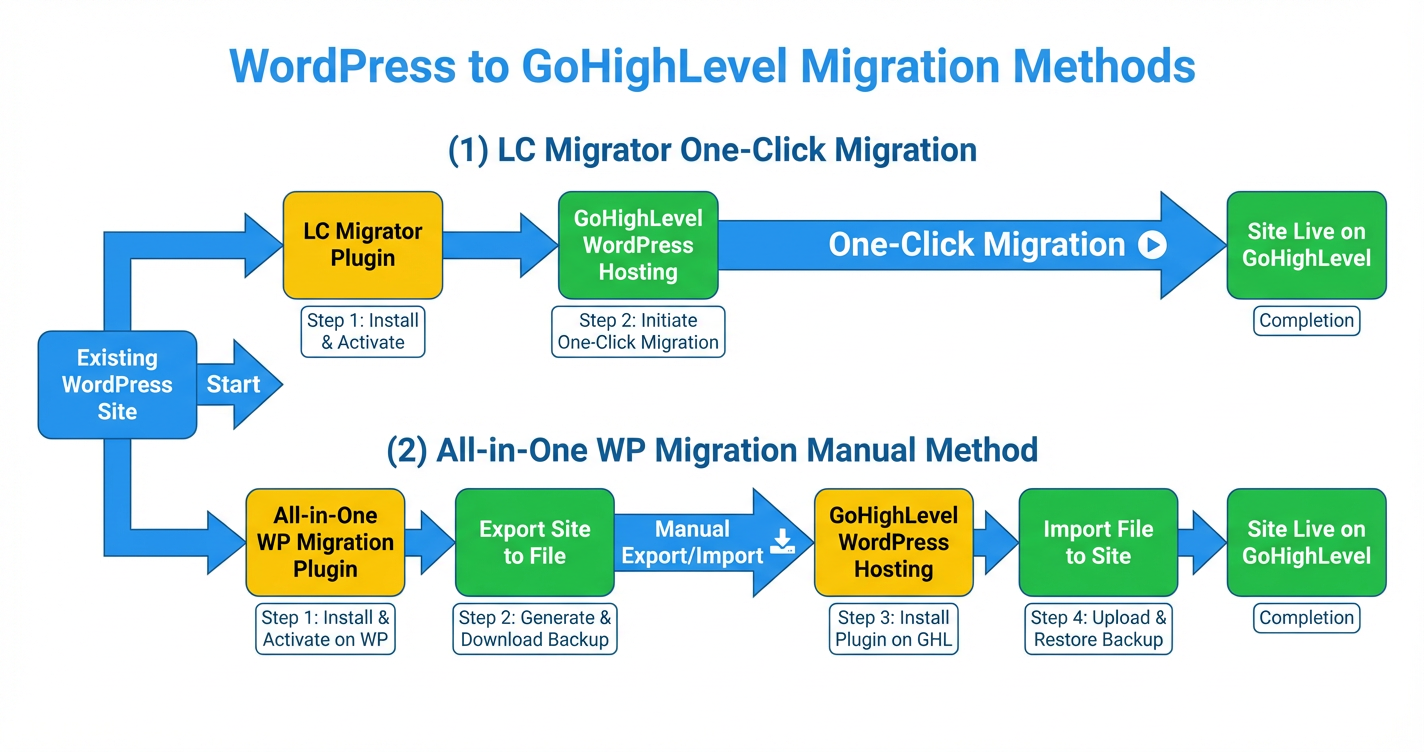
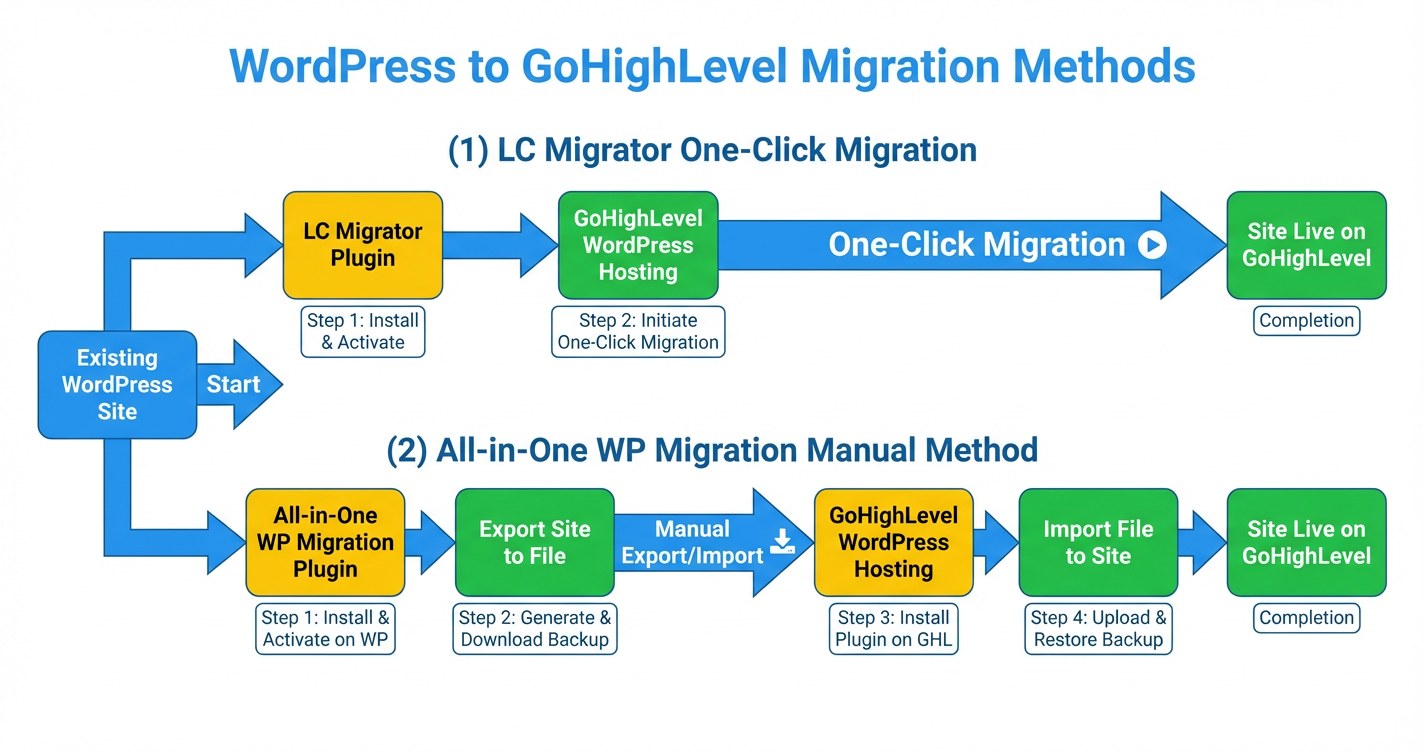
To make the flow easier to visualize, you can use the supporting flowchart graphic:
Step 1: Prepare your GoHighLevel WordPress environment
Regardless of which migration path you choose, your first step is to prepare a clean WordPress environment inside the right GoHighLevel sub-account.
-
Open the correct sub-account.
In GoHighLevel, switch to the sub-account where you want this site to live. -
Navigate to WordPress hosting.
Go to Sites → WordPress. -
Activate WordPress.
Click Activate WordPress. GoHighLevel will provision the hosting environment for you. -
Create your new site.
- Click on the new WordPress site card.
- Choose From blank or select a template close to your current site's layout.
- Fill in your basic site details (site name, admin email, etc.).
- Click Create WordPress site.
At this point you have an empty WordPress install running on GoHighLevel. Now it's time to bring your existing site over.
This is also a great moment to think ahead. Once your site lives in GoHighLevel, you can plug it directly into funnels, automations, and CRM workflows. If you want help mapping that bigger picture, Revset Labs can design the full system around your new site.
Option 1: LC Migrator – one-click migration (recommended for most)
The LC Migrator plugin is the fastest way to move a standard WordPress marketing site into GoHighLevel.
When LC Migrator is a good fit
Use LC Migrator if:
- Your existing site uses common themes and plugins without heavy custom server-side logic.
- You're comfortable granting the plugin temporary access to move your data.
- You want the simplest, lowest-friction path with clear progress updates.
LC Migrator key benefits
- One-click experience: Initiate and monitor the migration from a simple interface.
- Zero downtime: Your original site stays live while the GoHighLevel copy is built.
- Less manual handling: No need to juggle backup files or worry about partial exports.
LC Migrator step-by-step
-
Open the migration tools in GoHighLevel.
In your target sub-account, go to Sites → WordPress → Info → Import Your Existing Website. -
Choose the LC Migrator option.
Select One-click migration using LeadConnector Migrator Plugin and download the provided.zipfile. -
Install the plugin on your existing WordPress site.
- Log in to your current WordPress admin.
- Go to Plugins → Add New.
- Upload the downloaded
.zipfile. - Install and activate the plugin.
-
Connect LC Migrator to GoHighLevel.
- In your existing WordPress dashboard, click LC Migrator in the sidebar.
- Sign in with your LeadConnector / GoHighLevel credentials.
-
Select the destination WordPress site.
Choose the GoHighLevel sub-account and WordPress site you prepared earlier. -
Start the migration.
Click Start Migration. The plugin will transfer your site content and show progress updates as it runs. -
Validate the migrated site.
Once migration completes:- Click View Your New Website from the LC Migrator confirmation.
- In a separate tab, open your original site.
- Compare key pages (home, services, blog, contact) to confirm layout, images, forms, and menus look correct.
If everything checks out, you can move to the post-migration checklist section below.
If you discover complex custom functionality that doesn't come across cleanly, you can either tidy it up on the new site or use Option 2 for more granular control.
Ready to pair your migrated site with automated funnels and follow-up? Start your GoHighLevel free trial here and Revset Labs can help you wire up lead capture, pipelines, and campaigns around your new site.
Option 2: All-in-One WP Migration – manual backup & restore
The All-in-One WP Migration plugin gives you more hands-on control over your backup file. You export your existing site into a .wpress file, then upload that file into your GoHighLevel WordPress install.
When the All-in-One method makes sense
Use this approach if:
- You prefer to keep a local backup file you can store and reuse.
- You have more complex hosting or need an explicit export/import workflow for compliance.
- You're comfortable watching disk space and upload limits during the process.
All-in-One WP Migration step-by-step
-
Open WordPress hosting in GoHighLevel.
In the correct sub-account, go to Sites → WordPress and confirm your target site is created and active. -
Enable the All-in-One import option.
Under Import Your Existing Website, choose All-in-One WP Migration plugin. -
Download the plugin.
- Click Get Plugin to download it from GoHighLevel or
- On your existing WordPress site, go to Plugins → Add New, search for "all in one wp migration", and select it.
Whichever is easiest!
-
Export your existing WordPress site.
- In your existing site's WordPress dashboard, go to All-in-One WP Migration → Export.
- Click Export To → File.
- Wait for the export to complete and download the
.wpressfile.
-
Upload the backup to GoHighLevel WordPress.
- Log into the WordPress admin for your new GoHighLevel-hosted site.
- Go to All-in-One WP Migration → Import.
- Click the Click to upload or drag and drop area.
- Select the
.wpressfile you exported earlier. - Confirm when the plugin warns you that it will overwrite the existing site.
-
Complete the import and log in again.
After the import finishes, the plugin may log you out. Log back in using your original WordPress credentials (the ones from your old site) and confirm everything looks correct. -
Spot-check pages and settings.
Just like with LC Migrator, compare the original and migrated sites side-by-side. Pay special attention to:- Contact forms and appointment widgets
- Any embedded funnels or checkouts
- Blog posts and category pages
- Site menus, header, and footer
When you're happy, it's time to think about SEO and go-live.
Post-migration SEO & technical checklist
Migrating hosting is only half the job. To protect – and ideally improve – your organic performance, run through this checklist before you update DNS.
1. Keep URLs consistent (or redirect carefully)
- Best case: Your permalink structure and slugs match your old site exactly. In this case, you can point your domain at GoHighLevel and search engines will see the "same" pages on a new host.
- If URLs must change:
- Set up 301 redirects from old URLs to the closest matching new URLs.
- Prioritize high-traffic pages (home, services, key blog posts, pricing, contact).
2. Verify your site on Search Console and analytics
- Add your new GoHighLevel domain (or subdomain) to Google Search Console.
- Confirm tracking for Google Analytics, GA4, or any other analytics platform is firing correctly on the migrated site.
3. Check page speed and mobile experience
- Test a few key pages in tools like PageSpeed Insights.
- Fix obvious issues such as oversized images, unnecessary scripts, or render-blocking resources.
- Confirm that your theme remains fully mobile responsive after migration.
4. Review critical SEO elements
On your most important pages and posts, confirm that:
- Title tags still reflect your primary keyword targets.
- Meta descriptions are present and readable.
- H1/H2 headings match the content and search intent.
- Internal links between related posts (for example, from this article to your GoHighLevel getting-started series) still work as expected.
You can cross-link this migration guide to other next-step tutorials, such as:
- Getting Started: Create and Manage Contacts in GoHighLevel
- Getting Started: Set Up Pipelines and Opportunities in GoHighLevel
- Getting Started: Launch an Email Campaign in GoHighLevel
5. Confirm forms, funnels, and automations
One advantage of moving your site into GoHighLevel is how tightly it can connect to your CRM and automations.
Before going live:
- Submit test leads through contact forms and popups.
- Confirm they create contacts in GoHighLevel and fall into the right pipelines, opportunities, and workflows.
- Check that email and SMS follow-up is triggering as expected.
If you're just getting started with automations, a GoHighLevel free trial is a low-risk way to test this full stack without committing to long-term contracts.
When to bring in Revset Labs
For some businesses, migration is a simple one-time task. For others, it's the first step in a larger rebuild of their marketing systems.
Revset Labs is an AI automation and marketing agency that specializes in building GoHighLevel-powered systems that actually close the loop between traffic, leads, and revenue.
You might want help from Revset Labs if:
- Your WordPress site is only one piece of a fragmented tech stack.
- You want to turn your migrated site into a true conversion engine with funnels, nurture sequences, and reporting.
- You prefer a done-for-you implementation instead of wrestling with plugins and workflows on your own.
Revset Labs can:
- Design your offer and funnel strategy around GoHighLevel.
- Implement automations for lead capture, qualification, and follow-up.
- Build dashboards so you can finally see which campaigns drive revenue.
Final go-live checklist
Once you're confident in the migrated site, run this simple go-live checklist:
- Update DNS to point your domain (and any relevant subdomains) to the GoHighLevel WordPress hosting environment.
- Verify SSL is active and there are no mixed-content warnings.
- Crawl the site with a tool like Screaming Frog or Ahrefs to catch broken links or 404s.
- Monitor performance in Search Console and analytics over the next few weeks, especially impressions, clicks, and key conversion events.
When everything looks stable, you're done: your WordPress site now lives inside GoHighLevel, plugged directly into the same platform that runs your funnels, CRM, automations, and reporting.
Ready to turn this migration into a serious growth opportunity? Combine a free GoHighLevel trial with a Revset Labs implementation plan so you launch on solid strategic foundations.
LC Migrator – One-Click Migration
Previously, migrating a WordPress site meant installing third-party plugins like All-in-One Migrator, creating backups, downloading massive files, and then uploading them again to HighLevel. For larger sites, this could take hours—definitely tiring! ?
We’ve completely streamlined your migration experience with our brand-new LC Migrator plugin. Just log in, select your site, click a few buttons, and relax. What used to take hours now takes just a few minutes!
Key Features
One-Click Migration: Start the migration directly from the LeadConnector plugin.
Zero Downtime: Your original site stays live while we handle things in the background.
Clear Progress Updates: Stay updated every step of the way, from backup to verification.
Step 1: Navigate to Your Site Settings
First things first, go ahead and click on Sites > WordPress. This will get us on the right path to creating your new home for your existing site.
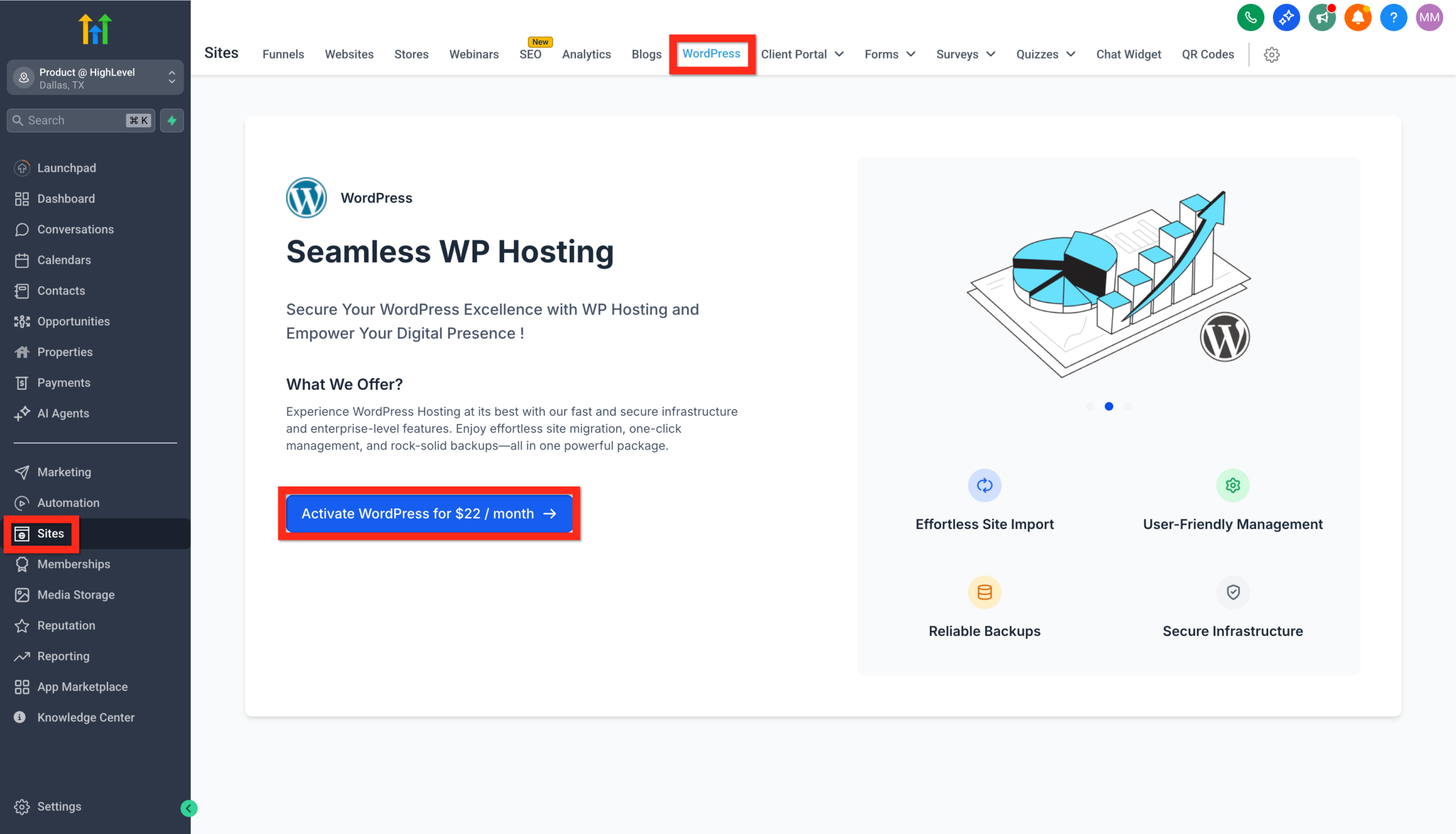
Step 2: Activate WordPress
Look for and click on Activate WordPress. Just like switching on the lights in a new house, we're getting things ready for your arrival.
Step 3: Set Up Your Site
Click on the WordPress site card, select From blank, then choose a template. Select From blank again, click Create, fill out your site's details, and finally hit Create WordPress site. Easy, right?
Step 4: Import Your Existing Site
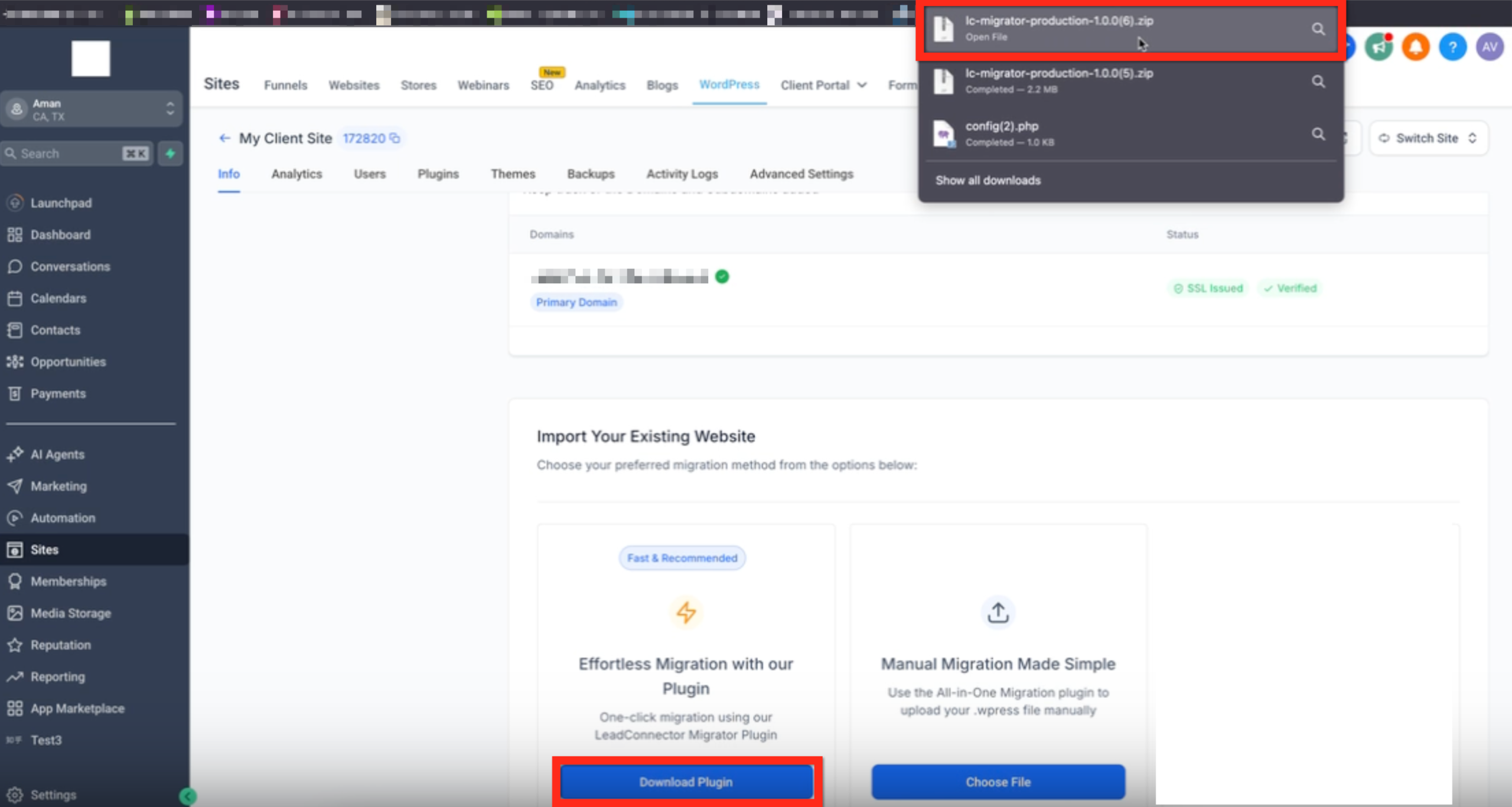
Under your WordPress site > Info > Import Your Existing Website, select the One-click migration using LeadConnector Migrator Plugin. Make sure the zip is downloaded. Now, here comes the magic!
Step 5: Add Plugin
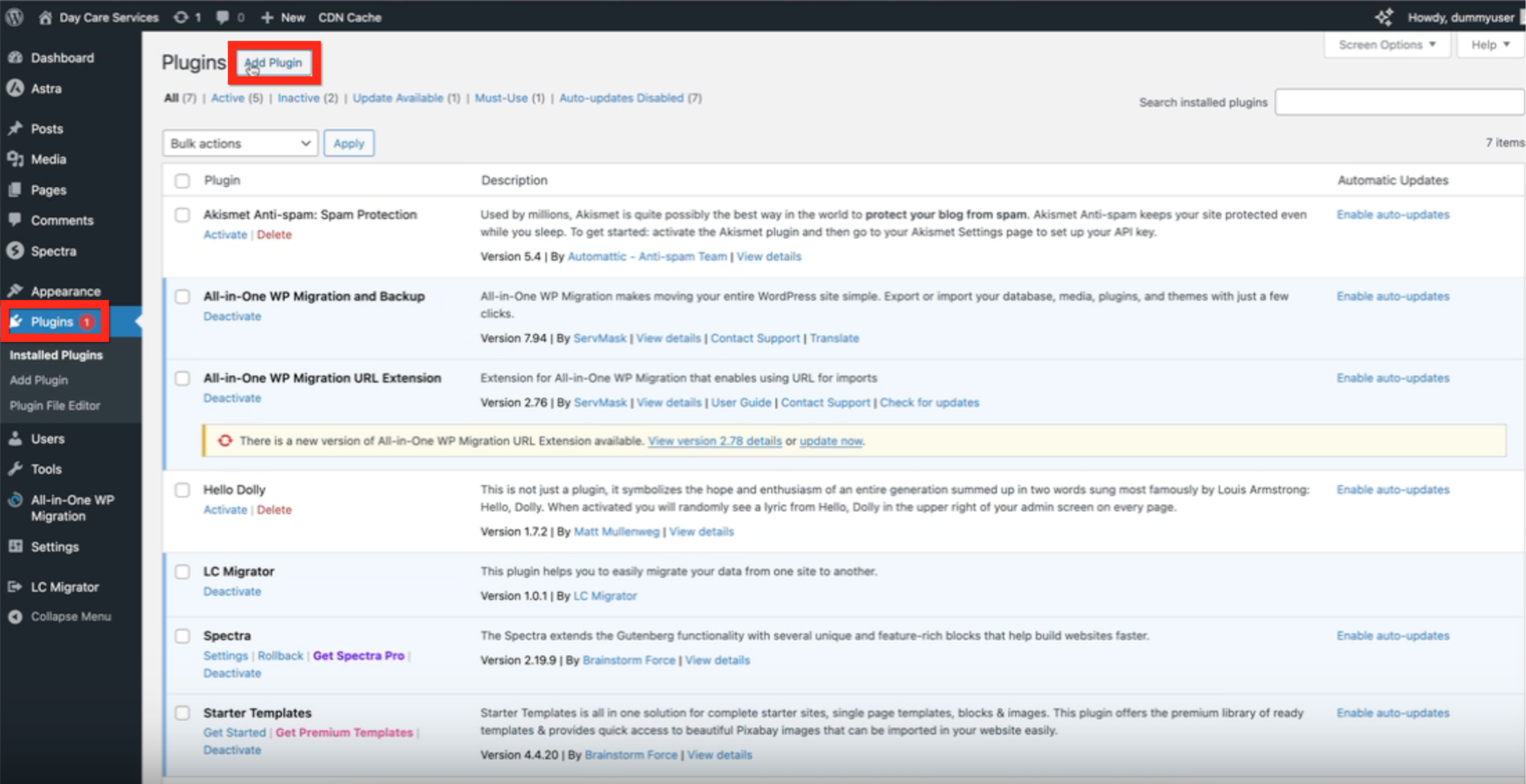
Go to your existing WordPress Admin > Plugins > Add Plugin and add the zip file.
Step 6: Connect Your Account
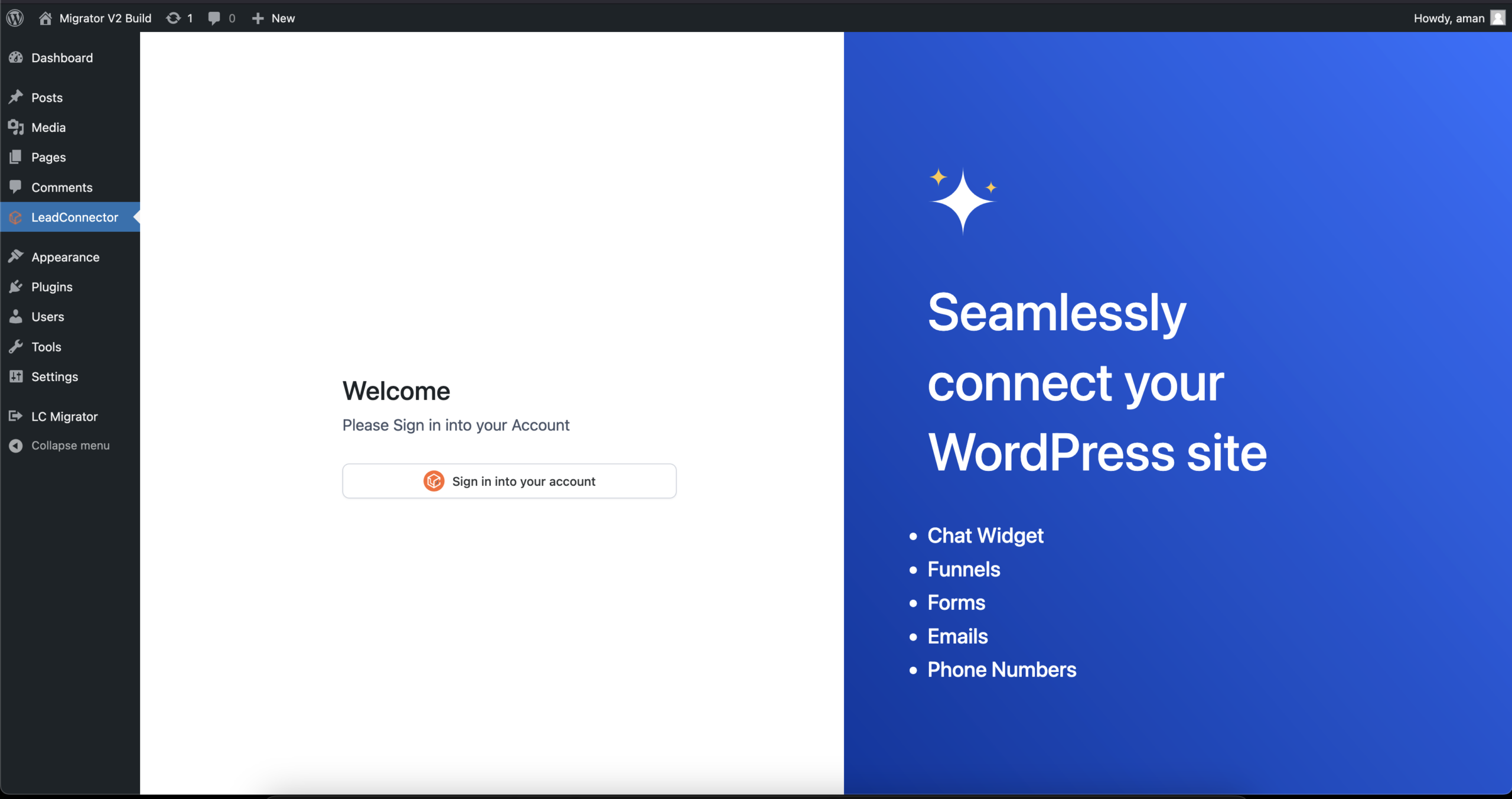
Go to your WordPress dashboard and click on LC Migrator. Sign in to your LeadConnector/HighLevel account.
Step 7: Select Your Website
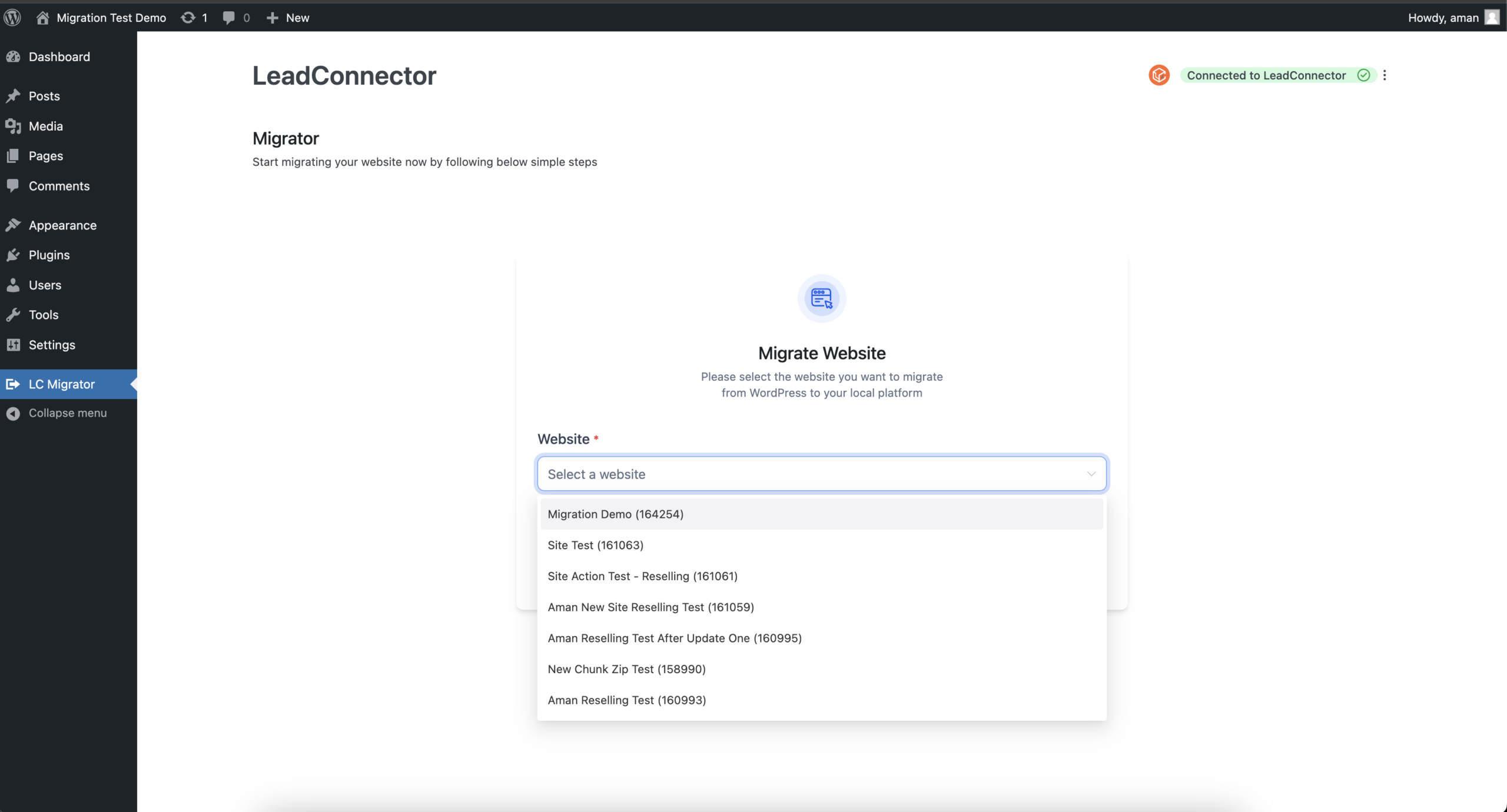
Choose the website you wish to migrate from the provided dropdown list.
Step 8: Start Migration
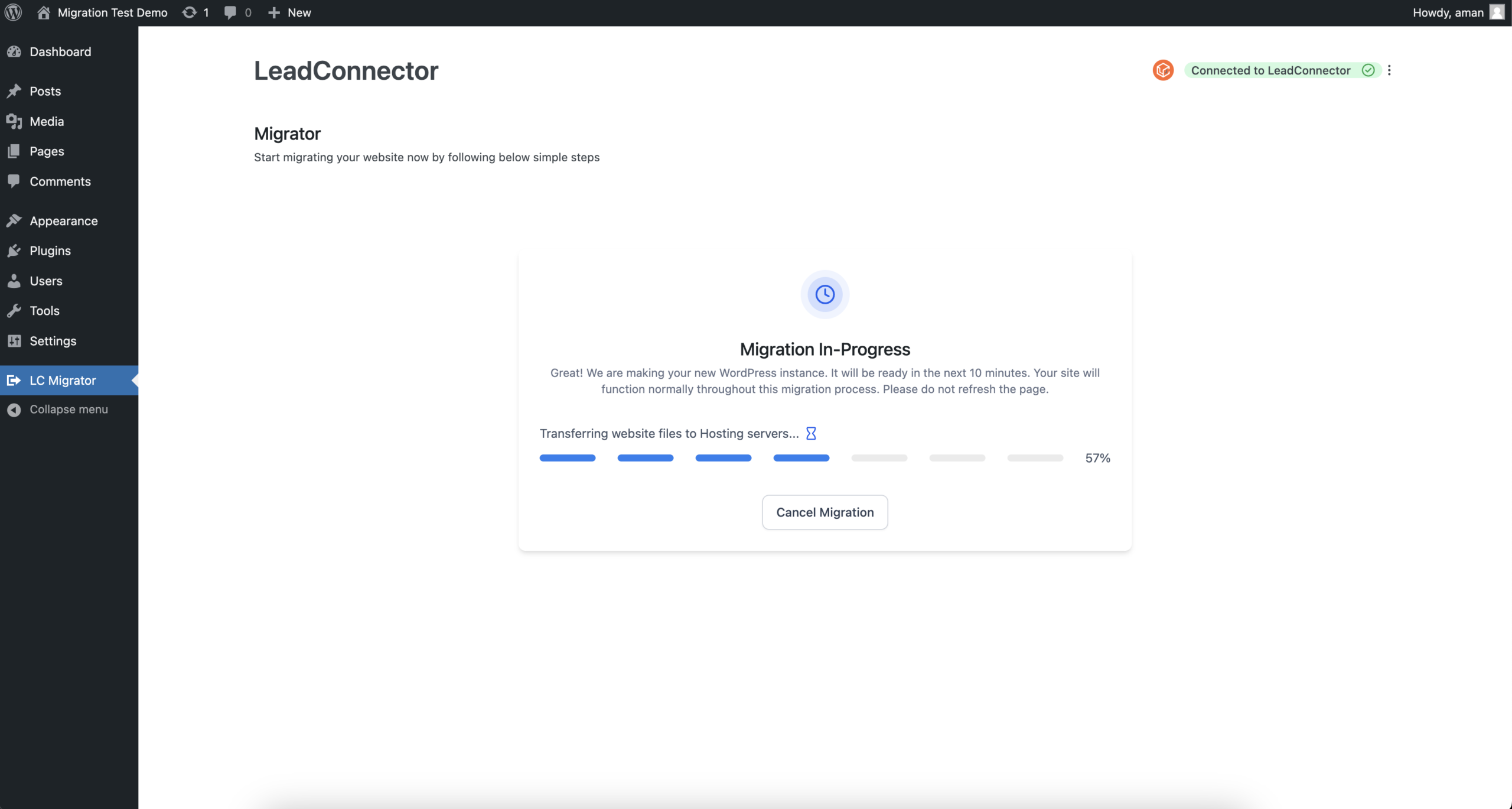
Click the Start Migration button. You'll see clear progress updates. Relax as the migration proceeds in the background.
Step 9: Migration Completed
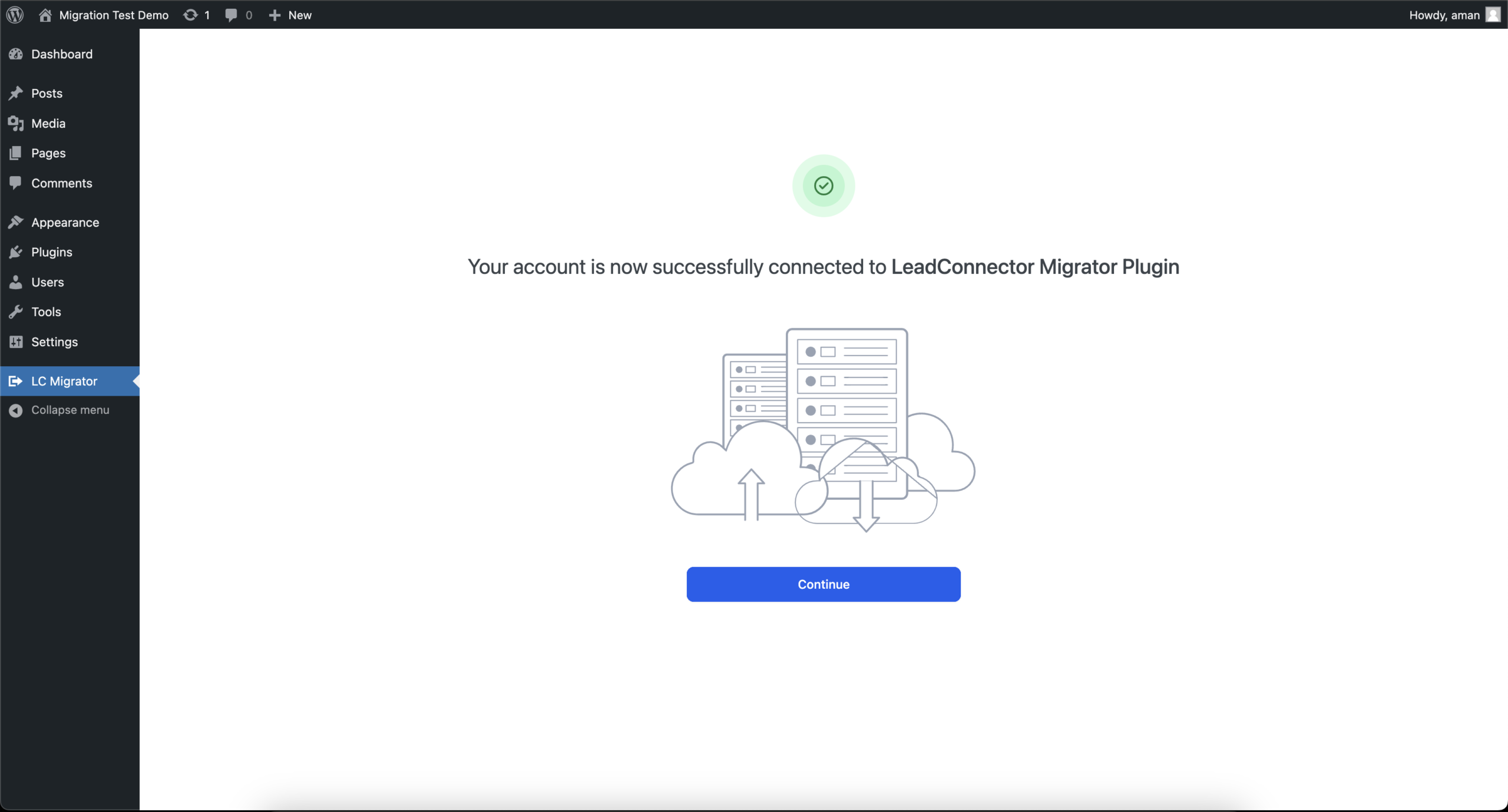
Once the migration finishes, click View Your New Website to explore your freshly migrated site. Optionally, rate your experience to help us improve!
All-In-One Migration Plugin
Step 1: Navigate to Your Site Settings
First things first, go ahead and click on Sites > WordPress. This will get us on the right path to creating your new home for your existing site.
Step 2: Activate WordPress
Look for and click on Activate WordPress. Just like switching on the lights in a new house, we're getting things ready for your arrival.
Step 3: Set Up Your Site
Click on the WordPress site card, select From blank, then choose a template. Select From blank again, click Create, fill out your site's details, and finally hit Create WordPress site. Easy, right?
Step 4: Import Your Existing Site
Under Import Your Existing Website, select the All-in-One WP Migration plugin.
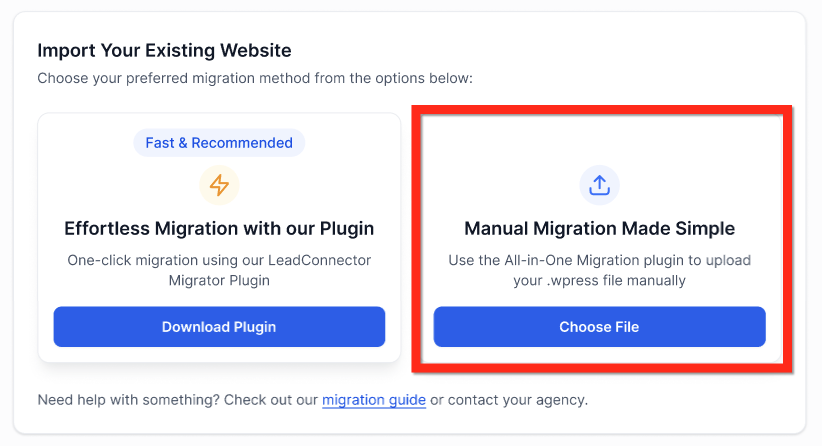
Step 5: Grab the Plugin
Click Get Plugin, then hit Download. Alternatively, if you’re already on your WordPress dashboard, navigate to Plugins, search for "all in one wp migration", and select it. Whichever is easiest!
Step 6: Export Your Site
Within the plugin, click Export Site, then choose Export to and select File. Now, just download that file and keep it safe—think of it as your website's suitcase packed and ready to go!
Step 7: Upload to HighLevel
In your HighLevel WordPress site dashboard, click the Click to upload or drag and drop button. Sit back and relax while the upload completes.
Step 8: Request Migration
Almost done! Click Request for Migration. Grab a coffee while the migration process completes—we'll handle the heavy lifting from here.
Move a WordPress Site Between HighLevel Sub-Accounts (Clone)
Cloning copies an existing HighLevel WordPress site to a different sub-account without taking the source site offline. It’s the fastest, most reliable way to “export” a site from one sub-account to another.
Steps
Go to Sites → WordPress in your agency view.
Select Clone (or open the source site and choose Clone).
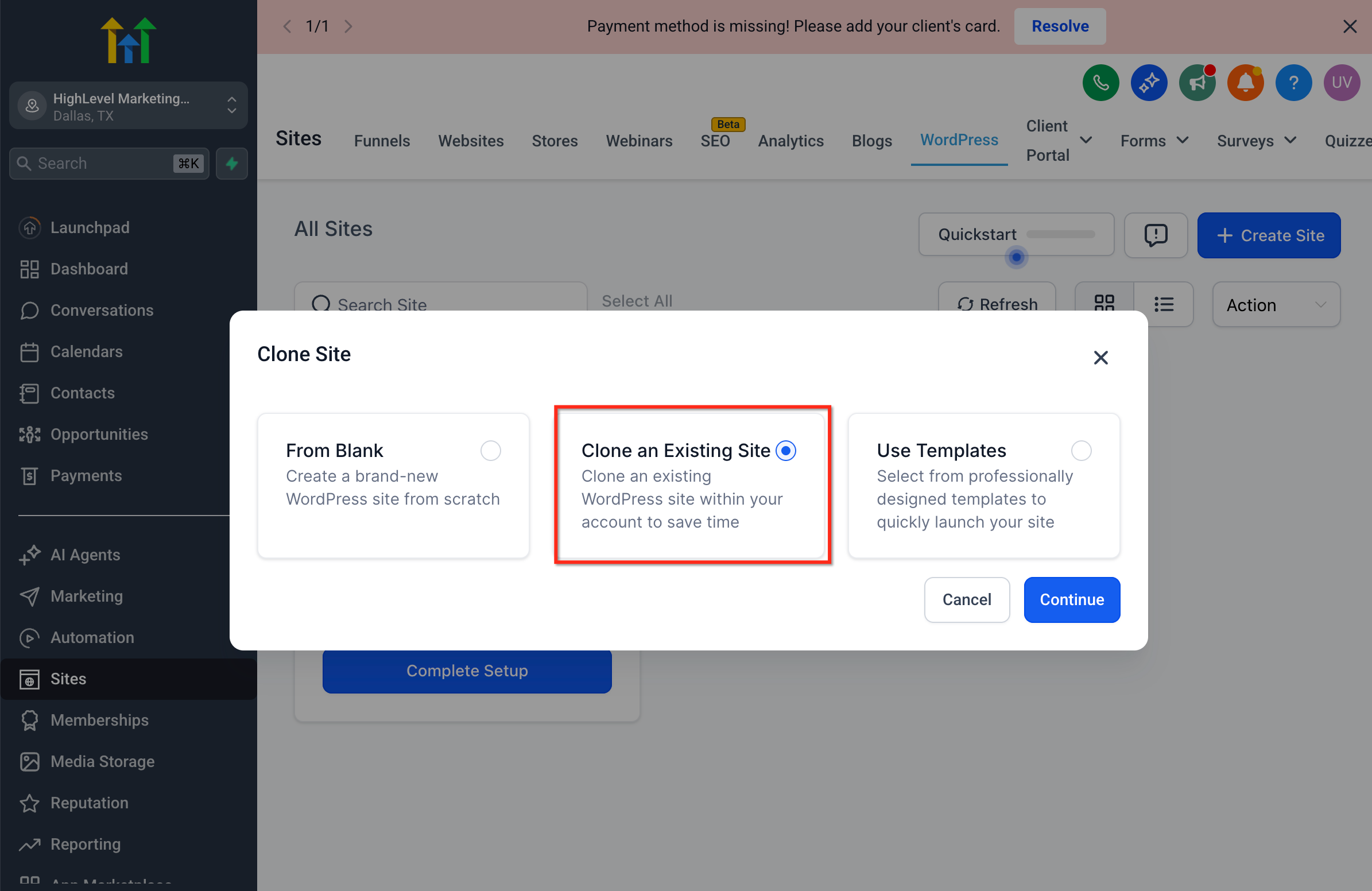
Choose the Destination Sub-Account.
Pick the Source Site (if not already selected) and give the clone a Name.
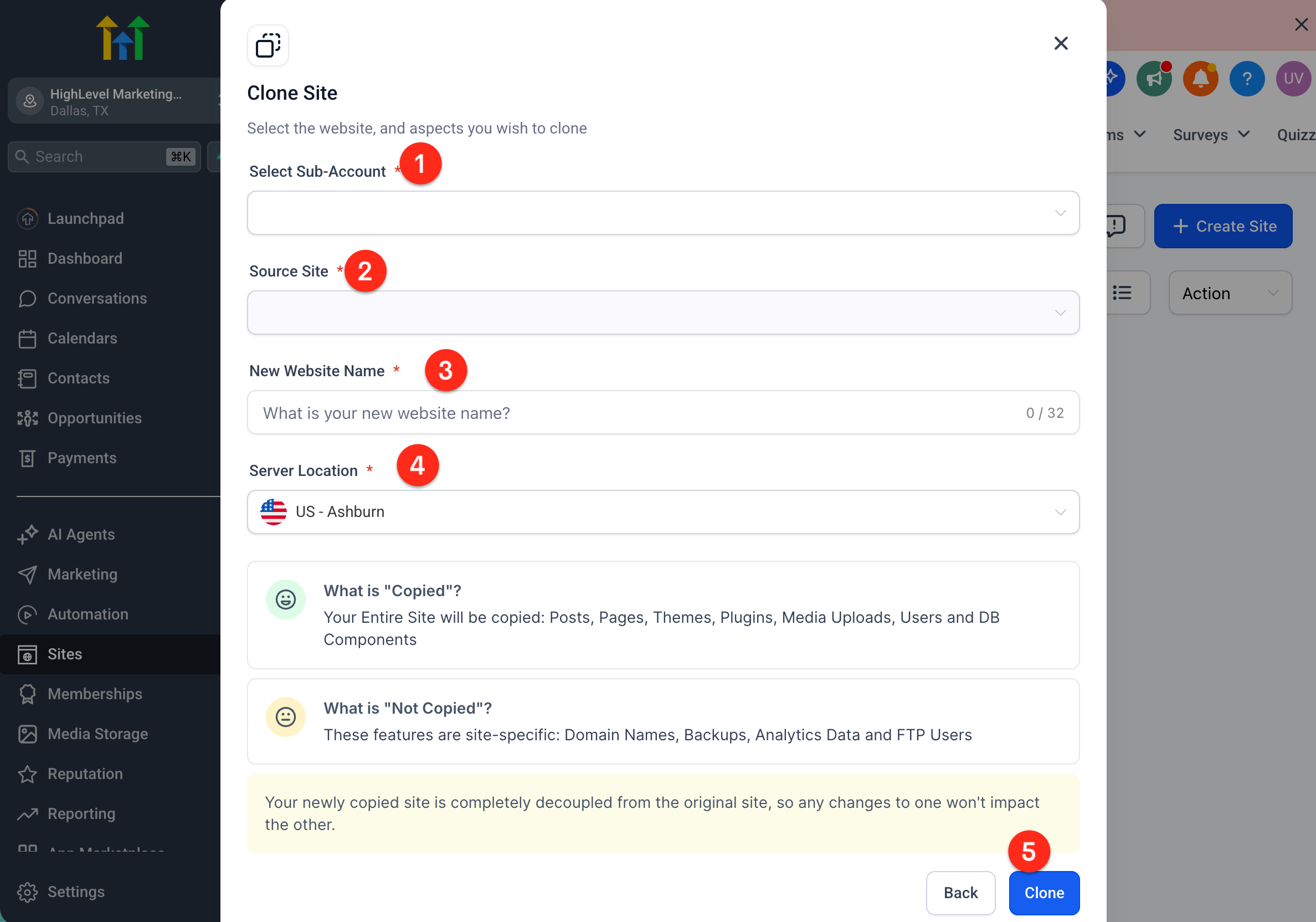
Click Clone to start the duplication.
Monitor progress until the status shows Completed.
Learn More
WordPress Hosting: Step-by-Step Migration Guide
WordPress: Domain Connect Integration
Cloning WordPress Websites in HighLevel
Granular Permissions for WordPress
New WordPress Site From Template
Was this article helpful?
That’s Great!
Thank you for your feedback
Sorry! We couldn't be helpful
Thank you for your feedback
Let us know how can we improve this article! *
Feedback sent
We appreciate your effort and will try to fix the article
Articles in this Folder
Getting Started – Launch a Website From Template
Getting Started – Migrate a WordPress Site
Getting Started – Launch a Website from Blank
Related Articles
WordPress – Disk Space Add-on
WordPress – User Feedback Box for Agencies
How to Use the WordPress Plugin Troubleshooter
WordPress – Website Performance Report
How to Select Country Server Location for WordPress Hosting
How to Get Customer Support for WordPress Issues
<script type="application/ld+json">
{
  "@context": "https://schema.org",
  "@graph": [
    {
      "@type": "Article",
      "@id": "https://revsetlabs.com/blog/migrate-wordpress-site-to-gohighlevel#article",
      "headline": "Getting Started: Migrate a WordPress Site to GoHighLevel",
      "description": "Learn how to migrate your WordPress site to GoHighLevel using LC Migrator or All-in-One WP Migration, with SEO checklists and step-by-step setup for a smooth, low-downtime move.",
      "image": "https://t9016189650.p.clickup-attachments.com/t9016189650/60ff90d2-d4bd-4641-9302-14afc72be9cc/generated-image-9628e799-e8df-4ab2-9535-4698addb617d.png",
      "author": {
        "@type": "Organization",
        "name": "Revset Labs"
      },
      "publisher": {
        "@type": "Organization",
        "name": "Revset Labs",
        "url": "https://revsetlabs.com"
      },
      "mainEntityOfPage": "https://revsetlabs.com/blog/migrate-wordpress-site-to-gohighlevel"
    },
    {
      "@type": "FAQPage",
      "@id": "https://revsetlabs.com/blog/migrate-wordpress-site-to-gohighlevel#faq",
      "mainEntity": [
        {
          "@type": "Question",
          "name": "What is the easiest way to migrate a WordPress site to GoHighLevel?",
          "acceptedAnswer": {
            "@type": "Answer",
            "text": "For most standard marketing sites, the LC Migrator plugin is the easiest path. You install it on your existing WordPress site, connect it to your GoHighLevel account, select the new WordPress hosting environment, and start a one-click migration while your original site stays live."
          }
        },
        {
          "@type": "Question",
          "name": "Will migrating my WordPress site to GoHighLevel hurt my SEO?",
          "acceptedAnswer": {
            "@type": "Answer",
            "text": "If you keep your URLs the same or set up 301 redirects from old URLs to their closest new equivalents, migration should not hurt SEO. Follow a post-migration checklist that includes verifying Search Console, checking page speed and mobile responsiveness, and making sure key pages still have correct titles, headings, and internal links."
          }
        },
        {
          "@type": "Question",
          "name": "Do I need to take my current site offline during migration?",
          "acceptedAnswer": {
            "@type": "Answer",
            "text": "No. Both the LC Migrator and All-in-One WP Migration methods keep your original WordPress site live while you create and test the GoHighLevel-hosted copy. You only update DNS to point traffic to the new site after you're satisfied with the migration."
          }
        },
        {
          "@type": "Question",
          "name": "Which migration method should I use: LC Migrator or All-in-One WP Migration?",
          "acceptedAnswer": {
            "@type": "Answer",
            "text": "Use LC Migrator if you want the fastest, most automated process and your site uses common themes and plugins. Use All-in-One WP Migration if you prefer to export a backup file manually, need more control for compliance, or are comfortable managing the import process inside the new GoHighLevel WordPress site."
          }
        }
      ]
    },
    {
      "@type": "Organization",
      "@id": "https://revsetlabs.com#organization",
      "name": "Revset Labs",
      "url": "https://revsetlabs.com"
    }
  ]
}
</script>