
 GoHighLevel (Step-by-Step Guide)”>
You only get one chance to make a strong first impression with new leads. In GoHighLevel, that first impression is often your main website.
The problem? Many agencies and businesses sign up, click into the website builder, see a blank canvas, and stall out.
This guide walks you through exactly how to launch a website from blank in GoHighLevel – from planning your pages to publishing on your own domain – so you end up with a clean, fast, conversion-focused site instead of another half-finished project.
If you do not have a GoHighLevel account yet, you can start a free GoHighLevel trial and follow along as you build.
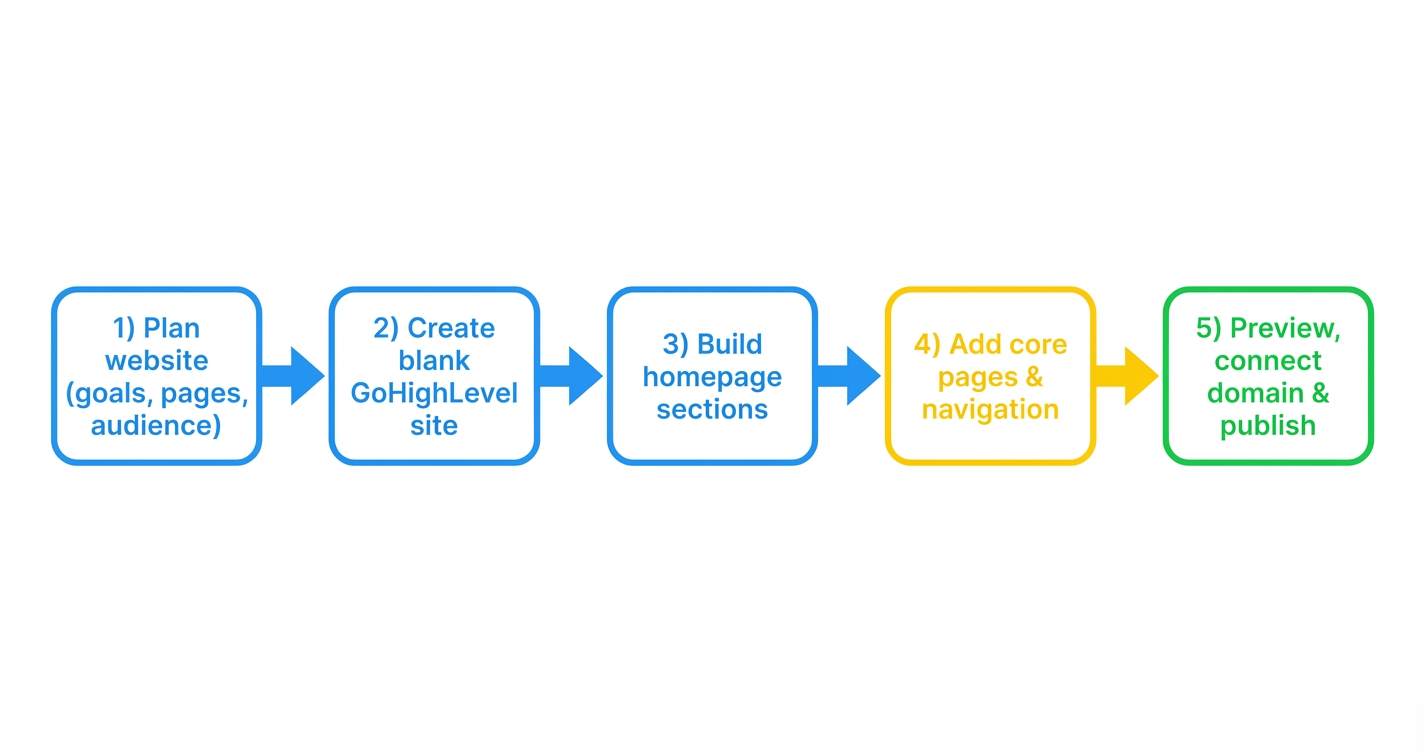
Step 1: Plan your GoHighLevel website so it actually converts
Before you touch the builder, get clear on what this site needs to do.
Clarify the primary goal
Most GoHighLevel websites need to do one (or more) of the following:
- Generate qualified leads you can nurture in pipelines and workflows.
- Book sales calls, strategy sessions, or appointments.
- Sell products, programs, or memberships.
- Educate visitors so they trust you enough to take the next step.
Pick a single primary goal for the site (for example, “book strategy calls”) and design everything around pushing visitors to that action.
Define your target audience
Write down:
- Who this website is for (for example, local service business owners, coaches, agency clients).
- Their biggest problem or desire.
- The promise your offer makes.
You will use this language in your headlines, copy, and call-to-action buttons.
Outline the structure
For a simple, high-performing GoHighLevel website, start with:
- Home – high-level overview, core benefits, primary CTA.
- About – credibility, story, authority.
- Services / Offers – what you sell and who it is for.
- Contact / Book a Call – form or calendar to start the conversation.
Optional, but powerful:
- Case Studies / Testimonials – social proof.
- Resources / Blog – educational content that feeds your funnels.
Gather your assets now (logo, brand colors, images, videos, and written content (or at least an idea of it) ready?)
Want to skip the planning grunt work? Revset Labs can design your site map, messaging, and GoHighLevel implementation for you so you launch with a clear funnel from day one.
Step 2: Create a blank website in GoHighLevel
Now you are ready to jump into the GoHighLevel website builder.
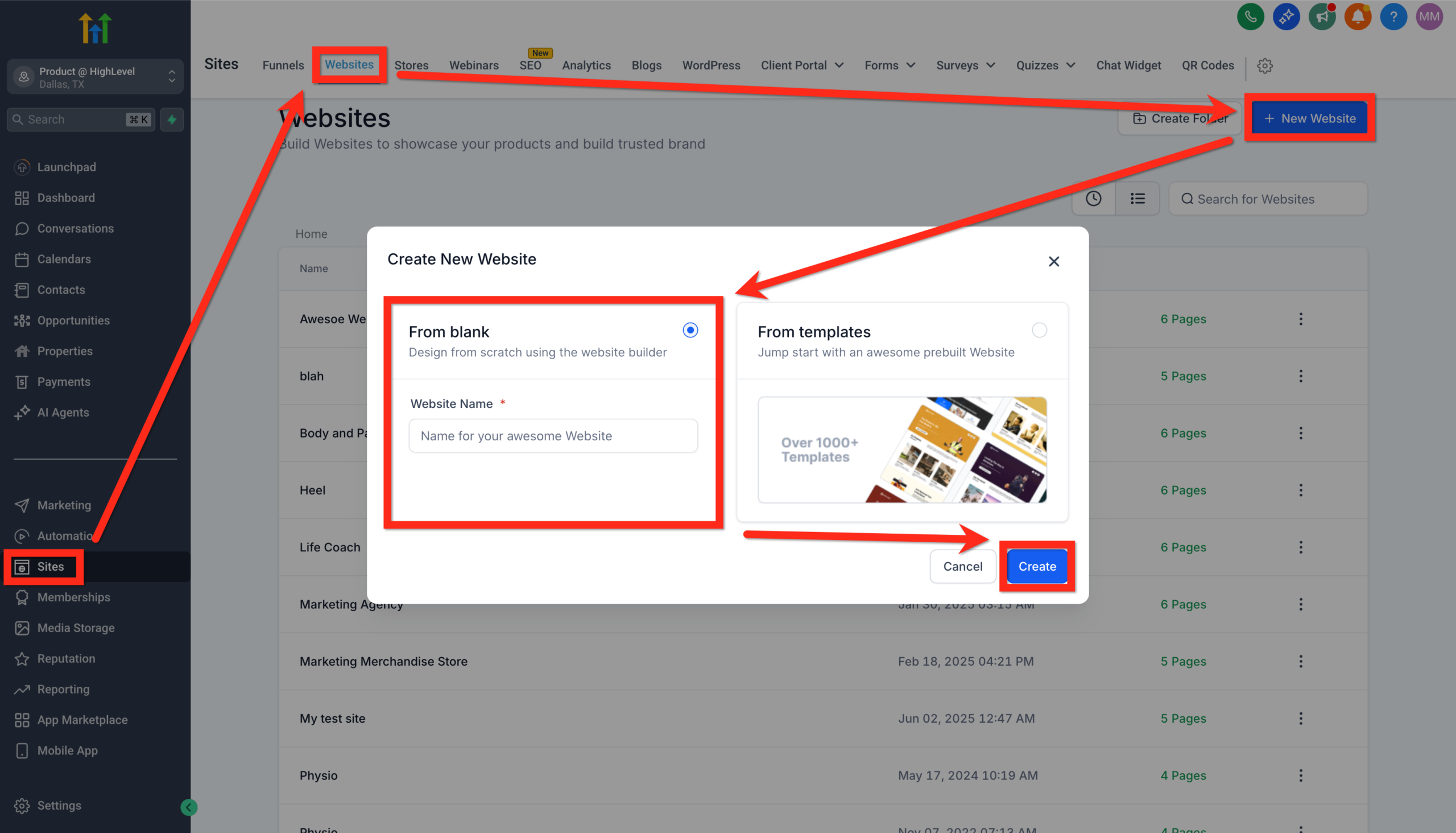
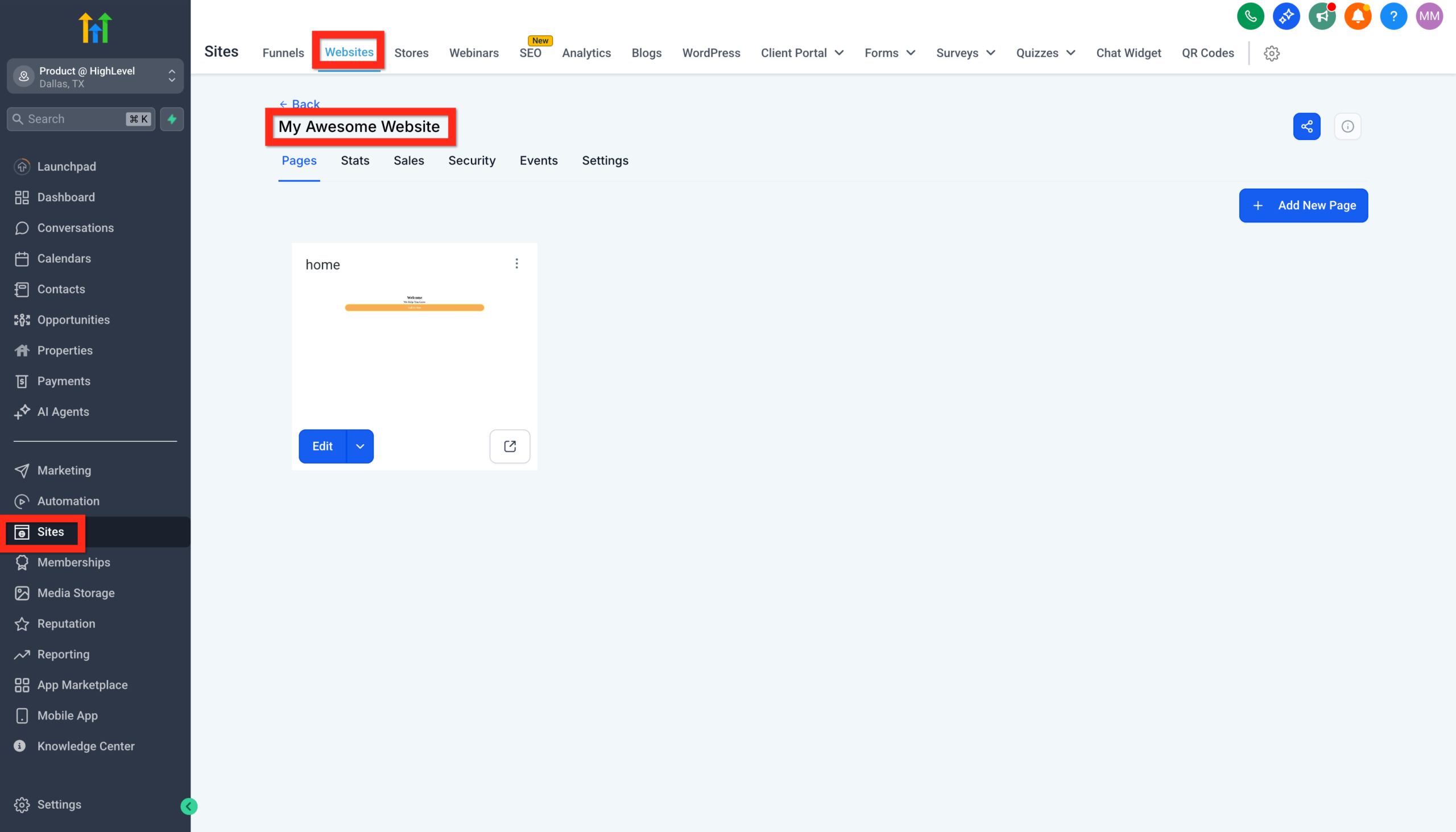
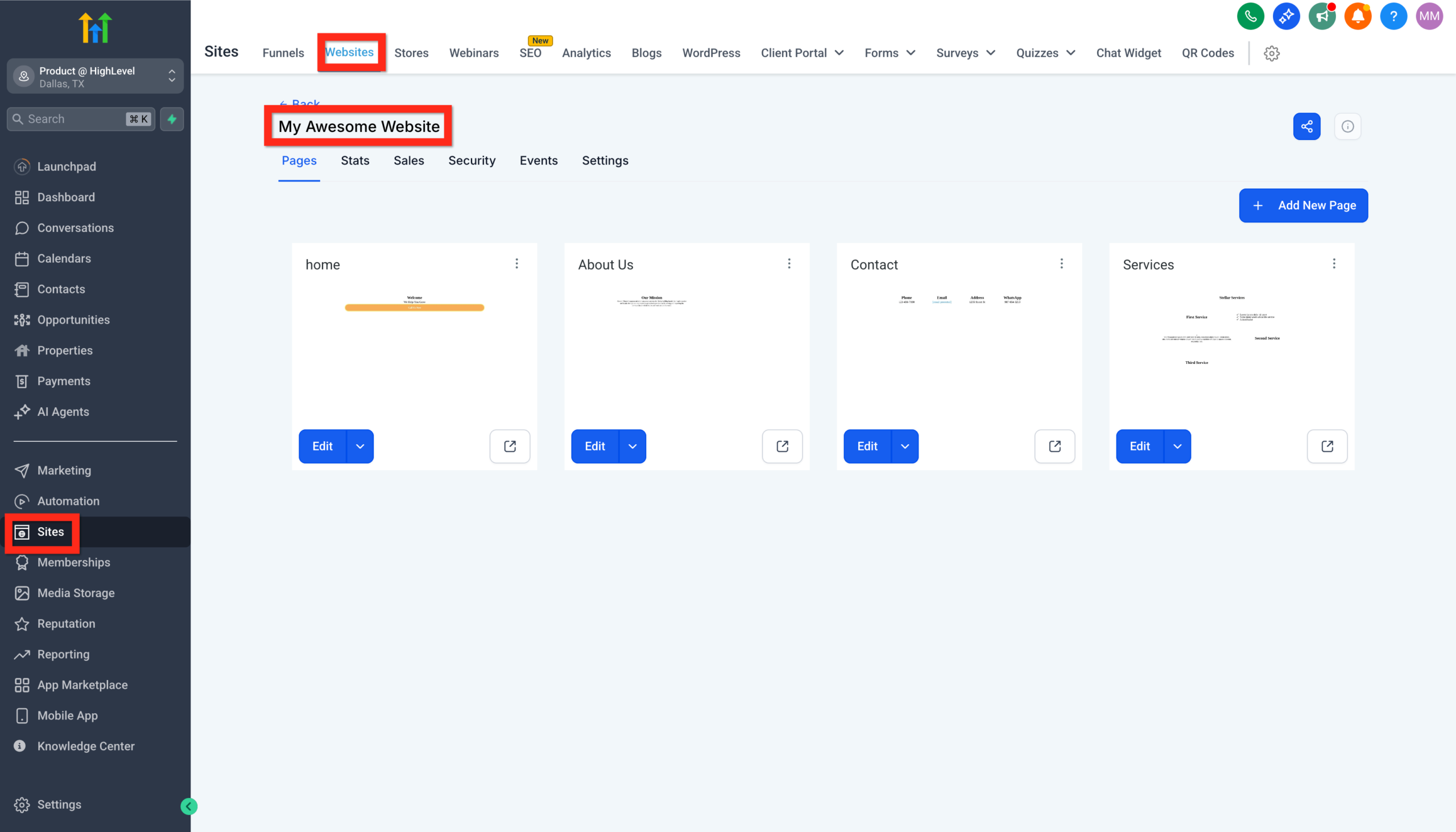
- In your GoHighLevel account, go to Sites → Websites.
- Click New Website → From Blank.
- Name your site (for example, Main Brand Website).
- Click Create.
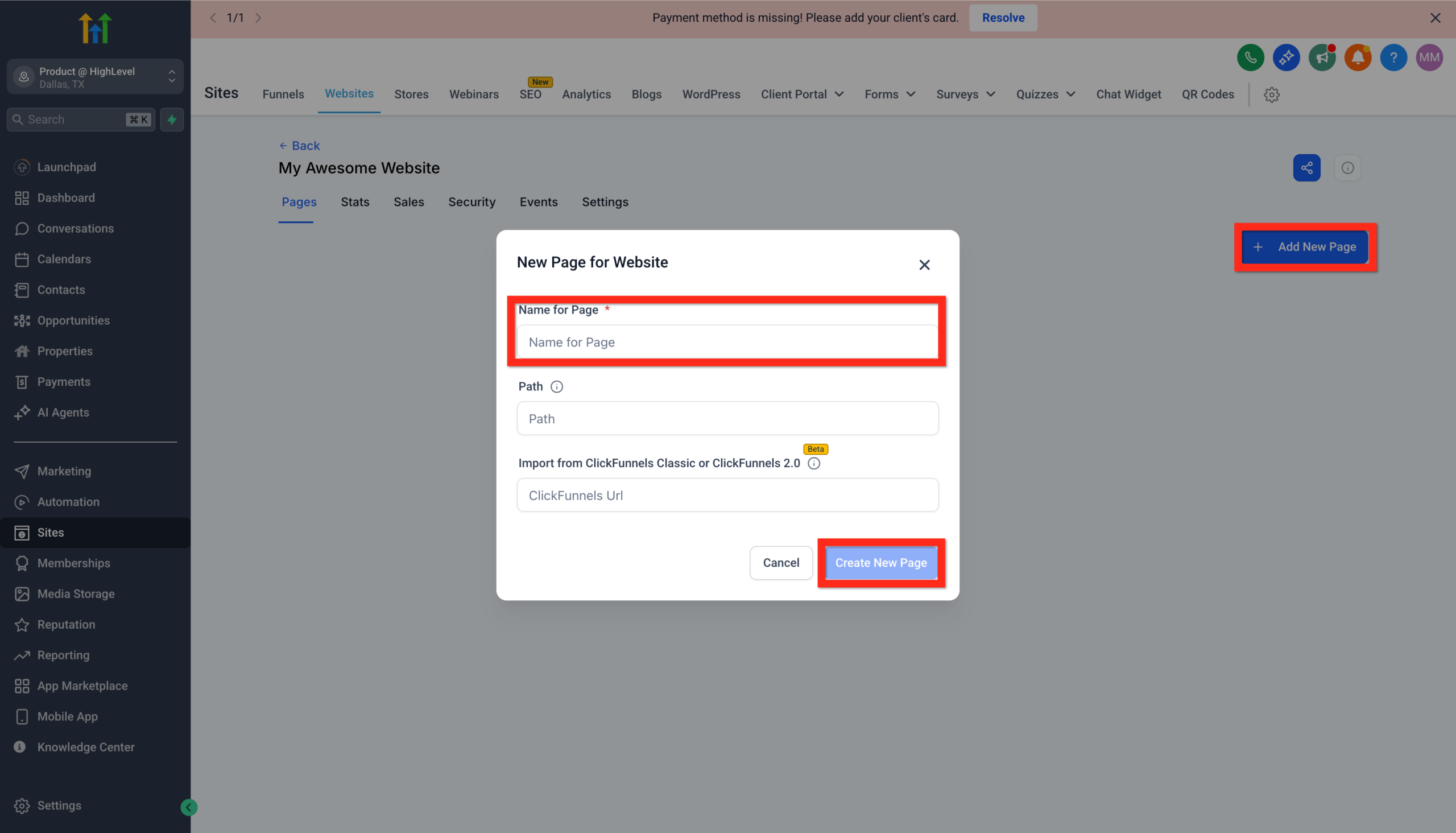
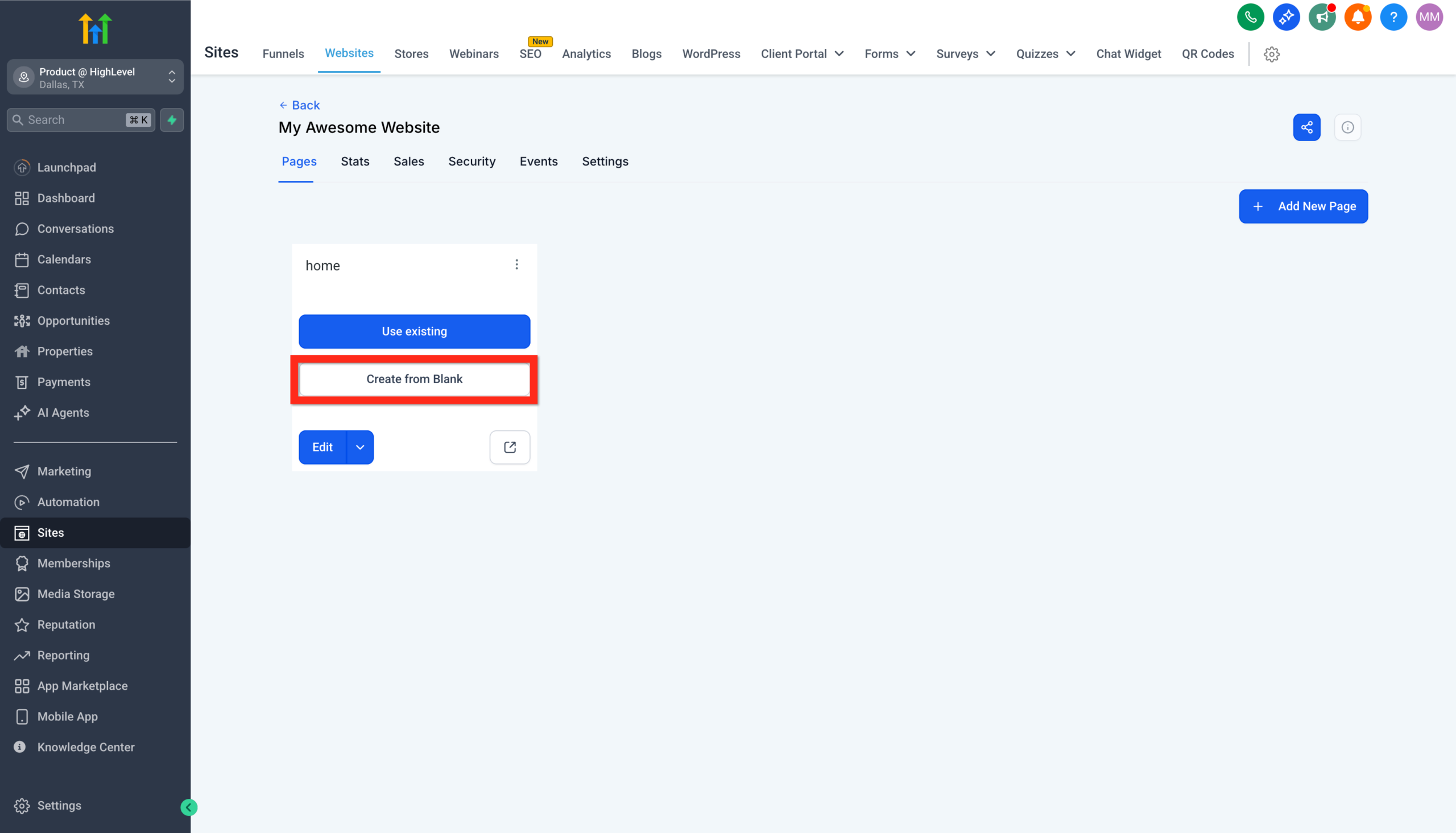
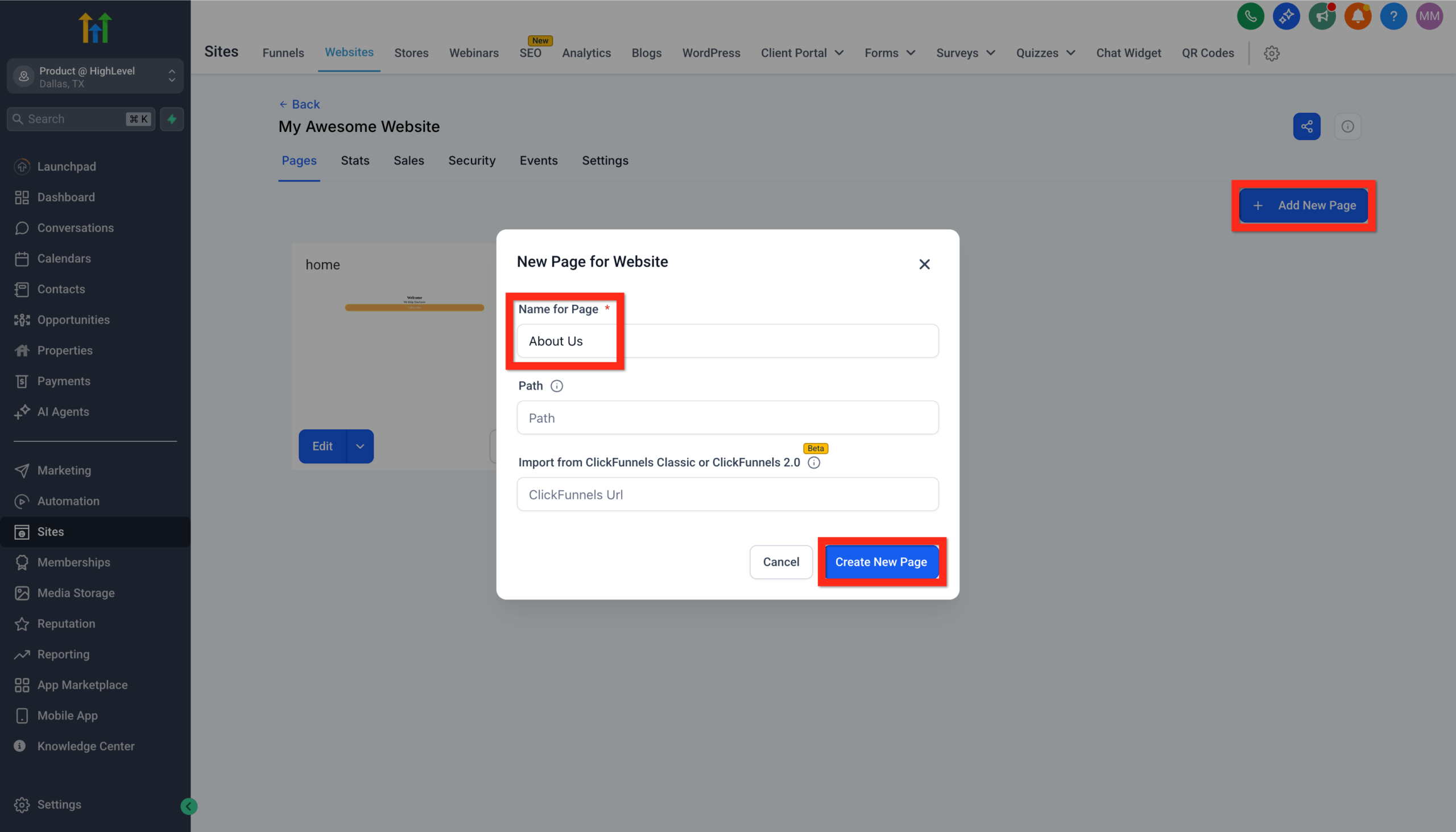
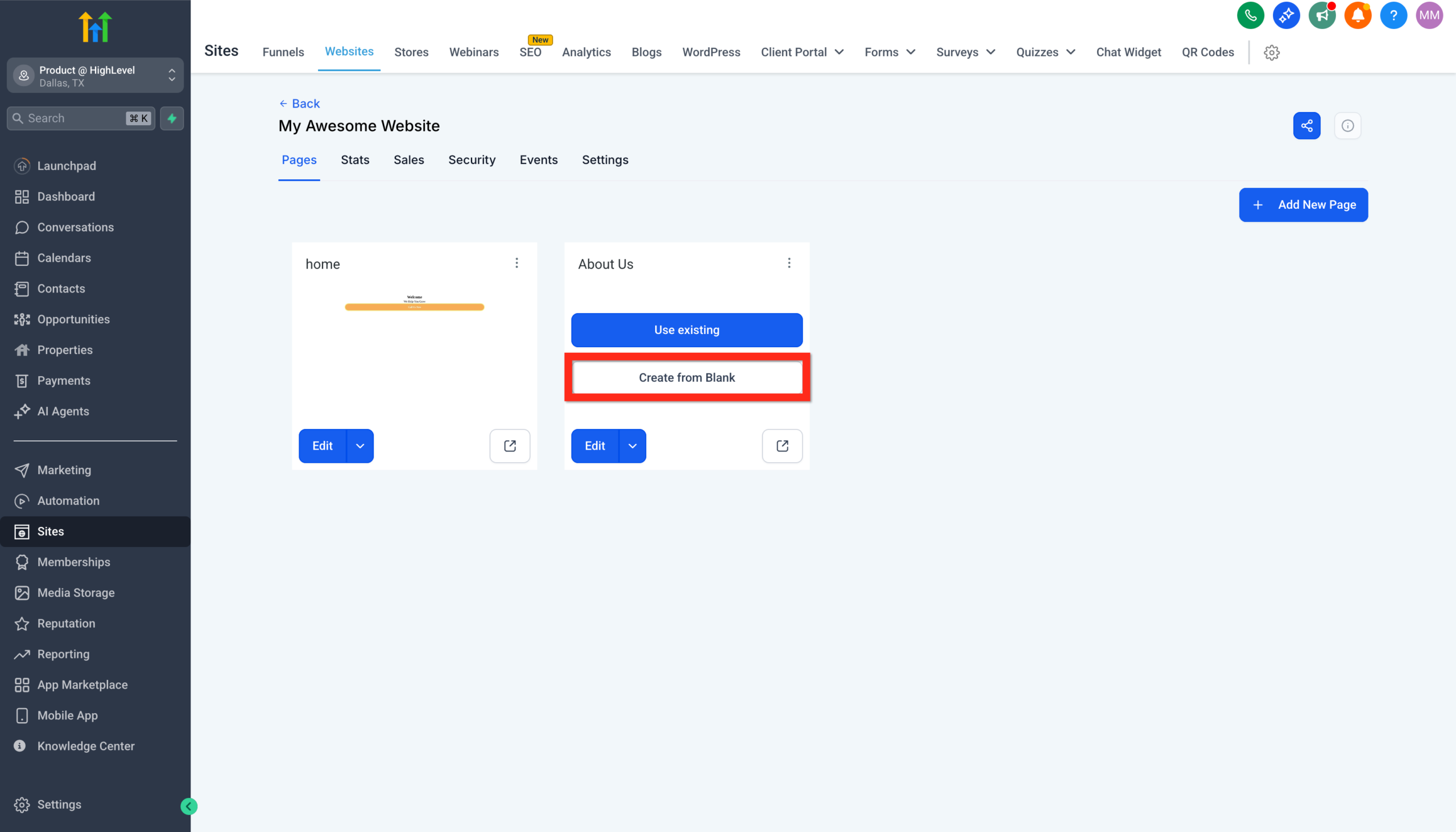
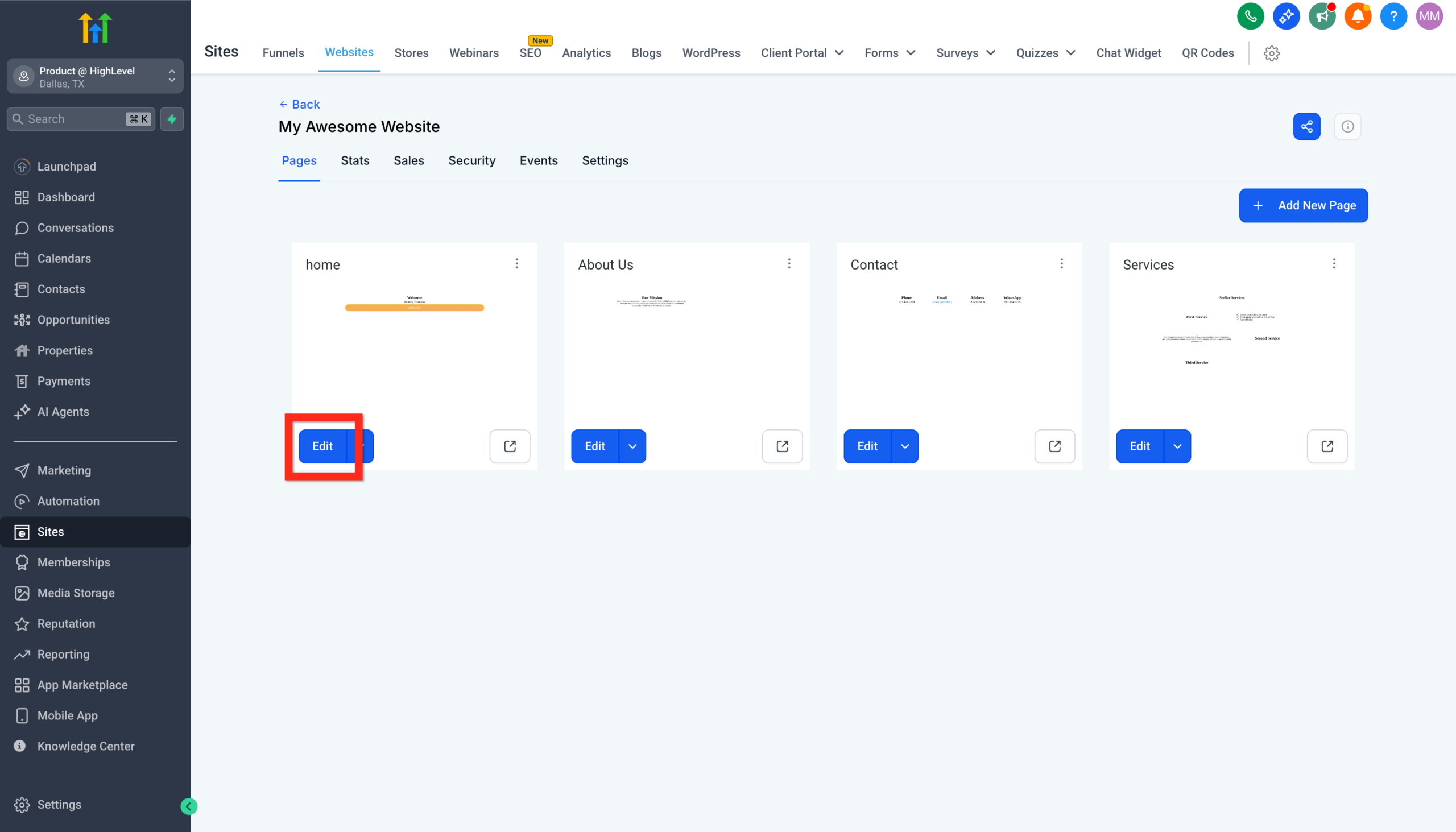
- Inside the site, click Add New Page, name it Home, and choose Create New Page → Create From Blank.
You now have a blank homepage canvas ready to design.
If you are starting GoHighLevel for the first time, activate your free GoHighLevel trial here so you can follow this process click-by-click.
Step 3: Build a high-converting homepage layout
The homepage is where most visitors land first, so it needs to clearly answer three questions within seconds:
- Who is this for?
- What do they help me achieve?
- What should I do next?
Understand the GoHighLevel editor
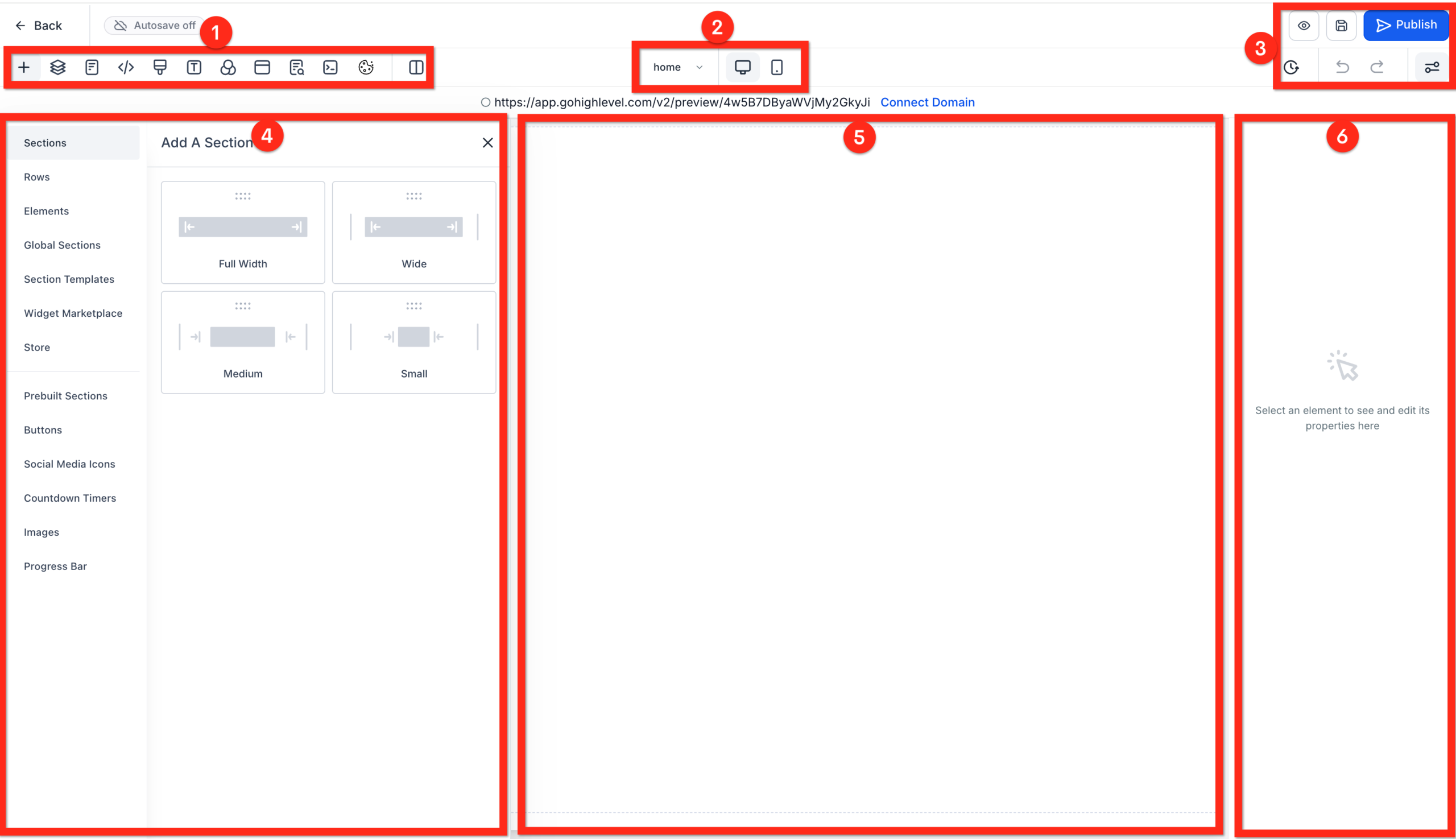
When you open the Website Builder for your Home page, you will see:
- Control Panel – switches what you see in the left sidebar (elements, pages, settings, etc.).
- Device Switcher – lets you preview desktop and mobile views.
- Meta Controls – history, undo, preview, save, and publish.
- Left Panel – the library of sections, rows, and elements.
- Center Canvas – the live, drag-and-drop page preview.
- Right Panel – styling and settings for whatever you have selected.
You build each page in three layers:
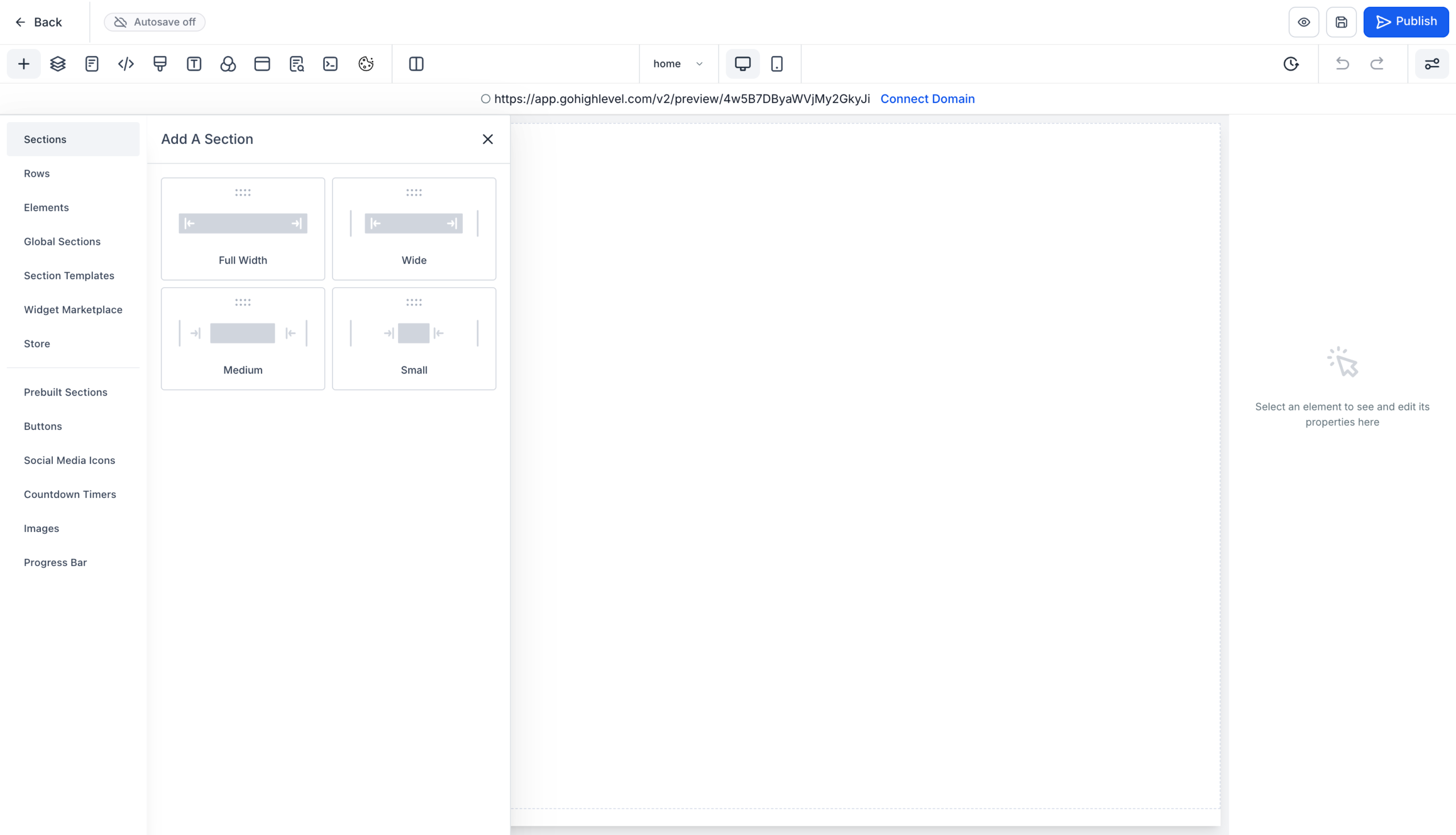
- Sections (full-width horizontal bands).
- Rows inside sections.
- Elements (headlines, text, buttons, images, forms) inside rows.
Build your hero section
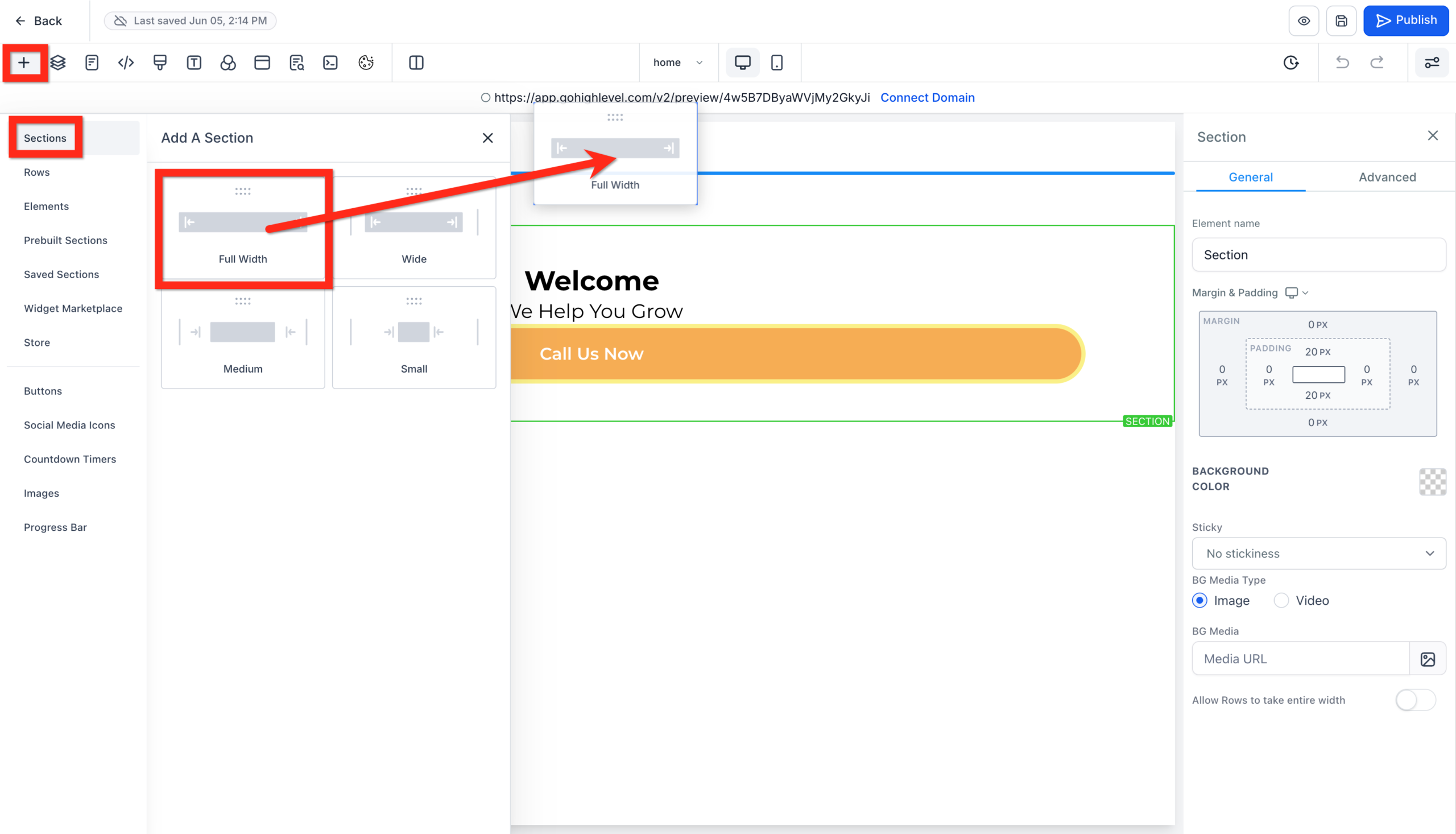
- In the center canvas, click Add Section and choose Full Width.

- Inside that section, add a Row → 1 Column.
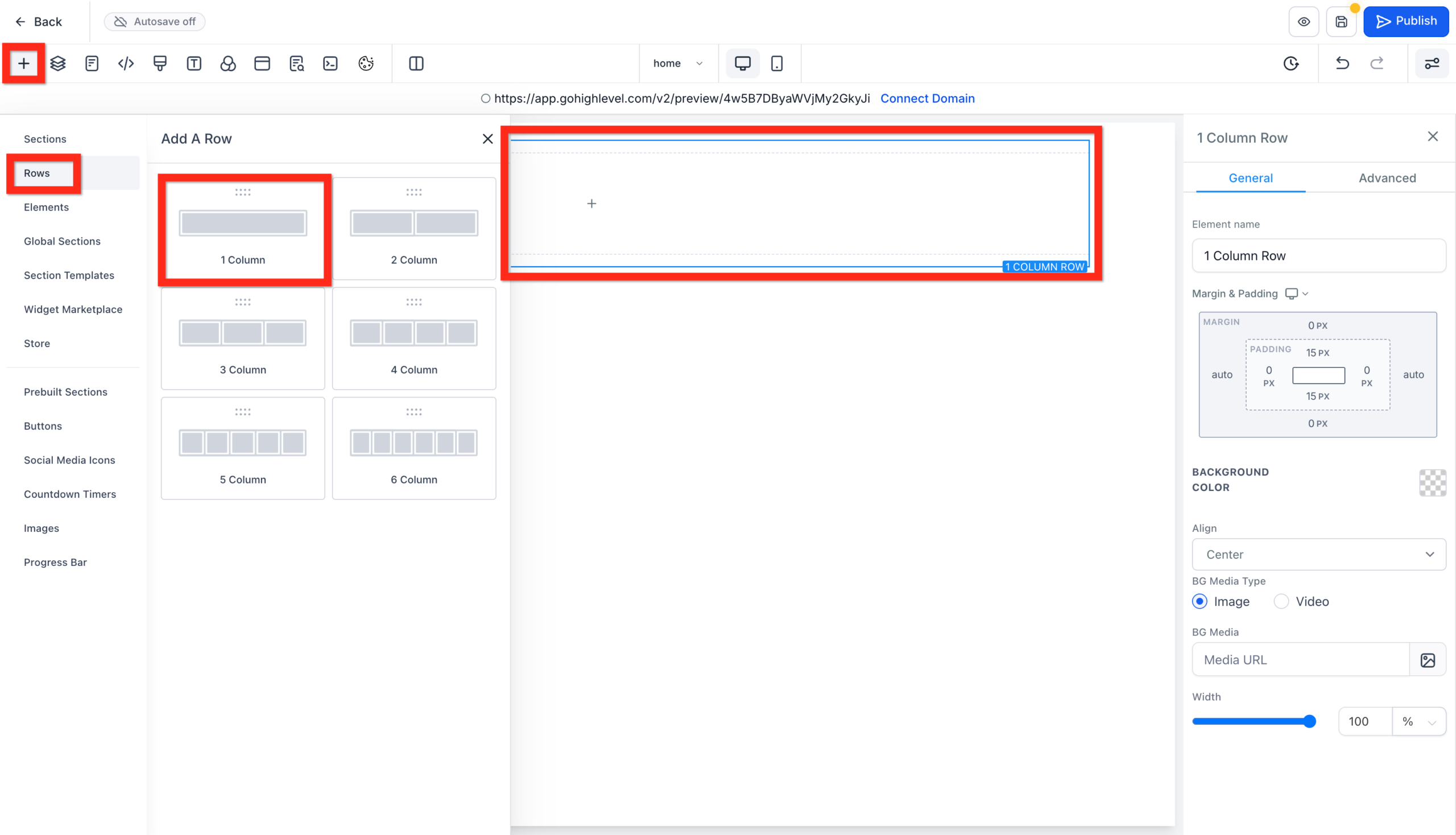
- Drag a Headline element into the row.
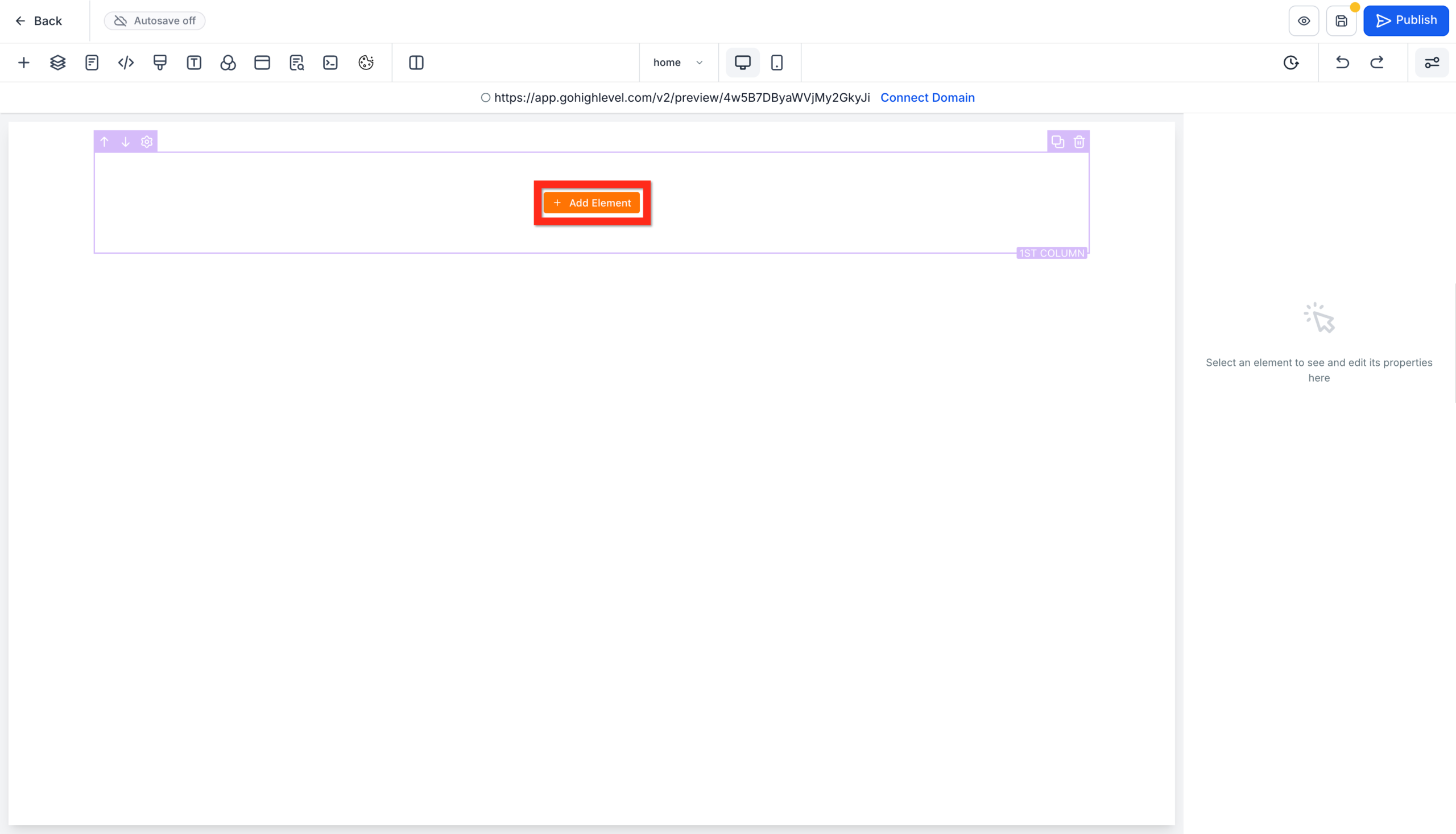
- Write a clear, outcome-based headline, for example:
- "Launch a High-Converting Website in GoHighLevel – Without a Developer"
- Add a Sub-Headline below it that adds detail and addresses your audience.
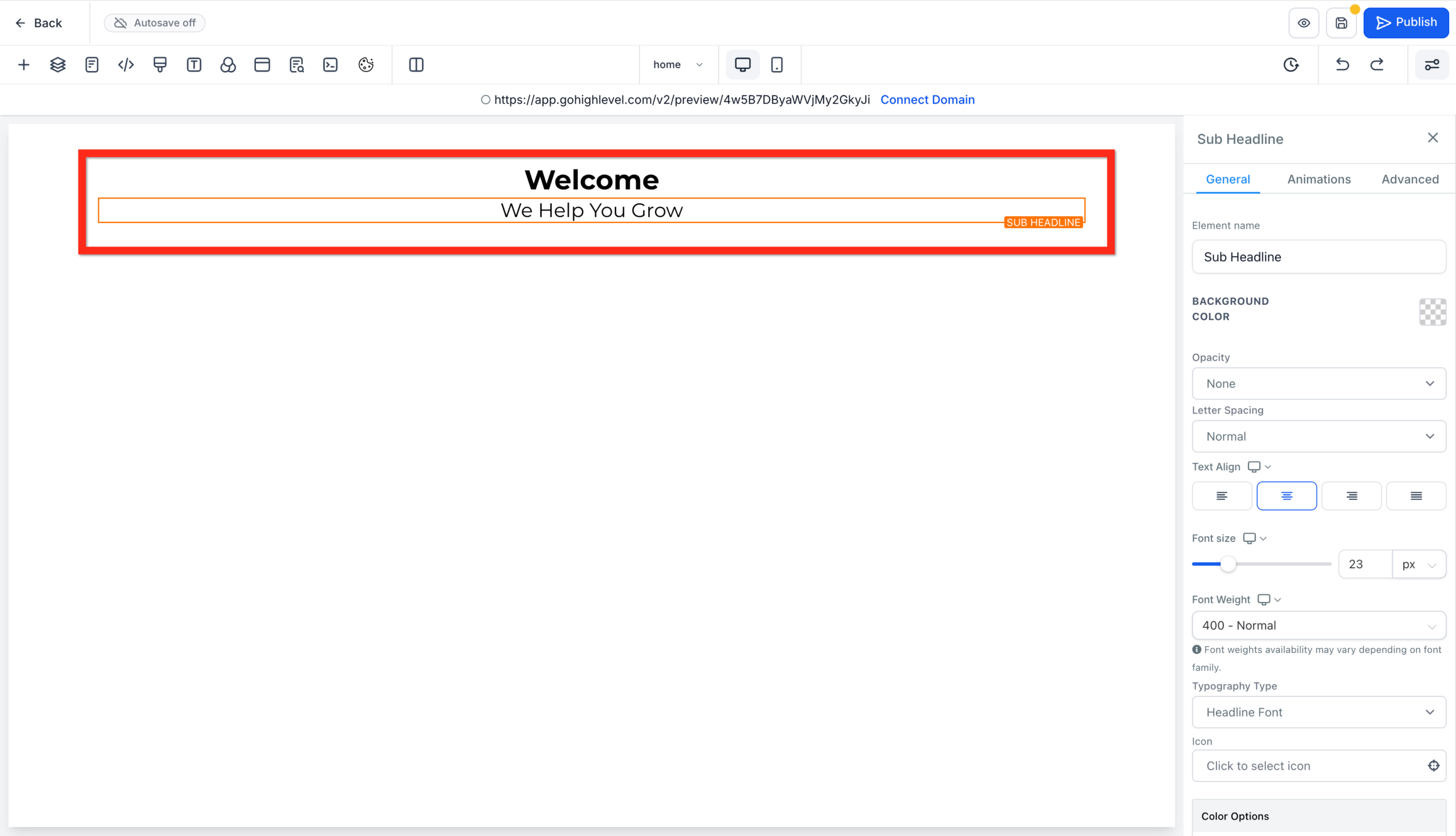
- Drag in a Button under the text. Set the label to something action-oriented like Book a Strategy Call or Start Free Trial.
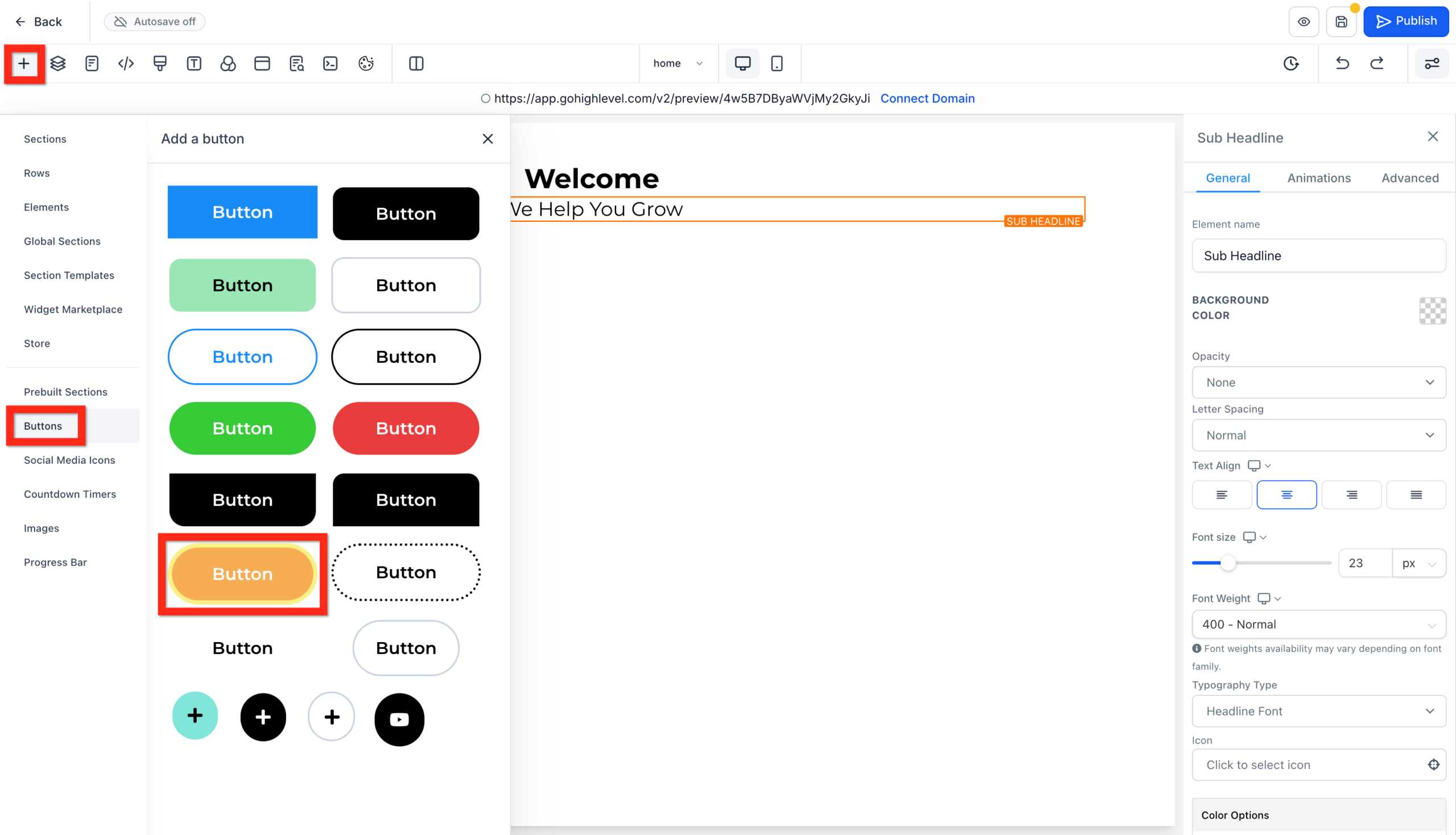
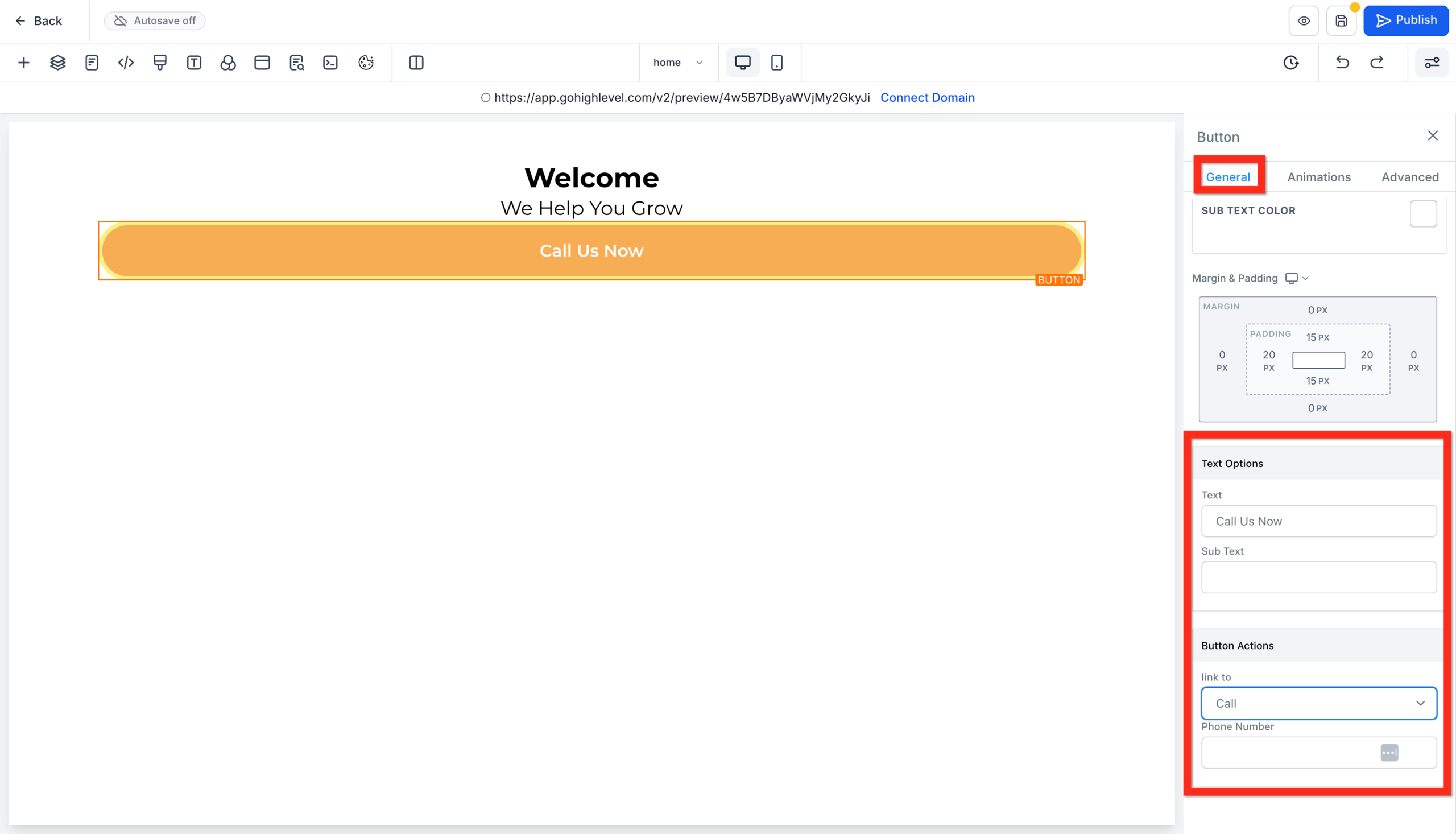
- In the button settings on the right, configure the Button Action – for example:
- Call and add your phone number, or
- Open Pop-up / Form / Calendar to capture leads straight into GoHighLevel.
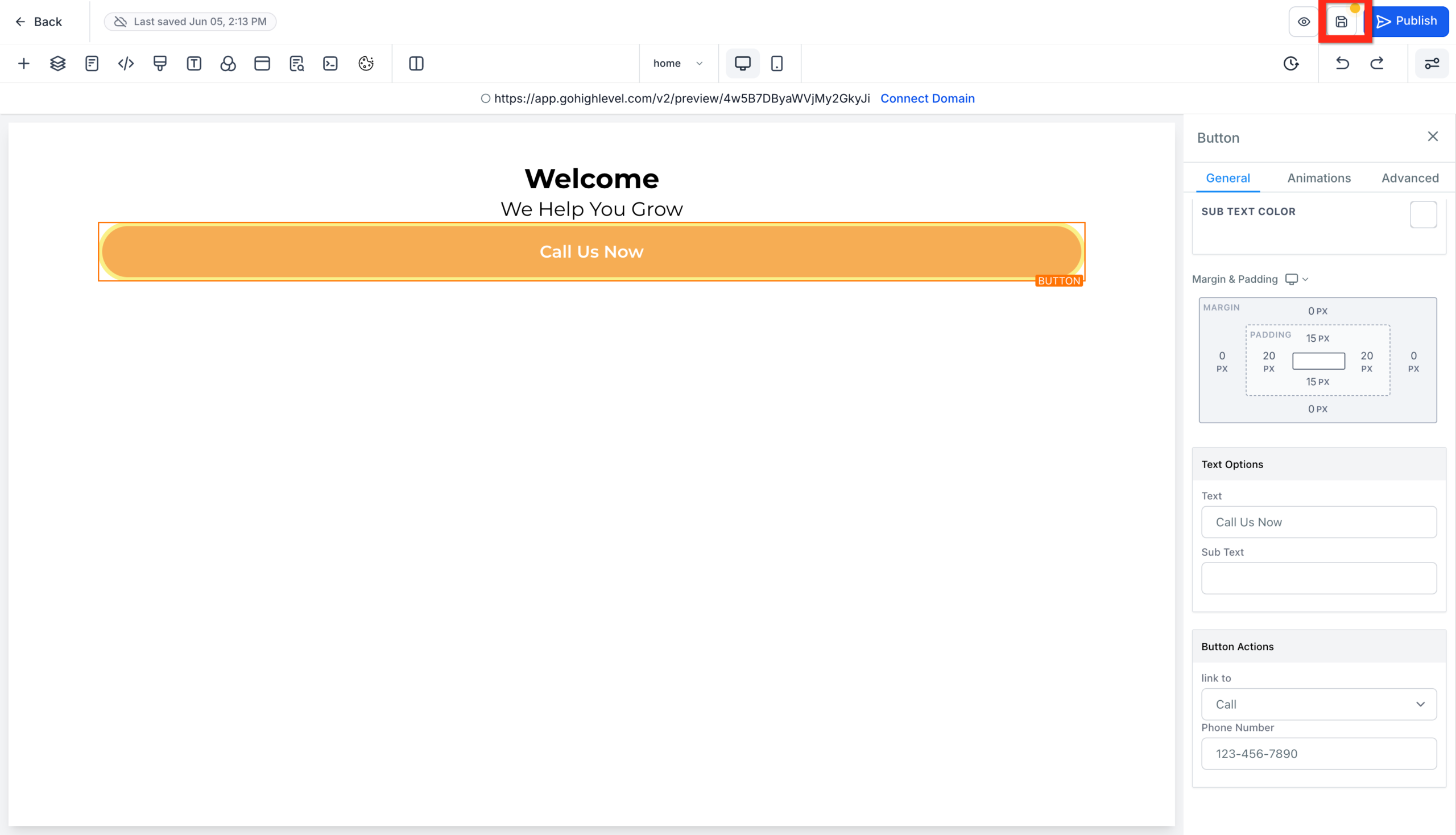
This top hero section is your money-maker. Make sure it:
- Speaks directly to your ideal customer.
- Explains the primary benefit.
- Has one clear, primary CTA.
Add supporting sections
Below the hero, add 3–5 scannable sections such as:
- Problem / Solution – describe the pain, then show how you solve it.
- Services Overview – cards or columns summarizing your core offers.
- Proof – testimonials, reviews, or logos of brands you have helped.
- How It Works – a simple 3–4 step process from first contact to result.
- Final CTA – repeat the primary call-to-action with a slightly different angle.
Use short paragraphs, bullet points, and strong subheadings. Time-poor visitors should be able to understand your offer just by skimming.
If you want a homepage that is wired to convert from day one, Revset Labs can design and build it directly inside your GoHighLevel account – from layout and copy to automations and tracking.
Step 4: Add core pages from blank
With your homepage in place, build out the rest of your site structure.
- In the Website Builder, open the Pages panel.
- Click Add New Page for each additional page you planned in Step 1 (About, Services, Contact, etc.).
- For each page, choose Create New Page → Create From Blank or duplicate an existing layout if you want consistency.
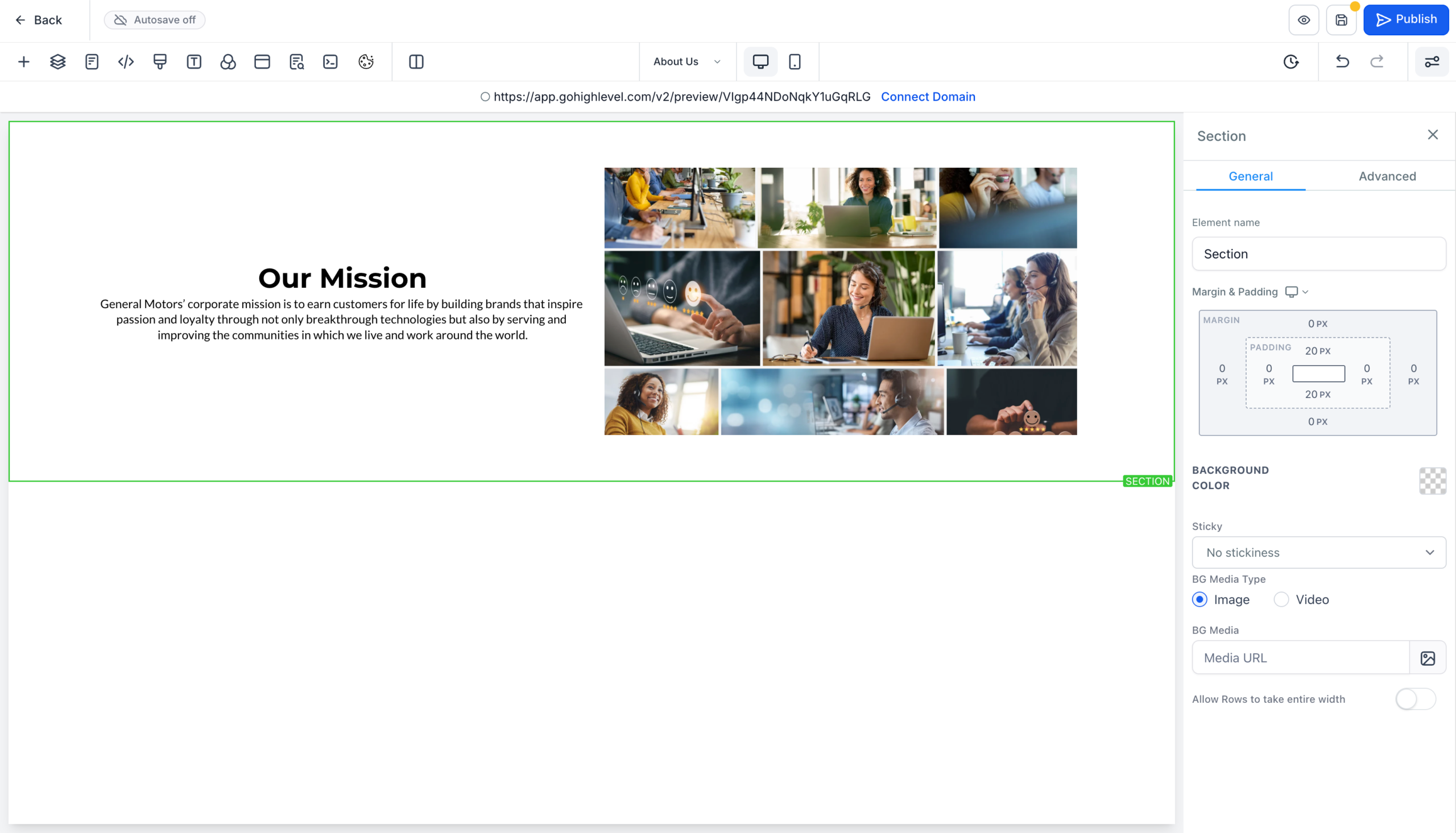
About page
Use your About page to build trust:
- Who you are, who you serve, and what you believe.
- Your credentials, experience, or origin story.
- A photo of you or your team.
- A soft CTA – for example, "Book a call" or "See our services".
Services / Offers page
Clarify your offers and pricing model:
- Group services into clear packages or tiers.
- Explain who each package is for.
- Highlight outcomes, not just deliverables.
- Add FAQs that remove friction before people reach out.
Contact or Book-a-Call page
Here is where GoHighLevel shines. Instead of a dead-end form, you can:
- Embed a Calendar element to let leads book directly into your pipeline.
- Use a Form that feeds contacts into your CRM and triggers automated follow-up.
Once you move deeper into the GoHighLevel ecosystem, you will want to connect this site to your funnels, pipelines, and automations. Revset Labs can help you map the whole journey so every form, calendar, and campaign works together.
Step 5: Add navigation so visitors never get lost
- On your Home page, add a Navigation Menu element to the header section.
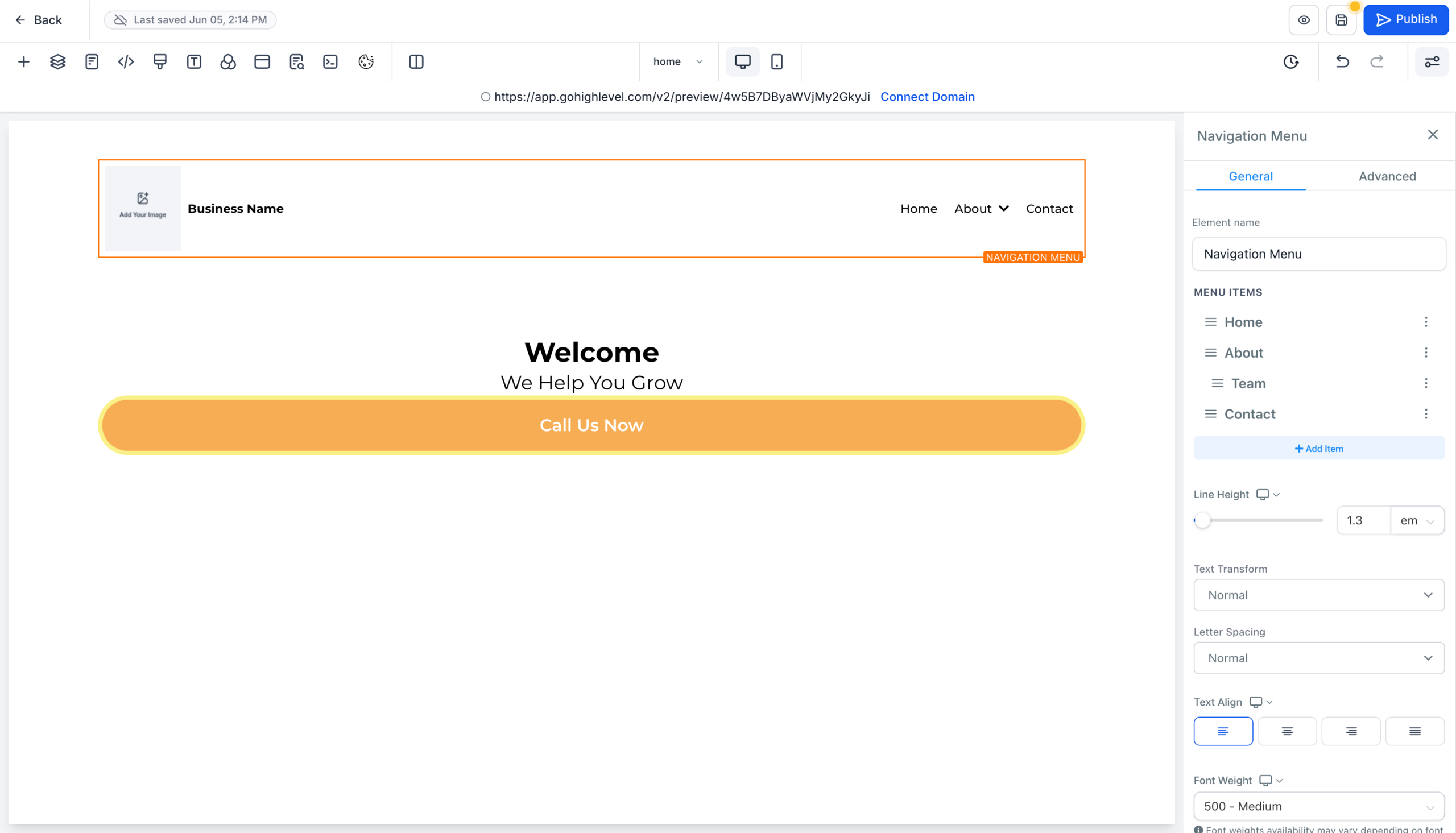
- In the menu settings, create links to your key pages (Home, About, Services, Contact, etc.).
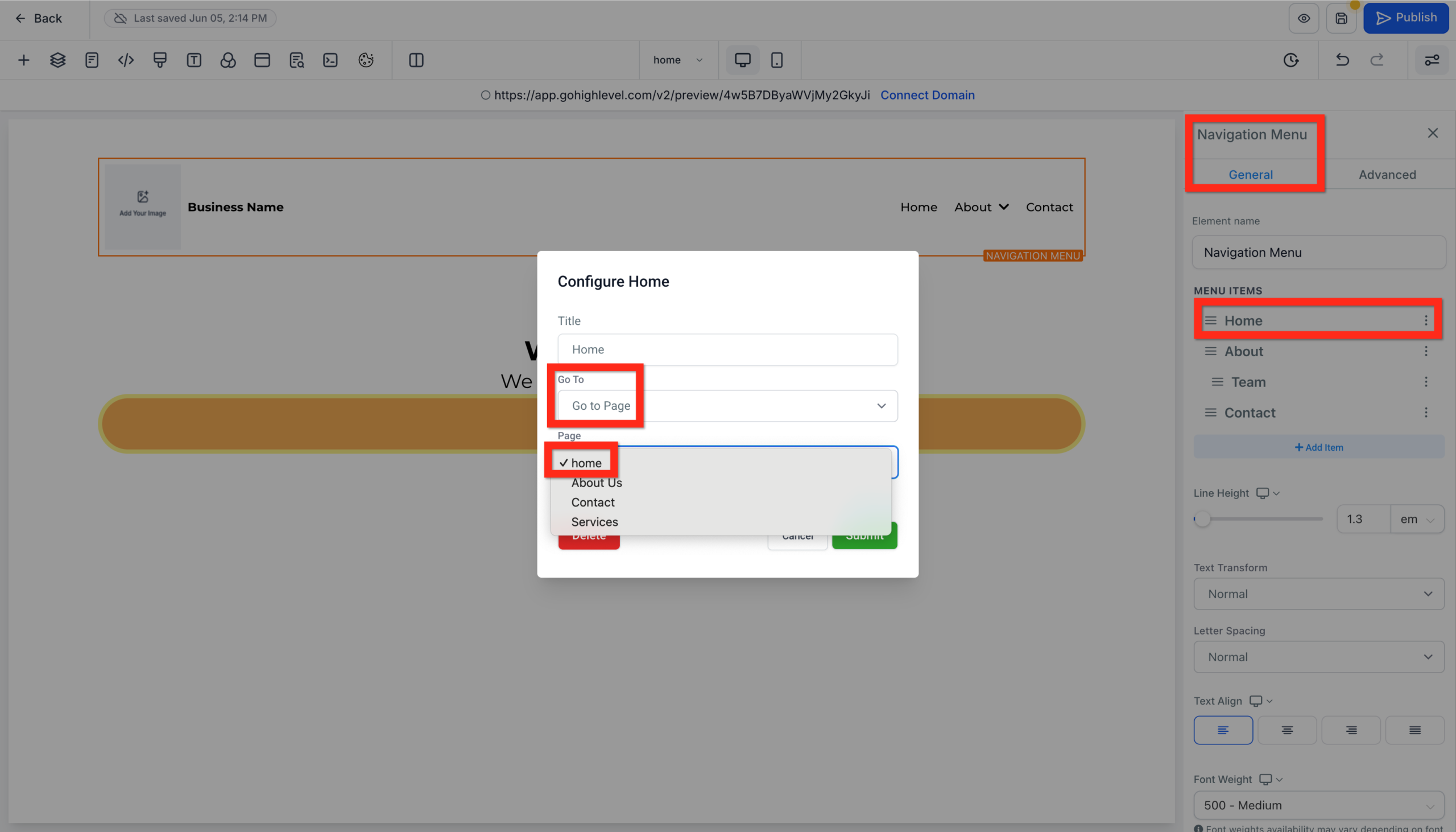
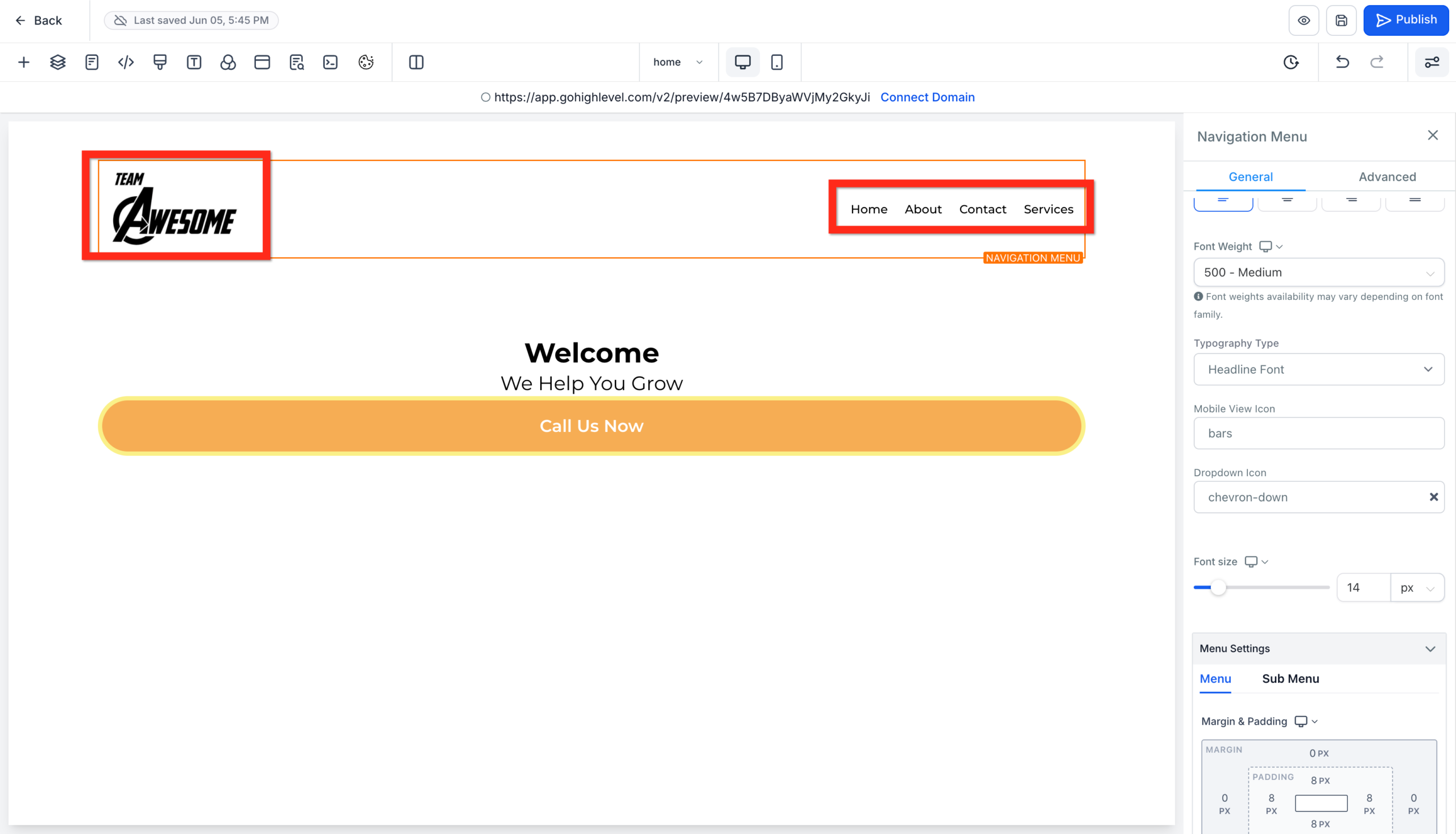
- Set the Home page as the default / index page in your website settings.
Best practices:
- Keep your top-level menu to 5–7 items.
- Use simple labels ("About", "Services", "Blog") instead of clever names.
- Add a contrasting "Book a Call" or "Get Started" button in the header that stands out.
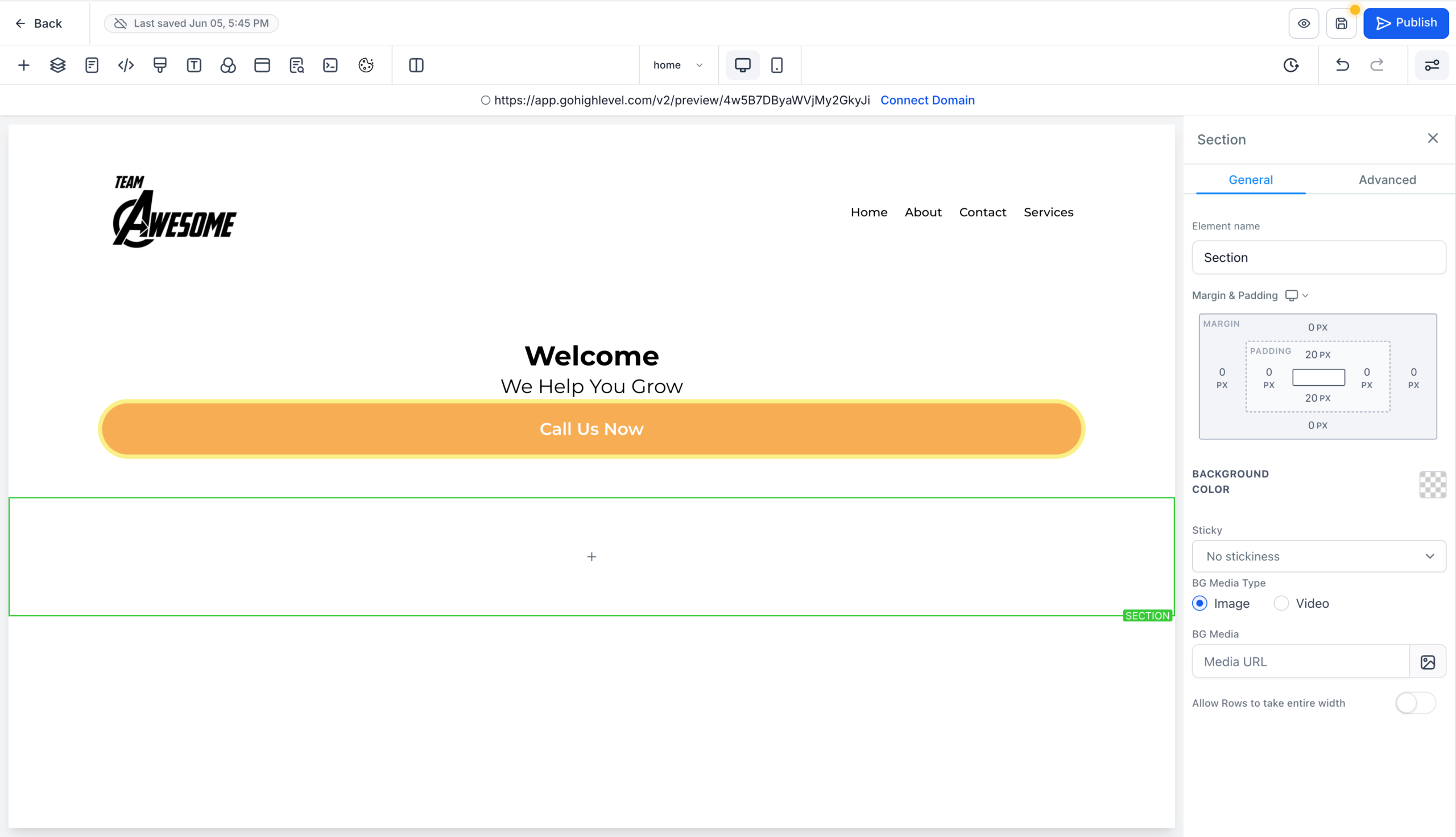
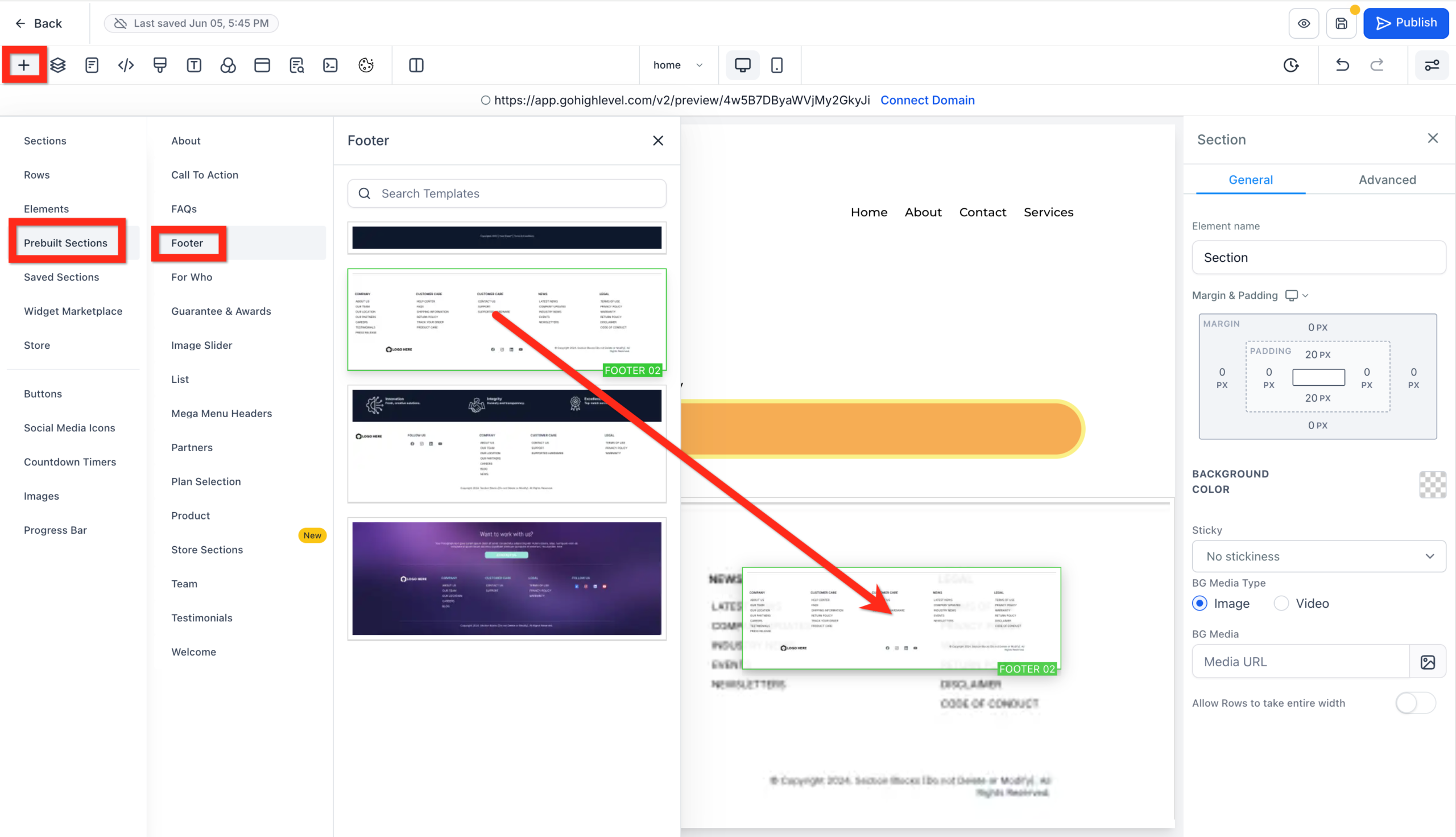
Remember to check the mobile view and toggle the hamburger menu so everything stays legible and tappable.
Step 6: Preview, connect your domain, and publish
Before you go live, sanity-check the experience just like a new visitor would.
Preview on desktop and mobile
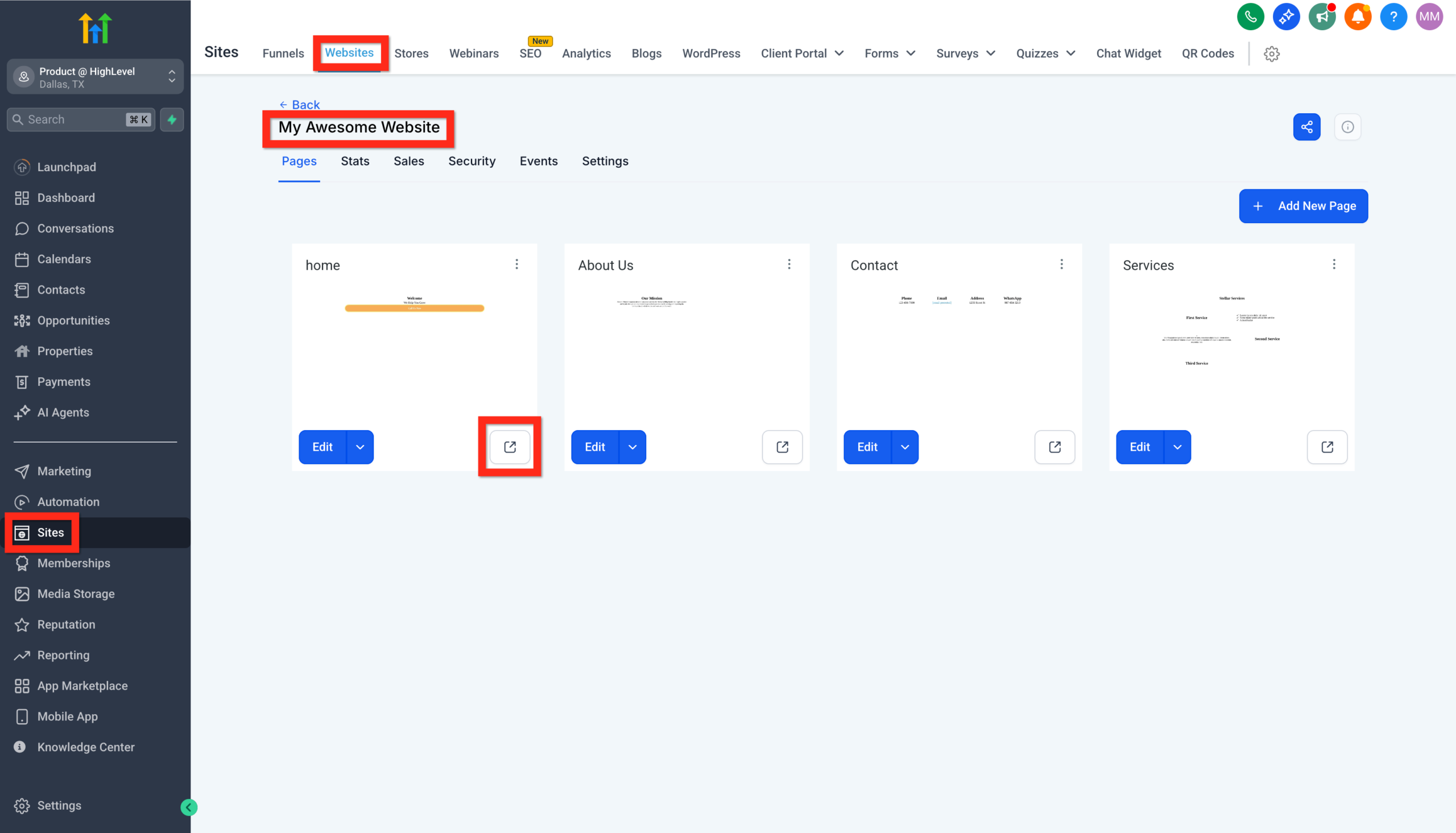
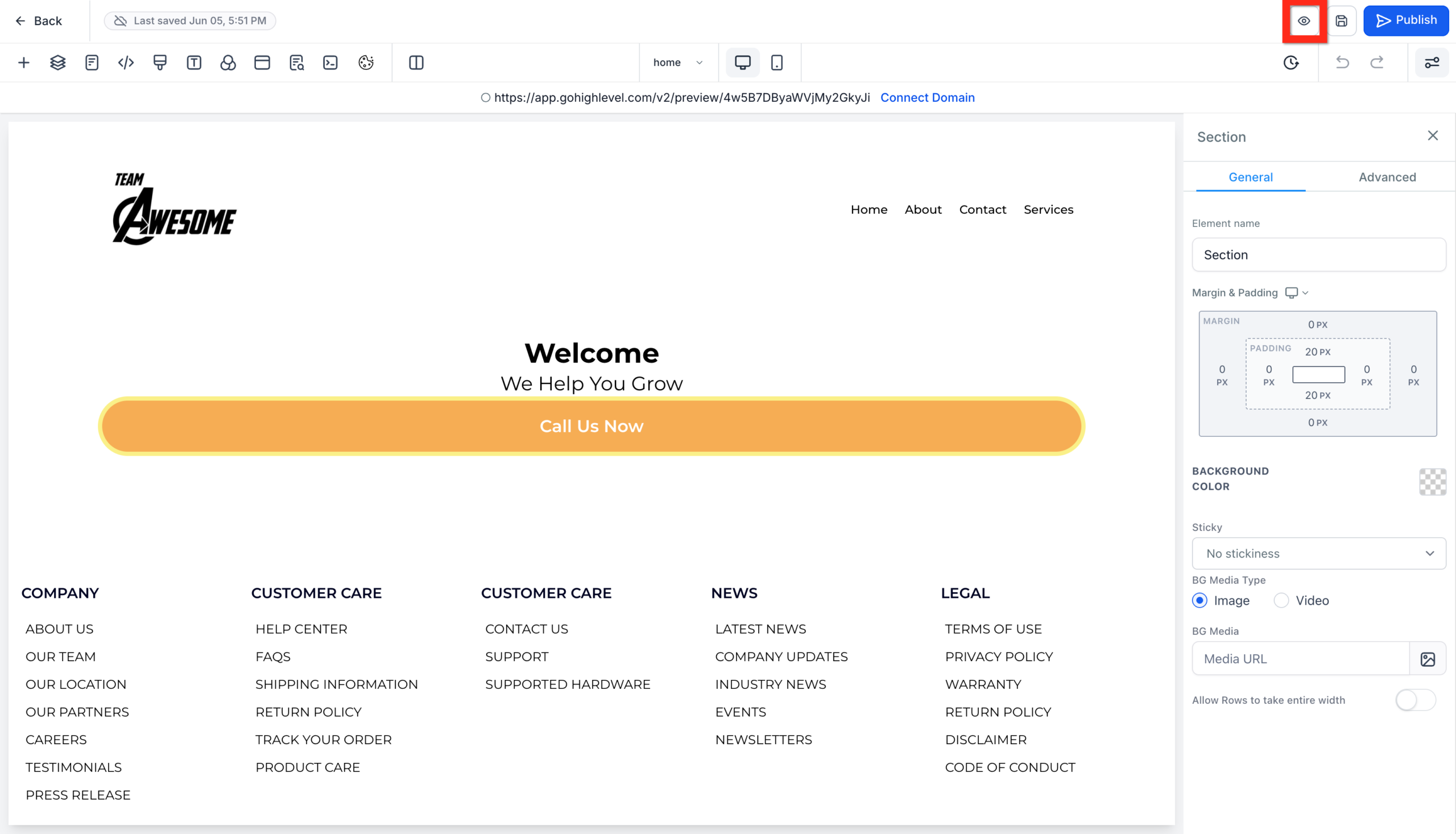
- Use the Preview button in the builder.
- Click through every link and button.
- Test forms and calendars (you can temporarily send test submissions to your email).
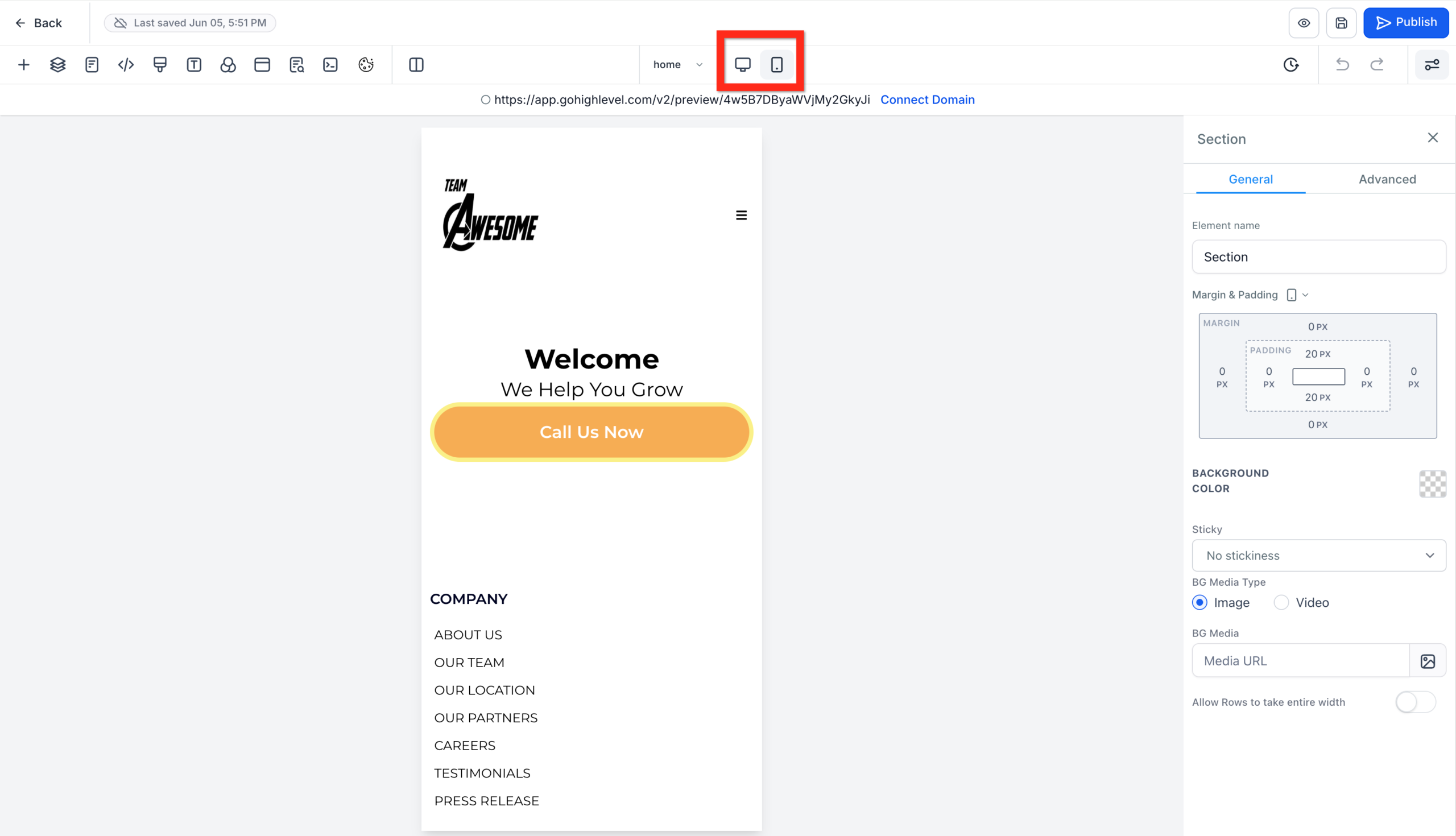
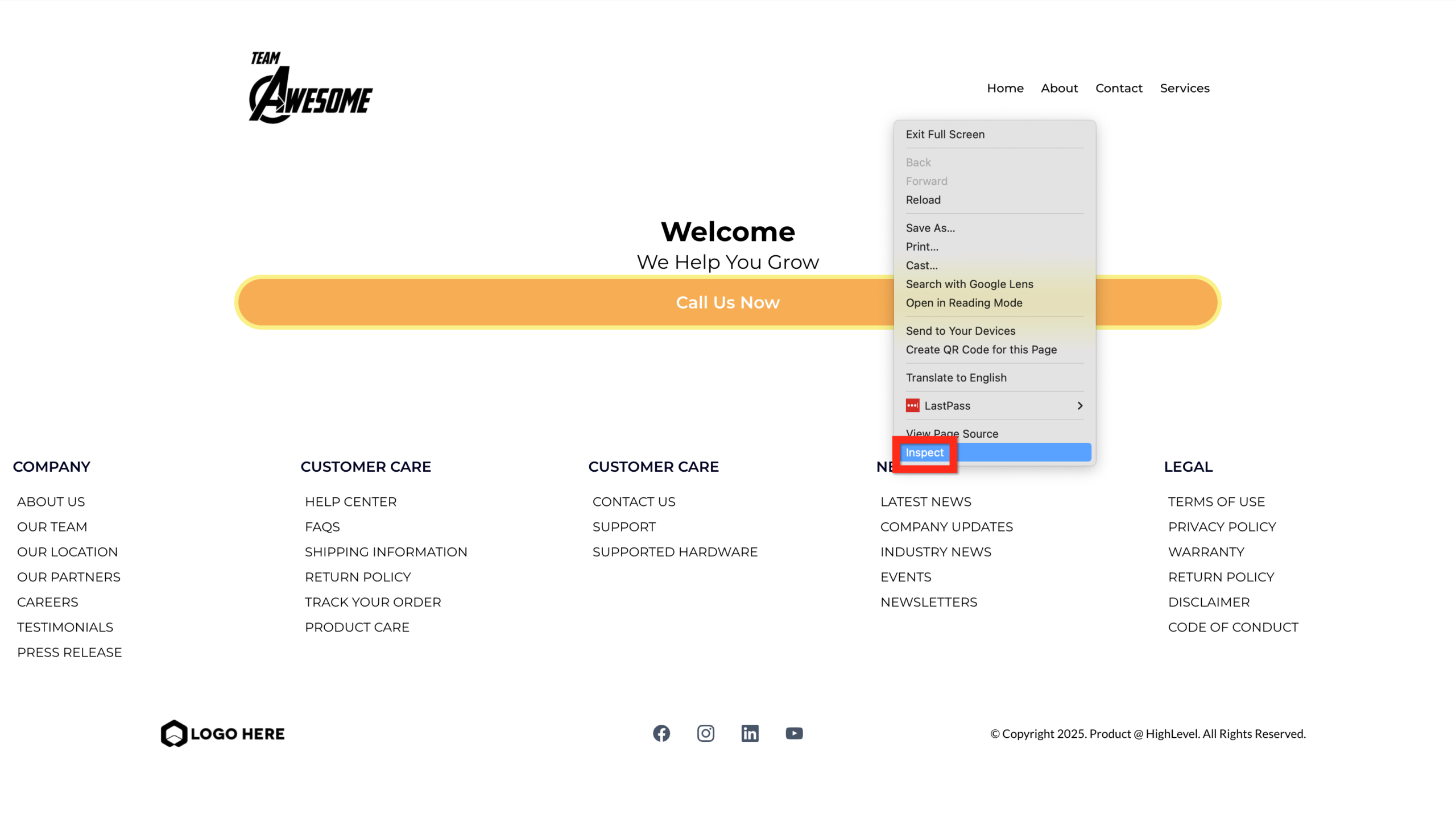
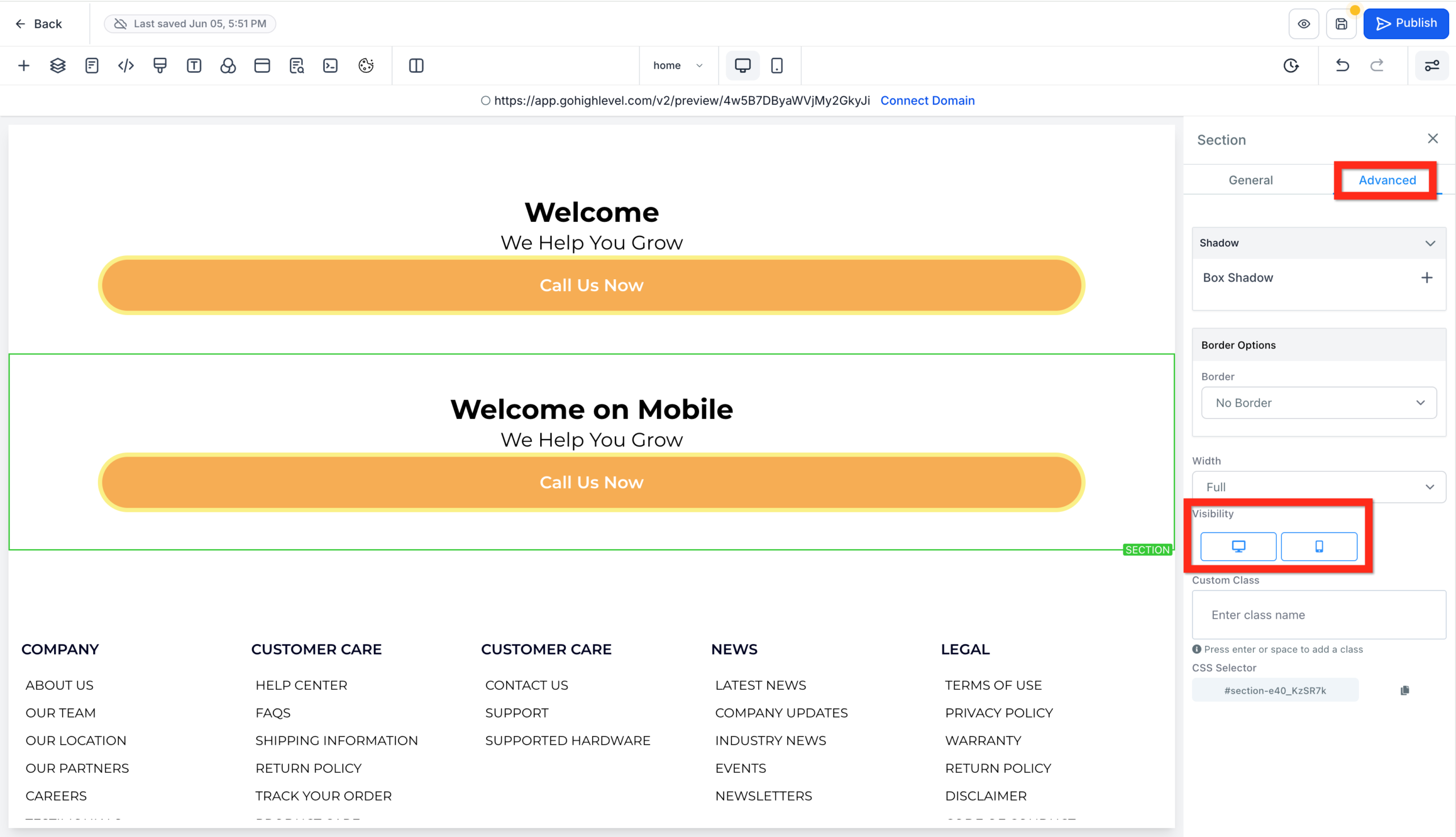
Adjust for responsiveness: In the page editor, adjust the elements and settings until everything looks good on both desktop and mobile. If you can't get one element looking the way you want, you can duplicate it and in advanced settings make one element visible on desktop and the other visible on mobile.
Configure basic SEO settings
For each page:
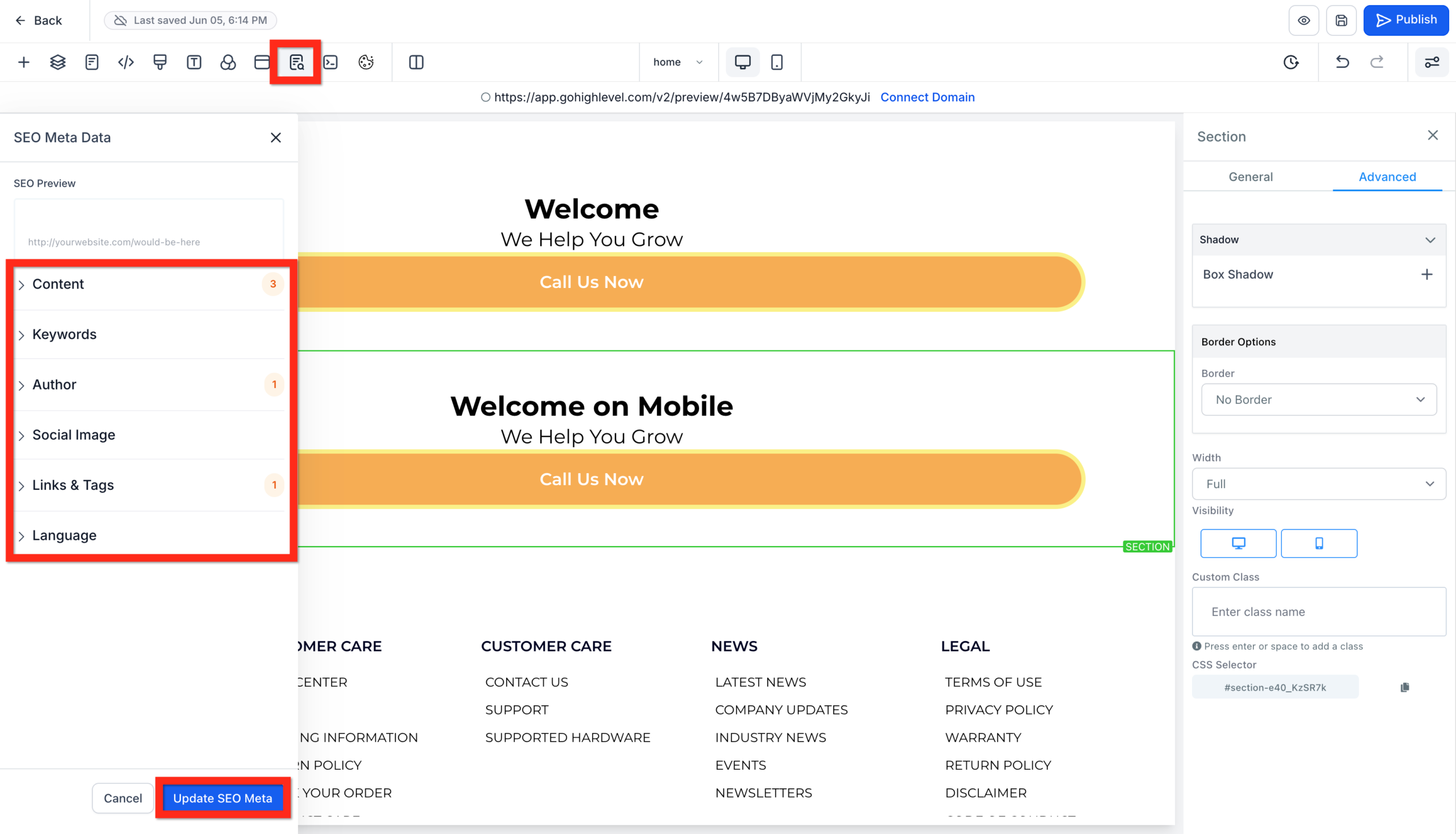
- Set a clear Page Title that includes a relevant keyword plus your brand.
- Write a short Meta Description that summarizes the benefit of the page.
- Update the URL Slug so it is short, descriptive, and hyphenated (for example,
/servicesor/book-a-call).
Connect your domain
- In GoHighLevel, go to Settings → Domains.
- Add your custom domain and follow the DNS instructions to connect it.
- Assign your new website and homepage as the default mapping for the domain.
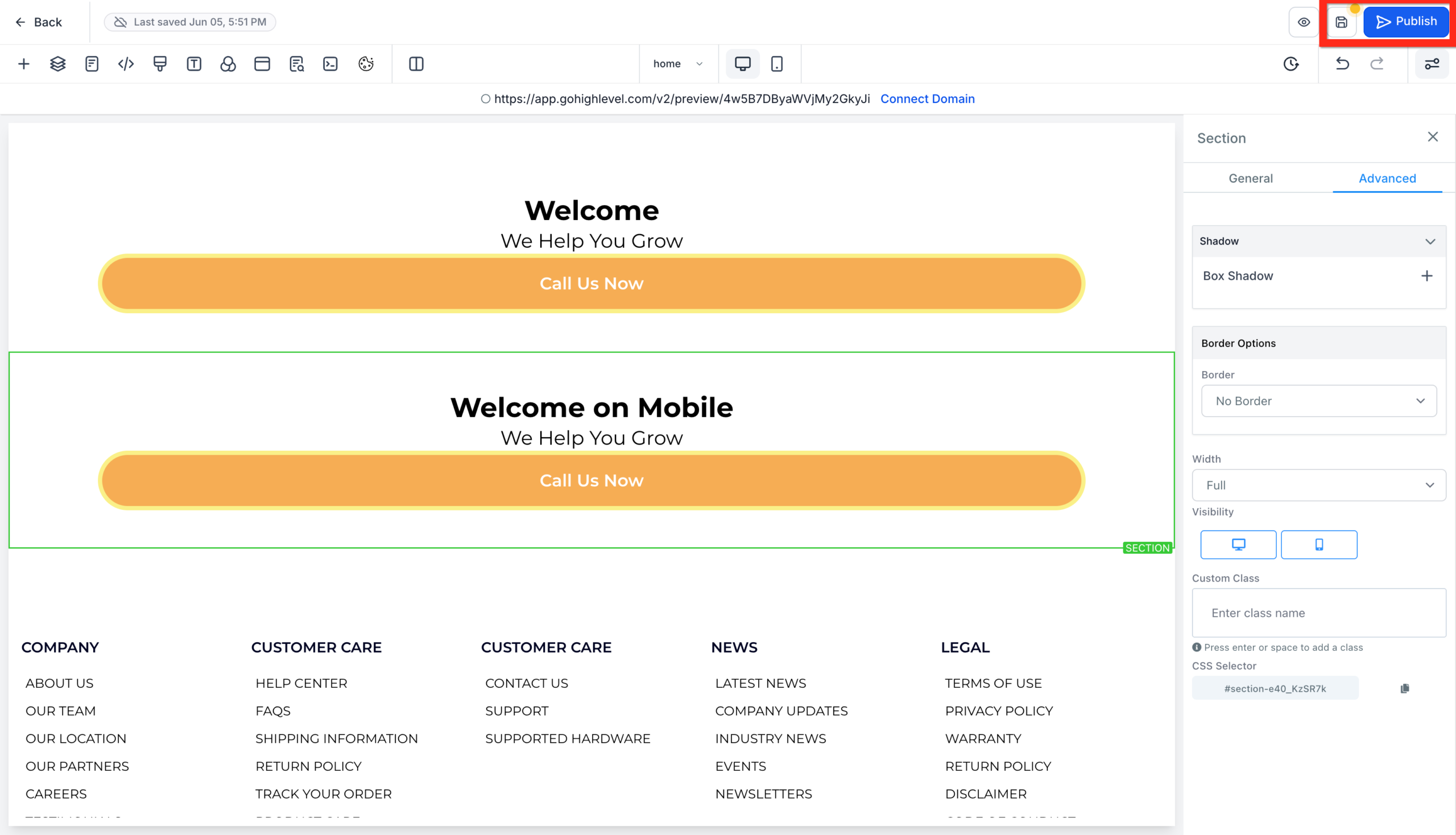
Once everything looks and works correctly, click Publish.
Congratulations – you have launched a website from blank in GoHighLevel.
If you want this entire process handled for you – including content, design, domain setup, funnels, and follow-up – Revset Labs can implement a complete GoHighLevel website and automation system tailored to your business.
Next steps: Turn your GoHighLevel site into a lead engine
A launched website is just the starting point. The real magic happens when you connect it to the rest of the GoHighLevel ecosystem.
Here are high-impact next steps:
- Connect your forms and calendars to pipelines so every lead lands in the right stage with tasks and follow-ups.
- Build nurture sequences (email and SMS) that trigger when someone downloads a resource or books a call.
- Add simple funnels (for example, a lead magnet or low-ticket offer) that your website can drive traffic into.
- Track key metrics like traffic, form conversions, show-up rates, and closed-won deals.
If you are serious about using GoHighLevel as the backbone of your sales and marketing, activate your GoHighLevel account through this link and then let Revset Labs handle the technical heavy lifting.
FAQs: Launching a website from blank in GoHighLevel
Do I need coding skills to build a GoHighLevel website?
No. GoHighLevel uses a drag-and-drop website builder with pre-built sections, rows, and elements. You can design a professional site using only the visual editor.
Should I start from a template or from blank?
Templates are faster if you find one that fits your brand and structure. Starting from blank gives you full control over layout and messaging. This guide assumes you are starting from blank so you understand how the builder works.
Can I use my own domain with a GoHighLevel website?
Yes. You can connect a custom domain in Settings → Domains and map it to your GoHighLevel website so visitors see your branded URL.
How long does it take to launch a basic GoHighLevel website?
If you plan your content first, many businesses can launch a clean 3–5 page site in a day. More complex sites with blogs, resources, and multiple offers take longer – which is where a partner like Revset Labs can accelerate the build.
At Revset Labs, we specialize in building AI-assisted marketing systems on top of GoHighLevel – from websites and funnels to automations and reporting. If you want a site that not only looks good but plugs directly into your revenue engine, we would love to help.