
 GoHighLevel (Step-by-Step Guide)”>
Launching a new product offer shouldn’t require stitching together five different tools.
If you re already using GoHighLevel (or considering it), you can use its built-in products, payments, and funnels to sell everything from strategy sessions to digital courses and retainers—without a separate ecommerce platform.
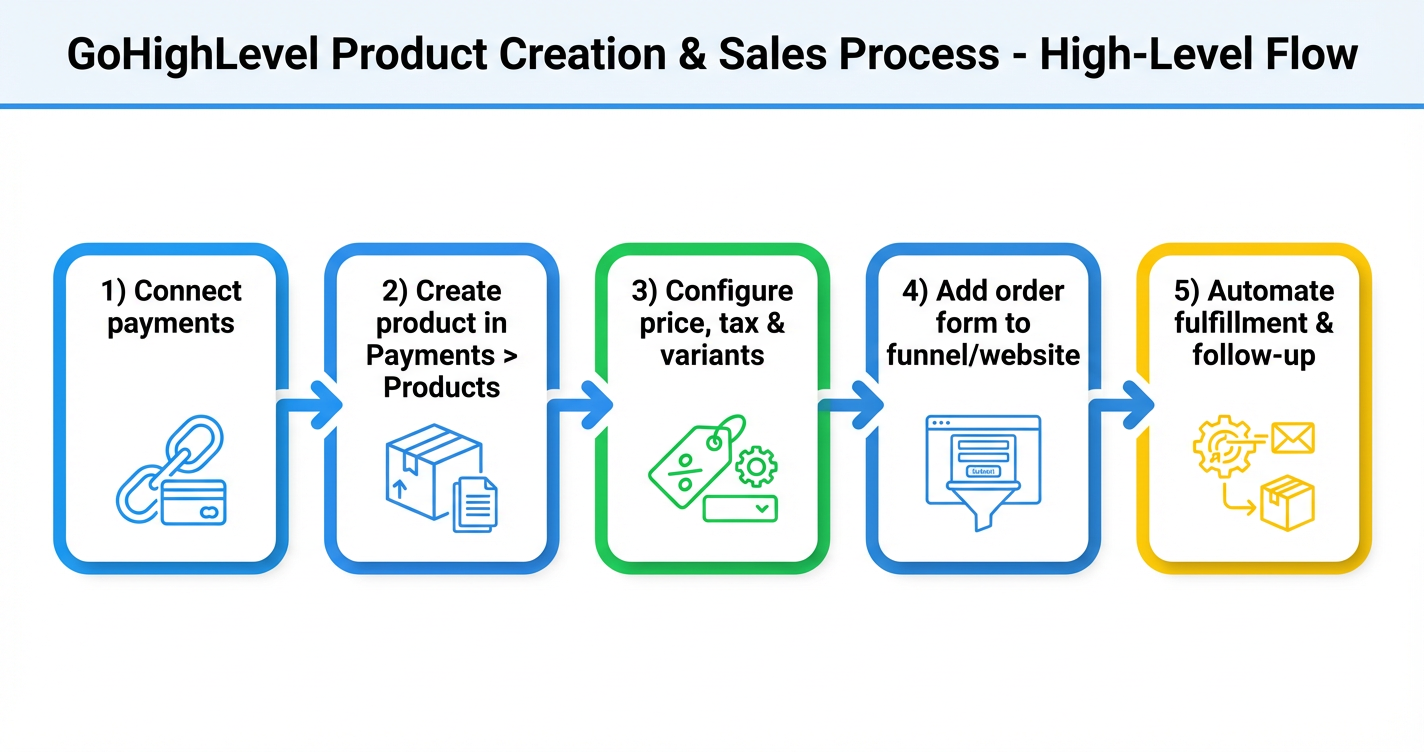
This guide walks you through a clean, repeatable process for creating and selling products in GoHighLevel, based on how Revset Labs sets up offers for clients.
If you don t yet have a GoHighLevel account, you can start a free GoHighLevel trial here and follow along step by step.
Why Build Products Inside GoHighLevel Instead of Elsewhere?
When your products, payments, funnels, and automations all live in GoHighLevel, three important things happen:
- You see the full journey on one timeline. A contact goes from opt-in to purchase to fulfillment in a single CRM.
- You spend less time on integrations and more time on offers. No more juggling separate checkout tools, Zapier zaps, and duct-taped spreadsheets.
- You can automate follow-up around real revenue events. When someone buys, you can immediately add tags, move opportunities, trigger onboarding workflows, and more.
For coaches, agencies, and course creators, that means less operational drag and faster time-to-cash.
If you re still evaluating platforms, you can try GoHighLevel free here and decide as you build your first product.
Before You Start: Get the Foundations Right
A strong product setup starts with a few non-negotiables:
- Payment processing connected – Stripe (or your chosen gateway) set up and tested.
- Basic tax approach decided – Whether you ll include tax in the displayed price or add it at checkout, and which regions you need to support.
- Clarity on what you re selling – Is this a one-time purchase, a recurring subscription, or a bundle with variants (sizes, tiers, license counts)?
You don t need everything perfect, but having these decisions made before you click Create Product keeps the build fast and focused.
Step 1: Connect Your Payment Gateway
Before you can accept money, connect a payment processor.
- In your GoHighLevel sub-account, go to Settings → Integrations.
- Connect Stripe (or another supported gateway) and follow the prompts to authenticate.
- If you haven t already, run a test transaction in test mode to make sure payments process correctly.
Once this is done, GoHighLevel can charge cards directly from your order forms and attribute revenue back to contacts and campaigns.
Step 2: Create a Product in Payments → Products
Now you ll define what you re selling.
- Go to Payments → Products.
- Click + Create Product.
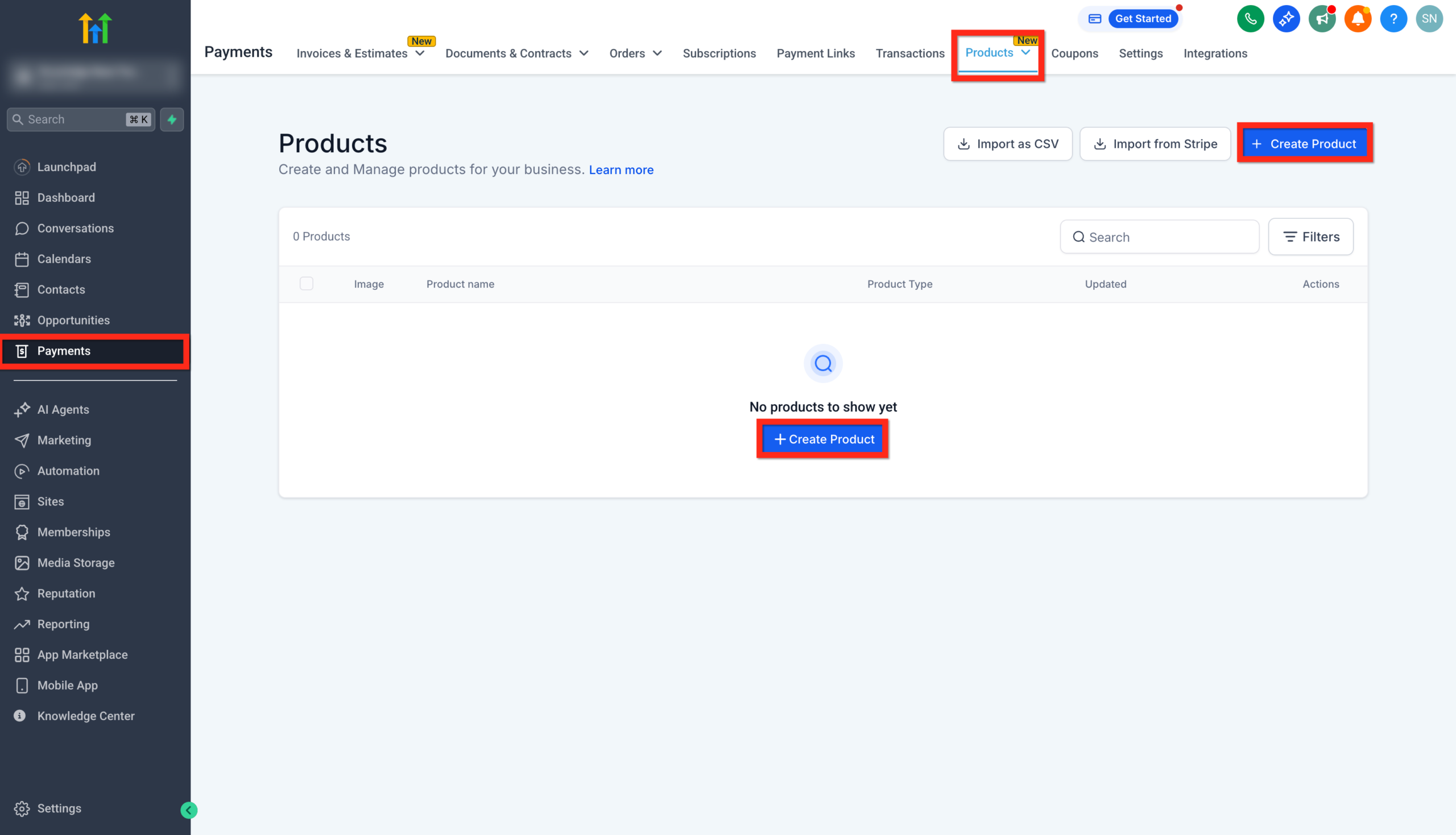
- Work through the product configuration panels:
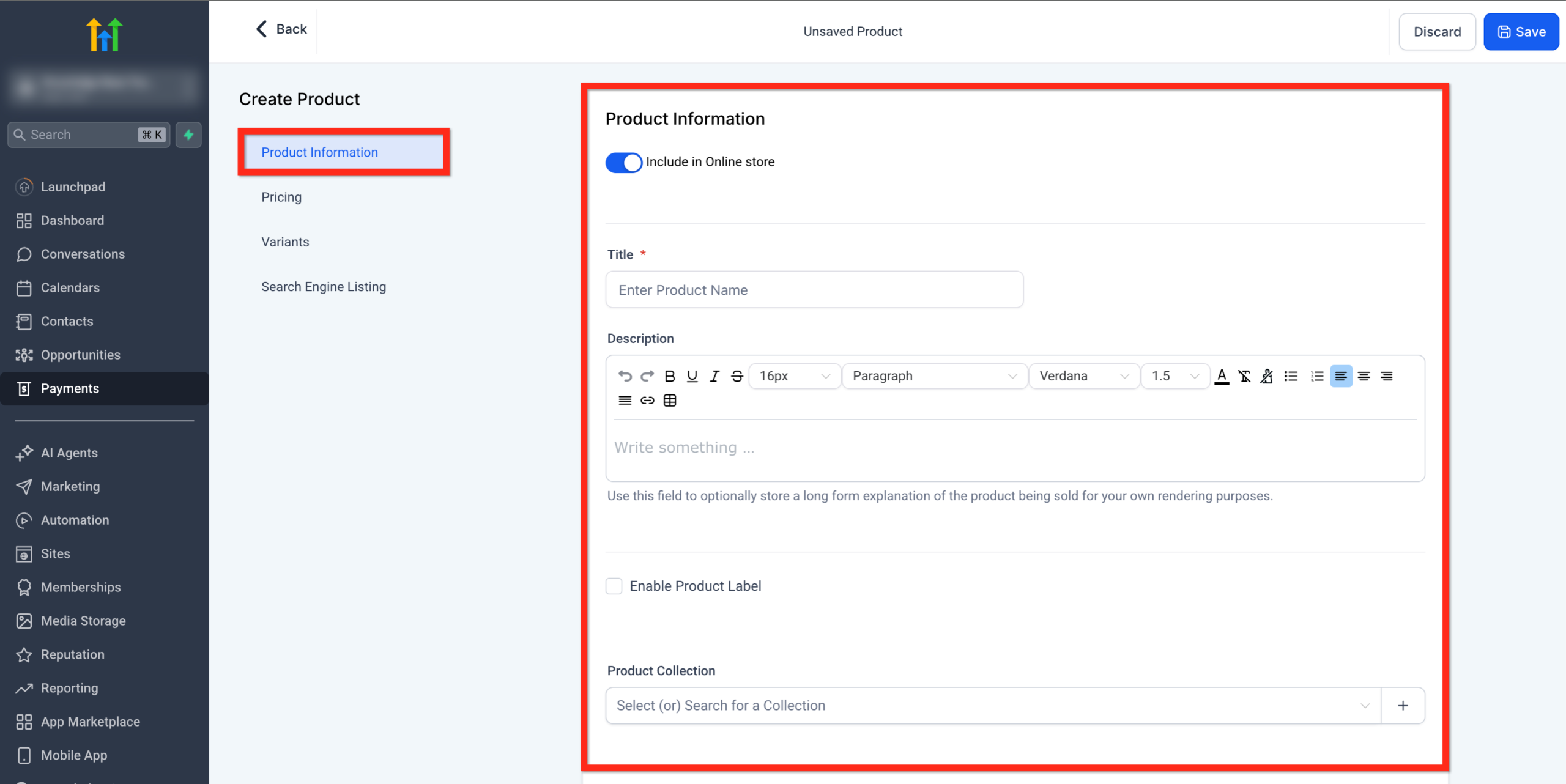
2.1 Add Core Product Details
- Include in Online Store – Turn this on if you want the product visible and purchasable from your online store or product catalog.
- Title – The product name customers will see (for example, "Sales Call Audit", "90-Day Accelerator", "Course Bundle").
- Description – Explain what the buyer gets, who it s for, and the outcome it drives. Use bullets, short paragraphs, and bolding to keep it scannable.
- Media – Upload a product image or short video. Recommended resolution is 1024×1024 (max 10MB). Even a simple mockup or icon is better than no visual.
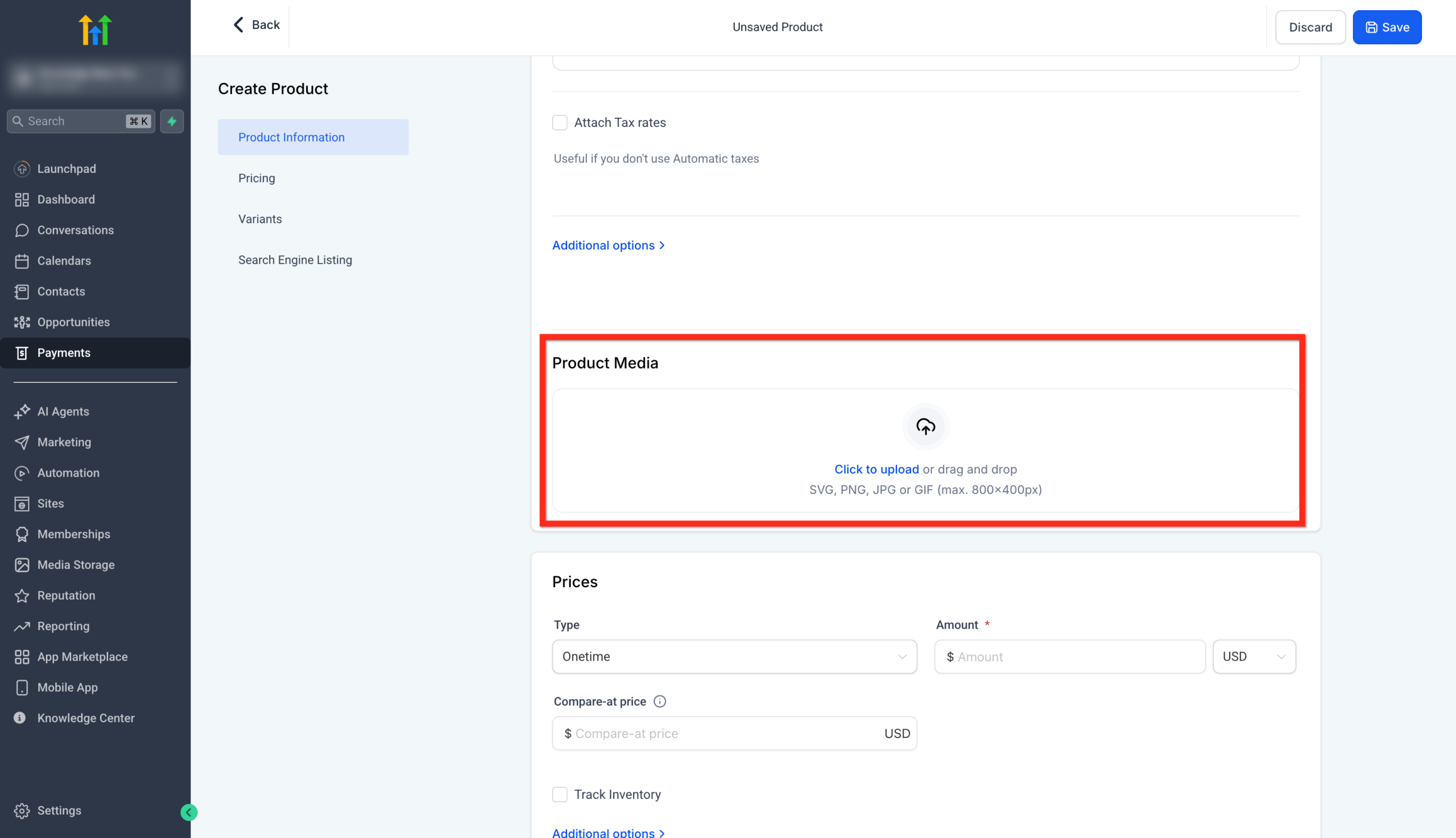
- Product Label (optional) – Add badges like "New", "Best Seller", or "Beta" to draw attention.
- Product Collection – Assign the product to a collection (for example, "Courses", "Templates", "Coaching") to keep your catalog organized.
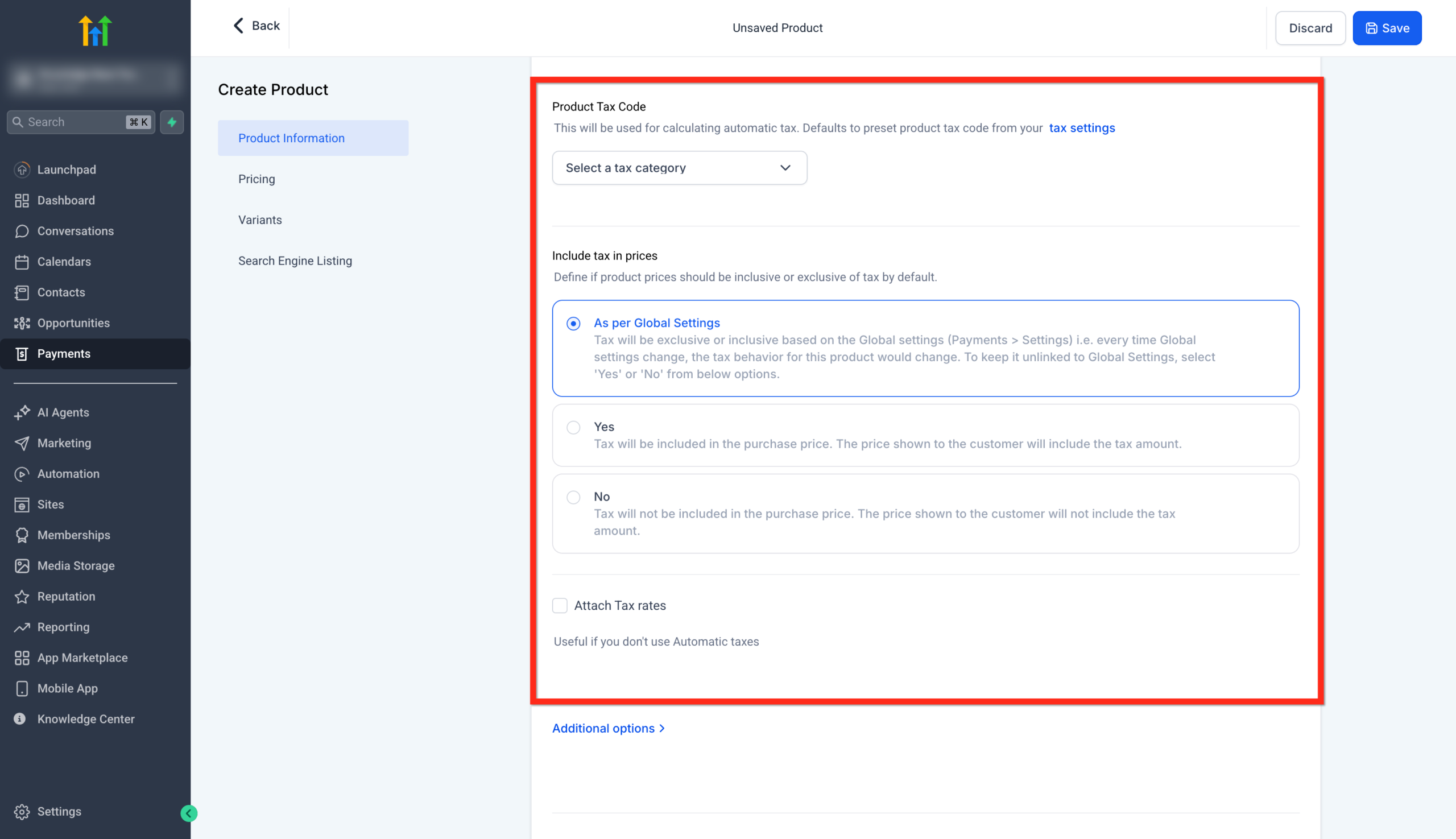
2.2 Configure Tax & Compliance
- Product Tax Code – Choose a tax category if you re using automatic tax calculation. This helps keep you compliant without manual math.
- Include Tax in Prices – Decide whether your listed price should be tax-inclusive or tax-exclusive.
- Attach Tax Rates – Manually attach specific rates if you re handling tax by region or country.
- Statement Descriptor – Optionally override the name that appears on your buyer s bank statement so purchases are instantly recognizable.
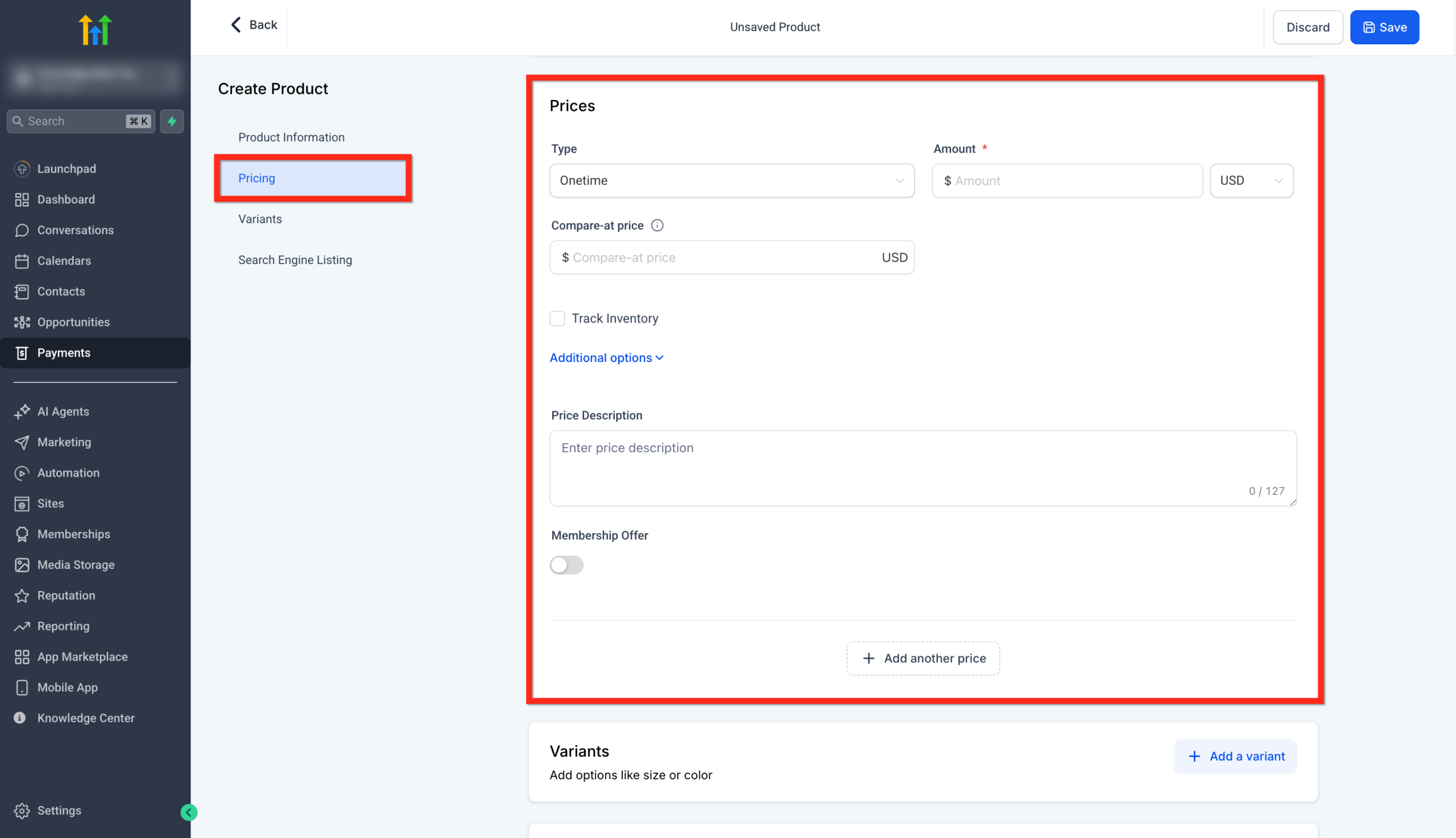
2.3 Set Pricing, Inventory & Purchase Rules
- Pricing Name – Internal label for this price (for example, "Standard", "Pro Annual", "Founders"), helpful if you add more tiers later.
- Type – Choose:
- Onetime for a single charge (for example, one-off audits, templates, fixed-price offers).
- Recurring for subscriptions or payment plans.
- Amount – The price you re charging.
- Compare-at Price – Optional higher "original" price to show a discount.
- Currency – Set your default currency (for example, USD).
- Track Inventory – Turn this on if you have limited spots or physical stock.
- Purchase Limits & Metadata – Add max purchase quantities or internal metadata to support reporting and automation.
- Price Description – Internal notes about what this price represents.
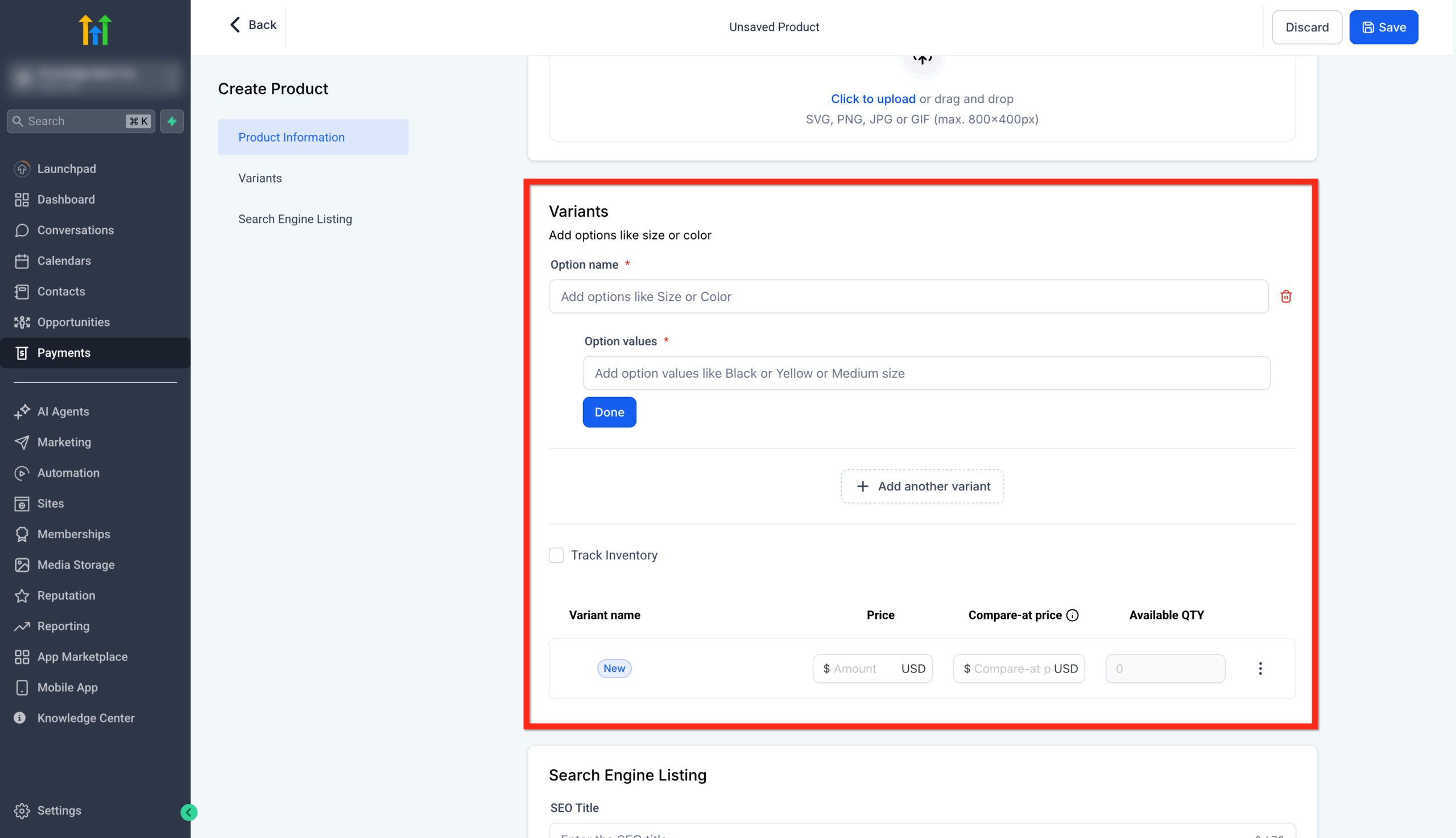
2.4 Add Product Variants (Optional)
If you offer multiple versions of the same product:
- Create an Option Name like "Tier", "License Count", or "Size".
- Add Option Values (for example, "Starter", "Pro", "Agency"), each with its own price and inventory.
- Use variants instead of completely separate products when you want buyers to pick from a small set of clear choices.
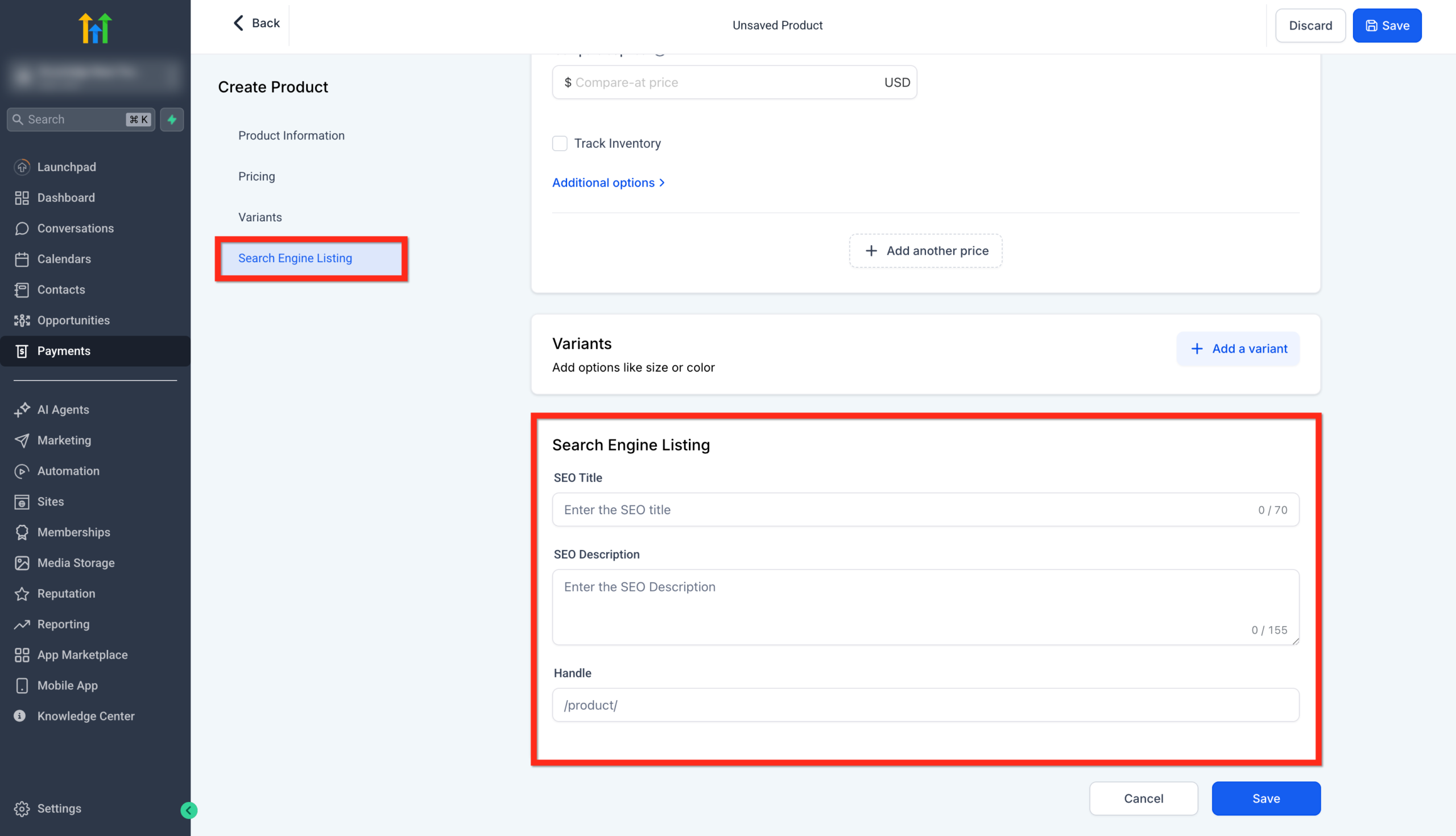
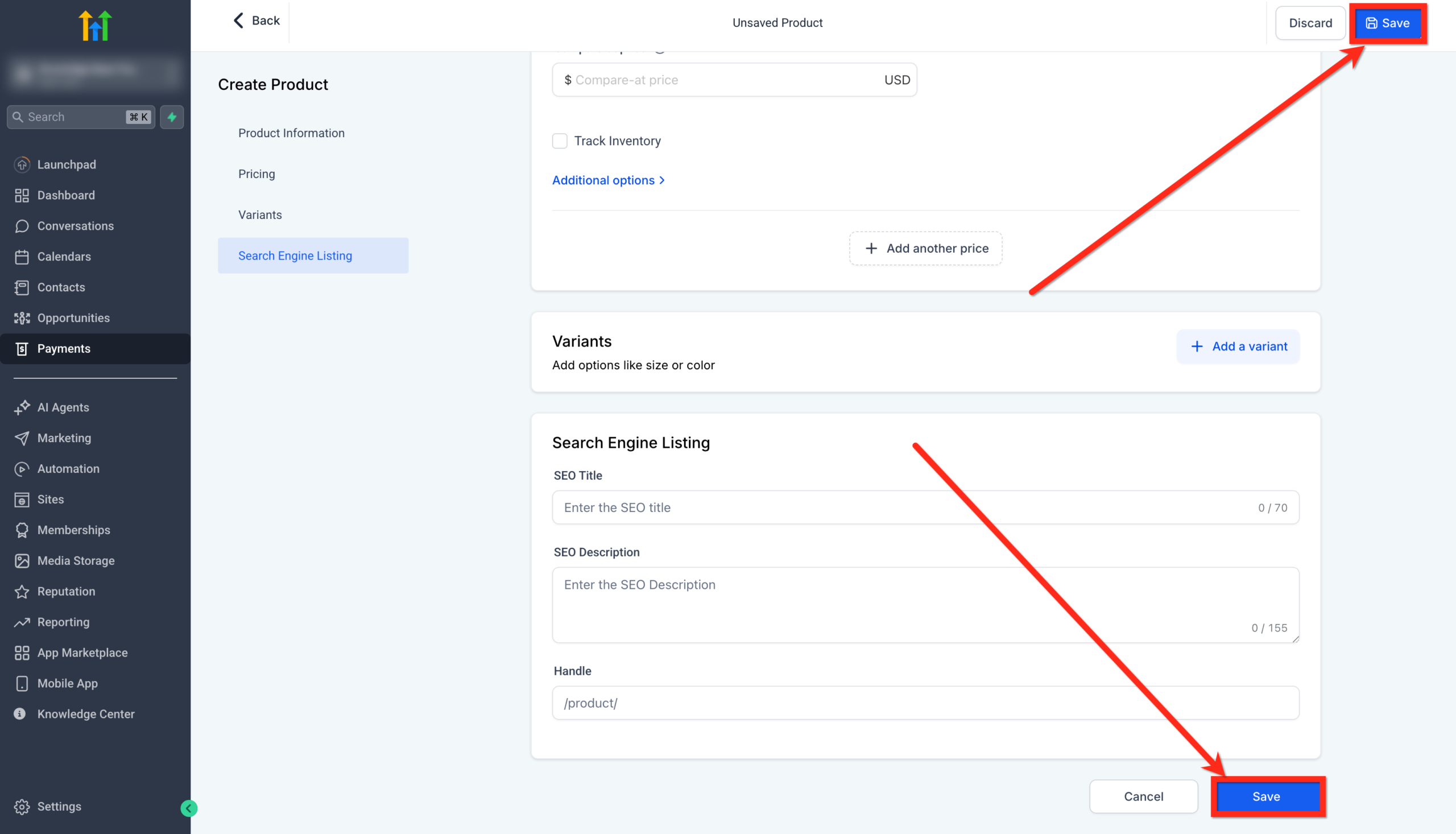
2.5 Optimize for Search Engines
Scroll to the SEO section to:
- Set an SEO Title that includes the core problem or outcome plus "GoHighLevel" where relevant.
- Write a concise SEO Description explaining what the product helps the buyer achieve.
- Confirm or customize the Handle (URL slug) so it s clean and descriptive.
This helps your products show up when existing contacts search your site.
Click Save.
How to Set Up a Trial
Follow these steps to add a trial to your product:
- Go to Payments → Products
- Create a new product or edit an existing one
- Under Pricing, set the product to Recurring (Type)
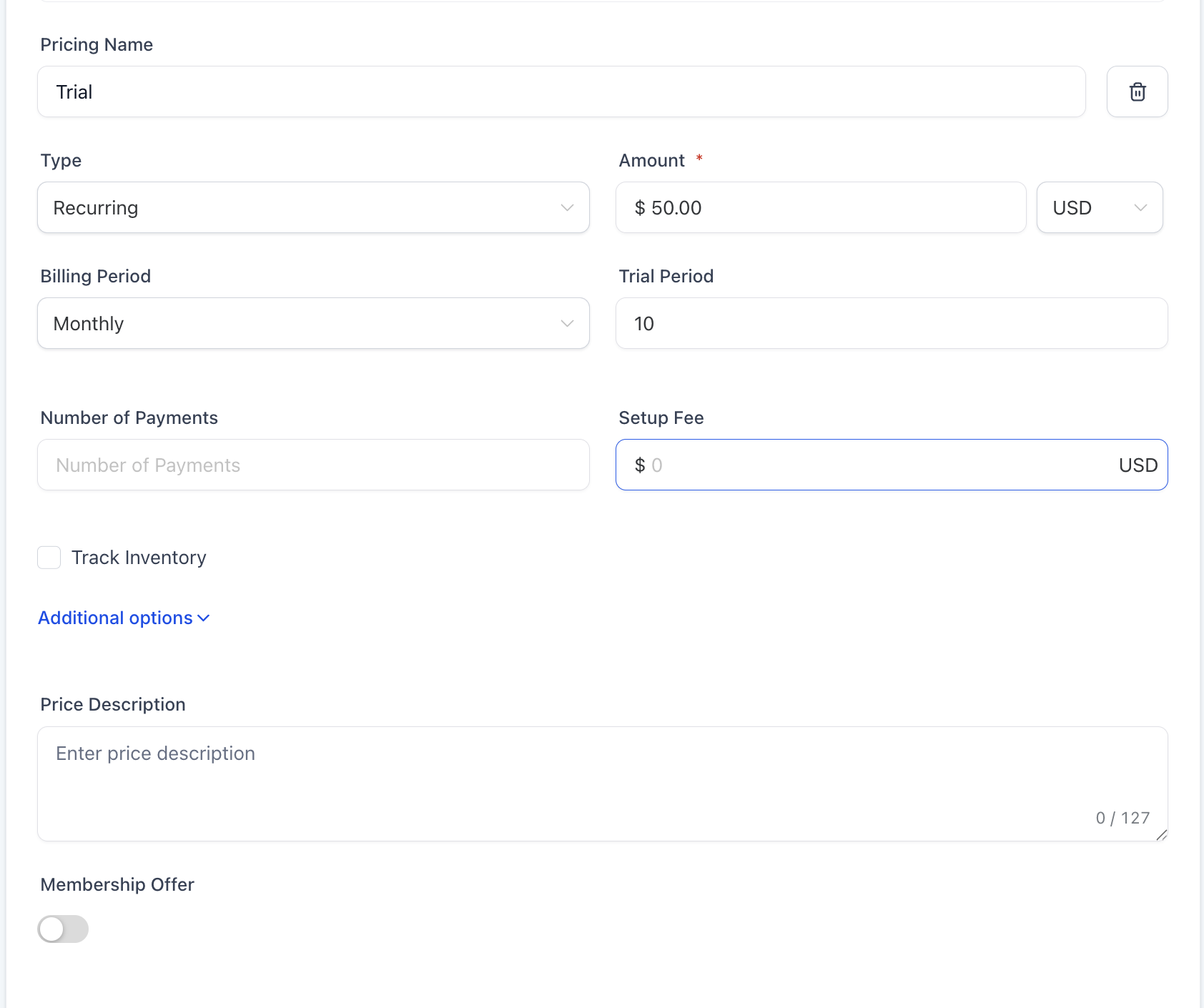
- Enter the amount
- Compare-at price (optional)
- Select billing period
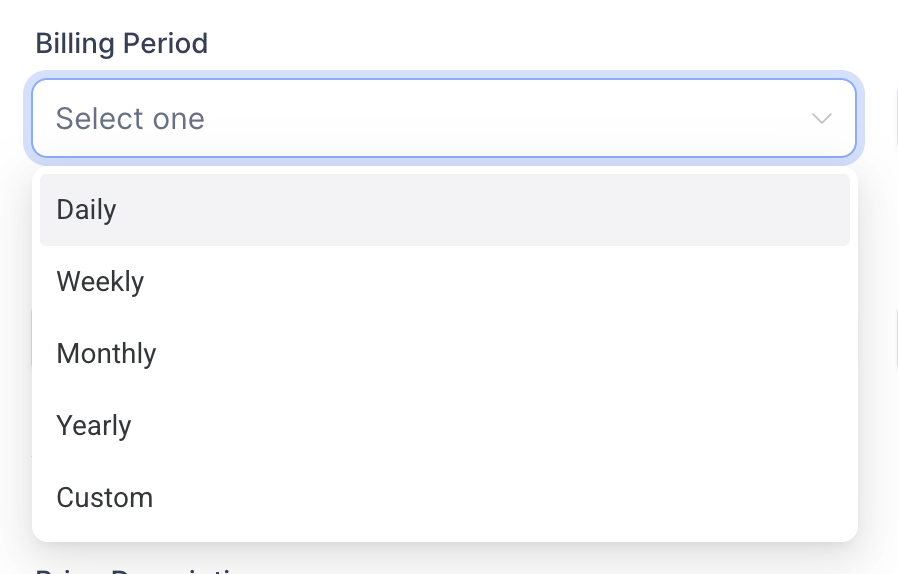
- Enter Trial period (ex: “5 days”)
- Number of payments and setup fee (Optional)
- Save your product
- Add the product to an order form, invoice, or checkout page
Your trial is now live
Step 3: Make Your Product Available in Your Store
A product sitting in the database doesn t generate revenue. You need to make it available for purchase.
- In the product settings, confirm Include in Online Store is enabled.
- Double-check visibility settings match your intent (for example, public vs. private offer only linked from a specific funnel).
At this point, your product exists and can be attached to order forms and checkout experiences.
Navigate to Sites and choose where you want your product to appear: Website, Funnel, or Store.
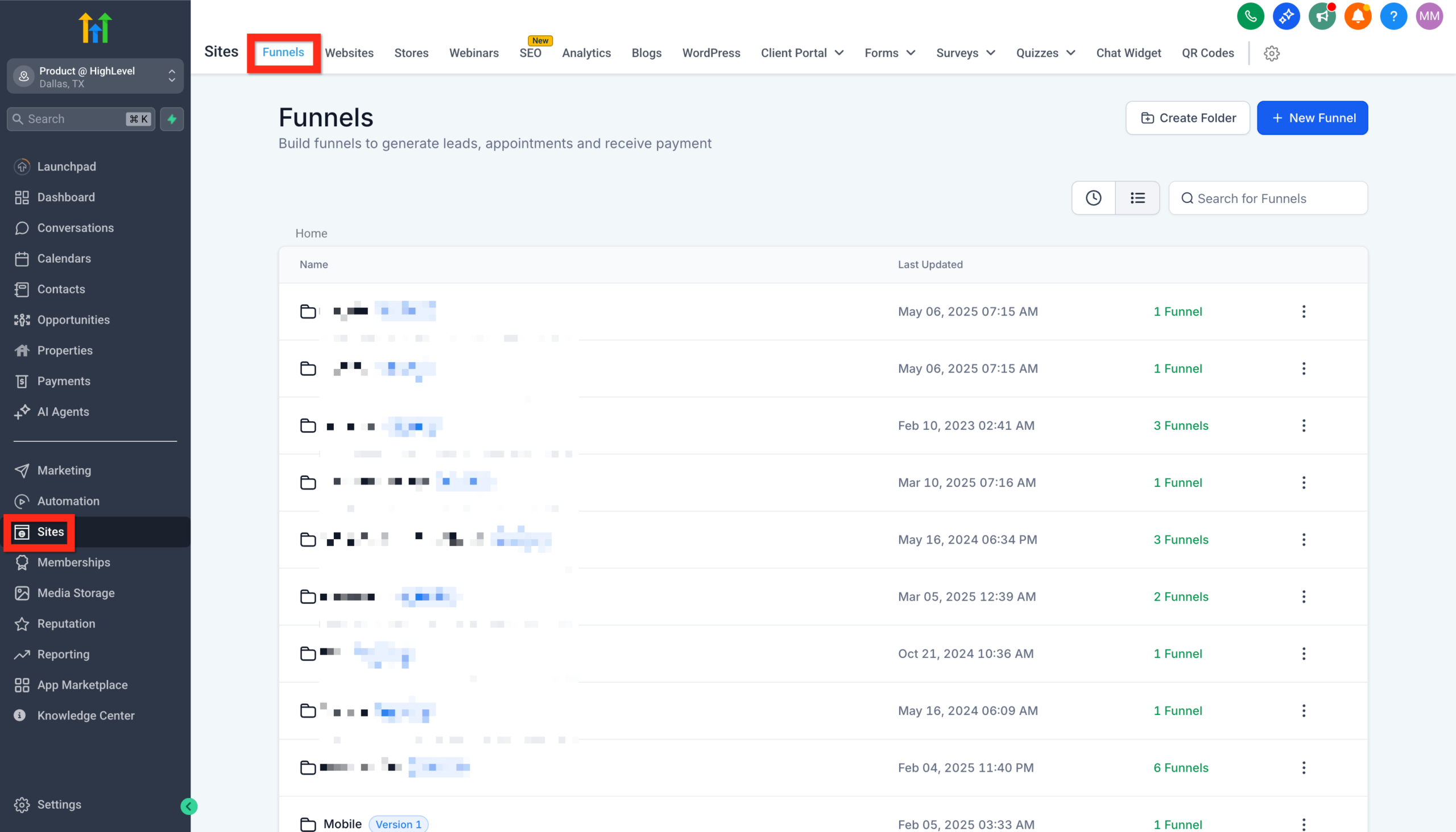
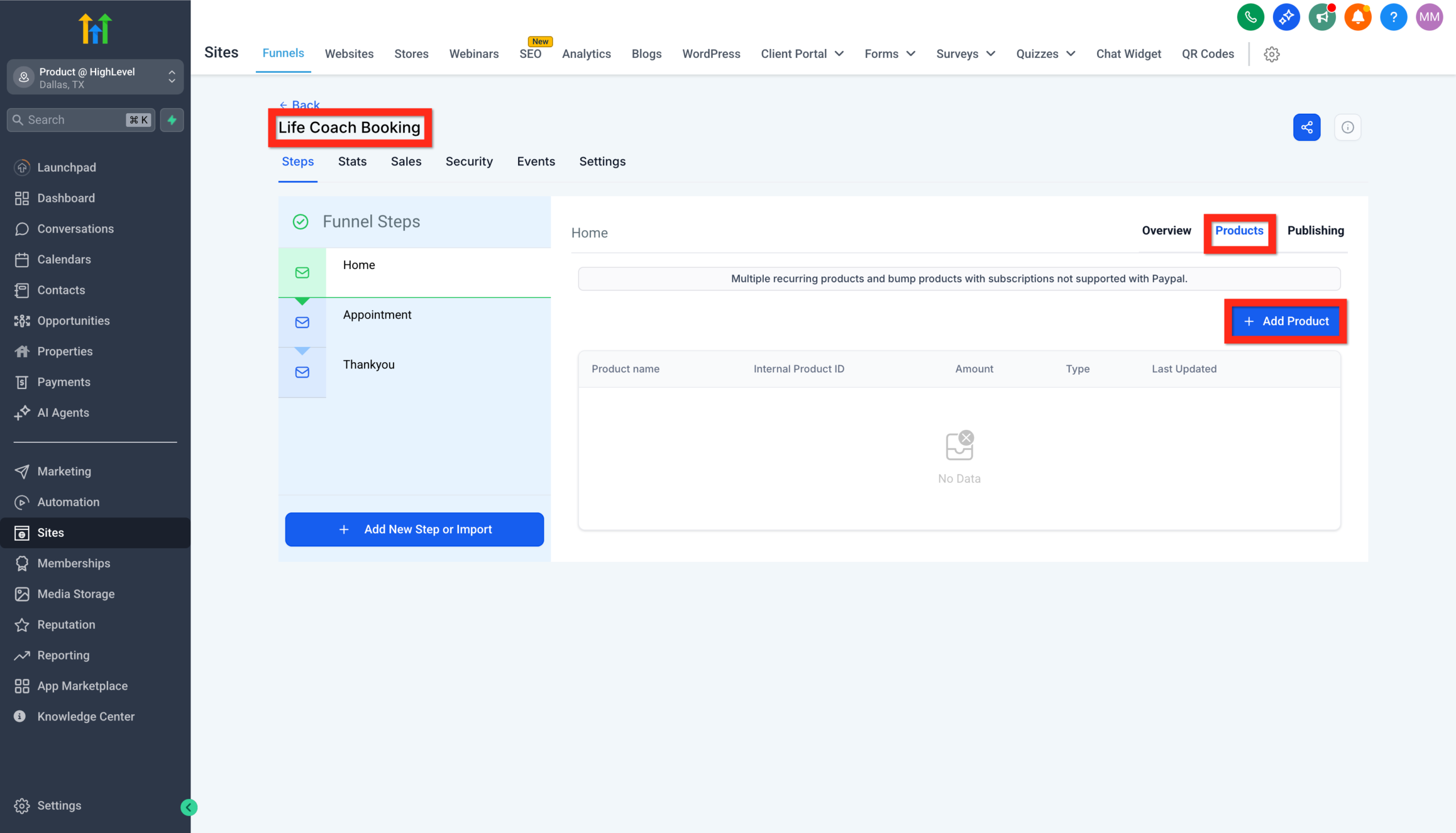
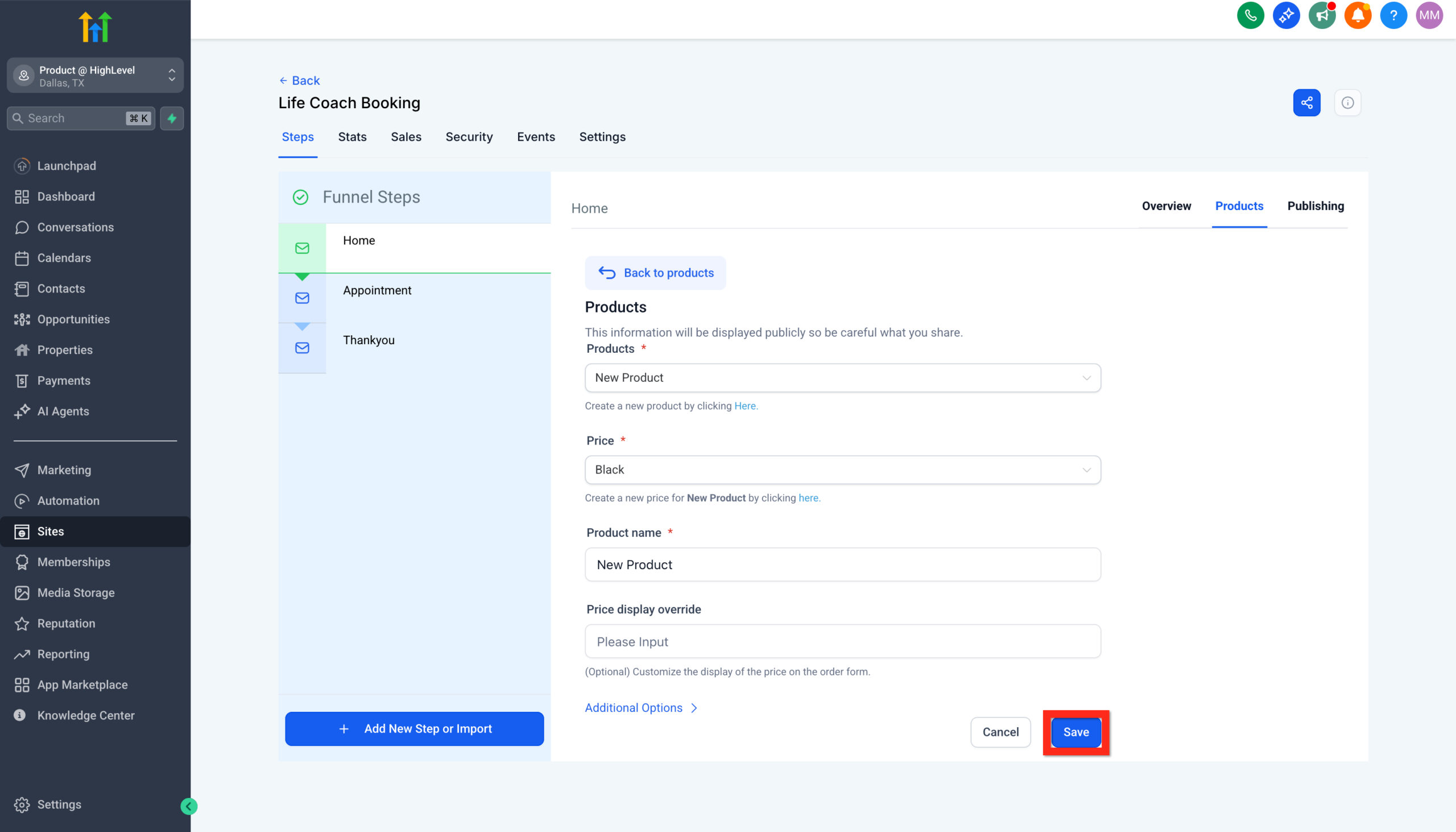
For Funnels specifically:Click Funnels and select your desired funnelGo to the Products tabClick Add Product
Configure your product detailsClick Save
Step 4: Add an Order Form to Your Funnel or Website
Alright, your product's ready and visible—now let's get the checkout process streamlined! Think of this step like opening the cash register—quick, easy, and secure.
Navigate to the Site Editor
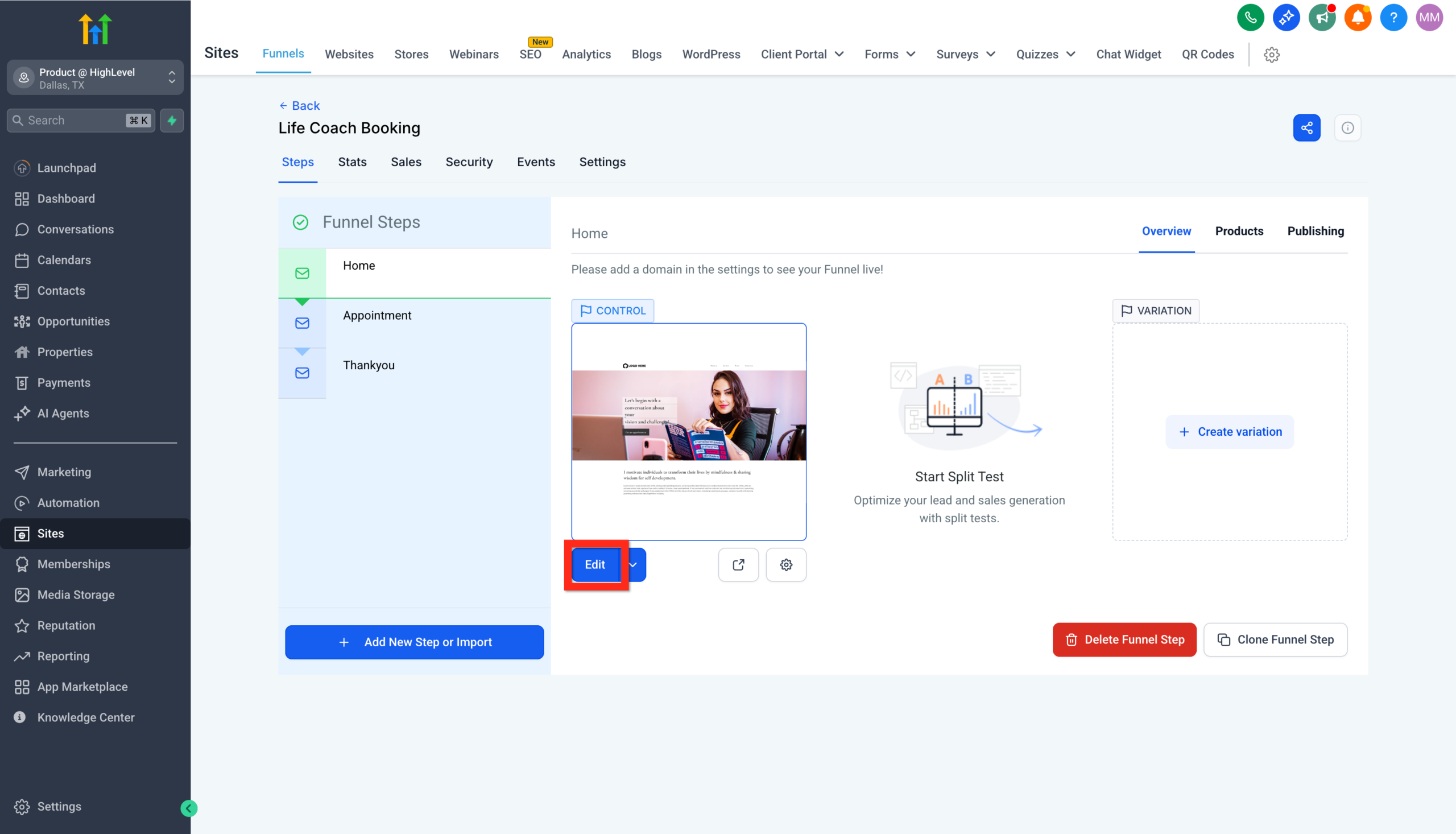
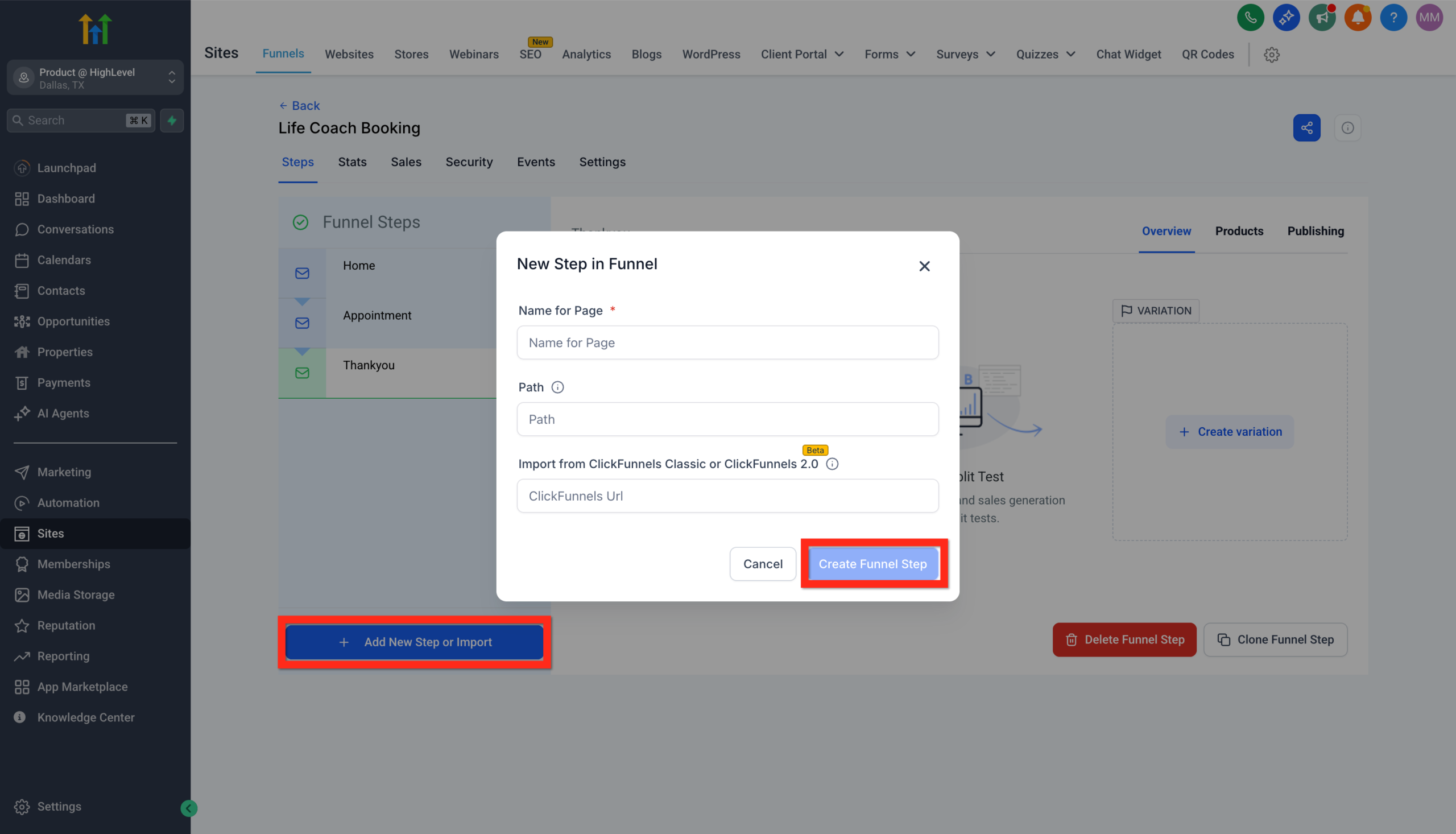
Select the funnel page that will have the checkout form. If that page doesn't exist yet, create it:Click Add New Step.Fill out the details and click Create Funnel Step.
On the page, Add a full width section element.
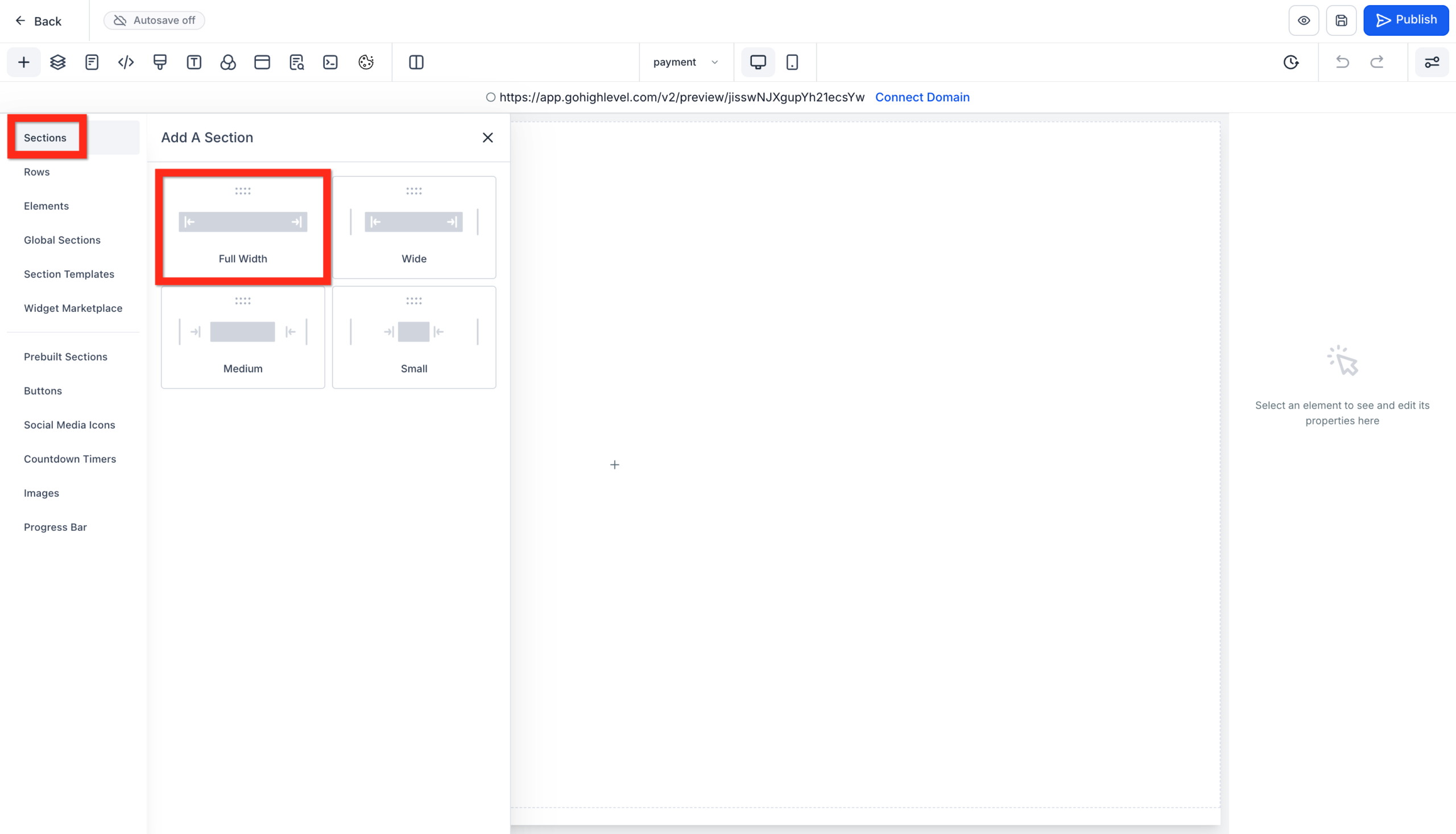
Inside the section, Add a one column row.
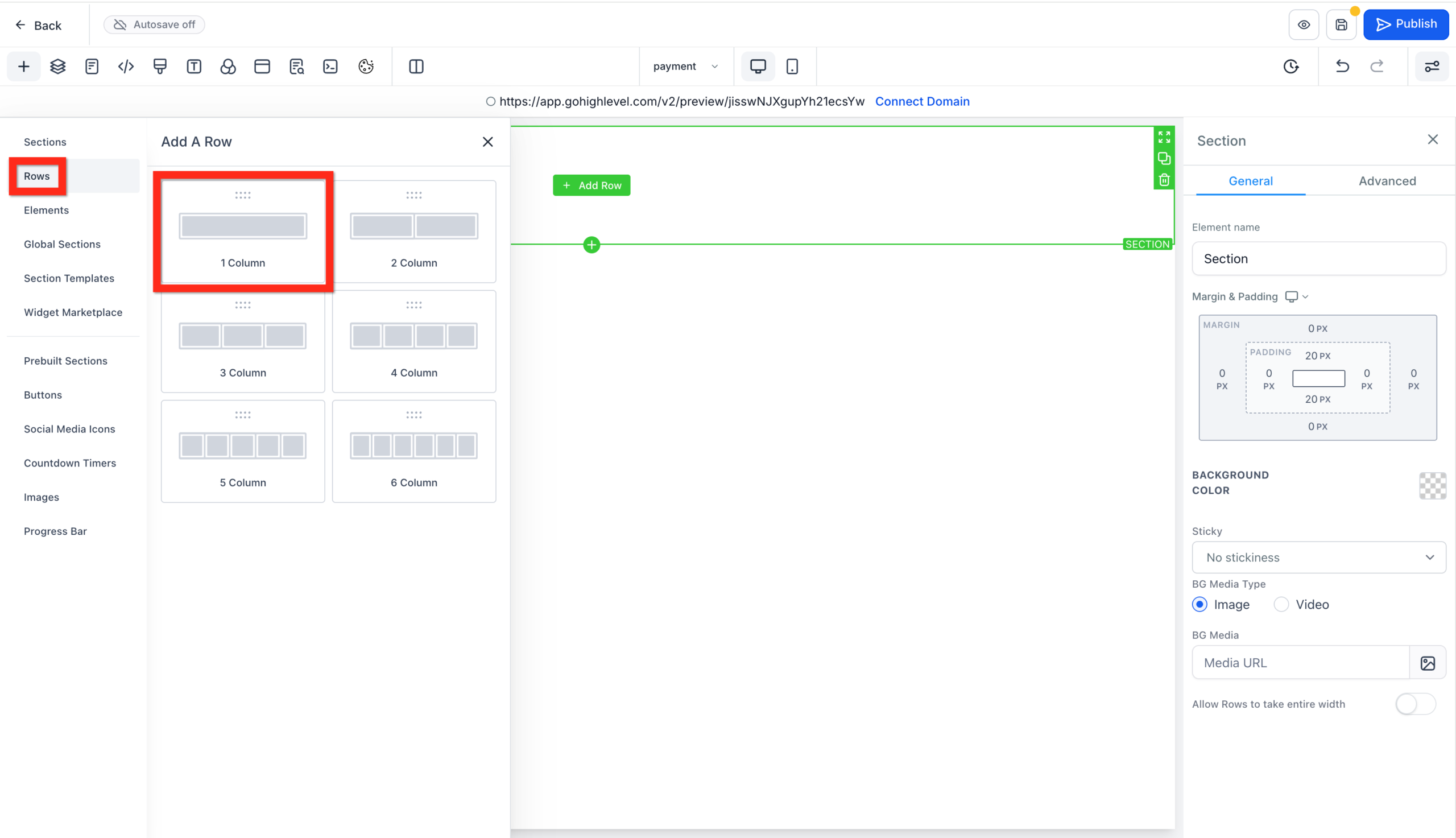
Inside the row, Add a one or two step order form.
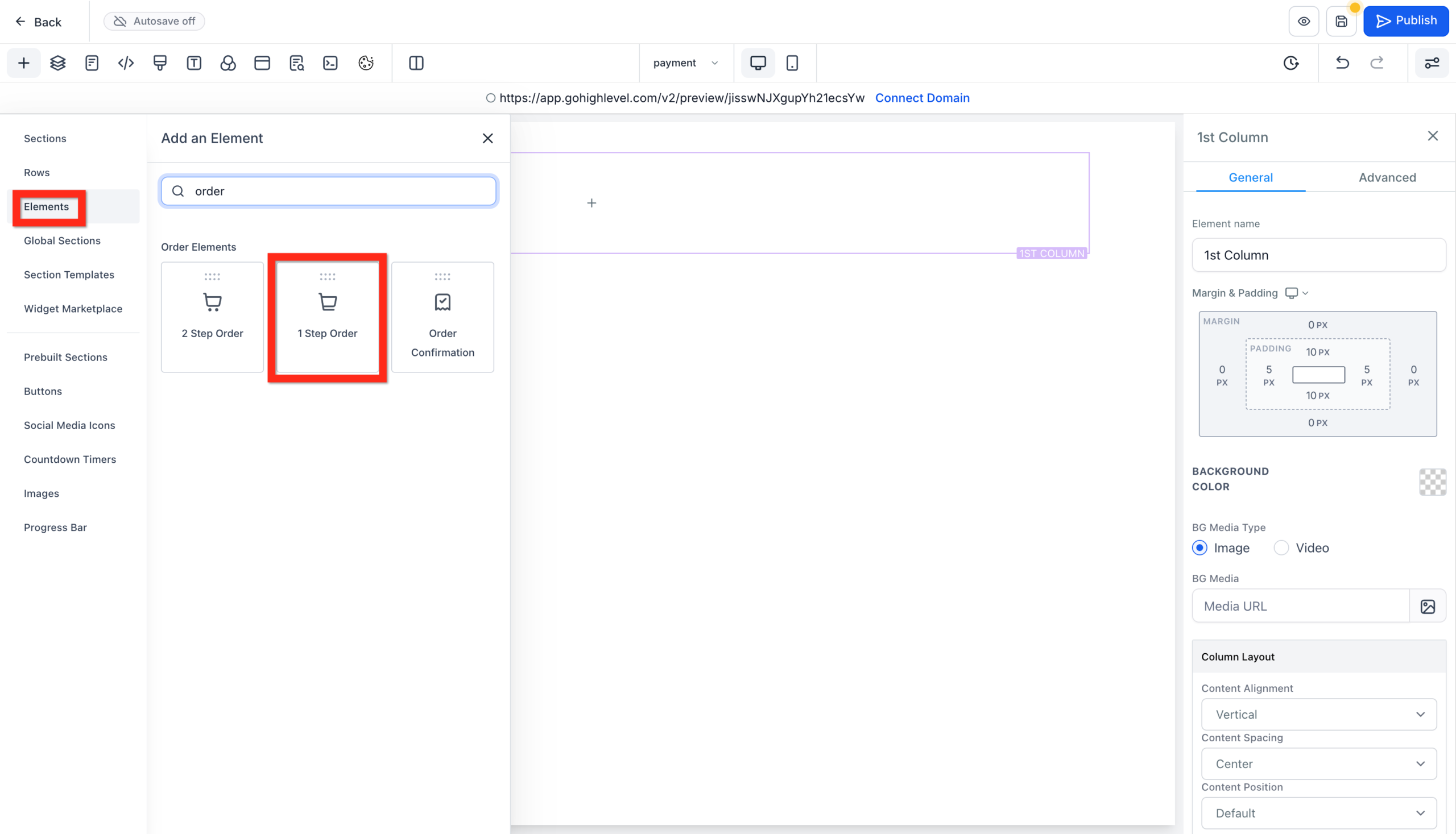
Customize the order form, then click Save and Publish.
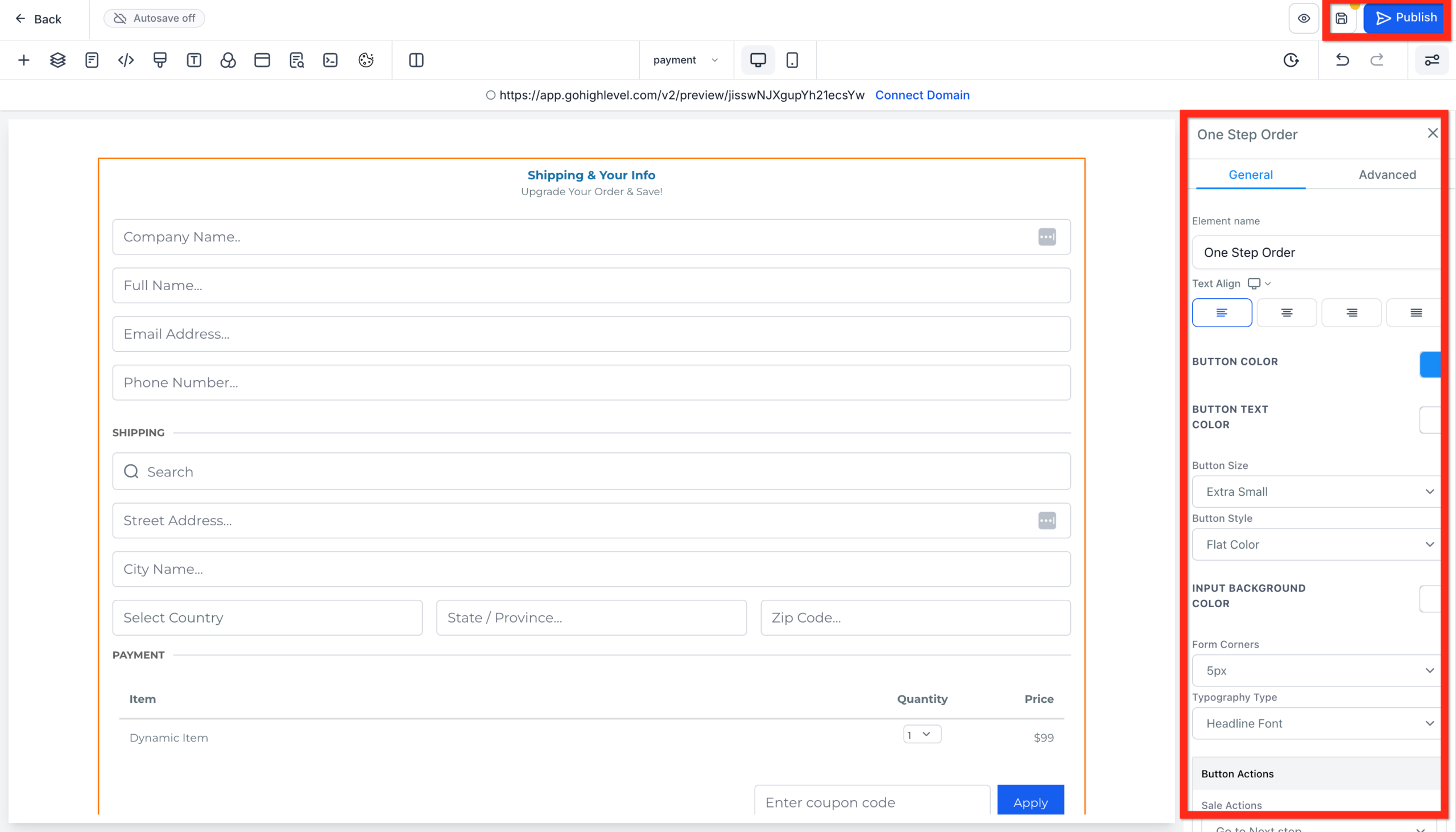
Make sure the product is added to the same page as the order form.
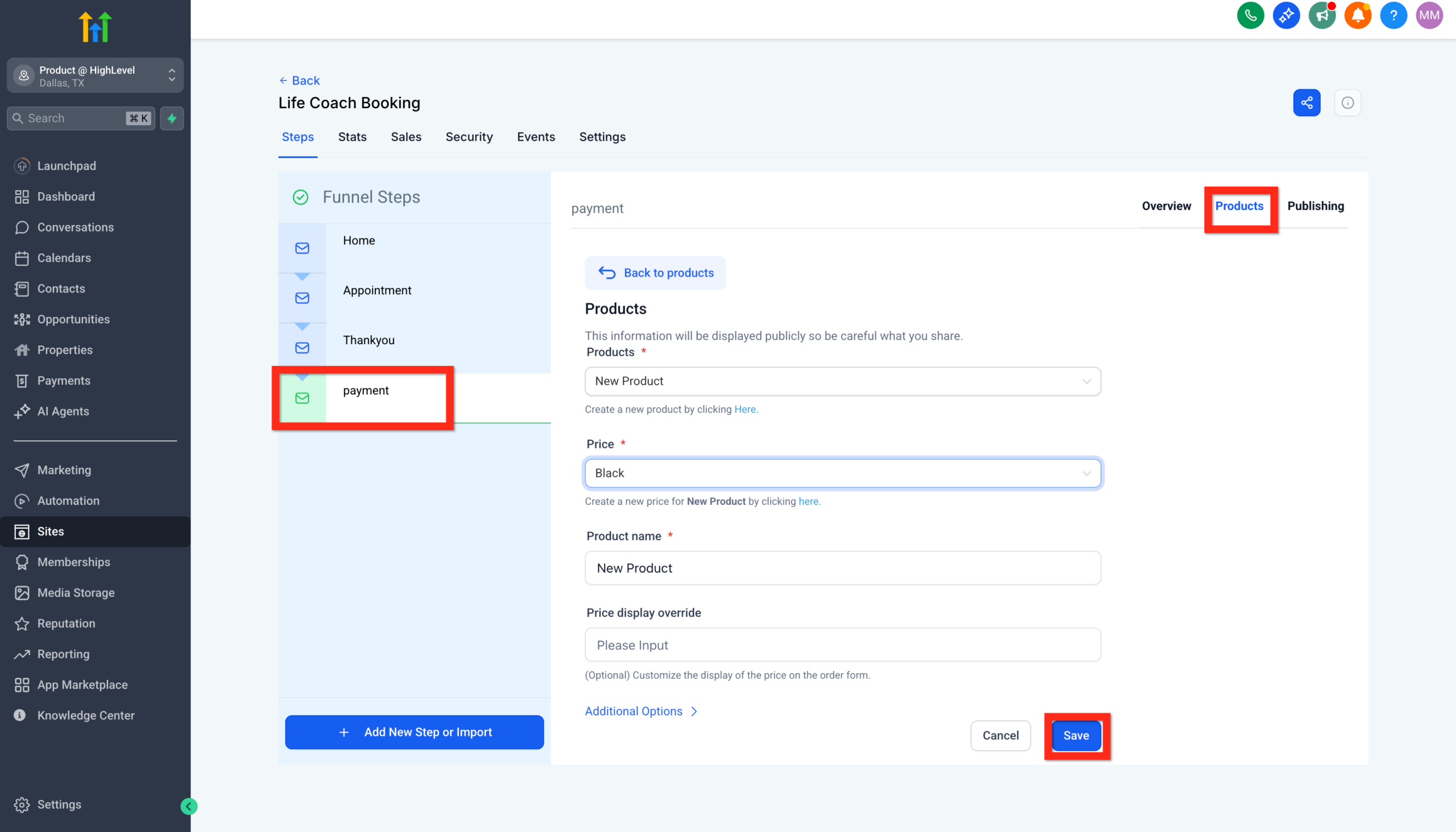
Fantastic! Your customers can now smoothly complete their purchases. Next, why not experiment with sticky contact options to boost conversions?
Your funnel order form should look something like this:
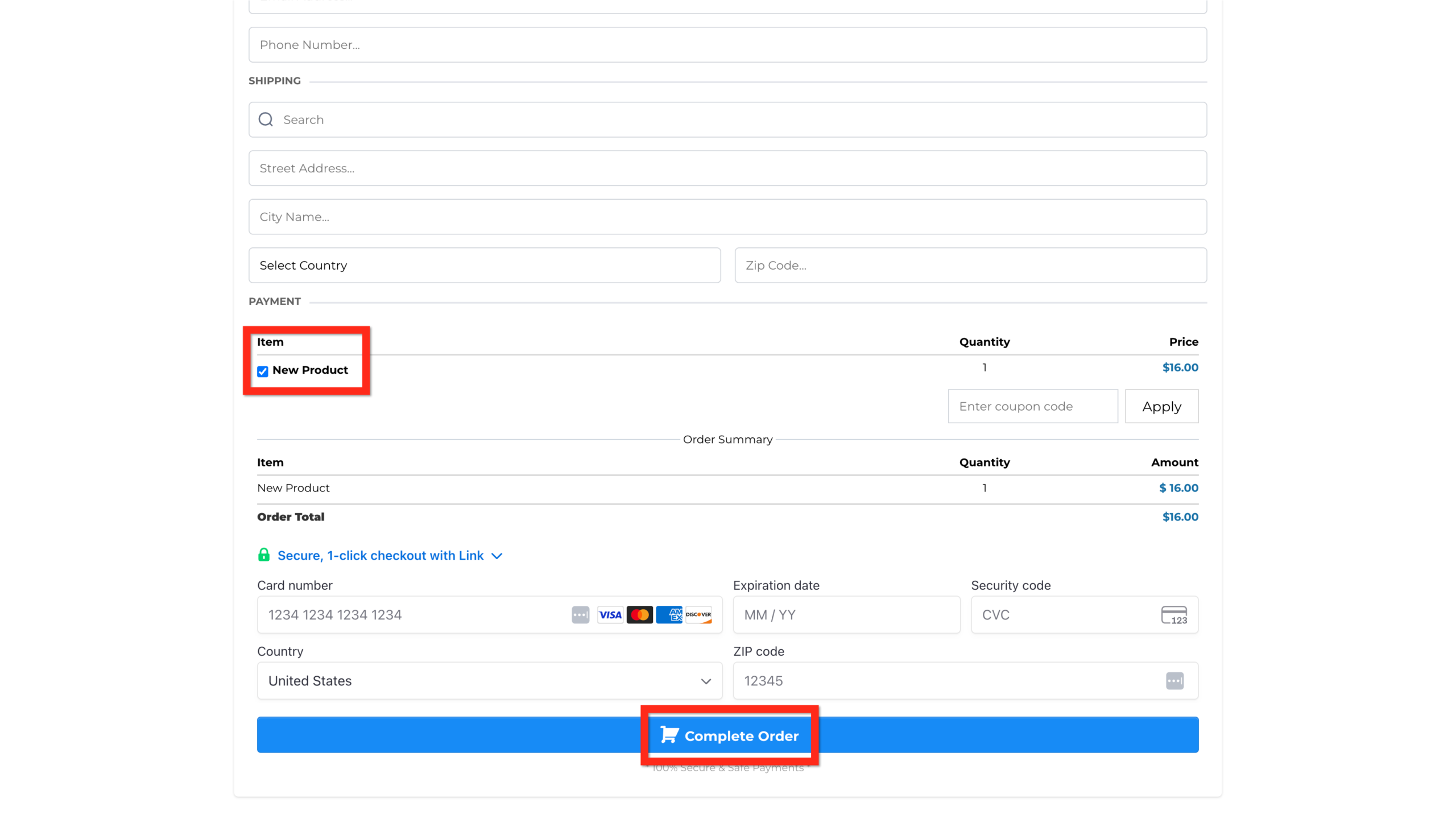
If you re following along without an account yet, you can grab a free GoHighLevel trial here and set up your first product as you read.
Step 5: Automate Fulfillment & Follow-Up
The real power of selling products inside GoHighLevel is what happens after someone buys.
In Automation → Workflows, you can:
- Trigger a workflow when an order is completed or a specific product is purchased.
- Tag the contact based on the product or tier they bought.
- Add them to the right pipeline stage (for example, "New Customer" or "Onboarding").
- Send confirmation and onboarding emails/SMS with login details, next steps, or scheduling links.
- Notify your team in Slack or by email when a new order comes in.
For digital offers, you can even grant access to membership areas or course content automatically right after purchase.
Don t want to wire all of this together yourself? Revset Labs—an AI Automation and Marketing Agency—can design and implement a complete GoHighLevel product + fulfillment system for you, so every new customer has a smooth, automated onboarding experience.
Step 6: Test Your Checkout Flow Like a Customer
Before you drive traffic, run through the full flow yourself:
- Open your funnel or website in an incognito window.
- Fill out the order form with a test card (Stripe provides test numbers) or a low-dollar live charge.
- Confirm:
- The payment processes.
- The correct tags, pipelines, and workflows fire.
- Confirmation messages look clean on desktop and mobile.
Fix friction points now—errors at checkout are expensive.
Step 7: Iterate on Pricing, Positioning, and Bundles
Once your first product is live, you can move beyond just working and start optimizing:
- Test different price points or payment plans using additional prices or variants.
- Bundle related services or bonuses into higher-value offers.
- Create order bump or upsell steps in your funnel for add-ons that are easy yes decisions.
Because everything lives in GoHighLevel, you can see which products drive the most revenue and which funnels convert best—without leaving the platform.
If you want a fast way to validate your product idea, you can spin up a GoHighLevel free trial, follow this guide, and send a small test campaign to your list.
GoHighLevel vs. a Pieced-Together Checkout Stack
Compared with cobbling together Stripe payment links, standalone checkout tools, and a separate CRM, GoHighLevel gives you:
- One source of truth for contacts, payments, and funnels.
- Deeper automation based on purchase behavior (not just tags from another app).
- Simpler reporting so you can see which campaigns and products actually drive revenue.
For most small teams, that means fewer tools to manage and a shorter path from idea to live offer.
How Revset Labs Can Help
If you d rather not spend weeks inside settings screens, Revset Labs can help you launch and scale products in GoHighLevel.
Revset Labs is an AI Automation and Marketing Agency that specializes in building GoHighLevel systems that:
- Package your services and programs into clear, compelling offers.
- Wire up products, order forms, workflows, and pipelines so every purchase is tracked and followed up.
- Add the right analytics so you can see revenue by product, funnel, and campaign.
You can use this guide to build your first product yourself—or bring in Revset Labs to turn it into a complete, done-for-you product engine.
FAQs About Creating & Selling Products in GoHighLevel
1. Can I sell both physical and digital products?
Yes. GoHighLevel supports physical products, digital downloads, subscriptions, and service-based offers. For physical products, turn on inventory tracking. For digital or service offers, focus on automating fulfillment and onboarding.
2. How do I manage inventory for my products?
Enable Track Inventory in the pricing section of your product. This lets you set stock levels and prevent overselling limited spots or physical items.
3. Can I offer product variants like size, tier, or license count?
Yes. Use Product Variants to define options (for example, Size, Tier) and their values (Small/Medium/Large, Starter/Pro/Agency), each with its own price and inventory.
4. How do I optimize my product for search engines?
Use the Search Engine Listing area to set an SEO title, meta description, and handle that clearly describe the product, audience, and outcome. Keep it readable and include terms like "GoHighLevel" and your core result where it makes sense.
5. Is it possible to offer both one-time and recurring pricing?
Yes. You can create multiple prices for the same product for example, a one-time payment option and a monthly subscription and expose the one that fits each funnel or campaign best.
Suggested Internal Links
When this article is published on the Revset Labs site, consider internally linking to:
- A "Getting Started: Create and Manage Contacts in GoHighLevel" guide (for CRM and list basics).
- A "Getting Started: Import Existing Contacts into GoHighLevel" guide (to bring your existing audience into the platform).
- A "Getting Started: Launch a Funnel in GoHighLevel" guide (to connect your product to a complete funnel).
These internal links help readers move from basic setup to a full system that captures, nurtures, and converts leads.