
Connecting Stripe to GoHighLevel is what turns your funnels from "nice pages" into real revenue. Once Stripe is integrated properly, you can accept payments, run subscriptions, and track revenue without duct‑taping extra tools on the side.
This guide walks you through how to connect Stripe to GoHighLevel step by step—at both the agency (SaaS) level and the sub-account (client) level. You’ll:
- Decide where Stripe should connect in your account structure.
- Connect Stripe securely using GoHighLevel’s built‑in integration.
- Test payments so you don’t get surprises in production.
- Start using Stripe inside GoHighLevel funnels and products.
You’ll also see where Revset Labs—an AI Automation and Marketing Agency—can help you turn this integration into a complete, done‑for‑you revenue system.
If you don’t have GoHighLevel yet, you can still follow along by spinning up a trial and connecting Stripe as you go:
Start your free GoHighLevel trial
Where Stripe fits in your GoHighLevel system
Stripe is the payment engine behind many GoHighLevel setups. When it’s connected correctly, you can:
- Collect one‑time payments and subscriptions from funnels, order forms, and product pages.
- Bill SaaS clients when you’re running GoHighLevel in SaaS mode at the agency level.
- Keep revenue data tied to contacts, opportunities, and campaigns, instead of scattered across tools.
At a high level, there are two main places you’ll connect Stripe:
- Agency level (SaaS Configurator) – Used to charge your own clients for SaaS plans and add‑ons.
- Sub-account level (client accounts) – Used to accept payments from your clients’ customers (for example, when they sell services, courses, or retainers).
You can think of it like this:
- Agency Stripe → money from your clients to you.
- Sub-account Stripe → money from your clients’ customers to your clients.
Getting this separation right up front will keep your accounting and reporting clean.
Step 1 – Decide where you need Stripe connected
Before touching settings, answer two simple questions:
- Are you billing clients for GoHighLevel access (SaaS mode)?
- If yes, you’ll connect Stripe at the agency level so GoHighLevel can charge your clients.
- Do you (or your clients) need to take payments from end customers?
- If yes, you’ll connect Stripe at the relevant sub‑accounts so those accounts can accept payments via funnels, calendars, and products.
Many agencies end up with both:
- One Stripe account (or set of accounts) for agency SaaS billing.
- One Stripe account per client sub‑account for their customer payments.
We’ll cover each side in turn.
Step 2 – Connect Stripe at the agency level (for SaaS billing)
If you’re using GoHighLevel’s SaaS mode to bill clients for their accounts, start here.
- Log into your agency view in GoHighLevel.
- In the left sidebar, go to SaaS Configurator.
- Look for the Connect to your Stripe account section.
- Click Connect with Stripe.
- You’ll be redirected to a secure Stripe page:
- Log into your existing Stripe account, or create a new one if needed.
- Review the permissions GoHighLevel is requesting.
- Click Authorize to finalize the connection.
Once connected:
- GoHighLevel can charge your clients for SaaS plans and add‑ons using Stripe.
- You’ll see Stripe listed as Connected inside the SaaS Configurator.
Revset Labs tip: If you serve clients in different regions or currencies, talk with your accountant about whether you need multiple Stripe accounts or separate bank accounts before you roll SaaS pricing out broadly.
Step 3 – Connect Stripe at the sub-account level (for client payments)
Next, connect Stripe inside the sub‑accounts where you or your clients will actually collect payments from customers.
- Switch into the relevant sub‑account from the top‑left account switcher.
- In the left sidebar, go to Payments → Integrations (or Settings → Integrations, depending on your UI).
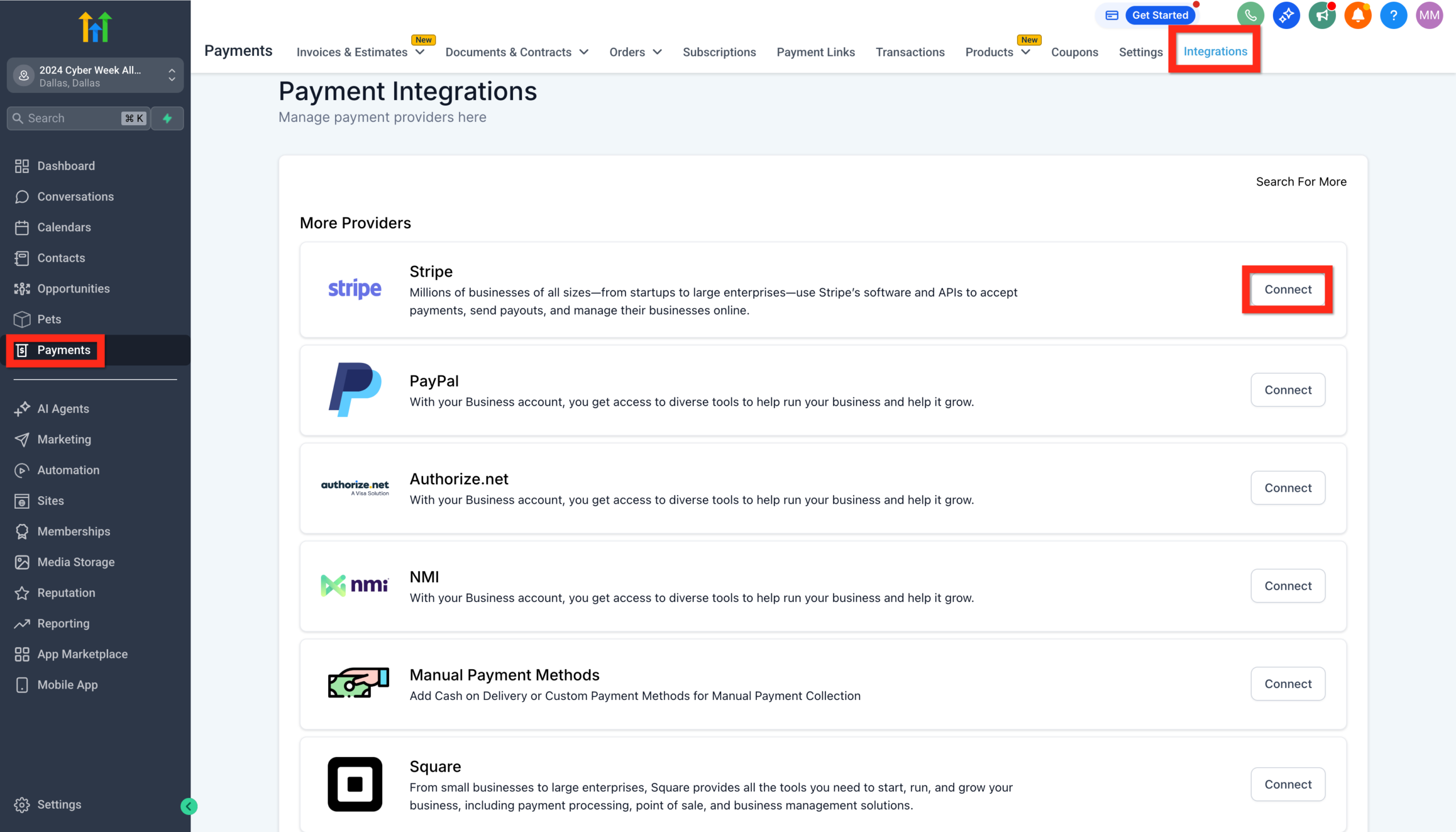
- Find the Stripe tile and click Connect with Stripe.
- If you’re already logged into Stripe, choose the correct Stripe account to connect. Otherwise, log in.
- Authorize GoHighLevel to access that Stripe account.
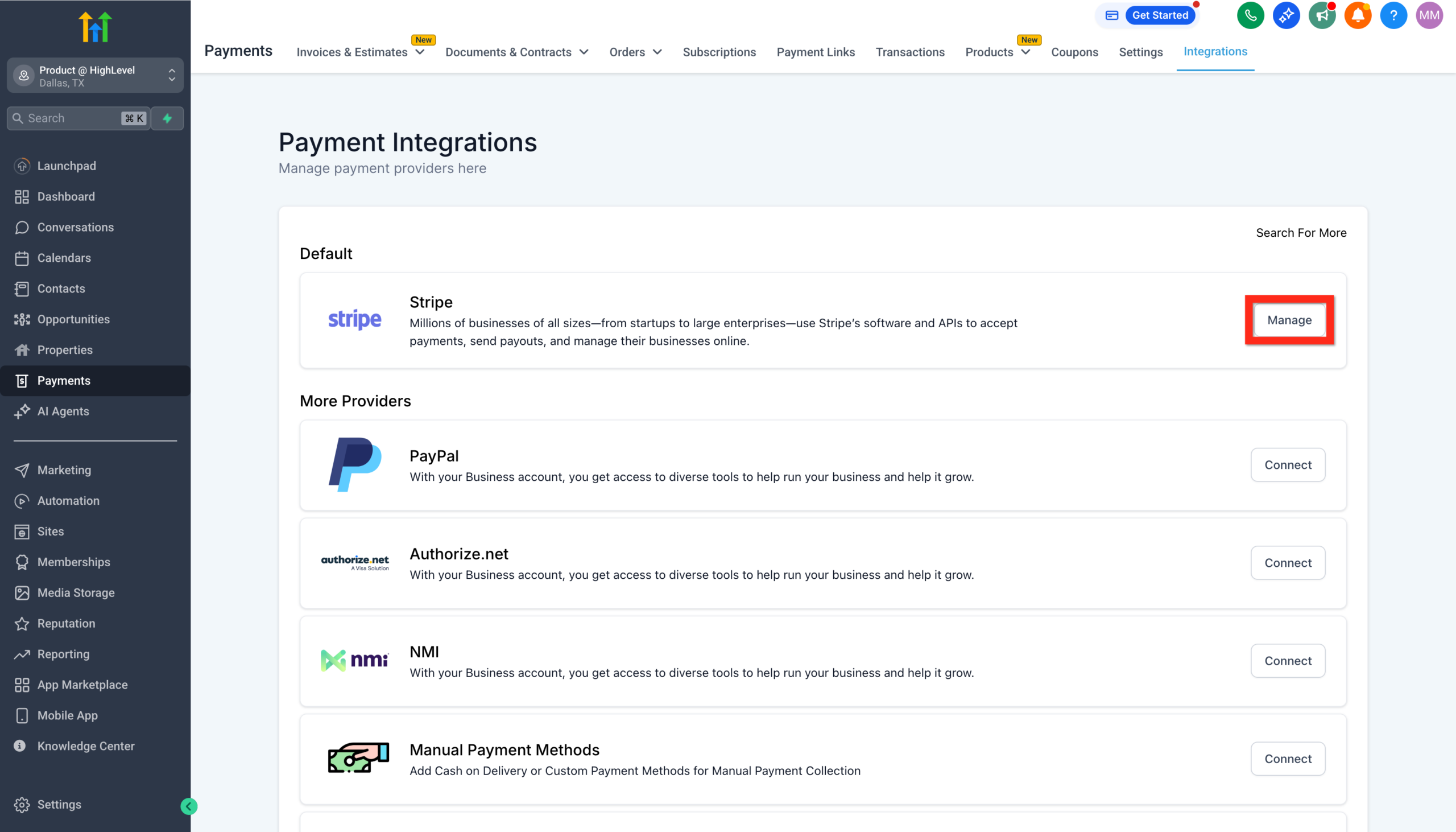
After authorization:
- The Stripe integration will appear as Connected for that sub‑account.
- You can click Manage from the same screen later to adjust settings or disconnect.
If you manage multiple brands or businesses:
- Use one GoHighLevel sub‑account per brand/business.
- Connect the appropriate Stripe account to each sub‑account.
This keeps money flows and customer data clearly separated.
Step 4 – Configure payment methods inside Stripe + GoHighLevel
Connecting Stripe is step one. Next, you’ll decide how customers can pay.
In Stripe, check that you’ve enabled the payment methods you care about for your region, such as:
- Credit and debit cards.
- Digital wallets (Apple Pay, Google Pay).
- Bank debits or local payment methods where supported.
Then, in GoHighLevel:
- In the relevant sub‑account, go to Payments → Integrations.
- Click Manage next to Stripe.
- Review any available options for payment methods or default settings.
If your GoHighLevel account supports Stripe payment methods management directly, use it to toggle methods on/off without logging into Stripe every time.
Compliance note: Some payment methods (like ACH debits or Buy Now, Pay Later) may require extra approvals. Always check Stripe’s documentation for your country before enabling them.
Step 5 – Test your Stripe connection safely
Before you add real customers, run a few test payments.
Option 1 – Use Stripe test mode (recommended for first‑time setups)
- In your Stripe dashboard, switch to Test mode.
- In GoHighLevel, create a simple test funnel with an order form that uses your Stripe integration.
- Use one of Stripe’s test card numbers to run a few transactions.
- Confirm that:
- Payments appear in Stripe (in test mode).
- Orders show up under Payments → Transactions in GoHighLevel.
- Any connected workflows (for example, tags or pipeline moves) fire as expected.
Option 2 – Run a low‑value live test
Once you’re confident test mode works, run a small real transaction:
- Create a low‑priced test product (for example, $1).
- Use your own card to purchase through a live funnel or order form.
- Verify that funds settle in Stripe and that GoHighLevel records the order.
Fix any issues now—before you drive real traffic.
Step 6 – Use Stripe in GoHighLevel products and funnels
With Stripe connected and tested, you can start taking real payments.
Attach Stripe to products
- In the sub‑account, go to Payments → Products.
- Create a new product or edit an existing one.
- Set a Price (one‑time or recurring).
- Make sure Stripe is selected as the payment provider.
- Save your changes.
Now that product can be sold anywhere you use a GoHighLevel order form.
For a deeper, product‑first walkthrough, pair this guide with:
- Getting Started: Create & Sell Products in GoHighLevel (Revset Labs guide).
Use Stripe in funnels and order forms
- Go to Sites → Funnels and open the funnel where you want to take payments.
- Edit the checkout or order form step.
- Place or edit the Order Form element on the page.
- In the form settings, choose the Product you configured earlier.
- Confirm that Stripe is set as the payment method.
- Save and test the funnel.
From here, Stripe handles the actual charge, while GoHighLevel keeps the CRM, funnels, and automations in sync.
Step 7 – Import existing products from Stripe (optional)
If you already have products set up inside Stripe, you may be able to import them into GoHighLevel instead of rebuilding everything manually.
- In the sub‑account, go to Payments → Products.
- Look for an Import from Stripe option.
- Choose the products or prices you’d like to bring into GoHighLevel.
- Confirm details like names, descriptions, and pricing.
Imported products can then be attached to order forms and funnels like any other product.
If you’re migrating a complex Stripe setup with lots of legacy pricing or subscriptions, Revset Labs can help you plan a clean product catalog that actually fits how you sell today.
Step 8 – Keep Stripe, funnels, and automations in sync
Stripe is most powerful in GoHighLevel when it’s wired into your CRM and workflows.
Here are a few high‑impact automations to consider:
- Create or update opportunities when payments succeed
Move buyers into a Closed Won stage and trigger onboarding workflows. - Tag customers based on products or plans
Use tags likeProduct–AcceleratororPlan–Pro-Monthlyto drive upsell and retention campaigns. - Send receipts and onboarding automatically
Trigger email/SMS sequences when a specific product is purchased. - Flag failed payments or cancellations
Use Stripe webhooks + GoHighLevel workflows (or native integrations where available) to notify your team when payments fail or subscriptions cancel.
This is the layer where Revset Labs typically steps in—designing full revenue journeys, not just “payment goes through.”
How this fits into the rest of your GoHighLevel setup
Connecting Stripe is one chapter in a bigger Getting Started story. To build a full revenue engine, pair this guide with:
- Getting Started: Create and Manage Contacts in GoHighLevel – Build a clean contact database that can own your customer history.
- Getting Started: Import Existing Contacts into GoHighLevel – Bring your current audience into the CRM.
- Getting Started: Launch a Funnel in GoHighLevel – Turn traffic into leads and buyers.
- Getting Started: Create & Sell Products in GoHighLevel – Package your offers into products Stripe can charge for.
- Getting Started: Automatic Email and SMS Follow-Up in GoHighLevel – Nurture new buyers and leads automatically.
Together, these steps give you a clear path from first click → funnel → payment → pipeline → follow‑up inside one platform.
Where Revset Labs fits in
GoHighLevel and Stripe give you the building blocks. Revset Labs turns them into a predictable growth system.
As an AI Automation and Marketing Agency, Revset Labs can help you:
- Design an account structure that separates agency billing from client payments cleanly.
- Connect Stripe across your agency and sub‑accounts without breaking anything.
- Map products, funnels, and workflows so every payment updates the right pipelines, tags, and reports.
- Add AI‑powered workflows that summarize purchases, trigger next‑step tasks, and surface at‑risk customers automatically.
You can absolutely follow this guide to connect Stripe yourself. If you’d rather skip the trial‑and‑error phase and go straight to a working system, Revset Labs can handle strategy, implementation, and optimization with you.
For now, the best next step is to feel this inside your own account:
Start your GoHighLevel free trial and connect Stripe
FAQs: Connecting Stripe to GoHighLevel
Can I connect more than one Stripe account to GoHighLevel?
You can connect one Stripe account at the agency level for SaaS billing and one Stripe account per sub‑account for client/customer payments. If you manage multiple brands or businesses, create separate sub‑accounts and connect the appropriate Stripe account to each.
Will my existing Stripe payments show up in GoHighLevel when I connect?
No. GoHighLevel tracks new transactions created through GoHighLevel after the integration. Historical payments created directly inside Stripe won’t sync back automatically.
Can I test payments before going live?
Yes. Use Stripe’s test mode and test card numbers to simulate payments, then run a small low‑value live transaction before sending real traffic. Always test both Stripe and GoHighLevel reporting.
What happens if I disconnect Stripe from a sub‑account?
Existing subscriptions and past payments remain in Stripe, but new payments through GoHighLevel forms and funnels will fail until a payment provider is reconnected. Always plan migrations carefully and test new connections before switching off the old ones.
Do I have to use Stripe, or can I use other gateways?
GoHighLevel also supports other gateways (such as Authorize.net, NMI, Square, and others, depending on the feature area). Stripe is a common default because it’s widely supported and well documented, but you can mix and match where it makes sense.
<script type="application/ld+json">
{
  "@context": "https://schema.org",
  "@graph": [
    {
      "@type": "Article",
      "headline": "How to Connect Stripe to GoHighLevel (Step-by-Step Guide)",
      "description": "Learn how to connect Stripe to GoHighLevel at both the agency and sub-account level, test payments safely, and start using Stripe inside funnels and products—so you can accept payments, subscriptions, and SaaS billing from one unified system.",
      "author": {
        "@type": "Organization",
        "name": "Revset Labs"
      },
      "publisher": {
        "@type": "Organization",
        "name": "Revset Labs",
        "url": "https://revsetlabs.com",
        "logo": {
          "@type": "ImageObject",
          "url": "https://revsetlabs.com/logo.png"
        }
      },
      "mainEntityOfPage": {
        "@type": "WebPage",
        "@id": "https://revsetlabs.com/blog/getting-started-connect-stripe-gohighlevel"
      },
      "image": [
        "https://t9016189650.p.clickup-attachments.com/t9016189650/7c4f813e-277b-45fa-a363-f8113da35340/generated-image-a1a3c55c-1751-4e75-b269-343de5eaf93c.png"
      ]
    },
    {
      "@type": "FAQPage",
      "mainEntity": [
        {
          "@type": "Question",
          "name": "Can I connect more than one Stripe account to GoHighLevel?",
          "acceptedAnswer": {
            "@type": "Answer",
            "text": "You can connect one Stripe account at the agency level for SaaS billing and one Stripe account per sub-account for client/customer payments. If you manage multiple brands or businesses, create separate sub-accounts and connect the appropriate Stripe account to each."
          }
        },
        {
          "@type": "Question",
          "name": "Will my existing Stripe payments show up in GoHighLevel when I connect?",
          "acceptedAnswer": {
            "@type": "Answer",
            "text": "No. GoHighLevel tracks new transactions created through GoHighLevel after the integration. Historical payments created directly inside Stripe won’t sync back automatically."
          }
        },
        {
          "@type": "Question",
          "name": "Can I test payments before going live?",
          "acceptedAnswer": {
            "@type": "Answer",
            "text": "Yes. Use Stripe’s test mode and test card numbers to simulate payments, then run a small low-value live transaction before sending real traffic. Always test both Stripe and GoHighLevel reporting."
          }
        },
        {
          "@type": "Question",
          "name": "What happens if I disconnect Stripe from a sub-account?",
          "acceptedAnswer": {
            "@type": "Answer",
            "text": "Existing subscriptions and past payments remain in Stripe, but new payments through GoHighLevel forms and funnels will fail until a payment provider is reconnected. Always plan migrations carefully and test new connections before switching off the old ones."
          }
        },
        {
          "@type": "Question",
          "name": "Do I have to use Stripe, or can I use other gateways?",
          "acceptedAnswer": {
            "@type": "Answer",
            "text": "GoHighLevel also supports other gateways such as Authorize.net, NMI, Square, and others depending on the feature area. Stripe is a common default because it’s widely supported, but you can mix and match where it makes sense."
          }
        }
      ]
    },
    {
      "@type": "Organization",
      "name": "Revset Labs",
      "url": "https://revsetlabs.com",
      "logo": {
        "@type": "ImageObject",
        "url": "https://revsetlabs.com/logo.png"
      }
    }
  ]
}
</script>